TAB5306 - Barre de son PHILIPS - Notice d'utilisation et mode d'emploi gratuit
Retrouvez gratuitement la notice de l'appareil TAB5306 PHILIPS au format PDF.


| Marque | Philips |
| Modèle | TAB5306 |
| Type de produit | Barre de son |
| Dimensions (L x H x P) | 800 x 65 x 75 mm |
| Poids net | 2,5 kg |
| Alimentation | 100-240 V, 50/60 Hz |
| Puissance totale (RMS) | 60 W |
| Nombre de haut-parleurs | 2 |
| Type de haut-parleurs | Full-range 2,5" |
| Connectivité sans fil | Bluetooth 5.0 |
| Entrées | HDMI ARC, optique, USB-A |
| Fonctions sonores | Virtual Surround, modes Musique/Film/News |
| Télécommande | Incluse (pile CR2025) |
| Montage mural | Possible (kit inclus) |
| Consommation en fonctionnement | 30 W |
| Consommation en veille | < 0,5 W |
| Entretien | Nettoyer avec un chiffon sec et non pelucheux |
| Sécurité | Ne pas exposer à l'humidité ; débrancher avant nettoyage |
| Pièces détachées et réparabilité | Disponibles via centre agréé Philips |
| Garantie | 2 ans |
FOIRE AUX QUESTIONS - TAB5306 PHILIPS
Questions des utilisateurs sur TAB5306 PHILIPS
0 question sur cet appareil. Repondez a celles que vous connaissez ou posez la votre.
Poser une nouvelle question sur cet appareil
Téléchargez la notice de votre Barre de son au format PDF gratuitement ! Retrouvez votre notice TAB5306 - PHILIPS et reprennez votre appareil électronique en main. Sur cette page sont publiés tous les documents nécessaires à l'utilisation de votre appareil TAB5306 de la marque PHILIPS.
MODE D'EMPLOI TAB5306 PHILIPS
PHILIPS
Soundbar Speaker
5000 Series
TAB5306
User manual
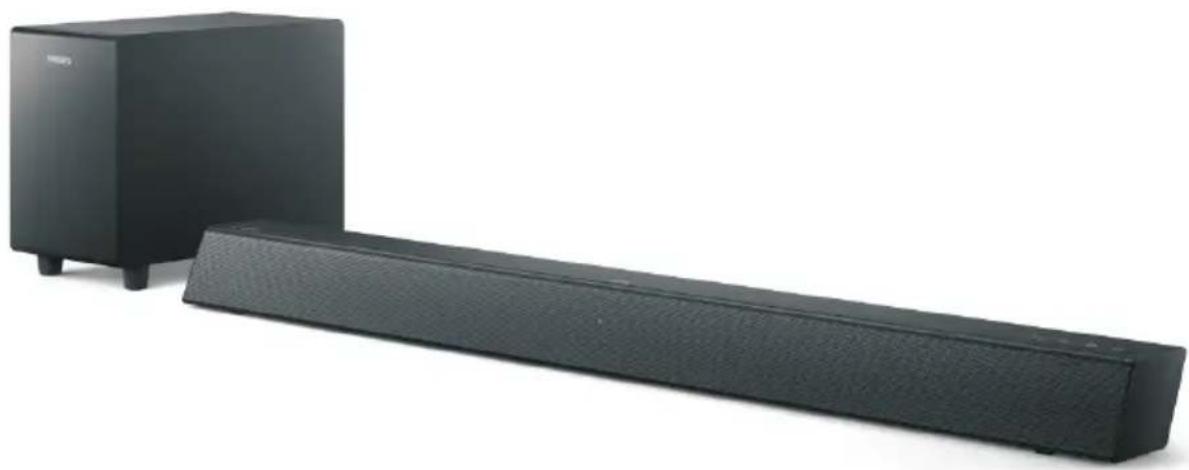
natural_image
Black audio streaming device with a speaker block and extended sound block (no text or symbols visible)Contents
1 Important 2
Help and support 2
Safety 2
Care for your product 3
Care of the environment 3
What's in the Box 4
2 Your SoundBar 4
Main unit 4
Remote control 5
Connectors 6
3 Connect 6
Placement 6
Connect the SoundBar and the
Subwoofer 7
Connect audio from TV and other 7
devices
4 Use your SoundBar 9
Power on/off 9
Volume control 9
Source selection 9
EQ setting 9
AUX audio source 9
Optical audio source 9
HDMI(ARC) audio source 10
Play audio through Bluetooth 10
Auto standby 10
Apply factory settings 10
Update software 10
5 Wall mount 11
6 Product specifications 11
7 Troubleshooting 12
8 FCC information 13
1 Important
Read and understand all instructions before you use your product. If damage is caused by failure to follow instructions, the warranty does not apply.
Help and support
For extensive online support, visit www.philips.com/support to:
- download the user manual and the quick start guide
• watch video tutorials (available only for selected models)
• find answers to frequently answered questions (FAQs) - email us a question
• chat with our support representative.
Follow the instructions on the website to select your language, and then enter your product model number.
Alternatively, you can contact Consumer Care in your country. Before you contact, note down the model number and serial number of your product. You can find this information on the back or bottom of your product.
Important safety instructions
• Read these instructions.
- Keep these instructions.
• Heed all warnings.
• Follow all instructions.
• Do not use this apparatus near water.
• Clean only with dry cloth.
- Do not block any ventilation openings. Install in accordance with the manufacturer's instructions.
- Do not install near any heat sources such as radiators, heat registers, stoves, or other apparatus (including amplifiers) that produce heat.
• Do not defeat the safety
purpose of the polarized or grounding-type plug.
A polarized plug has two blades with one wider than the other. A grounding type plug has two blades and a third grounding prong. The wide blade or the third prong are provided for your safety. If the provided plug does not fit into your outlet, consult an electrician for replacement of the obsolete outlet.
- Protect the power cord from being walked on or pinched, particularly at plugs, convenience receptacles, and the point where they exit from the apparatus.
• Only use attachments/accessories specified by the manufacturer.
• Use only with the cart, stand, tripod, bracket or table specified by the manufacturer or sold with the apparatus.

When a cart is used, use caution when moving the cart/apparatus combination to avoid injury from tip-over:
• Unplug this apparatus during lightning storm or when unused for long periods of time.
• Refer all servicing to qualified service personnel. Servicing is required when the apparatus has been damaged in any way, such as power-supply cord or plug is damaged, liquid has been spilled or objects have fallen into the apparatus, the apparatus has been exposed to rain or moisture, does not operate normally, or has been dropped.
- Battery usage CAUTION - To prevent battery leakage which may result in bodily injury, property damage, or damage to the unit:
• Install all batteries correctly, + and - as marked on the unit.
- Do not mix batteries (old and new or carbon and alkaline, etc.).
- Remove batteries when the unit is not used for a long time.
- The batteries shall not be exposed to excessive heat such as sunshine, fire or the like.
- Perchlorate Material - special handling may apply. See www.dtsc.ca.gov/hazardouswaste/perchlorate.
- The product/remote control may contain a coin/button type battery, which can be swallowed. Keep the battery out of reach of children at all times! If swallowed, the battery can cause serious injury or death. Severe internal burns can occur within two hours of ingestion.
• If you suspect that a battery has been swallowed or placed inside any part of the body, seek immediate medical attention. - When you change the batteries, always keep all new and used batteries out of reach of children. Ensure that the battery compartment is completely secure after you replace the battery.
• If the battery compartment cannot be completely secured, discontinue use of the product. Keep out of reach of children and contact the manufacturer.
• Apparatus shall not be exposed to dripping or splashing. - Do not place any sources of danger on the apparatus (for example, liquid filled objects, lighted candles).
- This apparatus may contain lead and mercury. Dispose according to local, State or Federal laws. For disposal or recycling information, please contact your local authorities. For additional assistance on recycling options, please contact www.mygreenelectronics.com or www.eiae.org or www.recycle.philips.com.
- Where the MAINS plug or an appliance coupler is used as the disconnect device, the disconnect device shall remain readily operable.
- Do not place this apparatus on the furniture that is capable of being tilted by a child and an adult leaning, pulling, standing or climbing on it. A falling apparatus can cause serious injury or even death.
• This apparatus should not be placed in a built-in installation such as a bookcase or
rack unless proper ventilation is provided. Make sure to leave a space of 7.8 inches (20cm) or more around this apparatus.
Class II equipment symbol

This symbol indicates that the unit has a double insulation system.
Know these safety symbols

This 'bolt of lightning' indicates uninsulated material within your unit may cause an electrical shock. For the safety of everyone in your household, please do not remove product covering.

The 'exclamation point' calls attention to features for which you should read the enclosed literature closely to prevent operating and maintenance problems.
WARNING: To reduce the risk of fire or electric shock, this apparatus should not be exposed to rain or moisture and objects filled with liquids, such as vases, should not be placed on this apparatus.
CAUTION: To prevent electric shock, match wide blade of plug to wide slot, fully insert.
Care for your product
Use only microfiber cloth to clean the product.
Care of the environment
Disposal of your old product and battery

Your product is designed and manufactured with high quality materials and components, which can be recycled and reused.
This product may contain lead and mercury. Disposal of these materials may be regulated due to environmental considerations. For disposal or recycling information, please contact your local authorities.
This product contains batteries:
* Dispose of batteries properly. Do not incinerate. Batteries may explode if overheated.
* Do not warp in metal or aluminum foil. Warp in newspaper before discarding.
* it is suggested that you contact your local town or city to determine proper battery redemption site(s) in your area.
* Please visit www.call2recycle.org for additional information on a recycling center in your area for rechargeable batteries.
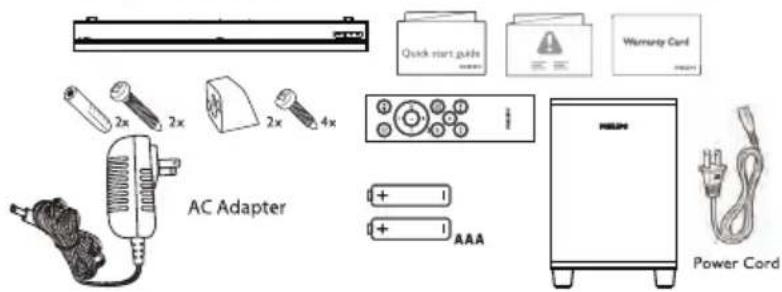
What's in the Box
Check and identify the item in the package :
Soundbar x1
Wireless Subwoofer x1
Remote control x1
AC adaptor (for Soundbar) ×1
Power cord (for Subwoofer) x1
Wall Mount Kit x1
(Wall Brackets x2, Screws x6, Dowels x2)
Quick Start Guide/Warranty Card/
Safety Sheet ×1
AAA Batteries ×2
2 Your SoundBar
Congratulations on your purchase, and welcome to Philips! To fully benefit from the support that Philips offers, register your SoundBar at www.philips.com/support.
Main unit
This section includes an overview of the main unit.

① -(Volume)
Decrease volume.
② + (Volume)
Increase volume.
③ (SOURCE)
Select an input source for the soundbar.
④ ⏻
Switch the soundbar on or to standby.
⑤ Multi-color LED indicator: Source/Standby
⑥ Remote sensor
⑦ Subwoofer's LED indicator
⑧ PAIR
Remote control
This section includes an overview of the remote control.

① ⏻ (Standby-On)
- Switch the SoundBar on or to standby.
② + (Volume)
- Increase volume.
③
- Skip to the previous track in Bluetooth mode.
④ ▶ II
- Play, pause or resume play in Bluetooth mode.
⑤ BT/PAIR
- Press to switch to the Bluetooth mode.
- Press and hold to the disconnect the currently connected Bluetooth device and start a new pairing.
⑥ EQ
- Switch between three EQ modes: Movie, Music and News.
⑦ AUX
- Switch your audio source to the AUX connection.
⑧
- Mute or restore volume.
⑨ ▶▶
- Skip to the next track in Bluetooth mode.
⑩ - (Volume)
- Decrease volume.
⑪ HDMI (ARC)
- Switch your audio source to the HDMI(ARC) connection.
⑫ OPTICAL
- Switch your audio source to the optical connection.
Connectors
This section includes an overview of the connectors available on your SoundBar


① HDMI (ARC)
Connect to the HDMI input on the TV.
② SERVICE
For software upgrade.
AUX IN
③ Audio input from, for example, an MP3 player (3.5mm jack).
④ OPTICAL
Connect to an optical audio output on the TV or a digital device.
⑤ DC IN
Connect the Soundbar to the power supply.
⑥ AC IN
Connect the Subwoofer to the power supply.
3 Connect
This section helps you connect your SoundBar to a TV and other devices.
For information about the basic connections of your SoundBar and accessories, see the quick start guide.

Note
- For identification and supply ratings, refer to the type plate at the back or bottom of the product.
- Before you make or change any connections, make sure that all devices are disconnected from the power outlet.
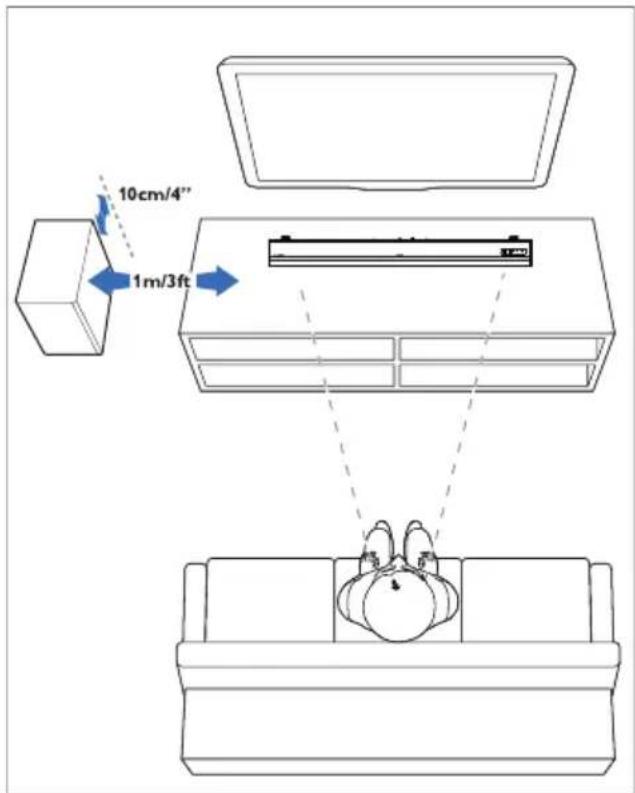
Placement
Place your SoundBar and Subwoofer as shown below.
Connect the SoundBar and Subwoofer

Connect the SoundBar and Subwoofer through Bluetooth.
• The Subwoofer will be connected with the SoundBar via Bluetooth signal.
- The Subwoofer's indicator will blink red before connected with the SoundBar, and will turn solid blue after connected with the SoundBar.
- If the SoundBar and the Subwoofer has been paired before, when you again plug in and power on the SoundBar, the Subwoofer will be automatically paired with the SoundBar with normal sound output and solid blue indicator. And the Subwoofer will go into standby automatically after the SoundBar is powered off.
Pair the Subwoofer manually
• If no audio is heard from the Subwoofer or the Subwoofer's indicator does not show Blue, follow the steps below to reset and pair up the subwoofer again:
- Press the PAIR button on the Subwoofer when the Subwoofer is in Disconnected status (blinking red slowly (once per second), and then the Subwoofer's indicator will blink red quickly (twice per second).
- Switch the Soundbar source to AUX, and then press and hold ⏻ on the Soundbar for five seconds. The Soundbar will reset and go into standby automatically.
- Press ⏻ on the Soundbar. The Soundbar will pair with the Subwoofer automatically. The connection is successful when the Subwoofer's indicator turns solid blue.
Note: Once the Soundbar is reset, you should clear the Bluetooth list in your phone before you pair your phone with the Soundbar.
When the Soundbar and Subwoofer are connected, you can press and hold → and + (Volume) on the Soundbar for five seconds to disconnect them.
Subwoofer indicator

Pairing: Fast blinking red

Connected: Solid blue

Disconnected: Slow blinking red

Standby: Solid red
Connect audio from TV and other devices
Option 1: Connect audio through a digital optical cable
Best quality audio
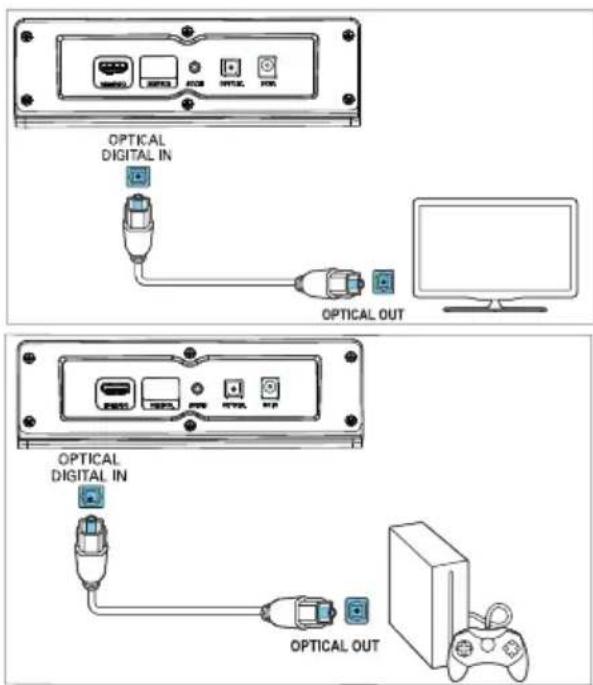

1 Using an optical cable, connect the OPTICAL connector on your SoundBar to the OPTICAL OUT connector on the TV or other device.
• The digital optical connector might be labeled SPDIF or SPDIF OUT.
NOTE: The TV audio output must be set to PCM.
Option 2: Connect audio through a 3.5mm stereo audio cable
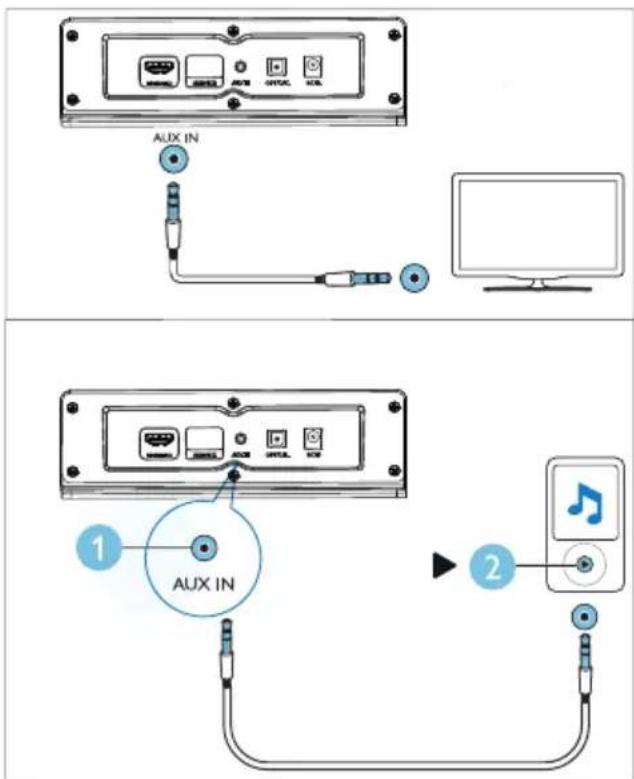
1 Using a 3.5mm stereo audio cable, connect the AUX IN connector on your SoundBar to the AUX connector on the TV or other device.
Option 3: Connect to HDMI (ARC) Socket
Your Soundbar supports HDMI with Audio Return Channel (ARC). If your TV is HDMI ARC compatible, you can listen to the TV audio through your Soundbar by using a single HDMI cable.
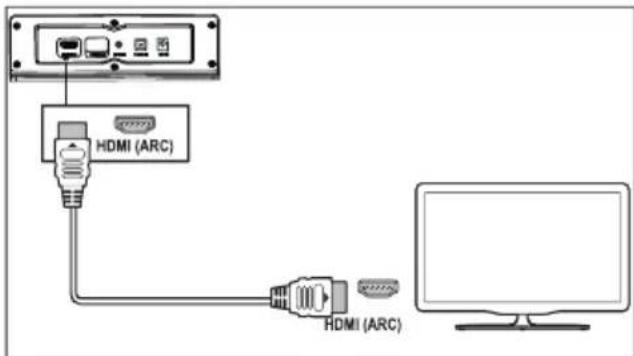
1 Using a High Speed HDMI cable, connect the HDMI OUT (ARC)-TO TV connector on your Soundbar to the HDMI ARC connector on the TV.
- The HDMI ARC connector on the TV might be labeled differently. For details, see the TV user manual.
2 On your TV, turn on HDMI-CEC operations. For details, see the TV user manual.
NOTE: The TV audio output must be set to PCM.
4 Use your SoundBar
This section helps you use the SoundBar to play audio from connected devices.
Before you start
• Make the necessary connections described in the Quick Start Guide or the User Manual.
- Switch the SoundBar to the correct source for other devices.
1 Power on/off
Connect the SoundBar to the power supply, and the red standby indicator lights up. Press ⏻ to power on the SoundBar.
The Soundbar's indicator lights up white, and then will show the status of the last selected source. Press again to switch the SoundBar to standby.
Standby: The indicator is solid red.
2 Volume control
Press +/- (Volume) to increase or decrease the volume level.
• To mute sound, press ⚙ on the remote control.
• To restore the sound, press ✗ again or press +/- (Volume).
Indicator status

Decrease / Increase volume/Mute: Blinking red.

Maximum/Minimum volume: Solid red for three seconds.
- When you press + (Volume) to increase the volume, the SoundBar's indicator will blink red, and the volume will return to the normal state. The Soundbar's indicator will show solid red for three seconds when the volume reaches the maximum.
- When you press - (Volume) to decrease the volume, the SoundBar's indicator will blink red, and the volume will return to the normal state. The Soundbar's indicator will show solid red for three seconds when the volume reaches the minimum.
3 Source selection
Press → on the Soundbar repeatedly or the corresponding buttons (BT/PAIR, AUX, HDMI (ARC), OPTICAL) on the remote control to switch between different sources.
AUX IN: Solid green
Bluetooth-pairing: Blinking blue
Bluetooth-connected: Solid blue
OPTICAL: Solid yellow
HDMI (ARC): Solid purple
4 EQ setting
Press EQ on the remote control to select Music, Movie or News mode.

• Music: Soundbar's indicator blinks white for 3 seconds.
• Movie: Soundbar's indicator blinks green for 3 seconds.


- News: Soundbar's indicator blinks red for 3 seconds.

- Stadium: Soundbar's indicator blinks cyan for 3 seconds.
AUX audio source
You can play audio from an external device (smart phone, tablet, etc.) via a 3.5mm audio cable.
1 Connect the external device to your Soundbar via the 3.5 mm stereo audio cable (not included). Refer to Page 8 for steps of AUX connection.
2 Press AUX on the remote control.
The Soundbar's indicator turns solid green.
3 Play audio on the external device (refer to the user manual of the device).
Optical audio source
You can play audio from a TV via an optical cable.
1 Connect the TV to your Soundbar via the optical cable (not included). Refer to Page 8 for steps of OPTICAL connection.
2 Press OPTICAL on the remote control.
The Soundbar's indicator turns solid yellow.
Note: The TV audio output must be set to PCM signal.
HDMI(ARC) audio source
ARC (Audio Return Channel) is used in digital audio output of liquid crystal display television in order to get the optimal synchronous sound quality.
1 Connect the TV to your Soundbar via the HDMI cable (not included). Refer to Page 8 for steps of HDMI (ARC) connection.
2 Press HDMI(ARC) on the remote control.
The Soundbar's indicator turns solid purple.
Note: The TV audio output must be set to PCM signal and ARC on (refer to the manual of the TV).
Play audio through Bluetooth
Through Bluetooth, connect the SoundBar with your Bluetooth device (such as an iPad, iPhone, iPod touch, Android phone, or laptop), and then you can listen to the audio files stored on the device through your SoundBar.
What you need
• A Bluetooth device which supports Bluetooth profile A2DP and AVRCP, and with Bluetooth version 4.2 or above.
• The operational range between the SoundBar and a Bluetooth device is approximately 4 meters (13 feet).
1 Press BT/Pair on the remote control to switch the SoundBar to Bluetooth mode. The soundbar's indicator blinks blue.
2 On the Bluetooth device, switch on Bluetooth, search for and select Philips TAB5306 to start connection (see the user manual of the Bluetooth device on how to enable Bluetooth). → During connection, the soundbar's indicator blinks blue.
3 Wait until the soundbar's indicator becomes solid blue and a beep sound will be heard upon a successful connection. If the connection fails, the indicator blinks continually.
4 Select and play audio files or music on your Bluetooth device.
• During play, if a call comes in, music play is paused.
- If your Bluetooth device supports AVRCP profile, on the remote control you can press ◀◀/▶▶I to skip to a track, or press ▶II to pause/resume play.
5 To exit Bluetooth, switch your Soundbar to another source.
- When your switch back to Bluetooth mode, Bluetooth connection remains active.
Disconnect from the current device: - If you want to connect your SoundBar with another Bluetooth device, press and hold BT/PAIR on the remote control to disconnect the currently connected Bluetooth device.
Indicator status

Waiting to connect: Blinking blue

Connected: Solid blue

Disconnected: Blinking blue

Note
- The music streaming may be interrupted by obstacles between the device and SoundBar, such as wall, metallic casing that covers the device, or other devices nearby that operate in the same frequency.
Auto standby
This product automatically switches to standby after 15 minutes of button inactivity and no audio play from a connected device.
Apply factory settings
You can reset your SoundBar to the default setting mode.
In AUX mode, press and hold ⏻ on the remote control for 5 seconds.
→ The factory settings is restored.
5 Wall mount

Note
- Improper wall mounting may result in accident, injury or damage. If you have any query, contact Consumer Care in your country.
- Before wall mounting, make sure the wall can support the weight of your SoundBar.
Screw length/diameter
Depending on the type of wall mounting your SoundBar, make sure that you use screws of a suitable length and diameter.
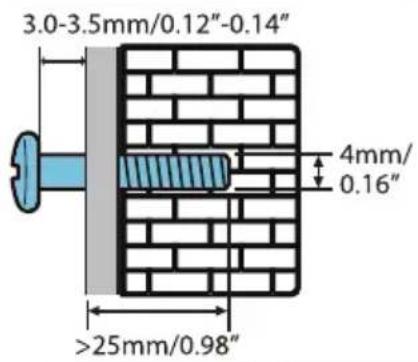
See the illustration in the quick start guide on how to wall mount the SoundBar.
1) Drill two holes on the wall.
2) Secure the dowels and screws in the holes.
3) Hang the SoundBar on the fastening screws.
6 Product specifications

Note
- Specifications and design are subject to change without notice.
Amplifier
• RMS total output power: 70W RMS (+/- 0.5 dB, 10% THD)
• Frequency response: 50 Hz-15 kHz ±3 dB
• Signal-to-noise ratio:
65 dB (CCIR) / (A-weighted) /
• Total Harmonic Distortion: <1%
- Input sensitivity: - AUX IN: 500mV +/-50mV
Bluetooth
• Bluetooth profiles: A2DP, AVRCP
• Bluetooth version: 4.2
• Frequency band/Output power 2402 - 2480 MHz / ≤ 20 dBm
Main unit
Soundbar
• Power supply: 100-240 V\~, 50/60 Hz
• Power consumption: 15V/1.6A
• Standby power consumption: ≤0.5W
• Dimensions (W x H x D): 900 x 65.5 x 91mm
• Weight: 1.53kg
• Driver: 2 x full range (52 mm/2", 4 ohm)
Subwoofer
• Power supply: 100-240 V\~, 50/60 Hz
• Power consumption: 20W
• Standby power consumption: ≤2W
• Dimensions (W x H x D): 150 x 225 x 267 mm
• Weight: 2.1 kg
• Driver:1 x low frequency (118 mm/4.5", 6 ohm)
Remote control batteries
• 2×AAA-R03-1.5V
7 Troubleshooting

Warning
- Risk of electric shock. Never remove the casing of the product.
To keep the warranty valid, never try to repair the product yourself.
If you have problems using this product, check the following points before you request service. If you still have a problem, get support at www.philips.com/support.
Main unit
The buttons on the SoundBar do not work.
- Disconnect the SoundBar from the power supply for a few minutes, then reconnect.
Sound
No sound from SoundBar speakers.
- Connect the audio cable from your SoundBar to your TV or other devices.
- Reset your SoundBar to its factory settings.
- On the remote control, select the correct audio input.
• Make sure that the SoundBar is not muted.
Distorted sound or echo.
• If you play audio from the TV through the SoundBar, make sure that the TV is muted.
Bluetooth
A device cannot connect with the SoundBar.
- The device does not support the compatible profiles required for the SoundBar.
- You have not enabled the Bluetooth function of the device. See the user manual of the device on how to enable the function.
• The device is not correctly connected. Connect the device correctly. (see 'Play audio through Bluetooth' on page 10)
• The SoundBar is already connected with another Bluetooth device. Disconnect the connected device, then try again.
Quality of audio play from a connected Bluetooth device is poor.
- The Bluetooth reception is poor. Move the device closer to the SoundBar, or remove any obstacle between the device and the SoundBar.
The connected Bluetooth device connects and disconnects constantly.
- The Bluetooth reception is poor. Move the device closer to the SoundBar, or remove any obstacle between the device and the SoundBar.
• Turn off Wi-Fi function on the Bluetooth device to avoid interference. - For some Bluetooth, the Bluetooth connection can be deactivated automatically to save power. This does not indicate any malfunction of the SoundBar.
8 FCC information
NOTE: This equipment has been tested and found to comply with the limits for a Class B digital device, pursuant to Part 15 of the FCC Rules. These limits are designed to provide reasonable protection against harmful interference in a residential installation. This equipment generates, uses and can radiate radio frequency energy and, if not installed and used in accordance with the instructions, may cause harmful interference to radio communications.
However, there is no guarantee that interference will not occur in a particular installation. If this equipment does cause harmful interference to radio or television reception, which can be determined by turning the equipment o and on, the user is encouraged to try to correct the interference by one or more of the following measures:
- Reorient or relocate the receiving antenna.
- Increase the separation between the equipment and receiver.
- Connect the equipment into an outlet on a circuit dierent from that to which the receiver is connected.
- Consult the dealer or an experienced radio/TV technician for help.
This device complies with part 15 of the FCC Rules. Operation is subject to the following two conditions: (1) This device may not cause harmful interference, and (2) this device must accept any interference received, including interference that may cause undesired operation.
IC-Canada : CAN ICES-3(B)/NMB-3(B)
This device contains licence-exempt transmitter(s)/receiver(s) that comply with Innovation, Science and Economic Development Canada's licence-exempt RSS(s). Operation is subject to the following two conditions:
- This device may not cause interference.
- This device must accept any interference, including interference that may cause undesired operation of the device.
The device for operation in the band 5150–5250 MHz is only for indoor use to reduce the potential for harmful interference to co-channel mobile satellite systems.
FCC& IC Radiation Exposure Statement:
This equipment complies with FCC and Canada radiation exposure limits set forth for an uncontrolled environment. This equipment should be installed and operated with a minimum distance of 20cm between the radiator and your body. This transmitter.
Warning: Any changes or modifications made to this device that are not expressly approved by MMD Hong Kong Holding Limited may void the user's authority to operate the equipment.
Model number: TAB5306/37
Trade name: PHILIPS
Responsible party: TPV USA Corp. 6525 Morrison Blvd
200 Charlotte,
NC – 28211, USA

Roku TV Ready
The Roku TV Ready logo is a trademark of Roku, Inc.
Specifications are subject to change without notice. Please visit www.philips.com/support for the latest updates and documents.
Philips and the Philips Shield Emblem are registered trademarks of Koninklijke Philips N.V. and are used under license.
This product has been manufactured by and is sold under the responsibility of MMD Hong Kong Holding Limited or one of its affiliates, and MMD Hong Kong Holding Limited is the warrantor in relation to this product.
- PHILIPS
- User manual
- Contents
- Important
- Help and support
- Important safety instructions
- Class II equipment symbol
- Know these safety symbols
- Care for your product
- Care of the environment
- Disposal of your old product and battery
- What's in the Box
- Your SoundBar
- Main unit
- Remote control
- Connectors
- AUX IN
- Connect
- Note
- Placement
- Connect the SoundBar and Subwoofer
- Connect the SoundBar and Subwoofer through Bluetooth.
- Pair the Subwoofer manually
- Subwoofer indicator
- Connect audio from TV and other devices
- Option 3: Connect to HDMI (ARC) Socket
- Use your SoundBar
- Before you start
- Power on/off
- Volume control
- Indicator status
- Source selection
- EQ setting
- AUX audio source
- Optical audio source
- HDMI(ARC) audio source
- Play audio through Bluetooth
- What you need
- Auto standby
- Apply factory settings
- Wall mount
- Screw length/diameter
- Product specifications
- Amplifier
- Bluetooth
- Remote control batteries
- Troubleshooting
- Warning
- The buttons on the SoundBar do not work.
- Sound
- No sound from SoundBar speakers.
- Distorted sound or echo.
- A device cannot connect with the SoundBar.
- Quality of audio play from a connected Bluetooth device is poor.
- The connected Bluetooth device connects and disconnects constantly.
- FCC information
- IC-Canada : CAN ICES-3(B)/NMB-3(B)
- FCC& IC Radiation Exposure Statement:
- Charlotte,
- Roku TV Ready
Marque : PHILIPS
Modèle : TAB5306
Catégorie : Barre de son