T1s - Contrôleur Gamesir - Notice d'utilisation et mode d'emploi gratuit
Retrouvez gratuitement la notice de l'appareil T1s Gamesir au format PDF.


| Type de produit | Contrôleur de jeu sans fil |
| Marque | Gamesir |
| Modèle | T1s |
| Dimensions (L x l x H) | 15,5 x 10,5 x 6,5 cm |
| Poids | 210 g |
| Alimentation | Batterie rechargeable lithium-ion 600 mAh, port micro-USB |
| Autonomie | Environ 10 heures |
| Connectivité | Bluetooth 4.0, portée 10 m |
| Boutons | Boutons A/B/X/Y, D-pad, sticks analogiques (x2), gâchettes L/R/ZL/ZR, boutons Start/Select/Home |
| Capteurs | Accéléromètre, gyroscope |
| Fonctions principales | Jeu sans fil, vibration, contrôle de mouvement, prise en charge de plusieurs plateformes (Android, iOS, PC, Switch) |
| Compatibilité | Android 4.0+, iOS 7+, Windows 7+, Nintendo Switch |
| Entretien et nettoyage | Nettoyer avec un chiffon doux légèrement humide ; ne pas utiliser de produits abrasifs |
| Recommandations de sécurité | Ne pas exposer à l'eau ou à l'humidité ; utiliser uniquement le chargeur fourni ; ne pas démonter |
| Pièces détachées | Non disponibles séparément ; réparation par un professionnel agréé |
| Contenu de la boîte | Contrôleur, câble micro-USB, manuel d'utilisation |
| Garantie | 2 ans |
FOIRE AUX QUESTIONS - T1s Gamesir
Questions des utilisateurs sur T1s Gamesir
0 question sur cet appareil. Repondez a celles que vous connaissez ou posez la votre.
Poser une nouvelle question sur cet appareil
Téléchargez la notice de votre Contrôleur au format PDF gratuitement ! Retrouvez votre notice T1s - Gamesir et reprennez votre appareil électronique en main. Sur cette page sont publiés tous les documents nécessaires à l'utilisation de votre appareil T1s de la marque Gamesir.
MODE D'EMPLOI T1s Gamesir

GameSir®
Gaming is Winning.™
GameSir T1s
Wireless Controller
User Manual ▶
QUICK REVIEW GUIDE FOR USER MANUAL
PRODUCT OVERVIEW
- Check and charge your controller :

natural_image
Line drawing of a handheld game controller with multiple controllers and scroll wheel (no text or symbols)- Connect the controller to your devices :

Bluetooth 4.0

2.4Ghz USB Donglo
Wired
- Download T1s supported games


Happy Chick
GameSir World


PACKAGE CONTENTS

System Requirements: Android 4.0 or later, Windows 7 or later
Hardware compatibility: Android Smartphone / Android Tablet / NVIDIA Tablet / Android TV box / Windows PC / Samsung Gear VR / PlayStation 3 / Nintendo Switch
Connections:

Bluetooth 4.0

Wired

2.4Ghz USB Dongle
MORE INFORMATION

GameSir.hk - Support

Facebook - Mygamesir

GameSir.hk-Where to buy

GameSir.hk-Product-Manual
Warning
* . Avoid strong vibration, do not disassemble, refit or repair on your own.
-
Do not keep in humid, high temperature or soot place.
-
Avoid water or other liquid in gamepad, it may affect the performance of the gamepad.
-
Keeping away from fire, the built-in battery has danger of explosion.
-
Charging voltage is USB 3.7-5.5V DC supply (normal Android smart phone charging power can be used)
-
Children should be under adult's supervision to use this product.
CHECK AND CHARGE THE CONTROLLER
CONNECT TO ANDROID ( TABLETS / PHONES )
Before getting started, check the remaining power of your T1s at first, press the "Home" button next to the L2 button of your T1s. the four blue LED lights will flash in turn and each LED light represents 25% of the power. If your T1s is not fully charged, we recommend that charge your T1s to full at first.

It is recommended that charging the controller for 2 hours by plugging in the USB cable (provided in the box) - plug one end of the cable in your T1s and plug the other end into a powered USB port. Remember, you can use your T1s while it's charging, but it is not recommended.

natural_image
Line drawing of a game controller with a pop-up button and control buttons (no text or symbols)Your T1s controller is built with a Lithium Ion rechargeable battery. During charging, four LEDs will give you the charging status:
While the T1s controller is charging, the four blue lights will flash in turn.
When the T1s is fully charged, the four blue lights will stay on.
If you want to turn off the gamepad, press the "Home" button for 5 seconds.

T1s HIGHLIGHT FEATURES
Brightness adjustment of "XYAB" button lights
When your T1s is connected successfully to any of your devices, hold down "L2+R2+R3" simultaneously, and press UP/DOWN button of D-Pad to increase/ decrease the brightness of "XYAB" buttons. There are 4 levels of brightness degree in total.
Auto fire function
TURBO is semi-automatic, it creates one or more continuous button press.
If this is your first time turning on your T1s, hold down the “A” button and “H0MB” button simultaneously for 2 seconds, the “◆” button will start flashing in green. It means that the controller is ready to be connected to your Android Tablets or Phones. To pair the controller, go to your Android devices and follow the User Interface flow below: Settings > Turn on Bluetooth > Search for new devices > ‘GameSir-T1s’ will display on the screen. Click to connect via Bluetooth. If your T1s is paired and connected, the T1s will shock slightly and the “◆” Button will stay on green. When you hold down “Select” and “A”, the “◆” Button will appear on your screen. To exit Mouse Mode, hold down “Select” and “X”.

The Android devices can also be connected if you press "⑧" and "HOME" button simultaneously. The function of "A" + HOME and "B" + HOME mode is totally the same, the first difference for those two modes is that few Android Smartphones can only recognize "B" + HOME mode. Most other Android Smartphones can recognize both "A" + HOME and "B" + HOME. The second difference is that, if you want to get the icon of mouse appears on your screen, you need to press "A" + HOME at first, press "Select" + X after that. You can not get the icon of mouse after you press "B" + HOME.
Please note that the controller will remember your last connection, if this is your second time to connect T1s to the same Android Phones, and your T1s is not been connected to other devices between the first time and the second time, there is no need to turn on the Bluetooth again for the second time, hold down the "HOME" button of your T1s for 3 seconds, the controller will be paired automatically.
Open up a compatible game, navigate to the in-game controller settings menu and select the Gamepad/Controller option (Exact name varies from game to game). If the game supports remapping, feel free to do so from the in-game controller settings menu. If you do not know if the game is controller compatible, go to www.games.hk and find "GameSir World" column.
CONNECT TO ANDROID TV BOX
CONNECT TO WINDOWS PC
You can connect your T1s on Android TV BOX via 2.4Ghz USB dongle, Bluetooth 4.0 and USB cable as follows:
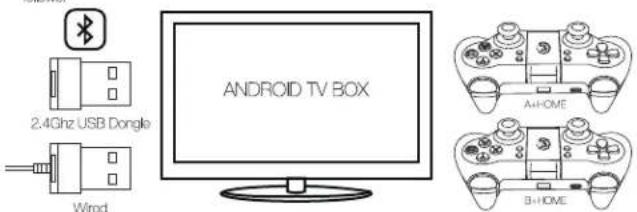
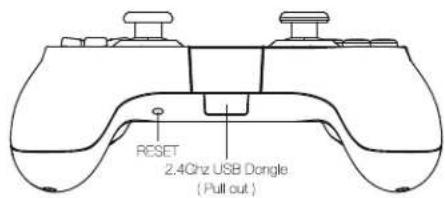
Connecting via 2.4Ghz USB Dongle: If this is your first time to connect your T1s to Android TV Box, pull out of the 2.4Ghz USB dongle from the front side of the controller, inserting the 2.4Ghz USB dongle into the USB port of Android TV box, hold down “A” and “HOME” button of your T1s 2 seconds, if the controller is connected successfully, the “W” button light of your T1s will stay on and the game controller will shock slightly. The “●” button will start flashing in red, if you press “SELECT” and “X” button simultaneously, the Mouse icon will appear on your TV screen, and the “●” button light will stay on at that time. Press “SELECT” and “X” button again to exist Mouse Mode.
You can also hold down '⑧' and "HOME" button for 2 seconds to connect your T1s to Android TV box, all the connection steps are totally the same with "A" and "HOME" buttons, the only difference is that the "●" button will not flash any more in this mode.
Connecting via Bluetooth 4.0: If this is your first time to connect your T1s to Android TV box, hold down the "A" button and "HOME" button simultaneously for 2 seconds or hold down the "B" button and "HOME" button simultaneously for 2 seconds, the "P" button will start flashing in green. It means that the controller is ready to be connected to your Android TV box. To pair the controller, go to your Android TV to open the Bluetooth and search, "GameSir-T1s" will display on TV screen, click to connect via Bluetooth. If your T1s is paired and connected, the T1s will snock slightly and the "P" button will stay on. The "B" button will not flash any more when you press "B" and "HOME" button at first.
Wired Connection: The controller can also be connected successfully via USB cable. Hold down the "A" button and "HOME" button simultaneously for 2 seconds. Take out the USB cable included in your package, plug one end of the cable in your T1s and plug the other end into a USB port of the Android TV box. Your T1s will be connected easily and quickly in that way. The "●" indicator will stay on.
Please note that the controller will remember your last connection. If this is your second time to connect the same TV box via 2.4GHz USB Dongle or Bluetooth 4.0, and your T1s is not been connected to other devices between the first time and the second time, you can hold down the "HOME" button of your T1s for 3 seconds, the controller will be paired to your TV box automatically.
Open up a compatible game, navigate to the in-game controller settings menu and select the Gamepad/Controller option (Exact name varies from game to game). If the game supports remapping, feel free to do so from the in-game controller settings menu. If you do not know if the game is controller compatible, go to www.gameslink and find "GameSir World" column.
The Windows PC can be connected via 2.4Ghz USB dongle and USB cable.
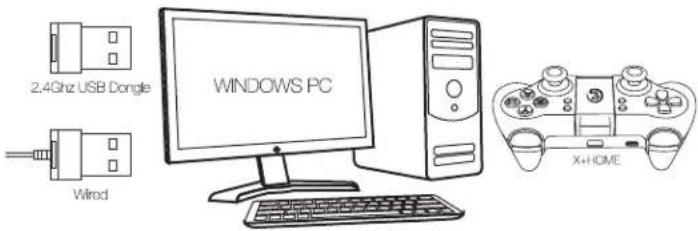
Connecting via 2.4Ghz USB Dongle: If this is your first time to connect your T1s to your Windows PC, hold down "X" and "HOME" button of your T1s, pull out of the 2.4Ghz USB dongle from the front side of the controller, inserting the 2.4Ghz USB dongle into the USB port of your Windows PC, if the controller is connected successfully, the "X" button light of your T1s will stay on and the game controller will shock slightly.
Wired Connection: If this is your first time to connect your T1s to your Windows PC, hold down "X" and "HOME" button of your T1s, take the USB cable included in your package, plug one end of the cable in your T1s and plug the other end into a USB port of the Windows PC. Your T1s will be connected easily and quickly in that way. The "X" button light of your T1s will stay on and the T1s will shock slightly.
Please note that the controller will remember your last connection. If this is your second time to connect the same PC via 2.4Ghz USB dongle, your T1s is not been connected to other devices between the first time and the second time, and your 2.4Ghz USB dongle stays connected to your PC from last time, you can hold down the "HOME" button of your T1s for 3 seconds, the controller will be paired to your Windows PC automatically.
Open up a compatible game, navigate to the in-game controller settings menu and select the Gamepad/Controller option (Exact name varies from game to game). If the game supports remapping, feel free to do so from the in-game controller settings menu.
CONNECT TO PLAYSTATION 3
CONNECT TO SWITCH
The PlayStation 3 can be connected via 2.4Ghz USB dongle and USB cable.

Connecting via 2.4Ghz USB Dongle: If this is your first time to connect your T1s to your PlayStation 3, pull out of the 2.4Ghz USB dongle from the front side of the controller, inserting the 2.4Ghz USB dongle into the USB port of your PlayStation 3, hold down "TURBO" and "HOME" button simultaneously for 2 seconds of your T1s, if the controller is connected successfully, the "HOME" button light of your T1s will stay on and the game controller will shock slightly.
Wired Connection: If this is your first time to connect your T1s to your PlayStation 3, hold down "TURBO" and "HOME" button simultaneously for 2 seconds of your T1s, take out the USB cable included in your GameSir T1s package, plug one end of the cable in your T1s and plug the other end into a USB port of the PlayStation 3. Your T1s will be connected easily and quickly in that way. The "💡" indicator of your T1s will stay on and the game controller will shock slightly.
Please note that the controller will remember your last connection. If this is your second time to connect the same PlayStation 3 via 2.4Ghz USB dongle, and your T1s is not been connected to other devices between the first time and the second time, and your 2.4Ghz USB dongle stays connected to your PlayStation 3 from last time, you can hold down the "HOME" button of your T1s for 3 seconds, the controller will be paired to your PlayStation 3 automatically.
Read Before Use: T1s controller with firmware 2.15 or above can connect to Switch.

Connect T1s controller to Nintendo Switch(only TV mode)
a. Power on Nintendo Switch;
b. Plug the dongle into the USB port of Switch dock;
c. Hold CLEAR button first, then press "HOME" button at the same time to power T1s controller;
d. Press the L1+R 1 buttons of T1s controller, then press A button of T1s controller according to the prompt;
e. You can enjoy Switch games with T1s controller now.
NOTE: DURING CONNECTED TO SWITCH, T1S CONTROLLER'S VIBRATION MOTORS ARE DISABLED.
AUTO FIRE FUNCTION
DOWNLOAD T1S SUPPORTED GAMES
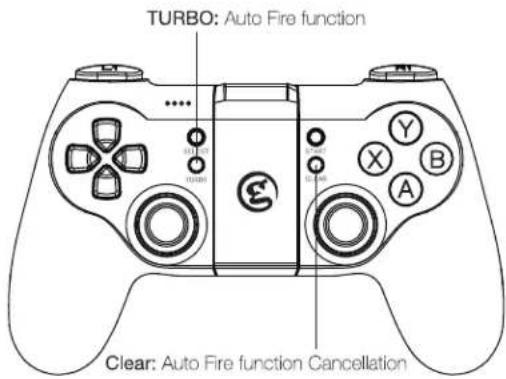

TURBO is used more in shooting games. Your fingers would easily get tired if you continuously press the same button (shooting button). With the TURBO, you can continuously shoot by holding the shooting button.
Setting Method
Press one or more buttons, (excluding D-pad, joysticks, SELECT, START button), and then press the "TURBO" button, to set TURBO function.
Clear TURBO
Press one or more buttons, and then click the 'CLEAR' button to clear the TURBO.
"GameSir World" is the best app for your T1s and it's free! "GameSir World" catalogues thousands of Android games from Google Play market which natively supports GameSir Gamepads. Every Android gamer can discover their favorite mobile game easily now. The perfect combination of GameSir hardware and GameSir software brings the ultimate gaming experience to every user. Compare to the retro gaming app "Happy Chick Emulator", it put emphasis on popular smartphone games for game's wide choice.


Scan the QR code or visit www.gamesir.hk/gsw to download GameSir World App.
On Android Tablet, Smartphone, and Android TV, you can download "Happy Chick" to play thousands of free retro games. Go to http://www.happychick.hk to download "Happy Chick Emulator" on the homepage. You can also scan the QR code below to download the App on Android Tablet, Smartphone.

For iOS users, scan the QR code on the manual's cover to download Happy Chick Emulator. For Android users, scan the QR code on the manual's cover or visit http://www.gamesir.hk/happychick to download Happy Chick Emulator.
Connect game controller to Happy Chick emulator to play games freely.
a. Download "Happy Chick" from user manual or http://www.gameslr.hk/happychick in your Smartphone.
b. Open the Bluetooth in your Smartphone.
c. Open "Happy Chick" emulator and click the controller icon on the right too
d. Wait until two signals appear "Speed connection" and "Common connection", Choose "Speed connection".
e. The game controller will get a vibration when it is connected.
1. Downloading the free games from "Happy Chick Emulator", T1s can match all the games perfectly.
FREQUENTLY ASKED QUESTIONS
FCC CAUTION STATEMENT
Q: What devices can GameSir T1s work with?
A: Android Smartphone / Android Tablet / NVIDIA Tablet / Android TV box / Windows PC / Samsung Gear VR / PlayStation 3
Q: What is the system Compatibility requirements for T1s?
A: Android 4.0 or later or Windows 7.0 or later.
Q: What is the connections of GameSir T1s?
A: 2.4GHz USB dongle, USB cable, Bluetooth 4.0
Q: What games will work with the GameSir T1s controller on my device?
A: For Windows PC and PlayStation 3, T1s supports most of gamepad enabled games.
For Android Smartphone and Tablet, you can find a list of compatible games using the following links: http://www.gamesir.hk/---GameSir World.
Q: Do I need to install Driver when I connect to GameSir T's to Windows PC?
A: When you connect the T1s to your windows PC, if the GameSir T1s can not recognize the driver of your computer system, the T1s will be recognized as XBOX 360 Driver. To solve the problem, we recommend that you follow these four steps here:
-
Connect your T1s to your Windows PC via USB cable provided in T1s package.
-
Download intelligent PC drivers manager "Drive the life" to your computer, this drivers manager will check and recommend the compatible driver needed to download for your GameSir T1s.
-
Installing the driver recommended by "Drive the life", when your GameSir T1s is recognized by your computer successfully, you can connect T1s to your PC through 2.4GHz USB Dongle next time.
-
If the 3 steps above can not solve your problem, please try to install X360 gamepad software for systems below WinXP (including XP).
Q: Why the gamepad does not vibrate?
A: Check out whether the game support vibration, if the game support vibration, please check whether the vibration function is started in the game settings.
Q: What should I do when the gamepad can not be turned on or frozen?
A: When the gamepad can not be turned on or frozen, press the "Home" button to check the remaining power, if the gamepad is not out of battery; you can make the factory reset settings for the gamepad. There is a small reset hole at the back of the gamepad, pressing the reset hole using a needle for 1 second to reset the gamepad. Then turn on your gamepad again.
Q: Does the gamepad support my games?
A: If you do not know if the game is controller compatible, go to www.happychick.hk to download "I happy Chick" app to find thousands of free games, or go to www.gamesir.hk and find "GameSir World" column. The game list in GameSir world is updated frequently; your game is controller compatible if it is included in the game list.
(1) § 15.19 Labelling requirements.
This device complies with part 15 of the FCC Rules. Operation is subject to the following two conditions: (1) This device may not cause harmful interference, and (2) this device must accept any interference received, including interference that may cause undesired operation.
(2) § 15.21 Changes or modification warning
Any Changes or modifications not expressly approved by the party responsible for compliance could void the user's authority to operate the equipment.
(3) § 15.105 Information to the user.
Note: This equipment has been tested and found to comply with the limits for a Class B digital device, pursuant to part 15 of the FCC Rules. These limits are designed to provide reasonable protection against harmful interference in a residential installation. This equipment generates uses and can radiate radio frequency energy and, if not installed and used in accordance with the instructions, may cause harmful interference to radio communications. However, there is no guarantee that interference will not occur in a particular installation. If this equipment does cause harmful interference to radio or television reception, which can be determined by turning the equipment off and on, the user is encouraged to try to correct the interference by one or more of the following measures:
-Reorient or relocate the receiving antenna.
- Increase the separation between the equipment and receiver.
-Connect the equipment into an outlet on a circuit different from that to which the receiver is connected.
-Consult the dealer or an experienced radio/TV technician for help.
产品简介
键位布局
产品简介
小鸡手柄T1增强版:T1s,具备蓝牙、2.4G两种无线连接方式及有线连接方式,适用于安卓设备(系统版本4.0以上)、苹果设备(系统版本iOS7.0以上)、电脑设备以及PlayStation3游戏主机。本产品全智能自动识别各种型号设备,无需越狱或ROOT。

功能介绍
手柄连接
开机/关机
- 开机:按住“HOME”键2秒,即可启动手柄。
- 关机:长按“HOME”键5秒,即可关闭手柄。
低电量提示
HOME及ABXY按键灯闪烁(1秒1次)。
充电提示
1. 连线状态充电
插入充电线,HOME及ABXY按键灯会闪烁(亮1秒灭2秒),充满电常亮
2. 睡眠状态充电
插入充电线手柄唤醒进入当前模式,1分钟后无接收信号模式灯关闭(HOME及ABXY按键灯闪,充满后常亮)。
手柄自动关机节能
- 手柄开机后在无连接状态1分钟将自动关机;
- 手柄连接后,10分钟无任何按键动作会自动关机;
调节: ABXY按键灯光强弱、关闭/开启, 4档可调
先以任何连接方式连接上设备,然后同时按住L2+R2+R3,再用十字方向键上、下来调节按键光亮度。
调节:震动马达震动强弱,7档可调
设置方法:按住Turbo键不放,再按十字键上键加快、下键减慢。
调节: 连发功能频率, 8档可调
连发频率调整方法:按住Turbo键不放,再按十字键右键加快、左键减慢
安卓平台
1. 蓝牙连接方法
a. 开启安卓设备蓝牙功能;
b. 按住手柄“A”键,再按住手柄“HOME”键2秒启动手柄;
c.( )手柄指示灯快闪;
d. 在安卓设备、蓝牙管理界面可以搜索到名为“Gamesir-T1s”的设备,点击后即可进行配对连接;
e. 当手柄处于()指示灯常亮,()指示灯闪动,表示手柄已连线成功,可正常在安卓设备上使用。
2. 进入或退出模拟鼠标模式
模拟鼠标模式,可以使手柄在设备上模拟鼠标的功能。
手柄左摇杆模拟鼠标移动,A键模拟鼠标左键,B键模拟鼠标右键。
a. 进入鼠标模式: A+HOME 开启手柄、手柄连接设备后, 按下 SELECT+X 的组合键, 即可进入模拟鼠标模式, (■) 指示灯常亮。
b. 退出鼠标模式: 在鼠标模式中, 按下SELECT+X的组合键, 即可退出模拟鼠标模式。(■指示灯闪动。
3. 纯安卓模式
按住手柄“B”键,再按住手柄“HOME”键2秒启动手柄;这个模式同上面按住A键进入区别是连线后鼠标灯不闪,无鼠标模式功能。
iOS平台
连接方法
a. 开启苹果设备蓝牙功能;
b. 按住手柄“Y”键,再按住手柄“HOME”键2秒启动手柄;
c. 手柄()指示灯快闪;
d. 在苹果设备、蓝牙管理界面可以搜索到名为“Gamesir-T1s”的设备,点击后即可进行配对连接;
e. 当手柄处于()指示灯常亮,表示手柄已连线成功,可正常在苹果设备上使用。
手柄连接
自动回连&有线连接&连发功能
智能电视 / 电视盒子
2.4G连接方法
a. 将 2.4G USB 无线接收器插在设备的 USB 口;
b. 按住手柄“A”键,再按住手柄“HOME”键2秒启动手柄;
c. 手柄()指示灯快闪;
d. 当手柄处于(☐)指示灯常亮,☐指示灯闪动,表示手柄已连线成功,可正常在安卓设备上使用(鼠标模式切换与蓝牙连接方式相同)。
PS3主机
2.4G连接方法
a. 将 2.4G USB 无线接收器插在 PS3 设备的 USB 口;
b. 按住手柄“Turbo”键,再按住手柄“HOME”键2秒启动手柄;
c. 手柄()指示灯快闪;
d. 当手柄处于(中)指示灯常亮,(中)指示灯闪动,表示已连线成功。
Switch(电视模式)
连接方法
使用前请阅读: 固件2.15或更高版本的T1s手柄可以连接到Switch。
将T1s手柄连接到Nintendo Switch(仅电视模式)
a.任天堂Switch开机;
b. 将接收器插入Switch Dock的USB端口;
c. 先按住CLEAR(清除)按钮, 然后同时按电源按钮, T1s手柄处于开机状态;
d. 按T1s手柄的L1+R1按钮;然后根据提示按T1s手柄的A键进行确认;
e.您可以立即使用T1s手柄享受Switch游戏。
注意: 在连接到Switch期间, T1s手柄的振动电机将被禁用。
PC平台(X-Input模式)
连接方法
a. 将2.4G USB无线接收器插在电脑设备的USB口;
b. 按住手柄“X”键,再按住手柄“HOME”键2秒启动手柄;
c. 手柄(X)指示灯快闪;
d. 当手柄处于(X)指示灯常亮,表示手柄已连线成功,可正常在设备上使用。
自动回连
1. 设备蓝牙开启,手柄关闭:
按住HOME键2秒,启动手柄,即可使设备与手柄自动重新建立连接。
2. 设备蓝牙关闭,手柄开启:
重新开启设备蓝牙,即可使设备与手柄自动重新建立连接。
3. 设备蓝牙关闭,手柄关闭:
重新开启设备蓝牙,按住HOME键2秒启动手柄,即可使设备与手柄自动重新建立连接。
4. 以2.4G模式连接设备,手柄关闭:
按住HOME键2秒,启动手柄,即可使设备与手柄自动重新建立连接。
注:如果要更换设备连接手柄,需要重新进行手柄与设备之间的配对。
有线连接方法
先按照说明书上面提示的连接方式,让手柄先进入对应使用平台的无线配对模式,此时再将USB数据线对手柄以及设备进行连接即可。(安卓设备使用有线连接模式,需要设备支持OTG功能,iOS平台不支持有线连接)
连发功能说明
TURBO是半自动连发,可产生一个或多个按键的连续按压(连发)效果,可设置单键连发、也可以多个组合键连发。
1. 设置方法
将你需要设置连发效果的一个或多个按键(不包括十字键、摇杆、select、start键)按住不放,再按一下“TURBO”键,即可实现对应按键的连发功能。
2. 清除连发
按一下手柄的“CLEAR”按钮即可清除所有连发设置。
3.用途
通常在射击游戏里面用得较多,如果你一直连按同一个按键(射击键),手指会容易疲劳。但这个射击键设置成turbo后,只要一直按住射击键不放手,即可实现连续射击效果,大大减轻长时间游戏给手指带来的疲劳度。
疑难排除&注意事项
保修卡
※疑难排除
√ 为何手柄在电脑上无法识别,手柄没反应?
-
确认电脑USB接口是否正常工作
-
电脑电源功率不足,导致USB电压不稳定
-
尝试拔出USB,换一个USB接口试试
4.WinXP系统以下需要安装X360手柄架构驱动
√ 为何手柄在游戏中无法使用?
- 游戏本身不支持手柄外设
2.需要在游戏里面设置使用手柄,方可使用
√ 为何手柄无法振动?
-
游戏本身不支持振动
-
游戏设定中没有开启振动功能
√ 其它
-
当无法开机时,可能内置电池没电,请用USB线给手柄充电再开机。
-
手柄出现意外死机或掉线,请保持与设备距离不要太远,或重联线。
-
出厂设置复位:手柄背面有一小孔,用牙签或其它条形硬体穿孔往下压,按下RESET键即可恢复手柄出厂设置。
※产品注意事项
1.避免强烈振动,不可自行拆开、改装、修理
2.避免保存于潮湿、高温、油烟等场所
3.避免水或其它液体进入手柄内部,可能会影响手柄功能
- 内有电池,请勿把手柄掉进火中,有爆炸危险
5.本产品充电电压为USB 3.7-5.5V直流电源(普通安卓手机充电电源可以直接使用),否则可能不
能充电,或者会导致本产品损坏
6.儿童要在成年人的监护下使用本产品
7.如有质量问题或建议请与销售商或售后人员联系,联系方式见产品包装
| 保修卡 | |
| (售后政策:非人为损坏,3个月包换、1年保修) | |
| 用户姓名 | |
| 联系电话 | |
| 联系地址 | |
| 售后要求 | □退 □换 □保修 |
| 售后原因 | |
| 订单编号 | |
| (注:非小鸡官网途径购买的产品,售后问题请直接与购买商家联系) | |
- QUICK REVIEW GUIDE FOR USER MANUAL
- PRODUCT OVERVIEW
- PACKAGE CONTENTS
- MORE INFORMATION
- Warning
- CHECK AND CHARGE THE CONTROLLER
- CONNECT TO ANDROID ( TABLETS / PHONES )
- T1s HIGHLIGHT FEATURES
- Brightness adjustment of "XYAB" button lights
- Auto fire function
- CONNECT TO ANDROID TV BOX
- CONNECT TO WINDOWS PC
- CONNECT TO PLAYSTATION 3
- CONNECT TO SWITCH
- DOWNLOAD T1S SUPPORTED GAMES
- Setting Method
- Clear TURBO
- FREQUENTLY ASKED QUESTIONS
- FCC CAUTION STATEMENT
- 产品简介
- 键位布局
- 功能介绍
- 手柄连接
- 开机/关机
- 低电量提示
- 充电提示
- 连线状态充电
- 睡眠状态充电
- 手柄自动关机节能
- 调节: ABXY按键灯光强弱、关闭/开启, 4档可调
- 调节:震动马达震动强弱,7档可调
- 调节: 连发功能频率, 8档可调
- 安卓平台
- 蓝牙连接方法
- 进入或退出模拟鼠标模式
- 纯安卓模式
- iOS平台
- 连接方法
- 自动回连&有线连接&连发功能
- 智能电视 / 电视盒子
- 2.4G连接方法
- PS3主机
- Switch(电视模式)
- PC平台(X-Input模式)
- 自动回连
- 设备蓝牙开启,手柄关闭:
- 设备蓝牙关闭,手柄开启:
- 设备蓝牙关闭,手柄关闭:
- 以2.4G模式连接设备,手柄关闭:
- 有线连接方法
- 连发功能说明
- 设置方法
- 清除连发
- 3.用途
- 疑难排除&注意事项
- 保修卡
- ※疑难排除
- ※产品注意事项
Marque : Gamesir
Modèle : T1s
Catégorie : Contrôleur