R36AH - Routeur ALFA - Notice d'utilisation et mode d'emploi gratuit
Retrouvez gratuitement la notice de l'appareil R36AH ALFA au format PDF.


| Type de produit | Routeur sans fil |
| Marque | ALFA |
| Modèle | R36AH |
| Norme Wi-Fi | IEEE 802.11 b/g/n |
| Bande de fréquence | 2,4 GHz |
| Débit sans fil maximal | Jusqu'à 300 Mbps |
| Ports LAN | 4 ports Ethernet 10/100 Mbps |
| Port WAN | 1 port Ethernet 10/100 Mbps |
| Antennes | 2 antennes externes amovibles |
| Alimentation | Adaptateur secteur 12V / 1A |
| Consommation électrique | 5 W en utilisation typique |
| Dimensions (L × P × H) | 150 × 100 × 30 mm |
| Poids | 200 g |
| Température de fonctionnement | 0°C à 40°C |
| Humidité de fonctionnement | 10% à 85% sans condensation |
| Sécurité sans fil | WEP, WPA, WPA2 |
| Fonctions principales | Point d'accès, répéteur, mode routeur |
| Configuration | Interface web (http://192.168.1.1) |
| Entretien et nettoyage | Débrancher avant nettoyage ; utiliser un chiffon sec |
| Pièces détachées | Antennes et adaptateur secteur disponibles |
FOIRE AUX QUESTIONS - R36AH ALFA
Questions des utilisateurs sur R36AH ALFA
0 question sur cet appareil. Repondez a celles que vous connaissez ou posez la votre.
Poser une nouvelle question sur cet appareil
Téléchargez la notice de votre Routeur au format PDF gratuitement ! Retrouvez votre notice R36AH - ALFA et reprennez votre appareil électronique en main. Sur cette page sont publiés tous les documents nécessaires à l'utilisation de votre appareil R36AH de la marque ALFA.
MODE D'EMPLOI R36AH ALFA
Package Content
Thank you for choosing multifunctional wireless router.
Before installing, please check the following items in product package.

- 1 x multi functional wireless router

- 1 x multifunctional wireless router installation guide (this file)

- 1 x omni RP-SMA antenna for multifunctional wireless router signal transmission

- 1 x Ethernet cable for connecting the router and computer

- 1 x 12V DC power adapter for multifunctional wireless router
Device Overview

Front Panel Rear Panel
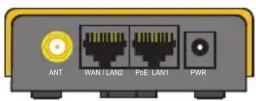
| Interface | Functional Descriptions |
| WAN / LAN2 | In Broadband Router mode:This port is set as WAN to be connect with Ethernet port on the DSL/cable modem for PPPoE /Dynamic IP/Static IP/PPTP/L2TP IP address allocationIn 3G/4G Router mode:This port is set as LAN to share Internet access via Ethernet connection to the desktop/laptop computer or network peripheralsIn WiFi Hotspot Extender Router mode:This port is set as LAN to share Internet access via Ethernet port on the desktop/laptop computer or network peripherals |
| PoE LAN1 | These ports are set as LAN to share Internet access via Ethernet with desktop/laptop computer(s) or network peripherals |
| USB | Use certified USB wireless adapter to connect to remote WiFi hotspot as Internet source |
| Plug in certified 3G/4G USB modem as source of Internet access | |
| ANT | Connect an antenna to ANT port for communications in router's wireless network |
| PWR | This port is used to connect to the power adapter.Please use the power adapter in package to ensure device proper operation. |
1
Before setting up, please check with your service provider to obtain an instruction sheet for Internet access.
Info you will need from ISP (Internet Service Provider) company for Internet access:
xDSL PPPoE, PPTP, L2TP
3G/4G Intenet access service
An instruction sheet for Internet access from carrier company
Wireless hotspot Internet access service
An instruction sheet with hotspot connection parameters:
SSID, username/password, ...etc. if any) for Internet Access from carrier company
Operation Modes
Ethernet Router
Subscribe xDSL PPPoE, fixed IP, dynamic IP, PPTP, L2TP Internet access from ISP (Internet Service Provider), and share Internet with local computers, smartphones or other network peripherals.
Wireless hotspot extender
Obtain Internet access from a wireless Internet service provider (WISP) wirelessly, and share Internet with local computers, smartphones or other network peripherals.
USB 3G/4G Router
Connect 3G/4G USB modem to router, and share Internet with local computers, smartphones or other network peripherals.
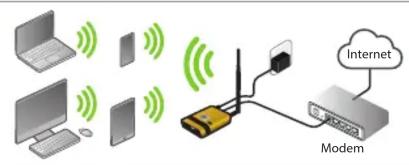
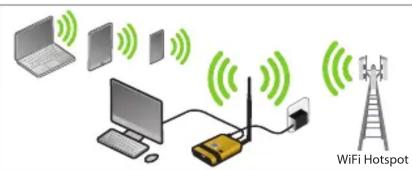

3
LED Indicators & Buttons


natural_image
Front view of a gray electronic device casing with ventilation slots and control buttons (no text or symbols visible)| LED Indicator | Descriptions |
| PWR(Blue) | On - Power onOff - No power |
| SYS(Blue) | On - Device is up, and running properlyBlinking- This LED blinks when device is sending or receiving data |
| LAN(Blue) | On - LAN port is connectedOff - No connection on the LAN portFlashing- LAN port activities |
| WAN / USB(Blue) | On - USB device recognized, and supported by the routerBlinking- USB device NOT recognized, Internet access is not availableOff - No connection to the USB port |
| WAN / LAN2(Blue) | On - Connection to the modem attached to LAN2 port is established.Off - No connection to WAN (Internet) portFlashing- Data is being transmitted or received via the WAN port. |
| Wireless (Blue)[IMAGE] | On - Internet or intranet access is availableOff -NO Internet/intranet access or the router is set to Ethernet router modeBlinking(500ms interval): network connected, but NO Internet accessBlinking(100ms interval): USB connectivity service restarting in progress |
| Buttons | Descriptions |
| Wireless[IMAGE] | Toggle to restart device USB port connectivity servicesThis button is disabled in Ethernet Router mode |
| RESET(located in thebottom of device) | Press RESET button, release it within 5 seconds- reboot device with running configuration parametersPress RESET button, more than 10 seconds, then release- reboot device with factory default parameters |
2
Access to the RouterPreparation Before Installation
Via Wired Connection
Connect computer to LAN1 port on device via Ethernet RJ-45 cable. Open your web browser, and type-in "alfa.myalfasetup.com" or "192.168.36.1" in the address bar.


Before proceeding any further, please make sure the LAN1 LED is "ON".
Via Wireless Connection
On your laptop, tablet computer or smartphone, enable WiFi service on your device, and search WiFi name "R36AH-xxxxxx", then associate with it. Open your web browser, and type-in "alfa.myalfasetup.com" or "192.168.36.1" in the address bar.


Before proceeding any further, please make sure the wireless LED is "ON".
4
Via QR Code Connection
On smartphone/tablet, find WiFi name "R36AH-xxxxxx", and associate with it. Run QR code reader app, and read the QR code sticker on the router.
Network name R36AH-xxxxxx

In QR code app, select "Open URL", and device portal page will be shown.

iOS 11 or later: please use built-in, native camera app to read QR code. If there is no QR code scanner/reader in your smart phone, please search free "QR reader" on the Apple App Store or Android Play Store, and install it to read the QR code sticker on device.
Wireless extender router default parameters :
Default device access : alfa.myalfasetup.com or 192.168.36.1
Default user name : admin ; default password : defined by user
Default SSID : R36AH-xxxxxx
Default wireless encryption : None
If password lost or forgotten, while device is ON, press RESET button in the bottom for 10 seconds then release. Wait for one minute, device will reboot with default settings and please repeat the log-in process to setup new password.
Log In to the Router
When device portal page is connected, to ensure security of device access, please setup device management password, and click "Submit".


Please setup password when using device for the very first time. Device login password here is not the password for WiFi access, please setup the WiFi password in wireless setting menu.
5
Wireless Hotspot Extender Router Mode
Before proceeding any further, please connect a certified USB wireless adapter, and make sure the USB LED on router is "ON".
After selecting wireless hotspot extender mode, device wizard will scan hotspot signal automatically.
List of scanned hotspot stations will be displayed on the screen.
Find and select the target wireless hotspot, and input the hotspot password (if any).
Click FINISH to establish internet connection.

3G/4G Router Mode
Before proceeding any further, please connect a certified 3G/4G USB modem, and make sure the USB LED on router is "ON".


Please refer to the instruction sheet from ISP, input connection parameters (APN, username, password ...etc. if any), to establish the Internet connection.

In 3G/4G router, and WiFi extender router mode, please install compatible USB peripherals. Incompatible USB device will not be detected by router, USB LED will be blinking, and a warning message will appear in web configurator. Please contact authorized dealer to obtain product information of compatible device.
USB Wireless device not found
Please plug-in ALFA Network USB GSM/LTE adapter in the USB port This page will be refreshed automatically
Operation Mode Selection
With built-in web-based configurator, it is easy to setup and manage device.
The web configurator works with Windows, macOS or UNIX OS computer with a compatible web browser, such as Google Chrome, Microsoft Internet Explorer, Mozilla Firefox or Apple Safari.
When logging-in for the first time, please refer to the instruction sheet from ISP, and select appropriate device operation mode.
Ethernet Router Mode
USB Wireless Extender Mode
USB 3G/4G Router Mode
Ethernet Router
Subscribe an xDSL modem from ISP, connect modem to wireless extender router via Ethernet cable, this mode is mostly used in xDSL PPPoE, fixed IP, dynamic IP, PPTP,
Wireless Hotspot Extender
Wireless hotspot extender
Install an compatible USB wireless adapter to extend remote WiFi hotspot Internet access
USB 3G/4G Router
Subscribe a 3G/4G USB modem from ISP, install it with wireless extender router for mobile Internet access
Ethernet Router Mode
Being an Ethernet router, the router supports xDSL PPPoE, fixed IP, dynamic IP, PPTP, L2TP Internet access.
Be sure to connect modem LAN port to WAN port on router, and the WAN LED should be ON before setting up router.

Please refer to the instruction sheet from ISP, select appropriate connection type, input the connection parameters (IP address, dialup username/password, server info ...etc.) to establish the Internet connection, and apply the settings to establish Internet access.
6
Local Wireless Network Configurations
The router is able to share the Internet access wirelessly with local computers, smartphones, and other network peripherals.
To establish a secure local wireless
network, please input a "Network
Name" (wireless SSID) and network password for wireless security.
Network Name
Network Password

Access to the Internet
Via Wired Connection
Connect computer to LAN port on the e router, make sure the USB and Wireless LEDs are ON.

Start web browsing or other Internet activities.
Via Wireless Connection
On your laptop, tablet computer or smartphone, search the configured WiFi name or default name "R36AH-xxxxxx", then associate with it.
Make sure the USB and Wireless LEDs (●) are ON.
Start web browsing or other Internet activities.

Please make sure device(s) is(are) dynamic IP allocation (DHCP client) enabled when connecting to/associating with the router.
In Ethernet router mode, USB host service is turned off, USB LED will be OFF. Please utilize built-in network tools in the function menu of the router to verify Internet availability.
Connection Status
Once the device setup is completed, device will activate the parameters and the results will be shown on the status screen.
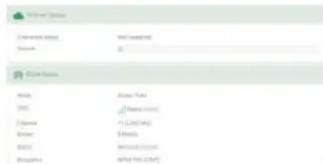


Clicking on the "Status" on left control panel will refresh machine run-time status.
For more product information, please visit our website for latest product news, and updates.
All other company or product, service names mentioned herein are trademarks or registered trademarks of the respective companies. Product information / content in this installation guideline may be changed or updated without prior notice.
- Package Content
- Device Overview
- xDSL PPPoE, PPTP, L2TP
- 3G/4G Intenet access service
- Wireless hotspot Internet access service
- Operation Modes
- Ethernet Router
- Wireless hotspot extender
- USB 3G/4G Router
- LED Indicators & Buttons
- Access to the RouterPreparation Before Installation
- Via Wired Connection
- Via Wireless Connection
- Via QR Code Connection
- Log In to the Router
- Wireless Hotspot Extender Router Mode
- 3G/4G Router Mode
- Operation Mode Selection
- Ethernet Router Mode
- Local Wireless Network Configurations
- Access to the Internet
- Connection Status
Marque : ALFA
Modèle : R36AH
Catégorie : Routeur