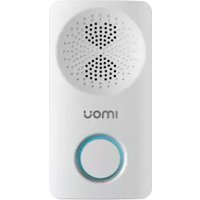
Chime - Sonnette IMOU - Notice d'utilisation et mode d'emploi gratuit
Retrouvez gratuitement la notice de l'appareil Chime IMOU au format PDF.


| Type de produit | Sonnette connectée |
| Marque | Imou |
| Modèle | Chime |
| Dimensions (approx.) | 5 x 5 x 2 cm |
| Poids (approx.) | 50 g |
| Alimentation | Secteur (prise électrique) |
| Connectivité | Wi-Fi 2,4 GHz |
| Fonctions principales | Sonnerie sans fil, notification push via application IMOU, sonneries personnalisables, protocole de sonnette |
| Compatibilité | Application IMOU (iOS et Android) |
| Installation | Simple branchement, couplage avec une sonnette Imou ou un carillon compatible |
| Entretien et nettoyage | Nettoyer avec un chiffon doux et sec. Ne pas utiliser de produits abrasifs. |
| Sécurité | Conformité CE, RoHS |
| Pièces détachées et réparabilité | Appareil scellé, aucune pièce détachée disponible. Réparation non prévue par l'utilisateur. |
| Garantie | 2 ans |
| Informations générales | Fabrication chinoise. Utilisation intérieure uniquement. |
FOIRE AUX QUESTIONS - Chime IMOU
Questions des utilisateurs sur Chime IMOU
0 question sur cet appareil. Repondez a celles que vous connaissez ou posez la votre.
Poser une nouvelle question sur cet appareil
Téléchargez la notice de votre Sonnette au format PDF gratuitement ! Retrouvez votre notice Chime - IMOU et reprennez votre appareil électronique en main. Sur cette page sont publiés tous les documents nécessaires à l'utilisation de votre appareil Chime de la marque IMOU.
MODE D'EMPLOI Chime IMOU

4Connect your smartphone with hotspot. Hotspot Wi-Fi name is Doorbell-device serial number.
5Go back to lmou app page, and set password for your chime.
6Follow the App guide to connect your chime.

→

Step 3: Link Chime
1 Select "Me > My Device > Device Name > Link Chime" or click in device menu.
2 Select "New Link". The system displays wireless chime list.
③ Select the chime and press [Save] to add it.
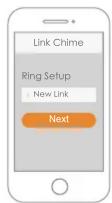
→

FAQ
Q: How to restore factory settings?
Please press Reset Button on the side panel of the device with a needle for 10s. Blue light will be on for 3s and then turn off; the device will reboot automatically and restore factory default settings.
Q: The device cannot work normally?
Please restore default settings of the device, and configure the device again.
Q: How to enter wireless configuration mode?
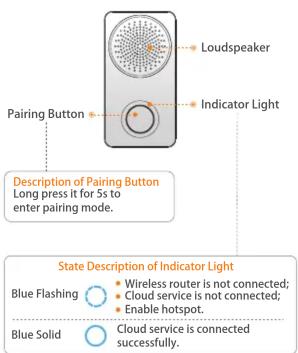
Short press reset button or long press pairing button for 5s, until the indicator light turns to be green flashing light, it means that hotspot has been enabled.
Q: The device is not online?
Please check the state of device indicator light. If blue light flashes all the time, it means that the device fails to connect the network. Please check whether wireless router can connect the network; connect your smartphone with this wireless network, in order to test it. If it can connect the network, please configure the device again.
Q: Connection is overtime?
a. After the device has enabled hotspot, your smartphone doesn't connect the hotspot for a long time, and thus leads to overtime. b. The device starts configuration without reminder of waiting to connect the network.
Safety Tips and Warnings
The following description is the correct application method of the device. Please read the manual carefully before use, in order to prevent danger and property loss. Strictly conform to the manual during application and keep it properly after reading.

Caution
Please don't place and install the device in an area exposed to
direct sunlight or near heat generating device.
- Please don’t install the device in a humid, dusty or fuliginous
area.
- Please keep its horizontal installation, or install it at stable
places, and prevent it from falling.
Please don't drip or splash liquids onto the device; don't put on the device anything filled with liquids, in order to prevent liquids from flowing into the device.
- Please install the device at well-ventilated places; don't block
its ventilation opening.
- Use the device only within rated input and output range.
- Please don’t dismantle the device arbitrarily.
- Please transport, use and store the device within allowed humidity and temperature range.
Special Statement
- This document is for reference only. Please refer to the actual product for more details.
- The user’s manual and program will be updated in a real-time
way according to the product, which won't be further notified.
• The user shall undertake any losses resulting from violation of
guidance in the document.
The document may include technically inaccurate contents, inconsistencies with product functions and operations, or misprint. Final explanations of the company shall prevail.
Imou
Quick Start Guide
Version 1.0.0
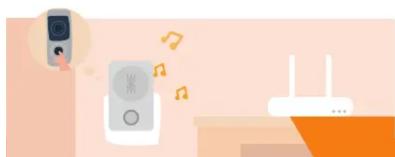
natural_image
Illustration of a smart home connected to a router with musical notes and a phone icon (no text or symbols)Product Appearance Start to Use

Start
Step 1: download and log onto app
1 Connect your smartphone to your Wi-Fi network, scan QR code below to download and install lmou app.

2 Run Imou app, and register an account for the first use.
Step 2: Add Device
1 At device list interface, press + to enter "QR Code Scanning" interface.
② Scan QR code on the device or the packaging box to get the SN, or you can also manually enter the SN on the next page.
3 Power on the chime, and press the button on the front panel for 5s.
If the chime beeps and blue indicator light flashes, it means that the device hotspot has been enabled.

Marque : IMOU
Modèle : Chime
Catégorie : Sonnette