G4 - Contrôleur Gamesir - Notice d'utilisation et mode d'emploi gratuit
Retrouvez gratuitement la notice de l'appareil G4 Gamesir au format PDF.


| Type de produit | Manette de jeu sans fil |
| Marque | Gamesir |
| Modèle | G4 |
| Dimensions approximatives | 15 x 10 x 6 cm |
| Poids | Environ 250 g |
| Alimentation | Batterie lithium-ion rechargeable (via câble USB) |
| Autonomie | Environ 10 heures |
| Connectivité | Bluetooth 4.0 et filaire USB |
| Fonctions principales | Double sticks analogiques, croix directionnelle, gâchettes analogiques, boutons d'action, vibration double moteur |
| Compatibilité | PC (Windows), Android, iOS |
| Entretien et nettoyage | Nettoyer avec un chiffon doux légèrement humide. Ne pas utiliser de produits abrasifs. |
| Sécurité | Ne pas exposer à l'humidité, aux températures extrêmes ou aux chocs violents. |
| Pièces détachées et réparabilité | Batterie, sticks analogiques et câble USB remplaçables. |
| Garantie | 2 ans |
| Contenu de la boîte | Manette G4, câble USB, mode d'emploi |
FOIRE AUX QUESTIONS - G4 Gamesir
Questions des utilisateurs sur G4 Gamesir
0 question sur cet appareil. Repondez a celles que vous connaissez ou posez la votre.
Poser une nouvelle question sur cet appareil
Téléchargez la notice de votre Contrôleur au format PDF gratuitement ! Retrouvez votre notice G4 - Gamesir et reprennez votre appareil électronique en main. Sur cette page sont publiés tous les documents nécessaires à l'utilisation de votre appareil G4 de la marque Gamesir.
MODE D'EMPLOI G4 Gamesir
GAMESIR G4
WIRELESS CONTROLLER
We hope this manual answered any questions you may have had, if you have any further questions, please contact us:
GameSir Facebook: https://www.facebook.com/myGamesir
Customer Service: cs@gamesk.hk
For More Support http://www.gamesir.hk
Model No: GameSir-G4

GameSir
QUICK REVIEW GUIDE FOR USER MANUAL
PRODUCT OVERVIEW
- Check and charge your controller :
natural_image
Line drawing of a game controller with buttons and scroll (no text or symbols)- Connecting the controller to your devices :

- Download G4 supported games :


PACKAGE CONTENTS
MORE INFORMATION
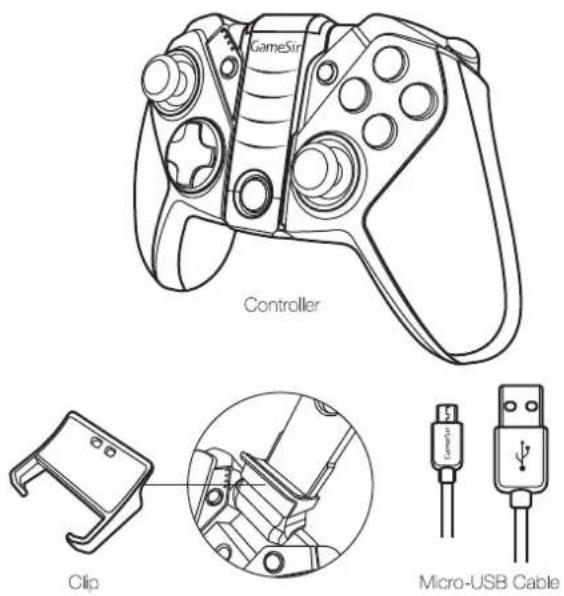
The clip included in the package is used to stabilize your Smartphone in the phone holder. If your phone is easy to fall off from the phone holder of G4, attach the clip to the phone holder, your phone will be tightened.
System Requirements: Android 4.0 or later, Windows 7 or later
Hardware compatibility: Android Smartphone / Android Tablet / NVIDIA Tablet / Android TV box / Windows PC / Samsung Gear VR / PlayStation 3
Connections :

Bluetooth 4.0

Wired

GameSir.hk - Support

Facebook - Mygamesir

GameSir.hk-Where to buy

GameSir.hk-Product-Manual
Warning
- Avoid strong vibration, do not disassemble, refill or repair on your own.
- Do not keep in humidity, high temperature or spot place.
- Avoid water or other liquid in gamepad, it may affect the performance of the gamepad.
- Keeping away from fire, the built-in battery has danger of explosion.
- Charging voltage is USB 3.7-5.5V DC supply (normal Android smart phone charging power can be used)
- Children should be under adult's supervision to use this product.
CHECKING AND CHARGING THE CONTROLLER
CONNECTING ON ANDROID ( TABLETS/PHONES )
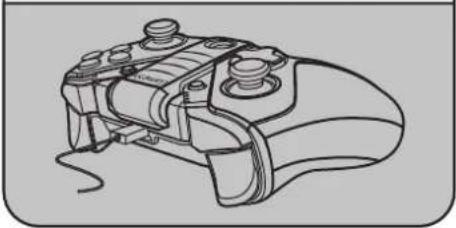
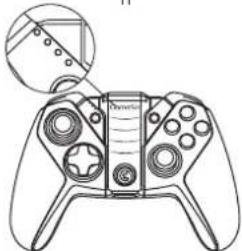
Before getting started, check the remaining power of your G4 at first, press the "Home" button in the front of the gamepad, the four blue LED lights will turn on and each LED light represents 25% of the power. If your G4 is not fully charged, we recommend that charge your G4 to full at first.

It is recommended that charging the controller for 2 hours by plugging in the USB cable (provided in the box) – plug one end of the cable in your G4 and plug the other end into a powered USB port. Remember, you can use your G4 while it's charging, but it is not recommended.
natural_image
Line drawing of a handheld game controller with a circular inset showing a close-up of its top control panel (no text or symbols)Your G4 controller is built with a Lithium Ion rechargeable battery. During charging, four LED will give you the charging status;
While the G4 controller is charging, the four blue lights will flash in turn.
When the G4 is fully charged, the four blue lights will stay on.
If you want to turn off the gamepad, press the "Home" button for 5 seconds.

natural_image
Line drawing of a mobile game controller with a circular button and scroll (no text or symbols)G4 HIGHLIGHT FEATURES
Brightness adjustment of "XYAB" button lights
When your G4 is connected successfully to any of your devices, hold down "L2+R2+R3"
simultaneously, and press UP/DCWN button of D-Pad to increase/decrease the brightness of "XYAB" buttons. There are 4 levels of brightness degree in total.
Auto fire function
TURBO is semi-automatic, it creates one or more continuous button press.
You can connect your G4 on Android TABLET/PHONES via Bluetooth 4.0
If this is your first time turning on your G4, hold down the “A” button and “®” button simultaneously for 2 seconds or hold down the “B” button and “©” button simultaneously for 2 seconds, the “©” button will start flashing in green. It means that the controller is ready to be connected to your Android Tablets or Phones. To pair the controller, go to your Android devices and follow the User Interface flow below: Settings>Turn on Bluetooth>Search for new devices>“GameSir-G4” will display on the screen. Click to connect via Bluetooth. If your G4 is paired and connected, the G4 will shock slightly and the “©” button will stay on.

Please note that the controller will remember your last connection. If this is your second time to connect G4 to the same Android Phones, and your G4 is not been connected to other devices between the first time and the second time, there is no need to turn on the Bluetooth again for the second time, hold down the 1® button of your G4 for 3 seconds, the controller will be paired automatically.
Additional note: The function of “A” + “K” and “B” + “S” mode is totally the same, the first difference for those two modes is that few Android Smartphone can only recognize “B” + “K” mode. Most other Android Smartphones can recognize both “A” + “K” and “B” + “K”. The second difference is that, if you want to get the icon of mouse appears on your screen, you need to press “A” + “K” at first, press “Select” + “X” after that. You can get the icon of mouse after you press “B” + “K”.
Open up a compatible game, navigate to the in-game controller settings menu and select the Gamepad/Controller option (Exact name varies from game to game). If the game supports remapping, feel free to do so from the in-game controller settings menu. If you do not know if the game is controller compatible, go to www.gamesir.hk and find "GameSir World" column.
CONNECTING ON ANDROID TV BOX
CONNECTING ON WINDOWS PC
You can connect your G4 on Android TV BOX via Bluetooth 4.0 and USB cable as follows:

Connecting via Bluetooth 4.0: If this is your first time to connect your G4 to Android TV box, hold down the "A" button and "B" button simultaneously for 2 seconds or hold down the "B" button and "C" button simultaneously for 2 seconds, the "C" button will start flashing in green. It means that the controller is ready to be connected to your Android TV box. To pair the controller, go to your Android TV to open the Bluetooth and search, "GameSlr-G4" will display on TV screen, click to connect via Bluetooth. If your G4 is paired and connected, the G4 will shock slightly and the "C" button will stay on.
Wired Connection : The controller can also be connected successfully via USB cable. Hold down “Ⓐ” + Ⓞ️ button simultaneously for 2 seconds. Take out the USB cable included in your package, plug one end of the cable in your G4 and plug the other end into a USB port of the Android TV box. Your G4 will be connected easily and quickly in that way. The “Ⓐ” button of your G4 will stay on.
Please note that the controller will remember your last connection, if this is your second time to connect the same TV box via Bluetooth 4.0, and your G4 is not been connected to other devices between the first time and the second time, you can hold down the "®" button of your G4 for 3 seconds, the controller will be paired to your TV box automatically.
Open up a compatible game, navigate to the in-game controller settings menu and select the Gamepad/Controller option (Exact name varies from game to game). If the game supports remapping, feel free to do so from the in-game controller settings menu. If you do not know if the game is controller compatible, go to www.gamesir.hk and find "GameSir World" column.
The Windows PC can be connected via USB cable.

Wired Connection : If this is your first time to connect your G4 to your Windows PC, take out the USB cable included in your package, hold down "X" + "☒" button simultaneously for 2 seconds, plug one end of the cable in your G4 and plug the other end into a USB port of the Windows PC. Your G4 will be connected easily and quickly in that way.
Open up a compatible game, navigate to the in-game controller settings menu and select the Gamepad/Controller option (Exact name varies from game to game). If the game supports remapping, feel free to do so from the in-game controller settings menu.
CONNECTING ON PLAYSTATION 3
AUTO FIRE FUNCTION
The PlayStation 3 can be connected via USB cable.
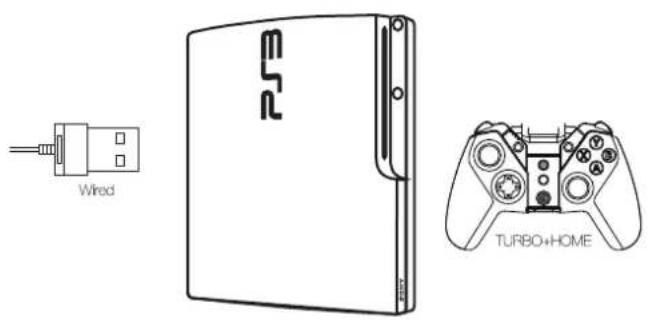
Wired Connection: If this is your first time to connect your G4 to PlayStation 3, hold down "TURBO" and "©" button simultaneously for 2 seconds of your G4. Take out the USB cable included in your GamesSir G4 package, plug one end of the cable into your G4 and plug the other end into a USB port of the PlayStation 3. If the controller is connected successfully, the "©" button of your G4 will stay on.
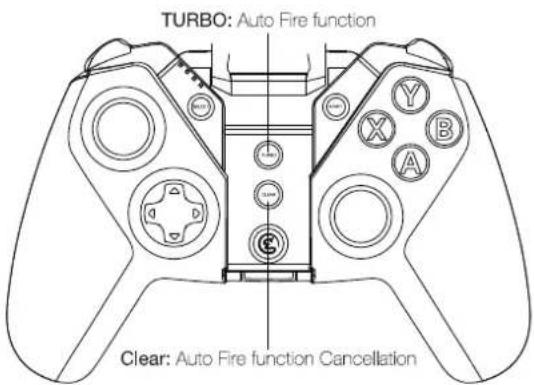

TURBO is used more in shooting games. Your fingers would easily get tired if you continuously press the same button (shooting button). With the TURBO, you can continuously shoot by holding the shooting button.
Setting Method
Press one or more buttons, (excluding D-pad, joysicks, SELECT, START button), and then press the 'TURBO' button, to set TURBO function.
Clear TURBO
Press one or more buttons, and then click the * CLEAR * button to clear the TURBO.
DOWNLOAD G4 SUPPORTED GAMES
"GameSir World" is the best app for your G4. "GameSir World" is a free app available in Apple Store and Google Play. "GameSir World" is developed by GameSir with thousands of Smartphone games supported by GameSir gamepad. Every Android gamer and iOS gamer can grab their favorite mobile game easily now. The perfect combination of GameSir hardware and GameSir software brings the ultimate gaming experience to every GameSir's user. Compared to the retro games app "Happy Chick", "GameSir world" put emphasis on popular smartphone games for gamers' wide choice.


Scan the QR code to download
On Android Tablet, Smartphone, and Android TV, you can download "Happy Chick" to play thousands of free retro games. Go to http://www.happychick.hk to download "Happy Chick Emulator" on the homepage. You can also scan the QR code below to download the App on Android Tablet. Smartphone.

Download 'Happy chick' and follow the instructions on the screen, open the emulator to download your games and play via your G4.
Connect game controller to Happy Chick emulator to play games freely.
a. Download "Happy Chick" from user manual or http://www.happychick.nk in your Smartphone.
b. Open the Bluetooth in your Smartphone.
c. Open "Happy Chick" emulator and click the controller icon on the right top
d. Wait until two signals appear "Speed connection" and "Common connection". Choose "Speed connection".
e. The game controller will get a vibration when it is connected.
f. Downloading the free games from "Happy Chick Emulator", G4 can match all the games perfectly.
FREQUENTLY ASKED QUESTIONS
Q: What devices can GameSir G4 work with?
A: Android Smartphone / Android Tablet / NVIDIA Tablet / Android TV box / Windows PC / Samsung Gear VR
PlayStation 3
Q: What is the system Compatibility requirements for G4?
A: Android 4.0 or later or Windows 7.0 or later.
Q: What is the connections of GameSir G4?
A: USB cable, Bluetooth 4.0
Q: What games will work with the GameSir G4 controller on my device?
A: For Windows PC and PlayStation 3, G4 supports most of games enabled games.
For Android Smartphone and Tablet, you can find a list of compatible games using the following links: http://www.gamesir.hk/ ---GameSir World.
Q: Do I need to install Driver when I connect to GameSir G4 to Windows PC?
A: When you connect the G4 to your windows PC, if the GameSir G4 can not recognize the driver of your computer system, the G4 will be recognized as XBOX 360 Driver. To solve the problem, we recommend that you follow these four steps here.
-
Connect your G4 to your Windows PC via USB cable provided in G4 package.
-
Download intelligent PC drivers manager "Drive the life" to your computer, this drivers manager will check and recommend the compatible driver needed to download for your GameSir G4.
-
Installing the driver recommended by "Drive the life", when your GameSir G4 is recognized by your computer successfully, you can connect G4 to your PC through 2.4Ghz USB Dongle next time.
-
If the 3 steps above can not solve your problem, please try to install X360 gamepad software for systems below WinXP (including XP).
Q: Why the gamepad does not vibrate?
A: Check out whether the game support vibration, if the game support vibration, please check whether the vibration function is started in the game settings.
Q. What should I do when the gamepad can not be turned on or frozen?
A: When the gamepad can not be turned on or frozen, press the 'Home' button to check the remaining power, if the gamepad is not out of battery, you can make the factory reset settings for the gamepad. There is a small reset hole at the back of the gamepad, pressing the reset hole using a needle for 1 second to reset the gamepad. Then turn on your gamepad again.
Q: Does the gamepad support my games?
A: If you do not know if the game is controller compatible, go to www.happychick.hk to download "Happy Chick" app to find thousands of free games, or go to www.gamesir.jrx and find "GameSir World" column. The game list in GameSir world is updated frequently, your game is controller compatible if it is included in the game list.
FCC CAUTION STATEMENT
(1) § 15.19 Labelling requirements.
This device complies with part 15 of the FCC Rules. Operation is subject to the following two conditions: (1) This device may not cause harmful interference, and (2) this device must accept any interference received, including interference that may cause undesired operation.
(2) § 15.21 Changes or modification warning
Any Changes or modifications not expressly approved by the party responsible for compliance could void the user's authority to operate the equipment.
(3) § 15.105 Information to the user,
Note: This equipment has been tested and found to comply with the limits for a Class B digital device, pursuant to part 15 of the FCC Rules. These limits are designed to provide reasonable protection against harmful interference in a residential installation. This equipment generates uses and can radiate radio frequency energy and, if not installed and used in accordance with the instructions, may cause harmful interference to radio communications. However, there is no guarantee that interference will not occur in a particular installation. If this equipment does cause harmful interference to radio or television reception, which can be determined by turning the equipment off and on, the user is encouraged to try to correct the interference by one or more of the following measures:
-Reorient or relocate the receiving antenna.
-Increase the separation between the equipment and receiver.
-Connect the equipment into an outlet on a circuit different from that to which the receiver is connected.
-Consult the dealer or an experienced radio/TV technician for help.
- GAMESIR G4
- WIRELESS CONTROLLER
- QUICK REVIEW GUIDE FOR USER MANUAL
- PRODUCT OVERVIEW
- PACKAGE CONTENTS
- MORE INFORMATION
- Warning
- CHECKING AND CHARGING THE CONTROLLER
- CONNECTING ON ANDROID ( TABLETS/PHONES )
- G4 HIGHLIGHT FEATURES
- CONNECTING ON ANDROID TV BOX
- CONNECTING ON WINDOWS PC
- CONNECTING ON PLAYSTATION 3
- AUTO FIRE FUNCTION
- Setting Method
- Clear TURBO
- DOWNLOAD G4 SUPPORTED GAMES
- FREQUENTLY ASKED QUESTIONS
- FCC CAUTION STATEMENT
Marque : Gamesir
Modèle : G4
Catégorie : Contrôleur