X2 - Contrôleur Gamesir - Notice d'utilisation et mode d'emploi gratuit
Retrouvez gratuitement la notice de l'appareil X2 Gamesir au format PDF.


| Type de produit | Manette de jeu mobile avec clip |
| Marque | Gamesir |
| Modèle | X2 |
| Dimensions (environ) | 150 x 80 x 30 mm |
| Poids (environ) | 120 g |
| Alimentation | USB-C (fonctionne sans batterie, alimenté par le téléphone) |
| Connectivité | USB-C direct (prise en charge OTG) |
| Fonctions principales | Sticks analogiques, pavé directionnel, boutons ABXY, touches L/R, clip réglable pour smartphone |
| Compatibilité | Android 6.0+ avec USB-C et mode OTG ; iPhone non compatible (sauf adaptateur séparé) |
| Recharge de téléphone | Port USB-C pass-through pour recharger le téléphone en jouant |
| Entretien et nettoyage | Nettoyer avec un chiffon doux et sec ; ne pas utiliser de produits chimiques |
| Sécurité | Ne pas exposer à l'humidité ou à la chaleur excessive ; éviter les chocs |
| Pièces détachées et réparabilité | Pas de pièces détachées disponibles ; appareil non réparable par l'utilisateur |
| Informations générales | Marque : Gamesir, Modèle : X2, Utilisation : jeux mobiles avec streaming ou émulation |
FOIRE AUX QUESTIONS - X2 Gamesir
Questions des utilisateurs sur X2 Gamesir
0 question sur cet appareil. Repondez a celles que vous connaissez ou posez la votre.
Poser une nouvelle question sur cet appareil
Téléchargez la notice de votre Contrôleur au format PDF gratuitement ! Retrouvez votre notice X2 - Gamesir et reprennez votre appareil électronique en main. Sur cette page sont publiés tous les documents nécessaires à l'utilisation de votre appareil X2 de la marque Gamesir.
MODE D'EMPLOI X2 Gamesir
| Gaming is winning. TM |  GAMESIR GAMESIR |
| GameSir X2 BluetoothMobile Gaming Controller | |
| User Manual [2AWE] |
SYSTEM REQUIREMENTS
HARDWARE REQUIREMENTS
• The phone body length is less than 173mm
OPERATING SYSTEMS
• Android 9.0, iOS 13 or Above
EQUIPMENT LAYOUT

natural_image
Top-down schematic of a game controller with hexagonal maze pattern and control buttons (no text or symbols)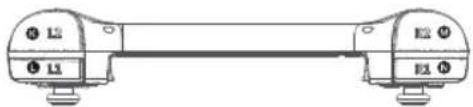
natural_image
Technical line drawing of a mechanical component with two ends and a central shaft (no text or symbols)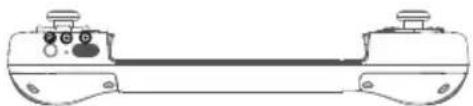
natural_image
Technical line drawing of a mechanical component with two ports and a central horizontal bar (no text or symbols)Left joystick
D-Pad
G button
D Screenshot button
E S button
F Turbo button
ABXY button
Right joystick
① Connection mode indicator
Charge indicator
L2 button
① L1 button
24 R2 button
R1 button
Type-C charging port
CHARGE THE GAMEPAD
Charge the gamepad through the Type C port at the bottom of the gamepad with a USB Type C cable.
LEARN ABOUT CHARGING TIPS
| Charging status indicator | Explanation |
| Steady green | In Use |
| Steady red | Battery Low |
| Flashing green | Charging |
| Steady green | Fully charged / Battery Full |
INSTALL THE PHONE
- Align the phone to the left side of the Gamepad and insert it obliquely.
2.Pull the right side of the gamepad and install the phone into the fixed position of the Gamepad.
DETACH THE PHONE
Hold the left side of the gamepad and the phone, and gently pull the right side of the gamepad to easily detach the phone.
CONNECT TO YOUR PHONE VIA BLUETOOTH
Play Android controller-supported games
Mobile game that supports using a controller to play.
- Long press A + HOME button until the gamepad turned on.
2.Turn on your Phone Bluetooth, search for the "Gamesir-X2" gamepad, click and Pair.
- When connecting next time, long press the home key to turn on the Gamepad, and the Gamepad will connect automatically.
Note: If the controller switches to other modes, you need to turn off the controller and then use the key combination to pair with the Android phone, turn on the Bluetooth of the phone, search for the "GameSir-X2" game controller, click and pair.
If the Android phone ignores/cancels the Gamepad Bluetooth pairing or connects to a new Android phone, you need to press and hold the G + S button for 5 seconds, the gamepad will re-pair with the Android phone after automatic restart, turn on the phone Bluetooth, and search for "GameSir-X2" gamepad, click and pair.
| Connection mode indicator | Explanation |
| Blue Flashing | Connecting |
| Blue Flashing Fast | Pairing |
| Blue normally on | Connected |
Play Apple arcade games and MFi games
Apple mobile game that supports using a controller to play.
1.Long press B +HOME button until the gamepad is turned on.
-
Turn on your phone Bluetooth, search for the "Xbox Wireless Controller" gamepad, click and pair.
-
When connecting next time, long press the home key to turn on the Gamepad, and the gamepad will connect automatically.
Note: If the controller switches to other modes, you need to turn off the controller and then use the key combination to pair with the iPhone. Turn on the Phone Bluetooth, search for the" Xbox Wireless Controller" gamepad, click and pair.
If iPhone ignores/cancels the Gamepad Bluetooth pairing or connects to a new iPhone, you need to press and hold the G + S button for 5 seconds, the gamepad will re-pair with the iPhone after automatic restart. Turn on Bluetooth of iPhone, search" Xbox Wireless Controller", click and pair.
| Connection mode indicator | Explanation |
| Purple flashing | Connecting |
| Purple flashing fast | Pairing |
| Purple normally on | Connected |
USE G-TOUCH TO PLAY GAMES THAT DO NOT SUPPORT USING A CONTROLLER ON APPLE DEVICES
System requirements: iOS12 or above – iOS13.4 or below. Scan the QR code below to download and install the GameSir app.
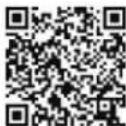
- Long press the G + HOME Button until the Gamepad turned on.
- Turn on Bluetooth and search "Gamesir-X2_G" gamepad, click and pair.
3.Enter the GameSir app, click on the "device" page to expand the drop-down menu in the upper left corner, select the "GameSir-x2" gamepad, and click "connect now" - After the gamepad is connected successfully, enter the corresponding gamepad page, click the "G-Touch" icon to find the corresponding game icon, and click "Configuration" to enter the configuration interface.
- In the configuration list, select "official" configuration, select the corresponding phone model, click "save and start" to enter the game.
Note: If the controller switches to other modes, you need to turn off the controller and then use the key combination to pair with the iPhone. Turn on the Phone Bluetooth, search for the "Gamesir-X2_G" gamepad, click and pair. If iPhone ignores/cancels the Gamepad Bluetooth pairing or connects to a new iPhone, you need to press and hold the G + S button for 5 seconds; the gamepad will re-pair with the iPhone after automatic restart. Turn on Bluetooth of iPhone, search for "Gamesir-X2_G" gamepad, click and pair.
| Connection mode indicator | Explanation |
| Light blue flashing | Connecting |
| Light blue flashing fast | Pairing |
| Light blue always on | Connected |
USE G-TOUCH TO PLAY GAMES THAT DO NOT SUPPORT USING A CONTROLLER ON ANDROID PHONES.
System requirements: Android system 9.0 or above. Scan the QR code below to download and install the GameSir app.

- Long press the G + Home button until the gamepad is powered on.
- Turn on the phone Bluetooth and search "Gamesir-X2_G" gamepad, click and pair.
3.Enter the GameSir app, click on the "Device" page to expand the drop-down
menu in the upper left corner, select the "GameSir-X2" Gamepad, and click "Connect now" - After the gamepad is successfully connected, enter the corresponding gamepad page,
click 'Add Game', find the corresponding game icon, and click to enter the game. - After entering the game, Find and click the hover window (the permission of the hover window should be enabled), and click "Recommended Configuration" to use the official configuration.
Note: If the controller switches to other modes, you need to turn off the controller and then use the key combination to pair with the Android phone, turn on the Bluetooth of the phone, search for the "Gamepad-X2_G" gamepad, click and pair. If the Android phone ignores/cancels the Gamepad Bluetooth pairing or connects to a new Android phone, you need to press and hold the G + S button for 5 seconds., the gamepad will re-pair with the Android phone after automatic restart, turn on the phone Bluetooth, and search for "Gamepad-X2_G" gamepad, click and pair.
| Connection mode indicator | Explanation |
| Light blue flashing | Connecting |
| Light blue flashing fast | Pairing |
| Light blue always on | Connected |
SCREENSHOT AND KEY COMBINATION FUNCTION
| step | Description |
| Screenshot key | Screenshot function can be realized on some Android phones |
| S key + D-pad up and down | The system volume control can be realized on some Android phones |
TURBO COMBO FUNCTION
| Combo frequency | Set/cancel Combo | Indicator light description |
| Achieve fast attacks in the game | Long press the button that needs to be used to trigger a combo, then press the Turbo button. G + D-Pad up and down will uniformly increase/decrease the combo frequency of the buttons with the combo function set. Editable buttons: A,B,X,Y,L1,R1,L2,R2 | Slow: 1+2green for 2 seconds Mid-range: 1+2orange for 2 seconds Fast: 1+2red for 2 seconds |
POWER OFF
Long press the home button until the gamepad shut down.
AUTO SLEEP MODE
When the Gamepad is in the normal wireless connection state, it will automatically go into sleep mode within 600 seconds without operation.
When the Gamepad is not connected, it will automatically go into sleep mode sleep within 120 seconds without operation.
While the gamepad is in Auto-sleep mode, Press the HOME button until it returns to normal mode and the device is connected.
ONLINE TUTORIAL
To learn more about Android controller-supported games, Apple arcade games, and how to configure and use the GameSir X2 Bluetooth version. Please scan the following QR code or refer to the online advanced user's guide at
(https://www.gamesir.hk/pages/x2-bluetooth-help)

▲ NOTICE Please read this Precautions carefully.
- CONTAINS SMALL PARTS. Keep out of reach of children under the age of 3. Seek immediate medical attention if swallowed or inhaled.
• DO NOT use the product near fire. - DO NOT expose to direct sunlight or high temperatures.
• DO NOT leave the product in a humid or dusty environment.
• DO NOT impact the product or cause it to fall due to strong impact.
• DO NOT touch USB port directly or it might cause malfunctions.
• DO NOT strongly bend or pull cable parts.
• Use a soft, dry cloth while cleaning.
• DO NOT use chemicals such as gasoline or thinner.
• DO NOT disassemble, repair or modify.
• DO NOT use for purposes other than its original purpose. We are NOT responsible for accidents or damage when used for non-original purposes.
• DO NOT look directly at the optical light. It might damage your eyes.
• If you have any quality concerns or suggestions, please contact GameSir or your local distributor.
This device complies with part 15 of the FCC Rules. Operation is subject to the following two conditions: (1) This device may not cause harmful interference, and (2) this device must accept any interference received, including interference that may cause undesired operation.
Note: This equipment has been tested and found to comply with the limits for a Class B digital device, pursuant to part 15 of the FCC Rules. These limits are designed to provide reasonable protection against harmful interference in a residential installation. This equipment generates, uses and can radiate radio frequency energy and, if not installed and used in accordance with the instructions, may cause harmful interference to radio communications.
However, there is no guarantee that interference will not occur in a particular installation. If this equipment does cause harmful interference to radio or television reception, which can be determined by turning the equipment off and on; the user is encouraged to try to correct the interference by one or more of the following measures:
-Reorient or relocate the receiving antenna.
-Increase the separation between the equipment and receiver.
-Connect the equipment into an outlet on a circuit different from that to which the receiver is connected.
-Consult the dealer or an experienced radio/TV technician for help.
システム要件
ハードウェア要件
- 携帯本体の長さは173mmを下回る
ソフトウェア要件 - システムバージョンはAndroid9.0、iOS13以上
設備レイアウト

natural_image
Line drawing of a game controller with hexagonal maze pattern and control buttons (no text or symbols)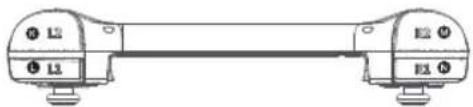
natural_image
Line drawing of a horizontal dumbbell with two side legs (no text or symbols)
natural_image
Technical line drawing of a mechanical component with two ports and a central horizontal bar (no text or symbols)A 左スティック
F Turboボタン
③ L2ボタン
P HOME ポタン
B 十字ボタン
ABXYボタン
① L1ボタン
© Reset ボタン
© Gボタン
右スティック
圧 R2ボタン
① スクリーンショットボタン
接続モードバイロットランプ
R1ボタン
⑪ Sボタン
① 充電パイロットランプ
◎ Type-C充電ポート
コントローラーから携帯電話を充電します
充電ケーブルを使用して、コントローラー下部のType-CインターフェイスをUSB充電ポートに接続します
充電のヒントについて
| 充電状態インジケーター | 説明 |
| 縁で点灯 | 使用中 |
| 赤で点灯 | 低電力 |
| 縁で点滅 | 充電中 |
| 縁で点灯 | フル充電 |
携帯を取り付けます
1 携帯をコントローラーの左側に合わせ、斜めに挿入します
2.コントローラーの右側を引き離し、携帯をコントローラーの固定位置に取り付けます
携帯を外します
コントローラーから携帯を取り外すには、コントローラーの左側と携帯をしっかりと握り、コントローラーの右側をそっと引いて、携帯をコントローラーから簡単に外せるようにしてください
BLUETOOTH経由で携帯電話に接続します
Bluetooth経由で携帯電話に接続します
Androidネイティブコントローラーゲームをプレイできます
1.コントローラーがオンになるまでAボダン+HOMEボダンを長押しします
-
携帯のBluetoothをオンにし、"Gamesir-X2"ゲームコントローラーを検索し、クリックしてペアリングします
-
次回接続するときは、HOMEボタンを長押ししてオンにすると、コントローラーが自動的に接続されて制御されます
注:コントローラーが他のモードに切り替わる場合は、コントローラーの電源を切り、ショートカットキーでAndroid携帯とベアリングし、携帯のBluetoothをオンにして、"Gamesir-X2"ゲームコントローラーを検索し、クリックしてベアリングする必要があります
お使いのスマホがコントローラーのベアリング配録を削除している場合や、新しいスマホに接続する場合、コントローラーが再起動するまでG+S(5秒)を押し、そしてもう一度ベアリングすることが必要です
| 接続モードインジケーター | 説明 |
| 青く点滅 | 接続中 |
| 青ですばやく点滅 | ペアリング中 |
| 青で点灯 | 接続済み |
Apple arcadeアップルサブスクリプションゲーム、MFi Apple公式ゲームパッド対応ゲームをプレイできます
コントローラー操作をサポートするゲームを指します
1.コントローラーがオンになるまでBボダン+HOMEボダンを長押しします
-
携帯のBluetoothをオンにし、"Xbox Wireless Controller"ゲームコントローラーを検索し、クリックしてベアリングします
-
次回接続するときは、HOMEボタンを長押ししてオンにすると、コントローラーが自動的に接続されて制御されます
注:コントローラーが他のモードに切り替わる場合は、コントローラーの電源を切り、ショートカットキーでアップル携帯とベアリングし、スマホのBluetoothをオンにして、「Xbox Wireless Controller"ゲームコントローラーを検索し、クリックしてベアリングする必要があります。アップルフォンがコントローラーBluetoothベアリングを無視/キャンセルするか、新しいアップルフォンに接続する場合、コントローラーのGポタン+SポタンをS対応押し続ける必要があります。コントローラーは、自動再起断権にアップル携帯と再ベアリングし、携帯Bluetoothをオンにして、「Xbox Wireless Controller"ゲームコントローラーを検索し、クリックしてベアリングします。
| 接続モードインジケーター | 説明 |
| 紫色で点滅 | 接続中 |
| 紫ですばやく点滅 | ペアリング中 |
| 紫で点灯 | 接続済み |
ゲームバッド非対応のゲームは、iPhoneでG-touchモードでプレイできます
システム要件: IOS12以上-IOS13.4以下
下記のQRコードをスキャンして、GameSir appをダウンロードしてインストールします
-
コントローラーがオンになるまでGボダン+HOMEボダンを長押しします
-
携帯のBluetoothをオンにし、「Gamesir-X2_G"ゲームコントローラーを検索し、クリックしてベアリングします
3.GameSirappに入り、「デバイス」ページ左上のボダンをクリックして展開ドロップダウンメニューし、「GameSir-X2」コントローラーを選択して、「今すぐ接続」をクリックします
- コントローラーが正常に接続されたら、対応するコントローラーページに入り、「G-Touch」アイコンをクリックし、対応するゲームアイコンを見つけ、「設定」をクリックして設定インターフェイスに入ります
5.設定リストで「公式」設定を選択し、対応するモデルを選択し、「保存&スタート」をクリックしてゲームに参加します
注:コントローラーが他のモードに切り替わる場合は、コントローラーの電源を切り、ショートカットキーでアップル携帯とペアリングし、携帯のBluetoothをオンにして、"Gamesir-X2_G"ゲームコントローラーを検索し、クリックしてペアリングする必要があります
アップル携帯がコントローラーBluetooth小ペアリングを無視/キャンセルするか、新しいアップル携帯に接続する場合、コントローラーのGボタン+Sボタンを5秒間押し続ける必要があります。コントローラーは、自動再起動後にアップル携帯と再ペアリングし、携帯Bluetoothをオンにして、"Gamesir-X2_G"ゲームコントローラーを検索し、クリックしてペアリングします
| 接続モードインジケーターランプ | 説明 |
| ライトブルーでゆっくり点滅 | 接続待ち |
| ライトブルーですばやい点滅 | ベアリング中 |
| ライトブルーで点灯 | 接続済み |
AndroidスマホはG-touchモードでゲームパッド非対応のゲームをプレイす
る時のシステム要件
システム要件:Android9.0以降
下記のQRコードをスキャンして、GameSir appをダウンロードしてインストールします

-
コントローラーがオンになるまでGキー+HOMEキーを長押しします
-
スマホのBluetoothをオンにし、"Gamesir-X2_G" ゲームバッドを検索し、クリックしてベアリングします
-
GameSir appに入り、「デバイス」ページをクリックして左上のメニューを展開し、「GameSir-X2」コントローラーを選択して、[今すぐ接続]をクリックします。
-
コントローラーが接続成功したら、対応するコントローラーページに入り、「ゲームを追加」をクリックし、対応するゲームアイコンを見つけて、追加完了後にクリックしてゲームに入ります
-
ゲームに入ったら、フローティングウィンドウを見つけてクリックし(フローティングウィンドウの権限を開く必要があります)、「推奨設定」をクリックし、公式配置を使用します
注:コントローラーが他のモードに切り替わる場合は、コントローラーをシャットダウンして、もう一度組み合わせキーを押しコントローラーを再起動し、ベアリングする必要があります
お使いのスマホがコントローラーのベアリング記録を削除している場合や、新しいスマホに接続する場合、コントローラーが再起動するまでG+S(5秒)を押し、そしてもう一度ベアリングすることが必要です。
| 接続モードインジケーターランプ | 説明 |
| ライトブルーでゆっくり点滅 | 接続待ち |
| ライトブルーですばやい点滅 | ペアリング中 |
| ライトブルーで点灯 | 接続済み |
スクリーンショット、録画と組み合わせキー機能
| ステップ | 説明 |
| キャプチャーボタン | ンショットを撮影できます |
| Sキー+方向キー上、下 | 一部のAndroidスマホは音量を調節できます |
TURBO連射機能
| 連射機能 | コンポ設定/キャンセル | インジケーターライト説明 |
| ゲーム内で高速な攻撃を達成する | コンポをトリガーするために使用する必要があるボタンを長押ししてから、ターボボタンを押しますGキー+方向キーを上下に動かすと、コンポ頻度が増減します設定可能なボタン:A,B,X,Y,L1,R1,L2,R2 | 低速:接続モードパイロットランプ+充電状態インジケーターが同時に緑色に2秒間点灯します中速:接続モードパイロットランプ+充電状態インジケーターが同時にオレンジ色に2秒間点灯します快速:接続モードパイロットランプ+充電状態インジケーターが同時に赤色に2秒間点灯します |
オフ
コントローラーがオフになるまでHOMEボタンを長押しします
自動スリーブ
コントローラーが接続済みの状態で600秒以上操作されないと自動にシャットダウンします。コントローラーが接続なしの状態(接続待ち)で120秒以上接続されないと自動にシャットダウンします。
スリーブしたら、起動やデバイスが接続されるまでホームボタンを長押ししてください。
オンラインチュートリアル
ゲームバッド対応のゲーム、Apple arcadeゲーム、およびGameSir X2 Bluetooth/バージョンを設定して使用方法についてもっと知りたければ、
下記のQRコードをスキャンするか、オンラインの高級ユーザーガイド
(位于https://www.gamesir.hk/pages/x2-bluetooth-help)を参照してください

▲ ご注意:保護者の方へ必ずお読みください。
・小さい部品がありますので3歳未満のお子極には絶対に与えないでください。
・乳幼児の手の届くところに置かないでください。万一飲み込んだ場合は、すぐに医師に相談してください。
・火気のある場所では絶対に使用しないでください。
- 長時間直射日光当てたり、高温となる場所に置かないでください。
・本品を渋気やホコリの多いところに置かないでください。
・本品に物を当てたり、落下させるような強い衝撃を与えないでください。
- 故障の原因になりますので、USB端子を直接手で触ないでください。
・ケーブル部を強く曲げたり引っ借ったりしないでください。
・お手入れの際には、飯いた柔らかい布を使用してください。
・ベンジン、ジンナーなどの薬品は使用しないでください
・分解や修理 改造は絶対にしないでください。
- 本実の目的以外には使用しないでください。本実の目的以外に使用した場合の事故や損害に対し、弊社は一切その責任を負いません。
- 光学式ライトの光を直接見ないでください。強い光より、目を痛める可能性があります。
시스템 요구
하드웨어 요구
- 휴대폰 본체 길이는173mm 미만
소프트웨어 요구
-시스템 버전은 Android9.0,iOS13이상
설비 배치

natural_image
Technical line drawing of a game controller with hexagonal grid pattern and labeled buttons (no text or symbols)A 좌 조이스틱
B D-매드
© G버든
①스크린샷 버튼
① S버튼
F Turbo버튼
ABXY버튼
(1)우조이스틱
①연결 모식 표시듬
① 충전 표시등
K L2버튼
L1버튼
52버드
21 81버튼
Type-C중전 포트
조이스틱으로 휴대폰을 충전
1.충전 케이블을 이용하여 조이스틱 하부의 Type-C포트를USB충전 포트와 연결 시킵니다.
충전 제시를 요해하
| 중전 상태 표시등 | 설명 |
| 녹색 커징 | 사용중 |
| 적색 커징 | 저전력 |
| 녹색 깜박 | 충전중 |
| 녹색 커징 | 전력 중민 |
휴대폰 설치
1.휴대폰과 조이스틱 좌측을 대응시키고 경사지게 삼입합니다.
2.조이스틱 우측을 당겨 휴대폰을 조이스틱의 고정 위치속에 설치합니다.
휴대폰 취급
휴대폰을 조이스틱으로 부터 제거할 경우, 조이스틱 좌측 및 휴대폰을 든튼히 잡고 조이스틱 우측을 가 Bound게 당기면 휴대폰이 조이스틱으로 부터 손쉽게 달락합니다.
블루투스로 휴대폰과 연결
안드로이드 오리지날 조이스틱 게임 및 공식 협력 휴대폰 게임을 플레이
병아리 조이스틱과 공식 협력을 맺은 휴대폰 게임 및 자체가 조이스틱 작동을 지원하는 게임입니다.
1.조이스틱이 커질때 까지A버튼+HOME버튼을 길게 누르십시오.
2.휴대폰 블루투스를 켜고"Gamesir-X2"게임 조이스틱을 검색하고 클릭 및 매칭합니다.
3.다음번에 연결할때, HOME버튼을 긴게 놓러 시작하여 조이스틱온 자동으로 연결되어 제어를 진행합니다.
주: 만막 조이스틱을 기타 모식으로 전환할 경우, 조이스틱을 고고 조합키를 다시 이용하여 시작하며 안드로이드 휴대 펀과 대칭을 진행합니다. 휴대폰 블루루스를 켜고 "Gamesir-X2"게임 조이스틱을 검색하고 클릭 및 매칭합니다.
만약 한드로이드 휴대폰과 조이스틱의 불루투스 매칭을 무시/취소하거나, 또는 새로운 안드로이드 휴대폰과 연결할 경우, 조이스틱의 G버튼+S버튼올S즈칸 길게 누르며 조이스틱이 자동으로 다시 부팅하고 만드로이드 휴대폰과 다시 매칭합니다. 휴대폰 불루투스를 켜고 "Gamesir-X2" 게임 조이스틱을 검색하고 클릭 및 대칭합니다.
| 연결 모식 표시등 | 설명 |
| 남색 깜박 | 연결중 |
| 남색 빠른 깜박 | 대칭중 |
| 남색 켜짐 | 이미 연결 |
APPLE ARCADE애플 구독 게임, MFi애플 공식 조이스틱 게임 및 공식 협력 휴대폰 게임을 플레이
병아리 조이스틱과 공식 협력을 맺은 휴대폰 게임 및 자체가 조이스틱 작동을 지원하는 게임입니다.
1.조이스틱이 커질때 까지B버튼+HOME버튼을 길게 누르십시오.
2.블루투스를 켜고"Xbox Wireless Controller"게임 조이스틱을 검색하고 클릭 및 매칭합니다. 3.다음변에 연결할때, HOME버튼을 길게 눌러 시작하며 조이스틱은 자동으로 연결되어 제어를 진행합니다.
만 Arm 주이스틱을 &= 타 모식으로 전환할 경우, 주이스틱을 &= 조합기를 다시 이용하여 시작하며 어 crossings 후드폰 및 대칭을 진행합니다. 휴대폰 블루투스를 커고 "Xbox Wireless Controller"개임 주이스틱을 검색하고 클릭 및 명상합니다. М Antarctic 어 crossings 휴대폰과 주이스틱의 블루투스 대칭을 문시/추소하거나, 또는 새로운 예를 휴대폰과 연결할 경우, 주이스틱의 GVMPS+SB수 roundos가 시간 함께 나르며 주이스틱이 자동으로 다시 부팅하고 예를 휴대폰과 다시 대칭합니다. 휴대폰 블루투스를 커고 "Xbox Wireless Controller"개임 주이스틱을 검색하고 클릭 및 대칭합니다.
| 연결 모식 표시등 | 설명 |
| 자주색 깜박 | 연결중 |
| 자주색 빠른 깜박 | 대칭중 |
| 자주색 켜짐 | 이미 연결 |
애플 휴대폰으로 G-TOUCH모식을 통하여 비 공식 조이스틱을 지원하는 게임을 플레이하는 시스템 요구
시스템 요구 : IOS12이상——IOS13.4및 미만
이하QR코드를 스캔하여 GameSir app를 다운로드 및 설치하십시오.

1.조이스틱이 커질때 까지G버튼+HOME버튼을 길게 누르십시오.
- 블루투스를 커고"Gamesir-X2 G"게임 조이스틱을 검색하고 클릭 및 매칭합니다.
3.GameSir app에 진입하여 "설비"페이지에서 좌상부 코너의 풀다운 매뉴를 클릭하고
"GameSir-X2"조이스틱을 선택하며 "즉시 연결"을 클릭합니다.
4.조이스틱이 연결 성공된후,대응하는 조이스틱 페이지로 진입하며 "G-Touch" 아이콘을 클릭
하여 대응하는 게임 아이콘을 찾고 '구성'을 클릭하여 구성 인터페이스로 진입합니다.
5.구성 목록에서 "공식"구성을 선택하고 대응하는 기형을 선택하며 "저장 및 시작"을 클릭하여 게임에 진입합니다.
주: 단약 조이스틱을 기타 미속으로 전환할 경우, 주이스틱을 고고 조항키를 다시 이용하여 시청하여应对을 휴대폰과 매칭을 진명합니다. 휴대는 블루투스를 커고 "Gamesir-X2_G" 게임 조이스틱을 감색하고 클릭 및 매칭합니다. 단약应对 휴대공과 조이스틱의 블루투스 매칭을 두시/쥐소하거나, 또는 새로운应对 휴대폰과 연결할 경우, 주이스틱의 가버만 +와버Eric스각 갈게 누르며 조이스틱이 지동으로 다시 부팅하고应对을 휴대본과 다시 미청합니다. 휴대는 블루투스를 커고 "Gamesir-X2_G" 게임 조이스틱을 감색하고 클릭 및 매칭합니다.
| 연결 모식 표시등 | 설명 |
| 담남색 깜박 | 연결중 |
| 담남색 빠른 깜박 | 매칭중 |
| 담남색 커짐 | 이미 연결 |
안드로이드 휴대폰으로 G-TOUCH모식을 통하여 비 공식 조이스틱을 지원하는 게임을 플레이하는 시스템 요구
시스템 요구:안드로이드 시스템9.0이상
이하QR코드를 스캔하여 GameSir app를 다운로드 및 설치하십시오.

1.조이스틱이 커질대 까지G버튼+HOME버튼을 길게 누르십시오.
- 블루투스를 켜고"Gamesir-X2 G"게임 조이스틱을 검색하고 클릭 및 매칭합니다.
3.GameSir app에 진입하여 "설비"페이지에서 좌상부 코너의 풀다운 메뉴를 클릭하
고"GameSir-X2"조이스틱을 선택하며"즉시 면길"을 클릭합니다.
4.조이스틱이 연결 성공된후,대응하는 조이스틱 페이지로 진입하며 "게임 추가"를 클릭하여 대응하는 게임 아이콘을 찾고 추가한후 게임에 진입합니다.
- 게임에 진입한 후 플로팅 창구(플로팅 창구 권한을 커아함)를 클릭하고 "추천 구성"을 클릭 하여 공식 구성을 사용합니다.
주민약 주이스틱을 기타 요식으로 전쟁할 경우, 주이스틱을 끄고 조항기를 다시 이용하여 시작하여 인드로이드 헤대 PEN과 짠했을 진행합니다. 휴대분 훼부스풀을 카고 "Gamesir-X2_G" 계임 주이스틱을 급색하고 클릭 및 최칭합니다. 안의 인드로이드 휴대공과 조이스틱의 를루스풀 대칭을 우시/최소하거나, 또는 새로운 메를 후대프과 연결할 경우, 조이스틱의 G버튼 +S버튼물5초간 길게 누르며 조이스틱이 지용으로 다시 부담하고 인드로이드 휴대문과 다시 대칭합니다. 휴대분 훼부스풀을 카고 "Gamesir-X2_G" 계임 주이스틱을 급색하고 클릭 및 최칭합니다.
| 연결 모식 표시등 | 설명 |
| 담남색 깜박 | 연결중 |
| 담남색 빠른 깜박 | 매칭중 |
| 담남색 켜짐 | 이미 연결 |
스크린샷 녹화 및 조합키 기능
| 절차 | 설명 |
| 스크린샷 키 | 부분적 안드로이드 휴대폰에서 스크린샷 기능을 실현 가능 |
| S베든+크로스바든 상, 하 | 부분적 안드로이드 휴대폰에서 시스템 볼륨 제어를 실현 가능 |
TURBO연속 타격기능
| 연속 타격 기능 | 연속 클릭 설정/연속 클릭 취소 | 표시등 설명 |
| 게임중 신속한 연속 타격을 실현 | 연속 타격을 실현할 버튼을 길게 누른후 Turbo 버튼을 누른다.G버튼+크로스 버튼 상,하로 연속 클릭 빈도를 증가/ 감소함 버튼을 설정 가능A,B,X,Y,L1,R1,L2,R2 | 느런 속도: 연결 모식 표시등+층전 상태 표시등이 동시에 2초간 녹색으로 커짐중단 속도: 연결 모식 표시등+층전 상태 표시등이 동시에 2초간 등색으로 커짐빠른 속도: 연결 모식 표시등+층전 상태 표시등이 동시에 2초간 적색으로 커짐 |
丑기
조이스틱이 자동으로 꺼질때 까지 HOME 버튼을 길게 누릅니다.
자동 수면
조이스틱이 두선으로 정상 연결 상태에서, 작동이 없으면 600초내에 자동으로 수면합니다. 조이스틱이 연결되지 않은 상태에서, 작동이 없으면120초내에 자동으로 수면합니다. 자동 수면후 웨이크업 및 설비가 연결될 때까지HOME버튼을 누릅니다.
온라인 과정
안드로이드 오리지날 조이스틱게임, 공식 협력 게임 목록, Apple arcade애플 구독 게임, 및 GameSir X2블루투스 버전 사용 방법에 대한 진일보 요해가 필요한 경우. 이하QR코드를 스캔하거나 온라민 고급 사용자 안내
(위치는https://www.gamesir.hk/pages/x2-bluetooth-help)를 직접 참조 열람하십시오.

△한국KC 경고문구:
-1.감렬한 진동을 피하고 사사로이 해제,개조,수리를 하지 마십시오.
•2.습한곳고온오일과 연가가 있는 장소를 피하여 보관하십시오.
-3.물 촉은 기타 액체가 컨트볼러 내부로 들어가만 컨트볼러 기능에 영향용줄수 있습니다
-4.배터리가 내장되었기에 헌트롤러를 설속에 넣지 마십시오,폭백할 수있습니다.
5.본 제품중전 전앞은 USB3.7-5.5V, 직류전원(보통 안드로이드 휴대폰중전전원이면 바로 사용할 수 있음)이고, 아닐 경우 중전어실패하거나, 제품 캐손을 조례할 수 있습니다.
6.어린이는 성인의 보로하며 본 제품을 사용하십시오.
- 7.임의의 품질 문제거나 건의 사항은 판매업체거나 소비자 상당실에연락하십시오,연락치는 제품 결면 포장에 있습니다.
系统要求
硬件要求
- 手机机身长度小于173mm
软件要求
- 系统版本在Android9.0以上,iOS13以上
设备布局

natural_image
Technical line drawing of a game controller with hexagonal grid pattern and control buttons (no text or symbols)A 左招杆
③ 十字键
② G键
② 载图键
S變
④ Turbo键
ABXY雯
H 右摇杆
① 连接模式指示灯
② 充电指示灯
L2 撬
L口键
M R2键
⑰ RI键
Type-C充电接口
HOME
复位
通过手柄为手机充电
- 使用充电线缆,将手柄底部的Type-C接口连接到USB充电端口
了解充电提示
| 充电状态指示灯 | 说明 |
| 绿色常亮 | 使用中 |
| 红色常亮 | 低电量 |
| 绿色闪烁 | 充电中 |
| 绿色常亮 | 充满电量 |
安装手机
- 将手机对准手柄左侧并倾斜插入
- 将手柄右侧拉开,将手机安装至手柄的固定位中
取下手机
若要将手机从手柄上取下,请紧握手柄左侧及手机,轻轻拉动手柄右侧,使手机轻松脱离手柄
通过蓝牙连接到手机
玩安卓原生手柄游戏及官方合作手游
指与小鸡手柄达成官方合作的手游以及本身支持手柄操作的游戏
-
长按A键+HOME键,直到手柄开机
-
打开手机蓝牙,搜索到“Gamesir-X2”游戏手柄,点击并配对
3.下次连接时,长按HOME键开机,手柄将自动连接进行控制
注:若手柄切换其他模式,需将手柄关机后重新使用组合键开机与安卓手机进行配对,打开手机蓝牙,搜索到
"Gamesir-X2"游戏手柄,点击并配对
若安卓手机忽略/取消 手柄蓝牙配对或与新的安卓手机进行连接,需长按手柄G键+S键S秒,手柄将在自动重启后重新与安卓手机进行配对,打开手机蓝牙,搜索到“Gamesir-X2”游戏手柄,点击并配对
| 连接模式指示灯 | 说明 |
| 蓝色闪烁 | 正在连接 |
| 蓝色快速闪烁 | 正在配对 |
| 蓝色常亮 | 已连接 |
玩Apple arcade苹果订阅游戏,MFi苹果官方手柄游戏及官方合作手游
指与小鸡手柄达成官方合作的手游以及本身支持手柄操作的游戏
- 长按B键+HOME键,直到手柄开机。
2.打开手机蓝牙,搜索到"Xbox Wireless Controller"游戏手柄,点击并配对
3.下次连接时,长按HOME键开机,手柄将自动连接进行控制
注:若手柄切换其他模式,需将手柄关机后重新使用组合键开机与苹果手机进行配对,打开手机蓝牙。搜索到
Xbox Wireless Controller游戏手柄,点击并配对
若苹果手机忽略/取消 手柄蓝牙配对或与新的苹果手机进行连接,常长按手柄G键+S键5秒。手柄将在自动重启后重
新与苹果手机进行配对,打开手机蓝牙,搜索到"Xbox Wireless Controller"游戏手柄,点击并配对
| 连接模式指示灯 | 说明 |
| 紫色闪烁 | 正在连接 |
| 紫色快透闪烁 | 正在配对 |
| 紫色明亮 | 已连接 |
苹果手机通过G-TOUCH模式游玩非官方手柄支持游戏系统要求
系统要求: iOS12以上——iOS13.4及以下
扫描下方二维码下载并安装小鸡游戏世界APP

-
长按G键+HOME键,直到手柄开机
-
打开手机蓝牙,搜索到 "Gamesir-X2_G" 游戏手柄,点击并配对
-
进入小鸡游戏世界APP,在“设备”页面点击展开左上角下拉菜单,选择“GameSir-X2”手柄,点击“立即连接”
-
手柄连接成功后,进入对应手柄页面,点击“G-Touch”图标,找到对应游戏图标,点击“配置”进入配置界面
-
在配置列表选择“官方”配置,并选择对应的机型,点击“保存并启动”,进入游戏即可
注:若手柄切换其他模式,需将手柄关机后重新使用组合键开机与单果手机进行配对。打开手机蓝牙,搜索到
"Gamesir-X2_G"游戏手柄,点击并配对
若苹果手机忽略/取消 手柄蓝牙配对或与新的苹果手机进行连接,需长按手柄G键+S键5秒,手柄将在自动重启后重新与苹果手机进行配对。打开手机蓝牙。搜索到“Gamesir-X2_G”游戏手柄,点击并配对
| 连接模式指示灯 | 说明 |
| 浅蓝色闪烁 | 正在连接 |
| 浅蓝色快速闪烁 | 正在配对 |
| 浅蓝色常亮 | 已连接 |
安卓手机通过G-TOUCH模式游玩非官方手柄支持游戏系统要求
系统要求: 安卓系统9.0以上
扫描下方二维码下载并安装小鸡游戏世界APP

-
长按G键+HOME键,直到手柄开机。
-
打开手机蓝牙,搜索到“Gamesir-X2_G”游戏手柄,点击并配对
-
进入小鸡游戏世界APP,在“设备”页面点击展开左上角下拉菜单,选择“GameSir-X2”手柄,点击“立即连接”
-
手柄连接成功后,进入对应手柄页面,点击“添加游戏”,找到对应游戏图标,添加后点击进入游戏
-
进入游戏后,找到并点击悬浮窗(需开启悬浮窗权限),点击“推荐配置”,使用官方配置
注:若手柄切换其他模式,需将手柄关机后重新使用组合键开机与苹果手机进行配对,打开手机蓝牙。搜索到
"Gamesir-X2_G"游戏手柄,点击并配对
若苹果手机忽略/取消 手柄温分配对或与新的苹果手机进行连接,需长按手柄G键+S键S秒,手柄将在自动重启后重新与苹果手机进行配对,打开手机蓝牙,搜索到“Gamesir-X2_G”游戏手柄,点击并配对
| 连接模式指示灯 | 说明 |
| 浅蓝色闪烁 | 正在连接 |
| 浅蓝色快速闪烁 | 正在配对 |
| 浅蓝色常亮 | 已连接 |
截图录制及组合键功能
| 步骤 | 说明 |
| 截图键 | 在部分安卓手机上可实现截图功能 |
| S键+十字键上、下 | 在部分安卓手机上可实现系统音量控制 |
TURBO连击功能
| 连击功能 | 设置连击/取消连击 | 指示灯说明 |
| 实现游戏中的快速连击 | 长按需要实现连击的按键后,再按Turbo按键G键+十字键上、下,将统一增加/降低连击频率可设定按键:A,B,X,Y,L1,R1,L2,R2 | 慢档速度:连接模式指示灯+充电状态指示灯同时点亮绿色2秒中档速度:连接模式指示灯+充电状态指示灯同时点亮橙色2秒快档速度:连接模式指示灯+充电状态指示灯同时点亮红色2秒 |
关机
长按HOME键直至手柄关机
自动休眠
当手柄处于无线正常连接状态时,无操作情况下将于600秒内自动休眠。当手柄处于未连接状态时,无操作情况下将于120秒内自动休眠。自动休眠后请长按HOME键直至唤醒及设备连接。
在线教程
如需进一步了解更多安卓原生手柄游戏、官方合作游戏列表、Apple arcade苹果订阅游戏、及如何配置和使用GameSir X2蓝牙版本,请扫描二维码或直接参阅在线高级用户指南(位于doc.xiaoji.com)


注意事项
- 若商品有质量问题,请首先联系我们的客服进行登记。
联系方式
QQ:800082537
电话:400-8828035(时间:9:00-18:00)
官网:www.xiaoj.com
出品:广州小鸿快跑网络科技有限公司
地址:广州市天河区建业路华翠街68号301A·1
-
如需退、换商品,请确保商品完好无损(包括商品外包装、附赠品、说明书、售后卡、标签等),不影响二次销售。
-
如要保修商品,请务必完整填写用户姓名、联系电话、联系地址,正确填进售后要求与详细说明售后原因,将售后卡随货寄回(如不完整填写保修卡信息,恕无法提供任何的售后服务)。
| 保修卡 | |
| (售后政策:非人为损坏,3个月包换、1年保修) | |
| 用户姓名 | |
| 联系电话 | |
| 联系地址 | |
| 售后要求 | □退 □换 □保修 |
| 售后原因 | |
| 订单编号 | |
| (注:非小鸡官网途径购买的产品,售后问题请直接与购买商家联系) | |

natural_image
Abstract white logo design on black background, no text or symbols present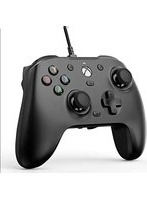
- SYSTEM REQUIREMENTS
- CHARGE THE GAMEPAD
- INSTALL THE PHONE
- DETACH THE PHONE
- CONNECT TO YOUR PHONE VIA BLUETOOTH
- Play Android controller-supported games
- Play Apple arcade games and MFi games
- USE G-TOUCH TO PLAY GAMES THAT DO NOT SUPPORT USING A CONTROLLER ON APPLE DEVICES
- USE G-TOUCH TO PLAY GAMES THAT DO NOT SUPPORT USING A CONTROLLER ON ANDROID PHONES.
- POWER OFF
- AUTO SLEEP MODE
- ONLINE TUTORIAL
- ▲ NOTICE Please read this Precautions carefully.
- システム要件
- コントローラーから携帯電話を充電します
- 携帯を取り付けます
- 携帯を外します
- BLUETOOTH経由で携帯電話に接続します
- ゲームバッド非対応のゲームは、iPhoneでG-touchモードでプレイできます
- AndroidスマホはG-touchモードでゲームパッド非対応のゲームをプレイす
- る時のシステム要件
- オフ
- 自動スリーブ
- オンラインチュートリアル
- ▲ ご注意:保護者の方へ必ずお読みください。
- 시스템 요구
- 하드웨어 요구
- 소프트웨어 요구
- 조이스틱으로 휴대폰을 충전
- 휴대폰 설치
- 휴대폰 취급
- 블루투스로 휴대폰과 연결
- 안드로이드 오리지날 조이스틱 게임 및 공식 협력 휴대폰 게임을 플레이
- APPLE ARCADE애플 구독 게임, MFi애플 공식 조이스틱 게임 및 공식 협력 휴대폰 게임을 플레이
- 애플 휴대폰으로 G-TOUCH모식을 통하여 비 공식 조이스틱을 지원하는 게임을 플레이하는 시스템 요구
- 안드로이드 휴대폰으로 G-TOUCH모식을 통하여 비 공식 조이스틱을 지원하는 게임을 플레이하는 시스템 요구
- 丑기
- 자동 수면
- 온라인 과정
- △한국KC 경고문구:
- 系统要求
- 硬件要求
- 软件要求
- 通过手柄为手机充电
- 安装手机
- 取下手机
- 通过蓝牙连接到手机
- 玩安卓原生手柄游戏及官方合作手游
- 玩Apple arcade苹果订阅游戏,MFi苹果官方手柄游戏及官方合作手游
- 苹果手机通过G-TOUCH模式游玩非官方手柄支持游戏系统要求
- 安卓手机通过G-TOUCH模式游玩非官方手柄支持游戏系统要求
- 关机
- 自动休眠
- 在线教程
- 注意事项
Marque : Gamesir
Modèle : X2
Catégorie : Contrôleur