
WNDA3100V3 - Adaptateur Wi-Fi NETGEAR - Notice d'utilisation et mode d'emploi gratuit
Retrouvez gratuitement la notice de l'appareil WNDA3100V3 NETGEAR au format PDF.

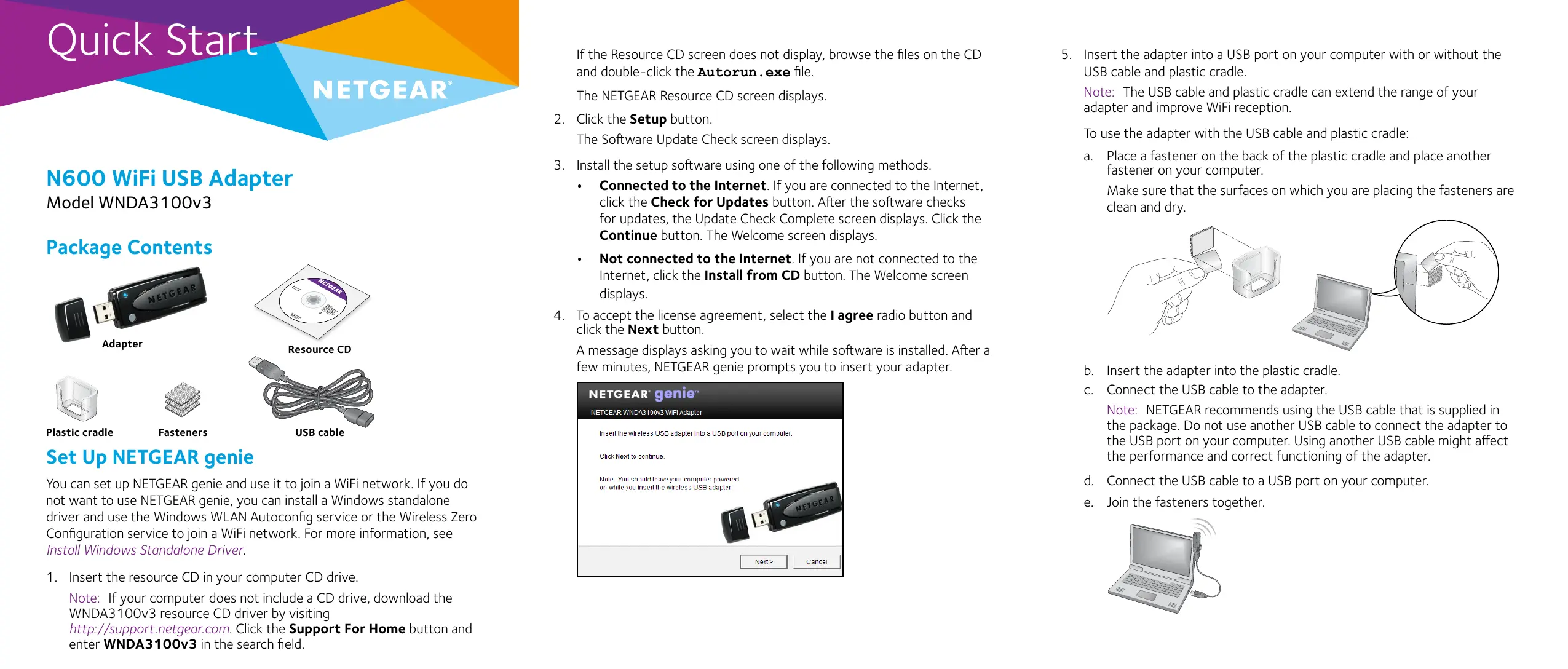
| Type de produit | Adaptateur Wi-Fi USB |
| Modèle | WNDA3100v3 |
| Marque | NETGEAR |
| Norme Wi-Fi | N600 (IEEE 802.11n) double bande 2,4 GHz et 5 GHz |
| Débit maximal | Jusqu'à 300 Mb/s par bande |
| Connectique | USB 2.0 |
| Bouton WPS | Oui |
| Indicateur LED | Ambre pour 2,4 GHz, bleu pour 5 GHz |
| Sécurité sans fil | WEP, WPA, WPA2 |
| Systèmes d'exploitation supportés | Windows 8.1, 8, 7, Vista, XP |
| Logiciel fourni | NETGEAR genie, pilote autonome Windows |
| Contenu de l'emballage | Adaptateur, CD de ressources, berceau plastique, attaches, câble USB |
| Dimensions (approx.) | 9,5 x 3,0 x 1,5 cm |
| Poids (approx.) | 20 g |
| Alimentation | Par port USB (bus) |
| Entretien | Nettoyer avec un chiffon sec et doux |
| Pièces détachées | Câble USB, berceau, attaches (inclus) |
FOIRE AUX QUESTIONS - WNDA3100V3 NETGEAR
Questions des utilisateurs sur WNDA3100V3 NETGEAR
0 question sur cet appareil. Repondez a celles que vous connaissez ou posez la votre.
Poser une nouvelle question sur cet appareil
Téléchargez la notice de votre Adaptateur Wi-Fi au format PDF gratuitement ! Retrouvez votre notice WNDA3100V3 - NETGEAR et reprennez votre appareil électronique en main. Sur cette page sont publiés tous les documents nécessaires à l'utilisation de votre appareil WNDA3100V3 de la marque NETGEAR.
MODE D'EMPLOI WNDA3100V3 NETGEAR
Quick Start
NETGEAR
N600 WiFi USB Adapter
Model WNDA3100v3
Package Contents
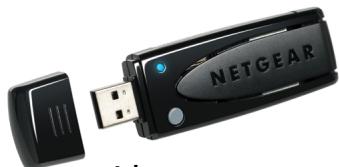
Adapter
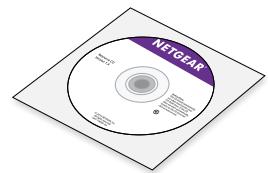
Resource CD
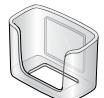

Plastic cradle
Fasteners
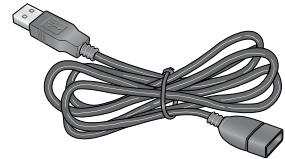
USB cable
Set Up NETGEAR genie
You can set up NETGEAR genie and use it to join a WiFi network. If you do not want to use NETGEAR genie, you can install a Windows standalone driver and use the Windows WLAN Autoconfig service or the Wireless Zero Configuration service to join a WiFi network. For more information, see Install Windows Standalone Driver.
- Insert the resource CD in your computer CD drive.
Note: If your computer does not include a CD drive, download the WNDA3100v3 resource CD driver by visiting
http://support.netgear.com. Click the Support For Home button and enter WNDA3100v3 in the search field.
If the Resource CD screen does not display, browse the files on the CD and double-click the Autorun.exe file.
The NETGEAR Resource CD screen displays.
- Click the Setup button.
The Software Update Check screen displays.
-
Install the setup software using one of the following methods.
-
Connected to the Internet. If you are connected to the Internet, click the Check for Updates button. After the software checks for updates, the Update Check Complete screen displays. Click the Continue button. The Welcome screen displays.
-
Not connected to the Internet. If you are not connected to the Internet, click the Install from CD button. The Welcome screen displays.
-
To accept the license agreement, select the I agree radio button and click the Next button.
A message displays asking you to wait while software is installed. After a few minutes, NETGEAR genie prompts you to insert your adapter.
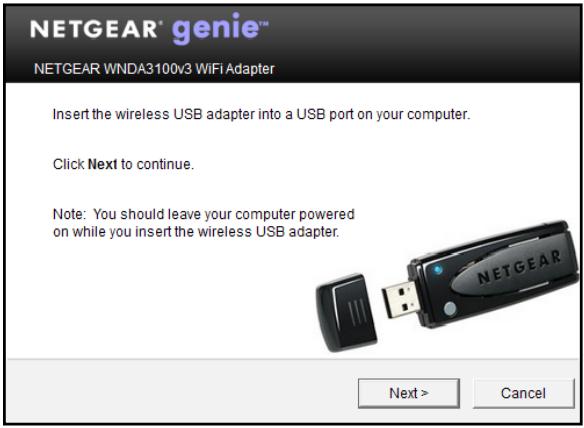
- Insert the adapter into a USB port on your computer with or without the USB cable and plastic cradle.
Note: The USB cable and plastic cradle can extend the range of your adapter and improve WiFi reception.
To use the adapter with the USB cable and plastic cradle:
a. Place a fastener on the back of the plastic cradle and place another fastener on your computer.
Make sure that the surfaces on which you are placing the fasteners are clean and dry.
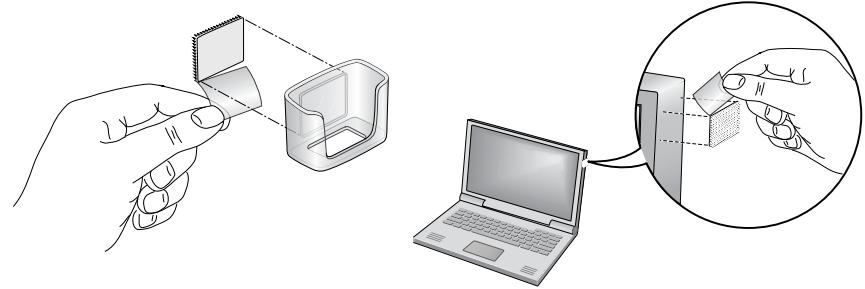
b. Insert the adapter into the plastic cradle.
c. Connect the USB cable to the adapter.
Note: NETGEAR recommends using the USB cable that is supplied in the package. Do not use another USB cable to connect the adapter to the USB port on your computer. Using another USB cable might affect the performance and correct functioning of the adapter.
d. Connect the USB cable to a USB port on your computer.
e. Join the fasteners together.
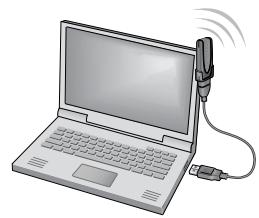
- Return to the NETGEAR genie screen and click the Next button.
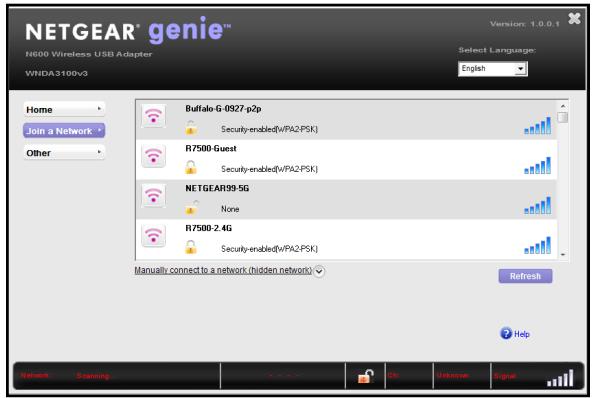
NETGEAR genie displays a list of WiFi networks in your area.
Install Windows Standalone Driver
For Windows 8.1, Windows 8, Windows 7, and Windows Vista, you can install the Windows standalone driver without NETGEAR genie and use the Windows WLAN Autoconfig service to join a WiFi network. If you use Windows XP, you can install the Windows standalone driver and use the Wireless Zero Configuration service to join a WiFi network.
- Insert the resource CD in your computer CD drive.
Note: If your computer does not include a CD drive, download the WNDA3100v3 resource CD driver by visiting
http://support.netgear.com. Click the Support For Home button and enter WNDA3100v3 in the search field.
If the Resource CD screen does not display, browse the files on the CD and double-click the Autorun.exe file.
The NETGEAR Resource CD screen displays.
- Click the Install Windows Standalone Driver button.
The driver installs on your computer. - When prompted, insert the adapter into a USB port on your computer.
Join a WiFi Network
You can join a WiFi network from NETGEAR genie, or you can use Wi-Fi Protected Setup (WPS) if your WiFi router supports it.
Join a Network Using NETGEAR genie
- Insert the adapter into a USB port on your computer.
- Click the adapter's NETGEAR genie icon that displays on the Windows systems tray or on the desktop.
The NETGEAR genie Home screen displays.
- Click the Join a Network button.
- Select a WiFi network.
- Click the Connect button.
- If the network is secure, enter its password or network key. The adapter joins the network, which can take a few minutes. Your settings are saved in a profile.
The adapter LED lights amber for a 2.4 GHz WiFi connection and blue for a 5 GHz WiFi connection.
Join a Network Using WPS
- Press and hold the WPS button on the adapter for two seconds. The adapter LED blinks.
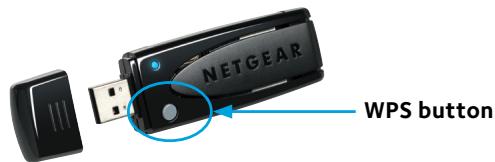
- Within two minutes, press the WPS button on your WiFi router or gateway.
The adapter joins the network, which can take a few minutes. Your settings are saved in a profile.
The adapter LED lights amber for a 2.4 GHz WiFi connection and blue for a 5 GHz WiFi connection.
Check Your Connection Status
When you install your adapter, the adapter's NETGEAR genie icon displays in the Windows system tray and on the desktop. You can double-click this icon to open NETGEAR genie to make changes or connect to a different WiFi network. The color of the icon indicates the strength of your WiFi connection:

White. Strong connection

Yellow. Weak connection

Red. No connection
If you remove your adapter, NETGEAR genie is not available, so the icon does not display. When you insert the adapter again, the icon returns.
Support
Thank you for purchasing this NETGEAR product. After installing your device, locate the serial number on the label of your product and use it to register your product at https://my.netgear.com.
You must register your product before you can use NETGEAR telephone support. NETGEAR recommends registering your product through the NETGEAR website.
For product updates and web support, visit http://support.netgear.com. NETGEAR recommends that you use only the official NETGEAR support resources.
You can get the user manual online at http://downloadcenter.netgear.com or through a link in the product's user interface.
For the complete EU Declaration of Conformity, visit http://support.netgear.com/app/answers/detail/a_id/11621/.
For regulatory compliance information, visit
http://www.netgear.com/about/regulatory/.
See the regulatory compliance document before connecting the power supply.
NETGEAR, the NETGEAR logo, and Connect with Innovation are trademarks and/or registered trademarks of NETGEAR, Inc. and/or its subsidiaries in the United States and/or other countries. Information is subject to change without notice. © NETGEAR, Inc. All rights reserved.
Marque : NETGEAR
Modèle : WNDA3100V3
Catégorie : Adaptateur Wi-Fi