VU Meter - Logiciel audio WAVES - Notice d'utilisation et mode d'emploi gratuit
Retrouvez gratuitement la notice de l'appareil VU Meter WAVES au format PDF.


| Type de produit | Logiciel audio (plugin VU Meter) |
| Version | 1.0 |
| Compatibilité | VST, AU, AAX (32 et 64 bits) |
| Systèmes d'exploitation | Windows 7/8/10, macOS 10.9 ou ultérieur |
| Fonctions principales | Mesure de niveau audio VU, écran rétroéclairé, calibration ajustable, mode peak |
| Configuration minimale | Processeur 2 GHz, 2 Go RAM, carte son compatible ASIO |
| Format de distribution | Téléchargement numérique (fichier d'installation) |
| Installation | Via le Waves Central, nécessite connexion internet et compte Waves |
| Mise à jour | Gratuites via Waves Central pour les versions majeures |
| Entretien et nettoyage | Maintenir le logiciel à jour, vider régulièrement le cache |
| Sécurité | Activer les mises à jour, utiliser un antivirus, sauvegarder les licences |
| Licence | Par machine (jusqu'à 2 ordinateurs), activation via iLok ou licence cloud |
| Périphériques pris en charge | Interface audio, clavier MIDI (non requis) |
| Assistance | Base de connaissances Waves, support technique (email/ticket) |
| Pièces détachées et réparabilité | Non applicable (logiciel), réinstallation possible via Waves Central |
| Informations générales | Marque : Waves, Modèle : VU Meter, Catégorie : Logiciel audio |
FOIRE AUX QUESTIONS - VU Meter WAVES
Questions des utilisateurs sur VU Meter WAVES
0 question sur cet appareil. Repondez a celles que vous connaissez ou posez la votre.
Poser une nouvelle question sur cet appareil
Téléchargez la notice de votre Logiciel audio au format PDF gratuitement ! Retrouvez votre notice VU Meter - WAVES et reprennez votre appareil électronique en main. Sur cette page sont publiés tous les documents nécessaires à l'utilisation de votre appareil VU Meter de la marque WAVES.
MODE D'EMPLOI VU Meter WAVES

VU Meter
User Guide


Waves VU Meter
User Guide
Chapter 1 Introduction....2
Chapter 2 Components ......4
Chapter 3 Controls and Displays ....5
Welcome
Thank you for choosing Waves! In order to get the most out of your VU Meter plugin, please take some time to read this user guide. We also suggest that you become familiar with Waves Support at www.waves.com/support. There you will find an extensive answer base, the latest tech specs, detailed installation guides, new software updates, and current information on licensing and registration.
Sign up at the support site and you will receive personalized information about your registered products, reminders when updates are available, and information on your authorization status.
Chapter 1 Introduction
VU meters have been around since the 1930s, and their specifications have gone largely unchanged for decades.
They're still found in mixing consoles, analog recorders, playback machines, and certain outboard gear. VU meters are the cornerstone of analog level monitoring.
As audio production began its passage from analog to digital in the 1980s, engineers became increasingly concerned with peak level: the amount signal that can be squeezed into a digital word. Full-scale peak meters took on a huge role in the mix room and in mastering. They became indispensable tools for keeping track of the highest peaks in a signal, with
one-sample accuracy. After all, if a signal surpasses 0 dBFS, there's a good chance that trouble will follow. Full-scale meters are very fast and they typically have peak and clip indicators that present this ever-changing data in a way that makes sense. What more could you need?
The very characteristics that make a full-scale peak meter so attractive (e.g., speed of response and focus on the very loudest moments) don't necessarily provide all of the information you need when you're recording or mixing. This is where VU meters come in to play. A VU meter is slow by design, as is human hearing, which behaves more like a VU meter than a peak-level meter. A VU meter's relatively slow attack (300 ms from infinity to 0 dB VU) averages out many of the short peaks, resulting in a more real-world expression of dynamics. Of course, you need to know just how loud the signal is. That's why a VU meter needs to be calibrated to your digital reference level. If you know, for example, that a -20 dBFS test signal is displayed as 0 dB VU on the meter, then you have 20 dB of headroom. This is how much room you have to play with.
DAWs normally assign first-priority processing to audio-related tasks (e.g. plugins and mix busses) and give graphics updates a lower priority. While this is obviously sensible, it can render ever-changing graphics, such as meters, jumpy and are hard to read accurately. Waves has developed a way to assign the VU meter's graphics a high priority. This results in a high refresh rate so that needle movement accurately reproduces the action of an analog VU meter.
VU meters remain popular with engineers because they make sense. You measure what you care about rather than endless peaks. This gives you a more realistic understanding of the dynamics of your mix. Trust your VU meters and your levels will be comfortable—and there will be ample headroom which makes for better mastering. This doesn't mean that you can forgo full-scale metering; you still have to avoid clips. For that, you need peak meters. But try a mix with only VU meters and you'll likely experience a new, intuitive relationship with the dynamics of your mix.
Chapter 2 Components
Waves VU Meter has two components:
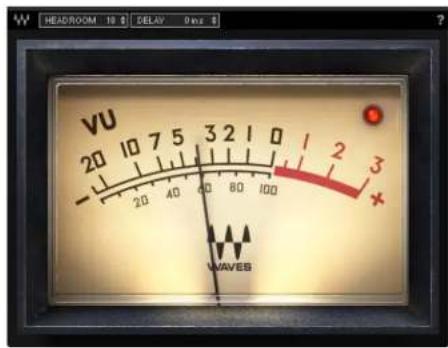
VU Meter Mono Component

VU Meter Stereo Component
Chapter 3 Controls and Displays
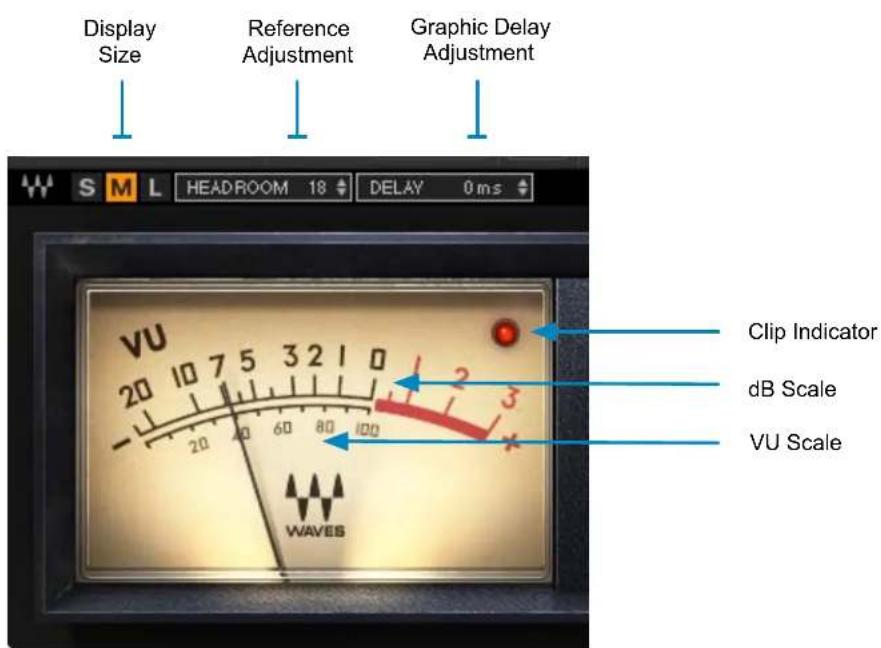
Display Size (Stereo Component)
There are three display sizes: small, medium, and large. Click on the button to select a view size.
Headroom Adjustment
This calibrates the VU meter to the DAW's reference level. When Headroom is set to "18," then a -18 dBFS reference tone will equal 0 dB VU on the meter. Therefore, there will be 18 dB of headroom between 0 dB VU and digital clipping. Raise or lower the Headroom setting by clicking and sliding vertically over the small up/down arrows. You can also double-click on the current value to directly enter a headroom setting.
Range: 4 dB–26 dB
Default: 18 dB
Graphic Display Adjustment
Meter activity can be delayed so that meters on different busses will appear time-aligned, even if those busses exhibit different latencies.
Range: 0 ms–1000 ms
Default: 0 ms
Clip Indicator
This LED lights up when the signal reaches -0.009 dBFS.
Click on the LED to clear.
Meter Scales
VU Meter displays two measurement scales.

The top scale refers to dB units, with 0 dB representing the signal's reference level (when Reference Adjustment is set correctly).
The bottom scale is gauged in Volume Units: the percentage of power of the signal.
Marque : WAVES
Modèle : VU Meter
Catégorie : Logiciel audio