
iXpand Mini - Lecteur mp3 SANDISK - Notice d'utilisation et mode d'emploi gratuit
Retrouvez gratuitement la notice de l'appareil iXpand Mini SANDISK au format PDF.


| Type de produit | Lecteur mp3 / Clé USB |
| Marque | SanDisk |
| Modèle | iXpand Mini |
| Capacités disponibles | 16 Go, 32 Go, 64 Go, 128 Go |
| Dimensions (L x l x h) | Environ 4,5 x 1,5 x 0,8 cm |
| Poids | Environ 5 g |
| Connecteur | Lightning (mâle) - USB 3.0 (femelle) |
| Alimentation | Par le port USB ou Lightning (aucune pile) |
| Compatibilité | Appareils iOS (iPhone, iPad, iPod) avec connecteur Lightning |
| Fonctions principales | Sauvegarde automatique, transfert de fichiers, lecture de musique et vidéos, stockage externe |
| Entretien et nettoyage | Essuyer avec un chiffon doux et sec. Ne pas utiliser de liquides. |
| Sécurité | Protection par mot de passe via l'application iXpand Drive |
| Pièces détachées et réparabilité | Non réparable par l'utilisateur. Aucune pièce détachée disponible. |
| Garantie | 2 ans (selon revendeur) |
| Température de fonctionnement | 0°C à 45°C |
| Température de stockage | -20°C à 70°C |
| Contenu de la boîte | Clé iXpand Mini, guide de démarrage rapide |
| Application requise | iXpand Drive (gratuite sur l'App Store) |
FOIRE AUX QUESTIONS - iXpand Mini SANDISK
Questions des utilisateurs sur iXpand Mini SANDISK
0 question sur cet appareil. Repondez a celles que vous connaissez ou posez la votre.
Poser une nouvelle question sur cet appareil
Téléchargez la notice de votre Lecteur mp3 au format PDF gratuitement ! Retrouvez votre notice iXpand Mini - SANDISK et reprennez votre appareil électronique en main. Sur cette page sont publiés tous les documents nécessaires à l'utilisation de votre appareil iXpand Mini de la marque SANDISK.
MODE D'EMPLOI iXpand Mini SANDISK
USER GUIDE
iXpand™ Mini Flash Drive
natural_image
Close-up of a SanDisk hard drive (no visible text or symbols on body)
SanDisk®
Western Digital Technologies, Inc.
951 SanDisk Drive, Milpitas, CA 95035
Western Digital Technologies, Inc. is the seller of record and licensee in the Americas of SanDisk® products.
©2016 Western Digital Corporation. All rights reserved
Introduction
Getting Started
- Overview
- Connecting to iPhone or iPad
Applications
- App Overview
• Taking Photos and Videos - Backup and Restore Files
- Backup Social Media Accounts
- Back Up and Restore Contacts
- File Management
- Photo
- Video
- Music
- Password Protection
- Sharing
Device Settings
- Drive Name
- Formatting
- Firmware update
Troubleshooting & Support
Instructional Icons


Information

Quick Tip
Introduction
iXpand™ Mini Flash Drive Overview
Lightning Connector

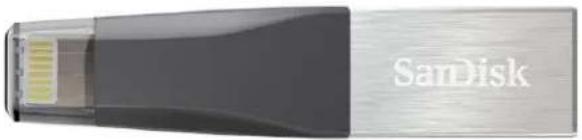
Figure: iXpand Mini Flash Drive
The perfect companion for your iPhone or iPad, the iXpand Mini Flash Drive lets you free up space on your iPhone or iPad, back up your camera roll, and even watch videos straight from the drive 1 . The flexible Lightning connector works with most cases and the USB 3.0 connector plugs into your Mac computer or PC, making file transfers quick and easy. The drive also includes password-protection software to keep your sensitive files secure across your devices 2 . Take all the photos and videos you want—with the iXpand Mini Flash Drive you're always ready to take more.
Free up Space Fast!
- Free up space on your iPhone or iPad quickly and easily with the iXpand Mini Flash Drive 1 . Simply plug in the Lightning connector and you can easily move photos, videos and other files off your device and onto the drive. From there, you can transfer the files onto a Mac computer or PC or store them on the drive.
Automatic Photo Backup
- Set the iXpand mobile app to automatically back up your iPhone or iPad camera roll anytime the drive is connected. No need to manually select which photos to back up. Every time you plug it in, it does the work for you.
Watch your Videos on the Move
- The i Xpand Mini Flash Drive supports popular video formats (.WMV, .AVI, .MKV, .MP4, .MOV) so you can store and watch videos straight from the drive via your device 3 , making it a terrific travel companion.
Works with Most Cases
- The i Xpand Mini Flash Drive is designed with a flexible connector to plug directly into your iPhone or iPad without having to remove your case.
USB 3.0 High-Speed Transfers
- Plug the drive into your computer's USB 3.0 port and you can transfer files in a flash with read speeds up to 70MB / s4 .
iXpand Mobile App
- Available from the App Store, the iXpand Drive app makes it easy to manage your photos and videos and also enables you to watch popular video formats 3 directly from the drive.

natural_image
Close-up of a SanDisk hard drive with a USB cable, set against a red background (no text or symbols on the device itself)Works with
iPhone 5, iPhone 5c, iPhone 5s, iPhone 6, iPhone 6 Plus, iPhone 6s, iPhone 6s Plus, iPad Air™, iPad mini™, iPad mini 4, iPad Pro 12.9", iPad Pro 9.7" iPad with Retina display, iPod® 5th Generation and newer, with Lightning connector and iOS
8.2+Windows Vista®, Windows® 7, Windows 8, Windows 10, Chrome OS, Mac OS X v10.8 and higher
Online updated compatibility list URL:
www.sandisk.com/support/ixpandcompatibility
Specifications
- Interface: Lightning and USB 3.0 connectors (one connector used at a time)
• Operational Temperature: 0-35° C functional
• Dimensions: 13 X 17 X 59mm
• Microsoft® exFAT Support: For 128GB 5
Getting Started
Connecting to iPhone or iPad
Physical connection

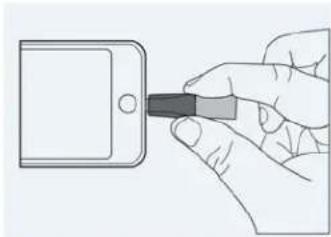
Remove the cap from lightning connector and attach to an iPhone or iPad as shown in the figure below.

natural_image
Line drawing of two hands holding a small object, possibly a pen or tool, with no visible text or symbols.Connect the iXpand Mini Flash Drive into your iPhone or iPad as shown in the figure below.
natural_image
Illustration of a hand inserting a plug into a smartphone (no text or symbols)Installing the app
When you've connected the iXpand Mini Flash Drive to your iPhone or iPad, you'll be prompted to install the companion iXpand Drive app.
SanDisk
- On the screen, select "App Store".

Comment [VR1]: Update!
- Install the "SanDisk iXpand Drive" app from the App Store.

natural_image
Close-up of a SanDisk hard drive with a black strap and silver connector, set against a red background (no text or symbols on the device itself)Applications
App overview
iXpand Drive app is the companion to your iXpand Mini Flash Drive. It has a very simple Home screen, yet allows you to quickly access main tasks from always present action items or delve deeper into more features through a set of quick action cards. These cards allow you to do different tasks from the home screen.

The Home screen also contains a menu of common actions. Copy files, View Files, and Back up and Restore.

To access the quick action cards, press on the current one, or swipe through (left to right). There are three possible actions you can take on the quick action cards.
- To dismiss a card, swipe up on the card.

- To reset all the cards swipe down and choose that option.

- To get the last card deleted, swipe down and choose that option.

SanDisk
These cards provide quick access to tasks such as connecting your social media accounts, updating your iXpand Mini Flash Drive, and viewing the remaining space on your iPhone or iPad internal memory and iXpand Mini Flash Drive.
Taking Photos and Videos

Using the iXpand Drive App to take Photos and Videos will save the Photos or Videos directly on to your Drive to save space on your iPhone or iPad.
- From the Home screen, select the Photos icon

-
Snap your Photo. Your Photos will be stored directly onto the iXpand Mini Flash Drive.
-
Take a Video. Your Videos will be stored directly onto the iXpand Mini Flash Drive.

natural_image
Aerial view of a large suspension bridge spanning a coastal cliff, with mist rising from the water (no visible text or symbols)Backup and Restore Files
The Back Up and Restore selection from the Home screen will allow you to do several tasks. Click on the "Back Up and Restore" option from the Home Screen. You will be presented with a screen with the following options:
- Back up & Restore Photo Library to the iXpand Mini Flash Drive
- Backup your photos from Social Media accounts to the iXpand Mini Flash Drive
- Back up & Restore Contacts

Backing Up or Restore your Camera Library
You can back up your camera library to the iXpand Mini Flash Drive by setting up auto-back up or manually back up as needed. Turn on Automatic Backup by sliding the switch. This option will also appear during the initial set up screens shown when you first connect your Drive.
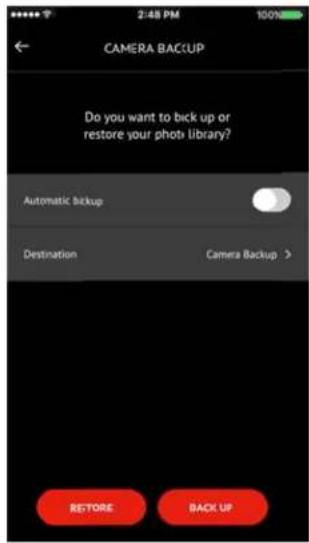
You can choose the Restore from option to restore photos to your camera roll. For the Backup to option, the default folder is the Camera Backup folder on the iXpand Mini Flash Drive). Note that the iXpand Mini Flash Drive will ask you for access to your photos the first time. Choose OK to continue.
After the back up is completed, an option will popup to delete the copied photos from the camera roll of the iPhone or iPad.

You can also pause the back up at any time by tapping on the pause button.
Backing Up may take longer than normal the 1st time. Once set up, only newly added files will be copied to the iXpand Mini Flash Drive.
Note: A pop-up will appear if the initial camera Back up was denied. You can change this by going into the iPhone settings screen and enabling the iXpand Mini Flash Drive to access the iPhone photos.
Restoring Photos to your Camera Library
The iXpand Mini Flash Drive can be used to copy photos to a new iPhone. To Restore Photos from the iXpand Mini Flash Drive to the iPhone or iPad, choose the Restore option. This will copy the photos from the Destination/Source Folder selected to the camera roll on the iPhone or iPad. The default folder is Camera Backup.

Warning: Photos with the same name will be duplicated to your Camera Roll when Restored.
Back Up Social Media
The iX pand Mini Flash Drive can be used to back up your photos uploaded to popular social media sites such as Facebook and Instagram. To backup these photos:
- Connect the iXpand Mini Flash Drive to your iPhone or iPad, and open the iXpand Drive App.
- Choose the Backup and Restore selection from the home screen.
- Choose the Back Up Social Media option

- You will be prompted to sign in to the social media account using your username and password specific to those accounts.

You must authorize the iXpand App to access your social media account. The app will back up all the photos that you have uploaded to your social media account.
SanDisk
- The iXpand Drive App will find all the photos stored on the social media account and ask to back them up.

- Once you have connected a social media account, you can easily back it by clicking the backup icon as shown in the figure below.

Back Up and Restore Contacts
Create a backup contact file and restore it when needed. This is particularly valuable when moving to a new iPhone or iPad.
Backup
1 Select Backup and restore > Backup and restore contacts > Back up
2 Select the contacts to back up by clicking the dot next to it
3 Select Archive contacts at the bottom of the screen
Restore
1 Select Backup and restore > Backup and restore contacts > Restore
2 Select the contacts to restore
3 Select Restore at the bottom of the screen

Contacts with the same name will be duplicated when the restore option is selected
File Management
Use your iXpand Mini Flash Drive and iXpand Drive app to transfer and manage files between your iPhone, iPad, PC and Mac computer.
Copy files from your iPhone or iPad
- Connect the iXpand Mini Flash Drive to your iPhone or iPad.
- Select the Copy Files option from the Home screen

- Choose to copy photos from your iPhone to the iXpand Mini Flash Drive or to Get Files from your iXpand Mini Flash Drive and copy them to your iPhone

- Select the photos to choose from the iPhone or iPad.
- Press Copy to iXpand Mini Flash Drive
- Select your Destination Folder from the list of folders on the iXpand Mini Flash Drive
- The selected files will be saved to your iXpand Mini Flash Drive.

Files copied to the Drive when it is not connected are accessible using the iXpand Drive: app under iPhone or iPad Storage. These files are stored in the app's local memory.
Copy files from the iXpand Drive to iPhone or iPad
- Choose Copy Files from the Home screen of the Drive App.
- Choose Copy Files from iXpand Mini Flash drive.
- Select the files from the Drive.
- The selected files will be saved to your iPhone or iPad.

Only Photos and Videos will be copied to your Camera roll on the iPhone or iPad. Other files copied to App Storage are only accessible using the iXpand Drive app.
Copy files between PC and drive
To Copy files between your iXp and Mini Flash Drive and computer simply plug the iXp and Mini Flash Drive into your computer's USB port.

- In the AutoPlay window, click Open folder to view files:
- Drag ard drop music, videos, photos, and documents between your computer and the iXpand Mini Flash Drive window.

Copy files between Mac computer and drive
To Copy content between your iXpand Mini Flash Drive and Mac compute r:
- Plug your iXpand Mini Flash Drive into your Mac computer's USB por:.
- Drag ard drop music, videos, photos, and documents between your Mac computer and the iXpand Mini Flash Drive window.
![SO NAME Name Date inserted Size Kind Music Music (10, 2018, 1/31 PM) Photo (10, 2018, 4/15 PM) SanDiskSecureAccessV3.net.png SanDiskSecureAccessV3.in.exe Video (10, 2018, 3/19 AM) SanDiskSecureAccessV3.in.exe File (10, 2018, 4/17 PM) File (10, 2018, 5/17 PM) File (10, 2018, 6/17 PM) File (10, 2018, 7/17 PM) File (10, 2018, 8/17 PM) File (10, 2018, 9/17 PM) File (10, 2018, 10/17 PM) File (10, 2018, 11/17 PM) File (10, 2018, 12/17 PM) File (10, 2018, 13/17 PM) File (10, 2018, 14/17 PM) File (10, 2018, 15/17 PM) File (10, 2018, 16/17 PM) File (10, 2018, 17/17 PM) File (10, 2018, 18/17 PM) File (10, 2018, 19/17 PM) File (10, 2018, 20/17 PM) File (10, 2018, 21/17 PM) File (10, 2018, 22/17 PM) File (10, 2018, 23/17 PM) File (10, 2018, 24/17 PM) File (10, 2018, 25/17 PM) File (10, 2018, 26/17 PM) File (10, 2018, 27/17 PM) File (10, 2018, 28/17 PM) File (10, 2018, 29/17 PM) File (10, 2018, 30/17 PM) File (10, 2018, 31/17 PM) File (10, 2018, 32/17 PM) File (10, 2018, 33/17 PM) File (10, 2018, 34/17 PM) File (10, 2018, 35/17 PM) File (10, 2018, 36/17 PM) File (10, 2018, 37/17 PM) File (10, 2018, 38/17 PM) File (10, 2018, 39/17 PM) File (10, 2018, 40/17 PM) File (10, 2018, 41/17 PM) File (10, 2018, 42/17 PM) File (10, 2018, 43/17 PM) File (10, 2018, 44/17 PM) File (10, 2018, 45/17 PM) File (10, 2018, 46/17 PM) File (10, 2018, 47/17 PM) File (10, 2018, 48/17 PM) File (10, 2018, 49/17 PM) File (10, 2018, 50/17 PM) File (10, 2018, 51/17 PM) File (10, 2018, 52/17 PM) File (10, 2018, 53/17 PM) File (10, 2018, 54/17 PM) File (10, 2018, 55/17 PM) File (10, 2018, 56/17 PM) File (10, 2018, 57/17 PM) File (10, 2018, 58/17 PM) File (10, 2018, 59/17 PM) File (10, 2018, 60/17 PM) File (10, 20) [a] Tages filed orange yellow green free package try all Tages...](/content/2026/06/1352539/images/2c4a92b2cad432df0862a921a6b57edbd73dc456897f5f8870082ff67feee730.jpg)
Delete files
- Connect the iXpand Mini Flash Drive to your iPhone or iPad.
SanDisk
- Choose "View Files" from the Home screen
- Press select and choose the files you'd like to delete from Drive. You can choose one or many files.
- Press at the bottom of the screen.
- A progress bar will appear to show the deletion progress.

You can swipe left on a file icon in list view and choose "delete" to easily remove individual files.

Swiping left will also show more options. Select then choose: Open in, Copy/Move to Folder, rename file, or more.

Search
- In the file view, pull down the screen.
- You will see a search box appear at the top. Enter the file name you would like to find.
- You will see search results appear for any matching files.
Viewing files on the iXpand Mini Drive or iPhone or iPad
- Choose View Files from the Home screen of the App.

SanDisk
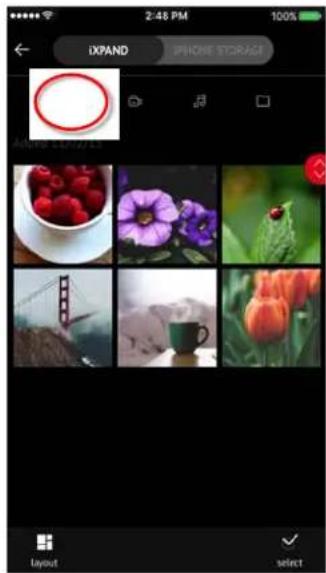
- Choose to view files that exist on the iXpand Mini Flash Drive or on the iPhone or iPad from the slider bar at the top of the screen

When "iXpand" is selected, only those files contained on the drive will be shown. When "iPhone or iPad Storage" is selected, all files on the phone and the iXpand Mini Flash Drive are shown. Files also copied from other apps when the drive is not attached will appear here.
Only Photos and Videos will be copied to your Camera roll on the iPhone or iPad. Other files will be copied to App Storage are accessible using the iXp and Drive app.

You can select the files stored in the App by moving the slider at the top of the screen between iXpand and iPhone or iPad.

Photos
Supported file formats for photos
BMP, TIF, TIFF, JPG, PNG, GIF, XBM, ICO, TGA
View Photos
- Plug the iXpand Mini Flash Drive to your iPhone or iPad.
- Choose the "View Files" option from the Home Screen.
- Choose the Photo icon
natural_image
Grid of six nature photos including red berries, purple flowers, a ladybug, bridge, mug, and tulips (no text or symbols)- Tap the photo you'd like to view. The app will also give you the ability to pinch and zoom on photos.
-
You can view other photos in the same folder by swiping left or right.
-
You can change the default layout to Grid or List view by selecting the Layout option

- You can also change the Sort Order and Sort By methods through the layout menu.
Slideshow
- Browse to the folder containing your photos.
- Choose the photo you want to start with.
- Select the slideshow button at the bottom of the screen and the slide show will begin.

natural_image
Close-up photo of a green mug on a table with blurred background (no visible text or symbols)- Slideshow settings can be changed through the settings option on the same screen.
- You also have other options to secure the photo, share it, and delete it through this menu
Videos
Supported file formats
WMV, AVI, MKV, MP4, MOV, FLV, MPG, RMVB, M4V, TS
Unsupported file formats
AC3, DTS(Dolby)
Playback
- Connect the iXpand Mini Flash Drive to your iPhone or iPad.
- Choose the "View Files" option from the Home Screen.
- Choose the Video icon

- Tap the video you want to play.

- You can play other videos by swiping up or down to scroll through the list
DRM-protected content cannot be streamed. Check with the content provider for playback restrictions.
Music
Supported file formats
MP3, AIF, WAV, AIFF, M4A, WMA, AAC, DGG, FLAC

The Music section will combine Music that resides on the Drive and within your iTunes Library. Enjoy all your Music on one central location.

You can tell where the Music file resides by the iTunes icon next to the file. If the music file has this denotation, then it is located in your iTunes library on the iPhone or iPad.
Playback
- Connect the iXpand Mini Flash Drive to your iPhone or iPad.
- Choose the "View Files" option from the Home Screen.
- Choose the Music icon
- Selecting the currently displayed Song track will play that song only.
- You can choose different sorting options – By Song, By Artist, By Album, By Playlist, or By Genre.
SanDisk

- Tap the song you want to play.
- You can play the other songs in the same folder by swiping left or right.

Playback supports music purchased from iTunes. Please remember that iTunes is for legal or right holder-authorized copying only. DRM-protected content is not supported. Check with the content provider for playback.
Creating a playlist
- Select the Playlist item from the Music Menu.
- The list of playlists will appear.
- To Create a playlist, Select the New Playlist "+" icon

- Name your Playlist.
- Add songs to the playlist by touching the name of the song.
- Once you have selected your songs, touch the "create playlist" bar.

- You car now play your favorite playlists anytime by accessing them from the Music screen. Select the playlist, then select play.
Securing Files/ SanDisk SecureAccess Software
SanDisk SecureAccess™ Software
The SanDisk SecureAccess software is designed to protect sensitive data on your drive 2 . When security is enabled in the app, a special “SanDiskSecureAccess Vault” folder is created in your drive. Any locked files are moved into the SanDiskSecureAccess Vault and can be accessed only with a password.
Enable Security on iPhone or iPad
1 Connect the iXpand Mini Flash Drive to your iPhone or iPad.
2 Go to Menu → Settings → Security.
3 Enable the security by swiping the dot to the right.
4 Enter a password when prompted to set password. Then select OK.
5 Here there is another option of TOUCH ID authentication.
IMPORTANT: If this password is forgotten, locked files will not be recoverable.
6 Once the security is enabled, a folder called "SanDiskSecureAccess Vault" (along with a SanDisk SecureAccess Vault Settings folder) would be created in the drive.

Do not delete SanDiskSecureAccess Vault Settings folder, if you want to use security feature.
Secure Files on iPhone or iPad
1 To secure files, enable security first as explained above.
2 Select the files you'd like to secure.
SanDisk

3 Press thelock icon 🔒 at the bottom of the screen.
All secured files are moved to SanDiskSecureAccess Vault folder.
Access secured files (through iXpand Mini Drive) on Mac computer
1 On your mac, download SanDisk SecureAccess software from downloads.sandisk.com/downloads/SanDiskSecureAccessV3_mac.zip
2 Copy the file SanDiskSecureAccessV3_mac to the iXpand Mini Flash Drive.
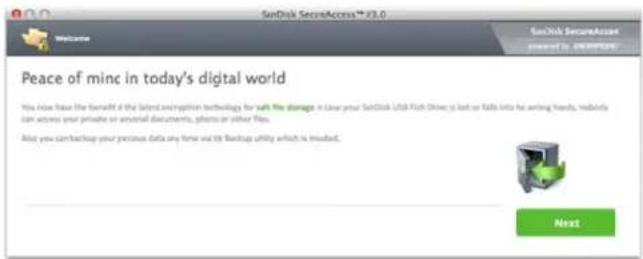
3 Launch the app SanDiskSecureAccessV3se_mac. Click "Next" in the screen below.
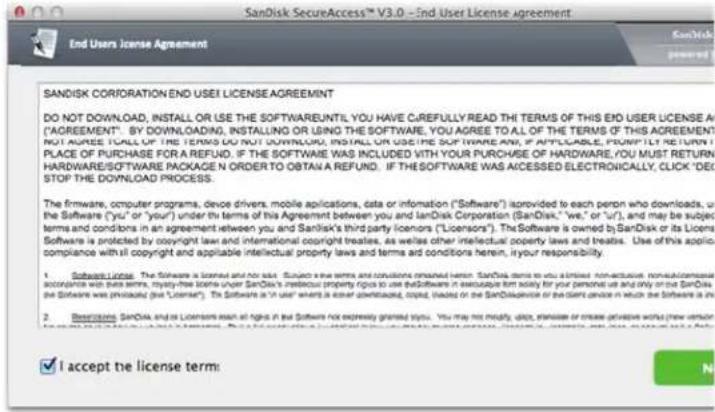
4 Read and Accept the license terms by selecting "I accept the license terms" and click "Next".
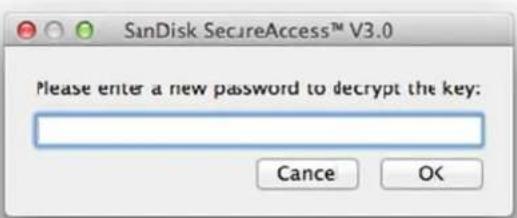
5 Enter the password you used to protect files on iXpand Mini Fla iXpand Drive app and select OK
6 Read the guidelines and click "Next".

- Introduction
- Getting Started
- Applications
- Device Settings
- Troubleshooting & Support
- Instructional Icons
- iXpand™ Mini Flash Drive Overview
- Free up Space Fast!
- Automatic Photo Backup
- Works with Most Cases
- USB 3.0 High-Speed Transfers
- iXpand Mobile App
- Works with
- Specifications
- Connecting to iPhone or iPad
- Physical connection
- Installing the app
- SanDisk
- App overview
- Taking Photos and Videos
- Backup and Restore Files
- Backing Up or Restore your Camera Library
- Restoring Photos to your Camera Library
- Back Up Social Media
- Back Up and Restore Contacts
- Backup
- Restore
- File Management
- Copy files from your iPhone or iPad
- Copy files from the iXpand Drive to iPhone or iPad
- Copy files between PC and drive
- Copy files between Mac computer and drive
- Delete files
- Search
- Viewing files on the iXpand Mini Drive or iPhone or iPad
- Photos
- View Photos
- Slideshow
- Videos
- Playback
- Music
- Supported file formats
- Creating a playlist
- Securing Files/ SanDisk SecureAccess Software
- SanDisk SecureAccess™ Software
- Enable Security on iPhone or iPad
- Secure Files on iPhone or iPad
Marque : SANDISK
Modèle : iXpand Mini
Catégorie : Lecteur mp3