HUAWEI E3531i-2 - Routeur

E3531i-2 - Routeur HUAWEI - Notice d'utilisation et mode d'emploi gratuit

Retrouvez gratuitement la notice de l'appareil E3531i-2 HUAWEI au format PDF.

📄 10 pages Français FR Télécharger 💬 Question IA 10 questions ⚙️ Specs
Notice HUAWEI E3531i-2 - page 1
Choisissez votre langue et indiquez votre email : nous vous enverrons une version traduite specifiquement.
Type de produit Routeur / Modem 4G mobile
Marque Huawei
Modèle E3531i-2
Dimensions 89 x 28 x 12 mm
Poids 32 g
Alimentation Port USB (5V, 1A)
Consommation électrique 2 W max
Réseaux supportés 4G LTE, 3G HSPA+, 2G EDGE
Débit descendant max 150 Mbps (4G), 42 Mbps (3G)
Débit montant max 50 Mbps (4G), 5.76 Mbps (3G)
Interface USB 2.0, Wi-Fi 802.11 b/g/n
Bande Wi-Fi 2.4 GHz
Nombre d'utilisateurs Wi-Fi max 10
Emplacement carte SIM Standard SIM (micro SIM via adaptateur)
Emplacement carte mémoire MicroSD jusqu'à 32 Go
Fonctionnalités Point d'accès Wi-Fi, modem USB, client DHCP, NAT, pare-feu
Entretien et nettoyage Chiffon doux sec, éviter produits chimiques et humidité
Sécurité WPA/WPA2 Wi-Fi, chiffrement, ne pas exposer à l'eau
Pièces détachées et réparabilité Câble USB, adaptateur secteur en option, batterie non amovible
Informations générales Routeur mobile 4G LTE Huawei, modèle E3531i-2

FOIRE AUX QUESTIONS - E3531i-2 HUAWEI

Comment installer mon Huawei E3531i-2 ?
Insérez une carte SIM activée, branchez le routeur sur un port USB ou un adaptateur secteur, attendez que le voyant s'allume, puis connectez-vous au réseau Wi-Fi par défaut (voir étiquette) ou insérez le câble USB pour utiliser en mode modem.
Quel est le mot de passe Wi-Fi par défaut ?
Le mot de passe Wi-Fi par défaut est généralement 'admin' ou se trouve sur l'étiquette au dos du routeur. Il peut aussi être imprimé dans la boîte.
Comment configurer les paramètres APN ?
Connectez-vous à l'interface web (http://192.168.1.1), utilisez l'identifiant 'admin' et mot de passe 'admin', allez dans 'Paramètres réseau' > 'APN', saisissez les paramètres fournis par votre opérateur.
Comment réinitialiser le routeur aux paramètres d'usine ?
Utilisez un trombone pour appuyer sur le bouton 'Reset' à l'arrière du routeur pendant environ 10 secondes jusqu'à ce que les voyants clignotent. Les paramètres seront réinitialisés.
Puis-je utiliser ce routeur sans carte SIM ?
Non, une carte SIM avec un forfait data est nécessaire pour accéder à Internet via le réseau mobile.
Comment changer le nom et le mot de passe Wi-Fi ?
Accédez à l'interface web, allez dans 'Wi-Fi' > 'Paramètres de base', modifiez le SSID (nom) et la clé de sécurité (mot de passe), puis sauvegardez.
Que faire si mon routeur ne s'allume pas ?
Vérifiez la connexion USB ou l'adaptateur secteur, essayez un autre port USB ou adaptateur. Si le problème persiste, contactez le support technique.
Comment connecter un périphérique via USB ?
Branchez le routeur sur votre ordinateur, installez les pilotes si nécessaire (disponibles sur le site Huawei), puis configurez la connexion réseau comme un modem.
Quels voyants sont présents et que signifient-ils ?
Voyant puissance : fixe = allumé, clignotant = démarrage. Voyant réseau : fixe = connecté, clignotant = recherche. Voyant Wi-Fi : fixe = Wi-Fi activé. Voyant microSD : clignotant = activité.
Puis-je utiliser une carte MicroSD avec ce routeur ?
Oui, le routeur supporte les cartes microSD jusqu'à 32 Go pour le stockage partagé. Insérez-la dans l'emplacement dédié.

Questions des utilisateurs sur E3531i-2 HUAWEI

0 question sur cet appareil. Repondez a celles que vous connaissez ou posez la votre.

Poser une nouvelle question sur cet appareil

L'email reste privé : il sert seulement à vous prévenir si quelqu'un répond à votre question.

Aucune question pour l'instant. Soyez le premier à en poser une.

Téléchargez la notice de votre Routeur au format PDF gratuitement ! Retrouvez votre notice E3531i-2 - HUAWEI et reprennez votre appareil électronique en main. Sur cette page sont publiés tous les documents nécessaires à l'utilisation de votre appareil E3531i-2 de la marque HUAWEI.

MODE D'EMPLOI E3531i-2 HUAWEI

Driver Installation Guide for MAC10.15 OS

HUAWEI E3531i-2 - Driver Installation Guide for MAC10.15 OS - 1

natural_image Huawei corporate logo featuring a red stylized flower or star design (no text or symbols)

HUAWEI

Huawei Technologies Co., Ltd.

All rights reserved

Once the package is downloaded from Huawei support web-page, user will find below software's and documents in the downloaded zip file.

  1. Mobile Partner.zip (This can be used to install dashboard software in MAC system)
  2. Update_MAC23.017.01.00.983.zip – (This can be used to upgrade the software to device and install dashboard in MAC system)
  3. Driver Installation Guide for MAC10.15 OS (Stick).doc (this document)

Here is the information on how to use these software to install Mobile Partner in the MAC OS.

1.1 Install Procedure

1.1.1 Using Mobile Partner.app

a. Download Mobile Partner.app to MAC, Double click on "Mobile Partner.app"

"Mobile Partner" can't be opened because it was not downloaded from the App Store. Your security preferences allow installation of only apps from the App Store. Safari downloaded this file today at 6:55 PM from consumer-tkbdownload.huawei.com Show in Finder OK

b.

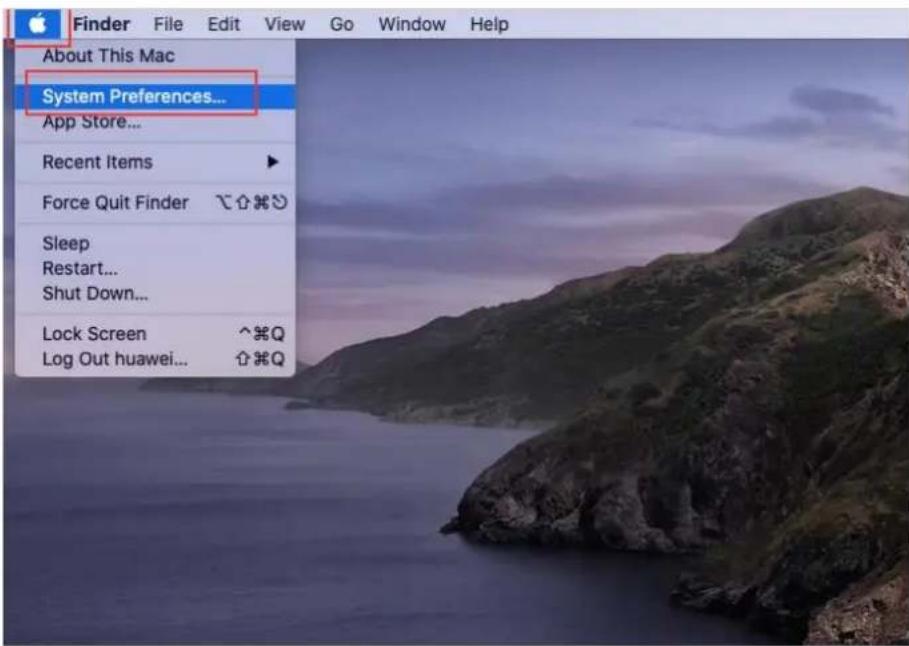
Finder File Edit View Go Window Help About This Mac System Preferences... App Store... Recent Items Force Quit Finder Sleep Restart... Shut Down... Lock Screen ^*Q Log Out huawei... ^*Q

C.

System Preferences Sign in to your Apple ID Set up iCloud, the App Store, and more. Sign In General Desktop & Screen Saver Dock Mission Control Siri Spotlight Language & Region Notifications Internet Accounts Users & Groups Accessibility Screen Time Extensions Security & Privacy Software Update Network Bluetooth Sound Printers & Scanners Keyboard Trackpad Mouse Displays Energy Saver Date & Time Sharing Time Machine Startup Disk

d.

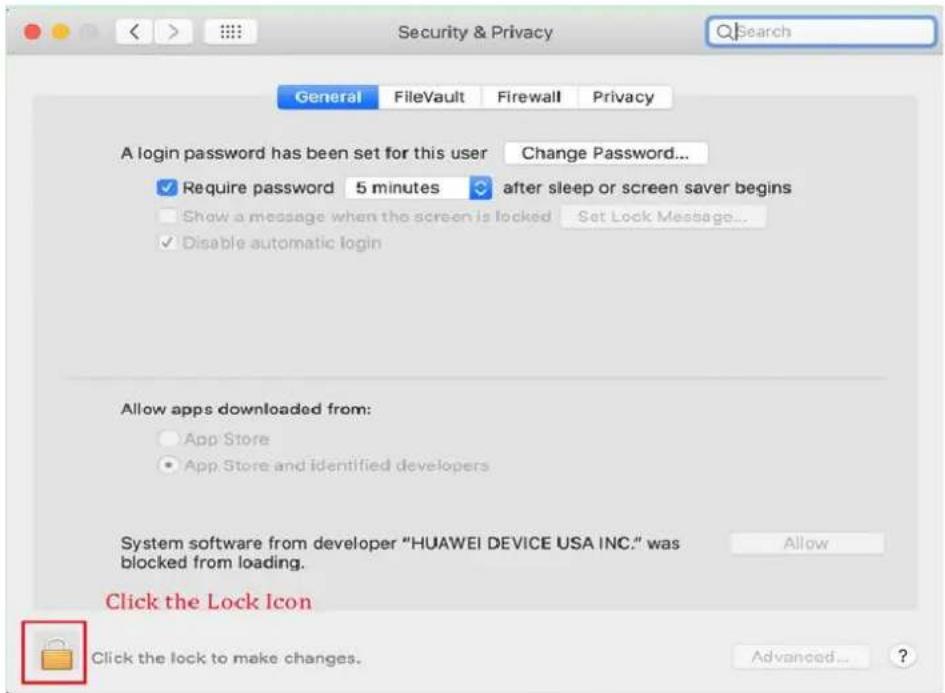
Security & Privacy General FileVault Firewall Privacy A login password has been set for this user Change Password... ✓ Require password 5 minutes after sleep or screen saver begins Show a message when the screen is locked Set Lock Message... ✓ Disable automatic login Allow apps downloaded from: App Store App Store and identified developers System software from developer "HUAWEI DEVICE USA INC." was blocked from loading. Allow Click the Lock Icon Click the lock to make changes. Advanced... ?

e.

Security & Privacy System Preferences is trying to unlock Security & Privacy preferences. Enter your password to allow this. Username: mbb Password: ************ Cancel Unlock Enter the System password and click on "Unlock" Button Allow apps downloaded from: App Store App Store and identified developers System software from developer "HUAWEI DEVICE USA INC." was blocked from loading. Allow Authenticating... Advanced... ?

f.

Security & Privacy General FileVault Firewall Privacy A login password has been set for this user Change Password... ✓ Require password 5 minutes after sleep or screen saver begins Show a message when the screen is locked Set Lock Message... ✓ Disable automatic login Allow apps downloaded from: App Store App Store and identified developers Click on "Allow" Button System software from developer "HUAWEI DEVICE USA INC." was blocked from loading. Allow Click the lock to prevent further changes. Advanced... ?

g. Re-open the following prompt box, Click "open" button

Security & Privacy General FileVault Firewall Privacy A login password has been set for this user Change Password... ✓ Require password 5 minutes after sleep or screen saver begins Show a message when the screen is locked Set Lock Message... "Mobile Partner" is not from the App Store. Are you sure you want to open it? Your security preferences allow installation of only apps from the App Store. Safari downloaded this file today at 6:55 PM from consumer-tkbdownload.huawei.com ? Show in Finder Open Cancel App Store and identified developers

1.1.2 Installation steps

initiate the installation process.

Mobile Partner Mobi Install Mobile Partner Welcome to the Mobile Partner Installer Introduction Read Me Licence Destination Select Installation Type Installation Summary You will be guided through the steps necessary to install this software. Click on "Continue" Button Go Back Continue

Mobile Partner Mobi Install Mobile Partner Important Information Introduction Read Me Licence Destination Select Installation Type Installation Summary Privacy policy To better understand how we use and protect your personal information, please read the Privacy Policy at http://consumer.huawei.com/privacy-policy. Click on "Continue" Button Print... Save... Go Back Continue

Mobile Partner Install Mobile Partner Software Licence Agreement English Introduction Read Me Licence Destination Select Installation Type Installation Summary Huawei Technologies Co., Ltd. END-USER LICENSE AGREEMENT FOR HUAWEI SOFTWARE IMPORTANT-READ CAREFULLY: This END-USER License Agreement ("EULA") is a legal agreement between you (either an individual or a single entity) and Huawei Technologies Co., Ltd. ("HUAWEI") for the HUAWEI Software accompanying this EULA, which includes computer software and may include associated media, printed materials, and "online" or electronic documentation ("SOFTWARE PRODUCT" or "SOFTWARE"). By installing, copy or otherwise using the SOFTWARE PRODUCT, you agree to be bound by the terms of this EULA. If you do not agree to the terms of this EULA, discontinue installation, copy, or use of the SOFTWARE PRODUCT, destroy all copies and all component parts of the SOFTWARE PRODUCT, and promptly contact HUAWEI for instructions on return of the SOFTWARE PRODUCT for a refund. SOFTWARE PRODUCT LICENSE The SOFTWARE PRODUCT is protected by copyright laws and international copyright treaties, as well as other applicable intellectual property laws and treaties. This is a License and not a "sale" of the SOFTWARE PRODUCT. HUAWEI grants you a non-exclusive right to use this copy of the SOFTWARE PRODUCT. Please click on "Continue" Button Print... Save... Go Back Continue

To continue installing the software you must agree to the terms of the software licence agreement. Click Agree to continue or click Disagree to cancel the installation and quit the Installer. Click on "Agree" Button Read Licence Disagree Agree documentation ("SOFTWARE PRODUCT" or "SOFTWARE"). By installing, copy or otherwise using the SOFTWARE PRODUCT, you agree to be bound by the terms of this EULA. If you do not agree to the terms of this EULA, discontinue installation, copy, or use of the SOFTWARE PRODUCT, destroy all copies and all component parts of the SOFTWARE PRODUCT, and promptly contact HUAWEI for instructions on return of the SOFTWARE PRODUCT for a refund. SOFTWARE PRODUCT LICENSE The SOFTWARE PRODUCT is protected by copyright laws and international copyright treaties, as well as other applicable intellectual property laws and treaties. This is a License and not a "sale" of the SOFTWARE PRODUCT. HUAWEI grants you a non-exclusive right to use this copy of the SOFTWARE PRODUCT.

Mobile Partner Mobi Install Mobile Partner Standard Install on "MAC 1015" • Introduction • Read Me • Licence • Destination Select • Installation Type • Installation • Summary This will take 17.4 MB of space on your computer. Click Install to perform a standard installation of this software on the disk "MAC 1015". Change Install Location... Please click on "Install" Button Go Back Install

Mobile Partner Mobil Install Mobile Partner Standard Install on "MAC 1015" This will take 17.4 MB of space on your computer. Click Install to perform a standard installation of this software on the disk "MAC 1015". Installer is trying to install new software. Enter your password to allow this. Username: mbb Password: ************ Cancel Install Software Please enter the system user name and password and click on "Install Software" button Go Back Install

Enabling this system software requires a restart1 A login ✓ Show a message when the screen is locked "Set Lock Message" ✓ Disable automatic login Restart OK After installation is successful, then click on "Restart" Button Allow apps downloaded from: App Store App Store and identified developers Click the lock to prevent further changes. Advanced... Install Mobile Partner The installation was completed successfully. Introduction Read Me Licence Destination Select Installation Type Installation Summary The installation was successful. The software was installed. Go Back Close

1.1.3 After installation finish the dashboard will start automatically.
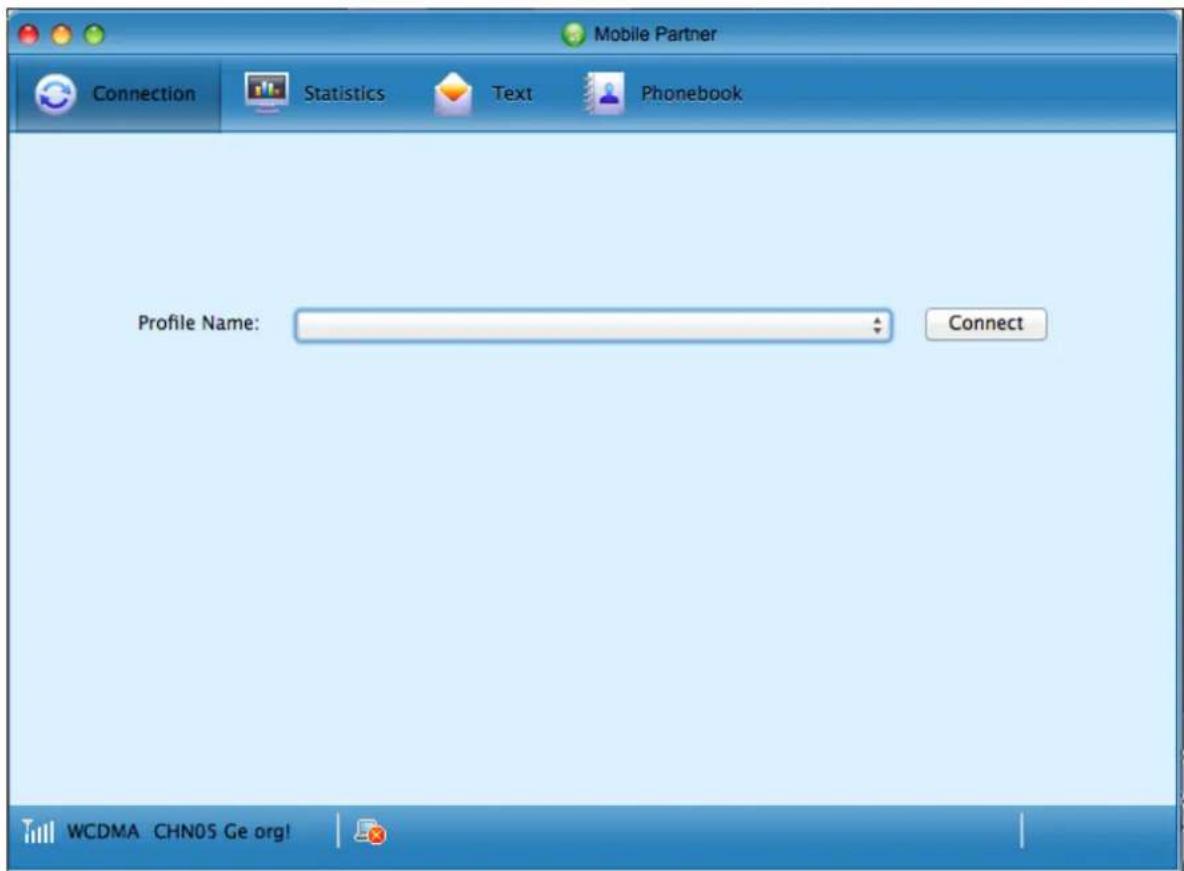
Mobile Partner Connection Statistics Text Phonebook Profile Name: Connect WCDMA CHN05 Ge org!

Note : Incase, if permission denied by user, then the automatic launch of Dashboard will not happen on device insertion.

Mobile Partner Mobile Partner

Note : If this page is displayed, please close the dashboard, and then open the newly installed dashboard.

HUAWEI E3531i-2 - After installation finish the dashboard will start automatically. - 3

"HWPortCfg" would like to access files on a removable volume.

Click on "OK" Button

Don't Allow

OK

Assistant notice
Powered by Anthropic
En attente de votre message
Informations produit

Marque : HUAWEI

Modèle : E3531i-2

Catégorie : Routeur