
C120 - Webcam LOGITECH - Notice d'utilisation et mode d'emploi gratuit
Retrouvez gratuitement la notice de l'appareil C120 LOGITECH au format PDF.

| Type de produit | Webcam |
| Marque | Logitech |
| Modèle | C120 |
| Résolution maximale | 640 x 480 pixels (VGA) |
| Cadence d'images | 30 images par seconde |
| Interface | USB 2.0 |
| Microphone intégré | Non |
| Mise au point | Manuelle (bague de mise au point) |
| Technologie d'éclairage | RightLight (correction automatique) |
| Fixation | Clip/pince flexible |
| Témoin d'activité | Oui |
| Bouton d'instantané | Oui |
| Logiciel fourni | Logitech Webcam Software, Logitech Vid |
| Compatibilité système | Windows, Mac OS |
| Alimentation | Via port USB |
| Poids (approximatif) | 100 g |
| Dimensions (approximatif) | 70 x 50 x 30 mm |
| Numéro de pièce | 620-002297.004 |
| Garantie | 2 ans |
FOIRE AUX QUESTIONS - C120 LOGITECH
Questions des utilisateurs sur C120 LOGITECH
0 question sur cet appareil. Repondez a celles que vous connaissez ou posez la votre.
Poser une nouvelle question sur cet appareil
Téléchargez la notice de votre Webcam au format PDF gratuitement ! Retrouvez votre notice C120 - LOGITECH et reprennez votre appareil électronique en main. Sur cette page sont publiés tous les documents nécessaires à l'utilisation de votre appareil C120 de la marque LOGITECH.
MODE D'EMPLOI C120 LOGITECH
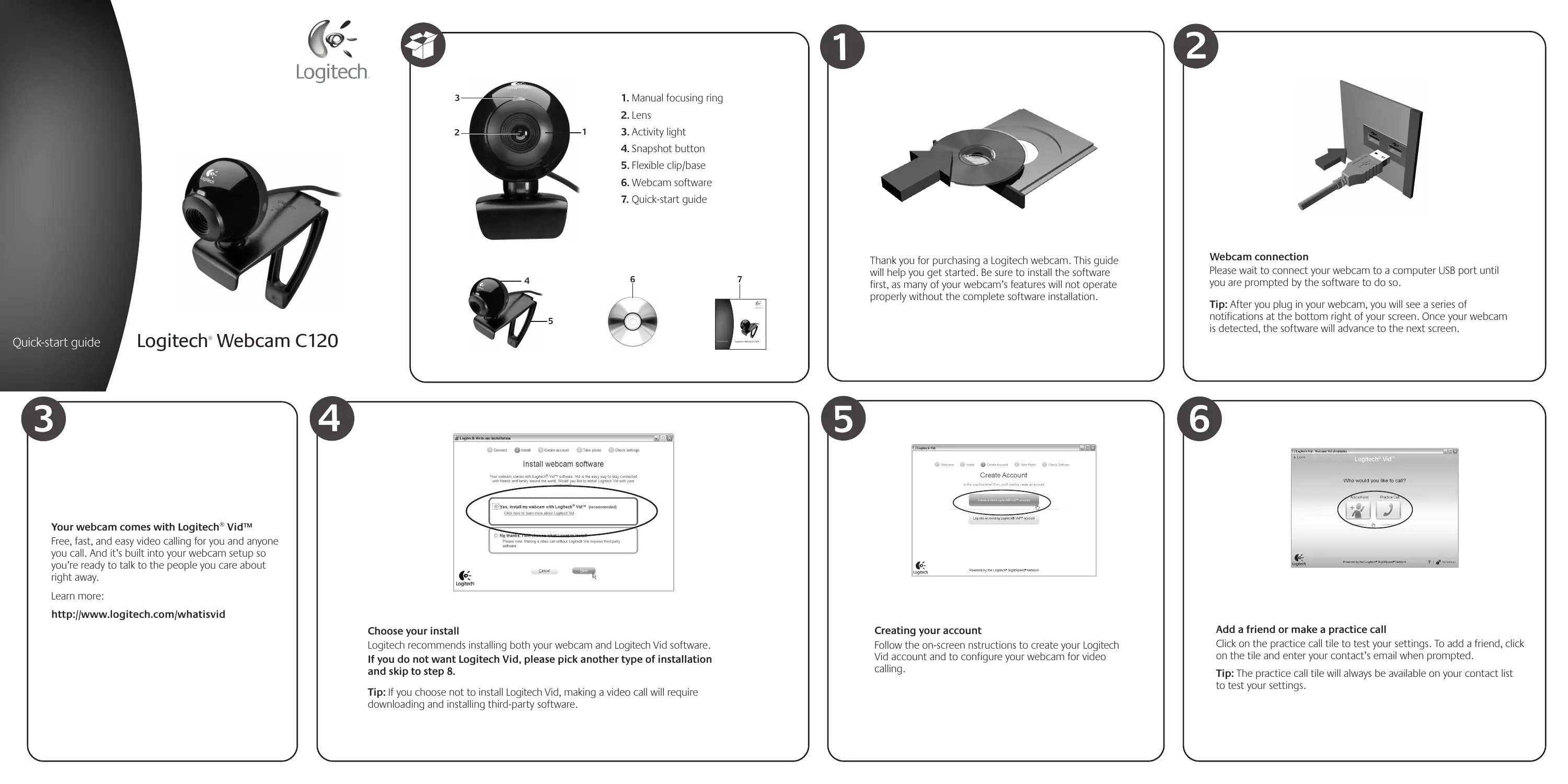
Logitech® Webcam C120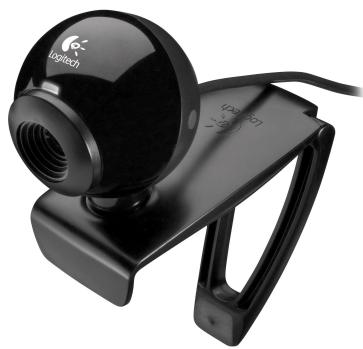
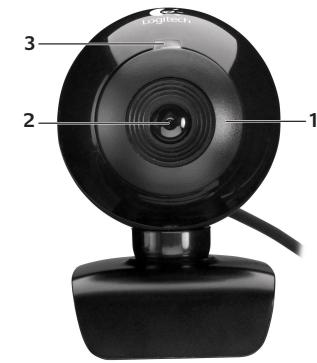
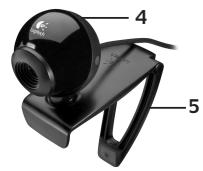
- Bague de mise au point manuelle
- Objectif
- Voyant d'activité
- Bouton de capture
- Pince/socle flexible
- Logiciel de webcam
- Guide de démarrage rapide
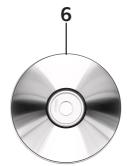
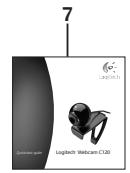

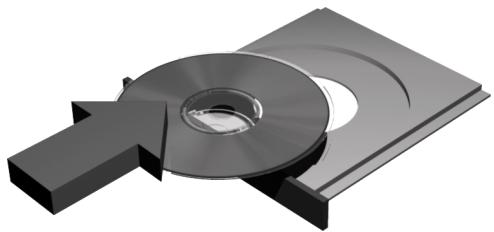
Merci d'avoir acheté une webcam Logitech. Ce guide vous aidera à démarrer. Assurez-vous d'installer d'abord le logiciel, car de nombreuses fonctionnalités de votre webcam ne fonctionneront pas correctement sans l'installation complète du logiciel.

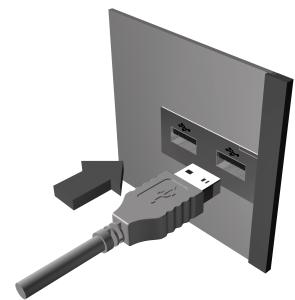
Connexion de la webcam
Veuillez attendre de connecter votre webcam à un port USB de l'ordinateur jusqu'à ce que le logiciel vous y invite.
Astuce : Après avoir branché votre webcam, vous verrez une série de notifications en bas à droite de votre écran. Une fois votre webcam détectée, le logiciel passera à l'écran suivant.

Votre webcam est livrée avec Logitech® Vid™
Appels vidéo gratuits, rapides et faciles pour vous et tous ceux que vous appelez. Et c'est intégré à la configuration de votre webcam, vous êtes donc prêt à parler aux personnes qui comptent pour vous immédiatement.
En savoir plus :
http://www.logitech.com/whatisvid

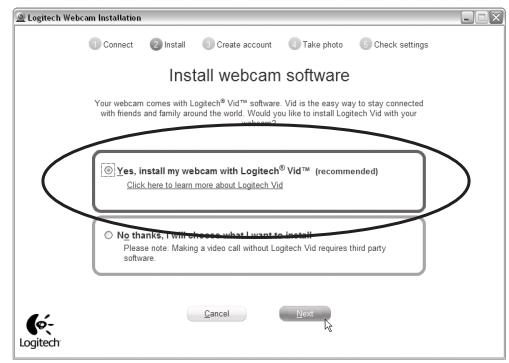
Choisissez votre installation
Logitech recommande d'installer à la fois votre webcam et le logiciel Logitech Vid. Si vous ne souhaitez pas Logitech Vid, choisissez un autre type d'installation et passez à l'étape 8.
Astuce : Si vous choisissez de ne pas installer Logitech Vid, passer un appel vidéo nécessitera de télécharger et d'installer un logiciel tiers.

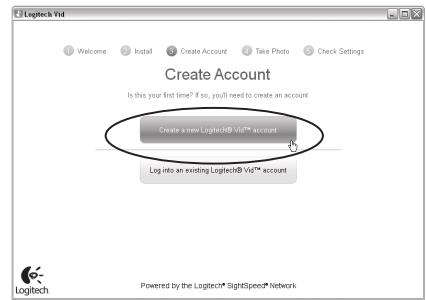
Création de votre compte
Suivez les instructions à l'écran pour créer votre compte Logitech Vid et configurer votre webcam pour les appels vidéo.
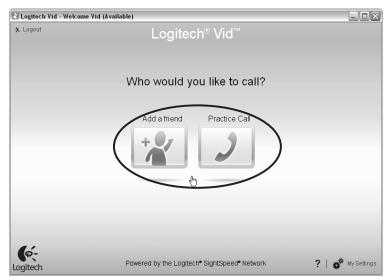

Ajouter un ami ou passer un appel test
Cliquez sur la vignette d'appel test pour tester vos paramètres. Pour ajouter un ami, cliquez sur la vignette et saisissez l'adresse e-mail de votre contact lorsque vous y êtes invité.
Astuce : La vignette d'appel test sera toujours disponible dans votre liste de contacts pour tester vos paramètres.
7

Accès aux paramètres du compte
Logitech détectera et définira automatiquement les meilleurs paramètres pour votre webcam. Si vous souhaitez reprendre votre photo de profil ou mettre à jour vos paramètres, cliquez sur l'icône Paramètres.
8

Webcam Logitech
Logiciel

Logitech Vid
Démarrage de vos applications
Double-cliquez sur les icônes pour lancer vos applications.
- Logiciel de webcam
- Logitech Vid
Astuce : L'icône Logitech Vid n'est présente que si vous avez choisi d'installer Logitech Vid. Pour en savoir plus sur les appels vidéo tiers, veuillez consulter :
www.logitech.com/webcam_howto
9
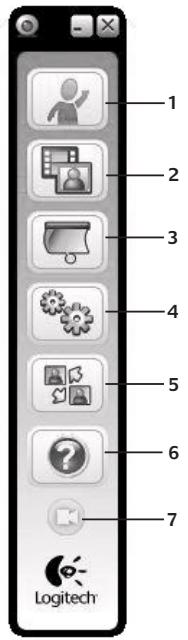
- Téléchargez ou lancez Logitech Vid
- Enregistrez des vidéos ou capturez des images
- Volet de confidentialité
- Paramètres de la webcam
- Accédez à des applications supplémentaires
- Tableau de bord d'aide de la webcam
- Coupure vidéo
10
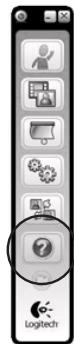
Besoin d'aide ?
Cliquez sur l'icône ? pour accéder à l'aide de l'application,
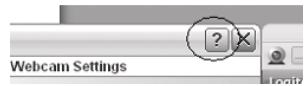
ou regardez des vidéos montrant comment tirer le meilleur parti de votre logiciel de webcam Logitech.
Astuce : si vous n'êtes pas sûr d'une fonctionnalité, vous pouvez également cliquer sur l'icône ?
n'importe où dans le logiciel de webcam pour obtenir de l'aide.
11
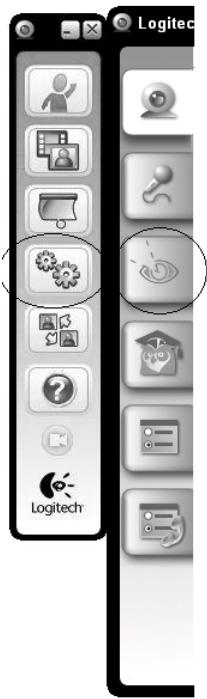
Correction de l'éclairage
La technologie Logitech RightLight corrige les environnements
mal éclairés. Pour modifier vos paramètres, cliquez sur l'onglet comme indiqué.
Astuce : la technologie RightLight n'est disponible que sur certaines webcams.
12
http://www.logitech.com/whatisvid
http://www.logitech.com/webcamhowto
http://www.logitech.com/support
http://www.logitech.com
Félicitations !
Votre webcam et le logiciel sont installés et prêts à être utilisés.
Veuillez visiter les liens pour en savoir plus sur les webcams Logitech,
leur technologie et comment en tirer le meilleur parti.
Merci d'avoir acheté une webcam Logitech !
+
www.logitech.com/support

États-Unis +1 646-454-3200
Argentine +0800 555 3284
Brésil +0800 891 4173
Canada 1-866-934-5644
Chili 1230 020 5484
Amérique latine +55 11 3444 6761
Mexique 0018005789619
© 2009 Logitech. Tous droits réservés. Logitech, le logo Logitech et les autres marques Logitech sont la propriété
de Logitech et peuvent être déposés. Toutes les autres marques sont la propriété de leurs détenteurs respectifs.
Logitech décline toute responsabilité en cas d'erreurs pouvant apparaître dans ce manuel. Les informations contenues dans ce document sont sujettes à modification sans préavis.
620-002297.004


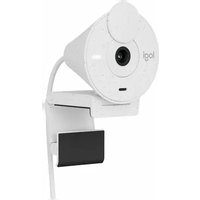
Marque : LOGITECH
Modèle : C120
Catégorie : Webcam