MODE D'EMPLOI TQL32R4, TQL39R4P.133 POLAROID

© 2013 All rights reserved.
Polaroid and Polaroid & Pixel are trademarks of PLR IP Holdings, LLC, used under license. All other trademarks are the property of the respective owner, who has not sponsored, endorsed or approved this product. PLR IP Holdings, LLC does not manufacture this product or provide any Manufacturer's Warranty or support. This product is manufactured, distributed and sold by Empire Electronic Corporation.
Product features, specifications, and appearances are subject to change without notice. Changes are periodically made of this document. Changes, technical inaccuracies, and typographical errors will be corrected in subsequent editions.
For service, support, and warranty information, visit www.polaroidhdtv.com
PLR IP Holdings, LLC, its licensees and affiliates, fully supports all electronic waste initiatives. As responsible stewards of the environment, and to avoid violating established laws, you should properly dispose of this product in compliance with all applicable regulations, directives or otherGovernances in the area where you reside. Please check with local authorities or the retailer where you purchased this product to determine a location where you can appropriately dispose of the product.
You may also go to www.polaroidhdtv.com and reference About / Electronic Recycling to learn more about the specific laws in your area and to locate a collection facility near your home.
If your electronic device has internal memory on which personal or other confidential data may be stored, you may want to perform a data sanitization process before you dispose of your device to assure another party cannot access your personal data. Data sanitization varies by the type of product and its software, and you may want to research the best sanitization process for your device before disposal. You may also check with your local recycling facility to determine their data sanitization procedures during the recycling process.
Getting Started
Carefully remove the LED TV and all other items from the box. You may wish to store the packaging for future use.
Please read these instructions thoroughly before use.
In the Box
Inside the box you will find:
LED TV
Remote Control & Battery x 2
- User Guide
Warranty Sheet
QSG
Installation Sheet
Package Saver Insert
Contents
Getting Started. 1
Contents 2
Warning and Precautions 3
Safety Precautions 4
Important Safety Instructions. 6
Location of Controls 10
Front /Rear View. 10
Remote Control 12
Inserting Remote Control Batteries 13
Using Remote Control. 14
Operating Your TV 16
First time installation. 16
Channel Programming. 16
Channel label 17
Channel Skip 17
Picture 18
Picture settings. 18
PC settings 19
PC input signal chart 19
Sound 20
Sound settings 20
Parental Control. 21
Setup 23
Date & Time 23
Changing channels 24
Add or delete channels to the favorite list. 24
Use the favorite channel list 24
EPG 25
Trouble Shooting 26
Care & Maintenance 27
Technical Specification 28
TV Section 28
Audio 28
HDMI 28
General 28
PLEASE READ THE INSTRUCTIONS CAREFULLY BEFORE OPERATING THIS UNIT. WARNING
To reduce the risk of fire or electric shock, do not expose this product to rain or moisture.
The apparatus should not be exposed to dripping or splashing, and no objects filled with liquids, such as a vase, should be placed on the apparatus.
Air flow to the unit should not be impeded by covering the ventilation openings with items, such as newspapers, table-cloths, curtains, etc.
No open flame sources, such as lighted candles, should be placed on the apparatus.
CAUTION
TO PREVENT ELECTRIC SHOCK, DO NOT USE THIS (POLARIZED) PLUG WITH AN EXTENSION CORD, RECEPTACLE OR OTHER OUTLET UNLESS THE PLUG CAN BE FULLY INSERTED WITHOUT EXPOSING ANY PARTS OF THE BLADES.
TO PREVENT ELECTRIC SHOCK, MATCH WIDE BLADE OF PLUG TO WIDE SLOT, FULLY INSERT.
THE MAINS PLUG IS USED AS THE DISCONNECT DEVICE, THE DISCONNECT DEVICE SHOULD REMAIN READILY OPERABLE.
IN ORDER TO DISCONNECT THE APPARATUS FROM THE MAINS COMPLETEY, THE MAINS PLUG SHOULD BE DISCONNECTED FROM THE MAINS SOCKET OUTLET COMPLETELY.
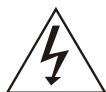
The lightning flash with arrowhead symbol, within an equilateral triangle, is intended to alert the user to the presence of uninsulated "dangerous voltage" within the product's enclosure that may be of sufficient magnitude to constitute a risk of electric shock to persons.
CAUTION
RISK OF ELECTRIC SHOCK DO NOT OPEN
WARNING: TO REDUCE THE RISK OF ELECTRIC SHOCK, DO NOT REMOVE COVER (OR BACK). NO USER-SERVICE-ABLE PARTS INSIDE, REFER SERVICING TO QUALIFIED SERVICE PERSONNEL.

The exclamation point within an equilateral triangle is intended to alert the user to presence of important operating and maintenance (servicing) instructions in the literature accompanying the appliance.

ENERGY STAR® Qualification.
This product has earned the ENERGY STAR® for meeting U.S. Federal energy efficiency guidelines as set by the Department of Energy and Environmental protection agency. The ENERGY STAR® program exists to provide energy saving guidelines and help promote energy efficient products and practices. Changes to certain features, settings and functions of this TV can change and/or increase its power consumption.
As-shipped mode is the mode in which the product qualifies for ENERGY STAR®.

Federal Communications
Commission Statement
IMPORTANT
Since the CD circuitry may cause interference to other radio tuners nearby, switch this unit off when not in use or move the affected radio tuner away.
This device complies with Part 15 of the FCC Rules. Operation is subject to the following two conditions: (1) This device may not cause harmful interference, and (2) this device must accept any interference received, including interference that may cause undesirable operation.
This device complies with Canadian ICES-003.
Standard TELEVISION receiving Apparatus.
COMPLIANCE WITH FCC REGULATIONS
This equipment has been tested to comply with the limits for a Radio Receiver, pursuant to Part 15 of the FCC Rules.
These limits are designed to provide reasonable protection against harmful interference in a residential installation. This equipment generates, uses and can radiate radio frequency
energy and, if not installed and used in accordance with the instructions, may cause harmful interference to radio communications. However, there is no guarantee that interference will not occur in a particular installation. If this equipment does cause interference to radio or television reception, which can be determined by turning the equipment off and on, the user is encouraged to try to correct the interference by one or more of the following measures:
Reorient or relocate the receiving antenna.
- Increase the separation between the equipment and receiver.
- Connect the equipment into an outlet on a circuit different from that to which the receiver is connected.
- Consult the dealer or an experienced radio technician for help.
Caution: changes or modifications not expressly approved by the party responsible for compliance could void the user's authority to operate the equipment.
Important Safety Instructions
Before using this unit, be sure to read all operating instructions carefully. Please note that these are general precautions and may not pertain to your unit.
- Read these instructions.
- Keep these instructions.
- Heed all warnings.
- Follow all instructions.
- Do not use this apparatus near water.
- Clean only with a dry cloth.
- Do not block any of the ventilation openings.
Install in accordance with manufacturer's instructions.
- Do not install near any heat source such as radiators, heat registers, stoves, or other apparatus (including amplifiers) that produce heat.
- Do not defeat the safety purpose of the polarized or grounding-type plug. A polarized plug has two blades with one wider than the other. A grounding type plug has two blades and a third grounding prong. The wide blade or the third prong is provided for your safety.
If the provided plug does not fit into your outlet, consult an electrician for replacement of the obsolete outlet.
- Protect the power cord from being walked on or pinched, particularly at plugs, convenience receptacles, and the point where they exit from the apparatus.
- Only use attachments/accessories specified by the manufacturer.
12.

Use only with a cart, stand, tripod, bracket, or table specified by the manufacturer or sold with the apparatus. When a cart is used, use caution when moving the cart/apparatus combination to avoid injury from tipover.
- Unplug this apparatus during lightning storms or when unused for long periods of time.
- Refer all servicing to qualified service personnel. Servicing is required when the apparatus has been damaged in any way, such as power-supply cord or plug is damaged, liquid has been spilled or objects have fallen into the apparatus, or when the apparatus has been exposed to rain or moisture, does not operate normally, or has been dropped.
Important Safety Instructions
15. Retain Instructions
The safety and operating instructions should be retained for future reference.
16. Water and Moisture
Do not use this product near water-for example, near a bath tub, wash bowl, kitchen sink, or laundry tub, in a wet basement, or near a swimming pool and the like.
17. Power Sources
The product should be operated only from the type of power source indicated on the marking label. If you are not sure of the type of power supply to your home, consult your product dealer or local power company. For products intended to operate from battery power, or other sources, refer to the operating instructions.
18. Grounding or Polarization
This product may be equipped with a polarized alternating-current line plug (a plug having one blade wider than the other). This plug will fit into the power outlet only one way. This is a safety feature. If you are unable to insert the plug fully into the outlet, try reversing the plug. If the plug should still fail to fit, contact your electrician to replace your obsolete outlet. Do not defeat the safety purpose of the polarized plug. Alternative Warnings -This product is equipped with a three-wire grounding-type plug, a plug having a third (grounding) prong. This plug will only fit into a grounding-type power outlet. This is a safety feature. If you are unable to insert the plug into the outlet, contact your electrician to replace your obsolete outlet. Do not defeat the safety purpose of the grounding-type plug.
19. Outdoor Antenna Grounding
If an outside antenna or cable system is connected to the product, be sure the antenna or cable system is grounded so as to provide some protection against voltage surges and built-up static charges. Article 810 of the National Electrical Code, ANSI/ NFPA 70, provides information with regard to proper grounding of the mast and supporting structure, grounding of the lead-in wire to antenna discharge unit, size of grounding conductors, location of antenna discharge unit, connection to grounding electrodes, and requirements for the grounding electrode. See fig. A on page 10.
20. Lightning
For added protection for this product during a lightning storm, or when it is left unattended and unused for long periods of time, unplug it from the wall outlet and disconnect the antenna or cable system. This will prevent damage to the product due to lightning and powerline surges.
21. Power Lines
An outside antenna system shouldn't be located in the vicinity of overhead power lines or other electric light or power circuits, or where it can fall into such power lines or circuits. When installing an outside antenna system, extreme care should be taken to keep from touching such power lines or circuits as contact with them might be fatal.
22. Overloading
Do not overload wall outlets, extension cords, or integral convenience receptacles as this can result in a risk of fire or electric shock.
23. Object and Liquid Entry
Never insert objects of any kind into this product through openings as they may touch dangerous voltage points or short-out parts that could result in a fire or electric shock. Never spill liquids of any kind on the product.
Do not attempt to service the product yourself as opening or removing covers may expose you.
24. Damage Requiring Service
Unplug this product from the wall outlet and refer servicing to qualified service personnel under the following conditions:
a. When the power-supply cord or the plug is damaged,
b. If liquid has been spilled, or objects have fallen into the product,
c. If the product has been exposed to rain or water,
d. If the product does not operate normally by following the operating instructions. Adjust only those controls that are covered by the operating instructions as an improper adjustment of other controls may result in damage and will often require extensive work by a qualified technician to restore the product to its normal operation,
e. If the product has been dropped, or damaged in any way,
f. When the product exhibits a distinct change in performance this indicates a need for service.
25. Replacement Parts
When replacement parts are required, be sure the service technician has used replacement parts specified by the manufacturer or that have the same characteristics as the original part. Unauthorized substitutions may result in fire, electric shock, or other hazards.
26. Safety Check
Upon completion of any service or repairs to this product, ask the service technician to perform safety checks to determine that the product is in proper operating condition.
27. Nonuse Period
The power cord of the application should be unplugged from the outlet when left unused for a long period of time.
28. Note To CATV System Installer
This reminder is provided to call the CATV system installer's attention to Article 820-40 of the NEC that provides guidelines for proper grounding and, in particular, specifies that the cable ground shall be connected to the grounding system of the building, as close to the point of cable entry as practical.
Important Safety Instructions
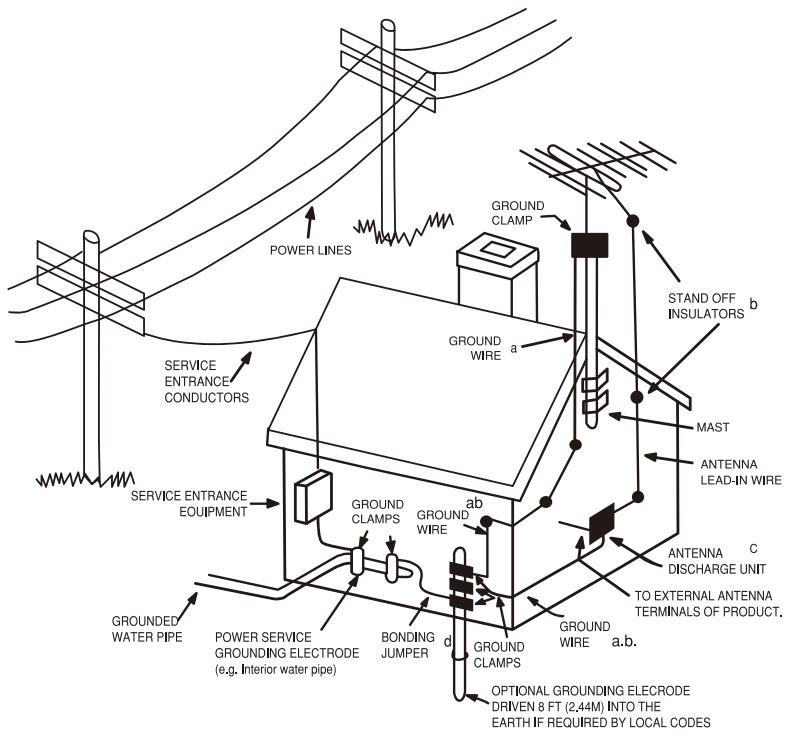
FIGURE A
EXAMPLE OF ANTENNA
GROUNDING ACCORDING TO
NATIONAL ELECTRICAL CODE
INSTRUCTIONS
a. Use No.10AWG (5.3mm²) copper, No.8 AWG (8.4mm²) aluminum, No.17AWG (1.0mm²) copper-clad steel or bronze wire, or larger, as a ground wire.
b. Secure antenna lead-in and grounding wires to house with insulators spaced from 4-6 feet (1.22-1.83m) apart.
c. Mount antenna discharge unit as close as possible to where lead-in enters house.
d. Use jumper wire not smaller than No.6AWG (13.3mm²) copper, or the equivalent, when a separate antenna grounding electrode is used.
ON PLACEMENT
- Do not use the unit in places which are extremely hot, cold, dusty or humid.
- Place the unit on a flat and even surface.
- Do not restrict the air-flow of the unit by placing it in a location with poor ventilation, covering it with a cloth or by placing it on a carpet.
ON CONDENSATION
- When left in a heated room where it is warm and damp, water droplets or condensation may form inside the unit.
If there is condensation inside the unit, the unit may not function normally.
- Let it stand for 1 to 2 hours before turning the power on, or gradually heat the room up and dry the unit before use.
CAUTION:
Remove AC plug from wall outlet and the batteries from battery compartment of the remote control when the unit will not be used for a prolonged period.
HIGH VOLTAGE:
Live voltage parts are accessible when the rear cover is removed.
Please read IMPORTANT SAFETY INSTRUCTIONS
Excessive sound pressure from earphones and headphones can cause hearing loss .
NOTES:
Periodically inspect for damage: if damaged, properly repair the TV before use.
- Adult supervision recommended.
Location of Controls
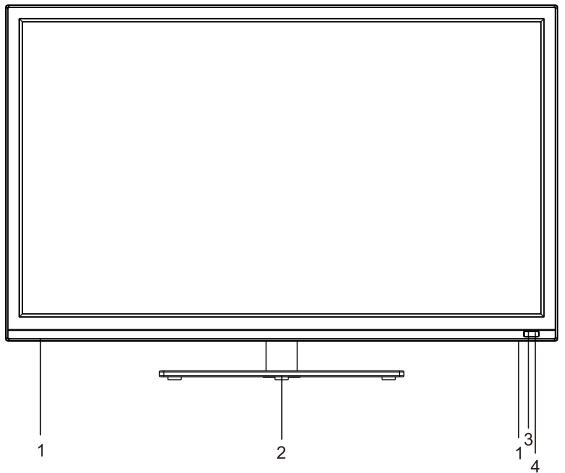
Front View
- Speaker
- Stand base
- Power indicator
- Remote Sensor
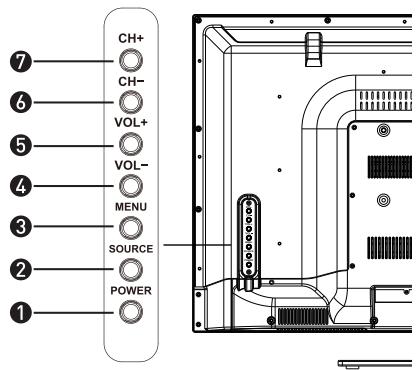
-
POWER button
-
VOL+ button
-
SOURCE button
-
CH- button
-
MENU button
-
CH+ button
-
VOL- button
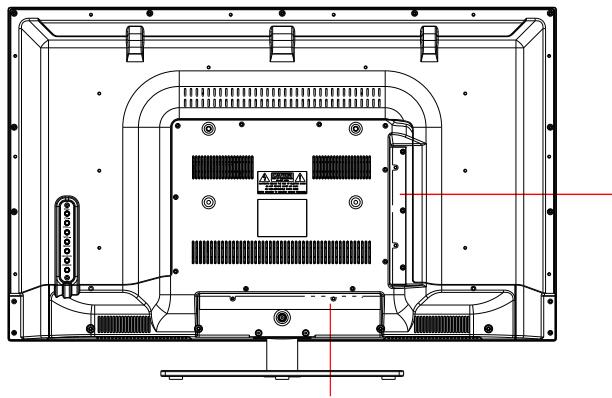
Rear View
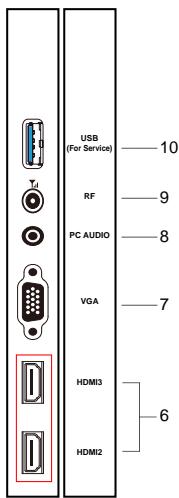
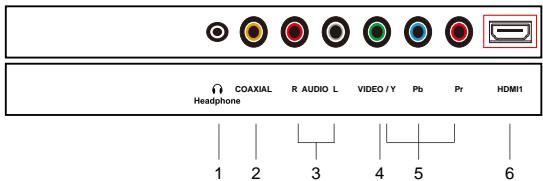
- Headphone Jack
2.COAXIAL Output
- Rear AV Input
4.VIDEOJack
5. Component Input
6. HDMI Input
- VGA Input
-
PC Input
9.75 ohm Antenna Socket
-
USB
(For Service)
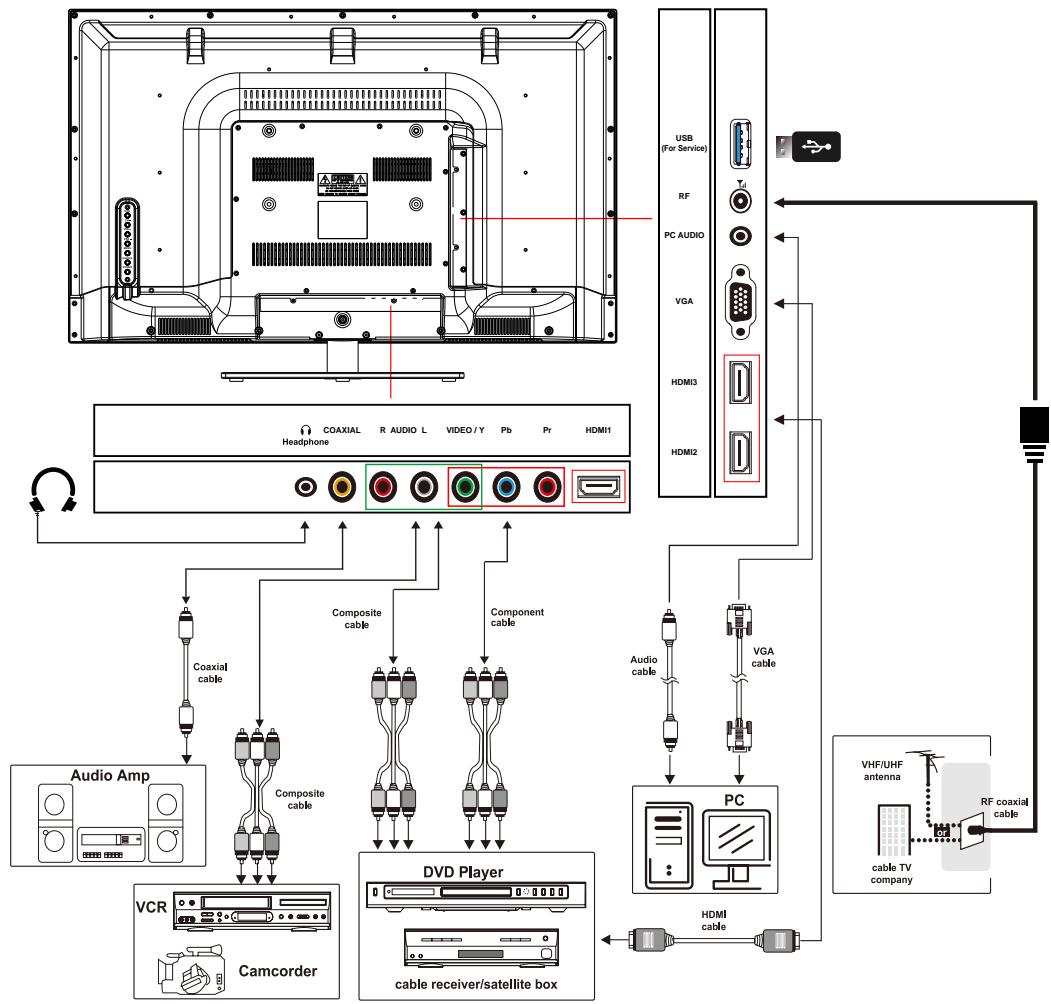
You can enjoy picture, sound and a PC monitor by connecting a DVD player, video game system or computer to the inputs located on the rear of the LED TV set.
- For the cable, use a commercially available audio/video cable.
- For more information about external device connections, see the operation manuals of your external devices.
- Make sure that the corresponding cables are connected to each input. Connecting other cables may result in a malfunction.
VIDEO and S-VIDEO inputs: If your external device has an S-VIDEO output, S-VIDEO connection is recommended. S-video provides a finer, more detailed picture. If inputs are connected, S-VIDEO input takes a priority.
- Component Input (YPbPr): Picture can be displayed only when a 480i or 480p or greater signal is received.
Remote Control
- POWER Turns the LED TV on and off (standby mode).
- SOURCE Press to display the source menu on the screen. Using the Navigator or buttons to select the source as desire then press (ENTER) button to confirm your selection.
- S.MODE Sound Mode, press repeatedly to select the presetting sound effect modes.
- P.MODE Picture Mode, press repeatedly to select the preset picture modes.
- SLEEP Press repeatedly to activate and/or set the sleep timer.
- ASPECT Press repeatedly to select the aspect ratio of screen as desired.
- MTS In NTSC receiving mode, press to select the audio modes to Mono, Stereo or SAP. In ATSC Digital receiving mode, press to display the audio selection menu on the screen. Using the Navigator▲,▼ button to select the desire audio mode.
- CC Press repeatedly to activate and/or set the CC (Closed Caption Display) modes.
- ADD/ERASE In FAV display mode, press to increase or delete the highlighted channel
- FAV. Show the list of favorite channels
- EPG Press to display the Electronic Program Guide in digital TV channels(Operation in ATSC mode only functions on signals emitting from TV station)
12.DISPLAY Press to display the information; settings and the status of current mode/station on the screen
- ▲▼▶/ENTER Press to move the cursor within the setting menu.
ENTER Press the ENTER button to confirm the selection. Press the "ENTER" button, the check mark will appear to the channel, and the channel is marked as channel list.
- MENU Displays the setting menu on the screen.
- EXIT Press to exit from the setting menu.
- MUTE Turn off the sound temporary. Press again to turn the sound back.
- VOL+/VOL- Press to increase or decrease the volume level
- CH + / CH- Press to increase or decrease the channel number
19.0-9 Numeric buttons.
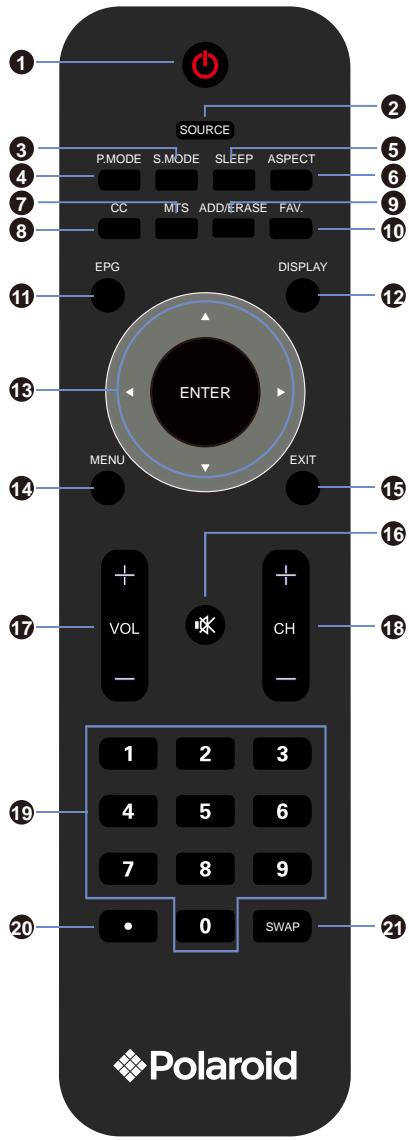
- For direct access a digital TV channel. (For an example, when access a digital TV channel number 5-1, press button "5" + "-" + "1")
- SWAP Return to previous channel.
Inserting Remote Control Batteries
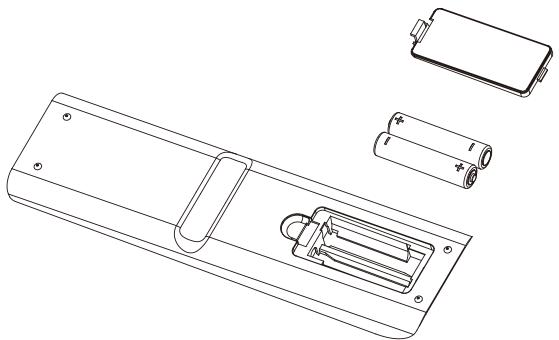
On the back of the remote control, push down the catch on the battery compartment cover and lift to remove it.
Insert the two AAA batteries supplied, ensuring that you follow the polarity diagram inside the battery compartment.
Refit the cover.
Battery Disposal
Please ensure batteries are disposed safely. Never dispose batteries in a fire or with household waste. Check with your local authority for disposal regulations.
The batteries (battery pack or batteries installed) shall not be exposed to excessive heat such as sunshine, fires or the like.
CAUTION
- Do not attempt to recharge, short-circuit, disassemble, heat or throw the batteries into the fire.
- Placing with wrong or mixed polarities batteries will result in damage to the batteries and/or may result in a malfunction of the unit.
- Do not mix old and new batteries.
- Dispose of batteries properly in accordance with local law.
- Do not mix alkaline, standard (carbon-zinc), or rechargeable (nickel-cadmium) batteries.
Using Remote Control
Changing Channels
- Press the “CH +/ -” buttons to change higher or lower stored main channels and sub-channels.
- Press numeric button "0-9" and "●" button to select the main channels and sub-channels then press the "ENTER" button to confirm.
For example: to select CH90-2
- Press number "9" and number "0" button then press the "●" button and press number "2" button. Then press the "ENTER" button to confirm.
To review the stored Channel
- Press the "ENTER" button to review the stored channels.
To Select the Favorite Channel
- Press the "FAV." button to enter to favorite channel list, to select the desired channel press the / button then press the "ENTER" button.
To Change to Audio Channel
- Press the "MTS" button to choose the desired audio channel if the bilingual language is available by the broadcasting station.
- Press the "DISPLAY" button to review the station informations.
- Press the "EPG" button to enter to the guide menu, and press the 1 button to see next page if the contents of information is more than one page.
To change the screen aspect ratio
- Press the "ASPECT" button to change the aspect ratio of picture size.
To return back to the previous channel viewed
- Press the "SWAP" button to review the previous channel.
To turn on or turn off the close captioning
- Press the "CC" button to turn ON or turn OFF close caption function.
To change the picture effect
- Press the "P.MODE" button to select the picture effect.
There are four modes for picture with different effect.
User (The picture brightness/contrast/color/sharpness is preset by user)
Standard (Fixed mode for normal condition)
Dynamic (Fixed mode for day time with high brightness environment)
Mild (Fixed mode suitable for bedroom without light condition)
To set the sleep time
- Press the "SLEEP" button to select a predetermined time the TV will turn off. The sleep time can be set to count down from 15 to 240 minutes.
To mute the sound
- Press the "MUTE" button to mute the sound, press once again to resume the sound.
- Press the "INPUT" button to select source model.
AUTO POWER OFF
If no signal is continuously detected from the antenna or broadcasting for more than 10 minutes, the TV will power-off automatically.
Operating Your TV
Once you have connected your TV to an antenna or cable system, plugged the TV in, and put batteries in the remote, you are ready to use the TV. The first thing you should do is program your TV to memorize all of the available channels in you area.
Turning Your TV On
To turn your TV ON, press the "b" button on the remote control or press the "b" button on the front panel. (The LED light is red when the TV is in the standby mode and blue when powered up.)
First time installation
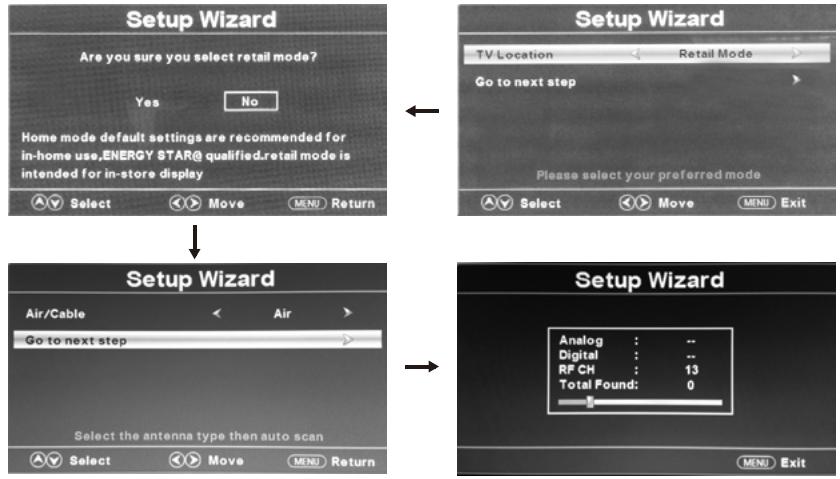
When you power ON the unit for the first time, the screen will show the initial setup dialog.
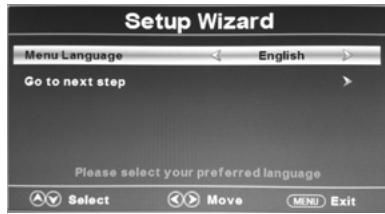
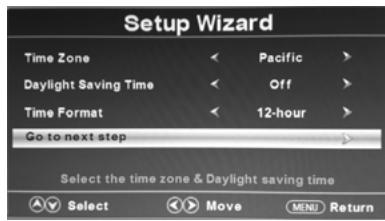
There are 6 option in initial setup menu:
- Menu Language: English, Français, Espanol
Time Zone, Daylight Saving Time, Time Format:
Press the / button to select.
In Retail Mode, the television provides a more dynamic picture that will increase power consumption beyond Energy Star standards.
In Home Mode, the television display meets Energy Star standards to reduce power consumption.
Signal type: Air, Cable
- Auto Channel Search: Execute
- Press the “▲/▼” button to highlight desired menu language or signal type and press the “▲/▼” button to select desired menu language and signal type.
- Press the “ / ” button to highlight Auto Channel Search and press “ENTER” button to perform auto channel scan, the Auto Scan process will take about 30 minutes, while the auto scan process is finished then the first memorized channel will appear on the screen.
You can Scan for channels at any time using the following instructions:


Channel Programming
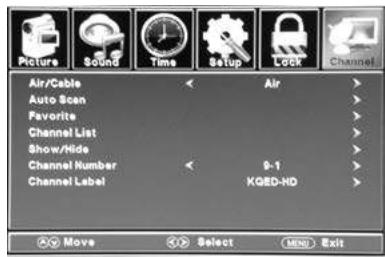
1 Press the "MENU" button on the remote control, then press the 1 button to highlight CHANNEL. and press the "ENTER" button to access to the sub-menu.
There are 6 items in CHANNEL Sub-menu:
Air/Cable
- Auto Scan
- Favorite
- Channel List
Show/Hide
- Channel Number
- Channel Label
2 Press the "▶" button to highlight Signal Type, then press the "▶" button to select desired Air or Cable.
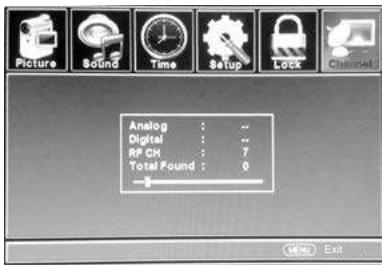
- Press the "▼" button to highlight Auto Channel Search, and press the "ENTER" button to launch the Auto channels scanning. The scanning process will take about 30 minutes or more (depends on how many TV stations are in your area), when the auto scanning process is finished the first memorized station will appear on the screen.
Channel Label
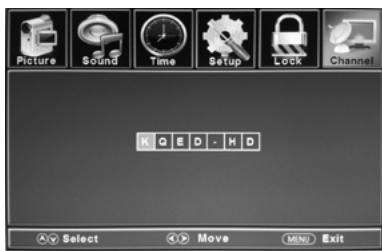
- Press the "▼" button to highlight the Channel Label then press the "ENTER" button to access.
- Press the / button to move the position of cursor, then press the / button one or more times to select each desired character for the name of channel.
Operating Your TV
Picture
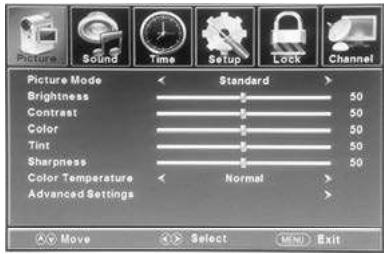
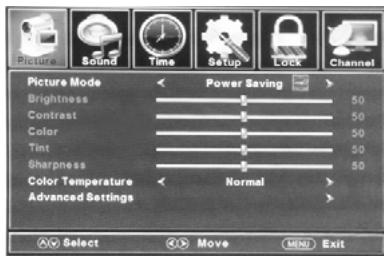
Press the "MENU" button then press the "▼" button to highlight the PICTURE and press "ENTER"
button to access to the sub-menu.
There are 7 items in the menu:
- Picture Mode
- Brightness
- Contrast
Color
Tint
- Sharpness
Color Temparature
Advanced Settings
Picture settings
- Press the “▲/▼” button to highlight Picture Settings and press the “ENTER” button to enter to the sub-menu.
- In sub-menu press the “▲/▼” button to high light desired item that you want to adjust, then press the “▲/▼” button to change the parameter of selected item.
Picture Mode: Standard, Dynamic, Soft, Power Saving or User.
- Brightness
- Contrast
Color
Tint
Sharpness
PC Settings
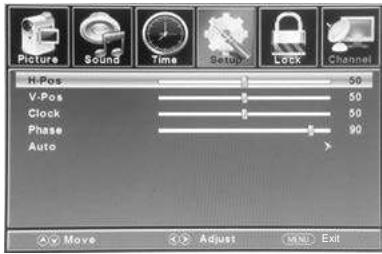
When PC Settings is highlighted, press the "ENTER" button to enter to the sub-menu, then press the / button to highlight desired item which you want to adjust, then press the / button to change the parameter of selected item.
H-Pos
V-Pos
Clock
Phase
- Auto
- Press the "MENU" button to close the menu.
The following chart shows the suggested screen resolutions.
| Format | Resolution | Freq.(Hz) |
| VGA | 640 x 480 | 60/72 |
| SVGA | 800 x 600 | 60/72 |
| XGA | 1024 x 768 | 60/75 |
| WXGA | 1366 x 768 | 60 |
| | |
If "Unsupported" appears on the screen, adjust the PC display setting to correspond to one of the settings in the above table.
Operating Your TV
Sound
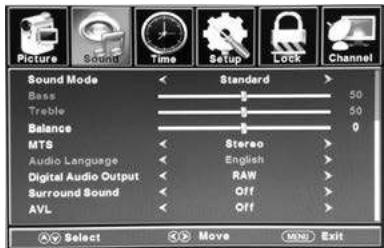
Press the "MENU" button then press the "▼" button to highlight the SOUND and press "ENTER" button to access to the sub-menu.
There are 6 items in the menu:
Sound Mode
Bass
- Treble
Balance
MTS
Audio Language
Digital Audio Output
- Surround Sound
AVL
Sound Mode
- Press the “▲/▼” button to highlight Sound Mode and press the “ENTER” button to enter to the sub-menu.
- In sub-menu press the “▲/▼” button to high light desired item that you want to adjust, then press the “▲/▼” button to change the parameter of selected item.
Sound Mode: Standard, Music, Movie Sports or User.
Bass
Treble
Balance

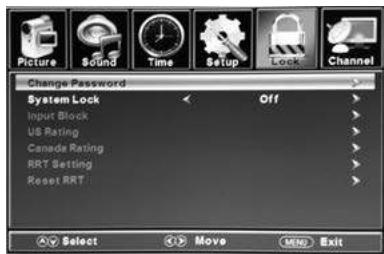
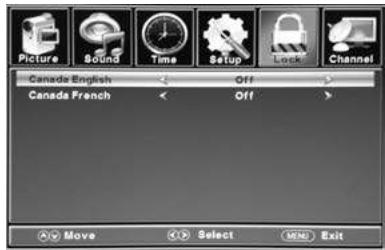
Parental Control
The parental control menu provide the ability to set rating that block programming that may be inappropriate for the viewing audience such as programs and movies that contain violence, adult language or nudity.
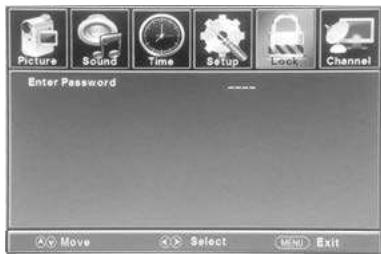
- Press the "MENU" button then press the "▼" button to highlight the PARENTAL CONTROL and press "ENTER" button to access to the sub-menu.
To make setting, need to input 4 digit password (the default password is 0000)
There are 3 items in the menu:
- Change Password
- System Lock
- Input Block
US Rating
Canada Rating
RRT Setting
- Reset RRT
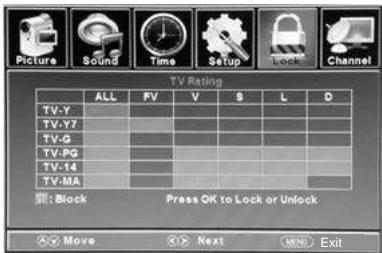
USA TV Ratings as determined by the FCC.
| Rating | Description |
| TV-Y | All children |
| TV-Y7 | Children over seven years of age |
| TV-G | General audiences |
| TV-PG | Parental guidance suggested |
| TV-14 | Parents strongly cautioned |
| TV-MA | Mature audiences only |
| Rating | Description |
| FV | Fantasy violence |
| V | Violence |
| S | Sexual situations |
| L | Adult language |
| D | Sexually suggestive dialog |
Operating Your TV
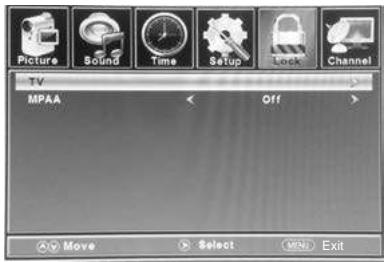
USA Movie Ratings as determined by the MPAA (Motion Picture Association of America)
| Rating | Description |
| G | General audiences |
| PG | Parental guidance suggested. Some material may not be suitable for children. |
| PG-13 | Parental guidance strongly suggested. Some material may not be suitable for children under 13 years of age. |
| R | Restricted. Not suitable for children under 17 years of age unless accompanied by a parent or guardian. |
| NC-17 | Not suitable for children under 17 years of age. |
| X | Adults only |
Canada English(Movies parental control level)
| Rating | Description |
| C | Children |
| C8+ | Children 8 years and above |
| G | General audience |
| PG | Parental guidance suggested |
| 14+ | 8 years old and above |
| 18+ | Adult programming |
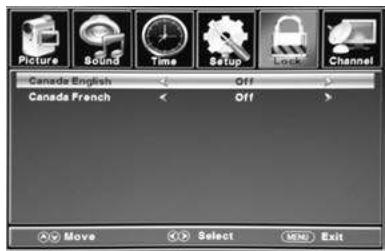
Canada French(Movies parental control level)
| Rating | Description |
| G | Children |
| 8ans+ | Children 8 years and above |
| 13ans+ | Children 13 years and above |
| 16ans+ | Children 16 years and above |
| 18ans+ | Children 18 years and above |
Setup
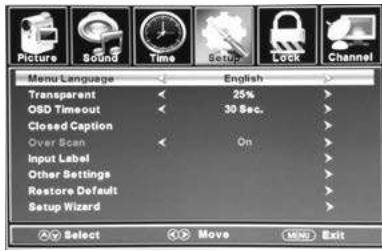
Press the "MENU" button then press the "▼" button to highlight the SETUP and press "ENTER" button to access to the sub-menu.
There are 5 items in the menu:
- Menu Language
Transparent
- OSD Timeout
- Closed Caption
Over Scan
- Input Label
- Other Settings
- Restore Default
- Setup Wizard
Date & Time
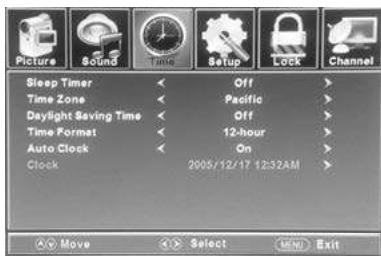
Press the "MENU" button then press the "▼" button to highlight the TIME and press "ENTER" button to access to the sub-menu.
There are 5 items in the menu:
- Sleep Timer
Time Zone
Daylight Saving Time
Time Format
- Auto Clock
Clock
Operating Your TV
Changing channels
- Press the "CH+ " or "CH- " button on the unit or on the remote control to change to higher or lower channels or press the numeric button to key in the channel number directly.
Use the numeric button to select the main channel and sub-channel(Digital channels):
In digital TV mode, a main channel can have one or more sub-channels, to select the main and sub-channel by following below procedures:
- Press the numeric buttons(0-9) on the remote control, and input the desired main channel, and press the "●" button to input to the sub-channel number.
For example:
If you want to watch channel 5.2, press "5" then "●" then the "2" buttons.
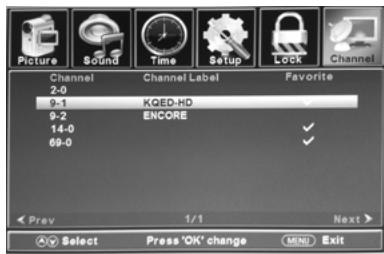
Add or delete channels to the favorite list:
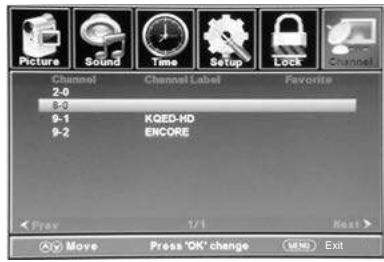
- Press the "ENTER" button to enter to the Channel List menu.
- Press the “▲/▼” button to select a channel which you want to add or delete to the favorite channel list.
- Press the "ENTER" button, the check mark will appear to the channel, and the channel is marked as channel list.
- Repeat the same procedure for other channels.
Press the "MENU" button to exit.
Use the favorite channel list
1 Press the "FAV." button on the remote control and the favorite list will appear on the screen.
2 Press the “▲/▼” button to highlight the desired channel that you want to watch, then press the “ENTER” button to call out this channel.
Use The Electronic Program Guide(EPG)
Your TV has an Electronic Program Guide (EPG) that supplies information, such as program lists and start and end times for programs. In addition, detailed information about the program is often available in the EPG. (The availability and the amount of program details will vary depending on the broadcaster.)
9-1
KQED-HD
PBS HD Overnight Service
< Prev 12:00AM-06:00AM Saturday,17-12-2005
Next
A combination of High Definition and Widescreen Standard Definition programs aired overnight as part of the PBS HD feed available to digital public television stations.
To use the EPG
In digital TV mode, select a channel you want to watch.
- Press the "EPG" button on the remote control and the EPG menu will appear with the currently active channel.
- By repeatedly pressing the “▲/▼” button, the information for additional future programs will be displayed.
- Press the 1 button to select the previous or next program.
Press the "EPG" button one or more times to close the menu.
- Press the "DISPLAY" button once to display the information of the channel being viewed.
- Press the "DISPLAY" button again to display the contents of the channel being viewed.
- Press the "DISPLAY" button again to close the menu.
Trouble Shooting
Your television is designed to give you trouble-free performance for many years. If you have a problem with your TV, try the solutions listed below.
There is no picture or sound, or the TV doesn't turn on.
Make sure the TV is plugged in.
Make sure MUTE is not set on.
Make sure the POWER is on.
Make sure a headphone is not inserted.
If there is neither picture nor sound, unplug the TV for 30 seconds, then plug it in and try again.
There is no picture or sound on some UHF channels.
Try another station. If the other stations are OK, it may be a station problem.
- Check that the antenna is connected and adjusted correctly, in good working order and has no broken wires.
See if anything is interfering with the antenna signal.
The sound is OK, but the picture is poor.
Try another station. If the other stations are OK, it may be a station problem.
- Check that the antenna is connected and adjusted correctly, in good working order and has no broken wires.
There is poor reception on some channels.
Try another station. If the other stations are OK, it may be a station problem.
- Check that the antenna is connected and adjusted correctly, in good working order and has no broken wires. Antenna not included.
The picture rolls, slants, shows lines, is grainy, has poor color, or has ghosts.
Try another station. If the other stations are OK, it may be a station problem.
- Check that the antenna is connected and adjusted correctly, in good working order and has no broken wires.
See if anything is interfering with the antenna signal.
The remote control does not work.
Make sure the TV is plugged in.
Make sure there are fresh batteries in the remote control.
Make sure there is nothing blocking the remote control signal.
Lost the parental control password
- In the password screen, enter the universal password "5963". After using the universal password, you must create a new password.
This television receiver represents a fine example of electronic engineering and construction. As such it should be treated with care. We offer the following suggestions so you will enjoy this product for many years to come.
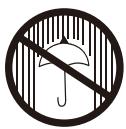
Keep it dry. If water should get on it, wipe it off immediately. Water contains minerals that can corrode electronic circuits.

Do not store in hot areas. High temperatures can shorten the life of electronic devices, damage batteries, and can even distort or melt certain plastics.
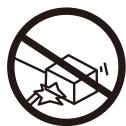
Do not drop your product. This will likely result in failure to operate.
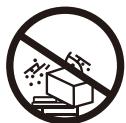
Do not use or store in areas with a high level of dirt or dust. The electronic parts may be contaminated or wear prematurely.
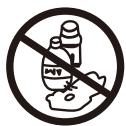
Do not use harsh chemicals or strong cleaning solvents to clean your unit. wipe it with a slightly moist cloth.
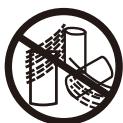
Make make sure any batteries used are fresh and are of the correct type. Old or almost-dead batteries are dangerous.
A worn out battery can leak chemicals which will damage the electronic circuits.
Technical Specification
TV Section
| Television system | NTSC | American TV Standard |
| ATSC(8VSB terrestrial) | ATSC compliant 8VSB |
| QAM on cable | ATSC compliant 64 QAM/256 QAM |
| Channel coverage | Terrestrial(analog) | 2-69 |
| Cable TV(analog) | 1-125 |
| Terrestrial(digital) | 2-69 |
| Cable TV (digital) | 1-135 |
| Antenna | 75-ohm external antenna terminal for VHF/UHF |
Audio
| Audio Output | 8.0 W + 8.0 W |
HDMI
| Support format | HDMI 1.1, HDMI 1.2, HDMI 1.3 |
| Support definition | 480i, 480p, 720p, 1080i, 1080p |
General
| AC Power Supply | AC 100-240V~ 50/60Hz |
| Power Consumption | 65 W |
| Remote Control Batteries | AAA x 2 |
| Dimensions(mm) | D82.5 x W745 x H506 (mm) |
| Net Weight | 8.03 kg |
Design and specifications are subject to change without notice.