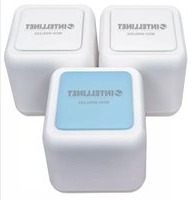
Whole Home Mesh Wireless AC1200 Kit - Routeur Intellinet - Notice d'utilisation et mode d'emploi gratuit
Retrouvez gratuitement la notice de l'appareil Whole Home Mesh Wireless AC1200 Kit Intellinet au format PDF.


| Type de produit | Routeur mesh Wi-Fi AC1200 |
| Marque | Intellinet |
| Modèle | Whole Home Mesh Wireless AC1200 Kit |
| Normes Wi-Fi | IEEE 802.11a/b/g/n/ac, double bande 2,4 GHz et 5 GHz |
| Débit maximal | 300 Mbps (2,4 GHz) + 867 Mbps (5 GHz) |
| Nombre de noeuds | Kit de 2 ou 3 unités (selon version) |
| Ports Ethernet | 2 ports RJ45 10/100/1000 par noeud (1 WAN + 1 LAN) |
| Processeur | Qualcomm Atheros QCA9563 (750 MHz) |
| Mémoire RAM | 128 Mo |
| Mémoire flash | 16 Mo |
| Antennes | 3 antennes internes par noeud |
| Alimentation | Adaptateur secteur 12 V / 1 A (inclus) |
| Dimensions (L x l x H) | Environ 15 x 15 x 4 cm par noeud |
| Poids unitaire | Environ 300 g |
| Fonctions principales | Réseau maillé (mesh), itinérance sans couture, formation de faisceau, gestion via application |
| Sécurité | WPA2-PSK, pare-feu SPI, filtrage MAC, contrôle parental |
| Entretien et nettoyage | Nettoyer avec un chiffon doux sec, éviter l'humidité et les produits chimiques |
| Température de fonctionnement | 0°C à 40°C |
| Humidité de fonctionnement | 10% à 85% HR (sans condensation) |
| Pièces détachées et réparabilité | Non disponibles séparément ; appareil non réparable par l'utilisateur |
| Informations générales | Garantie 2 ans, compatibilité tout FAI, application mobile pour configuration |
FOIRE AUX QUESTIONS - Whole Home Mesh Wireless AC1200 Kit Intellinet
Questions des utilisateurs sur Whole Home Mesh Wireless AC1200 Kit Intellinet
0 question sur cet appareil. Repondez a celles que vous connaissez ou posez la votre.
Poser une nouvelle question sur cet appareil
Téléchargez la notice de votre Routeur au format PDF gratuitement ! Retrouvez votre notice Whole Home Mesh Wireless AC1200 Kit - Intellinet et reprennez votre appareil électronique en main. Sur cette page sont publiés tous les documents nécessaires à l'utilisation de votre appareil Whole Home Mesh Wireless AC1200 Kit de la marque Intellinet.
MODE D'EMPLOI Whole Home Mesh Wireless AC1200 Kit Intellinet
Whole Home Mesh Wireless AC1200 Kit Instructions
Model 525725

Easy setup & management on the free IntellinetMesh app


Default Parameters
Default IP: 192.168.10.1
Login: http://ap.setup
Login Password: see label on bottom of router
SSID: IntellinetMesh
Touch-and-Connect: Guest
Package Contents
- 1 Mesh Router
• 2 Mesh Extenders
• 3 Power Adapters
• 1 Ethernet Cable
• Instructions

INTELLINET®
NETWORK SOLUTIONS
intellinet-network.com
Important: Read before use. • Importante: Leer antes de usar.
Connections


Router & Extender LED Indicators
LED What It Means
| Solid purple Start up | |
| Solid blue Router is connected to the Internet or the extender and router are paired | |
| Blue flash | Touch-and-connect function activated or an extender is pairing with the router |
| Red flash Router is not connected to the Internet or an extender is disconnected | |
| Solid red Router & extender connection is weak — bring the extender closer to the router | |
Get Started Reboot Your Modem
Unplug the power cable from your modem and remove any backup batteries. Then, reinstall the batteries and reconnect power to your modem.
1 Set Up and Connect Your Mesh Router
1 Use the included
Ethernet cable
to connect your
modem's LAN port
to the mesh router's
Internet port. Note:
Place the mesh
router away from
sources of possible
interference.
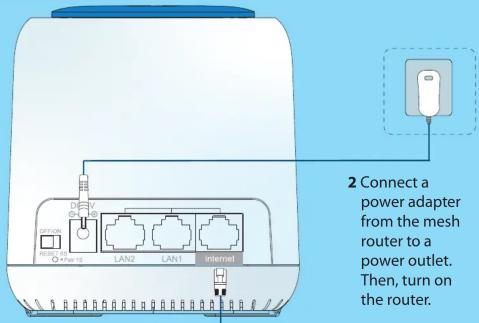

2 Connect a power adapter from the mesh router to a power outlet. Then, turn on the router.

System Reset: Use a paperclip or a similarly sized item to press and hold the reset button for six (6) seconds.
Pair an Extender: Use a paperclip or a similarly sized item to press and hold the pair button for one (1) second.
Touch-and-Connect
Password-free Internet Access for Guests
1 Touch the sensing area on the top of the router; the LED flashes blue.

2 For two minutes, guests in your mesh environment can go to the wireless settings of their device and get onto the "Guest" network without a password.

Touch-and-Connect Setup: Go to the wireless app. In the settings, select Touch-and-Connect. Set a value from 30 to 200 seconds.
2 Create Your Mesh Network
1 Log in to your mesh router through one of the following:
The App: Download and launch the IntellinetMesh app. Follow the steps.

- Your web browser: Connect your computer to the mesh router with another Ethernet cable, or access the router wirelessly through your computer's wireless icon (in the Windows taskbar 📁 or the Mac menu bar 📋).
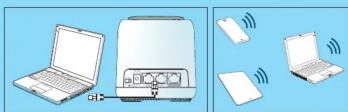
Then, connect to the Intellinet network.
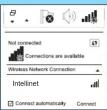
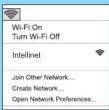
2 Configure its settings:
- In your web browser, go to 192.168.10.1 or http://ap.setup.Log in to the setup wizard that follows with the Password found on the bottom of the router. Fill in the requested info on each of the wizard's pages and click Save or Apply.
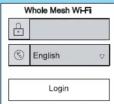
- In the System Setup page, select your Country/Region and Time Zone from the dropdown menus. Then, create a new case-sensitive password. Click Save. Note: Use this password on your next login.

- Select Router to continue in the Router Wizard.

Provide info about your network.
- Choose your Internet connection from the WAN Type dropdown menu and enter details into the corresponding fields: - DHCP (usually for cable or fiber customers)
- PPPoE (usually for DSL customers)
- Static IP (usually for customers whose Internet Service Provider [ISP] has provided them with IP address, Subnet Mask and Default Gateway details) Note: Contact your ISP if you need more information about these settings.
- Create or confirm your mesh router's SSID (default is Guest).

- Choose your level of security from the Security Type drop-down menu (WPA/WPA2 Mix is recommended), and create a different case-sensitive wireless password.

Installation and basic setup may take a few minutes to complete.
3 Position Your Mesh Extenders
1 Place your mesh extenders in the central areas of your home.
2 Connect the other power adapters from your mesh extenders to power outlets.
![graph TD A["Living Room"] --> B["Kitchen"] A --> C["Office"] A --> D["Apartment"] A --> E["Light Bulb"] A --> F["Refrigerator"] B --> G["Living Room"] C --> H["Office"] D --> I["Apartment"] E --> J["Light Bulb"] F --> K["Refrigerator"]](/content/2026/06/1331131/images/b8711ab0024c2a3f13e553b98fe4664333fd6d29af268689ddfa665da99e6948.jpg)
For more information, visit the Downloads tab of this product's webpage: intellinetsolutions.com/barcode/525725.
WASTE ELECTRICAL & ELECTRONIC EQUIPMENT
DISPOSAL OF ELECTRIC AND ELECTRONIC EQUIPMENT (Applicable In The European Union And Other European Countries With Separate Collection Systems) This symbol on the product or its packaging means that this product must not be treated as unsorted household waste. In accordance with EU Directive 2012/19/EU on Waste Electrical and Electronic Equipment (WEEE), this electrical product must be disposed of in accordance with the user's local regulations for electrical or electronic waste. Please dispose of this product by returning it to your local point of sale or recycling pickup point in your municipality.
WARRANTY
USA & CANADA: intellinetsolutions.com
EUROPE: intellinetnetwork.eu
REGULATORY STATEMENTS
FCC Class B
This equipment has been tested and found to comply with the limits for a Class B digital device, pursuant to Part 15 of FCC rules. These limits are designed to provide reasonable protection against harmful interference in a residential installation. This equipment generates, uses and can radiate radio frequency energy, and if not installed and used in accordance with the instructions may cause harmful interference to radio communications. However, there is no guarantee that interference will not occur in a particular installation. If this equipment does cause harmful If this equipment does cause harmful interference to radio or television reception, which can be determined by turning the equipment off and on, the user is encouraged to try to correct the interference by one or more of the following measures: reorient or relocate the receiving antenna; increase the separation between the equipment and the receiver; connect the equipment to an outlet on a circuit different from the receiver; or consult the dealer or an experienced radio/TV technician for help.

The 5 GHz band is for indoor use only.
The operating frequencies of this product are 2.4 & 5 GHz, and the maximum power outputs are 100 mW on the 2.4 GHz band and 200 mW on the 5 GHz.
This device complies with the requirements of CE RED 2014/53/EU, 2014/30/EU and/or 2014/35/EU. The Declaration of Conformity for is available at:
intellinet-network.com


North & South America
IC Intracom Americas 550 Commerce Blvd. Oldsmar, FL 34677, USA
Asia & Africa IC Intracom Asia 4-F, No. 77, Sec. 1, Xintai 5th Rd. Xizhi Dist., New Taipei City 221, Taiwan
Europe IC Intracom Europe Löhbacher Str. 7 D-58553 Halver, Germany
All trademarks and trade names are the property of their respective owners. © IC Intracom. All rights reserved. Intellinet Network Solutions is a trademark of IC Intracom, registered in the U.S. and other countries.

Printed on recycled paper.
INT_52S725_QIG_0919_REV_5.03_EN

- WHOLE HOME MESH WIRELESS AC1200 KIT INSTRUCTIONS
- DEFAULT PARAMETERS
- PACKAGE CONTENTS
- INTELLINET®
- INTELLINET-NETWORK.COM
- ROUTER & EXTENDER LED INDICATORS
- GET STARTED REBOOT YOUR MODEM
- 1 SET UP AND CONNECT YOUR MESH ROUTER
- 1 USE THE INCLUDED
- TOUCH-AND-CONNECT
- 2 CREATE YOUR MESH NETWORK
- 3 POSITION YOUR MESH EXTENDERS
- WASTE ELECTRICAL & ELECTRONIC EQUIPMENT
- WARRANTY
- REGULATORY STATEMENTS
Marque : Intellinet
Modèle : Whole Home Mesh Wireless AC1200 Kit
Catégorie : Routeur