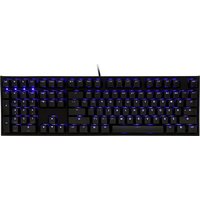
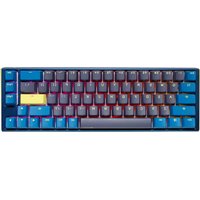
One 2 Backlit - Clavier Ducky - Notice d'utilisation et mode d'emploi gratuit
Retrouvez gratuitement la notice de l'appareil One 2 Backlit Ducky au format PDF.


| Type de produit | Clavier mécanique rétroéclairé |
| Marque | Ducky |
| Modèle | One 2 Backlit |
| Catégorie | Clavier filaire |
| Dimensions (L x l x H) | 440 x 135 x 40 mm |
| Poids | Environ 1 kg |
| Alimentation | USB 2.0 (câble détachable USB-C) |
| Type de commutateurs | Cherry MX (choix entre plusieurs variantes) |
| Rétroéclairage | LED blanche ou RGB selon version |
| Fonctions principales | N-key rollover, anti-ghosting, touches multimédia, programmation embarquée |
| Connectivité | USB filaire, câble tressé détachable |
| Compatibilité OS | Windows, macOS, Linux |
| Matériau du boîtier | Plastique ABS avec finition texturée |
| Largeur des touches | Disposition standard ANSI ou ISO |
| Entretien et nettoyage | Dépoussiérer avec un chiffon doux ; utiliser de l'air comprimé pour les espaces entre les touches |
| Sécurité | Conforme aux normes CE ; ne pas exposer à l'humidité ni aux températures extrêmes |
| Pièces détachées | Capuchons de touches (Keycaps) en PBT disponibles ; câble USB-C de remplacement |
| Réparabilité | Conception modulaire, soudure des commutateurs sur PCB ; remplacement possible |
| Informations générales | Garantie constructeur 1 an ; fabriqué à Taïwan |
FOIRE AUX QUESTIONS - One 2 Backlit Ducky
Questions des utilisateurs sur One 2 Backlit Ducky
0 question sur cet appareil. Repondez a celles que vous connaissez ou posez la votre.
Poser une nouvelle question sur cet appareil
Téléchargez la notice de votre Clavier au format PDF gratuitement ! Retrouvez votre notice One 2 Backlit - Ducky et reprennez votre appareil électronique en main. Sur cette page sont publiés tous les documents nécessaires à l'utilisation de votre appareil One 2 Backlit de la marque Ducky.
MODE D'EMPLOI One 2 Backlit Ducky

Ducky Channel

natural_image
Abstract geometric logo with interlocking colored 3D cube shapes (no text or symbols)ONE
Series
User Manual

Ducky Channel
ONE
ONE

One RGB LED燈版本

One 單色LED燈版本

One 非背光版本

One 2 RGB LED燈版本

One 2 單色LED燈版本

One 2 非背光版本
目錄
Ducky One RGB LED燈規格 1
Ducky One 單色LED燈規格 2
Ducky One 非背光規格 3
Ducky One 2 RGB LED規格 4
Ducky One 2 單色LED燈規格 5
Ducky One 2 非背光規格 6
USB 输出字元加速功能 7
單色燈光操作模式 8
RGB燈光操作模式 9
RGB混色燈光操作模式 10
記憶區域背光 11
行動電源Demo模式、店家櫥窗Demo模式 12
鍵盤供應電力調整 13
回復出廠設定、Windows Lock功能 13
滑鼠控制功能 14
DIP指撥開關功能 15
Ducky Macro V2.0 16

Ducky Channel
ONE
ONE

One RGB LED version

One Single color LED version

One Non-backlit version

One 2 RGB LED version

One 2 Single color LED version

One 2 Non-backlit version
CONTENT
Ducky One RGB LED specs 22
Ducky One Single Color LED specs 23
Ducky One Non-backlit specs 24
Ducky One 2 RGB LED specs 25
Ducky One 2 Single Color LED specs 26
Ducky One 2 Non-backlit specs 27
USB Repeat Acceleration 28
Single Color LED Backlit Modes 29
RGB LED Backlit Modes 30
RGB LED MIX Backlit Modes 31
LED Zone Customization Modes 32
Demo Mode, Demo Mode to showcase 33
Keyboard Power Mode 34
Reset Back to Factory Defaults, Windows Lock Feature 34
Mouse Function 35
DIP Switch Functions 36
Ducky Macro V2.0 37
Ducky One

RGB LED燈
型號:DKON1708ST/DKON1687ST
■ 結構:機械式結構
■ 軸:Cherry MX 機械軸
■ 錯帽材質:PBT 或 ABS
■印字技術:二色成形或雷射雕刻
■ 產地:台灣
100%
■ 尺寸:440×140×41 mm
■ 重量:1300g
80%
■ 尺寸:356.6×133×41mm
■ 重量:1100g
確切規格每個地區可能會有所不同,詳細請詢問各地代理商。


Ducky One

單色LED燈
型號:DKON1608S/ DKON1687S
■ 結構:機械式結構
■ 軸:Cherry MX 機械軸
■ 鍵帽材質:PBT 或 ABS
■印字技術:二色成形或雷射雕刻
■ 產地:台灣
100%
■ 尺寸:440×140×41 mm
■重量:1300g
80%
■ 尺寸:356.6×133×41mm
■ 重量:1100g
確切規格每個地區可能會有所不同,詳細請詢問各地代理商。

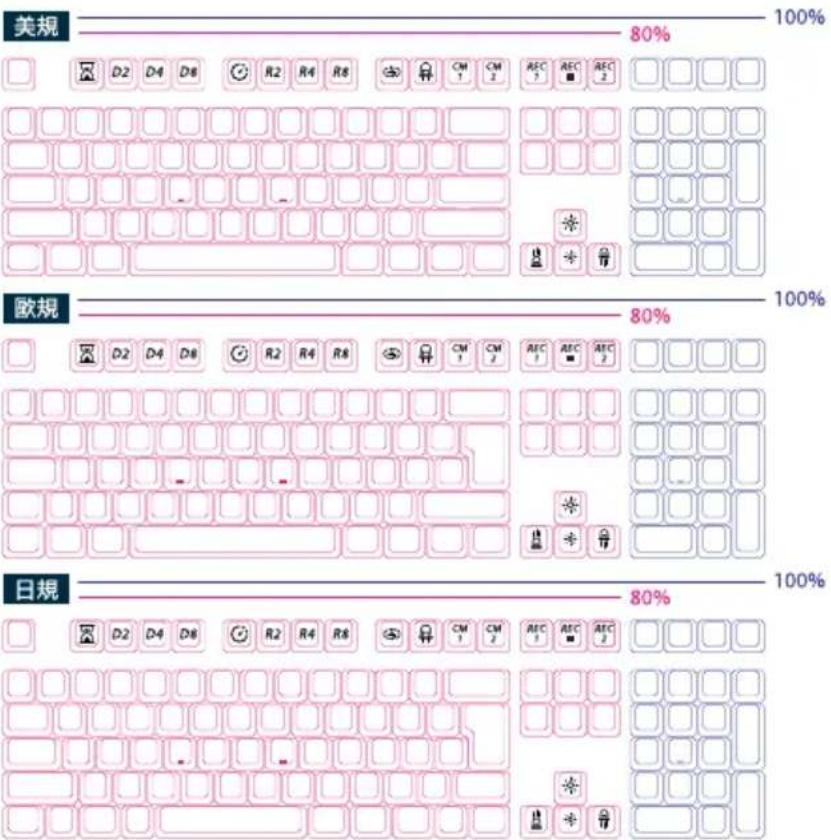
Ducky One

非背光
型號:DKON1608/ DKON1687
■ 結構:機械式結構
■ 軸:Cherry MX 機械軸
■ 鐵帽材質:PBT 或 ABS
■印字技術:二色成形或雷射雕刻
■ 產地:台灣
100%
■ 尺寸:440×140×41 mm
■重量:1300g
80%
■ 尺寸:356.6×133×41mm
■ 重量:1100g
確切規格每個地區可能會有所不同,詳細請詢問各地代理商。


Ducky One 2

RGB LED燈
型號:DKON1808ST/DKON1887ST
■ 結構:機械式結構
■ 軸:Cherry MX 機械軸
■ 錱帽材質:PBT或ABS
■印字技術:二色成形或雷射雕刻
■ 產地:台灣
100%
■ 尺寸:440×135×40 mm
■ 重量:1100g
80%
■ 尺寸:365×135×40mm
■ 重量:950g
確切規格每個地區可能會有所不同,詳細請詢問各地代理商。

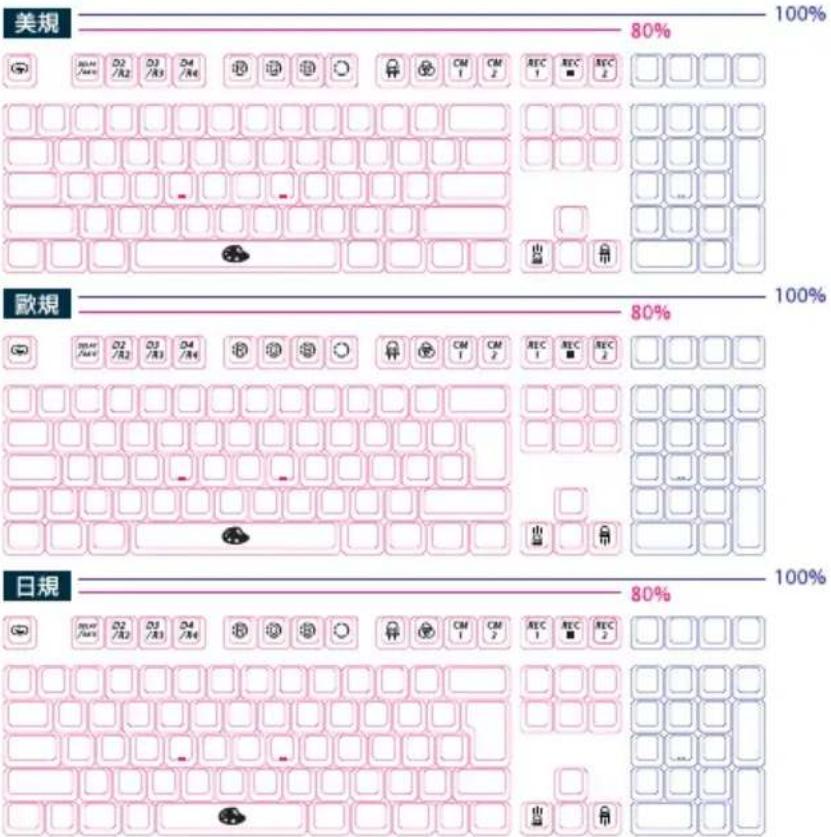
Ducky One 2

單色LED燈
型號:DKON1808S/DKON1887S
■ 結構:機械式結構
■ 軸:Cherry MX 機械軸
■ 錱帽材質:PBT或ABS
■印字技術:二色成形或雷射雕刻
■ 產地:台灣
100%
■ 尺寸:440×135×40mm
■ 重量:1100g
80%
■ 尺寸:365×135×40mm
■ 重量:950g
確切規格每個地區可能會有所不同,詳細請詢問各地代理商。

美規

歐規

日規
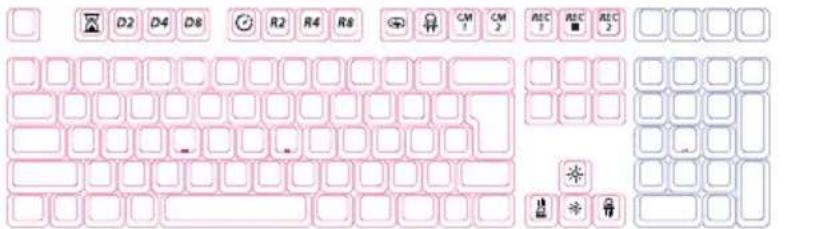
Ducky One 2

非背光
型號:DKON1808/ DKON1887
■ 結構:機械式結構
■ 軸:Cherry MX 機械軸
■ 錱帽材質:PBT或ABS
■印字技術:二色成形或雷射雕刻
■ 產地:台灣
100%
■ 尺寸:440×135×40 mm
■ 重量:1100g
80%
■ 尺寸:365×135×40mm
■ 重量:950g
確切規格每個地區可能會有所不同,詳細請詢問各地代理商。

美規

歐規

日規

USB輸出字元加速功能


註:
進行USB輸出字元加速設定時,只有在「Function Mode模式」下才能進行切換,在一般模式下無法立即切換。
USB輸出字元加速模式在不同遊戲程式的設計方式下,可能會有不同表現結果,請依使用習慣自行調整。


| Fn+ | ESC | = | 開啟/關閉 Function Mode模式 | 必須壓住3秒鐘切換 |
| F1 | 首字延遲1倍(預設) | 調整 USB Repeat Delay Time,以紅色表示倍數 | ||
| F2 | 首字延遲2倍 | |||
| F3 | 首字延遲4倍 | |||
| F4 | 首字延遲8倍 | |||
| Alt+F1 | 字元重覆頻率1倍(預設) | 調整 USB Repeat Rate,以綠色表示倍數 | ||
| Alt+F2 | 字元重覆頻率2倍 | |||
| Alt+F3 | 字元重覆頻率4倍 | |||
| Alt+F4 | 字元重覆頻率8倍 |
| Fn+ | F9 | = | 開啟/關閉 Function Mode模式 | 必須壓住3秒鐘切換 |
| F1 | 首字延遲1倍(預設) | 調整USB Repeat Delay Time | ||
| F2 | 首字延遲2倍 | |||
| F3 | 首字延遲4倍 | |||
| F4 | 首字延遲8倍 | |||
| F5 | 字元重覆頻率1倍(預設) | 調整USB Repeat Rate | ||
| F6 | 字元重覆頻率2倍 | |||
| F7 | 字元重覆頻率4倍 | |||
| F8 | 字元重覆頻率8倍 |
單色燈光操作模式


| Fn+F10 | 第一次:100%全亮模式 |
| 第二次:呼吸燈模式 | |
| 第三次:雨滴模式 | |
| 第四次:單點亮模式 | |
| 第五次:濾漪模式 | |
| 第六次:關閉所有燈光效果 |
● 以上各種模式,皆可透過下列操作來進行細節調整:
◆ Fn + ← : 降低速度
◆ Fn + → : 增加速度
◆ Fn + ↑ : 增加亮度
◆ Fn + ↓ : 降低亮度
● Fn + F10 按住3秒鐘,可以關閉所有燈光效果(含CM1、CM2)。
RGB 燈光操作模式


natural_image
Abstract 3D block structure composed of colored blocks (pink, blue, yellow) with no text or symbols| Fn+F9 | 第一次:100%全亮模式 |
| 第二次:呼吸燈模式 | |
| 第三次:波浪模式 | |
| 第四次:蛇形跑馬燈模式 | |
| 第五次:單點亮模式 | |
| 第六次:漣漪模式 | |
| 第七次:極光模式 | |
| 第八次:關閉所有燈光效果 |
● 以上各種模式,皆可透過下列操作來進行細節調整:
◆ Fn + F5:調整紅色(R)亮度,10階。
◆ Fn + F6:調整綠色(G)亮度,10階。
◆ Fn + F7:調整藍色(B)亮度,10階。
◆ Fn + F8:清除紅色、綠色、藍色的顏色設定值。
◆ Fn + 空白鍵(調色盤):
開啟調色盤顯示108/87種不同顏色,只要點選想要的顏色即完成顏色設定。
◆ Fn + ← : 降低速度
◆ Fn + → : 增加速度
● Fn + F9 按住3秒鐘,可以關閉所有燈光效果(含CM1、CM2)。
RGB 混色燈光操作模式



natural_image
Abstract 3D block structure composed of blue, yellow, and pink blocks on a dark background (no text or symbols)| Fn+F10 | 第一次:循環模式 |
| 第二次:波浪模式 | |
| 第三次:蛇形跑馬燈 | |
| 第四次:雨滴模式 | |
| 第五次:隨機單點亮模式 | |
| 第六次:漣漪模式 | |
| 第七次:極光模式 | |
| 第八次:關閉所有燈光效果 | |
| ●以上各種模式,皆可透過下列操作來進行細節調整:◆Fn+←:降低速度◆Fn+→:增加速度●Fn+F10按住3秒鐘,可以關閉所有燈光效果(含CM1、CM2)。 | |
記憶區域背光


註:
當進入錄製模式後,
Caps Lock會顯示當前要
設定的顯示顏色、亮度。
| Fn + F11 | CM1依序有不同動作:第1段:依玩家設定的區域與顏色顯示第2段:依玩家設定的區域循環變色顯示第3段:OFF關閉CM1 |
| Fn + F12 | CM2依序有不同動作:第1段:依玩家設定的區域與顏色顯示第2段:依玩家設定的區域循環變色顯示第3段:OFF關閉CM2 |
| Fn + PrtSc | REC1 |
| Fn + Pause | REC2 |
Caps Lock + ↑ ↓   | 設定燈光亮度 |
Caps Lock + F5 / F6 / F7   | 設定紅色/綠色/藍色燈光顏色 |
Caps Lock + F8   | 清除所有燈光 |
Caps Lock + 空白鍵   | 開啟調色盤 |
| Caps Lock + Scroll Lock | REC Over,完成錄製 |
行動電源Demo模式


壓住按鍵左Ctrl + 左Shift + Caps Lock,再輸入電源
此模式下無法記憶,每次使用皆須重新插拔
註:
適合插在行動電源或USB充電座提供燈光效果展示之用,不送出鍵盤訊號。
店家櫥窗Demo模式,用以展示多色Demo


Fn + Alt + Ctrl 達3秒
開啟/關閉展示多種背光模式
鍵盤供應電力調整


USB3.0供電模式(預設模式)
按住右Alt+空白鍵,再將USB插入電腦
USB2.0供電模式
按住左Alt+空白鍵,再將USB插入電腦
回復出廠設定


美規、歐規
左Windows鍵 + 右Windows鍵
日規
Fn + 左Windows鍵
註:壓住3秒後,鍵盤或指示燈會閃3下表示回復。
Windows Lock 功能


Fn + 任一Alt + 任一Win键
註:壓住3秒後,鍵盤或指示燈會閃3下表示切換完成(預設為關閉)。
滑鼠控制功能


開啟/關閉(預設):
80% (TKL Size)
→ Fn + Scroll Lock
100% (Full Size)
→ Fn + Number Lock
提示:
最右邊的M指示燈亮起,代表開啟滑鼠功能。
滑鼠功能示意图
80% (TKL Size)
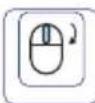


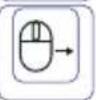

natural_image
Three identical empty rounded squares arranged in a triangular pattern (no text or symbols)100% (Full Size)


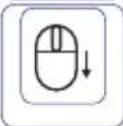
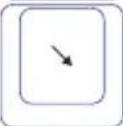


DIP 指撥開關功能


若將鍵盤接上特殊器材(如KVM)等其他裝置,建議切換成6-Key Rollover達到最高支援性。
■當進行 N-Key Rollover 與 6-Key Rollover 模式切換時,請重新插拔且須讓鍵盤完全斷電 15秒才能順利切換。
■只有在 N-Key Rollover 模式(預設模式)下才能更新韌體。
DIP1\~DIP3決定Fn鍵位置(預設為OFF、OFF、OFF):
| DIP1 | DIP2 | DIP3 |
| ON | ON | ON |
| OFF | ON | ON |
| ON | OFF | ON |
| OFF | OFF | ON |
| ON | ON | OFF |
| OFF | ON | OFF |
| OFF | OFF | OFF |
| ON | OFF | OFF |
| Ctrl | Win | Alt | Alt | Win | Ctrl | ||
| Fn | Win | Alt | Alt | Win | Ctrl | ||
| Ctrl | Fn | Alt | Alt | Win | Ctrl | ||
| Ctrl | Win | Fn | Alt | Win | Ctrl | ||
| Ctrl | Win | Alt | Fn | Win | Ctrl | ||
| Ctrl | Win | Alt | Alt | Fn | Ctrl | ||
| Ctrl | Win | Alt | Alt | Win | Fn | Ctrl | |
| Ctrl | Win | Alt | Alt | Win | Fn |
| DIP4 | OFF(預設值) | ON |
| N-Key Rollover任意全鍵輸出 | 6-Key Rollover任意6鍵輸出 |
Ducky Macro V2.0


Step1. 選取要錄製的Profile
| Fn+ | 1 | = | 切換至第1組設定 | 原始鍵盤功能(預設值) |
| 2 | 切換至第2組設定 | 可自定義按鍵Macro功能 | ||
| 3 | 切換至第3組設定 | |||
| 4 | 切換至第4組設定 | |||
| 5 | 切換至第5組設定 | |||
| 6 | 切換至第6組設定 |
註:當切換完後,Caps Lock或指示燈會閃爍該設定值數字的次數。
Step2. 進入錄製模式
按住Fn + Ctrl 3秒進入錄製模式,進入後Caps Lock或指示燈會慢速閃爍。
Step3. 按下按鍵
按下想要錄製的按鍵,按下後,該按鍵會亮起(非背光版本則不會),Caps Lock或指示燈會快速閃爍。
Step4. 輸入想要的按鍵設定
輸入想要設定的按鍵功能、Macro執行情形、Macro時間間隔或是多媒體功能鍵。
Step5. 結束錄製或是錄製其他按鍵
按下Fn + Ctrl結束Macro錄製,或是按下Fn + Alt繼續錄製其他按鍵。
Ducky Macro V2.0 基本快捷鍵功能


natural_image
3D geometric illustration of stacked green blocks on a yellow base (no text or symbols)Macro執行情形選項
| Fn+ | Q | = | 按1下後執行1次Macro |
| W | 按1次後持續執行Macro,直到按下第2次按鍵才停止 | ||
| E | 按住按鍵時持續執行Macro,直到放開按鍵才停止 |
註:執行Macro過程中,若有壓下其他按鍵時則停止原始Macro之輸出。
Macro時間間隔選項
| Fn+ | 1 | = | 0.02s |
| 2 | 0.1s | ||
| 3 | 0.2s | ||
| 4 | 0.4s | ||
| 5 | 0.8s | ||
| 6 | 1s |
註:
● Macro預設輸入會以使用者打字的時間進行記錄儲存。
● Macro開啟/跳出錄製快捷鍵:Fn + Ctrl 3秒。
Ducky Macro V2.0 基本快捷鍵功能


natural_image
Abstract 3D block structure with pink, blue, and yellow blocks on a dark background (no text or symbols)多媒體鍵功能設定
| Fn + Windows鍵 + 下方按鍵 | |||
| A | 音量靜音 | M | 搜尋 |
| B | 音量變大 | N | 上一頁 |
| C | 音量變小 | O | 下一頁 |
| D | 播放/暫停 | P | 滑鼠左鍵 |
| E | 停止 | Q | 滑鼠右鍵 |
| F | 下一首 | R | 滑鼠中鍵 |
| G | 上一首 | S | 滑鼠游標向上 |
| H | 計算機 | T | 滑鼠游標向下 |
| I | 我的電腦 | U | 滑鼠游標向左 |
| J | 瀏覽器首頁 | V | 滑鼠游標向右 |
| K | 郵件 | W | 滑鼠滾輪向上捲動 |
| L | 多媒體程式 | X | 滑鼠滾輪向下捲動 |
清除單一個設定檔的Macro設定
| 美規、歐規 | 任一個Windows鍵+空白鍵3秒 |
| 日規 | Windows鍵+空白鍵3秒 |
註:需錄製後才可使用。
Ducky Macro V2.0


無法設定Macro功能的按鍵
| Fn |
| Fn + ESC |
| Fn + F1~F12 |
| Fn + Print Screen |
| Fn + Scroll Lock |
| Fn + Pause |
| Fn + 0~9 |
| Fn + Ctrl |
| Fn + Alt |
| Fn + windows |
| Fn + ↑ ↓ ← → |
| Fn + Space |
可設定Macro的按鍵(以美規為例)

● 白色按鍵為可設定的區域,灰色按鍵為不可設定的區域。

● 白色按鍵為可設定的區域,灰色按鍵為不可設定的區域。
Ducky Macro V2.0 使用範例


注意事項:
請先將設定檔設定成Profile 2\~6,才可以進行Macro設定。
情境A
想要將Z設定成Q輸出
操作方式
- 按住Fn + Ctrl 達3秒鐘,進入錄製Macro模式。
- 按下Z,選擇要被設定的按鍵。
- 按下Q,輸入想要錄製的結果。
- Fn + Ctrl,完成Macro錄製。
情境B
想要按下Fn + A後連續輸出文字「ABC」直到使用者放開按鍵才停止動作
操作方式
- 按住Fn + Ctrl達3秒鐘,進入錄製Macro模式。
- 按下Fn+A,選擇要被設定的按鍵。
- 按下A、B和C,輸入想要錄製的結果。
- Fn + E,選擇Macro執行情形。
- Fn + Ctrl,完成Macro錄製。
情境C
在Windows系統下,想要按下F1就能顯示桌面
操作方式
- 按住Fn + Ctrl 達3秒鐘,進入錄製Macro模式。
- 按下F1,選擇要被設定的按鍵。
- 按住Windows鍵 + D,輸入想要錄製的結果。
- Fn + Ctrl,完成Macro錄製。
情境D
在Windows系統下,想要將M設定成音量靜音功能
操作方式
- 按住Fn + Ctrl 達3秒鐘,進入錄製Macro模式。
- 按下M,選擇要被設定的按鍵。
- 按住Fn + Windows鍵 + A,輸入想要錄製的結果。
- Fn + Ctrl,完成Macro錄製。

Ducky Channel
7
Ducky One

RGB LED
Model: DKON1708ST/ DKON1687ST
■ Type: Mechanical Keyboard
■ Switch: Cherry MX Switches
■ Keycap Material: PBT or ABS
■ Legend printing:
Double-Shot or Laser engraved
■ Origin of Production: Taiwan
Full size
Size: 440 x 140 x 41 mm
Weight: 1300g
Tenkeyless
Size: 356.6 x 133 x 41 mm
Weight: 1100g
For more information on the specs and details of our keyboards, please contact the distributor for your region.

Ducky One

Single color LED
Model: DKON1608S/ DKON1687S
■ Type: Mechanical Keyboard
■ Switch: Cherry MX Switches
■ Keycap Material: PBT or ABS
■ Legend printing:
Double-Shot or Laser engraved
■ Origin of Production: Taiwan
Full size
Size: 440 x 140 x 41 mm
Weight: 1300g
Tenkeyless
Size: 356.6 x 133 x 41 mm
Weight: 1100g
For more information on the specs and details of our keyboards, please contact the distributor for your region.

Ducky One

Non-backlit
Model: DKON1608/ DKON1687
■ Type: Mechanical Keyboard
■ Switch: Cherry MX Switches
■ Keycap Material: PBT or ABS
■ Legend printing:
Double-Shot or Laser engraved
■ Origin of Production: Taiwan
Full size
Size: 440 x 140 x 41 mm
Weight: 1300g
Tenkeyless
Size: 356.6 x 133 x 41 mm
Weight: 1100g
For more information on the specs and details of our keyboards, please contact the distributor for your region.

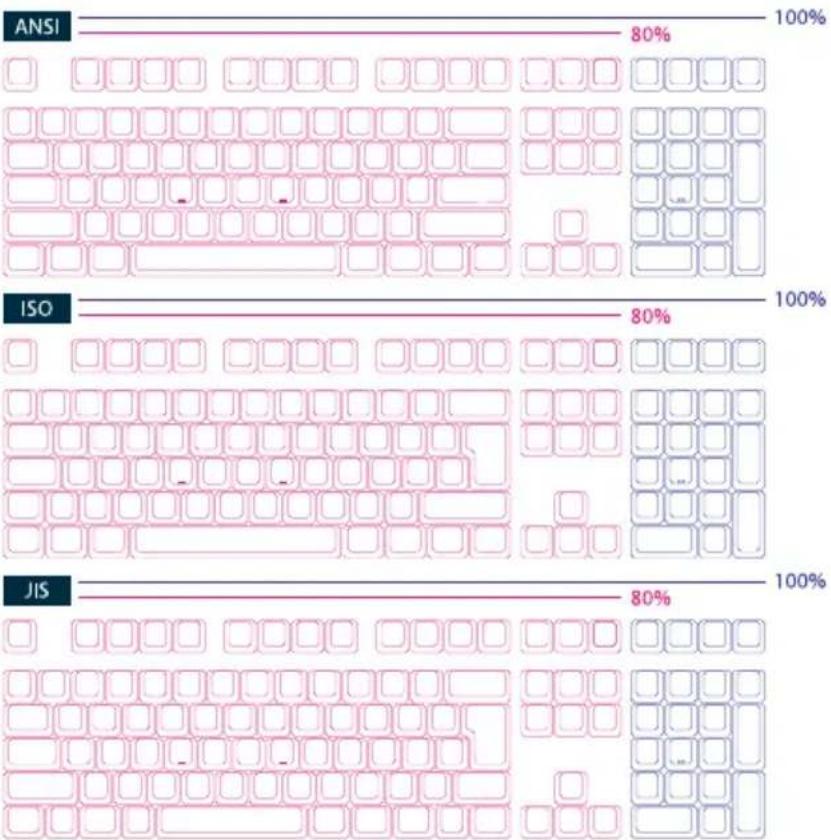
ANSI

ISO

JIS

100%
100%
100%
Ducky One 2

RGB LED
Model: DKON1808ST/ DKON1887ST
■ Type: Mechanical Keyboard
■ Switch: Cherry MX Switches
■ Keycap Material: PBT or ABS
■ Legend printing:
Double-Shot or Laser engraved
■ Origin of Production: Taiwan
Full size
Size: 440 x 135 x 40 mm
Weight: 1100g
Tenkeyless
Size: 365 x 135 x 40 mm
Weight: 950g
For more information on the specs and details of our keyboards, please contact the distributor for your region.


Ducky One 2

Single color LED
Model: DKON1808S/ DKON1887S
■ Type: Mechanical Keyboard
■ Switch: Cherry MX Switches
■ Keycap Material: PBT or ABS
■ Legend printing: Double-Shot or Laser engraved
■ Origin of Production: Taiwan
Full size
Size: 440 x 135 x 40 mm
Weight: 1100g
Tenkeyless
Size: 365 x 135 x 40 mm
Weight: 950g
For more information on the specs and details of our keyboards, please contact the distributor for your region.


Ducky One 2

Non-backlit
Model: DKON1808/ DKON1887
■ Type: Mechanical Keyboard
■ Switch: Cherry MX Switches
■ Keycap Material: PBT or ABS
■ Legend printing: Double-Shot or Laser engraved
■ Origin of Production: Taiwan
Full size
Size: 440 x 135 x 40 mm
Weight: 1100g
Tenkeyless
Size: 365 x 135 x 40 mm
Weight: 950g
For more information on the specs and details of our keyboards, please contact the distributor for your region.

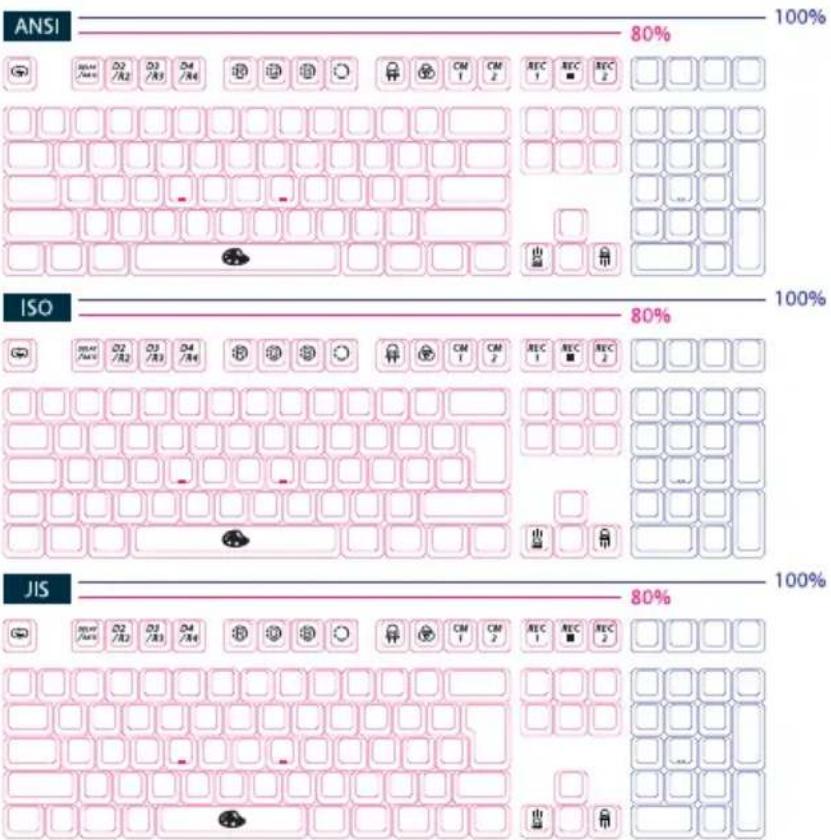
USB Repeat Acceleration


Note:
USB Repeat
Acceleration can only
be adjusted under
"Function Mode."
USB Repeat
Acceleration may work differently in different applications. Please use a suitable setting accordingly.


| Fn+ | ESC | Function Mode On/ Off | Must Hold for 3 seconds |
| F1 | Repeat Delay 1x (Default) | Adjust USB Repeat Delay Time | |
| F2 | Repeat Delay 2x | ||
| F3 | Repeat Delay 4x | ||
| F4 | Repeat Delay 8x | ||
| Alt+F1 | Repeat Rate 1x | Adjust USB Repeat Rate Time | |
| Alt+F2 | Repeat Rate 2x | ||
| Alt+F3 | Repeat Rate 4x | ||
| Alt+F4 | Repeat Rate 8x |
| Fn+ | F9 | = | Function Mode On/ Off | Must Hold for 3 seconds |
| F1 | Repeat Delay 1x (Default) | Adjust USB Repeat Delay Time | ||
| F2 | Repeat Delay 2x | |||
| F3 | Repeat Delay 4x | |||
| F4 | Repeat Delay 8x | |||
| F5 | Repeat Rate 1x | Adjust USB Repeat Rate Time | ||
| F6 | Repeat Rate 2x | |||
| F7 | Repeat Rate 4x | |||
| F8 | Repeat Rate 8x |
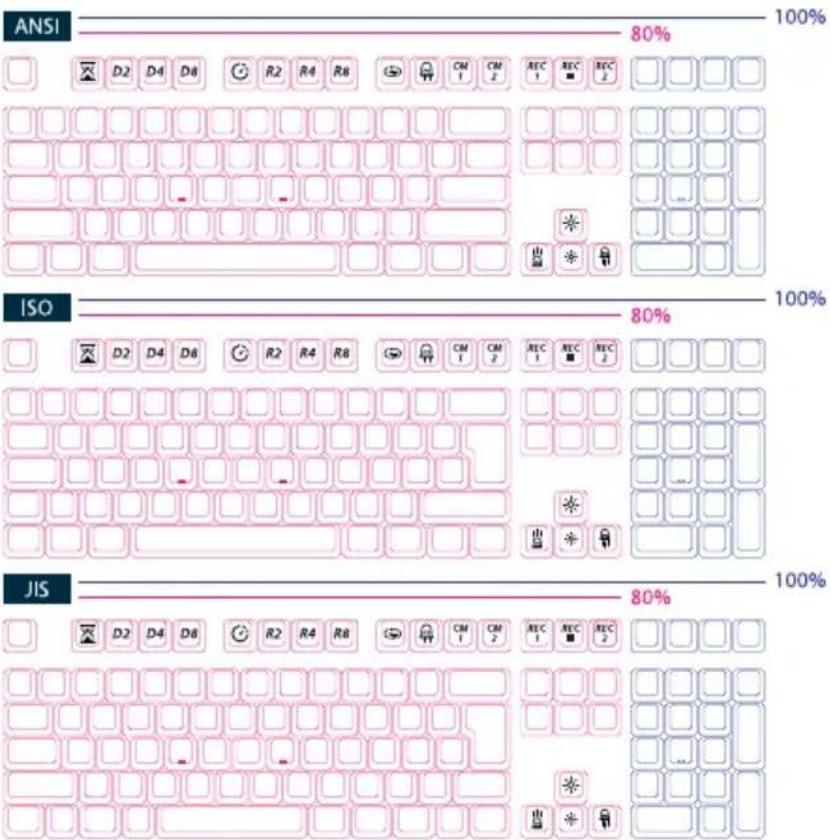
Single Color LED Backlit Modes


| Fn+F10 | First Mode: 100% Full Backlit Mode |
| Second Mode: Breathe Mode | |
| Third Mode: Rain Drop Mode | |
| Fourth Mode: Reactive Mode | |
| Fifth Mode: Ripple Mode | |
| Sixth Mode: Backlit Off |
● All above modes can be adjusted with the following key sequence:
◆ Fn + ← : Decrease speed
◆ Fn + → : Increase speed
◆ Fn + ↑ : Increase brightness
◆ Fn + ↓ : Decrease brightness
● Hold Fn + F10 for 3 seconds to turn off all backlit (including CM1 and CM2).
RGB LED
Backlit Modes


natural_image
Abstract 3D block structure with pink, blue, and yellow blocks on a dark background (no text or symbols)Fn+F9
First Mode: 100% Full Backlit Mode
Second Mode: Breathe Mode
Third Mode: Wave Mode
Fourth Mode: Snake Marquee Mode
Fifth Mode: Reactive Mode
Sixth Mode: Ripple Mode
Seventh Mode: Aurora Mode
Eighth Mode: Backlit Off
● The backlit modes above can be adjusted using the following:
◆ Fn + F5: Adjust Color Red (R) brightness. 10 Levels.
◆ Fn + F6: Adjust Color Green (G) brightness. 10 Levels.
◆ Fn + F7: Adjust Color Blue (R) brightness. 10 Levels.
◆ Fn + F8: Erase Red, Green and Blue color setting.
◆ Fn + Spacebar (Color Palette): Activate Color Palette to display 108/87 different colors (US ANSI keyboard as example), press on the desired color, all the keys will automatically change to match.
◆ Fn + ←: Decrease speed
◆ Fn + →: Increase speed
● Hold Fn + F9 for 3 seconds to turn off all backlit (including CM1 and CM2).
RGB LED MIX Backlit Modes


natural_image
Abstract 3D block structure composed of blue, yellow, and pink blocks with cross-shaped elements on a dark background (no text or symbols)| Fn+F10 | First Mode: Color Cycle Mode |
| Second Mode: Wave Mode | |
| Third Mode: Snake Marquee Mode | |
| Fourth Mode: Rain Drop Mode | |
| Fifth Mode: Reactive Mode Advanced | |
| Sixth Mode: Ripple Mode | |
| Seventh Mode: Aurora Mode | |
| Eighth Mode: Backlit Off | |
| ● All above modes can be adjusted with the following key sequence:◆ Fn + ←: Decrease speed◆ Fn + →: Increase speed● Hold Fn + F10 for 3 seconds to turn off all backlit (including CM1 and CM2). | |
LED Zone
Customization
Modes


Note:
When starting
recording mode, Caps Lock will display the current LED Color and brightness.
| Fn + F11 | CM1 Cycle:First Step: Turn on user's customized zone and color.Second Step: Turn on user's customized zone and color in breathe mode.Third Step: Turn off CM1. | ||
| Fn + F12 | CM2 Cycle:First Step: Turn on user's customized zone and color.Second Step: Turn on user's customized zone and color in breathe mode.Third Step: Turn off CM2. | ||
| Fn + PrtSc | REC1 | ||
| Fn + Pause | REC2 | ||
| Caps Lock + ↑ ↓ | [2456] | [3426] | To set up brightness |
| Caps Lock + F5 / F6 / F7 | [X736] | [TH76] | To set up Red/ Green/ Blue LED Color |
| Caps Lock + F8 |  | [2424] | Erase ALL LED light |
| Caps Lock + Spacebar |  | [IVT76] | Color Palette |
| Caps Lock + Scroll Lock | REC Over | ||
Demo Mode


Hold Left Ctrl + Left Shift + Caps Lock then plug the keyboard into power source.
Note:
This mode will not send any keycodes and will not function as a keyboard.
Please unplug and plug in the keyboard to restart the keyboard back to normal keyboard mode.
Demo Mode to showcase


Fn + Alt + Ctrl for 3 sec
Hold ON/OFF display Single LED Backlit Modes.
Keyboard Power Mode


USB3.0 Power Mode (Default)
Hold Right Alt + spacebar and plug in USB port.
USB2.0 Power Mode
Hold Left Alt + spacebar and plug in USB port.
Reset Back to Factory Defaults


US ANSI and EU ISO layout
Left + Windows key + Right Windows key
JP JIS layout
Fn+ Windows Key
Note:
Hold for 3 seconds. The keyboard's backlit will flash 3 times to indicate the keyboard have been reset.
Windows Lock Feature


Fn + any Alt keys + any Windows keys for 3 seconds, the keyboard's backlit or indicator lights will flashes 3 times to indicate the Windows lock keys have been turned ON/OFF(Default).
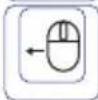
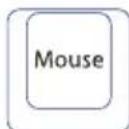
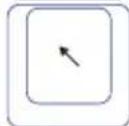
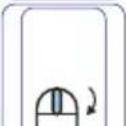
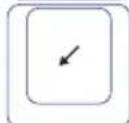
Mouse Function


ON/OFF (default setting):
TKL, Tenkeyless
→ Fn + Scroll Lock
Full Size
→ Fn + Number Lock
Note:
The corner right indicator "M" key will light up upon activation.
Mouse function diagram
TKL, Tenkeyless




natural_image
Five identical empty rounded squares arranged in a triangular pattern (no text or symbols)Full Size










DIP Switch Functions


For compatibility with KVM or operating systems that does not support N-Key Rollover (NKRO), it is recommended to switch to 6-Key Rollover (6KRO) mode.
- Keep the keyboard unplugged for 15 seconds after switching between NKRO and 6KRO mode before plugging the keyboard into the USB port.
■ Keyboard cannot be updated under 6KRO. Please keep the keyboard in NKRO mode (Default) to update the firmware.
DIP1\~DIP3 to assign the position of Fn key (Default is OFF、OFF、OFF):
| DIP1 | DIP2 | DIP3 |
| ON | ON | ON |
| OFF | ON | ON |
| ON | OFF | ON |
| OFF | OFF | ON |
| ON | ON | OFF |
| OFF | ON | OFF |
| OFF | OFF | OFF |
| ON | OFF | OFF |
| Ctrl | Win | Alt | Alt | Win | Ctrl | ||
| Fn | Win | Alt | Alt | Win | Ctrl | ||
| Ctrl | Fn | Alt | Alt | Win | Ctrl | ||
| Ctrl | Win | Fn | Alt | Win | Ctrl | ||
| Ctrl | Win | Alt | Fn | Win | Ctrl | ||
| Ctrl | Win | Alt | Alt | Fn | Ctrl | ||
| Ctrl | Win | Alt | Alt | Win | Fn | Ctrl | |
| Ctrl | Win | Alt | Alt | Win | Fn |
| DIP4 | OFF (Default) | ON |
| N-Key Rollover mode | 6-Key Rollover mode |
Ducky Macro V2.0



natural_image
Abstract 3D block structure with pink and blue blocks and yellow blocks, no text or symbols presentStep1. Profile Selections
| Fn+ | 1 | = | Switch to profile 1 | Factory settings (Default) |
| 2 | Switch to profile 2 | Customize Macro Key Features | ||
| 3 | Switch to profile 3 | |||
| 4 | Switch to profile 4 | |||
| 5 | Switch to profile 5 | |||
| 6 | Switch to profile 6 |
Note:
Once the profile is selected then the Caps Lock or indicator lights will blink in the amount of selected profile number.
Step2. To enter Macro recording
Press Fn followed by Ctrl and hold both keys for 3 seconds to enter Macro recording. Once in recording mode the Caps Lock or indicator lights will flash slowly.
Step3. Press a key to start recording Macro
Press on the key you want to use to activate Macro. The key pressed will blink (Non-backlit version will not) and the Caps Lock or indicator lights will flash swiftly.
Step4. Recording Macro
Enter any key, and choose the Macro implementation and Record Time option.
Step5. To exit or continuing recording
Press Fn+Ctrl to exit recording or press Fn+Alt to continue recording more keys.
Ducky Macro V2.0 Hotkeys Function



natural_image
Abstract 3D geometric structure with green and yellow blocks on a dark background (no text or symbols)| Macro Implementation Option | |||
| Fn+ | Q | = | Start to run Macro by pressing a key. |
| W | Start to run Macro by pressing down the key once until the key is being pressed again to stop. | ||
| E | Start to run Macro by holding down the keys until it is let go. | ||
Note:
When sending Macro output, pressing any keys will break the ongoing Macro.
| Macro Record Time Option | |||
| Fn+ | 1 | = | 0.02s |
| 2 | 0.1s | ||
| 3 | 0.2s | ||
| 4 | 0.4s | ||
| 5 | 0.8s | ||
| 6 | 1s | ||
Note:
- Default Marco function will be based on the user's typing speed and record it.
● Macro Open/ Shortcut keys recording: Hold Fn + Ctrl for 3 sec.
Ducky Macro V2.0 Hotkeys Function


natural_image
Abstract 3D block structure with pink, blue, and yellow blocks on a dark background (no text or symbols)Multimedia function keys
| Fn + Windows Key + Keys below | |||
| A | Mute | M | Search |
| B | Volume up | N | Previous page |
| C | Volume down | O | Next page |
| D | Play / Pause | P | Mouse Left Click |
| E | Stop | Q | Mouse Right Click |
| F | Next playlist | R | Mouse Middle Click |
| G | Previous playlist | S | Mouse Cursor Up |
| H | Calculator | T | Mouse Cursor Down |
| I | My Computer | U | Mouse Cursor Left |
| J | Browser | V | Mouse Cursor Right |
| K | W | Mouse Scroll Up | |
| L | Multimedia | X | Mouse Scroll Down |
Reset Macro setting for single profile
Note:
Need to be recorded first
before use.
| US ANSI and EU ISO layout | Hold any Windows key + Spacebar for 3 seconds. |
| JP JIS layout | Hold Windows key + Spacebar for 3 seconds. |
Ducky Macro V2.0


Unable to set Macro function
Fn
n+F1\~F12
Fn + Print Screen
Fn + Scroll Lock
Fn + Pause
Fn + 0\~9
Fn + Ctrl
Fn + Alt
Fn + windows
Fn + ↑ ↓ ← →
Fn + Space
Keys can be set to Macro (US ANSI keyboard as example)
Default Layer

natural_image
Illustration of a standard computer keyboard layout with pink and white square outlines (no text or symbols)● White keys can be set to Macro, grey keys cannot be set to Macro.
Fn Layer
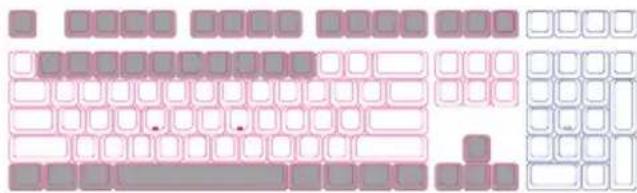
● White keys can be set to Macro, grey keys cannot be set to Macro.
Ducky Macro V2.0 Set Up Example


Note:
Set the Profile from Profile 2\~6 before setting Macro.
Example A Configure the key "Z" to "Q" output.
Steps:
- Hold Fn + Ctrl for 3 seconds, to enter Macro recording.
- Press Z, press on the key you want to use to activate Macro.
- Press Q, enter any key, and choose the Macro implantation.
- Fn + Ctrl/ Fn + Alt, to exit recording/ to continue recording more keys.
Example B Holding "Fn + A" then type 「ABC」 until release the key to stop ongoing output.
Steps:
- Hold Fn + Ctrl for 3 seconds, to enter Macro recording.
- Press Fn + A, press on the key you want to use to activate Macro.
- Typing A, B and C, to record ongoing Macro.
- Press Fn + E, select implantations option.
- Fn + Ctrl/ Fn + Alt, to exit recording/ to continue recording more keys.
Example C To set F1 as show "Desktop" (under Windows system)
Steps:
- Hold Fn + Ctrl for 3 seconds, to enter Macro recording.
- Press F1, press on the key you want to use to activate Macro.
- Hold Windows key + D, enter any key, and choose the Macro implantation.
- Fn + Ctrl/ Fn + Alt, to exit recording/ to continue recording more keys.
Example D To set F5 as "mute volume" (under Windows system)
Steps:
- Hold Fn + Ctrl for 3 seconds, to enter Macro recording.
- Press F5, press on the key you want to use to activate Macro.
- Press Fn + Windows key + A, enter any key, and choose the Macro implantation.
- Fn + Ctrl/ Fn + Alt, to exit recording/ to continue recording more keys.

Ducky Channel
7

natural_image
Abstract 3D cube logo with pink, blue, and yellow blocks forming a geometric shape (no text or symbols)
www.duckychannel.com.tw

- ONE
- Series
- 目錄
- CONTENT
- Ducky One
- 單色LED燈
- Ducky One 2
- USB輸出字元加速功能
- 單色燈光操作模式
- RGB 燈光操作模式
- RGB 混色燈光操作模式
- 記憶區域背光
- 行動電源Demo模式
- 店家櫥窗Demo模式,用以展示多色Demo
- 鍵盤供應電力調整
- 回復出廠設定
- Windows Lock 功能
- 滑鼠控制功能
- 滑鼠功能示意图
- DIP 指撥開關功能
- DIP1\~DIP3決定Fn鍵位置(預設為OFF、OFF、OFF):
- Ducky Macro V2.0
- Step1. 選取要錄製的Profile
- Step2. 進入錄製模式
- Step3. 按下按鍵
- Step4. 輸入想要的按鍵設定
- Step5. 結束錄製或是錄製其他按鍵
- Ducky Macro V2.0 基本快捷鍵功能
- 無法設定Macro功能的按鍵
- 可設定Macro的按鍵(以美規為例)
- Ducky Macro V2.0 使用範例
- 情境A
- 想要將Z設定成Q輸出
- 操作方式
- 情境B
- 想要按下Fn + A後連續輸出文字「ABC」直到使用者放開按鍵才停止動作
- 情境C
- 在Windows系統下,想要按下F1就能顯示桌面
- 情境D
- 在Windows系統下,想要將M設定成音量靜音功能
- Full size
- Tenkeyless
- USB Repeat Acceleration
- Single Color LED Backlit Modes
- RGB LED MIX Backlit Modes
- LED Zone
- Customization
- Modes
- Note:
- Demo Mode
- Demo Mode to showcase
- Keyboard Power Mode
- Reset Back to Factory Defaults
- Windows Lock Feature
- Mouse Function
- Mouse function diagram
- DIP Switch Functions
- Step2. To enter Macro recording
- Step3. Press a key to start recording Macro
- Step4. Recording Macro
- Step5. To exit or continuing recording
- Ducky Macro V2.0 Hotkeys Function
- Unable to set Macro function
- Keys can be set to Macro (US ANSI keyboard as example)
- Ducky Macro V2.0 Set Up Example
- Example A Configure the key "Z" to "Q" output.
- Steps:
- Example B Holding "Fn + A" then type 「ABC」 until release the key to stop ongoing output.
- Example C To set F1 as show "Desktop" (under Windows system)
- Example D To set F5 as "mute volume" (under Windows system)
Marque : Ducky
Modèle : One 2 Backlit
Catégorie : Clavier