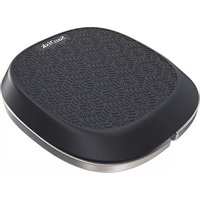
iXpand Base - Chargeur de téléphone portable SANDISK - Notice d'utilisation et mode d'emploi gratuit
Retrouvez gratuitement la notice de l'appareil iXpand Base SANDISK au format PDF.


| Type de produit | Chargeur sans fil |
| Marque | SanDisk |
| Modèle | iXpand Base |
| Dimensions | 10 x 10 x 1,2 cm |
| Poids | 120 g |
| Alimentation | USB-C (adaptateur secteur non inclus) |
| Puissance de charge | Jusqu'à 15 W (charge rapide) |
| Fonctions principales | Charge sans fil Qi, compatible iPhone et Android, indicateur LED |
| Compatibilité | Smartphones et écouteurs compatibles Qi |
| Entretien et nettoyage | Nettoyer avec un chiffon doux et sec. Ne pas utiliser de produits abrasifs. |
| Sécurité | Protection contre les surcharges, surchauffes et courts-circuits |
| Pièces détachées et réparabilité | Non réparable par l'utilisateur. Contacter le service client. |
| Informations générales | Chargeur à induction pour une utilisation simplifiée au quotidien. |
FOIRE AUX QUESTIONS - iXpand Base SANDISK
Questions des utilisateurs sur iXpand Base SANDISK
0 question sur cet appareil. Repondez a celles que vous connaissez ou posez la votre.
Poser une nouvelle question sur cet appareil
Téléchargez la notice de votre Chargeur de téléphone portable au format PDF gratuitement ! Retrouvez votre notice iXpand Base - SANDISK et reprennez votre appareil électronique en main. Sur cette page sont publiés tous les documents nécessaires à l'utilisation de votre appareil iXpand Base de la marque SANDISK.
MODE D'EMPLOI iXpand Base SANDISK
iXpand™ Base
SanDisk®
Western Digital Technologies, Inc.
951 SanDisk Drive, Milpitas, CA 95035
Western Digital Technologies, Inc. is the seller of record and licensee in the Americas of SanDisk® products.
Introduction
- Overview
- Specifications
- Compatibility
Getting Started
- Connecting to iPhone
Applications
- Getting Started
- App Overview
- Back Up and Restore
•View Files - File Management
- Sharing
- Multi-User
- Offline Mode
- Firmware update
Troubleshooting & Support
- SD Card Full
- Important Notifications
- In-App Support
- Online Support
Instructional Icons

Warning

Information

Quick Tip
Introduction
iXpand™ Base Overview
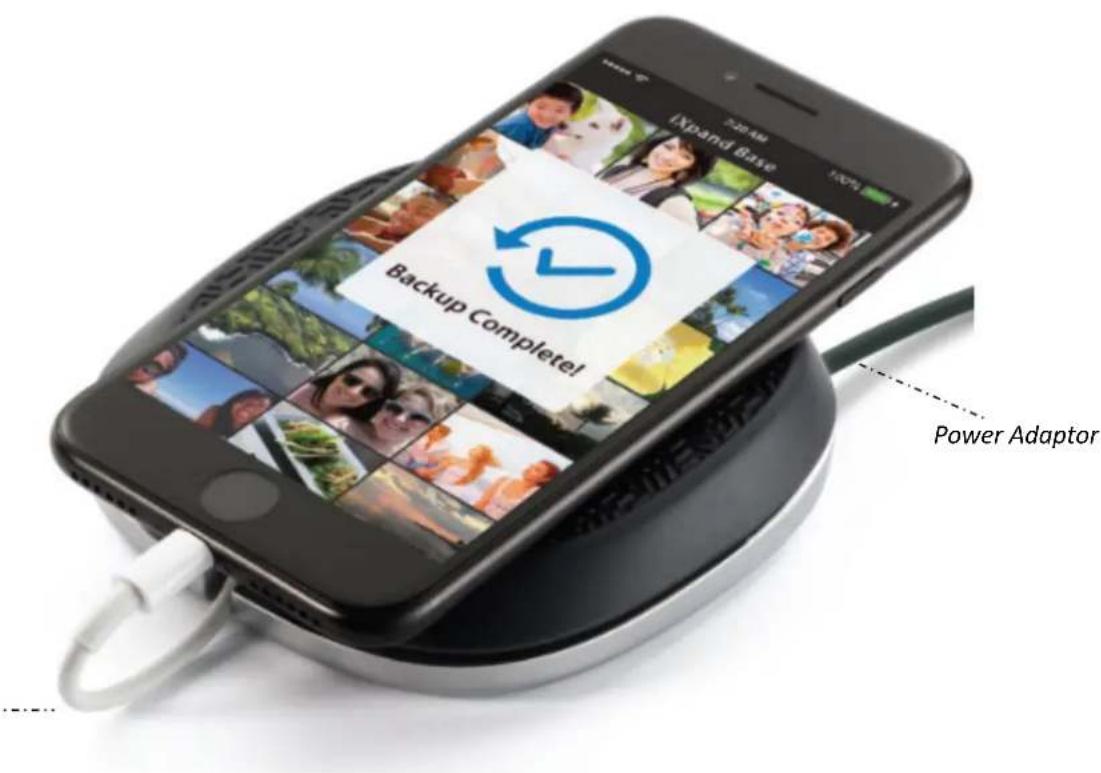
Figure: iXpand Base
The perfect companion for your iPhone device, the iXpand Base provides a convenient way to regularly back up your photos and videos without having to worry about recurring monthly fees or online privacy risks. The iXpand Base automatically backs up all your iPhone photos and videos during your normal, everyday charging process, with no recurring monthly fees and no worries about online security. With up to 256GB of storage, the iXpand Base offers plenty of room to save your files in their original quality. Designed for everyday use with a no-slip top, a sturdy Base, and
a wrap-around groove to keep your Lightning connector tidy. The iXpand Base is also engineered for convenience, delivering fast-charging capabilities and a companion app for restoring your content to your iPhone device.
Automatically Free up Space!
- Automatically back up your iPhone's photos, videos and contacts every time you charge. Simply plug in the Lightning connector, rest your phone on the iXpand case surface and you can easily move photos, videos and contacts off your device and onto the iXpand Base. From there, you can transfer the files onto a Mac computer or PC or store them on the drive.
View Original Quality Photos
- Keep your photos and videos right on the iXpand Base at original quality without worrying about recurring monthly fees
Charge while you backup
- The iXpand Base is also engineered for convenience, delivering fast-charging capabilities while you back up your content
Sturdy and designed for everyday use
- The iXpand Base is designed for everyday use with a no-slip top to hold your phone and a wrap-around groove to keep your cable tidy.
USB 2.0 Speed Transfers
- Plug the drive into your computer's USB port and you can transfer files to your PC/Mac
iXpand Base Mobile App
- Available from the App Store online store, the iXpand Base app makes it easy to manage your photos, videos and contacts. It also enables you to easily restore your backed up photos, videos and contacts to your new iPhone device
Specifications
• Interface: Lightning and USB 2.0 connectors
• Dimensions: 25.36 x 101.00 x 107.00 mm
- Microsoft® FAT and exFAT (for 128 and 256GB) Support
Works With
iPhone 5, iPhone 5c, iPhone 5s, iPhone 6, iPhone 6 Plus, iPhone 6s, iPhone 6s Plus, iPhone 7, iPhone 7 Plus, iPhone SE, iPad Air, iPad mini, iPad mini 4, iPad Pro 12.9", iPad Pro 9.7" iPad with Retina display, iPod® 5th Generation and newer, with Lightning connector and iOS 10 and higher
Windows 8, Windows 8.1, Windows 10, Mac OS X v10.8 and higher
Online updated compatibility list URL:
https://kb.sandisk.com/app/answers/detail/a_id/17174/\~/ixpand-flash-drive-
compatible-host-devices
Getting Started
Connecting iPhone to iXpand Base
Physical Connection

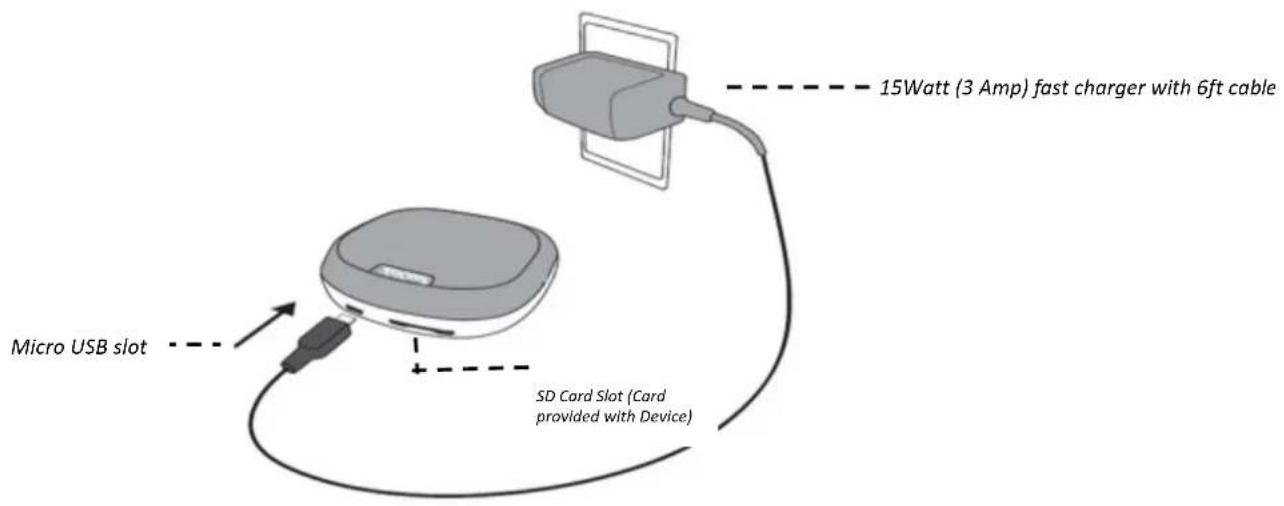
In the box you will find an iXpand Base with a premium, sturdy metal body, along with fast charger with 6ft cable and an Ultra SD card (32, 64, 128 & 256 GB). Connect the cable to a wall outlet on one side and to the Micro USB slot in the iXpand Base on the other. Now the Base is connected to power.
- Turn the iXpand Base on the back side and you will see the slot for a USB port
-
Take your Lightning cable (not included), insert the USB side to the slot provided (as shown in the Fig.1)
-
Wrap your Lightning cable along the wrap-around groove to keep your cable tidy and nightstand clutter-free (as shown in Fig.2)
-
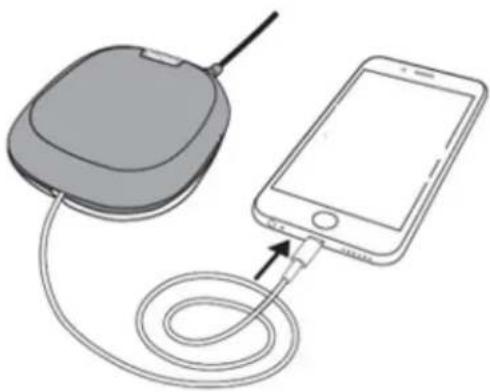
Insert the Lightning side of the cable to your iPhone device. Now you are ready to use the iXpand Base (as shown in Fig.3).

natural_image
Medical device diagram showing a connector inserted into a cable with a plug (no text or labels)Figure 1

natural_image
Diagram of a device with circular motion arrows indicating rotation or movement (no text or symbols)Figure 2
natural_image
Illustration of a mobile device connected to a smartphone via cable (no text or symbols)Figure 3
Installing the App and Setup
When you've connected the iXpand Base to your iPhone you will be prompted to install the companion iXpand Base app, if not, search for the iXpand Base app in the App Store online store.
- On the screen, select "App Store".

- Install the "iXpand Base" app from the App Store online store.

- Click on the app icon

Applications
Getting Started
The iXpand Base is designed for your ease. After getting started, you will be able to backup your phone's contents while it charges.
-
Launch the iXpand Base App
-
Accept the License Agreement

- Provide access to photo, contacts and notifications



And you are all set to go!
App Overview
The Home screen allows you to quickly view your backed up content as well as the main tasks that can be completed. The notification bell at the bottom right corner lets the user know if there is any critical action that needs to be performed. By pressing the bell you can access these notifications which will allow them to do different tasks.


To access quickly to the critical notifications-when the bell has a red dot on it.
Settings


Backup and Restore Files
Backing Up Photos & Videos
Back Up and Restore selection within the app allows you to keep your memories safe while giving you access to this content. Once you have allowed access, your iXpand Base is ready to back up the photos, videos and contacts automatically. As soon as your iPhone/iPad device is connected to iXpand Base (provided the Base is connected to power), it will start charging while also launching a background function to scan and
start backing up content from your phone without even accessing the app. You will see a notification "Backup started".

Since the iXpand Base app backs up the content without even launching it, it gives you a hassle free experience. While the device can work without any user interaction, you can still open the app to verify progress and a successful backup.
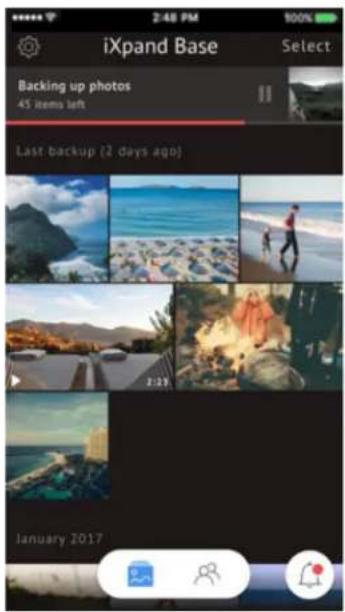


You can also pause the back up at any time by tapping on the pause button.
Backing Up may take longer than normal the 1st time. Once set up, only newly added files will be copied to the iXpand Base.
Restoring Photos, Videos & Contacts to a New iPhone
You can choose to do a full or selective Restore using your iXpand Base. The Restore functionality will be performed using the already existing folders on your Base.
- Launch the iXpand Base App
- Go to Settings (top left corner) > "Restore"


- Choose the device in which you would like to restore the content from
- Tap on "Select" on the top right corner
- "Select All" or select the specific photos and videos you would like to restore
- Tap on "Restore" on the bottom of the screen


Warning: Photos and contacts with the same name will be duplicated to your Camera Roll when restored
Warning: Contact restore will only restore your latest contact backup
View Files
Viewing Files on the iXpand Base or iPhone or iPad Device
Once pictures, videos and contacts have been backed up, you can view them.
- Open the iXpand Base App *

- Choose from the slide bar at the bottom of the screen which type of file you want to view your files in

When “Gallery” is selected, you can view only the photos and videos contained on the iXpand Base will be shown. When “Contacts” is selected, all contacts backed up on the iXpand Base will be visible. As seen below:

Gallery Screen
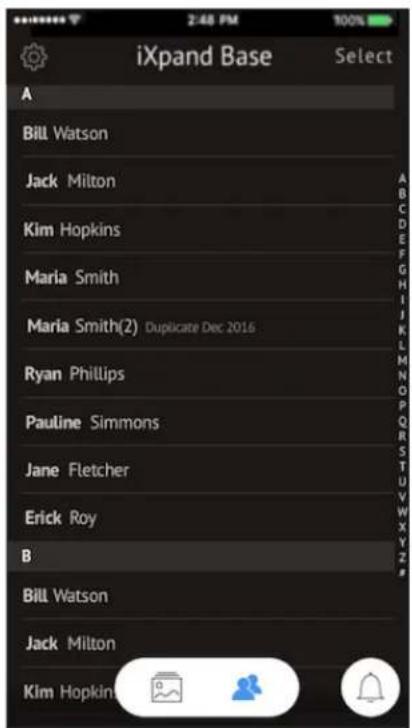
Contact Screen
*You can only preview files if your phone is not connected to the iXpand Base, see App Offline Mode for more information.
View Specific Photos & Videos
- Plug the iXpand Base to your iPhone or iPad device.
- Tap the photo or video you want to view from the main screen, the app gives you the ability to zoom in the photos

natural_image
Man smiling while holding a slice of watermelon, wearing a blue and white checkered shirt (no text or symbols visible)Photos

natural_image
Child jumping joyfully in a lake at sunset, with trees and hills in the background (no text or symbols visible)Videos

• This app also has the ability to backup Live photos
• The user can swipe left or right to browse through the gallery
Supported file formats for Photos
BMP, TIF, TIFF, JPG, PNG, GIF, XBM, ICO, TGA
Supported file formats for Videos
All the natively supported iPhone videos
File Management
Use your iXpand Base and iXpand Base app to transfer and manage files between your iPhone, PC and Mac computer.
Copy files between PC and iXpand Base
Copying files between your PC and your iXpand Base is a simple way to transfer your files to your computer.
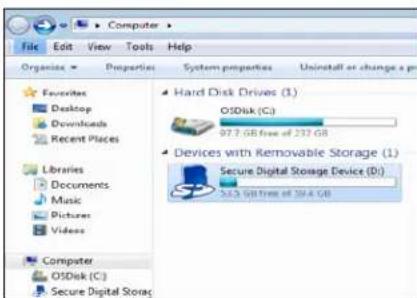
Fig 1
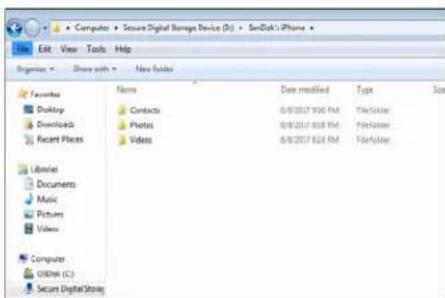
Fig 2

Fig 3
-
Take the SD card out of the iXpand Base
-
Put the SD card inot the PC's SD card slot *
-
Open the Computer folder on your PC (Fig 1)
-
Open the SD card folder
-
If the iXpand Base has performed a prior back up then it will contain content, which will be divided in Photos, Videos and Contacts folder (Fig 2)
-
Drag and drop videos and photos between your computer and the SD card folder (Fig 3)
-
Once file transfer is done, eject the SD card from finder.
-
Place SD card back into the BaseiXpand BaseiXpand BaseiXpand Base.
* If your PC does not contain a SD card slot, use an external memory card reader to access your files on your computer
Copy files between Mac computer and iXpand Base

natural_image
Mountain landscape with golden-brown peaks and snow-capped ridges under cloudy sky (no text or symbols visible)Fig. 1

Fig. 2

Fig. 3
- Take the SD card out of the iXpand Base
- Put the SD card into your Mac's SD card slot *
- The SD card will mount on the Mac desktop (Fig. 1)
- Click on the SD Card icon on your Mac desktop (Fig. 2)
- Drag and Drop files from the iPhone > Contacts/Photos/Videos folders to the Mac desktop (Fig. 3)
- Once file transfer is done, eject the SD card from finder
- Place SD card back into the BaseiXpand BaseiXpand BaseiXpand Base
OR
- Take a microUSB Cable
- Connect one end to iXpand Base and the other end to USB slot of MAC/PC computer
* If your PC does not contain a SD card slot, use an external memory card reader to access your files on your computer.
Delete Files
- Connect the iXpand Flash Base to your iPhone or iPad device.
- Once on the main screen, press "Select" on the top right corner
-
You can "Select All" or select the ones that you want to delete
-
Tap on the trash can icon


Sharing
SanDisk
You can share files from your iXpand Base to many different platforms including Facebook and Instagram from within the app.
How to share
- Connect the iXpand Base to your iPhone or iPad device
- Select the photo or video you want to share
- Tap to open the content you want to share
- Select 📋 at the bottom of the screen
- Choose the desired upload/share option
Multi-User
The iXpand Base has the capability to support multiple users. Simply, plug in any of your/family member's/friends' device to the iXpand and let it backup the files. The application auto-detects new phones and the iXpand Base seperates backups into different folders accordingly.
When you plug in your SD card from the iXpand Base to your computer (see File Management for more information), you will be able to differentiate between the different devices that were backed up on the iXpand Base (See Fig. 1)

Fig. 1
Restoring with Multi-Users
Restoring your device with multi-user is very similar to restoring your device with only one user.
- Go to Settings (top left corner) > "Restore"
- Choose which device you want to restore
- Tap on "Select" at the top right corner of the screen
- “Select All” or select the specific photos and videos you would like to restore
- Tap on "Restore" at the bottom of the screen

App Offline Mode
Even when you are not connected to the iXpand Base, the app has the capability to inform you about the status of your last back up, so that as a user you have the confidence/knowledge that your content is safe. And you can go ahead and delete and free up memory space of your iPhone/iPad device. The red status bar at the top of the screen will give you the status.


Device Firmware Update
SanDisk rolls out regular app updates to constantly improve the user experience.
When a firmware update is available and the drive is connected to an iPhone or iPad device, you will see a prompt in the app.

DO NOT disconnect the drive while app update is in progress.
Troubleshooting & Support
iXpand Base SanDisk Ultra® SD Card is Full
If your iXpand Base's Ultra SD card is full there are a couple different ways to go about fixing this.
- Copy your files to a drive/Mac/PC (see File Management > Copy files between PC and drive / Copy files between Mac computer and drive)
- Use / purchase a higher capability SD card and put it in the iXpand Base
- Take a Micro USB Cable Type and connect one end to iXpand Base and the other end to USB slot of MAC/PC
Important Notifications
Press on the bell icon at the bottom right corner and swipe through (left to right). Following are some of the possible notifications you can see.
- When there is an error with the SD card

- When the iXpand Base is almost full.

- When you want to view the memory status on your Phone and Device (this is not a critical notification)

pie
Available Storage | Category | Percentage (%) | |---|---| | iPhone space remaining | 32 | | iPod space remaining | 64 |- When you did not set the permissions to allow access to your files

- When your device does not have enough space, the iXpand Base will enact a partial restore, where it will restore as much information as possible

These notifications provide quick access to status, recommendations and troubleshooting that are sometimes critical to take for normal functioning of the iXpand Base app.
Inapp Support
Go to Go to Menu > Help Center. To access the Opening walkthrough, Getting started guide and Online support.
Online Support
The support page for iXpand flash drive is available at:
https://kb.sandisk.com/app/answers/detail/a_id/20317
SanDisk, the SanDisk logo, SanDisk Ultra, and iXpand are registered trademarks or trademarks of Western Digital Corporation or its affiliates in the US and/or other App Store, iPad, iPad Air, iPad mini, iPad Pro, iPod, iPhone, Lightning, Live Photos are trademarks of Apple Inc., registered in the US and other countries. All other trademarks are the property of their respective owners.
iPhone 5, iPhone 5c, iPhone 5s, iPhone 6, iPhone 6 Plus, iPhone 6s, iPhone 6s Plus, iPad Air, iPad mini, iPad mini 4, iPad Pro, iPad with Retina display, iPod 5th Generation and newer; iXpand drive app and iOS 8.2 required.
Support for .WMV, .AVI, .MKV, .MP4, .MOV video formats. DRM-protected content cannot be streamed. Check with the content provider for playback restrictions.
Up to 40MB/s read. Write speeds lower and vary by capacity. USB 2.0 support required. Based on internal testing; performance may be lower depending upon host device. 1MB=1,000,000 bytes.
1GB=1,000,000,000 bytes. Actual user storage less.
This device complies with Part 15 of the FCC Rules. Operation is subject to the following two conditions: (1) This device may not cause harmful interference, and (2) this device must accept any interference received, including interference that may cause undesired operation.
International Registration Numbers:
IC: ICES-3 (B)/NMB-3(B)
KCC: MSIP-REM-TAD-SDIX30
BSM: D32197
Western Digital Technologies, Inc.
951 SanDisk Drive, Milpitas, CA 95035
Western Digital Technologies, Inc. is the seller of record and licensee in the Americas of SanDisk® products.
©2016 Western Digital Corporation or its affiliates. All rights reserved.
- iXpand™ Base
- SanDisk®
- Introduction
- Getting Started
- Applications
- Troubleshooting & Support
- Instructional Icons
- iXpand™ Base Overview
- Automatically Free up Space!
- View Original Quality Photos
- Charge while you backup
- Sturdy and designed for everyday use
- USB 2.0 Speed Transfers
- iXpand Base Mobile App
- Specifications
- Works With
- Connecting iPhone to iXpand Base
- Physical Connection
- Installing the App and Setup
- App Overview
- Settings
- Backup and Restore Files
- Backing Up Photos & Videos
- Restoring Photos, Videos & Contacts to a New iPhone
- View Files
- Viewing Files on the iXpand Base or iPhone or iPad Device
- Supported file formats for Photos
- Supported file formats for Videos
- File Management
- Copy files between PC and iXpand Base
- Copy files between Mac computer and iXpand Base
- OR
- Delete Files
- Sharing
- SanDisk
- How to share
- Multi-User
- Restoring with Multi-Users
- App Offline Mode
- Device Firmware Update
- Important Notifications
- Inapp Support
- Online Support
Marque : SANDISK
Modèle : iXpand Base
Catégorie : Chargeur de téléphone portable