
MS-NRX200I - Contrôleur Fusion - Notice d'utilisation et mode d'emploi gratuit
Retrouvez gratuitement la notice de l'appareil MS-NRX200I Fusion au format PDF.


| Type de produit | Contrôleur |
| Marque | Fusion |
| Modèle | MS-NRX200I |
| Dimensions (L x l x h) | Environ 150 x 100 x 40 mm |
| Poids | Environ 250 g |
| Alimentation | 12 V DC (câble d'alimentation inclus) |
| Fonctions principales | Contrôle de périphériques audio, gestion des sources, réglage du volume, sélection d'entrée |
| Matériau du boîtier | Plastique ABS avec finition mate |
| Connectivité | Ports Ethernet, USB, et entrée/sortie audio |
| Température de fonctionnement | -10°C à 50°C |
| Affichage | Écran LCD rétroéclairé |
| Entretien et nettoyage | Nettoyer avec un chiffon doux et sec. Ne pas utiliser de produits abrasifs. |
| Sécurité | Fusible de protection intégré, arrêt automatique en cas de surchauffe |
| Pièces détachées et réparabilité | Pièces détachées disponibles sur demande. Réparation par un technicien agréé recommandée. |
| Informations générales | Utilisation en milieu marin, résistant aux embruns (norme IPX4) |
| Garantie | 2 ans |
| Contenu de la boîte | Contrôleur MS-NRX200I, câble d'alimentation, guide de démarrage rapide, manuel d'utilisation |
FOIRE AUX QUESTIONS - MS-NRX200I Fusion
Questions des utilisateurs sur MS-NRX200I Fusion
0 question sur cet appareil. Repondez a celles que vous connaissez ou posez la votre.
Poser une nouvelle question sur cet appareil
Téléchargez la notice de votre Contrôleur au format PDF gratuitement ! Retrouvez votre notice MS-NRX200I - Fusion et reprennez votre appareil électronique en main. Sur cette page sont publiés tous les documents nécessaires à l'utilisation de votre appareil MS-NRX200I de la marque Fusion.
MODE D'EMPLOI MS-NRX200I Fusion
FUSON®
ENGLISH
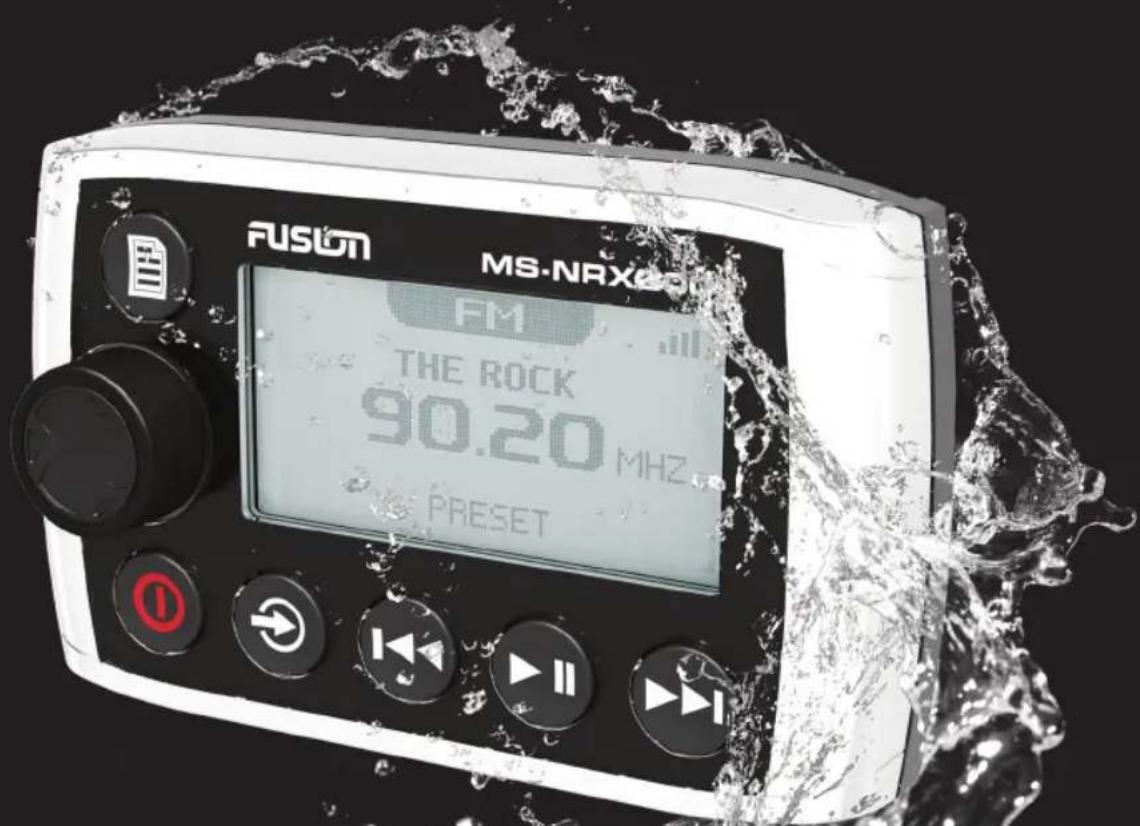
MARINE WIRED REMOTE
MS-NRX200i
WARNINGS AND CAUTIONS
Do not attempt to open the unit's chassis. There are no user-serviceable parts or adjustments inside. Take care when handling.
CARE AND MAINTENANCE
As with all products with a chrome finish exposed to the harsh Marine environment, a little care will help to preserve the finish and prevent corrosion. Fusion recommends that you clean any salt water and/or salt residue from the remote with a damp cloth soaked in fresh water. Always fit the protective cover when not in use.
REGISTER YOUR PRODUCT ONLINE:
For your own peace of mind, register your product purchase online at www.fusionelectronics.com
All FUSION True Marine Products are backed by a 3 Year Limited Consumer Warranty and by registering your product you can be assured that if the unexpected occurs we'll have your details and be ready to help.
RECORD YOUR PRODUCT DETAILS HERE:
SERIAL NUMBER ____ DATE OF PURCHASE ____
AFFIX RECEIPT HERE
CONTENTS
- USER INTERFACE AND CONTROLS.... pg 4
Control Panel Layout.... pg 4
Button function....pg 4
- INSTALLATION....pg 5
Fusion Remote Control Network....pg 6
Connecting the MS-NRX200i to the 700 Series.... pg 6
Connecting the MS-NRX200i to the MS-RA205 Stereo....pg 7
Example of Installation with Multiple (3) Remote Controls....pg 7
Connecting to an Existing NMEA 2000 Network ...... pg 7
NMEA 2000 Optional Accessories.... pg 8
• OPERATION ...... pg 8
Power On/Off....pg 8
Assigning the remote to a stereo.... pg 8
Volume adjustment.... pg 8
Backlight brightness.... pg 8
- MOUNTING ...... pg 9
Mounting diagram.... pg 9
• SiriusXM SATELLITE RADIO.... pg 10
• NMEA2000 OPERATION.... pg 10
NMEA2000 Repeater mode.... pg 10
NMEA2000 Repeater sentences.... pg 11
NMEA2000 Repeater Messages.... pg 12
- FUSION TRUE MARINE.... pg 14
• LICENSING ...... pg 14
• NOTES ...... pg 15
USER INTERFACE AND CONTROLS
CONTROL PANEL LAYOUT

BUTTON FUNCTION
POWER
Press to turn the unit ON — (Stereo & Remote) Press and hold for 2 seconds to power OFF — (Stereo & Remote)
MUTE
Press once to mute/un-mute audio

SOURCE
Press to cycle available sources

MENU
Press to enter menu system. Press to return to previous screen. Press and hold to exit the menu structure. Press to exit NMEA mode.

PLAY/PAUSE
Short Press
iPod/USB/CD - Pause/Resume current track. DVD - Pause/Resume current video playback. AM/FM/VHF - Press to cycle through tuning modes (auto, manual, presets). SiriusXM (USA Only) - Press to cycle through tuning modes (channels, presets)
Press and Hold
AM/FM/SiriusXM/VHF - Store the current station/channel as a Preset

BACK/PREVIOUS
Short Press
iPod/USB/CD – Select the previous track. DVD – Select previous chapter AM/FM/VHF – Start tuning down the frequency spectrum or channel. [Auto/Manual tuning mode] or previous preset (Preset mode). SiriusXM (USA Only) – Step down the channel list.
Press and Hold
iPod/USB/CD - Rewind the current track. DVD - Rewind video playback. AM/FM/VHF - Fast station/channel stepping. SiriusXM (USA Only) - Fast browse down the channel list. Release button to select channel.

FORWARD/NEXT
Short Press
iPod/USB/CD - Select the next track. DVD - Select next chapter AM/FM/VHF - Start tuning up the frequency spectrum or channel. (Auto/Manual tuning mode) or previous preset (Preset mode). SiriusXM (USA Only) - Step up the channel list.
Press and Hold
iPod/USB/CD - Fast forward the current track. DVD - Fast Forward video playback. AM/FM/VHF -Fast station/channel stepping. SiriusXM (USA Only) - Fast browse up the channel list. Release button to select channel.

ROTARY ENCODER
Turn to adjust volume, move up or down a menu structure, or adjust a specific setting item. Press to select a highlighted option, confirm a setting.
INSTALLATION
To complete the ultimate marine audio experience MS-NRX200i Marine Wired Remote Controls can be installed throughout the vessel to provide full control of multiple FUSION Marine Stereos, creating flexible zone control and NMEA 2000 monitoring solutions.
Contents of the Box
1 x MS-NRX200i
1 x dust cover
1 x user manual
1 x Warranty card
1 x hardware mounting kit
1 x 6M NMEA 2000 Backbone Cable
1 x NMEA 2000 T-Connector
1 x NMEA 2000 female Terminator
1 x NMEA 2000 in-line Terminator
NMEA 2000 Components Supplied with MS-NRX200i
NMEA 2000
FEMALE TERMINATOR

NMEA 2000
TEE-CONNECTOR
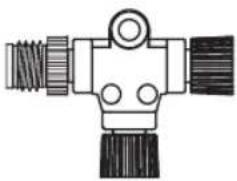
NMEA 2000
INLINE TERMINATOR

NMEA 2000
BACKBONE CABLE - 6 METRE
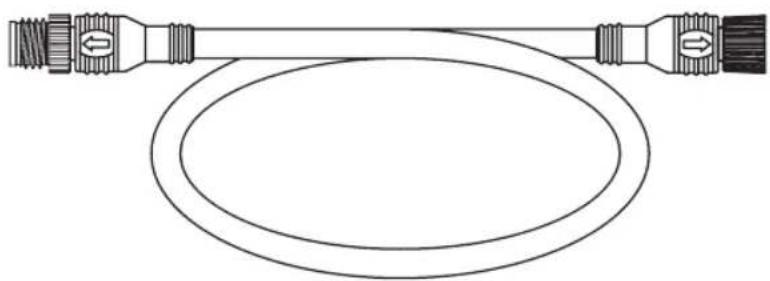
The MS-NRX200i is a plug and play device with two connection options. Connect the remote control to your FUSION Marine Stereo with the standard cable kit provided with your purchase or to a existing NMEA 2000 network.
INSTALLATION OPTION 1: FUSION REMOTE CONTROL NETWORK
Power Loading of the FUSION Network
To avoid exceeding the power loading limitations of a FUSION remote control network the maximum number of devices supported on a FUSION network is;
- One Stereo Head Unit (MS-IP700i, MS-AV700i or MS-RA205)
- Up to three MS-NRX200i Remote controls (MS-NRX200i).
For installations requiring a greater number of devices the installation of a full NMEA 2000 network is recommended. Refer to option 2.
Connecting the MS-NRX200i to the 700 Series

FUSION MARINE STEREO MS-IP700i or MS-AV700i
Example of Installation with Multiple (3) Remote Controls
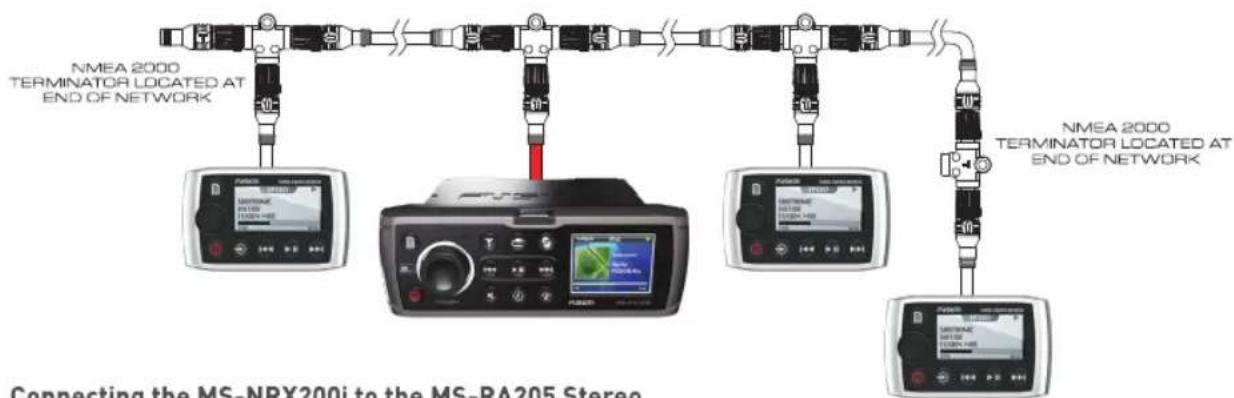
Connecting the MS-NRX200i to the MS-RA205 Stereo

NOTE: The supplied
Terminators must be fitted to the ends of the network as shown. Failure to do so will affect operation.
CASE BACK - REMOTE CONTROL CONNECTION
INSTALLATION OPTION 2: CONNECTING
TO AN EXISTING NMEA 2000 NETWORK
FUSION's MS-NRX200i wired remote controls are capable of operating over an existing NMEA 2000 network, removing the need to wire back to the stereo unit. The MS-NRX200i pack contains all necessary cables and connectors for connecting the remote control to an existing NMEA 2000 network.
Important Note: NMEA 2000 Drop cables for FUSION Stereo head units are not supplied with the stereos. The drop cables are available from FUSION as an optional accessory.
FUSION NMEA 2000 OPTIONAL ACCESSORIES
| Stereo | FUSION NMEA 2000 Drop Cable | FUSION NMEA 2000 T-Connector |
| MS-AV700i | CAB000852 | CAB000581 |
| MS-IP700i | CAB000852 | CAB000581 |
| MS-RA205 | CAB000863 | CAB000581 |
OPERATION
POWER ON/OFF
Press Ⓐ to turn on the remote control. The FUSION Marine Stereo will power on if currently OFF.
Note: If the remote control is configured to display NMEA 2000 data sentences the power on sequence becomes a two-step process. See NMEA Repeater section below.
Press ① to MUTE the audio when the stereo is ON. Press and hold ② to turn the stereo and remote control OFF.
ASSIGNING THE REMOTE TO A STEREO
Press the 'Menu' button and select 'SETTINGS' → 'STEREO'. Select the desired stereo from the list of available devices on the network. Press the 'Rotary Encoder' button to save and exit.
ASSIGNING THE REMOTE TO A ZONE
Press the 'Menu' button and select 'SETTINGS' → 'ZONE' → 'ASSIGN'. Select the desired zone from the list of available zones. Press the 'Menu' button to exit.
Note: Due to space limitations on the MS-NRX200i display the full zone name is not displayed if ALL ZONES is selected.
VOLUME ADJUST
Turn the 'Rotary Encoder' to adjust volume levels. Press Encoder to move highlight (if remote is assigned to ALL ZONES).
ZONE 1 → ZONE 2 → ZONE 3 → ZONE 4 → ALLZONES →
BACKLIGHT BRIGHTNESS
Press the 'Menu' button and select 'SETTINGS' → 'LCD'. Turn the 'Rotary Encoder' to adjust Brightness or Contrast. Press the 'Rotary Encoder' to step between Brightness and Contrast. Press the 'Menu' button to exit.
After a period of inactivity the remote turns off the display backlight (Default). To disable this function Press the 'Menu' button and select 'SETTINGS' → 'POWER SAVE'. Press the 'Rotary Encoder' to enable/disable the function. Press the 'Menu' button to exit.
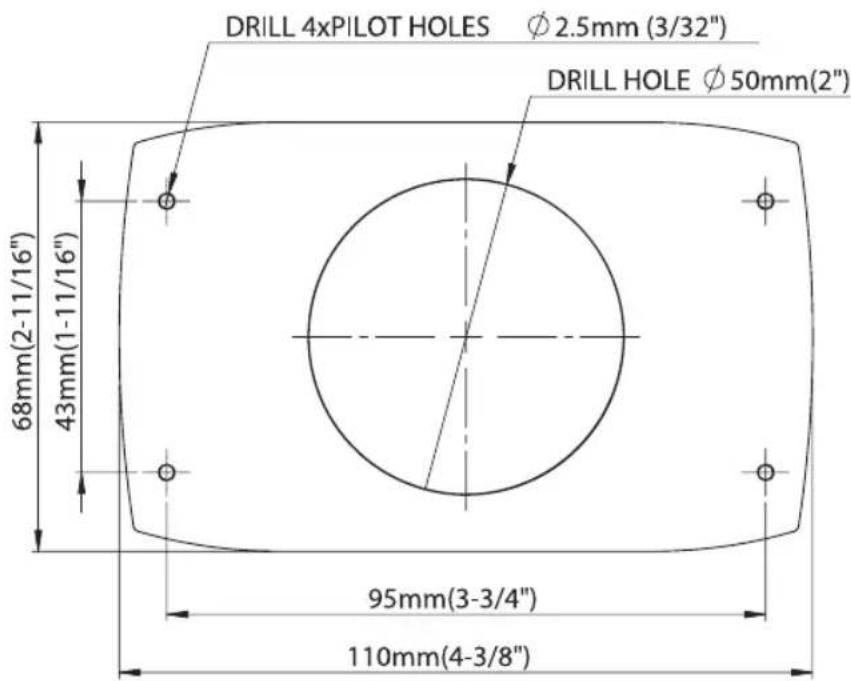
MOUNTING DIAGRAM (NOT TO SCALE)

SiriusXM SATELLITE RADIO
(USA only) - Requires optional SiriusXM Vehicle Connect Tuner (not included) connected to FUSION Stereo. Everything worth listening to is on SiriusXM, getting over 130 channels, including the most commercial-free music, plus the best sports, news, talk and entertainment. A SiriusXM Connect Tuner (sold separately) connected to the FUSION Stereo and Subscription are required. For more information, visit www.siriusxm.com.
For additional SiriusXM information refer to the FUSION Stereo user manual
The user manual contains information regarding the following;
- SiriusXM installation and activation information.
• SiriusXM operation information. - A trouble shooting guide to assist the user with installation and information regarding SiriusXM status and error messages.
NMEA 2000 REPEATER (NMEA 2000 NETWORK ONLY)
The remote control will also serve as an NMEA repeater displaying NMEA navigation data or vessel performance data from other NMEA devices on an existing NMEA 2000 network.
NMEA 2000 REPEATER MODE
SELECTING NMEA 2000 DATA SENTENCES TO DISPLAY
Press the 'Menu' button and select 'SETTINGS' → 'NMEA MONITOR'. Select the NMEA data to be displayed from the list of available data. Press the 'Menu' button to exit.
- Wind Direction
- Wind Speed
- Depth
- Speed over Ground
• Speed through Water - Heading
- Position
• Water Temperature
• Atmospheric Pressure
• ETA
SELECTING THE DISPLAY METHOD
The remote control can be configured to automatically cycle through the selected NMEA 2000 data. Press the 'Menu' button and select 'SETTINGS' → 'NMEA Monitor' → 'CYCLE SCREENS'. Select from the following options. Press the 'Menu' button to exit.
- Off
- 2 seconds
- 5 seconds
- 10 seconds
SELECTING UNITS OF MEASURE
Press the 'Menu' button and select 'SETTINGS' → 'NMEA Monitor' → 'SET UNITS'. Select from the following options. Press the 'Menu' button to exit.
Distance: KM, Miles, Nautical Miles, Metres, Feet
Speed: KM/H, MPH, KTS, M/S Depth: Metres, Feet, Fathoms Temperature; °C, °F
POWER ON/OFF — NMEA 2000 REPEATER MODE
If the remote control has been configured to display NMEA 2000 data sentences it can be turned on independently of the FUSION Marine Stereo. This permits the user to monitor NMEA data without turning on the stereo.
Press to turn on the remote control. The remote control will enter NMEA 2000 repeater mode and will NOT turn on the stereo. The stereo can be turned on from the remote control by pressing the Menu key to exit the NMEA 2000 repeater mode. To return to the repeater mode press and hold the Source key.
When in NMEA 2000 repeater mode the remote will monitor the state of the stereo. If the stereo is turned on then the remote will allow the user to change volume and mute the stereo, play, pause and skip track (back and forwards) without leaving NMEA 2000 repeater mode.
TURNING ON THE REMOTE CONTROL WITH THE MARINE STEREO TURNED ON
Press to turn ON the remote control. It will detect the stereo is on and enter the remote control mode.
CHANGING REMOTE CONTROL MODE
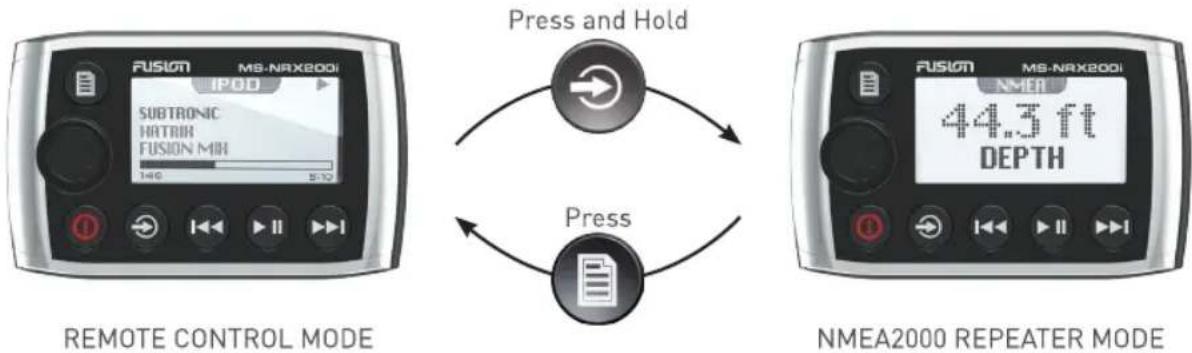
NMEA 2000 REPEATER MESSAGES
| PGN Number | PGN Data Field | FUSION Supported |
| 127250 | Heading Sensor Reference | |
| 0 = True, | Yes | |
| 1 = Magnetic, | Yes | |
| 128259 | Speed Water Reference Type | |
| 00 = Paddle Wheel | Yes | |
| 01 = Pitot Tube | Yes | |
| 02 = Doppler Log | Yes | |
| 03 = Correlation Log (Ultra-Sound) | Yes | |
| 04 = EM Log (Electro - Magnetic) | Yes | |
| 128267 | Water Depth | |
| Offset add/subtract | Yes | |
| 129025 | Position | |
| Lat/Lon | Yes | |
| 129026 | COG/SOG | |
| COG Reference | ||
| 0 = True, | Yes | |
| 1 = Magnetic, | Yes | |
| 129029 | GNSS Position Data Yes | |
| 130306 | Wind Data | |
| Wind reference | ||
| 0x00 = Theoretical Wind (ground referenced, referenced to True North; calculated using COG/SOG) | Yes | |
| 0x01 = Theoretical Wind (ground referenced, referenced to Magnetic North; calculated using COG/SOG) | Yes | |
| 0x02 = Apparent Wind (relative to the vessel centerline) | No | |
| 0x03 = Theoretical (Calculated to Centerline of the vessel, referenced to ground; calculated using COG/SOG) | No | |
| 0x04 = Theoretical (Calculated to Centerline of the vessel, referenced to water; calculated using Heading/Speed through Water) | No | |
| 130310 | Water Temp & Air Pressure | Yes |
| 130311 | Water Temp & Air Pressure | Yes |
| 130312 | Temperature | Yes |
| Temperature Source | ||
| 00 = Sea Temperature | Yes | |
| 01 = Outside Temperature | No | |
| 02 = Inside Temperature | No | |
| 03 = Engine Room Temperature | No | |
| 04 = Main Cabin Temperature | No | |
| 05 = Live Well Temperature | No | |
| 06 = Bait Well Temperature | No | |
| 07 = Refrigeration Temperature | No | |
| 08 = Heating System Temperature | No | |
| 09 = Dew Point Temperature | No | |
| 10 = Wind Chill Temperature, Apparent | No | |
| 11 = Wind Chill Temperature, Theoretical | No | |
| 12 = Heat Index Temperature | No | |
| 13 = Freezer Temperature | No | |
| 130314 | Actual Pressure | |
| Pressure Source | ||
| 00 = Atmospheric Pressure | Yes | |
| 01 = Water Pressure | No | |
| 02 = Steam Pressure | No | |
| 03 = Compressed Air Pressure | No | |
| 04 = Hydraulic Pressure | No | |
| 130577 | Direction Data | |
| COG Reference | ||
| 0 = True, | Yes | |
| 1 = Magnetic, | Yes | |
| SOG Yes | ||
| STW Yes | ||
| 129284 | Navigation Data | |
| ETA Date Yes | ||
| Bearing, Origin To Destination Waypoint No | ||
| Bearing, Position To Destination Waypoint | No | |
| Destination Waypoint Number | No | |
| Destination Wpt Latitude | No | |
| Destination Wpt Longitude | No | |
| Waypoint Closing Velocity | No |
FUSION TRUE MARINE
Recognised as the worldwide leader in marine entertainment and innovation, FUSION True Marine products combine cutting edge technology and high quality materials, with a clear focus on ease of use.
At FUSION, we believe that products should be designed to perform season after season even after exposure to some of the harshest marine conditions. With this longevity in mind, all True Marine products are designed and engineered from the ground up - specifically for use on the water.
Environmental protection is at the heart of all our product designs and only after each product has been subjected to (and passed) our rigorous environmental testing, are they awarded the True Marine stamp and a 3 Year Limited Worldwide Consumer Warranty.
Our extensive testing gives our customers confidence in our products and has further cemented FUSION as industry leaders in marine entertainment

LICENSING

Sirius, XM and all related marks and logos are trademarks of SiriusXM Radio Inc. All rights reserved.

NMEA 2000 - is a Registered Trademark of the National Marine Electronics Association, Inc.
NOTES
FUSON®
© Copyright 2013 by FUSION Electronics Limited. All rights reserved. Product specifications, design and prices are subject to change without notice. Product availability may vary between sales regions. P/N PAK001038A.
- FUSON®
- WARNINGS AND CAUTIONS
- CARE AND MAINTENANCE
- REGISTER YOUR PRODUCT ONLINE
- RECORD YOUR PRODUCT DETAILS HERE
- CONTENTS
- USER INTERFACE AND CONTROLS
- CONTROL PANEL LAYOUT
- BUTTON FUNCTION
- POWER
- MUTE
- SOURCE
- MENU
- PLAY/PAUSE
- SHORT PRESS
- PRESS AND HOLD
- BACK/PREVIOUS
- FORWARD/NEXT
- ROTARY ENCODER
- INSTALLATION
- CONTENTS OF THE BOX
- NMEA 2000 COMPONENTS SUPPLIED WITH MS-NRX200I
- INSTALLATION OPTION 1: FUSION REMOTE CONTROL NETWORK
- POWER LOADING OF THE FUSION NETWORK
- OPERATION
- POWER ON/OFF
- ASSIGNING THE REMOTE TO A STEREO
- ASSIGNING THE REMOTE TO A ZONE
- VOLUME ADJUST
- BACKLIGHT BRIGHTNESS
- SIRIUSXM SATELLITE RADIO
- FOR ADDITIONAL SIRIUSXM INFORMATION REFER TO THE FUSION STEREO USER MANUAL
- NMEA 2000 REPEATER (NMEA 2000 NETWORK ONLY)
- NMEA 2000 REPEATER MODE
- SELECTING NMEA 2000 DATA SENTENCES TO DISPLAY
- SELECTING THE DISPLAY METHOD
- SELECTING UNITS OF MEASURE
- POWER ON/OFF — NMEA 2000 REPEATER MODE
- TURNING ON THE REMOTE CONTROL WITH THE MARINE STEREO TURNED ON
- CHANGING REMOTE CONTROL MODE
- FUSION TRUE MARINE
- LICENSING
- NOTES
Marque : Fusion
Modèle : MS-NRX200I
Catégorie : Contrôleur