Pushmo (3DS) - Jeu NINTENDO - Notice d'utilisation et mode d'emploi gratuit
Retrouvez gratuitement la notice de l'appareil Pushmo (3DS) NINTENDO au format PDF.


| Type de produit | Jeu vidéo |
| Plateforme | Nintendo 3DS |
| Genre | Réflexion / Puzzle |
| Mode de jeu | Un joueur |
| Classification PEGI | 3 |
| Langues disponibles | Anglais, Français, Allemand, Espagnol, Italien |
| Format | Carte de jeu Nintendo 3DS |
| Dimensions (boîtier) | 13.5 x 1.2 x 12.1 cm |
| Poids (boîtier) | Environ 100 g |
| Alimentation | Non applicable (nécessite une console 3DS) |
| Fonctions principales | Résoudre des puzzles en poussant et tirant des blocs pour atteindre la sortie |
| Entretien et nettoyage | Nettoyer la cartouche avec un chiffon doux et sec. Éviter l'humidité. |
| Sécurité | Tenir hors de portée des jeunes enfants. Ne pas insérer d'objets étrangers dans la console. |
| Pièces détachées et réparabilité | La cartouche ne contient pas de pièces remplaçables. En cas de dysfonctionnement, contacter le support Nintendo. |
| Informations générales | Jeu édité par Nintendo. Distribué dans le monde entier. Compatible avec toutes les consoles de la famille Nintendo 3DS. |
FOIRE AUX QUESTIONS - Pushmo (3DS) NINTENDO
Questions des utilisateurs sur Pushmo (3DS) NINTENDO
0 question sur cet appareil. Repondez a celles que vous connaissez ou posez la votre.
Poser une nouvelle question sur cet appareil
Téléchargez la notice de votre Jeu au format PDF gratuitement ! Retrouvez votre notice Pushmo (3DS) - NINTENDO et reprennez votre appareil électronique en main. Sur cette page sont publiés tous les documents nécessaires à l'utilisation de votre appareil Pushmo (3DS) de la marque NINTENDO.
MODE D'EMPLOI Pushmo (3DS) NINTENDO
1 Health and Safety
Getting Started
2 Controls
3 Starting the Game
4 Pushmo Park
5 Pushmo Studio
6 QR Code Images
Troubleshooting
7 Support Information
Thank you for choosing Pushmo™ for the Nintendo 3DS™ system.
Please read this manual carefully before using the software. Please also read your Nintendo 3DS Operations Manual for more details and tips to help you enjoy your playing experience.
Health and Safety Information
▲ IMPORTANT
Before using this software, read all content within the Health and Safety Information application on the HOME Menu.
To access this application, tap the icon on the HOME Menu, then tap Open and read the contents of each section carefully. When you are finished, press HOME to return to the HOME Menu.
You should also thoroughly read the Nintendo 3DS Operations Manual, including the Health and Safety Information section, before using Nintendo 3DS™ software.
CAUTION - STYLUS USE
To avoid fatigue and discomfort when using the stylus, do not grip it tightly or press it hard against the screen. Keep your fingers, hand, wrist and arm relaxed. Long, steady, gentle strokes work just as well as many short, hard strokes.
When you download or use this software (including any digital content or documentation you download or use in connection with this software) and pay any applicable fees, you are granted a personal, non-exclusive, revocable license to use this software on your Nintendo 3DS system. Your use of this software is subject to the Nintendo 3DS Service User Agreement, which includes the Nintendo 3DS system Privacy Policy and the Code of Conduct.
Your Nintendo 3DS system and this software are not designed for use with any unauthorized device or unlicensed accessory. Such use may be illegal, voids any warranty, and is a breach of your obligations under the User Agreement. Further, such use may lead to injury to yourself or others and may cause performance issues and/or damage to your Nintendo 3DS system and related services. Nintendo (as well as any Nintendo licensee or distributor) is not responsible for any damage or loss caused by the use of such device or unlicensed accessory. Except as authorized, copying of any Nintendo software is illegal and is strictly prohibited by domestic and international intellectual property laws, "Back-up" or "archival" copies are not authorized.
Nintendo of America Inc, respects the intellectual property of others, and we ask Nintendo 3DS software Content Providers to do the same. In accordance with the Digital Millennium Copyright Act in the US, the Electronic Commerce Directive in the EU, and other applicable law, we have adopted a policy of removing, in appropriate circumstances and at our sole discretion, any Nintendo 3DS software that appears to infringe anyone else's intellectual property. If you believe your intellectual property rights are being infringed, please visit www.nintendo.com/appolicy to view the full policy and understand your rights.
Software Rating

For more information, please visit www.esrb.org.
© 2011 Nintendo/INTELLIGENT SYSTEMS
Trademarks are property of their respective owners. Nintendo 3DS is a trademark of Nintendo. All rights reserved.
"QR Code reader" includes software deliverables of Information System Products Co., Ltd. and Institute of Super Compression Technologies, Inc. QR Code is a registered trademark of DENSO WAVE INCORPORATED in JAPAN and other countries.
CTR-N-JCAE-USZ
Pushmo Park Controls
You control Mallo, the hero of the game (page 4). Select Tutorials from the main menu (page 3) to review control details and read helpful hints about controlling Mallo.
| Move | ○/○ |
| Jump | A |
| Pull a block out | 3 + ○ (down)/ 5 + ✦ |
| Push a block in | 6 + ○ (up)/ 8 + ✦ |
| Look around | 8 + ✦ / 9 + ○ (+ □ to zoom in) |
| Rewind time | □ |
| Enlarge the map on the Touch Screen | ✕ (This option becomes available as you progress through Pushmo Park.) |
| Pause/unpause game | START /tap the Touch Screen |

About the Pause Menu
After you've spent a certain amount of time on a Pushmo puzzle, Skip to Next will become a selectable option on the pause menu. Use this option if you want to skip ahead to the next Pushmo and save the one you're on for later. The length of time it takes before you see this option depends on the difficulty level of the Pushmo you are on.
Note: Skip to Next is only available the first time you play a Pushmo. It is not available during any of the Basic Lessons Pushmo.
Pushmo Studio Controls
All controls in Pushmo Studio can be performed using the stylus (page 5). Some controls can also be performed using buttons.
| Move cursor | ○/⊕(while zoomed in) |
| Fast-forwardmessage | L/R |
| Leave PushmoStudio | ®/START |

Menu Controls
All controls in the menus can be performed using buttons. Some controls can also be performed using the stylus.
| Select item | ○/○ |
| Confirm | A |
| Cancel | B/ START |
| Enlarge the map displayed on the Pushmo selection screen | ×(This option becomes available as you progress through Pushmo Park.) |
| Change Pushmo selection-screen page | L/R |
Note: Close your Nintendo 3DS system during play to activate Sleep Mode, greatly reducing battery consumption. Reopen the system to resume play.
Note: Press ☐ + ☑ + START at the same time to reset the game and go back to the title screen.

Main Menu
Three options will appear on the main menu when you first start the game.

Options
Note: Pushmo Studio will become available after you've completed all of the Basic Lessons Pushmo in Pushmo Park.

Tutorials
Go here to talk to Papa Blox, who can tell you about the controls and give you advice about how to play.

Pushmo Park
Play through Pushmo in Pushmo Park. Pull and push blocks of various shapes to create steps and head for the goal (page 4).

Pushmo Studio
In Pushmo Studio, you can create your own original Pushmo (page 5) and create and read Pushmo QR Code images (page 6).
Options
Press ☑ or touch the icon to access the options menu, where you can turn music and sound effects on or off and delete your save data (restoring it to its state at the time of purchase).
Once save data is deleted, it cannot be recovered, so please be careful.
Saving Data
As you progress through Pushmo Park, game data is saved automatically each time you complete a Pushmo or select Skip to Next from the pause menu. In Pushmo Studio, game data is saved when you tap Done and save the Pushmo you created.

Data can be lost due to user action such as repeatedly powering off and on the system or removing the SD Card while saving. Data loss may also be caused by poor connectivity, due to dirt or dust in the system's ports. Please be aware that in these cases data cannot be restored.

Replaying Pushmo in Pushmo Park
In Pushmo Park, you can replay Pushmo that you have already completed. Pushmo you have completed are marked with

4 Pushmo Park

① Mallo
This is the character you control.
② Reset switch
Jump onto this switch to retract all of the blocks and start the Pushmo over again.
③ Goal
The goal you are trying to reach is marked with 📁 on the Touch Screen and marked with 😊 (trapped-child marker) or 🌐 (goal-flag marker) on the upper screen.
④ Mallo's current position
Mallo's current position is marked with 🎨 on the Touch Screen.

natural_image
Five colored geometric shapes (purple, yellow, green, pink, orange, blue) arranged horizontally on white background (no text or symbols)
Creating Pushmo
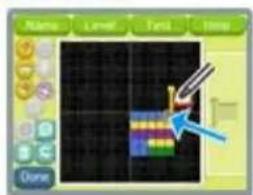
In Pushmo Studio, you can create your own Pushmo using the stylus. You can make Pushmo from scratch or copy Pushmo from Pushmo Park or Papa Blox to use as a starting point. In the beginning, your Pushmo can be up to 16 x 16 squares large. If you progress far enough in Pushmo Park, you'll be able to make Pushmo 32 x 32 squares large.
Note: When you select a tool, such as 🔒, an explanation of how to use that tool will scroll on the upper screen.
Note: Progress through Pushmo Park to unlock the pullout-switch (☑) and manhole (☐) gadgets.

Creating Blocks
If you tap 🙏 or 🚡, the color palette will be displayed on the right side of the Touch Screen. To create a block, first tap 🔊 and tap the color you want the block to be, then draw the block on the canvas. Tap the palette editor to change the colors that appear in the color palette.

Palette editor

Deleting Blocks
Tap 🔒 and then tap a block to delete it. Tap 🔒 to delete all blocks.


Placing the Goal Flag
If you select 🔒, the goal-flag icon will appear to the right. Drag and drop this icon onto the block where you want the goal. The goal flag can only be placed on the top side of a block.
Pushmo QR Code Features
In Pushmo, you can turn Pushmo you create into QR Code images and read QR Code images made by other players.
Pushmo QR Code images can be shared with other people. Please do not distribute QR Code images that could reveal personal information about you or other people, infringe on the rights of others, or cause offense. A Note to Parents and Guardians: You can configure the Nintendo 3DS system's Parental Controls settings to prevent your child from creating QR Code images by restricting the Share Images / Audio / Video / Long Text Data option. For details on how to configure Parental Controls settings, please refer to the Nintendo 3DS Operations Manual.
Creating a QR Code Image
① On the Pushmo selection screen in Pushmo Studio, tap the Pushmo for which you want to create a QR Code image, then tap QR Code.

② Next, select whether you want to allow recipients of this QR Code image to copy, edit, and share this

③ The QR Code image for your Pushmo will be displayed on the upper screen. Tap Save to SD Card on the Touch Screen to save your new QR Code image.
Pushmo.
Note: You must successfully play through a Pushmo you've created before you can create a QR Code image of it. Pushmo that can be converted into QR Code images are marked with 📄.

Note: QR Code images are saved in the DCIM folder on the SD Card. QR Code images saved to the SD Card can be viewed using Nintendo 3DS Camera in the HOME Menu.
Reading a QR Code Image
① On the Pushmo selection screen in Pushmo Studio, tap an empty slot, then tap Read QR Code.

② Using the outer cameras, align a QR Code image so that it fits within the frame on the The QR Code sh recognized automa Yes on the next s the Pushmo.
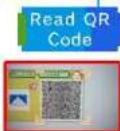
Note: Pushmo you receive via QR Code images are framed in blue on the Pushmo selection screen. Note: Pushmo marked with a lock icon (.) can be played but cannot be copied, edited, or converted into new QR Code images.
upper screen. could be tically. Select screen to save
Editing a Pushmo Received via a QR Code Image
① On the Pushmo selection screen in Pushmo Studio, tap an empty slot, then tap Create.
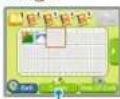
② Tap Copy, then select Pushmo Studio as the location from which you want to copy. On the next screen, tap a Pushmo you received via a QR Code image. You can then edit that Pushmo as normal, as a new Pushmo.

7 Support Information
NEED HELP WITH INSTALLATION, MAINTENANCE OR SERVICE?
Nintendo Customer Service SUPPORT.NINTENDO.COM

The Official Seal is your assurance that this product is licensed or manufactured by Nintendo. Always look for this seal when buying video game systems, accessories, games and related products.
- Getting Started
- Troubleshooting
- ▲ IMPORTANT
- CAUTION - STYLUS USE
- Software Rating
- Pushmo Park Controls
- About the Pause Menu
- Pushmo Studio Controls
- Menu Controls
- Main Menu
- Tutorials
- Pushmo Park
- Pushmo Studio
- Options
- Saving Data
- Replaying Pushmo in Pushmo Park
- Pushmo Park
- ① Mallo
- ② Reset switch
- ③ Goal
- ④ Mallo's current position
- Creating Pushmo
- Creating Blocks
- Deleting Blocks
- Placing the Goal Flag
- Pushmo QR Code Features
- Creating a QR Code Image
- Reading a QR Code Image
- Editing a Pushmo Received via a QR Code Image
- Support Information
- NEED HELP WITH INSTALLATION, MAINTENANCE OR SERVICE?
Marque : NINTENDO
Modèle : Pushmo (3DS)
Catégorie : Jeu