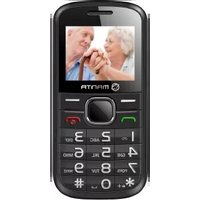
MS2002 - Smartphone Manta - Notice d'utilisation et mode d'emploi gratuit
Retrouvez gratuitement la notice de l'appareil MS2002 Manta au format PDF.


| Type de produit | Smartphone |
| Marque | Manta |
| Modèle | MS2002 |
| Dimensions (H x L x P) | 152 x 76 x 8.5 mm |
| Poids | 180 g |
| Batterie | Lithium-ion 2500 mAh, non amovible |
| Autonomie en veille | Jusqu'à 300 heures |
| Autonomie en communication | Jusqu'à 8 heures |
| Chargeur | 5V/1A, connecteur micro-USB |
| Écran | TFT LCD 5,5 pouces, résolution 854 x 480 pixels |
| Processeur | Quad-core 1,3 GHz |
| Système d'exploitation | Android 10 Go |
| Mémoire interne | 16 Go |
| Mémoire RAM | 1 Go |
| Appareil photo arrière | 8 mégapixels |
| Appareil photo avant | 2 mégapixels |
| Connectivité | Wi-Fi 802.11 b/g/n, Bluetooth 4.2, GPS |
| Capteurs | Accéléromètre, capteur de proximité |
| Entretien et nettoyage | Essuyer avec un chiffon doux et sec. Ne pas utiliser de produits chimiques. |
| Sécurité | Ne pas exposer à l'eau ni aux températures extrêmes. Utiliser uniquement le chargeur fourni. |
FOIRE AUX QUESTIONS - MS2002 Manta
Questions des utilisateurs sur MS2002 Manta
0 question sur cet appareil. Repondez a celles que vous connaissez ou posez la votre.
Poser une nouvelle question sur cet appareil
Téléchargez la notice de votre Smartphone au format PDF gratuitement ! Retrouvez votre notice MS2002 - Manta et reprennez votre appareil électronique en main. Sur cette page sont publiés tous les documents nécessaires à l'utilisation de votre appareil MS2002 de la marque Manta.
MODE D'EMPLOI MS2002 Manta
Mobile Phone Senior
MS2002
Instrukcja obsługi
User's Manual
Manta MS2002 Instrukcja obsługi Manual
Uwaga! Wszystkie zdjęcia i informacje w tej instrukcji są tylko w celach informacyjnych. Specyfikacja, wygląd i obsługa produktów może ulec zmianie bez powiadomienia bez uprzedniego powiadomienia.
Pierwsze kroki
Bateria
Należy używać tylko oryginalnych baterii zatwierdzonych przez producneta oraz ładować baterie tylko oryginalnymi ładowarekami przeznaczonymi do tego celu. Użycie niezatwierdzonym baterii lub ładowarki może wiązać się z ryzykiem pożaru, wycieku, eksplozji lub innego zagrożenia.
Podłączenie do sieci
Karty SIM
Należy włożyć dwie ważne karty SIM (moduł identyfikacji abonenta) Przed pierwszym uzyciem telefonu komórkowego. Wszystkie ustawienie połączenia z siecią są zapisane w kartach SIM, wraz z informacją o nazwach kontaktów i numerów telefonów w książce telefonicznej oraz wiadomościami.
Wkładanie i wyjmowanie karty SIM
Wyłącz telefon i wyjmij baterię oraz odlącz ładowarkę. Wóż kartę SIM do gniazda SIM.
Włączanie / wyłązanie
Naciśnij długo klawisz rozłączania, aby włączyć / wyłączyć urządzenie. Automatycznie zostanie przetestowana karta SIM po włączeniu zasilania. Jeśli nie ma karty SIM, urządzenie wyświetlii monit o włożeniu dwóch kart SIM, a następnie ekran zostanie wyświetlony komunikat: "Podaj hasło telefonu", jeśli zostało ustawione, Wprowadź kod PIN *- jeśli kod PIN karty SIM został ustawiony:
Ustawienia telefonu
Do zmiany ustawień telefonu naciśnij przycisk MENU, naciśnij klawisze kierunkowe i wybierz Ustawienia, następnie naciśnij przycisk OK.
Data i czas
Naciśnij klawisze kierunkowe w góre i w dół do ustawień telefono, wyhierz czas i datę, a następnie ustaw czas / datę. Przyciskami ustaw datę i godzinę i potwierdź przyciskiem OK.
Uwaga: Po wyjęciu baterii z telefonu komórkowego lub jeśli bateria została wyczerpana, być może trzeba ustawić datę i czas ponownie.
Planowanie Włącz /Wylącz
Ustaw czas, gdy telefon zostanie automatycznie włączony lub wyłączony.
Język
Wybierz język wyświetlania dla telecomu komórkowego.
Preferowane metody wprowadzania
Ustaw domyślne metody wprowadzania do telefonu zgodnie z własnymi upodobaniami.
Wyświetlacz
Wyhierz tapetę, wygaszacz ekranu, animację podczas włączania, animację podczas wyłączenia, wyświetlanie daty i czasu, i / lub numer właściciela.
Menu telefonu
Spis telefonów
Pozwala na zapisanie informacji, takich jak nazwisko, numery telefonów. Numery telefonów mogą być zapisane w urządzeniu lub karcie SIM. Dla kart SIM ilość zapisów zależy od pojemności karty.
Aby przegłądać książkę telefoniczną, naciśnij prawy klawisz w trybie gotowości.
Wiadomości
Dostęp do menu wiadomości i znajdziesz wpisy jak SMS.
Spis polączeń
Aby wyświetlić informacje na temat zapisów rozmów, wybierz Spis połączeń w menu głównym. Informacje obejmuje połączenia nieodebrane, połączenia odebrane, usuwanie rejestru połączeń, czas połączenia, Koszt połączeń, licznik SMS.
Ustawienia
Wybierz Ustawienia w menu głównym. Następnie można wykonać instalację telefoniczną, zadzwoń instalacji, konfiguracji sieci, Ustawienia zabezpieczeń i Przywróć ustawienia fabryczne.
Multimedia
Przegładarka obrazów
Można wyświetlić listę składającą się z obrazu zarejestrowanego przez kamerę, naciśnij Opcje, aby przejrzeć, przegłądać styl, zmienić nazwy, usuwać, usunąć wszystkie pliki lub sortować.
Nagrywarka dźwięku
Plik dźwiękowy zapisany w pliku / karty pamięci / AUDIO są wymienione w menu. Naciśnij lewy klawisz funkcyjny opcję, aby wyświetlić menu opcji.
Radio FM
Umożliwia słuchanie radia FM. Naciśnij klawisz w dół, aby włączyć / wyłączyć radio FM. Naciśnij przycisk Lewy aby dostroić do przodu, naciśnij przycisk w prawo, aby dostroić do tyłu.
Odtwarzacz audio
Odtwarzacz audio zawiera cztery przyciski: play, stop, w tył iw przód. Można nacismąć w górę lub w dół, aby przejść do poprzedniego lub następnego utworu, a lewo lub w prawo, aby dostosować poziom głośności. Odtwarzacz audio obsługuje formaty MP3, WAV, MID i IMY. Naciśnij lewy przycisk lub wybierz opcję Lista, aby otworzyć listę odtwarzania, a następnie wybierz Opcje, aby wykonanie ponizszych czynności: Play, szczegóły, ustaw jako drzonek, Odśwież listę, Ustawienia.
Odtwarzacz wideo
Z odtwarzacza wideo można odtwarzać pliki wideo, przewijać pliki wideo do przodu, zmienić nazwę plików wideo, usunąć plik wideo, usunąć wszystkie pliki wideo, pliki wideo sortowanie wg nazwy, typu, daty lub rozmiaru i określ ścieżkę do zapisywania plików wideo. Odtwórz: odtwarzanie określonego pliku wideo. Do przodu: przekazuje bieżący plik wideo do książki telefonicznej, wygaszacz ekranu, na mocy animacji, animacji wyłączenia zasilania lub Buletooth. Zmień nazwę: Zmień nazwę wybierz plik wideo. Usuń: usuwanie wybierz plik wideo. Usuń wszystkie pliki: Usuń wszystkie pliki wideo. Sortuj wg: Sortowanie plików wideo według nazwy, typu, czasu lub wielkości. Przechowywanie: Wybierz, aby zapisać pliki wideo w telefonie lub na karcie SIM.
Kamera
Wybierz Opcje, aby wykonać następujące czynności:
Zdjęcia: zapisuje pliki graficzne dla zdjęć. Możesz wyświetlać pliki graficzne, przewijać pliki graficze do przodu, zmieniać nazwy plików graficznych, usuwać pliki, usunąć wszystkie i określić ścieżkę do zapisywania plików graficznych.
Ustawienia aparatu: Możesz ustawić dźwięk migawki, ev, opóźnienie czasowe, tak aby aparat wykonywał optymalne zdjęcia.
Ustawienia obrazu: Ustaw rozmiar obrazu i jakość obrazu. Można nacisnąć klawisz numer 7 na szybko ustawić jakość obrazu, a numer 8, aby szybko ustawić rozmiar obrazu.
Balans bieli: ustawienie Auto, światło dzienne, żarówka, świetłówka, pochmurno lub światło żarowe. Tryb sceny: Ustaw na Auto lub Noc. Ustawienia efektów: Ustaw na Normal, Odciemie szarości, Sepia Sepia Sepia zielony, niebieski lub kolor odwrócić. Przechowywanie: Wybierz, aby zapisac zdjęcie w telefonie lub na karcie SIM.
Przywróć domyślne: Przywróć domyślne ustawienia parametrów.
Bluetooth
Moc: Funkcja ta pozwala włączyć lub wyłączyć Bluetooth.
Widoczność Bluetooth: Ustaw, aby połazać lub ukryć Bluetooth telefonu. Jeśli wybierzesz się ukryć telefon inne urządzenia nie mogą wykryć urządzenia Bluetooth w telefonie nawet aktywowałeś swoją funkcję Buletooth.
Sparowane urządzenie: Można wyszukiwać pobliskie urządzenia Bluetooth sparowane z telefonem.
Nazywa Bluetooth: Jeśli funkcja Bluetooth aktywowana, gdy inne urządzenia szukają sygnału Bluetooth, odpowiednia nazwa oznacza telefona.
Bluetooth lokalizacja pliku: ustawienie miejsce zapisu plików odbieranych przez Bluetooth.
Profile użytkownika
Dzięki tej funkcji można ustawić różne profile dźwięku, aby dostosować do środowiska. Istnieje pięć gotowych profili, każdy z nich ma swoją wartość domyślną, którą można ustawić w zależności od potrzeb.
Ogólny
Aktywacja: Aktywacja wybranego profilu.
Ustawienia: Ustaw następujące opcje.
Ustawienie dźwięku: Ustaw dźwonek połączenia lub wiadomości dla SIM1 i SIM2.
Regulacja głośności: Regulacja głośności, dzwonek przychodzącej dzwonek wiadomość, etc.
Nadejścia połączenia: Ustaw żądany tryb alertu zaproszenia do SIM1 i SIM2.
Wiadomości: Ustaw żądany tryb powiadomienie wiadomość dla SIM1 i SIM2.
Dźwięki klawiszy: włączenie dźwięku klawiszy.
Zmień nazwę: Zmień nazwę wybranego profilu
Pozostałe profile: patrz "Ogólny".
Organizer
Możesz korzystać z różnych narzędzi codzienne jak Kalendarz, budzik, kalkulator, konverter jednostek i walut.
Kalendarz
W podmenu ekran wyświetla kalendarz na bieżący miesiąc i faktyczna data jest oznaczona specjalnym kolorem tla. Aby wyświetlić datę, naciśnij / w dół / w lewo / w prawo w górę.
Alarm
Możesz ustawić osiem alarmów. Może aktywować jeden, wiele lub wszystkie z nich w razie potrzeby. Dla każdego możesz ustawić datę i czas dzwonienia dzwonka itp.
Kalkulator
Wybierz Usuń, aby usunąć ostatnią operację lub wyniki, przytrzymaj długo Usuń, aby usunąć wszystkie dane. Wybierz OK, aby uzyskać wyniki obliczeń.
Uwaga: Kalkulator ten zapewnia ograniczoną dokładność i ma zastosowanie jedynie do prostych obliczeń arytmetycznych.
Latarka
Naciśnij przycisk "OK", aby włączyć lub wyłączyć latarkę.
Manta S.A. ul. Matuszewska 14, 03-876 Warszawa.
Tel. 22 332 34 50, fax: 22 332 34 52
Infolinia serwisowa:
Tel. 22 332 34 63, e-mail: serwis@manta.com.pl
Aktualny wykaz punktów serwisowych znajduje sie na: www.manta.com.pl
Manta MS2002
User Manual
Remark! All pictures in this manual is just for your reference. products specification and design have any change. The information is subject to changes without prior notice.
Getting Started
Battery
Use only original approved batteries, and recharge your battery only with original approved chargers designated for this device. Use of an unapproved battery or charger may present a risk of fire, expulsion leakage or other hazard.
Connecting to the network
SIM Cards
You must insert two valid SIM (subscriber identity module) cards before using your mobile phone. Everything about setting connection to the network is saved in the SIM cards, together with information of contact name and phone number in the phone book as well as message.
Installing and Removing the SIM cards
Switch off the mobile phone and remove battery and external power supply and insert a SIM cards into the SIM slot.
Switching on/off
Long press END KEY to switch on/off your device will automatically test whether the SIM cards is plugged in after power-on. If there are no SIM cards, the device will prompt you to "insert two
SIM card", then screen will display the following message in turn: „Input phone password" if has been set. „Input PIN" - if the SIM cards PIN code has been set.
Phone Setup
To change Phone settigns press MENU button, press direction keys and choose Settings, next press OK button.
Time and Date
Press the Up and Down direction keys to Phone settings, next choose Time and date, and next Set time/date. Using keys set date and time and confirm OK button.
Note: If you remove the battery from the mobile phone or if the battery energy was exhausted a long time ago, you may need to reset the date and time when re-inserting the battery or powering on the mobile phone after recharging.
Schedule power on/off
Set the time when the mobile phone will be automatically powered on or off.
Language
Select the display language for the mobile phone.
Preferred input methods
Set the default input methods for phone according to your own preference.
Display
Select wallpaper, Screen saver, Power on display (show an animation during power-on), Power off display (show an animation during power-off), show date and time, and/or show owner number.
Greeting text
Set it to On or Off to show or not the greeting words on the main screen when the mobile phone is being powered on.
Dedicated key
Customize the shortcut functions of the Up, Down, Left and Right direction keys. In the standby interface you can press a direction key to directly enter the function menu corresponding to that direction key.
Phone Menu
Phone Book
This allows you to save information like names, phone number, and mobile phone numbers. The phone numbers can be saved to your device or the SIM cards. For the SIM cards the quantity of the records depends on the capacity of the cards. To view phone book, press the right soft key in
standby mode.
Messages
Access the Message menu and you will find entries as SMS, MMS.
Call history
To view information about call records, select Call History in the Main Menu. The information includes the Missed Calls, Received Calls, Delete Calls Log, Call Time, Call Cost, SMS Counter.
Settings
Select Settings in the Main Menu. Then you can perform phone Setup, Call Setup, Network Setup, Security Setup and Restore Factory Settings.
Multimedia
Image Viewer
You can view the list consisting of the image taken by the camera, press Option to view, browse style, sent, rename, delete, delete all files or sort.
Sound Recorder
The sound file saved in FILES/MEMORY CARD/AUDIO are listed in the submenu. Press the left soft key option to show the option menu.
FM Radio
In FM Radio interface press Up key to enable/disable auto mode of FM radio. Press Down key to switch on/off FM radio. Press Left key to tune forwards, press Right key to tune backwards.
Audio Player
The audio player provides four buttons: Play, Stop, Back and Forward. You can press the Up or Down key to go to the previous or next song, and the Left or Right key to adjust the sound volume. The audio player supports Mp3, WAV, MID and IMY formats. Press the Left key or select List to open the play list and then choose Options to perform the following operations: Play, Detail, Add to ring, Refresh list, Setting.
Video Player
With the video player you can play video files, forward video files, rename video files, delete a video file, delete all video files, sort video Files by name, type, time or size and specify the path for saving video files. Play: play the specified video file. Forward: forward the current video file to the phonebook, screensaver, power-on animation, power-off animation or Buletooth. Rename: Rename the select video file. Delete: Delete the select video file. Delete all files: Delete all video files. Sort by: Sort video files by name, type, time or size. Storage: Select to save video files to the phone or an SIM card.
Camera
Select Options to perform the following operations:
Photos: It saves the image files for photo. You can view image files, browse the style of image files, forward image files, rename image files, delete image file, delete all image files, sort image files by name, type, time or size, and specify the path for saving image files.
Camera Setting: You can set the shutter sound, EV, banding, delay timer and continuous shot, so that the camera operates in good condition and produces the optimal photo-taking effect.
Image settings: Set the image size and image quality. You can press number key 7 to quickly set the image quality and number 8 to quickly set the image size.
White balance: Set it to Auto, Daylight, Tungsten, Fluorescent, Cloud or Incandescence.
Scene mode: Set it to Auto or Night.
Effect settings: Set it to Normal, Grayscale, Sepia, Sepia green, Sepia blue or Color invert. Storage: Select to store the photo on the phone or an SIM card.
Restore default: Restore the default parameter settings.
Bluetooth
Open/Close Bluetooth: This functions allows you to switch the Bluetooth on or off.
Bluetooth visibility: Set to show or hide the Bluetooth of your phone. If you select to hide the phone other devices cannot detect the Bluetooth device of your phone even you activated your Buletooth
function.
Paired device: You can search for the nearby Bluetooth enabled devices
My Bluetooth name: If Bluetooth function activated while other devices search for Bluetooth signal, the corresponding name represents your phone.
Bluetooth file location: Able to set the storage location for files received via Bluetooth.
Profiles
With this function, you can set different user profiles to adapt different environment. There are five preset profiles available each one has its own default value, which you can set according to your need.
General
Activate: Activate the chosen profile.
Settings: Set the following options as required.
Ring set: Set the call ring or msg ring for SIM1 and SIM2.
Adjust volume: Adjust volume for incoming ring tone, message ring tone, etc. Press[Navigation Key] to adjust the volume.
Call alert: Set the desired call alert mode for SIM1 and SIM2.
Message alert: Set the desired message alert mode for SIM1 and SIM2.
Alarm remind: Set the desired alarm reminding mode.
Keypad tones: Set the desired Keypad tones.
Battery low alert; Set whether to activate the battery low alert tone.
Rename: Modify the name of the selected profile
Other profiles: For the settings, please refer to "General".
Organizer
You can use various daily tools like Calendar, Alarm Clock, Calculator, Unit Converter and Currency Converter.
Calendar
In the submenu, the screen displays the calendar for the current month and the actual date is marked with special color background. To view the date, Press the Up/Down/Left/Right key. The calendar information refreshes upon your operation.
Alarm
You can set up tp eight alarm clocks. You can activate one, multiple or all of them as needed. For each alarm clock, the ringing date and the ringing time can be set.
Calculator
Select Clear to clear the last inputs or results of hold clear to clear all the inputs. Select OK to obtain the calculation results.
Note: This calculator provides limited precision and is only applicable to simple arithmetic calculation.
Electric Torch
Press "OK" to open or close the torch.
Manta S.A. ul. Matuszewska 14, 03-876 Warszawa
Tel. 22 332 34 50, Fax: 22 332 34 52
Infolinia serwisowa:
Tel. 22 332 34 63, e-mail: serwis@manta.com.pl
Aktualny wykaz punktów serwisowych znajduje się na: www.manta.com.pl

INFORMACJA O PRAWIDŁOWYM POSTĘPOWANIU W PRZYPADKU UTYLIZACJI URZĄDZEŃ ELEKTRONICZNYCH I ELEKTRYCZNYCH
Umieszczony na naszych produktach symbol przekreślonego kosza na śmieci informuje, że nieprzydatnych urządzeń elektrycznych czy elektronicznych nie można wyrzucać razem z odpadami gospodarczymi.
Właściwe działanie w wypadku konieczności utylizacji urządzeń czy podzespołów lub ich recyc- lingu polega na oddaniu urządzenia do punktu zbiórki, w którym zostanie ono bezpłatnie przyjęte. W niektórych krajach produkt można oddać podczas zakupu nowego urządzenia.
Prawidłowa utylizacja urządzenia daje możliwość zachowania naturalnych zasobów Ziemi na dużej i zapobiega degradacji środowiska naturalnego. Informacje o punktach zbiórki urządzeń wydaje właściwe władze lokalne.
Nieprawidłowa, utyfizacja odpadów zagrożona jest karami przewidzianymi prawem obowiązującym na darnym tarenie.
Dział Obsługi Klienta
tel:+48 22 332 34 63 lub e-mail: serwis@manta.com.pl
od poniedziałku do piątku w godz. 9.00-17.00
Producent zastrzega sobie możliwość wprowadzenia zmian w specyfikację produktu bez uprzedzenia.
Strona główna www.manta.com.pl
Strona wsparcia technicznego www.manta.info.pl

MANTA



Made in P.R.C. FOR MANTA EUROPE


- MOBILE PHONE SENIOR
- MS2002
- MANTA MS2002 INSTRUKCJA OBSŁUGI MANUAL
- PIERWSZE KROKI
- BATERIA
- PODŁĄCZENIE DO SIECI
- KARTY SIM
- WKŁADANIE I WYJMOWANIE KARTY SIM
- WŁĄCZANIE / WYŁĄZANIE
- USTAWIENIA TELEFONU
- DATA I CZAS
- PLANOWANIE WŁĄCZ /WYLĄCZ
- JĘZYK
- PREFEROWANE METODY WPROWADZANIA
- WYŚWIETLACZ
- MENU TELEFONU
- SPIS TELEFONÓW
- WIADOMOŚCI
- SPIS POLĄCZEŃ
- USTAWIENIA
- MULTIMEDIA
- NAGRYWARKA DŹWIĘKU
- RADIO FM
- ODTWARZACZ AUDIO
- ODTWARZACZ WIDEO
- KAMERA
- BLUETOOTH
- PROFILE UŻYTKOWNIKA
- OGÓLNY
- ORGANIZER
- KALENDARZ
- ALARM
- KALKULATOR
- LATARKA
- MANTA MS2002
- USER MANUAL
- GETTING STARTED
- BATTERY
- CONNECTING TO THE NETWORK
- SIM CARDS
- INSTALLING AND REMOVING THE SIM CARDS
- SWITCHING ON/OFF
- PHONE SETUP
- TIME AND DATE
- SCHEDULE POWER ON/OFF
- LANGUAGE
- PREFERRED INPUT METHODS
- DISPLAY
- GREETING TEXT
- DEDICATED KEY
- PHONE MENU
- PHONE BOOK
- MESSAGES
- CALL HISTORY
- SETTINGS
- IMAGE VIEWER
- SOUND RECORDER
- FM RADIO
- AUDIO PLAYER
- VIDEO PLAYER
- CAMERA
- PROFILES
- GENERAL
- CALENDAR
- CALCULATOR
- ELECTRIC TORCH
- INFORMACJA O PRAWIDŁOWYM POSTĘPOWANIU W PRZYPADKU UTYLIZACJI URZĄDZEŃ ELEKTRONICZNYCH I ELEKTRYCZNYCH
- MANTA
Marque : Manta
Modèle : MS2002
Catégorie : Smartphone