
Wireless Keybord - Clavier i-onik - Notice d'utilisation et mode d'emploi gratuit
Retrouvez gratuitement la notice de l'appareil Wireless Keybord i-onik au format PDF.


| Type de produit | Clavier sans fil |
| Marque | i-onik |
| Modèle | Wireless Keyboard |
| Technologie de connexion | RF 2.4 GHz avec nano récepteur USB |
| Dimensions (L x l x H) | 440 x 140 x 25 mm |
| Poids | 450 g |
| Alimentation | 2 piles AAA (non incluses) |
| Autonomie estimée | Jusqu'à 12 mois |
| Nombre de touches | 104 touches (AZERTY français) |
| Compatibilité | Windows, Mac, Linux |
| Fonctions spéciales | Touches multimédia, pavé numérique |
| Entretien et nettoyage | Nettoyer avec un chiffon doux légèrement humide. Ne pas utiliser de produits abrasifs. |
| Sécurité | Ne pas exposer à l'eau ou à une chaleur excessive. |
| Pièces détachées | Piles, récepteur USB (non fourni séparément) |
| Réparabilité | Non réparable par l'utilisateur. Contacter le service client. |
| Informations générales | Utilisation domestique et bureau. |
FOIRE AUX QUESTIONS - Wireless Keybord i-onik
Questions des utilisateurs sur Wireless Keybord i-onik
0 question sur cet appareil. Repondez a celles que vous connaissez ou posez la votre.
Poser une nouvelle question sur cet appareil
Téléchargez la notice de votre Clavier au format PDF gratuitement ! Retrouvez votre notice Wireless Keybord - i-onik et reprennez votre appareil électronique en main. Sur cette page sont publiés tous les documents nécessaires à l'utilisation de votre appareil Wireless Keybord de la marque i-onik.
MODE D'EMPLOI Wireless Keybord i-onik

2.4 GHz
Kabellose Tastatur
Bedienungsanleitung

i. onik

Elektrische und elektronische Geräte dürfen nach der europäischen WEEE-Richtlinie nicht mit dem Hausmüll entsorgt werden. Deren Bestandteile müssen getrennt der Wiederverwertung oder Entsorgung zugeführt werden, weil giftige und gefährliche Bestandteile bei
können. Sie sind als Verbraucher nach dem Elektrogesetz (ElektroG) verpflichtet elektrische und elektronische Geräte am Ende ihrer Lebensdauer an den Hersteller, die Verkaufsstelle oder an dafür eingerichtete, öffentliche Sammelstellen kostenlos zurückzugeben. Einzelheiten dazu regelt das jeweilige Landesrecht. Das Symbol auf dem Produkt, der Betriebsanleitung oder/und der Verpackung weist auf diese Bestimmungen hin. Mit dieser Art der Stofftrennung, Verwertung und Entsorgung von Altgeräten leisten Sie einen wichtigen Beitrag zum Schutz unserer Umwelt.
1.0 Sicherheitshinweise
Stellen Sie das Gerät immer auf eine stabile und gerade Flüche. Bei Stürzen kann es beschädigt worden
Hache. Bei Sturzen kann es beschadigt werden. Setzen Sie das Gerät nicht direktem Sonnenlicht oder
hohen Temperaturen aus, da dieses sonst ebenfalls
beschadigt werden kann oder sich die Nutzungsdauer verkürzt.
Stellen Sie das Produkt nicht in der Nähe von Wärmequellen wie Heizkörpern oder anderen Wärme erzeugenden Geräten auf.
Setzen Sie das Gerät nicht Regen, Wasser, Nässe oder
hoher Lürfreuchtigkeit aus. Stellen Sie es nicht im Badezimmer oder in der Küche neben einem Wasch- oder Spülbecken auf und vermeiden Sie auf alle Fälle direkten Kontakt mit Wasser.
Versuchen Sie nicht, das Gerät zu öffnen.
Bitte fertigen Sie vor der erstmaligen Verwendung unseres Produktes eine Datensicherung an.
Wir haften nicht für den Verlust von Daten.
2.0 Einführung
Bei der i.onik® Tastatur handelt es sich um eine kabellose
Tastatur mit Touchpad, die ideal für Ihr Smart TV, Tablet, Playstation usw. geeignet ist.
2.1 Spezifikationen
- Standardtastatur mit 80 Tasten und 14 Multimedia-Tasten
- Touchpad kann im Modus „Maus“ oder „Zifferntastatur“ eingesetzt werden
• 2.4 GHz FSK Auto L
(automatische Verbindung zwischen USB
Receiver und Tastatur
- 67 2-Wege RF Kanal - Reichweite: 6-10 m
• Auto AN/AUS
• Verbindung über USB Nano Receiver
- Unterstützt Windows 2000/ME/XP/Vista/7/8
- Systemvoraussetzung: 1 USB-Port
2.2 Inhalt
• 1x 2.4 GHz kabellose Tastatur mit Touchpad
• 1x USB Nano Receiver
• 2x AAA Alkaline Batteren • 1x Handbuch
- 1x Handbuch - 1x Garantiekan
[Non-Text]
3.0 Funktionen
3.1 Touchpad Funktionen
- Streichen Sie mit dem Finger von links nach rechts, um den
Von links nach Rechts, am den Modus „Maus“ aufzurufen. Streichen
Sie mit dem Finger von rechts nach
links, um den Modus „Zifferntastatur“ aufzurufen. Standardmäßig ist beim
aufzurüfen. Standardmäßig ist beim Touchnad der Modus. Zifferntastatur
Touchpad der Hoides „Einnertbestellte eingestellt.

- Funktionen im Touchpad-Modus „Maus“
- 1 x Finger streichen = Mauszeiger bewegen
- 1 x Finger tippen = Linke Maustaste
- 2 x Finger tippen = Mittlere Maustast
- 2 x Finger tippen = Mittlere Maustaste
- 3 x Finger tippen = Rechte Maustaste
- 2 x Finger nach links = Hochblättern
- 2 x Finger nach rechts = Runterblättern
- 3 x Finger nach (venter) - Nach schon/venter aveller
3.2 Multimedia Hotkeys
Date F1 F2 F3 F4 F5 F6 F7 F8 F9 F10 F11 F12 F13 F14 F15 F16 F17 F18 F19 F20 F21 F22 F23 F24 F25 F26 F27 F28 F29 F30 F31 F32 F33 F34 F35 F36 F37 F38 F39 F40 F41 F42 F43 F44 F45 F46 F47 F48 F49 F50 F51 F52 F53 F54 F55 F56 F57 F58 F59 F60 F61 F62 F63 F64 F65 F66 F67 F68 F69 F70 F71 F72 F73 F74 F75 F76 F77 F78 F79 F80 F81 F82 F83 F84 F85 F86 F87 F88 F89 F90 F91 F92 F93 F94 F95 F96 F97 F98 F99 F100
FN+ESC = Media Player
FN+F2 = Vorheriger Titel
FN+F4 = Lautstärke -
FN+F6 = Stumm
FN+F8 = Cushing
FN+F8 = Suchen
FN+F10 = Mail
FN+F12 = Arbeitsplatz/
4.0 Bedienung
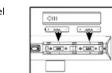
4.1 Batterie Installation Die i onik® Tastatur benötic
Die 1.0hik - Tastatal benötigt zwei AAA Alkaline Butterchen.
- Entfernen Sie den Batteriedecke
auf der Unterseite der Tastatur. - Legen Sie die Batterien, wie im Batteriefach dargestellt ein
- Schließen Sie den Batteriefach
deckel.
4.2 Verbindung des USB Nano Receivers
Verbinden Sie den USB Nano Receiver mit einem USB-Port Ihres Gerätes (z.B. Smart TV, Tablet etc.). tt
(No text)


4.3 Auf Werkseinstellungen zurücksetzen
Sofern Sie den Eindruck haben, dass die kabellose Tastatur
nicht fehlerfrei funktioniert, haben Sie die Möglichkeit, die Tastatur wiedes auf die Werkseinstellung zurückzusetzen.
1. Prüfen Sie zunächst, ob die Batterien noch genügend
Energie liefern. Andernfalls sollten Sie die Batterien
austauschen.
2. Drücken Sie gleichzeitig die „Esc“- und die „K“-Taste.
3. Verbinden Sie unterdritten den USB Receives mit dem
3. Verbinden Sie unterdessen den USB-Receiver mit dem USB-Port des Computers.
Hinweis: Die i.onik® Tatstatur verfügt über eine Ener-
giesparfunktion. Wird die Tastatur für ca. 5 Sekunden nicht verwendet, wird diese in den Ruhezustand versetzt
Hicht verwendet, wird diese in den Kunezustand Versetzt
Drücken Sie dann eine beliebige Taste oder drücken Sie
auf den Touchscreen, um die i.onik® Tastatur wieder zu
reaktivieren.
Wir übernehmen keine Verantwortung für verlorene oder zerstörte Daten oder für Beschädigung anderer
Geräte. Vor dem Zugriff von Kindern schützen. Gefahr durch Verschlucken. Alle Angaben ohne Gewähr.
Chips and More GmbH
Gewerbestr. 7 | 79112 Freiburg | Germany | www.i-onik.de
Service: +49 7664 403 69 12
Email: support@i-onik.de

2.4 GHz
Wireless Keyboard
User Manual

ionik

According to the European WEEE directive, electrical and electronic equipment must not be disposed with consumer waste. Its components must be recycled or disposed apart from each other. Otherwise contaminative and hazardous substances can pollute our
You as a consumer are committed by law to dispose electrical and electronic devices to the producer, the dealer or public collecting points at the end of the devices lifetime for free. Particulars are regulated in national right. The symbol on the product, in the user's manual or at the packaging alludes to these terms. With this kind of waste separation, application and waste disposal of used devices you achieve an important share to environmental protection.
1.0 Safety Instruction
Put the device always on a stable and straight surface. In case of falling it can be damaged. Don't place the device into direct sunlight or in places with
Don't place the device into direct sunlight or in places with high temperature. This can damage the device or shorten his average useful life.
Don't place it in the near of heat sources like radiators or other heat producing devices.
Don't expose the devices to rain, water, wetness or high humidity.
Don't place it in the bathroom or the kitchen in the near of a sink.
Avoid the direct contact with water. Don't try to open the device.
Prior to the first use of our product make a backup of your data.
We are not liable for any loss of data.
2.0 Introduction
The i.onik® Keyboard is a wireless keyboard with touchpad perfect for use with Smart TV etc.
3.1 Specification
2.1 Specification Alpha-numeric k
- Alpha-humene keyboard with 60 keys and 14 multimedial keys
- Touch area can be shifted to mouse or numeric keypad mode
• 2.4 GHz FSK Auto-link technology (automatic connection between USB receiver and keyboard)
- 67 two way RF channels
• Operation distance: 6-10 m
• Auto ON/OFF • With USB Nar
• Supports Windows 2000
• System Requirement: 1 USB-Port
3.2 Content
• 1x 2.4 GHz
• 1x USB Nano receiver
• 2x AAA alkaline batteries
- 1x manual - 1x warrant
- 1x Warranty card
3.0 Functions
3.1 Touchpad Functions 1. Default is numeric squared function
- Default is numeric keypad function. Moving by finger from left to right to enter into mouse function mode; moving from right to left side enter into numeric keypad mode.

- The mouse function list:
- Single finger move = the mouse cursor sliding action
- Single finger click = left button of mouse
- Single finger click - left button of mouse
- Double finger click = middle button of ma
- Three finger click = right button of mouse
- Double finger leftward = page up
- Double finger rightward = page down
- Double finger up & down = scroll up & scroll down
(2) 1987, 1988, 1989
3.2 Multimedia Hotkeys on the keyboard
Date F1 F2 F3 F4 F5 F6 F7 F8 F9 F10 F11 F12 F13 F14 F15 F16 F17 F18 F19 F20 F21 F22 F23 F24 F25 F26 F27 F28 F29 F30 F31 F32 F33 F34 F35 F36 F37 F38 F39 F40 F41 F42 F43 F44 F45 F46 F47 F48 F49 F50 F51 F52 F53 F54 F55 F56 F57 F58 F59 F60 F61 F62 F63 F64 F65 F66 F67 F68 F69 F70 F71 F72 F73 F74 F75 F76 F77 F78 F79 F80 F81 F82 F83 F84 F85 F86 F87 F88 F89 F90 F91 F92 F93 F94 F95 F96 F97 F98 F99 F100
| FN+ESC = Media Player | FN+F1 = Play/Pause |
| FN+F2 = Previous track | FN+F3 = Next track |
| FN+F4 = Volume down | FN+F5 = Volume up |
| FN+F6 = Mute | FN+F7 = Web/Home |
| FN+F8 = www search | FN+F9 = www favorite |
| FN+F10 = Mail | FN+F11 = Keys lock |
| FN+F12 = My Computer | FN+Einf = Calculator |
4.0 Operation
4.1 Installing the Batteries
The keyboard uses two AAA alkaline batteries.
- Remove the battery
compartment cover on
the bottom of the keyboard by occupying the cover in form
by squeezing the cover in from the tab to release it. - Insert the batteries as shown
inside the battery compartment. - Replace the cover.

4.2 Connecting the Receiver
Insert the receiver to a USB port immediate or by an extra USB cable. The keyboard is now ready for use.
USB cable. The keyboard is now ready for use.


4.3 Restoring Factory Default Settings
If the wireless keyboard doesn't work, you can set the device back to factory default settings.
vice back to factory default settings 1. Check if the battery volume is no
-
Check if the battery volume is normal. If the batteries are used out, please replace them.
-
Press the keys of "Esc" and "K" at the same time.
-
Insert the USB receiver into the USB port of the PC or
notebook
Note: Power saving design: When the keyboard doesn't
take any action about 5 seconds and gets into power save function, move and move touch the power to make the
function, press any key or touch the screen to wake the keyboard.
,
We do not assume any liability for lost or destroyed data or for any other devices. Keep away from children. Danger of choking on or swallowing small parts. All data
All trademarks, registered trademarks and logos are the property of their respective owners.
[Non-Text]
Chips and More GmbH
Gewerbestr. 7 | 79112 Freiburg | Germany | www.i-onik.de
Service: +49 7664 4036912
Email: support@i-onik.de


- Sicherheitshinweise
- Einführung
- Spezifikationen
- Inhalt
- Funktionen
- Touchpad Funktionen
- Multimedia Hotkeys
- Date F1 F2 F3 F4 F5 F6 F7 F8 F9 F10 F11 F12 F13 F14 F15 F16 F17 F18 F19 F20 F21 F22 F23 F24 F25 F26 F27 F28 F29 F30 F31 F32 F33 F34 F35 F36 F37 F38 F39 F40 F41 F42 F43 F44 F45 F46 F47 F48 F49 F50 F51 F52 F53 F54 F55 F56 F57 F58 F59 F60 F61 F62 F63 F64 F65 F66 F67 F68 F69 F70 F71 F72 F73 F74 F75 F76 F77 F78 F79 F80 F81 F82 F83 F84 F85 F86 F87 F88 F89 F90 F91 F92 F93 F94 F95 F96 F97 F98 F99 F100
- Bedienung
- Verbindung des USB Nano Receivers
- Auf Werkseinstellungen zurücksetzen
- Chips and More GmbH
- Safety Instruction
- Introduction
- Specification
- Specification Alpha-numeric k
- Functions
- Operation
- Installing the Batteries
- Connecting the Receiver
- Restoring Factory Default Settings
Marque : i-onik
Modèle : Wireless Keybord
Catégorie : Clavier