
PD03 - Client léger EVGA - Notice d'utilisation et mode d'emploi gratuit
Retrouvez gratuitement la notice de l'appareil PD03 EVGA au format PDF.


| Type de produit | Client léger (thin client) |
| Marque | EVGA |
| Modèle | PD03 |
| Dimensions (L × P × H) | Environ 180 × 120 × 30 mm |
| Poids | Environ 500 g |
| Alimentation | Adaptateur secteur 12 V DC, 3 A |
| Consommation électrique | 15 W maximum |
| Processeur | Intel Celeron ou équivalent |
| Mémoire vive (RAM) | 4 Go DDR4 |
| Stockage | eMMC 32 Go |
| Système d'exploitation | Windows 10 IoT ou Linux |
| Connectivité réseau | Ethernet Gigabit, Wi-Fi 802.11ac, Bluetooth 4.2 |
| Ports vidéo | 1 × HDMI, 1 × DisplayPort |
| Ports USB | 4 × USB 3.0 |
| Fonctions principales | Accès au bureau virtuel, navigation Web, applications légères, gestion centralisée |
| Entretien et nettoyage | Débrancher l'alimentation, essuyer avec un chiffon doux et sec, ne pas utiliser de produits chimiques |
| Sécurité | Kensington Lock, démarrage sécurisé, mise à jour automatique du micrologiciel |
| Pièces détachées et réparabilité | Batterie interne non remplaçable, RAM soudée, stockage eMMC soudé, ventilateur remplaçable |
| Garantie | 2 ans constructeur |
FOIRE AUX QUESTIONS - PD03 EVGA
Questions des utilisateurs sur PD03 EVGA
0 question sur cet appareil. Repondez a celles que vous connaissez ou posez la votre.
Poser une nouvelle question sur cet appareil
Téléchargez la notice de votre Client léger au format PDF gratuitement ! Retrouvez votre notice PD03 - EVGA et reprennez votre appareil électronique en main. Sur cette page sont publiés tous les documents nécessaires à l'utilisation de votre appareil PD03 de la marque EVGA.
MODE D'EMPLOI PD03 EVGA
Additional Notes
Monitor types:
In addition to DVI monitors, the Zero-Client is compatible with analog VGA and digital HDMI monitors. Simply attach a DVI-to-VGA or DVI-to-HDMI adapter to the Zero-Client's DVI connector.
Audio:
The Zero-Client uses the Realtek High-Definition Audio Codec. Windows® 7 / Vista natively contains an HD Audio driver for this Codec. For other operating systems, including Windows® XP, please install the High-Definition Audio Codec driver from www.realtek.com to use PCoIP® System's full audio capabilities.
IP Address:
The Zero-Client is set to DHCP client mode by default. Normally, the IP address of the Zero-Client is assigned by the DHCP server on your IP network. If your IP network does not have a DHCP server, the Zero-Client will fall back to a static IP address mode after a timeout period of approximately 2 minutes. In the fall back static IP address mode you can access the Zero-Client web interface to disable DHCP client mode and assign a static IP address. The Zero-Client's fall back IP address is 192.168.1.50.
Zero-Client Buttons:
The Zero-Client's Power Button (1) is a multi-function button.
- A short push (< 4 seconds) powers on the Zero-Client. - A long push (> 4 seconds) powers off the Zero-Client.
- When the Zero-Client is connected in a session, a short push will disconnect it from the Host.
Need More Help?
Please refer to the documents on the Documentation CD for more information.
This Product Covered By:
This product is covered under EVGA's warranty which covers parts and labor. For more details on the warranty length and terms of this specific product, please visit www.evga.com:warranty.
EVGA Support:
888 - 861 - EVGA (3842) www.evga.com/about/contactus
www.evga.com E009-00-000035
EVGA.
PD03 PCoIP® Visual Guide
PD03 PCoIP® Zero-Client


Speaker/Headphone Jack (3)
Package Contents
PD03 Zero-Client Package
Includes:
- Zero-Client
• Power adapter and cord - Manual on CD
• Visual Guide

WARNING
- Always power down and disconnect devices from AC power before handling them. Failure to do this can result in personal injury or equipment damage. Some circuitry on the host PC can continue to operate even though the front panel power switch is off.
- The Standalone Mode Power Connector on the host card must be disconnected when the host card is operating in PCI-E powered mode. Failure to do this can result in damage to the host card.
PCoIP® Zero-Client Installation
- Be sure the monitor and the Zero-Client are turned off and disconnected from AC power.
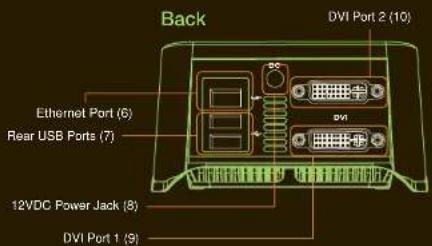
- Use a DVI cable to connect the monitor to the Zero-Client's DVI Port 1 (9).
- Plug the monitor's power cable into an AC outlet and power it on
- If you are using dual monitors, repeat Steps 1 through 3 but connect the second monitor to the Zero-Client's DVI Port 2 (10).
- Connect a USB keyboard and mouse to the Zero-Client's USB ports
- Use a Ethernet cable to connect the Ethernet switch or router to the Zero-Client's Ethernet jack (6).
- Connect the Zero-Client power supply to the Zero-Client's power jack (6), then plug the Zero-Client
power supply into a surge-protected AC outlet. [Ambient 35°C and Input rating (12V, 3A)] - Optionally connect the following devices to the Zero-Client:
• PC speaker to Speaker jack (3)
• MIC to Microphone jack (4)
• USB peripherals to auxiliary USB ports (6)
- Power on the Zero-Client; by pushing the power button (1).
Remote Power Management
During PCoIP® sessions you can use the zero client Remote PC Power Button (2) to change the power state of the workstation equipped with Teradici enabled host cards. This allows the user to put the workstation to sleep or power off remotely from the zero client. To enable this function please see the manual included with your Teradici enabled host card.
Visit www.evga.com/support/manuals for a digital version of EVGA PCoIP* product manuals and setup instructions.

Marque : EVGA
Modèle : PD03
Catégorie : Client léger