
Back-UPS 400 - Alimentation d'énergie non interruptible APC - Notice d'utilisation et mode d'emploi gratuit
Retrouvez gratuitement la notice de l'appareil Back-UPS 400 APC au format PDF.


| Type de produit | Alimentation d'énergie non interruptible (UPS) |
| Marque | APC |
| Modèle | Back-UPS 400 |
| Capacité | 400 VA / 240 W |
| Tension d'entrée | 230 V CA |
| Tension de sortie | 230 V CA régulée |
| Nombre de prises | 2 prises secteur + 1 prise téléphone (protection) |
| Protection | Parafoudre, protection téléphonique/RJ11 |
| Autonomie typique | 5 à 10 minutes à pleine charge |
| Dimensions (L x P x H) | 17 x 34 x 10 cm environ |
| Poids | 5 kg environ |
| Type de batterie | Plomb-acide scellé, sans entretien |
| Durée de vie de la batterie | 3 à 5 ans selon usage |
| Fonctions principales | Protection contre les coupures, sous-tensions et surtensions |
| Entretien et nettoyage | Nettoyer avec un chiffon doux et sec. Ne pas utiliser de liquides. |
| Sécurité | Brancher sur une prise de terre. Ne pas brancher d'appareils dépassant la puissance maximale. |
| Pièces détachées et réparabilité | Batterie de remplacement disponible auprès d'APC ou revendeurs agréés. |
| Informations générales | Conçu pour ordinateurs personnels, modems et périphériques de bureau. |
FOIRE AUX QUESTIONS - Back-UPS 400 APC
Questions des utilisateurs sur Back-UPS 400 APC
0 question sur cet appareil. Repondez a celles que vous connaissez ou posez la votre.
Poser une nouvelle question sur cet appareil
Téléchargez la notice de votre Alimentation d'énergie non interruptible au format PDF gratuitement ! Retrouvez votre notice Back-UPS 400 - APC et reprennez votre appareil électronique en main. Sur cette page sont publiés tous les documents nécessaires à l'utilisation de votre appareil Back-UPS 400 de la marque APC.
MODE D'EMPLOI Back-UPS 400 APC
1 Connect Battery
For safety, the Back-UPS ES is shipped with one battery wire disconnected. The Back-UPS ES will not operate until the wire is connected to the touch safe battery terminal.
NOTE: Small sparks may occur during battery connection. This is normal.

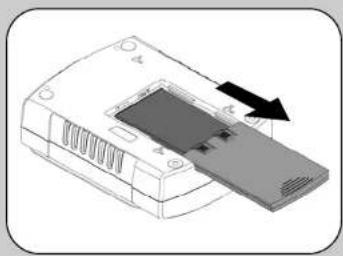
TURN the Back-UPS ES over and slide the battery compartment cover off of the battery housing.

LIFT the battery out of the compartment and connect the black wire to the negative (-) battery terminal. Ensure the batteries are installed as shown below.

Slide the battery compartment cover back onto the battery housing.
natural_image
Illustration of a device with a black arrow pointing to a component (no text or symbols)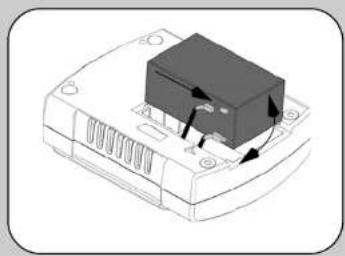
natural_image
Diagram of a device with a black box and directional arrows indicating movement or force (no text or symbols)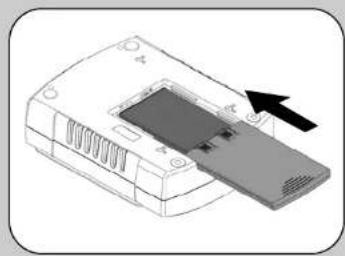
natural_image
Illustration of a device with an arrow pointing to a screen (no text or symbols visible)2 Connect Equipment

Battery Backup Surge Protection
These outlets are powered whenever the Back-UPS ES is switched ON. During a power outage or other AC problems (brownouts, over-voltages), these outlets will be powered for a limited time by the Back-UPS ES. Plug your computer, monitor, and two other data-sensitive devices (external disk or tape drive) into these outlets.
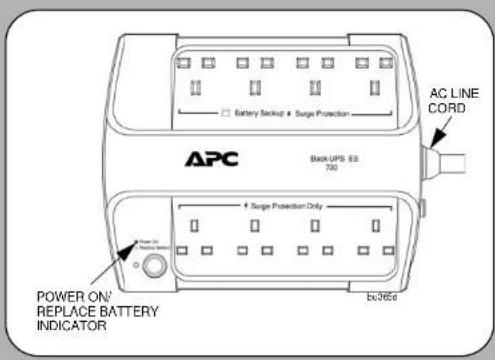

Surge Protection Only
These outlets provide full-time protection from surges even if the Back-UPS ES is switched OFF. Plug your printer, fax machine, scanner, or other peripherals that do not need battery power into these outlets.
Place the Back-UPS ES to avoid:
- Direct sunlight
- Excessive heat
- Excessive humidity or contact with fluids

Plug the Back-UPS ES power cord directly into a wall outlet; not a surge protector or power strip. The wall outlet should be located near the equipment and be easily accessible.
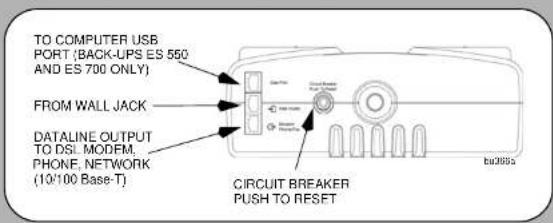
Connect Modem / Phone / DSL / Fax / 10/100 Base- T/HPNA to Surge Protection.
The Back-UPS protects a single line (2-wire) phone (including Digital Subscriber line - DSL), Home Phoneline Networking Association (HPNA) type equipment, modem, 10/100 Base-T Ethernet, or fax machines from surges when connected through the UPS as shown in the drawing below.
Note: Telephone Cable OR Network Cable should be connected to Surge Protection ports. Do not connect the UPS surge protection ports to both Telephone and Network System cables at the same time.
Connect Computer Cable (This is applicable for 550/700 only)
The supplied cable and software provide automatic file saving and shutdown of the operating system in the case of a sustained power outage. Connect the cable to the Data Port of the Back-UPS ES. Connect the other end of the cable to the USB port on your computer. The software will automatically find the USB Port of your computer.
3 Power On and Install Software
Press the ON/OFF switch to power the unit ON.
A single short beep and the green "Power On" indicator confirms that Back-UPS ES is on and ready to provide protection.
The Back-UPS ES should charge for at least 16 hours to ensure sufficient runtime. The unit is being charged whenever it is connected to AC power, whether the unit is turned ON or OFF.
Install the PowerChute™ Personal Edition software (This is applicable for 550/700 only.)
Place the PowerChute Personal Edition CD-ROM Into your computer and follow the installation instructions on the screen.
Status Indicators
The Back-UPS ES indicates operating status using a combination of visual and audible indicators. Use the following table to identify the status of the Back-UPS ES.
| Status Visual Indications | (Power On - Green)(Replace Battery - Rod) | Audible Indication Alarm | TerminatesWhen |
| Power On - UPS is supplying conditioned AC power to the load. | Power On LED - ON None | Not applicable. | |
| On Battery - UPS is supplying battery power to the load connected to the Battery outlets. | Power On LED - ON (off during beep) | Beeping 4 times every 30 seconds | UPS transfers back to Power On operation, or when UPS is turned off. |
| Low Battery Warning - UPS is supplying battery power to the load connected to the Battery outlets and the battery is near exhaustion. | Power On LED - flashing | Rapid beeping (every 1/2 second) | UPS transfers back to normal operation, or when UPS is turned off. |
| Replace Battery - Battery is in need of charging or is at the end of its usual life and must be replaced. | Power On and Replace Battery LEDs - Flashing(alternating) | Constant tone UPS turned off with the power switch. | |
| Battery Disconnected - The battery is disconnected or bad battery. | Replace Battery LED - flashing | Constant tone UPS turned off with the power switch. | |
| Overload Shutdown During On Battery operation a battery power supplied outlet overload was detected. | None Constant tone UPS turned off with the | power switch. | |
| Sleep Mode - During On Battery operation the battery power has been completely exhausted and the UPS is waiting for AC power to return to normal. | None Beeping once every 4 seconds. | AC power is restored, or if AC power is not restored within 32 seconds, or the UPS is turned off. | |
See the Troubleshooting section for additional assistance.
Troubleshooting
Use the table below to solve minor Back-UPS ES installation or operation problems. Consult Schneider Electric IT (SEIT) Online Technical Support or call SEIT Technical Support for assistance with problems that cannot be resolved using the table below:
| Solution | ||
| Back-UPS ES will not turn on. | Battery is disconnected or AC power is not available at the wall outlet. | Connect the battery (see Connect Battery) and ensure power is available at the wall outlet. |
| No power available at the Surge Protection Only outlets. | Surge Protection Only outlets have been overloaded. AC power not available at the wall outlet. | Reduce the amount of equipment plugged into Surge Protection Only outlets.Ensure the fuse or circuit breaker for the outlet is not tripped, and that the wall switch controlling the outlet (if any) is in the ON position. |
| Connected equipment loses power. | Equipment is connected to the Surge Protection Only outlets.The Back-UPS ES is overloaded.PowerChute Personal Edition software has performed a shutdown due to a power failure.The Back-UPS ES has exhausted its available battery power-connected equipment does not accept the step-approximated sine waveform of the Back-UPS ES.The Back-UPS ES may require service. | Ensure the equipment you want to stay powered during a power failure is plugged into the Battery Backup/Surge Protection outlets and NOT the Surge Protection Only outlets.Make sure the equipment plugged into the Battery Backup/Surge Protection outlets of the unit are not overloading the capacity of the unit. Try removing some of the equipment and see if the problem continues.The Back-UPS ES is operating normally.The Back-UPS ES can only operate on battery power for a limited amount of time. The unit will eventually turn off when the available battery power has been used. Allow the unit to recharge for 16 hours before continuing use of the unit.The output waveform is designed for computers and computer-related equipment. It is not designed for use with motor-type equipment.Contact SEIT Technical Support for further troubleshooting. |
| The Power On indicator is lit and the Back-UPS ES is beeping four times every 30 seconds. | The Back-UPS ES is using battery. | The Back-UPS ES is operating normally and using battery power. Once On Battery, you should save your current work, power down your equipment, and turn the unit OFF. Once normal power is restored, you may turn the unit back ON and power your equipment. |
| The Power On indicator flashes once per second and the Back-UPS ES beeps once per second at the same time. | Battery capacity is low (about 2 minutes of use remaining). | The Back-UPS ES is about to shut off due to a low battery charge condition! When the unit beeps once every second, the battery has about 2 minutes of power remaining. Immediately power down your computer and turn the unit OFF. When normal power returns, the unit will recharge the battery. |
| Inadequate runtime. | The battery is not fully charged.Battery is near the end of useful life. | Allow the unit to charge by leaving it plugged into the wall for at least 16 hours.As a battery ages, the amount of runtime available will decrease. You can replace the battery by ordering one at www.apc.com. Batteries also ago prematurely if the Back-UPS ES is placed near excessive heat. |
Specifications
| Item | Specification | BE400 | BE550 | BE700 |
| Input Voltage 230 Vrms Nominal | ||||
| Frequency 50 - 60 Hz (auto sensing) | ||||
| Brownout Transfer 180 Vrms, typical | ||||
| Over-voltage Transfer 266 Vrms, typical | ||||
| Output Voltage On Battery 230 Vac rms +/- 8% | ||||
| Total Amperage (8 outlots) 10 Amps (including UPS output) | ||||
| UPS Capacity (4 outlots) 400VA/240W 550VA/330W 700VA/405W | ||||
| Frequency - On Battery 50/60 Hz +/-1 Hz | ||||
| Transfer Time 6 ms typical. 10 ms maximum | ||||
| Protection and Filter | AC Surge Protection | Full time. 310 joules | ||
| Phone/fax/DSL Surge Protection | Single line (2-wire) | |||
| Network Surge Protection | 10/100Base-T Ethernet | |||
| EMI/RFI Filter | Full time | |||
| AC Input | Resellable circuit breaker | |||
| Battery Type | Sealed, maintenance-free lead acid | |||
| Average Life | 3 - 5 years depending on the number of discharge cycles and environmental temperature | |||
| Physical | Net Weight | 5.4kg | 6.4kg | 6.8kg |
| Dimensions (H x W x D) | 285 x 230 x 86 mm(11.18" x 9.05" x 3.3 in.) | |||
| Operating Temperature | 0°C to 40°C (32°F to 104°F) | |||
| Storage Temperature | -15°C to 45°C (5°F to 113°F) | |||
| Operating Relative Humidity | 0 to 95% non-condensing | |||
| Operating Elevation | 0 to 3000 m (0 to 10,000 ft) | |||
Wall Mount of UPS
The UPS can be mounted vertically or horizontally to a wall surface. Use the template below to position the mounting fasteners (not supplied). Wall mount the UPS as follows;
-
Hold this page against the wall in the desired mounting location.
-
Use thumbtacks or tape to hold this page in place against the wall. Use a sharp nail or pin to puncture the center of each template circle to mark the wall.
-
Install the mounting fasteners at the marked locations. Leave the head of both fasteners 8 mm (5/16) out from the face of the wall. The fasteners must be able to support 6.8 Kg.
-
Mount the UPS by positioning the key-hole slots over the mounting fasteners heads. For vertical mounting, slide the UPS down into place. For horizontal mounting, turn it slightly counterclockwise until it is securely in place.
Order Replacement Battery
Replace with an APC by Schneider Electric qualified battery. Replacement batteries can be ordered from www.apc.com (valid credit card required). For Back-UPS ES 400, order APCRBC106 as directed by SEIT Technical Support. For Back-UPS ES 550, order RBC2. For Back-UPS ES 700, order RBC17.
Warranty
The standard warranty is three (3) years from the date of purchase. Schneider Electric IT (SEIT) standard procedure is to replace the original unit with a factory reconditioned unit. Customers who must have the original unit back due to the assignment of asset tags and set depreciation schedules must declare such a need at first contact with an SEIT Technical Support representative. SEIT will ship the replacement unit once the defective unit has been received by the repair department, or cross ship upon the receipt of a valid credit card number. The customer pays for shipping the unit to SEIT. SEIT pays ground freight transportation costs to ship the replacement unit to the customer.
Service
If the unit requires service, do not return it to the dealer. Follow these steps:
- Review the Troubleshooting section of the manual to eliminate common problems.
-
If the problem persists, contact Schneider Electric IT (SEIT) Customer Support through the APC by Schneider Electric Web site, www.apc.com.
a. Note the model number and serial number and the date of purchase. The model and serial numbers are located on the rear panel of the unit and are available through the LCD display on select models.
b. Call SEIT Customer Support and a technician will attempt to solve the problem over the phone. If this is not possible, the technician will issue a Returned Material Authorization Number (RMA#).
c. If the unit is under warranty, the repairs are free.
d. Service procedures and returns may vary internationally. Refer to the APC by Schneider Electric Web site for country specific instructions. -
Pack the unit in the original packaging whenever possible to avoid damage in transit. Never use foam beads for packaging. Damage sustained in transit is not covered under warranty.
-
Always DISCONNECT THE UPS BATTERIES before shipping. The United States Department of Transportation (DOT), and the International Air Transport Association (IATA) regulations require that UPS batteries be disconnected before shipping. The internal batteries may remain in the UPS
-
Write the RMA# provided by Customer Support on the outside of the package.
-
Return the unit by insured, pre-paid carrier to the address provided by Customer Support.
APC by Schneider Electric IT Customer Support Worldwide
For country specific customer support, go to the APC by Schneider Electric Web site, www.apc.com.
- Connect Battery
- Connect Equipment
- Battery Backup Surge Protection
- Surge Protection Only
- Place the Back-UPS ES to avoid:
- Connect Computer Cable (This is applicable for 550/700 only)
- Power On and Install Software
- Status Indicators
- Troubleshooting
- Specifications
- Wall Mount of UPS
- Order Replacement Battery
- Warranty
- Service
- APC by Schneider Electric IT Customer Support Worldwide
Marque : APC
Modèle : Back-UPS 400
Catégorie : Alimentation d'énergie non interruptible