
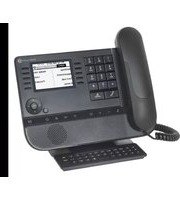
IP20 - Téléphone ALCATEL-LUCENT - Notice d'utilisation et mode d'emploi gratuit
Retrouvez gratuitement la notice de l'appareil IP20 ALCATEL-LUCENT au format PDF.


| Type de produit | Téléphone IP |
| Marque | Alcatel-Lucent |
| Modèle | IP20 |
| Catégorie | Téléphone |
| Dimensions (approx.) | 200 x 180 x 100 mm |
| Poids (approx.) | 800 g |
| Alimentation | PoE (Power over Ethernet) ou adaptateur secteur |
| Écran | Affichage graphique avec icônes |
| Clavier | Numérique avec touches de fonction |
| Fonctions principales | Intercom, conférence à 3, transfert d'appel, renvoi d'appel, mise en attente, double appel |
| Répertoire | Annuaire téléphonique intégré |
| Mode mains-libres | Oui, touche dédiée |
| Casque | Prise casque pour communication mains-libres |
| Messagerie vocale | Accès direct par touche dédiée |
| Ne pas déranger | Fonction DND activable par ligne |
| Rappel automatique | Fonction de rappel |
| Interface web | Configuration via navigateur (adresse IP) |
| Alimentation de secours | Piles rechargeables (indicateur de charge) |
| Entretien et nettoyage | Nettoyer avec un chiffon doux et sec. Ne pas utiliser de produits liquides ou abrasifs. |
| Sécurité | Maintenir à l'abri de l'eau et de l'humidité. Débrancher avant nettoyage. |
| Pièces détachées et réparabilité | Batterie rechargeable remplaçable. Support technique fabricant. |
| Informations générales | Conforme aux directives européennes (marquage CE). Copyright © 2012 ATLINKS. |
FOIRE AUX QUESTIONS - IP20 ALCATEL-LUCENT
Questions des utilisateurs sur IP20 ALCATEL-LUCENT
0 question sur cet appareil. Repondez a celles que vous connaissez ou posez la votre.
Poser une nouvelle question sur cet appareil
Téléchargez la notice de votre Téléphone au format PDF gratuitement ! Retrouvez votre notice IP20 - ALCATEL-LUCENT et reprennez votre appareil électronique en main. Sur cette page sont publiés tous les documents nécessaires à l'utilisation de votre appareil IP20 de la marque ALCATEL-LUCENT.
MODE D'EMPLOI IP20 ALCATEL-LUCENT
Declaration of conformity for the European Community
ATLINKS declares that Alcatel IP20 telephone complies with the relevant basic requirements and provisions of the European directive 1999/5/CE. You can download the declaration of conformity and the user's guide from the following address:
www.alcatel-business.com
The CE logo shown on the products indicates that they are compliant with the basic requirements of all the applicable directives.
CE
Environment

This symbol means that your inoperative electronic appliance must be collected separately and not mixed with the household waste. The European Union has implemented a specific collection and recycling system for which producers' are responsible.
This appliance has been designed and manufactured with high quality materials and components that can be recycled and reused.
Electrical and electronic appliances are liable to contain parts that are necessary in order for the system to work properly but which can become a health and environmental hazard if they are not handled or disposed of in the proper way. Consequently, please do not throw out your imperative appliance with the household waste. If you are the owner of the appliance, you must deposit it at the appropriate local collection point or leave it with the vendor when buying a new appliance.
(a) - If you are a professional user, please follow your supplier's instructions.
(b) - If the appliance is rented to you or left in your care, please contact your service provider.
Please help us protect the environment in which we live!
Notice of copyright and trademarks
Copyright © 2012 ATLINKS All rights reserved. ATLINKS reserves the right to change the technical specifications of its products without prior notice, so as to make technical improvements or respect new regulations.
Alcatel are registered trademarks. Alcatel logo and Alcatel name are trademarks of Alcatel Lucent and used under license by ATLINKS.
Intercom
- Press INT and select the desired handset from the list and press ≡ key to launch the call.
Making a call
- Pre-dialing : enter the phone number and press - Direct dialing : press . Enter the phone number
- Handsfree: enter the phone number and press twice - Headset: connect the headset to the phone, enter phone number and press
Note: to place a call from a specific line, make a long press on ☐ and use navigator to select the desired line and press ☑.
Accepting a call
- Handset mode: press. - Headset mode: press. - Handsfree mode: press twice. - Answering a waiting call: select Accept or Reject softkey.
Putting a call on hold
- Select Hold with navigator and press ☐. - To retrieve the call, select Unhold with navigator and press ☐.
3-party conference
- Once in line with 1st caller, press 2nd Call softkey, then select the type of call and press[**].
• Dial 2nd party number or select handset and press
• Then press Conf soft key to establish the conference.
Note: you may be asked to select the line to use for the second call.
Call forward
- Press ☒ to open main menu. Select Services → Call Forward. - Select the line for which you want to set call forward. - Then select the type of call forward. - Set the status to enabled/disabled, fill in destination number and press ☒
Call transfer
Attended transfer:
- Once in line with 1st caller, press 2nd Call softkey, then select the type of call and press OK.
• Dial the second phone number or select handset.
- When the call is answered, select Transfer from call options list to complete the transfer.
Blind transfer:
• Once in line with 1 ^st caller, press Transfer softkey
• Dial the destination telephone number and press Transfer soft key
ALCATEL
Alcatel IP20
Quick start guide
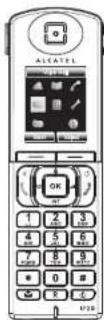
Left soft key: access to call list
Right soft key:
access to calendar
OK Navigation key: main menu/OK key
Left: phonebook
Right: volume control
Up: redial
INT Down: Intercom
BLF key
End call Power on/off
Accept calls Handsfree mode Select line
Hash key: change input method (upper/lower case)
Voicemail key
Star key: lock/unlock keypad (long press)
Mute key: muto/unmute
Display icon description
| Missed calls | Ringer off | Voicemail | |||
| Handsfree activated | DND | Do not disturb | Headset mode | ||
| Mute | Keypad lock | Alarm on | |||
| Battery charge level : ck Batteries need charging | Call | Good reception qualityBad reception quality | Call in progress (green)Call on hold (red)Call ended (red) | ||
| Call forward |
Handset registration
• From base : make a long press on key until led is flashing in blue.
- From handset : press OK
- Select base on which you want to register the handset and press OK
- If requested, enter base code (0000 by default) and press ☑ otherwise handset will register automatically to the base.
Language selection
- Press ☑ to open main menu. Select Settings → Language.
- Select the desired language and press on
Redial
- Press
• Highlight a record.
- Press i to make the call, you may select the line by long pressing i
Phonebook
Access phonebook
- Press
- Select the Directory type
- Select a contact and press Options soft key to select an operation.
Add new entry - Press
- Select the Directory type
- Press Options soft key and select Add.
• Enter first name, last name and numbers - Press Save softkey
Do not Disturb
- Press OK Select Services → DND
- Select the line for which you want to set DND feature.
- Select Activate and press OK
Voicemail
- Press 📁 to access voicemail.
OR - Go to Menu → Voicemail to check number of messages. Press Call softkey to retrieve your messages.
Handset web interface
- Press ☐ to access main menu.
- Select Status + Network Status Check IP address
- Open a web browser on your computer. Enter http:// and the IP address in the address bar and confirm. Default login is "userx"/0000, where "x" is your handset number.
- Declaration of conformity for the European Community
- CE
- Environment
- Notice of copyright and trademarks
- Intercom
- Making a call
- Accepting a call
- Putting a call on hold
- 3-party conference
- Call forward
- Call transfer
- Attended transfer:
- Blind transfer:
- ALCATEL
- Handset registration
- Language selection
- Redial
- - Press
- Phonebook
- Access phonebook
- Do not Disturb
- Voicemail
- Handset web interface
Marque : ALCATEL-LUCENT
Modèle : IP20
Catégorie : Téléphone