
VPCJ128FG - Ordinateur de bureau SONY - Notice d'utilisation et mode d'emploi gratuit
Retrouvez gratuitement la notice de l'appareil VPCJ128FG SONY au format PDF.


| Type de produit | Ordinateur de bureau tout-en-un |
| Marque | Sony |
| Modèle | VPCJ128FG |
| Taille de l'écran | 21,5 pouces (54,6 cm) |
| Résolution d'écran | 1920 x 1080 pixels (Full HD) |
| Processeur | Intel Core i3-2100 (2 cœurs, 3,1 GHz) |
| Mémoire RAM | 4 Go DDR3 |
| Disque dur | 500 Go SATA |
| Système d'exploitation | Windows 7 Édition Familiale Premium (64 bits) |
| Connectivité | Wi-Fi 802.11 b/g/n, Ethernet 10/100/1000, Bluetooth 2.1 |
| Ports | 4x USB 2.0, 1x HDMI, 1x VGA, 1x sortie casque, 1x entrée microphone |
| Lecteur optique | Graveur DVD SuperMulti |
| Webcam intégrée | Oui, 1,3 mégapixels |
| Dimensions (L x H x P) | 53,0 x 41,0 x 20,0 cm |
| Poids | Environ 8,5 kg |
| Alimentation | Adaptateur secteur 19,5 V, 6,15 A (120 W) |
| Consommation électrique | Max. 100 W, veille 2 W |
| Fonctions principales | Navigation internet, bureautique, multimédia, jeux légers |
| Entretien et nettoyage | Débrancher avant nettoyage ; utiliser un chiffon doux et sec ; éviter les produits abrasifs |
| Sécurité | Ne pas exposer à l'humidité ou à une source de chaleur ; utiliser une prise avec mise à la terre |
| Pièces détachées et réparabilité | Certaines pièces (batterie CMOS, disque dur, RAM) sont accessibles ; contacter un service agréé pour la réparation |
| Informations générales | Notice disponible en téléchargement gratuit au format PDF sur notice-facile.com |
FOIRE AUX QUESTIONS - VPCJ128FG SONY
Questions des utilisateurs sur VPCJ128FG SONY
0 question sur cet appareil. Repondez a celles que vous connaissez ou posez la votre.
Poser une nouvelle question sur cet appareil
Téléchargez la notice de votre Ordinateur de bureau au format PDF gratuitement ! Retrouvez votre notice VPCJ128FG - SONY et reprennez votre appareil électronique en main. Sur cette page sont publiés tous les documents nécessaires à l'utilisation de votre appareil VPCJ128FG de la marque SONY.
MODE D'EMPLOI VPCJ128FG SONY
SONY
Recovery, Backup and Troubleshooting Guide
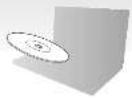
Please create your Recovery Media immediately after setup.
V10
[Barcode]
4-28-95-1111 © 2010 Sore Corporation, Peruvian Japan

Introduction
About recovery
What is recovery?
Recovery is the process of reducing your computer back in an original factory condition. There are two ways to recover your computer: □ From Recovery Media □ From the necessary area

When do I have to perform recovery?
- If your computer has been undelated - If your computer has been infected with a computer case - If your computer is experiencing problems, which cannot be covered through troubleshooting - If you have remained the Computer by multiple
Which software should I use to maintain and recover my computer?
Use the following software.
YAO Care □ Creating Recovery Media □ Checking your computer hardware YAO Care Rescum
□ Receiving tracking up your area □ Reporting law controller
□ Erasing all the data on your built-in storage device
See the help file included with VAID Care and VAID Care Rescue for more information.
What is a recovery area?
The recovery area on the built-in storage device contains data for system and application recovery. Typically, you cannot modify or decode data in this area, however, there is commercially available software designed for this purpose.
Why do I have to create Recovery Media?
Germany Media are used to remove your computer work in the entire factory condition. It will not do not start and you have deleted the necessary area, you will need the laboratory Media for perfect recovery. Create the laboratory Media limited study after the computer is ready for use.
About backup
What is a backup process?
The backup process creates a backup copy of your data stored on the built-in storage device and saves it to another location.

Why do I have to back up my data?
Due to unrecognised with or consumer services, you might lose various data stored on your built in enterprise stores. To continue the next date, by backup copy is needed. It is strongly recommended that you have up your these website.

Creating Recovery Media Recovering your computer
[Unreadable]
You can't confirm the number of necessary data and space to make you can use for focus? Methods create in depth.
You cannot use Blu-ray Disc media
DVD-RAM.CD-R Bergener Media
- Cancel your computer to the Internet, download and install the latest updates using VALID Update.
2 If your computer is not equipped with a built-in optical disc drive, connect an external optical disc drive (int) supplied to the
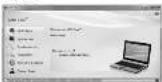
3 Dick Start, All Programs, VAID Care, and VAID Care.
If the User Account Control window space is click Yes.
_1
If you are currently logged once your computer as a standard user, you may be prompted to enter an administrator name and a password.
4 Click Recovery & notons, select Recovery and then click Crash Recovery Media
- Use the on-screen instructions carefully, and
the G:100%
6 Insert the media you want to use.
7 Follow the on-screen instructions.
1
It may take some time to clap by the current status of the procedure.
Do not press the drive eject button while creating Recovery Media, as doing so may result in a failure of the process. Keep the Recovery Media in a secure place.

computer
To review your computer back to its original factory condition, follow one of the security methods below.
1
Recovering your computer will delete all the data on the built-in storage device.
To recover from the recovery area
On models with the ASSIST button
- Show the ASSIST FINANCIAL YEAR
- Commence is often in place
VAID Care-Recue
2 Click Start recovery wizard
6
To perform the custom recovery, select
Tanis and click First advanced reorganized
-
Follow the screen lock, other
-
2017年1月1日,公司召开2017年第一次临时股东大会。
On models without the ASSIST button
I run my your computer and press the Pro
screen disappears
Fire Edit Boot Options Window is
-
-
-
-
-
-
-
-
-
-
-
-
-
-
-
-
-
-
-
-
-
-
-
-
-
-
-
-
-
-
-
-
-
-
-
-
-
-
-
-
-
-
-
-
-
-
-
-
-
-
-
-
-
-
-
-
-
-
-
-
-
-
-
-
-
-
-
-
-
-
- 99.
-
-
-
-
-
-
-
-
-
-
-
-
-
-
-
-
-
-
-
-
-
-
-
-
-
-
-
-
-
-
-
-
-
-
-
-
-
-
-
-
-
-
-
-
-
-
-
-
-
-
-
-
-
-
-
-
-
-
-
-
-
-
-
-
-
-
-
-
-
-
School Start Recovery Wizard
2
Tooth and click
Start advanced recovery wizard
3 follow the in-screen instructions.
2017年1月1日,公司发布《关于使用部分闲置募集资金进行现金管理的公告》。
The bill is large for
1 If your computer is not equipped with a built
The following table provides the
computer and to an AC power source.
2 Inser: Germany Media into the political disc
dries while your computer is Normal mode,
turn on the computer, and me-turn run
• Given us when the original world's direction
press the F11 key several times before the
VAC logo screen chappears.
The Windows Boot Manager screens
2.6
Start V410 Care Bureau and
key
5 Select Start recovery wizard
[Non-Text]
To perform the custom recovery, select Tools
and click Start advanced recovery wizard.
- Take the job to find it
See the back side.

Backing up and restoring your data
your data when you can start Windows
If you can start Windows, here up and reduce your date with the Windows Server. To use the features, click Start, Control Panel System and Security, and Backup and Restore
To back up and restore your data when you cannot start Windows
When you cannot start Windows, here up your data with VAIO Care Rescue. To restore files which have been backed up by VAIO Care Rescue, we VAIO Data Restore Tool
Restoring your data using a restore point
Another point enables you to install your computer system for the previous state when the restore point was created. Typically, a restore point is created automatically, for example when you install a software driver. However, we recommend and you choose the monitor panel manually on the Control Panel window before including any software or software other than your computer.

Troubleshooting
To restore system files using the restore point when you cannot start Windows
1 Follow steps 1 to 3 in "Inverse form Recovery Ratio" of
-
Pass the ↑ or ↓ key as selected Windows RE and grow the Enter way.
-
Select a keyboard layout and click Next.
I the appropriate optional layout is not selected, you may not be able to enter the password correctly.
4 Select your operating system and click Next.
Back up your file with Rescue Data if you have changed the files after you hacked up then using the Windows backup feature.
5 Click System Restore
- In the following table
Open System Restore.
7 If the Choose a different restore point option is displayed in the System Restore software, select it and click Next. I not click Next.
8 Select a restore point and click Next
9 Click Finish to confirm the restore point. Reset your computer if the winery prompts you to enter the computer.
If you have any problem operating your computer
Try the acquisition before contacting an authorized Sany service-support center or your local Sany dealer directly.
- Read the double-hearing information in 2nd section in the un-sheet User Guide. - Launch VAIO Care and perform necessary operations. - Visit VAIO online support website.
Recovery problems
I cannot recover from the recovery area
Recover your computer from Recovery Media if you have used software to modify the necessary area installed at different operating systems from the preinstalled area, or transmitted the full-in storage device to manual entry VALID Care Hardware
I cannot create Recovery Media
Try the suggestions below:
1 Restart your computer. And then try to
2 Download and Install the latest updates using VAID Update.
I cannot complete the recovery process
□ Disconnect all unnecessary external devices from your computer.
- You are trying to recover your computer from Recovery Media, check the media for dirt or damage. If the media are not clean, clean than and try recovering the computer again.
2 Recover your computer from the recovery area or the Summary Media.
3 The problem persists visit the VMO online support: web site for further availability.
Common problemsTo back up and restore
My computer does not start
□ Make sure your computer is securely plugged
The power of the A_1 -the power set is
Make sure the battery pack is rebled
property and changes.
□ Distinction connected US\$ codes (if any)
□ Remove all existing memory modules to move
these installed since purchase and from sale
your computer
□ 1 year computer a program in a power ship
or surge, probe solder supply,
into a power source and turned on
☐ Unplug the power cord or the AC adapter, and removes the battery pack. Wait three to five minutes. Relntail the battery pack, plug the power cord or the AC adapter, and then turn on your computer.
□ Condemnation may cause your computer to
manufuch. This occurs, do not
- Cash flow: 20,604,516.04
power range 60.4MPa.
□ If you are using an external display, make sure it is plugged into a power source and turned on.
The green power indicator light turns on but my screen remains blank
La Pos the Alt+F4 keys several times to close the application window. An operation was may have an equal.
☐ Press the Ctrl+Alt+Delete keys and click the answer next in the Shut down and Print
□Pure and holds the power button or side and holds the power switch for more than four seconds in that down your computer. Unplay the power cord on the 4C acupset, and leave the computer for about five minutes. Then play the power cord on the 4C acupset, and turn on the computer again.
Turning off your computer with the Ctrl+Alt+Delete keys, the power switch, or the power button may cause loss of unused data.
The charge indicator light is blinking fast and my computer
This problem could be due to the battery pack not being installed properly. To solve this problem, turn-off your computer and remove the battery pack. Then re-install the battery pack in the computer. For details, see the screen User Guide.
If the problem persists, I more the available battery pack is not compatible. Remove the battery pack and contact an authorized Sony server/supplier center. In find the nearest center or agent, see the open User Guide.
A message appears notifying of either incompatibility or improper installation of the battery pack and my computer then enters
face the answers for "The charge indicator light is thinking fast and my computer does me start."
Windows does not accept my password and returns the message: Enter Onetime Password
If you enter a wrong power on password three times successfully, the Enter Outline Password message appears and Window will not start. Press and hold the power button or slide and hold the power switch for more than four seconds to check that the power inside light time off. Wait for 10:00 a 15 seconds then restore your computer and enter the correct password.
The password is case sera live, so be sure to check letters for the current case before you enter the password.
I cannot remember the power-on password
If you have to get on the power on password contact, an authorized Tony service support code. A novel fee will be charged.
- About recovery
- What is recovery?
- When do I have to perform recovery?
- What is a recovery area?
- Why do I have to create Recovery Media?
- About backup
- What is a backup process?
- Why do I have to back up my data?
- You cannot use Blu-ray Disc media
- DVD-RAM.CD-R Bergener Media
- To recover from the recovery area
- 2017年1月1日,公司发布《关于使用部分闲置募集资金进行现金管理的公告》。
- your data when you can start Windows
- To back up and restore your data when you cannot start Windows
- Restoring your data using a restore point
- Troubleshooting
- To restore system files using the restore point when you cannot start Windows
- If you have any problem operating your computer
- Recovery problems
- I cannot recover from the recovery area
- I cannot create Recovery Media
- I cannot complete the recovery process
- Common problemsTo back up and restore
- My computer does not start
- The green power indicator light turns on but my screen remains blank
- The charge indicator light is blinking fast and my computer
- A message appears notifying of either incompatibility or improper installation of the battery pack and my computer then enters
- Windows does not accept my password and returns the message: Enter Onetime Password
- I cannot remember the power-on password
Marque : SONY
Modèle : VPCJ128FG
Catégorie : Ordinateur de bureau