Solid Plus - Smartphone EMPORIA - Notice d'utilisation et mode d'emploi gratuit
Retrouvez gratuitement la notice de l'appareil Solid Plus EMPORIA au format PDF.


Questions des utilisateurs sur Solid Plus EMPORIA
0 question sur cet appareil. Repondez a celles que vous connaissez ou posez la votre.
Poser une nouvelle question sur cet appareil
Téléchargez la notice de votre Smartphone au format PDF gratuitement ! Retrouvez votre notice Solid Plus - EMPORIA et reprennez votre appareil électronique en main. Sur cette page sont publiés tous les documents nécessaires à l'utilisation de votre appareil Solid Plus de la marque EMPORIA.
MODE D'EMPLOI Solid Plus EMPORIA
TOOLS
Position
Your mobile phone has a GPS unit (Global Positioning System) to support the emergency function. This feature allows to locate the mobile phone worldwide, and to determine your exact location.
Note: The enabled position determination requires a lot of electricity, thereby reducing the operating time of mobile phone in continuous operation to 36 hours.
Note: The GPS functionality is inside buildings can not be guaranteed. If after a few minutes, you still have no position, check if you have a direct view to the sky (satellites), and/or go away from high walls of buildings.
Note: Rescue organizations will receive the positioning GPS coordinates. Recipients will receive a private google maps link. Note: If your device is not able to receive a GPS signal, the last saved position will be automatically sent with an appropriate notice.
■ Enable/Disable positioning; enter menu Tools →
enter Position with OK ⇒ Position on/off
■ Share your position with friends:
Selected contacts have the opportunity to your current position interrogate another mobile phone. These contacts are defined in your Friends list. Do not worry: numbers that are not on this list can not determine your position.
Go to Tools → Position → Show friend list to see which of your contacts is it allowed to check your position.
Note: To enter, delete or edit the Friends list please contact your service provider.
Bluetooth
■ Enable/Disable Bluetooth: enter menu Tools
enter Bluetooth with OK → Bluetooth on/off
■ Pairing devices: enter menu Tools →
enter Bluetooth with OK → Connections OK Search for new devices OK to search for available devices → choose the desired device → confirm with OK. Paired devices are automatically recognized the next time, if they are in range.
Alarm
Press in standby mode →
■ New time: enable alarm clock → enter time → confirm with OK.
The alarm clock rings every day at this time.
■ Off: disable alarm clock
Press OK to stop an ringing alarm.
Mute an ringing alarm by pressing ☐ (rings again in a minute).
FREQUENTLY ASKED QUESTIONS
The mobile phone is not responding:
Remove battery, re-insert and switch on the device.
if still no response, please contact the Service Center
The charging process will not start
It may take a few minutes. If no response after 10 minutes,
please contact the Service Center.
EMPORIA EMERGENCY BUTTON
You can store up to 5 emergency numbers (family, neighbours, friends, emergency services).
In case of an emergency press the emergency button on the reverse side of the mobile telephone either for 3 seconds or 3 times within 3 seconds. The emergency key will still work when the key lock is enabled.
By pressing the emergency button the emergency sequence is started. Up to 5 numbers will be called in a predetermined order until someone answers the emergency call.
This process is repeated 3 times.
■ If no emergency number is defined, your prepaid-card is out of charge or you are outside of the home network of your network operator, the international emergency number 112 will be called.
■ During the emergency sequence a warning tone is played back, to inform the people around you about the emergency.
Please Note: By answering the emergency call, the called person have to dial the 0.3 times, during the first minute of the call. (Dialing the 3 x 0 by the receiver of the call ensures that your emergency call is not forwarded to an answering machine or voicemail).
Parallel to the emergency calls in the background, your position is determined. If this information is available, a text message will be sent to all emergency numbers, including your current location or address (Google-Maps-Link). Through the use of network services (emergency SMS) may incur charges.
Saving emergency numbers
Go to Phone book → Emergency numbers →
Add Emerg. No → choose EmNo. (1-5) → specify whether it is a Private number or a Helporganisation →
choose a contact in Phone book → finished
Please Note: If you choose Private number the receiver have to dial 3x0, by a Helporganisation, a recall is not required.
Enable the emergency button:
Go to Phone book → Emergency numbers →
Emergency button On/Off
WARRANTY
■ This warranty is valid only if original emponia batteries were used.
- No warranty if battery door screwed incomplete.
■ Mobil phone 12 month ■ Battery: 6 month
SUPPORT
Emporia Service Center
Industriozile 36 · 4020 Linz · Austria · www.emporia.at
- Deutschland: 0049 101180 - 59 13 181
- Österreich: 0343 10752 - 77 77 17 - 446
■ Schweiz:0041 008484 50004
DISPOSAL
Disposal of packaging
Packaging and packaging materials are recyclable and should
always be returned.
Disposal of batteries
Batteries must not be disposed of with domestic rubbish! As a consumer you are required by law to recycle used batteries. You may return them to your local collection point or to the dealer
Disposal of the device
Do not throw your mobile phone into the garbage, once it has outlived its usefulness. For the benefit of the environment, take it to a recycling location for used phones so it can be processed in an environmentally responsible way.

DECLARATION OF CONFORMITY (DOC)
We, Emporia Telecom Produktions- und Vertriebs-GmbH & Co. KG. declare
under our sale responsibility that the following product is in conformity with
ne following relevant harmonized standards.
Kind of product: Dual Band Mobile Phone
Article number: V33i
Governing EU regulations: Council Directive FATTE 1999/S/EC
Radio equipment and telecommunications terminal equipment
Harmonized EN standards:
Safety: EN 60950-12006+A11:2009-A12010
Health: EN50360:2001
EMC: ETS EN 301489-1 V1.8.1 (2008-04)
LTSICN 301 489-3 V 1.4.1 (2002-08)
ETSIEN 301 489-7913.1 (2005-11)
ETSICN 301 489-17 V 2.1.1 (2009-05)
Radio spectrum: ETSI EN 300 328 V17.1 (2006-10)
ETSIEN 300 220 2 V 2.3.1 (2012 02)
ETSIEN 300-410-2 V 1.4.1 (2010-08)
ETSIEN 301 511 V 9.0.2 (2003-03)

Eveline Fupeter CEO
01.04.2012, Linz/Austria
重要内容提示:本次会议的审议情况如下:
TECHNICAL PRODUCT DESCRIPTION
■ Dealband GSM 900/1800MHz
■ Internal antenna: SAR 11.799 V
■ Dimensions: 120x60x20mm
■ Weight: 142 g
Battery: Li-Hon 3.7V / 1750mAh
■ Stand by time: 400 h (Applications,
such as Bluetooth or GPS reduce the
operating time up to 80%
PACKAGE CONTENT
■ Mobil phone ■ Charging cable
Battery: Li Ion 3.7V / 1750mAh
CORRECT USAGE
- This mobile phone is rugged and provided in accordance with IP 67 for mobile use.
■ Do not expose it to direct sunlight.
■ Any utilization other than described above will cause damage to the device, and may be hazardous (electric shock, fire, etc.). The entire product must not be altered or rebuilt, and the housing must not be opened.
- The power plug is suitable only for use with residential-type outlets of the public mains with 230 Volts/50 Hz (10/164) alternating current.
SAFETY INSTRUCTIONS
- Switch off the mobile phone in hospitals or in the vicinity of medical equipment, as the mobile phone may cause them to malfunction. Keep your mobile phone a minimum distance of 20 cm away from pacemakers, if it is turned on.
■ Never drive a car while holding the mobile phone in your hand. Observe national law and traffic regulations governing the use of mobile phones in traffic.
■ Always turn off your mobile phone inside an airplane.
- You must switch off the mobile phone in the vicinity of petrol stations and other places with explosive materials.
■ Don't shine the light directly into the eyes of people or animals.
■ If the speaker or headset is set to a high volume this can cause hearing damage. Never hold the phone to your ear when the speakerphone mode is activated at the emergency button is pressed
■ The device and its accessories may contain small parts.
Keep this product out of reach of small children.
- As a precaution, we recommend disconnecting the charger from the phone during a thunderstorm.


natural_image
Red circular ring shape with gradient shading (no text or symbols)emporia SOLIDplus
Part No. 311, SW-978, V-111, SportMarsys 2014, 54173-1K6, 201728
INSERTING THE SIM CARD
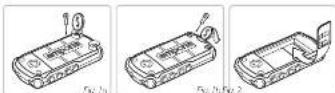
Fig. 1a+b: Remove the battery cover
Fig.2: Insert the SIM card with the gold chip down
INSERT THE BATTERY AND CHARGING
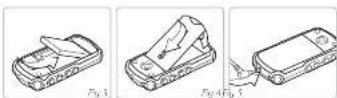
Fig.3: The battery contacts have to face the gold coloured contacts of the mobile phone.
Fig.4: Slide battery cover back to its previous position until its locked with a click. Tighten the screws.
Fig.5: open the rubber cover on the bottom of the phone and plug the charging cable into the socket.
- A battery icon on the display informs about the loading progress
- Battery is charging: bars in the battery icon fill up
■ battery is fully charged: bars in the battery icon stop moving
Please note: The battery should be charged for at least 4 hours before your first call. Use only batteries and chargers are approved for use with this model.
text_image
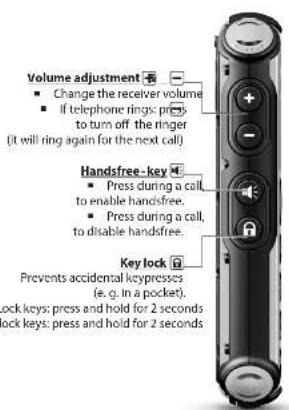
Volume adjustment Change the receiver volume If telephone rings: press to turn off the ringer (it will ring again for the next call) Handsfree-key Press during a call, to enable handsfree. Press during a call, to disable handsfree. Key lock Prevents accidental keypresses (e.g. in a pocket). lock keys: press and hold for 2 seconds. lock keys: press and hold for 2 seconds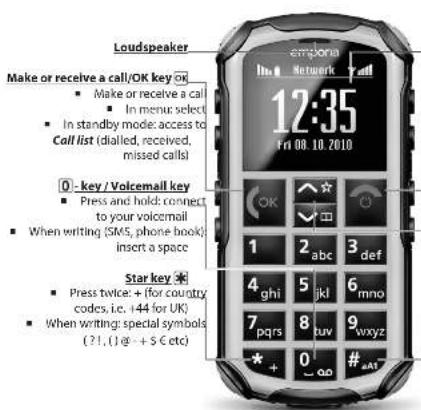
text_image
Loudspeaker Make or receive a call/OK key ok ■ Make or receive a call ■ In menu select ■ In standby mode: access to Call list (dialled, received, missed calls) 0 - key / Voicemail key ■ Press and hold connect to your voicemail ■ When writing (SMS, phone book): insert a space Star key * ■ Press twice: + (for country codes, i.e. 144 for UK) ■ When writing: special symbols ( ?1, () @ - + S € etc)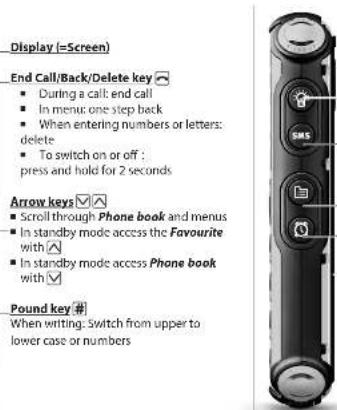
text_image
Display (=Screen) End Call/Back/Delete key During a call: end call In menu: one step back When entering numbers or letters: delete To switch on or off : press and hold for 2 seconds Arrow keys Scroll through Phone book and menus In standby mode access the Favourite with In standby mode access Phone book with Pound key # When writing: Switch from upper to lower case or numbers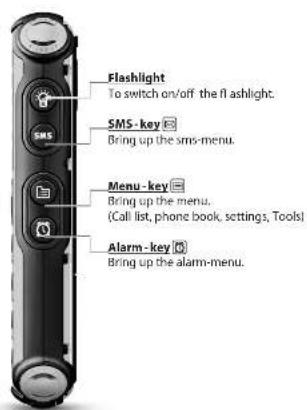
text_image
Flashlight To switch on/off the flashlight. SMS - key Bring up the sms-menu. Menu - key Bring up the menu. (Call list, phone book, settings, Tools) Alarm - key Bring up the alarm-menu.DISPLAY SYMBOLS Signal strength
Roaming
Battery Indicator
New SMS
! Missed call
Call forwarding
Silence/Sleep
Meeting/Theatre
MAX Maximum/Bus
Alarm on
Bluetooth enabled
(3) Bluetooth device paired
GPS enable
GPS fixed
FIRST STEPS
Press and hold the key for 2 seconds to switch on the phone. To turn off, press and hold 2 seconds again. When using a new SIM card, enter the 4 digit PIN Code (Personal Identification Number) and confirm with Note: The PIN-Code is a 4-digit number combination preventing others from switching on your mobile phone
Incoming call:
Pick up: press key
■ Reject: press the key
■ Muting the ringer temporarily; press the key
End a call: press the □key
Dialing:
Enter the phone number with the keypad (including area code with 0) start call with OK.
Enter the Redallist by press the ☑ key. → Select a number with √ or ☐ from a redallist (Missed calls, Dialled numbers or Received calls). → Start the call with ☑.
Handsfree:
Press -key during a call, to enable or disable the handsfree function.
Standby mode:
In standby mode the phone is turned on, but no active applications (calling, messaging, ...) are running.
- Press the key or key to select the shown (above the keys) option.
■ After a few seconds without input, the display is switched off to save power. By an incoming call or pressing any key,
the screen turns on again automatically.
■ To return to the standby screen, press the key
repeatedly or press and hold the 🔒-key until the standby screen appears.
If you select a menu item, without confirming with an information text about this menu item is shown after a while automatically. To hide the text, press the button.
Enter the menu: press the E-key
Scroll through menu: use √ and/or ∧
Chose/confi rm: with
Enter menu with → enter Settings with ∧ ∧ OK →
Security settings:
Edit the PIN code or to Activate/Deactivate the PIN code query or the Phonecode (default: 1234).
Favourite keys
With a click to your most important function.
PHONEBOOK
Save names and numbers (always includ the area code, e.g. +44 for UK)
Enter menu with → enter Phone book with √, ✗ → menu items: Search name, Add contact, Own number, Emergency numbers (Add Emerg. No., Change sequence, Delete Emerg. No., Emergency button on/off). Copy contact, Top 5, Edit contact, Delete contact, Send contact by SMS, SMS in PhoneBk, Mailbox number, PhoneBk settings.
Save a contact (name & number)
Enter menu with ☐ → enter Phone book with √, OK → choose Add contact with √, OK → enter number → enter name with the keypad (See SMS-chapter for writing text) → √ → save with OK
Search a Phone book entry:
Enter the Phone book by pressing √ in standby mode → ■ Scroll through the petals with and △ Or
■ use Search name: enter the initial letters of the searched name. I may continue to scroll with √0. →
When the requested name is shown, press ☐ to start call. Accessing the Phone book via SMS:
In the Phone book menu → enable SMS in PhoneBk, to receive phonebook entries by SMS message. Specify that only stored contacts may send phone book entries (Only from PhoneBk) to you.
The phone number is automatically saved in your phone book, if the messages is written in the following format: #Name#Nummer#, e.g.: #Martin#+436641234567#
SMS MESSAGE
SMS (Short Message Service) is a short text messages, including a max. of 160 signs. Costs are only incurred during shipping, but not at the reception.
Writing text: Enter menu with →
enter SMS Message with OK → choose New SMS with OK. Entering text with the keypad. Every key represents several signs, depending on how often you press the key. (e.g. 2x4, 1x2|x, 35, 3x5 or h@p)
| 1...!!*e:1 |
| 2 abc2ææåå |
| 3 def3éèè |
| 4 gh14liìì |
| 5 jkl5É |
| 6 mno6ðóá |
Use the # key, to Choose from 4 Writing Styles:
- abc → lower case - ABC → upper case - Abc → Upper and lower - 123 → numbers
Sending SMS: After typing the text, press 2x OK Send.
Enter the number or choose from phonebook OK scroll to the contact and select with OK Press OK again to send the message.
Receiving an SMS: A short signal and an display-prompt inform you about a new, incoming SMS message. Whit ☑ you ou can read the message now or enter the menu SMS Message ⇒ Received SMS to access the list of received messages.
