DC-224 - Routeur SITECOM - Notice d'utilisation et mode d'emploi gratuit
Retrouvez gratuitement la notice de l'appareil DC-224 SITECOM au format PDF.


Questions des utilisateurs sur DC-224 SITECOM
0 question sur cet appareil. Repondez a celles que vous connaissez ou posez la votre.
Poser une nouvelle question sur cet appareil
Téléchargez la notice de votre Routeur au format PDF gratuitement ! Retrouvez votre notice DC-224 - SITECOM et reprennez votre appareil électronique en main. Sur cette page sont publiés tous les documents nécessaires à l'utilisation de votre appareil DC-224 de la marque SITECOM.
MODE D'EMPLOI DC-224 SITECOM
SITECOM
ADSL2+Modem/Router
DC-2 2 3 \~ 2 2 6
Full manual
1. Table of Contents
1. TABLE OF CONTENTS ...... I
2. INTRODUCTION ....3
2.1 Thank you....3
2.2 Package Contents ....3
2.3 Features .... 3
2.4 Physical Details....6
2.5 Cabling....7
3. INSTALLATION 8
3.1 Before Configuration....9
3.1.1 Configuring a PC in Windows XP....9
3.1.2 Configuring a PC in Windows 2000....11
3.1.3 Configuring a PC in Windows 98 / ME....12
3.1.4 Configuring a PC in Windows NT 4.0 ....13
3.2 Factory Default Settings....14
3.3 LAN and WAN Port Addresses ....15
3.4 Information from ISP ....15
3.5 Configuring with Web Browser ....16
4. CONFIGURATION....17
4.1 Home ....18
4.1.1 System Status....18
4.1.2 ARP Table 20
4.1.3 DHCP Table 20
4.1.4 System Log....21
4.1.5 Security Log 22
4.2 Wizard 23
4.2.1 Select Your ISP (Internet Service Provider)....23
4.2.2 PPP 23
4.2.3 DHCP 24
4.2.4 Manual Configuration / Advanced Settings 25
4.3 Basic Settings....26
4.3.1 LAN Settings 26
4.3.2 DHCP Server 27
4.3.3 Time Zone....30
4.3.4 Remote Management....31
4.4 Firewall....31
4.4.1 Packets Filter ....31
4.4.2 MAC Filter 34
4.4.3 Intrusion Detection 35
4.4.4 Block WAN Request 36
4.4.5 URL Filter....37
4.5 Advanced Settings....40
4.5.1 QoS Settings 40
4.5.2 Virtual Server 44
4.5.3 Static Route....49
4.5.4 Dynamic DNS....50
4.5.5 Miscellaneous Settings ....51
4.5.6 IGMP 55
4.5.7 VLAN Control....56
4.5.8 WAN IP Change Alert....57
4.6 Toolbox ....57
4.6.1 Firmware Upgrade....57
4.6.2 Backup Settings ....59
4.6.3 System Restart....60
4.6.4 User Management....60
4.6.5 Save Settings....62
5. TROUBLE SHOOTING ....63
5.1 Problems Starting Up the ADSL Router ....63
5.2 Problems with the WAN Interface....63
5.3 Problems with the LAN Interface....64
2. Introduction
2.1 Thank you
Thank you for buying the Sitecom DC-223\~226 ADSL2+ Modem / Router. This product provides a high-speed Ethernet port for high-speed Internet browsing. It is an all-in-one unit that combines an ADSL modem, router and Ethernet network switch to provide everything you need to get the machines on your network connected to the Internet over an ADSL broadband connection.
The DC-223\~226 series complies with ADSL2+ standards for deployment worldwide and supports downstream rates of up to 24 Mbps and upstream rates of up to 1 Mbps. Designed for small office, home office and residential users, the router enables even faster Internet connections. You can enjoy ADSL services and broadband multimedia applications such as interactive gaming, video streaming and real-time audio much easier and faster than ever before.
2.2 Package Contents
• DC-223\~226 ADSL2+ Modem / Router
• CD-ROM containing the online manual
• RJ-11 ADSL / telephone Cable (1.8M)
- Ethernet (CAT-5 LAN) Cable (2M Straight)
• AC-DC power adapter (12V DC, 1A)
• Quick Start Guide (105*150mm)
2.3 Features
The DC-223\~226 series provides the following features:
Express Internet Access - ADSL2/2+ capable
The DC-223\~226 series complies with ADSL worldwide standards. Supporting downstream rates of 8Mbps with ADSL, the router is capable of up to 12/24 Mbps with ADSL2/2+, and upstream rates of up to 1 Mbps. Users enjoy not only high-speed ADSL services but also broadband multimedia applications such as interactive gaming, video streaming and real-time audio which are easier and faster than ever. The router is compliant with Multi-Mode
standard (ANSI T1.413, Issue 2; G.dmt (ITU G.992.1); G.hs (ITU G994.1); G.dmt.bis (ITU G.992.3); and G.dmt.bisplus (ITU G.992.5).
Fast Ethernet Switch
A 4-port 10/100Mbps fast Ethernet switch is built-in with automatic switching between MDI and MDI-X for 10Base-T and 100Base-TX ports, with auto detection allowing you to use either straight or cross-over Ethernet cables.
Multi-Protocol to Establish a Connection
The router supports PPPoA (RFC 2364 - PPP over ATM Adaptation Layer 5), RFC 1483 encapsulation over ATM (bridged or routed), PPP over Ethernet (RFC 2516) and IPoA (RFC1577) to establish a connection with an ISP. The router also supports VC-based and LLC-based multiplexing.
Quick Installation Wizard
A web-based GUI and quick installation wizard help you easily install the DC-223\~226 series. Enter your ISP's information and begin browsing the Internet immediately.
Universal Plug and Play (UPnP) and UPnP NAT Traversal
This protocol is used to enable simple and robust connectivity among stand-alone devices and PCs from many different vendors, and it makes setting up a network simple and affordable. UPnP architecture leverages TCP/IP and the Web to enable proximity networking in addition to control and data transfer among networked devices. With this feature enabled, you can seamlessly connect to NetMeeting or MSN Messenger.
Network Address Translation
Network Address Translation (NAT) allows multiple users to access outside resources such as the Internet simultaneously with one IP address/one Internet access account. Many application layer gateways (ALG) are supported such as web browser, ICQ, FTP, Telnet, E-mail, News, Net2phone, Ping, NetMeeting, IP phone and others.
Firewall
NAT technology supports simple firewalls and provides options for blocking access from the Internet, like Telnet, FTP, TFTP, WEB, SNMP and IGMP.
Domain Name System Relay
Domain Name System (DNS) relay provides an easy way to map a domain name with a user-friendly name such as www.Sitecom.com with an IP address. When a local machine
sets its DNS server to the router's IP address, every DNS conv the PC to this router is forwarded to the real DNS on the outsi
Dynamic Domain Name System (DDNS)
The Dynamic DNS service allows you to alias a dynamic IP address to a static hostname. This dynamic IP address is the WAN IP address. To use the service, you must first apply for an account from a DDNS service such as http://www.dyndns.org/.
PPP over Ethernet (PPPoE)
The DC-223\~226 series provides an embedded PPPoE client function to establish a connection. You get greater access speed without changing the operation concept, while sharing the same ISP account and paying for one access account. No PPPoE client software is required for the local computer. Automatic Reconnect and Disconnect Timeout (Idle Timer) functions are also provided.
Quality of Service (QoS)
QoS gives you full control over which types of outgoing data traffic should be given priority by the router, ensuring important data like gaming packets, customer information, or management information move through the router ay lightning speed, even under heavy load. The QoS features are configurable by source IP address, destination IP address, protocol, and port. You can throttle the speed at which different types of outgoing data pass through the router, to ensure P2P users don't saturate upload bandwidth, or office browsing doesn't bring client web serving to a halt. In addition, or alternatively, you can simply change the priority of different types of upload data and let the router sort out the actual speeds.
Virtual Server:
You can specify which services are visible to outside users. The router detects an incoming service request and forwards it to the specific local computer for handling. For example, you can assign a PC in a LAN to act as a Web server inside and expose it to the outside network. Outside users can browse inside the web server directly while it is protected by NAT. A DMZ host setting is also provided for local computers exposed to the outside Internet network.
Dynamic Host Configuration Protocol (DHCP) Client and Server
On a WAN site, the DHCP client obtains an IP address from the Internet Service Provider (ISP) automatically. On a LAN site, the DHCP server allocates a range of client IP
addresses, including subnet masks and DNS IP address computers. This provides an easy way to manage the local IP net
Packet Filtering
This feature filters the packet based on IP addresses as well as Port numbers. Filtering packets to and from the Internet provides a higher level of server
Static and RIP1/2 Routing
An easy static routing table or RIP1/2 routing protocol supports routing capability.
Simple Network Management Protocol (SNMP)
SNMP allows convenient remote management of the router.
Web-based GUI
A web-based GUI offers easy configuration and management. User-friendly and with on-line help, it also supports remote management capability for manage this product.
Firmware Upgradeable
You can upgrade the router with the latest firmware through i
2.4 Physical Details
Through Ethernet Port
text_image
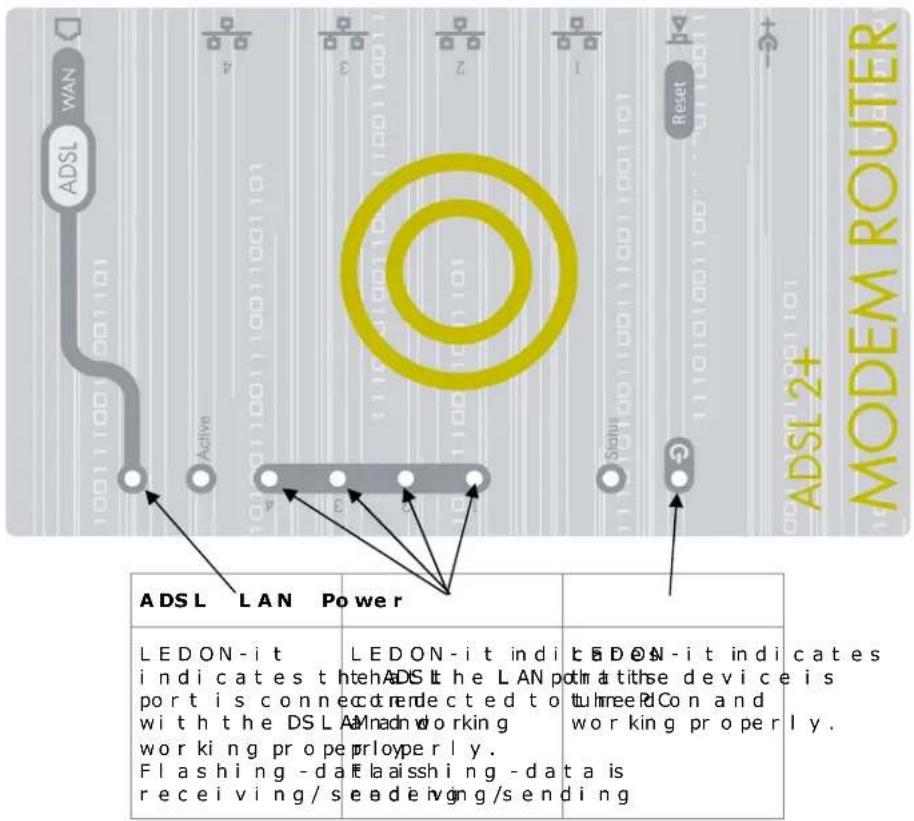
ADSL LAN Power LEDON-it indicates the ADSL the LAN port is connected to with the DSL A/mad working pro p l o yper ly. Flashing -da la issh ing -data is receiving / se a de ivng / sending T E D O N -it indicates that the device is three R Con and working properly.The Rear Port
| Power (jack) | Reset | Ethernet Port (RJ-4 5 connector) | LINE (RJ-1 1 connector) |
| Connect the supplied power adapter to jack. | Pirred stores the history default settings. | Connect the supplied crossover cable to this port when connecting to a NIC (Network Interface card) in a Connect an UTP Ethernet cable to this port when connecting to a LAN such as an office network. | Connect the supplied RJ-11 cable to this port and the ADSL wall plug.PC.or home |
2.5 Cabling
Through Ethernet Port
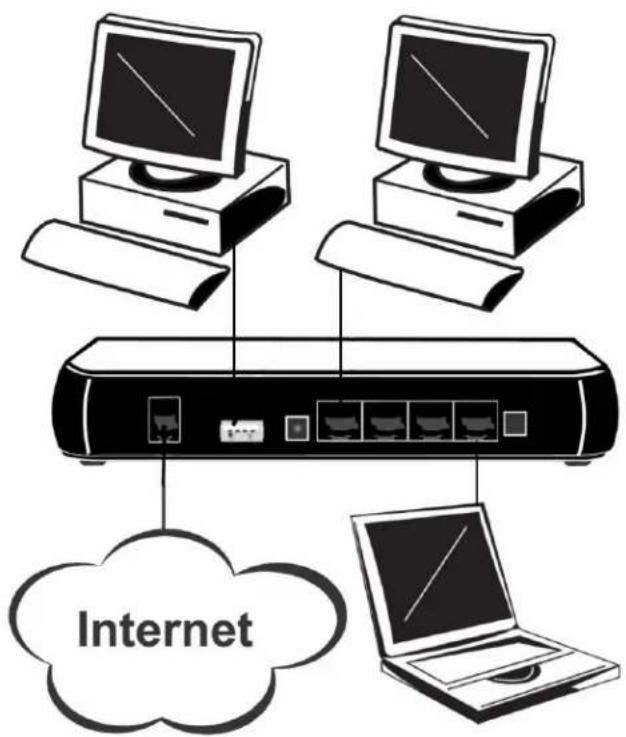
Connect \~the \~LAN \~cables:\~Use \~standard \~LAN \~cables \~to \~option (switch) on the modem/ router.
Make sure that all connected devices are turned on. Please, check that the PWR, LAN LNK and ADSL SYN LEDs are lit. If they are not, verify that you are using the proper cables.
If the cables are connected and the LEDs are lit normally, please go to section "3. Installation" to modify the network settings.
Connect ADSL / power
Connect your ADSL cable to the LINE port on the modem / router.
Connect the power adapter to the modem/ router. Only use the with your modem/ router. Connect the power cord to power in less switch on.
text_image
Internet3. Installation
You can configure the DC-223\~226 series router through the convenient and user-friendly interface of a web browser. Most popular operating systems such as Linux, Mac and Windows 98/NT/2000/XP/Me include a web browser as a standard application.
3.1 Before Configuration
PCs must have a properly installed Ethernet interface and connect to the router directly or through an external switching hub. In addition, PCs must have TCP/IP installed and configured to obtain an IP address through a DHCP server or a fixed IP address that must be in the same subnet as the router. The default IP address of the router is 10.0.0.1 and the subnet mask is 255.255.255.0 (i.e. any attached PC must be in the same subnet, and have an IP address in the range of 10.0.0.2 to 10.0.0.254). The easiest way is to configure the PC to obtain an IP address automatically from the router using DHCP. If you encounter any problems accessing the router's web interface you are advised to uninstall any kind of software firewall on your PCs, as they can cause problems accessing the 10.0.0.1 IP address of the router.
Please follow the steps below for installation on your PC's network environment. First of all, check your PC's network components. The TCP/IP protocol stack and Ethernet network adapter must be installed. If not, please refer to your Windows-related or other operating systems manuals.
NOTE:
Any TCP/IP capable workstation can be used to communicate with or through the DC-223\~226 series. To configure other types of workstations, please consult the manufacturer's documentation.
3.1.1 Configuring a PC in Windows XP
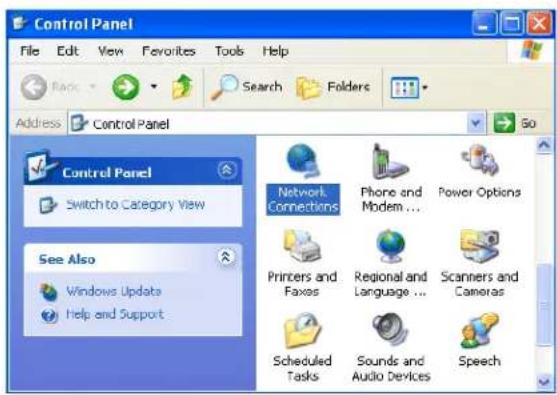
- Go to Start / Control Panel (in Classic View). In the Control Panel, double-click on Network Connections.
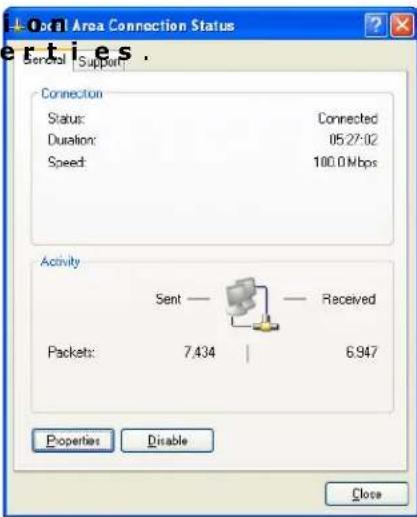
- Double-click Local Area Connection.
text_image
Control Panel File Edit View Favorites Tools Help Back Search Folders Address Control Panel Go Control Panel Switch to Category View See Also Windows Update Help and Support Network Connections Phone and Modem ... Power Options Printers and Faxes Regional and Language ... Scanners and Cameras Scheduled Tasks Sounds and Audio Devices Speech- In the Local Area Connect Status window, clickProp
text_image
Serial Support Connection Status: Connected Duration: 05.27.02 Speed: 100.0 Mbps Activity Sent — Received Packets: 7.434 | 6.947 Properties Disable Close- Select Internet Protocol (TCP/IP) and click Properties.
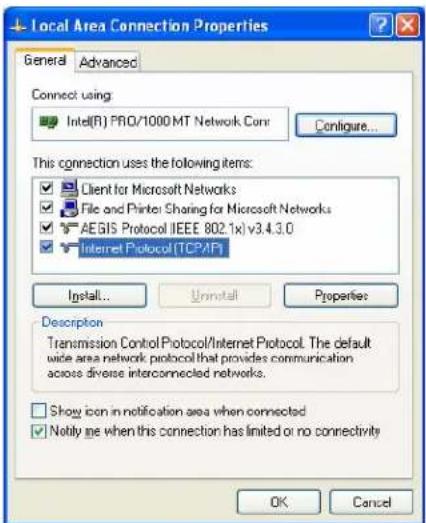
text_image
Local Area Connection Properties General Advanced Connect using: Intel(R) PRO/1000 MT Network Conv Configure... This connection uses the following items: Client for Microsoft Networks File and Printer Sharing for Microsoft Networks AEGIS Protocol (IEEE 802.1x) v3.4.3.0 Internet Protocol (TCPAP) Install... Uninstall Properties Description Transmission Control Protocol/Internet Protocol. The default wide area network protocol that provides communication across diverse interconnected networks. Show icon in notification area when connected Notify me when this connection has limited or no connectivity OK Cancel- Select the Obtain an IP account automatically and the Obtain DNS server address automatic radio buttons.
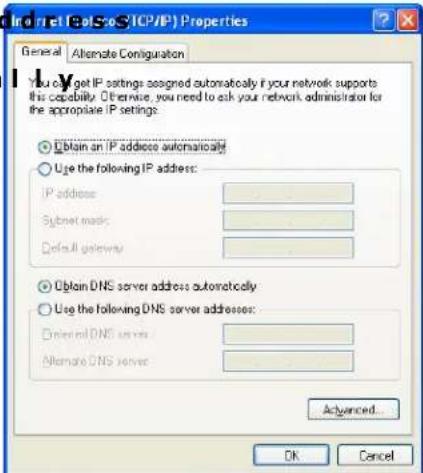
text_image
Internet CalSro TCP/IP Properties General Alternate Configuration You can get IP settings assigned automatically if your network supports this capability. Otherwise, you need to ask your network administrator for the appropriate IP settings: ○ Obtain an IP address automatically ○ Use the following IP address: IP address Subnet music Default gateway ○ Obtain DNS server address automatically ○ Use the following DNS server addresses: Dramed DNS server Alternate DNS server Advanced... OK Cancel- Click OK to finish the configuration.
3.1.2 Configuring a PC in Windows 2000
- Goto Start / Setti Control Panel. In the Panel, double-clicko and Dial-up Connectio
- Double-click Local Connection.
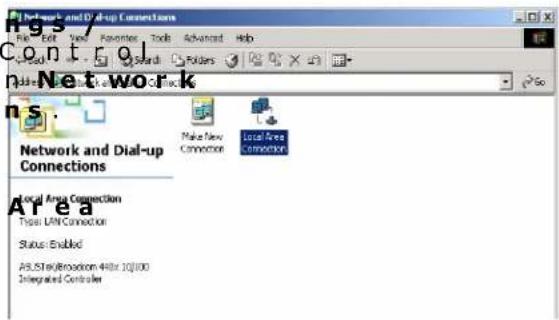
text_image
Network and Dial-up Connections File Edit View Favorites Tools Advanced Help Control Network and Dial-up Connections Make New Connection Local Area Connection Local Area Connection Type: Unit Connection Status: Enabled All,50k/80000 440x 10000 Integrated Controller- In the Local Area Connection Status window click Properties

text_image
Local Area Connection Status e Nettles . Connection Status: Connected Duration: 06:16:26 Speed: 100.0 Mbps Activity Sent Received Packets: 12,215 | 109,427 Properties Disable Close- Select Internet Proto (TCP/IP) and click Properties.
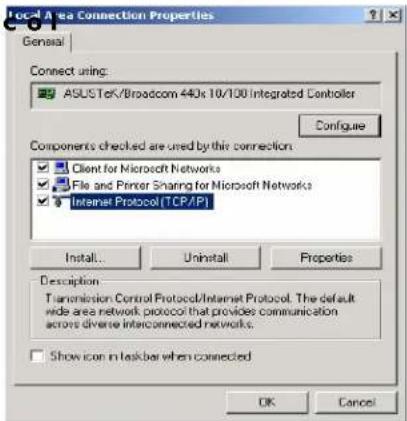
text_image
Local A sea Connection Properties General Connect using: ASUSTek/Broadcom 440s 10/100 integrated Controller Configure Components checked are used by this connection: Client for Microsoft Networks File and Printer Sharing for Microsoft Networks Internet Protocol TCP/IPT Install... Uninstall Properties Description: Transmission Control Protocol/Internet Protocol. The default wide area network protocol that provides communication across diverse interconnected networks. Show icon in taskbar when connected OK Cancel- Select the Obtain an IP address automatically an Obtain DNS server address automatically radiobutt
text_image
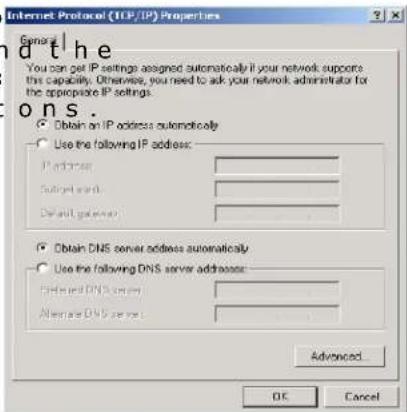
Internet Protocol (TCP/IP) Properties General the You can get IP settings assigned automatically if your network supports this capability. Otherwise, you need to ask your network administrator for the appropriate IP settings. ONS. Obtain on IP address automatically Use the following IP address: Pathuser Submit port Default gateway Obtain DNS server address automatically Use the following DNS server address: Pathed DNS server Alternate DNS server Advanced... OK Cancel- ClickOK to finish the configuration.
3.1.3 Configuring a PC in Windows 98 / ME
-
Goto Start / Settings Control Panel. In the Cont Panel, double-click on Network and choose the Configuration tab.
-
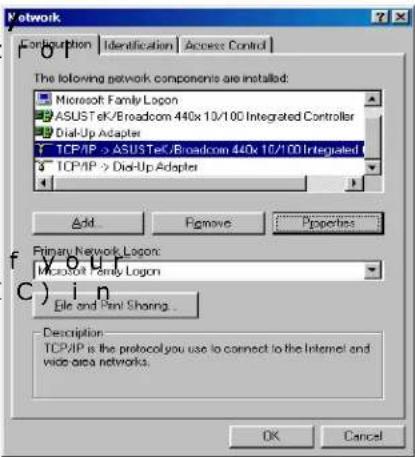
Select TCP/IP ->NE2000 Compatible, or the name of Network Interface Card (NI) your PC.
-
Select the Obtain an IP address automatically a button.
. Then select the DNS onfigurationtab.
- Select the Disable DNS radio button and click OK to finish the configuration.
text_image
Network Configuration Identification Access Control The following network components are installed: Microsoft Family Logon ASUSTeK/Broadcom 440x 10/100 Integrated Controller Dial-Up Adapter TCP/IP -> ASUSTeK/Broadcom 440x 10/100 Integrated TCP/IP -> Dial-Up Adapter Add Remove Properties Primary Network Logon: Microsoft Family Logon File and Panel Sharing... Description TCP/IP is the protocol you use to connect to the Internet and wide area networks. OK Cancel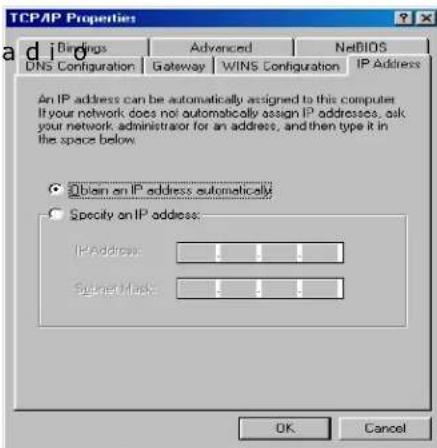
text_image
TCP/IP Properties Birings Advanced NetBIOS DNS Configuration Gateway WINS Configuration IP Address An IP address can be automatically assigned to this computer. If your network does not automatically assign IP addresses, ask your network administrator for an address, and then type it in the space below. Obtain on IP address automatically Specify on IP address: IP Address: Sugnet Mask: OK Cancel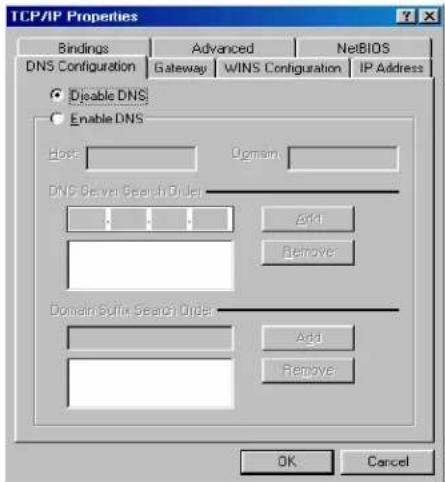
text_image
TCP/IP Properties Bindings Advanced NetsBIOS DNS Configuration Gateway WINS Configuration IP Address Disable DNS Enable DNS Host Domain DNS Server Search Order Edit Remove Domain Suffix Search Order Add Remove OK Cancel3.1.4 Configuring a PC in Windows NT 4.0
-
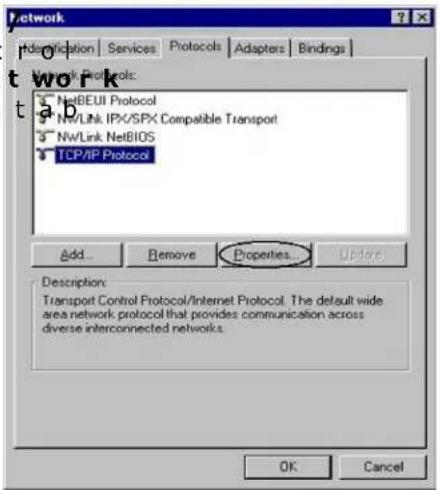
Goto Start / Settings Control Panel. In the Cont Panel, double-clickon Ne and choose the Protocols
-
Select TCP/IP Protocol and click Properties.
text_image
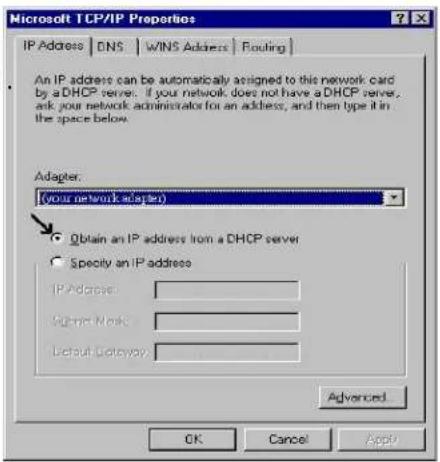
Network Description Services Protocols Adapters Bindings t work NetBEUI Protocol NW/Link IPX/SPX Compatible Transport NW/Link NetBIOS TCP/IP Protocol Add... Remove Properties... Update Description: Transport Control Protocol/Internet Protocol. The default wide area network protocol that provides communication across diverse interconnected networks. OK Cancel- Select the Obtain an IP address from a DHCP server radiobutton and click OK
text_image
Microsoft TCP/IP Properties IP Address | DNS | WINS Address | Routing An IP address can be automatically assigned to this network card by a DHCP server. If your network does not have a DHCP server, ask your network administrator for an address, and then type it in the space below. Adapter: (your network adapter) Obtain an IP address from a DHCP server Specify an IP address IP Address: Signal Name: Default Gateway: Advanced OK Cancel Apply3.2 Factory Default Settings
Before configuring the DC-223\~226 series router, you need to know the following default settings.
Web Interface:
- Username: admin
- Password:admin
LAN Device IP Settings:
• IP Address: 10.0.0.1
- Subnet Mask: 255.255.255.0
ISP setting in WAN site:
- PPPoE
DHCP Server :
- DHCP server is enabled.
- Start IP Address: 10.0.0.100
- IP Address Pool counts:100
NOTE:
To reset the router or to restore it to factory default settings press the Reset button using the end of paper clip or other small pointed object.
- To perform Failure recovery for a dead router:
Simply hold the Reset button when powering on the router and necessary. - To perform recovery in case of a misplaced Password:
Hold the Reset button until the LEDs all turn Off, turn On and then turn Off. The router performs configuration factory reset and the router reboots. You can then access the router from the web GUI.
3.3 LAN and WAN Port Addresses
The parameters of LAN and WAN ports are preset at the factory. The default values are shown below.
| LAN Port | W AN Port | |
| IP Address | 10.0.0.1 | The PPPoE function is enabled to automate the WAN port configuration from the ISP, to set the username and password first.continuing through |
| Subnet Mask | 255.255.255.0 | |
| DHCP Server Function | Enabled | |
| IP Addresses Distribution | 100fP addresses of PCm 10.0.0.100 t 10.0.0.199 | |
atically get but you hi
3.4 Information from ISP
Before you start configuring this device, you have to check with your ISP what kind of service is provided, including the following:
- PPPoE VC-Mux
- PPPoELLC
- PPPoAVC-Mux
- PPPoALLC
• 1483 Bridged IP VC-Mux
• 1483 Bridged I P LLC
• 1483 Routed IP VC-Mux
• 1483 Routed IP LLC
• Pure Bridged VC-Mux
• Pure Bridged LLC
Gather the information as illustrated in the following table and keep it for reference.
| PPPoE VC-Mux | VPI/VCI, Service Name, Username, Password, and Domain Name System (DNS) IP address (it can be automatically assigned from ISP or |
| PPPoE LLC | VPI/VCI, Service Name, Username, Password, and Domain Name System (DNS) IP address (it can be automatically assigned from ISP or |
| PPPoA VC-Mux | VPI/VCI, Username, Password, and Domain Name System (DNS) IP address (it can be automatically assigned from ISP or beset fixed). |
| PPPoA LLC | VPI/VCI, Username, Password, and Domain Name System (DNS) IP address (it can be automatically assigned from ISP or beset fixed). |
| 1483 Bridged IP VC-Mux | VPI/VCI |
| 1483 Bridged IP LLC | VPI/VCI |
b eset fi
beset fi
| 1483 Routed IP VC-Mux | VPI/VCI, IP address, Subnet mask, Gateway address, and Domain Name System (DNS) IP address (it is fixed IP address). |
| 1483 Routed IP LLC | VPI/VCI, IP address, Subnet mask, Gateway address, and Domain Name System (DNS) IP address (it is fixed IP address). |
| Pure Bridged VC-Mux | VPI / VCI |
| Pure Bridged LLC | VPI / VCI |
3.5 Configuring with Web Browser
NOTE:
- To configure this device, you must have IE 5.0 / Netscape 4.5 or above installed.
- You may configure the router for Internet access using Web Configuration.
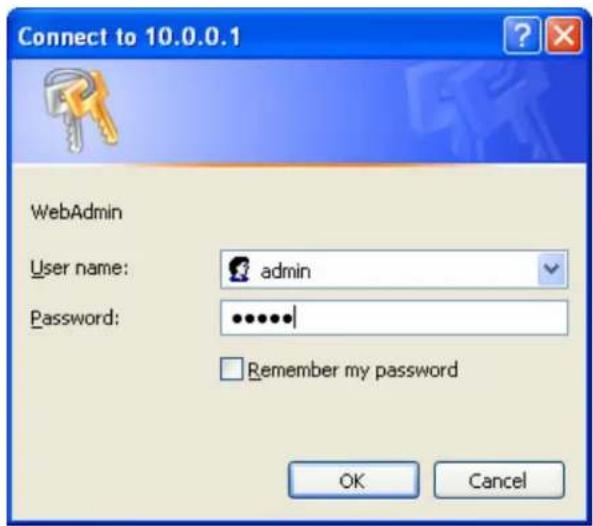
Open your web browser, enter the IP address of your router, which by default is 10.0.0.1, and click "Go", a user name and password window prompt appears. The default username and password are "admin" and "admin".
text_image
Connect to 10.0.0.1 WebAdmin User name: admin Password: ******** Remember my password OK Cancel4. Configuration
Once you have logged on to your DC-223\~226 series ADSL2+ Router via your web browser, you can begin to set it up according to your requirements. On the configuration homepage, there are several sections, which include:
• Home (System Status, ARP Table, DHCP Table, System Log, Security Log)
- Wizard (Quick Installation)
- Basic Settings (LAN Settings, DHCP Server, Time Zone, Remote Management)
- Firewall (Packet Filter, MAC Address Filter, Intrusion Detection, WAN Blocking, URL Filter)
- Advanced Settings (QoS Settings, Virtual Server, Static Route, Dynamic DNS, IGMP, VLAN, Web Server, UPnP, SNMP, WAN IP Change Alert)
- Toolbox (Firmware Upgrade, Configuration Backup, User Management, System Restart)
4.1 Home
4.1.1 System Status
text_image
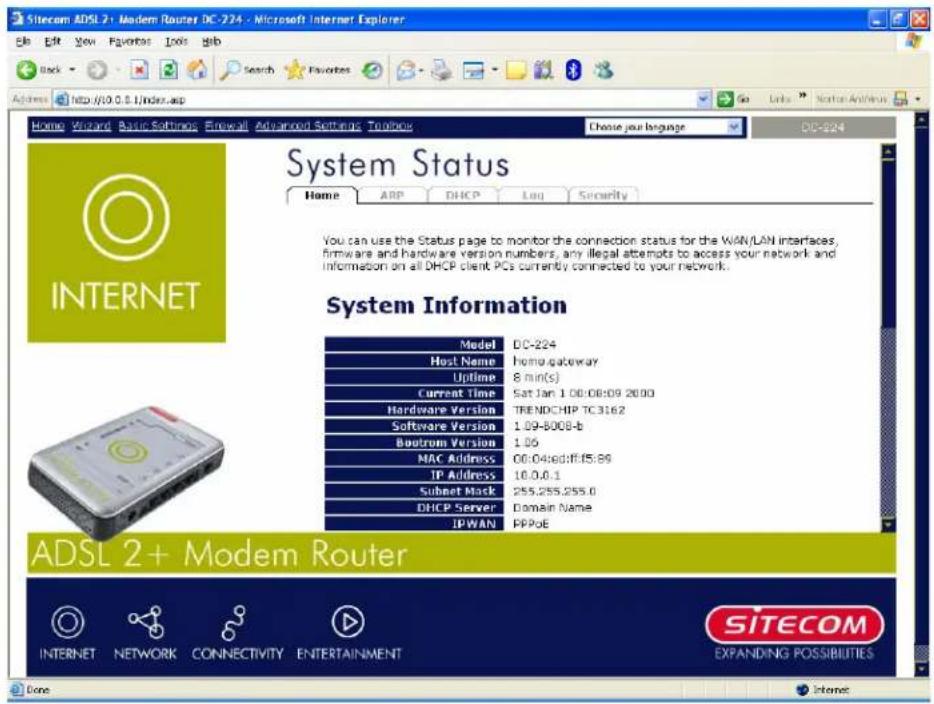
Sitecom ADSL 2+ Modem Router DC-224 - Microsoft Internet Explorer File Edit View Favorites Tools Help Back Search Favorites Address http://10.0.0.1/index.asp Home Wizard Basic Settings Enseag All Advanced Settings Toothou Choose your language DC-224 System Status Home ARP DHCP Log Security INTERNET System Information Model DC-224 Host Name homo gateway Uptime 8 min(s) Current Time Sat Jan 1 00:00:09 20:00 Hardware Version TRENDCHIP TC3162 Software Version 1.09-8008-b Bootrom Version 1.06 MAC Address 00:04:ediff:15:89 IP Address 10.0.0.1 Subnet Mask 255.255.255.0 DHCP Server Domain Name IPWAN PPPoE ADSL 2+ Modem Router INTERNET NETWORK CONNECTIVITY ENTERTAINMENT SITECOM EXPANDING POSSIBILITIES DoneIn the Status page, you can monitor the connection s
interfaces, firmware and hardware version numbers as well as the information related to the internet connection.
Model: It is the model number of the router.
Host Name: Provide a name for the router for identification purposes.
Uptime: Records system up-time.
Current time: Displays the current time. See the Time Zone section for more information.
Hardware Version: It is the hardware version of the chipset used.
Software Version: It is the running firmware version.
Bootrom Version: It is the running bootrom version.
MAC Address: The MAC address of the router.
IP Address: The IP Address of the LAN interface.
Subnet Mask: The Subnet Mask of the LAN interface.
DHCP Server: The name of the DHCP Server.
IP WAN: Name of the WAN connection.
VPI/VCI: Virtual Path Identifier and Virtual Channel Identifier.
Connection: Selects "Disconnected" or "Connected".
Connected Time: The time connected in WAN connection.
IP Address: The IP Address of the LAN interface.
Subnet Mask: The Subnet Mask of the WAN interface.
Gateway: The IP address of the default gateway.
Primary DNS: The primary DNS server IP address.
Ethernet: The status of LAN interface.
ADSL: The status of ADSL interface.
DSP Firmware Version: DSP code version
DMT Status: DMT Status
Operational Mode: The state of the working mode.
Upstream: Upstream data rate
Downstream: Downstream data rate
Noise Margin: The Noise Margin of the ADSL line.
Attenuation: The Attenuation of the ADSL line.
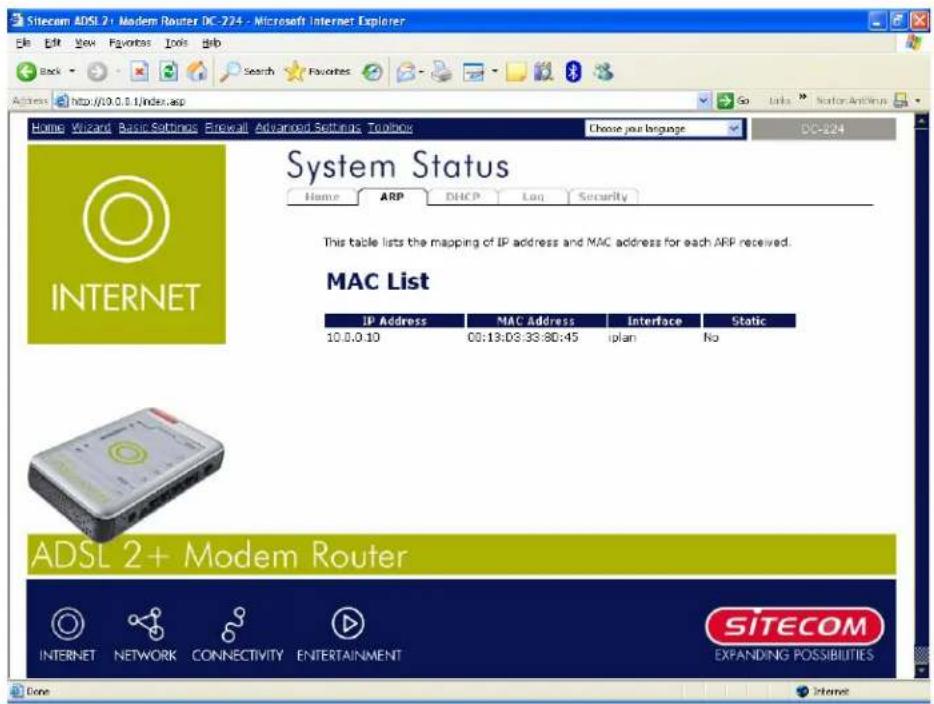
4.1.2 ARP Table
text_image
Sitecam ADSL 2+ Modem Router DC-724 - Microsoft Internet Explorer File Edit View Favorites Tools Help Back Search Favorites Go Links Server Options Address http://0.0.0.1/index.asp Home Wizard Basic Settings Forward Advanced Settings Toolbox Choose your language DC-824 System Status Home ARP DHCP Log Security This table lists the mapping of IP address and MAC address for each ARP received. MAC List IP Address MAC Address Interface Static 10.0.0.10 00:13:03:33:80:45 iplan No ADSL 2+ Modem Router INTERNET NETWORK CONNECTIVITY ENTERTAINMENT SITECOM EXPANDING POSSIBILITIES Done InternetIn this page, all IP addresses with corresponding MAC address in a table.
IP Address: The IP address of the device that connected to the LAN interface.
MAC Address: The MAC address of the device that connected to the LAN interface.
Interface: The interface name that this IP Address connects to.
Static: The status of the ARP table entry. "No" for dynamically-generated ARP table entries and "Yes" for static ARP table entries added by the user.
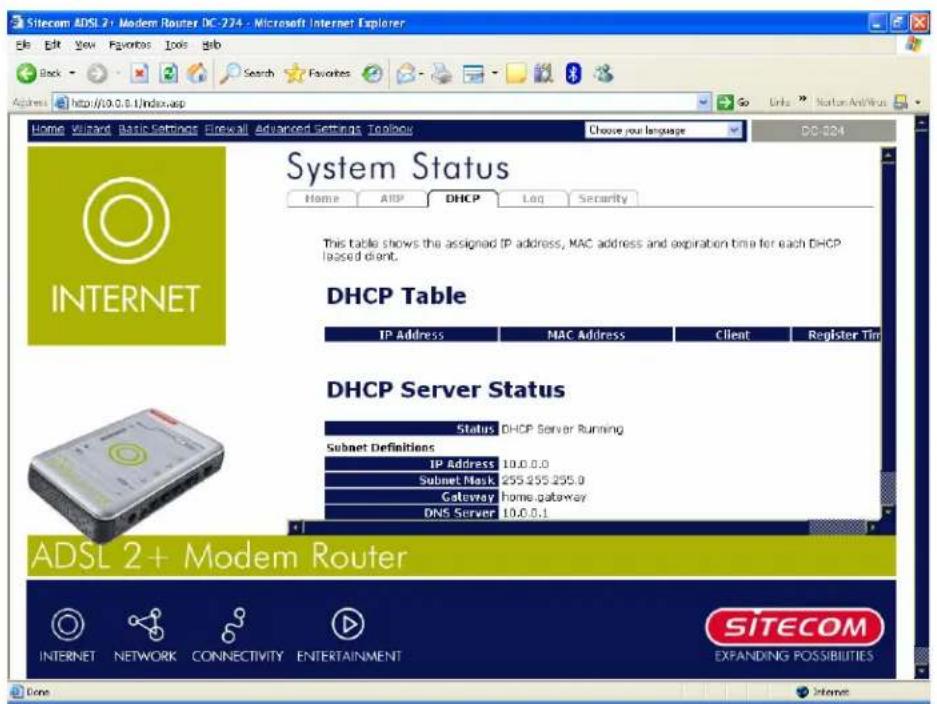
4.1.3 DHCP Table
text_image
Sitecom ADSL 2+ Modem Router DC-274 - Microsoft Internet Explorer Back Search Favorites Address http://10.0.0.1/index.asp Home Visitand Basic Settings Firewall Advanced Settings Toolbox Choose your language DO-224 System Status Home ARP DHCP Log Security This table shows the assigned IP address, MAC address and expiration time for each DHCP leased client. DHCP Table IP Address MAC Address Client Register Tim DHCP Server Status Status DHCP Server Running Subset Definitions IP Address 10.0.0.0 Subset Mask 255.255.255.0 Gateway home-gateway DNS Server 10.0.0.1 ADSL 2+ Modem Router SITECOM INTERNET NETWORK CONNECTIVITY ENTERTAINMENT EXPANDING POSSIBILITIES Done InternetIn this page, you can check which client is using with DHCP Server. Besides, the information of the DHCP Server is also displayed here.
IP Address: The IP address of the device that connected to the LAN interface.
MAC Address: The MAC address of the device that connected to the LAN interface.
Client: The hostname of the device that obtained the IP address.
Register Time: The registered time for the client to obtain the IP address.
Status: The status of the DHCP Server.
Subnet Value: The Subnet Value of the IP Address Pool.
Subnet Mask: The Subnet Mask of the IP Address Pool.
Hostname: The hostname of the DHCP Server.
DNS Server: The IP address of the DNS Server.
Maximum Lease Time: The maximum lease time of the IP address.
IP Range: The range of the IP Address Pool.
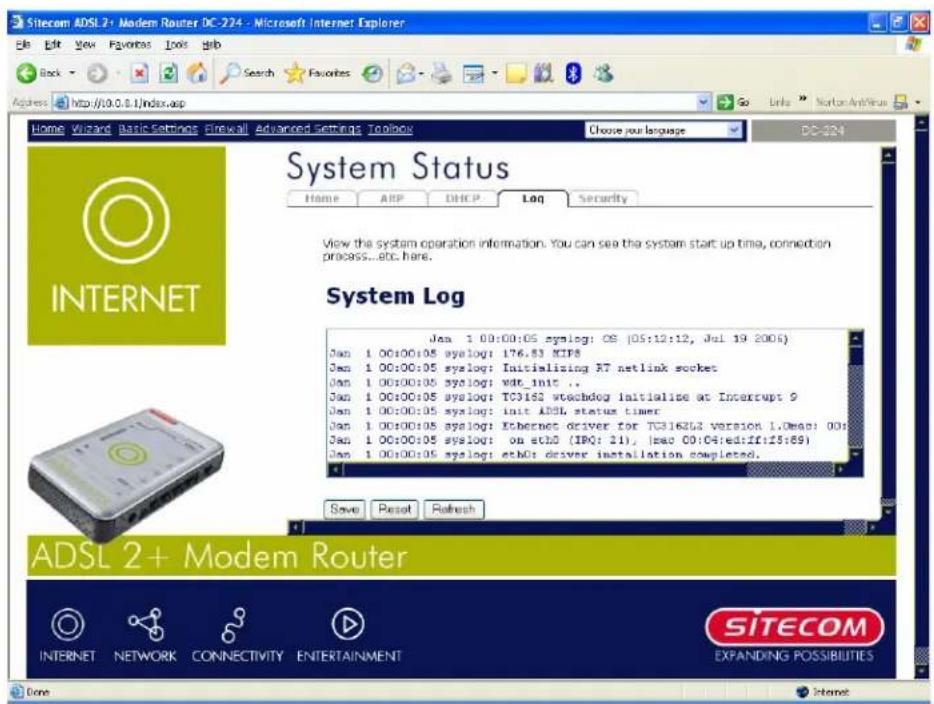
4.1.4 System Log
text_image
Sitecom ADSL2+ Modem Router DC-274 - Microsoft Internet Explorer Back View Favorites Tools Help Search Favorites Address: http://0.0.0.1/index.asp Home Wizard Basic Settings Firewall Advanced Settings Toolbox Choose your language DC-274 System Status View the system operation information. You can see the system start up time, connection process...etc. here. System Log Jan 1 00:00:05 syslog: OS |05:12:12, Jul 19 2006) Jan 1 00:00:05 syslog: I76.83 XIF8 Jan 1 00:00:05 syslog: Initializing RT netlink socket Jan 1 00:00:05 syslog: wdt_init .. Jan 1 00:00:05 syslog: TC3162 wtacdog initialise at Interrupt 9 Jan 1 00:00:05 syslog: init ADSL status timer Jan 1 00:00:05 syslog: Ethernet driver for TC3162L2 version 1.Dean: 00s Jan 1 00:00:05 syslog: on etbG (IRQ: 21), [mac 00:04:ed:ff:f5:89] Jan 1 00:00:05 syslog: etbG's driver installation compiled. Save Reset Refresh ADSL 2+ Modem Router INTERNET NETWORK CONNECTIVITY ENTERTAINMENT SITECOM EXPANDING POSSIBILITIES DoneDisplay system logs accumulated up to the present time information with this function.
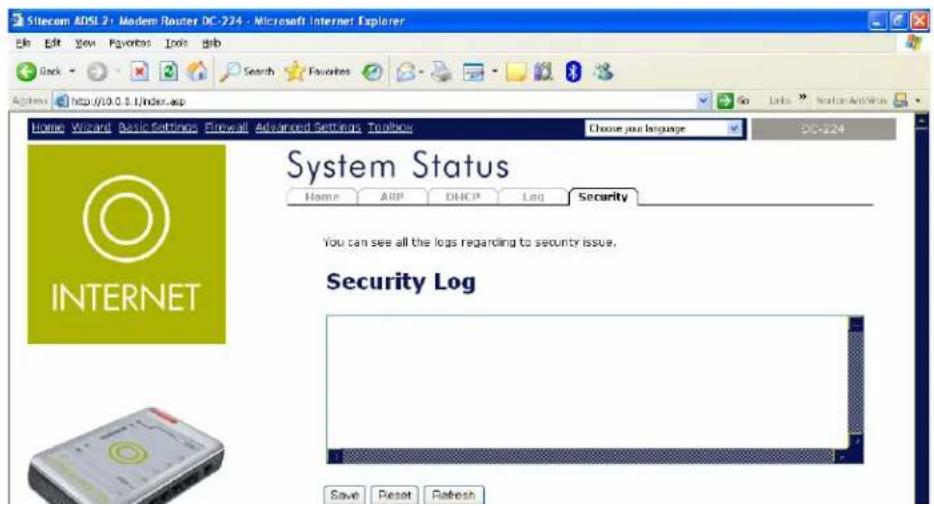
4.1.5 Security Log
This screen displays security login information. If a hacker att by the firewall function and the router records related information. This helps you know where the hacker comes from.
text_image
Sitecom ADSL 2: Modern Router DC-224 - Microsoft Internet Explorer Back Edit View Favorites Tools Help Search Favorites Home Wizard Basic Settings Forward Advanced Settings Toolbox Choose your language DC-224 System Status Home APP DHCP Log Security INTERNET You can see all the logs regarding to security issue. Security Log Save Reset Refresh4.2 Wizard
The Setup Wizard will guide you step by step through a basic co
4.2.1 Select Your ISP (Internet Service Provider)
text_image
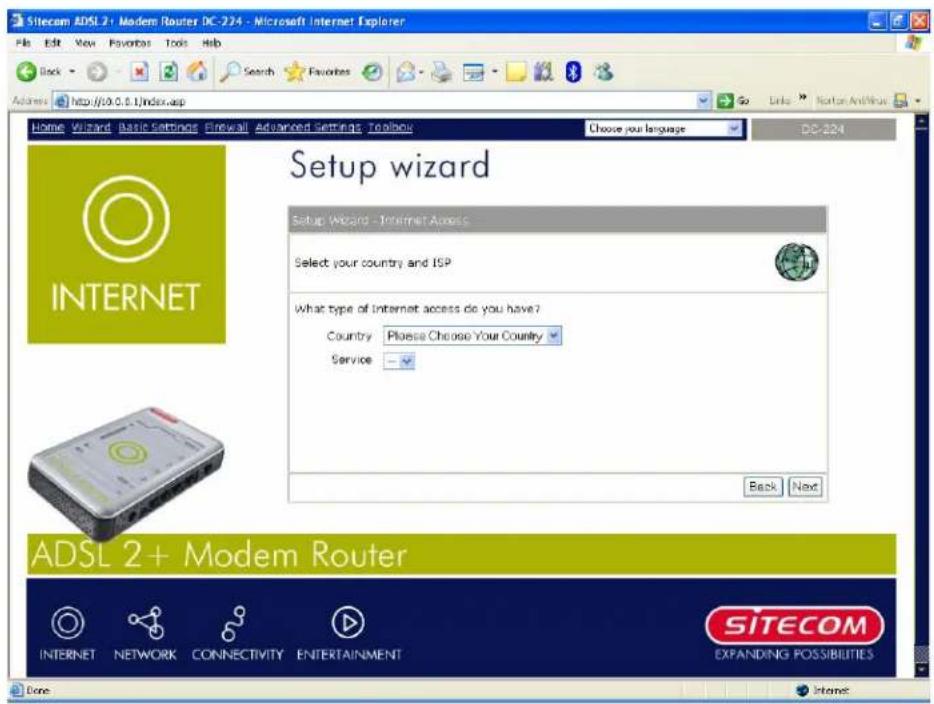
Sitecom ADSL 2+ Modem Router DC-224 - Microsoft Internet Explorer File Edit View Favorites Tools Help Back Search Favorites Favorites Address http://0.0.0.1/index.asp Go Links Norton AntiNow Home Wizard Basic Settings Firewall Advanced Settings Toolbox Choose your language DC-224 Setup wizard Setup Wizard - Internet Access Select your country and ISP What type of Internet access do you have? Country Please Choose Your Country Service Back Next ADSL 2+ Modem Router INTERNET NETWORK CONNECTIVITY ENTERTAINMENT SITECOM EXPANDING POSSIBILITIES Done InternetPlease choose the country first and then a list of ISP of that country will be shown. After that, choose your ISP and press "Next".
If you cannot found your ISP from the list, please choose "Other" and "Manual Configuration".
4.2.2 PPP
text_image
Sitecom ADSL 20 - Modern Router DC-224 - Microsoft Internet Explorer File Edit View Favorites Tools Help Back Search Favorites Address http://10.0.6.1/index.asp Home Wizard Basic Settings Binwall Advanced Settings Topbox Choose your language DC-224 Setup wizardFor PPPoE / PPPoA users, it is required to input the username a username and password are provided by your ISP.
User can select the connection methods as "Always On", "Co Configuration".
After inputted the username and password, press "Apply" to take effect or press "Next" for advanced settings.
4.2.3 DHCP
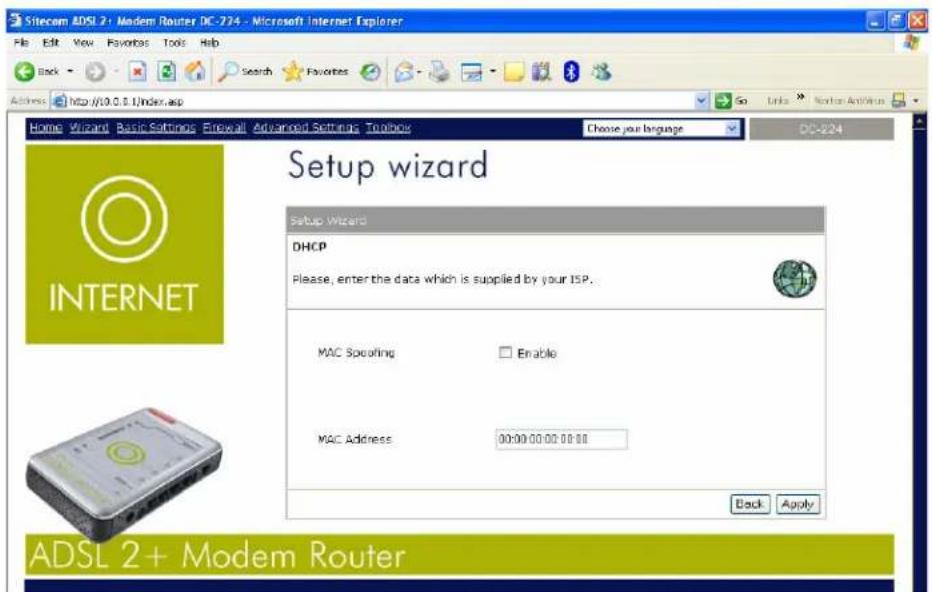
For DHCP users, it may require to use the MAC Spoofing feature for some ISPs. This feature is disabled by default.
User need to check the checkbox and input the MAC address in order to enable this feature.
text_image
Sitecam ADSL 2+ Modem Router DC-724 - Microsoft Internet Explorer File Edit View Favorites Tools Help Back Search Favorites Address http://0.0.0.1/index.asp Home Wizard Basic Settings Forward Advanced Settings Toolbar Choose your language DQ-824 Setup wizard DHCP Please, enter the data which is supplied by your ISP. MAC Spooling Enable MAC Address 00:00:00:00:00:00 Back Apply ADSL 2+ Modem Router4.2.4 Manual Configuration / Advanced Settings
text_image
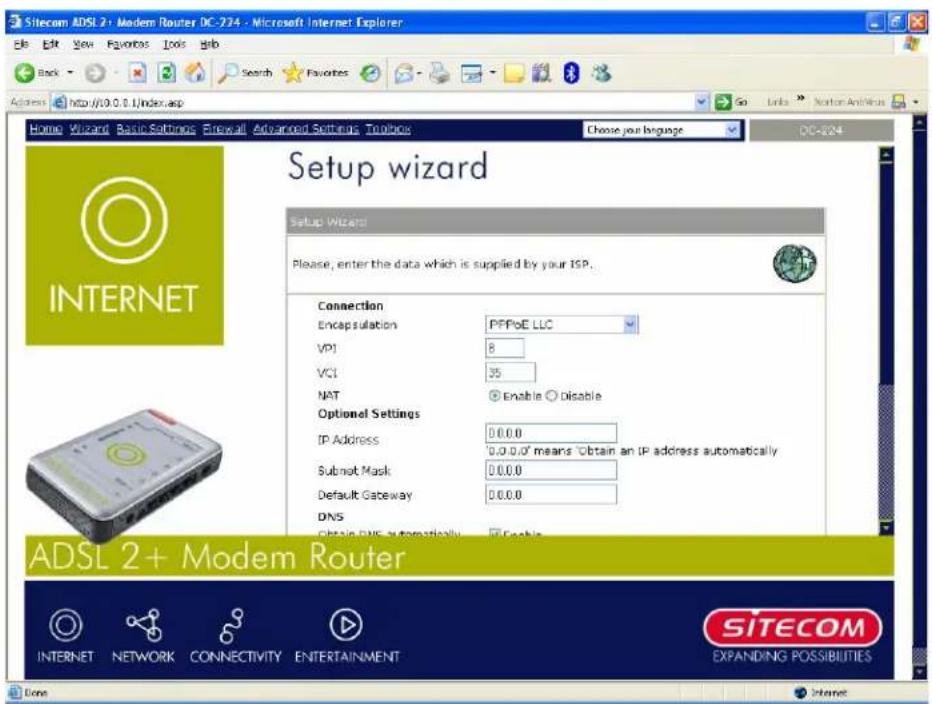
Sitecom ADSL 2+ Modem Router DC-724 - Microsoft Internet Explorer Edit Edit View Favorites Tools Help Back Search Favorites Address http://10.0.0.1/index.asp Home Wizard Basic Settings Firewall Advanced Setting Toolbox Choose your language DC-724 Setup wizard Setup Wizard Please, enter the data which is supplied by your ISP. Connection Encapsulation PFPoE LLC VPI 8 VCI 35 NAT Enable Disable Optional Settings IP Address 0.0.0.0 0.0.0.0 means Obtain an IP address automatically Submit Mask 0.0.0.0 Default Gateway 0.0.0.0 DNS Obtain DNS automatically Enable ADSL 2+ Modem Router INTERNET NETWORK CONNECTIVITY ENTERTAINMENT SITECOM EXPANDING POSSIBILITIES Core InternetFor users that cannot find their ISP from the ISP list or want to have advanced settings, they may find this page helpful.
Encapsulation: Select the encapsulation type your ISP uses.
VPI: Enter the VPI assigned to you. This field may already be configured.
VCI: Enter the VCI assigned to you. This field may already be configured.
NAT: Select "Enabled" or "Disabled".
IP Address: Type your ISP assigned IP address in the IP Address text box.
Subnet Mask: Enter a subnet mask in dotted decimal notation.
Default Gateway: You must specify a gateway IP address (supplied by your ISP)
Obtain DNS automatically: Select this check box to use DNS.
Primary DNS: Enter the IP addresses of the DNS servers. The DNS servers are passed to the DHCP clients along with the IP address and the subnet mask
Secondary DNS: Enter the IP addresses of the DNS servers. The DNS servers are passed to the DHCP clients along with the IP address and the subnet mask.
Username: Enter the username provided by your ISP. You can input up to 128 alphanumeric characters (case sensitive). This is usually in the format of "username@ispname" instead of simply "username".
Password: Enter the password provided by your ISP. You can input up to 128 alphanumeric characters (cases sensitive).
Connection: The connection methods include "Always On", "Connect On Demand" and "Manual Configuration".
Idle Timeout: It is used with "Connect On Demand". User define the idle timeout for disconnect the connection automatically.
MTU: User can configure the MTU size.
4.3 Basic Settings
4.3.1 LAN Settings
text_image
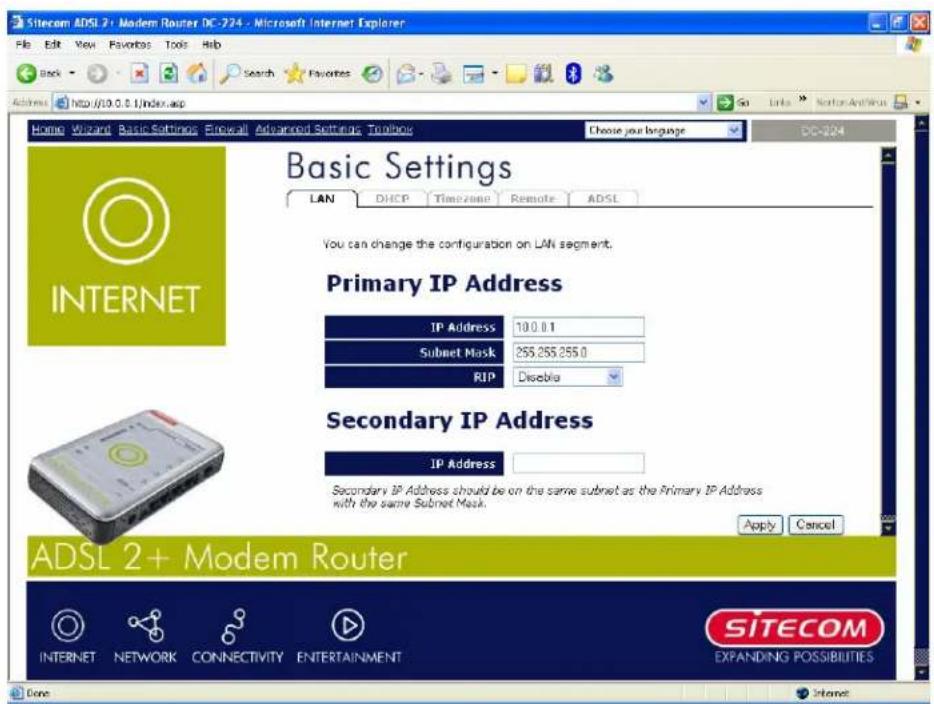
Sitecom ADSL 2+ Modem Router DC-224 - Microsoft Internet Explorer File Edit View Favorites Tools Help Back Search Favorites Address http://10.0.0.1/index.asp Home Wizard Basic Settings Forward Advanced Setting Toolbox Choose your language DC-224 Basic Settings LAN DHCP Timezone Remote ADSL You can change the configuration on LAN segment. Primary IP Address IP Address 10.0.1 Subnet Mask 255.255.255.0 RIP Disable Secondary IP Address IP Address Secondary IP Address should be on the same subnet as the Primary IP Address with the same Subnet Mask. Apply Cancel ADSL 2+ Modem Router SITECOM INTERNET NETWORK CONNECTIVITY ENTERTAINMENT EXPANDING POSSIBILITIES Done InternetThe router supports two Ethernet IP addresses in the LA through which you can access the Internet at the same time subnet in their LAN, so there is no need to configure a Second address for the router is 10.0.0.1.
RIP: RIP v1, RIP v2, RIP v1+v2 and RIP v2 Multicast.
4.3.2 DHCP Server
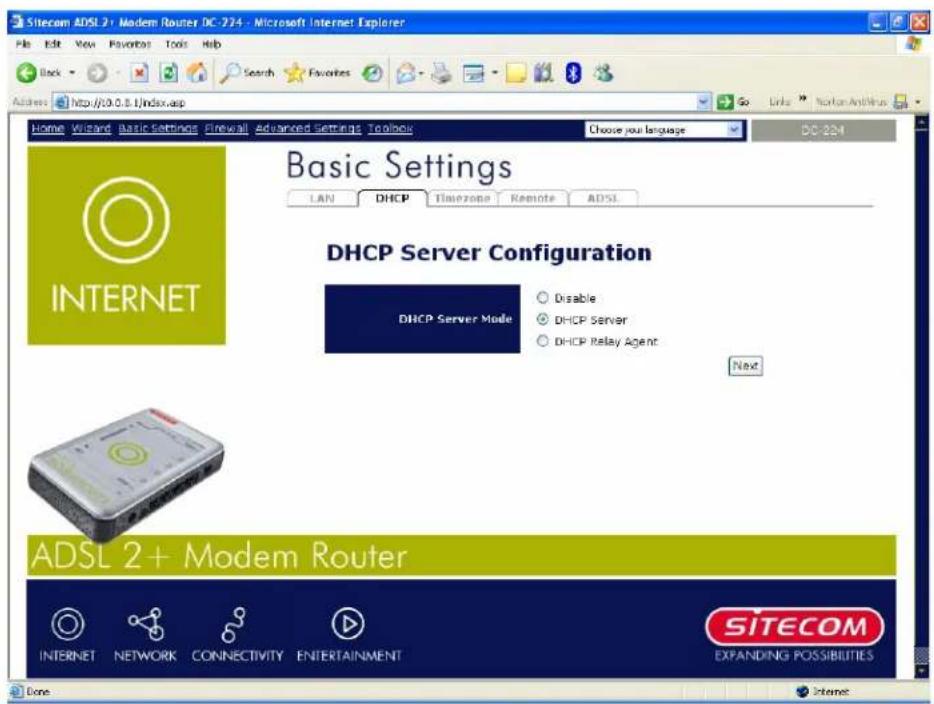
You can disable or enable the DHCP (Dynamic Host Configuration Protocol) server or enable the router's DHCP relay functions. The DHCP protocol allows the router to dynamically assign IP addresses to PCs on your network if they are configured to obtain IP addresses automatically.
text_image
Sitecom ADSL 2+ Modem Router DC-274 - Microsoft Internet Explorer File Edit View Favorites Tools Help Back Search Favorites Address http://0.0.8.1/index.asp Home Wizard Basic Settings Firewall Advanced Settings Toolbox Choose your language DC-224 Basic Settings LAN DHCP Timezone Remote ADSL DHCP Server Configuration DHCP Server Mode Disable DHCP Server DHCP Relay Agent Next ADSL 2+ Modem Router SITECOM INTERNET NETWORK CONNECTIVITY ENTERTAINMENT EXPANDING POSSIBILITIES Done Internet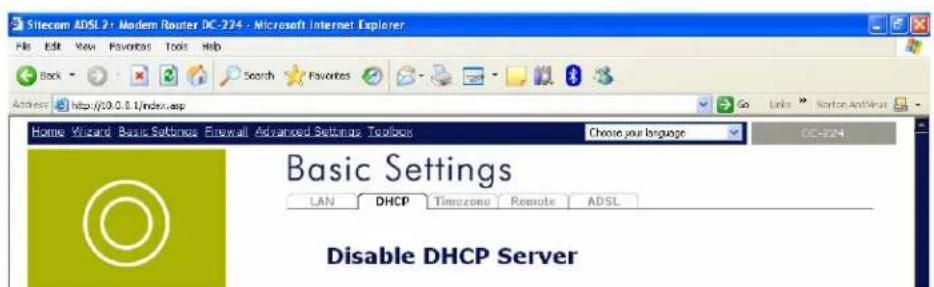
text_image
Sitecom ADSL 20 - Modern Router DC-224 - Microsoft Internet Explorer File Edit View Favorites Tools Help Back Search Favorites Access http://10.0.0.1/index.asp Home Wizard Basic Settings Email All Advanced Settings Toolbox Choose your language Basic Settings LAN DHCP Timezone Remote ADSL Disable DHCP ServerTo disable the router's DHCP Server, check Disabled and click "Next" then click "Apply".
When the DHCP Server is disabled you need to manually assign a PC on your network, and set the default gateway for each PC to the IP address of the router (the default is 10.0.0.1).
text_image
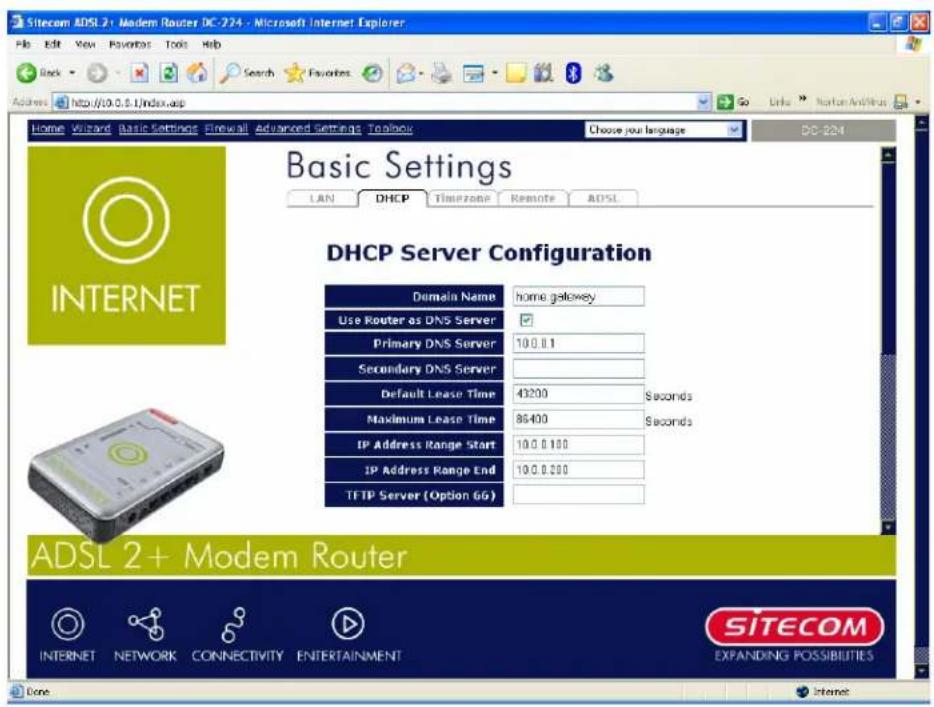
Sitecom ADSL 2+ Modem Router DC-224 - Microsoft Internet Explorer File Edit View Favorites Tools Help Back Search Favorites Address http://10.0.0.1/index.asp Home Wizard Basic Settings Firewall Advanced Settings Toolbox Choose your language DC-224 Basic Settings LAN DHCP Timezone Remote ADSL DHCP Server Configuration Domain Name home gateway Use Router as DNS Server Primary DNS Server 10.0.1.1 Secondary DNS Server Default Lease Time 43200 Seconds Maximum Lease Time 86400 Seconds IP Address Range Start 10.0.0.100 IP Address Range End 10.0.0.200 TFTP Server (Option 6G) ADSL 2+ Modem Router INTERNET NETWORK CONNECTIVITY ENTERTAINMENT SITECOM EXPANDING POSSIBILITIES Done InternetTo configure the router's DHCP Server, check DHCP Server and click "Next". You can then configure parameters of the DHCP Server including the IP pool (starting IP address and ending IP address to be allocated to PCs on your network), lease time for each assigned IP address (the period of time the IP address assigned will be valid), DNS IP address and the gateway IP address.
These details are sent to the DHCP client (i.e. your PC) when it the DHCP server. Click "Apply" to enable this function.
If you check "Use Router as a DNS Server", the ADSL Router performs the domain name lookup, finds the IP address from the outside network automatically and forwards it back to the requesting PC in the LAN (your Local Area Network).
text_image
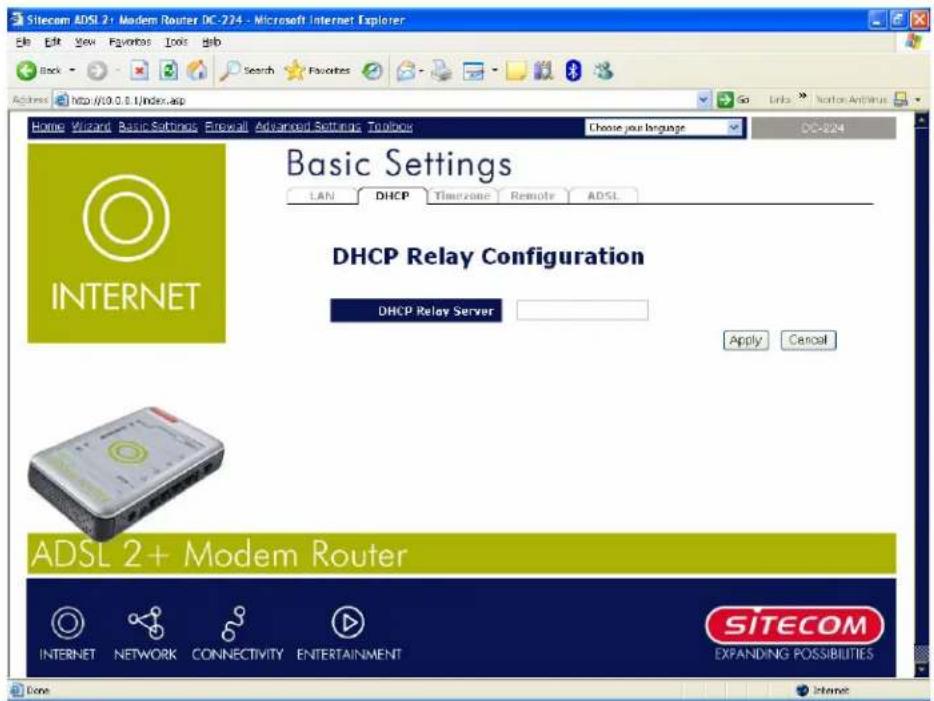
Sitecom ADSL 2+ Modem Router DC-224 - Microsoft Internet Explorer Edit Edit View Favorites Tools Help Back Search Favorites Go Links > Norton Antivirus Access http://10.0.0.1/index.asp Home Wizard Basic Settings Proposal Advanced Settings Toolbar Choose your language DC-224 Basic Settings LAN DHCP Timezone Remote ADSL DHCP Relay Configuration DHCP Relay Server Apply Cancel ADSL 2+ Modem Router INTERNET NETWORK CONNECTIVITY ENTERTAINMENT SITECOM EXPANDING POSSIBILITIES Done InternetIf you check DHCP Relay Agent and click "Next" then you must enter the IP address of the DHCP server which assigns an IP address back to the DHCP client in the LAN. Use this function only if advised to do so by your network administrator or ISP. Click "Apply" to enable this function.
4.3.3 Time Zone
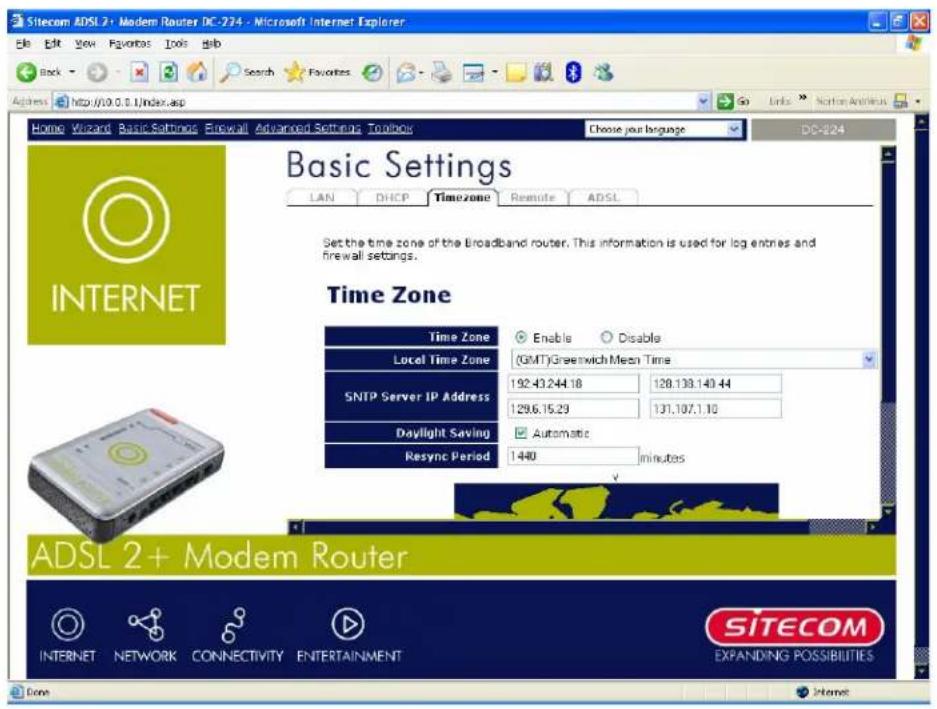
The router does not have a real time clock on board. Instead, it uses the Simple Network Time Protocol (SNTP) to get the current time from an SNTP server outside your network. Choose your local time zone, click "Enable" and click the "Apply" button. After a successful connection to the Internet, the router retrieves the correct local time from the SNTP server you have specified. If you prefer to specify an SNTP server other than those in the dropdown list, simply enter its IP address as shown above. Your ISP may provide an SNTP server for you to use.
Resync Period (in minutes) is the periodic interval the router waits before it resynchronizes the router's time with that of the specified SNTP server. To avoid unnecessarily increasing the load on your specified SNTP server you should keep the poll interval as high as possible – at the absolute minimum every few hours or even days.
text_image
Sitecom ADSL 2+ Modem Router DC-224 - Microsoft Internet Explorer File Edit View Favorites Tools Help Back Search Favorites Address http://10.0.0.1/index.asp Home Wizard Basic Settings Firewall Advanced Setting Toolbox Choose your language DC-224 Basic Settings LAN DHCP Timezone Remote ADSL Set the time zone of the Broadband router. This information is used for log entries and firewall settings. Time Zone Time Zone Enable Disable Local Time Zone (GMT) Greenwich Mean Time SNTP Server IP Address 192.43.244.18 128.139.140.44 1296.15.29 131.107.1.10 Daylight Saving Automatic Resync Period 1440 minutes ADSL 2+ Modem Router SITECOM INTERNET NETWORK CONNECTIVITY ENTERTAINMENT EXPANDING POSSIBILITIES Done Internet4.3.4 Remote Management
text_image
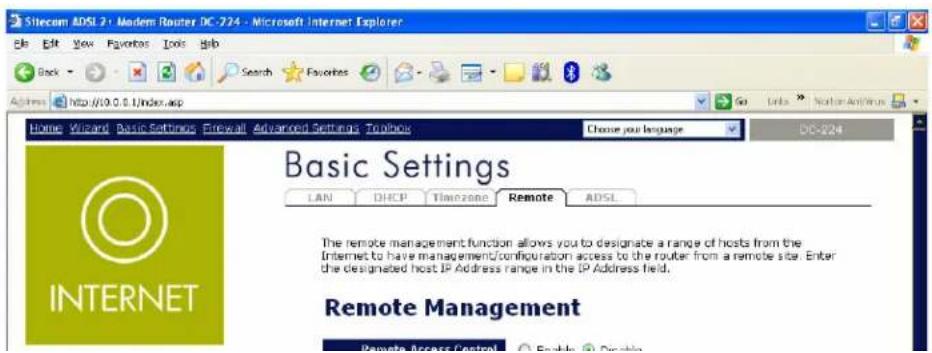
Sitecom ADSL 2 - Modern Router DC-724 - Microsoft Internet Explorer Back Search Favorites Address http://0.0.0.1/index.asp Home: Vizcand Basic Settings Firewall Advanced Settings Toolplus Choose your language DC-724 Basic Settings LAN DHCP Timezone Remote ADSL INTERNET The remote management function allows you to designate a range of hosts from the Internet to have management/configuration access to the router from a remote site. Enter the designated host IP Address range in the IP Address field. Remote Management Remote Access Control Enable ClosingTo temporarily permit remote administration of the rc select a time period the router permits remote access for and
4.4 Firewall
This router includes a full SPI (Stateful Packet Inspection) firewall for controlling Internet access from your LAN, as well as helping to prevent attacks from hackers. In addition to this, when using NAT (Network Address Translation) the router acts as a "natural" Internet firewall, since all PCs on your LAN use private IP addresses that cannot be directly accessed from the Internet. See the WAN configuration section for more details on NAT.
4.4.1 Packets Filter
text_image
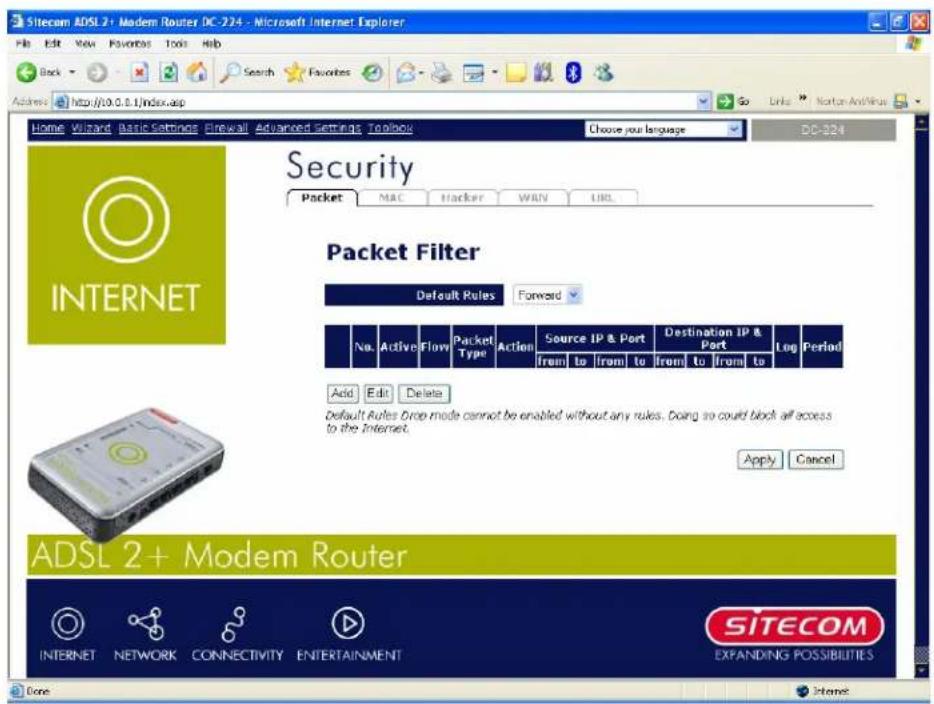
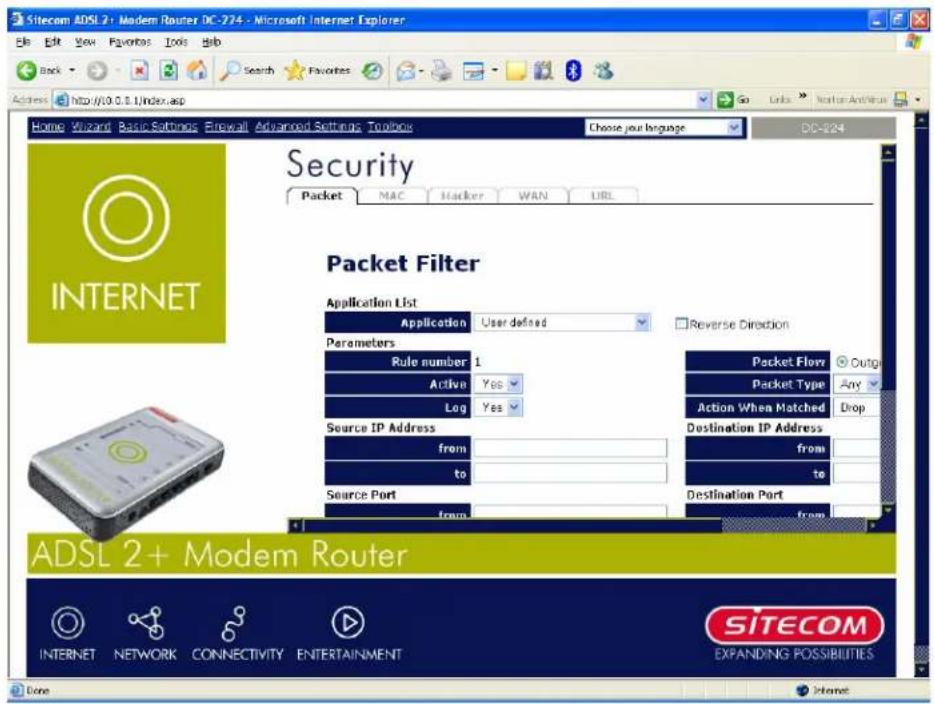
Sitecam ADSL 2+ Modem Router DC-324 - Microsoft Internet Explorer File Edit View Favorites Tools Help Back Search Favorites Go Links Norton Antivirus Address http://0.0.0.1/index.asp Home Wizard Basic Settings Firewall Advanced Settings Toolbox Choose your language DC-324 Security Packet MAC Hacker WARN URL Packet Filter Default Rules Forward No Active Flow Packet Type Action Source IP & Port Destination IP & Port Log Period from to from to from to from to Add Edit Delete Default Rules Drop mode cannot be enabled without any rules. Doing so could block all access to the Internet. Apply Cancel ADSL 2+ Modem Router SITECOM INTERNET NETWORK CONNECTIVITY ENTERTAINMENT EXPANDING POSSIBILITIES DonePacket filtering enables you to configure your route users (IP address) from Internet access, or you can disable number) to / from Internet. This configuration program allows you to set up to 6 different filter rules for different users based on their IP addresses or their network Port number. The relationship among all filters is "or" operation, which means that the router checks these different filter rules one by one, starting from the fi satisfied, the specified action is taken.
Add: Click this button to add a new packet filter rule and the next figure appears.
Edit: Check the Rule No. you wish to edit, and then click "Edit".
Delete: Check the Rule No. you wish to delete, and then click "Delete".
text_image
Sitecom ADSL 2+ Modem Router DC-274 - Microsoft Internet Explorer File Edit View Favorites Tools Help Back Search Favorites Go Links Next for Internet Address http://10.0.0.1/index.asp Home Wizard Basic Settings Firewall Advanced Settings Toolbox Choose your language DC-224 Security Packet MAC Hacker WAN URL INTERNET Packet Filter Application List Application User defined Reverse Direction Parameters Rule number 1 Active Yes Log Yes Packet Flow Outg Packet Type Any Action When Matched Drop Source IP Address from to Destination IP Address from to Source Port from Destination Port ADSL 2+ Modem Router INTERNET NETWORK CONNECTIVITY ENTERTAINMENT SITECOM EXPANDING POSSIBILITIES Done InternetApplication: User can choose they want.
Outgoing / Incoming: Determine whether the rule is for outgoing packets or for incoming packets.
Active: Choose "Yes" to enable the rule, or choose "No" to disable the rule.
Packet Type: Specify the packet type (TCP, UDP, ICMP or any) that the rule applies to.
NOTE:
Select TCP if you wish to search for the connection-based application using the port number. Or select UDP if you want to access a network service on the remote server using the port number
Log: Choose "Yes" if you wish to generate logs when the filer rule is applied to a packet.
Action When Matched: If a packet matches this filter rule, Forward or Drop this packet.
Source IP Address: Enter the incoming or outgoing packet's source IP addresses.
Source Port: Check the TCP or UDP packet's source port numbers.
Destination IP Address: Enter the incoming or outgoing packet's destination IP addresses.
Destination Port: Check the TCP or UDP packet's destination port numbers.
Schedule time: User can setup the time to use the packet filter.
NOTE:
If the DHCP server option is enabled, you must be very careful a filtered private IP range to avoid conflicts because you do not know which PC in the LAN is assigned which IP address.
The easiest and safest way is that the filtered IP address is assigned to a specific PC that is not allowed to access an outside resource such as the Internet. You configure the filtered IP address manually for this PC, but it stays in the same subnet with the router.
4.4.2 MAC Filter
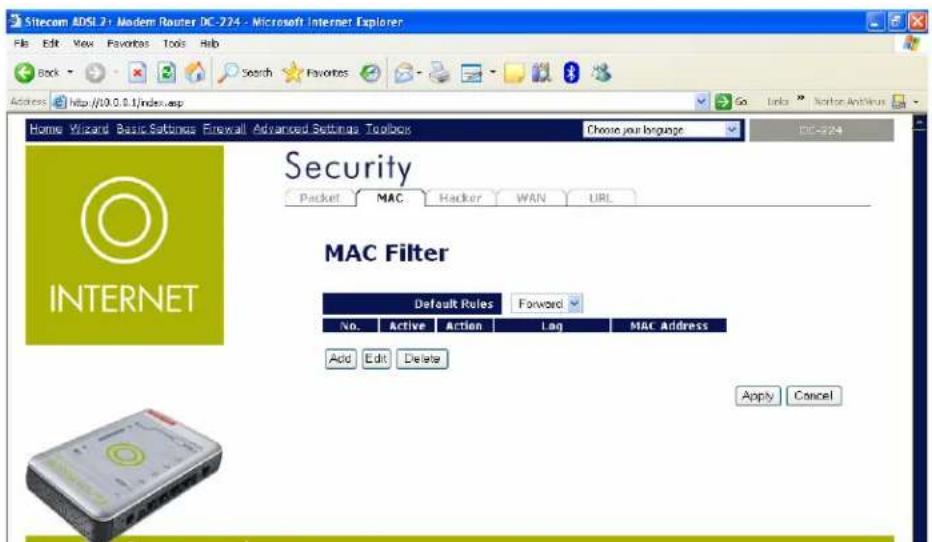
An Ethernet MAC (Media Access Control) address is the unique network hardware identifier for each PC on your network's interface (i.e. its Network Interface Card or Ethernet card). Using your router's MAC Address Filter function, you can configure the switch to only accept traffic from specified machines, or else to block specific machines from accessing your LAN.
text_image
Sitecom ADSL 2 - Modern Router DC-224 - Microsoft Internet Explorer File Edit View Favorites Tools Help Back Search Favorites Go Links Monitor Antivirus Access http://10.0.0.1/index.asp Home Wizard Basic Settings Firewall Advanced Settings Toolbox Choose your language Security Packet MAC Hacker WAN URL INTERNET MAC Filter Default Rules Forward No. Active Action Log MAC Address Add Edit Delete Apply CancelThere are no pre-defined MAC address filter rules; you can add requirements.
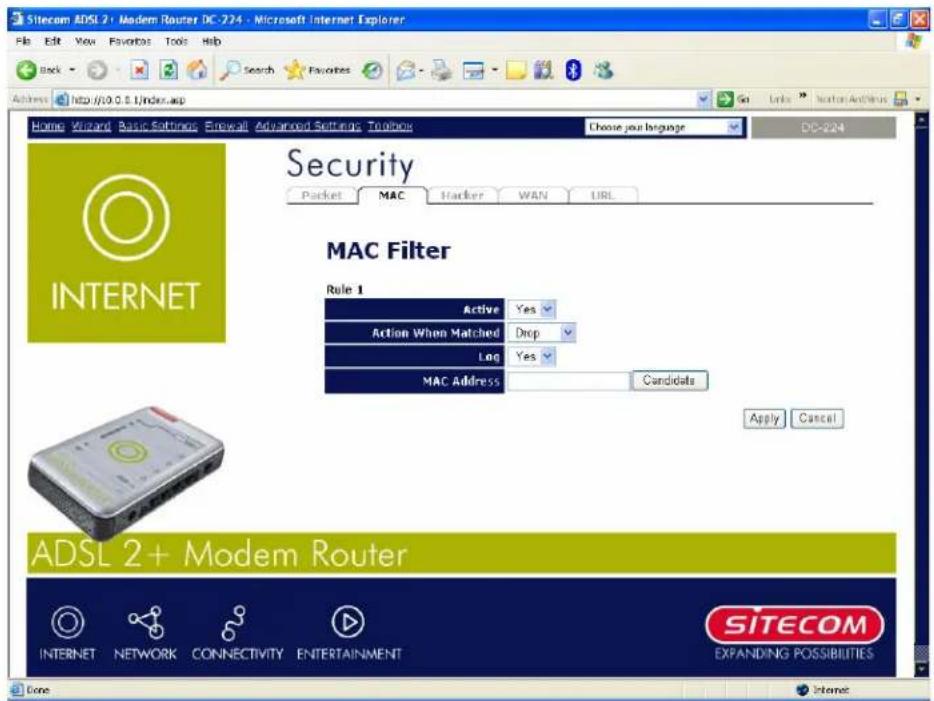
Active: Select "Yes" from the drop down list box to enable MAC address filtering.
Action When Matched: Select "Drop" or "Forward".
Log: Choose "Yes" if you wish to generate logs when the filer rule is applied to a packet.
MAC Address: Enter the MAC addresses you wish to manage.
Candidates: it automatically detects devices connected to the router through the Ethernet.
text_image
Sitecom ADSL 2+ Modem Router DC-224 - Microsoft Internet Explorer File Edit View Favorites Tools Help Back Search Favorites Address http://0.0.0.1/index.asp Home Wizard Basic Settings Forward Advanced Settings Toolbox Choose your language DO-224 Security Packet MAC Hacker WAN URL MAC Filter Rule 1 Active Yes Action When Matched Drop Log Yes MAC Address Candidates Apply Cancel ADSL 2+ Modem Router SITECOM INTERNET NETWORK CONNECTIVITY ENTERTAINMENT EXPANDING POSSIBILITIES Done Internet4.4.3 Intrusion Detection
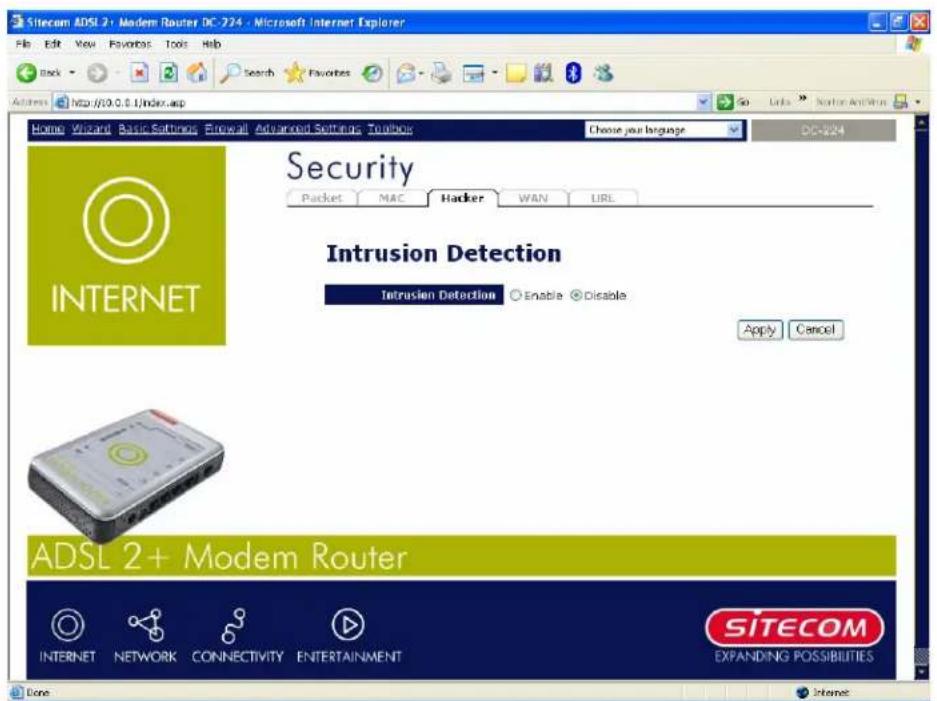
Check "Enable" if you wish to detect intruders accessing your The router automatically detects and blocks a DoS (De enables this function. This kind of attack is not accessing confidential data on the network; instead, it aims to disrupt specific equipment or the entire network. If this happens, users are not able to access network resources.
text_image
Sitecom ADSL 2+ Modem Router DC-224 - Microsoft Internet Explorer File Edit View Favorites Tools Help Back Search Favorites Address http://10.0.0.1/index.asp Home Wizard Basic Settings Advanced Settings Toolbox Choose your language DC-224 Security Packet MAC Hacker WAN URL INTRUST Intrusion Detection Intrusion Detection Enable Disable Apply Cancel ADSL 2+ Modem Router INTERNET NETWORK CONNECTIVITY ENTERTAINMENT SITECOM EXPANDING POSSIBILITIES Done InternetIntrusion Detection: Check "Enable" if you wish to detect intruders accessing your computer without permission.
Alert Mail: Select this check box to use Alert Mail.
Alert Mail Time: Set the time for receiving Alert mail.
Your E-Mail: Set your email address.
Recipient's E-mail: Set the Recipient's email address to which the E-mail notification is sent.
SMTP server: Set the SMTP (mail) server address.
4.4.4 Block WAN Request
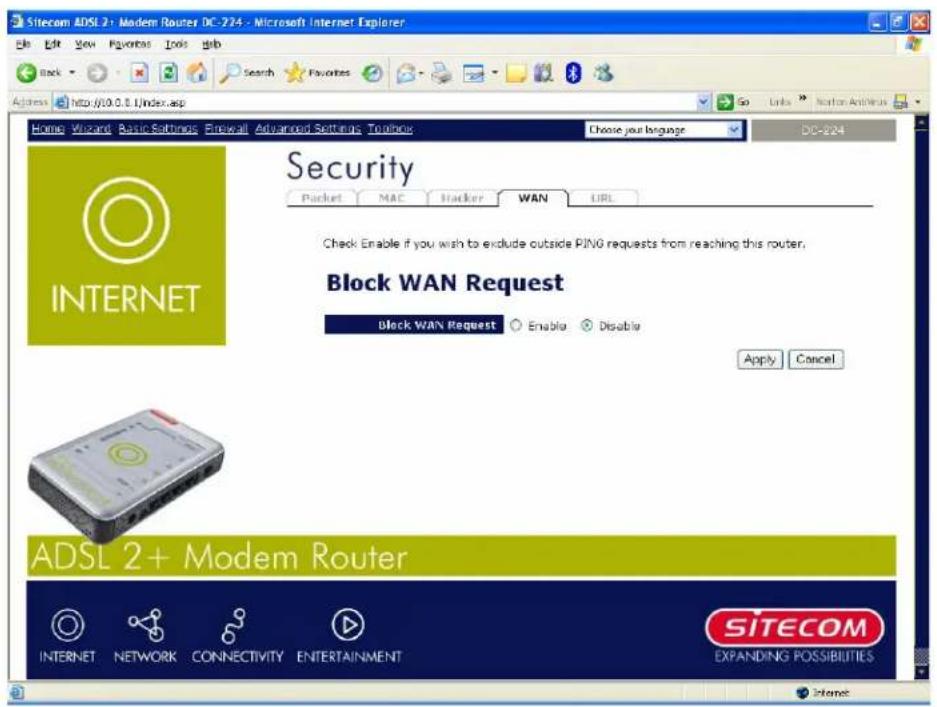
Check "Enable" if you wish to exclude outside PING requests from reaching this router.
text_image
Sitecom ADSL 2+ Modem Router DC-724 - Microsoft Internet Explorer File Edit View Favorites Tools Help Back Search Favorites Address http://10.0.0.1/index.asp Home Wizard Basic Settings Firewall Advanced Settings Touchout Choose your language DO-224 Security Packet MAC Hacker WAN URL INTERNET Check Enable if you wish to exclude outside PING requests from reaching this router. Block WAN Request Block WAN Request Enable Disable Apply Cancel ADSL 2+ Modem Router INTERNET NETWORK CONNECTIVITY ENTERTAINMENT SITECOM EXPANDING POSSIBILITIES4.4.5 URL Filter
text_image
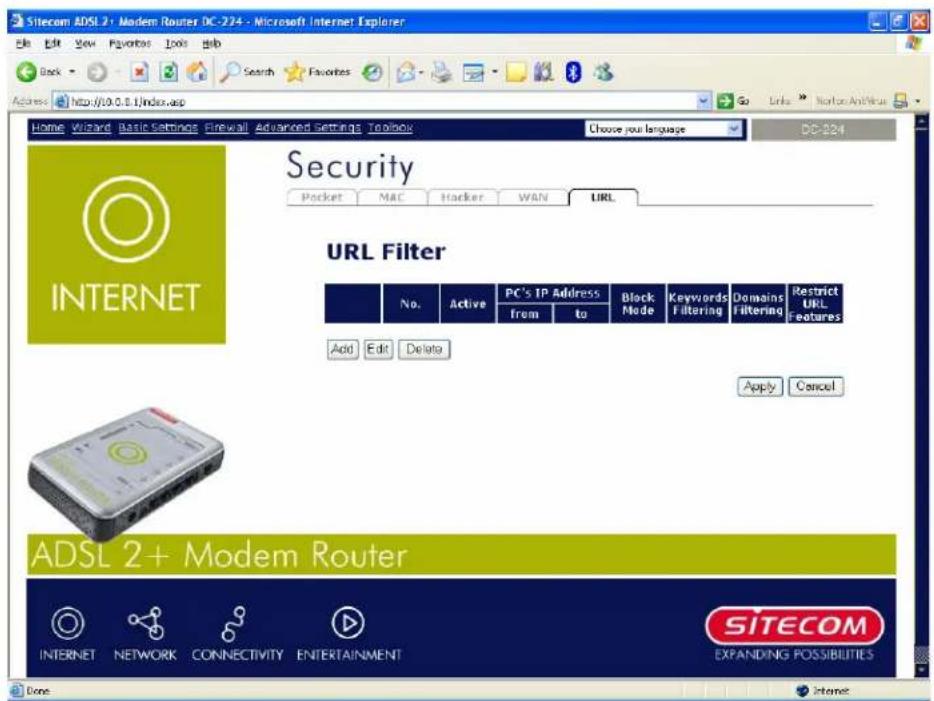
Sitecom ADSL 2+ Modem Router DC-224 - Microsoft Internet Explorer File Edit View Favorites Tools Help Back Search Favorites Go Links Monitor Anti-House Access http://0.0.0.1/index.asp Home Wizard Basic Settings Firewall Advanced Settings Toolbox Choose your language DC-224 Security Pocket MAC Hacker WAN URL INTERNET URL Filter No. Active PC's IP Address Black From to Mode Keywords Filtering Domains Filtering Restrict URL Features Add Edit Delete Apply Cancel ADSL 2+ Modem Router INTERNET NETWORK CONNECTIVITY ENTERTAINMENT SITECOM EXPANDING POSSIBILITIES Done InternetURL (UniformResource Locator -e.g.an address in the form of http://www.example.com) filter rules allow you to prevent users on your network from accessing particular websites from their URL. There are no pre-defined URL filter rules; you can add filter rules to meet your requirements.
text_image
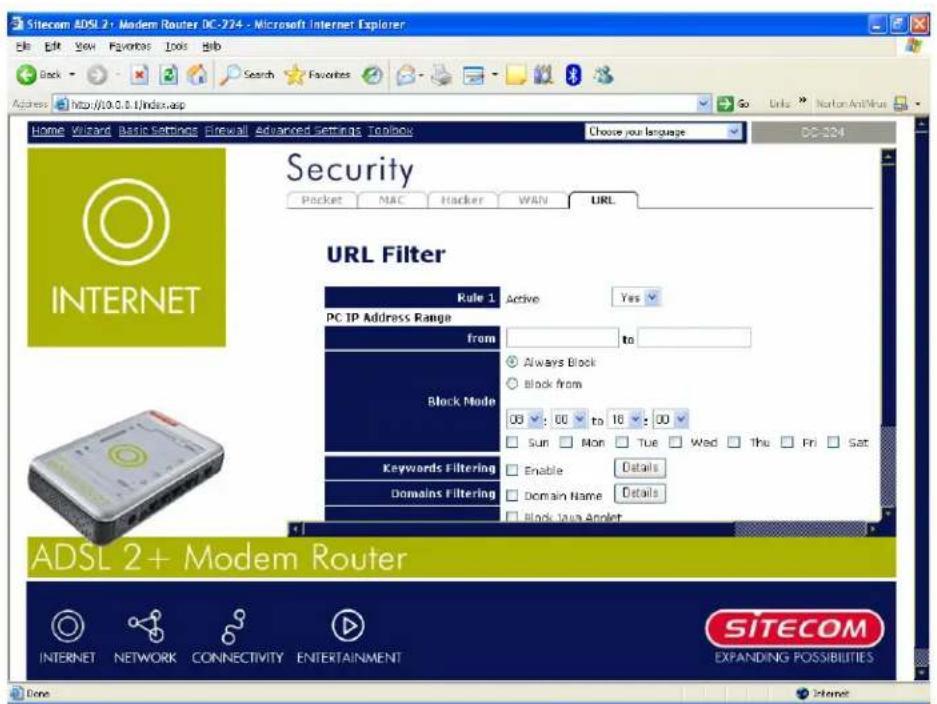
Sitecom ADSL 2+ Modem Router DC-224 - Microsoft Internet Explorer File Edit View Favorites Tools Help Back Search Favorites Go Links Norton Antivirus Address http://10.0.8.1/index.asp Home Wizard Basic Settings Firewall Advanced Settings Toolbox Choose your language Security Packet MAC Hacker WAN URL PC-224 INTERNET URL Filter Rule 1 Active Yes PC IP Address Range from to ● Always Block ○ Block from Block Mode 08:00 to 16:00 □ Sun □ Rton □ Tue □ Wed □ Thu □ Fri □ Sat Keywords Filtering □ Enable Details Domains Filtering □ Domain Name Details □ Block Java Adapter ADSL 2+ Modem Router INTERNET NETWORK CONNECTIVITY ENTERTAINMENT SITECOM EXPANDING POSSIBILITIES Done InternetActive: Select "Yes" from the drop down list box to enable or disable the URL Filter feature.
Always Block: Select to always check URL filter rules (i.e. at all hours of the day).
Block from: Specify the time period to check URL filter rules (e.g. during work hours).
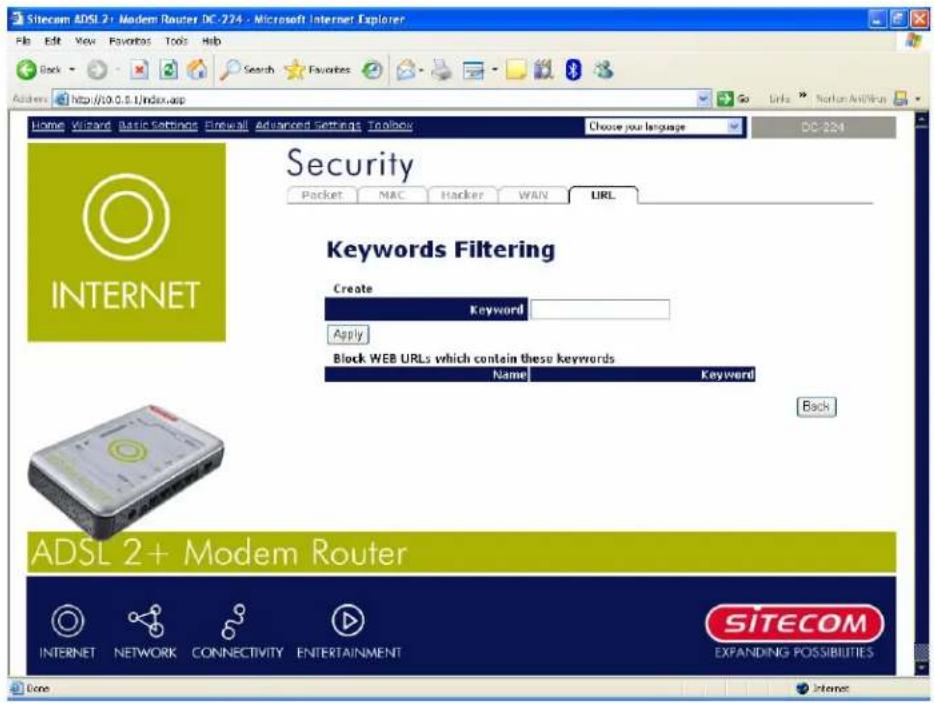
Keywords Filtering: Allows blocking by specific keywords within a particular URL rather than having to specify a complete URL (e.g. to block any image called "advertisement.gif"). When enabled, your specified keywords list is checked to see if URLs accessed to determine if the connection attempt should be blocked. Note that the URL filter blocks web browser (HTTP) connection attempts using port 80 only.
For example, the URL "http://www.abc.com/abcde.html" would be dropped since the keyword "abcde" occurs in the URL.
text_image
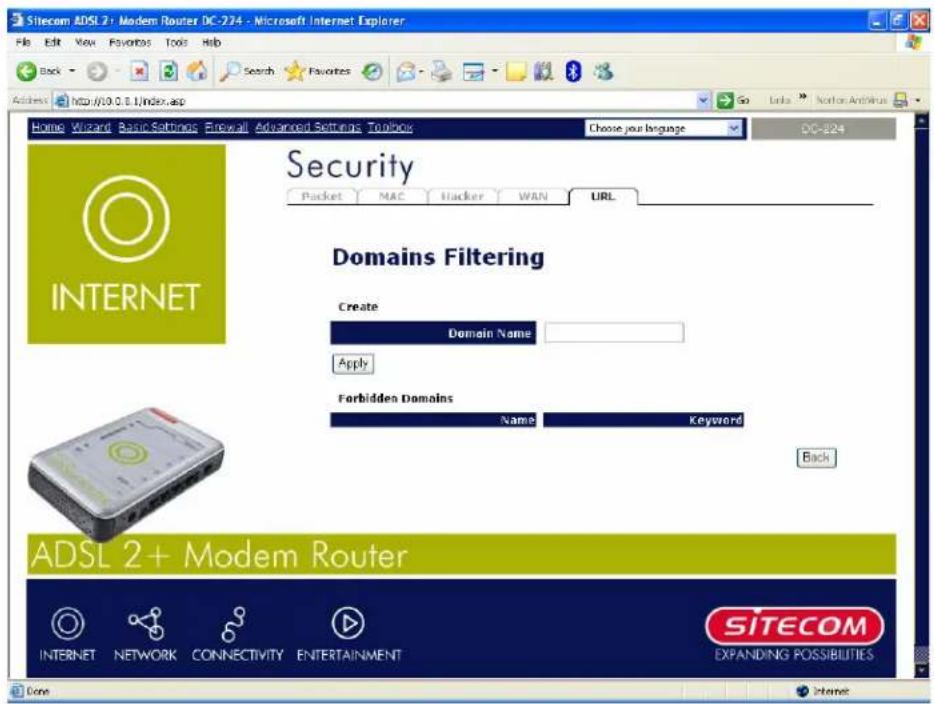
Sitecom ADSL 2+ Modem Router DC-224 - Microsoft Internet Explorer File Edit View Favorites Tools Help Back Search Favorites Address http://10.0.5.1/index.asp Home Wizard Basic Settings Firewall Advanced Settings Toolbox Choose your language DC-224 Security Packet MAC Hacker WAN URL Keywords Filtering Create Keyword Apply Block WEB URLs which contain these keywords Name Keyword Back ADSL 2+ Modem Router INTERNET NETWORK CONNECTIVITY ENTERTAINMENT SITECOM EXPANDING POSSIBILITIES Done InternetDomains Filtering: Checks the domain name in URLs acc domains to block or allow. If it matches, the URL request is sent (Trusted) or dropped (Forbidden). The checking procedure is:
- Check the domain in the URL to determine if it is in the trusted list. If yes, the connection attempt is sent to the remote web server.
- If not, it is checked with the forbidden list. If present, the connection attempt is dropped.
- If the packet matches neither of the above, it is sent to the remote web server.
- Please note that only the domain is specified, not the full URL. For example to block traffic to www.sex.com, enter "sex" or "sex.com" instead of "www.sex.com". In the example below, the URL request for www.abc.com is sent to the remote web server because it is listed in the trusted list, while the URL request for www.sex or www.sex.com is dropped because sex.com is in the forbidden list.
text_image
Sitecom ADSL2+ Modem Router DC-224 - Microsoft Internet Explorer File Edit View Favorites Tools Help Back Search Favorites Address http://10.0.0.1/index.asp Home Wizard Basic Settings Firewall Advanced Setting Toolbar Choose your language DC-224 Security Packet MAC Hacker WAN URL Domains Filtering Create Domain Name Apply Forbidden Domains Name Keyword Back ADSL 2+ Modem Router INTERNET NETWORK CONNECTIVITY ENTERTAINMENT SITECOM EXPANDING POSSIBILITIES Done InternetRestrict URL Features
- Block Java Applet: Blocks Web content which includes the Java Applet to prevent someone who wants to damage your system via the standard HTTP protocol.
• Block ActiveX: Blocks ActiveX
• Block Cookies: Blocks Cookies
• Block Proxy: Blocks Proxy
4.5 Advanced Settings
4.5.1 QoS Settings
QOS: Keeping Your Internet Connection Fast and Responsive.
Configurable by source IP address, destination IP address, protocol, and port, the Quality of Service (QOS) gives you full control over which types of outgoing data traffic should be given priority by the router, ensuring bandwidth-consumption data like gaming packets, latency-sensitive application like voice, or even mission critical files, move through the router at lightening speed, even under heavy load. You can throttle the speed at which different types of outgoing data pass through the router. In addition, you can simply change the priority of different types of upload data and let the router sort out the actual speeds.

text_image
Sitecom ADSL 24 - Modern Router DC-224 - Microsoft Internet Explorer File Edit View Favorites Tools Help Back Search Favorites Address http://10.0.6.1/index.asp Go Links Norton Antivirus Home Wizard Basic Settings Firewall Advanced Settings Toolbox Choose your language DC-324After clicking the QOS item, you can Add / Edit / Delete a QOS policy. This page will show the brief information for policies you have added or edited. This page will also display the total available (Non-assigned) bandwidth, in percentage, can be assigned.
Application: A name that identifies an existing policy.
Time Schedule: Scheduling your QOS policy to be applied.
Direction: The traffic flow direction to be controlled by the QOS policy.
There are two settings to be provided in the Router:
LAN to WAN: You want to control the traffic flow from the local network to the outside world. E.g., you have a FTP server inside the local network and you want to have a limited traffic rate controlled by the QOS policy. So, you need to add a policy with LAN to WAN direction setting.
LAN to WAN: Control Traffic flow from the WAN to LAN. The connection maybe either issued from LAN to WAN or WAN to LAN.)
Assigned Bandwidth Ratio: This field shows the assigned bandwidth ratio in percentage for a QOS policy. If WAN connection to internet is established, the estimated transfer rate will be shown in kbps. You may specify a fixed transfer rate or Minimum Guaranteed Rate with priority for non-used bandwidth.
Non-Assigned Bandwidth Ratio: This field shows the available bandwidth ratio, for LAN to WAN and WAN to LAN, which has not yet assigned.
text_image
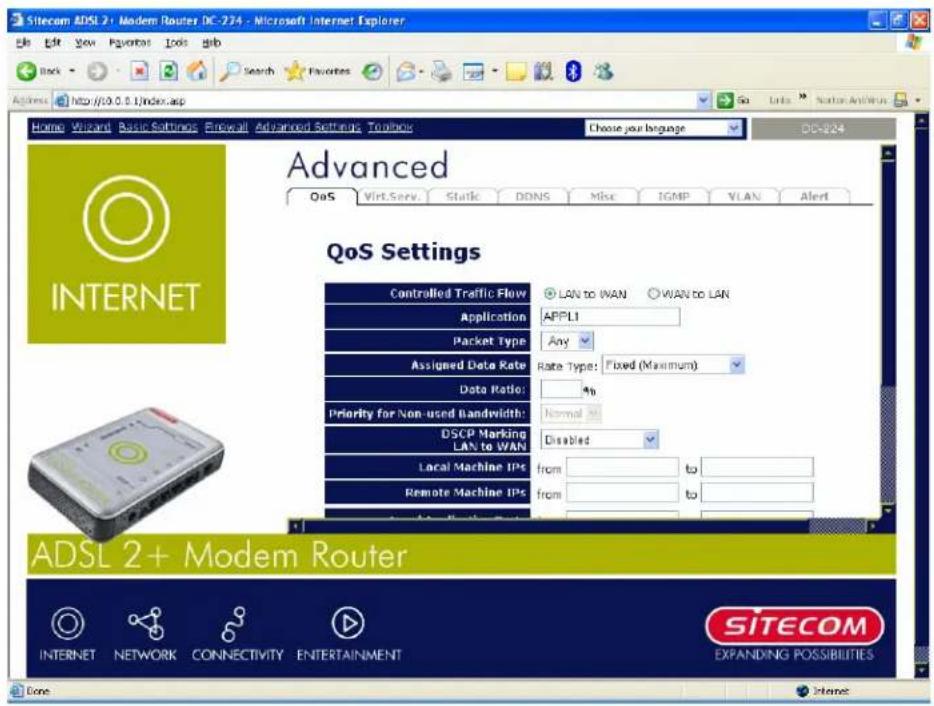
Sitecom ADSL 2+ Modem Router DC-274 - Microsoft Internet Explorer Home Wizard Basic Settings Forward Advanced Settings Toolbar Choose your language DD-824 Advanced QoS Virtual Serv Static DDNS Misc IGMP VLAN Alert QoS Settings Controlled Traffic Flow LAN to WAN WAN to LAN Application APPL1 Packet Type Any Assigned Data Rate Rate Type: Fixed (Maximum) Data Ratio: % Priority for Non-used Bandwidth: Normal DSCP Marking Disabled LAN to WAN Local Machine IPS from to Remote Machine IPS from to ADSL 2+ Modem Router SITECOM INTERNET NETWORK CONNECTIVITY ENTERTAINMENT EXPANDING POSSIBILITIES CoreControlled Traffic Flow: Specify the traffic flow you want to control. For GRE protocol, there is no need to specify the IP addresses or Application ports in this page. For other protocols, at least one value shall begin.
Packet type: The packet type will be controlled. For GRE protocol, there is no need to specify the IP addresses or Application ports in this page. For other protocols, at least one value shall be given.
Any: No specified protocol type is specified.
• T CP
• UDP
• I CMP
• GRE: For PPTP VPN Connections.
Assigned Data Rate: Assign the data ratio for this policy to be controlled. For examples, we want to only allow 20% of the total data transfer rate for the LAN-to-WAN direction to be used for FTP server. Then we can specify here with data ratio = 20. If you have ADSL LINE with 256K/bps.rate, the estimated data rate, in kbps, for this rule is 20%*256*0.9 = 46kbps. (For 0.9 is an estimated factor for the effective data transfer rate for a ADSL LINE from LAN to WAN. For WAN-to-LAN, it is 0.85 to 0.8).
Data Ratio: percentage for the data rate to be controlled by this policy. As above FTP server examples, it is 20.
Rate Type: We provide 2 types here:
Fixed (Maximum): specify a fixed data rate for this policy. It also is the maximal rate for this policy. As above FTP server example, you may want to "throttle" the outgoing FTP speed to 20% of 256K and limit to it, you may use this type.
Guaranteed (Minimum): specify a minimal data rate for this policy. For example, you want to provide a guaranteed data rate for your outside customers to access your internal FTP server with, say at least, 20% of your total bandwidth. You can use this type. Then, if there is available bandwidth that is not used, it will be given to this policy by following priority assignment.
Priority for Non-used Bandwidth: Specify the priority for the bandwidth that is not used. For examples, you may specify two different QOS policies for different applications. Both applications need a minimal bandwidth and need more bandwidth, beside the assigned one, if there is any available/non-used one available. So, you may specify which application can have higher priority to acquire then non-used bandwidth.
- High
• Normal: The default is normal priority. - Low
For the sample priority assignment for different policies, it is served in a First-In-First-Out way.
DSCP Marking: Differentiated Services Code Point (DSCP), it is the first 6 bits in the ToS byte. DSCP Marking allows users to classify traffic based on DSCP value and send packets to next Router.
| DS CP Mapping Table | |
| Disabled | None |
| Best Effort | Best Effort(0 0 0 0 0 0 ) |
| Premium | Express Forwarding(1 0 1 1 1 0 ) |
| Gold service (L) | Class 1,Gold (0 0 1 0 1 0) |
| Gold service | (M) Class 1, Silver (0 0 1 1 0 0) |
| Gold service | (H) Class 1, Bronze (0 0 1 1 1 0) |
| Silver service | (L) Class 2, Gold (0 1 0 0 1 0) |
| Silver service | (M) Class 2, Silver (0 1 0 1 0 0) |
| Silver service | (H) Class 2, Bronze (0 1 0 1 1 0) |
| Bronze service | (L) Class 3, Gold (0 1 1 0 1 0) |
| Bronze service | (M) Class 3, Silver (0 1 1 1 0 0) |
| Bronze service | (H) Class 3, Bronze (0 1 1 1 1 0) |
Local Machine IPs: The IP address values for Local LAN machines you want to control. (For IP packets from LAN to WAN, it is the source IP address. For IP packages from WAN to LAN, it is the destination IP address.)
Remote Machine IPs: The IP address values for Remote WAN machines you want to control. (For IP packets from LAN to WAN, it is the destination IP address. For IP packages from WAN to LAN, it is the source IP address.)
Local Application Ports: The Application port values for local LAN machines you want to control. (For TCP/UDP packets from LAN to WAN, it is the source port value. For TCP/UDP packets from WAN to LAN, it is the destination port value.)
Remote Application Ports: The Application port values for remote machines you want to control. (For TCP/UDP packets from LAN to WAN, it is the destination port value. For TCP/UDP packets from WAN to LAN, it is the source port value.)
Schedule Time: Schedule your QOS policy.
4.5.2 Virtual Server
In TCP/IP and UDP networks a port is a 16-bit number used to identify which application program (usually a server) incoming connections should be delivered to. Some ports have numbers that are pre-assigned to them by the IANA (the Internet Assigned Numbers
Authority), and these are referred to as "well-known ports". Support assignments so clients can locate them.
If you wish to run a server on your network that can be accessed from the WAN (i.e. from other machines on the Internet that are outside your local network), or any application that can accept incoming connections (e.g. Peer-to-peer/P2P software such as instant messaging applications and P2P file-sharing applications) and are using NAT (Network Address Translation), then you need to configure your router to forward these incoming connection attempts using specific ports to the PC on your network running the application. You also need to use port forwarding if you wish to host an online game server.
The reason is that when using NAT, your publicly accessible IP address is used by and points to your router, which needs to deliver all traffic to the private IP addresses used by your PCs. Please see the WAN configuration section of this manual for information on NAT.
The Internet Assigned Numbers Authority (IANA) is the central coordinator for the assignment of unique parameter values for Internet protocols. Port numbers range from 0 to 65535, but only port numbers 0 to 1023 are reserved for privileged services and are designated as "well-known ports". The registered ports are numbered from 1024 through 49151. The remaining ports, referred to as dynamic ports, or private ports, are numbered from 49152 through 65535.
Examples of well-known and registered port numbers are shown below, for further information, please see IANA's website at: http://www.iana.org/assignments/port-numbers
Well -known and Registered Ports
| Port Number | Protocol | Description |
| 2 0 | T C P | F T P D a t a |
| 2 1 | T C P | F T P C o n t r o l |
| 22 | TCP & UDP | SSH Remote Login Protocol |
| 2 3 | T C P | T e l n e t |
| 25 | TCP | SMTP (Simple Mail Transfer Protocol) |
| 53 | TCP & UDP | DNS (Domain Name Server) |
| 69 | UDP | TFTP (Trivial File Transfer Protocol) |
| 8 0 | T C P | W o r l d W i d e W e b H T T P |
| 110 | TCP | POP3 (Post Office Protocol Version 3) |
| 119 | TCP | NEWS (Network News Transfer Protocol) |
| 123 | UDP | NTP (Network Time Protocol) |
| 161 TCP SNMP | |
| 443 TCP & UDP HTTPS | |
| 1503 TCP T.120 | |
| 1720 TCP H.323 | |
| 4000 TCP ICQ | |
| 7070 UDP | Real Audio |
text_image
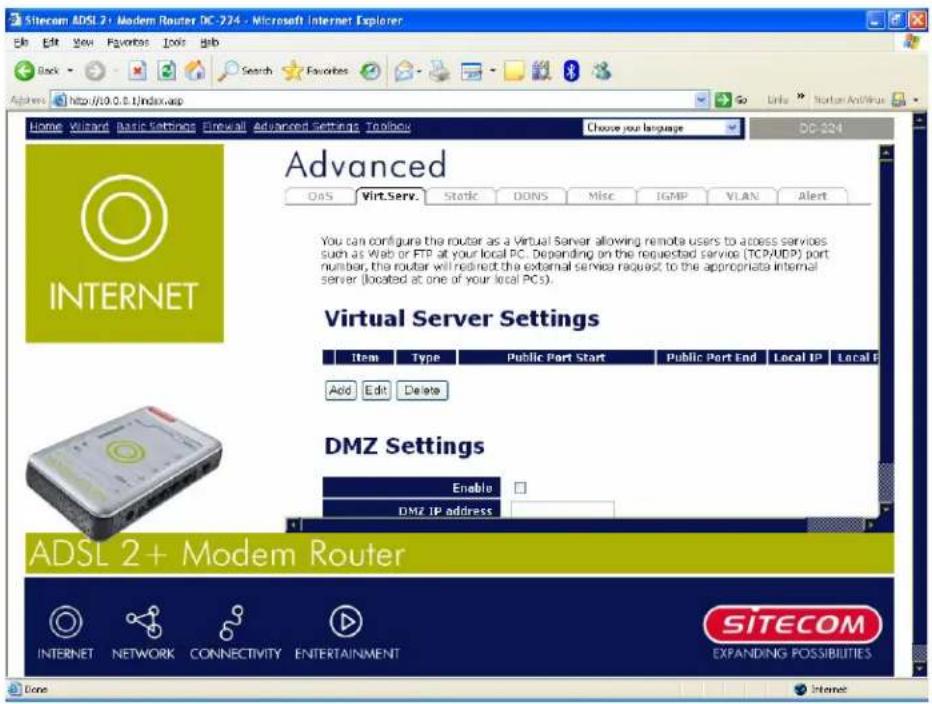
Sitecom ADSL 2+ Modem Router DC-724 - Microsoft Internet Explorer Edit Edit View Favorites Tools Help Back Search Favorites Browse http://10.0.0.1/index.asp Home Wizard Basic Settings E-mail Advanced Settings ToolNow Choose your language DD-324 Advanced OAS Virt.Serv. Static DONS Misc IGMP VLAN Alert You can configure the router as a Virtual Server allowing remote users to access services such as Web or FTP at your local PC. Depending on the requested service (TCP/AUDP) port number, the router will redirect the external service request to the appropriate internal server (located at one of your local PCs). Virtual Server Settings Item Type Public Port Start Public Port End Local IP Local F Add Edit Delete DMZ Settings Enable DMZ IP address ADSL 2+ Modem Router SITECOM INTERNET NETWORK CONNECTIVITY ENTERTAINMENT EXPANDING POSSIBILITIES Core InternetItem: Item number
Type: Select TCP if you wish to search for connection-based application services on the remote server using the port number.
Port Start & Port End: Enter the public port number & range you wish to configure.
IP Address: Enter the IP address of a specific internal server to which requests from the specified port is forwarded.
Add: Click to add a new virtual server rule. Click again and the next figure appears.
Edit: Check the Rule No. you wish to edit and then click "Edit".
Delete: Check the Rule No. you wish to delete, then click "Delete".
text_image
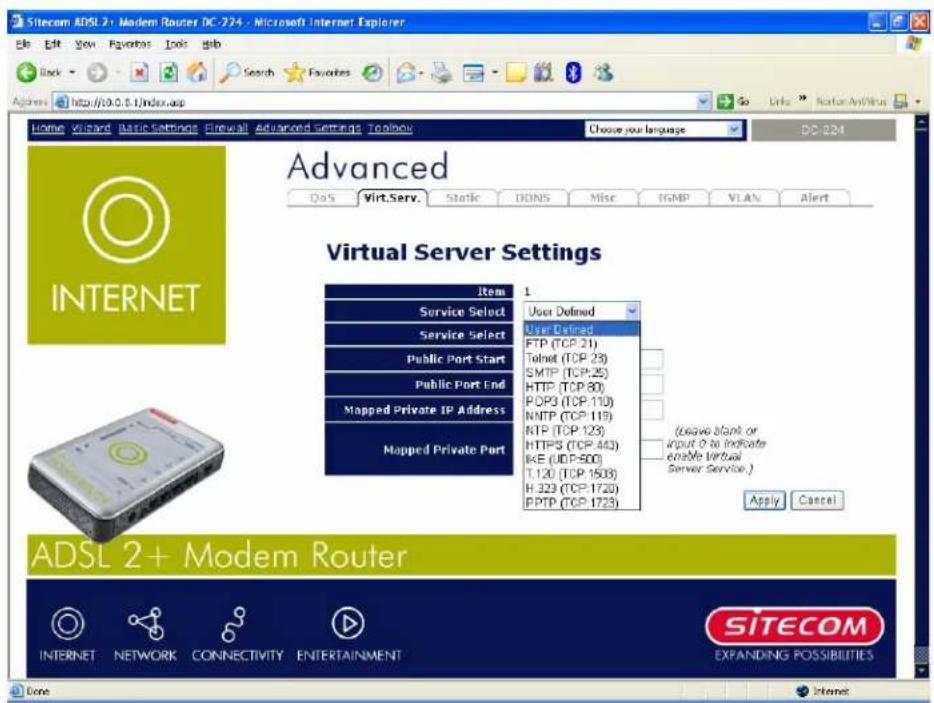
Sitecom ADSL 2+ Modem Router DC-224 - Microsoft Internet Explorer File Edit View Favorites Tools Help Address http://10.0.5.1/index.asp Home Viewyard Basic Settings Firewall Advanced Settings Toolbox Choose your language DC-224 Advanced QoS Virt.Serv. Static DONS Misc IGMP VLAN Alert Virtual Server Settings Item 1 Service Select User Defined Service Select FTP (TCP:21) Telnet (TCP:23) SMTP (TCP:25) HTTP (TCP:80) POP3 (TCP:110) NMP (TCP:119) NTP (TCP:123) HTTPS (TCP:443) IKE (UDP:500) T.120 (TCP:1503) H.323 (TCP:1720) PPTP (TCP:1723) (Leave blank or Input 0 to indicate Enable virtual Server Service.) Apply Cancel ADSL 2+ Modem Router SITECOM INTERNET NETWORK CONNECTIVITY ENTERTAINMENT EXPANDING POSSIBILITIES DoneItem: Item number
Service select: Select the service you wish to configure
Protocol: Automatic when you choose Service select
Start Port & End Port: Enter the public port number & range you wish to configure.
IP Address: Enter the IP address of a specific internal server to which requests from the specified port is forwarded.
Since NAT acts as a "natural" Internet firewall, the access by outside users, as all incoming connection attempts specifically create Virtual Server entries to forward those ports to a PC on your network. When it is needs to allow outside users to access internal servers, e.g. a web server, FTP server, Email server or game server, the router can act as a "virtual server". You can set up a local server with a specific port number for the service to use, e.g. web/HTTP (port 80), FTP (port 21), Telnet (port 23), SMTP (port 25), or POP3 (port 110). When an incoming access request to the router for a specified port is received, it is forwarded to the corresponding internal server.
For example, if you set the port number 80 (Web/HTTP) to be mapped to the IP Address 10.0.0.2, then all incoming HTTP requests from outside users are forwarded to the local server (PC) with the IP address of 10.0.0.2. If the port is not listed as a predefined application, you need to add it manually.
In addition to specifying the port number used, you also need to specify the protocol used. The protocol is determined by the particular application. Most applications use TCP or UDP. However you can specify other protocols using the drop-down Protocol menu. Setting the protocol to "all" causes all incoming connection attempts using all protocols on all port numbers to be forwarded to the specified IP address.
DMZ: The DMZ Host is a local computer exposed to the Internet. When setting a particular internal IP address as the DMZ Host, all incoming packets are checked by the Firewall and NAT algorithms, and then passed to the DMZ host when a packet received does not use a port number in use by any other Virtual Server entries.
NOTE:
Using port forwarding does have security implications, since outside users are able to connect to PCs on your network. For this reason you are advised to use specific Virtual Server entries just for the ports your application requires instead of simply using DMZ or creating a Virtual Server entry for "All" protocols, as doing so results in all connection attempts to your public IP address accessing the specified PC.
If you disable the NAT option in the WAN-ISP section, the Virtual Server function becomes invalid.
If the DHCP server option is enabled, you have to be very careful in assigning the IP addresses of the virtual servers in order to avoid conflicts. The easiest way of configuring Virtual Servers is to manually assign a static IP address to each virtual server PC, with an address that does not fall into the range of IP addresses that are issued by the DHCP server. You can configure the virtual server IP address manually, but it must still be in the same subnet as the router.
4.5.3 Static Route
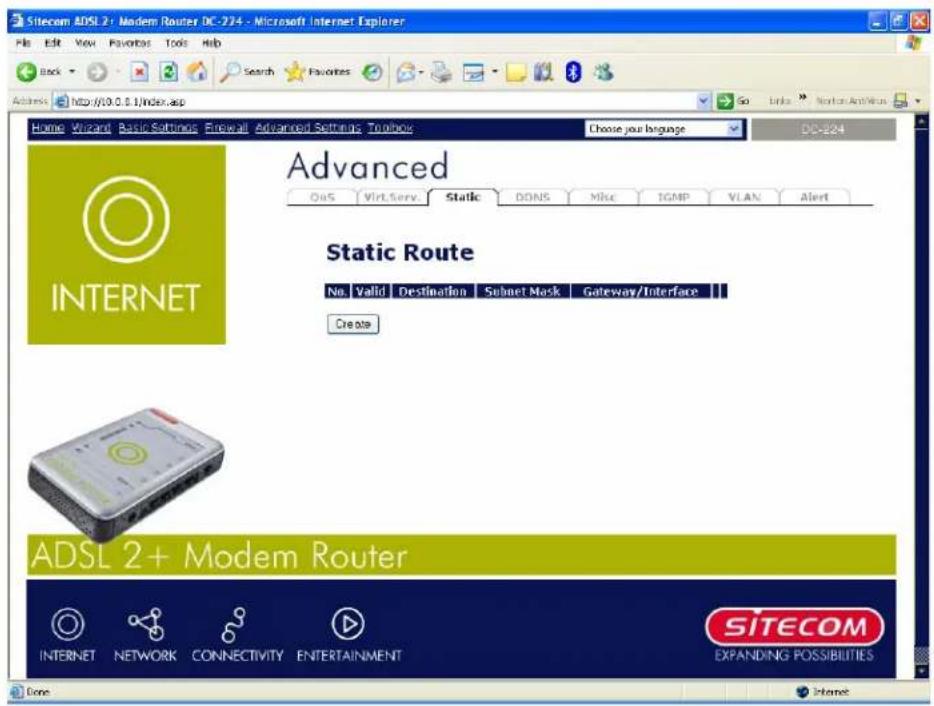
Click on Routing Table and then choose Create Route to add a routing table.
text_image
Sitecom ADSL 2+ Modem Router DC-224 - Microsoft Internet Explorer File Edit View Favorites Tools Help Back Search Favorites Go Links Next/Next/Next Advanced OuS VirtServ Static DDNS Mkt IGMP VLAN Alert INTERNET Static Route No Valid Destination Subnet Mask Gateway/Interface Create site ADSL 2+ Modem Router INTERNET NETWORK CONNECTIVITY ENTERTAINMENT SITECOM EXPANDING POSSIBILITIES DoneDestination: The destination subnet IP address.
Subnet Mask: Subnet mask of the destination IP addresses based on above destination.
Gateway: The gateway IP address to which packets are forwarded.
Interface: Select the interface through which packets are forwarded.
Cost: Represents the cost of transmission for routing purposes. The number need not be precise, but it must be between 0 and 65535.
4.5.4 Dynamic DNS
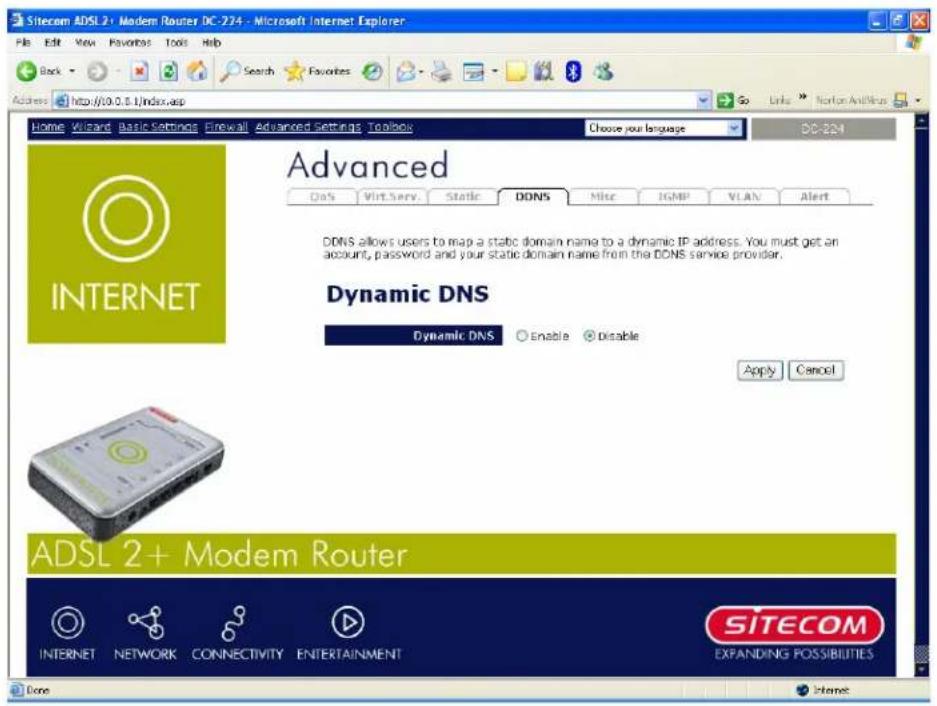
The Dynamic DNS function lets you alias a dynamic IP address to a static hostname, so if your ISP does not assign you a static IP address you can still use a domain name. This is
especially useful for hosting servers via your ADSL to connect to you may use your domain name, rather than address, which changes from time to time. This dynamic IP address is the WAN IP address of the router, which is assigned to you by your ISP.
You first need to register and establish an account with the Dynamic DNS provider using their website, for example http://www.dyndns.org/
text_image
Sitecom ADSL 2+ Modem Router DC-274 - Microsoft Internet Explorer File Edit View Favorites Tools Help Back Search Favorites Address http://10.0.8.1/index.asp Home Wizard Basic Settings Firewall Advanced Settings Toolbox Choose your language DC-224 Advanced DoS Virt Serv Static DONS Misc IGMP VLAN Alert INTERNET DNS allows users to map a static domain name to a dynamic IP address. You must get an account, password and your static domain name from the DONS service provider. Dynamic DNS Dynamic DNS Enable Disable Apply Cancel ADSL 2+ Modem Router INTERNET NETWORK CONNECTIVITY ENTERTAINMENT SITECOM EXPANDING POSSIBILITIES Done InternetDisable: Check to disable the Dynamic DNS function.
Enable: Check to enable the Dynamic DNS function. The fields following are activated and required.
Dynamic DNS Server: Select the DDNS service you have established an account with.
Wildcard: Select this check box to enable the DDNS Wildcard.
Domain Name, Username and Password: Enter your registered domain name and your username and password for this service.
Period: Set the time period between updates, for the router to exchange information with the DDNS server. In addition to updating periodically as per your settings, the router performs an update when your dynamic IP address changes.
4.5.5 Miscellaneous Settings
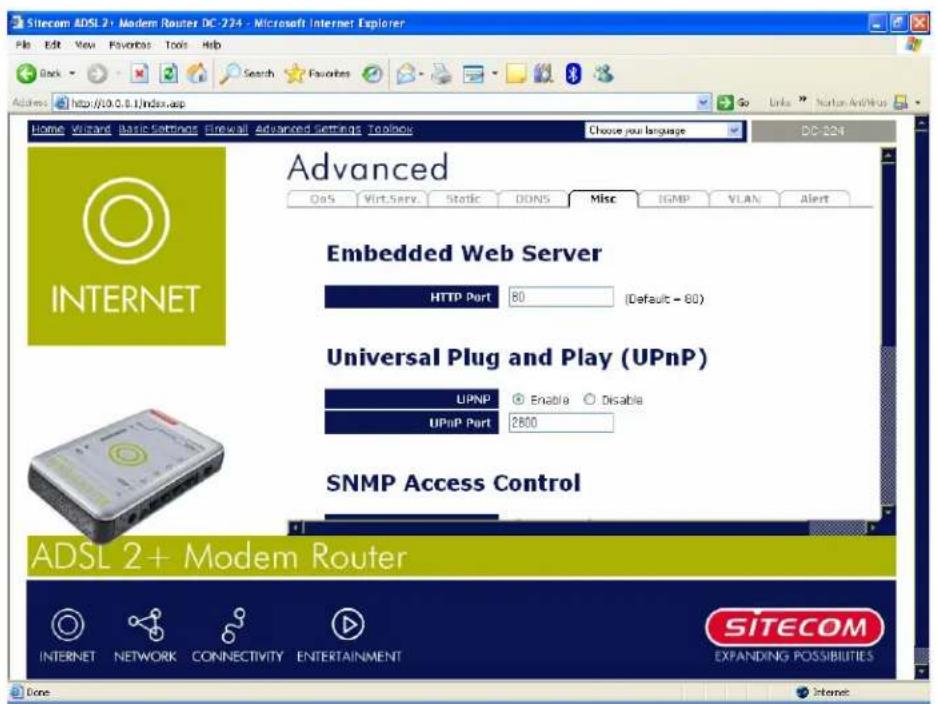
The Miscellaneous Settings advanced configuration allow your options and device monitoring features.
text_image
Sitecom ADSL 2+ Modem Router DC-224 - Microsoft Internet Explorer File Edit View Favorites Tools Help Back Search Favorites Go Links Norton Archives Address http://10.0.0.1/index.asp Home VMrayd Basic Settings Emailwall Advanced Settings Toolnow Choose your language DC-224 Advanced OaS Virt.Serv Static OONS Misc IGMP VLAN Alert Embedded Web Server HTTP Port 80 (Default = 80) Universal Plug and Play (UPnP) UPnP Enable Disable UPnP Port 2800 SNMP Access Control ADSL 2+ Modem Router SITECOM INTERNET NETWORK CONNECTIVITY ENTERTAINMENT EXPANDING POSSIBILITIES Done Internet4.5.5.1 Embedded Web Server:
HTTP Port: The port number of the router's embedded web server (for web-based configuration uses. The default value is the standard HTTP port, 80. You may specify an alternative if, for example, you are running a web server on a PC within your LAN.
For Example: User A changes HTTP port number to 100, specifies their own IP address of 10.0.0.55, and sets the logout time to be 100 seconds. The router only allows User A access from the IP address 10.0.0.55 to logon to the Web GUI by typing: http://10.0.0.1:100 in their web browser. After 100 seconds, the device automatically logs out User A.
4.5.5.2 Universal Plug and Play (UPnP):
UPnP offers peer-to-peer network connectivity for PCs and other network devices, along with control and data transfer between devices. UPnP offers many advantages for users running NAT routers through UPnP NAT Traversal, and on supported systems makes tasks such as port forwarding much easier by letting the application control the required settings, removing the need for the user to control advanced configuration of their device.
Both the user's Operating System and the relevant app addition to the router. Windows XP and Windows Me na component is installed), and Windows 98 users may install the Internet Connection Sharing client from Windows XP in order to support UPnP. Windows 2000 does not support UPnP.
Disable: Check to disable the router's UPnP functionality.
Enable: Check to enable the router's UPnP functionality.
UPnP Port: The default setting is 2800. It is highly recommended that you use this port value. If the value conflicts with other ports already in use you may wish to change the port.
4.5.5.3 SNMP Access Control
Simple Network Management Protocol—software on a PC within the LAN is required to use this function.
SNMP V1 and V2:
Read Community: Specify a name to be identified as the Read Community, and an IP address. This community string is checked against the string entered in the configuration file. Once the string name is matched, you can obtain this IP address and are able to view the data.
Write Community: Specify a name to be identified as the Write Community, and an IP address. This community string is checked against the string entered in the configuration file. Once a string name is matched, users from this IP address are able to view and modify data.
Trap Community: Specify a name and an IP address. This community string is checked against the string entered in the configuration file. Once a string name is matched, users from this IP address are sent SNMP Traps.
SNMP V3:
Specify a name and password for authentication, and define access rights from the identified IP address. Once authentication has succeeded, users from this IP address are able to view and modify data.
SNMP Version: SNMPv2c and SNMPv3
SNMPv2c is the combination of the enhanced protocol
SNMPv2 security. The "c" comes from the fact that SNMPv2c uses the SNMPv1 community string paradigm for "security" but is widely accepted as the SNMPv2 standard.
SNMPv3 is a strong authentication mechanism with fine granularity for remote monitoring.
Traps Supported: Cold Start, Authentication Failure.
The following MIBs are supported:
From RFC 1213 (MIB-II):
- System group
- Interfaces group
- Address Translation group
- IP group
- ICMP group
- TCP group
- UDP group
- EGP (not applicable)
- Transmission
- SNMP group
From RFC1650 (EtherLike-MIB):
- dot3Stats
• From RFC 1493 (Bridge MIB): - dot1dBase group
- dot1dTp group
- dot1dStp group (if configured as spanning tree)
From RFC1471 (PPP/LCP MIB):
- pppLinkgroup
- pppL q r g r o u p
From RFC1472 (PPP/Security MIB):
- PPP Security Group
From RFC1473 (PPP/IP MIB):
- PPP IP Group
From RFC1474 (PPP/Bridge MIB):
- PPP Bridge Group
From RFC1573 (If MIB):
- ifMIBObjects Group
From RFC1695 (atmMIB):
- at mMI BObjects
From RFC1907 (SNMPv2):
• only snmpSetSerialNo OID
4.5.6 IGMP
IGMP, known as Internet Group Management Protocol, is used to management hosts from multicast group.

text_image
Sitecom ADSL 2+ Modem Router DC-224 - Microsoft Internet Explorer File Edit View Favorites Tools Help Book Search Favorites Address http://10.0.0.1/index.asp Go Links > Navigation Antivirus - Home Wizard Basic Settings Firewall Advanced Settings Toolbox Choose your language DC-224- AdvancedIGMP Proxy: Accepting multicast packet. Default is set to Disable.
IGMP Snooping: Allowing switched Ethernet to check and make correct forwarding decisions. Default is set to Enable.
4.5.7 VLAN Control
VLAN (Virtual Local Area Network) is a group of devices on different physical LAN segments that can communicate with each other as if they were all on the same physical LAN segment. While clients and servers may be located anywhere on a network, they are grouped together by VLAN technology, and broadcasts are sent to devices within the same VL AN.
VLAN function provides you a very convenient way to manage hosts by grouping them based on the physical port. Networking devices belong to different VLAN cannot communicate with each other directly. That means it can enhance the security level of your network.
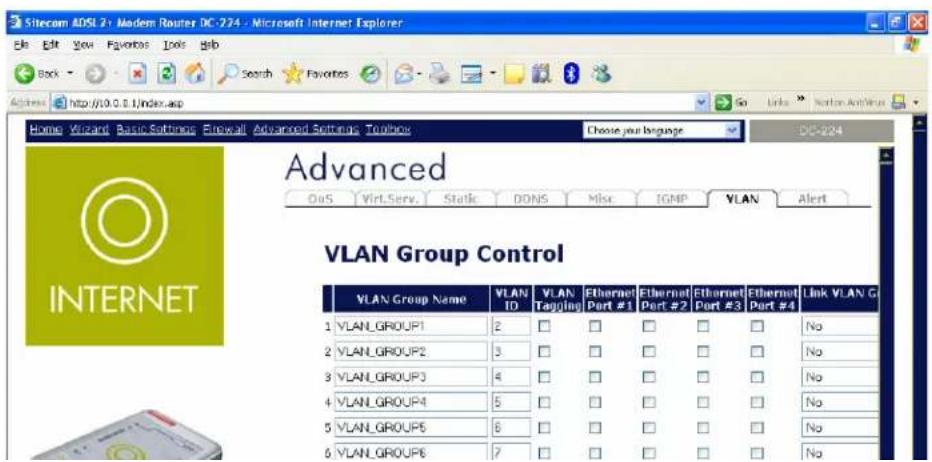
text_image
Sitecom ADSL 2+ Modem Router DC-224 - Microsoft Internet Explorer Edit Edit View Favorites Tools Help Back Search Favorites Home Wizard Basic Settings Firewall Advanced Settings Toolbar Choose your language DC-224 Advanced Out Virt Serv Static DONS Misc IGMP VLAN Alert VLAN Group Control VLAN Group Name VLAN ID VLAN Tagging Ethernet Part #1 Ethernet Part #2 Ethernet Part #3 Ethernet Part #4 Link VLAN G 1 VLAN_GROUP1 2 No No No No 2 VLAN_GROUP2 3 No No No No 3 VLAN_GROUP3 4 No No No No 4 VLAN_GROUP4 5 No No No No 5 VLAN_GROUP5 6 No No No No 6 VLAN_GROUP6 7 No No NoVLAN Group Name: There are eight groups that user can setup by t
VLAN ID: Groupname ID
LAN Tagging: Tagging VLAN ID to the specific VLAN group for Ethernet interface.
Ethernet port: Port name of Router
Link VLAN Group to WAN connection Interface: Select the WAN connection interface that VLAN group link.
4.5.8 WAN IP Change Alert
Send a log via Email When WAN IP is changed. Default is set to Disable.
text_image
ADSL 2+ Modem Router INTERNET NETWORK CONNECTIVITY ENTERTAINMENT SITECOM EXPANDING POSSIBILITIES Done Internet4.6 Tool box
4.6.1 Firmware Upgrade
The "firmware" for the router is the software that allows it to operate and provides all its functionality. Think of your router as a dedicated computer, and the firmware as the software it runs. Over time this software may be improved and modified. Your router allows you to upgrade the software it runs to take advantage of these changes.
Clicking on "Browse..." allows you to select the new firmware image file you have downloaded to your PC. Once the correct file is selected, click Upgrade to update the firmware in your router.
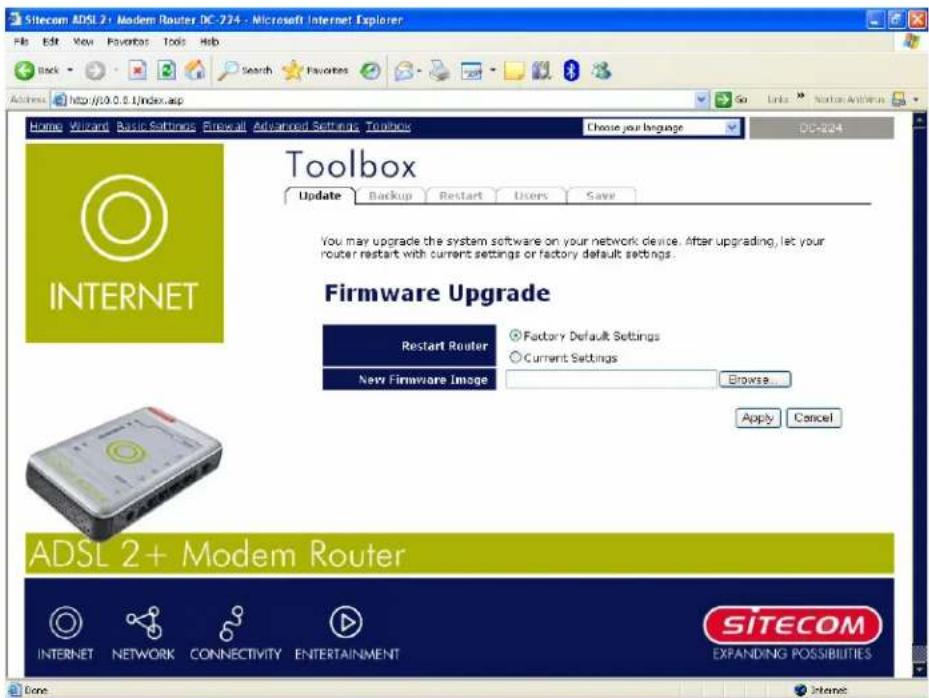
text_image
Sitecom ADSL 2+ Modem Router DC-224 - Microsoft Internet Explorer File Edit View Favorites Tools Help Back Search Favorites Home Wizard Basic Settings Firewall Advanced Settings Toolbox Choose your language DC-224 Toolbox Update Backup Restart Users Save You may upgrade the system software on your network device. After upgrading, let your router restart with current settings or factory default settings. Firmware Upgrade Restart Router Factory Default Settings Current Settings New Firmware Image Browse... Apply Cancel ADSL 2+ Modem Router INTERNET NETWORK CONNECTIVITY ENTERTAINMENT SITECOM EXPANDING POSSIBILITIES DoneRestart Router with: To choose "Factory Default Setting" or "
New Firmware Image: Type in the location of the file you wish to upload in this field or click Browse ... to find it.
Browse...: Click "Browse..." to find the ".afw" file you wish to upload. Remember that you must decompress the compressed (.zip) files before you upload them.
Upgrade: Click upgrade to begin the upgrade process. This process may take up to two minutes.
NOTE:
DO NOT power off the router or interrupt the firmware upgrade process while it is still in progress. Improper operation may damage the router.
4.6.2 Backup Settings
These functions allow you to save and backup your router's current settings to a file on your PC, or to restore a previously saved backup. This is useful if you wish to experiment with different settings, knowing that you have a backup handy in the case of any mistakes. It is advisable to backup your router's settings before making any significant changes to your router's configuration.
Press Backup to select where on your local PC to save the settings file. You may also change the name of the file when saving if you wish to keep multiple backups.
Press "Browse..." to select a file from your PC to restore. You should only restore settings files that have been generated by the Backup function, and that were created when using the current version of the router's firmware. Settings files saved to your PC should not be manually edited in any way.
Select the settings files you wish to use, and press Restore to load those settings into the router.
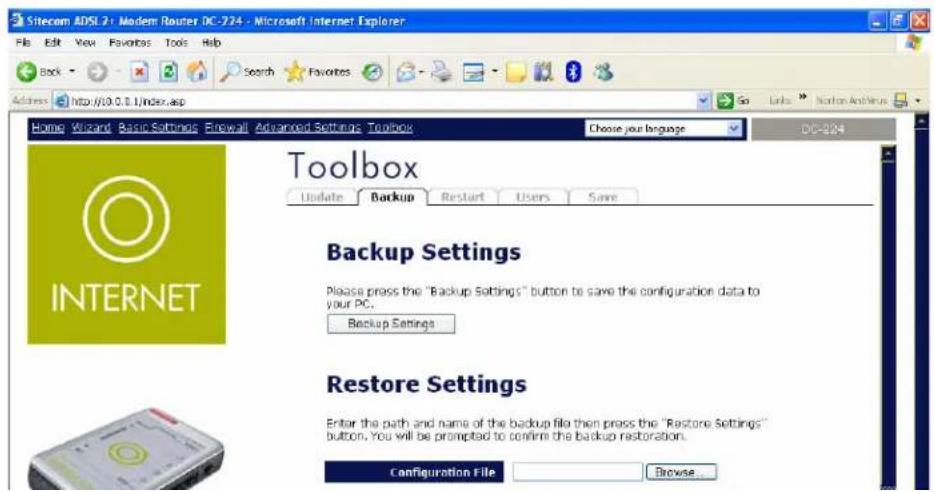
text_image
Sitecom ADSL2: Modem Router DC-724 - Microsoft Internet Explorer File Edit View Favorites Tools Help Back Search Favorites Address http://10.0.0.1/index.asp Home Wizard Basic Settings Firewall Advanced Settings Toolbox Choose your language DC-224 Toolbox Update Backup Restart Users Save Backup Settings Please press the "Backup Settings" button to save the configuration data to your PC. Backup Settings Restore Settings Enter the path and name of the backup file then press the "Restore Settings" button. You will be prompted to confirm the backup restoration. Configuration File Browse...4.6.3 System Restart
Click "Restart" with option Current Settings to reboot your router and restore your last saved configuration.
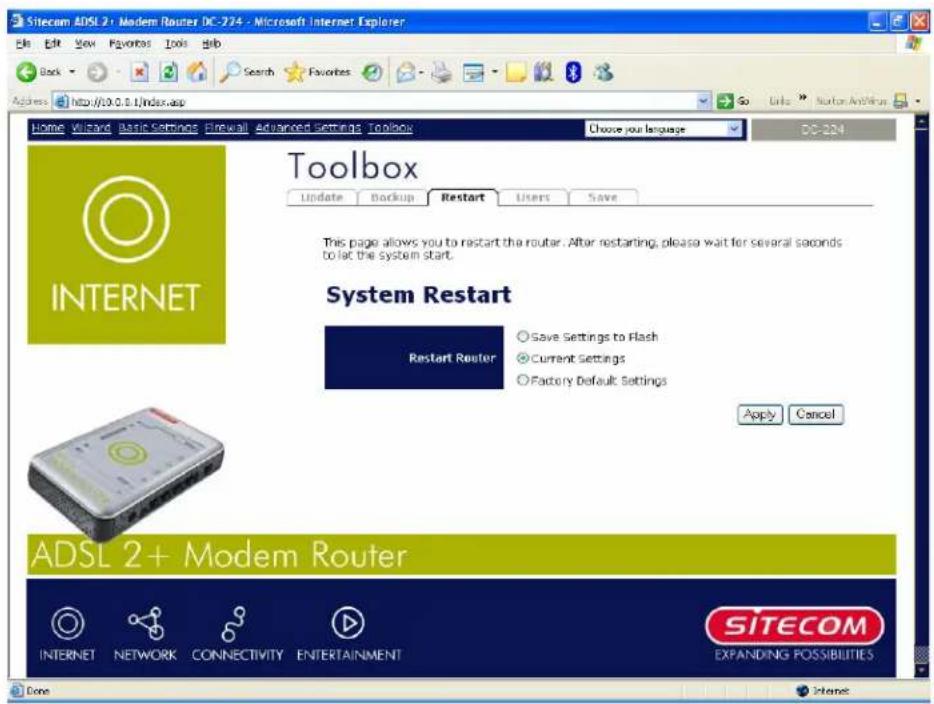
text_image
Sitecom ADSL 2+ Modem Router DC-274 - Microsoft Internet Explorer Back Search Favorites Address http://10.0.1/index.asp Home: Visityard Basic Settings Firewall Advanced Settings Toolbox Choose your language DC-224 Toolbox Update Backup Restart Users Save This page allows you to restart the router. After restarting, please wait for several seconds to let the system start. System Restart Restart Router Save Settings to Flash Current Settings Factory Default Settings Apply Cancel ADSL 2+ Modem Router INTERNET NETWORK CONNECTIVITY ENTERTAINMENT SITECOM EXPANDING POSSIBILITIES DoneIf you wish to restart the router using the factory default settings (for example, after a firmware upgrade or if you have saved an incorrect configuration), select Factory Default Settings to reset to factory default settings.
You may also reset your router to factory settings by pressing in the small Reset pinhole button on the back of your router for 10-12 seconds while the router is turned on.
4.6.4 User Management
To prevent unauthorized access to your router's conf required to login with a password. You can set up multiple user accounts, each with their own password.
You are able to "Edit" existing users and "Create" new users who are able to access the device's configuration interface.
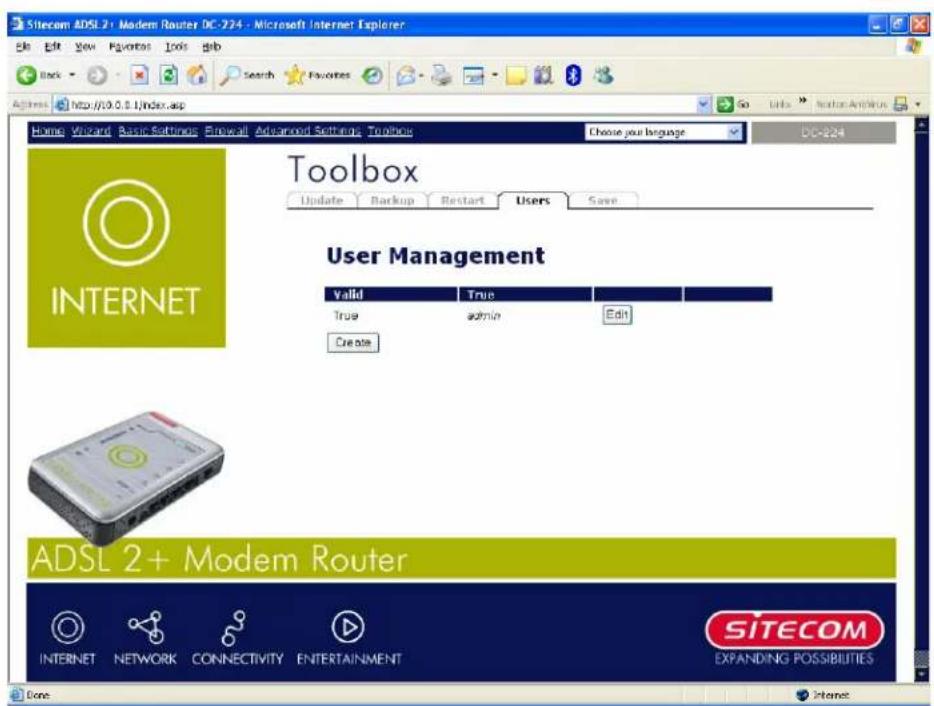
text_image
Sitecom ADSL 2+ Modem Router DC-224 - Microsoft Internet Explorer File Edit View Favorites Tools Help Back Search Favorites Home Wizard Basic Settings Enpass Advanced Settings Toolbox Choose your language DC-224 Toolbox Update Backup Restart Users Save User Management Valid True True admin Edit Create ADSL 2+ Modem Router SITECOM INTERNET NETWORK CONNECTIVITY ENTERTAINMENT EXPANDING POSSIBILITIES Done InternetOnce you have clicked on "Edit", you are shown the following options:
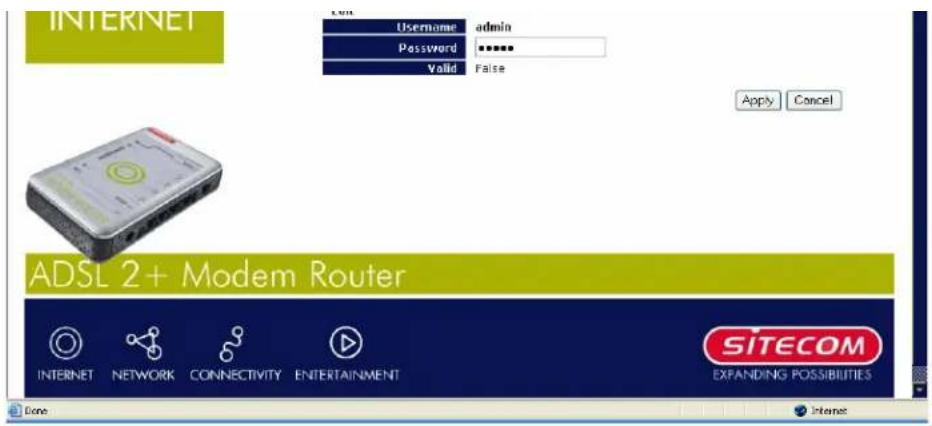
text_image
INTERNET Username admin Password ****** Valid False Apply Cancel ADSL 2+ Modem Router INTERNET NETWORK CONNECTIVITY ENTERTAINMENT SITECOM EXPANDING POSSIBILITIES Done InternetYou can change the user's password, whether their account is add a comment to each user account. These options are account, with the exception that once created you cannot charge delete the default admin account. However you can de clicking Cancel when editing the user.
You are strongly advised to change the password on the default "admin" account when you receive your router, and any time you reset your configurati
4.6.5 Save Settings
After changing the router's configuration settings, you must save all of the configuration parameters to FLASH to avoid losing them after turning off or resetting your router. Click Save to write your new configuration to FLASH.
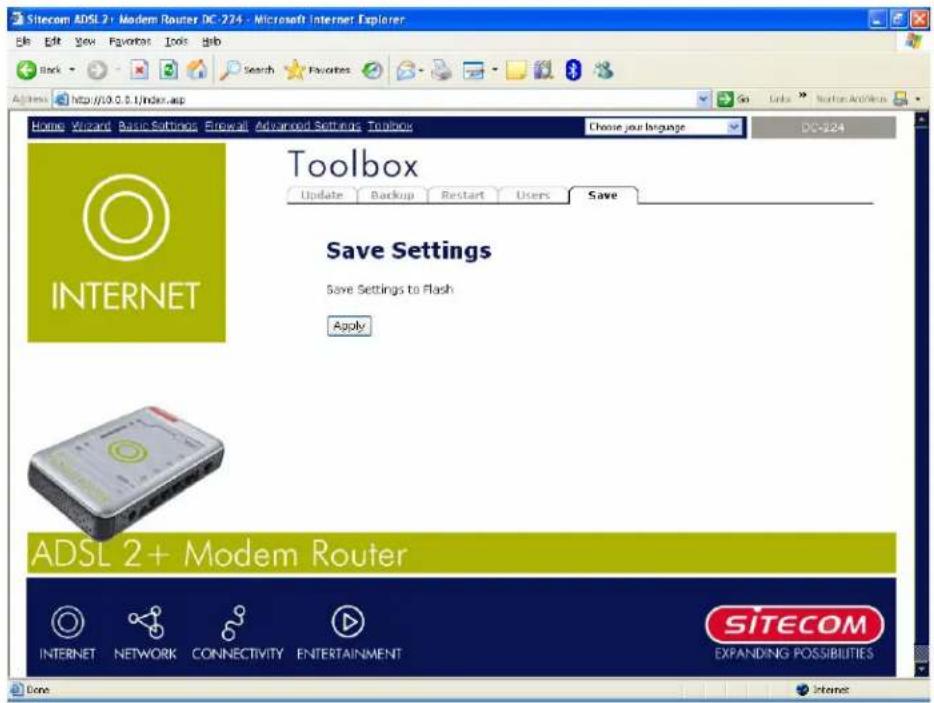
text_image
Sitecom ADSL 2+ Modem Router DC-224 - Microsoft Internet Explorer Edit Edit View Favorites Tools Help Back Search Favorites Search Favorites Home Wizard Basic Settings Forward Advanced Settings Toolbox Choose your language DC-224 Toolbox Update Backup Restart Users Save Save Settings Save Settings to Flash Apply ADSL 2+ Modem Router INTERNET NETWORK CONNECTIVITY ENTERTAINMENT SITECOM EXPANDING POSSIBILITIES Done Internet5. Troubleshooting
If the ADSL Router is not functioning properly, you can refer first to this chapter for simple troubleshooting before contacting your service provider. This could save your time and effort but if the symptoms persist, then consult your service provider.
5.1 Problems Starting Up the ADSL Router
| Problem | Corrective Action |
| None of the LEDs are on when you the ADSL Router. | Check the connection between the adapter and the ADSL tRouter. If the error persists, you may have a hardware problem. In this case, you should contact technical support. |
| You have for your router and/or password | Try the default login and password, please refer to Chapter 3. of this fails, you can restore your router to its factory settings by holding the Reset button on the back of your router for 6 seconds or more. |
5.2 Problems with the WAN Interface
| Problem | Corrective Action |
| Initialization of the PVC connection | Ensure that the cable is connected properly from the ADSL portito test.wall jack. The ADSL SYN LED on the front panel of the ADSL Router should be on. Check the VPI, VCI, type of encapsulation and type of multiplexing settings are the same as what you are collected from your telephone company and I SP.Reboot the ADSL Router. If you still have problems, you may need to verify these variables with the telephone company and/or I SP. |
| Frequent los connection. | sEnfs ADSL that all other devices telephone line as your router machines, analogue modems) have a line filter connected between them and the wall socket (unless you are using a Central Splitter or Central Filter installed by a qualified and licensed electrician). Also ensure that all line filters are correctly installed and the right way around. Missing line filters or line filters installed the wrong way around can cause problems with your ADSL connection, including causing frequent disconnections. If you have a back-to-base alarm system you should contact your security provider for a techniciant to make any necessary necessary |
5.3 Problems with the LAN Interface
| Problem | Corrective Action |
| Can't ping any station on the LAN. | Check the LAN LNK LED on the front panel. The LED should be on for a port that has a station connected. If it is off, check the cables between your ADSL Router and the station. |
| Verify that the IP address and the subnet mask are consistent between the ADSL Router and the workstations. |