
eeWave S20 - Ecouteur TRUST - Notice d'utilisation et mode d'emploi gratuit
Retrouvez gratuitement la notice de l'appareil eeWave S20 TRUST au format PDF.


| Type de produit | Casque sans fil |
| Marque | Trust |
| Modèle | eeWave S20 |
| Type de casque | Supra-auriculaire avec serre-tête |
| Connexion | Sans fil via récepteur USB |
| Portée maximale | 10 mètres (peut varier selon les obstacles) |
| Alimentation | Batterie rechargeable intégrée, chargement via câble USB |
| Indicateurs LED | B1 (connexion bleue), B2 (charge rouge) |
| Boutons de contrôle | Lecture/Pause, Précédent, Suivant, Volume +, Volume - |
| Microphone intégré | Oui |
| Poids estimé | Environ 200 g |
| Entretien et nettoyage | Nettoyer avec un chiffon doux et sec. Ne pas utiliser de produits liquides ou abrasifs. |
| Sécurité | Ne pas exposer à l'humidité, aux températures extrêmes ou aux chocs. |
| Pièces détachées | Câble USB de charge, récepteur USB |
| Réparabilité | En cas de problème, contacter le service d'assistance Trust. |
FOIRE AUX QUESTIONS - eeWave S20 TRUST
Questions des utilisateurs sur eeWave S20 TRUST
0 question sur cet appareil. Repondez a celles que vous connaissez ou posez la votre.
Poser une nouvelle question sur cet appareil
Téléchargez la notice de votre Ecouteur au format PDF gratuitement ! Retrouvez votre notice eeWave S20 - TRUST et reprennez votre appareil électronique en main. Sur cette page sont publiés tous les documents nécessaires à l'utilisation de votre appareil eeWave S20 de la marque TRUST.
MODE D'EMPLOI eeWave S20 TRUST
www.trust.com/18034/faq

natural_image
Black hardcover headphones with 'Trust' logo visible in the background (no additional text or symbols)Quick Installation Guide
18034
flowchart
graph TD
    A["1: Headband with headphones"] --> B["2: Cable connector"]
    B --> C["3: USB connected via USB cable"]
    C --> D["4: USB device"]
    D --> E["Wireless Headset with USB and On/Om indicators"]

flowchart
graph TD
    A["Open Volume Mixer"] --> B{Primary Sensor}
    B --> C["Switching Device"]
    C --> D["Next Step"]
    D --> E["User-User-Consumer Interface"]
    E --> F{Next Step}
    F --> G["Next Step"]


natural_image
Empty white square with a thin black border (no text, symbols, or markings)Eewave Wireless Headset - USER'S MANUAL
Trust
| IndexLanguage | ||
| page | ||
| Englisch | 2 | |
| Deutsch | 4 | |
| Français | 6 | |
| Italiano | 8 | |
| Español | 10 | |
| Português | 12 | |
| Nederlands | 14 | |
| Dansk | 16 | |
| Suomi | 18 | |
| Norsk | 20 | |
| Svenska | 22 | |
| Polski | 24 | |
| Česky | 26 | |
| Slovenčina | 28 | |
| Magyar | 30 | |
| Română | 32 | |
| Български | 34 | |
| Русский | 36 | |
| Еллэнvíкá | 38 | |
| Türkçe | 40 | |
| Hrvatski | 42 | |
Eewave Wireless Headset - USER'S MANUAL
Trust
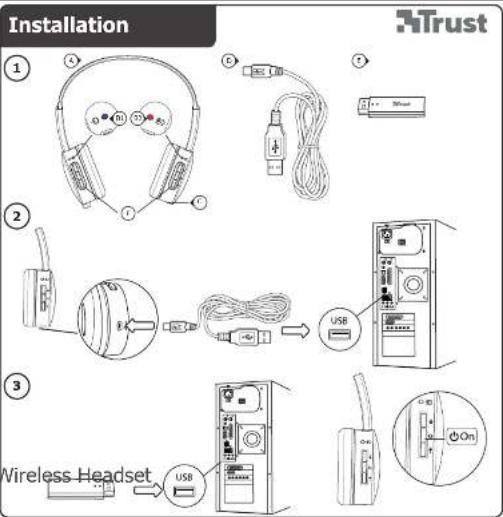
Installation

A. Headset
B. LED light (B1/B2)
C. USB connection
D. USB charge cable
E. USB receiver
F. Media Buttons

Play/ Pauze

Previous

Next

Volume -

Volume +

- Before using the headset needs to be fully charged.
- Connect the USB charge cable to the headset and your computer to charge the headset.
- When connected the (B2) LED light will turn red when charging.
- The (B2) LED light will go off when the headset is completely charged.
- Connect the USB receiver to your computer
- Turn on the headset
- The (B1) LED light will turn blue when it's connected.

Configuration
Windows 7/ Vista

Go to 'Playback Devices' to configure the headset.

Set the 'Wireless Audio' as your default device

- Select the 'Recording' tab
- Set the 'Wireless Audio' as your default device
- Double click the 'Microphone'

Set the level to 100%
Windows
Go to 'Adjust Audio Properties' to configure the microphone

- Set the default device to 'Wireless Audio' (voice and recording)
- Go to the 'Voice' tab.

Click the 'Volume' of the Voice recording.

Set the level to 100%
Eewave Wireless Headset - USER'S MANUAL
Trust
Trouble shooting
| Problem | Solution |
| The headsets beeps - The battery is almost empty. Charge the headset. | |
| Bad sound quality | - Charge the headset.- Connect the USB receiver to another USB port.- Maximum wireless range is 10m, but walls or big objects may reduce the range. |
| No sound at all | - Make sure you have charged the headset.- Make the headset your default audio device. See step '4' or '8'• Connect the USB receiver to another USB port. |
| My friend on msn/skype does not hear what I'm saying | - Increase the microphone volume and check if wireless headset is set as default device. Follow steps from '4' or '8' |
If your problem is not solved, please contact the helpdesk at www.trust.com/18034/faq


Marque : TRUST
Modèle : eeWave S20
Catégorie : Ecouteur