
AF 5070 - Téléphone fixe SAGEM - Notice d'utilisation et mode d'emploi gratuit
Retrouvez gratuitement la notice de l'appareil AF 5070 SAGEM au format PDF.


| Type de produit | Cadre photo numérique |
| Marque | SAGEM |
| Modèle | AF 5070 |
| Dimensions (avec cadre) | 233 x 178 x 38 mm |
| Poids | 600 g |
| Taille de l'écran | 17,78 cm (7 pouces) |
| Résolution d'affichage | 480 x 234 pixels |
| Formats de fichiers supportés | JPG (images) et TXT (textes) |
| Supports de stockage compatibles | CF, MS, MS Pro, MMC, SD, XD, clé USB |
| Ports USB | USB 1.1 et mini USB 2.0 |
| Alimentation | AC 90-240 V, 60/50 Hz (DC 9-12 V) |
| Consommation électrique max. | 13 W |
| Fonctions principales | Affichage de photos, diaporama, lecture de fichiers texte, zoom, rotation, duplication et suppression de fichiers |
| Télécommande | Incluse (pile fournie) |
| Cadres interchangeables | Noir piano et cuir (fournis) |
| Température de fonctionnement | 10 °C à 35 °C (optimal 15 °C à 35 °C) |
| Entretien et nettoyage | Essuyer avec un chiffon doux et sec. Ne pas utiliser de produits abrasifs. |
| Sécurité | Ne pas exposer à l'humidité. Utiliser uniquement l'adaptateur fourni. Débrancher en cas d'orage. |
| Garantie | 12 mois (pièces et main-d'œuvre) auprès du revendeur ou de SAGEM |
| Numéro d'assistance (UK) | 0871 0752250 (tarif national) |
FOIRE AUX QUESTIONS - AF 5070 SAGEM
Questions des utilisateurs sur AF 5070 SAGEM
0 question sur cet appareil. Repondez a celles que vous connaissez ou posez la votre.
Poser une nouvelle question sur cet appareil
Téléchargez la notice de votre Téléphone fixe au format PDF gratuitement ! Retrouvez votre notice AF 5070 - SAGEM et reprennez votre appareil électronique en main. Sur cette page sont publiés tous les documents nécessaires à l'utilisation de votre appareil AF 5070 de la marque SAGEM.
MODE D'EMPLOI AF 5070 SAGEM
CONTENTS
WELCOME 2
SAFETY INSTRUCTIONS AND RECOMMENDATIONS 2
ENVIRONMENT 3
The packaging 3
The batteries. 3
The product 3
YOUR PHOTO FRAME AND ITS ACCESSORIES 4
INTRODUCTION. 5
Control panel and right-side USB 5
Memory card panel and USB on the top 5
Remote control 5
PERSONAL ADJUSTMENTS 6
Choice of the language of the menus. 6
Picture set up 6
Luminance, contrast and saturation adjustments 6
Date and hour adjustment 7
SELECTION MODE AND READING OF FILES 7
Selection of a E-BOOK or photo file. 7
Navigation in a E-BOOK file 8
Photo functions. 8
Manual mode 8
Mode of previsualization of images 8
Slide show mode 9
EDIT 9
Duplicate a file 10
Delete a file or a subdirectory 10
CHANGE THE FRAME 11
HELP IN CASE OF PROBLEMS 12
TECHNICAL CHARACTERISTICS 12
HELP LINE NUMBERS 12
GUARANTEE 13
WELCOME
Thank you for purchasing our new photo frame. With this high quality product you can get the most out of your digital photos.
You will also find some more information on the web site: www.agfaphoto.com.
SAFETY INSTRUCTIONS AND RECOMMENDATIONS

Do not install your photo frame in a humid room (bathroom, laundry, kitchen, etc.), or within 1.50m of a tap or water source, or outside. The photo frame should be operated within an ambient temperature range of 10^ to 35^ . Your photo frame should be used at an ambient temperature of between 15^ and 35^ for optimum playing results. Do not set up your photo frame in a dusty environment.
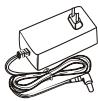
Only use the power supply that is supplied. Connect it to a mains outlet in compliance with the installation instructions in this booklet and the indications stated on the identification label located on the unit (voltage, current and frequency of the electricity network). As a precaution, in case of danger, the mains adapters act as a disconnecting mechanism for the 100-240V AC power supply. They should be placed near the device and should be easily accessible.

The CE marking certifies that the product meets the main requirements of the European Parliament and Council directive 1999/5/CE on telecommunications terminal equipment, regarding safety and health of users, and regarding electromagnetic interference. The declaration of compliance can be consulted on the site www.agfaphoto.com, or can be requested at the following address:
AGFAPHOTO is used under license of Agfa-Gevaert NV & Co. KG AF5070 is produced for Sagem Communication and distributed or sold by
Sagem Communication
Sagem Communication - Customer relations department 4, rue du Petit Albi - 95800 Cergy Saint-Christophe - FRANCE
ENVIRONMENT
Preservation of the environment as part of a sustainable development logic is an essential concern of AgfaPhoto. The desire of AgfaPhoto is to operate systems observing the environment and consequently it has decided to integrate environmental performances in the life cycle of its products, from manufacturing to commissioning, use and elimination.
PACKAGING

The presence of the logo [green dot] means that a contribution is paid to an approved national organisation to improve packaging recovery and recycling infrastructures.
To facilitate recycling, please respect the sorting rules set up locally for this kind of waste.
BATTERIES
If your product contains batteries, they must be disposed of at appropriate collection point.
THE PRODUCT
The crossed-out waste bin stuck on the product means that the product belongs to the family of electrical and electronic equipment. In this respect, the European regulations ask you to dispose of it selectively:
- At sales points in the event of the purchase of similar equipment.
- At the collection points made available to you locally [drop-off centre, selective collection, etc.].
In this way you can participate in the re-use and upgrading of Electrical and Electronic Equipment Waste, which can have an effect on the environment and human health.
YOUR PHOTO FRAME AND ITS ACCESSORIES
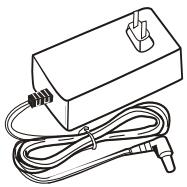
A power supply
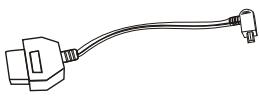
A USB cable (depending on model)

A Remote
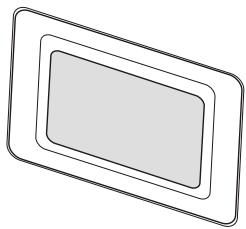
A Photo Frame player
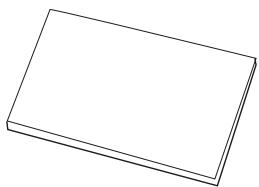
A manual
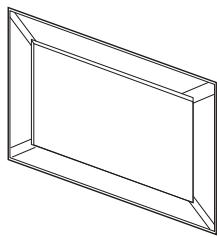
A Leather Brown Frame
INTRODUCTION
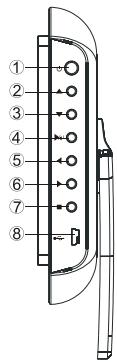
Control panel and right-side USB

- ①
- ■
8.
switch on and standby
upward movement
downward movement
confirm/read
leftward movement
rightward movement
stop
mini SUB connector
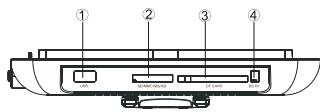
Memory card panel and USB on the top
- USB connector
- SD/MMS/MS/XD card reader
- Compact Flash card reader
- Power plug connector
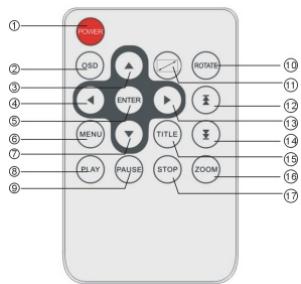
Remote control
- POWER
2.0SD - ▲
- ENTER
- MENU
- PLAY
- PAUSE
- ROTATE
- TITLE
16.ZOOM - STOP
switch on and standby
date and hour display
upward movement
leftward movement
confirm
access menu
downward movement
resume reading
pause mode
rotate the image
image adjustment
previous page
rightward movement
next page
switch to mosaic mode
perform image zooming
stop
PERSONAL ADJUSTMENT
Choice of the language of the menus
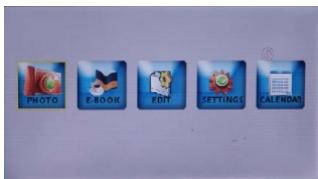
Select SETTINGS by pressing or buttons and then confirm by ENTER.
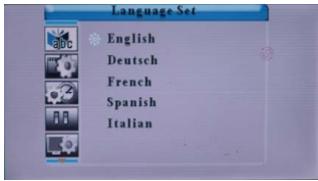
Select by pressing the button and then confirm by ENTER.
Select your language (English, Spanish, Deutsch, French, Italian) and then confirm by ENTER.
Exit the menu by MENU or go backwards by
Picture setup
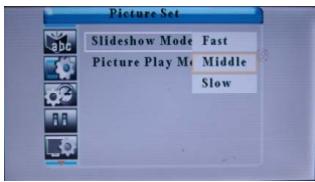
Select by pressing the button and then confirm by ENTER.
Luminance, contrast and saturation adjustments
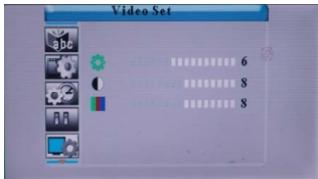
Select by pressing the button and then confirm by ENTER.
You have the possibility of adjusting the brightness, contrast, and saturation of colors. Choose the parameter by the and buttons and then confirm by ENTER.
Make adjustment by the and buttons. Exit the menu by MENU or go backwards by
Note: RESET PARAMETERS permits resetting to the values of the product as delivered.
Confirm the function by ENTER.
Date and hour adjustment
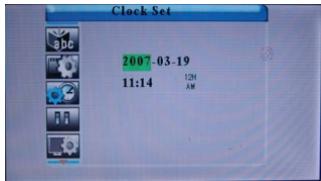
Select by pressing the button and then confirm by ENTER.
Move the green selector with the buttons. Use the buttons to adjust the year, month, day, and hour.
To register the hour and date, press then ENTER to confirm the adjustment.
Press this button once again and then return to the main menu.
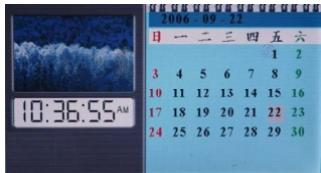
When you are on the MENU, selectCALENDAR, and press ENTER to activate the date and hour function.
> SELECTION MODE AND READING OF FILES
Selection of a E-BOOK or PHOTO file
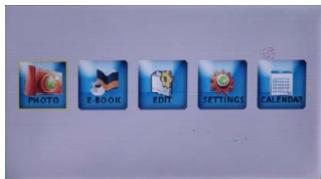
Select E-BOOK or PHOTO with the aid of the or buttons and then confirm by ENTER.
Select the medium type (card or USB key) with the aid of the buttons and then confirm by ENTER.
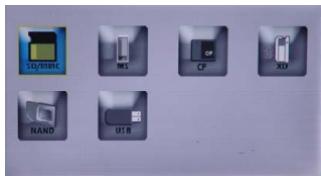
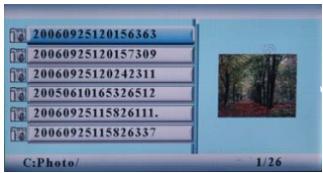
Then select the file you want to display with the aid of the buttons and then confirm by ENTER.
NOTE: If you want to go back to the superior level of the menu, hold down on the button.
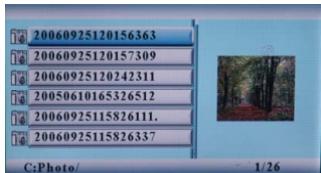
Navigation in a E-BOOK file
During reading of the file:
- select the page by pressing the or buttons;
- make a line stream in by pressing the buttons;
- go backwards in the menu by holding down on the STOP button.
REMARKS: the photo frame does not support files other than of .txt format.
Hold down on the MENU button to return to the main menu.
PHOTO functions
- Manual mode
Upon display of the photo, hold down on the PAUSE button to switch to manual mode.
In this mode, you can perform the following actions:
-
Do rotation: hold down continuously on the ROTATE button to rotate the photo clockwise.
-
Display full page: hold down on the button.
- Zoom [4 positions]: hold down continuously on the ZOOM button.
- Proceed to the next photo: hold down on the or buttons.
NOTE:
You can switch at any time to slide show mode by holding down on the PLAY button.
The reading speed depends on the size of the files. The larger the size of the photo to display is, the longer the waiting time might be.
Mode of pre-visualization of images
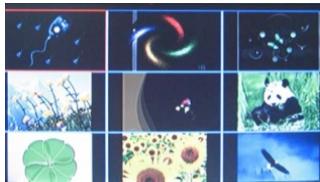
For the best rapidity of selection, hold down on the TITLE button to obtain previsualization of nine images.
Use the buttons to choose the photo to display and then press the ENTER button.
- Slide show mode
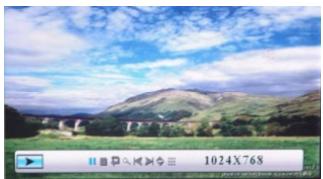
Upon display of a photo, the slide show mode is started (automatic mode displayed at the bottom of screen).
If you come from a manual mode, hold down on PLAY.
Hold down on the OSD button and then ENTER from your remote control to switch from one mode to another [manual or automatic].
Hold down on the OSD button so as to enter the functions described above.
Select the desired function with the aid of the buttons and then confirm the function by ENTER.
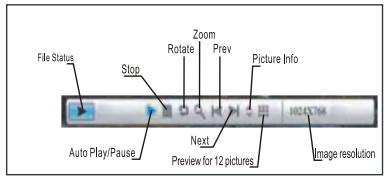
> EDIT
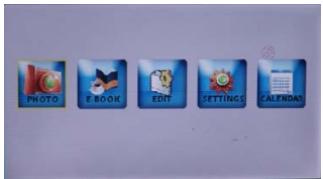
Select EDIT by pressing the or buttons and then confirm by ENTER.
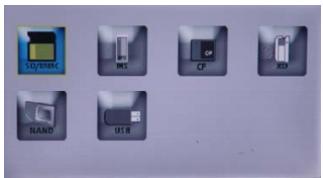
Select the support type (card or USB key) by pressing the buttons and then confirm by ENTER.
Then select the file you want to operate by pressing the buttons and then confirm by ENTER [ ]
Hold down on the OSD button to have the menu of functions appear.
The function of duplicating [copying, pasting] .txt or .jpg files from one card to another, from one USB key to another, or between one card and one USB key.
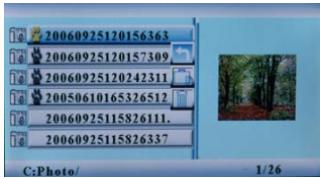
The deletion, renaming, and searching functions are applicable to files from a card medium or USB key.
Duplicate a file
Select the file you want to duplicate by pressing buttons, and pressing to choose card or USB, pressing ENTER and pressing OSD, then holding down on the OSD button, will see three logos' [ -return, -Duplicate, -Delete].
Select and then pressing ENTER.
Delete a file or a subdirectory
Select the file by holding down on the OSD button and then select confirm by ENTER.
CHANGES OF FRAME
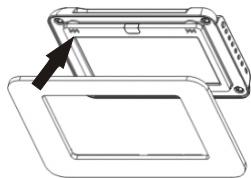
Disassemble the existing frame by removing it from the electronic block [pull the frame towards the front].
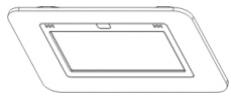
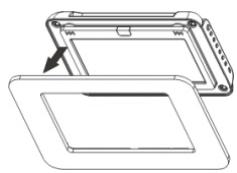
Reassemble the new frame by fitting it on the electronic block (pay attention to the mounting direction: the side with an error indicator).
NOTE:
The frame in piano black color contains a plastic protection film which you can peel for better aesthetics.
> HELP IN CASE OF PROBLEMS
If the photo frame does not function correctly, you need to read the following information carefully. Before requesting for technical assistance, you need to verify the following matters:
| Failure symptom | Probable cause and possible solution |
| No power supply | If there is no power supply, verify that the photo frame is well connected to its power supply block and if the latter is connected to the sector, and try once more. |
| No display | Verify that you have inserted a memory card or a USB key properly into the appropriate readers and that the latter contain files legible by the apparatus-only.JPG and TXT formats are supported. |
| The remote control does not function | 1. The distance is too long or the angle exceeds 30 degrees. 2. The battery of the remote control is discharged. 3. The infrared sensor is perturbed by another luminous source (solar rays,...) |
| Your photo frame dies or goes back to its welcome screen | This may be provoked by an electrostatic environment. You need to make a stop/forward step of your photo frame, if you know its origin, and keep the frame away from the source generating electrostatic problems (ESD). |
| It does not functions with a PC | The AF 5070 digital photo frame is not provided to function when connected to a PC. The 2 USB ports are intended to receive USB keys uniquely in order to read.JPG or.TXT files. |
TECHNICAL CHARACTERISTICS
Screen size: 17.78 cm [7 pouces]
Resolution: 480(L) X 3(RGB) X 234(H)pixels
Active area: 154.08mm[L] X 86.58mm[H]
Treatment: antireflection
Luminance: 350~cd / m^2
Supported image file format: JPG
Supported text file format: .TXT
Acceptable photo cards: CF, MS, MS Pro,MMC, SD, XD, USB2.0 [mini USB], USB1.1
USB ports: USB 1.1 and mini USB 2.0
Power supply: AC 90V-240V~60/50 Hz (DC9-12V)
Max power consumption: 13 W
Disposition: placed or suspended
Frames : interchangeable "piano black" and "leather"
Dimensions [with frame]: 233[L] x 178[L] x 38[H] mm
Weight: 600 g
> HELP LINE NUMBERS
UK:0871 0752250
National rate .Valid price from 27/06/2005
GUARANTEE (UK TERM AND CONDITIONS)
In order to supply the guarantee, you should contact your dealer. Proof of purchase will be required .should malfunctioning arise, the dealer will advise you what to do.
If you bought your equipment from SAGEM directly, the following shall apply:
SAGEM undertakes to remedy by repair, free of charge for labor and replacement parts, any defects in the equipment during a period of twelve (12) months from the date of original delivery of the Equipment, where those defects are a result of faulty workmanship.
During this twelve month guarantee period, the defective equipment will be repaired free of charge; the customer must however return the defective equipment at his/her own expense, to the address given by SAGEM After Sales Department, the phone number of which can be found on the delivery slip. Unless the customer has concluded with SAGEM a maintenance contract in respect of the equipment which specifically provides for repairs to be carried out at the customer's premises, the repairs will not be carried out on the equipment at the customer's premises.
The following sentence applies to purchases of equipment for the customer's trade, business or profession. Except as otherwise expressly provided in this Document and to the extent permitted by law, SAGEM makes no representations or warranties, express or implied, statutory or otherwise, and to such extent, all terms and conditions implied by law are hereby excluded.
This guarantee does not affect the Customer's statutory rights.
Exclusions From Guarantee
SAGEM shall have no liability under the guarantee in respect of:
-
damage, defects breakdown or malfunction due to :
-
failure to properly follow the installation process and instructions for use; or
- an external cause to the equipment (including but not limited to, lightening, fire,
shock or water damage of any nature]; or
- modifications made without the written approval of Sagem Communication; or
- a failure or neglect to maintain the equipment or inappropriate maintenance; or
- unsuitable operating conditions, particularly of temperature and humidity; or
-
repair or maintenance of the equipment by persons not authorized by SAGEM.
-
wear and tear from normal daily use of the equipment and its accessories
- damage due to insufficient or bad packaging of equipment when returned to SAGEM
- supply of new versions of software
-
work on any equipment or software modified or added without the prior written consent of SAGEM malfunctions not resulting from the Equipment or from software installed in user workstations for the purpose of use of the equipment
-
communication problems related to an unsuitable environment, including:
-
problems related to access and/or connection to the Internet such as interruptions by access networks or malfunction of the line used by the subscriber or his correspondent
-
transmission faults (for example poor geographical coverage by radio transmitters, interference or poor line quality)
-
the local network fault (wiring, servers, workstations) or the failure of the transmission network
-
the normal servicing (as defined in the user guide supplied with the equipment) as well as malfunctioning due to servicing not being carried out, servicing costs are in any event always borne by the customer.
In the cases set forth in § B as well as after expiry of the twelve month guarantee period, the customer must ask SAGEM for an estimate, and he/she must accept the estimate and agree to pay the charges mentioned in it before returning the equipment to SAGEM. The repair and delivery costs will be invoiced to the customer.
The foregoing shall apply unless otherwise agreed in writing with the customer and only for the UK. If any provision of this guarantee shall be held to be in whole or in part invalid or illegal due to an obligatory rule applicable to consumers pursuant to their national legislation, such invalidity or illegality shall not impair or affect the remaining provisions or parts of this guarantee.
- CONTENTS
- WELCOME
- SAFETY INSTRUCTIONS AND RECOMMENDATIONS
- Sagem Communication
- ENVIRONMENT
- PACKAGING
- BATTERIES
- THE PRODUCT
- YOUR PHOTO FRAME AND ITS ACCESSORIES
- INTRODUCTION
- Control panel and right-side USB
- Memory card panel and USB on the top
- Remote control
- PERSONAL ADJUSTMENT
- Choice of the language of the menus
- Picture setup
- Luminance, contrast and saturation adjustments
- Date and hour adjustment
- > SELECTION MODE AND READING OF FILES
- Selection of a E-BOOK or PHOTO file
- Navigation in a E-BOOK file
- PHOTO functions
- NOTE:
- > EDIT
- Duplicate a file
- Delete a file or a subdirectory
- CHANGES OF FRAME
- > HELP IN CASE OF PROBLEMS
- TECHNICAL CHARACTERISTICS
- > HELP LINE NUMBERS
- GUARANTEE (UK TERM AND CONDITIONS)
- Exclusions From Guarantee
Marque : SAGEM
Modèle : AF 5070
Catégorie : Téléphone fixe