Explore Tab 2 - Nettbrett Kogan - Gratis bruksanvisning og manual
Finn enhetens veiledning gratis Explore Tab 2 Kogan i PDF-format.


Brukerspørsmål om Explore Tab 2 Kogan
0 spørsmål om dette apparatet. Svar på dem du kjenner, eller still ditt eget.
Still et nytt spørsmål om dette apparatet
Last ned instruksjonene for din Nettbrett i PDF-format gratis! Finn veiledningen din Explore Tab 2 - Kogan og ta den elektroniske enheten tilbake i hendene. På denne siden er alle dokumenter som er nødvendige for bruken av enheten din publisert. Explore Tab 2 av merket Kogan.
BRUKSANVISNING Explore Tab 2 Kogan
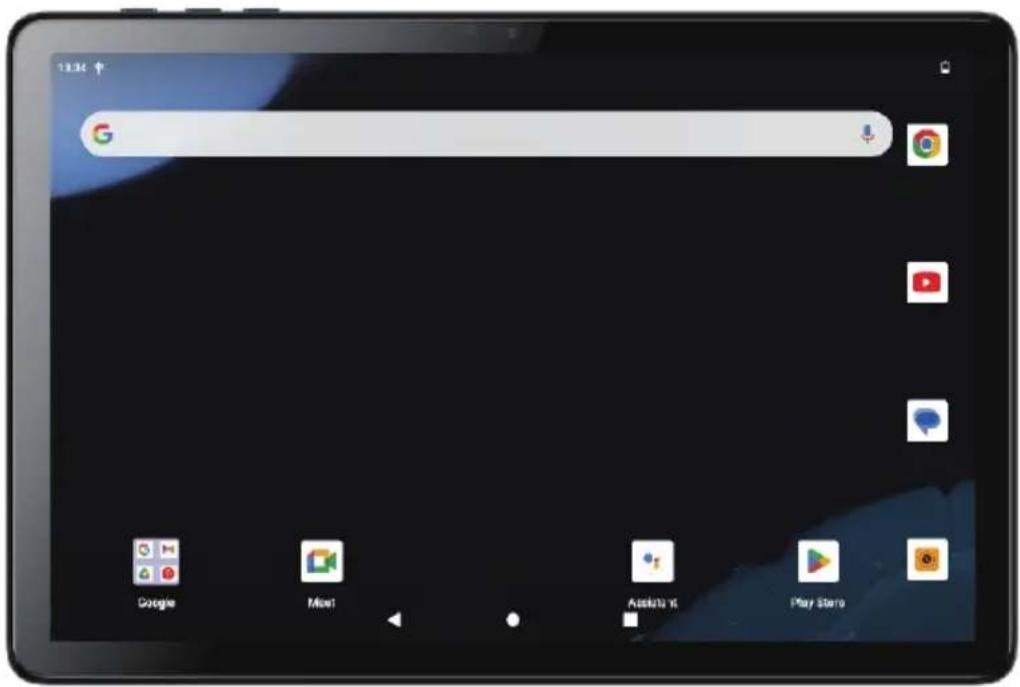
text_image
13:34 ↑ Google Mail App Store Play StarKogan Explore Tab 2 10.1" Android Tablet (64GB, Cellular)
ANDROID 13
KATB21064CPA
SAFETY & WARNINGS
Ensure to read all instructions and warnings in this user guide prior to first use. Retain this user guide for future reference.
- This tablet is designed to deliver optimal performance in areas with moderate climates and altitudes below 2,000 meters.
- The supplied power adapter requires 5V/2A to charge the tablet. Please refrain from using any third-party adapters to charge the tablet.
- Avoid dropping the tablet.
- Please do not place heavy objects on the tablet or subject it to strong impacts.
- When charging the tablet, ensure that the ambient temperature does not exceed 25°C.
- During operation, ensure that the ambient temperature does not exceed 45°C.
- Do not expose the tablet to direct sunlight.
- Avoid using the tablet in areas with strong magnetic or static fields.
- Do not expose the tablet to water or other liquids. If any water or liquid splashes onto the tablet, immediately cease use, unplug the power adapter, and refrain from resuming operation until the tablet is completely dry.
- Do not attempt to dismantle or modify the tablet in any way.
• To avoid the risk of accidental data loss, regularly back up the data on the tablet.
• To prevent damage, do not clean the tablet with chemical detergents or other liquids.
COMPONENTS

text_image
13:34 Google Next Assistant Play StoreTablet

natural_image
Simple line drawing of a test tube setup with two beakers on top (no text or symbols)Power adapter

text_image
USER GUIDE kogan.com Kogan Explore Tab 2 10.1" Android Tablet (64GB, Cellular) ANDROID IIUser guide

text_image
kogan EXP Distant Intelligence Information This product has been using an information system. The packaging must be used by the following: 100% of total volume, 50% of total volume, but not used to apply any other product or service. The packaging should be used in the product with a full range of 100% of volume. The product is designed to use the entire packaging and contains a range of 100% of volume. The packaging is designed to use the entire packaging and contains a range of 100% of volume. The packaging is designed to use the entire packaging and contains a range of 100% of volume. The packaging is designed to use the entire packaging and contains a range of 100% of volume. The packaging is designed to use the entire packaging and contains a range of 100% of volume. The packaging is designed to use the entire packaging and contains a rangeof 100% of volume. The packaging is designed to use the entire packaging and contains a rangeof 100% of volume. The packaging is designed to use the entire packaging and contains a rangeof 100% of volume. The packaging is designed to use the entire packaging and contains a rangeof 100% of volume. The packaging is designed to use the entire packaging and contains a rangeof 100% of volume. The packaging is designated as a single product with no visible product or equipment.Warranty card
OVERVIEW

text_image
1 2 3 6 7 4 5 9 9 8 logon1 Headphone jack
2 Power button
3 Volume button
4 SD card & SIM card slots
5 USB-C port
6 Front camera
7 Display
8 Rear camera
9 Speakers
OPERATION
Turning the Tablet On/Off
To turn the tablet on:
- Press and hold the power button until the display turns on. Wait until the home screen appears. The tablet is now ready for use.
To turn the tablet off:
- Press and hold the power button until the confirmation pop-up appears.
- Tap "Power off" to turn off the tablet.

text_image
Power off RestartTurning off the Display (standby)
When the tablet is on, you can turn the display off to conserve battery power.
- Press the power button to turn the display off.
- Pressing the power button again will turn the display back on.
Screen Timeout
To conserve battery power, the screen can be set to automatically turn off when the tablet is not in use.
- Select from between 15 seconds – 30 minutes.
- This option can be found in the "Display" settings menu.

text_image
16:41 Search settings Connected devices Bluetooth Apps Recent apps, default apps Notifications Notification history, conversations Battery 42% - More than 2 days left Storage 10% used - $4.01 GB free Sound & vibration Volume, vibration, Do Not Disturb Display Dark theme, font size, brightness Screen timeout Never 15 seconds 30 seconds 1 minute 2 minutes 5 minutes 10 minutes 30 minutesUnlocking the Screen
When the screen turns off, you will have to unlock the screen when you turn it back on.
• To unlock the screen, slide you finger upwards on the home screen.
- If a password has been set, enter the password to finish unlocking the screen. The screen unlock password can be set from the "Security & Location" settings menu.

text_image
Tue, Nov 28 13 11WARNING: It is highly recommended to write down your password/pin pattern. Misplacing or forgetting your password will lock you out of the tablet. Factory resetting the device to regain access will result in all data and programs being deleted.
Home Screen

text_image
12:34 2 1 2 Google Meet Assistant Play Store 3 4 5| 1 | GoogleTM search | Tap to search using the Google browser. |
| 2 | Notification bar | Notifications such as time, battery level and network strength are displayed here. |
| 3 | Back | Return to the previous screen. |
| 4 | Home | Return to the home screen. |
| 5 | Recent apps | Touch to display a list of the apps you have recently used. |
Applications
- To open an application, touch the application icon on the home screen or in the app launcher.
- The following apps are pre-installed on your tablet for your convenience.
 Chrome Chrome | Chrome internet browser |  Files Files | View and manage the files stored on your tablet. |
 Calendar Calendar | Use the Google calendar to manage events and appointments. |  Photos Photos | • View photos and videos stored on your tablet.• Edit your photos. |
 Calculator Calculator | Perform mathematical operations |  YouTube YouTube | Watch online videos. |
 | Take photos and record videos using the tablet's cameras. |  | Access the tablet settings menu. |
 | View the current time or set an alarm. |  | Listen to FM radio. |
| M Gmail | Send and receive emails with your Gmail account. | ||
SPECIFICATIONS
Display
Screen size 10.1"
Screen resolution 800x1280
Performance
CPU Mediatek MT8766B
CPU speed 2.0Ghz
GPU IMG PowerVR GE8300
Operation system Android 13
System memory (RAM) 4GB
Power
Battery capacity 6000mAh
Battery type Lithium-ion polymer
Storage
Capacity 64GB
Type eMMC
Ports
3.5mm headphone jack Yes
MicroSD card slot Up to 128GB
Connectivity
Bluetooth V5.0
Wi-Fi Yes
Wi-Fi protocols 802.11b/g/n/ac
Other
Dimensions 241.4x160.8x10.35mm
Weight 520g
Built-in webcam Yes
NOTES
Need more information?
We hope that this user guide has given you the assistance needed for a simple set-up.
For the most up-to-date guide for your product, as well as any additional assistance you may require, head online to help.kogan.com
kogan.com