KAQL85W94QA - TV Kogan - Gratis bruksanvisning og manual
Finn enhetens veiledning gratis KAQL85W94QA Kogan i PDF-format.


Brukerspørsmål om KAQL85W94QA Kogan
0 spørsmål om dette apparatet. Svar på dem du kjenner, eller still ditt eget.
Still et nytt spørsmål om dette apparatet
Last ned instruksjonene for din TV i PDF-format gratis! Finn veiledningen din KAQL85W94QA - Kogan og ta den elektroniske enheten tilbake i hendene. På denne siden er alle dokumenter som er nødvendige for bruken av enheten din publisert. KAQL85W94QA av merket Kogan.
BRUKSANVISNING KAQL85W94QA Kogan
kogan.com
powered by
webOS Hub
Kogan QLED 85" LED 4K SMART TV
SERIES 9 W94Q (KAQL85W94QA)
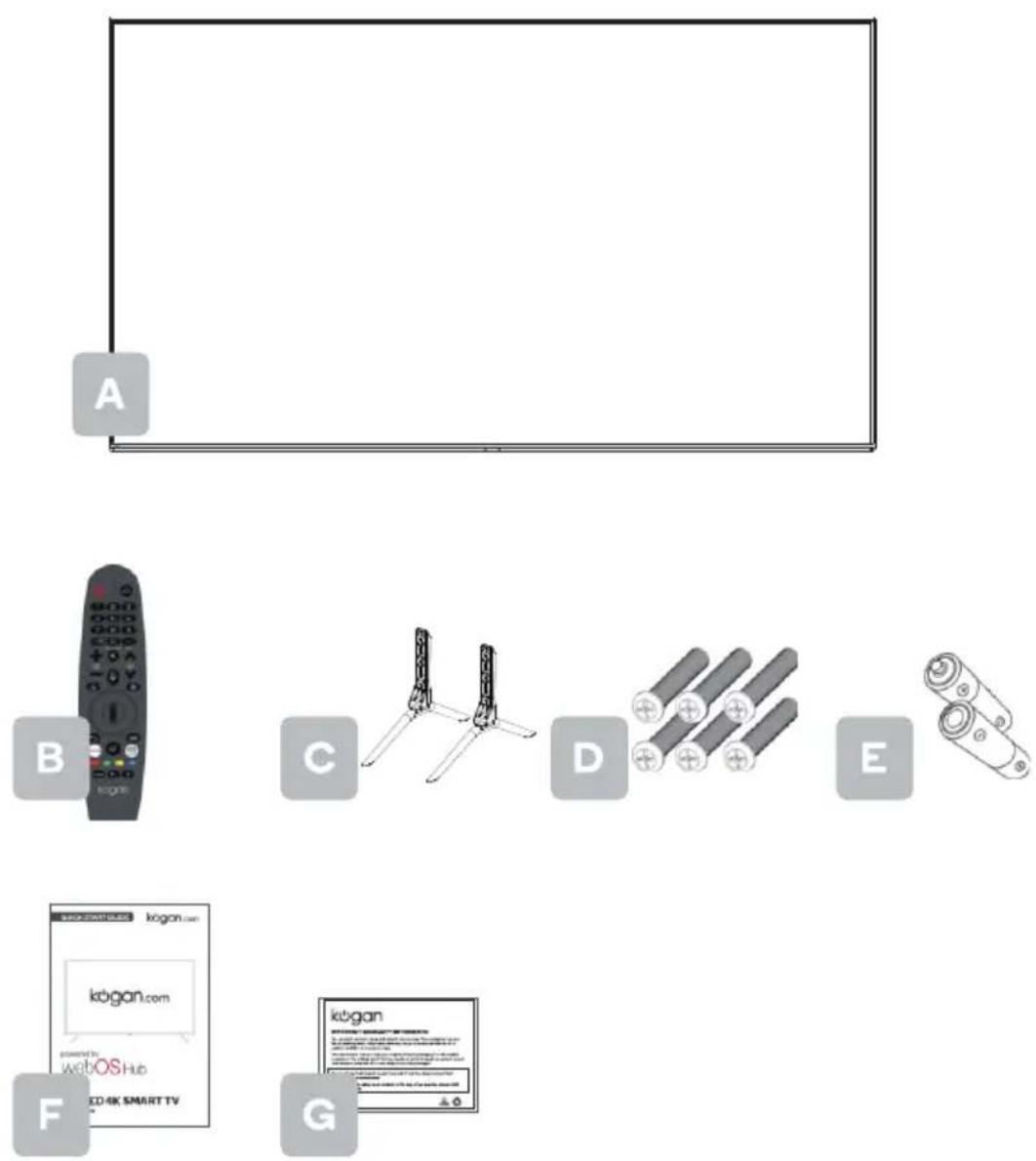
A
SMART TV
B Magic remote control
C Stand (x2)
D PM5×13Kogasc QLED(2685" LED 4K
E AA battery (x2)
F Quick start guide
G Warranty card
NOT INCLUDED
Phillips head screwdriver, antenna cable, broadband internet connection.
MAGIC REMOTE CONTROL
- Magic remote control with additional features such as Bluetooth connectivity, voice recognition, motion sensing cursor and scroll wheel
- Briefly press or press and hold remote control buttons to access various functions. For buttons with #, please press and hold for more than a second.
text_image
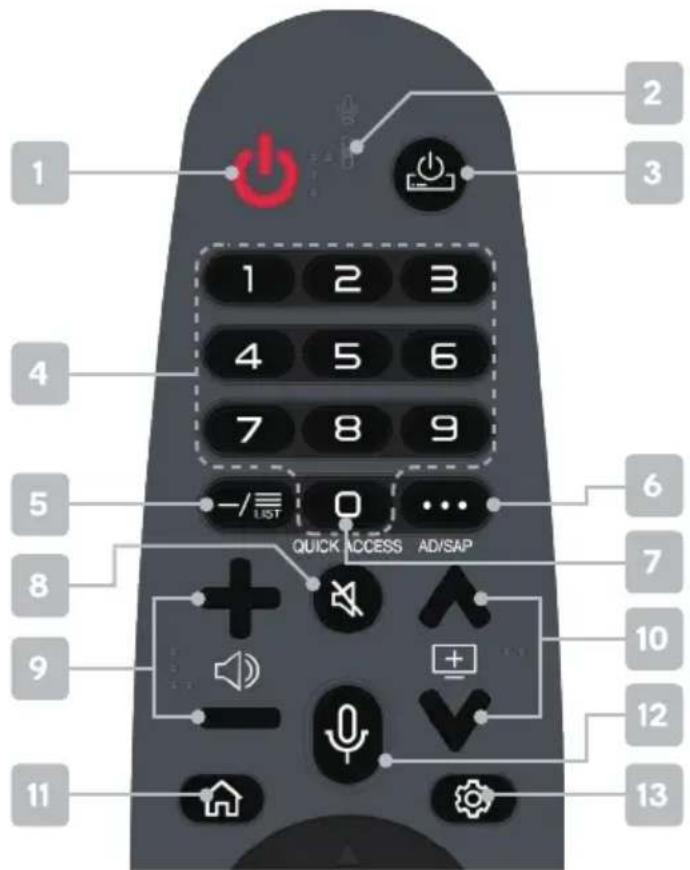
1 2 3 4 5 6 7 8 9 LIST 0 ... QUICK ACCESS AD/SAP 6 7 8 9 10 12 11 131 ⏻ Power: Press to enter or exit standby mode
2 🖼 Voice Command microphone
3 Set-Top Box Power: Press to turn connected Set-Top Box on or off
4 Number buttons: Press to select channels or input passwords
5 -/≡ List: Check saved programs
6 ···: Displays additional functions, for example Sports mode
(•••)#: Press to audibly describe the contents of the screen.
AD/SAP: Press and hold to turn audio description on or off
7 QUICK ACCESS: Long-press 0 to add Quick Access
8 Mute: Toggle sound on/off
(✗)#: Press to enter the Accessibility menu.
9 + ┌─: Adjust the volume up or down
10 ^+▼ to scroll channels
11 Home: Jump to the home page (↑)#: Press to display the list used previously.
12 🚗 Voice command button: Hold and speak into microphone for voice recognition. Short press to open recommended content.

text_image
14 15 16 17 18 19 20 21 22 MOVIES II kogan13 Settings: Open Quick Settings menu
(★)#: Press to enter the All Settings menu.
14 ▲/▼/◄/► Direction buttons for navigating menus and settings
15 Wheel (OK): Scroll to navigate menus. Press to select the current item or confirm selection.
16 ← Back to the previous menu (←)#: Press to close the menu.
17 GUIDE: Opens the Electronic Program Guide in DTV mode
18 NETFLIX: Open app homepage
19 Prime Video: Open app homepage
20 Colour buttons for navigational use within apps
(○)REC: Personal video record button.
21 Source: Displays the list of input source channels.
( )#: Press to enter the Home dashboard.
22 MOVIES: Search movies
23 Media playback controls: Play and pause media, Live Playback function, and recorded content.
*Note: Teletext is no longer available in Australia. Depending on your region, this function may or may not be applicable.
USING THE MAGIC REMOTE
-
If you shake the Magic Remote left and right or turn its wheel while pointing it at the TV, a pointer will appear on the TV screen. If you move the remote control to the direction you want, the pointer follows the movement.
-
Move the pointer to the location you want and press the Wheel (OK) button to execute the function.
-
If the pointer has not been used for a certain period of time, it will disappear. When the pointer disappears from the screen, shake the Magic Remote right and left. It will then re-appear. The pointer will disappear if you press the Up, Down, Left or Right buttons then the remote will work as a conventional remote.
a). If the pointer is not responding smoothly, you can reset the pointer by moving it to the edge of the screen.
a). Use the remote control within the specified range (within 10 metres). The device may not function properly when outside the working distance or when an obstacle blocks the line of sight.
a). Depending on the peripherals (wireless router, microwave oven, etc.), communication failures may occur.
a). Impacts can cause the Magic Remote to malfunction.
a). Take care not to bump into nearby furniture, electronic equipment or other people when using the Magic Remote.
Bluetooth Remote Control Connection Method
Press and hold the Home Button and Back button simultaneously until the red Power button on the remote control flashes 3 times. When the red light flashes, release the buttons and wait for the TV to pair with the remote. Press the scroll wheel (OK) button and a cursor will appear. Please note: If disconnected, reconnect as above.
ASSEMBLY AND INSTALLATION
BEFORE YOU GET STARTED
Spread cushioning flat to lay the TV on. This will help to prevent damage.
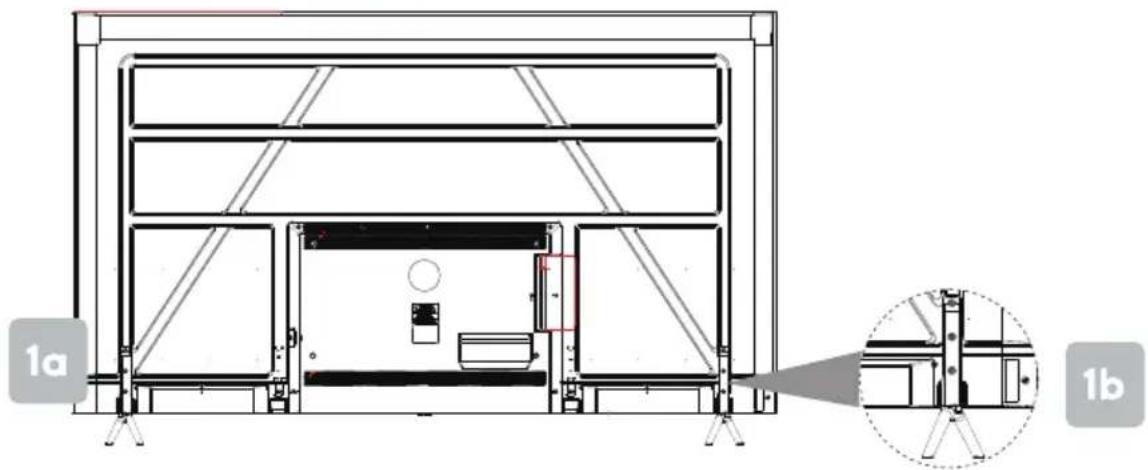
1. Stand assembly
a. Attach stands to base of TV.
b. Insert six PM5x13mm screws and use Phillips head screwdriver (not supplied) to tighten.
natural_image
Architectural cross-section diagram of a two-story building with structural details, showing internal components and an inset detail (no text or symbols)2. Remote control assembly
a. Open the battery compartment cover on the back side.
b. Insert batteries (x2 1.5V AA size for the magic remote) making sure to match the polarity markings (+ / -) of the batteries with the diagram inside the compartment.
c. Replace battery compartment cover.

text_image
• Magic = AA 2a 2b 2c3. Connect to antenna
a. Connect an antenna cable (not supplied) via the 'ANT' input port at the back of the TV.
b. Ensure the antenna cable is also connected to a working antenna, either via an antenna wall socket in your home, or directly.

text_image
Antenna wall socket 3a 3b ANT Antenna cable (not supplied)4. Turning TV on
Plug the power cord into a suitable power outlet, then press the POWER (ω) button on the remote control, making sure to aim it at the sensor at the front of the TV. Alternatively, you can press the power button on the lower side of the back panel on the TV.
TURNING TV OFF
Press the POWER (⏻) button on the remote control to enter standby mode. To power down the TV completely, unplug the power cord from the power outlet.
Do not leave your set in standby mode for long periods of time. If you will not use the TV for a long time, it is recommended to unplug the set from both the power outlet and aerial.
PAIRING THE MAGIC REMOTE
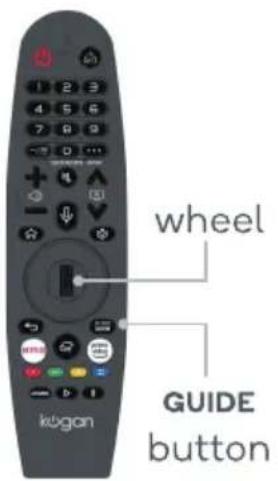
After the TV has been on for at least 20 seconds, point the remote toward the TV and then long-press the wheel. The remote control will automatically be registered. A notification will confirm, and the pointer will appear on screen.
If the Magic Remote's pointer does not appear on the screen, you must re-register it. Point the remote control towards the TV and long-press the GUIDE button until the notification appears.
text_image
wheel GUIDE button kuganINPUTS AND PORTS

text_image
LAN USB 2.0 (5V=500mA) OPTICAL AUDIO OU CVBS L R ANT 9 EARphone USB 2.0 (5V=500mA) HDMI1 HDMI2/ARC HDMI3 1 7 4 2 3 5 8 7 61 Ethernet port (LAN)
2 Composite video (RCA)
3 Composite audio (RCA, left and right)
4 Digital audio (Optical out)
9 Power button
5 Antenna
6 HDMI (x3; ARC support on HDMI 2)
7 USB 2.0 (x2; 5v 500mA)
8 Headphone jack (3.5mm line out)
FIRST TIME SETUP
When turning the TV on for the first time, the Welcome screen will appear. Press the OK button (Wheel) to commence
Use the ▲/▼/◄/► Direction buttons and Wheel to navigate the following options:
Language and Location Settings
Select the on-screen display (OSD) language, your country and time zone from the drop-down lists.
Internet and Device Connection
Connect all of your devices (set-top boxes, blu ray players, soundbars, gaming devices, etc.) to the TV. If using a wired internet connection, connect an Ethernet cable to the 'LAN' port at the back.
Select Wi-Fi network
If you have connected an ethernet cable for wired internet, your TV will automatically connect to the network and skip this step.
If you want to use a wireless (Wi-Fi) network, the TV will now scan for nearby networks. Ensure the TV is within range of your wireless modem or router, and have your password handy. Follow the prompts to input your password and connect your TV to your selected network.
If using an LG Mobile smartphone connected to the desired Wi-Fi network, you can select "via LG Mobile" to connect to the same network.
Terms & Conditions
Accept terms and conditions, or select to view additional details. You can select "Agree All" to agree to all User Agreements.
Paired Devices
The TV will now scan for external devices which can be linked to the Universal Control settings (such as set-top boxes or blu ray players). This will allow services such as Foxtel or Fetch boxes (sold separately) to be linked to your TV's remote control.
Set-Top Box Setup
If not using a set-top box, select "TV Only". If using a set-top box and not wishing to use free-to-air channels, select "Set-Top Box Only". If wishing to use both, select "TV & Set-Top Box".
Service Area Postcode
Enter your location's postcode.
Programme Tuning
The TV will automatically search and save all available free-to-air channels. The option is provided to search for digital channels only (recommended for most regions), skipping analogue channels.
NOTE:
If "Set-Top Box Only" was selected earlier, this stage will be skipped.
Connect to LG ThinQ
Your TV is compatible with LG smart home devices, and can also play content from your smartphone or personal devices. To connect your TV with LG ThinQ, scan the Android or iOS (iPhone) QR code with your smartphone and follow the prompts to set up.
NOTE:
Service availability may differ depending on country or region.
First Time Setup Completed
Press Close to finalise the setup and go to the Home Dashboard.
HOME DASHBOARD
The Home Dashboard is the central hub for your TV's connections and settings. Use your remote's directional buttons or the Magic cursor and wheel to navigate the dashboard, and press the OK button (wheel) to open a selected menu and view options.

text_image
Home Dashboard TV / Inputs / Mio-in O1V 6-1 Oooo Ooo Connect Mobile... USB 's Device Live TV 000-000 HDMI 1 DVD HDMI 2 0.000 HDMI 3 Streaming. Use TV & SE Internal Speaker Both ... Home IoT Devices Connect Home IoT Devices Use Home appliance and Small Things by connecting to the TV Found a new device.- You can check and select the external device connected through the extern port or network.
- Connect your mobile device to TV to share the mobile screen and enjoy the contents.
- It can only be selected if you have connected a USB storage device or a media server.
- The connected camera is launched.
- The currently selected output speaker is displayed, and you can navigate to the output speaker settings screen.
- You can view the list of connected Bluetooth devices and select one.
- You can check and control the device connected via the Home IoT.
Please refer to Connecting External Devices → Connecting Home IoT Devices in User Guide for more information on the action.
- You can log in or out with your LG ThinQ account.
- Edit Inputs: You can edit the name of the connected device or apply the related settings.
Edit home IoT devices: You can hide or show connected Home IoT Devices and rearrange the list.
Notification: You can turn on or off the notifications on the connected device. Universal Control
Settings : Move to the Universal Control Settings app.User Guide : Move to the User Guide app.
Quit App : Turns off the app from running in the background.
- Closes the app.
NOTE:
The Home Dashboard is set to automatically launch each time the TV is turned on. To turn this feature off, go to General > Home Settings in the settings menu and disable "Auto Home Launch".
HOME MENU
You can open the Home screen by pressing the ⬆ button on your remote control. Roll the Wheel (OK) button on the Magic Remote to scroll through the menu. You can open apps and content or use various features of the smart TV. Standard remote control allows you to scroll through the menu with the ▲ /▼ buttons.
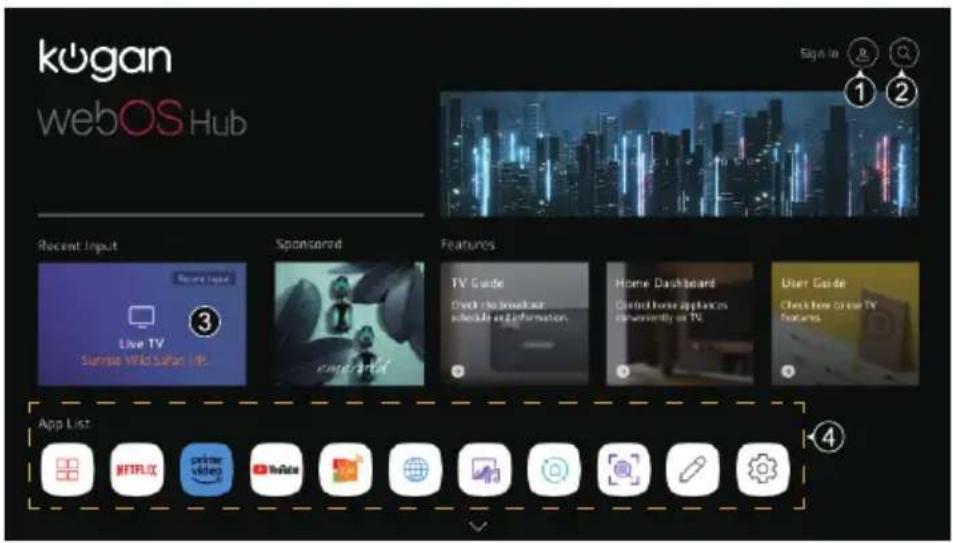
text_image
kogan webOS Hub Sign to ① ② Recent Input Sponsored Features Live TV Sunrise Wild Safari IP TV Guide Check the broadcast schedule information. Home Dashboard Control home appliances on community on PC. User Guide Check free online TV features App List Netflix YouTube Video YouTube Google Google Google Google① You can log in to your LG Account or view basic information about the account to which you are currently logged in.
For more information, see Getting Started with webOS TV Managing Your LG Account in User Guide.
② Launch Search.
To see the details, click the Apps and Content Content Search in User Guide.
③ Returns to the most recently used TV or external input.
④ You can run, move, and delete the apps installed on your TV.

text_image
Edit Home Edit: Ago List Edit: Contexts List Depending on your usage patterns, you can set the order of apps automatically or not then mutually CloseEditing Home
The apps in the list can be reordered or deleted manually, or set to automatically update based on frequency of use ("Edit App List").
SETTINGS MENU

text_image
1 2 3 4 5 6 7Quick Settings
Press the ⚙ Settings button on the remote control to open the Quick Settings menu, a customisable light-weight list of quick options:
-
Picture mode
-
Sound mode
-
Sound out (speaker output)
-
Game Optimizer
-
Network options
-
Full settings menu
-
Edit Quick Settings list
The “Edit Quick Settings list” option allows users to customise the order of the above items, as well as add additional quick settings options (such as aspect ratio, high contrast mode, screen off, and more) to be added to the list.
Full Settings Menu
Select the “⋮” option (6. Full settings menu) from the Quick Settings menu to open the complete settings menu.
Picture
Adjust settings for picture mode, contrast, brightness, colour, sharpness, tint, colour temperature, aspect ratio, energy saving, eye comfort, etc.
Sound
Adjust audio settings, including sound modes, speaker output selection, sync adjustment, 5-band EQ, Ultra Surround configuration, and more.
General
The general settings menu contains many items, such as AI service management, language options, time and location settings, safety (parental guidance and password protection options), account management, home dashboard settings, menu transparency, screensaver, eco mode, and more.
Support
View system and app information, the end-user license agreement, and install software updates (via USB). To reset the TV back to factory settings and access the First Time Setup options again, select "Reset to Initial Settings" from this menu.
BASIC TROUBLESHOOTING
Many minor issues can be resolved by hard resetting, or power cycling the unit or upgrading the firmware.
To perform a hard reset, or power cycle, please use the following steps.
- Unplug it from the main power socket and leave it for 10-15 minutes.
- Press and hold the power button on the TV for 5 seconds.
- Connect the TV back to the power and turn it on.
USB device is not recognised
- This TV requires a minimum of 64GB storage for Live Playback and Recording functions.
- Ensure the drive is formatted for FAT32 before using with this TV. Use a computer to format the drive beforehand.
Poor picture and sound quality
• Try a different channel
- Adjust the antenna
- Check all connections
No picture or sound in TV status
- Try another channel
- Press the TV/AV button
• Make sure TV is plugged in - Check the antenna connection
No sound or sound is too low at maximum volume
- Check the volume settings on any external speakers connected to your television
- Check another channel or input
- Check that MUTE hasn't been turned on
No colour, wrong colour or tints
• Make sure the program itself is broadcast in colour
- Select the picture menu, then adjust the colour and tint submenus
Picture rolls vertically
- Check all connections
Blurred or snowy picture, distorted sound
- Check direction, location and connections to your antenna
- Issues may be caused by the use of an indoor antenna (poor signal)
Remote control malfunctions
- Replace remote control batteries
- Check battery polarity (+/-)
- Remote is out of range, move closer to TV
- Remove any obstructions between remote and IR sensor of TV
• Make sure the power cord to your TV is plugged in and turned on
Image is not centred on the screen
- Adjust the horizontal and vertical position
"No Signal" on HDMI source
- Test the device with a different HDMI cable or port
- Try a different device connected to the same cable and port
• Perform a factory reset on your TV
For our full TV troubleshooting guide and extended User Manual for this TV, head online to help.kogan.com
SPECIFICATIONS
Dimensions
| Without Stand | 1890 x 1084 x 96mm |
| With Stand | 1890 x 1163 x 383mm |
| VESA Wall Mount Pattern | 600 x 300 |
| Wall Mount Screw Size | M8 x 20mm(x4) |
| Weight | 30.0kg |
| Gross weight | 49.0kg |
Audio
| Speakers | 2 x 8W |
Connectivity
| Ethernet (RJ45) | Yes |
| HDMI | 2.1 (x3) |
| HDMI-ARC | Yes | HDMI 2 |
| HDMI-CEC | Yes | HDMI 1, HDMI 2, HDMI 3 |
| USB | 2.0 (x2) |
This is a quick specifications list. For a complete guide, refer to the full User Guide for this model at help.kogan.com
Note:
- Design and specifications are subject to change without notice.
• Weight and dimension shown are approximate.
NOTES
WebOS TV WILL AUTO POWER OFF IN 4HOUR IF NO OPERATION.
Need more information?
This is a Quick Start Guide, and while we hope that this has given you the assistance needed for a simple set-up, a full user guide outlining all of this product's instructions and features can be found online at help.kogan.com
kogan.com
| 美工资料 |  惠科股份有限公司HKC Corporation Limited 惠科股份有限公司HKC Corporation Limited | ||||
| 料号 | 物料名称 | QSG | 版本 | V0 | |
| 国家/订单 | 工厂型号 | 客户型号 | |||
| 规格 | 比例 | 1:1 | 客户品牌 | ||
| 设计 | luochunbing | 核准 | 日期 | 20230920 | |
| 材质 | |||||
| 备注说明 | |||||