G96SVC - Afstandsbediening PHILIPS - Gratis gebruiksaanwijzing en handleiding
Vind de handleiding van het apparaat gratis G96SVC PHILIPS in PDF-formaat.


| Type product | Afstandsbediening |
| Merk | Philips |
| Model | G96SVC |
| Compatibiliteit | Philips televisies (selecte modellen) |
| Voeding | 2 x AAA batterijen (niet inbegrepen) |
| Afmetingen (ong.) | 15 x 4 x 2 cm |
| Gewicht (zonder batterijen) | 80 gram |
| Bereik | Tot 8 meter |
| Frequentie | Infrarood (IR) |
| Aantal knoppen | 35-45 |
| Functies | Volume, zenders, menu, bron, smart tv, instellingen |
| Batterijduur | Gemiddeld 6 maanden bij normaal gebruik |
| Onderhoud en reiniging | Afnemen met een droge, zachte doek; geen vloeistoffen gebruiken |
| Veiligheid | Niet blootstellen aan vocht, hitte of direct zonlicht |
| Pieces detachees | Geen onderdelen vervangbaar door gebruiker |
| Reparabiliteit | Neem contact op met Philips service voor reparatie |
| Garantie | 2 jaar (afhankelijk van regio) |
| Inhoud verpakking | Afstandsbediening, handleiding |
| Kleur | Zwart |
Veelgestelde vragen - G96SVC PHILIPS
Gebruikersvragen over G96SVC PHILIPS
0 vraag over dit apparaat. Beantwoord die u kent of stel uw eigen vraag.
Stel een nieuwe vraag over dit apparaat
Download de handleiding voor uw Afstandsbediening in PDF-formaat gratis! Vind uw handleiding G96SVC - PHILIPS en neem uw elektronisch apparaat weer in handen. Op deze pagina staan alle documenten die nodig zijn voor het gebruik van uw apparaat. G96SVC van het merk PHILIPS.
GEBRUIKSAANWIJZING G96SVC PHILIPS
G96SVC Vervangende afstandsbediening
Bedankt voor uw aankoop van de nieuwste technologie op het gebied van afstandsbedieningen. Uw afstandsbediening is in de fabriek geprogrammeerd om uw tv en de meeste videorecorders en kabeldecoders te bedienen.
Deze nieuwe afstandsbediening ziet er waarschijnlijk anders uit dan uw oude. Dat is normaal. Hij bedient nog steeds alle functies van uw oude afstandsbediening en mogelijk ook andere functies die uw oude niet had. Natuurlijk moeten uw tv, videorecorder of kabeldecoder over deze functies beschikken.
BEGIN

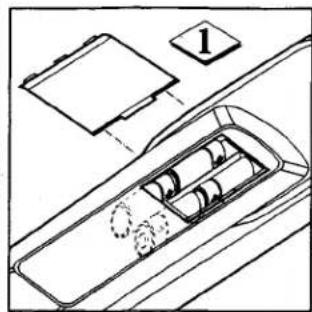
Het installeren van de batterijen is de eerste stap. Gebruik 4 AAA-alkalinebatterijen.
LET OP: De gemakkelijkste manier om het batterijklepje te openen is met een muntstuk (cent of dubbeltje) dat in de kortste van de twee gleuven wordt gestoken. Druk op de munt. Beweeg de bovenkant van de munt weg van de lange gleuf. Het klepje springt open. Let op dat u de batterijen plaatst zoals aangegeven in de afbeelding aan de binnenkant van het klepje. Plaats het klepje terug door het aan te drukken totdat u een klik hoort.

UW AFSTANDSBEDIENING IS NU ACTIEF:
Uw nieuwe afstandsbediening is ingesteld om Philips, Magnavox, Sylvania of Philco tv's te bedienen, evenals Crosley, Curtis Mathes en Bell & Howell tv's die door Philips zijn vervaardigd. Probeer het: zet de schakelaar op TV, richt op uw tv en probeer het.

Wanneer uw afstandsbediening "ontwaakt", is hij klaar om de hierboven genoemde tv's te bedienen die na 1987 zijn vervaardigd. Hij kan worden geprogrammeerd om tv's van sommige van die merken te bedienen die teruggaan tot 1981. De volgende pagina's instrueren u over het programmeren voor andere tv's en voor videorecorders en kabeldecoders.
SMART
HELP

Als de afstand waarop de afstandsbediening de tv (of videorecorder/kabelbox) bedient korter wordt, moeten de batterijen worden vervangen. Vervang ze door 4 AAA-alkalinebatterijen.
PROGRAMMEREN VOOR OUDERE TELEVISIES
Uw afstandsbediening "ontwaakt" klaar om Philips, Magnavox, Sylvania of Philco tv's te bedienen, evenals Crosley, Curtis Mathes en Bell & Howell tv's die sinds 1987 door Philips zijn vervaardigd. Als u de afstandsbediening hebt geprobeerd zoals voorgesteld op pagina 1 en er geen reactie is, is er een eenmalige instelling om uw tv te bedienen.
BEGIN

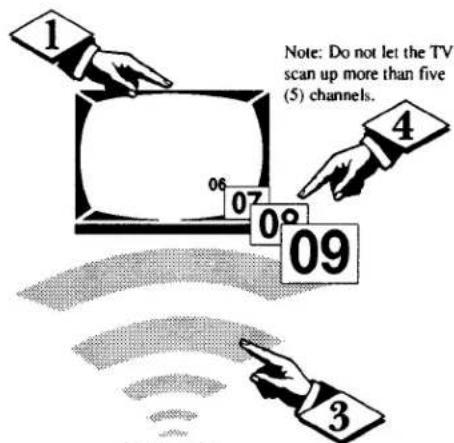
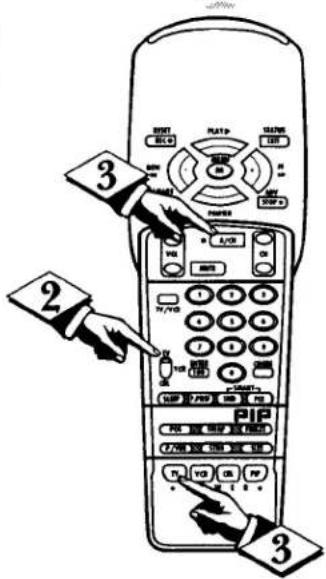
Druk op de POWER-knop op de tv om deze in te schakelen.

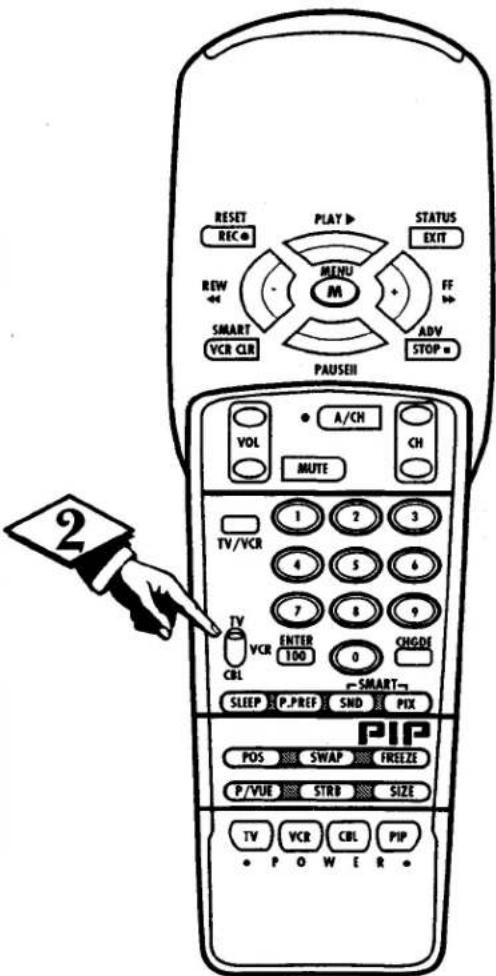
Zet de schakelaar op de afstandsbediening in de TV-stand.

Ga op minstens 2 meter afstand van de tv staan. Richt de afstandsbediening op de tv. Houd de A/CH-knop en de TV POWER-knop tegelijkertijd ingedrukt. Blijf ze ingedrukt houden.

Let op de kanaalindicator op de tv. De kanaalnummers veranderen wanneer de tv is geïdentificeerd. Dit kan maximaal een minuut duren.
SMART HELP

Onthoud: een minuut kan lang lijken, maar de tv wordt binnen die minuut gevonden.
Laat de tv niet meer dan 5 kanalen veranderen. Als dat wel gebeurt, slaat de afstandsbediening de juiste identificatie voor de tv over en moet er opnieuw een zoekcyclus van een minuut worden uitgevoerd.
Als er binnen een minuut geen kanaalverandering optreedt, voer dan de volgende stappen uit:
- Verwijder de batterijen en plaats ze terug, zorg ervoor dat ze worden geplaatst zoals in de afbeelding in het batterijvak wordt getoond.
- Herhaal stappen 1 tot en met 4.
- Houd deze afstandsbediening en uw oude afstandsbediening bij de hand, samen met het modelnummer van uw tv, en bel 1-423-475-8869.
In zeldzame gevallen kan het uitblijven van een reactie op een afstandsbediening aan de tv liggen. In dat geval is een servicetechnicus nodig.
DE AFSTANDSBEDIENING INSTELLEN VOOR VIDEORECORDERS
Uw afstandsbediening is ingesteld om uw tv en veel infrarood (IR) videorecorders te bedienen. Er kan echter een eenmalige eenvoudige stap nodig zijn voordat de afstandsbediening uw videorecorder bedient.
Voer eerst deze controle uit om te zien of het volgende gedeelte nodig is.

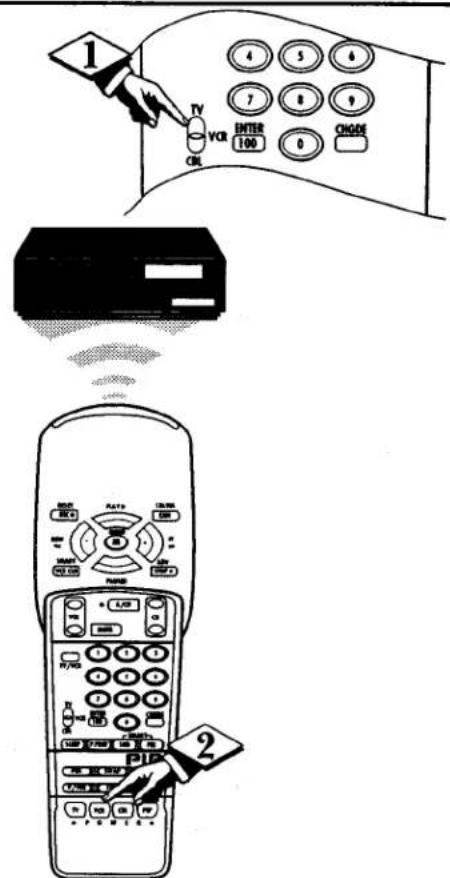
Schuif de schakelaar op de afstandsbediening naar VCR.

Richt de afstandsbediening op de videorecorder en druk op de VCR POWER-knop.

Schakelt de afstandsbediening de videorecorder in? Zo ja, probeer dan de andere VCR-knoppen op de afstandsbediening. Werken die ook op de videorecorder, dan is de afstandsbediening klaar en zijn verdere stappen niet nodig. Zo nee, ga verder...
Zoek eerst een TWEECIJFERIGE afstandsbedieningscode voor uw merk
videorecorder voordat u de eenvoudige stappen "1,2,3" (op de volgende pagina) doorloopt.
ga verder op de volgende pagina

SMART HELP
Onthoud: als er meer dan één nummer wordt vermeld, moet u mogelijk meer dan de eerste tweecijferige code proberen om de afstandsbedieningscode van uw videorecorder te vinden.
| VCR BRAND | REMOTE CODE NO. | VCR BRAND | REMOTE CODE NO. |
| Akai | 24, 25, 36 | Panasonic | 01, 02, 52 |
| Capehart | 33 | Philips | 00, 05 |
| Conoid | 13 | Philips Video CD | 37 |
| Curtis Mathes | 42 | RCA | 04, 32, 42, 43, 44 |
| Daewoo | 33 | Samsung | 22, 30 |
| Emerson | 20, 31, 34, 40 | Sansui | 49 |
| Fisher | 06, 07 | Sanyo | 13 |
| Goldstar | 23 | Sears | 08 |
| Go Video | 45, 46 | Sharp | 11, 12 |
| Hitachi | 03, 51 | Shintom | 35 |
| JVC | 14, 47, 48 | Sony | 09, 10,41 |
| Magnavox | 00, 05 | Teknika | 26 |
| Matsushita | 01, 02 | Toshiba | 18, 19 |
| Mitsubishi 16, 17, 38, 39, 50 | Video Concepts | 29 | |
| Multitech | 27,28 | Zenith | 15 |
| NEC | 21 | ||
HET INSTELLEN VAN DE AFSTANDSBEDIENING VOOR VIDEORECORDERS VERVOLGD
Nu u de tweecijferige afstandsbedieningscode voor uw merk videorecorder hebt opgezocht (op de vorige pagina), bent u klaar om de vier eenvoudige stappen hieronder te volgen.
Lees eerst stappen 1 tot en met 4 door voordat u begint.
BEGIN
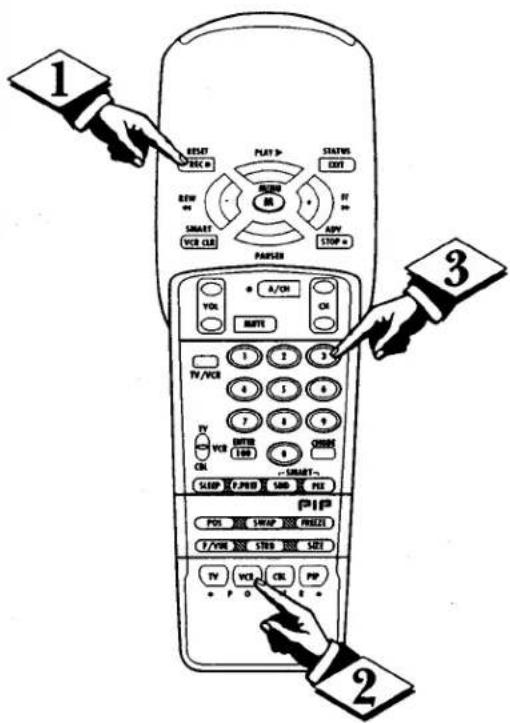
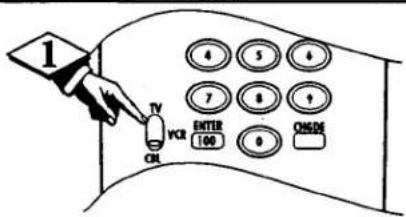
➢ Druk op de REC (RECORD)-knop en laat deze weer los.
Druk binnen dertig seconden na het loslaten van de REC-knop op de VCR Power-knop en laat deze weer los.
Binnen dertig seconden na het loslaten van de VCR-knop, voert u het TWEE-CIJFERIGE CODEnummer in voor de gewenste VCR. De afstandsbediening is nu klaar om commando's naar de VCR te sturen.
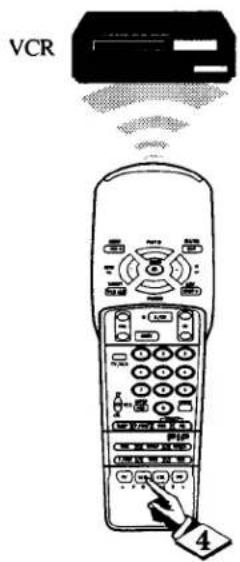
Richt de afstandsbediening op de VCR. Druk op de VCR-knop op de afstandsbediening om de VCR IN te schakelen.
DE AFSTANDSBEDIENING INSTELLEN VOOR KABEL-TV-CONVERTERS
Uw afstandsbediening is ingesteld om uw tv en veel infrarood (IR) bediende kabelconverters te bedienen.
Er kan echter een eenmalige eenvoudige stap nodig zijn voordat de afstandsbediening uw converter bedient.
Probeer deze eerste controle om te zien of het volgende gedeelte nodig is.
BEGIN

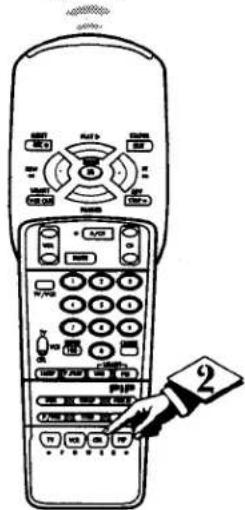
Schuif de schakelaar op de afstandsbediening naar BL.

Richt de afstandsbediening op de kabelconverter en druk op de CBL-knop.

Schakelt de afstandsbediening de converter IN?
INDIEN JA, stop en probeer de CH ▲▼ en CH-nummerknoppen op de afstandsbediening. Als ze ook de converter bedienen, is de afstandsbediening klaar en zijn er geen verdere stappen nodig. INDIEN NEE, ga verder...
Kabel Converter
Zoek eerst een TWEE-CIJFERIG afstandsbedieningscodenummer op voor uw merk
Converter voordat u de eenvoudige stappen "1,2,3" (op de volgende pagina) doorloopt.
ga verder naar de volgende pagina

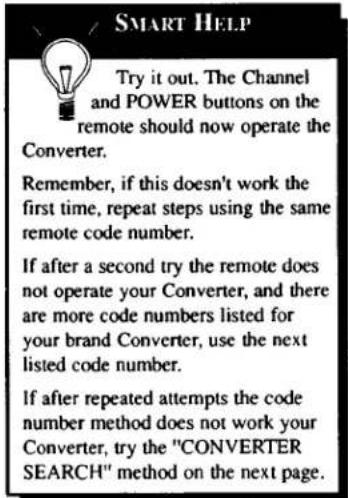
SMART HELP
Onthoud dat als er meer
dan één nummer wordt vermeld, je mogelijk meer dan de eerste tweecijferige code moet proberen om de afstandsbedieningscode van je converter te vinden.
| CONVERTER BRAND | REMOTE CODE NO. | CONVERTER BRAND | REMOTE CODE NO. |
| Archer | 28 | Rembrant | 33 |
| Diamond | 23 | Salora | 52 |
| Drake | 37 | Scientific Atlanta | 08, 22, 47 |
| Gemini | 45 | Sheritech | 34 |
| Hamlin | 14, 15 | Starcom | 30 |
| Hitachi | 25 | Sylvania | 16 |
| Jerrold 00,01,02,03,04,05,46,55 | Texscan | 48 | |
| Macom | 29, 38 | Tocom | 12,13, 53 |
| Magnavox | 17, 31 | Toshiba | 43 |
| NSC | 49 | Uniden Satellite | 44 |
| Oak | 06, 27, 39 | Unika | 50 |
| Panasonic | 18, 35 | United Satellite | 54 |
| Philips | 19, 20, 21, 24, 26 | Universal | 36 |
| Pioneer | 09, 32 | Video Tech | 40 |
| Regency | 10, 11 | Video Way | 51 |
| Zenith | 07, 41, 42 | ||
DE AFSTANDSBEDIENING INSTELLEN VOOR KABELCONVERTERS (VERVOLG)
Nu je de tweecijferige afstandsbedieningscode voor jouw merk kabelconverter hebt opgezocht (op de vorige pagina), ben je klaar om de vier eenvoudige stappen hieronder te volgen.
Lees eerst stappen 1 tot en met 4 door voordat je begint.
BEGIN

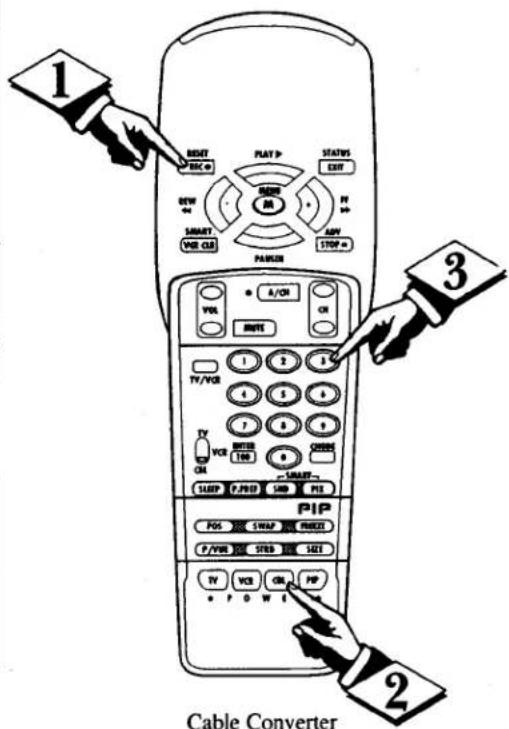
Druk op de REC (RECORD) knop en laat deze weer los.

Binnen dertig seconden na het loslaten van de REC knop, druk op de CBL Power knop en laat deze weer los.

Binnen dertig seconden na het loslaten van de CBL Power knop, voer de TWEE CIJFERIGE CODE in voor de gewenste converter. De afstandsbediening is nu klaar om commando's naar de converter te sturen.

Richt de afstandsbediening op de converter. Druk op de CBL POWER knop op de afstandsbediening om de converter IN te schakelen.
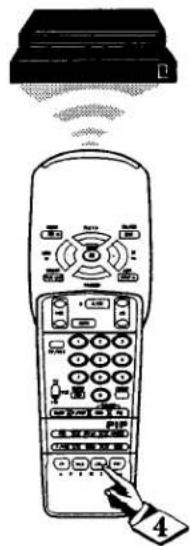
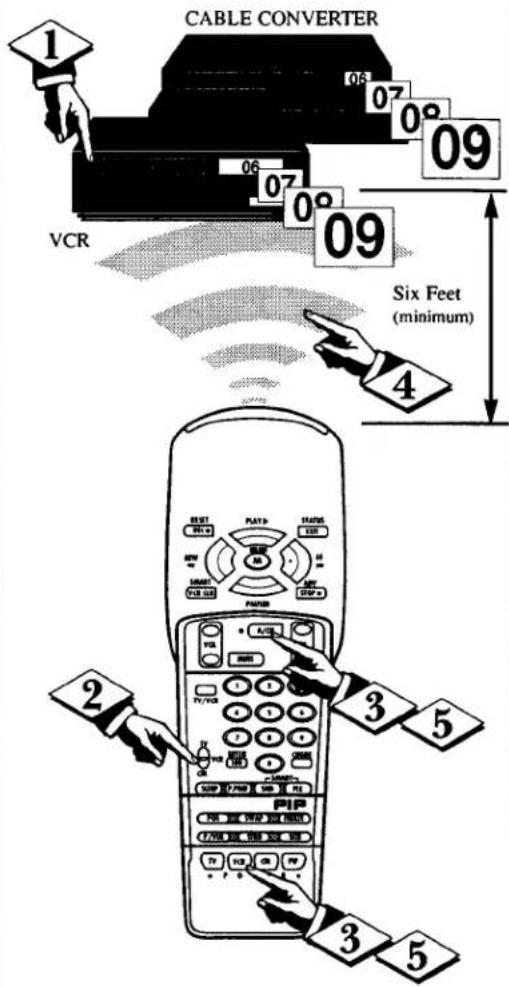
JE AFSTANDSBEDIENING INSTELLEN VOOR VIDEORECORDERS EN CONVERTERS - ZOEKMETHODE
Je tv-afstandsbediening kan worden ingesteld om je videorecorder of kabelconverter te bedienen met behulp van de zogenaamde zoekmethode.
Als de "REMOTE CODE"-nummermethode uit de vorige sectie uw afstandsbediening niet heeft ingesteld om uw videorecorder of converter te bedienen, volg dan de eenvoudige stappen hieronder.
Lees eerst stappen 1 tot en met 4 volledig door.
BEGIN

Druk op de POWER-knop op de videorecorder of converter om het apparaat IN te schakelen.

Zet de TV/VCR/CBL-schakelaar op de afstandsbediening in de gewenste stand (VCR of CBL).

Ga op minstens twee meter afstand van de voorkant van de videorecorder of converter staan. Richt de afstandsbediening op het apparaat. HOUD de A/CH- en de gewenste POWER-knop (VCR of CBL-converter) tegelijkertijd INGEDRUKT. BLIJF DE KNOPPEN INGEDRUKT HOUDEN.

Let op de kanaalindicator op het apparaat.
Kanaalnummers zullen OMHOOG SCANNEN wanneer het apparaat is geïdentificeerd. Dit kan tot twee minuten duren.

Laat de A/CH- en POWER-knop (VCR of CBL) los zodra de kanaalnummers beginnen te scannen. De modus is geïdentificeerd en de afstandsbediening is klaar om de videorecorder of converter te bedienen.

SLIMME HULP
Onthoud: een minuut of twee kan lang lijken, maar de code zou binnen twee minuten gevonden moeten zijn.
Laat de videorecorder niet meer dan vijf kanalen omhoog scannen. Als u dat wel doet, kan de afstandsbediening de juiste code overslaan en moet de zoekcyclus van twee minuten opnieuw worden herhaald.
Als er binnen twee minuten geen kanaalverandering optreedt, herhaal dan stappen 1 tot en met 4. Mocht er nog steeds geen kanaalverandering optreden, dan werkt de afstandsbediening niet met het gewenste apparaat.
Laat de videorecorder of converter niet meer dan vijf kanalen omhoog scannen (in de zoekmodus).
90 dagen ruilen aan de balie
Deze garantie geeft u specifieke wettelijke rechten, en u kunt ook andere rechten hebben die per staat verschillen.
Gedurende de eerste 90 dagen
Gedurende de eerste negentig (90) dagen vanaf de aankoopdatum wordt uw accessoire vervangen door een nieuw of vernieuwd product (naar keuze van Philips) als het defect of onbruikbaar wordt. Dit gebeurt zonder kosten voor u. Vervangende producten vallen onder de garantie voor de rest van de garantieperiode.
Wie wordt beschermd... Waar?
Deze garantie geldt voor de oorspronkelijke koper voor producten die zijn gekocht en gebruikt in de VS, Puerto Rico en de Maagdeneilanden. (Voor Canada zie hieronder.)
Wat de koper moet doen (ALLEEN in Canada)
Als u tijdens de garantieperiode een vervanging nodig heeft, moet u uw accessoire terugbrengen naar de dealer waar u het hebt gekocht, met het aankoopbewijs. U bent verantwoordelijk voor alle verzendkosten.
Wat de koper moet doen (behalve in Canada)
Als u tijdens de garantieperiode een vervanging nodig heeft, moet u uw accessoire terugbrengen naar de dealer waar u het hebt gekocht, of het product zorgvuldig verpakken en opsturen met vooruitbetaald vervoer, met bewijs van aankoopdatum, naar het Small Products Service Center, op het onderstaande adres.
ALLE IMPLICIETE GARANTIES, INCLUSIEF IMPLICIETE GARANTIES VAN VERKOOPBAARHEID EN GESCHIKTHEID VOOR EEN BEPAALD DOEL, ZIJN BEPERKT IN DUUR TOT DE DUUR VAN DEZE EXPLICIETE GARANTIE. Sommige staten staan beperkingen op de duur van een impliciete garantie niet toe, dus de bovenstaande beperking is mogelijk niet op u van toepassing.
Philips CEC - Credit Ontvangst
Small Products Service Center
1001 Snapp Ferry Road
Greeneville, TN 37745
(423) 475-8869
Copyright © 1996 Philips Consumer Electronics Company. Alle rechten voorbehouden.
IB7646E001


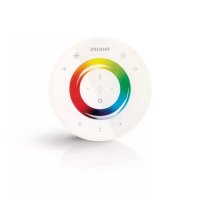
- G96SVC VERVANGENDE AFSTANDSBEDIENING
- BEGIN
- SMART
- HELP
- PROGRAMMEREN VOOR OUDERE TELEVISIES
- SMART HELP
- DE AFSTANDSBEDIENING INSTELLEN VOOR VIDEORECORDERS
- HET INSTELLEN VAN DE AFSTANDSBEDIENING VOOR VIDEORECORDERS VERVOLGD
- DE AFSTANDSBEDIENING INSTELLEN VOOR KABEL-TV-CONVERTERS
- DE AFSTANDSBEDIENING INSTELLEN VOOR KABELCONVERTERS (VERVOLG)
- JE AFSTANDSBEDIENING INSTELLEN VOOR VIDEORECORDERS EN CONVERTERS - ZOEKMETHODE
- SLIMME HULP
- 90 DAGEN RUILEN AAN DE BALIE
- GEDURENDE DE EERSTE 90 DAGEN
- WIE WORDT BESCHERMD... WAAR
- WAT DE KOPER MOET DOEN (ALLEEN IN CANADA)
- WAT DE KOPER MOET DOEN (BEHALVE IN CANADA)
- PHILIPS CEC - CREDIT ONTVANGST
Merk : PHILIPS
Model : G96SVC
Categorie : Afstandsbediening