
RO14116DWHC - Skalbyklė CANDY - Nemokama naudojimo instrukcija
Raskite įrenginio instrukciją nemokamai RO14116DWHC CANDY PDF formatu.


Naudotojų klausimai apie RO14116DWHC CANDY
0 klausimas apie šį prietaisą. Atsakykite į tas, kurias žinote, arba užduokite savo.
Užduokite naują klausimą apie šį prietaisą
Atsisiųskite instrukciją savo Skalbyklė PDF formatu nemokamai! Raskite savo instrukciją RO14116DWHC - CANDY ir vėl perimkite savo elektroninį įrenginį. Šiame puslapyje skelbiami visi dokumentai, reikalingi jūsų įrenginio naudojimui. RO14116DWHC prekės ženklo CANDY.
NAUDOJIMO INSTRUKCIJA RO14116DWHC CANDY
IMPORTANT
This quick guide illustrates the steps to follow to enroll your appliance on the App Candy simply-Fi, using a device with Bluetooth 4.0 (or higher) technology. In this case, the procedure is simplified and faster (Easy Enrollment).
If you are using a device without Bluetooth technology (or less than 4.0), please follow the instructions described on the other side of this guide.
NOTE* – Requirements Wi-Fi network name and WPA / WEP password: - Maximum length: 32 characters - Characters not allowed: ", &, \$, =,?
Download the App!


06

On the appliance:
A) Turn the knob on Wi-Fi position; "MENU WI-FI" appears on display.
B) Within 60 sec, press DELAY START button for 3 seconds; "BLE - CONNECTING..." appears on display.
01
START

Mark down the machine Serial Number (with the help of the image above).
Mark down the Wi-Fi Name and Password (WPA/WEP Key) which are normally placed on the back of your Wi-Fi router (see requirements in the NOTE*).
Please make sure your smartphone is connected to the same Wi-Fi network and has the Bluetooth enabled within the "Settings". Refer to the manual for more details.
NOTE – The frequency of the home Wi-Fi network has to be set on the 2.4 GHz band. You can not configure the machine if your home network is set to the 5 GHz band.
NOTE – If you are having trouble locating the Wi-Fi Password, please contact your Internet Provider.

In App - Tap on "Confirm". Wait for APP to connect to the machine.
NOTE – In case of any issue, tap “Retry”, making sure you have enabled Bluetooth on your device (smartphone / tablet). If the process is not yet completed correctly, tap “Proceed with Standard Enrollment”.
NOTE – To ensure correct data transfer, we recommend that you stay with the device close to the machine.
02

Download the Candy simply-Fi App from the Store.
Open the Candy simply-Fi App and create your user profile by tapping on “Register”. Accept the privacy policy and fill in the required fields.
NOTE – User profile password requirements: - Maximum length: 32 characters - Allowed characters: numbers and letters (except special characters)
NOTE – The App is available for Android (version 4.4 or higher) and iOS (version 8.0 or higher) devices.
NOTE – If you already have a Candy simply-Fi user profile, you can login using your credentials.
NOTE – You can browse through the functions of the whole Candy simply-Fi line-up (Smart Touch, Smart Fi and Smart Fi+) by taping on the “Demo” button.
07

Insert the password of your home Wi-Fi network.
Select the type of password (WEP or WPA), then tap on "Confirm".
NOTE – If this is not automatically synchronised by the App, please insert the name of your home Wi-Fi network in the first box; pay attention to the difference between lowercase and uppercase.
NOTE – Requirements Wi-Fi network name and WPA / WEP password: - Maximum length: 32 characters - Characters not allowed: ", &, \$, =, ?
03 04

In the homepage, tap on the icon with the three bars on the top left to enter your profile, then tap on “REGISTER NEW APPLIANCE” and select the name of the product that you want to enroll.

Insert the purchase date of your appliance (DD/MM/YYYY), then tap on "Proceed".
08

Wait until the end of the data transfer process between the App and the product, then tap "Confirm". "REMOTE CONTROL ON" (if the door is closed) or "REMOTE CONTROL OFF - CLOSE THE DOOR" (if the door is open) appear on the machine display.
The enrollment process is now finished.
IF THE SET UP IS NOT SUCCESSFUL
It's important to establish a good Wi-Fi signal strength between the home router and the appliance: low Wi-Fi signal strength would cause the failure of the final stage of the set up. To assess if this is the case, start the connection process again from Step 1; when you get to Step 6, place with your device (smartphone or tablet) next to the router and search for "WIFIWASHMACHINE-xyzk" net generated by the machine. If this does not come up as an option, it means that the router cannot see the appliance. In this case, we highly recommend you to bring the router near the machine (if possible) or contact your internet provider to purchase a compatible "Wi-Fi Range Extender" to increase the strength of the signal.
05

Insert the 16 digits of the serial number or scan the QR code on the machine helping you with the image above. Tap on "Next". Check the correctness of the data and tap on "Confirm". Once the system has recognized the product, tap "Next".

Remote control mode
Load the machine, add the detergent and close the door. Select the Wi-Fi position: the display will show "REMOTE CONTROL ON" and you will hear the door lock activation. From now on you can manage your appliance using the App.
NOTE – Make sure that the machine door is closed. Otherwise, with the door open, "REMOTE CONTROL OFF - CLOSE THE DOOR" will appear on the display.
At the end of cycle, turn off the machine by turning the knob to OFF and wait for the release of the lock.

simply Fi
Quick Guide Candy Rapidò - Enrollment on App Procedure for devices without Bluetooth 4.0 (or less than 4.0)
At go.candy-group.com/rm you can find the full product manual and the other languages of this document.
IMPORTANT
This quick guide outlines the steps you should follow to enroll your appliance using the App Candy simply-Fi, utilizing a device without Bluetooth technology. We recommend you to proceed with a smartphone/tablet equipped with this technology to make the procedure simpler.
If you are using a device with Bluetooth technology (or higher than 4.0), please follow the instructions described on the other side of this guide.
NOTE – The App is available for Android (version 4.4 or higher) and iOS (version 8.0 or higher) devices.
NOTE* – Requirements Wi-Fi network name and WPA / WEP password: - Maximum length: 32 characters - Characters not allowed: ", &, \$, =,?
Download the App!


07
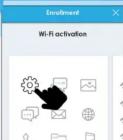
Exit the Candy simply-Fi App.
Go to your device Wi-Fi settings.
01
START
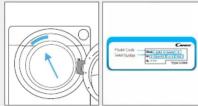
Make a note of the machine Serial Number (with the help of the image above) and Wi-Fi Name and Password (WPA/WEP Key), which are normally found on the back of your Wi-Fi router (see requirements in the NOTE*).
Please make sure that your smartphone/tablet is connected to the same Wi-Fi network.
NOTE – The frequency of the home Wi-Fi network has to be set on the 2.4 GHz band. You can not configure the machine if your home network is set to the 5 GHz band.
NOTE – If you are having trouble locating the WPA/WEP Password, please contact your Internet Provider.
02

Download the Candy simply-Fi App from the Store.
Open the Candy simply-Fi App and create your user profile by taping on "Register". Accept the privacy policy and fill in the required fields.
NOTE – User profile password
- Maximum length: 32 characters
- Allowed characters, numbers and letters (except special characters)
NOTE – If you already have a Candy simply-Fi user profile, you can login using your credentials.
NOTE – You can browse through the functions of the whole Candy simply-Fi line-up (Smart Touch, Smart Fi and Smart Fi+) by taping on the “Demo” button.
03
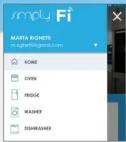
In the homepage, tap on the icon with the three bars on the top left to enter your profile, then tap on "REGISTER NEW APPLIANCE" and select the name of the product that you want to enroll.
04

Insert the purchase date of your appliance (DD/MM/YYYY), then tap on "Proceed".

Insert the 16 digits of the serial number you have previously noted or scan the QR code on the machine (label behind the porthole). Tap on "Next". Check the correctness of the data and tap on "Confirm". Once the system has recognized the product, tap "Next".

On the appliance:
A) Turn the knob on WI-FI position; "MENU WI-FI" appears on display.
B) Within 60 sec, press TEMPERATURE button for 3 seconds;
"STD - CONNECTING..." appears
on display.
On the App - Tap on "Confirm".
Wait for APP to connect to the machine.
NOTE – To ensure correct data transfer, we recommend that you stay with the device close to the machine.
08

In the list of available Wi-Fi networks, select "WIFIWASHMACHINE-xyzk".
NOTE – If you do not find it, wait few more seconds or proceed with a new scan.
09
Exit from the settings of your device.
Return to the Candy simply-Fi App and wait for the App to detect the appliance. Once the “Wi-Fi Network is active” screen appears, tap on “Next”.
10 1

Insert the password of your home Wi-Fi network.
Select the type of password (WEP or WPA), then tap on "Confirm".
NOTE – If this is not automatically synchronised by the App, please insert the name of your home Wi-Fi network in the first box; pay attention to the difference between lowercase and uppercase.
NOTE – Requirements Wi-Fi network name and WPA / WEP password: - Maximum length: 32 characters - Characters not allowed: ", &, \$, =,?

Wait until the end of the data transfer process between the App and the product, then tap "Confirm". "REMOTE CONTROL ON" (if the door is closed) or "REMOTE CONTROL OFF - CLOSE THE DOOR" (if the door is open) appear on the machine display.
The enrollment process is now finished.
IF THE SET UP
IS NOT SUCCESSFUL
It's important to establish a good Wi-Fi signal strength between the home router and the appliance: low Wi-Fi signal strength would cause the failure of the final stage of the set up. To assess if this is the case, start the connection process again from Step 1; when you get to Step 6, place with your device (smartphone or tablet) next to the router and search for "WIFTWASHMACHINE xylk" net generated by the machine. If this does not come up as an option, it means that the router cannot see the appliance. In this case, we highly recommend you to bring the router near the machine (if possible) or contact your internet provider to purchase a compatible "Wi-Fi Range Extender" to increase the strength of the signal.

Remote control mode
Load the machine, add the detergent and close the door. Select the Wi-Fi position: the display will show "REMOTE CONTROL ON" and you will hear the door lock activation. From now on you can manage your appliance using the App.
NOTE – Make sure that the machine door is closed. Otherwise, with the door open, “REMOTE CONTROL OFF -CLOSE THE DOOR” will appear on the display.
At the end of cycle, turn off the machine by turning the knob to OFF and wait for the release of the lock.

go.candy-group.com/rm
EN NL PLPT RU CSIT DE ELES FR ZH RO SL HRSR SK


43028922


Prekės ženklas : CANDY
Modelis : RO14116DWHC
Kategorija : Skalbyklė