
C9650hdn - Stampante OKI - Manuale utente e istruzioni gratuiti
Trova gratuitamente il manuale del dispositivo C9650hdn OKI in formato PDF.


| Tipo di prodotto | Stampante LED a colori professionale |
| Dimensioni (L x P x H) | 654 x 720 x 570 mm |
| Peso | 75 kg |
| Alimentazione | 220-240 V, 50/60 Hz |
| Consumo energetico | Max 1200 W, in standby 80 W |
| Funzioni principali | Stampa a colori, stampa fronte/retro automatica, rete Ethernet |
| Risoluzione di stampa | Fino a 1200 x 1200 dpi |
| Velocità di stampa | Fino a 36 ppm (colore e nero) |
| Capacità carta standard | 640 fogli, estensibile fino a 2560 fogli |
| Tipi di supporto | Carta comune, etichette, cartoncino, lucidi |
| Ciclo di lavoro mensile | Fino a 150.000 pagine |
| Connettività | Ethernet 10/100/1000 Base-T, USB 2.0 |
| Display | LCD con retroilluminazione |
| Lingue pannello | Multilingua (italiano incluso) |
| Cartucce toner | Toner nero e colori (C/M/Y) separati |
| Durata toner nero | Circa 18.000 pagine |
| Durata toner colore | Circa 15.000 pagine ciascuno |
| Rumorosità | 54 dB in funzione |
| Temperatura operativa | 10-32 °C |
| Umidità operativa | 20-80% RH |
| Sicurezza | Crittografia IPsec/SSL, blocco pannello |
| Manutenzione | Pulizia rulli, sostituzione tamburi e toner |
Domande frequenti - C9650hdn OKI
Domande degli utenti su C9650hdn OKI
0 domanda su questo apparecchio. Rispondi a quelle che conosci o fai la tua.
Fai una nuova domanda su questo apparecchio
Scarica le istruzioni per il tuo Stampante in formato PDF gratuitamente! Trova il tuo manuale C9650hdn - OKI e riprendi in mano il tuo dispositivo elettronico. In questa pagina sono pubblicati tutti i documenti necessari per l'utilizzo del tuo dispositivo. C9650hdn del marchio OKI.
MANUALE UTENTE C9650hdn OKI

User's Guide
C9650n
C9650dn
C9650hdn
C9650hdtn

PREFACE
Every effort has been made to ensure that the information in this document is complete, accurate, and up-to-date. Oki assumes no responsibility for the results of errors beyond its control. Oki also cannot guarantee that changes in software and equipment made by other manufacturers and referred to in this guide will not affect the applicability of the information in it. Mention of software products manufactured by other companies does not necessarily constitute endorsement by Oki.
While all reasonable efforts have been made to make this document as accurate and helpful as possible, we make no warranty of any kind, expressed or implied, as to the accuracy or completeness of the information contained herein.
The most up-to-date drivers and manuals are available from the Oki web site:
http://www.okiprintingsolutions.com
Copyright © 2009 Oki Europe Ltd. All rights reserved.
Oki is a registered trademark of Oki Electric Industry Company Ltd.
Oki Printing Solutions is a trademark of Oki Data Corporation.
Energy Star is a trademark of the United States Environmental Protection Agency.
Microsoft, MS-DOS and Windows are registered trademarks of Microsoft Corporation.
Apple, Macintosh, Mac and Mac OS are registered trademarks of Apple Computer.
Other product names and brand names are registered trademarks or trademarks of their proprietors.

As an Energy Star Program Participant, the manufacturer has determined that this product meets the Energy Star guidelines for energy efficiency.
C9650n - ✗ C9650dn, C9650hdn, C9650hdtn - √

This product complies with the requirements of the Council Directives 2004/108/EC (EMC), 2006/95/EC (LVD) and 1999/5/EC (R&TTE), as amended where applicable, on the approximation of the laws of the member states relating to electromagnetic compatibility, low voltage and radio & telecommunications terminal equipment.
CAUTION!
This product complies with EN55022 Class B. However, when fitted with the optional finisher, compliance to EN55022 is Class A. In a domestic environment this configuration may cause radio interference, in which case the user may be required to take adequate measures.
EMERGENCY FIRST AID
Take care with toner powder:
If swallowed, give small amounts of cold water and seek medical attention. DO NOT attempt to induce vomiting.

If inhaled, move the person to an open area for fresh air. Seek medical attention.
If it gets into the eyes, flush with large amounts of water for at least 15 minutes keeping eyelids open. Seek medical attention.
Spillages should be treated with cold water and soap to help reduce risk of staining skin or clothing.
MANUFACTURER
Oki Data Corporation,
4-11-22 Shibaura, Minato-ku,
Tokyo 108-8551,
Japan
IMPORTER TO THE EU/AUTHORISED REPRESENTATIVE
Oki Europe Limited (trading as Oki Printing Solutions)
Blays House
Wick Road
Egham
Surrey, TW20 0HJ
United Kingdom
For all sales, support and general enquiries contact your local distributor.
ENVIRONMENTAL INFORMATION

NOTES, CAUTIONS AND WARNINGS
NOTE
A note provides additional information to supplement the main text.
CAUTION!
A caution provides additional information which, if ignored, may result in equipment malfunction or damage.
WARNING!
A warning provides additional information which, if ignored, may result in a risk of personal injury.
For the protection of your product, and in order to ensure that you benefit from its full functionality, this model has been designed to operate only with genuine original toner cartridges. Any other toner cartridge may not operate at all, even if it is described as "compatible", and if it does work, your product's performance and print quality may be degraded.
Use of non-genuine products may invalidate your warranty.
Specifications subject to change without notice. All trademarks acknowledged.
CONTENTS
Preface 2
Emergency first aid....3
Manufacturer.... 3
Importer to the EU/authorised representative .... 3
Environmental information....3
Notes, cautions and warnings.... 4
Contents 5
Introduction 8
Features 8
About this guide.... 10
Online usage 11
Printing pages 12
Printer and paper overview 13
Opening and closing the top cover 13
Identifying major components ..... 15
Software supplied....20
Paper recommendations 20
Paper input and output information. 22
Trays and stackers 23
Trays 1 to 5. 23
MP tray 24
Face-down stacker 24
Face-up stacker 24
Duplex unit (if installed) 25
Tray and stacker examples 26
Loading trays 1 to 5 ..... 26
Using the MP tray....28
Using the stackers 31
Control panel.... 33
Controls and indicators 33
LCD panel modes 35
Status information 35
Menu (functions) information.... 35
Configuration information 36
Help mode. 36
LCD panel messages.... 36
Using the menus 37
Getting started 38
Printer location.... 38
Turning off/on 39
Turning off 39
Turning on 41
Changing the display language. 41
Checking current settings 42
Interfaces and connection 43
Connecting the parallel interface 44
Connecting the USB interface 44
Connecting the network interface.... 45
Using the drivers CD 46
Operation 47
Using the printer 47
Consumables and maintenance 48
Checking consumable/maintenance item usage ..... 48
Replacement indications 48
Consumable item order information 49
Maintenance item order details. 49
Replacing consumables/maintenance items ..... 50
Cleaning the LED heads. 50
Cleaning the paper feed rollers. 52
Cleaning the printer casing 55
Emptying the punch chip box (punch unit optional accessory).... 57
Optional accessories....59
Accessory order information. 60
Installing accessories 61
Troubleshooting 62
General 62
Paper jams 62
Paper jams - printer 62
Open cover, paper jam, tttttt side cover ..... 63
Open cover, paper jam, side cover....64
Open cover, paper jam, top cover 66
Paper jams - duplex unit (if installed)....73
Check duplex unit, paper jam 73
Paper jams - finisher (optional accessory)....79
Check finisher, paper jam/paper remains ..... 79
591, 592, 593, 599/ 643, 645 (paper jam around finisher)....79
594, 597, 598/ 644, 646 (paper jam in finisher) .. 82
590 (paper jam in finisher/punch unit) ..... 85
Check inverter, paper jam. 88
Avoiding paper jams 93
Dealing with unsatisfactory printing 94
Staple jams - finisher (optional accessory) ..... 96
Check finisher, staple jam....96
Specifications 101
Appendix A - LCD messages.... 103
Appendix B - menu system.... 105
Configuration....106
Print page count. . . . . . . . . . . . . . . . . . . . . . . . . . . . . . . . . . . . . . . . . . . . . 106
Finisher count 106
Supplies life. 107
Network 107
Paper size in tray 108
System....108
Configuration example - monochrome pages printed 109
Print information 110
Print information example – demonstration page....111
Print secure job .....112
Menus....113
Tray configuration .....113
System adjust .....117
Menus example 1 - tray 1 transparencies .....122
Menus example 2 - MP tray paper size . . . . . . . .123
Index....124
Oki contact details 126
INTRODUCTION
Congratulations on buying an Oki colour printer. Your new printer is designed with advanced features to give you clear, vibrant colour prints and crisp black and white pages at high speed on a range of print media for the office.
There are four different models available: C9650n, C9650dn, C9650hdn and C9650hdtn, where n denotes networking capability, d denotes duplex unit installed, h denotes hard disk drive installed and t denotes high capacity feeder installed.
FEATURES
The following features are standard on all models:
Up to 36 pages per minute in full colour for fast printing of high impact colour presentations and other documents
Up to 40 pages per minute in black and white for fast and efficient printing of all general purpose documents not requiring colour
1200 x 600 dpi (dots per inch) print resolution for high quality image production showing the finest detail
ProQ2400 multi level technology produces subtler tones and smoother gradations of colour to lend photographic quality to your documents
Single Pass Colour Digital LED technology for high speed processing of your printed pages
10Base-T, 100Base-TX and 1000Base-T network connection lets you share this valuable resource among users on your office network
USB 2.0 and parallel (IEEE-1284) interfaces
PCL, PS, IBM PPR, Epson FX emulations
"Ask Oki" – a user-friendly function that gives a direct link from your printer driver screen (but not illustrated in this guide) to a dedicated web site specific to the exact model you are using. This is where you will find all the advice, assistance and support you could need to help you get the best possible results from your Oki printer.
Additionally, the following optional features are available:
Automatic two-sided (duplex) printing for economical use of paper and compact printing of larger documents
NOTE
This optional feature is only applicable to the C9650n.
Hard disk drive enables spooled and verified printing
NOTE
This optional feature is only applicable to the C9650n and C9650dn.
Additional paper trays for loading a further 530 sheets at a time to reduce operator intervention, or different paper stocks for letterhead stationery, alternative paper sizes or other print media:
Standard 2nd/3rd Tray (530 sheets each)
Lockable 2nd Tray (530 sheets)
High Capacity Feeder (HCF) (1590 sheets)
NOTE
-
Tray configurations are: Tray 1 only, Tray 1 + 2nd Tray, Tray 1 + 2nd Tray + 3rd Tray, Tray 1 + HCF, Tray 1 + 2nd Tray + HCF
-
The C9650hdtn already has a High Capacity Feeder installed and so can only accommodate one additional tray (to give the maximum total of five).
Additional memory
Finisher (for stapling printer output)
Punch unit (to extend Finisher functionality)
Printer cabinet
ABOUT THIS GUIDE
NOTE
Images used in this manual may include optional features that your printer does not have installed.
This manual is your user's guide (check the web site, www.okiprintingsolutions.com, for the most up-to-date version) for your printer and forms part of the overall user support listed below:
Installation Safety Booklet: as with all electrical equipment, there are a few basic precautions that should be taken to avoid injury or damage. Please be careful to read and understand the safety warnings in the Safety Booklet before operating the product.
This is a paper document that is packaged with the printer.
Set-up guide: to describe how to unpack, connect and turn on your printer
This is a paper document that is packaged with the printer.
This User's Guide: to help you to become familiar with your printer and make the best use of its many features. Also included are guidelines for troubleshooting and maintenance to ensure that it performs at its best. Additionally, information is provided for adding optional accessories as your printing needs evolve.
This is an electronic document.
Printing Guide for Windows users and Mac users: to help you operate your printer effectively and efficiently
This is an electronic document.
Configuration Guide: to provide machine configuration and network configuration information
This is an electronic document.
Installation Guides: accompany consumable items and optional accessories to describe how to install them
These are paper documents that are packaged with the consumables and optional accessories.
Online Help: online information accessible from the printer driver and utility software
ONLINE USAGE
This guide is intended to be read on screen using an Abode Reader. Use the navigation and viewing tools provided in Acrobat.
You can access specific information in two ways:
In the list of bookmarks down the left hand side of your screen, click on the topic of interest to jump to the required topic. (If the bookmarks are not available, use the "Contents" on page 5.)
In the list of bookmarks, click on Index to jump to the Index. (If the bookmarks are not available, use the "Contents" on page 5.) Find the term of interest in the alphabetically arranged index and click on the associated page number to jump to the page containing the term.
PRINTING PAGES
The whole manual, individual pages, or sections may be printed. The procedure is:
- From the toolbar, select File, then Print (or press the Ctrl + P keys).
- Choose which pages you wish to print:
(a) All pages, (1), for the entire manual.
(b) Current page, (2), for the page at which you are looking.

(c) Pages from and to, (3), for the range of pages you specify by entering their page numbers.

- Click OK.
PRINTER AND PAPER OVERVIEW
OPENING AND CLOSING THE TOP COVER
CAUTION!
To gain access to the inside of the printer, ensure that the top cover is fully opened.
To open the top cover, squeeze the top cover handle (1) to release the catch and raise the cover.

To close the top cover, push gently (1) until the cover stops midway and then push harder (2) to close the cover completely. Ensure that the cover is securely closed.

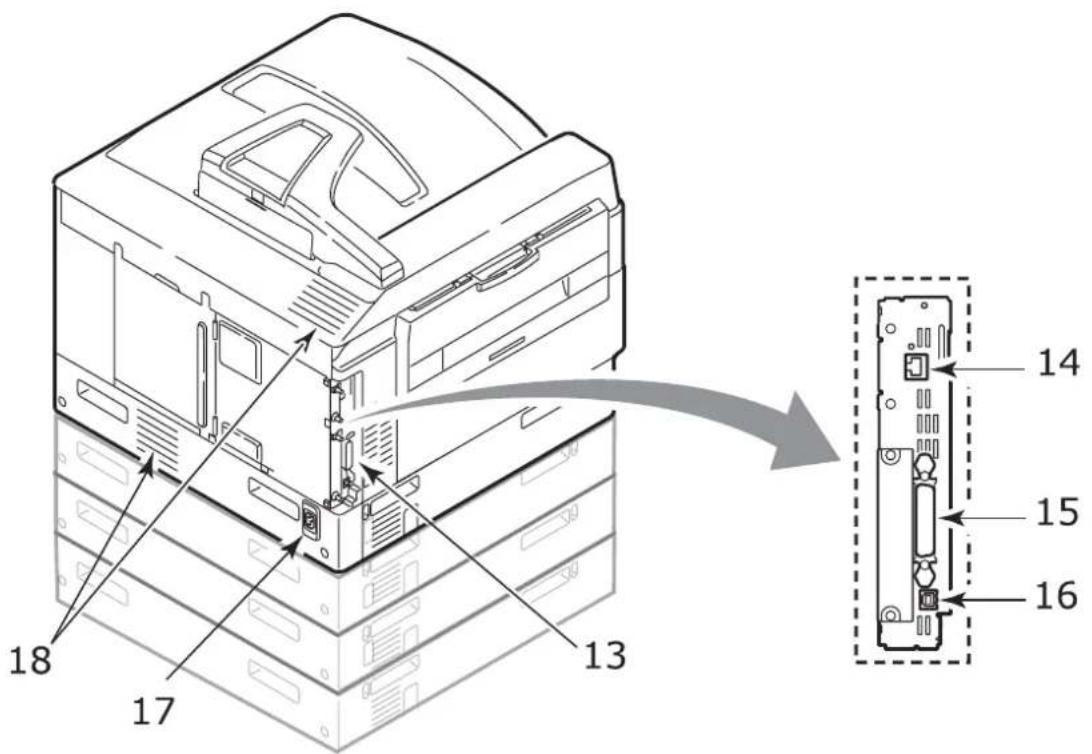
IDENTIFYING MAJOR COMPONENTS
The major components of your printer are identified in the representations below.
- Paper holding arm
- Top cover (face-down stacker)
- MP Tray (multi-purpose tray)
- Tray 1 side cover
- Paper size label
- Paper volume indicator
- Tray 1 (paper tray)
- Control panel
- Top cover handle
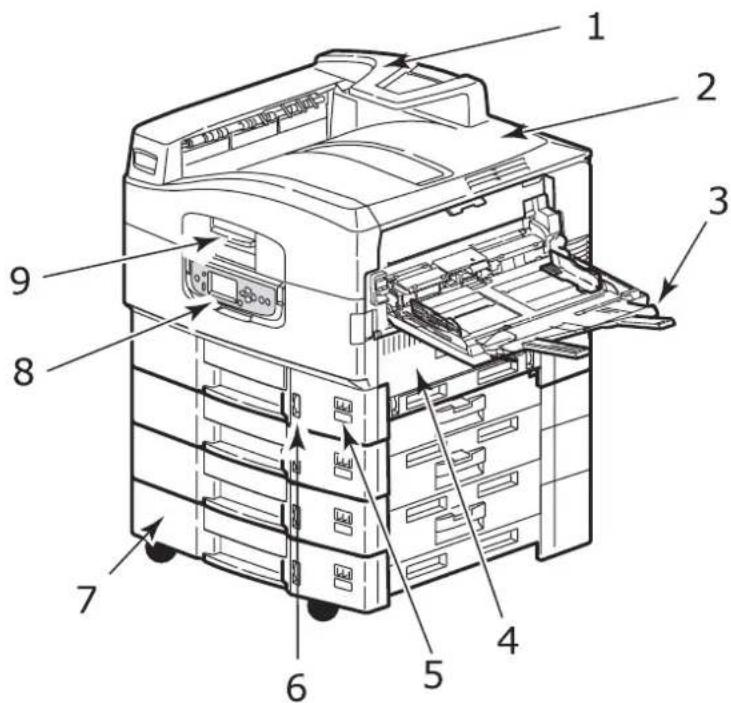
- Face-down stacker
- Power (on/off) switch
- Face-up stacker

- Interface unit
- Network interface connector
- Parallel interface connector
- USB interface connector
- Power connector
- Ventilation holes
- Image drum cartridge and toner cartridge (Cyan)
- Image drum cartridge and toner cartridge (Magenta)
- Image drum cartridge and toner cartridge (Yellow)
- Image drum cartridge and toner cartridge (Black)
- Toner cartridge
- Image drum cartridge
- Fuser unit
- LED heads


- USER'S GUIDE
- PREFACE
- CAUTION
- EMERGENCY FIRST AID
- MANUFACTURER
- IMPORTER TO THE EU/AUTHORISED REPRESENTATIVE
- ENVIRONMENTAL INFORMATION
- NOTES, CAUTIONS AND WARNINGS
- WARNING
- USE OF NON-GENUINE PRODUCTS MAY INVALIDATE YOUR WARRANTY
- CONTENTS
- GETTING STARTED 38
- OPERATION 47
- CONSUMABLES AND MAINTENANCE 48
- OPTIONAL ACCESSORIES....59
- TROUBLESHOOTING 62
- SPECIFICATIONS 101
- APPENDIX A - LCD MESSAGES.... 103
- APPENDIX B - MENU SYSTEM.... 105
- INDEX....124
- OKI CONTACT DETAILS 126
- INTRODUCTION
- FEATURES
- NOTE
- ABOUT THIS GUIDE
- ONLINE USAGE
- PRINTING PAGES
- PRINTER AND PAPER OVERVIEW
- IDENTIFYING MAJOR COMPONENTS
Marca : OKI
Modello : C9650hdn
Categoria : Stampante