
IXUS Wireless - Fényképezőgép CANON - Ingyenes használati útmutató
Találja meg az eszköz kézikönyvét ingyenesen IXUS Wireless CANON PDF formátumban.


Felhasználói kérdések a következőről IXUS Wireless CANON
0 kérdés erről a készülékről. Válaszolj azokra, amiket ismersz, vagy tedd fel a sajátod.
Tegyél fel egy új kérdést erről a készülékről
Töltse le az útmutatót a következőhöz Fényképezőgép PDF formátumban ingyenesen! Találja meg kézikönyvét IXUS Wireless - CANON és vegye vissza elektronikus eszközét a kezébe. Ezen az oldalon közzé van téve az eszköze használatához szükséges összes dokumentum. IXUS Wireless márka CANON.
HASZNÁLATI ÚTMUTATÓ IXUS Wireless CANON
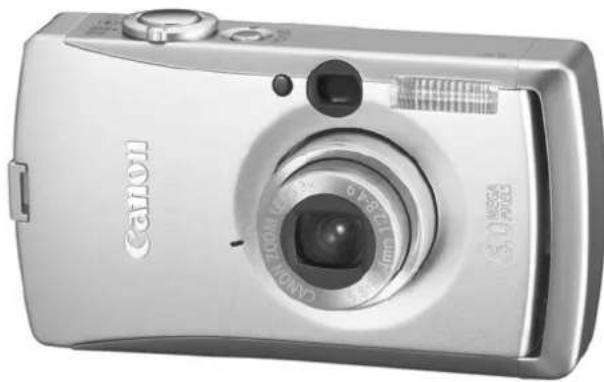
Canon DIGITAL IXUS WIRELESS
A fényképezőgép használata előtt
Fényképezés
Lejátszás/Törlés
Nyomtatási/Átviteli beállítások
Képek megtekintése TV-készüléken
A fényképezőgép testreszabása
Vezeték nélküli kapcsolat
Hibaelhárítás
Üzenetek listája
Haladó
Függelék
Fényképezőgép felhasználói útmutató
Ez az útmutató részletesen ismerteti a fényképezőgép funkcióit és eljárásait.
DiG!C II

PictBridge

DIRECT PRINT

BUBBLE JET DIRECT




Főbb jellemzők
Fényképezés
●Automatikusan a körülményekhez igazítja a fényképezési beállításokat (Jelenet mód) ●Automatikusan érzékeli a fényképezőgép tájolását az Intelligens Tájolás Érzékelővel ●Megváltoztatja a képek színeit speciális effektek létrehozásához (Saját Színek módok)
Lejátszás
●Hanggal játssza le a filmeket ●Automatikusan lejátssza a diavetítéseket
Szerkesztés
●Hangjegyzeteket rögzít az állóképekhez ●Szerkeszti a filmeket
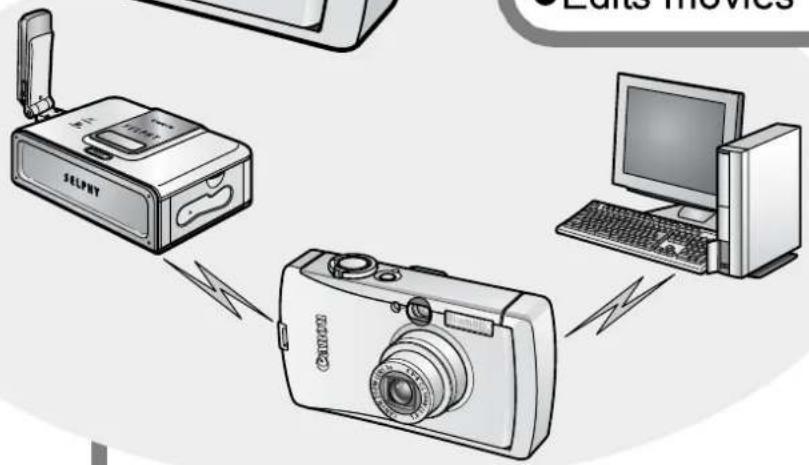
Nyomtatás vezeték nélküli kapcsolaton keresztül
●Könnyedén nyomtat képeket a mellékelt vezeték nélküli nyomtatási adapter csatlakoztatásával egy Canon PictBridge kompatibilis nyomtatóhoz
Képek átvitele számítógépre* vezeték nélküli kapcsolaton keresztül
●Egyszerre átviszi a fényképezőgépen tárolt összes képet a számítógépre ●Képeket készít, és azonnal átviszi azokat a számítógépre
Az útmutatóban használt jelölések
A címek alatt megjelenő ikonok jelzik, hogy az eljárás mely üzemmódokban használható.
Üzemmódváltás

Lásd: Az egyes fényképezési üzemmódokban elérhető funkciók (138. oldal).
Ebben az útmutatóban az Alapvető fényképezőgép-útmutatót Alap útmutatónak, a Haladó fényképezőgép-útmutatót pedig Haladó útmutatónak nevezzük.

Ez a jelölés olyan problémákra utal, amelyek befolyásolhatják a fényképezőgép működését.

Ez a jelölés az alapvető műveleti eljárásokat kiegészítő további témákat jelöl.
Ehhez a fényképezőgéphez SD* memóriakártyákat és MultiMediaCardokat használhat. Ezeket a kártyákat ebben az útmutatóban együttesen memóriakártyáknak nevezzük.
* Az SD a Secure Digital rövidítése, amely egy szerzői jogvédelmi rendszer.
Javasoljuk eredeti Canon tartozékok használatát.
Ez a termék úgy lett kialakítva, hogy kiváló teljesítményt nyújtson eredeti Canon tartozékokkal. A Canon nem vállal felelősséget a termékben keletkezett károkért és/vagy olyan balesetekért, mint például tűz, amelyeket nem eredeti Canon tartozékok meghibásodása okoz (pl. akkumulátor szivárgása és/vagy felrobbanása). Kérjük, vegye figyelembe, hogy ez a jótállás nem vonatkozik a nem eredeti Canon tartozékok meghibásodása miatt végzett javításokra, bár ilyen javításokat díj ellenében kérhet.
Tartalomjegyzék
A ☆-gal jelölt elemek olyan listák vagy táblázatok, amelyek összefoglalják a fényképezőgép funkcióit vagy eljárásait.
Az útmutatóban használt jelölések....1
Kezelési óvintézkedések 5
Kérjük, olvassa el....5
Működési korlátozások 6
Biztonsági óvintézkedések....9
A meghibásodások megelőzése....14
A fényképezőgép használata előtt – Az alkatrészek útmutatója .....15
A fényképezőgép használata előtt – Alapműveletek .....19
Az LCD-kijelző használata 19
Az LCD-kijelző fényereje 21
Az LCD-kijelzőn megjelenített információk 22
A kereső használata 25
Jelzőfények 26
Energiatakarékos funkció 27
Memóriakártyák formázása 28
A világóra beállítása 29
Menük és beállítások 31
Menülista 33
A beállítások visszaállítása az alapértelmezett értékekre. 37
Fényképezés 38
A rögzítési képpontok és a tömörítés módosítása (állóképek) . . 38
A rögzítési képpontok és a képkockasebesség módosítása (filmek).....40
Nagyított közeli felvétel (digitális makró) ..... 41
A digitális zoom használata 42
Folyamatos felvétel 43
Képeslap dátum bélyegző mód....44
Az önkioldó használata....45
Filmfelvétel....47
Panorámaképek készítése (Stitch Assist)....49
Váltás az élességállítási módok között ..... 51
Nehezen fókuszálható témák fényképezése (fókuszrögzítés, AF-rögzítés) . . .52
A expozíció beállításának rögzítése (AE-rögzítés). 53
A vaku expozíció beállításának rögzítése (FE-rögzítés)....54
Mérési módok közötti váltás .....55
Expozíciókompenzáció beállítása....56
Fotózás hosszú záridős módban....57
Színárnyalat beállítása (fehéregyensúly) .....59
Fotóeffektus módosítása 62
Fotózás Saját színek módban 63
ISO Az ISO-érzékenység beállítása 69
Automatikus forgatás funkció beállítása....70
Kép célmappa létrehozása (mappa) .....71
Fájlszám visszaállítása 72
Lejátszás/Törlés....74
Q Képek nagyítása....74
Képek megtekintése kilences csoportokban (Index lejátszás)....75
Ugrás a képek között 76
Videók lejátszása....77
Filmek szerkesztése....78
Képek elforgatása a kijelzőn 80
Lejátszás átmeneti effektekkel 81
Hangjegyzetek csatolása a képekhez .....81
Automatikus lejátszás (diavetítés) 83
Képek védelme....87
Összes kép törlése 87
Nyomtatási beállítások/átviteli beállítások....88
DPOF nyomtatási beállítások beállítása .....88
DPOF átviteli beállítások beállítása .....91
Képek megtekintése TV-n 93
A fényképezőgép testreszabása (Saját fényképezőgép beállításai)....94
Saját fényképezőgép beállításainak módosítása 94
Saját fényképezőgép beállításainak regisztrálása....95
Vezeték nélküli kapcsolat használata (csatlakozás nyomtatóhoz) .....97
Csatlakoztatás nyomtatóhoz. 98
Céleszközök törlése....104
Hibaelhárítás 105
Kamera....105
Amikor a készülék be van kapcsolva 105
LCD-kijelző 106
Fényképezés 107
Videofelvétel....111
Lejátszás....112
Akkumulátor/Akkutöltő 113
TV-kimenet....113
Vezeték nélküli kapcsolat nyomtatóhoz....114
Üzenetek listája....115
Függelék. 119
Az akkumulátor kezelése....119
A memóriakártya kezelése 121
Hálózati adapterkészlet használata (külön kapható) ..... 123
Külső vakus egység használata (külön kapható)....124
A fényképezőgép ápolása és karbantartása 126
Műszaki adatok 127
TÁRGYMUTATÓ....135
Az egyes felvételi módokban elérhető funkciók .....138

Kérjük, olvassa el
Tesztfelvételek
Mielőtt fontos témákról fényképezne, erősen ajánljuk, hogy készítsen néhány próbafelvételt, hogy megbizonyosodjon arról, hogy a fényképezőgép megfelelően működik, és Ön is megfelelően kezeli.
Kérjük, vegye figyelembe, hogy a Canon Inc., leányvállalatai és kapcsolt vállalkozásai, valamint forgalmazói nem felelősek semmilyen közvetett kárért, amely a fényképezőgép vagy tartozék – beleértve a memóriakártyákat is – meghibásodásából ered, és amely a kép rögzítésének elmaradását vagy géppel olvasható módon történő rögzítésének elmaradását okozza.
Figyelmeztetés a szerzői jogok megsértésével kapcsolatban
Kérjük, vegye figyelembe, hogy a Canon digitális fényképezőgépek személyes használatra készültek, és soha nem használhatók olyan módon, amely megsértené vagy ellentétes lenne a nemzetközi vagy hazai szerzői jogi törvényekkel és rendelkezésekkel. Felhívjuk figyelmét, hogy bizonyos esetekben az előadásokról, kiállításokról vagy kereskedelmi ingatlanokról fényképezőgéppel vagy más eszközzel történő másolás sérti a szerzői jogokat vagy más jogokat, még akkor is, ha a felvétel személyes használatra készült.
A garancia korlátai
A fényképezőgép garanciájával kapcsolatos információkért kérjük, olvassa el a fényképezőgéphez mellékelt Canon European Warranty System (EWS) füzetet.
A Canon ügyfélszolgálat elérhetőségeit lásd a füzet hátulján vagy az Európai Jótállási Rendszer (EWS) füzetében.
A fényképezőgép testének hőmérséklete
Ha a fényképezőgépet hosszabb ideig használja, a készülék teste felmelegedhet. Kérjük, vegye ezt figyelembe, és legyen óvatos, ha hosszabb ideig használja a készüléket.
Az LCD-kijelzőről
Az LCD-kijelző rendkívül nagy pontosságú gyártási eljárással készül. A képpontok több mint 99,99%-a a specifikációnak megfelelően működik. A képpontok kevesebb mint 0,01%-a időnként hibásan működhet, vagy piros/fekete pontként jelenhet meg. Ez nincs hatással a rögzített képre, és nem jelent meghibásodást.
Videóformátum
A TV-készülékkel való használat előtt állítsa be a fényképezőgép videojel-formátumát a régiójában használt formátumra (93. oldal).
Nyelvbeállítás
A nyelv beállításának módosításához lásd az Alapútmutatót (4. oldal).
Használati korlátozások
●A készülékben használt vezeték nélküli funkciót belföldi használatra hagyták jóvá. A funkció más országokban történő használatához forduljon a Canon ügyfélszolgálati központjához. ●Franciaország: A vezeték nélküli funkció szabadtéri használata tilos. - Olaszország: Ha a saját helyiségein kívül használják, általános engedély szükséges. ●Lettország: Ha a saját helyiségein kívül használják, általános engedély szükséges. ●Ez a készülék más, rádióhullámokat kibocsátó eszközök (mikrohullámú sütők, Bluetooth-készülékek, vezeték nélküli telefonok stb.) által okozott jelinterferenciát tapasztalhat. Tartsa távol a készüléket az ilyen eszközöktől, vagy ne használja azokat egyidejűleg.
CE!
Az EU/EFTA-országokra vonatkozó korlátozások az R&TTE-irányelvhez:
| BE | NL | LU | FR | IT | DE | GB | IE |
| DK | GR | ES | PT | AT | FI | SE | PL |
| HU | CZ | SK | SI | EE | LV | LT | CY |
| MT | IS | NO | CH | LI |
Megjegyzés: - Az EU azon tagállamai, ahol a termék használata korlátozott, át vannak húzva.
Franciaország: Szabadtéren nem használható.
Olaszország: Ha a saját telephelyén kívül használják, általános engedély szükséges.
Lettország: Ha a saját telephelyén kívül használják, általános engedély szükséges.
Nyilatkozat az EK irányelvről
| Contains already Notified Transmitter Module :CM13264 |
| Hereby, Canon Inc., declares that this CM13264 is in compliance with the essential requirements and other relevant provisions of Directive 1999/5/EC. |
| Canon Inc. vakuuttaa täten että CM13264 tyyppinen laite on direktiivin 1999/5/EY oleellisten vaatimusten ja sitä koskevien direktiivin muiden ehtojen mukainen. |
| Hierbij verklaart Canon Inc. dat het toestel CM13264 in overeenstemming is met de essentiële eisen en de andere relevante bepalingen van richtlijn 1999/5/EG Bij deze verklaart Canon Inc. dat deze CM13264 voldoet aan de essentiële eisen en aan de overige relevante bepalingen van Richtlijn 1999/5/EC. |
| Par la présente Canon Inc. déclare que CM13264 est conforme aux exigences essentielles et aux autres dispositions pertinentes de la directive 1999/5/CE Par la présente, Canon Inc. déclare que ce CM13264 est conforme aux exigences essentielles et aux autres dispositions de la directive 1999/5/CE qui lui sont applicables |
| Härmed intygar Canon Inc. att denna CM13264 står l överensstämmelse med de väsentliga egenskapskrav och övriga relevanta bestämmelser som framgår av direktiv 1999/5/EG. |
| Undertegnede Canon Inc. erklærer herved, at følgende udstyr CM13264 overholder de væsentlige krav og øvrige relevante krav i direktiv 1999/5/EF |
| Hiermit erklärt Canon Inc., dass sich dieser/diese/dieses CM13264 in Übereinstimmung mit den grundlegenden Anforderungen und den anderen relevanten Vorschriften der Richtlinie 1999/5/EG befindet”. (BMWi)Hiermit erklärt Canon Inc. die Übereinstimmung des Gerätes CM13264 mit den grundlegenden Anforderungen und den anderen relevanten Festlegungen der Richtlinie 1999/5/EG. (Wien) |
| ME THN ΠΑΡΟΥΣΑ Canon Inc. ΔΗΛΩΝΕΙ ΟΤΙ CM13264 ΣΥΜΜΟΡΦΩΝΕΤΑΙ ΠΡΟΣ ΤΙΣ ΟΥΣΙΩΔΕΙΣ ΑΠΑΙΤΗΣΕΙΣ ΚΑΙ ΤΙΣ ΛΟΙΠΕΣ ΣΧΕΤΙΚΕΣ ΔΙΑΤΑΞΕΙΣ ΤΗΣ ΟΔΗΓΙΑΣ 1999/5/EK |
| Con la presente Canon Inc. dichiara che questo CM13264 è conforme ai requisiti essenziali ed alle altre disposizioni pertinenti stabilite dalla direttiva 1999/5/CE. |
| Por medio de la presente Canon Inc. declara que el CM13264 è conforme ai requisiti essenziali ed alle altre disposizioni pertinenti stabilite dalla direttiva 1999/5/CE |
| Canon Inc. declara que este CM13264 está conforme com os requisitos essenciais e outras disposições da Directiva 1999/5/CE. |
| Společnost Canon Inc. tímto prohlašuje, že CM13264 splňuje základní požadavky a další příslušné ustanovení Direktivy 1999/5/EC. |
| Sellega kinnitab Canon Inc., et see CM13264 vastab direktiivi 1999/5/EC põhilistele nõudmistele ja muudele asjakohastele määrustele. |
| Ar šo, Canon Inc., apstiprina, ka CM13264 atbilst Direktīvas 1999/5/EK galvenajām prasībām un citiem tās nosacījumiem. |
| Šiuo, Canon Inc., pareiškia, kad šis CM13264 atitinka pagrindinius Direktyvos 1999/5/EB reikalavimus ir kitas svarbias nuostatas. |
| Alulírott, Canon Inc., kijelenti, hogy a jelen CM13264 megfelel az 1999/5/EC irányelvben meghatározott alapvető követelményeknek és egyéb vonatkozó előírásoknak. |
| Hawnhekk, Canon Inc., tiddikjara li CM13264 josserva l-ħtiġijiet essenzjali u dispożizzjonijiet relevanti oħra tad-Direttiva 1995/5/KE. |
| Canon Inc. niniejszym oświadcza, że CM13264 spełnia zasadnicze wymogi oraz inne istotne postanowienia dyrektywy 1999/5/EC. |
| S tem Canon Inc. izjavlja, da je ta CM13264 v skladu z osnovnimi zahtevami in ostalimi ustreznimi predpisi Direktive 1999/5/EC. |
| Spoločnosť Canon Inc. týmto vyhlasuje, že CM13264 spĺňa základné požiadavky a d’alšie príslušné ustanovenia Direktívy 1999/5/EC. |
| С настоящия документ Canon Inc. декларира, че CM13264 е в съгласие с основните изисквания и съответните постановления на Директива 1999/5/EC. |
| Prin prezenta, Canon Inc. declară că acest CM13264 este conform cu cerințele principale și cu celelalte prevederi relevante ale Directivei 1999/5/EC. |
| İşbu belge ile Canon Inc., bu CM13264’in 1995/5/EC Yönetmeliği esas gereksinimlerine ve diğer şartlarına uygun olduğunu beyan eder. |
| MADE IN JAPAN |
CN118
Biztonsági óvintézkedések
- A fényképezőgép használata előtt kérjük, olvassa el az alábbi biztonsági óvintézkedéseket és az Alapútmutató „Biztonsági óvintézkedések” című részét. Mindig győződjön meg arról, hogy a fényképezőgépet helyesen működteti.
●A következő oldalakon található biztonsági óvintézkedések célja, hogy útmutatást adjanak a fényképezőgép és tartozékai biztonságos és helyes használatához, megelőzve ezzel az Ön, más személyek és a berendezés sérülését vagy károsodását. Győződjön meg arról, hogy ezeket teljes mértékben megértette, mielőtt elolvassa a kézikönyv további részét.
●A berendezés a fényképezőgépre, az akkumulátortöltőre, a vezeték nélküli nyomtatási adapterre vagy a külön megvásárolható kompakt hálózati adapterre vonatkozik. ●Az akkumulátor az akkumulátorcsomagra vonatkozik.
⚠️ Figyelmeztetések
| Equipment |
| ● Do not aim the camera directly into the sun or at other intense light sources that could damage your eyesight. |
| ● Store this equipment out of the reach of children and infants. · Wrist strap: Placement of the strap around the child's neck could result in asphyxiation. · Memory card: Dangerous if accidentally swallowed. If this occurs, contact a doctor immediately. |
| ● Do not attempt to disassemble or alter any part of the equipment that is not expressly described in this guide. ● To avoid the risk of high-voltage electrical shock, do not touch the flash portion of the camera if it has been damaged. ● Stop operating the equipment immediately if it emits smoke or noxious fumes. ● Do not allow the equipment to come into contact with, or become immersed in, water or other liquids. If the exterior comes into contact with liquids or salt air, wipe it dry with a soft, absorbent cloth. Continued use of the equipment may result in fire or electrical shock. Immediately turn the camera power off and remove the camera battery or unplug the power cord from the power outlet. Please consult your camera distributor or the closest Canon Customer Support Help Desk. |
- Ne használjon alkoholt, benzint, hígítót vagy más gyúlékony anyagot tartalmazó anyagokat a berendezés tisztításához vagy karbantartásához.
- Ne vágja el, ne sértse meg, ne módosítsa, és ne helyezzen nehéz tárgyakat a tápkábelre. ● Csak az ajánlott tápellátási tartozékokat használja.
- Rendszeresen távolítsa el a tápkábelt, és törölje le a port és szennyeződést, amely a dugón, a hálózati aljzat külső részén és a környező területen felhalmozódik.
- Ne érintse meg a tápkábelt nedves kézzel. A berendezés folyamatos használata tüzet vagy áramütést okozhat.
Akkumulátor
- Ne helyezze az akkumulátort hőforrás közelébe, és ne tegye ki közvetlen lángnak vagy hőnek. ● Az akkumulátort nem szabad vízbe vagy tengervízbe meríteni.
- Ne próbálja meg szétszerelni, módosítani vagy hőnek kitenni az akkumulátort.
- Kerülje az akkumulátor leejtését vagy olyan erős ütéseket, amelyek károsíthatják a házát. ● Csak ajánlott akkumulátort és tartozékokat használjon.
Az olyan akkumulátor használata, amelyet kifejezetten nem ehhez a készülékhez ajánlanak, robbanást vagy szivárgást okozhat, ami tüzet, sérülést és a környezet károsodását eredményezheti. Ha az akkumulátor szivárog, és a szem, a száj, a bőr vagy a ruházat érintkezik ezekkel az anyagokkal, azonnal öblítse le vízzel, és forduljon orvoshoz.
- Az akkumulátortöltőt és a kompakt hálózati adaptert húzza ki a fényképezőgépből vagy a vezeték nélküli nyomtatási adapterből, valamint a hálózati aljzatból töltés után, vagy ha nem használja őket, hogy elkerülje a tüzet és más veszélyeket.
- Ne helyezzen semmit, például terítőt, szőnyeget, ágyneműt vagy párnát az akkumulátortöltő tetejére töltés közben.
A hosszú ideig tartó folyamatos használat túlmelegedést és deformációt okozhat, ami tüzet eredményezhet.
● Csak a megadott akkumulátortöltőt használja az akkumulátor töltéséhez. ● Az akkumulátortöltő és a kompakt hálózati adapter kizárólag az Ön fényképezőgépéhez készült. Ne használja más termékekkel vagy akkumulátorokkal. Fennáll a túlmelegedés és deformáció veszélye, ami tüzet vagy áramütést okozhat. - Mielőtt eldob egy akkumulátort, ragassza le a csatlakozóit szigetelőszalaggal vagy más szigetelőanyaggal, hogy megakadályozza a közvetlen érintkezést más tárgyakkal. A hulladéktárolókban lévő egyéb anyagok fém alkatrészeivel való érintkezés tüzet vagy robbanást okozhat.
Egyéb
- Ne használja a vakut emberi vagy állati szemek közelében. A vaku által kibocsátott erős fény károsíthatja a látást. Különösen csecsemőknél tartson legalább egy méter (39 hüvelyk) távolságot a vaku használatakor.
- Tartsa távol a mágneses mezőkre érzékeny tárgyakat (például bankkártyákat) a fényképezőgép hangszórójától. Az ilyen tárgyak elveszíthetik az adataikat, vagy leállhatnak.
- Ha vezeték nélküli kapcsolatot kíván használni repülőgépen vagy kórházban, mindig kövesse a légitársaság vagy a kórházi személyzet utasításait. A fényképezőgép elektromágneses hullámokat bocsát ki, amelyek befolyásolhatják a műszereket, orvosi eszközöket és más érzékeny berendezéseket.
⚠️ Figyelmeztetések
Felszerelés
- Ügyeljen arra, hogy ne üsse meg a fényképezőgépet, és ne tegye ki erős ütéseknek vagy sokkoknak, amelyek sérüléshez vagy a felszerelés károsodásához vezethetnek, ha a pánton viseli vagy tartja.
| ● Do not store the equipment in humid or dusty areas. ● Do not allow metal objects (such as pins or keys) or dirt to contact the charger terminals or plug. Such conditions could lead to fire, electrical shock or other damage. |
| ● Avoid using, placing or storing the equipment in places subject to strong sunlight or high temperatures, such as the dashboard or trunk (boot) of a car. ● Ensure that the battery charger or the compact power adapter are plugged into a power outlet of the specified rating, not over the specified rating. Do not use if the power cord or plug are damaged, or if not fully plugged into the outlet. ● Do not use in locations with poor ventilation. The above-mentioned can cause leakage, overheating or explosion, resulting in fire, burns or other injuries. High temperatures may also cause deformation of the casing. |
| ● When not using the camera for extended periods of time, remove the battery from the camera or battery charger and store the equipment in a safe place. The battery can run down. |
| ● If the AC adapter kit or battery charger is connected to, for example, an electronic transformer for travel abroad, trouble with the camera may result, so please do not use such a device. |
| Flash |
| ● Do not operate the flash with dirt, dust or other items stuck to the surface of the flash.● Be careful not to cover the flash with your fingers or clothing when shooting.The flash may be damaged and emit smoke or noise. The resulting heat build-up could damage the flash. |
| ● Do not touch the surface of the flash after taking several pictures in rapid succession.Doing so could result in burns. |
A meghibásodások megelőzése
Kerülje az erős mágneses mezőket
- Soha ne helyezze a fényképezőgépet elektromos motorok vagy más erős elektromágneses mezőt kibocsátó berendezések közelébe. Az erős mágneses mezőknek való kitettség meghibásodást okozhat, vagy károsíthatja a képfájlokat.
Kerülje a páralecsapódással kapcsolatos problémákat
- Ha a készüléket gyorsan mozgatja meleg és hideg hőmérsékletű helyek között, elkerülheti a páralecsapódást, ha a készüléket légmentesen záródó, újrazárható műanyag zacskóba helyezi, és hagyja, hogy lassan alkalmazkodjon a hőmérséklet-változáshoz, mielőtt kivenné a zacskóból.
Ha a készüléket gyorsan mozgatja meleg és hideg hőmérsékletű helyek között, páralecsapódás (vízcseppek) képződhet a külső és belső felületeken.
Ha páralecsapódás képződik a fényképezőgép belsejében
- Azonnal hagyja abba a fényképezőgép használatát.
A további használat károsíthatja a készüléket. Vegye ki a memóriakártyát és az akkumulátort vagy a kompakt hálózati adaptert a fényképezőgépből, és várja meg, amíg a nedvesség teljesen elpárolog, mielőtt folytatná a használatát.
A fényképezőgép használata előtt – Az alkatrészek áttekintése
Elölnézet
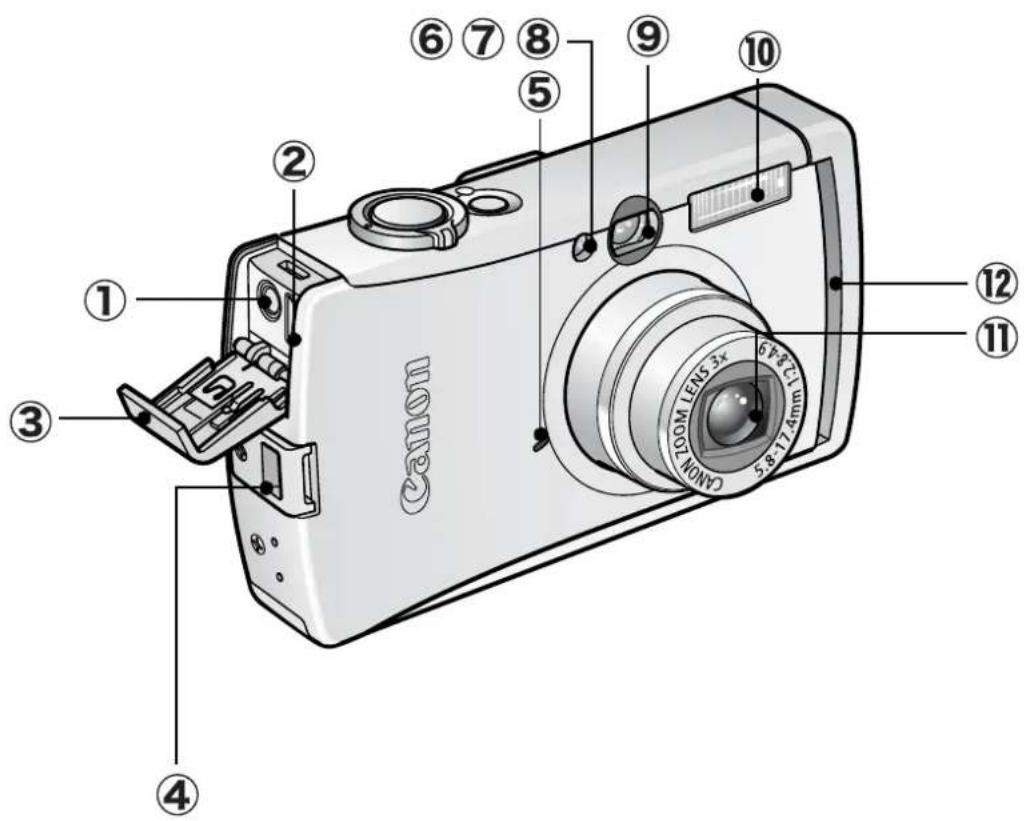
① A/V OUT (Audio/Video kimenet) csatlakozó (93. o.) ② DIGITAL csatlakozó ③ Csatlakozófedél ④ Csuklópánt rögzítése ⑤ Mikrofon (81. o.) ⑥ AF-segédfény (33. o.) ⑦ Vörösszem-hatás csökkentő lámpa (Alap útmutató 9. o.) ⑧ Önkioldó lámpa (45. o.) ⑨ Keresőablak (25. o.) ⑩ Vaku (Alap útmutató 9. o.) ⑪ Objektív ⑫ Vezeték nélküli lámpa (26. o.)

Az interfész kábel és az AV kábel nem csatlakoztatható egyszerre.
A csuklópánt felszerelése*
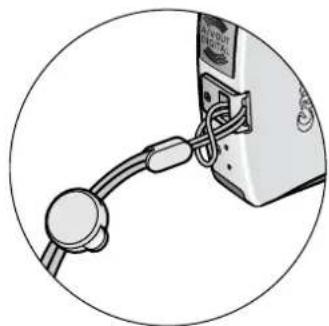
A csatlakozófedél kinyitása
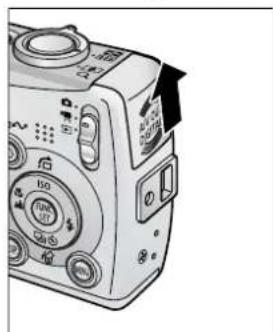
* Ha a fényképezőgépet a pántnál fogva viszi, ügyeljen arra, hogy ne lendítse meg, és ne akadjon el más tárgyakban.
Hátulnézet
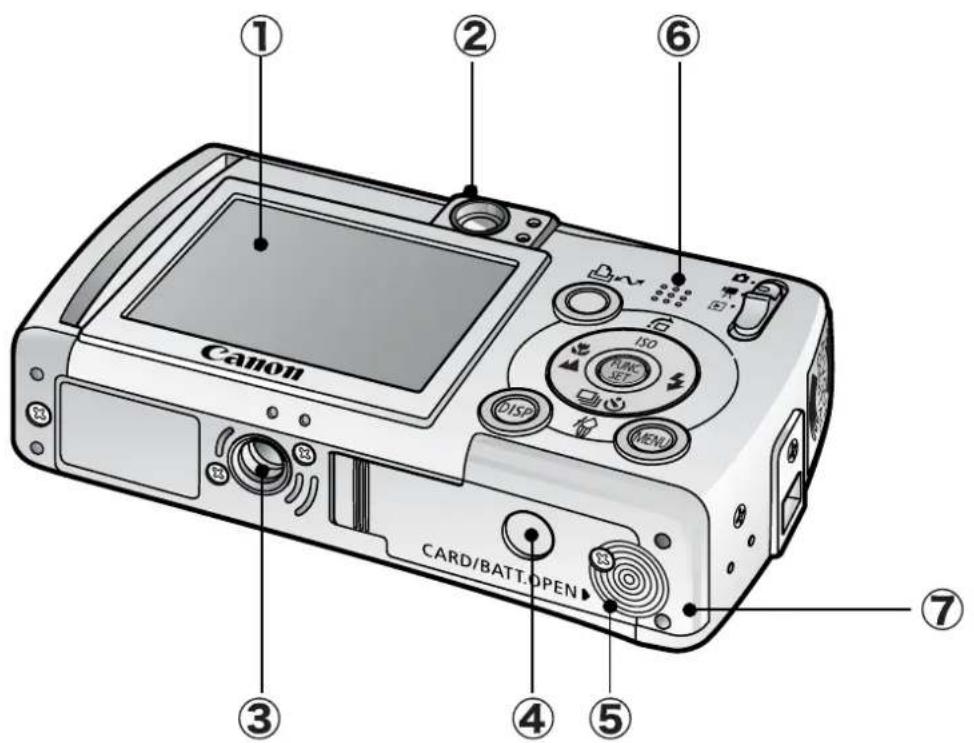
① LCD-monitor (19. o.) ② Kereső (25. o.) ③ Állványcsatlakozó ④ DC-csatlakozó fedél (123. o.) ⑤ Memóriakártya-nyílás/akkumulátorfedél (Alapútmutató 2. o.) ⑥ Hangszóró ⑦ Akkumulátor-rekesz (Memóriakártya/akkumulátor-rekesz)
Kezelőpanel

① Jelzőfények (26. o.) ② Bekapcsológomb (Alapútmutató 5. o.) ③ Tápellátás jelzőfény ④ Zoom-kar (74. o., Alapútmutató 8. o.)
Fotózás: □□□ (nagylátószög)/ □□ (telefotó)
Lejátszás: ☐ (Index)/ Q (Nagyítás)
⑤ Kioldógomb (Alapútmutató 5. o.) ⑥ Üzemmódkapcsoló (Alapútmutató 5., 6. o.) ⑦ ↘ (Nyomtatás/Megosztás) gomb (Alapútmutató 14. o.) ⑧ DISP. (Kijelző) gomb (19. o.) ⑨ FUNC./SET (Funkció/Beállítás) gomb (31. o.) ⑩ MENU gomb (32. o.) ⑪ (Makró)/ ▲ (Végtelen)/ ← gomb (Alapútmutató 10. o.) ⑫ ISO (ISO-érzékenység)/☐ (Ugrás)/ ↑ gomb (69., 76. o.) ⑬ ↘ (Vaku)/ ➤ gomb (Alapútmutató 9. o.) ⑭ (Egyetlen kép törlése)/☐ (Folyamatos)/☑ (Önkioldó)/ ↓ gomb (43., 45. o., Alapútmutató 11. o.)
Vezeték nélküli nyomtatási adapter
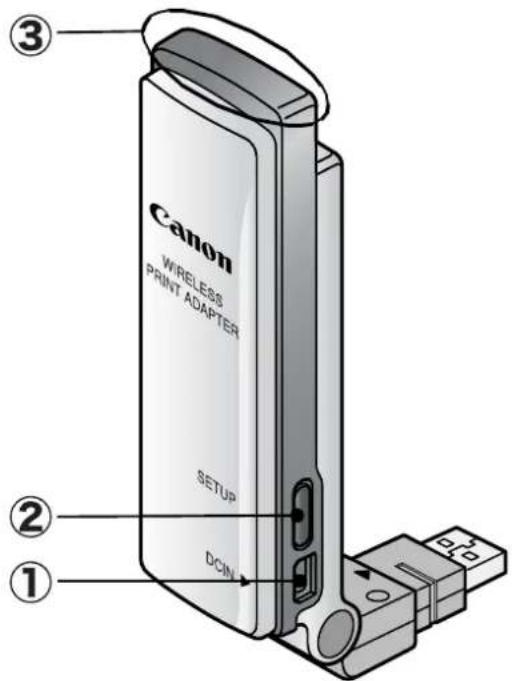
① DC IN (tápellátás) csatlakozó (99. o.) ② SETUP gomb (103. o.) ③ Vezeték nélküli jelzőfény (26. o.)
Az LCD-monitor használata
1 Nyomja meg a DISP. gombot.
●A megjelenítési mód minden egyes megnyomásra a következőképpen változik:
![graph TD A["Shooting Mode (or *)"] --> B["Standard\n(No Information)"] B --> C["Detailed\n(Information View)"] C --> D["Off"] E["Playback Mode (□)"] --> F["Standard"] F --> G["Detailed"] G --> H["No Information"]](/content/2026/05/1106565/images/36a7948997855e3504232dcc725d5a207fc4464eee0ec2bb0ea1aaeb4146e51b.jpg)
- A fényképezési módokban a fényképezési információk körülbelül 6 másodpercig jelennek meg, ha módosít egy beállítást, függetlenül a kiválasztott megjelenítési módtól.

- Az LCD-monitor be- vagy kikapcsolt állapota a fényképezőgép kikapcsolása után is megmarad.
- Az LCD-monitor nem kapcsol ki a Ⓓ, 📋, 📄 vagy ✗ módban.
- Az LCD monitor nem vált át a részletes nézetre a index lejátszási módban (75. oldal).
Az óra használata
A következő két módszerrel jelenítheti meg az aktuális dátumot és időt 5 másodperces* időtartamra.
* Alapértelmezett beállítás
1. módszer
Tartsa lenyomva a FUNC./SET gombot, miközben bekapcsolja a készüléket.
2. módszer
Fényképezési módban tartsa lenyomva a FUNC./SET gombot.
Ha vízszintesen tartja a fényképezőgépet, az időt jeleníti meg. Ha függőlegesen tartja, az időt és a dátumot jeleníti meg.
Ha azonban függőlegesen tartja a fényképezőgépet, és az 1. módszerrel jeleníti meg a dátumot és az időt, akkor kezdetben az idő jelenik meg, ugyanúgy, mint amikor a fényképezőgépet vízszintesen tartja.
- A megjelenítés színét a ← vagy → gombbal módosíthatja. ●Az óra megjelenítése megszűnik, ha a megjelenítési idő letelik, vagy ha megnyomja a FUNC./SET, MENU vagy exponáló gombot, vagy a módválasztó kapcsolót.
- Az óra megjelenítési időtartama a Ⓤ (Beállítás) menüben módosítható (35. oldal).
LCD monitor fényereje
LCD monitor fényerejének beállításai
Az LCD monitor fényereje a következő két módon módosítható.
● Beállítások módosítása a Beállítás menüvel (35. o.) ● Beállítások módosítása a DISP. gombbal (Gyors fényerő LCD funkció)
A DISP. gombot több mint egy másodpercig nyomva tartva az LCD-kijelzőt a legfényesebb beállításra állíthatja, függetlenül a Beállítás menüben kiválasztott opciótól*.
- Az előző fényerő-beállítás visszaállításához nyomja meg ismét a DISP. gombot több mint egy másodpercig.
- A kamera következő bekapcsolásakor az LCD-kijelző a Beállítás menüben kiválasztott fényerő-beállításon fog megjelenni.
* Ezzel a funkcióval nem módosíthatja az LCD-kijelző fényerejét, ha már a Beállítás menüben a legmagasabb beállításra állította.
Éjszakai kijelzés
Sötét körülmények között történő fényképezéskor a kamera automatikusan a téma fényességéhez igazítja az LCD-kijelző fényerejét*, így könnyebb a téma keretezése.
* Zaj jelenik meg, és a téma mozgása szabálytalannak tűnik az LCD-kijelzőn. A rögzített képet ez nem befolyásolja. A kijelzőn megjelenő kép fényereje és a ténylegesen rögzített kép fényereje eltérő lehet.
Az LCD-kijelzőn megjelenített információk
Fényképezési információk (Fényképezési mód)
![[ ] * Spot Frame □ * AF Frame (p. 51) □ * Low Battery (p. 119) Zoom Magnification* (p. 42) Grid Lines* (p. 33) Wireless Connection (p. 101) • Stills: Recordable Shots • Movies (Sec.): Remaining Elapsed Time Shooting Mode (pp. 41, 47, 49, 63, Basic Guide pp. 7, 8) -2 ... +2 Exposure Compensation (p.…](/content/2026/05/1106565/images/9c6a57deb22288d6692193fcee81390d37e1f27e11981476986813bac57dfcd3.jpg)

Ha a jelzőfény narancssárgán villog és a kamera rázkódás ikon jelenik meg, az elégtelen megvilágítást jelez, és lassú záridő kerül kiválasztásra. Növelje az ISO-érzékenységet (69. o.), vagy válasszon más beállítást, mint a 📋 (vaku kikapcsolva), vagy rögzítse a kamerát állványra vagy más eszközre.
Lejátszási információk (Lejátszási mód)
Normál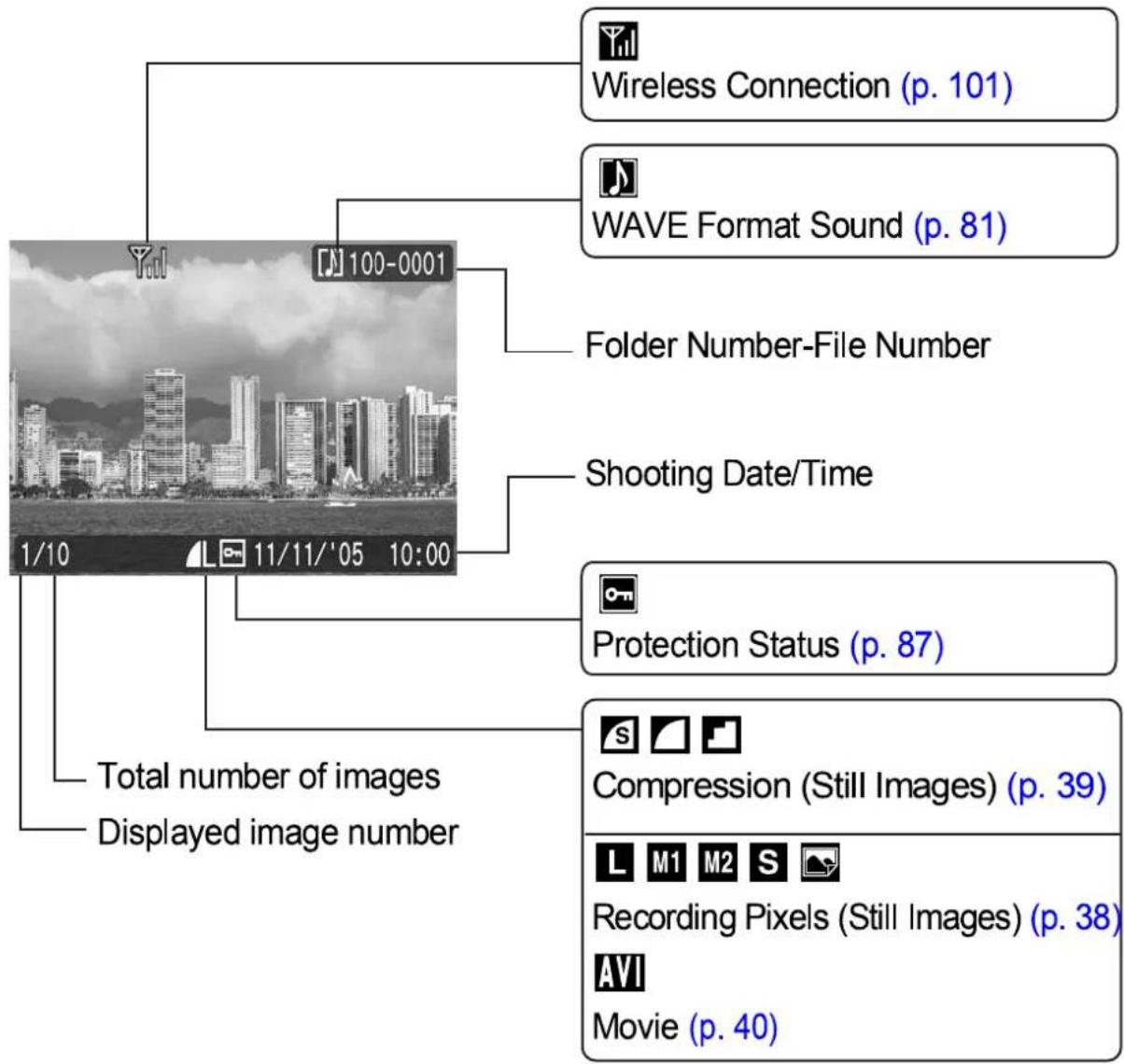
Részletes

Hisztogram
+2 ... +2 Expozíció-kompenzáció (56. o.)
Vaku (Alap útmutató 9. o.)
Makró/Végtelen (Alap útmutató 10. o.)
V N LS S BW
Fotóeffektus (62. o.)
P L D B G R A S C Saját színek (63. o.)
Fénymérési mód (55. o.)
AWB
Fehéregyensúly (59. o.)
Fájlméret
Átvitel a számítógépre kész
Rögzítési képpontok (állóképek) (38. o.) Filmhossz (filmek) (47. o.)
A következő információk egyes képeknél szintén megjelenhetnek.
| A sound file in a format other than the WAVE format is attached or the file format is not recognized. | |
| JPEG image not conforming to Design rule for Camera File System Standards | |
| RAW image | |
| Unrecognized data type |

Más fényképezőgéppel készített képeknél az információk nem biztos, hogy helyesen jelennek meg.
Hisztogram funkció
A hisztogram egy grafikon, amely lehetővé teszi a felvétel fényességének megítélését. Minél inkább balra tolódik a grafikon, annál sötétebb a kép. Minél inkább jobbra tolódik, annál világosabb a kép.
Ha a kép túl sötét, állítsa a expozíciókompenzációt pozitív értékre. Hasonlóképpen állítsa negatív értékre az expozíciókompenzációt, ha a kép túl világos (56. oldal).
Minta hisztogramok: Sötét kép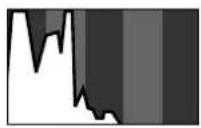
Kiegyensúlyozott kép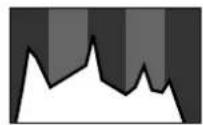
Világos kép
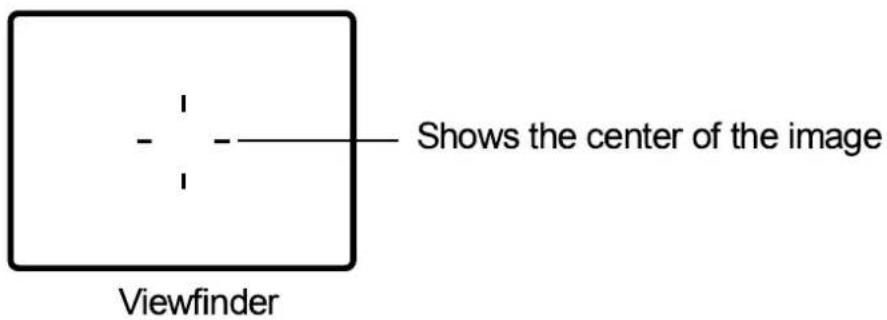
A kereső használata
A kereső használatával energiát takaríthat meg, ha kikapcsolja az LCD-monitort (19. oldal) fényképezés közben.
Jelzőfények
A fényképezőgép és a vezeték nélküli nyomtatási adapter jelzőfényei a következő helyzetekben világítanak vagy villognak.

Soha ne tegye a következőket, amíg a jelzőfény villog. Ezek a műveletek károsíthatják a képfájlokat.
- Rázza meg vagy ütögesse a fényképezőgépet
- Kapcsolja ki az áramellátást, vagy nyissa ki a memóriakártya-nyílás / akkumulátorfedél
Fényképezőgép
●Felső jelzőfény
Zöld:
Kész a felvételre
Villogó zöld:
Kép rögzítése/olvasása/törlése/átvitele (számítógéphez csatlakoztatva)
Narancssárga:
Kész a felvételre (vaku bekapcsolva)
Villogó narancssárga:
Kész a felvételre (fényképezőgép rázkódására figyelmeztetés)
●Alsó jelzőfény
Sárga:
Makró mód/végtelen mód/AF zár mód
Villogó sárga:
Fókuszálási nehézség (a fényképezőgép egyszer sípol)
●Vezeték nélküli lámpa
Kék:
Nyomtatásra vagy átvitelre készen*
Villogó kék (lassan):
Vezeték nélküli kapcsolat aktív / Céleszköz regisztrálása folyamatban
Villogó kék (gyorsan): Adatátvitel folyamatban
* Ha a vezeték nélküli kapcsolat rendkívül gyenge, a vezeték nélküli lámpa villog, és a ⬤ ikon is villog az LCD monitoron. (95. o.).
Vezeték nélküli nyomtatási adapter
Kék:
Vezeték nélküli kapcsolat aktív
Villogó kék (lassan):
Vezeték nélküli kapcsolat készenlétben
Villogó kék (gyorsan):
Adatátvitel folyamatban
Villogó kék és narancssárga:
Céleszköz regisztrálása folyamatban
Narancssárga:
Regisztráció sikertelen.
Villogó narancssárga:
Hiba*
* A vezeték nélküli nyomtatási adapterben rendellenesség történt. Húzza ki a vezeték nélküli nyomtatási adaptert a nyomtatóból, majd csatlakoztassa újra. Kompakt tápadapter használatakor húzza ki a tápkábelt, válassza le a vezeték nélküli nyomtatási adaptert a nyomtatóból, csatlakoztassa újra, majd dugja vissza a tápkábelt. Ha a lámpa gyakran narancssárgán villog, vigye a fényképezőgépet egy Canon ügyfélszolgálati segélyszolgálathoz.
Energiatakarékos funkció
Ez a fényképezőgép energiatakarékos funkcióval van felszerelve. A készülék a következő körülmények között kikapcsol. Az energia visszaállításához nyomja meg újra a bekapcsológombot.
| Shooting Mode | Powers down approximately 3 minutes after the last control is accessed on the camera. The LCD monitor automatically turns off 1 minute*1 after the last control is accessed even if [Auto Power Down] is set to [Off]. Press any button other than the power button or change the camera orientation to turn the LCD monitor back on. |
| Playback Mode Connected to a Printer*2 | Powers down approximately 5 minutes after the last control is accessed on the camera. |
*1 Ez az idő megváltoztatható. *2 Amikor a mellékelt interfészkábellel csatlakozik nyomtatóhoz.

● Az alábbi feltételek mellett az energiatakarékos funkció nem használható.
- Automatikus diavetítés lejátszása közben
- Vezeték nélküli kapcsolat alatt (lejátszási mód)
- Amikor a mellékelt interfészkábellel csatlakozik számítógéphez
● Az energiatakarékos funkció beállításai módosíthatók (35. oldal).
Memóriakártyák formázása
Mindig formáznia kell egy új memóriakártyát, vagy olyat, amelyről törölni kívánja az összes képet és egyéb adatot.

Kérjük, vegye figyelembe, hogy a memóriakártya formázása (inicializálása) minden adatot töröl, beleértve a védett képeket és más fájltípusokat is.
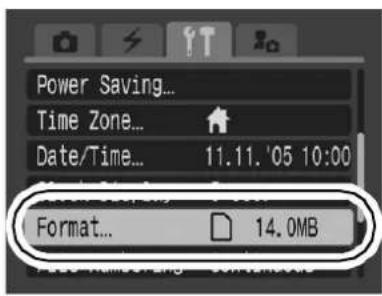
1
(Beállítás) Menü ▶ [Formázás].
Lásd: Menük és beállítások (32. oldal).
2
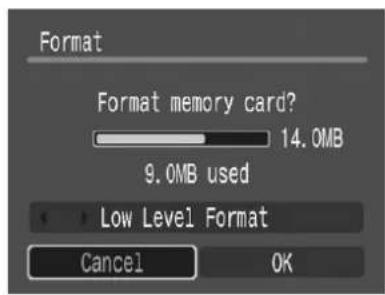
Válassza az [OK] lehetőséget, és nyomja meg a FUNC. SET gombot.
●Alacsony szintű formázáshoz a ↑ gombbal válassza az [Alacsony szintű formázás] lehetőséget, és a ← vagy → gombbal jelölje be. ●Az [Alacsony szintű formázás] kiválasztásakor a FUNC./SET gombbal leállíthatja a kártya formázását. A kártya leállított formázás után is használható, de az adatai törlődnek.
Alacsony szintű formázás
![CANON IXUS Wireless - Válassza az [OK] lehetőséget, és nyomja meg a FUNC. SET gombot. - 2](/content/2026/05/1106565/images/215a8a5bccfab170c70435be642fd37bb7ad00ca0f933ed5a76a37dd113f1b3b.jpg)
Javasoljuk, hogy az [Alacsony szintű formázás] lehetőséget válassza, ha úgy gondolja, hogy a memóriakártya írási/olvasási sebessége csökkent. Az alacsony szintű formázás egyes memóriakártyáknál 2-3 percet is igénybe vehet.
A világóra beállítása
Külföldi utazáskor helyi dátum és idő rögzíthető, ha előre regisztrálja a célállomás időzónáját, és egyszerűen átváltja az időzóna beállítást. Így nem kell a Dátum/Idő beállításokat módosítania.
Az otthoni/célállomás időzónájának beállítása
1 (Beállítás) Menü ▶ [Időzóna] ▶ FUNC. SET.
Lásd: Menük és beállítások (32. oldal).
2

3 A ← vagy → gombbal válassza ki az otthoni időzónát.
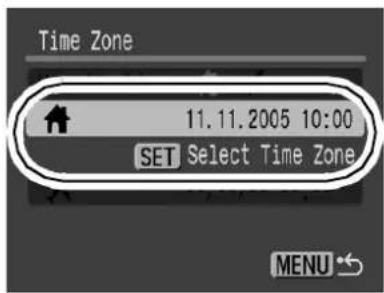
3 Használja a ← vagy → gombot a kezdő idő kiválasztásához

● A nyári időszámítás beállításához használja a ↑ vagy ↓ gombot a ⚙ megjelenítéséhez. Az idő 1 órával előre fog lépni.
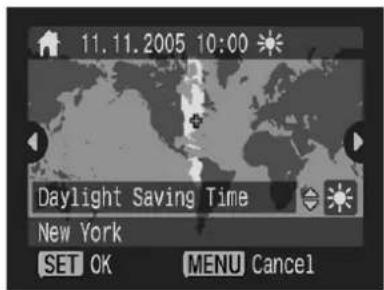
4

5
Használja a ← vagy → gombot a cél időzóna kiválasztásához ▶ FUNC. SET.
●A 3. lépéshez hasonlóan beállíthatja a nyári időszámítást.
Időkülönbség az otthoni időzónához képest |
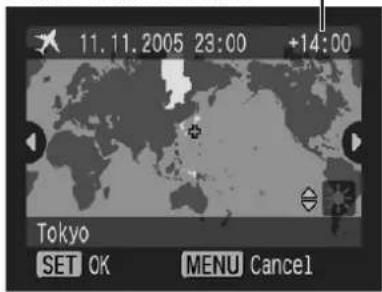
6
Használja a ↑ vagy ↓ gombot a [Home/World] kiválasztásához, és a ← vagy → gombot a ⏻ ▶ MENU kiválasztásához.
Átváltás a cél időzónára
1
(Beállítás) Menü ▶ [Time Zone] ▶ FUNC. SET .
Lásd: Menük és beállítások (32. o.).
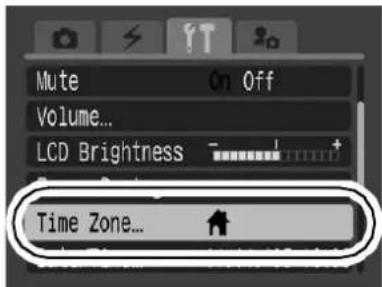
2
Használja a ← vagy → gombot a ▶ ▶ (MENU) kiválasztásához.
●A cél időzóna módosításához használja a FUNC./SET gombot.


Ha a Világ opció kiválasztásakor módosítja a dátumot és az időt, a Kezdőképernyő dátuma és időpontja is automatikusan megváltozik.
Menük és beállítások
A menük a fényképezési és lejátszási beállítások, valamint a fényképezőgép beállításainak (például dátum/idő, elektronikus hangjelzés és vezeték nélküli kapcsolat) megadására szolgálnak. A következő menük állnak rendelkezésre.
●FUNC. menü ●Rec., Play, Wireless, Set up és My Camera menük
FUNC. menü
Ez a menü számos gyakori fényképezési funkció beállítására szolgál.
![graph TD A["① Live Camera"] --> B["② Functional Set"] B --> C["③ Functional Set"] C --> D["④ Functional Set"] D --> E["⑤ Functional Set"]](/content/2026/05/1106565/images/5e6f6bdc99b027670f9e61303fdd48af2d3302084f57a3e5337bb2d9ad8f3e32.jpg)
① Csúsztassa az üzemmód kapcsolót 📄 vagy 🔊 állásba. ② Nyomja meg a FUNC./SET gombot. ③ A ↑ vagy ↓ gombbal válasszon ki egy menüpontot. Egyes elemek bizonyos fényképezési módokban nem választhatók ki. ④ A ← vagy → gombbal válasszon opciót a menüponthoz.
Egyes opciókhoz a MENU gombbal további lehetőségeket választhat.
Az opció kiválasztása után a zárógombbal azonnal fényképezhet. A fényképezés után ez a menü újra megjelenik, így könnyen módosíthatja a beállításokat.
⑤ Nyomja meg a FUNC./SET gombot.
Rec., Play, Wireless, Set up és My Camera menük
A fényképezéshez vagy lejátszáshoz hasznos beállítások ezekben a menükben adhatók meg.
![graph TD A["(Rec.) Menu"] --> B["1 MENU"] C["(Play) Menu"] --> B D["(Wireless) Menu"] --> E["2 You can switch between menus with the ◀ or ➤ button when this part is selected."] F["(Set up) Menu"] --> G["3 FUNC SET"] H["(My Camera) Menu"] --> I["4 FUNC SET"] B --> J["AiAF On Off"] E --> K["Self-timer…](/content/2026/05/1106565/images/565626392f3de1c06ccf02db5755a43b3ea60b3dc156b7ce9b7d666f135b4628.jpg)
• Ez a példa a Rec. menüt mutatja. • Lejátszási módban a Play menü jelenik meg.
① Nyomja meg a MENU gombot. ② A ← vagy → gombbal válthat a menük között. A zoom kart is használhatja a menük közötti váltáshoz. ③ A ↑ vagy ↓ gombbal válasszon menüpontokat. Egyes elemek bizonyos fényképezési módokban nem választhatók ki. ④ A ← vagy → gombbal válasszon opciót.
- A három ponttal (...) jelölt menüpontok csak a FUNC./SET gomb megnyomása után állíthatók be, amely a következő menüt jeleníti meg. A beállítás megerősítéséhez nyomja meg újra a FUNC./SET gombot.
Amikor a ⏻ (Vezeték nélküli) menüből választ elemeket, a működés módja a menüponttól függ. Kérjük, ellenőrizze a pontos utasításokat a megfelelő műveleti eljárás oldalán.
⑤ Nyomja meg a MENU gombot.
Menülista
FUNC. Menü Az alábbi ikonok az alapértelmezett beállításokat mutatják.
| Menu Item | Page | |
| Shooting Mode | Basicp. 5 | |
| Movie Mode | p. 47 | |
| ±0 | Exposure Compensation | p. 56 |
| 1" | Long Shutter Mode | p. 57 |
| AWB | White Balance | p. 59 |
| OFF | Photo Effect | p. 62 |
| Menu Item | Page | |
| My Colors | p. 63 | |
| Metering Mode | p. 55 | |
| Compression | p. 39 | |
| Frame Rate (Movie) | p. 40 | |
| Recording Pixels (Still Image) | p. 38 | |
| Recording Pixels (Movie) | p. 40 | |
Rec. Menü * Alapértelmezett beállítás
| Menu Item | Options | Page/Topic |
| AiAF | On*/Off | p. 51 |
| Self-timer | 10 seconds*/2 seconds/Custom Timer (Delay: 0–10*, 15, 20, 30 sec.) (Shots: 1–3*–10) | p. 45 |
| AF-assist Beam | On*/Off | - |
| Digital Zoom | On/Off*(On in standard movie mode.) | p. 42 |
| Review | Off/2*–10 seconds/Hold | Basic Guide p. 6 |
| Save Original | On/Off* | p. 65 |
| Grid Lines | On/Off* | You can display grid lines (splits screen into nine areas) to make it easier to judge the horizontal and vertical alignment of a photographic subject and to make composition easier.The lines will not be recorded in the images. |
| Date Stamp | Off*/Date/Date & Time | p. 44 |
| Long Shutter | On/Off* | p. 57 |
| Stitch Assist | ☐ Left to right*/☐ Right to left | p. 49 |
Lejátszás menü
| Menu Item | Page | |
| Protect | p. 87 | |
| Rotate | p. 80 | |
| Sound Memo | p. 81 | |
| Erase All | p. 87 | |
| Slide Show | p. 83 | |
| Print Order | p. 88 | |
| Transfer Order | p. 91 | |
| Transition | p. 81 | |
Vezeték nélküli menü * Alapértelmezett beállítás
| Menu Item | Options | Page/Topic |
| Connect/Disconnect | p. 100, Software & Wireless Guide | |
| Reg. Target Device | p. 102, Software & Wireless Guide | |
| Delete Registration | p. 104, Software & Wireless Guide | |
| Auto Transfer | On*/Off | Software & Wireless Guide |
Beállítás menü * Alapértelmezett beállítás
| Menu Item | Options | Page/Topic | |
| Mute | On/Off* | Set to [On] to silence the start-up, operation, self-timer and shutter sounds all at once. However, warnings still sound even when the mute is set to [On]. (Basic Guide p. 5) | |
| Volume | Off/1/2*/3/4/5 | Adjusts the volume of the start-up sound, operation sound, self-timer sound, shutter sound and playback sound. The volume cannot be adjusted if [Mute] is set to [On]. | |
| Start-up Vol. | Adjusts the volume of the start-up sound when the camera is turned on. | ||
| Operation Vol. | Adjusts the volume of the operation sound that plays when any button other than the shutter button is pressed. | ||
| Selftimer Vol. | Adjusts the volume of the self-timer sound played 2 sec. before the shutter is released. | ||
| Shutter Volume | Adjusts the volume of the sound played when the shutter releases. The shutter sound does not play when a movie is recording. | ||
| Playback Vol. | Adjusts the volume of movie sounds and sound memos. | ||
| LCD Brightness | -7-0*-+7 | Use the ← or ➤ button to adjust the brightness. If you press the ↑ or ↓ button, the display returns to the Set up menu. You can check the brightness on the LCD monitor while you are adjusting the setting. | |
| Power Saving | p. 27 | ||
| Auto Power Down | On*/Off | Sets whether or not the camera automatically powers down after a set period of time elapses without the camera being operated. | |
| Display Off | 10 sec./20 sec./30 sec./1 min.*/2 min./3min. | Sets the length of time before the LCD monitor turns off when no camera operation is performed. | |
| Time Zone | Home*/World | p. 29 | |
| Date/Time | Basic Guide p. 4 | ||
| Clock Display | 0-5*-10 sec./20 sec./30 sec./1 min./2 min./3 min. | p. 20 | |
| Format | p. 28 | ||
| File Numbering | Auto Reset/Continuous* | p. 72 | |
| Create Folder | p. 71 | ||
| Create New Folder | Check mark(On)/No check mark(Off) | Creates a folder for the next shooting session. | |
| Auto Create | Off*/Daily/Monday–Sunday/Monthly | You can also set a creation time. | |
| Auto Rotate | On*/Off | p. 70 | |
| Language | Basic Guide p. 4 | ||
| Video System | NTSC/PAL | p. 93 | |
| Reset All | p. 37 | ||
Saját kamera menü * Alapértelmezett beállítás
| Menu Item | Available Settings | Page |
| Theme | Selects a common theme for each My Camera settings item. | p. 94 |
| Start-up Image | Sets the image displayed when the camera power is turned on. | |
| Start-up Sound | Sets the sound played when the camera power is turned on. | |
| Operation Sound | Sets the sound played when any button other than the shutter button is pressed. | |
| Selftimer Sound | Sets the sound played 2 seconds before the shutter releases in self-timer mode. | |
| Shutter Sound | Sets the sound played when the shutter button is pressed. There is no shutter sound for movies. | |
| My Camera Menu Contents | (Off)/ */ / | |
A beállítások visszaállítása az alapértelmezett értékekre
1
(Beállítás) menü ▶ [Összes visszaállítása].
Lásd: Menük és beállítások (32. oldal).

2
Válassza az [OK] lehetőséget, és nyomja meg a FUNC. SET gombot.
![CANON IXUS Wireless - Válassza az [OK] lehetőséget, és nyomja meg a FUNC. SET gombot. - 1](/content/2026/05/1106565/images/1bb2b2b453ae7ccbf3be9d2ba58e667e947995092c56e9711d5cc2deca39723b.jpg)
- A beállítások nem állíthatók vissza, ha a fényképezőgép számítógéphez vagy nyomtatóhoz van csatlakoztatva. ● A következők nem állíthatók vissza.
- Fényképezési mód
- A ⚪ (Vezeték nélküli) menüből kiválasztott elem
- Az ⬆ (Beállítás) menü [Időzóna], [Dátum/idő], [Nyelv] és [Video rendszer] opciói (35., 36. oldal)
- Az egyéni fehéregyensúly funkcióval rögzített fehéregyensúly-adatok (60. oldal)
- A Saját színek [Színkiemelés] (66. oldal) vagy [Színcsere] (67. oldal) módjaiban megadott színek
- Újonnan hozzáadott Saját kamera beállítások (95. oldal)
A rögzítési képpontok és a tömörítés módosítása (állóképek)
Fényképezési mód


1 FUNC. menü ▶ L * (Rögzítési képpontok)/☐* (Tömörítés).
Lásd: Menük és beállítások (31. oldal).
* Alapértelmezett beállítás.
- A ← vagy → gombbal válassza ki a rögzítési képpontok/tömörítés beállításait, majd nyomja meg a FUNC./SET gombot.
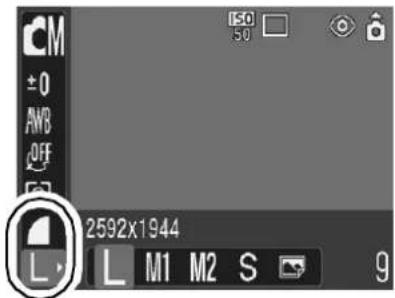
Hozzávetőleges értékek a rögzítési képpontokhoz
| Recording Pixels | Purpose | ||
| L (Large) | 2592 × 1944 pixels | High | Print larger than A4-size prints*210 × 297 mm (8.3 × 11.7 in.)Print larger than Letter-size prints*216 × 279 mm (8.5 × 11 in.) |
| M1 (Medium 1) | 2048 × 1536 pixels | Print up to A4-size prints* 210 × 297 mm (8.3 × 11.7 in.)Print up to Letter-size prints*216 × 279 mm (8.5 × 11 in.) | |
| M2 (Medium 2) | 1600 × 1200 pixels | Print postcard-size prints148 × 100 mm (6 × 4 in.)Print L-size prints 119 × 89 mm(4.7 × 3.5 in.) | |
| S (Small) | 640 × 480 pixels | Send images as e-mail attachmentsShoot more images | |
| (Postcard Date Imprint Mode) | 1600 × 1200 pixels | When printing to postcards (p. 44). | |
* A papírméretek régiónként változnak.
Hozzávetőleges értékek a tömörítési beállításokhoz
| Compression | Purpose | ||
| Superfine | High Quality | Shoot higher quality images | |
| Fine | Low-1 | Shoot normal quality images | |
| Normal | Normal | Shoot more images | |

● Lásd: Képadat-méretek (becsült) (132. o.). ● Lásd: Memóriakártyák és becsült kapacitások (131. o.).
A rögzítési képpontok és a képkockasebesség módosítása (filmek)
Fényképezési mód

A rögzítési képpontokat és a képkockasebességet akkor módosíthatja, ha a film mód 📄 (Standard) vagy 🌐 (Saját színek) értékre van állítva.
1 FUNC. menü ▶ 640 * (rögzítési képpontok)/ 30 * (képkockasebesség).
Lásd: Menük és beállítások (31. o.).
*Alapértelmezett beállítás.
- A ← vagy → gombbal válasszon rögzítési képpont/képkockasebesség értéket, majd nyomja meg a FUNC./SET gombot.
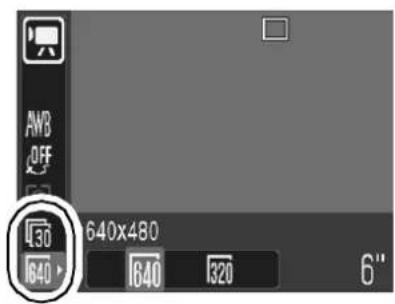
Rögzítési képpontok és képkockasebességek
| Recording Pixels | Frame Rate (frames/sec.) | |||
| L60 | L30 | L15 | ||
 Standard Standard | 640 640 × 480 pixels | - | ○ | ○ |
 My Colors My Colors | 320 320 × 240 pixels | - | ○ | ○ |
 Fast Frame Rate Fast Frame Rate | 320 320 × 240 pixels | ○ | - | - |
 Compact Compact | 160 160 × 120 pixels | - | - | ○ |
* A képkockasebesség a másodpercenként rögzített vagy lejátszott képkockák számát jelöli. Minél magasabb a képkockasebesség, annál simábbnak tűnik a mozgás.
* A rögzítési képpontok és a képkockasebesség rögzítettek a ☐ és ☑ módokban.

● Lásd: Képadat-méretek (becsült) (132. o.). ● Lásd: Memóriakártyák és becsült kapacitások (131. o.).
Nagyított közeli felvétel (digitális makró)
Felvételi mód


A lencse végétől 3–10 cm (1,2–3,9 hüvelyk) távolságra lévő témát fényképezhet a maximális nagy látószögű beállításnál. A digitális zoommal a képterület maximális nagyításnál (körülbelül 4-szeres) 9 × 7 mm (0,36 × 0,27 hüvelyk).
1 FUNC. menü ▶ (Auto) ▶ (Digitális makró).
Lásd: Menük és beállítások (31. o.).
*Alapértelmezett beállítás.
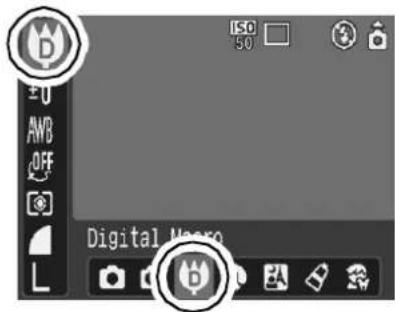
2 Válassza ki a látószöget a zoom karral, és fényképezzen.
A kombinált digitális és optikai zoommal nagyított képeket készíthet.
● Állóképek: zoom legfeljebb körülbelül 12-szeres ●Filmek (normál): zoom legfeljebb körülbelül 12-szeres

A digitális zoom nem használható, ha az LCD-kijelző ki van kapcsolva.
1
(Rögz.) menü ▶ [Digitális zoom] ▶ [Be].
Lásd: Menük és beállítások (32. o.).

2
Nyomja a zoom kart a 🖱️ irányába, és fényképezzen.
● Az optikai és digitális zoom kombinált beállítása megjelenik az LCD-kijelzőn. - Ha a zoom kart a [▲] irányába nyomja, a zoom megáll, amikor az objektív eléri a maximális optikai teleobjektív beállítást (állóképek készítésekor). Nyomja meg újra a zoom kart a [▲] irányába a digitális zoom aktiválásához és a kép további digitális nagyításához. - Nyomja meg a zoom kart a 🏠 irányába a kicsinyítéshez.

A képek durvábbá válnak, minél jobban digitálisan nagyítja őket.
Ebben az üzemmódban a fényképezőgép folyamatosan fényképez, amíg az exponálógombot lenyomva tartja.
Ha ajánlott memóriakártyát* használ, a beállított felvételi időközönként folyamatosan (sima sorozatfelvétel) fényképezhet, amíg a memóriakártya meg nem telik (131. oldal).
*Ajánlott memóriakártya
Super high speed SDC-512 MSH memóriakártya (külön kapható) közvetlenül alacsony szintű formázás után (28. oldal).
- Ez a Canon által meghatározott szabványos felvételi kritériumokat tükrözi. A tényleges eredmények a témától és a felvételi körülményektől függően eltérhetnek.
- Még ha a sorozatfelvétel hirtelen le is áll, a memóriakártya lehet, hogy nem telt meg.
1 Nyomja meg a □ gombot a □ megjelenítéséhez.
2 Fényképezzen.
● A fényképezőgép tovább rögzíti az egymást követő képeket, amíg az exponálógomb teljesen lenyomva van. A rögzítés leáll, amikor az exponálógombot elengedi.
A sorozatfelvétel megszakítása
Nyomja meg a ☐ gombot kétszer a ☐ megjelenítéséhez.

● A felvételek közötti idő megnő, amikor a fényképezőgép beépített memóriája megtelik. - Ha a vakut használja, a felvételek közötti idő megnő, mert a vakunak töltődnie kell.
Képeslap dátumlenyomat üzemmód

Fényképezési mód






Képeket készíthet az optimális beállításokkal képeslapokhoz, ha a témát a nyomtatási területen (körülbelül 3:2 szélesség-magasság arány) belül komponálja, amely az LCD-kijelzőn látható.
1
FUNC. Menü ▶ L * (Képrögzítési képpontok) ▶ (Képeslap dátum lenyomat).
Lásd: Menük és beállítások (31. o.).
*Alapértelmezett beállítás.
●A rögzítési képpontok M2 (1600 × 1200) értékre, a tömörítés pedig □(Finom) értékre van állítva. - Ha félig lenyomja a kioldógombot, a nem nyomtatandó terület szürkén jelenik meg.
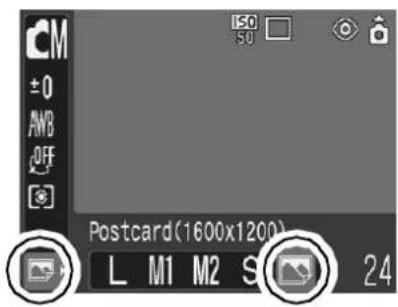

A digitális zoom nem használható ebben a módban.

A nyomtatási utasításokhoz lásd a Közvetlen nyomtatás felhasználói útmutatót.
A dátum beágyazása a képadatokba
A dátumot beágyazhatja a képadatokba, ha a 📄 (Képeslap dátum lenyomat mód) van kiválasztva.
1
(Rögz.) Menü ▶ [Dátum bélyegző] ▶ [Dátum]/[Dátum és idő].
Lásd: Menük és beállítások (32. o.).
●LCD-kijelző kijelzése
: [Ki]
: [Dátum]/[Dátum és idő]
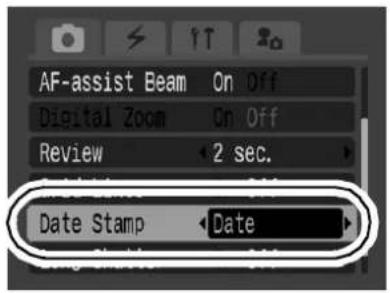
![CANON IXUS Wireless - (Rögz.) Menü ▶ [Dátum bélyegző] ▶ [Dátum]/[Dátum és idő]. - 2](/content/2026/05/1106565/images/3e119849df8d41a8d9c4c6308467d1f4e6ee6826376e8fdf2b2d34e82c6e17ff.jpg)
- Győződjön meg róla, hogy a fényképezőgép dátuma/ideje előre be van állítva (35. o.). ● A dátumbélyegző nem törölhető a képfájlból, ha egyszer be lett állítva.
![CANON IXUS Wireless - (Rögz.) Menü ▶ [Dátum bélyegző] ▶ [Dátum]/[Dátum és idő]. - 3](/content/2026/05/1106565/images/93150dfebe9e176fb957e97e7dc1efd939f67057ffbfdb9b95ac569f67cd9204.jpg)
Az önkioldó használata


Fotózási mód

Beállíthat 10 mp-es (☐) vagy 2 mp-es (☐) késleltetést, vagy egyéni késleltetési időt és a képek számát (☐ Egyéni önkioldó) az exponálógomb megnyomása utáni fényképezéshez.
1 Nyomja meg a ⏻ gombot a 🔊, 🔒 vagy 🔔 megjelenítéséhez.
2 Fényképezzen.
- Ha az exponálógombot teljesen lenyomja, az önkioldó aktiválódik, és az önkioldó lámpa villogni kezd. Vörösszem-hatás csökkentés használatakor az önkioldó lámpa villog, majd az utolsó 2 másodpercben folyamatosan világít.
Az önkioldó törlése
Nyomja meg a ⏻ gombot a □ megjelenítéséhez.

Módosíthatja az önkioldó hangját (36. o.).
Az önkioldó visszaszámlálási idejének módosítása (10/2)
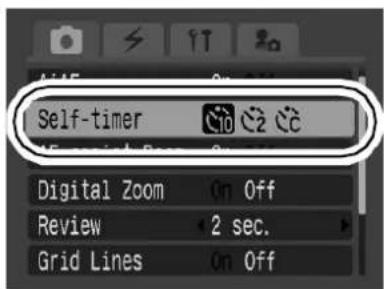
1 (Rögz.) Menü ▶ [Önkioldó] ▶ vagy ▶.
Lásd: Menük és beállítások (32. o.).
●A következő történik minden opciónál.
- 10: 2 másodperccel a zár kioldása előtt az önkioldó hangja és lámpája felgyorsul.
- 📊2: Az önkioldó hangja megszólal, amikor megnyomja a zárógombot, és a zár 2 másodperccel később old ki.
A késleltetési idő és a képek számának módosítása (☐).
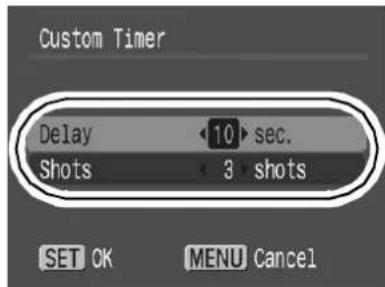
Módosíthatja a késleltetési időt (0–10, 15, 20, 30 mp) és a képek számát (1–10). Ezek a beállítások azonban nem állíthatók be Stitch Assist módban, film módban vagy My Colors módokban.
1
![(Rögzítés) Menü ▶[Önkioldó] ▶ [FUNC. SET]](/content/2026/05/1106565/images/abf0d65e46d64cbfd544860e66725087bfdf4e3c97c2932b22e0aa94debae5a3.jpg)
Lásd: Menük és beállítások (32. o.).

2
Módosítsa a [Késleltetés]/[Képek] ▶ FUNC. SET értéket.
●Az önkioldó hangja a következőképpen viselkedik.
- Az önkioldó hangja 2 másodperccel a megadott késleltetési idő letelte előtt kezdődik.
- Ha több kép van megadva a [Képek] opciónál, a hang csak az első képnél szólal meg.
![CANON IXUS Wireless - Módosítsa a [Késleltetés]/[Képek] ▶ FUNC. SET értéket. - 2](/content/2026/05/1106565/images/5a6cffc931b01d5c7f38783788aa3cd20f22b05c6f812d8397f742dacdd8eea5.jpg)
Ha a [Képek] opció 2 vagy több kép, a következő történik:
- A záridő és a fehéregyensúly az első képhez kiválasztott beállításokra van rögzítve.
- Ha vakut használ, a képek közötti idő megnő, mert a vakunak töltenie kell.
- A felvételek közötti idő megnő, amikor a fényképezőgép beépített memóriája megtelik.
- A felvétel automatikusan leáll, ha a memóriakártya megtelik.
A következő négy filmfelvételi mód áll rendelkezésre.
![CANON IXUS Wireless - Módosítsa a [Késleltetés]/[Képek] ▶ FUNC. SET értéket. - 3](/content/2026/05/1106565/images/259eb86c2b2211ca40a69d0d5cec925f96ba7bfa14b9f7b6050bedca5a9a22fb.jpg)
Normál
Kiválaszthatja a rögzítési képpontszámot és a képkockasebességet, és addig rögzíthet, amíg a memóriakártya meg nem telik (ha szuper nagy sebességű memóriakártyát használ, például az ajánlott SDC-512MSH-t). A digitális zoom használható ebben a módban történő felvétel közben (42. oldal).
- Rögzítési képpontszám: 640 (640 × 480), 320 (320 × 240) • Képkockasebesség: 30 (30 képkocka/mp), 15 (15 képkocka/mp) • Maximális méret: 1 GB/film

Gyors képkockasebesség
Ezt a módot gyorsan mozgó témák, például sportfelvételek rögzítésére használja.
- Rögzítési képpontszám: 320 (320 × 240) • Képkockasebesség: ☐60 (60 képkocka/mp) • Maximális klip hossza: 1 perc

Kompakt
Mivel a rögzítési képpontszám alacsony, ez a mód kényelmes filmek e-mail mellékletként történő küldéséhez, vagy ha a memóriakártya kapacitása alacsony.
- Rögzítési képpontszám: 160 (160 × 120) • Képkockasebesség: 15 (15 képkocka/mp) • Maximális klip hossza: 3 perc

Saját színek
Megváltoztathatja a kép színeit, majd felvételt készíthet (63. oldal). A Normál módhoz hasonlóan kiválaszthatja a rögzítési képpontszámot és a képkockasebességet, és addig rögzíthet, amíg a memóriakártya meg nem telik (ha szuper nagy sebességű memóriakártyát használ, például az ajánlott SDC-512MSH-t).
- Rögzítési képpontszám: 640 (640 × 480), 320 (320 × 240) • Képkockasebesség: 30 (30 képkocka/mp), 15 (15 képkocka/mp) • Maximális méret: 1 GB/film
- A maximális felvételi idő a használt memóriakártya kapacitásától függően változik (131. o.).
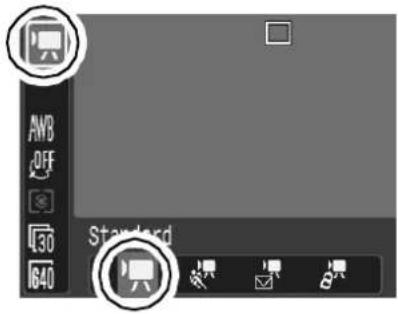
1 FUNC. menü ▶ * (Standard).
Lásd: Menük és beállítások (31. o.).
*Alapértelmezett beállítás.
- A ← vagy → gombbal válasszon filmmódot, majd nyomja meg a FUNC./SET gombot.
- ☐ vagy ⚫ módban módosíthatja a felvételi képpontokat és a képkockasebességet (40. o.).
2 Fényképezés.
- A zárkioldó gomb félig történő lenyomása automatikusan beállítja az expozíciót, a fókuszt és a fehéregyensúlyt.
- A zárkioldó gomb teljes lenyomása elindítja a videó és a hang egyidejű rögzítését. ● Felvétel közben a felvételi idő (másodpercben) és a [●Rec] felirat jelenik meg az LCD-kijelzőn.
- A zárkioldó gomb ismételt teljes lenyomása leállítja a felvételt. A felvétel automatikusan leáll a következő körülmények között:
- Amikor a maximális felvételi idő letelik
- Amikor a beépített memória vagy a memóriakártya megtelik

- Javasoljuk, hogy filmek rögzítéséhez a fényképezőgépben formázott memóriakártyát használjon (28. o.). A fényképezőgéphez mellékelt kártya további formázás nélkül használható. ● Felvétel közben ügyeljen a következőkre:
- Ne érintse meg a mikrofont.
- Ne nyomjon meg más gombot, csak a zárkioldó gombot. A gombok által keltett hang rögzítésre kerül a filmben.
- A kamera automatikusan beállítja az expozíciót és a fehéregyensúlyt a felvételi körülményekhez. Vegye figyelembe, hogy az automatikus expozíció-beállítás közben keletkező hangok is rögzítésre kerülhetnek.
- A fókusz és az optikai zoom beállításai rögzítve maradnak az első képkockánál beállított értékeken a további képkockákhoz.
● Vezeték nélküli kapcsolattal nem lehet videót felvenni.

- A felvétel előtt beállíthatja az AE zárat (53. o.) és az expozícióeltolást.
- Nyomja meg az ISO gombot. Az expozíció lezárul (AE zár), és az expozícióeltolás sáv megjelenik az LCD monitoron.
- Az expozíció beállításához használja a ⇔ vagy → gombot. A beállítás feloldásához nyomja meg újra az ISO gombot. A beállítás törlődik, ha megnyomja a MENU gombot, vagy módosítja a fehéregyensúlyt, a fotóeffektust vagy a felvételi módot.
- A számítógépen történő lejátszáshoz QuickTime 3.0 vagy újabb verzió szükséges (Adattípus: AVI / Tömörítési mód: Motion JPEG). A QuickTime (Windows rendszerhez) megtalálható a Canon Digital Camera Solution Disk lemezen. Macintosh platformon ez a program a Mac OS X vagy újabb rendszer része.
Panorámaképek készítése (Stitch Assist)
Felvételi mód

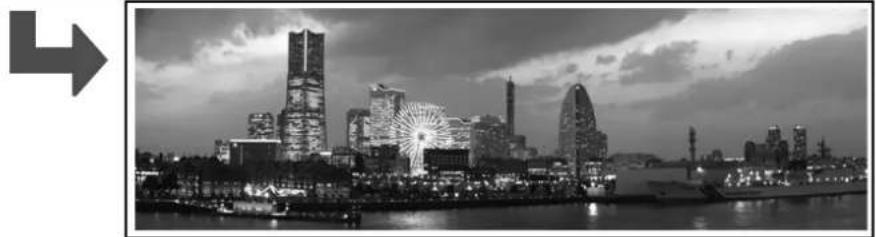
A Stitch Assist funkcióval átfedő képeket készíthet, amelyeket később számítógépen egyetlen panorámaképpé egyesíthet (összefűzhet).

Több szomszédos kép átfedő élei egyetlen panorámaképpé illeszthetők össze.
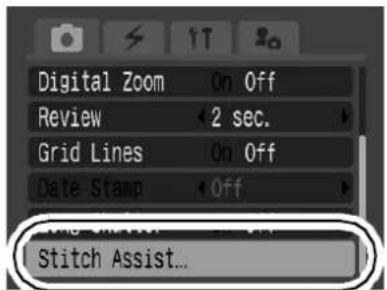
1 (Rec.) Menü ▶ [Stitch Assist].
Lásd: Menük és beállítások (32. o.).
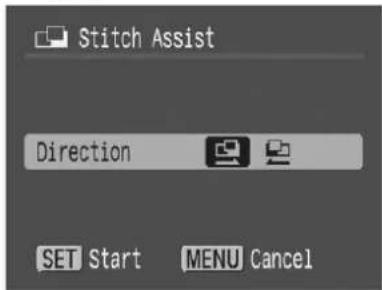
Válasszon felvételi irányt ▶ FUNC SET
●A következő két felvételi irány közül választhat.
- Balról jobbra vízszintesen
- Jobbról balra vízszintesen
Készítse el a sorozat első képét.
●Az expozíció és a fehéregyensúly az első képpel beállításra és rögzítésre kerül.
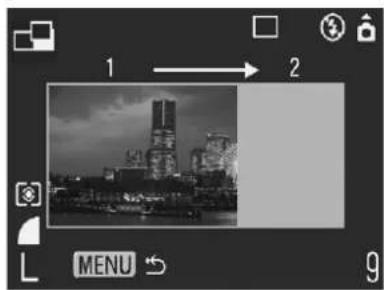
Állítsa be a második képet úgy, hogy átfedje az első kép egy részét, és készítse el.
- A ← vagy → gombbal visszaléphet az előzőleg rögzített kép képernyőjére, és újra felveheti a képet. ●Az átfedő részek kisebb eltérései a képek összeillesztésekor korrigálhatók.
Ismételje meg az eljárást további képeknél.
●Egy sorozat legfeljebb 26 képet tartalmazhat. - Az utolsó felvétel után nyomja meg a MENU gombot.

- Stitch Assist módban történő felvételkor a képek nem jeleníthetők meg TV-n. ● Az első kép beállításai a második képtől kezdve érvényesek.

Használja a mellékelt PhotoStitch szoftvert a képek számítógépen történő egyesítéséhez.
Váltás az élességállítási módok között

Fényképezési mód

A következő két élességállítási mód közül választhat az AiAF beállítástól függően.
| (No frame) | On | The camera detects the subject and highlights the AF frames, from 9 available points, that it will use to determine the focus. |
| Off | The camera focuses using the center AF frame. This is convenient for focusing on a specific part of a subject with greater certainty. |
1 (Rec.) Menü ▶ [AiAF] ▶ [Be]/[Ki].
Lásd: Menük és beállítások (32. o.).

![CANON IXUS Wireless - (Rec.) Menü ▶ [AiAF] ▶ [Be]/[Ki]. - 2](/content/2026/05/1106565/images/924908344d4738054ba0d63a1c254db9821e1270824e13bf4363b886b8e650e6.jpg)
- A fókusz a középső AF keretre van rögzítve, ha a digitális zoomot használja. - Az AF keret a következőképpen jelenik meg (ha az LCD monitor be van kapcsolva), amikor a zárógombot félig lenyomja.
- Zöld: A fényképezés előkészületei befejeződtek
- Sárga: Élességállítási nehézség (AiAF [Ki] állásban)
| Shooting Hard-to-Focus Subjects(Focus Lock, AF Lock) | |
| Shooting Mode | |
A következő típusú témák esetén nehéz lehet az élességállítás.
● Rendkívül alacsony kontrasztú témák a környezethez képest ● Vegyesen közeli és távoli témák ● Rendkívül fényes objektumok a kép közepén ● Gyorsan mozgó témák - Üvegen keresztül történő fényképezés: Próbáljon a lehető legközelebb férkőzni az üveghez, hogy csökkentse a visszaverődő fény esélyét.
Fényképezés fókuszrögzítéssel
A fókuszrögzítés bármelyik fényképezési módban használható.
| 1 | Aim the camera so that an object at the same focal distance as the main subject is centered in the viewfinder or in the AF frame displayed on the LCD monitor. |
| 2 | Press the shutter button halfway. |
| 3 | Re-aim the camera to compose the shot as desired and press the shutter button fully. |
Fényképezés AF-rögzítéssel
Az AF-rögzítés a CM, D vagy módban használható.
| 1 | Turn on the LCD monitor. |
| 2 | Aim the camera so that an object at the same focal distance as the main subject is centered in the AF frame. |
| 3 | Press the shutter button halfway and press the 🔊/▲button.●The AFL icon will display and the lower indicator will light yellow. |
Irányítsa újra a fényképezőgépet a kívánt kompozícióhoz, és exponáljon.
Az AF-zár feloldása
Nyomja meg a 🎨/▲ gombot.

- Ha az LCD-kijelzőn keresztül fókuszál vagy AF-zárat használ, az [AiAF] [Ki] (33. o.) értékre állítása megkönnyíti a fényképezést, mivel a fényképezőgép csak a középső AF-mezőt használja a fókuszáláshoz.
- Az AF-zár azért kényelmes, mert elengedheti az exponálógombot a képkompozícióhoz. Ráadásul az AF-zár a felvétel után is aktív, így ugyanazzal a fókusszal készíthet egy második képet is.
Az expozíció rögzítése (AE-zár)

Fényképezési mód

Az expozíciót és a fókuszt külön is beállíthatja. Ez akkor hasznos, ha túl erős a kontraszt a téma és a háttér között, vagy ha a téma háttérvilágításban van.

A vakut [💡] értékre kell állítani. Az AE-zár nem állítható be, ha a vaku elsül.
1 Kapcsolja be az LCD-kijelzőt. 2 Fókuszáljon a téma azon részére, amelyre az expozíciót rögzíteni kívánja. 3 Nyomja meg az exponálógombot félig, majd nyomja meg az ISO gombot.
●Megjelenik az AEL ikon.
4 Irányítsa újra a fényképezőgépet a kívánt kompozícióhoz, és nyomja meg teljesen az exponálógombot.
Az AE-zár feloldása
Nyomja meg az ISO gombot.
● Az AE-zár beállítása és feloldása ☐ módban is lehetséges (49. o.). - A FE-zárat használhatja, ha vakut használ.
A vaku expozíciójának rögzítése
(FE-zár)
Fényképezési mód

Rögzítheti a vaku expozícióját, hogy az expozíciós beállítások helyesek legyenek, függetlenül a téma kompozíciójától.
| 1 | Turn on the LCD monitor. |
| 2 | Press the ↩ button and set it to ⏻ (flash on). |
| 3 | Focus on the part of the subject on which you wish to lock the flash exposure setting. |
| 4 | Press the shutter button halfway and press the ISO button.●The flash will pre-fire and FEL will display. |
| 5 | Re-aim the camera to compose the shot as desired and press the shutter button fully. |
Az FE-zár feloldása
Nyomja meg az ISO gombot.
1 FUNC. menü ▶ 📷 * (Kiértékelő).
Lásd: Menük és beállítások (31. o.).
*Alapértelmezett beállítás.
- A ← vagy → gombbal válassza ki a fénymérési módot, majd nyomja meg a FUNC./SET gombot.
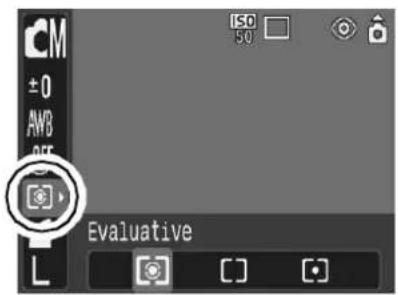
Fénymérési módok
| Evaluative | Appropriate for standard shooting conditions, including backlit scenes. The camera divides images into several zones for metering. It evaluates complex lighting conditions, such as the position of the subject, the brightness, the direct light, and the backlighting, and adjusts the settings to the correct exposure for the main subject. | |
| Center Weighted Average | Averages the light metered from the entire frame, but gives greater weight to the subject matter at the center. | |
| Spot | Meters the area within the spot AE point at the center of the LCD monitor. Use this setting when you want to set the exposure on the subject in the center of the monitor. |
Az expozíciókompenzáció beállítása

Fényképezési mód

Állítsa be az expozíciókompenzációt, hogy elkerülje a téma túl sötét megjelenését, ha háttérvilágításban vagy világos háttér előtt fényképez, vagy hogy a fények ne tűnjenek túl világosnak éjszakai felvételeknél.
1 FUNC. Menü ▶ ±0* (Expozíció-kompenzáció).
Lásd: Menük és beállítások (31. o.).
*Alapértelmezett beállítás.
- Az expozíció-kompenzáció beállításához használja a ← vagy → gombot, majd nyomja meg a FUNC./SET gombot.
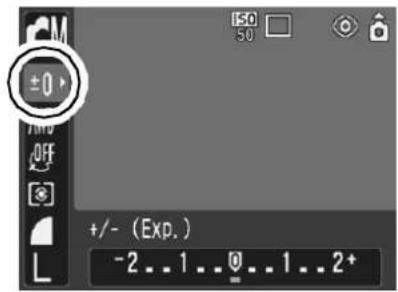
Az expozíció-kompenzáció törlése
Állítsa vissza a kompenzációs értéket [0]-ra.

- Az expozíció-kompenzáció nem érhető el a A vagy S Saját színek módban.
- Ebben a módban az expozíció-eltolás beállítható/törölhető (49. o.).
Fotózás hosszú záridős módban

Fotózási mód

Beállíthatja a záridőt lassú értékre, hogy a sötét témák világosabbnak tűnjenek.
1 (Rögz.) Menü ▶ [Hosszú záridő] ▶ [Be].
Lásd: Menük és beállítások (32. o.).
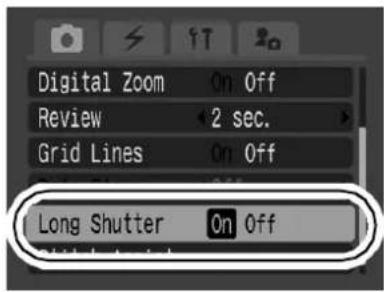
2 FUNC. Menü ▶ ±0* (Expozíció-kompenzáció)

Lásd: Menük és beállítások (31. o.).
* Alapértelmezett beállítás.

3 A ← vagy → gombbal válassza ki a záridőt

● Minél magasabb az érték, annál világosabb a kép, és minél alacsonyabb az érték, annál sötéebb a kép.

A hosszú záridős mód törléséhez
Nyomja meg a MENU gombot, amikor a Hosszú záridő FUNC. menü megjelenik.

A CCD képérzékelők természetéből adódóan a hosszú záridőknél a felvett képen zaj növekszik. Ez a kamera azonban speciális feldolgozást alkalmaz az 1,3 másodpercnél lassabb záridővel készített képekre a zaj kiküszöbölése érdekében, ezáltal kiváló minőségű képeket eredményez. Bizonyos feldolgozási idő azonban szükséges lehet a következő kép elkészítése előtt.

- Használja az LCD kijelzőt annak ellenőrzésére, hogy a kép a kívánt fényerővel készült-e.
- Kérjük, vegye figyelembe, hogy alacsony záridőknél a fényképezőgép bemozdulása tényezővé válik. Rögzítse a fényképezőgépet állványra a felvétel előtt.
- A vaku használata túlexponált képet eredményezhet. Ha ez történik, fényképezzen a 📋 beállítású vakuval. ● A következők nem állnak rendelkezésre:
- Expozíciókompenzáció
- Fénymérés
- AE-zár
- FE-zár
- ISO érzékenység: Automatikus
- Vaku: Automatikus, Automatikus vörösszem-hatás csökkentéssel
A színtónus beállítása (fehéregyensúly)
Fényképezési mód

Normál esetben az AWB (Automatikus) fehéregyensúly-beállítás választja ki az optimális fehéregyensúlyt. Ha az AWB beállítás nem produkál természetes színeket, módosítsa a fehéregyensúlyt a fényforrásnak megfelelő beállítással.
1 FUNC. Menü ▶ AWB * (Automatikus).
Lásd: Menük és beállítások (31. o.).
*Alapértelmezett beállítás.
- A ← vagy → gombbal válasszon fehéregyensúly-beállítást, majd nyomja meg a FUNC./SET gombot.

Fehéregyensúly-beállítások
 | Auto | Settings are automatically set by the camera |
 | Day Light | For recording outdoors on a bright day |
 | Cloudy | For recording under overcast, shady or twilight skies |
 | Tungsten | For recording under tungsten and bulb-type 3-wavelength fluorescent lighting |
 | Fluorescent | For recording under warm-white, cool-white or warm-white (3-wavelength) fluorescent lighting |
 | Fluorescent H | For recording under daylight fluorescent, or daylight fluorescent-type 3-wavelength fluorescent lighting |
 | Custom | For recording with the optimal white balance data retained in the camera from a white-colored object, such as white paper or cloth |

Ez a beállítás nem módosítható, ha a 📄S vagy BW fotóeffektus van kiválasztva.
Egyéni fehéregyensúly használata
Egyéni fehéregyensúlyt állíthat be a fényképezési körülményekhez optimális beállítás eléréséhez, ha a fényképezőgéppel kiértékeltet egy tárgyat, például egy fehér papírlapot vagy textildarabot, vagy egy fotóminőségű szürke kártyát, amelyet standard fehér színként kíván megállapítani.
Különösen az alábbi, az AWB (Automatikus) beállítás számára nehezen érzékelhető helyzetekben végezzen egyéni fehéregyensúly-mérést (Egyéni) módban.
●Közeli felvételek készítése ●Egyszínű témák fényképezése (például égbolt, tenger vagy erdő) ●Szokatlan fényforrás használata (például higanygőz-lámpa)
1 FUNC. Menü ▶ AWB * (Auto) ▶ (Egyéni).
Lásd: Menük és beállítások (31. o.). * Alapértelmezett beállítás.
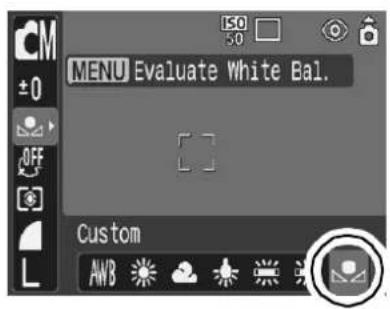
2 Irányítsa a fényképezőgépet egy fehér papírra vagy ruhadarabra, és nyomja meg a Ⓜ gombot.
- Ha az LCD-kijelzőn nézi, győződjön meg róla, hogy a középső keret teljesen kitölti a fehér kép. Ha az optikai keresőt használja, győződjön meg róla, hogy a teljes mező kitöltött.

- Javasoljuk, hogy az egyéni fehéregyensúly beállítása előtt állítsa a felvételi módot [M] állásba, és az expozíciókompenzációt [± 0] értékre.
A helyes fehéregyensúly nem érhető el, ha az expozíciós beállítás helytelen (a kép teljesen fekete vagy fehér).
- Ugyanazokkal a beállításokkal fényképezzen, mint a fehéregyensúly-adatok beolvasásakor. Ha a beállítások eltérnek, az optimális fehéregyensúly nem állítható be.
Különösen a következőket nem szabad megváltoztatni:
- ISO érzékenység
- Vaku
Javasoljuk a vaku be- vagy kikapcsolását.
Ha a vaku elsül, amikor a fehéregyensúly-adatokat olvassa be ⚠A (auto) vagy ⏻ (auto vörösszem-hatás csökkentéssel) beállításnál, győződjön meg róla, hogy fényképezéskor is használja a vakut.
- Mivel a fehéregyensúly-adatok nem olvashatók be Stitch Assist módban, előzetesen állítsa be a fehéregyensúlyt egy másik felvételi módban.
- A fényképezőgép megtartja az Ön által rögzített egyéni fehéregyensúly-beállítást, még akkor is, ha visszaállítja a fényképezőgépet az alapértelmezett beállításokra (37. o.).
Ha fényképezés előtt fényképhatást állít be, megváltoztathatja a készített képek megjelenését és hangulatát.
1 FUNC. Menü ▶ OFF * (Effekt ki).
Lásd: Menük és beállítások (31. o.).
*Alapértelmezett beállítás.
- A ← vagy → gombbal válasszon fotóeffektet, majd nyomja meg a FUNC./SET gombot.

Fotóeffekt-beállítások
| Effect Off | Records normally with this setting. | |
| Vivid | Emphasizes the contrast and color saturation to record bold colors. | |
| Neutral | Tones down the contrast and color saturation to record neutral hues. | |
| Low Sharpening | Records subjects with softened outlines. | |
| Sepia | Records in sepia tones. | |
| B/W | Records in black and white. |
Fényképezés Saját színek módban


Fényképezési mód


A Saját színek mód könnyedén megváltoztatja a kép színeit a felvételkor, lehetővé téve a piros, zöld és kék közötti egyensúly módosítását, a halvány vagy napbarnított bőr átalakítását, vagy az LCD-képernyőn megadott szín megváltoztatását egy másik színre. Mivel mind állóképekkel, mind filmekkel működnek, ezek a módok lehetővé teszik, hogy különféle kép- vagy filmhatásokat hozzon létre.
A felvételi körülményektől függően azonban a képek durvának tűnhetnek, vagy nem a várt színt kaphatja. Mielőtt fontos témákat fényképezne, erősen ajánljuk, hogy próbafelvételeket készítsen, és ellenőrizze az eredményeket.
Továbbá a fényképezőgép rögzíti a Saját színek képet és az eredeti, módosítatlan képet is, ha az [Eredeti mentése] (65. o.) beállítást [Be] értékre állítja.
Saját színek beállításai
| Positive Film | Use this option to make red, green or blue colors more intense like the Vivid Red, Vivid Green or Vivid Blue effects. It can produce intense natural-appearing colors like those obtained with positive film. | |
| Lighter Skin Tone* | Use this option to make skin tones lighter. | |
| Darker Skin Tone* | Use this option to make skin tones darker. | |
| Vivid Blue | Use this option to emphasize blue tints. It makes blue subjects, such as the sky or ocean, more vivid. | |
| Vivid Green | Use this option to emphasize green tints. It makes green subjects, such as mountains, new growth, flowers and lawns, more vivid. | |
| Vivid Red | Use this option to emphasize red tints. It makes red subjects, such as flowers or cars, more vivid. | |
| Color Accent | Use this option to have only the color specified on the LCD monitor remain and to transform all others to black and white. | |
| Color Swap | Use this option to transform a color specified on the LCD monitor into another. The specified color can only be swapped into one other color, multiple colors cannot be chosen. | |
| Custom Color | Use this option to freely adjust the color balance between red, green, blue and skin tones*. It can be used to make subtle adjustments, such as making blue colors more vivid or face colors brighter. |
* A nem emberi alanyok bőrszíne is megváltozhat. * Előfordulhat, hogy a bőrszíntől függően nem a várt eredményt kapja.
1 FUNC. Menü ▶ (Saját színek: Állóképek)/ (Saját színek: Filmek).
Lásd: Menük és beállítások (31. o.).
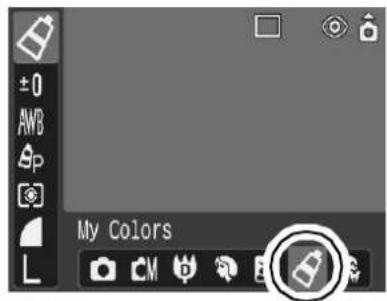
Állóképek
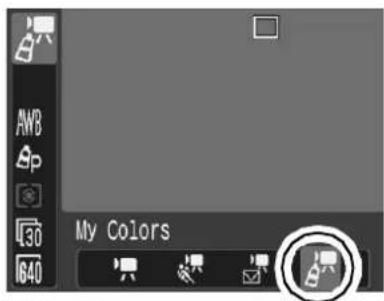
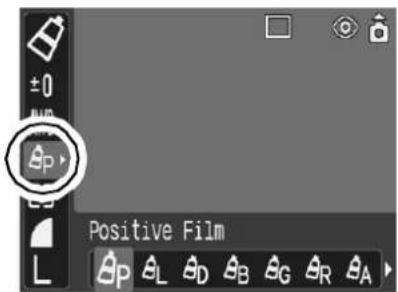
2 FUNC. Menü ▶ 9p * (Pozitív film).
Lásd: Menük és beállítások (31. o.).
*Alapértelmezett beállítás.
- A ← vagy → gombbal válasszon egy Saját színek módot.
3 Fényképezés.
- GP GL GD GB GB GR Módok Nyomja meg a FUNC./SET gombot. A kijelző visszatér a fényképezési képernyőhöz, és fényképezhet.
- A S C Módok
βA : Lásd: A fényképezőgép beállítása Színkiemelő módra (66. o.). Es: Lásd: A fényképezőgép beállítása Színcsere módra (67. o.). EC : Lásd: A fényképezőgép beállítása Egyéni szín módra (68. o.).
Az eredeti kép mentési módjának módosítása
Ha Saját színek módban fényképez állóképeket, megadhatja, hogy a módosított kép és az eredeti kép is rögzítésre kerüljön-e.
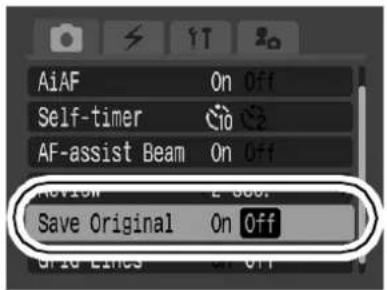
1 (Rögz.) Menü ▶ [Eredeti mentése] ▶ [Be]/[Ki].
Lásd: Menük és beállítások (32. o.).
- Ha a [Be] van kiválasztva, a két kép egymás után számozódik, a módosított kép követi az eredetit.
![CANON IXUS Wireless - (Rögz.) Menü ▶ [Eredeti mentése] ▶ [Be]/[Ki]. - 2](/content/2026/05/1106565/images/6abb1f31e9ad76ab9a2ff589703adaddcee50dcd70382a684234dadcda12ad39.jpg)
Ha az [Eredeti mentése] [Be] értékre van állítva
- Fényképezés közben csak a módosított kép látható az LCD-kijelzőn.
- A felvétel után azonnal megjelenő kép a módosított kép. Ha ekkor törli a képet, az eredeti kép is törlődik a módosított képpel együtt. Legyen körültekintő a fájl törlése előtt.
- Mivel minden felvételnél két kép készül, a hátralévő felvételek száma körülbelül fele annak, ami akkor jelenik meg, ha ez a funkció [Ki] állásban van.
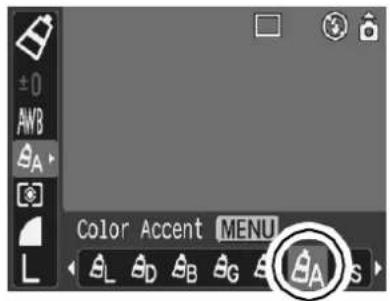
A fényképezőgép beállítása Színkiemelés módba
Az LCD-kijelzőn megadott színtől eltérő színek fekete-fehérben kerülnek rögzítésre.
1

(Színkiemelés)


Lásd: Menük és beállítások (31. oldal).
●A fényképezőgép színbeviteli módba kapcsol, és a kijelző váltakozik az eredeti kép és a színkiemelt kép között (az előzőleg beállított színnel).
2
Irányítsa a fényképezőgépet úgy, hogy a megtartani kívánt szín az LCD-kijelző közepén legyen, és nyomja meg a ← gombot.
●Csak egy szín adható meg. - A ↑ vagy ↓ gombbal adhatja meg a megtartott színek tartományát. - -5: Csak a megtartani kívánt színt veszi figyelembe - +5: A megtartani kívánt színhez közeli színeket is figyelembe veszi
3

●Ezzel a beállítás befejeződik. - Ha ekkor megnyomja a MENU gombot, visszatér a Saját színek mód kiválasztási képernyőjére.

● Az alapértelmezett színkiemelés a zöld. - Előfordulhat, hogy a színbeviteli mód után nem a várt eredményt kapja, ha használja a vakut, vagy módosítja a fehéregyensúlyt vagy a fénymérési beállításokat. - A megadott színkiemelés megmarad, még akkor is, ha a fényképezőgép ki van kapcsolva.
A kamera beállítása színcsere módra
Ez a mód lehetővé teszi, hogy az LCD monitoron megadott színt egy másikra cserélje.
![graph TD A["Original Color (Before Swapping)"] --> B["Desired Color (After Swapping)"] B --> C["Car Icon 1"] B --> D["Car Icon 2"]](/content/2026/05/1106565/images/9f223b3a404d6ff2ebd1137d57f112bacaaeaed74c14e29fa430538853f05091.jpg)
1 (Színcsere) ▶ MENÜ.
Lásd: Menük és beállítások (31. o.).
● A kamera színbeviteli módba kapcsol, és a kijelző váltakozik az eredeti kép és a színcsere kép (a korábban beállított színnel) között.

2 Irányítsa a kamerát úgy, hogy az eredeti szín az LCD monitor közepén legyen, és nyomja meg a ← gombot.
●Csak egy szín adható meg. - A ↑ vagy ↓ gombbal adhatja meg a cserélendő színtartományt. - -5: Csak a cserélni kívánt színt veszi figyelembe • +5: A cserélni kívánt színhez közeli színeket is figyelembe veszi
3 Irányítsa a kamerát úgy, hogy a kívánt szín az LCD monitor közepén legyen, és nyomja meg a ➤ gombot.
●Csak egy szín adható meg.
4

●Ezzel a beállítás befejeződik. - Ha ekkor megnyomja a MENÜ gombot, visszatér a Saját színek mód kiválasztási képernyőjére.

● A színcsere mód alapértelmezett beállítása a zöldet fehérre cseréli. - Előfordulhat, hogy a színbeviteli mód után nem a várt eredményt kapja, ha vakut használ, vagy módosítja a fehéregyensúlyt vagy a fénymérési beállításokat. - A színcsere módban megadott színek akkor is megmaradnak, ha a kamera ki van kapcsolva.
A kamera beállítása egyéni színmódra
Ez a mód lehetővé teszi a piros, zöld, kék és bőrtónusok színegyensúlyának beállítását.
1

Lásd: Menük és beállítások (31. oldal).
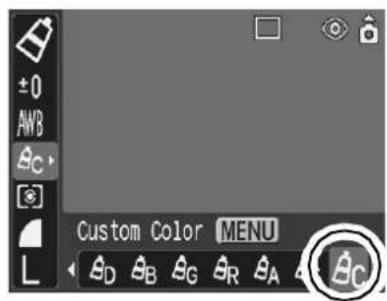
2
A ↑ vagy ↓ gombbal válassza ki a [Piros], [Zöld], [Kék] vagy [Bőrszín] opciót, a ← vagy → gombbal pedig állítsa be a színegyensúlyt.
●A módosított szín megjelenik.
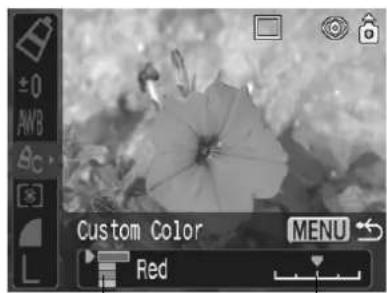
Válassza ki a színegyensúly beállítását.
3

●Ezzel a beállítás kész. - Ha ekkor megnyomja a MENU gombot, visszatér a My Colors mód kiválasztására szolgáló képernyőre.
Növelje az ISO érzékenységet, ha csökkenteni szeretné a fényképezőgép bemozdulásának hatását, ha sötét helyen vaku nélkül fényképez, vagy ha gyors záridőt szeretne használni.
1 Nyomja meg az ISO gombot, és váltson beállítást.
- Az ISO gomb minden egyes megnyomásával váltson az ISO 50 / ISO 100 / ISO 200 / ISO 400 / [Auto] értékek között.
- Az [Auto] kiválasztásával az érzékenység az optimális képminőséget biztosítja.
Az automatikus elforgatás funkció beállítása
Fényképezési mód

A fényképezőgép Intelligens tájolásérzékelővel rendelkezik, amely érzékeli a függőlegesen tartott fényképezőgéppel készített kép tájolását, és automatikusan a megfelelő tájolásba forgatja azt, amikor az LCD monitoron megtekinti.
1 (Beállítás) menü ▶ [Auto Rotate] ▶ [Be]/[Ki].
Lásd: Menük és beállítások (32. o.).
- Ha az Automatikus elforgatás funkció [Be] értékre van állítva, és az LCD-kijelző részletes megjelenítési módban van, a (normál), (jobb vége lefelé) vagy (bal vége lefelé) ikon jelenik meg a kijelzőn.

![CANON IXUS Wireless - (Beállítás) menü ▶ [Auto Rotate] ▶ [Be]/[Ki]. - 2](/content/2026/05/1106565/images/295a1f0fcfe344be5b0ab9b1027d4e24eaa681101d773eb71dcfa7434685aa8f.jpg)
- Ez a funkció nem működhet megfelelően, ha a fényképezőgép egyenesen felfelé vagy lefelé van irányítva. Ellenőrizze, hogy a nyíl 🔒 a megfelelő irányba mutat-e, és ha nem, állítsa az Automatikus elforgatás funkciót [Ki] értékre.
- Még ha az Automatikus elforgatás funkció [Be] értékre is van állítva, a számítógépre letöltött képek tájolása a letöltéshez használt szoftvertől függ.
![CANON IXUS Wireless - (Beállítás) menü ▶ [Auto Rotate] ▶ [Be]/[Ki]. - 3](/content/2026/05/1106565/images/db9652f1cdf03aa12f95e095c88db52b9116e7e3499048a888e36c0e8dd77c08.jpg)
- Ha a fényképezőgépet függőlegesen tartva fényképez, az Intelligens tájolásérzékelő a felső végét „felként”, az alsó végét „leként” határozza meg. Ezután szabályozza az optimális fehéregyensúlyt, expozíciót és élességet a függőleges fényképezéshez. Ez a funkció az Automatikus elforgatás funkció be/ki állapotától függetlenül működik.
- Ha az Automatikus elforgatás funkció [Be] értékre van állítva fényképezési módban, a fényképezőgép tájolása rögzítésre kerül a felvétel elkészítésekor.
- Ha az Automatikus elforgatás funkció [Be] értékre van állítva lejátszási módban, a képek a megfelelő tájolásba lesznek forgatva az LCD-kijelzőn, ha szükséges, amikor a fényképezőgép tájolása megváltozik (csak azokra a képekre vonatkozik, amelyek az Automatikus elforgatás funkció [Be] állása mellett készültek).

Bármikor létrehozhat egy új mappát, és a rögzített képek automatikusan abba a mappába kerülnek mentésre.
| Create New Folder | Creates a new folder the next time you shoot images. To create an additional folder, insert another check mark. |
| Auto Create | You can also specify a date and time if you wish to create a new folder using a shooting time after the specified date and time (p. 36). |
1 (Beállítás) menü [Mappa létrehozása].
Lásd: Menük és beállítások (32. o.).

Mappa létrehozása a következő fényképezéshez
2 A ← vagy → gombbal jelölje be az [Új mappa létrehozása] opciót ▶ (MENU).
● megjelenik az LCD-kijelzőn. A szimbólum eltűnik, miután az új mappa létrehozásra került.
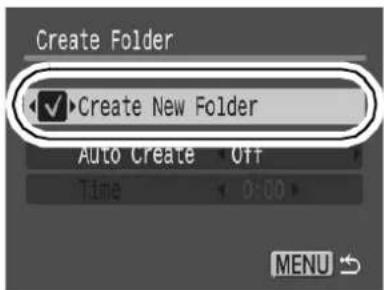
A mappa automatikus létrehozásának napjának vagy időpontjának beállítása
2 Válasszon egy napot az [Automatikus létrehozás] opcióhoz és egy időpontot az [Idő] opcióhoz ▶ MENU.
● akkor jelenik meg, amikor a megadott idő elérkezik. A szimbólum eltűnik, miután az új mappa létrehozásra került.
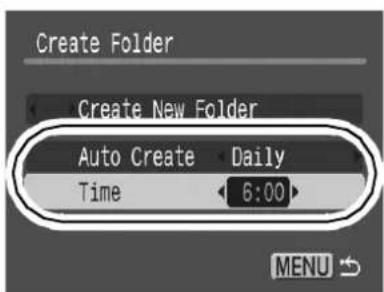
Egy mappába legfeljebb 2000 kép menthető. Új mappa automatikusan létrejön, ha ennél többet rögzít, még akkor is, ha nem hoz létre új mappákat.
A fájlszám visszaállítása

Fényképezési mód

A rögzített képek automatikusan fájlszámot kapnak. Kiválaszthatja, hogyan legyen hozzárendelve a fájlszám.
1 (Beállítás) menü ▶ [Fájlszámozás] ▶ [Auto reset]/[Folyamatos].
Lásd: Menük és beállítások (32. o.).
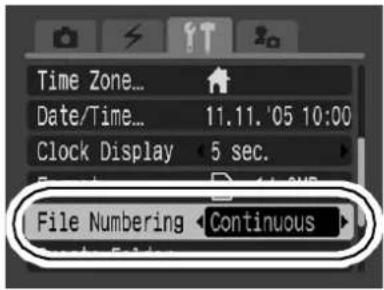
Fájlszám-visszaállítási funkció
| Continuous | A number one higher than the last one recorded is assigned to the next image. This is convenient for managing all your images together on a computer because you avoid file name duplication when changing folders or memory cards*. |
| Auto reset | The folder and image number are reset to the starting value (100-0001)*. This is convenient for managing images on a folder-by-folder basis. |
*Üres memóriakártya használatakor. Ha adatokat tartalmazó memóriakártyát használ, az utolsó rögzített mappa és kép 7 jegyű számát összehasonlítja a kártyán lévő utolsóval, és a kettő közül a nagyobbat használja alapként az új képekhez.
Fájl- és mappaszámok
A rögzített képek sorszámozása 0001-től 9999-ig terjedő fájlszámokkal történik, míg a mappák 100-tól 999-ig terjedő számokat kapnak. Egyetlen mappába legfeljebb 2000 kép menthető.
| New Folder Created | Memory Card Exchanged for Another | |
| Continuous | Memory Card 1 | Memory Card 1 Memory Card 2 |
| Auto Reset | Memory Card 1 | Memory Card 1 Memory Card 2 |
●A képek új mappába kerülhetnek, ha nincs elegendő szabad hely, még akkor is, ha a mappában lévő képek száma kevesebb, mint 2000, mert a következő típusú képek mindig ugyanabba a mappába kerülnek.
- Folyamatos felvételből származó képek
- Önkioldós képek (egyéni)
- Stitch Assist mód képei
- My Colors képek ([Eredeti mentése] beállítás: [Be])
● A képek nem játszhatók le, ha a mappaszámok vagy a képszámok ismétlődnek a mappákon belül. - A mappastruktúrákkal és a képfájltípusokkal kapcsolatos információkért lásd a Szoftver- és vezeték nélküli útmutatót.
Lásd még az Alapútmutatót (11. oldal).
Képek nagyítása
1 Nyomja a zoom kart a Q irányba.
- A SET megjelenik, és a kép nagyított része látható lesz. ●A képek körülbelül 10-szeresére nagyíthatók.
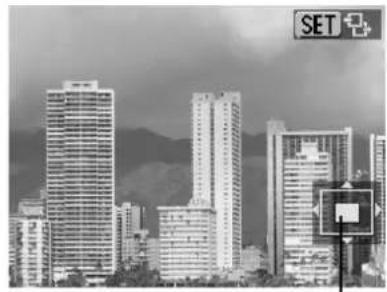
A megjelenített terület hozzávetőleges helye
2 Használja a ← , → , vagy gombot a képen való mozgáshoz.
- Ha nagyított nézetben megnyomja a FUNC./SET gombot, a fényképezőgép képváltó módba kapcsol, és a SET megjelenik. A ← vagy → gombbal léphet a következő vagy előző képre ugyanazon nagyítási szinten. A képváltó mód a FUNC./SET gomb újbóli megnyomásával szűnik meg.
- A nagyítás mértékét a zoom karral módosíthatja.
A nagyított nézet megszüntetése
Nyomja a zoom kart a ☐ irányba. (A MENU gombbal is azonnal megszüntetheti.)
A filmkockák és az indexnézeti képek nem nagyíthatók.

Képek megtekintése kilences csoportokban (indexnézet)
1 Nyomja a zoom kart a ☐ irányba.
● Egyszerre legfeljebb kilenc kép jeleníthető meg. - A ←, →, vagy gombbal választhat másik képet.
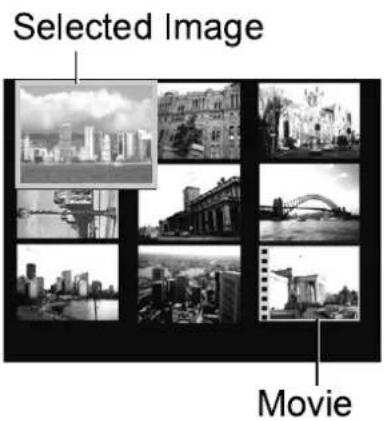
Váltás kilenc képből álló csoportok között
Az ugrósáv akkor jelenik meg, ha index megjelenítés közben a zoom kart a ☐ irányba nyomja, és válthat a kilenc képből álló csoportok között.
- A ← vagy → gombbal léphet az előző vagy a következő kilenc képből álló csoportra. ●Tartsa lenyomva a FUNC./SET gombot, és nyomja meg a ← vagy → gombot az első vagy az utolsó csoportra ugráshoz.
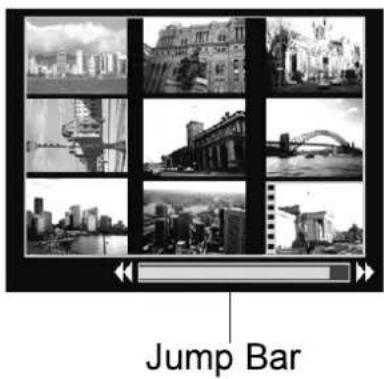
Visszatérés az egyes képes megjelenítéshez
Nyomja a zoom kart a Q irányba.

Ugrás a képek között
Ha sok kép van a memóriakártyán, hasznos lehet az alábbi öt keresőbillentyű a képek közötti ugráshoz, hogy megtalálja a keresett képet.
| 10 | Jump 10 Images | Jumps over 10 images at a time. |
| 100 | Jump 100 Images | Jumps over 100 images at a time. |
| Jump Shot Date | Jumps to the first image of each shooting date. | |
| Jump to Movie | Jumps to a movie. | |
| Jump to Folder | Displays the first image in each folder. |
1 Egyes képes megjelenítés módban nyomja meg a 🔊 gombot.
●A fényképezőgép ugró keresés módba vált. ●A képernyő minta kissé eltér a keresőbillentyűtől függően.

Az éppen megjelenített kép helye.
A keresőbillentyűnek megfelelő képek száma.
2 A vagy gombbal válasszon keresőbillentyűt, és nyomja meg a ← vagy → gombot.
Visszatérés az egyes képes megjelenítéshez
Nyomja meg a MENU gombot.
Filmek megtekintése

A filmek nem játszhatók le index lejátszási módban.
1 Jelenítsen meg egy filmet, és nyomja meg a FUNC. SET gombot.
●A SET ikonnal ellátott képek filmek.

2 Válassza a ▶ (Lejátszás) lehetőséget, és nyomja meg a Ⓗ FUNC. SET gombot.
● A film szünetel, ha a lejátszás közben megnyomja a FUNC./SET gombot. A gomb újbóli megnyomásakor folytatódik. - A lejátszás végén a film az utolsó megjelenített képkockánál áll meg. A film vezérlőpultjának megjelenítéséhez nyomja meg a FUNC./SET gombot.
A film vezérlőpultjának használata
| Ends playback and returns to single image playback | |
| Print (An icon will display when a printer is connected. See the Direct Print User Guide for details.) | |
| Transfer (An icon will display when a computer is connected. See Software & Wireless Guide for details.) | |
| Play | |
| Slow Motion Playback (You can use the ← button to slow down or the ➤ button to speed up playback.) | |
| Displays the first frame | |
| Previous Frame (Rewinds if the FUNC./SET button is held down) | |
| Next Frame (Fast Forwards if the FUNC./SET button is held down) | |
| Displays the last frame | |
| Edit (Switches to movie editing mode) (p. 78) |
- A hangerő beállításához a TV vezérlőit használja, ha filmet játszik le TV-készüléken (93. o.). ● Lassított lejátszásban a hang nem játszható le.
Filmek szerkesztése
A felvett filmekből törölhet részeket.

A szerkesztés előtt 1 másodpercnél hosszabb filmek szerkeszthetők, de a védett vagy 1 másodpercnél rövidebb filmek nem szerkeszthetők.
1
Válassza a ⚙ (Szerkesztés) lehetőséget a film vezérlőpultján, és nyomja meg a Ⓗ FUNC. SET gombot.
●Megjelenik a film szerkesztőpultja és a film szerkesztősávja.
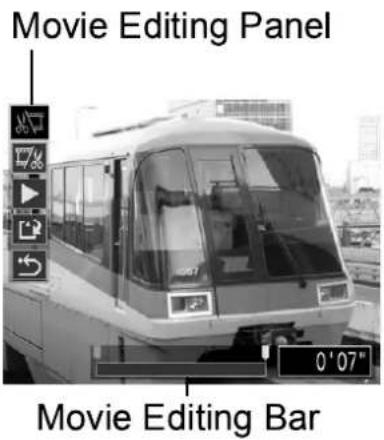
2
A ↑ vagy ↓ gombbal válassza ki a 📄 (Vágás eleje) vagy 📋 (Vágás vége) lehetőséget, és a ← vagy → gombbal adja meg a vágási pontot (↓).
●A ideiglenesen szerkesztett film ellenőrzéséhez válassza a ▶ (Lejátszás) lehetőséget, és nyomja meg a FUNC./SET gombot. - A (Kilépés) kiválasztása törli a szerkesztést, és visszaállítja a film vezérlőpultját.
3
Válassza a 📋 (Mentés) lehetőséget, és nyomja meg a Ⓗ FUNC. SET gombot.
4
Válassza az [Új fájl] vagy [Felülírás] lehetőséget, és
nyomja meg a FUNC. SET gombot.
●Az [Új fájl] új fájlnév alatt menti a szerkesztett filmet. Az eredeti adatok változatlanok maradnak. Megjegyzés: ha a film mentése közben megnyomja a FUNC./SET gombot, a mentés megszakad. ●A [Felülírás] az eredeti néven menti a szerkesztett filmet. Az eredeti adatok elvesznek. - Ha nincs elég hely a memóriakártyán, csak a [Felülírás] választható.
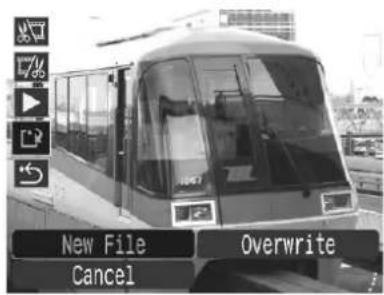

Egy szerkesztett film mentése körülbelül 3 percet vehet igénybe. Ha az akkumulátor időközben lemerül, a szerkesztett filmklipek nem menthetők. Filmek szerkesztésekor ajánlott teljesen feltöltött akkumulátort vagy a külön megvásárolható AC hálózati adapter készletet (ACK-DC10, 123. oldal) használni.
Képek elforgatása a kijelzőn
A képek az óramutató járásával megegyezően 90° vagy 270° fokkal elforgathatók a kijelzőn.

Eredeti

90°
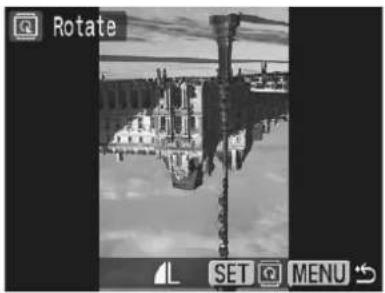
270°
1
(Lejátszás) Menü
Lásd: Menük és beállítások (32. o.).
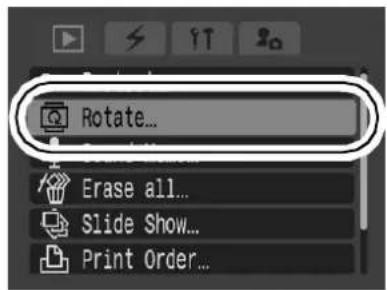
2
A ← vagy → gombbal válassza ki a forgatni kívánt képet, majd nyomja meg a . gombot a forgatáshoz.
- A FUNC./SET gomb minden egyes megnyomásával lépjen végig a 90° / 270° /eredeti tájolásokon. ●Ez az index lejátszási módban is beállítható.
!
● A filmeket nem lehet forgatni. - Amikor a képeket számítógépre tölti le, a kamera által elforgatott képek tájolása a letöltéshez használt szoftvertől függ.
Lejátszás átmeneti effektekkel
Kiválaszthatja a képek közötti váltáskor megjelenő átmeneti effektet.
| Off | Usual display |
| The displayed image darkens and the next image gradually brightens until it is displayed. | |
| Press the ← button to have the previous image display from the left and the ➔ button to have the next image display from the right. |
1

Lásd: Menük és beállítások (32. o.).
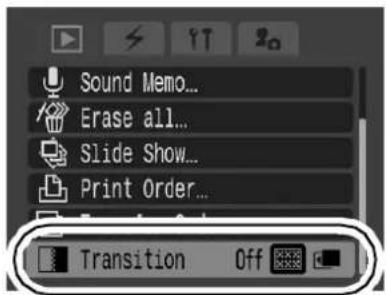

Az átmeneti effekt nem jelenik meg, ha a kamera éppen a memóriakártyáról olvas be egy képet, és közben vált képet.
Hangjegyzetek csatolása képekhez
Lejátszási módban (beleértve az egyes képek lejátszását és az index lejátszást is) hangjegyzeteket (legfeljebb 60 másodperc) csatolhat egy képhez. A hangadatokat WAVE formátumban menti a rendszer.
1

Lásd: Menük és beállítások (32. o.).

2
A ← vagy → gombbal válasszon ki egy képet, amelyhez hangfeljegyzést kíván csatolni, majd nyomja meg a FUNC. SET gombot.
●Megjelenik a hangfeljegyzés panel.
3
Válassza a □ (Rögzítés) lehetőséget, és nyomja meg a FUNC SET gombot.
●Megjelenik az eltelt idő és a hátralévő idő. - A FUNC./SET gomb megnyomása szünetelteti a felvételt. Újbóli megnyomásával folytatódik a felvétel. ●Legfeljebb 60 másodperces felvételek adhatók hozzá bármelyik képhez.

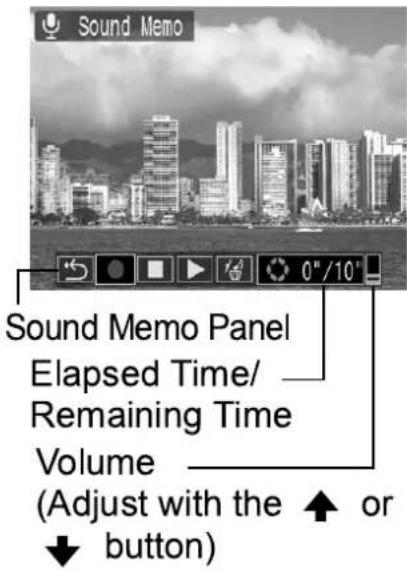
Hangfeljegyzés panel
| Exit | |
| Record | |
| Pause | |
| Play | |
| EraseSelect [Erase] in the confirmation screen and press the FUNC./SET button. |

● Filmekhez nem csatolhat hangfeljegyzést. ● Védett képek hangfeljegyzései nem törölhetők.
Automatikus lejátszás (diavetítés)
A memóriakártyán lévő képek automatikus lejátszása.
A diavetítés képbeállításai a Digital Print Order Format (DPOF) szabványon alapulnak (88. o.).
 | All Images | Plays all images on a memory card in order. | ||
 | Date | Plays images bearing a specified date in order. | ||
 | Folder | Plays images in a specified folder in order. | ||
 | Movie | Plays movie files only, in order. | ||
 | Stills | Plays still images only, in order. | ||
| ★1—★3 | Custom 1–3 | Plays the images selected for each slide show, Custom 1, Custom 2 or Custom 3, in order (p. 85). | ||
1

(Lejátszás) menü ▶ .
Lásd: Menük és beállítások (32. o.).

2
Válassza a 📄, 📅, 📋, 📁 vagy ⭐—⭐3 lehetőséget.
●A □ vagy □ esetén válassza ki a lejátszandó kép dátumát vagy mappáját (85. oldal). - A ⭐1, ⭐2 vagy ⭐3 esetén válassza ki a lejátszandó képeket (85. oldal). - Ha átmeneti effektet szeretne hozzáadni a képek lejátszásához, a ◀ gombbal válassza az [Effekt] menüpontot.
és válassza ki az effekt típusát a ⇔ vagy → gombbal (lásd a következő oldalt).

← vagy → gomb (lásd
3
Válassza az [Indítás] lehetőséget, és nyomja meg a
![CANON IXUS Wireless - Válassza az [Indítás] lehetőséget, és nyomja meg a - 1](/content/2026/05/1106565/images/dd1d85f74d226596f1605695c0dd54670d1c7bad4e630a19f252630224db82a3.jpg)
●A diavetítés során a következő funkciók állnak rendelkezésre.
- A diavetítés szüneteltetése/folytatása: nyomja meg a FUNC./SET gombot
- A diavetítés gyors előre- vagy visszatekerése: nyomja meg a ⇔ vagy ⇒ gombot (tartsa lenyomva a gombot a képek közötti gyorsabb váltáshoz) - A diavetítés leállítása: nyomja meg a MENU gombot.

Átmeneti effektek
Kiválaszthatja az átmeneti effektet, amelyet az egyik kép másikra váltásakor használ.
| Off | Usual display |
| The new image gradually brightens as it moves upward from the bottom. | |
| The new image first appears in a cross shape and gradually expands to display the full image. | |
| Portions of the new image move horizontally, then the image expands to display the full image. |

Egyetlen kép megjelenítése módban (állókép megjelenítésekor) a FUNC./SET gomb lenyomva tartásával és a 🔊 gomb megnyomásával indíthat diavetítést az aktuálisan megjelenített képtől. Vegye figyelembe, hogy ha ezt az utolsóként rögzített kép megjelenítésekor teszi, a diavetítés az első képtől indul, ugyanazzal a dátummal.
Kép dátumának vagy mappájának kiválasztása lejátszáshoz ( / )
1 Válassza a □ vagy □ lehetőséget, és nyomja meg a FUNC./SET gombot. 2 Használja a ← vagy → gombot a lejátszandó dátum vagy mappa kiválasztásához, majd nyomja meg a Ⓜ gombot.

Dátum
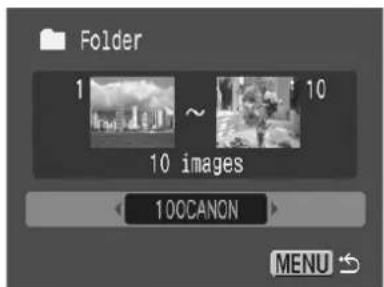
Mappa
Képek kiválasztása lejátszáshoz (★1–★3)
Csak azokat a képeket válassza ki, amelyeket le szeretne játszani, és mentse el őket diavetítésként (Egyéni 1, 2 vagy 3). Legfeljebb 998 kép választható ki. A kiválasztás sorrendjében fognak lejátszódni.
1 Válassza az 1, 2 vagy 3 lehetőséget, és nyomja meg a FUNC./SET gombot.
- Kezdetben csak a ★1 ikon jelenik meg. Amikor beállítja a ★1-et, az ikon ★1✓-re változik, és megjelenik a ★2. A ★2 és a ★3 hasonlóan változik, amikor beállítja őket.
2 Használja a ← vagy → gombot a képek közötti váltáshoz, és a gombot a kijelöléshez vagy a kijelölés megszüntetéséhez.
●A képeket index megjelenítési módban is kiválaszthatja. - A MENU gomb megnyomása törli a beállítást.


Összes kép kiválasztása
- Miután kiválasztotta a ⭐1–♦3 értéket az 1. lépésben (85. oldal), a ↑ gombbal válassza az [Összes megjelölése] lehetőséget, és nyomja meg a FUNC./SET gombot.
- A ↑ gombbal válassza az [Összes megjelölése] lehetőséget, és nyomja meg a FUNC./SET gombot.
- A → gombbal válassza az [OK] lehetőséget, és nyomja meg a FUNC./SET gombot. Az összes kijelölés megszüntetéséhez válassza a [Visszaállítás] lehetőséget.
A lejátszási idő és az ismétlés beállításainak módosítása
●Lejátszási idő
Beállítja, hogy mennyi ideig jelenjen meg minden kép. Választhat 3–10 másodperc, 15 másodperc és 30 másodperc között. A megjelenítési idő kissé eltérhet a képtől függően.
- Ismétlés
Beállítja, hogy a diavetítés leálljon-e, amikor az összes dia megjelent, vagy addig folytatódjon-e, amíg le nem állítják.
1 Válassza a [Beállítás] menüpontot, és nyomja meg a FUNC. SET gombot.
2 Válassza a [Lejátszási idő] vagy az [Ismétlés] lehetőséget, majd a kívánt beállítást.
- A MENU gomb megnyomásával törli a beállítást.

Képek védelme
A fontos képeket és videókat megvédheti a véletlen törléstől.
1
(Lejátszás) Menü
Lásd: Menük és beállítások (32. o.).
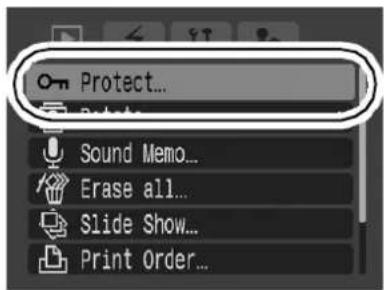
2
Válasszon ki egy védendő képet, és nyomja meg a FUNC. SET gombot.
- A FUNC./SET gomb újbóli megnyomásával törli a beállítást. ● A képeket az index lejátszási módban is védheti.
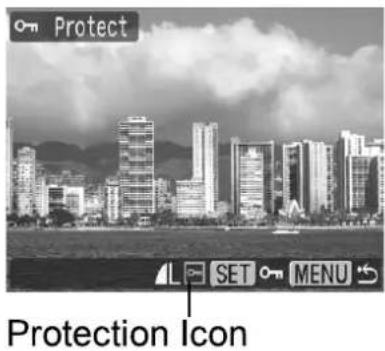
Összes kép törlése

- Ne feledje, hogy a törölt képek nem állíthatók vissza. Legyen körültekintő a kép törlése előtt. ● A védett képek ezzel a funkcióval nem törölhetők.
1
(Lejátszás) menü
Lásd: Menük és beállítások (32. o.).

2
Válassza az [OK] lehetőséget, és nyomja meg a FUNC. SET gombot.
● A törlés helyett a kilépéshez válassza a [Mégse] lehetőséget.
![CANON IXUS Wireless - Válassza az [OK] lehetőséget, és nyomja meg a FUNC. SET gombot. - 1](/content/2026/05/1106565/images/5ec4502319cd6f1719c30fc8f7555c92f422666c71d5c0ab22434642f2d59aad.jpg)
Kérjük, formázza meg a memóriakártyát, ha nemcsak a képadatokat, hanem a kártyán lévő összes adatot is törölni szeretné (28. o.).
A DPOF nyomtatási beállítások megadása
A fényképezőgéppel előre kiválaszthat képeket egy memóriakártyán a nyomtatáshoz, és megadhatja a nyomtatási példányszámot. Ez rendkívül kényelmes, ha közvetlen nyomtatást támogató nyomtatóra nyomtat, vagy ha olyan fotóelőhívó szolgáltatásnak küldi a képeket, amely támogatja a DPOF-ot.
A 🔒 ikon megjelenhet olyan memóriakártyán, amelyen egy másik DPOF-kompatibilis fényképezőgép állított be nyomtatási beállításokat. Ezeket a beállításokat a fényképezőgépe felülírja.
1
(Lejátszás) menü
Lásd: Menük és beállítások (32. o.).
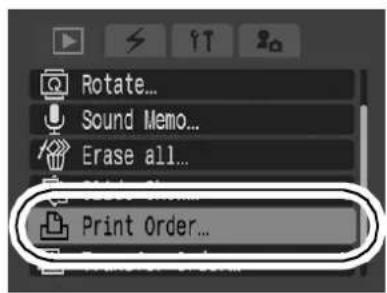
Egyes képek
2
Válassza az [Order] lehetőséget, és nyomja meg a gombot.
![CANON IXUS Wireless - Válassza az [Order] lehetőséget, és nyomja meg a gombot. - 1](/content/2026/05/1106565/images/3083abc7debf065b9f84a4460ed75e3f813a8469777a21cef2f922b6acaf5cf7.jpg)
- A [Reset] kiválasztása törli az összes nyomtatási beállítást a képeknél.
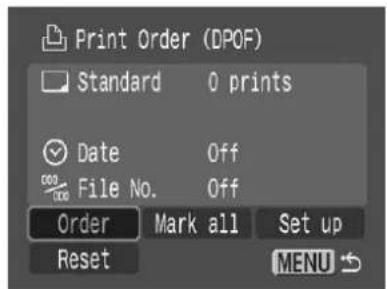
3 Válassza ki a nyomtatandó képeket.
- A kiválasztási módok eltérnek a nyomtatási típus beállításaitól (90. oldal).
- (Standard)/(Both)
Válasszon ki egy képet, nyomja meg a FUNC./SET gombot, és a
vagy gombbal válassza ki a nyomtatási példányszámot (legfeljebb 99).
- 图 (Index)
Válasszon ki egy képet, majd nyomja meg a FUNC./SET gombot a kijelöléshez vagy a kijelölés megszüntetéséhez.
- Képeket az index lejátszási módban is kiválaszthat.
Nyomtatási példányszám
Index nyomtatási kiválasztás

Az összes kép a memóriakártyán
2 Válassza a [Mark all] lehetőséget, és nyomja meg a FUNC. SET gombot.
- A [Reset] kiválasztása törli az összes nyomtatási beállítást a képeknél. ●Minden képből egy példány lesz beállítva nyomtatásra.
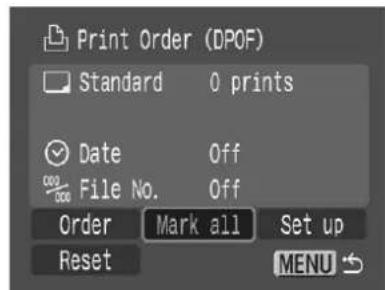
3 Válassza az [OK] lehetőséget, és nyomja meg a FUNC. SET gombot.
- Egyes nyomtatók vagy fotóelőhívó szolgáltatások kimenete nem feltétlenül tükrözi a megadott nyomtatási beállításokat. ● A nyomtatási beállítások filmeknél nem állíthatók be.
![CANON IXUS Wireless - Válassza az [OK] lehetőséget, és nyomja meg a FUNC. SET gombot. - 1](/content/2026/05/1106565/images/6154bf7a914c08218e5be6cd1fce463ba19e0e195d3e54e8390fab70b3b22ade.jpg)
● A képek a fájlszám sorrendjében kerülnek kinyomtatásra. ● Legfeljebb 998 kép választható ki. - Ha a [Nyomtatási típus] [Mindkettő] értékre van állítva, a példányszám beállítható. Ha [Index] értékre van állítva, a példányszám nem állítható be (csak egy példány kerül kinyomtatásra). - Ne állítson be dátumot a DPOF nyomtatási beállításokban, ha olyan képeket nyomtat, amelyekbe a [Dátum bélyegzés] funkcióval már be van ágyazva a dátum. Ez azt okozhatja, hogy a dátum kétszer kerül kinyomtatásra.
A nyomtatási stílus beállítása
A következő nyomtatási stílusok választhatók ki.
| Print Type | Standard | Prints one image per page. |
| Index | Prints the selected images together at a reduced size in an index format. | |
| Both | Prints the images in both the standard and index formats. | |
| Date | Adds the date to the print. | |
| File No. | Adds the file number to the print. | |
1
(Lejátszás) menü
Lásd: Menük és beállítások (32. o.).
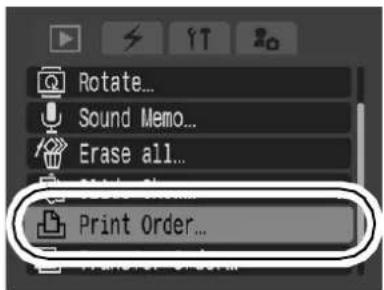
2
Válassza a [Beállítás] lehetőséget, és nyomja meg a FUNC. SET gombot.
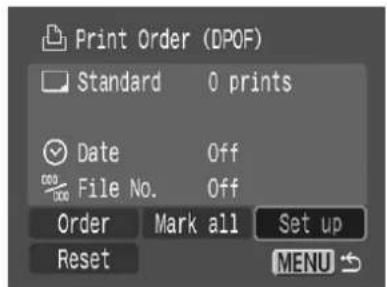
3
Válassza a [Nyomtatási típus], [Dátum] vagy [Fájlszám] lehetőséget, majd adja meg a beállításokat.
![CANON IXUS Wireless - Válassza a [Nyomtatási típus], [Dátum] vagy [Fájlszám] lehetőséget, majd adja meg a beállításokat. - 1](/content/2026/05/1106565/images/d8cecce3abaef9a7e33beefdf3eb57a56092d0075f3f1d0fdc6394986c52b44b.jpg)
● A Dátum és Fájlszám beállítások a Nyomtatási típusnak megfelelően változnak az alábbiak szerint.
- Index [Dátum] és [Fájlszám] nem állítható be egyszerre [Be] értékre.
- Standard vagy Mindkettő [Dátum] és [Fájlszám] egyszerre is beállítható [Be] értékre. A nyomtatható információk azonban nyomtatónként eltérőek lehetnek.
A beágyazott dátumok a 📄 (Postcard Date Imprint mód) (44. o.) akkor is kiíródnak, ha a [Dátum] beállítás [Ki] értékre van állítva.
A dátumok a [Dátum/Idő] menüben (35. o.) megadott formátumban íródnak ki.
A DPOF átviteli beállítások megadása
A fényképezőgéppel beállításokat adhat meg a képekhez, mielőtt számítógépre másolná őket. A képek számítógépre történő átviteléhez lásd a Szoftver és vezeték nélküli útmutatót.
A fényképezőgépen használt beállítások megfelelnek a Digital Print Order Format (DPOF) szabványoknak.
A 🔒 ikon megjelenhet egy olyan memóriakártyán, amelyen egy másik DPOF-kompatibilis fényképezőgép állított be átviteli beállításokat. Ezeket a beállításokat a fényképezőgép beállításai felülírják.
1

(Lejátszás) menü ▶
Lásd: Menük és beállítások (32. o.).
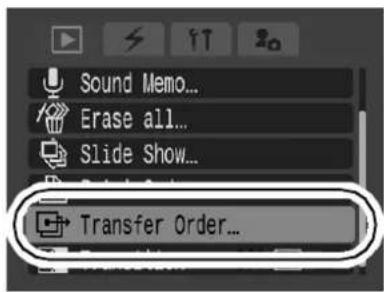
Egyes képek
2
Válassza a [Rendelés] lehetőséget, és nyomja meg
![CANON IXUS Wireless - Válassza a [Rendelés] lehetőséget, és nyomja meg - 1](/content/2026/05/1106565/images/68f02aea5f8742659b88bbbc504d4604957580f2a7a9e386fc76c122f8616779.jpg)
- A [Visszaállítás] kiválasztása törli az összes átviteli rendelési beállítást.
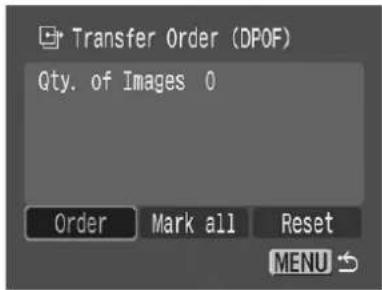
3
Válasszon ki egy átvitelre szánt képet, és nyomja meg

- A FUNC./SET gomb újbóli megnyomása megszünteti a beállítás kijelölését. ● Képeket az index lejátszási módban is kiválaszthat.
Átviteli kijelölés
A memóriakártyán lévő összes kép
2
Válassza az [Összes megjelölése] lehetőséget, és nyomja meg
![CANON IXUS Wireless - Válassza az [Összes megjelölése] lehetőséget, és nyomja meg - 1](/content/2026/05/1106565/images/735b68bc3f63691d5f8244a52b8aba7fb31d648f4dfa86405ef0f1de1ea3714c.jpg)
- A [Visszaállítás] kiválasztása törli az összes átviteli sorrend beállítást.

3
Válassza az [OK] lehetőséget, és nyomja meg a FUNC./SET gombot.
![CANON IXUS Wireless - Válassza az [OK] lehetőséget, és nyomja meg a FUNC./SET gombot. - 1](/content/2026/05/1106565/images/4032fd9471863ca7c49747068eadec37cca19df57298a0c1dbc23448a065666c.jpg)
![CANON IXUS Wireless - Válassza az [OK] lehetőséget, és nyomja meg a FUNC./SET gombot. - 2](/content/2026/05/1106565/images/fb017c37a211d16088c8949c1f0d5f5ee87fcbf8b2db92933cbb021c2a2aa9d3.jpg)
● A képek fájlszám szerinti sorrendben kerülnek átvitelre. ● Legfeljebb 998 kép választható ki.
Képek megtekintése TV-készüléken
Videokompatibilis televíziót használhat monitorként fényképezéshez vagy lejátszáshoz, ha a mellékelt AV-kábellel csatlakoztatja a fényképezőgéphez.
1 Kapcsolja ki a fényképezőgépet és a TV-t. 2 Csatlakoztassa az AV-kábelt a fényképezőgép A/V OUT csatlakozójához. - Csúsztassa ki a csatlakozó fedelét, és dugja be szilárdan az AV-kábelt. 3 Dugja az AV-kábel másik végét a TV VIDEO IN és AUDIO IN aljzataiba. 4 Kapcsolja be a TV-t, és állítsa videó üzemmódra. 5 Kapcsolja be a fényképezőgépet.
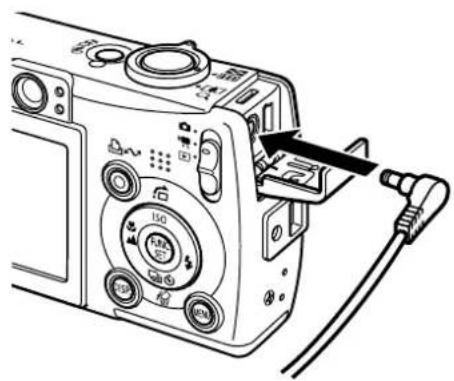
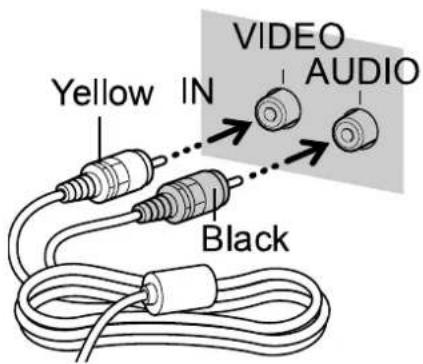

A video kimeneti jel átkapcsolható (NTSC vagy PAL) a különböző regionális szabványokhoz való igazodáshoz (36. oldal). Az alapértelmezett beállítás régiónként változik.
- NTSC: Japán, USA, Kanada, Tajvan és mások
- PAL: Európa, Ázsia (Tajvan kivételével), Óceánia és mások Ha a video rendszer nincs megfelelően beállítva, a fényképezőgép kimenete nem jelenhet meg megfelelően.
A kamera testreszabása (Saját kamera beállításai)
A Saját kamera funkcióval testreszabhatja az indítóképet, valamint az indítási, működési, önkioldó és exponálási hangokat. Ezeket a beállításokat módosíthatja és regisztrálhatja, így a kamerát saját ízlésére szabhatja.
Saját kamera beállításainak módosítása
1 (Saját kamera) Menü ▶ Menüpont.
Lásd: Menük és beállítások (32. o.).
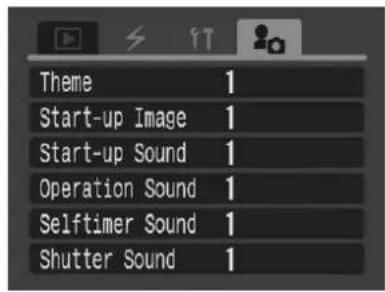
2 Válassza ki a beállítani kívánt tartalmat.
- Válassza a [Téma] lehetőséget, ha mindent azonos beállításokkal szeretne.
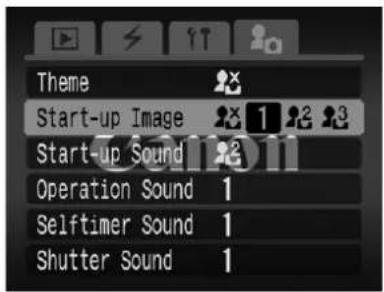
Saját kamera beállításainak regisztrálása
A memóriakártyára rögzített képek és az újonnan rögzített hangok hozzáadhatók a Saját kamera beállításaihoz a 📁 és 📄 menüpontokban. A mellékelt szoftver segítségével a számítógépén lévő képeket és hangokat is feltöltheti a kamerára.

A Saját kamera beállításainak alapértékekre való visszaállításához számítógép szükséges. A mellékelt szoftver (ZoomBrowser EX/ImageBrowser) segítségével állítsa vissza az alapértelmezett beállításokat a kamerán.
1 Csúsztassa az üzemmód kapcsolót ▶ (lejátszás) ▶ (Saját kamera) Menü ▶ Menüpont a regisztráláshoz.
Lásd: Menük és beállítások (32. o.).
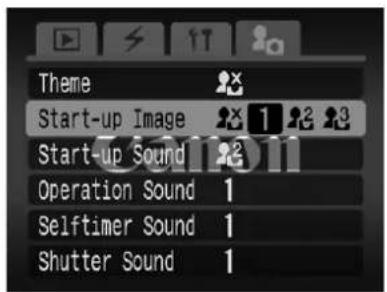
2 Válassza a 2 vagy 3 lehetőséget, és nyomja meg a DISP gombot.

3
Válasszon ki egy képet, vagy rögzítsen egy hangot.
Indító kép
Válassza ki a regisztrálni kívánt képet, és nyomja meg a FUNC./SET gombot.
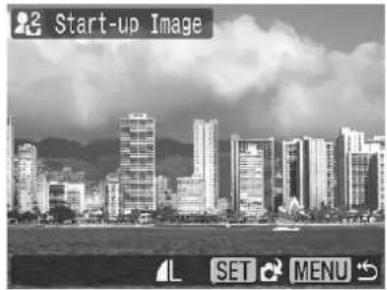
●Indító, műveleti, önkioldó és exponáló hangok
Válassza a ☐ (Rögzítés) lehetőséget, és nyomja meg a FUNC./SET gombot. A rögzítés után válassza a Ⓞ (Regisztrálás) lehetőséget, és nyomja meg a FUNC./SET gombot.
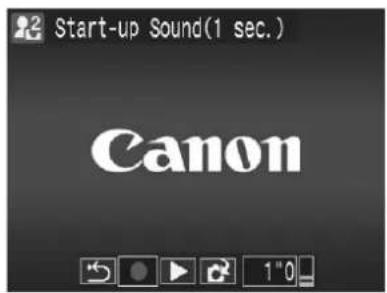
- A rögzítés automatikusan leáll, amikor a rögzítési idő letelik.
- A lejátszáshoz válassza a ▶ (Lejátszás) lehetőséget.
- A kilépéshez regisztrálás nélkül nyomja meg a 📋 (Kilépés) gombot.
4
Válassza az [OK] lehetőséget, és nyomja meg
![CANON IXUS Wireless - Válassza az [OK] lehetőséget, és nyomja meg - 1](/content/2026/05/1106565/images/265addd70cccd10a97e504bb7664494e99ceaed69af9a01aa5afed948fabd4fd.jpg)
● A regisztrálás törléséhez válassza a [Mégse] lehetőséget.

![CANON IXUS Wireless - Válassza az [OK] lehetőséget, és nyomja meg - 3](/content/2026/05/1106565/images/cd3ef80729e22b1f2268bb2170d8d24b077413f7774377b1f54d4beb3b9adc8a.jpg)
● A következők nem regisztrálhatók Saját kamera beállításként: - Filmek - A hangjegyzet funkcióval rögzített hangok (81. o.) ● A korábbi beállítás törlődik, amikor új Saját kamera beállítást ad hozzá.
![CANON IXUS Wireless - Válassza az [OK] lehetőséget, és nyomja meg - 4](/content/2026/05/1106565/images/2de16d2d14d7ccdf13b559e9cf8f1e9f379fcadd6d4feccf9fd8fc48b45a55dd.jpg)
A Saját kamera adatok létrehozásával és hozzáadásával kapcsolatos további információkért lásd a mellékelt Szoftver és vezeték nélküli útmutatót.
Vezeték nélküli kapcsolat használata (Csatlakozás nyomtatóhoz)
Ha menteni vagy nyomtatni szeretné a képeit, ez a kamera lehetővé teszi, hogy vezeték nélkül, kábelek nélkül továbbítsa azokat személyi számítógépre vagy nyomtatóra.
Csatlakozás nyomtatóhoz
Ha a mellékelt vezeték nélküli nyomtatási adaptert egy Canon PictBridge-kompatibilis nyomtatóhoz csatlakoztatja, a fényképezőgéppel készített képeket átviheti a nyomtatóra, és kinyomtathatja azokat.
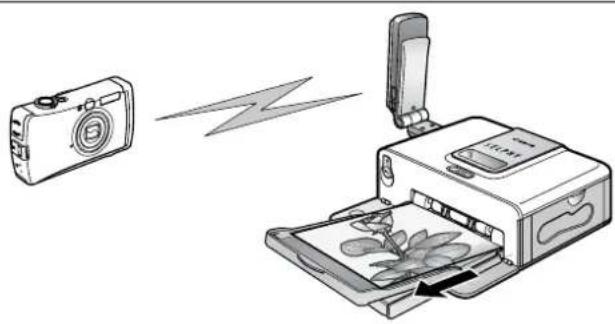

Lásd a következő oldalon kezdődő utasításokat.
Csatlakoztatás számítógéphez
Ha a Canon Digital Camera Solution Disk lemezen található szoftvert telepíti egy vezeték nélküli kapcsolatra képes számítógépre*, vezeték nélküli kapcsolatot létesíthet a fényképezőgép és a számítógép között.
Ha vezeték nélküli kapcsolatot hoz létre a számítógéppel, akkor a már elkészített képeket átviheti a számítógépre, de fényképezhet is, és a képeket azonnal átviheti a számítógépre (Automatikus átvitel), automatikusan kinyomtathatja az átvitt képeket, és akár a számítógép működtetésével is fényképezhet.
* A fényképezőgép és a számítógép közötti vezeték nélküli kapcsolat csak Windows XP SP2 operációs rendszerrel lehetséges.


Kérjük, olvassa el a Szoftver és vezeték nélküli útmutatót.

Ha a nyomtató nem Canon PictBridge-kompatibilis nyomtató, akkor is egyszerűen kinyomtathatja a képeket a kábel segítségével, amely összeköti a fényképezőgépet és a nyomtatót. A részletekért lásd a Közvetlen nyomtatás felhasználói útmutatót.
Csatlakoztatás nyomtatóhoz

A vezeték nélküli nyomtatási adapter csatlakoztatása a nyomtatóhoz
Ha a mellékelt WA-1 vezeték nélküli nyomtatási adaptert egy Canon PictBridge-kompatibilis nyomtatóhoz csatlakoztatja, a fényképezőgép memóriakártyáján tárolt képeket vezeték nélküli kapcsolaton keresztül nyomtathatja ki.

Ne csatlakoztassa a vezeték nélküli nyomtatási adaptert számítógéphez, mert az a számítógép meghibásodását okozhatja. A vezeték nélküli nyomtatási adapter csak Canon PictBridge-kompatibilis nyomtatókhoz készült.
1
Állítsa be a vezeték nélküli nyomtatási adapter szögét és irányát.
●A vezeték nélküli nyomtatási adapter az ábrán látható módon elforgatható vagy elfordítható. - Állítsa be a vezeték nélküli nyomtatási adapter USB-csatlakozójának tájolását úgy, hogy az beilleszthető legyen a nyomtató USB-portjába. ●Ne alkalmazzon szükségtelen erőt a vezeték nélküli nyomtatási adapter szögének és irányának beállításakor.
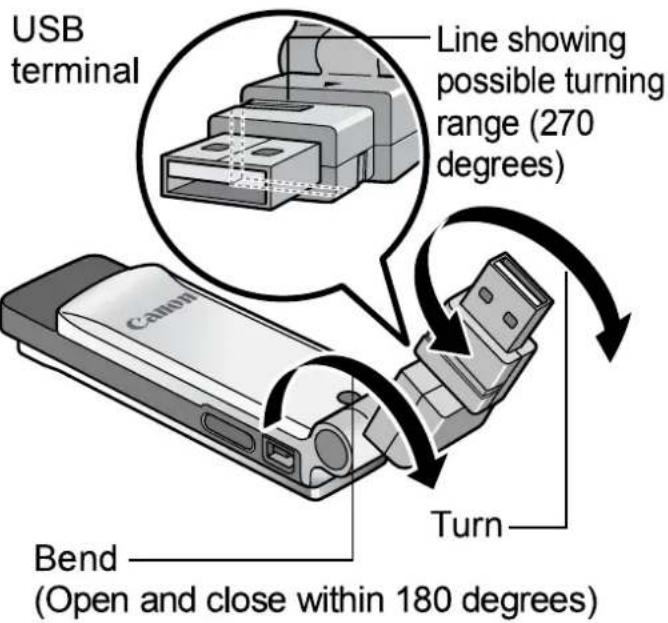
2 Csatlakoztassa a mellékelt kompakt hálózati adaptert a vezeték nélküli nyomtatóadapterhez.
- Dugja be a kompakt hálózati adapter kábelét szilárdan a vezeték nélküli nyomtatóadapter DC IN csatlakozójába.
- Csatlakoztassa a CA-DC20 kompakt hálózati adaptert, ha a CP710/CP510-től eltérő Canon PictBridge-kompatibilis nyomtatót használ. CP710/510 esetén nem kell használnia a kompakt hálózati adaptert.
- A kompakt hálózati adapter kábelének eltávolításakor mindig a kábel csatlakozójának oldalát fogja meg.

3 Dugja be a kompakt hálózati adaptert a hálózati aljzatba.
4 Csatlakoztassa a vezeték nélküli nyomtatóadaptert a nyomtató USB-portjához.
●A kapcsolat minőségének javítása érdekében javasoljuk, hogy a vezeték nélküli nyomtatóadaptert 90 fokkal elfordítva csatlakoztassa a nyomtatóhoz.
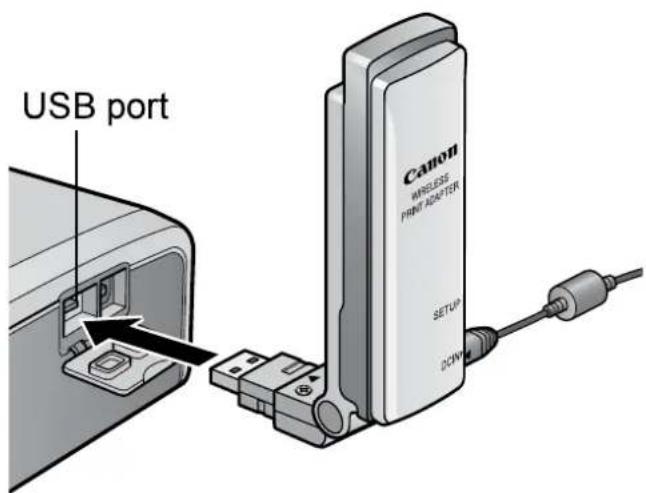
5 Kapcsolja be a nyomtatót.
Csatlakoztatás/Leválasztás
Vezeték nélküli kapcsolat beállítása nyomtatóhoz
1 Csúsztassa az üzemmódkapcsolót ▶ (lejátszás) ▶ (Vezeték nélküli) Menü ▶ [Csatlakoztatás/Leválasztás]
Lásd: Menük és beállítások (32. o.).
●Ha a lejátszási módban a menü megjelenítése nélkül megnyomja a 🔊 gombot, ugyanaz a képernyő jelenik meg.

2 Miután megerősítette, hogy a [Célkészülék] mezőben az [1.WA-1] van kiválasztva, a ← vagy → gombbal válassza a [Csatlakoztatás] lehetőséget, majd nyomja meg (vagy 📋).
- A monitor a „Csatlakoztatás” feliratot jeleníti meg, és hamarosan a kapcsolat létrejön. - Ha a célkészülék nem [1.WA-1], akkor a vagy gombbal válassza a [Célkészülék] lehetőséget, majd a vagy gombbal válassza az [1.WA-1] elemet.

- Ha több vezeték nélküli nyomtatási adapter áll rendelkezésre a csatlakozáshoz (regisztrált célként) (102. oldal), válassza ki a csatlakoztatni kívánt vezeték nélküli nyomtatási adaptert célként. - Amikor a vezeték nélküli kapcsolat elindul, a kamera vezeték nélküli jelzőfénye és a vezeték nélküli nyomtatási adapter jelzőfénye is kék színnel villogni kezd. Amikor a vezeték nélküli kapcsolat létrejött, mindkét jelzőfény folyamatosan világít (villogás nélkül). - A vezeték nélküli kapcsolatot a menük használata nélkül is elindíthatja a 📄 gomb folyamatos nyomásával. - Amikor a vezeték nélküli kapcsolat létrejött, a 🎨 ikon jelenik meg. Ez mutatja a kapcsolat rádióhullám-erősségét. - Ha a kapcsolat gyenge rádióhullámok vagy más ok miatt nem jön létre, a kapcsolat automatikusan megszakad 30 másodperc után.
A vezeték nélküli kapcsolat beállítása utáni nyomtatási utasításokért tekintse meg a Direct Print felhasználói útmutatót.
A vezeték nélküli kapcsolat megszüntetése
1 Csúsztassa az üzemmód kapcsolót ▶ (lejátszás) ▶ (Vezeték nélküli) menü ▶ [Csatlakozás/Leválasztás]
Lásd: Menük és beállítások (32. oldal).
2 A ← vagy → gombbal válassza a [Leválasztás] lehetőséget, majd nyomja meg a FUNC. SET gombot.
●A vezeték nélküli kapcsolat megszűnik.
![CANON IXUS Wireless - A ← vagy → gombbal válassza a [Leválasztás] lehetőséget, majd nyomja meg a FUNC. SET gombot. - 1](/content/2026/05/1106565/images/4adbbe817e97929f062a36caa33572f6432ae14754b1e3340e2deb534b6c2127.jpg)
- Ha a vezeték nélküli kapcsolat során ll jelenik meg, az azt jelenti, hogy a kapcsolat nagyon jó. Minél kevesebb antenna jelenik meg, annál rosszabb a vezeték nélküli kapcsolat. Amikor és a vezeték nélküli jelzőfény is villog, az rendkívül rossz kapcsolatot jelez. Ebben az esetben csökkentse a távolságot a kamera és a vezeték nélküli adapter között.
- Kérjük, vegye figyelembe az alábbi szempontokat, amikor vezeték nélküli kapcsolatot használ a kamera és a nyomtató között. Az utasítások be nem tartása a kapcsolat megszakadását okozhatja.
- Ne használjon vezeték nélküli kapcsolatot mikrohullámú sütő vagy más, elektromágneses hullámokat kibocsátó készülék közelében.
- Ne helyezze a kamerát és a nyomtatót egymástól távol.
- Ne helyezzen tárgyakat a kamera és a nyomtató közé.
- Ha több vezeték nélküli nyomtatási adapter érhető el, válassza a [Célkészülék] lehetőséget, és nyomja meg a DISP. gombot annak megerősítéséhez, hogy melyik vezeték nélküli nyomtatási adapterhez csatlakozhat. Az elérhető adapter lámpája a következő sorrendben villog: kék, kék, narancssárga.
- Ha a vezeték nélküli kapcsolatot használja nyomtatóhoz, és közben elcsúsztatja a módkapcsolót, a vezeték nélküli kapcsolat megszakad.
- Ha a nyomtatás közben megszakítja a vezeték nélküli kapcsolatot, a nyomtatás megszakad.
A vezeték nélküli nyomtatási adapter csatornájának módosítása
Ha a vezeték nélküli nyomtatási adapter csatornáját (hasznos frekvenciát) már egy másik eszköz használja, módosítsa a csatornát a rádióhullámok okozta interferencia elkerülése érdekében.
1 Válassza ki a [Célkészülék] menüben azt a célkészüléket, amelynek a csatornáját módosítani szeretné, és nyomja meg a FUNC. SET gombot.
Lásd: Menük és beállítások (32. oldal).
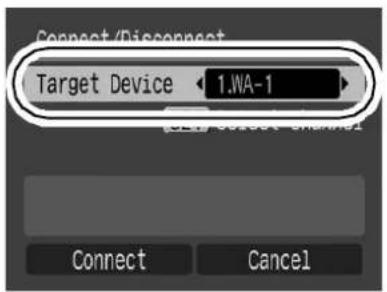
2 Használja a ↑ vagy ↓ gombokat a csatorna módosításához, majd nyomja meg a FUNC. SET gombot.
- A MENU gomb megnyomásával visszatérhet az 1. lépéshez a csatorna módosítása nélkül.

- A csatornát nem módosíthatja vezeték nélküli kapcsolat közben.
Célkészülék regisztrálása
A mellékelt adaptertől eltérő vezeték nélküli nyomtatási adapterrel történő vezeték nélküli kapcsolat beállításához regisztrálnia kell a másik adaptert a fényképezőgépen új célkészülékként.
1 Csatlakoztassa a kompakt hálózati adaptert az új vezeték nélküli nyomtatási adapterhez, amelyet regisztrálni szeretne a fényképezőgépen.
2
Csúsztassa az üzemmód kapcsolót a ▶ (lejátszás) ▶ (Vezeték nélküli) Menü ▶ [Reg. Target Device] állásba.
Lásd: Menük és beállítások (32. oldal).
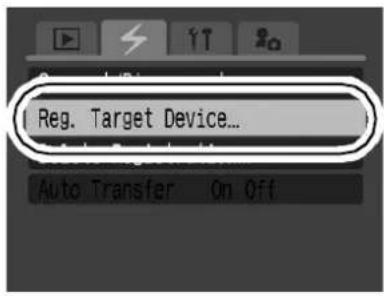
3
Amikor a „Press the SETUP button” üzenet megjelenik az LCD kijelzőn, nyomja meg a vezeték nélküli nyomtatási adapter SETUP gombját 10 másodpercen belül.
●A „Registration completed” üzenet jelenik meg az LCD kijelzőn. ●Az újonnan regisztrált vezeték nélküli nyomtatási adapter a [Target Device] listában [2.WA-1] néven jelenik meg. A további adapterek [3.WA-1], [4.WA-1] stb. néven jelennek meg.
4
Nyomja meg

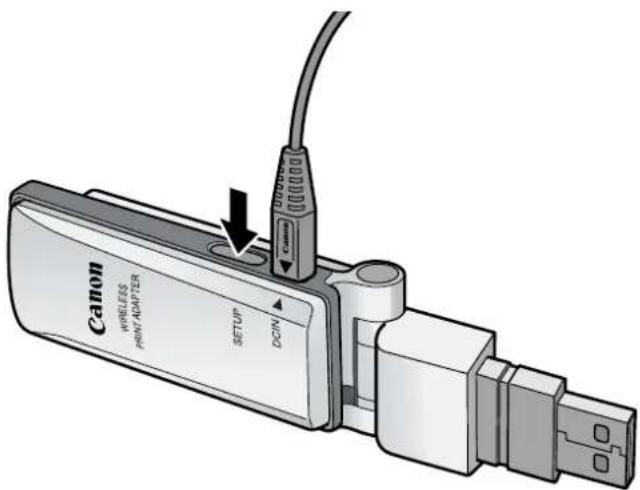

- A vezeték nélküli nyomtatási adapter regisztrálásakor győződjön meg arról, hogy az adapter 1 méteren belül van a fényképezőgéptől.
- Ha a regisztráció sikertelen, tekintse meg az Üzenetek listáját (115. oldal). ● Legfeljebb 8 adaptert regisztrálhat a fényképezőgéppel.
Célkészülékek törlése


Törölheti azokat a készülékeket, amelyeket már nem használ.
1 (Vezeték nélküli) Menü ▶ [Delete Registration]
Lásd: Menük és beállítások (32. oldal).

2 Válassza ki a törölni kívánt célkészüléket.
- A vagy gombbal válassza ki a [Target Device] elemet, a vagy gombbal pedig a törölni kívánt célkészüléket.
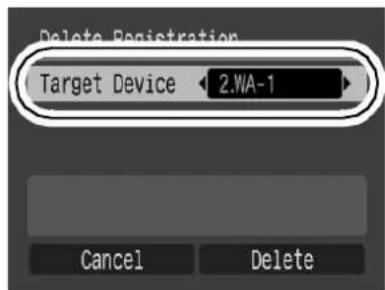
3 A , , ← vagy → gombbal válassza a [Törlés] lehetőséget, majd nyomja meg a FUNC. SET gombot.
- Ha törlés helyett inkább megszakítaná, válassza a [Mégse] lehetőséget.
![CANON IXUS Wireless - A , , ← vagy → gombbal válassza a [Törlés] lehetőséget, majd nyomja meg a FUNC. SET gombot. - 1](/content/2026/05/1106565/images/1276515dfdce20af6d4c8e5a9d0824b433b679c0fcf430d37d90badcab0ee27f.jpg)
- A fényképezőgéphez mellékelt vezeték nélküli nyomtatóadaptert nem lehet törölni.
Fényképezőgép
A fényképezőgép nem működik.
| Power is not turned on. | ●Press the power button (Basic Guide p. 5). |
| Memory card slot/battery cover is open. | ●Confirm that the memory card slot/ battery cover is securely closed (Basic Guide p. 2). |
| Insufficient battery voltage (“Change the battery pack” message displays). | ●Insert a fully charged battery into the camera (Basic Guide p. 2). ●Use the AC Adapter Kit ACK-DC10 (sold separately) (p. 123). |
| Poor contact between camera and battery terminals. | ●Polish the terminals with a soft cotton swab before charging or using the battery (p. 119). |
| Sounds come from the camera interior. | |
| The camera’s horizontal/ vertical orientation was changed. | ●The camera’s orientation mechanism is operating. There is no malfunction. |
Amikor a készülék be van kapcsolva
„Kártya zárolva!” üzenet jelenik meg.
| The SD memory card's write protect tab is set to "Write protect". | ●When recording to, erasing from or formatting the SD memory card, slide the tab upward (p. 121). |
| The Date/Time menu appears. | |
| The built-in rechargeable lithium battery charge is low. | ●Recharge the built-in battery immediately (Basic Guide p. 4). |
LCD monitor
A kijelző elsötétül.
Az LCD monitor képe erős napfényben vagy erős fényben elsötétül.
●Ez nem meghibásodás, és nincs hatással a felvett képekre.
A kijelző villog.
A kijelző villog, ha fénycsöves világításnál fényképez.
●Ez nem a fényképezőgép meghibásodása (a villogás a filmfelvételeken látszik, de az állóképeken nem).
Fénycsík (piros, lila) jelenik meg az LCD monitoron.
A téma túl világos.
●Ez normális jelenség a CCD-t tartalmazó készülékeknél, és nem jelent meghibásodást. Ez a fénycsík nem kerül rögzítésre állóképek készítésekor, de rögzítésre kerül filmfelvételkor.

megjelenik.
Valószínűleg lassú záridő lett kiválasztva az elégtelen megvilágítás miatt.
- Növelje az ISO érzékenységet (69. o.), vagy állítsa a vakut bármely más beállításra, mint a 📋 (vaku kikapcsolva), vagy rögzítse a fényképezőgépet valamihez, például állványhoz (Alap útmutató 9. o.).

megjelenik.
Ez akkor jelenik meg, ha olyan memóriakártyát használ, amelyen más DPOF-kompatibilis fényképezőgépek által beállított nyomtatási beállítások, átviteli beállítások vagy diavetítéses képkijelölések vannak.
●Ezeket a beállításokat felülírják a fényképezőgép által beállítottak (88. o.).
Zaj jelenik meg./A téma mozgása szabálytalan.
A fényképezőgép automatikusan világosította az LCD-kijelzőn megjelenő képet, hogy könnyebb legyen látni sötét helyen történő fényképezéskor (21. o.).
●Ennek nincs hatása a rögzített képre.
Fényképezés
A fényképezőgép nem fog rögzíteni.
| Mode switch is set to ▶ ( playback). | ●Set the mode switch to 📄 (Rec.) or 🎥 (Movie) (Basic Guide p. 6). |
| Flash is charging. | ●When charging is complete, the indicator will light orange and you are free to start shooting (p. 26). |
| Memory card is full. | ●Insert a new memory card (Basic Guide p. 2).●If required, download the images to a computer and erase them from the memory card to make space. |
| Memory card is not formatted correctly. | ●Format the memory card (p. 28).●If reformatting does not work, the memory card logic circuits may be damaged. Consult the nearest Canon Customer Support Help Desk. |
| SD memory card is write protected. | ●Slide the write protect tab of the SD memory card upward (p. 121). |
| Image Seen in Viewfinder vs. Recorded Image | |
| Usually the recorded image contains more of the scene than is seen in the viewfinder. | ●Confirm the actual image size with the LCD monitor. Use the LCD monitor when taking close-up shots (p. 19). |
A kép elmosódott vagy életlen.
| AF-assist Beam is set to [Off]. | ●In dark places where it is difficult for the camera to focus, the AF-assist Beam will emit to assist focusing. As the AF-assist Beam will not function when turned off, set it [On] to activate it (p. 33). Take care not to obstruct the AF-assist Beam with your hand when used. |
| The camera moves when the shutter button is pressed. | ●Setting the self-timer to (2 seconds) delays the shutter release for 2 seconds and allows the camera to stop shaking, thus preventing a blurred image (p. 45). Even better results can be obtained by placing the camera on a stable surface or by using a tripod to shoot. |
| Subject is out of focal range. | ●Shoot with the subject at the correct shooting distance (p. 127). |
| The subject is hard to focus on. | ●Use the focus lock or AF lock to shoot (p. 52). |
A téma a rögzített képen túl sötét.
| Insufficient light for shooting. | ●Set the flash to ⚫ (flash on) (Basic Guide p. 9). |
| Subject is dark in contrast to the background. | ●Set the exposure compensation to a positive (+) setting (p. 56).●Use AE lock or use the spot metering function (pp. 53, 55). |
| Subject is too far away for flash to reach. | ●Shoot within correct shooting distance of the subject when using the built-in flash (p. 128).●Raise the ISO speed and then shoot (p. 69). |
A rögzített képen a téma túl világos.
| Subject is too close, making the flash too strong. | ●Shoot within correct shooting distance of the subject when using the built-in flash (p. 128). |
| Subject is bright in contrast to the background. | ●Set the exposure compensation to a negative (-) setting (p. 56).●Use AE lock or use the spot metering function (pp. 53, 55). |
| Too much light is shining directly into the camera, or is being reflected off the subject. | ●Change the shooting angle. |
| Flash is set to on. | ●Set the flash to 📋 (flash off) (Basic Guide p. 9). |
A kép fehéren villan. A kép zajos.
| ISO speed is too high. | ●Higher ISO speeds increase image noise. To take clean images, use as low an ISO speed as possible (p. 69).●In [IMAGE], [IMAGE], [IMAGE] and [IMAGE] modes, the ISO speed increases and noise can appear. |
Fehér pöttyök jelennek meg a képen.
| Light from the flash has reflected off dust particles or insects in the air. This is particularly noticeable when shooting using the wide angle. | ●This is a phenomenon that occurs with digital cameras and does not constitute a malfunction. |
A szemek vörösnek tűnnek.
A vaku sötét helyeken történő használatakor a szemekből visszaverődő fény vörösnek mutathatja azokat.
- Használja az (automatikus vörösszem-csökkentés) módot (Alap útmutató 9. o.). A mód hatékonyságához a témának közvetlenül a vörösszem-csökkentő lámpára kell néznie. Kérje meg, hogy nézzen közvetlenül a lámpára.
●Még jobb eredmény érhető el, ha növeli a megvilágítást beltérben, vagy közelebb megy a témához. A zár körülbelül 1 másodpercig nem aktiválódik a vörösszem-csökkentő lámpa működése után, hogy javítsa a hatást.
A sorozatfelvétel lelassul.
A memóriakártya teljesítménye csökkent.
●A sorozatfelvétel teljesítményének javítása érdekében ajánlott a memóriakártyát a fényképezőgépben formázni, miután az összes képet számítógépre mentette (28. o.).
A képek memóriakártyára írása hosszú időt vesz igénybe.
A memóriakártyát másik eszközben formázták.
- Használjon a fényképezőgépében formázott memóriakártyát (28. o.).
Az objektív nem húzódik vissza.
A memóriakártya-nyílás/akkumulátorfedél bekapcsolt állapotban nyílt ki.
- Először csukja be a memóriakártya-nyílás fedelét / az akkumulátorfedelet, majd kapcsolja ki a készüléket (Alapútmutató, 2. oldal).
Filmfelvétel
A rögzítési idő nem jelenik meg megfelelően, vagy a felvétel váratlanul leállhat.
A következő típusú memóriakártyák használhatók.
- Lassú rögzítésű kártyák.
- Más fényképezőgépen vagy számítógépen formázott kártyák.
- Olyan kártyák, amelyekre többször vettek fel és töröltek képeket.
- Bár a rögzítési idő nem jelenik meg megfelelően a felvétel során, a film helyesen kerül rögzítésre a memóriakártyán. A rögzítési idő megfelelően fog megjelenni, ha formázza a memóriakártyát ebben a fényképezőgépben (a lassú rögzítésű memóriakártyák kivételével) (28. oldal).
A „!” gyakran megjelenik az LCD kijelzőn.
Ha a fényképezőgép beépített memóriájában túl kevés szabad hely marad, a „!” szimbólum pirosan jelenik meg az LCD kijelzőn, és a fényképezőgép röviddel ezután automatikusan leállítja a felvételt.
● Próbálja ki a következő eljárásokat.
- Formázza újra a memóriakártyát a felvétel előtt (28. oldal).
- Csökkentse a rögzítési felbontást vagy a képkockasebességet (40. oldal).
- Használjon nagy sebességű memóriakártyát (SDC-512MSH stb.).
A zoom nem működik.
A zoom kart lenyomva volt, miközben film módban fényképezett.
- A fényképezés előtt állítsa be a zoomot film módban (Alap útmutató 8. o.). Vegye figyelembe, hogy a digitális zoom elérhető felvétel közben, de csak normál film módban (42. o.).
Lejátszás
Nem lehet lejátszani.
Megpróbált lejátszani egy másik fényképezőgéppel készített vagy számítógéppel szerkesztett képet.
A fájlnevet számítógéppel módosították, vagy a fájl helye megváltozott.
●A számítógépes képek, amelyeket nem lehet lejátszani, lejátszhatók, ha a mellékelt ZoomBrowser EX vagy ImageBrowser szoftverrel hozzáadja őket a fényképezőgéphez.
- Állítsa be a fájlnevet vagy a helyet a fényképezőgép fájlformátumának/szerkezetének megfelelően (részletek a Szoftver és vezeték nélküli útmutatóban).
A filmek nem szerkeszthetők.
Egyes másik fényképezőgéppel készített filmek nem szerkeszthetők.
A filmek nem játszódnak le megfelelően.
A nagy felbontással és képkockasebességgel rögzített filmek átmenetileg leállhatnak, ha lassú memóriakártyán játsszák le őket.
Képkocka-kiesést és hangszakadást tapasztalhat, ha olyan számítógépen játszik le filmet, amely nem rendelkezik elegendő rendszererőforrással.
A (gyors képkockasebesség) beállítással és PAL videojellel rögzített filmek alacsonyabb képkockasebességgel játszódhatnak le TV-n vagy videón, mint a rögzített sebesség. Lassított lejátszással minden képkockát megtekinthet.
- Az eredeti képkockasebesség ellenőrzéséhez ajánlott a filmet a fényképezőgép LCD-kijelzőjén vagy számítógépen lejátszani.
A memóriakártyáról történő képbeolvasás lassú.
A memóriakártyát másik eszközben formázták.
- Használjon a fényképezőgépében formázott memóriakártyát (28. o.).
Akkumulátor/Akkumulátortöltő
Az akkumulátor gyorsan lemerült.
Az akkumulátor élettartama túllépve, ha normál hőmérsékleten (23 °C/73 °F) gyorsan veszít a töltöttségéből.
- Cserélje ki az akkumulátort egy újra (Alapútmutató 2. o.).
Az akkumulátor nem töltődik.
Az akkumulátor élettartama lejárt.
- Cserélje ki az akkumulátort egy újra (Alapútmutató 2. o.).
TV-monitor kimenet
A kép nem jelenik meg a TV-monitoron.
Helytelen videojel-rendszer beállítás.
- Állítsa be a videojel-rendszert a TV-jének megfelelő beállításra, NTSC vagy PAL (36. o.).
Fényképezés Stitch Assist módban.
●A Stitch Assist módban a kimenet nem jelenik meg a TV-n. Szüntesse meg a Stitch Assist módot (Alap útmutató, 6. o.).
Vezeték nélküli kapcsolat nyomtatóhoz
A vezeték nélküli kapcsolat nyomtatóhoz nem lehetséges.
| You have not attached the wireless print adapter to the printer. | ●Attach the wireless print adapter to the printer (p. 98). |
| Your printer is not a Canon PictBridge compliant printer. | ●When using a wireless connection between the camera and printer, ensure you are using a Canon PictBridge compliant printer (p. 98). |
| You have not attached the compact power adapter to the wireless print adapter. | ●If you are using a Canon PictBridge compliant printer (other than a CP710/CP510), please attach the CA-DC20/CA-DC20E compact power adapter. |
| The wireless connection has become weak. | ●Do not use near a microwave oven or any other device that emits radio waves. ●Do not put the camera and the printer far apart. ●Do not place anything between the camera and the printer. |
Üzenetek listája
- Fényképezés, lejátszás vagy vezeték nélküli kapcsolat nyomtatóhoz közben
- Vezeték nélküli kapcsolat számítógéphez közben
- Nyomtatás közben
Az alábbi hibaüzenetek jelennek meg. Kérjük, olvassa el a Szoftver és vezeték nélküli útmutatót. Kérjük, olvassa el a Közvetlen nyomtatás felhasználói útmutatót.
Foglalt...
- A kép a memóriakártyára íródik, vagy onnan olvasódik be. A lejátszási mód elindul.
Nincs memóriakártya
- Memóriakártya nélkül kapcsolta be a fényképezőgépet.
A kártya zárolva!
●Az SD memóriakártya írásvédett.
Nem lehet rögzíteni
●Memóriakártya nélkül próbált képet készíteni, vagy hangfelvételt próbált csatolni egy videóhoz.
Memóriakártya hiba
●A memóriakártya meghibásodott.
A memóriakártya megtelt
●A memóriakártya megtelt, nem lehet több képet rögzíteni vagy menteni. Vagy nem lehet több képbeállítást vagy hangfelvételt rögzíteni.
Elnevezési hiba!
- A kép létrehozása nem sikerült, mert a kamera által létrehozni kívánt mappával azonos nevű mappa már létezik, vagy a legmagasabb fájlszám már elérte a maximumot. A Beállítás menüben állítsa a [Fájlszámozás] opciót [Auto Reset] értékre. Mentse el az összes megtartani kívánt képet egy számítógépre, majd formázza újra a memóriakártyát. Vegye figyelembe, hogy a formázás törli az összes meglévő képet és egyéb adatot.
Cserélje ki az akkumulátort.
●Az akkumulátor töltöttsége nem elegendő a kamera működtetéséhez. Azonnal cserélje ki egy feltöltött akkumulátorra, vagy töltse fel az akkumulátort.
Nincs kép.
●Nincs kép rögzítve a memóriakártyán.
A kép túl nagy.
- Olyan képet próbált lejátszani, amely nagyobb, mint 4992 × 3328 pixel, vagy nagy adatmérettel rendelkezik.
Nem kompatibilis JPEG formátum.
●Nem kompatibilis JPEG képet próbált lejátszani.
●Sérült adatú kép lejátszását kísérelte meg.
RAW
●RAW kép lejátszását kísérelte meg.
Azonosítatlan kép
- Olyan képet kísérelt meg lejátszani, amelyet speciális adattípusban rögzítettek (például más gyártó fényképezőgépének saját adattípusa), vagy olyan videoklipet, amelyet más fényképezőgép rögzített.
Nem nagyítható!
- Más fényképezőgéppel vagy más adattípusban rögzített képet, számítógéppel szerkesztett képet vagy videót kísérelt meg nagyítani.
Nem forgatható el
●Más fényképezőgéppel vagy más adattípusban rögzített képet, számítógéppel szerkesztett képet vagy videót kísérelt meg elforgatni.
Nem kompatibilis WAVE-formátum.
●Ehhez a képhez nem adható hangfeljegyzés, mert a meglévő hangfeljegyzés adattípusa helytelen.
Ez a kép nem regisztrálható!
- Más fényképezőgéppel rögzített képet vagy videót kísérelt meg indítóképeként regisztrálni.
Védett!
- Próbált törölni vagy szerkeszteni egy védett képet, filmet vagy hangjegyzetet.
Túl sok jelölés.
● Túl sok kép van megjelölve nyomtatási, átviteli vagy diavetítési beállításokkal. Nem lehet tovább feldolgozni.
Nem sikerült befejezni!
- Nem sikerült menteni a nyomtatási, átviteli vagy diavetítési beállításokat.
Nem kiválasztható kép.
- Nem JPEG képhez próbált nyomtatási beállításokat megadni.
Exx
●(xx: szám) Kamera meghibásodás. Kapcsolja ki, majd be a készüléket, és próbáljon újra fényképezni vagy lejátszani. Ha a hibaüzenet újra megjelenik, jegyezze fel a számot, és forduljon a Canon ügyfélszolgálatához. Ha a hibaüzenet közvetlenül a fénykép elkészítése után jelenik meg, előfordulhat, hogy a felvétel nem lett rögzítve. Ellenőrizze a képet lejátszási módban.
A kapcsolat létrehozása nem sikerült x
●A vezeték nélküli kapcsolat létrehozása nem sikerült. Kérjük, kövesse az alábbi utasításokat a hibaüzenetben megjelenő számnak megfelelően.
| 123 | An error has occurred when you set up a wireless connection to a computer. Please refer to the Software & Wireless Guide. |
| 45 | Wireless connection has failed. Either shorten the distance between the camera and the wireless print adapter; change the orientation of the camera or the angle of the wireless print adapter; or change the channel settings. Then establish a wireless connection again. |
| 7 | When a large volume of images (around 1,000) is stored on the memory card, it may not be possible to establish a wireless connection. In such a case, use a memory card reader to store the necessary images in a computer, then reduce the images on the memory card and try again to establish a wireless connection. |
Megszakadt a kapcsolat
●A vezeték nélküli kapcsolat megszakadt. Csökkentse a távolságot a kamera és a vezeték nélküli nyomtatási adapter között; változtassa meg a kamera vagy az adapter szögét; vagy módosítsa a csatorna beállításait. Ezután próbáljon újra kapcsolódni.
Túl sok eszköz regisztrálva
- Már 8 célkészülék van regisztrálva. Ha további eszközöket szeretne regisztrálni, használja a [Regisztráció törlése] funkciót a már nem használt eszközök törléséhez.
A regisztráció sikertelen
- A regisztráció sikertelen. Csökkentse a távolságot a kamera és a vezeték nélküli nyomtatóadapter között, vagy változtassa meg a kamera tájolását vagy a vezeték nélküli nyomtatóadapter szögét. Ezután végezze el újra a regisztrációt. Továbbá, ha a regisztráció során a „Press the SETUP button” felirat jelenik meg az LCD-kijelzőn, nyomja meg a kamera SETUP gombját 10 másodpercen belül.
Már regisztrálva
●A vezeték nélküli nyomtatóadapter regisztrációja már korábban befejeződött.
Az akkumulátor kezelése
Az akkumulátor töltése
A következő ikon és üzenet jelenik meg.

Az akkumulátor töltöttsége alacsony. Töltse fel a lehető leghamarabb, mert hosszabb ideig fogja használni.
Cserélje ki az akkumulátort
Az akkumulátor töltöttsége nem elegendő a kamera működtetéséhez. Azonnal cserélje ki az akkumulátort.
Az akkumulátor kezelésére vonatkozó óvintézkedések
- Tartsa az akkumulátor érintkezőit mindig tisztán.
A szennyezett érintkezők rossz érintkezést okozhatnak az akkumulátor és a kamera között. Tisztítsa meg az érintkezőket puha pamut törlővel töltés vagy használat előtt.
- Alacsony hőmérsékleten az akkumulátor teljesítménye csökkenhet, és az alacsony töltöttséget jelző ikon (☐) a szokásosnál korábban megjelenhet.
Ilyen körülmények között melegítse fel az akkumulátort a zsebében közvetlenül a használat előtt, hogy visszaállítsa a teljesítményét.
● Ügyeljen azonban arra, hogy a zsebben ne legyenek fémtárgyak, amelyek rövidzárlatot okozhatnak, például kulcstartó stb.
Az akkumulátor rövidzárlatot szenvedhet.
- Ne engedje, hogy fémtárgyak, például kulcstartók érintkezzenek a () és () kivezetésekkel (A. ábra).
Az akkumulátor szállításához vagy tárolásához használaton kívüli időszakban mindig helyezze vissza a kivezetésvédő fedelet (B. ábra).
Ezek az állapotok károsíthatják az akkumulátort.
A. ábra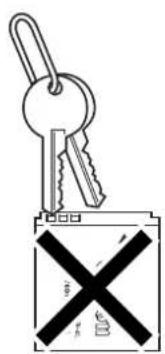
B. ábra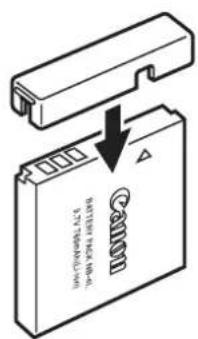
A töltöttségi állapot ellenőrizhető a kivezetésvédő fedél rögzítési módjától függően (C, D ábra).
C. ábra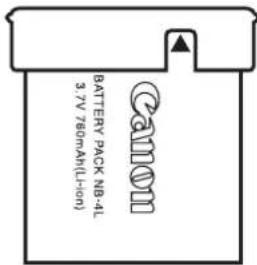
Töltött akkumulátor
Rögzítse úgy, hogy a látható legyen.
D. ábra
Lemerült akkumulátor
Rögzítse a C. ábrával ellentétes módon.
- Javasoljuk, hogy a fényképezőgépben használja, amíg teljesen le nem merül, és tárolja beltéri helyen, alacsony relatív páratartalom mellett, 0–30 °C (32–86 °F) közötti hőmérsékleten.
A teljesen feltöltött akkumulátor hosszú ideig történő tárolása (körülbelül egy év) lerövidítheti az élettartamát, vagy befolyásolhatja a teljesítményét. Ha hosszú ideig nem használja az akkumulátort, töltse fel teljesen, majd körülbelül évente egyszer merítse le teljesen a fényképezőgépben, mielőtt visszatenné tárolásra.
Az akkumulátor töltése
- Mivel ez egy lítium-ion akkumulátor, nem kell teljesen lemerítenie, mielőtt újratöltené.
- Körülbelül 90 percet vesz igénybe az akkumulátor teljes feltöltése teljesen lemerült állapotból (a Canon tesztelési szabványai alapján).
- Javasolt 5–40 °C (41–104 °F) hőmérsékleti tartományban tölteni.
- A töltési idők változhatnak a környezeti hőmérséklettől és az akkumulátor töltöttségi állapotától függően.
- Javasoljuk, hogy az akkumulátort a használat napján vagy egy nappal előtte töltse fel, hogy biztosítsa a teljes feltöltést. Még a feltöltött akkumulátorok is természetes módon lemerülnek.
- Ha az akkumulátor teljesítménye jelentősen csökken még teljes feltöltés esetén is, akkor az élettartama lejárt, és ki kell cserélni.
A memóriakártya kezelése
Írásvédő fül
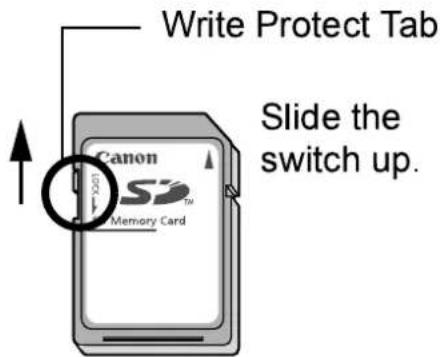
Írás/törlés lehetséges

Írás/törlés lehetetlen
Csúsztassa le a kapcsolót (így megvédheti a kártyán lévő képeket és egyéb adatokat).
Óvintézkedések a kezelés során
● A memóriakártyák nagy pontosságú elektronikus eszközök. Ne hajlítsa meg őket, ne gyakoroljon rájuk erőt, és ne tegye ki őket ütődésnek vagy rezgésnek. - Ne próbálja szétszerelni vagy módosítani a memóriakártyát. - Ne engedje, hogy szennyeződés, víz vagy idegen tárgy érintkezzen a kártya hátulján lévő érintkezőkkel. Ne érintse meg az érintkezőket kézzel vagy fémtárgyakkal. - Ne távolítsa el a memóriakártyán lévő eredeti címkét, és ne fedje le másik címkével vagy matricával. - Ha a memóriakártyára ír, ne használjon ceruzát vagy golyóstollat. Csak puha hegyű tollat használjon (pl. filctoll). - Ne használja vagy tárolja a memóriakártyát a következő helyeken: - Poros vagy homokos helyeken - Magas páratartalmú és magas hőmérsékletű helyeken - Mivel a memóriakártyán rögzített adatok egy része vagy egésze megsérülhet vagy törlődhet elektromos zaj, statikus elektromosság, vagy a fényképezőgép vagy a kártya meghibásodása miatt, ajánlott biztonsági másolatot készíteni a fontos adatokról.
Formázás
- Kérjük, vegye figyelembe, hogy a memóriakártya formázása (inicializálása) minden adatot töröl, beleértve a védett képeket is.
- Javasoljuk, hogy olyan memóriakártyát használjon, amelyet már formázott a fényképezőgépében.
- A fényképezőgéppel mellékelt kártya további formázás nélkül is használható.
- Ha a fényképezőgép hibásan működik, a hibát egy sérült memóriakártya is okozhatja. A memóriakártya újraformázása megoldhatja a problémát.
- Ha egy nem Canon márkájú memóriakártya hibásan működik, az újraformázás megoldhatja a problémát.
- A más fényképezőgépekben, számítógépekben vagy perifériás eszközökben formázott memóriakártyák előfordulhat, hogy nem működnek megfelelően ebben a fényképezőgépben. Ha ez történik, formázza újra a memóriakártyát ezzel a fényképezőgéppel.
- Ha a formázás a fényképezőgépben nem működik megfelelően, kapcsolja ki a fényképezőgépet, és helyezze be újra a memóriakártyát. Ezután kapcsolja be újra a fényképezőgépet, és formázza meg újra.
Hálózati adapterkészlet használata (külön megvásárolható)
A legjobb, ha a fényképezőgépet hálózati adapterkészlettel (ACK-DC10, külön megvásárolható) táplálja, ha hosszabb ideig használja, vagy számítógéphez csatlakoztatja.

A kompakt hálózati adapter csatlakoztatása vagy leválasztása előtt kapcsolja ki a fényképezőgépet.
1
Először csatlakoztassa a tápkábelt a kompakt hálózati adapterhez, majd dugja a másik végét a hálózati aljzatba.

2
Nyissa ki a memóriakártya-nyílás/akkumulátor fedelét, tolja el az akkumulátorzár nyilát a nyíl irányába, majd helyezze be a DC csatlakozót, amíg az be nem rögzül.
Csúsztassa vissza a memóriakártya-nyílás/akkumulátorfedél zárját.
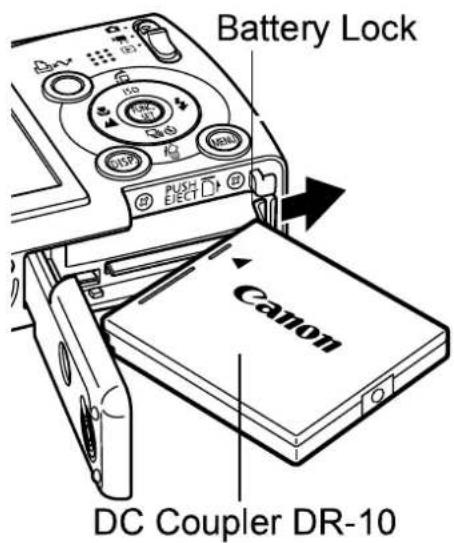
3
Csúsztassa a memóriakártya-nyílás/akkumulátorfedél belsejében lévő kapcsolót befelé, majd nyissa ki az egyenáramú csatlakozó fedelét.
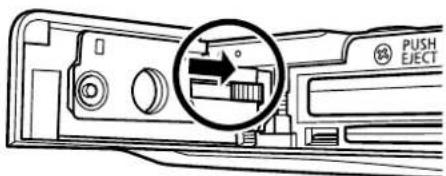
4
Csukja vissza a memóriakártya-nyílás/akkumulátorfedelet, és csatlakoztassa a kábelt az egyenáramú csatlakozóhoz.
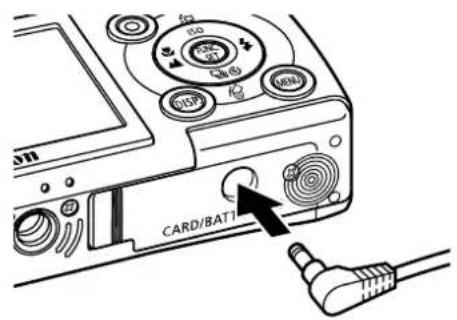
Külső vaku használata (külön kapható)
Nagy teljesítményű vaku HF-DC1
Ez a vaku a fényképezőgép beépített vakujának kiegészítésére szolgál, ha a téma túl messze van a megfelelő megvilágításhoz. A következő eljárásokkal rögzítse a fényképezőgépet és a nagy teljesítményű vakut a tartókonzolra.
Kérjük, olvassa el a vakuhoz mellékelt utasításokat is.
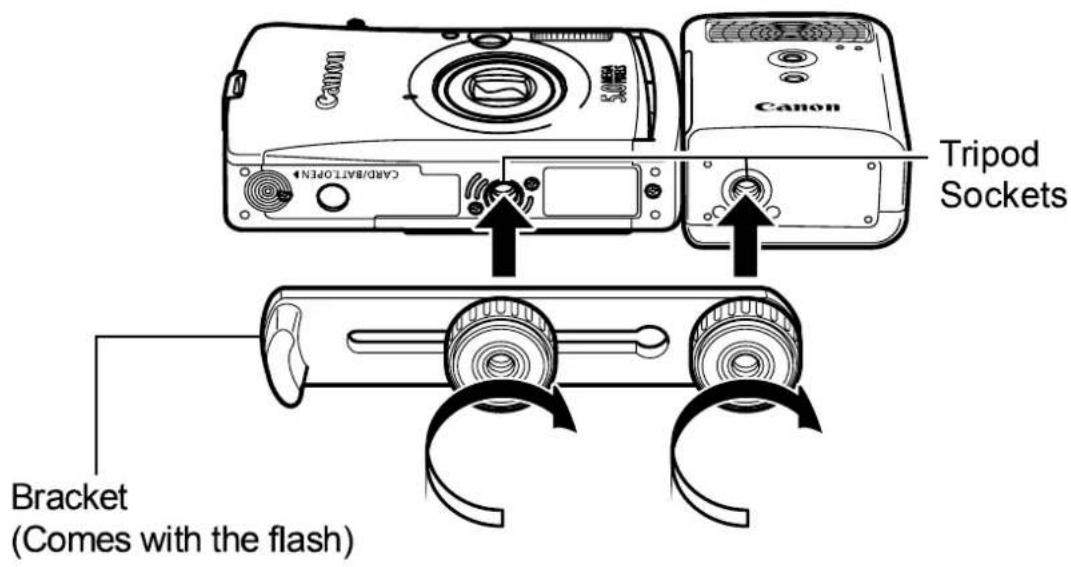

- A vaku töltési ideje megnő, ahogy az akkumulátor töltöttsége csökken. Mindig állítsa a be-/kikapcsoló gombot [KI] állásba, amikor befejezte a vaku használatát.
- Ügyeljen arra, hogy ne érintse meg a vaku ablakát vagy az érzékelő ablakokat az ujjaival, amíg a vaku használatban van. ● A vaku elsülhet, ha egy másik vakut használnak a közelben. ● A nagy teljesítményű vaku előfordulhat, hogy nem sül el szabadban nappali fényben, vagy ha nincsenek fényvisszaverő tárgyak.
- Folyamatos felvételnél, bár a vaku az első képkockánál elsül, a következő képkockáknál nem sül el.
- Húzza meg biztonságosan a rögzítőcsavarokat, hogy ne lazuljanak meg. Ennek elmulasztása a fényképezőgép és a vaku leesését okozhatja, ami mindkettő károsodásához vezethet.

● Mielőtt a konzolt a vakuhoz rögzítené, ellenőrizze, hogy a lítium akkumulátor (CR123A vagy DL123) be van-e helyezve. - A téma megfelelő megvilágításához szerelje fel a vakut úgy, hogy az a fényképezőgép oldalához simuljon, és párhuzamos legyen a fényképezőgép előlapjával. ● Háromlábú állvány akkor is használható, ha a vaku fel van szerelve.
Akkumulátorok
●A töltés erősen lecsökken
Ha az akkumulátor üzemideje jelentősen csökkent, törölje le az akkumulátor érintkezőit száraz ruhával. Az érintkezők ujjlenyomatoktól piszkosak lehetnek.
●Használat hideg környezetben (0°C/32°F alatt)
Tartson tartalék lítium elemet (CR123A vagy DL123). Javasoljuk, hogy a tartalék elemet a zsebében tartsa, hogy felmelegedjen, mielőtt kicserélné a vaku elemével.
●Hosszabb ideig tartó használaton kívül
Ha az elemeket a nagy teljesítményű vakuban hagyja, az elemfolyadék kifolyhat, és károsíthatja a terméket. Vegye ki az elemeket a nagy teljesítményű vakuól, és tárolja őket hűvös, száraz helyen.
A fényképezőgép ápolása és karbantartása
Soha ne használjon hígítót, benzint, szintetikus tisztítószert vagy vizet a fényképezőgép tisztításához. Ezek az anyagok torzíthatják vagy károsíthatják a berendezést.
Fényképezőgép-test
Puha ruhával vagy szemüvegtörlő kendővel óvatosan törölje le a szennyeződést a fényképezőgép-testről.
Objektív
Először használjon lencsefúvó kefét a por és szennyeződés eltávolításához, majd puha ruhával óvatosan törölje le a megmaradt szennyeződést az objektívről.

Soha ne használjon szintetikus tisztítószert a fényképezőgép-testen vagy az objektíven. Ha a szennyeződés megmarad, forduljon a legközelebbi Canon ügyfélszolgálathoz, amely a füzet hátulján vagy az Európai Garancia Rendszer (EWS) füzetben található.
Kereső és LCD-kijelző
Használjon lencsefúvó kefét a por és szennyeződés eltávolításához. Szükség esetén puha ruhával vagy szemüvegtörlő kendővel óvatosan törölje le a makacs szennyeződést.

Soha ne dörzsölje vagy nyomja erősen az LCD-kijelzőt. Ezek a műveletek károsíthatják, vagy más problémákat okozhatnak.
Műszaki adatok
Minden adat a Canon szabványos tesztelési módszerein alapul. Változtatás jogát fenntartjuk.
DIGITAL IXUS WIRELESS (W): Maximális nagy látószög (T): Maximális teleobjektív
| Camera Effective Pixels | Approx. 5.0 million |
| Image Sensor | 1/2.5-inch CCD (Total number of pixels: Approx. 5.3 million) |
| Lens | 5.8 (W) – 17.4 (T) mm(35mm film equivalent: 35 (W) – 105 (T) mm)f/2.8 (W) – f/4.9 (T) |
| Digital Zoom | Approx. 4.0x (Up to approx. 12x in combination with the optical zoom) |
| Optical Viewfinder | Real-image zoom viewfinder |
| LCD Monitor | 2.0-inch, low-temperature polycrystalline silicon TFT color LCD, approx. 118,000 pixels (Picture coverage 100%) |
| AF System | TTL autofocusFocusing frame: 9-point AiAF/1-point AF (fixed to center) |
| Shooting Distance (From the front of the lens) | Normal: 30 cm (1.0 ft.) – infinityMacro: 3 – 50 cm (W)/30 – 50 cm (T)(1.2 in. – 1.6 ft. (W)/1.0 – 1.6 ft. (T))Infinity: 3 m (9.8 ft.) – infinity |
| Shutter | Mechanical shutter + electronic shutter |
| Shutter Speeds | 15 – 1/1500 sec.The shutter speed varies according to the shooting mode.Slow shutter speeds of 1.3 sec. or slower operate with noise reduction. |
| Metering System | Evaluative, Center-weighted average or Spot (fixed to center) |
| Exposure Compensation | ± 2 stops in 1/3-stop increments |
| ISO Speed | Auto*, ISO 50/100/200/400 equivalent* Camera automatically sets the optimal speed. |
| White Balance | Auto, pre-set (available settings: Daylight, Cloudy, Tungsten, Fluorescent or Fluorescent H) or custom |
| Built-in Flash | Auto, auto with red-eye reduction, flash on with red-eye reduction, flash on, flash off, slow synchro |
| Flash Range | Normal: 50 cm – 3.5 m (1.6 – 12 ft.) (W),50 cm – 2.0 m (1.6 – 6.6 ft.) (T)Macro: 30 – 50 cm (1.0 – 1.6 ft.) (W/T)(When ISO speed is set to AUTO.) |
| Shooting Modes(Still images) | Auto, Manual 1 , Digital macro, Portrait, Night Snapshot, My Colors, Scene Mode 2 , Stitch assist 3 1 Long shutter mode available2 Kids&Pets, Indoor, Foliage, Snow, Beach, Fireworks3 Selectable in Manual mode.(Movies) Standard, Fast Frame Rate, Compact, My Colors |
| Continuous Shooting | Approx. 2.1 shots/sec. (Large/Fine mode) |
| Self-timer | Activates shutter after an approx. 10-sec./approx. 2-sec. delay, Custom Timer |
| PC-controlled Shooting | Available (Wireless connection only. Exclusive software program is included in the camera kit.) |
| Recording Media | SD memory card/MultiMediaCard• This camera has been tested with memory cards through 2GB. All memory card functions cannot be guaranteed. |
| File Format | Design rule for camera file system and DPOF compliant |
| Data Type (Still images)(Movies) | Exif 2.2 (JPEG) *1 AVI (Image data: Motion JPEG; Audio data: WAVE (monaural)) |
| Compression | Superfine, Fine, Normal |
| Number of Recording Pixels(Still Images) | Large: 2592 × 1944 pixelsMedium 1: 2048 × 1536 pixelsMedium 2: 1600 × 1200 pixelsSmall: 640 × 480 pixels |
| (Movies) | Postcard Date Imprint Mode:1600 × 1200 pixelsStandard, My Colors:640 × 480 pixels (30 frames/sec., 15 frames/sec.)320 × 240 pixels (30 frames/sec., 15 frames/sec.)Recording can continue until the memory card is full*(can record up to a maximum of 1 GB at one time). |
| Number of Recording Pixels (Movies) | Fast Frame Rate: (can record for 1 min.)320 × 240 pixels (60 frames/sec.)Compact: (can record for 3 min.)160 × 120 pixels (15 frames/sec.)* Using super high-speed memory cards (SDC-512MSH recommended). |
| Playback Modes | Single (histogram displayable), Index (9 thumbnail images), Magnified (approx. 10x (max.) on the LCD monitor, advance or reverse through magnified images possible), Jump (jumps to every tenth or hundredth image, to the first image of those sharing a certain shooting date, to movies, or to the first image in a folder. In index playback mode, it displays 9 images at once.), Sound memos (up to 60 sec.), Slide show or Movie (edit/slow motion play back possible). |
| Direct Print | PictBridge compliant, and Canon Direct Print and Bubble Jet Direct compatible |
| My Camera Settings | Start-up image, start-up sound, operation sound, self-timer sound, and shutter sound. |
| Wireless Standard | IEEE802.11b |
| Wireless Channel | Channel 1 - 11 (PowerShot SD430 DIGITAL ELPH WIRELESS)Channel 1 - 13 (DIGITAL IXUS WIRELESS) |
| Security | Infrastructure: WEP64/128 bit, WPA-PSK (TKIP/AES)Ad hoc:WEP64/128 bit (when connecting to computer)AES (when connecting to WA-1) |
| Transmission range | Approx. 30 m (98.4 ft.) (However, make sure that there are no interfering obstacles between the devices.)The distance will vary with the installation site, the environment of use, and the conditions of use. |
| Interface | USB 2.0 Hi-Speed (mini-B), PTP (Picture Transfer Protocol)Audio/Video output (NTSC or PAL selectable, monaural audio) |
| Power Source | Battery Pack NB-4L (Lithium-ion Rechargeable battery)AC Adapter Kit ACK-DC10 |
| Operating Temperature | 0 – 40 °C (32 – 104 °F) |
| Operating Humidity | 10 – 90% |
| Dimensions | 99.0 × 54.4 × 21.7 mm (3.90 × 2.14 × 0.85 in.) (excluding protrusions) |
| Weight | Approx. 130 g (4.59 oz.) (camera body only) |
*1 Ez a digitális fényképezőgép támogatja az Exif 2.2 (más néven „Exif Print”) szabványt. Az Exif Print egy olyan szabvány, amely javítja a digitális fényképezőgépek és nyomtatók közötti kommunikációt. Ha Exif Print-kompatibilis nyomtatóhoz csatlakoztatja, a fényképezőgép a felvétel időpontjában rögzített képadatokat használja és optimalizálja, így rendkívül jó minőségű nyomatokat eredményez.
Akkumulátor-kapacitás (NB-4L akkumulátorcsomag (teljesen feltöltve))
| Number of Images Shot | Playback Time | |
| LCD Monitor ON(Based on the CIPA standard) | LCD Monitor Off | |
| Approx. 150 images | Approx. 500 images | Approx. 3 hours |
●A tényleges értékek a felvételi körülményektől és beállításoktól függően változnak. - Filmfelvétel vagy az automatikus átviteli funkció használata esetén az akkumulátor-kapacitás eltér a fentiektől. - Alacsony hőmérsékleten az akkumulátor teljesítménye csökkenhet, és az alacsony töltöttséget jelző ikon nagyon gyorsan megjelenhet. Ilyen körülmények között a teljesítmény javítható, ha az akkumulátort használat előtt zsebben melegíti.
Tesztkörülmények
Fényképezés: Normál hőmérséklet (23 °C ± 2 °C / 73 °F ± 3,6 °F), normál relatív páratartalom (50% ± 20%), váltakozva nagy látószögű és teleobjektíves felvételek 30 másodpercenként, a vaku minden második felvételnél villan, és a fényképezőgép minden tizedik felvétel után kikapcsol. A készüléket elegendő ideig kikapcsolva hagyják*, majd újra bekapcsolják, és a tesztelési eljárást megismétlik.
●Canon márkájú memóriakártya használatos.
*Amíg az akkumulátor vissza nem tér a normál hőmérsékletre
Lejátszás: Normál hőmérséklet (23 °C ± 2 °C / 73 °F ± 3,6 °F), normál relatív páratartalom (50% ± 20%), folyamatos lejátszás képenként 3 másodperces időközönként.

Memóriakártyák és becsült kapacitások
☐: A fényképezőgéphez mellékelt kártya
| Recording Pixels | Compression | SDC-16M | SDC-128M | SDC-512MSH |
| L (Large)2592 × 1944 pixels | 5 | 49 | 190* | |
| 9 | 87 | 339 | ||
| 19 | 173 | 671 | ||
| M1 (Middle 1)2048 × 1536 pixels | 8 | 76 | 295 | |
| 15 | 136 | 529 | ||
| 30 | 269 | 1041 | ||
| M2 (Middle 2)1600 × 1200 pixels | 13 | 121 | 471 | |
| 24 | 217* | 839 | ||
| 46 | 411 | 1590 | ||
| S (Small)640 × 480 pixels | 52 | 460 | 1777 | |
| 80 | 711 | 2747 | ||
| 127 | 1118 | 4317 | ||
| PostCard Date Imprint Mode)1600 × 1200 pixels | 24 | 217* | 839 |
- Zökkenőmentes folyamatos felvételre képes (43. oldal) (*Csak akkor érhető el, ha a kártyát alacsony szintű formázással formázták meg).
Ez a Canon által megállapított szokásos fényképezési kritériumokat tükrözi. A tényleges eredmények a témától és a fényképezési körülményektől függően eltérhetnek.
Film
| Recording Pixels | Frame Rate | SDC-16M | SDC-128M | SDC-512MSH | |
 Standard Standard My Colors My Colors |  640 × 480 pixels 640 × 480 pixels |  | 6 sec. | 1 min. 4 sec. | 4 min. 9 sec. |
| [FT5] | 14 sec. | 2 min. 7 sec. | 8 min. 14 sec. | ||
 320 × 240 pixels 320 × 240 pixels |  | 20 sec. | 3 min. 1 sec. | 11 min. 42 sec. | |
| [FT5] | 40 sec. | 5 min. 55 sec. | 22 min. 53 sec. | ||
 Fast Frame Rate Fast Frame Rate |  320 × 240 pixels 320 × 240 pixels |  | 10 sec. | 1 min. 32 sec. | 5 min. 59 sec. |
| [FT60] | |||||
 Compact Compact |  160 × 120 pixels 160 × 120 pixels |  | 1 min. 39 sec. | 14 min. 29 sec. | 55 min. 57 sec. |
- Maximális filmklipp hossza 📋: 1 perc, 📋: 3 perc. Az adatok a maximális folyamatos rögzítési időt jelzik.
Képadat-méretek (becsült)
| Recording Pixels | Compression | |||
 | (2592 × 1944 pixels) | 2503 KB | 1395 KB | 695 KB |
 | (2048 × 1536 pixels) | 1602 KB | 893 KB | 445 KB |
 | (1600 × 1200 pixels) | 1002 KB | 558 KB | 278 KB |
 | (640 × 480 pixels) | 249 KB | 150 KB | 84 KB |
 | (1600 × 1200 pixels) | - | 558 KB | - |
Film
| Recording Pixels | Frame Rate | File size | |
 Standard Standard | 640 (640 × 480 pixels) | 30 | 1980 KB/sec. |
| 15 | 990 KB/sec. | ||
 My Colors My Colors | 320 (320 × 240 pixels) | 30 | 660 KB/sec. |
| 15 | 330 KB/sec. | ||
 Fast Frame Rate Fast Frame Rate | 320 (320 × 240 pixels) | 60 | 1320 KB/sec. |
 Compact Compact | 160 (160 × 120 pixels) | 15 | 120 KB/sec. |
Vezeték nélküli nyomtatási adapter WA-1
| Supported Camera | DIGITAL IXUS WIRELESS |
| Supported Printer | Canon PictBridge compliant printer* * Compact power adapter CA-DC20/CA-DC20E is required (except for SELPHY CP710/CP510). SELPHY CP710/CP510 can be powered by the USB bus. |
| Wireless Standard | IEEE802.11b |
| Wireless Mode | Ad hoc Mode |
| Security | AES |
| Transmission range | Approx. 30 m (However, make sure that there are no interfering obstacles between the devices.) |
| Interface | USB |
| Display | Blue LED, Orange LED |
| Power Source | DC 5.0 V (when powered by USB bus) DC 5.0 V (when using CA-DC20/CA-DC20E) |
| Dimensions | 92.5 × 27.0 × 28.8 mm (3.64 × 1.06 × 1.13 in.) (When folded) |
| Weight | Approx. 40 g (1.4 oz.) |
Kompakt tápegység CA-DC20/CA-DC20E
| Rated Input | 100 - 240 V AC (50/60 Hz)11 VA (100 V) - 13 VA (240 V) (CA-DC20)100 mA (CA-DC20E) |
| Rated Output | 5.0 V DC, 0.7 A |
| Operating Temperatures | 0 - 40 °C (32 - 104 °F) |
| Dimensions | 49.4 × 53.4 × 20.5 mm (1.94 × 2.10 × 0.81 in.) (CA-DC20)28.0 × 78.0 × 21.0 mm (1.10 × 3.07 × 0.83 in.) (CA-DC20E) |
| Weight | Approx. 92 g (3.25 oz.) (CA-DC20)Approx. 75 g (2.65 oz.) (excluding power cord) (CA-DC20E) |
SD memóriakártya
| Interface | Compatible with SD memory card standards |
| Dimensions | 32.0 × 24.0 × 2.1 mm (1.26 × 0.94 × 0.08 in.) |
| Weight | Approx. 2 g (0.07 oz.) |
Akkumulátor NB-4L
| Type | Lithium-ion Rechargeable battery |
| Nominal Voltage | 3.7 V DC |
| Typical Capacity | 760 mAh |
| Operating Temperatures | 0 – 40 °C (32 – 104 °F) |
| Dimensions | 35.4 × 40.3 × 5.9 mm (1.40 × 1.59 × 0.23 in.) |
| Weight | Approx. 17 g (0.60 oz.) |
Akkumulátortöltő CB-2LV/CB-2LVE
| Rated Input | 100 – 240 V AC (50/60 Hz) |
| 10 VA (100 V) – 14 VA (240 V) (CB-2LV) | |
| 0.1 A (100 V) – 0.06 A (240 V) (CB-2LVE) | |
| Rated Output | 4.2 V DC, 0.65 A |
| Charging Time | Approx. 90 minutes |
| Operating Temperatures | 0 – 40 °C (32 – 104 °F) |
| Dimensions | 53.0 × 86.0 × 19.5 mm (2.1 × 3.4 × 0.77 in.) |
| Weight | Approx. 60 g (2.1 oz.) (CB-2LV) |
| Approx. 55 g (1.9 oz.) (CB-2LVE) (excluding power cable) |
Kompakt tápegység CA-DC10
(A külön kapható AC adapter készlet ACK-DC10 tartozéka)
| Rated Input | 100 – 240 V AC (50/ 60 Hz)16 VA (100 V) – 26 VA (240 V) |
| Rated Output | 4.3 V DC, 1.5 A |
| Operating Temperatures | 0 – 40 °C (32 – 104 °F) |
| Dimensions | 42.6 × 104.4 × 31.4 mm (1.7 × 4.1 × 1.2 in.) |
| Weight | Approx. 180 g (6.3 oz.) |
A
AC adapter készlet ACK-DC10... 123
AE zár 53
AF Keret 51,52
AF Zár 52
AF Segédfény 33
AiAF 33
Automatikus Lejátszás (Diavetítés)...... 83
Automatikus Elforgatás Funkció.... 70
AV kábel 93
B
Akkumulátor
Akkumulátor Kapacitás 130
Töltés.. 119, Alapútmutató 1
Kezelés 119
Beszerelés ...... Alapútmutató 2
C
Óra Kijelzés.... 20
Tömörítés 39
Folyamatos felvétel 43
Mappa létrehozása 71
Egyéni fehéregyensúly...... 60
D
Dátum/idő
Beállítás ...... Alapútmutató 4
Az óra használata 20
Világidő 29
Digitális makró 41
DIGITAL csatlakozó 15
Digitális zoom 42
Képek letöltése számítógépre...... 16
DPOF nyomtatási sorrend
DPOF nyomtatási sorrend
Nyomtatási stílus 90
Képek kiválasztása 89
DPOF átviteli rendelés.... 91
E
Törlés
Összes kép 87
Egyes képek.... 17,
Alap útmutató 11
Expozíció 56
Expozíció eltolás 49
F
FE zár.... 54
Fájlszám 72
Vaku 15, Alap útmutató 9
Fókusz 51
Fókuszrögzítés 52
Képkockasebesség 40
FUNC. Menü 31
FUNC./SET Gomb.... 17
G
Rácsvonalak 33
H
HF-DC1.... 124
Hisztogram 25
I
Képadat-méretek
(Becsült) 132
Indexlejátszás 75
Jelzőfények 26
Végtelen ...... 17, Alapútmutató 10
Interfészkábel .. Alapútmutató 16
ISO érzékenység 69
J
Ugrás (Képkeresés) 76
L
Nyelv ...... Alapútmutató 4
LCD-kijelző
Megjelenített információk...... 22
Éjszakai kijelző.... 21
Lejátszási információk ...... 23
Gyorsfényes LCD 21
Fényképezési információk...... 22
Az LCD-kijelző használata ..... 19
M
Makró 17, Alapútmutató 10
Nagyítás 74
Memóriakártya
Formázás.... 122
Kezelés.... 121
Befűzés ...... Alapútmutató 2
Memóriakártyák
Becsült kapacitások ..... 131
Formázás.... 28
Menü
FUNC. Menü 31, 33
Menülista 33
Menük és beállítások 31
Saját kamera menü 36
Lejátszás menü 34
Felvétel menü 33
Beállítás menü 34
Vezeték nélküli menü 34
MENU gomb 17
Üzenetek 115
Fénymérési módok 55
Módkapcsoló 17,
..... Alapútmutató 4, Alapútmutató 5
Film
Szerkesztés 78
Lejátszás 77
Fényképezés 47
Némítás ..... 34, Alapútmutató 5
Saját kamera menü 36
Saját kamera beállítások 94
Saját színek.... 63
0
93. kimenet
P
62. fotóeffektus
Lejátszás ...... Alapútmutató 11
Képeslap dátum lenyomat mód .. 44
Bekapcsológomb. 17, Alapútmutató 5
Energiatakarékosság...... 27, 35
Nyomtatás/Megosztás gomb 17,
......Alapútmutató 14
Nyomtatás ...... Alapútmutató 14
Védelem 87
R
Képpontok rögzítése 38,40
Vörösszem-korrekció...... 15,
Alapútmutató 9
Összes visszaállítása 37
Forgatás 80
S
Önkioldó 45
Beállítás menü 34
Fényképezési mód
Auto ...... Alapútmutató 7
Digitális makró 41
Kézi ...... Alapútmutató 7
Film ...... 47, Alapútmutató 8
Jelenet mód .... Alapútmutató 7
Strand ...... Alapútmutató 8
Tűzijáték ..... Alapútmutató 8
Lombozat ...... Alapútmutató 7
Beltéri ...... Alapútmutató 7
Gyerekek és háziállatok .... Alapútmutató 7
Hó ...... Alapútmutató 7
Kiválasztás ...... Alapútmutató 6
Öltés-asszisztens...... 49
Kiadógomb 17
Teljes ...... Alapútmutató 6
Félig lenyomva ...... Alapútmutató 5
Zársebesség 57
Diavetítések.... 83
Ismétlés beállításai...... 86
Kiválasztás 85
Átmenet 84
Sima folyamatos felvétel. 43
Hangjegyzet 81
Spot AE Point Frame.... 55
Spot Frame 22
T
Telephoto ...... Basic Guide 8
Time Zone 30, 35
Transition Effects
Playback....81
Slide Show 84
V
Video Output System 93
W
White Balance 59
Wide Angle 8
Wireless
Connecting to Printer ..... 98
Csatlakoztatás/Leválasztás .. 100
Célkészülék...... 102, 104
Vezeték nélküli nyomtatás
Adapter.... 18, 26, 98, 102
Csuklópánt.... 16
Z
Nagyítás ...... Alapútmutató 8
Jogi nyilatkozat
- Bár minden erőfeszítés megtörtént annak érdekében, hogy az ebben az útmutatóban található információk pontosak és teljesek legyenek, semmilyen felelősség nem vállalható hibákért vagy kihagyásokért.
- A Canon fenntartja a jogot, hogy a jelen dokumentumban leírt hardver és szoftver specifikációit bármikor, előzetes értesítés nélkül megváltoztassa.
- A jelen útmutató egyetlen része sem reprodukálható, továbbítható, átírható, tárolható keresőrendszerben, vagy fordítható le bármely nyelvre, bármilyen formában, bármilyen eszközzel, a Canon előzetes írásbeli engedélye nélkül.
- A Canon nem vállal felelősséget a hibás művelet vagy a kamera, a szoftver, az SD memóriakártyák (SD kártyák), a személyi számítógépek, a perifériák meghibásodása, vagy a nem Canon SD kártyák használata miatt megsérült vagy elveszett adatokból eredő károkért.
Védjegyekkel kapcsolatos nyilatkozatok
- A Canon, a PIXMA és a SELPHY a Canon Inc. védjegyei. • A Macintosh, a Mac OS és a QuickTime az Apple Computer Inc. védjegyei, amelyek az Egyesült Államokban és/vagy más országokban vannak bejegyezve.
- A Microsoft® és a Windows® a Microsoft Corporation bejegyzett védjegyei vagy védjegyei az Egyesült Államokban és/vagy más országokban. • Az SD védjegy.
- A Wi-Fi a Wi-Fi Alliance bejegyzett védjegye; a Wi-Fi CERTIFIED TM és a WPA TM a Wi-Fi Alliance védjegyei.
- Az itt említett összes többi termék- és szolgáltatásnév a megfelelő tulajdonosok védjegye.
- A fent nem említett egyéb nevek és termékek a megfelelő cégek bejegyzett védjegyei vagy védjegyei lehetnek.
Az egyes fényképezési módokban elérhető funkciók
Az alábbi táblázat a különböző fényképezési körülményekhez elérhető beállítások referenciája. Az egyes fényképezési módokban kiválasztott beállítások a fényképezés befejezése után elmentődnek.
| Function | [IMAGE] | [IMAGE] | Page | ||||||
| [IMAGE] | [IMAGE] | [IMAGE] | [IMAGE] | [IMAGE] | [IMAGE] | ||||
| Recording Pixels | Large | * | * | * | * | * | * | - | p. 38p. 40 |
| Medium 1 | - | ||||||||
| Medium 2 | - | ||||||||
| Small | - | ||||||||
| Postcard | - | - | - | ||||||
| Movie | - | - | - | - | - | (1) | |||
| Compression | Super Fine | - | p. 39 | ||||||
| Fine | * | * | * | * | * | * | - | ||
| Normal | - | ||||||||
| Frame Rate | - | - | - | - | - | (2) | p. 40 | ||
| Flash(3) | Auto | - | - | - | Basic Guide p. 9 | ||||
| Auto with Red-Eye Reduction | * | * | - | * | - | - | |||
| On with Red-Eye Reduction | - | - | - | - | - | - | |||
| On | - | - | - | ||||||
| Off | * | (4) | * | - | |||||
| Slow Synchro | - | - | - | - | |||||
| Macro Mode | - | (5) | Basic Guide p. 10 | ||||||
| Infinity Mode | - | - | (5) | ||||||
| AF Lock | - | - | - | p. 52 | |||||
| AE Lock | - | - | - | p. 53 | |||||
| FE Lock | - | - | - | - | - | p. 54 | |||
| Shooting Method | Single | * | * | * | * | * | * | * | - |
| Continuous Shooting | - | - | - | - | p. 43 | ||||
| 10-sec. Self-Timer | p. 45 | ||||||||
| 2-sec. Self-Timer | |||||||||
| Custom Timer | - | - | - | ||||||
| Date Stamp | - | - | - | p. 44 | |||||
| Autofocus Modes | - | (6) | - | - | p. 51 | ||||
| AF-assist Beam | (7) | p. 33 | |||||||
| Function | [IMAGE] | [IMAGE] | Page | ||||||||
| [IMAGE] | [IMAGE] | [IMAGE] | [IMAGE] | [IMAGE] | [IMAGE] | ||||||
| Digital Zoom | On | ○ | ○ | ○ | — | ○ | — | — | O(8) | p. 42 | |
| Off | O^* | O^* | — | ○ | O^* | ○ | ○ | ○ | |||
| Metering Method | Evaluative | (10) | O^* | O^* | O^* | (10) | — | — | (10) | p. 55 | |
| Center-Weighted Average | — | ○ | ○ | ○ | — | — | — | — | |||
| Spot | — | ○ | ○ | ○ | — | — | — | — | |||
| Exposure Compensation | — | ○ | ○ | O(9) | ○ | △ | — | p. 56 | |||
| Exposure Shift | — | — | — | — | — | — | ○ | p. 49 | |||
| Long Shutter | — | ○ | — | — | — | — | — | p. 57 | |||
| White Balance | — | ○ | ○ | ○ | (10) | △ | ○ | p. 59 | |||
| Photo Effect | — | ○ | ○ | — | (10) | △ | O(11) | p. 62 | |||
| ISO Speed | (10) | ○ | ○ | (10) | (10) | (10) | (10) | p. 69 | |||
| Auto Rotate | ○ | ○ | ○ | ○ | ○ | △ | — | p. 70 | |||
| Grid Lines | ○ | ○ | ○ | ○ | ○ | — | ○ | p. 33 | |||
*Alapértelmezett beállítás ○Elérhető beállítás △ A beállítás csak az első képhez választható. (Árnyékolt terület): A beállítás akkor is megmarad, ha a fényképezőgép ki van kapcsolva.
A [Időzóna], [Dátum/idő], [Nyelv] és [Video rendszer] beállítások kivételével az összes többi menübeállítás és a fényképezőgép gombjaival végzett módosítások egyetlen művelettel visszaállíthatók az alapértelmezett értékekre (37. o.).
(1)(2) A (Film) mód rögzítési képpontjai és képkockasebességei a következők.
| Recording Pixels | Frame Rate | |||||
| 640 | 320 | 160 | 60 | 30 | 15 | |
| * | ○ | - | - | * | ○ | |
| - | ○ | - | ○ | - | - | |
| - | - | ○ | - | - | ○ | |
(3) Az alapértelmezett vaku beállítás Auto vörösszem-hatás csökkentéssel a módokban, Auto a módokban, és Ki a módokban.
- A vaku nem állítható be módban. - Ha a vaku elsül módban, a fényképezőgép automatikusan a Lassú szinkron módot használja.
(4) A vaku alapértelmezés szerint nem elsül a βA és βS módokban. (5) Nem válthat a Makró/Végtelen módok között, ha a fényképezőgép a módokban van. (6) Az AF nem választható a módokban. (7) Az AF-segédfény nem állítható be módban. (8) Fényképezés közben is beállítható (csak Standard). (9) Expozíciókompenzáció nem érhető el A vagy S módokban. (10) A fényképezőgép automatikusan beállítja. (11) A Fotó effekt nem állítható be a módban.
Canon



- CANON DIGITAL IXUS WIRELESS
- HALADÓ
- FÉNYKÉPEZŐGÉP FELHASZNÁLÓI ÚTMUTATÓ
- FŐBB JELLEMZŐK
- FÉNYKÉPEZÉS
- LEJÁTSZÁS
- SZERKESZTÉS
- NYOMTATÁS VEZETÉK NÉLKÜLI KAPCSOLATON KERESZTÜL
- KÉPEK ÁTVITELE SZÁMÍTÓGÉPRE* VEZETÉK NÉLKÜLI KAPCSOLATON KERESZTÜL
- AZ ÚTMUTATÓBAN HASZNÁLT JELÖLÉSEK
- JAVASOLJUK EREDETI CANON TARTOZÉKOK HASZNÁLATÁT
- TARTALOMJEGYZÉK
- LEJÁTSZÁS/TÖRLÉS
- NYOMTATÁSI BEÁLLÍTÁSOK/ÁTVITELI BEÁLLÍTÁSOK
- KÉPEK MEGTEKINTÉSE TV-N
- A FÉNYKÉPEZŐGÉP TESTRESZABÁSA (SAJÁT FÉNYKÉPEZŐGÉP BEÁLLÍTÁSAI)
- VEZETÉK NÉLKÜLI KAPCSOLAT HASZNÁLATA (CSATLAKOZÁS NYOMTATÓHOZ)
- HIBAELHÁRÍTÁS
- ÜZENETEK LISTÁJA
- FÜGGELÉK
- TÁRGYMUTATÓ
- AZ EGYES FELVÉTELI MÓDOKBAN ELÉRHETŐ FUNKCIÓK
- KÉRJÜK, OLVASSA EL
- TESZTFELVÉTELEK
- FIGYELMEZTETÉS A SZERZŐI JOGOK MEGSÉRTÉSÉVEL KAPCSOLATBAN
- A GARANCIA KORLÁTAI
- A FÉNYKÉPEZŐGÉP TESTÉNEK HŐMÉRSÉKLETE
- AZ LCD-KIJELZŐRŐL
- VIDEÓFORMÁTUM
- NYELVBEÁLLÍTÁS
- HASZNÁLATI KORLÁTOZÁSOK
- CE
- CN
- BIZTONSÁGI ÓVINTÉZKEDÉSEK
- ⚠️ FIGYELMEZTETÉSEK
- AKKUMULÁTOR
- EGYÉB
- FELSZERELÉS
- A MEGHIBÁSODÁSOK MEGELŐZÉSE
- KERÜLJE AZ ERŐS MÁGNESES MEZŐKET
- KERÜLJE A PÁRALECSAPÓDÁSSAL KAPCSOLATOS PROBLÉMÁKAT
- HA PÁRALECSAPÓDÁS KÉPZŐDIK A FÉNYKÉPEZŐGÉP BELSEJÉBEN
- A FÉNYKÉPEZŐGÉP HASZNÁLATA ELŐTT – AZ ALKATRÉSZEK ÁTTEKINTÉSE
- ELÖLNÉZET
- HÁTULNÉZET
- KEZELŐPANEL
- VEZETÉK NÉLKÜLI NYOMTATÁSI ADAPTER
- AZ LCD-MONITOR HASZNÁLATA
- NYOMJA MEG A DISP. GOMBOT
- AZ ÓRA HASZNÁLATA
- MÓDSZER
- LCD MONITOR FÉNYEREJE
- LCD MONITOR FÉNYEREJÉNEK BEÁLLÍTÁSAI
- ÉJSZAKAI KIJELZÉS
- AZ LCD-KIJELZŐN MEGJELENÍTETT INFORMÁCIÓK
- FÉNYKÉPEZÉSI INFORMÁCIÓK (FÉNYKÉPEZÉSI MÓD)
- LEJÁTSZÁSI INFORMÁCIÓK (LEJÁTSZÁSI MÓD)
- RÉSZLETES
- HISZTOGRAM FUNKCIÓ
- A KERESŐ HASZNÁLATA
- JELZŐFÉNYEK
- FÉNYKÉPEZŐGÉP
- ●FELSŐ JELZŐFÉNY
- ●ALSÓ JELZŐFÉNY
- ●VEZETÉK NÉLKÜLI LÁMPA
- ENERGIATAKARÉKOS FUNKCIÓ
- MEMÓRIAKÁRTYÁK FORMÁZÁSA
- (BEÁLLÍTÁS) MENÜ ▶ [FORMÁZÁS]
- VÁLASSZA AZ [OK] LEHETŐSÉGET, ÉS NYOMJA MEG A FUNC. SET GOMBOT
- JAVASOLJUK, HOGY AZ [ALACSONY SZINTŰ FORMÁZÁS] LEHETŐSÉGET VÁLASSZA, HA ÚGY GONDOLJA, HOGY A MEMÓRIAKÁRTYA ÍRÁSI/OLVASÁSI SEBESSÉGE CSÖKKENT. AZ ALACSONY SZINTŰ FORMÁZÁS EGYES MEMÓRIAKÁRTYÁKNÁL 2-3 PERCET IS IGÉNYBE VEHET
- KÜLFÖLDI UTAZÁSKOR HELYI DÁTUM ÉS IDŐ RÖGZÍTHETŐ, HA ELŐRE REGISZTRÁLJA A CÉLÁLLOMÁS IDŐZÓNÁJÁT, ÉS EGYSZERŰEN ÁTVÁLTJA AZ IDŐZÓNA BEÁLLÍTÁST. ÍGY NEM KELL A DÁTUM/IDŐ BEÁLLÍTÁSOKAT MÓDOSÍTANIA
- (BEÁLLÍTÁS) MENÜ ▶ [IDŐZÓNA] ▶ FUNC. SET
- LÁSD: MENÜK ÉS BEÁLLÍTÁSOK (32. OLDAL)
- A ← VAGY → GOMBBAL VÁLASSZA KI AZ OTTHONI IDŐZÓNÁT
- HASZNÁLJA A ← VAGY → GOMBOT A KEZDŐ IDŐ KIVÁLASZTÁSÁHOZ
- HASZNÁLJA A ← VAGY → GOMBOT A CÉL IDŐZÓNA KIVÁLASZTÁSÁHOZ ▶ FUNC. SET
- ÁTVÁLTÁS A CÉL IDŐZÓNÁRA
- (BEÁLLÍTÁS) MENÜ ▶ [TIME ZONE] ▶ FUNC. SET
- MENÜK ÉS BEÁLLÍTÁSOK
- FUNC. MENÜ
- REC., PLAY, WIRELESS, SET UP ÉS MY CAMERA MENÜK
- MENÜLISTA
- A BEÁLLÍTÁSOK VISSZAÁLLÍTÁSA AZ ALAPÉRTELMEZETT ÉRTÉKEKRE
- (BEÁLLÍTÁS) MENÜ ▶ [ÖSSZES VISSZAÁLLÍTÁSA]
- A RÖGZÍTÉSI KÉPPONTOK ÉS A TÖMÖRÍTÉS MÓDOSÍTÁSA (ÁLLÓKÉPEK)
- FUNC. MENÜ ▶ L * (RÖGZÍTÉSI KÉPPONTOK)/☐* (TÖMÖRÍTÉS)
- HOZZÁVETŐLEGES ÉRTÉKEK A TÖMÖRÍTÉSI BEÁLLÍTÁSOKHOZ
- A RÖGZÍTÉSI KÉPPONTOK ÉS A KÉPKOCKASEBESSÉG MÓDOSÍTÁSA (FILMEK)
- FUNC. MENÜ ▶ 640 * (RÖGZÍTÉSI KÉPPONTOK)/ 30 * (KÉPKOCKASEBESSÉG)
- NAGYÍTOTT KÖZELI FELVÉTEL (DIGITÁLIS MAKRÓ)
- FUNC. MENÜ ▶ (AUTO) ▶ (DIGITÁLIS MAKRÓ)
- VÁLASSZA KI A LÁTÓSZÖGET A ZOOM KARRAL, ÉS FÉNYKÉPEZZEN
- (RÖGZ.) MENÜ ▶ [DIGITÁLIS ZOOM] ▶ [BE]
- NYOMJA A ZOOM KART A 🖱️ IRÁNYÁBA, ÉS FÉNYKÉPEZZEN
- AJÁNLOTT MEMÓRIAKÁRTYA
- NYOMJA MEG A □ GOMBOT A □ MEGJELENÍTÉSÉHEZ
- FÉNYKÉPEZZEN
- A SOROZATFELVÉTEL MEGSZAKÍTÁSA
- KÉPESLAP DÁTUMLENYOMAT ÜZEMMÓD
- FUNC. MENÜ ▶ L * (KÉPRÖGZÍTÉSI KÉPPONTOK) ▶ (KÉPESLAP DÁTUM LENYOMAT)
- A DÁTUM BEÁGYAZÁSA A KÉPADATOKBA
- (RÖGZ.) MENÜ ▶ [DÁTUM BÉLYEGZŐ] ▶ [DÁTUM]/[DÁTUM ÉS IDŐ]
- AZ ÖNKIOLDÓ HASZNÁLATA
- NYOMJA MEG A ⏻ GOMBOT A 🔊, 🔒 VAGY 🔔 MEGJELENÍTÉSÉHEZ
- AZ ÖNKIOLDÓ TÖRLÉSE
- AZ ÖNKIOLDÓ VISSZASZÁMLÁLÁSI IDEJÉNEK MÓDOSÍTÁSA (10/2)
- (RÖGZ.) MENÜ ▶ [ÖNKIOLDÓ] ▶ VAGY
- A KÉSLELTETÉSI IDŐ ÉS A KÉPEK SZÁMÁNAK MÓDOSÍTÁSA (☐)
- MÓDOSÍTSA A [KÉSLELTETÉS]/[KÉPEK] ▶ FUNC. SET ÉRTÉKET
- NORMÁL
- GYORS KÉPKOCKASEBESSÉG
- KOMPAKT
- SAJÁT SZÍNEK
- FUNC. MENÜ ▶ * (STANDARD)
- PANORÁMAKÉPEK KÉSZÍTÉSE (STITCH ASSIST)
- (REC.) MENÜ ▶ [STITCH ASSIST]
- VÁLASSZON FELVÉTELI IRÁNYT ▶ FUNC SET
- KÉSZÍTSE EL A SOROZAT ELSŐ KÉPÉT
- ÁLLÍTSA BE A MÁSODIK KÉPET ÚGY, HOGY ÁTFEDJE AZ ELSŐ KÉP EGY RÉSZÉT, ÉS KÉSZÍTSE EL
- ISMÉTELJE MEG AZ ELJÁRÁST TOVÁBBI KÉPEKNÉL
- VÁLTÁS AZ ÉLESSÉGÁLLÍTÁSI MÓDOK KÖZÖTT
- (REC.) MENÜ ▶ [AIAF] ▶ [BE]/[KI]
- FÉNYKÉPEZÉS FÓKUSZRÖGZÍTÉSSEL
- FÉNYKÉPEZÉS AF-RÖGZÍTÉSSEL
- IRÁNYÍTSA ÚJRA A FÉNYKÉPEZŐGÉPET A KÍVÁNT KOMPOZÍCIÓHOZ, ÉS EXPONÁLJON
- AZ AF-ZÁR FELOLDÁSA
- AZ EXPOZÍCIÓ RÖGZÍTÉSE (AE-ZÁR)
- A VAKU EXPOZÍCIÓJÁNAK RÖGZÍTÉSE
- (FE-ZÁR)
- FUNC. MENÜ ▶ 📷 * (KIÉRTÉKELŐ)
- AZ EXPOZÍCIÓKOMPENZÁCIÓ BEÁLLÍTÁSA
- FUNC. MENÜ ▶ ±0* (EXPOZÍCIÓ-KOMPENZÁCIÓ)
- AZ EXPOZÍCIÓ-KOMPENZÁCIÓ TÖRLÉSE
- FOTÓZÁS HOSSZÚ ZÁRIDŐS MÓDBAN
- (RÖGZ.) MENÜ ▶ [HOSSZÚ ZÁRIDŐ] ▶ [BE]
- A ← VAGY → GOMBBAL VÁLASSZA KI A ZÁRIDŐT
- A HOSSZÚ ZÁRIDŐS MÓD TÖRLÉSÉHEZ
- A SZÍNTÓNUS BEÁLLÍTÁSA (FEHÉREGYENSÚLY)
- FUNC. MENÜ ▶ AWB * (AUTOMATIKUS)
- EGYÉNI FEHÉREGYENSÚLY HASZNÁLATA
- FUNC. MENÜ ▶ AWB * (AUTO) ▶ (EGYÉNI)
- IRÁNYÍTSA A FÉNYKÉPEZŐGÉPET EGY FEHÉR PAPÍRRA VAGY RUHADARABRA, ÉS NYOMJA MEG A Ⓜ GOMBOT
- FUNC. MENÜ ▶ OFF * (EFFEKT KI)
- FÉNYKÉPEZÉS SAJÁT SZÍNEK MÓDBAN
- FUNC. MENÜ ▶ (SAJÁT SZÍNEK: ÁLLÓKÉPEK)/ (SAJÁT SZÍNEK: FILMEK)
- FUNC. MENÜ ▶ 9P * (POZITÍV FILM)
- AZ EREDETI KÉP MENTÉSI MÓDJÁNAK MÓDOSÍTÁSA
- (RÖGZ.) MENÜ ▶ [EREDETI MENTÉSE] ▶ [BE]/[KI]
- HA AZ [EREDETI MENTÉSE] [BE] ÉRTÉKRE VAN ÁLLÍTVA
- A FÉNYKÉPEZŐGÉP BEÁLLÍTÁSA SZÍNKIEMELÉS MÓDBA
- (SZÍNKIEMELÉS)
- IRÁNYÍTSA A FÉNYKÉPEZŐGÉPET ÚGY, HOGY A MEGTARTANI KÍVÁNT SZÍN AZ LCD-KIJELZŐ KÖZEPÉN LEGYEN, ÉS NYOMJA MEG A ← GOMBOT
- A KAMERA BEÁLLÍTÁSA SZÍNCSERE MÓDRA
- (SZÍNCSERE) ▶ MENÜ
- IRÁNYÍTSA A KAMERÁT ÚGY, HOGY AZ EREDETI SZÍN AZ LCD MONITOR KÖZEPÉN LEGYEN, ÉS NYOMJA MEG A ← GOMBOT
- IRÁNYÍTSA A KAMERÁT ÚGY, HOGY A KÍVÁNT SZÍN AZ LCD MONITOR KÖZEPÉN LEGYEN, ÉS NYOMJA MEG A ➤ GOMBOT
- A KAMERA BEÁLLÍTÁSA EGYÉNI SZÍNMÓDRA
- NYOMJA MEG AZ ISO GOMBOT, ÉS VÁLTSON BEÁLLÍTÁST
- AZ AUTOMATIKUS ELFORGATÁS FUNKCIÓ BEÁLLÍTÁSA
- (BEÁLLÍTÁS) MENÜ ▶ [AUTO ROTATE] ▶ [BE]/[KI]
- (BEÁLLÍTÁS) MENÜ [MAPPA LÉTREHOZÁSA]
- MAPPA LÉTREHOZÁSA A KÖVETKEZŐ FÉNYKÉPEZÉSHEZ
- A ← VAGY → GOMBBAL JELÖLJE BE AZ [ÚJ MAPPA LÉTREHOZÁSA] OPCIÓT ▶ (MENU)
- A MAPPA AUTOMATIKUS LÉTREHOZÁSÁNAK NAPJÁNAK VAGY IDŐPONTJÁNAK BEÁLLÍTÁSA
- VÁLASSZON EGY NAPOT AZ [AUTOMATIKUS LÉTREHOZÁS] OPCIÓHOZ ÉS EGY IDŐPONTOT AZ [IDŐ] OPCIÓHOZ ▶ MENU
- A FÁJLSZÁM VISSZAÁLLÍTÁSA
- (BEÁLLÍTÁS) MENÜ ▶ [FÁJLSZÁMOZÁS] ▶ [AUTO RESET]/[FOLYAMATOS]
- FÁJL- ÉS MAPPASZÁMOK
- KÉPEK NAGYÍTÁSA
- NYOMJA A ZOOM KART A Q IRÁNYBA
- HASZNÁLJA A ← , → , VAGY GOMBOT A KÉPEN VALÓ MOZGÁSHOZ
- A NAGYÍTOTT NÉZET MEGSZÜNTETÉSE
- KÉPEK MEGTEKINTÉSE KILENCES CSOPORTOKBAN (INDEXNÉZET)
- NYOMJA A ZOOM KART A ☐ IRÁNYBA
- VÁLTÁS KILENC KÉPBŐL ÁLLÓ CSOPORTOK KÖZÖTT
- UGRÁS A KÉPEK KÖZÖTT
- EGYES KÉPES MEGJELENÍTÉS MÓDBAN NYOMJA MEG A 🔊 GOMBOT
- A VAGY GOMBBAL VÁLASSZON KERESŐBILLENTYŰT, ÉS NYOMJA MEG A ← VAGY → GOMBOT
- FILMEK MEGTEKINTÉSE
- JELENÍTSEN MEG EGY FILMET, ÉS NYOMJA MEG A FUNC. SET GOMBOT
- VÁLASSZA A ▶ (LEJÁTSZÁS) LEHETŐSÉGET, ÉS NYOMJA MEG A Ⓗ FUNC. SET GOMBOT
- FILMEK SZERKESZTÉSE
- VÁLASSZA AZ [ÚJ FÁJL] VAGY [FELÜLÍRÁS] LEHETŐSÉGET, ÉS
- NYOMJA MEG A FUNC. SET GOMBOT
- KÉPEK ELFORGATÁSA A KIJELZŐN
- (LEJÁTSZÁS) MENÜ
- A ← VAGY → GOMBBAL VÁLASSZA KI A FORGATNI KÍVÁNT KÉPET, MAJD NYOMJA MEG A . GOMBOT A FORGATÁSHOZ
- LEJÁTSZÁS ÁTMENETI EFFEKTEKKEL
- HANGJEGYZETEK CSATOLÁSA KÉPEKHEZ
- A ← VAGY → GOMBBAL VÁLASSZON KI EGY KÉPET, AMELYHEZ HANGFELJEGYZÉST KÍVÁN CSATOLNI, MAJD NYOMJA MEG A FUNC. SET GOMBOT
- VÁLASSZA A □ (RÖGZÍTÉS) LEHETŐSÉGET, ÉS NYOMJA MEG A FUNC SET GOMBOT
- AUTOMATIKUS LEJÁTSZÁS (DIAVETÍTÉS)
- VÁLASSZA A 📄, 📅, 📋, 📁 VAGY ⭐—⭐3 LEHETŐSÉGET
- VÁLASSZA AZ [INDÍTÁS] LEHETŐSÉGET, ÉS NYOMJA MEG A
- ÁTMENETI EFFEKTEK
- KÉP DÁTUMÁNAK VAGY MAPPÁJÁNAK KIVÁLASZTÁSA LEJÁTSZÁSHOZ ( / )
- KÉPEK KIVÁLASZTÁSA LEJÁTSZÁSHOZ (★1–★3)
- ÖSSZES KÉP KIVÁLASZTÁSA
- A LEJÁTSZÁSI IDŐ ÉS AZ ISMÉTLÉS BEÁLLÍTÁSAINAK MÓDOSÍTÁSA
- ●LEJÁTSZÁSI IDŐ
- ISMÉTLÉS
- VÁLASSZA A [BEÁLLÍTÁS] MENÜPONTOT, ÉS NYOMJA MEG A FUNC. SET GOMBOT
- VÁLASSZA A [LEJÁTSZÁSI IDŐ] VAGY AZ [ISMÉTLÉS] LEHETŐSÉGET, MAJD A KÍVÁNT BEÁLLÍTÁST
- KÉPEK VÉDELME
- VÁLASSZON KI EGY VÉDENDŐ KÉPET, ÉS NYOMJA MEG A FUNC. SET GOMBOT
- ÖSSZES KÉP TÖRLÉSE
- A DPOF NYOMTATÁSI BEÁLLÍTÁSOK MEGADÁSA
- EGYES KÉPEK
- VÁLASSZA AZ [ORDER] LEHETŐSÉGET, ÉS NYOMJA MEG A GOMBOT
- VÁLASSZA KI A NYOMTATANDÓ KÉPEKET
- AZ ÖSSZES KÉP A MEMÓRIAKÁRTYÁN
- VÁLASSZA A [MARK ALL] LEHETŐSÉGET, ÉS NYOMJA MEG A FUNC. SET GOMBOT
- A NYOMTATÁSI STÍLUS BEÁLLÍTÁSA
- VÁLASSZA A [BEÁLLÍTÁS] LEHETŐSÉGET, ÉS NYOMJA MEG A FUNC. SET GOMBOT
- VÁLASSZA A [NYOMTATÁSI TÍPUS], [DÁTUM] VAGY [FÁJLSZÁM] LEHETŐSÉGET, MAJD ADJA MEG A BEÁLLÍTÁSOKAT
- A DPOF ÁTVITELI BEÁLLÍTÁSOK MEGADÁSA
- VÁLASSZA A [RENDELÉS] LEHETŐSÉGET, ÉS NYOMJA MEG
- VÁLASSZON KI EGY ÁTVITELRE SZÁNT KÉPET, ÉS NYOMJA MEG
- A MEMÓRIAKÁRTYÁN LÉVŐ ÖSSZES KÉP
- VÁLASSZA AZ [ÖSSZES MEGJELÖLÉSE] LEHETŐSÉGET, ÉS NYOMJA MEG
- VÁLASSZA AZ [OK] LEHETŐSÉGET, ÉS NYOMJA MEG A FUNC./SET GOMBOT
- KÉPEK MEGTEKINTÉSE TV-KÉSZÜLÉKEN
- A KAMERA TESTRESZABÁSA (SAJÁT KAMERA BEÁLLÍTÁSAI)
- SAJÁT KAMERA BEÁLLÍTÁSAINAK MÓDOSÍTÁSA
- (SAJÁT KAMERA) MENÜ ▶ MENÜPONT
- VÁLASSZA KI A BEÁLLÍTANI KÍVÁNT TARTALMAT
- SAJÁT KAMERA BEÁLLÍTÁSAINAK REGISZTRÁLÁSA
- CSÚSZTASSA AZ ÜZEMMÓD KAPCSOLÓT ▶ (LEJÁTSZÁS) ▶ (SAJÁT KAMERA) MENÜ ▶ MENÜPONT A REGISZTRÁLÁSHOZ
- VÁLASSZA A 2 VAGY 3 LEHETŐSÉGET, ÉS NYOMJA MEG A DISP GOMBOT
- VÁLASSZON KI EGY KÉPET, VAGY RÖGZÍTSEN EGY HANGOT
- INDÍTÓ KÉP
- ●INDÍTÓ, MŰVELETI, ÖNKIOLDÓ ÉS EXPONÁLÓ HANGOK
- VÁLASSZA AZ [OK] LEHETŐSÉGET, ÉS NYOMJA MEG
- CSATLAKOZÁS NYOMTATÓHOZ
- CSATLAKOZTATÁS SZÁMÍTÓGÉPHEZ
- CSATLAKOZTATÁS NYOMTATÓHOZ
- A VEZETÉK NÉLKÜLI NYOMTATÁSI ADAPTER CSATLAKOZTATÁSA A NYOMTATÓHOZ
- ÁLLÍTSA BE A VEZETÉK NÉLKÜLI NYOMTATÁSI ADAPTER SZÖGÉT ÉS IRÁNYÁT
- CSATLAKOZTASSA A MELLÉKELT KOMPAKT HÁLÓZATI ADAPTERT A VEZETÉK NÉLKÜLI NYOMTATÓADAPTERHEZ
- DUGJA BE A KOMPAKT HÁLÓZATI ADAPTERT A HÁLÓZATI ALJZATBA
- CSATLAKOZTASSA A VEZETÉK NÉLKÜLI NYOMTATÓADAPTERT A NYOMTATÓ USB-PORTJÁHOZ
- KAPCSOLJA BE A NYOMTATÓT
- CSATLAKOZTATÁS/LEVÁLASZTÁS
- VEZETÉK NÉLKÜLI KAPCSOLAT BEÁLLÍTÁSA NYOMTATÓHOZ
- CSÚSZTASSA AZ ÜZEMMÓDKAPCSOLÓT ▶ (LEJÁTSZÁS) ▶ (VEZETÉK NÉLKÜLI) MENÜ ▶ [CSATLAKOZTATÁS/LEVÁLASZTÁS]
- MIUTÁN MEGERŐSÍTETTE, HOGY A [CÉLKÉSZÜLÉK] MEZŐBEN AZ [1.WA-1] VAN KIVÁLASZTVA, A ← VAGY → GOMBBAL VÁLASSZA A [CSATLAKOZTATÁS] LEHETŐSÉGET, MAJD NYOMJA MEG (VAGY 📋)
- A VEZETÉK NÉLKÜLI KAPCSOLAT MEGSZÜNTETÉSE
- CSÚSZTASSA AZ ÜZEMMÓD KAPCSOLÓT ▶ (LEJÁTSZÁS) ▶ (VEZETÉK NÉLKÜLI) MENÜ ▶ [CSATLAKOZÁS/LEVÁLASZTÁS]
- A ← VAGY → GOMBBAL VÁLASSZA A [LEVÁLASZTÁS] LEHETŐSÉGET, MAJD NYOMJA MEG A FUNC. SET GOMBOT
- A VEZETÉK NÉLKÜLI NYOMTATÁSI ADAPTER CSATORNÁJÁNAK MÓDOSÍTÁSA
- VÁLASSZA KI A [CÉLKÉSZÜLÉK] MENÜBEN AZT A CÉLKÉSZÜLÉKET, AMELYNEK A CSATORNÁJÁT MÓDOSÍTANI SZERETNÉ, ÉS NYOMJA MEG A FUNC. SET GOMBOT
- HASZNÁLJA A ↑ VAGY ↓ GOMBOKAT A CSATORNA MÓDOSÍTÁSÁHOZ, MAJD NYOMJA MEG A FUNC. SET GOMBOT
- CÉLKÉSZÜLÉK REGISZTRÁLÁSA
- CSATLAKOZTASSA A KOMPAKT HÁLÓZATI ADAPTERT AZ ÚJ VEZETÉK NÉLKÜLI NYOMTATÁSI ADAPTERHEZ, AMELYET REGISZTRÁLNI SZERETNE A FÉNYKÉPEZŐGÉPEN
- CSÚSZTASSA AZ ÜZEMMÓD KAPCSOLÓT A ▶ (LEJÁTSZÁS) ▶ (VEZETÉK NÉLKÜLI) MENÜ ▶ [REG. TARGET DEVICE] ÁLLÁSBA
- AMIKOR A „PRESS THE SETUP BUTTON” ÜZENET MEGJELENIK AZ LCD KIJELZŐN, NYOMJA MEG A VEZETÉK NÉLKÜLI NYOMTATÁSI ADAPTER SETUP GOMBJÁT 10 MÁSODPERCEN BELÜL
- NYOMJA MEG
- CÉLKÉSZÜLÉKEK TÖRLÉSE
- (VEZETÉK NÉLKÜLI) MENÜ ▶ [DELETE REGISTRATION]
- VÁLASSZA KI A TÖRÖLNI KÍVÁNT CÉLKÉSZÜLÉKET
- A , , ← VAGY → GOMBBAL VÁLASSZA A [TÖRLÉS] LEHETŐSÉGET, MAJD NYOMJA MEG A FUNC. SET GOMBOT
- AMIKOR A KÉSZÜLÉK BE VAN KAPCSOLVA
- LCD MONITOR
- A KIJELZŐ ELSÖTÉTÜL
- A KIJELZŐ VILLOG
- FÉNYCSÍK (PIROS, LILA) JELENIK MEG AZ LCD MONITORON
- MEGJELENIK
- ZAJ JELENIK MEG./A TÉMA MOZGÁSA SZABÁLYTALAN
- A SZEMEK VÖRÖSNEK TŰNNEK
- A SOROZATFELVÉTEL LELASSUL
- A KÉPEK MEMÓRIAKÁRTYÁRA ÍRÁSA HOSSZÚ IDŐT VESZ IGÉNYBE
- AZ OBJEKTÍV NEM HÚZÓDIK VISSZA
- FILMFELVÉTEL
- A RÖGZÍTÉSI IDŐ NEM JELENIK MEG MEGFELELŐEN, VAGY A FELVÉTEL VÁRATLANUL LEÁLLHAT
- A „!” GYAKRAN MEGJELENIK AZ LCD KIJELZŐN
- A ZOOM NEM MŰKÖDIK
- NEM LEHET LEJÁTSZANI
- A FILMEK NEM SZERKESZTHETŐK
- A FILMEK NEM JÁTSZÓDNAK LE MEGFELELŐEN
- A MEMÓRIAKÁRTYÁRÓL TÖRTÉNŐ KÉPBEOLVASÁS LASSÚ
- AKKUMULÁTOR/AKKUMULÁTORTÖLTŐ
- AZ AKKUMULÁTOR GYORSAN LEMERÜLT
- AZ AKKUMULÁTOR NEM TÖLTŐDIK
- TV-MONITOR KIMENET
- A KÉP NEM JELENIK MEG A TV-MONITORON
- VEZETÉK NÉLKÜLI KAPCSOLAT NYOMTATÓHOZ
- FOGLALT
- NINCS MEMÓRIAKÁRTYA
- A KÁRTYA ZÁROLVA
- NEM LEHET RÖGZÍTENI
- MEMÓRIAKÁRTYA HIBA
- A MEMÓRIAKÁRTYA MEGTELT
- ELNEVEZÉSI HIBA
- CSERÉLJE KI AZ AKKUMULÁTORT
- NINCS KÉP
- A KÉP TÚL NAGY
- NEM KOMPATIBILIS JPEG FORMÁTUM
- RAW
- AZONOSÍTATLAN KÉP
- NEM NAGYÍTHATÓ
- NEM FORGATHATÓ EL
- NEM KOMPATIBILIS WAVE-FORMÁTUM
- EZ A KÉP NEM REGISZTRÁLHATÓ
- VÉDETT
- TÚL SOK JELÖLÉS
- NEM SIKERÜLT BEFEJEZNI
- NEM KIVÁLASZTHATÓ KÉP
- EXX
- A KAPCSOLAT LÉTREHOZÁSA NEM SIKERÜLT X
- MEGSZAKADT A KAPCSOLAT
- TÚL SOK ESZKÖZ REGISZTRÁLVA
- A REGISZTRÁCIÓ SIKERTELEN
- MÁR REGISZTRÁLVA
- AZ AKKUMULÁTOR KEZELÉSE
- AZ AKKUMULÁTOR TÖLTÉSE
- AZ AKKUMULÁTOR KEZELÉSÉRE VONATKOZÓ ÓVINTÉZKEDÉSEK
- A MEMÓRIAKÁRTYA KEZELÉSE
- ÍRÁSVÉDŐ FÜL
- ÓVINTÉZKEDÉSEK A KEZELÉS SORÁN
- FORMÁZÁS
- HÁLÓZATI ADAPTERKÉSZLET HASZNÁLATA (KÜLÖN MEGVÁSÁROLHATÓ)
- KÜLSŐ VAKU HASZNÁLATA (KÜLÖN KAPHATÓ)
- NAGY TELJESÍTMÉNYŰ VAKU HF-DC
- AKKUMULÁTOROK
- ●A TÖLTÉS ERŐSEN LECSÖKKEN
- ●HASZNÁLAT HIDEG KÖRNYEZETBEN (0°C/32°F ALATT)
- ●HOSSZABB IDEIG TARTÓ HASZNÁLATON KÍVÜL
- A FÉNYKÉPEZŐGÉP ÁPOLÁSA ÉS KARBANTARTÁSA
- FÉNYKÉPEZŐGÉP-TEST
- OBJEKTÍV
- KERESŐ ÉS LCD-KIJELZŐ
- MŰSZAKI ADATOK
- TESZTKÖRÜLMÉNYEK
- MEMÓRIAKÁRTYÁK ÉS BECSÜLT KAPACITÁSOK
- KÉPADAT-MÉRETEK (BECSÜLT)
- FILM
- A
- B
- C
- D
- E
- F
- G
- H
- I
- J
- L
- M
- JOGI NYILATKOZAT
- VÉDJEGYEKKEL KAPCSOLATOS NYILATKOZATOK
- AZ EGYES FÉNYKÉPEZÉSI MÓDOKBAN ELÉRHETŐ FUNKCIÓK
- CANON
Márka : CANON
Modell : IXUS Wireless
Kategória : Fényképezőgép