FinePix F601 Zoom - Fotoaparat FUJIFILM - Besplatni korisnički priručnik
Pronađite besplatno priručnik za uređaj FinePix F601 Zoom FUJIFILM u PDF formatu.


Pitanja korisnika o FinePix F601 Zoom FUJIFILM
0 pitanje o ovom uređaju. Odgovorite na one koje znate ili postavite svoje.
Postavi novo pitanje o ovom uređaju
Preuzmite upute za vaš Fotoaparat u PDF formatu besplatno! Pronađite svoj priručnik FinePix F601 Zoom - FUJIFILM i uzmite svoju elektroničku napravu natrag u ruke. Na ovoj stranici objavljeni su svi dokumenti potrebni za korištenje vaše naprave. FinePix F601 Zoom marke FUJIFILM.
KORISNIČKI PRIRUČNIK FinePix F601 Zoom FUJIFILM

FUJIFILM

DIGITAL CAMERA
FinePix F601Zoom
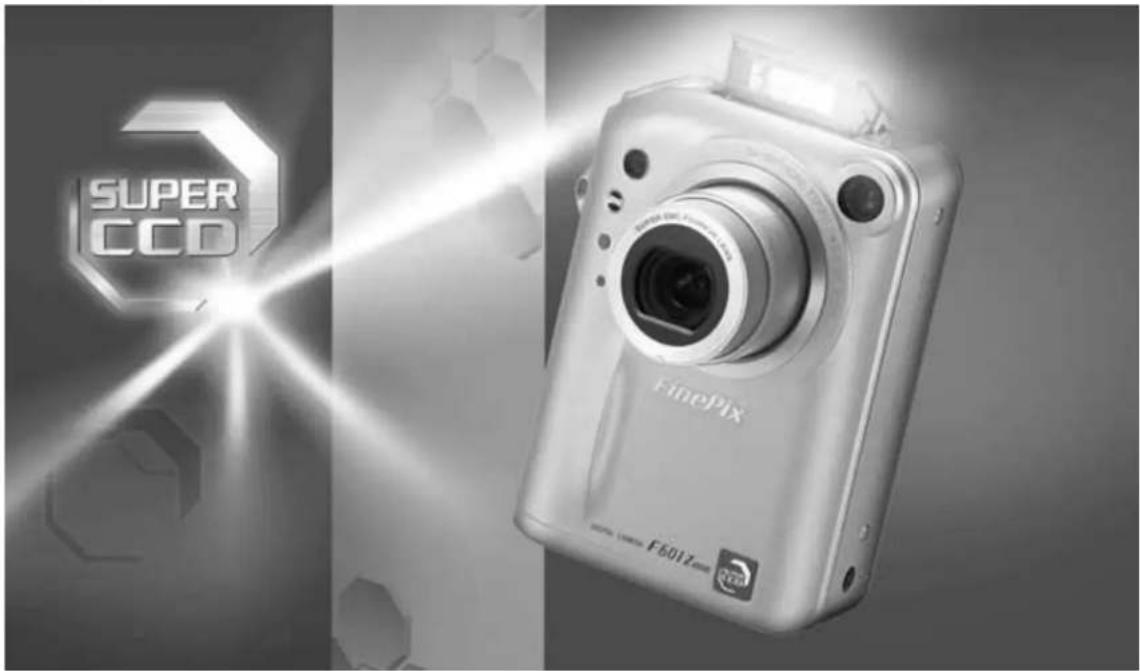
OWNER'S MANUAL
This manual will show you how to use your FUJIFILM DIGITAL CAMERA FinePix F601 ZOOM correctly. Please follow the instructions carefully.
Getting Ready
1
Basic Photography
2
Advanced Features Photography
3
Advanced Features Playback
4
Settings
5
PC Connection
6
BL00119-200(1)
E
Warning
To prevent fire or shock hazard, do not expose the unit to rain or moisture.
This symbol is intended to alert the user to the presence of uninsulated "dangerous voltage" within the product's enclosure that may be of sufficient magnitude to constitute a risk of electric shock to persons. This symbol is intended to alert the user to the presence of important operating and maintenance (servicing) instructions in the literature accompanying the appliance.
For customers in the U.S.A.
FCC Statement
This device complies with part 15 of the FCC Rules. Operation is subject to the following two conditions: (1) This device may not cause harmful interference, and (2) this device must accept any interference received, including interference that may cause undesired operation.
CAUTION
This equipment has been tested and found to comply with the limits for a Class B digital device, pursuant to Part 15 of the FCC Rules. These limits are designed to provide reasonable protection against harmful interference in a residential installation. This equipment generates, uses, and can radiate radio frequency energy and, if not installed and used in accordance with the instructions, may cause harmful interference to radio communications. However, there is no guarantee that interference will not occur in a particular installation. If this equipment does cause harmful interference to radio or television reception, which can be determined by turning the equipment off and on, the user is encouraged to try to correct the interference by one or more of the following measures:
— Reorient or relocate the receiving antenna. — Increase the separation between the equipment and receiver. — Connect the equipment into an outlet on a circuit different from that to which the receiver is connected.
— Consult the dealer or an experienced radio/TV technician for help.
You are cautioned that any changes or modifications not expressly approved in this manual could void the user's authority to operate the equipment.
Notes on the Grant:
To comply with Part 15 of the FCC rules, this product must be used with a Fujifilm-specified ferrite-core USB cable and DC supply cord.
For customers in Canada
CAUTION
This Class B digital apparatus complies with Canadian ICES-003.
Please read the Safety Notes (→P.130) and make sure you understand them before using the camera.
Contents
Warning 2
Preface 6
Camera Features and Accessories 7
Nomenclature/Attaching the strap/sample display -- 8
1 Getting Ready
LOADING THE BATTERY AND SmartMedia™ ... 11
CHARGING THE BATTERY 14
Using the AC Power Adapter 14
SWITCHING ON AND OFF
SETTING THE DATE AND TIME 15
2 Basic Photography
BASIC OPERATION 18
Using the Menus 20
TAKING PICTURES (AUTO MODE) 22
■ Viewfinder Lamp Display 26
Number of Available Frames 27
USING AF/AE LOCK 28
DIGITAL ZOOM 30
FRAMING GUIDELINE FUNCTION 31
VIEWING YOUR IMAGES (PLAYBACK) 32
Fast Forwarding Images 32
MULTI-FRAME PLAYBACK 33
PLAYBACK ZOOM 34
Saving Trimmed Images 35
ERASING SINGLE FRAME 36
4 USING A TV MONITOR (USING THE CRADLE) ... 37
3 Advanced Features Photography
SELECTING THE PHOTOGRAPHY MODE …… 38
PHOTOGRAPHY MODE
SCENE POSITION 39
Portrait • Landscape • Sports
Night Scene · 40-frame continuous shooting
MMANUAL 41
MOVIE (VIDEO) 42
AUDIO RECORDING 45
Audio Indexing 47
PHOTOGRAPHY MENU OPERATION 48
PHOTOGRAPHY MENU OPTIONS 50
PHOTOGRAPHY MENU
↓ VOICE MEMO (DURING SHOOTING) … 52
SELF-TIMER PHOTOGRAPHY 54
FLASH 56
4 Auto Flash Mode 57
Red-Eye Reduction 57
4 Forced Flash 58
s4 Slow Synchro 58
① Suppressed Flash 59
CONTINUOUS SHOOTING 60
Auto Bracketing 61
MACRO (CLOSE-UP) PHOTOGRAPHY … 62
[ ] FOCUS MODE 63
AF Autofocus · AF AREA · MF Manual focus
[EXPOSURE] MODE] MODE 66
Programed Auto · Aperture-priority Auto ·
Shutter-priority Auto · Manual exposure
[o] PHOTOMETRY 68
EV (EXPOSURE COMPENSATION) …… 69
± FLASH (FLASH BRIGHTNESS
ADJUSTMENT) 70
WB WHITE BALANCE
(SELECTING THE LIGHT SOURCE) …… 71
MD SENSITIVITY 72
SHARPNESS 73
4 Advanced Features Playback
PLAYING BACK MOVIES (VIDEO) 74
PLAYING BACK VOICE MEMOS 76
PLAYING BACK AUDIO RECORDINGS ...... 78
Setting Audio Index Markers 80
Removing Audio Index Markers 80
PLAYBACK MENU
EBASING SINGLE
ALL FRAMES/FORMATTING 82
♦ VOICE MEMO (DURING PLAYBACK) .... 86
HOW TO SPECIFY PRINT OPTIONS (DPOF) ... 89
DPOF SET FRAME 90
5 Settings
← SETTING THE FILE SIZE 93
ST USING THE SET-UP MENU 96
■ SET-UP Menu Options 97
SET-UP
30 IMAGE DISPLAY 98
Preview Zoom 98
Selecting Recorded Images 99
AUTO POWER OFF 100
31 LCD MONITOR BRIGHTNESS/VOLUME · 101
6 PC Connection
PC (PERSONAL COMPUTER) IN CONNECTION … 102
CONNECTING AT DSC MODE 104
CONNECTING AT PC-CAMERA MODE 106
DISCONNECTING FROM THE PC
(Important — always use this procedure.) …… 108
System Expansion Options 110
Accessories Guide 111
Notes on Using Your Camera Correctly ..... 113
Notes on the Power Supply 114
Notes on Using the Battery (NP-60)……114
AC Power Adapter 116
Notes on the SmartMedia™ 117
Warning Displays 119
Troubleshooting 122
Specifications 126
Explanation of Terms 128
Safety Notes 130
EC Declaration of Conformity 133
Preface
■ Test Shots Prior to Photography
For particularly important photographs (such as weddings and overseas trips), always take a test photograph and view the image to make sure that the camera is functioning normally.
- Fuji Photo Film Co., Ltd. cannot accept liability for any incidental losses (such as the costs of photography or the loss of income from photography) incurred as a result of faults with this product.
■ Notes on Copyright
Images recorded using your digital camera system cannot be used in ways that infringe copyright laws without the consent of the owner, unless intended only for personal use. Note that some restrictions apply to the photographing of stage performances, entertainments and exhibits, even when intended purely for personal use. Users are also asked to note that the transfer of memory cards containing images or data protected under copyright laws is only permissible within the restrictions imposed by those copyright laws.
■ Liquid Crystal
If the LCD monitor or display panel is damaged, take particular care with the liquid crystal in the monitor or panel. If any of the following situations arise, take the urgent action indicated.
- If liquid crystal comes in contact with your skin
Wipe the area with a cloth and then wash thoroughly with running water and soap.
- If liquid crystal gets into your eye
Flush the affected eye with clean water for at least 15 minutes and then seek medical assistance.
- If liquid crystal is swallowed
Flush your mouth thoroughly with water. Drink large quantities of water and induce vomiting. Then seek medical assistance
■ Notes on Electrical Interference
If the camera is to be used in hospitals or aircrafts, please note that this camera may cause interference to other equipment in the hospital or aircraft. For details, please check with the applicable regulations.
■ Handling Your Digital Camera
This camera contains precision electronic components. To ensure that images are recorded correctly, do not subject the camera to impact or shock while an image is being recorded.
■ Trademark Information
- IBM PC/AT is a registered trademark of International Business Machines Corp. of the U.S.A.
- iMac and Macintosh are registered trademarks of Apple Computer, Inc.
- Windows is a registered trademark of the Microsoft Corporation of the U.S. registered in the U.S.A. and other countries. Windows is an abbreviated term referring to the Microsoft Windows Operating System.
● SmartMedia is a trademark of Toshiba Corporation.
● Other company or product names are trademarks or registered trademarks of the respective companies.
■ Explanation of Color Television System
NTSC: National Television System Committee, color television telecasting specifications adopted mainly in the U.S.A., Canada and Japan.
PAL: Phase Alternation by Line, a color television system adopted mainly by European countries and China.
Camera Features and Accessories
Camera Features
● 3.1 million effective pixels
● 2832 × 2128 (6.03 million) recorded pixels
● Built-in 3× zoom lens with a low-dispersion aspherical lens for superb optical performance
● Compact and lightweight aluminum-magnesium alloy body
- Quick, responsive operation with 2-second startup and as little as 1 second between shots
- Auto focus with macro function (manual focus also available) - Automatic shooting modes that can be tailored to subjects in different photography conditions
● Shutter-priority AE, Aperture-priority AE and Manual exposure functions
● High-sensitivity photography (1M mode only)
● Convenient preview function for quickly checking of your shots
- The 6.6x Honeycom zoom lens makes the most of the Super CCD Honeycom features (3x optical zoom coupled with a superbly smooth (multi-level) digital zoom function offering up to 2.2x zooming at megapixel resolutions).
● Playback zoom function (up to 16x)
● Continuous shooting function
● Movie shooting function (640 × 480/320 × 240 pixels with sound)
- Voice Memo function for easy photography information recording - Audio Recording function
● 1.5-inches 110,000-pixels low-temperature polysilicon TFT LCD monitor
● Recharge or connect to your PC simply by placing the FinePix F601 ZOOM in its cradle (sold separately)
● Easy high-speed image file transfer via the USB connection
- Conforms to the new standard for digital camera file system* - Design rule for Camera File System
Accessories
●SmartMedia (16MB, 3.3V) (1)
Supplied with: • Anti-static case (1) • Index label (1)

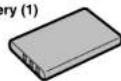
● NP-60 Rechargeable Battery (1) Soft case included
● AC-5VS/AC-5VHS AC Power Adapter (1) Approx. 2 m (6.6 ft.) connection cord
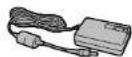
- USB Interface Set (1)
- CD-ROM: Software for FinePix EX (1) - FinePix F601 ZOOM Special USB cable with Noise Suppression core (1) - Software Quick Start Guide (1)
- Owner's Manual (this manual) (1)
Nomenclature
* Refer to the pages in parentheses for information on using the camera features.
![[Mode dial] Audio recording (P.45) Movie (Video) (P.42) Auto (P.22) Scene Position (P.39) Manual (P.41) Shutter button Flash control sensor Microphone Strap mount Self-timer lamp (P.55) Battery cover (P.12,13) Flash (P.56) Lens / Lens Cover Viewfinder window Battery compartment (P.12) SmartMedia slot (P.13) Battery lock release button (P.12)](/content/2026/05/1103715/images/23b2151e7d5f6bc7ee2a2be89d55a0b803b9e5447d2a75154e2ff531359d6eb6.jpg)
![Multifunction ( ▲▼◀▶ and "MENU/OK") button (P.20) OPEN (Flash pop-up) button (P.56) BACK button Viewfinder (P.24) Viewfinder lamp (P.26) (Power) button (P.15) Mode indicators DISP button (P.22,31,33) LCD monitor Connection socket / Connection socket cover (P.104,106) DC IN 5V (Power input) socket (P.14) Tripod mount Speaker (P.101) [Mode switch] Photography mode (P.22) Playback mode (P.32) [Attaching the strap] 1 2](/content/2026/05/1103715/images/d852fde630bdd5c4ec7f1822cadf6e68661c248363b23d05d94ae5bc02729467.jpg)
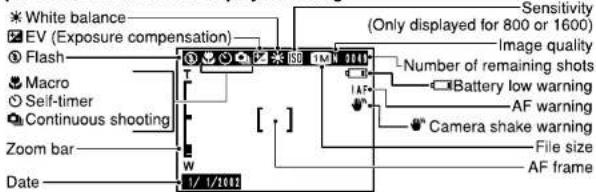
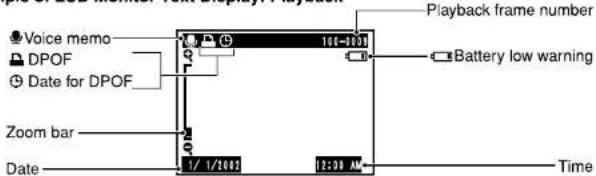
Nomenclature (sample display)
Example of LCD Monitor Text Display: Shooting
Example of LCD Monitor Text Display: Playback
1 Getting Ready
LOADING THE BATTERY AND SmartMedia™
Compatible Batteries
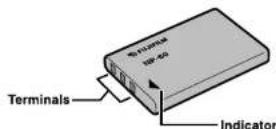
NP-60 Rechargeable Battery (1)
SmartMedia™(sold separately)
■ Only use 3.3V SmartMedia
MG-4S (4MB), MG-16SW (16MB, ID)
MG-8S (8MB), MG-32SW (32MB, ID)
MG-16S (16MB), MG-64SW (64MB, ID)
MG-32S (32MB), MG-128SW (128MB, ID)
MG-64S (64MB)
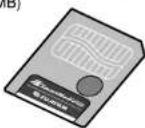
The battery is not fully charged at shipment and must be charged up before being used.
Do not attach labels or other stickers to the battery as this could cause the battery to jam inside the camera.
! See P.114-115 for note on the battery
! Image files cannot be recorded or erased if a write-protect sticker is affixed to the SmartMedia.
Operation of this camera is only guaranteed when it is used with FUJIFILM SmartMedia.
Some 3.3V SmartMedia are labelled as "3V" or ID" cards.
! See P.117-118 for note on SmartMedia.
LOADING THE BATTERY AND SmartMedia™
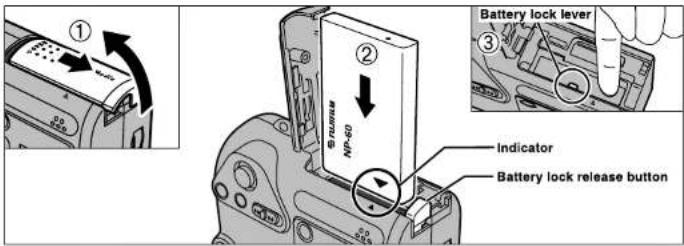
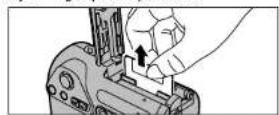
①Slide the battery cover out to open it.
②Hold the battery so that the indicator are aligned and then slide it into the camera.
③Press on the part near the indicator until the battery lock catch locks the battery into place.
Do not apply excessive force to the battery cover.
Never open the battery cover while the camera is still switched on. This could damage the SmartMedia or corrupt the image files on the SmartMedia.
When you've finished shooting and you want to remove or replace the battery
Open the battery cover and press the battery lock release button to release the lock.
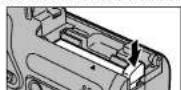
Always switch the camera off when replacing the battery.
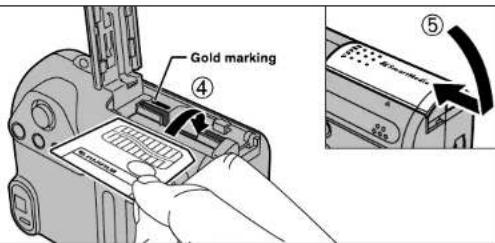
④Push the SmartMedia firmly into the SmartMedia slot as far as it will go.
⑤Close the battery cover.
If you open the battery cover while the camera is switched on, the camera automatically switches off to protect the data on the SmartMedia.
The SmartMedia will not slide fully into the slot if it is inserted facing the wrong way. Be careful not to apply undue force to the SmartMedia.
To protect the SmartMedia, always store it in the special anti-static case.
When you've finished shooting and want to remove or replace the SmartMedia
Open the battery cover, grasp the SmartMedia with your fingertips and pull it out.
CHARGING THE BATTERY
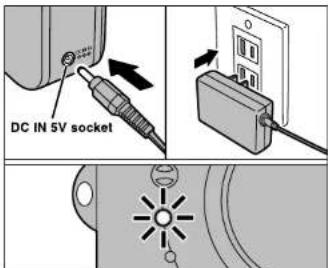
Check that the camera is switched off. Plug the AC power adapter connector into the DC IN 5V socket on the camera and then plug the adapter itself into the main power outlet.
The self-timer lamp lights red and battery charging begins. When charging is completed, the self-timer lamp switches off.
A fully discharged battery takes roughly 5 hours to fully recharge (at an ambient temperature of +21°C to +25°C (+70°F to +77°F)).
Using the AC Power Adapter
Use the AC power adapter in situations when a loss of power will cause problems, such as during file downloading (via the USB connection). Using the AC power adapter also allows you to take pictures and play back images without worrying about depleting the batteries.
● Compatible AC power adapters AC-5VS/AC-5VHS/AC-5VH
Use only the FUJIFILM products listed above.
See P.116 for notes on using the AC power adapter.
Only connect or disconnect the AC power adapter when the camera is switched off.
Connecting or disconnecting the AC power adapter while the camera is switched on temporarily interrupts the power supply to the camera, so that images or movies being shot at the time are not recorded. Failing to switch the camera off first can also result in damage to the SmartMedia or malfunctions during PC connection.
! Charging times increase at low temperatures.
If the self-timer lamp flashes during charging, a charging error has occurred and the battery cannot be charged. If this occurs, see P.122.
Switching the camera on during charging interrupts the charging.
You can charge the battery more quickly by using the BC-60 Battery Charger (sold separately) (P.111).
The shape of the plug and socket-outlet depends on the country of use.
SWITCHING ON AND OFF · SETTING THE DATE AND TIME
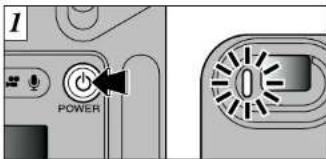
Press the "∅" (power) button to switch the camera on and off. When you switch the camera on, the viewfinder lamp lights (green).
In "☐" mode, the lens cover opens and the lens extends. Take care not to press on these precision components as this could result in a fault or a "FOCUS ERROR" message being displayed on the LCD monitor. Take care also not to leave fingermarks on the lens as this will degrade the picture quality.
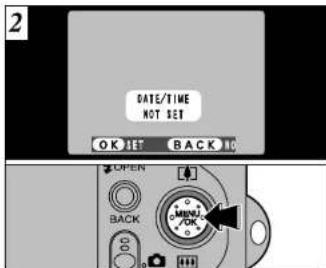
When you first switch the camera on, the date is cleared. Press the "MENU/OK" button to set the date and time.
To set the date and time later, press the "BACK" button.
If you do not set the date and time, this confirmation screen will appear each time you switch the camera on.
SWITCHING ON AND OFF · SETTING THE DATE AND TIME
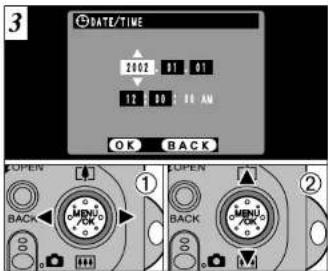
①Use "◀" and "▶" to select Year, Month, Day, Hour or Minute.
②Use "▲(□□)" and "▼(□□□)" to correct the setting.
If you hold down "▲(■)" or "▼(■)", the numbers change continuously.
When the time displayed passes "12:00:00", the AM/PM setting automatically switches.
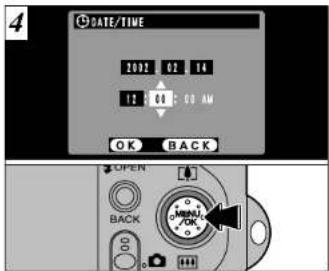
Press the "MENU/OK" button. Pressing the "MENU/OK" button switches the camera to Photography or Playback mode.
To set the time precisely, press the "MENU/OK" button when the time is at zero seconds.
If at least 1 hour have passed since the AC power adapter was connected or the battery inserted and the date and time set, then those settings will be maintained for roughly 12 hours even when the camera has no power supply (when the AC power adapter is disconnected and the battery is removed).
◆ Checking the remaining
battery charge
LCD monitor
① Blank
② Lit white
③ Lit red
④ Blinking red
You can check the remaining battery charge on the LCD monitor by pressing the "DISP" button to switch the LCD monitor on.
①Battery has ample charge (No indicator displayed).
②The battery is approximately half charged.
③Battery charge low. Replace or recharge the battery as it will run out shortly.
④The battery is exhausted. The display will shortly go blank and the camera will stop working. Replace or recharge the battery.
! The above estimates are for the photography modes (excluding Audio Recording mode). In Audio Recording or Playback mode, the transition from "☐" to "☐" may take less time.
Auto Power Off Function
When this function is active, the LCD monitor switches off to conserve reduce power consumption if the camera is left unused for approximately 30 seconds ( P.100).
2 Basic Photography
BASIC OPERATION
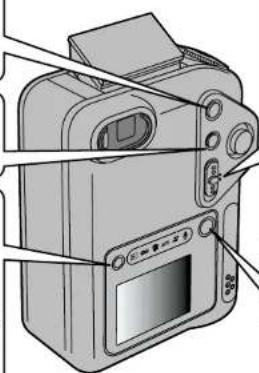
- Flash release Press this button to pop the flash unit up when you want take pictures using the flash.
- Cancel Press this button to stop a procedure midway through.
- Display selector You can use this to select what is shown on the LCD monitor. During photography: LCD monitor ON/OFF, Framing Guideline displayed During playback: Normal playback, No text displayed, multi-frame playback.
natural_image
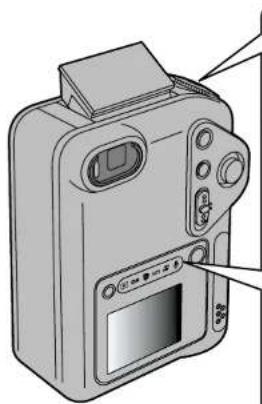
Diagram of a digital camera with attached screen and buttons (no text or symbols)● Photography/Playback selector
Slide the switch up or down to switch between Photography and Playback modes.
Photography: Shoot pictures or video, or record sound.
Playback: Play back images and sound.
● ON/OFF Press this button to switch the camera on and off.
natural_image
Illustration of a digital camera with control panel and display screen (no text or symbols)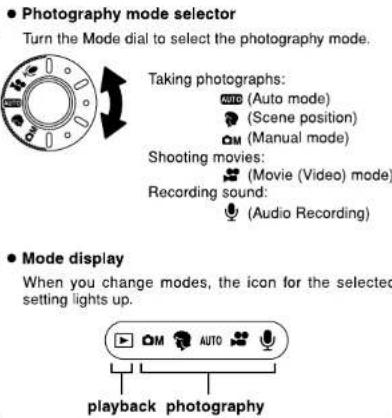
BASIC OPERATION (Using the Menus)
- Multifunction button
①Menu display Press the button in.
②Menu selection Push the button up, down, left or right.
③ Confirm menu selection Press the button in.
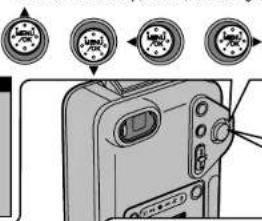

In the Owner's Manual, black triangles are used to indicate up, down, left and right. "▲▼" is used to indicate up/down.
④ Select setting Push the button up or down. ⑤ Confirm setting Press the button in.

Selecting Menus
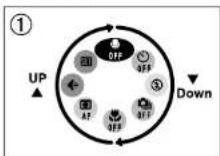
* The examples in figure below show the factory default menu options set at shipment.
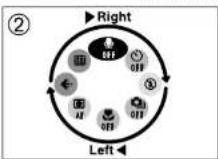
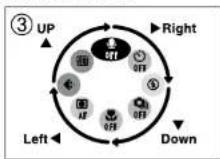
Menu option selection is based on clockwise rotation.
①To go from "💡" to "💡", press "▼". To go from "💡" to "💡", press "▲".
②To go from "③" to "◀", press "◀". To go from "◀" to "④", press "▶".
To go from " ", to " , press " . To go from " " to " , press " . To go from " " to " , press " . To go from " " to " , press " .
! Hold down the “▲, ▼, ◀ or ▶” buttons to scroll continuously through the selected menu options.
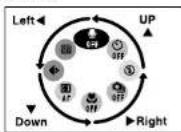
- Moving backwards through the menu You can also move in the opposite directions to those shown in ③.
TAKING PICTURES (AUTO MODE)
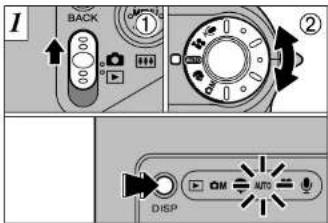
① Set the Mode switch to "☐" ② Set the Photography Mode dial to "AUTO".
The mode indicator for the selected photography mode lights.
You can extend the time for which you can use the camera by pressing the "DISP" button to switch the LCD monitor off when you are using the viewfinder to take pictures (Note that you cannot switch the LCD monitor off in Macro mode).
●Photography range: Approx. 60 cm (2 ft.) to infinity
natural_image
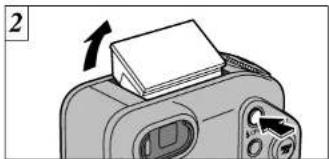
Diagram of a printer with paper being inserted, showing mechanical components and an arrow indicating motion (no text or symbols)Press the “♦” OPEN button to make the flash pop up.
! If a "ICARD ERROR", "I WRITE ERROR".
“I READ ERROR” or “I CARD NOT INITIALIZED” message appears, see P.119, 120.
If the photography mode is *AUTO*, use the Auto Flash mode.
When the flash is popped up or you are using the flash to take pictures, you may see the video image disappear and the screen go dark as the flash charges. The viewfinder lamp flashes orange while the flash is charging.
If you use the flash in very dusty environments or when it is snowing, the flash may reflect off snowflakes or floating dust particles so that they appear as glowing white dots on your image.
natural_image
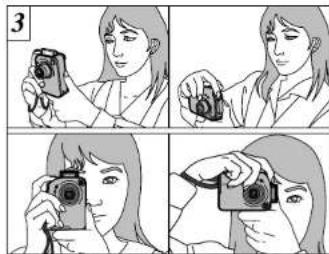
Four-panel comic strip showing a person holding a digital camera, with no visible text or symbolsLoop the strap over your wrist, brace your elbows firmly against your body and hold the camera with both hands.
Be careful to ensure that the lens, microphone and flash control sensor are not obscured by your hands or the camera strap.
For subjects closer than 60 cm (2 ft.), use Macro photography (P.62).
To minimize power consumption, you should use the viewfinder (switch the LCD monitor off) to take pictures.
The camera may not be able to take successful pictures if your fingers or the strap are in the way.
Check that the lens is clean. If it is dirty, clean the lens as described on P.113.
![4 OPEN BACK MENU/OK A 3 M N [0,1] T [ ] Zoom bar W](/content/2026/05/1103715/images/4383242ec1e11a480570eba1466c0d01ef030a51767ef35fd013ff14bc2f18ba.jpg)
To zoom in on the subject, press "▲" (TELE). To zoom out, press "▼" (WIDE). A "zoom bar" appears on the LCD monitor when you zoom in or out.
● Optical zoom focal length (35mm camera equivalent)
Approx. 36 mm-108 mm (1.4 in. to 4.3 in.)
Maximum zoom scale: 3×
Zooming stops briefly when the camera switches between optical zoom and digital zoom (P.30).
TAKING PICTURES (AUTO MODE)
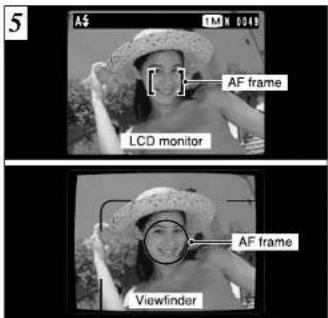
Using the viewfinder or LCD monitor, frame your shot so that the subject fills the entire AF (Auto Focus) frame.
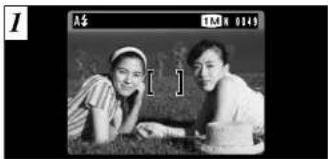
24 If your subject is not in the center of the picture, use AF/AE lock to take the picture (→P.28).
natural_image
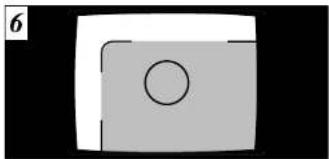
Simple geometric diagram with a circle inside a rectangle and a number 6 in the top-left corner (no text or symbols)When you are using the viewfinder to take a picture at a distance of 0.8 m to 1.5 m (2.6 ft. to 4.8 ft.), only the shaded area in the figure is photographed.
To frame your shot precisely, you should take the picture using the LCD monitor.
In some conditions it may be difficult to see your subject clearly on the LCD monitor (Such as in sunny weather outdoors or when you are shooting dimly lit scenes). In such situations, use the viewfinder to take the shot.
The image shown on the LCD monitor before you take the shot may differ in its brightness, color, etc. from the image actually recorded. If necessary, play back the recorded image to check it (→P.32).
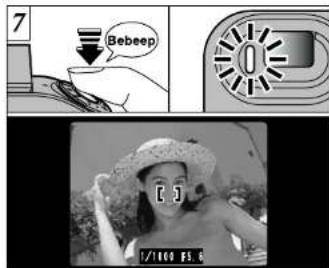
When you press the shutter button down halfway, the camera emits a short double-beep and focuses on your subject (the viewfinder lamp (green) changes from blinking to steady). At that point, the AF frame on the screen becomes smaller and the camera sets the shutter speed and aperture.
If the camera does not emit a short double-beep and "AF" appears on the screen, the camera cannot focus.
When you press the shutter button down halfway, the image on the screen frames temporarily. However, this image is not the recorded image.
If "AF" is displayed on the screen (e.g., the shot is too dark for the camera to focus), try standing about 2 m (6.6 ft.) from your subject to take the picture.
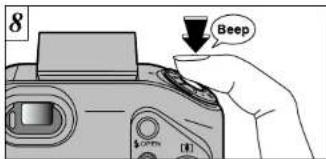
To take the picture, press the shutter button down fully without lifting your finger off it. The camera beeps and takes the picture, and the data is then recorded.
! If you press the shutter button down fully in one motion, the shot is taken without the AF frame changing.
When you take a picture, the viewfinder lamp lights orange (camera not ready) before switching back to green to indicate that the camera is again ready for shooting.
The viewfinder lamp flashes orange while the flash is charging. If the LCD monitor is switched on, the screen may go dark for a moment. This is normal and does not indicate a fault.
See P.119-121 for information on the warning displays.
TAKING PICTURES (AUTO MODE)
■ Viewfinder Lamp Display *When the LCD monitor is switched on, more detailed warning messages are displayed (→P.119-121).
| Display | Status | Camera Operation |
| Lit green | Ready to shoot. | All camera operations are possible. |
| Blinking green | AF/AE in progress, camera shake warning or AF warning. | All camera operations are possible. |
| Blinking green and orange alternately | Recording to SmartMedia. | Only zooming and picture taking are possible. |
| Lit orange | Recording to SmartMedia. | No photography is possible. |
| Blinking orange | Flash charging, PC communication in progress | No camera operations are possible. |
| Blinking red | ●SmartMedia warning.No SmartMedia loaded, SmartMedia not formatted, incorrect format, write-protect sticker used, SmartMedia full, SmartMedia error.●Lens operation error. | No camera operations are possible. |
◆ Subjects Not Suitable for Autofocus ◆
Though the FinePix F601 ZOOM uses an accurate autofocus mechanism, it may have difficulty focusing or not be able to focus at all for the types of subject and situation listed below. In such cases, the image may be out of focus.
● Very shiny subjects such as a mirror or car body.
● Subjects photographed through glass.
- Subjects that do not reflect well, such as hair or fur
- Subjects with no substance, such as smoke or flames.
● When the subject is dark.
- When there is very little contrast between the subject and the background (such as white walls or subjects dressed in the same color as the background).
● Subjects moving at high speed.
- When something other than your subject is close to the AF frame, has contrasting areas of light and dark and is either closer or further away than your subject (as when you photograph someone against a background with strongly contrasting elements).
For subjects of this type, use AF/AE lock (→P.2B).
Number of Available Frames
The number of available shots is displayed on the LCD monitor.
See P.93 for information on changing the File size and Quality setting.
At shipment, the default settings are "10" (file size) and N (quality: NORMAL).
■ Standard number of shots per SmartMedia
Because the amount of data recorded varies depending on the subject, the number of available shots may not decrease when recording ends, or may decrease by 2 frames. Also, the discrepancy between the actual number of shots and the standard number of shots tends to be larger when there is more space remaining on the SmartMedia
| File Size | 6M 2832 × 2128 | 5M 2048 × 1536 | 1M 1280 × 960 | 6M 640 × 480 | ||||
| Quality Mode | FINE | NORMAL | BASIC | FINE | NORMAL | FINE | NORMAL | NORMAL |
| Image Data Size | Approx 2400KB | Approx. 1200KB | Approx. 460KB | Approx 1300KB | Approx. 590KB | Approx 620KB | Approx. 320KB | Approx. 130KB |
| MG-4S (4MB) | 1 | 3 | 8 | 2 | 6 | 6 | 12 | 30 |
| MG-8S (8MB) | 3 | 6 | 17 | 6 | 13 | 12 | 25 | 61 |
| MG-16S (16MB) | 6 | 13 | 33 | 12 | 26 | 25 | 49 | 122 |
| MG-32S (32MB) | 13 | 28 | 68 | 25 | 53 | 50 | 99 | 247 |
| MG-64S (64MB) | 26 | 56 | 137 | 50 | 107 | 101 | 198 | 497 |
| MG-128S (128MB) | 53 | 113 | 275 | 102 | 215 | 204 | 398 | 997 |
![A# [ ]](/content/2026/05/1103715/images/bd72eadcdf26e7009e38be5e235f6828b3fb692e72937a244d074ed7e29fe97b.jpg)
* The number of available shots when the SmartMedia is formatted in the camera. 27
USING AF/AE LOCK
natural_image
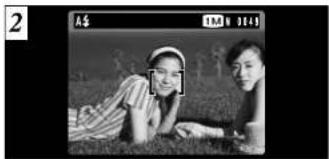
Black-and-white photo of two people lying on grass, one holding a cup (no visible text or symbols)In a shot with this type of composition, the subjects (two people in this case) are not in the AF frame. If the shot is taken at this point, the subjects will not be in focus.
natural_image
Black-and-white photo of two people lying on grass, one wearing a cap and the other in a hat (no visible text or symbols)Move the camera slightly so that one of the subjects in the AF frame.
AF/AE Lock
On the FinePix F601 ZOOM, when you press the shutter button down half way, the focus and exposure settings are fixed (AF/AE lock). If you want to focus on a subject that is off to one side of the image or if you want to set the exposure before you compose the final shot, lock the AF and AE settings and then compose and shoot your picture to get the best results.
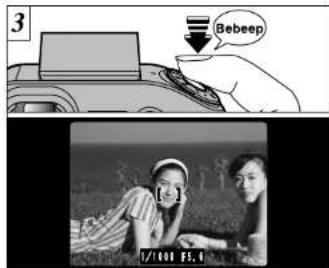
Keep holding the shutter button down halfway (AF/AE lock). Check that the AF frame on the LCD monitor shrinks and that the shutter speed and aperture setting are displayed (the viewfinder lamp (green) changes from blinking to steady).
![4 Beep [ ] 1/1000 F5.6](/content/2026/05/1103715/images/59d859648bf04a9d0c193e45076bd78ed960445baa2e90ab40ae7d0c7f9d56f8.jpg)
Continue to hold the shutter button down halfway (AF/AE lock). Move the camera back to the original image and then fully press down on the shutter button.
You can reapply the AF/AE lock as many times as you like before releasing the shutter.
The AF/AE lock operates in all photography modes and can be used to ensure excellent results.
DIGITAL ZOOM
If the file size (image size) setting is "SM", "1M" or "VBA", you can use the digital zoom. However, this only applies when you are using the LCD monitor to take pictures.
● Digital zoom focal distance (35 mm camera
equivalent)
3M: Equivalent to approx. 108 mm-151 mm (Max. 1.4×)
1M: Equivalent to approx. 108 mm-238 mm (Max. 2.2×)
VBA: Equivalent to approx. 108 mm-475 mm (Max. 4.4×)
You cannot use the digital zoom for recorded pixels of "BM".
! The digital zoom cannot be used in high-sensitivity photography.
See P.93 for information on changing the file size setting
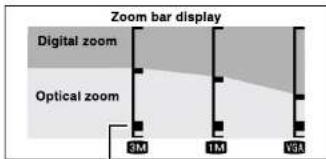
The position of the "■" on the zoom bar indicates the current zoom setting.
- If the "■" is above the dividing line, the digital zoom is being used. If it is below the line, the optical zoom is being used.
- Press "▲" or "▼" to move the "■" up and down.
- When you switch between digital zoom and optical zoom, the "■" stops moving briefly. Press the button for the same direction again to start the "■" moving and switch the zoom setting.
If the image goes out of focus when you use the zoom, press the shutter button down halfway to refocus.
The optical zoom is equivalent to approximately 36 mm-108 mm on a 35 mm camera.
FRAMING GUIDELINE FUNCTION
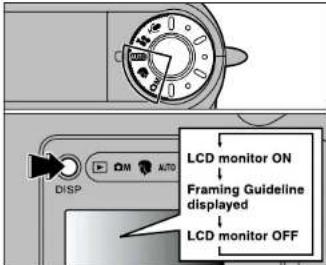
The photography mode can be set to "AUTO • or □M". The mode shown on the LCD monitor switches each time you press the "DISP" button. Press the "DISP" button to display the framing guideline.
The framing guideline is not recorded on the image.
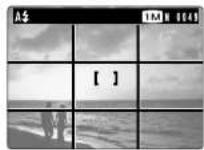
The lines in the scene frame roughly divide the recorded pixels into three equal parts horizontally and vertically. When the image is printed, the resulting print may be shifted slightly from the scene frame.
The framing guideline is not recorded on the image.
The lines in the scene frame roughly divide the recorded pixels into three equal parts horizontally and vertically. When the image is printed, the resulting print may be shifted slightly from the scene frame.
The lines in the scene frame roughly divide the recorded pixels into three equal parts horizontally and vertically. When the image is printed, the resulting print may be shifted slightly from the scene frame.
Scene
Use this frame when you want to position your main subject in the center of the frame or when you want to align your shot with the horizon. This feature provides a clear guide to the subject size and the overall balance of the shot so that you get exactly the shot you want.
Important
Always use the AF/AE lock to compose your picture.
Failing to use the AF/AE lock may result in the image being out of focus.
VIEWING YOUR IMAGES (PLAYBACK)
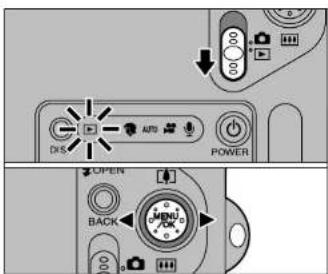
Set the Mode switch to "▶".
You can "◀" and "▶" button to move forward and backward respectively through your images.
When you set the Mode switch to "☐", the last image shot is displayed.
If the lens is extended during playback, the camera refracts the lens as a protective measure if the camera is not used for approximately 6 seconds.
Images That Can be Viewed on the FinePix F601 ZOOM You can use this camera to view (excluding some uncompressed data) images recorded on an FinePix F601 ZOOM or images recorded onto a 3.3V SmartMedia using a FUJIFILM FinePix series, MX series and DX series digital camera.
Fast Forwarding Images
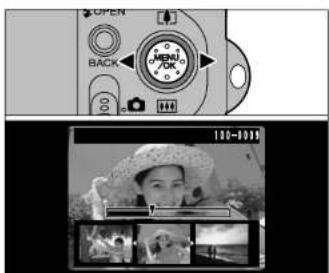
You can fast forward through the frames by holding down "◀" or "▶" button for about 1 second during playback.
A progress bar is displayed to show the approximate playback position on the SmartMedia.
MULTI-FRAME PLAYBACK
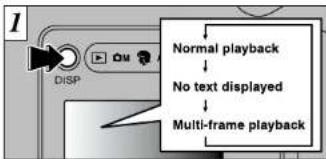
In playback mode, the display shown on the LCD monitor switches each time you press the "DISP" button. Press the "DISP" button until the multi-frame playback screen (9 frames) appears.
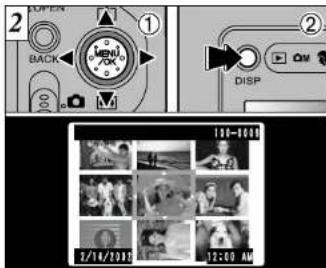
①Select a frame by using “◀”, “▶”, “▲” and “▼” button to move the cursor (the orange box) to the desired frame. Press the “▲” or “▼” button several times to switch to the previous page or the next page. ②You can enlarge the selected image by pressing the “DISP” button again.
The LCD monitor text display disappears after approximately 3 seconds.
Playback zoom cannot be used with multi-frame playback.
PLAYBACK ZOOM
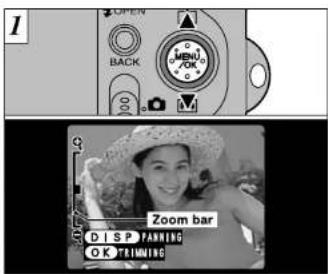
Pressing the "▲" or "▼" button during single-frame playback zooms in (enlarges) or out on a still image. When you use this function, a zoom bar is displayed.
- Zoom scales:
6M 2832 × 2128 pixel images: Max. 18×
SM 2048 × 1536 pixel images: Max. 13×
TM 1280 × 960 pixel images: Max. 8×
VGA 640× 480 pixel images: Max. 4×
34
! Pressing the "◀" or "▶" button during zooming cancels zooming and moves to the next image.
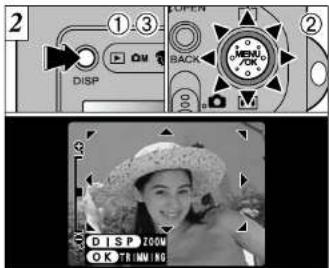
After you have zoomed in on your image,
①Press the "DISP" button
②You can move the field of view in 8 directions.
③Press the "DISP" button again to revert to zoomed display.
Press the "BACK" button to return to normal unscaled display.
Saving Trimmed Images
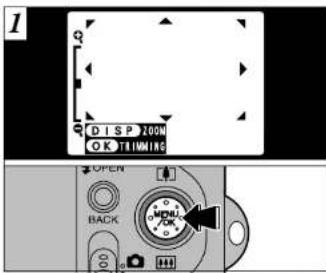
After using playback zoom, press the "MENU/OK" button to trim the image.
The size of the saved image varies depending on the zoom scale. In VGA mode, "OKTRIMMING" is displayed in yellow. At recorded pixels below VGA, "OKTRIMMING" is no longer displayed.
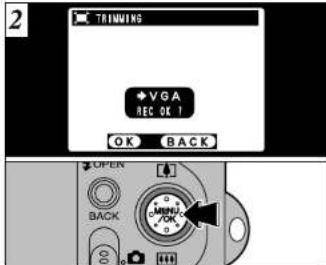
Check the size of the image being saved and then press the "MENU/OK" button. The trimmed image is saved as a separate file.
■Image Sizes
| SM | Best for prints |
| TM | Good for prints |
| TM | "OTRIMMING" is displayed in yellow since the quality is too low for printing. |
- Lower than _0 : "OK TRIMMING" is no longer displayed and images cannot be saved trimmed as the quality is not suitable for printing.
ERASING SINGLE FRAME
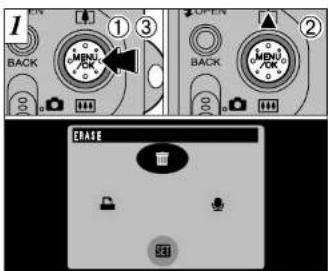
①Press the "MENU/OK" button during playback to display the menu.
② Use "▲" to select "■ ERASE".
③Press the "MENU/OK" button.
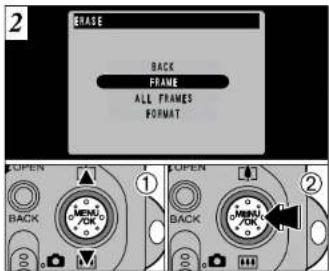
① Use "▲▼" to select "FRAME".
②Press the "MENU/OK" button to confirm your selection.
See P.82 for more information on "ALL FRAMES" and "FORMAT".
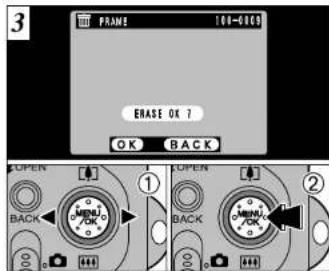
① Use "◀▶" to select the file to be erased.
②Press the "MENU/OK" button to erase the currently displayed file.
To erase another file, repeat steps ① and ②.
USING A TV MONITOR (USING THE CRADLE)
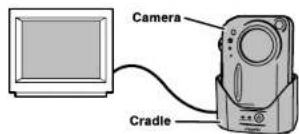
To view your images on a TV, you need the optional cradle (PictureCradle CP-FX601). Refer to the manual supplied with the cradle for instructions.

Note that mistakenly erased images cannot be recovered.
3 Advanced Features Photography
SELECTING THE PHOTOGRAPHY MODE
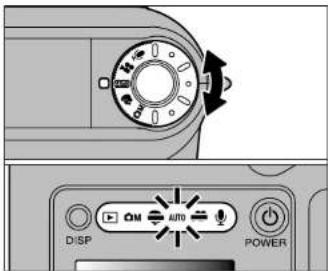
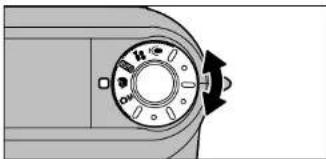
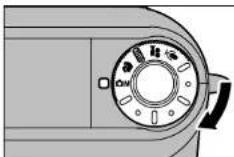
Turn the Mode dial to select the mode.
The mode indicator for the selected photography mode lights.
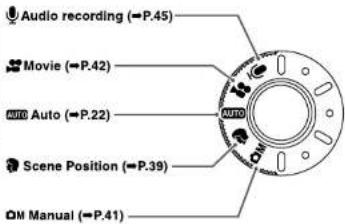
PHOTOGRAPHY MODE

SCENE POSITION
natural_image
Mechanical component diagram showing a circular dial with directional arrows (no text or symbols)In the "●" scene position, you can select the mode best suited to 5 photography scenes. See P.40 for details.
![OPEN BACK MENU /OK [ ] M 0140](/content/2026/05/1103715/images/783923c53267d44643b31d9e0bace0dd16fa79a68d8ecde999130ae6cc63614b.jpg)
Use "◀▶" to select the desired mode.
PHOTOGRAPHY MODE

SCENE POSITION
Portrait
Use this mode for shots of people. Portrait mode provides soft-tone images with natural skin colors.
- When using the flash
Auto Flash, Red-Eye Reduction, Forced Flash, Slow Synchro.
▲ Landscape
Use this mode for daytime shots of scenery. Landscape mode provides crisp, clear shots of buildings, mountains and other scenery.
●When using the flash
The Flash mode is automatically set to Suppressed Flash. This setting cannot be changed.
Sports
Use this mode for moving objects.
●Shutter
Takes pictures using fast shutter speeds.
- When using the flash
Auto Flash or Forced Flash only.
Night Scene
Use this mode for shots taken in the evening or at night.
●Shutter
Slow shutter speed mode with speeds as slow as 3 seconds.
- When using the flash
Slow Synchro, Red-Eye Reduction+Slow Synchro only.
40-frame continuous shooting
Use this mode for continuous shooting without limiting the photographic scenes.
●No. of continuous shots: Up to 40
●Quality setting
Automatically set to "1M" (1280 × 960). NORMAL and FINE can also be selected.
●Focusing: Set when the first shot is taken and cannot be changed in mid-sequence.
●Exposure, White Balance
Automatically varied to suit the scene.
-Flash
Automatically suppressed. Setting cannot be changed in mid-sequence.
You cannot switch the LCD monitor off.
PHOTOGRAPHY MODE
M MANUAL
"OM" Manual mode, as well as providing "Aperture-priority Auto", "Shutter-priority Auto" and the "Manual exposure" in which you can specify any shutter speed and aperture setting, also allows you to use combinations of various photography settings.
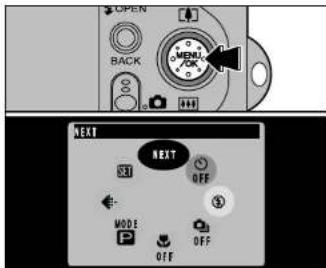
Press the "MENU/OK" button to display the menu. See P.50-73 for details of the photography menu.
To revert to the factory default settings, use "RESET ALL" (→P.97).
PHOTOGRAPHY MODE

MOVIE (VIDEO)
natural_image
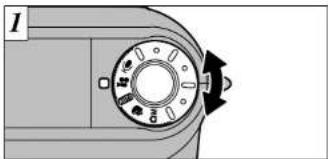
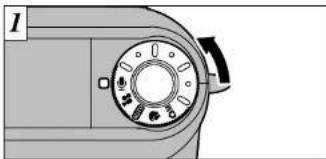
Close-up of a mechanical knob or dial with a circular knob and directional arrow (no text or symbols visible)“■” Movie mode allows you to shoot videos with sound.
●Movie format: Motion JPEG (→P.128)
VGA (640 × 480 pixels)
QVGA (320 × 240 pixels)
selectable
15 frames per second
With sound
Because the audio is recorded as you shoot, take care not to cover the microphone with your finger (P.8).
Depending on the available space on the SmartMedia, the available shooting time per movie may be shorter.
You cannot switch the LCD monitor off in this mode. It may not be possible to play back your movie on other cameras.
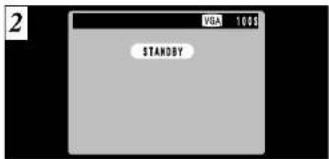
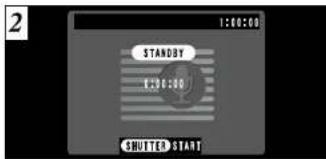
The available shooting time and the "STANDBY" message are shown on the LCD monitor.
■ SmartMedia standard shooting time
| SmartMedia Capacity | Available shooting time | |
| VGA | QVGA | |
| MG-4S (4MB) | Approx. 6 sec. | Approx. 16 sec. |
| MG-8S (8MB) | Approx. 13 sec. | Approx. 33 sec. |
| MG-16S (16MB) | Approx. 27 sec. | Approx. 66 sec. |
| MG-32S (32MB) | Approx. 55 sec. | Approx. 135 sec. |
| MG-64S (64MB) | Approx. 111 sec. | Approx. 271 sec. |
| MG-128S (128MB) | Approx. 223 sec. | Approx. 544 sec. |
* The available shooting time when the SmartMedia is formatted in the camera.
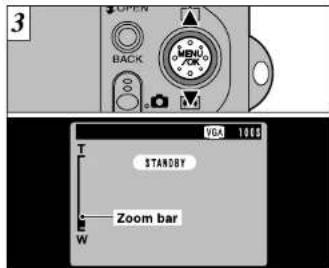
Use "▲" and "▼" to zoom in or out before you start shooting, since you cannot use the zoom during shooting.
- Optical zoom focal length (35mm camera equivalent)
Approx. 36 mm to 108 mm (1.4 in. to 4.3 in.)
Maximum zoom scale: 3×
natural_image
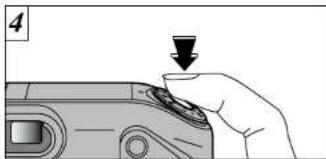
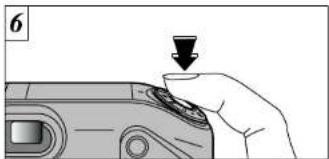
Hand holding a camera lens with a downward arrow indicating action (no text or symbols present)Shooting begins when you fully depress the shutter button.
You do not need to hold down the shutter button.
! The focus is fixed at 50 cm (1.6 ft.) to infinity.
The focus and white balance remain fixed during shooting, but the exposure automatically changes to suit the scene.
The image shown on the LCD monitor before you take the shot may differ in its brightness, color, etc. from the image shown on the monitor during movie recording.
The white balance is automatically set when you fully depress the shutter button.
PHOTOGRAPHY MODE

MOVIE (VIDEO)
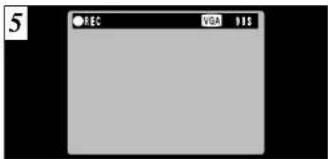
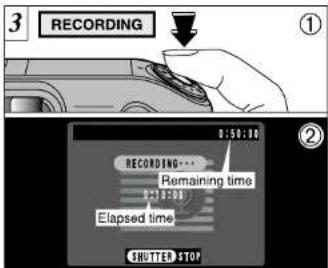
During shooting, a timer in the top-right corner of the LCD monitor counts down the remaining time.
natural_image
Hand holding a camera lens with a downward arrow indicating action (no text or symbols present)Press the shutter button again during shooting to end the movie.
Once the remaining time runs out, movie recording automatically stops and the movie is stored on the SmartMedia.
If you end shooting immediately after you start shooting, only 1 second of movie is shot.
PHOTOGRAPHY MODE

AUDIO RECORDING
natural_image
Mechanical component diagram showing a rotary knob with adjustment knob (no text or symbols)In "¶" (Audio Recording) mode, you can record up to 4.5 hours at a time (when used MG-128S).
●Recording format: WAVE (→P.129)
PCM recording format
Take care not to block the microphone (→P.8) with your fingers, etc.
| Available time using the battery (when fully charged) | |
| LCD monitor on | Approx. 150 min. |
| LCD monitor off | Approx. 240 min. |
* To record sound for long periods, you should use the AC Power Adapter AC-5VS/AC-5VHS/AC-5VH.
The available audio recording time is shown in the top-right corner of the LCD monitor, while the elapsed recording time and the "STANDBY" message are shown in the center of the LCD monitor.
To switch the LCD monitor off, press the "DISP" button before you begin audio recording.
■ Standard audio recording times for SmartMedia
| SmartMedia capacity | Available recording time |
| MG-4S (4MB) | Approx 8 min. |
| MG-8S (8MB) | Approx. 16 min. |
| MG-16S (16MB) | Approx. 33 min. |
| MG-32S (32MB) | Approx. 67 min. |
| MG-64S (64MB) | Approx. 135 min. |
| MG-128S (128MB) | Approx. 272 min. |
*The available recording time when the SmartMedia is formatted in the camera.
* Depending on the available space on the SmartMedia, the available recording time per audio recording may be shorter.
PHOTOGRAPHY MODE AUDIO RECORDING
① Fully depressing the shutter button starts audio recording.
②During recording, the viewfinder lamp glows orange and counters on the LCD monitor shows the elapsed time and the remaining time.
You do not need to hold down the shutter button.
Once the remaining time runs out, audio recording automatically stops.
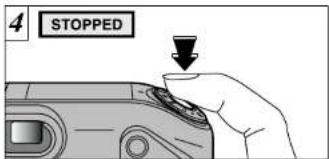
Press the shutter button during audio recording to stop recording.
Even if you press the shutter button to end audio recording immediately after recording starts, approximately 1 second of sound will be recorded.
Other camera models may display the "I READ ERROR" message and be unable to play back the recording.
Audio Indexing
This function lets you set index markers ( ) in an audio recording so that you can quickly return to key parts of a recorded conversation during audio recording playback. You can set audio index markers at up to 256 locations in an audio recording at intervals as short as 1 second (You can set audio index markers continuously at intervals as short as 1 second).
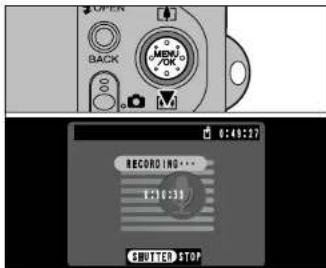
If you press "▼" during recording, a voice index is set and the "☐" icon appears on the screen.
If you attempt to set more than the permitted maximum number of audio index markers, the "I INDEX FULL" message appears and the setting is rejected.
You can also set and remove audio index markers during audio recording playback (→P.80).
This function can only be used by this camera.
PHOTOGRAPHY MENU OPERATION
■ Important procedures used in all menus
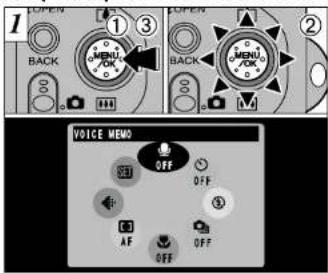
①Press the "MENU/OK" button to display the menu screen.
② Use the multifunction button to select a menu option.
③Press the "MENU/OK" button.
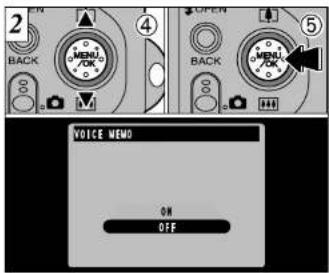
④ Use "▲" and "▼" to select the setting.
⑤Press "MENU/OK" button to confirm your selection.
Selecting Menus
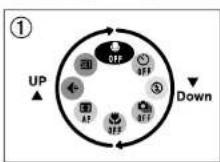
* The examples in figure below show the factory default menu options set at shipment.
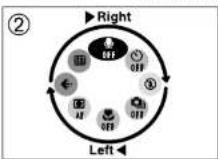
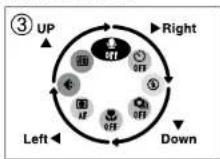
Menu option selection is based on clockwise rotation.
①To go from "♣" to "♥", press "▼". To go from "♣" to "♥", press "▲".
②To go from "③" to "◀", press "◀". To go from "◀" to "④", press "▶".
③To go from "☐" to "①", press "▶"
To go from "④" to "◀", press "▼".
To go from "♥" to "♦", press "♦"
To go from "◀" to "◀", press "▲".
Hold down the “▲, ▼, ◀ or ▶” buttons to scroll continuously through the selected menu options.
- Moving backwards through the menu You can also move in the opposite directions to those shown in ③.
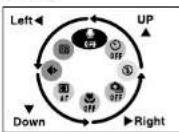
PHOTOGRAPHY MENU OPTIONS
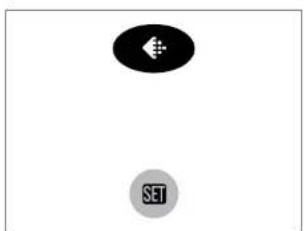
AUTO Auto/Scene Position menu
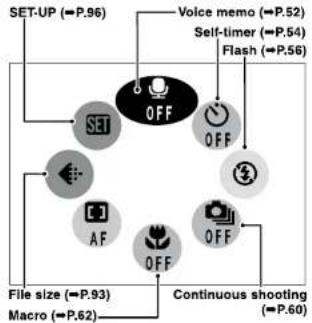
flowchart
graph TD
    A["SET"] --> B["OFF"]
    C["AF"] --> D["OFF"]
    E["Macro"] --> F["Continuous shooting (P.60)"]
    G["File size (P.93)"] --> H["SET-UP (P.96)"]
    I["Voice memo (P.52)"] --> J["Self-timer (P.54)"]
    K["Flash (P.56)"] --> L["FF"]
    M["Off"] --> N["FF"]
    O["Off"] --> P["FF"]
■ Movie menu
Photography menu factory default settings set at shipment
Voice memo: OFF
Macro: OFF
FV:0
Sensitivity: 200
Self-timer: OFF
[ ] Focus Mode: AF
^4 Flash (Flash brig
Sharpness: NORMAL
① Flash: Suppressed Flash
Mode: P
djustment):
File size: 1M NORMAL
Continuous shooting: OFF
[0] Photometry: MULTI
四 White balance: AUTO
■ M Manual menu
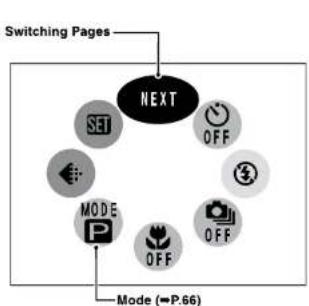
flowchart
graph TD
    A["Switching Pages"] --> B["NEXT"]
    B --> C["SET"]
    B --> D["OFF"]
    C --> E["MODE"]
    D --> F["MODE"]
    E --> G["P"]
    F --> H["OFF"]
    G --> I["Mode (P.66)"]
    H --> J["OFF"]
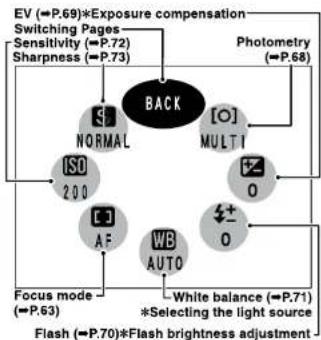
flowchart
graph TD
    A["EV (P.69)*Exposure compensation"] --> B["Switching Pages"]
    B --> C["Sensitivity (P.72)"]
    B --> D["Sharpness (P.73)"]
    E["Photometry (P.68)"] --> F["Back"]
    G["ISO 2.00"] --> H["ISO"]
    I["AF"] --> J["AF"]
    K["AUTO"] --> L["AUTO"]
    M["White balance (P.71)"] --> N["Selecting the light source"]
    O["Focus mode (P.63)"] --> P["Focus mode"]
    Q["Flash (P.70)*Flash brightness adjustment"] --> R["Flash"]
    S["NORMAL"] --> T["Normal"]
    U["MULTI"] --> V["MULTI"]
    W["+0"] --> X["+0"]
    Y["+0"] --> Z["+0"]
Additional Information
Grayed-out menu options cannot be selected.
● Depending on the photography mode being used, some menu options are not available.
- For voice memos and continuous shooting, the previous setting has priority.
PHOTOGRAPHY MENU

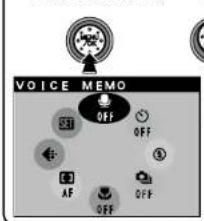
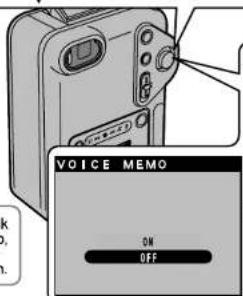
VOICE MEMO (DURING SHOOTING)
![VOICE RED ON OFF TIME RED [ ]](/content/2026/05/1103715/images/8ff6f1aefb238bfe8dcc5a3381b07299b73a833adcccb3b5609a3581531fde1f.jpg)
When you set Voice memo to "ON", "♦" appears on the LCD monitor. Immediately after you take a shot, you can add a voice memo (comment) up to 30 seconds long to that image.
●Recording format: WAVE (→P.129)
PCM recording format by 240 KB
(for a 30-second voice memo)
Depending on the available space on the SmartMedia, the available recording time may be shorter.
Even if the LCD monitor is switched off, it automatically switches on when you take a picture using the Voice memo function. The LCD monitor switches off again when audio recording ends.
Take a picture as normal. The "REC STANDBY" message then appears on the LCD monitor
If you do not want to record a voice memo, press the "BACK" button. Note that the image will still be recorded.
Face the microphone (■P.8) on the front of the camera to record your comments. Hold the camera roughly 20 cm (7.9 in.) away for the best results.
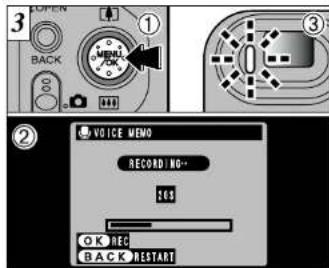
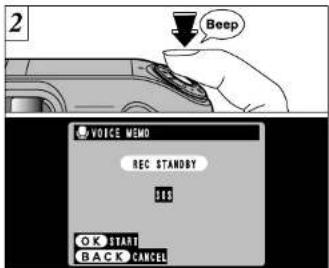
①Press the "MENU/OK" button to start recording the voice memo.
②During voice memo, the remaining time is shown on the LCD monitor and the self-timer lamp blinks.
③When the time remaining reaches 5 seconds, the self-timer lamp starts flashing quickly.
To end your comment during recording, press the "MENU/OK" button.
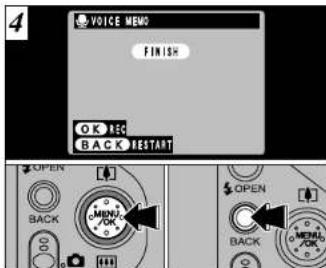
When you have recorded 30 seconds of comment, the "FINISH" message appears on the LCD monitor.
To finish: Press the "MENU/OK" button.
To re-record your comment: Press the "BACK" button.

PHOTOGRAPHY MENU

SELF-TIMER PHOTOGRAPHY
![I SEL.P=TIME1 OK OFF [ ] TIME 0:00:00](/content/2026/05/1103715/images/46ee5190bf596421af0250d5308c2814c80c6b85c74827bdce014eb09bdfccc9.jpg)
When you set the self-timer to "ON", "O" appears on the LCD monitor.
In this mode, a timer runs for roughly 10 seconds before the shutter is released. Use this mode for shots such as photographs of yourself.
The self timer is automatically switched off in the following situations:
- When you shoot a frame.
- When the photography mode is changed.
- When you switch between photography mode and playback mode.
- When the camera is switched off.
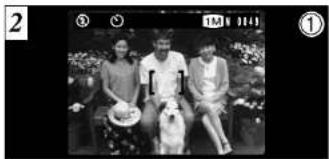
natural_image
Black-and-white photo of three people sitting together outdoors, one holding a dog (no visible text or symbols)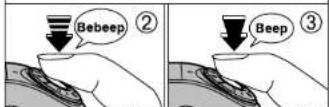
①Position the AF frame over your subject.
②Press the shutter button down half way to set the focus.
③ Without releasing the shutter button, press it down fully. The self-timer then starts running.
You can also use the AF/AE lock (→P.28).
! Be careful not to stand in front of the camera when you press the shutter button as this can cause focusing or exposure metering errors.
natural_image
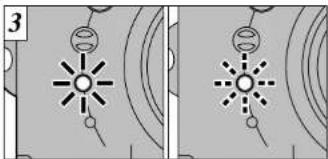
Two identical diagrams showing a star-shaped symbol with circular elements, connected by lines, against a plain background (no text or labels)The self-timer lamp lights steadily for roughly 5 seconds and then blinks for another 5 seconds, after which the shot is taken.
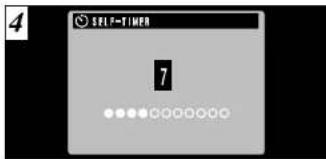
A counter on the LCD monitor counts down the time until the shot is taken. Self-timer mode is automatically cancelled after each shot.
To stop the self-timer once it has started running, press the "BACK" button.
PHOTOGRAPHY MENU

FLASH
natural_image
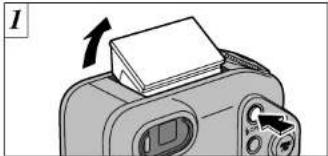
Diagram of a printer with a stack of papers and an arrow indicating paper direction (no text or symbols)To change the flash setting, pop the flash unit up. Once the flash unit is closed, you cannot change from the "Suppressed Flash" setting.
●Effective flash range (for "AUTO" and ISO 200) Wide-angle: Approx. 0.2 m to 4.7 m (7.8 in. to 15.4 ft.)
Telephoto : Approx. 0.2 m to 3 m (7.8 in. to 9.8 ft.)
If the photography mode is "Auto", use the Auto Flash mode
When you pop the flash up, the image shown on the screen may disappear and the screen may go dark because the flash is charging. In this event, the viewfinder lamp flashes orange.
If you use the flash in very dusty environments or when it is snowing, the flash may reflect off snowflakes or floating dust particles so that they appear as glowing white dots on your image.
![2 AS AS [ ]](/content/2026/05/1103715/images/45c80a96b4864ea5f93ae89ed9ed8957e7b7568546839f39483aec31d828c2c5.jpg)
Use the menu to select the flash mode you want to use. The "A\", "∅", "‡" or "\‡" icon appears on the LCD monitor while you are using the flash.
Depending on the photography mode and setting, the flash mode may be automatically set to "Suppressed Flash".
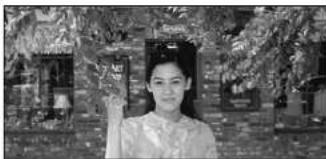
natural_image
Black-and-white photo of a person in traditional attire standing outdoors with trees and a building in the background (no visible text or symbols)A4 Auto Flash Mode
Use this mode for ordinary photography. The flash fires automatically as required by the shooting conditions.
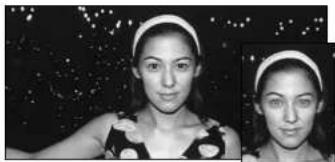
natural_image
Black-and-white photo of two women wearing headband, one with white hair and the other with white band (no visible text or symbols)Red-Eye Reduction
Use this mode to ensure that the subject's eyes appear natural when photographing people in low-light conditions.
The flash fires a pre-flash just before the picture is taken and then fires again to take the actual picture.
◆ Red-Eye Effect ◆
When you use the flash to photograph people in low-light conditions, their eyes sometimes appear red in the picture. This is caused by the light of the flash reflecting off the inside of the eye. Use Red-Eye Reduction flash to effectively minimize the likelihood of the red-eye effect. Take the following measures also to make Red-Eye Reduction more effective:
- Get the subjects to look at the camera.
- Get as close as possible to the subjects
PHOTOGRAPHY MENU ↓ FLASH
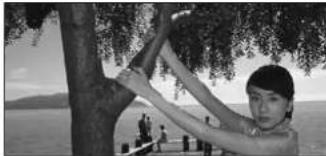
natural_image
Black-and-white photo of a person stretching under a tree, with hills in the background (no visible text or symbols)Forced Flash
Use this flash mode to photograph backlit scenes, such as a subject against a window or in the shade of a tree, or to obtain the correct colors when you are shooting under lighting such as fluorescent tubes. In this mode, the flash fires in bright as well as dark conditions.
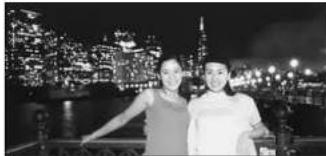
natural_image
Two women posing for a photo at night with a city skyline in the background (no visible text or symbols)S4 Slow Synchro
This is a flash mode that uses a slow shutter speed. This allows you to take pictures of people at night that clearly show both your subjects and the nighttime backdrop
The image may be overexposed when you shoot bright scenes.
Because a slow shutter speed is used, a tripod should be used to prevent camera shake.
To take the picture of a main subject together with a darkgraud brightly in the night, please use the "C" (Night Scene) settings (→P.40) in "●" mode.
natural_image
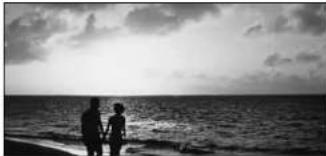
Silhouette of two people standing by the sea under a cloudy sky (no text or symbols visible)④ Suppressed Flash
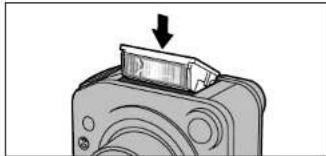
Pressing the flash down switches the camera to Suppressed Flash mode.
Use this mode for photography using indoor lighting, for shots taken through glass, and for photography in venues such as theaters or at indoor sporting events where the distance is too great for the flash to be effective. When you use Suppressed Flash, the Auto White Balance function ( P.129) operates so that natural colors are captured along with the ambience of the available light.
If you are shooting in Suppressed Flash mode in dark conditions, use a tripod to prevent camera shake.
See P.26, 120 for information on the camera shake warning.
natural_image
Illustration of a camera with an arrow pointing to the top portion of the lens (no text or symbols present)Press the flash unit down to suppress flash operation. The “⑧” icon appears on the LCD monitor and you cannot use the flash to take pictures.
PHOTOGRAPHY MENU

CONTINUOUS SHOOTING
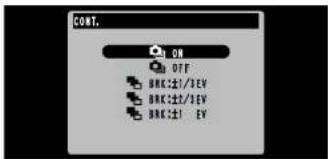
Setting "☐" Continuous shooting to ON allows you to take up to 4 continuous shots with a minimum interval between shots of 0.2 seconds. When you specify "☐" Auto Bracketing, the camera automatically shoots 3 continuous frames with staggered settings to give an underexposed image, a correctly exposed image and an overexposed image.
- Three types of Auto Bracketing are provided (± 1/3 EV, ± 2/3 EV and ± 1 EV). See P.128 for information on EV.
60
The continuous photography speed is the same regardless of the quality and file size settings.
![[ ] [ ]](/content/2026/05/1103715/images/dbed61a8e48e558e29657580d5bdeafe4176c8d63578dec9a305898861653965.jpg)
When you are taking continuous shots, "☐" appears on the LCD monitor. When you are using Auto Bracketing, "☐" appears on the LCD monitor.
The camera always shoots 3 image frames in Auto Bracketing. However, if there is insufficient space on the SmartMedia for 3 shots, no picture will be taken.
Continuous Shooting
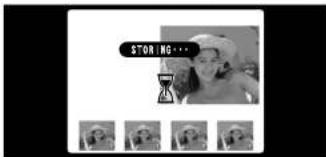
When you take a series of shots, the resulting shots are displayed (shown in order from left to right) and automatically saved.
Auto Bracketing
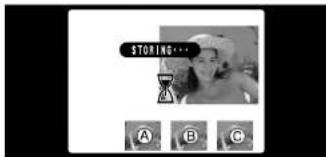
When you take a picture, the resulting shots are displayed (A correct exposure, B overexposed, C underexposed) and then automatically saved.
! The focus and exposure are determined for the first frame and cannot be changed during shooting.
The results of the shot are displayed even when the photographed image display is set to OFF (→P.98).
The time required to record a file is approximately 6 seconds in "SM NORMAL" mode (for 4-frame continuous shooting).
The focus is determined for the first frame and cannot be changed during shooting.
The results of the shot are displayed even when the photographed image display is set to OFF (→ P.98).
If you want to select the shots to be recorded, see P.98, 99.
PHOTOGRAPHY MENU

MACRO (CLOSE-UP) PHOTOGRAPHY
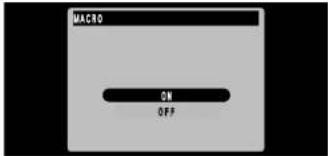
Setting MACRO to "ON" allows you to take close-up shots.
●Effective Photography Range
Approx. 20 cm to 80 cm (0.7 ft.-2.6 ft.).
Select the appropriate Flash mode for the conditions (→P.56).
If the flash is too bright, select FLASH (flash brightness adjustment). (P.70)
When shooting in dark conditions, use a tripod to prevent camera shake.
If you use the viewfinder to take a picture in Macro mode, the field visible through the viewfinder does not match the field actually photographed because the viewfinder and lens are in different positions. Accordingly, you should use the LCD monitor to take pictures in Macro mode.
![[ ]](/content/2026/05/1103715/images/b51e3237c1b95b7dbfae81706c637e5ea56ba19fd7e38a7668f6d92134a3ba2a.jpg)
The “💡” icon appears on the LCD monitor when you are using Macro mode.
The LCD monitor switches on automatically and cannot be switched off.
Macro photography is automatically cancelled in the following situations:
- When you have switched photography modes.
- When the camera is switched off.
PHOTOGRAPHY MENU
] FOCUS MODE
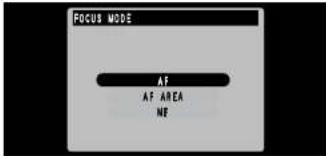
This mode can be selected in the "OM" photography mode.
This mode allows you to set the focusing method.
AF Autofocus
The camera focuses on the center of the screen.
AF AREA
You can change the position on the screen where the camera focuses. Use this feature when you have composed your shot using a tripod and then want to change the focusing position.
★Using this feature →P.64
MF Manual focus
Use manual focus for subjects that are not suitable for Auto Focus or where you want the focus fixed for a shot.
★Using this feature →P.65
When you select area-selection AF AREA or manual focus, the LCD monitor cannot be switched off.
PHOTOGRAPHY MENU [ ] FOCUS MODE
AF AREA
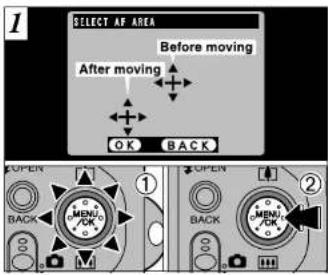
①Use the multifunction button to move the “÷” (target point) to location on which you want to focus.
②Press the "MENU/OK" button to refocus the shot
![[ ]](/content/2026/05/1103715/images/7f3c2c448917b98eb2284fd6272714e5e951794be54389e24ac16808afd6cace.jpg)
The AF frame is displayed in the position to which the target point was moved. Take the picture after pressing the shutter button down halfway as usual.
MF Manual focus
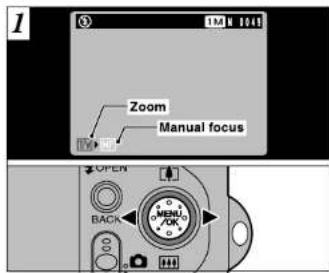
You can use "◀" and "▶" to switch between "■" ZOOM and "■" Manual focus. Select "■".
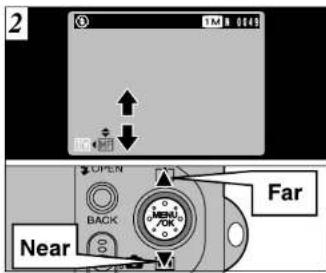
You can use "▲" and "▼" to adjust the focus. Use the LCD monitor to check the focus. "▲": Moves the focus further away.
▼: Moves the focus closer.
◆ Mastering Manual Focusing ◆ Use a tripod to prevent the image becoming unfocused when the camera moves.
PHOTOGRAPHY MENU
[(EXPOSURE) MODE] MODE
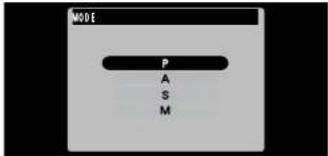
This mode can be selected in the "OM" photography mode.
You can set 4 exposure modes that govern the shutter speed and aperture setting.
Programed Auto
This is an automatic mode that selects the shutter speed and aperture for you but still allows you to select the other camera settings.
The shutter speed and aperture setting are determined automatically.
●Shutter speed (auto): 1/4 to 1/2000 sec. 1/3 EV steps
Aperture (auto): F2.8 to F8 1 EV steps
A Aperture-priority Auto
This is an automatic mode that allows you to set the aperture. You can use this mode to take shots with a blurred background (wide aperture) or with both foreground and background in sharp focus (narrow aperture).
● Aperture settings: F2.8 to F8 1 EV steps Shutter speed (auto): 1/4 to 1/1000 sec. 1/3 EV steps
Shutter-priority Auto
This is an automatic mode that allows you to set the shutter speed. You can use this mode to take shots that freeze movement (fast shutter speeds) or that give the impression of movement (slow shutter speeds).
● Shutter speeds: 2 to 1/1000 sec. 1 EV steps Aperture (auto): F2.8 to F8 1 EV steps
M Manual exposure
This mode allows you to set any shutter speed or aperture setting.
● Shutter speeds: 2 to 1/1600 sec. 1/3 EV steps
Aperture settings: F2.8 to F8 1 EV steps
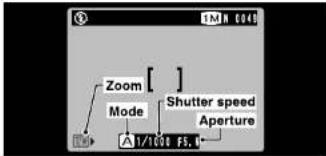
Zoom: Allows you to set the zoom scale.
Mode: The selected mode ("A", "S" or "M") is displayed.
Shutter speed: Specified or determined automatically.
Aperture: Specified or determined automatically.
![[ ] I: 1/500 PE. 0](/content/2026/05/1103715/images/d6aeccb082a41ec0e7b47657c222439f330687631b39a0a2b708374afb474a88.jpg)

①Use "◀" and "▶" to select zoom, shutter speed or aperture.
② Use "▲" and "▼" to adjust the settings.
In Program Auto mode, the mode, shutter speed and aperture are not shown.
PHOTOGRAPHY MENU
[O] PHOTOMETRY

This mode can be selected in the "OM" photography mode.
Use this mode for scenes where the brightness of the subject and background differ markedly so that the Multi setting is unlikely to achieve the desired result.
- MULTI : Exposure metering where the camera automatically assesses the scene and selects the optimum exposure.
- SPOT : Exposure metering where the exposure is optimized for the center of the image.
●AVERAGE: Exposure metering where an average value for the entire image is used.
◆ The exposure metering modes are — effective for the following subjects ◆
• MULTI
In this mode, the camera uses automatic scene recognition to analyze the subject and provide optimum exposure in a wide range of shooting conditions. This mode should be used for everyday photography.
- SPOT
This mode is useful for subjects with strongly contrasting bright and dark areas where you want to achieve the correct exposure for a particular feature.
●AVERAGE
The advantage of this mode is that the exposure tends not to change for different compositions or subjects. This mode is particularly effective for shots of people wearing black or white clothing and shots of scenery.
PHOTOGRAPHY MENU
EV (EXPOSURE COMPENSATION)
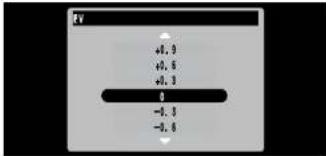
This mode can be selected in the "OM" photography mode.
Use the Brightness setting to obtain the optimum image brightness (exposure) when the subject is much brighter or darker than the background.
●Correction range: 13 steps
(-2.1 EV to +1.5 EV in 0.3 EV increments) See P.128 for more information on EV.
The Brightness setting is disabled in the following situations:
- When the flash is used in Auto or Red-Eye Reduction mode.
- When dark scenes are shot in Forced Flash mode.
You cannot set the brightness when the Photography menu mode (P.66) is set to Shutter-priority Auto or when the exposure is set manually.
Subjects for Which Exposure
Adjustment is Particularly Effective
Guide to using + (positive) compensation
● Copying of printed text (black characters
on white paper) (+1.5 EV)
●Backlit portraits (+0.6 EV to +1.5 EV)
● Very bright scenes (such as snowfields) and highly reflective subjects (+0.9 EV)
●Shots made up predominantly of sky. (+0.9 EV)
Guide to using – (negative) compensation
- Spotlit subjects, particularly against dark backgrounds (-0.6 EV)
● Copying of printed text (white characters on black paper) (-0.6 EV) - Scenes with low reflectivity, such as shots of pine trees or dark foliage (-0.6 EV)
PHOTOGRAPHY MENU
± FLASH (FLASH BRIGHTNESS ADJUSTMENT)
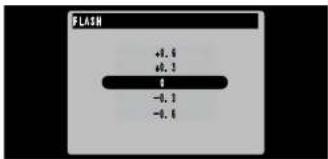
This mode can be selected in the "OM" photography mode.
Flash brightness adjustment allows you to change only the amount of light emitted by the flash to suit the photography conditions or to achieve a desired effect.
●Adjustment range: ±2 levels
(-0.6 to +0.6 EV in 0.3 EV steps)
See P.128 for more information on EV.
Depending on the subject and the shooting distance, adjusting the flash brightness may have little or no effect.
PHOTOGRAPHY MENU
WB WHITE BALANCE (SELECTING THE LIGHT SOURCE)
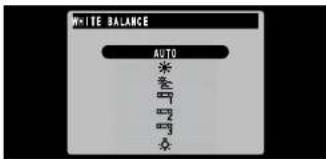
This mode can be selected in the "OM" photography mode.
Change the white balance setting when you want to take a picture with the white balance fixed for the surroundings and lighting when the picture is taken.
In Auto mode, the correct white balance may not be obtained for subjects such as close-ups of people's faces and shots taken under a special light source. In such situations, select the correct white balance for the light source. See P.129 for information on the white balance.
AUTO: Automatic adjustment
(Shooting to show the ambience of the light source)
※ : Shooting outdoors in fine weather
: Shooting in shade
: Shooting under "Daylight" fluorescent lamps
2 : Shooting under "Warm White" fluorescent lamps
☐ : Shooting under "Cool White" fluorescent lamps
: Shooting in incandescent light
* The white balance setting (unless it is a Custom White Balance setting) is ignored when you use the flash. To achieve the desired effect in your shot, press the flash back down to suppress flash operation (→P.59).
PHOTOGRAPHY MENU

SENSITIVITY
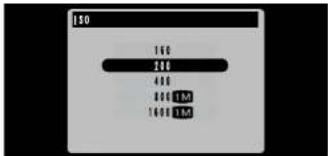
This mode can be selected in the "OM" photography mode.
Use this setting when you want to take bright pictures indoors without using a flash or when you want to use a fast shutter speed (to prevent camera shake, etc.).
●Settings: 160, 200 (standard), 400, 800, 1600
Higher sensitivity (ISO) values are better suited to shooting in dark conditions, but they tend to increase the amount of interference appearing on the image. Choose the setting that gives the best results for the conditions.
High-sensitivity photography is cancelled if you select any photography mode other than "OM" MANUAL. Note that the Quality setting remains set to "TM", NORMAL.
High-sensitivity photography (800 or 1600)
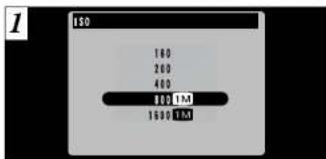
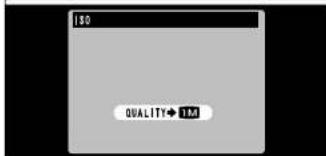
When you select a high sensitivity setting (800 or 1600), the quality setting is automatically set to "M", NORMAL.
![2 [ ]](/content/2026/05/1103715/images/f226f006ed339d86dd22ef330b78f0b0f30a71f69012f645d3ef6794d9abed3d.jpg)
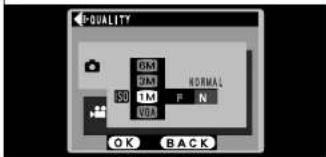
During high-sensitivity photography, "ISO" appears on the LCD monitor. In addition, the quality setting cannot be changed from "TM", NORMAL.
The digital zoom cannot be used in high-sensitivity photography.
PHOTOGRAPHY MENU

SHARPNESS
This mode can be selected in the "OM" photography mode.
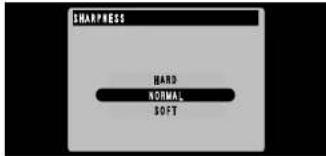
Use this setting to soften or emphasize outlines or to adjust the image quality.
●3 levels of sharpness are available
HARD : Emphasizes the outlines. Best for shots of subjects such as buildings or text where you want sharp images.
NORMAL: Best for ordinary photography. Provides edge sharpness that is ideal for ordinary shots.
SOFT : Softens the outlines. Best for shots of subjects such as people, where a softer image is desirable.
4 Advanced Features Playback
PLAYING BACK MOVIES (VIDEO)
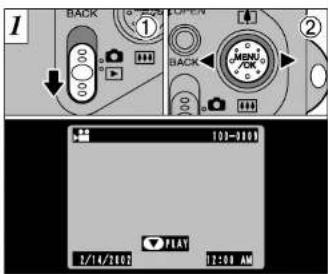
① Set the Mode switch to "▶".
② Use "◀" or "▶" to select the movie file.
Movies cannot be played back using multi-frame playback. Use the "DISP" button to revert to normal playback.
Indicated by the "▶" icon.
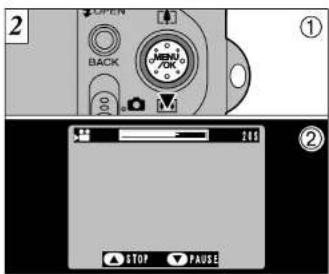
①Press "▼(++)" to play the movie.
②The LCD monitor shows the playback time and a playback progress bar.
Take care not to block the speaker
If the sound is difficult to hear, adjust the volume (→P.96, 101).
If the subject of the movie is very bright, white streaks may appear on the image during playback. This is normal and is not a fault.
■ Playing back movies
| Control | Description | |
| Playback |  | The movie automatically stops when playback ends. |
| Pause/Resume | [WECG] | Pauses the movie during playback.Press this button again to resume playback. |
| Stop | [8432] | Stops playback.*Press◄◄" or ►" while movie playback is stopped to go back to the previous file or advance to the next file respectively. |
| Fast forward/Rewind | [GCCK]Rewing [A0T2]Fast forward | Press these during playback to skip forwards or backwards through the movie. |
| Skip playback | [33DW]When paused | Each time you press◄◄" or ►" when the movie is paused, the movie advances or goes back one frame.Hold down the button to move through the frames quickly |
* Refer to the Software Quick Start Guide (provided) for information on playing back movies on your PC.
◆ Compatible movie files ◆
This camera can play back movie files shot on a FinePix F601 ZOOM or movie files recorded on a 3.3-volt SmartMedia using a FUJIFILM digital camera.
PLAYING BACK VOICE MEMOS
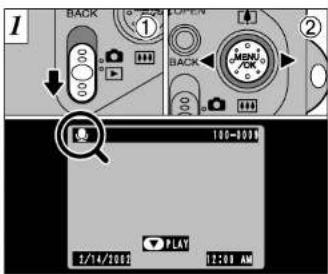
① Set the Mode switch to "▶"
② Use "◀" or "▶" to select an image file that has a voice memo.
You cannot play back voice memos using multi-frame playback. Use the "DISP" button to revert to normal playback.
The "♦" icon is displayed.
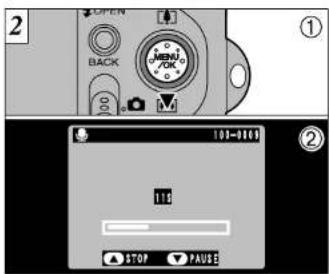
①Press "▼(++)" to play the voice memo.
②The LCD monitor shows the playback time and a playback progress bar.
! Take care not to block the speaker
If the sound is difficult to hear, adjust the volume ( P.96, 101).
■ Playing back voice memos
| Control | Description | |
| Playback |  | The voice memo automatically stops when playback ends. |
| Pause/Resume | [5XSY] | Pauses the voice memo during playbackPress this button again to resume playback. |
| Stop |  | Stops playback.* Press◄" or ►" while voice memo playback is stopped to go back to the previous file or advance to the next file respectively. |
| Fast forward/Rewind | [RKZT]Rewing Fast forward | Press these during playback to skip forwards or backwards through the voice memo.* These buttons do not function while playback is paused. |
* Refer to the Software Quick Start Guide (provided) for information on playing back voice memos on your PC
◆ Compatible voice memo files ◆
The FinePix F601 ZOOM can play voice memo files recorded on a FinePix F601 ZOOM and voice memo files up to 30 seconds long that were recorded on a FUJIFILM digital camera and stored on a 3.3V SmartMedia.
PLAYING BACK AUDIO RECORDINGS
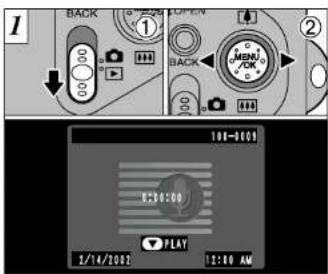
① Set the Mode switch to "▶".
② Use "◀" or "▶" to select a voice file.
You cannot play back audio recordings using multi-frame playback. Use the "DISP" button to revert to normal playback.
| Available time using the battery (when fully charged) | |
| LCD monitor on | Approx. 150 min. |
“” is displayed on the screen.
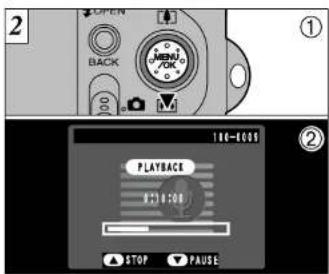
①Press "▼(++)" to play the audio recording.
②The playback time and a progress bar are shown on the LCD monitor.
! Take care not to block the speaker.
If the sound is difficult to hear, adjust the volume ( P.96, 101).
■ Playing back audio recordings
| Control | Description | |
| Playback | The audio recording automatically stops when playback ends. | |
| Pause/Resume | Pauses the audio recording during playback.Press this button again to resume playback. | |
| Stop | Stops playback.*Press "◀" or "▶" while audio recording playback is stopped to go back to the previous file or advance to the next file respectively. | |
| Fast forward/Rewind | Hold down the respective button for about a second to fast forward or rewind the recording.Pressing one of the buttons down briefly skips forward or back to the nearest audio index marker.*If no audio index marker is specified, this skips to the end (or beginning).*These buttons function in the same way when playback is paused. |
* Refer to the Software Quick Start Guide (provided) for information on playing back audio recordings on your PC.
◆ Compatible audio files ◆
The FinePix F601 ZOOM can play audio files recorded on a FinePix F601 ZOOM and audio files recorded on a 3.3V SmartMedia using a FUJIFILM digital camera. Note that voice files recorded on a FinePix 50i cannot be played back on this camera.
PLAYING BACK AUDIO RECORDINGS
Setting Audio Index Markers
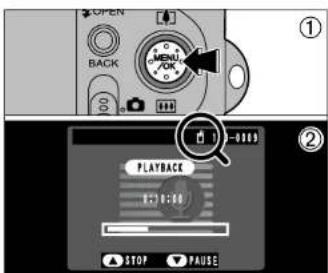
①During playback, press the "MENU/OK" button to set an audio index marker
②The "☐" icon appears on the LCD monitor.
! Audio index markers can be set at up to 256 locations in an audio file at intervals as short as 1 second.
This function can only be used by this camera.
Removing Audio Index Markers
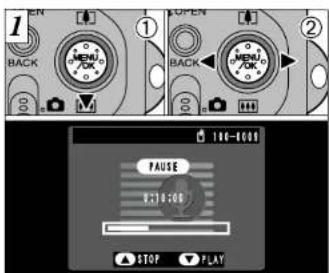
①Press "▼(###)" during playback to pause the recording.
②Press “◀” or “▶” briefly to skip to the audio index marker you want to remove.
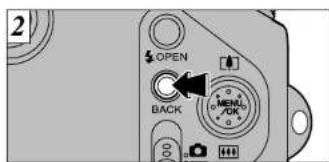
Press the "BACK" button to remove the audio index marker.
An audio index marker is only removed when the "☐" icon is displayed while playback is paused.
PLAYBACK MENU

ERASING SINGLE · ALL FRAMES/FORMATTING
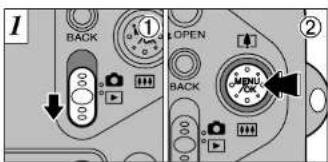
① Set the Mode switch to "▶"
②Press the "MENU/OK" button to view the menu screen.
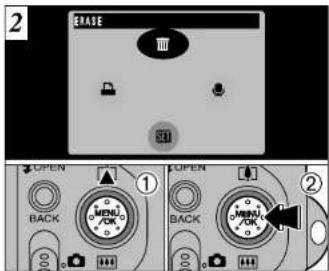
① Use "▲" to select "■ ERASE".
② Press the "MENU/OK" button.
BACK
Returns to the previous menu without erasing any images.
FRAME
Erase only the selected file.
ALL FRAMES
Formatting erases all the files. Copy any files that you want to keep to your PC beforehand.
FORMAT
Formatting erases all the files.
The SmartMedia is initialized for use in the camera.
Copy any files that you want to keep to your PC beforehand.
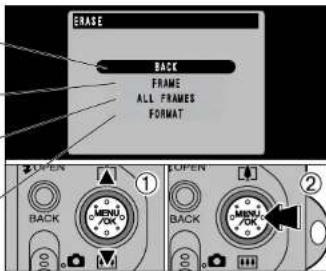
① Use "▲" and "▼" to select the menu item. ② Press "MENU/OK" button to confirm your selection.
PLAYBACK MENU

ERASING SINGLE · ALL FRAMES/FORMATTING
FRAME
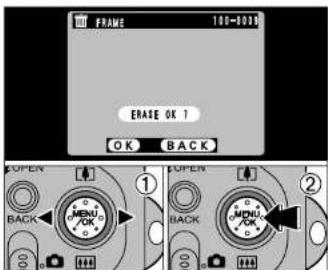
① Use "◀" and "▶" to select the file to be erased.
②Press the "MENU/OK" button to erase the currently displayed file.
To erase another image, repeat steps ① and ②. When you have finished erasing images, press the "BACK" button.
ALL FRAMES
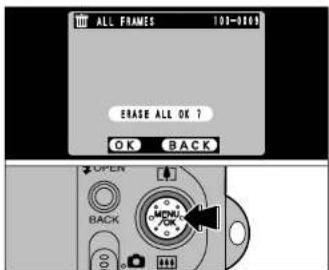
Pressing the "MENU/OK" button erases all the files.
If the "DPOF SPECIFIED. ERASE OK ?)"
"DPOF SPECIFIED. ERASE ALL OK?" message appears, press the "MENU/OK" button once more to erase the image
FORMAT
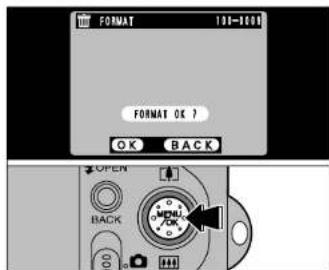
Pressing the "MENU/OK" button erases all the files and initializes the SmartMedia.
If the "I CARD ERROR", "I WRITE ERROR".
“I READ ERROR” or “I CARD NOT INITIALIZED” message appears, refer to P.119, 120 before formatting the SmartMedia and take the appropriate measures.
PLAYBACK MENU

VOICE MEMO (DURING PLAYBACK)
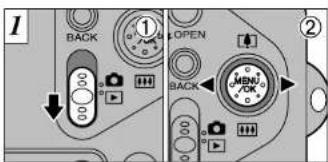
① Set the Mode switch to "▶"
② Use "◀" and "▶" to select the image (still image) to which you want to add a voice memo.
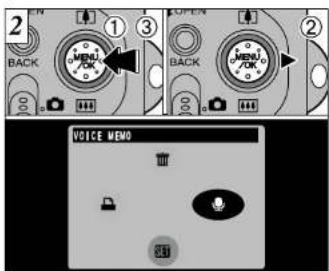
①Press the "MENU/OK" button to display the menu screen.
② Use "▶" to select "♣".
③ Press the "MENU/OK" button.
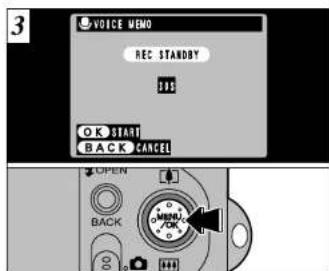
The "REC STANDBY" message appears on the LCD monitor.
Recording begins when you press the "MENU/OK" button.
Face the microphone (→P.8) on the front of the camera to record your comments. Hold the camera roughly 20 cm (7.9 in.) away for the best results.
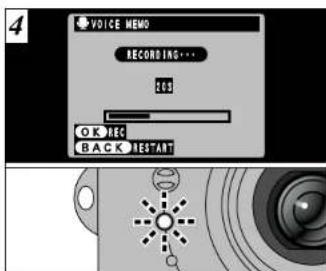
During recording, the remaining time is shown on the LCD monitor and the self-timer lamp flashes.
When the time remaining reaches 5 seconds, the self-timer lamp starts flashing quickly.
To end your comment during recording, press the "MENU/OK" button.
4
PLAYBACK MENU VOICE MEMO (DURING PLAYBACK)
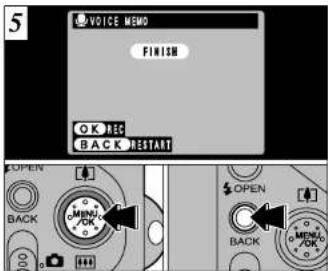
When you have recorded 30 seconds of comment, the "FINISH" message appears on the LCD monitor.
To finish: Press the "MENU/OK" button. To re-record your comment: Press the "BACK" button.
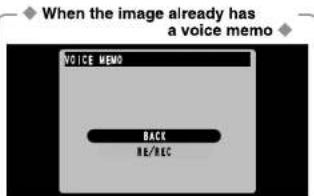
If you select an image that already has a voice memo, a screen appears in which you can select whether or not to rerecord the caption.
PLAYBACK MENU

HOW TO SPECIFY PRINT OPTIONS (DPOF)

DPOF stands for Digital Print Order Format and refers to a format that is used for recording printing specifications for images shot using a digital camera on media such as SmartMedia. The recorded specifications include information on which frames are to be printed.
This section gives a detailed description of how to order your prints with the FinePix F601 ZOOM.
On the FinePix F601 ZOOM, you can specify only one print per image in the DPOF settings.
* Note that some printers do not support date and time imprinting or specification of the number of prints.
* Note that the warnings shown below may be displayed while you are specifying the prints.
DPOF SPECIFIED. ERASE OK?
DPOF SPECIFIED. ERASE ALL OK? (→P.84)
When you erase the image, the DPOF setting for that image is deleted at the same time RESET DPOF OK? (=P.92)
If you load a SmartMedia that contains frames specified for printing on another camera, those print specifications are all reset and replaced by the new print specifications.
! DPOF FILE ERROR (→P.121)
Up to 999 frames can be specified on the same SmartMedia.
PLAYBACK MENU

DPOF SET FRAME
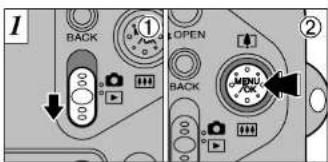
① Set the Mode switch to "▶"
②Press the "MENU/OK" button to display the menu screen.
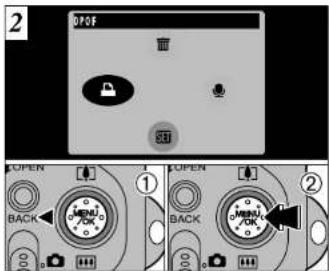
① Use "◀" to select "DPOF".
② Press the "MENU/OK" button.
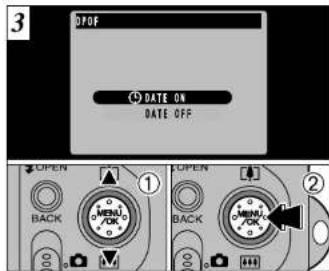
① Use "▲" and "▼" to select "DATE ON" or "DATE OFF".
②Press the "MENU/OK" button.
The selected setting is then valid for all frames with DPOF settings.
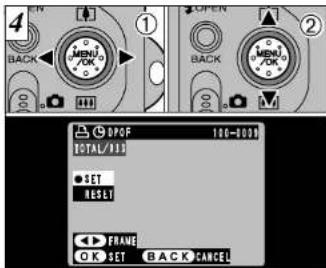
① Use “◀” or “▶” to display the frame for which you want to specify DPOF settings.
② Use "▲ (☐)" or "▼ (☐) to select the setting for the frame to be printed
To specify more DPOF settings, repeat steps ① and ②. Do not press the "MENU/OK" button until you have finished specifying all the DPOF settings for your images.
DPOF settings cannot be specified for movies.
"TOTAL" shows the total number of frames for which prints have been ordered.
PLAYBACK MENU

DPOF SET FRAME
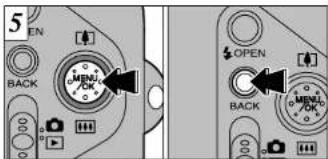
When you have finished specifying the DPOF settings, always press the "MENU/OK" button to confirm the settings.
If you press the "BACK" button, no DPOF settings are specified.
You can only specify one print per frame in the DPOF settings. Note also that you can specify prints for up to 999 frames on the same SmartMedia.
Pressing the "MENU/OK" button confirms all the settings. Note that you cannot change the settings later.
Additional DPOF settings cannot be specified
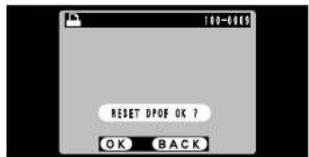
If you select a frame for which DPOF settings have already been specified, the "RESET DPOF OK?" message appears.
Pressing the "MENU/OK" button erases all the DPOF settings already specified. You must then specify the DPOF settings again.
Press the "BACK" button to leave the previous settings unchanged.
During playback, check that the "☐" icon is displayed for the previous settings.
5
Settings
←
SETTING THE FILE SIZE
Still Image Menu
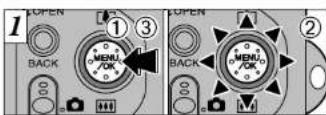
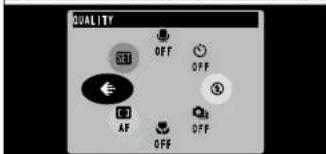
①Press the "MENU/OK" button to view the menu screen.
② Select "◀" QUALITY
③ Press the "MENU/OK" button.
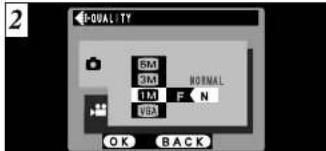
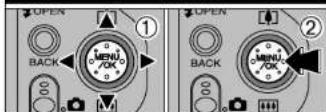
① Use "▲ (■) or "▼ (■) to change the file size setting and "◀" or "▶" to change the quality setting.
②Press the "MENU/OK" button to confirm the setting.
SETTING THE FILE SIZE
Movie Menu
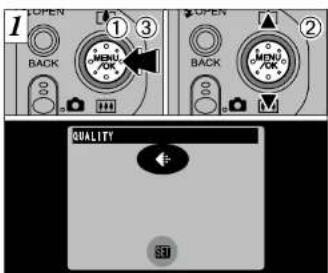
①Press the "MENU/OK" button to display the menu screen
②Select "◀" QUALITY
③Press the "MENU/OK" button.
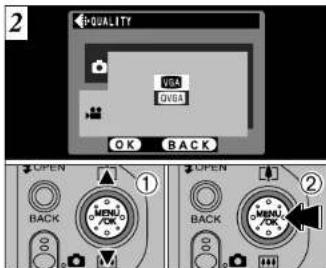
①Use "▲" and "▼" to change the quality setting. ②Press "MENU/OK" button to confirm your selection.
■ Still image quality settings
You can choose any combination of 4 file sizes and 3 image quality settings. Use the table below as a guide to the best settings for your shots. Select "FINE" for better image quality and "BASIC" to increase the number of available shots.
In most cases, the "NORMAL" setting provides more than adequate image quality.
| File size | FINE | NORMAL | BASIC |
| SM (2832 × 2128) | 1 | 1 | 2 |
| SM (2048 × 1536) | 2 | 2 | — |
| SM (1280 × 960) | 3 | 3 | — |
| SM (640 × 480) | — | 4 | — |
①: For printing the whole image at A4 size or printing a part of the image at A5 or A6 size
②: For printing the whole image at A5 size or printing a part of the image at A6 size
③: For printing at A6 size
④: For use via the Internet as an E-mail attachment, etc.
■ Movie quality settings
You can select 2 levels of quality. For better image quality, select "VGA", and for longer photography time, select "QVGA".
| Movie size | |
| VGA | 640 × 480 |
| QVGA | 320 × 240 |
SET USING THE SET-UP MENU
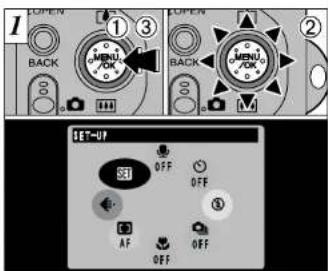
①Press the "MENU/OK" button to display the menu screen.
②Select "SET" SET-UP.
③Press the "MENU/OK" button.

This screen shows the photography menu.
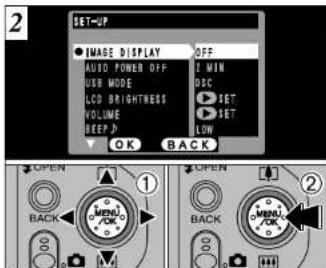
① Use "▲" and "▼" to select the menu option. Use "◀" and "▶" to change the setting.
②Once you have changed the setting, press the "MENU/OK" button.
For the LCD BRIGHTNESS, VOLUME, DATE/TIME and RESET ALL settings, press *▶* to switch to the settings screen.
■ SET-UP Menu Options
| Settings | Display | Factory default | Explanation |
| IMAGE DISPLAY | OFF/POSTVIEW/PREVIEW | OFF | Use this option to specify whether the Preview screen (the photographed image) is displayed after you take a shot. See P.98 for details. |
| AUTO POWER OFF | 2MIN/5MIN/OFF | 2MIN | Use this option to specify whether the camera's power consumption is reduced and the camera is subsequently switched off automatically when it is not being used. See P.100 for details. |
| USB MODE | DSC/PC CAM | DSC | See P.102 for details. |
| LCD BRIGHTNESS | SET | — | Use this option to adjust the LCD monitor brightness. See P.101 for details. |
| VOLUME | SET | — | Use this option to adjust the volume. See P.101 for details. |
| BEEP | LOW/HIGH/OFF | LOW | Sets the volume of the beep that sounds when the camera controls are used. |
| DATE/TIME | SET | — | Use this option to correct the date or time. See P.15 for details. |
| LANGUAGE | ENGLISH/FRANCAIS/DEUTSCH | ENGLISH | Select English, French or German as the language used for screen display. |
| LCD | ON/OFF | ON | Use this option to specify whether the LCD monitor is automatically switched ON or OFF when the Mode dial is set to "☐". |
| RESET ALL | OK | — | This resets all camera settings (including the photography and playback menu settings) other than the date and time to the factory default values set at shipment. When you press "", a confirmation screen appears. To proceed, press the "MENU/OK" button again. |
SET-UP SET IMAGE DISPLAY
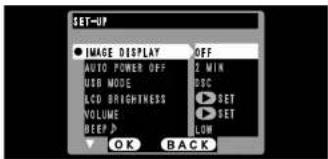
This setting allows you to specify whether the resulting image is displayed after you take a shot.
OFF : The photographed image is automatically recorded without being displayed.
POSTVIEW: The photographed image is displayed for about 2 seconds and is then automatically recorded.
PREVIEW : The photographed image is displayed and you can then select whether to record the image.
You can also select preview zoom and recorded images.
- Press "MENU/OK" to record the image. - Press "BACK" to discard the image.
In Continuous Shooting and Auto Bracketing modes, images are displayed for a set time and then automatically recorded even when "OFF" is selected as the "IMAGE DISPLAY" setting.
Preview Zoom
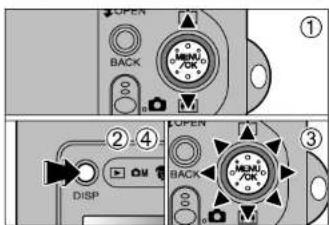
When PREVIEW is selected, you can enlarge the image for detailed checking.
① Use "▲(□) or "▼(□□) to zoom in or out. ② Press the "DISP" button.
③You can move the field of view in 8 directions.
④Press the "DISP" button again to revert to zoomed display.
! Trimming in the preview image is not saved.
The operation procedure is the same as for playback zoom (→P.34).
Selecting Recorded Images
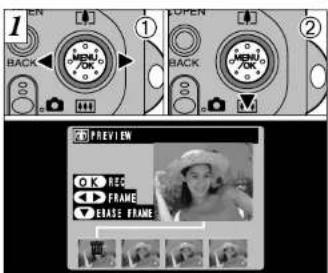
When Previewing is selected, you can choose which images to record in continuous shooting and auto bracketing. However, preview zoom cannot be used.
①Use "◀" and "▶" to select the images you do not want to record.
②Press "▼(■) to add or remove the "■" mark. The "■" mark appears and the image is not recorded.
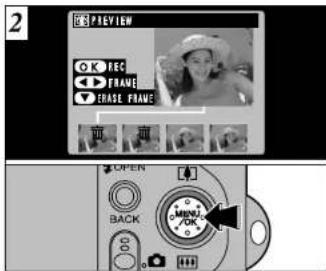
Place an "■" mark under all the images you do not want to record and then press the "MENU/OK" button to record the remaining images.
SET-UP SET AUTO POWER OFF
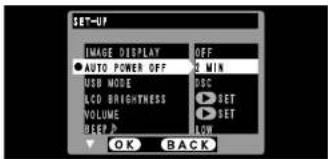
Once you enable this function, the monitor is temporarily switched off to reduce power consumption (Sleep mode) if the camera is not used for about 30 seconds. If the camera is then left unused for a further time (2 or 5 minutes), it is automatically switched off. Use this function when you want to get the maximum possible running time from the battery.
Auto Power Off is disabled when the camera is connected to a USB port.
The Sleep function does not operate when the LCD monitor is switched off or when the camera is in Setup or Playback mode. However, if the camera controls are not used for some time (2 minutes or 5 minutes), the camera automatically switches off.
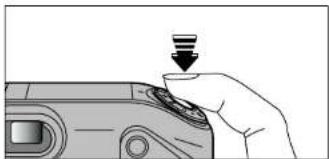
natural_image
Hand holding a camera lens with a downward arrow indicator (no text or symbols)When the camera is in sleep mode, pressing the shutter button down halfway brings the camera back to full operational mode. This is a useful feature as it allows you to take pictures more quickly than switching the camera off and then on again.
Operation can also be restored by pressing buttons other than the shutter button.
SET-UP SET LCD MONITOR BRIGHTNESS/VOLUME
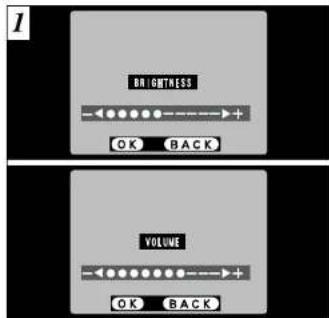
When you select the LCD BRIGHTNESS or VOLUME menu option, an adjustment bar appears on the LCD monitor.
①Use "◀" or "▶" to adjust the LCD monitor brightness or speaker volume. ②Press the "MENU/OK" button to confirm the adjustment.
To exit this procedure without changing the settings, press the "BACK" button.

PC Connection
PC (PERSONAL COMPUTER) IN CONNECTION
PC Connection describes how to set up a USB connection and provides an overview of the functions available using a USB connection. Refer also to the Software Quick Start Guide booklet.
The first time you connect the camera to your computer
You must install all the software before connecting the camera to your computer. Refer also to the Software Quick Start Guide booklet.
CD-ROM
(Software for FinePix EX)
Software Quick Start Guide
DSC (Mass storage device) Mode
This mode provides a simple way to read images from a SmartMedia and store images on to a SmartMedia (→P.104)
PC-CAM (camera) Mode
This function allows you to conduct videoconferencing sessions between PCs connected to the Internet. This function can also be used to record video on a PC ( P.106).
Videoconferencing ("PictureHello") is not supported on Macintosh computers.
The PC Camera function cannot be used on Mac OS X (including the Classic environment). Use a Mac OS version between 8.6 and 9.2.
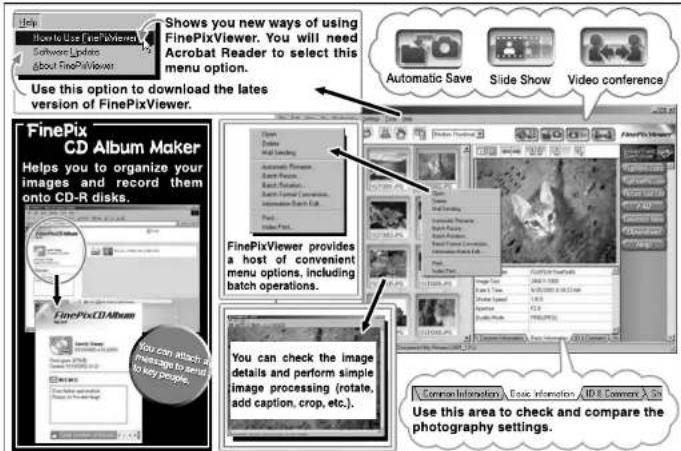
CONNECTING AT DSC MODE
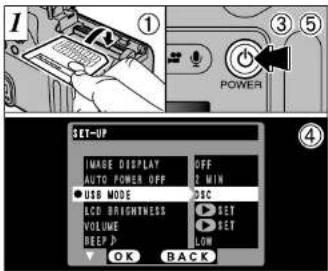
①Load a SmartMedia containing photographed images into your camera.
② Plug the AC power adapter connector into the DC IN 5V socket on the camera and then plug the adapter itself into the main power outlet.
③Press the "O" (POWER) button to switch the camera on.
④Set the "USB MODE" setting in the "SET-UP" menu to "DSC" (→P.96, 97).
⑤Press the "○" (POWER) button to switch the camera off
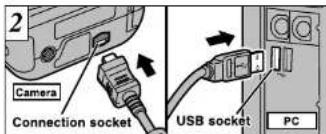
①Switch your PC on.
②Use the special FinePix F601 ZOOM USB cable to connect the camera to your computer.
③Switch the camera on.
If you are using a Windows PC, the driver settings are specified automatically when installation is completed. No further action is required. * If your PC fails to recognize the camera, refer to the Software Quick Start Guide.
Always use the prescribed procedure when disconnecting or switching off the camera (P.108).
On Windows XP and Mac OS X, you must specify the automatic launch settings the first time you connect the camera to your computer (Software Quick Start Guide booklet).
Take care to ensure that the special FinePix F601 ZOOM USB cable is connected the correct way around and that the plugs are pushed fully into the connection sockets.
Camera Operation
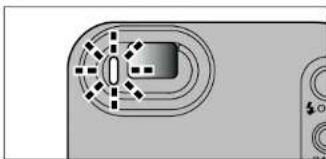
natural_image
Pure diagram of a camera lens with no text, numbers, or symbols- The viewfinder lamp alternately blinks green and orange while the camera is communicating with your PC.
• "DSC" appears on the screen.
- Auto Power Off is disabled when the camera is connected to a USB port.
Before replacing the SmartMedia, always disconnect the camera from the PC using the procedure on P.108.
Do not disconnect the USB cable when the camera is communicating with the PC. See P.108 for information on the disconnection procedure.
PC Operation
- FinePixViewer automatically starts up
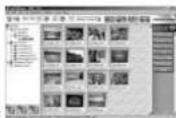
* Screen for Windows 98 SE
- A removable disk icon appears and you can use your PC to transfer files to and from the camera.


If the above operations do not occur, you do not have the required software programs or drivers installed on your PC. Refer to the Software Quick Start Guide booklet and complete the required PC setup procedures. Then reconnect the camera to your PC.
CONNECTING AT PC-CAMERA MODE
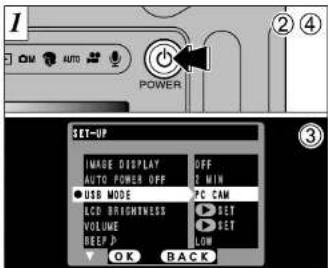
①Plug the AC power adapter connector into the DC IN 5V socket on the camera and then plug the adapter itself into the main power outlet.
②Press the "∅" (POWER) button to switch the camera on.
③ Set the "USB MODE" setting in the "SET-UP" menu to "PC CAM" (→P.96, 97).
④Press the "∅" (POWER) button to switch the camera off.
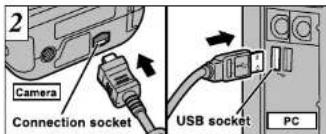
①Switch your PC on.
②Use the special FinePix F601 ZOOM USB cable to connect the camera to your computer.
③Switch the camera on.
If you are using a Windows PC, proceed as follows when installation is completed Windows 98/98 SE/Mo/2000:
The driver settings are specified automatically. No further action is required.
Windows XP:
When the confirmation dialog box appears, click the "Continue" button.
* If your PC fails to recognize the camera, refer to the Software Quick Start Guide.
Always use the prescribed procedure when disconnecting or switching off the camera (P.108).
Take care to ensure that the special FinePix F601 ZOOM USB cable is connected the correct way around and that the plugs are pushed fully into the connection sockets.
Camera Operation
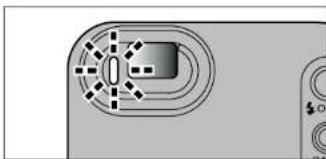
natural_image
Pure diagram of a camera lens with no text, numbers, or symbols- The viewfinder lamp alternately blinks green and orange while the camera is communicating with your PC.
- The lens is fixed at the wide-angle zoom setting
- "PC CAMERA" appears on the screen.
- Auto Power Off is disabled when the camera is connected to a USB port.
If you switch the power on with the "PC Camera" USB setting selected, the color tones shown on the LCD monitor and TV screen may differ.
Do not disconnect the USB cable when the camera is communicating with the PC. See P.108 for information on the disconnection procedure.
PC Operation
- FinePixViewer automatically starts up and the PictureHello window opens (Windows only).
* Screen for Windows 98 SE
- You can use VideoImpression to view live images.
* Screen for Macintosh
If the above operations do not occur, you do not have the required software programs or drivers installed on your PC. Refer to the Software Quick Start Guide booklet and complete the required PC setup procedures. Then reconnect the camera to your PC.
DISCONNECTING FROM THE PC (Important — always use this procedure.)
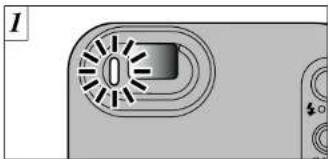
natural_image
Diagram of a device with a circular button and radial lines, no text or symbols present①Quit all applications (FinePixViewer, VideoImpression, etc.) that are using the camera.
②Check that the viewfinder lamp is glowing green (that the camera is not communicating with the computer).
For a DSC connection, proceed to step 2. For a PC CAMERA connection, proceed to step 3.
Even after the "Copying..." message is no longer displayed on your PC, communication with the camera may still be in progress. Always check that the viewfinder lamp on the camera is glowing green and is no longer flashing.
2 Perform the steps shown below before you switch the camera off. This procedure differs depending on the operating system software (or PC) you are using.
Windows 98 or 98 SE
No PC operation is needed.
Windows Me/2000 Professional/XP
①Right-click the removable disk icon in the "My Computer" window and select Eject.
* This step is only required in Windows Me.
②Left-click the Eject icon in the taskbar and eject "USB Disk".
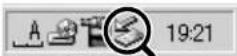
* Screen for Windows Me
③The menu option shown below appears. Click on this option.

* Screen for Windows Me
④The "Eject hardware" dialog box appears. Click the [OK] button or the close button.
Macintosh
Drag the "Removable drive" icon on the desktop to the Trash.

When you drag the icon to the Trash, "REMOVE OK" appears on the camera's LCD monitor.
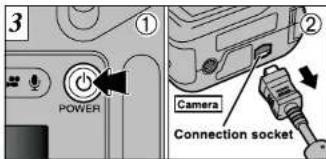
①Switch the camera off.
②Unplug the special FinePix F601 ZOOM USB cable from the camera.
System Expansion Options
By using the FinePix F601 ZOOM together with other optional FUJIFILM products, your system can be expanded to fill a wide range of uses.
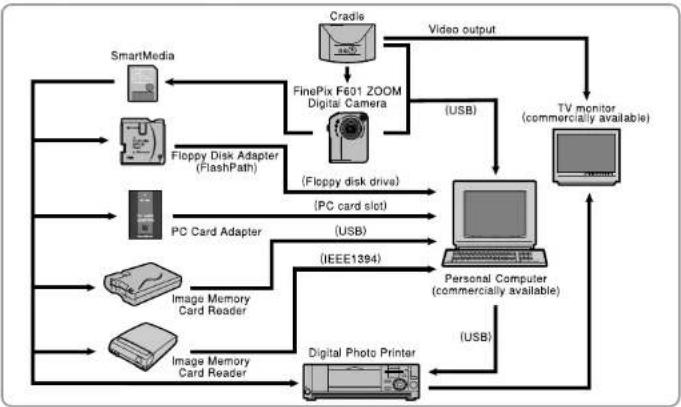
flowchart
graph TD
    A["SmartMedia"] --> B["Floppy Disk Adapter (FlashPath)"]
    B --> C["PC Card Adapter"]
    C --> D["Image Memory Card Reader"]
    D --> E["Digital Photo Printer"]
    E --> F["Personal Computer (commercially available)"]
    F --> G["TV monitor (commercially available)"]
    G --> H["Cradle"]
    H --> I["Video output"]
    I --> J["FinePix F601 ZOOM Digital Camera"]
    J --> K["(USB)"]
    K --> L["PC card slot"]
    L --> M["(IEEE1394)"]
    M --> N["Digital Photo Printer"]
    N --> O["(USB)"]
    O --> P["Personal Computer (commercially available)"]
    P --> Q["TV monitor (commercially available)"]
    Q --> R["Cradle"]
    R --> S["Video output"]
    S --> T["FinePix F601 ZOOM Digital Camera"]
    T --> U["(Floppy disk drive)"]
    U --> V["PC card slot"]
    V --> W["(IEEE1394)"]
    W --> X["Digital Photo Printer"]
    X --> Y["(USB)"]
    Y --> Z["Personal Computer (commercially available)"]
    Z --> AA["Cradle"]
    AA --> AB["Video output"]
Accessories Guide
The optional accessories (sold separately) can make taking pictures with the FinePix F601 ZOOM even easier. For information on how to attach and use the accessories, refer to the instructions provided with the accessory used. Visit the FUJIFILM web site for the latest information on camera accessories. http://home.fujifilm.com/products/digital/index.html
SmartMedia™
These are SmartMedia cards sold separately. Use the 9 types listed below.
- MG-4S : 4MB, 3.3V
- MG-8S : 8MB, 3.3V
- MG-16S : 16MB, 3.3V
● MG-32S : 32MB, 3.3V ● MG-64S : 64MB, 3.3V
* Some 3.3V SmartMedia are labelled as "3V" cards.
● MG-16SW : 16MB, 3.3V, ID ● MG-32SW : 32MB, 3.3V, ID
● MG-64SW : 64MB, 3.3V, ID ● MG-128SW : 128MB, 3.3V, ID
* SmartMedia with ID are labelled as "ID" cards.
- BC-60 Battery Charger
Quickly charges the rechargeable battery. The BC-60 reduces charging time to approximately 2 hours (for the NP-60).
● NP-60 Rechargeable Battery
Lithium-ion slimline rechargeable battery.
● AC-5VH/AC-5VHS AC Power Adapter
Use the AC-5VH/AC-5VHS when you want to take pictures or play back images for long periods or when the FinePix F601 ZOOM is connected to a personal computer. * The shape of the AC power adapter, the plug and socket outlet depend on the country.
● PictureCradle CP-FX601
If you connect the AC power adapter and USB cable to this cradle, you can charge the camera battery or connect the camera to your computer just by placing the camera in the cradle. You can also use the cradle to view the images stored in your camera on a TV.
- SC-FX601
This is a special deerskin case that protects the camera against soiling, dust and minor impacts when it is being carried.

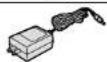

Accessories Guide
● FD-A2 Floppy Disk Adapter (FlashPath)
This adapter is the same size and shape as a 3.5-inch floppy disk. You can copy the images on a SmartMedia to your PC simply by loading the SmartMedia into the floppy disk adapter and then inserting the adapter into your floppy disk drive.
| Compatible OS | Compatible SmartMedia | |
| FD-A2 | Windows 95/98/98 SE/Me/NT4.0Mac OS 7.6.1 to 9.1 | 5V/3.3V, 2MB to 128MB |

● SM-R2 Image Memory Card Reader
The SM-R2 allows images to very easily be read and written from an image memory card (SmartMedia) to a personal computer. Its USB interface provides high-speed data transmission.
- Compatible with Windows 98/98 SE, Windows Me, Windows 2000 Professional or iMac and models that support USB as standard.
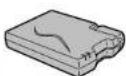
● DM-R1 Image Memory Card Reader
This device provides a simple way to transfer image data in either direction between your PC and an image memory card (SmartMedia or CompactFlash Type II (Microdrive-compatible)).
The IEEE 1394 interface provides high-speed data transfer.
- Compatible with Windows 98 SE, Windows 2000 Professional (read-only), iMac DV and Power Macintosh PCs with FireWire as a standard feature. Mac OS 8.5.1 to 9.1
● PC-AD3 PC Card Adapter
The PC Card Adapter allows the SmartMedia to be used as a PC Card Standard ATA-compliant (PCMCIA 2.1) PC card (Type II).
● Compatible with SmartMedia of 5V/3.3V, 2MB to 128MB.

Notes on Using Your Camera Correctly
▶Be sure to read this information in conjunction with "Safety Notes" (→P.130), to ensure that you use your camera correctly
■ Places to Avoid
Do not store or use the camera in the following types of locations:
- In the rain or in very humid, dirty or dusty places.
● In direct sunlight or in places subject to extreme
temperature rises, such as in a closed car in summer.
● Extremely cold places. - Places subject to strong vibration.
● Places affected by smoke or steam. - Places subject to strong magnetic fields (such as near motors, transformers or magnets).
- In contact with chemicals such as pesticides or next to rubber or vinyl products for long periods of time.
■ Notes on Immersion in Water or Sand
The FinePix F601 ZOOM is particularly adversely affected by water and sand. When you are at the beach or close to water, ensure that the camera is not exposed to water or sand. Take care also not to place the camera on a wet surface. Water or sand inside the camera can cause faults that may be irreparable.
■ Notes on Condensation
If the camera is carried suddenly from a cold location into a warm place, water droplets (condensation) may form on the inside of the camera or on the lens. When this occurs, switch the camera off and wait an hour before using the camera. Condensation may also form on the SmartMedia
card. In this event, remove the SmartMedia and wait a short time before using it again.
■ When the Camera is Unused for Long Periods If you do not intend to use the camera for a long period of time, remove the battery and the SmartMedia card before storing the camera.
■ Cleaning Your Camera
- Use a blower brush to remove dust from the lens, LCD monitor screen or viewfinder as these surfaces, and then wipe lightly with a soft, dry cloth. If any soiling remains, apply a small amount of lens cleaning liquid to a piece of FUJIFILM lens cleaning paper and wipe gently.
- Do not scratch hard objects against the lens, LCD monitor screen or viewfinder as these surfaces are easily damaged.
- Clean the body of the camera with a soft, dry cloth. Do not use volatile substances such as thinners, benzine or insecticide, as these may react with camera body and cause deformation or remove the coating.
■ Using the Camera Overseas
When travelling overseas, do not place your camera in the check-in baggage. Baggage handling at airports may subject baggage to violent shocks, and the camera may be damaged internally even when no external damage is visible.
Notes on the Power Supply
Notes on Using the Battery (NP-60)
This camera uses the Rechargeable Lithium-ion Battery Pack NP-60. Note the points below when using the rechargeable battery. Take particular care to read the Safety Notes to ensure that you use the battery correctly. *When shipped, the NP-60 is not fully charged. Always charge the NP-60 before using it.
- When carrying the NP-60, install it in a digital camera or keep it in the soft case.
- When storing the NP-60, place it inside the special soft case provided.
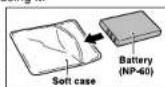
■ Battery Features
- The NP-60 gradually loses its charge even when not used. Use a NP-60 that has been charged recently (in the last day or two) to take pictures.
- To maximize the life of the NP-60, switch the camera off as quickly as possible when it is not being used.
- The number of available shots will be lower in cold locations or at low temperatures. Take along a spare fully charged NP-60.
You can also increase the amount of power produced by putting the NP-60 in your pocket or another warm place to heat it and then loading it into the camera just before you take a picture.
If you are using a heating pad, take care not to place the NP-60 directly against the pad. The camera may not operate if you use a depleted NP-60 in cold conditions.
■ Charging the Battery
- You can charge the NP-60 using the AC Power Adapter AC-5VS/AC-5VHS.
- The NP-60 can be charged at ambient temperatures between 0^ and +40^ (+32^ and +104^) . At an ambient temperature of +23^ (+73^) , it takes approximately 5 hours to charge a fully depleted NP-60 battery.
- You should charge the NP-60 at an ambient temperature between +10°C and +35°C (+50°F and +95°F). If you charge the NP-60 at a temperature outside this range, charging takes longer because the performance of the NP-60 is impaired.
- You cannot charge the NP-60 at temperatures of 0°C (+32°F) or below.
- You can also use the optional BC-60 Battery Charger to charge the NP-60.
- The NP-60 can be charged using the BC-60 Battery Charger at ambient temperatures between 0°C and +40°C (+32°F and +104°F). At an ambient temperature of +23°C (+73°F), it takes approximately 2 hours to charge a fully depleted NP-60 battery.
- You should charge the NP-60 at an ambient temperature between +10°C and +35°C (+50°F and +95°F). If you charge the NP-60 at a temperature outside this range, charging takes longer because the performance of the NP-60 is impaired.
● The NP-60 does not need to be fully discharged or exhausted flat before being charged.
● The NP-60 may feel warm after it has been charged or immediately after being used. This is perfectly normal. - Do not recharge a fully charged NP-60.
■ Battery Life
At normal temperatures, the NP-60 can be used at least 300 times.
If the time for which the NP-60 provides power shortens markedly, this indicates that the NP-60 has reached the end of its effective life and should be replaced
Notes on storage
Lithium-ion Battery Pack NP-60 is both compact and capable of storing large quantities of power. However, if it is stored for long periods while charged, the performance of the battery can be impaired.
- If the battery will not be used for some time, run the battery flat before storing it.
● Always remove the battery from the camera or battery charger when it is not being used. - Place the battery pack inside the soft case and store in a cool place.
*The battery should be stored in a dry location with an ambient temperature between +15°C and +25°C (+59°F and +77°F).
* Do not leave the battery in hot or extremely cold places.
■ Handling the Battery
To avoid injury or damage, observe the following:
- Do not allow the metal portions of the battery to touch other metal objects.
-
Do not bring the battery close to a flame or throw it into a fire.
-
Do not attempt to disassemble or modify the battery.
-
Do not recharge the battery with chargers other those specified.
● Dispose of used batteries promptly.
To avoid damaging the battery or shortening its life, observe the following:
- Do not drop the battery or otherwise subject it to strong impacts
- Do not immerse the battery in water.
To ensure that you obtain optimum battery performance, observe the following:
● Always keep the battery terminals clean.
- Store the battery in a cool, dry place. Storing the battery for long periods in a hot location can shorten the battery life.
If you use the battery for a long period, the camera body and the battery itself will become warm. This is normal and is not a malfunction. Use the AC power adapter supplied with the camera if you are taking pictures or viewing images for a long period of time.
■ Specifications of the Enclosed NP-60
Nominal voltage
Nominal capacity
Operating temperature
Dimensions
DC 3.7V
1035mAh
0°C to +40°C (+32°F to +104°F)
35.2 mm × 53 mm × 7.0 mm
(1.39 in. × 2.1 in. × 0.28 in.)
(W × H × D)
Approx. 30g (1.05 oz.)
* These specifications are subject to change without notice.
Notes on the Power Supply
AC Power Adapter
Use only the AC-5VS/AC-5VHS AC Power Adapter with your FinePix F601 ZOOM Digital Camera. The use of other AC power adapters may result in damage to your camera.
● The AC Power Adapter is only intended for indoor use.
- Push the connection cord plug firmly into the DC input socket.
- When you unplug the connection cord from the DC input socket, switch the camera off and pull the plug out by grasping the plug itself (not by pulling the cord).
- Do not use the AC power adapter with any device except the specified device.
● During use, the AC power adapter will become hot to touch, but this is not abnormal.
- Do not disassemble the AC power adapter. Doing so could be dangerous.
- Do not use the AC power adapter in a place with high temperature and high humidity.
- Do not drop or subject the AC power adapter to strong shocks.
● The AC power adapter may emit a humming noise, but this is not abnormal.
- If used near a radio, the AC power adapter may cause static, so play the radio in a distant place.
*Very occasionally, DC output will be prevented by the operation of the internal protection circuit. In this
event, unplug the AC-5VS/AC-5VHS AC power adapter from the power socket for a few moments and then plug it in again. This will restore DC output.
■ Specifications (AC-5VS/AC-5VHS)
Power Supply Rated Input Capacity
Rated Output
Temperature During Use
Storage Temperature Dimensions (MAX.)
Mass (Weight)
Connection Cord Length
* Please note that specifications and characteristics are subject to change without notice.
AC 100V to 240V, 50/60Hz
12W (U.S.A. and Canada)
0.15A to 0.24A (other countries)
DC 5.0V 1.5A (U.S.A. and Canada)
DC 5.0V 2.0A (other countries)
0°C to +40°C (+32°F to +104°F)
(U.S.A. and Canada)
0°C to +45°C (other countries)
-10°C to +70°C (+14°F to +158°F)
47 mm × 20 mm × 72 mm
(1.9 in. × 0.8 in. × 2.8 in.)
(W × H × D) (U.S.A. and Canada)
49 mm × 40 mm × 65 mm
(W × H × D) (U.K.)
49 mm × 31 mm × 65 mm
(W × H × D) (other countries)
Approx. 120 g (4.2 oz.) (U.S.A. and Canada)
Approx. 200 g (7.0 oz.) (U.K.)
Approx. 180 g (6.4 oz.) (other countries)
AC 100V to 240V, 50/60Hz
12W (U.S.A. and Canada)
0.15A to 0.24A (other countries)
DC 5.0V 1.5A (U.S.A. and Canada)
DC 5.0V 2.0A (other countries)
0°C to +40°C (+32°F to +104°F)
(U.S.A. and Canada)
0°C to +45°C (other countries)
-10℃ to +70℃ (+14°F to +158°F)
4) mm × 20 mm × 72 mm
(1.9 in. × 0.8 in. × 2.8 in.)
(W × H × D) (U.S.A. and Canada)
45 mm × 40 mm × (M + H - D) (MM)
(W × H × D) (U.K.)
49 mm × 31 mm × 65 mm
(W × H × D) (other countries)
Approx. 120 g (4.2 oz.) (U.S.A. and Canada)
Approx. 200 g (7.0 oz.) (U.K.)
Approx. 180 g (6.4 oz.)
(other countries)
Approx. 2 m (6.6 ft.)
cifications and characteristics are out notice.
Notes on the SmartMedia™
SmartMedia
The SmartMedia card supplied with your FinePix F601 ZOOM camera is a new image recording medium developed especially for use in digital cameras. Each SmartMedia card contains a built-in semiconductor memory chip (NAND flash memory) which is used for storing digital image data.
Because the data is stored electronically, the stored image data can be erased from the card and new data recorded.
■SmartMedia with IDs
The SmartMedia ID is a SmartMedia that has an individually assigned identification number. SmartMedia ID cards can be used with devices that use ID numbers for copyright protection or other purposes. This camera accepts SmartMedia ID cards in the same way as conventional SmartMedia cards.
■Storing Data
In the situations listed below, recorded data may be erased (destroyed). Please note that Fuji Photo Film Co., Ltd. accepts no responsibility whatsoever for the loss (destruction) of recorded data.
*When the SmartMedia is used incorrectly by the owner or a third party
*When the SmartMedia is exposed to static electricity or electrical noise
*When the battery cover is opened or the SmartMedia removed and the camera is then switched off during data recording, during data erasing (SmartMedia formatting) or during frame advance when images are being played back.
Back up important data onto another medium. (MO disk, floppy disk, hard disk, etc.)
■Notes on Handling SmartMedia
● Take care to hold the SmartMedia straight when you load it into your camera.
- Never remove the SmartMedia or switch the camera off during data recording, during data erasing (SmartMedia formatting) or during frame advance when images are being played back. These actions could result in damage to the SmartMedia.
- Use only the SmartMedia specified for use with the FinePix F601 ZOOM. The use of other SmartMedia could damage the camera.
- SmartMedia are precision electronic devices. Do not bend, drop, or subject SmartMedia to excessive shocks.
- Do not use or store SmartMedia in environments likely to be affected by strong static electricity or electrical noise.
- Do not use or store SmartMedia in very hot, humid or corrosive environments.
- Take care not to touch the SmartMedia's contact area or allow the area to become soiled. Use a dry lint-free cloth to wipe away any soiling that does occur.
- To avoid damage caused by static electricity, always use the special static-free case provided during transportation or storage, or keep the SmartMedia in a storage case if available.
Notes on the SmartMedia™
- Do not carry SmartMedia in locations such as a trouser pocket. This could subject the SmartMedia to excessive force when you sit down, thereby damaging the SmartMedia.
- The SmartMedia may feel warm when it is removed from the camera after extended periods of picture taking or image viewing. This is normal and does not indicate a fault.
- Inserting a SmartMedia that is charged with static electricity into your camera may result in a camera malfunction. If this occurs, switch the camera off and then on again.
- Affix the label onto the designated area of the card. Do not use third-party labels as this can lead to problems when the card is inserted or removed.
- When you attach the label, take care that it does not cover any of the write-protect area.
- If you intend to take photos using a SmartMedia that has been used on a PC, format the SmartMedia on your camera.
- When you format a SmartMedia in the camera and then shoot and record images, a directory (folder) is automatically created. Image data is then recorded in this directory.
- Do not change or delete the directory (folder) names or file names on the SmartMedia from your PC as this will make it impossible to use the SmartMedia in your camera.
■Notes on Using SmartMedia with a PC
● Always use the camera to erase image data on a SmartMedia
- To edit image data, copy the image data to the PC's hard disk and then edit the copied data.
Be sure to use your PC's disk eject function (right-click the removable disk icon in the "My Computer" window and then click "Eject") when you eject a SmartMedia from the PC card reader or PC card adapter.
When you are using a USB connection, you should also select and left-click the eject button for "USB disc/mass storage" in the taskbar. If you do not use the correct eject procedure, the SmartMedia may be damaged due to write-behind cashing.
■Specifications
Type | Image memory card for digital cameras
(SmartMedia)
Operating voltage | 3.3V
Conditions for use | Temperature:
0°C to +40°C (+32°F to +104°F)
Humidity:
80% or less (no condensation)
Dimensions 37 mm × 45 mm × 0.76 mm
(1.45 in. × 1.77 in. × 0.03 in.) (W × H × D)
Warning Displays
The table below lists the warnings that are displayed on the LCD monitor
| Warning Displayed | Explanation | Remedy |
| The battery in the camera is fully depleted or very low on charge. | Replace the battery or have new battery ready. | |
| There is no SmartMedia loaded or a 5 V SmartMedia is loaded the wrong way round. | Load the SmartMedia (3.3V) in the correct direction. | |
| The SmartMedia is not formatted.The SmartMedia contact area is soiled. | Wipe the contact area on the SmartMedia with a soft dry cloth. it may be necessary to format the SmartMedia. If the error message is still displayed, replace the SmartMedia. Contact your FUJIFILM dealer. | |
| Camera fault. | ||
| The SmartMedia contact area is soiled.The SmartMedia is damaged.The SmartMedia format is incorrect. | Wipe the contact area on the SmartMedia with a soft dry cloth. it may be necessary to format the SmartMedia. If the error message is still displayed, replace the SmartMedia. Contact your FUJIFILM dealer. | |
| Camera fault. | ||
| The SmartMedia is fully recorded. | Erase some images or use a SmartMedia that has ample free space. | |
| The SmartMedia is write-protected. | Use a SmartMedia that is not write-protected. |
Warning Displays
| Warning Displayed | Explanation | Remedy |
| An attempt was made to playback a frame not recorded on this camera.The SmartMedia contact area is soiledCamera fault.You attempted to play a movie with a recording time longer than 20 seconds.You attempted to play back an audio file recorded on a FinePix 50i. | Images cannot be played backWipe the contact area on the SmartMedia with a soft dry cloth. It may be necessary to format the SmartMedia.Contact your FUJIFILM dealer.You cannot play back movies that are more than 20 seconds long.Audio files cannot be played back. | |
| TFILE NO, FULL | The frame number has reached 999-9999. | Take the shot using a formatted SmartMedia. |
| The data could not be recorded due to a SmartMedia error or a connection error between the SmartMedia and camera.The photographed image cannot be recorded as it is too large to fit in the available space on the SmartMedia. | Re-insert the SmartMedia or switch the camera off and then on again.Use a new SmartMedia. | |
| The voice memo file is faulty.Camera fault. | The voice memo cannot be played back.Contact your FUJIFILM dealer. | |
| There is a strong likelihood of camera shake because the shutter speed is slow. | Use flash photography. However, a tripod should be used for some scenes and modes. | |
| A protected frame was erased. | Protected files cannot be erased. Unprotect the frame using the camera on which the protection was first applied. |
| Warning Displayed | Explanation | Remedy |
| ! AE | Outside the AE continuous range. | The shot can be taken, but the exposure will not be correct. |
| ! AF | The AF (auto focus) cannot work effectively. | • If the image is too dark, take the picture at a distance of around 2 m (6.6 ft.) from the subject.• Use AF lock to take the picture. |
| Prints were specified for more than 1000 frames in the DPOF frame settings. | The maximum number of frames for which prints can be specified on the same SmartMedia is 999Copy the images for which you want to order prints onto another SmartMedia and then specify the DPOF settings. | |
| ! FOCUS ERROR | Camera malfunction or fault. | • Switch the camera on again, taking care not to touch the lens.• Switch the camera off and on again. |
| ! ILENS COVER | The lens cover is faulty. | • Switch the camera on again, taking care not to touch the lens.• Switch the camera off and on again. |
| • You specified more than 256 audio index markers. | • Delete some unwanted audio index markers and then set the new markers again.Alternatively, continue audio recording without setting audio index markers. | |
| • You tried to set an audio index marker in a file recorded on a camera that does not support audio indexing. | • You cannot set audio index markers in this file, Record the audio file on a camera that supports audio indexing. | |
| ! I BUSY | Because you used a SmartMedia that was formatted on a PC, the timing for recording does not match that used for shooting. | Use a SmartMedia that was formatted on your camera. |
Troubleshooting
▶ If you think the camera is faulty, check the following once more
| Troubleshooting | Possible causes | Solutions |
| I tried to charge the battery but the self-timer lamp does not light. | There is no battery in the camera.The camera and AC power adapter are not connected correctly. | Load the batteryConnect the camera and AC power adapter correctly. |
| The self-timer lamp flashes during charging and I can't charge the battery. | The battery terminals are dirty.The battery is faulty or flat. | Take the battery out briefly and then reload it.Wipe the battery terminals with a clean, dry cloth.Load a new fully charged battery. |
| No power. | The battery is exhausted.The AC power adapter plug has come out of the power outlet.The battery is loaded the wrong way round. | Load a new fully charged battery.Plug the adapter back in.Load the battery in the correct direction. |
| Power cuts out during operation. | The battery is exhausted. | Load a new fully charged battery. |
| Battery runs out quickly. | You are using the camera in extremely cold conditions.The terminals are soiled.The battery is flat. | Put the battery in your pocket or another warm place to heat it and then load it into the camera just before you take a picture.Wipe the battery terminals with a clean, dry cloth.Load a new fully charged battery. |
| No photograph is taken when the shutter button is pressed. | No SmartMedia is loaded.The SmartMedia is fully recorded.The SmartMedia is write-protected.The SmartMedia is not formatted.The SmartMedia contact area is soiled. | Load a SmartMedia.Insert a new SmartMedia or erase some unwanted frames.Remove the write-protection.Format the SmartMedia.Wipe the SmartMedia contact area with a clean dry cloth. |
| Troubleshooting | Possible causes | Solutions |
| No photograph is taken when the shutter button is pressed. | The SmartMedia is damaged.The Auto Power Off function has switched the camera off.The battery is exhausted. | Load a new SmartMedia.Switch the camera on.Load a new fully charged battery. |
| I can't set voice memo. | Continuous shooting is selected.Scene position 40-frame continuous shooting is selected. | Set continuous shooting to OFF.Change the Scene Position setting or the Photography mode. |
| I can't set the self-limer | Scene position 40-frame continuous shooting is selected. | Change the Scene Position setting or the Photography mode. |
| I can't use the flash to take pictures. | The flash is closed.You pressed the shutter button while the flash was charging.The battery is exhausted. | Pop the flash up.Wait until charging is completed before pressing the shutter button.Load a new fully charged battery. |
| I can only select "Suppressed Flash" flash mode. | Continuous shooting is selected.The "Landscape" Scene Position setting or 40-frame continuous shooting is selected. | Set continuous shooting to OFF.Change the Scene Position setting or the Photography mode. |
| I can't select "Auto" or "Red-eye Reduction" flash mode. | "Aperture-priority Auto" mode is selected in the Photography menu. | Select "Program Auto" mode in the Photography menu. |
| I can't select "Auto" or "Slow Synchro" flash mode. | "Shutter-priority Auto" or "Manual exposure" mode is selected in the Photography menu. | |
| I can't set the flash mode to "Red-eye Reduction" or "Slow Synchro". | The "Sports" Scene Position setting is selected. | Change the Scene Position setting or the Photography mode. |
| I can't select "Auto" or "Forced Flash" flash mode. | The "Night" Scene Position setting is selected. |
Troubleshooting
▶ If you think the camera is faulty, check the following once more
| Troubleshooting | Possible causes | Solutions |
| I can't select continuous shooting. | Voice memo is selected,Scene position 40-frame continuous shooting is selected. | Set voice memo to OFF.Change the Scene Position setting or the Photography mode. |
| I can't select Macro mode. | The "Landscape", "Sports" or "Night" Scene Position setting is selected. | Change the Scene Position setting or the Photography mode. |
| I can't select the focusing mode. | The Photography mode is set to "Auto". | Set the Photography mode to "Manual". |
| I can't select the AF AREA focusing mode. | "Scene Position" is selected. | Set the Photography mode to "Manual". |
| I can't set the Brightness (exposure compensation). | "Shutter-priority Auto" or "Manual" exposure" mode is selected in the Photography menu. | Set the Photography menu mode to "Program Auto" or "Aperture-priority Auto". |
| With the Quality set to "100", I can only select NORMAL or FINE. | Scene position 40-frame continuous shooting is selected. | Change the Scene Position setting or the Photography mode. |
| With the Quality set to "100", I can only select NORMAL. | The sensitivity is set to 800 or 1600 (high-sensitivity photography) in the Photography menu. | In the Photography menu, set the sensitivity to 400 or less. |
| The photographed image is dark even though I used the flash. | The subject is too far away.Your finger was covering the flash/flash control sensor. | Move to within the effective flash range before taking the shot.Hold the camera correctly. |
| The image is blurred. | The lens is dirty.You photographed scenery with Macro mode selectedYou took a close-up shot without selecting Macro mode. | Clean the lens.Cancel Macro mode.Select Macro mode. |
| Troubleshooting | Possible causes | Solutions |
| The image is blurred. | • You are shooting a subject that is not suited to autofocusing. | • Use AF/AE lock to take the shot. |
| There is speckling on the image. | The shot was taken with a slow shutter speed (long exposure) in a high-temperature environment. | This is a characteristic of CCDs and does not indicate a camera fault. |
| The camera does not emit any sound. | • The camera volume is set too low• The microphone was blocked during shooting/recording.• There is something covering the speaker during playback. | • Adjust the volume.• Take care not to block the microphone during shooting/recording.• Ensure that the speaker is uncovered. |
| Frame erase does not erase the frame. | • DPOF settings are specified for some frames.• Some frames may be protected. | • Cancel the DPOF settings and try again (→P.90).• Unprotect frames using the camera on which the protection was first applied. |
| The ERASE ALL function does not erase all the frames. | ||
| I can't format the SmartMedia. | The SmartMedia is write-protected. | Remove the write-protection.(Peel off the write-protect sticker.) |
| When the camera is connected to a personal computer (PC), the shot image appears on the camera's LCD monitor. | • The special FinePix F601 ZOOM USB cable is not properly connected to the computer or camera.• The PC is not switched on. | • Set up the camera and the special FinePix F601 ZOOM USB cable correctly.• Switch the PC on. |
| Nothing happens when I use the camera switches. | • Camera malfunction.• The battery is exhausted. | • Briefly remove the battery or disconnect the AC power adapter. Then reload the battery or reconnect the AC power adapter and try again.• Load a new fully charged battery. |
| The camera no longer works correctly. | The camera has suffered an unforeseen problem. | Briefly remove the battery or disconnect the AC power adapter. Then reload the battery or reconnect the AC power adapter and try again. |
Specifications
System
● Model: Digital camera FinePix F601 ZOOM
● Number of effective pixels: 3.1 million pixels
- CCD sensor
1/1.7-inch Super CCD in an interwoven pattern
Number of total pixels 3.3 million pixels
- Image file size
2832 × 2128 pixels (6.03 million pixels) / 2048 × 1536 pixels /
1280 × 960 pixels / 640 × 480 pixels
- File format
Still image: JPEG (Design rule for Camera File System
compliant). DPOF compatible
Movie: AVI format. Motion JPEG
Audio: WAV format
● Storage media: SmartMedia (3.3V)
● Viewfinder: Real image optical
■Standard number of shots per SmartMedia™
| File Size | 6M 2832 × 2128 | 3M 2048 × 1536 | 1M 1280 × 960 | 2M 940 × 680 | Movie (Video) | Audio recording | ||||||
| Quality Mode | FINE | NORMAL | BASIC | FINE | NORMAL | FINE | NORMAL | NORMAL | VGA | QVGA | — | |
| Image Data Size | Approx. 2400KB | Approx. 1200KB | Approx. 460KB | Approx. 1300KB | Approx. 590KB | Approx. 620KB | Approx. 320KB | Approx. 130KB | — | — | — | |
| MG-4S (4MB) | 1 | 3 | 8 | 2 | 6 | 6 | 12 | 30 | Approx. 6 sec. | Approx. 16 sec. | Approx. 8 min. | |
| MG-8S (8MB) | 3 | 6 | 17 | 6 | 13 | 12 | 25 | 61 | Approx. 13 sec. | Approx. 33 sec. | Approx. 16 min. | |
| MG-16S (16MB) | 6 | 13 | 33 | 12 | 26 | 25 | 49 | 122 | Approx. 27 sec. | Approx. 66 sec. | Approx. 33 min. | |
| MG-32S (32MB) | 13 | 28 | 68 | 25 | 53 | 50 | 99 | 247 | Approx. 55 sec. | Approx. 135 sec. | Approx. 67 min. | |
| MG-64S (64MB) | 26 | 56 | 137 | 50 | 107 | 101 | 198 | 497 | Approx. 111 sec. | Approx. 271 sec. | Approx. 135 min. | |
| MG-128S (128MB) | 53 | 113 | 275 | 102 | 215 | 204 | 398 | 997 | Approx. 223 sec. | Approx. 544 sec. | Approx. 272 min. | |
● Lens: Super EBC Fujinon optical 3x zoom lens
● Aperture: F2.8-F4.5/F4.0-F6.3/F5.6-F8.8/F8.0-F12.4
(automatically selected)
● Focus: TTL contrast-type. Auto or Manual
● Focus distance: f = 8.3 mm-24.9 mm
(Equivalent to 36 mm-108 mm on a 35 mm camera)
● Exposure control
TTL 64-zones metering. Program AE (AUTO · P · A ·
S). exposure compensation available in Manual
photography mode
● Sensitivity: Equivalent to ISO 160/200/400/800/1600
- White balanc
Auto (In Manual modes, 7 positions can be selected.)
● Focal range
Normal: Approx. 60 cm (2.0 ft.) to infinity
Macro : Approx. 20 cm (0.7 ft.) to 80 cm (2.6 ft.)
● Shutter: Variable-speed, 3 sec. to 1/2000 sec. (depend
on Exposure mode)
● Flash: Auto flash using flash control sensor
Effective range: Wide-angle Approx. 0.2 m-4.7 m
(7.8 in.-15.4 ft.)
Telephoto Approx. 0.2 m-3 m (7.8 in.-9.8 ft.)
Flash modes: Auto, Red-Eye Reduction, Forced Flash,
Slow Synchro
- Erase modes: ERASE FRAME, ERASE ALL FRAMES.
FORMAT (initialize)
- LCD monitor
1.5-inches, low-temperature polysilicon TFT 110,000 pixels
- Video output
NTSC (U.S.A./Canada model) / PAL (Europe model)
● Self-Timer: 10 sec. timer clock
Input/Output Terminals
● DC Input: To connect the AC power Adapter AC-5VS/
AC-5VHS
- Cradle connection socket: Connects to the optional cradle
Power Supply and Others
● Power supply
Use one of the following
• Rechargeable Battery NP-60 or AC Power Adapter
AC-5VS/AC-5VHS
■Available shots / time using the battery (When fully
charged)
| Battery Type | No. of Shots | Audio Recording | |
| NP-60 | LCD monitor ON | Approx. 150 | Approx. 2 hour |
| LCD monitor OFF | Approx. 300 | Approx. 4 hour | |
The number of shots shown here is an approximate guide to the number of consecutive shots that can be taken based on 50% flash usage at normal temperatures. However, the actual number of available shots will vary depending on the ambient temperature when the camera is used and the amount of charge in the battery. The number of available shots or available shooting time will be lower in cold conditions.
- Conditions for use
Temperature: 0°C to +40°C (+32°F to +104°F)
80% humidity or less (no condensation)
● Camera dimensions (W/H/D)
72.0 mm × 93.0 mm × 34.0 mm / 2.8 in. × 3.7 in. × 1.3 in.
(not including accessories and attachments)
● Camera mass (weight): 220 g / 7.8 oz.
(not including accessories, batteries or SmartMedia)
● Weight for photography: Approx. 250 g / 8.8 oz
(including batteries and SmartMedia)
● Accessories: See P.7
- Optional Accessories: See P.111-112
* These specifications are subject to change without notice. * The LCD monitor on your digital camera is manufactured using advanced high-precision technology. Even so, small bright points and anomalous colors (particularly around text) may appear on the monitor. These are normal display characteristics and do not indicate a fault with the monitor. This phenomenon will not appear on the recorded image. * The operation error may be caused in a digital camera by the strong radio interference (i.e. electric fields, static electricity, line noise, etc.).
Explanation of Terms
DPOF:
Digital Print Order Format
DPOF is a format used for recording information on a storage media (image memory card, etc.) that allows you to specify which of the frames shot using a digital camera are printed and how many prints are made of each image.
EV:
A number that denotes Exposure Value. The EV is determined by the brightness of the subject and sensitivity (speed) of the film or CCD. The number is larger for bright subjects and smaller for dark subjects. As the brightness of the subject changes, a digital camera maintains the amount of light hitting the CCD at a constant level by adjusting the aperture and shutter speed.
When the amount of light striking the CCD doubles, the EV increases by 1. Likewise, when the light is halved, the EV decreases by 1.
JPEG:
Joint Photographics Experts Group
A file format used for compressing and saving color images. The compression ratio can be selected, but the higher the compression ratio, the poorer the quality of the expanded image.
Motion JPEG:
A type of AVI (Audio Video Interleave) file format that handles images and sound as a single file. Images in the file are recorded in JPEG format. Motion JPEG can be played back by QuickTime 3.0 or later.
PC Card:
A generic term for cards that meet the PC Card Standard.
PC Card Standard:
A standard for PC cards determined by the PCMCIA.
PCMCIA:
Personal Computer Memory Card International Association (US).
VGA/QVGA:
Graphics standards for PCs. Images are displayed at 640 × 480 and 320 × 240 pixels respectively.
WAVE:
A standard format used on Windows systems for saving audio data. WAVE files have the "WAV" file extension and the data can be saved in either compressed or uncompressed format. This camera use PCM recording.
WAVE files can be played back on a personal computer using the following software:
Windows : MediaPlayer
Macintosh: QuickTime Player
* QuickTime 3.0 or later
White Balance:
Whatever the kind of the light, the human eye adapts to it so that a white object still looks white. On the other hand, devices such as digital cameras see a white subject as white by first adjusting the color balance to suit the color of the ambient light around the subject. This adjustment is called matching the white balance. A function that automatically matches the white balance is called an Automatic White Balance function.
Safety Notes
- To ensure that you use your FinePix F601 ZOOM camera correctly, read these Safety Notes and your Owner's Manual carefully beforehand.
● After reading these Safety Notes, store them in a safe place.
About the Icons
The icons shown below are used in this document to indicate the severity of the injury or damage that can result if the information indicated by the icon is ignored and the product is used incorrectly as a result.

WARNING
This icon indicates that death or serious injury can result if the information is ignored.

CAUTION
This icon indicates that personal injury or material damage can result if the information is ignored,
The icons shown below are used to indicate the nature of the information which is to be observed.

Triangular icons notify the user of information requiring attention ("Important").

Circular icons with a diagonal bar notify the user that the action indicated is prohibited ("Prohibited").

Filled circles with an exclamation mark notify the user of an action that must be performed ("Required").

WARNING
If a problem arises, switch the camera off, remove the battery, disconnect and unplug the AC power adapter.
Continued use of the camera when it is emitting smoke, is emitting any unusual odor, or is in any other abnormal state can cause a fire or electric shock.
- Contact your FUJIFILM dealer.

Unplug from power socket
Do not allow water or foreign objects to enter the camera.
If water or foreign objects get inside the camera, switch the camera off, remove the battery and disconnect and unplug the AC power adapter.
Continued use of the camera can cause a fire or electric shock.
- Contact your FUJIFILM dealer.

Do not place the camera on an unstable surface.
This can cause the camera to fall or tip over and cause injury.

Never attempt to modify or disassemble the camera. (Never open the casing.)
Do not use the camera when it has been dropped or the casing is damaged. This can cause a fire or electric shock. - Contact your FUJIFILM dealer.

Do not disassemble

WARNING
Do not use the camera in the bathroom or shower.
This can cause a fire or electric shock.

Do not use in the
THE ROOM OF SHOWN
Never attempt to take pictures while in motion.
Do not use the camera while you are walking or operating a moving car or other vehicle. This can result in you falling down or being involved in a traffic accident.


Do not touch any metal parts of the camera during a thunderstorm.
This can cause an electric shock due to induced current from the lightning discharge.


Do not use the batteries except as specified.
Load the batteries with the poles positioned as indicated by the ⊕ and ⊖ marks.

广力云智慧零售收银系统
[Non-Text]
Do not heat, modify or attempt to disassemble the batteries. Do not drop or subject the batteries to impacts.
Do not attempt to recharge lithium or alkaline batteries.
Do not store the batteries with metallic products.
广力云智慧零售收银系统
[Non-Text]
Any of these actions can cause the batteries to burst or leak and cause fire or injury as a result.
[Non-Text]

WARNING
Use only the batteries or AC power adapter specified for use with this camera. Do not use voltages other than the power supply voltage shown.
The use of other power sources can cause a fire.


If the battery leaks and fluid gets into your eyes or comes into contact with your skin or clothing, this can cause injury or loss of eyesight. Immediately flush the affected area thoroughly with clean water and seek medical treatment.
When discarding or storing batteries, cover the battery terminals with insulation tape.
- Contact with other metallic objects or batteries could cause the batteries to ignite or burst.

Do not use the charger to charge batteries other than those specified here.
The charger is designed for Fujifilm HR-AA NIMH batteries. Using the charger to charge conventional batteries or other types of rechargeable batteries can cause the batteries to leak fluid, overheat or burst.

Safety Notes
| CAUTION | |
| When charging ends, unplug the charger from the power socket.Leaving the charger plugged into the power socket can cause a fire. | |
| Do not use this camera in locations severely affected by oil fumes, steam, humidity or dust.This can cause a fire or electric shock. | |
| Do not leave this camera in places subject to extremely high temperatures.Do not leave the camera in locations such as a sealed vehicle or in direct sunlight.This can cause a fire. | |
| Keep out of the reach of small children.This product could cause injury in the hands of a child. | |
| Do not place heavy objects on the camera.This can cause the heavy object to tip over or fall and cause injury. | |
| Do not move the camera while the AC power adapter is still connected.Do not pull on the connection cord to disconnect the AC power adapter.This can damage the power cord or cables and cause a fire or electric shock. | |
| CAUTION | |
| Do not cover or wrap the camera or the AC power adapter in a cloth or quilt.This can cause heat to build up and distort the casing or cause a fire. | |
| When you are cleaning the camera or you do not plan to use the camera for an extended period, remove the battery and disconnect and unplug the AC power adapter.Failure to do so can cause a fire or electric shock. | |
| Using a flash too close to a person's eyes may temporarily affect the eyesight.Take particular care when photographing infants and young children. | |
| Request regular internal testing and cleaning for your camera.Build-up of dust in your camera can cause a fire or electric shock.Contact your FUJ/FILM dealer to request internal cleaning every 2 years. | |
EC Declaration of Conformity
We
Name
Address
Fuji Photo Film (Europe) G.m.b.H.
Heesenstrasse 31
40549 Dusseldorf, Germany
declare that the product
Product Name
Manufacture's Name
FUJIFILM DIGITAL CAMERA FinePix F601 ZOOM
Fuji Photo Film Co., Ltd.
Manufacture's Address: 26-30, Nishiazabu 2-chome, Minato-ku,
Tokyo 106-8620, Japan
is in conformity with the following Standards
Safety: EN60950
EMC: EN55022: 1998 Classe B
EN55024: 1998
EN61000-3-2:1995+A1:1998+A2:1998
following the provision of the EMC Directive (89/336/EEC, 92/31/EEC and 93/68/EEC) and Low Voltage Directive (73/23/EEC).
CE
Dusseldorf, Germany
February 1, 2002
Managide
Place
Date
Signature/Managing Director

Bij dit produkt zijn batterijen geleverd. Wanneer deze leeg zijn, moet u ze niet weggooien maar inleveren als KCA

FUJIFILM
FUJI PHOTO FILM CO., LTD.
26-30, Nishiazabu 2-chome, Minato-ku, Tokyo 106-8620, Japan
Printed in Japan
FGS-204101-FG