Optio M85 - Fotoaparat PENTAX - Besplatni korisnički priručnik
Pronađite besplatno priručnik za uređaj Optio M85 PENTAX u PDF formatu.


Pitanja korisnika o Optio M85 PENTAX
0 pitanje o ovom uređaju. Odgovorite na one koje znate ili postavite svoje.
Postavi novo pitanje o ovom uređaju
Preuzmite upute za vaš Fotoaparat u PDF formatu besplatno! Pronađite svoj priručnik Optio M85 - PENTAX i uzmite svoju elektroničku napravu natrag u ruke. Na ovoj stranici objavljeni su svi dokumenti potrebni za korištenje vaše naprave. Optio M85 marke PENTAX.
KORISNIČKI PRIRUČNIK Optio M85 PENTAX
PENTAX

Digital Camera
Optio M85
Operating Manual
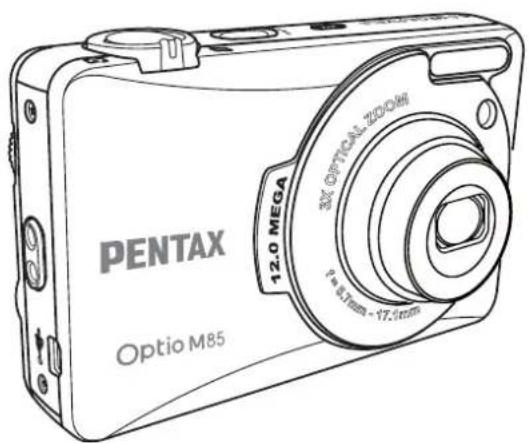

To ensure the best performance from your camera, please read the Operating Manual before using the camera.
Table of Contents
Preface ....i
About this Manual .... i
Regarding Copyrights ...... i
Trademark Recognition .... i
To users of this camera ....ii
Regarding Product Registration ....ii
USING YOUR CAMERA SAFELY ....ii
About the Camera ....iii
Warning ....iii
Caution ....iii
About the AC Adapter ....iv
Caution iv
Care to be Taken During Handling ....iv
Introduction 1
System Requirements .... 1
Package Contents .... 1
Main Features .... 1
Camera Views 2
The Mode Dial 3
Buttons and Navigation Pad .... 4
LED Indicators 6
LCD screen 7
Capture/Video Mode Display 7
Camera Setup 9
Attaching the Wrist Strap 9
Inserting the Battery 9
Inserting an SD/SDHC Memory Card 10
Charging the Battery 11
Charging the Battery with USB power 11
Turning On 11
First Time Use 12
Getting Started 13
Taking your First Photo 13
Anti-Shake Function 13
Using Quick Review 13
Using Macro Mode 14
Setting the Flash Mode 14
Using the Zoom in/out Function 14
Using the Self-timer and Burst Photography 15
Using Auto Scene Mode 15
Using the AEB (Auto Exposure Bracketing) Function 16
Setting the Scene Mode 17
Face and Smile Detection AF/AE Function 17
Using the Self Portrait Mode 18
Taking Panoramic Pictures 19
Recording your First Video 20
Recording Audio Files 20
Recording Voice Memos 21
Capture Settings 22
The Capture Menu 22
Image Resolution 23
Image Quality 23
Focus Zone 23
EV Compensation 24
AEB 24
M-Burst Interval 24
White Balance 25
ISO Speed 25
AE Metering 26
Color 26
Sharpness 26
Saturation 27
Contrast 27
Setup 27
Video Capture Menu 28
Video Resolution 28
White Balance 28
Color 28
Saturation 28
Contrast 28
Setup 28
Photo, Video & Audio Playback 29
Playback Mode Display 29
Viewing Photos/Videos on the LCD Screen 30
Viewing M-Burst Photos 30
Listening to Audio Files 30
Listening to Voice Memo 31
Viewing Photos/Videos on your TV 31
Zooming In During Playback 31
Deleting Photos/Videos/Audios 32
Using the Playback Menu 32
DPOF 33
Slideshow 34
Resize 34
Rotate 35
Protect 35
Frame Composite 36
Move 37
Divide 37
Transferring Photos/Videos to your PC 39
Camera Settings 40
The Setup Menu 40
LCD Brightness 40
File Number 40
Digital Zoom 41
Quick View 41
Continuous AF 41
Camera Sound 42
Power Saving 42
Auto Power Off 42
Video Out 43
Date Stamp 43
Date and Time 43
Language 44
Image Storage 44
Format 44
Reset 45
Voice Memo 45
Specifications 46
Troubleshooting 49
Preface
About this Manual
Thank you for purchasing this PENTAX Digital Camera. Please read this manual before using the camera in order to get the most out of all the features and functions. Keep this manual safe, as it can be a valuable tool in helping you to understand all the camera capabilities.
Regarding Copyrights
Images taken using the PENTAX Digital Camera that are for anything other than personal enjoyment cannot be used without permission according to the rights as specified in the Copyright Act. Please take care, as there are cases where limitations are placed on taking pictures even for personal enjoyment during demonstrations, performances or of items on display. Images taken with the purpose of obtaining copyrights also cannot be used outside the scope of use of the copyright as laid out in the Copyright Act, and care should be taken here also.
Trademark Recognition
• PENTAX and Optio are trademarks of HOYA CORPORATION.
• SDHC logo (SDC) is trademark.
• Microsoft and Windows are registered trademarks of Microsoft Corporation in the United States and other countries.
• Windows Vista is either a registered trademark or trademark of Microsoft Corporation in the United States and/or other countries.
- Adobe, the Adobe logo, and Reader are either registered trademarks or trademarks of Adobe Systems Incorporated in the United States and/or other countries.
• ArcSoft is the trademark of ArcSoft Inc.
- All other brands or product names are trademarks or registered trademarks of their respective companies.
ii Preface
To users of this camera
- There is a possibility that recorded data may be erased or that the camera may not function correctly when used in surroundings such as installations generating strong electromagnetic radiation or magnetic fields.
- The liquid crystal panel used in the display is manufactured using extremely high precision technology. Although the level of functioning pixels is 99.99% or better, you should be aware that 0.01% or fewer of the pixels may not illuminate or may illuminate when they should not. However, this has no effect on the recorded image.
- There is a possibility that the illustrations and the display screen in this manual are different from the actual product.
- Do not use or store this device in the vicinity of equipment that generates strong electromagnetic radiation or magnetic fields.
- Strong static charges or the magnetic fields produced by equipment such as radio transmitters could interfere with the monitor, damage the stored data, or affect the product's internal circuitry and cause camera misoperation.
Regarding Product Registration
In order to better serve you, we request that you complete the product registration, which can be found on the CD-ROM (S-SW95) supplied with the camera or on the PENTAX website. Thank you for your cooperation.
USING YOUR CAMERA SAFELY
We have paid close attention to the safety of this product. When using this product, we request your special attention regarding items marked with the following symbols.

Warning
This symbol indicates that violating this item could cause serious personal injuries.

Caution
This symbol indicates that violating this item could cause minor or medium personal injuries, or material losses.
About this Manual
About the Camera

Warning
- Do not attempt to take the camera apart or remodel the camera. High voltages are present within the camera, and there is therefore a danger of electric shocks if the camera is taken apart.
- If the inside of the camera should become exposed as a result of, for example, the camera being dropped, please do not under any circumstances touch such exposed portions, as there is a danger of receiving an electric shock.
• To avoid the risk of it being swallowed by mistake, keep the memory card out of the reach of small children. Seek medical attention immediately if a card is accidentally swallowed. - Wrapping the strap of the camera around your neck is also dangerous. Please take care that small children do not hang the strap around their necks.
- Use an AC adapter that is of the power and voltage specified for exclusive use with this product. The use of an AC adapter other than that specified exclusively for use with this product may cause fire or electric shocks.
- If the camera emits smoke or a strange smell, or in the event of any other irregularity, stop using the camera immediately, remove the battery or unplug the AC adapter, and contact your nearest PENTAX Service Center. Continued use of the camera may result in fire or electric shock.
- During thunderstorms, unplug and discontinue use of the AC adapter. Continued use could cause equipment failure, a fire, or electric shock.

Caution
- Never try to disassemble or short the battery. Also, do not dispose of the battery in a fire, as they may explode.
- Do not charge any battery other than rechargeable lithium-ion battery D-LI95. The battery could explode or catch fire.
• Do not place your finger on the flash when it is discharging as there is a risk of burns. - Do not discharge the flash while it is touching your clothing as there is a risk of discoloring of the clothing.
- If any leakage from the battery should come in contact with your eyes, do not rub them. Flush your eyes with clean water and get medical attention immediately.
- If any leakage from the battery should come in contact with skin or clothes, wash the affected areas thoroughly with water.
About this Manual
iv Preface
• Precautions for D-LI95 Battery Usage:
- BATTERY MAY EXPLODE OR FIRE IF MISTREATED.
- DO NOT DISASSEMBLE OR DISPOSE OF IN FIRE.
- DO NOT CHARGE EXCEPT SPECIFIED CHARGING CONDITION.
- DO NOT HEAT ABOVE 140 °F/60 °C, OR SHORT CIRCUIT.
- DO NOT CRUSH OR MODIFY.
- Remove the battery from the camera immediately if it becomes hot or begins to smoke. Be careful not to burn yourself during removal.
• Some portions of the camera heat up during use, so please take care, as there is a risk of low temperature burns if such portions are held for long periods of time.
- Should the liquid crystal display be damaged, be careful of glass fragments. Also, be careful not to allow the liquid crystal to get on your skin or in your eyes or in your mouth.
- Depending on your inherent factors or physical condition, the use of the camera may cause itching, rashes or blisters. In case of any abnormality, stop using the camera and get medical attention immediately.
About the AC Adapter

Caution
- Do not place heavy objects on the AC plug cord, allow heavy objects to drop onto it or allow the AC plug cord to become damaged due to excessive bending. If the AC plug cord becomes damaged, consult a PENTAX Service Center.
- Do not short or touch the output terminals of the product while it is still plugged in.
• Do not plug in the AC plug cord with wet hands. This can cause an electrical shock. - Do not subject the product to strong impacts or allow it to drop onto a hard surface. This can cause a malfunction.
Care to be Taken During Handling
• Take the Worldwide Service Network listing that is included in the package with you when traveling. This will be useful if you experience problems abroad.
- When the camera has not been used for a long time, confirm that it is still working properly, particularly prior to taking important pictures (such as at a wedding or during traveling). Contents of the recording cannot be guaranteed if recording, playback or transferring your data to a computer, etc. is not possible due to a malfunction of your camera or recording media (memory card), etc.
About this Manual
Preface v
• The lens on this camera is not interchangeable. The lens is not removable.
• Do not clean the product with organic solvents such as thinner, alcohol or benzene.
- Places of high temperature and humidity should be avoided. Particular care should be taken regarding vehicles, which can become very hot inside.
- Storing the camera where pesticides and chemicals are handled should be avoided. Remove from case and store in a well-ventilated place to prevent the camera from becoming moldy during storage.
- As this camera is not waterproof, do not use the camera where it may come in contact with rain, water or any other liquid.
- Ensure that the camera is not subjected to substantial vibrations, shocks or pressure as this may cause damage or malfunction. Place the camera on a cushion for protection when the camera is subjected to the vibrations of a motorbike, car, ship, etc. If the camera is subjected to substantial vibrations, shocks or pressure, take your camera to your nearest PENTAX Service Center and have it checked.
• The temperature range in which the camera can be used is 0^ C to 40^ C ( 32^ F to 104^ F).
- The liquid crystal display will become black at a high temperature but will return to normal when normal temperatures are returned to.
- The response speed of the liquid crystal display becomes slow at low temperatures. This is due to the properties of the liquid crystal and is not a fault.
• Periodic checks are recommended every 1 to 2 years in order to maintain high performance.
- If the camera is subjected to rapid temperature changes, condensation may form on the inside and outside of the camera. Therefore put the camera in a bag or plastic bag, and take the camera out when the difference in temperature has subsided.
- Be careful not to allow dirt, mud, sand, dust, water, toxic gases or salt to enter the camera as this may damage the camera. Wipe away any raindrops or water droplets and allow the camera to dry.
- Please note that formatting a memory card or internal flash memory will delete all data; however, it may still be possible to recover that data using off-the-shelf data recovery software. Please manage your camera memory at your own risk.
- Please do not press forcefully on the display. This could cause breakage or malfunction.
- Be careful not to sit down with the camera in your back pocket as this may damage the exterior of the camera or the display.
- When using a tripod with the camera, be careful not to over tighten the screw in the tripod socket on the camera.
About this Manual
Introduction
Congratulations on the purchase of your new digital camera. This manual provides step-by-step instructions on how to use your camera, and is intended for your reference only.
System Requirements
In order to get the most out of your camera, your computer must meet the following system requirements:
• OS: Windows 2000/XP/Vista
• Memory: 128 MB or above
• HDD space: 40 MB or above
- USB port
Package Contents
Check the contents of your camera package. It should contain:
- Digital camera
• USB/AV 3-in-1 cable - Wrist strap
• One Li-ion battery - Adapter
• Quick start guide for all regions
• Bundled CD-ROM (Application Software and User's Manual)
Main Features
• 12 mega pixels resolution
• 15x zoom (Up to 3x optical zoom and 5x digital zoom)
• 1/2.33 inch CCD image sensor
• 3.0 inch TFT LCD monitor
• 32 MB internal flash memory; support SD/SDHC memory card up to 16GB
- Sleek and slim design
• Easy-to-use button interface
2 Introduction
Camera Views
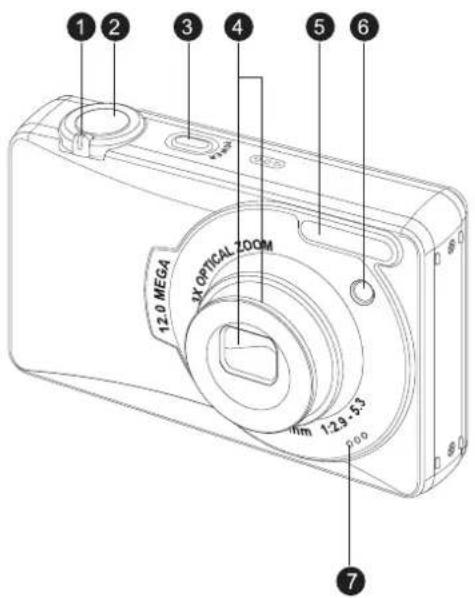
Front View
| 1. Zoom switch |
| 2. Shutter button |
| 3. POWER button |
| 4. Zoom Lens |
| 5. Flash |
| 6. Self-timer LED |
| 7. Microphone |
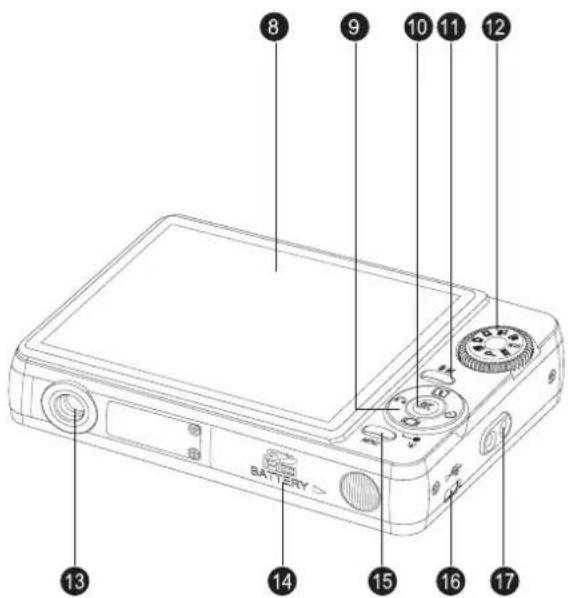
Rear View
| 8. LCD screen |
| 9. 4-way navigation buttons |
| 10. OK button |
| 11. Delete/Anti-shake button |
| 12. Mode dial |
| 13. Tripod mount |
| 14. Battery/SD card compartment |
| 15. Menu button |
| 16. USB/AV port |
| 17. Wrist strap loop |
Camera Views
The Mode Dial
The camera is equipped with a convenient Mode Dial that allows you to switch between different modes with ease. The function of each mode is as follows:
| Mode Type | Icon | Function |
| Auto | Switch to selectAuto mode. | |
| Auto Scene | Switch to selectAuto Scene mode. | |
| P-Mode(Program Mode) | P | Switch to selectProgram mode. |
| Panorama | Switch to selectPanorama mode. | |
| SCENE | SCN | Switch to selectSCENE mode. Here you can set a pre-programmed Scene mode. |
| Macro | Switch to enableMacro mode. | |
| Video | Switch to selectVideo mode. | |
| Playback | Switch to selectPlayback mode to review photos/videos/audio clips saved in the internal memory or on the memory card. |
4 Introduction
Buttons and Navigation Pad
Your camera is equipped with an Delete/Anti-shake (💡/💡) button, a menu button, and a navigation pad. The four-way navigation buttons and the OK button allow you to access the various options available from the On Screen Display (OSD) menu. You can configure a wide range of settings to ensure maximum results from your photos and videos. Further functions of these buttons are as follows:
| Icon | Button | Function |
| Delete/Anti-Shake | 1. In Capture mode:Press to enable anti-shake functionPress to delete the captured image or video when using Quick Review(QUICK VIEW QV has to be set "ON" at SETUP mode.)2. In Playback mode:Press to display the Delete menu | |
| MENU | Menu | Opens or exits the OSD menus. |
| OK | OK | 1. Confirms a selection when using the OSD menus.2. In Capture mode:Press to enable AF area selection when Selected Area is selected in Focus Zone submenu3. In Playback mode:Press to start and pause the audio/video playbackPress to stop the voice memo playback |
| [] | Up/Flash | 1. Moves up in the OSD menus.2. In Capture mode:Press to pan up in AF area selectionScroll through the flash mode options (Auto, Off, Fill and Red-eye Reduction)3. In Playback mode:Press to pan up in magnify/crop modePress to move up in the thumbnail display |
Buttons and Navigation Pad
| Icon | Button | Function |
| Right/Self-timer/Burst mode | 1. Moves right in the OSD menus.2. In Capture mode:Press to pan right in AF area selectionPress to scroll through the Self-timer/Burst/M-Burst mode3. In Video mode:Press to scroll through the Self-timer options4. In Playback mode:Press to pan right in magnify/crop modePress to move right in the thumbnail displayPress to navigate to next image in single upPress to fast forward video/audio playback | |
| Down/Screen | 1. Moves down in the OSD menus.2. In Capture mode:Press to pan down in AF area selectionPress to enable the following functions: full icon, full icon with histogram, face detection, smile detection, and simple display (hide all icons except the mode icon and focus bracket). Press again to turn all icons back on the LCD screen.Note: Face and smile detection functions are not available in Macro, Panorama, Sport, Landscape, Night Landscape, Foliage, Aquarium, Fireworks and Copy modes.3. In Video mode:Press to turn off extra icons on the LCD screen, press again to turn all icons back on the LCD screen4. In Playback mode:Press to pan down in magnify/crop modePress to move down in the thumbnail displayPress to show the file information |
Buttons and Navigation Pad
6 Introduction
| Icon | Button | Function |
| Left/Quick Review | 1. Moves left in the OSD menus.2. Goes up to the previous level in the OSD menus.3. In Capture mode:Press to pan left in AF area selectionPress to display the previously captured photo4. In Video mode:Press to display the first frame of the last video recorded5. In Playback mode:Press to pan left in magnify/crop modePress to move left in the thumbnail displayPress to navigate to previous image in single upPress to fast rewind video/audio playback |
LED Indicators
| LED | LED Status | Camera Status |
| Power/Flash LED | Off | Power Off. |
| Blue (steady) | Ready to take pictures. | |
| Blue (blinking) | Camera busy. | |
| Self-timer LED | Off | Self-timer off. |
| Orange (blinking) (10 sec) | Timer count down, flash after 10 seconds. | |
| Orange (blinking) (2 sec) | Timer count down, flash after 2 seconds. |
LED Indicators
LCD screen
The high resolution 3.0" TFT LCD screen shows all important information regarding camera settings as well as the visual image for your photo or video.
Use the Mode Dial to switch between screen modes. Press the Screen | button to switch between a Full display (all icons with histogram, face detection or smile detection), or a Simple display (only mode icon and focus area are shown while other icons are hidden).
Capture/Video Mode Display
| 1. Mode indicator | Aquarium | ||
| Auto | Kids & Pets | ||
| Auto Scene | Copy | T | |
| P-Mode | P | Backlight | |
| Panorama | Audio | ||
| SCENE | Marco | ||
| Sport | Video | ||
| Landscape | Playback | ||
| Night Landscape | 2. Image Resolution | ||
| Portrait | 12M | 12M | |
| Self Portrait | 10M | 10M | |
| Night Portrait | 8.9M 3:2 | 3:2 | |
| Museum | 8M | 8M | |
| Snow | 5M | 5M | |
| Sunset | 3M | 3M | |
| Firework | 2.1M 16:9 | 16:9 | |
| Beach | 2M | 2M | |
| Party | VGA | VGA | |
| Foliage | |||
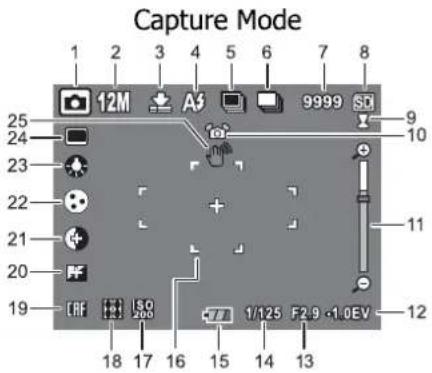
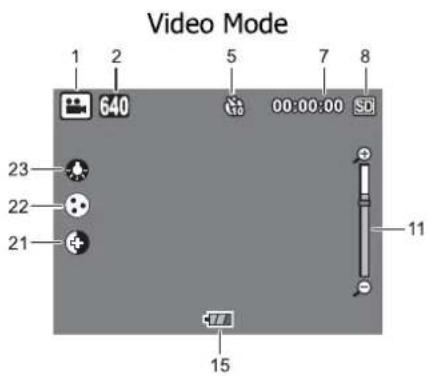
LCD screen
8 Introduction
| 3. Image Quality | |
| Best | |
| Better | |
| Good | |
| 4. Flash | |
| Auto Flash | |
| Flash Off | |
| Fill Flash | |
| Red-eye Reduction | |
| 5. Self-Timer/Burst Mode | |
| Self Timer | |
| 10 Seconds | |
| 2 Second | |
| Burst Mode | |
| M-burst Mode | |
| 6. Auto Exposure Bracketing | |
| AEB Mode | |
| 7. Image Counter | |
| Capture Mode | |
| Quantity | 9999 |
| Video Mode | |
| Time | 00:00:00 |
| 8. Memory Interface | |
| SD Card | |
| Internal Memory | |
| 9. Date Stamp | |
| 10. Anti-Shake | |
| 11. Zoom Bar | |
| 12. EV Compensation | -2.0EV~+2.0EV |
| 13. Aperture Value | |
| 14. Shutter Speed | 2~1/2000 |
| 15. Battery Indicator | |
| Battery Full | |
| Battery Medium | |
| Battery Low | |
| Battery Insufficient | Blinking |
| 16. AF Frame | |
| 17. ISO Speed | |
| Auto | ISO Auto |
| ISO 80 | ISO 80 |
| ISO 100 | ISO 100 |
| ISO 200 | ISO 200 |
| ISO 400 | ISO 400 |
| ISO 800 | ISO 800 |
| ISO 1600 | ISO 1600 |
| ISO 3200 | ISO 3200 |
| 18. Focus Zone | |
| Multi-Zone | |
| Center | |
| Selected Area | |
| 19. CONTINUOUS AF | |
| 20. Sharpness | |
| High | |
| Normal | |
| Low | |
| 21. Contrast | |
| High | |
| Normal | |
| Low | |
| 22. Saturation | |
| High | |
| Normal | |
| Low | |
| 23. White Blance | |
| Auto | |
| Sunny | |
| Tungsten | |
| Fluorescent | |
| Cloudy | |
| 24. AE Metering | |
| Matrix | |
| Center Weighted | |
| Spot | |
| 25. Camera Steady Warning | |
LCD screen
Camera Setup
Attaching the Wrist Strap
Follow these instructions to attach the wrist strap to your camera to facilitate easy carrying:
- Insert the short loop of the strap in the strap eyelet.
- String the larger loop of the strap though the short loop and pull tight to attach the strap to the camera.
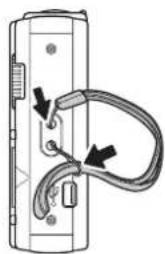
natural_image
Diagram of a handheld device with attached cable and connector (no text or symbols)Inserting the Battery
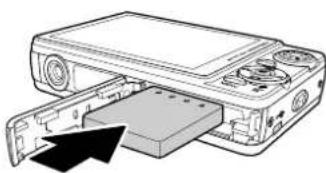
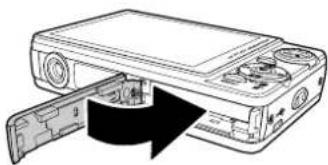
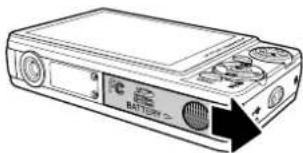
Follow these instructions to insert the Li-ion battery into the battery compartment.
- Open the battery compartment at the bottom of the camera.
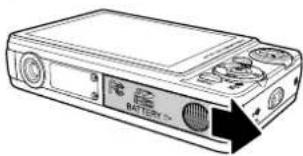
natural_image
Line drawing of a battery pack with control panel and buttons (no text or symbols)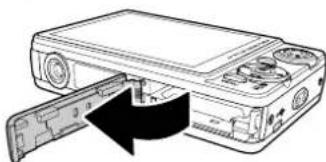
natural_image
Diagram of a computer case with an open door and internal components, showing a black arrow indicating the process (no text or symbols present)- Insert the battery into the compartment observing the correct polarity.
natural_image
Diagram of a computer drive showing internal components and an arrow indicating motion (no text or symbols present)- Close the battery compartment.
natural_image
Diagram of a computer case with an open drive and internal components (no text or symbols)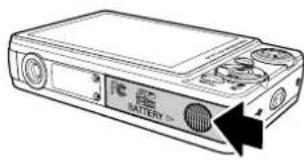
natural_image
Line drawing of a battery module with no visible text or symbolsNote: The Li-ion battery should be fully charged more than 4 hours before using for the first time.
Attaching the Wrist Strap
10 Camera Setup
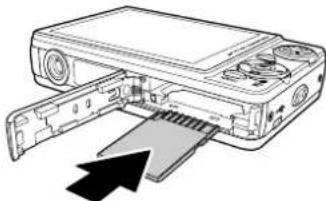
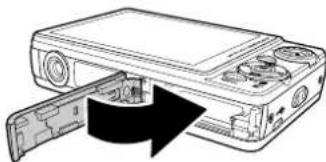
Inserting an SD/SDHC Memory Card
The camera features 32 MB internal flash memory but you may also use an optional SD/SDHC memory card for additional storage.
Follow these instructions to insert the SD/SDHC card.
- Open the battery compartment at the bottom of the camera.
natural_image
Line drawing of a portable electronic device with ports and an arrow pointing to one (no text or symbols)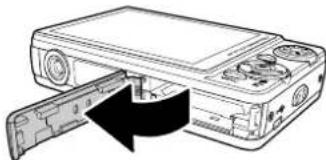
natural_image
Diagram of a computer case with an open drive and a black arrow indicating rotation (no text or symbols present)- Insert the SD/SDHC card into the memory card slot as shown.
natural_image
Diagram of a computer monitor with an open drive and cable ports, showing internal components and a black arrow indicating direction (no text or symbols present)- Close the battery compartment.
natural_image
Diagram of a computer case with an open drive and internal components (no text or symbols)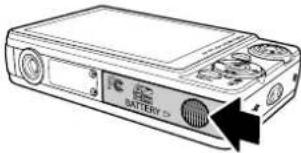
natural_image
Line drawing of a battery module with ports and an arrow indicating direction (no text or symbols)To remove the SD/SDHC card, gently push the card until it pops out. Pull out the card carefully.
Inserting an SD/SDHC Memory Card
Charging the Battery
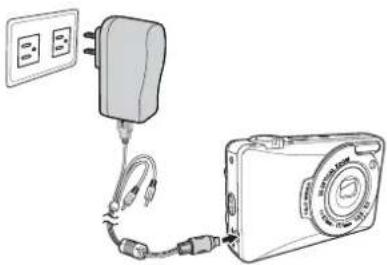
- Insert the battery into the camera and connect the USB/AV 3-in-1 cable with the AC adapter as shown in the picture.
- Connect the AC adapter to a live household outlet to start charging. The power LED will blink during the charging process.
- Disconnect the USB/AV 3-in-1 cable when the charging is done. When the charging is done, Power LED still turns on.
natural_image
Line drawing of a wall-mounted power plug connected to a digital camera (no text or symbols)Charging the Battery with USB power
- Turn the power off and connect the USB/AV 3-in-1 cable with the camera and the computer.
- The power LED will blink during the charging process.
- The Power LED will keep steady blue when charging is done.
- Disconnect the USB/AV 3-in-1 cable.
Note:
- The room temperature suitable for charging the camera is 6^ C 33^ C. Power LED blinks during the charge and keep steady blue automatically after the charge.
- The battery will not be charged when the room temperature is above 33^ C or below 6^ C. Also, Power LED will not blink. The battery will be continuously charged till the temperature is between 6^ C 33^ C.
Turning On
Press and hold the POWER button to turn on the camera. To turn off the camera, press the POWER button again.
12 Camera Setup
First Time Use
Press the POWER button as described in "Turning On" on page 11, a welcome screen displays on the LCD screen.
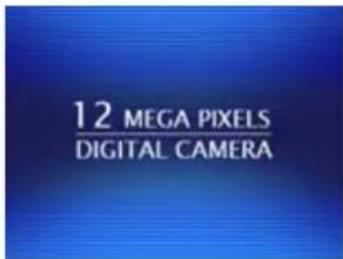
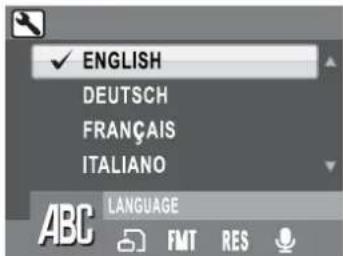
If the camera is turned on for the first time, the Language menu pops up automatically after powering on the camera. Press the OK button and select the desired language by Up/Down navigation buttons, then press the OK button to confirm.
After the desired language is selected, the Date and Time menu pops up. Press the OK button. Select each field and adjust the value using the navigation buttons. Press the OK button to confirm.
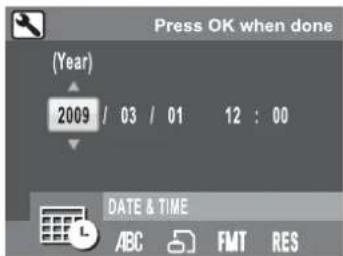
Note: If the Date and Time is reset (when running out the battery and not in use for a long period), the Date and Time setup screen displays automatically.
First Time Use
Getting Started
Now that you are familiar with the layout of your camera, you are ready to start taking photos and movies.
Taking your First Photo
Taking a photo with the camera is very simple.
- Turn the camera on and turn the Mode Dial to Auto mode.
- Frame the shot on the LCD screen and press the Shutter button halfway. The camera automatically adjusts the focus and exposure. The focus bracket turns green when ready.
- Press fully and hold the Shutter button to capture the image.
When a camera steady warning icon 📋 appears, hold the camera as still as possible, as a longer exposure time (more than 1/40 second) is required.
Anti-Shake Function
This function is only available in Auto ☐ capture mode. Press the 🔒/💡 button to enable the Anti-Shake function, and press again to disable it. An Anti-Shake icon 🔒 displays on the LCD screen when the function is activated.
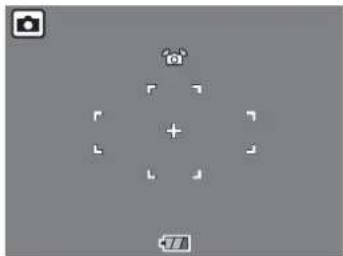
Using Quick Review
natural_image
Gray-scale image placeholder with a camera icon and control arrows, no text or symbols present.To delete a photo when using Quick Review:
- Press the Left/Quick Review navigation button.
- Press the 📋/💡 button, a confirmation screen is displayed. Select THIS IMAGE to delete the photo or CANCEL to keep it.
- Press OK to confirm your selection.
You can also delete photos from the Playback menu. See "Deleting Photos/Videos/Audios" on page 32 for more detailed information.
Taking your First Photo
14 Getting Started
Using Macro Mode
Macro mode is designed for close-up photography and can capture all detail even when your subject is
very close to the camera. Turn the Mode Dial to Macro 🎨 mode. The Macro icon 🎨 displays on the LCD screen.
Setting the Flash Mode
You can choose from four flash modes to suit various lighting conditions.
Press the Up/Flash [⚡] navigation button to scroll through the four modes on the LCD screen. The flash setting remains the same for subsequent photos until you change it as described above.
A3 Auto flash: The flash fires automatically when needed.
Flash off: The flash is turned off.
Fill flash: The flash always fires.
Red-eye Reduction: The flash fires twice so as to reduce the red-eye effect.
Using the Zoom in/out Function
The camera comes equipped with 3x optical zoom and 5x digital zoom that allows you to zoom in on your subject.
To use the zoom:
-
Slide the Zoom switch to the right [☐] to zoom in on your subject.
-
Slide the Zoom switch to the left 🏠️ to zoom out from your subject.
Taking your First Photo
Using the Self-timer and Burst Photography
The camera comes equipped with a self-timer which allows you to take photos after a pre-defined delay. The burst photography feature allows you to take multiple consecutive photos by pressing and holding the Shutter button. The multi-burst photography feature allows you to take multiple (16) consecutive VGA photos by pressing the Shutter button once.
To set the self-timer/burst mode:
- Press the Right/Self-timer 🎨 /Burst Mode 📄 navigation button to cycle through the self-
timer ( 📄 or 📋 ) and burst photography options ( 📄 or 📂 ) on the LCD screen.
-
Once you have selected an option, frame and take your shot. In self-timer mode, the icon will flash until the time expires and the photo is taken.
-
After taking a photo, the Self-timer automatically exit. If you want to use these functions for the next photo, press the Right/Self-timer 🤕 /Burst Mode 📄 navigation button again to activate the function.
Note:

: Burst Mode
Take photos until shutter is released.

: Multi-Burst Mode
16 photos continuously by 1 press of the Shutter button.
Using Auto Scene Mode
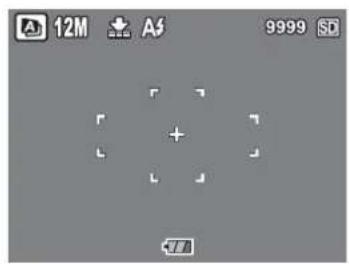
When Auto Scene mode is enabled, the camera will automatically detect the proper scene modes you may want to switch, such as Portrait, Landscape, Night Portrait, Night Landscape, Backlight, Copy, Macro, Foliage. However, the image resolution and quality, and the exposure compensation are still controllable in this function.
natural_image
Gray-scale camera control panel with no visible text, numbers, or symbols-
Turn Mode Dial to Auto Scene mode.
-
The detected scene icon will be displayed on the LCD.
Taking your First Photo
16 Getting Started
Using the AEB (Auto Exposure Bracketing) Function
When using the AEB (Auto Exposure Bracketing) function, the camera automatically takes 3 consecutive photos with different exposures by pressing the Shutter button once. For example, when the current EV compensation value is +0.3 EV and the AEB bracket interval value is set to ±0.3, the camera takes shots of the same scene with 3 varying levels of exposure: -0.3 EV, 0 EV and +0.3 EV.
This function is only available in Auto, P-Mode and Macro modes. To set the AEB mode:
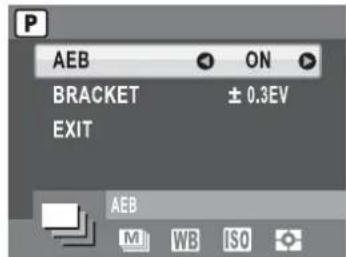
- Press the MENU button to display menu options.
- Press the Left/Right navigation buttons to select AEB setting.
- Press the Up/Down navigation buttons to select from the available options:
• AEB: Select to enable (ON) or disable (OFF) the AEB function. - BRACKET: Select to set the bracket interval value ranging from ±0.3 to ±2.0 EV in 0.3 or 0.4 EV increments.
- EXIT: Select to apply new settings to the camera and return to the setup menu.
Note:
- When taking AEB shots, hold the camera steadily. For the best result, use the tripod.
- Flash, Burst, and M-Burst modes are not allowed when the AEB function is enabled.
Taking your First Photo
Setting the Scene Mode
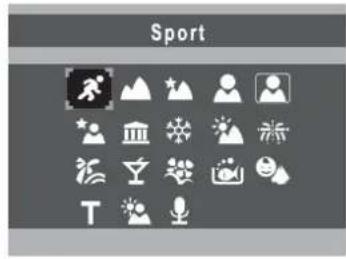
The camera supports various preset modes for shooting in different environments and conditions. Each setting is configured automatically by the camera.
To select scene modes:
- Turn the Mode Dial to SCENE SCN mode to display the Scene menu options.
- Use the navigation buttons to scroll through the modes:
•
Sport
• 演
Fireworks
•
Landscape
•
Beach
•
Night Landscape
•
Party
•
Portrait
•
Foliage
•
Self-Portrait
•
Aquarium
•
Night Portrait
•
Kids&Pets
•
Museum
• T
Copy
•
Snow
.
Backlight
•
Sunset
•
Audio
- Press OK to confirm your selection.
Face and Smile Detection AF/AE Function
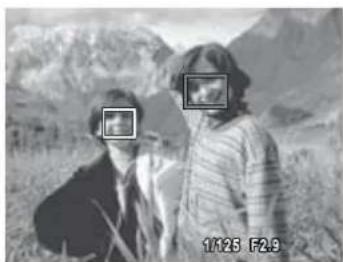
The face (☐) and smile (😊) detection functions can be toggled on and off with each press of the Down/Screen |☐| navigation button in most capture modes. When the subject's face/ smile is detected, the white bracket appears to track faces/smiles while the camera or people are moving.
When the Shutter button is pressed halfway, the green focus frames appear on the LCD screen. Then the camera automatically adjusts the focus point and exposure to the optimized value. Press the Shutter button all the way to take pictures with detected face. When a detected face smiles, the shutter automatically fires.
natural_image
Two people standing in a mountainous outdoor setting, one with a magnified inset showing a face (no text or symbols visible)Taking your First Photo
18 Getting Started
However, when the camera fails to detect your subject's face, a white focus bracket will be displayed according to the selected focus mode.
To disable the smile detection function, press the Down/Screen |0| navigation button again.
Using the Self Portrait Mode
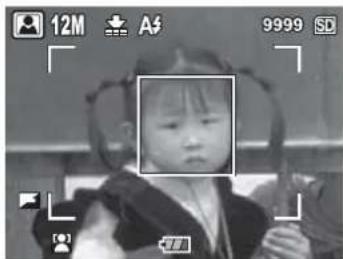
The up-to-date Self Portrait function allows you to take self-portrait shots. When enabling the Self Portrait function, a white detection frame will appear and track your face automatically. After focus on, it will take a shot without pressing the Shutter button.
To take a self-portrait shot:
- Press the SCENE button and select 📁 Self Portrait mode, and then press the OK button to confirm. The Self Portrait icon

displays on the LCD screen.
-
Turn the camera lens toward your face.
-
The camera will automatically take a picture. This function is available in any flash mode.
natural_image
Black-and-white photo of a child holding a device, no visible text or symbols in the main image areaNote:
- The Shutter button, Macro mode, Self-timer and Burst functions could not work when enable the Self Portrait mode. Also, the DOWN navigation button is only for switching between Simple and Face modes.
- The white focus frame only works within the effective yellow frame.
Using the Self Portrait Mode
Taking Panoramic Pictures
Panorama mode allows you to shoot ultra wide panoramic shots. You can create wide-view photos by stitching three images into a single panoramic scene.
To take a panoramic picture:
- Turn the Mode Dial to Panorama 🎨 mode. The Panorama icon 🎨 displays on the LCD screen.
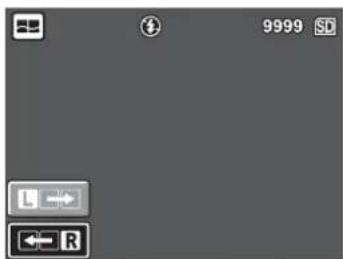
- You can take panoramic shots in either left-to-right (☐) or right-to-left (☐) sequence. Press the Up/Down navigation buttons to select the direction in which the sequence will be taken. Then press the OK button.
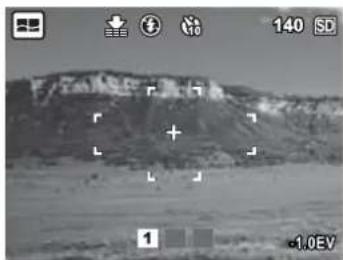
- Frame the first view on the LCD screen and press the Shutter button. The frame record icon is displayed to indicate the location of frame is going to take for the panorama image.
- After a quick preview, the LCD screen shows an overlay from the first picture.
- Capture the second and third views as taking the first view, making sure that the edges of pictures overlap.
- You can press the 📋/💡 button to retake the picture. If you are taking only two pictures, press the OK button to stitch them together.
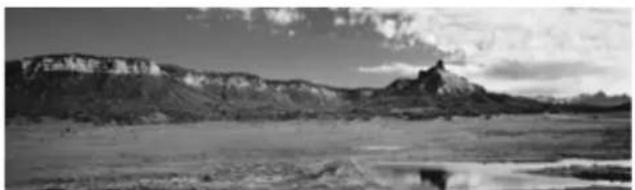
- After you take three pictures, the camera will automatically stitch them together into one panorama shot.
natural_image
Grayscale landscape photo showing a rugged hillside with no visible text or symbols, including a scale bar labeled 1.0eV and camera icons at top (no readable text or symbols in the main scene)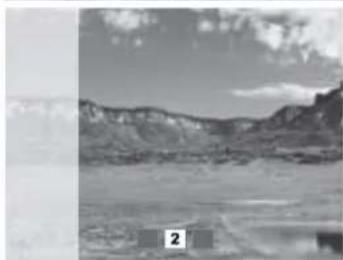
natural_image
Black-and-white landscape photo showing a vast valley with rugged mountains and scattered clouds (no text or symbols visible)Taking Panoramic Pictures
20 Getting Started
- Turn the Mode Dial to Playback ▶ mode to view the result.
natural_image
Black-and-white landscape photo of a desert landscape with rocky mountains and a small mountain in the background (no text or symbols visible)Recording your First Video
You can also record video clips with the camera.
To record a video clip:
- Turn the camera on and turn the Mode Dial to Video mode.
- Frame your subject using the LCD screen and press the Shutter button to start recording. The self-timer LED is steady on to indicate recording is in progress.
- Press the Shutter button again to stop recording. If not, recording will continue until all free memory space is used.
- In playback mode, press the OK button to playback the recording. Press the 📋/💡 button to delete the recording if needed.
Recording Audio Files
You can also record audio files with the camera.
To record an audio file:
- Turn the Mode Dial to SCN mode and select the Audio ↓ mode with 4-way navigation button.
- Press the Shutter button to start recording. A counting up timer will be displayed during audio recording.
- Press the Shutter button again to stop recording. If not, recording will continue until all free memory space is used.
- Start recording screen is displayed after recording is stopped.
- In playback mode, press the OK button to playback the recording. Press the 📋/💡 button to delete the recording if needed.
Recording your First Video
Recording Voice Memos
You can add a 20 sec voice memo to an image right after it's taken.
To record a voice memo:
- Hold the Shutter button to start recording and release the Shutter button to stop recording.
- While recording, the taken image is shown on the LCD screen.
- The elapsed time screen shows the length of a voice memo.
Note:
A Voice Memo can also be added in Playback mode.
22 Capture Settings
Capture Settings
This section describes the various settings you can modify to get better results when taking photos and video clips.
The Capture Menu
To access the Capture menu:
- Turn the Mode Dial to select a desired image capture mode.
- Press the MENU button to display menu options and use the Left/Right navigation buttons to select the function you need, then press the OK button to enter the selection function.
- Press the Up/Down navigation buttons to highlight an option and press the OK button to confirm.
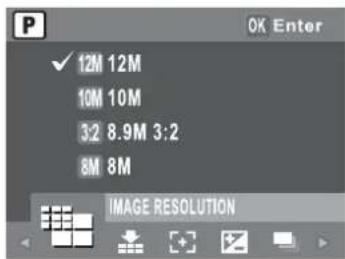
Refer to the following sections for more detailed information about each setting.
Note: All the options in this section may vary according to the different modes.
The Capture Menu
Image Resolution
The Image Resolution setting refers to the size of the image in pixels. Use the Up/Down navigation buttons to select from the options. 9 settings for image resolution are available:
• 12M (4000 x 3000)
• 10M (3664 x 2748)
• 8.9M 3:2 (3664 x 2442)
• 8M (3264 x 2448)
5M (2576 x 1932)
• 3M (2048 x 1536)
• 2.1M 16:9 (1920 x 1080)
• 2M (1600 x 1200)
• VGA (640 x480)
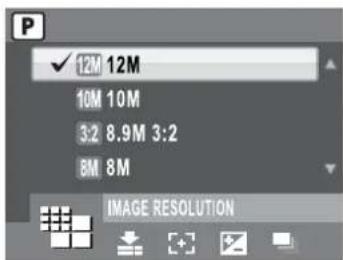
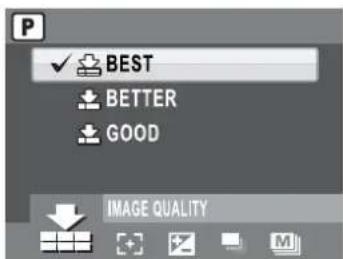
Image Quality
The Image Quality setting refers to the compression ratio of the JPG. The higher image quality, more memory space is required. Use the Up/Down navigation buttons to select from the options. 3 settings for image quality are available:
- BEST (default)
- BETTER
GOOD
Focus Zone
The Focus Zone setting allows you to select the number of zones the camera will focus on when taking a photo. Use the Up/Down navigation buttons to select from the options. 3 settings for focus zone are available:
• MULTI-ZONE (default)
- CENTER
- SELECTED AREA: When this option is set, press the OK button to enable AF area selection. The new setting is applied to the Live View image each time navigation buttons are pressed. Press the
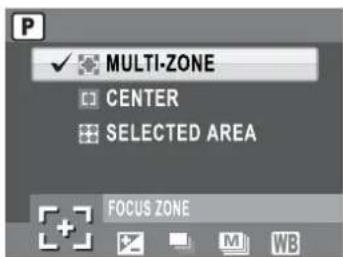
OK button to return to the capture mode and save the current setting, which will take effect until it is changed again.
Note: In Auto Mode, there is no "Selected Area" item.
The Capture Menu
24 Capture Settings
EV Compensation
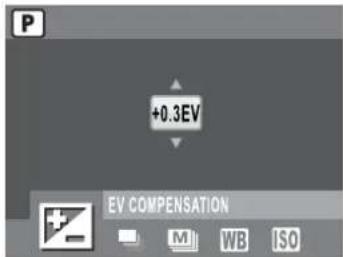
The EV Compensation menu allows you to adjust the exposure or amount of light that enters the lens while capturing photos or videos. Use this feature to lighten or darken the image when the brightness between the subject and background is not balanced or when the subject occupies only a small part of the photograph. Use a positive (+) EV compensation for spotlit subjects, especially against dark backgrounds or scenes with low reflectivity, such as green or dark foliage.
Use the Up/Down navigation buttons to modify the value. This setting can be modified from -2.0 to +2.0 in a 0.3/0.4 increment/decrement.
AEB
See "Using the AEB (Auto Exposure Bracketing) Function" on page 16 for more detailed information.
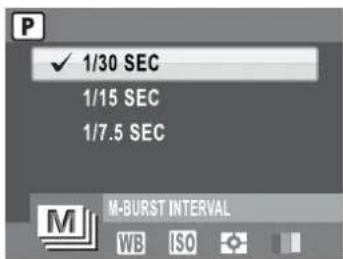
M-Burst Interval
The M-Burst Interval setting allows you to adjust the burst interval when the multi-burst function is enabled. Use the Up/Down navigation buttons to select from the options. 3 settings for M-Burst Interval are available:
• 1/30 SEC (default)
• 1/15 SEC
• 1/7.5 SEC
The Capture Menu
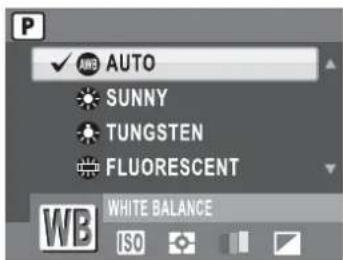
White Balance
The White Balance setting allows you to adjust the camera setting according to the ambient white light when shooting. White balance represents the degree of coolness of the light. If the light has a yellowish or reddish tinge, it is said to be warm; if it has a bluish tinge, it is said to be cool. You can select the setting and preview it on screen before confirming your choice. Use the Up/Down navigation buttons to select from the options. 5 white balance settings are available:
- AUTO (default)
- SUNNY
-
TUNGSTEN
-
FLUORESCENT
CLOUDY
ISO Speed
The ISO Speed setting allows you to adjust the CCD light-sensitivity. Use the Up/Down navigation buttons to select from the options. 8 ISO settings are available:
- AUTO (default)
ISO 80
• ISO 100: For outdoor photography in bright sunlight.
• ISO 200: For outdoor or indoor photography in bright light.
• ISO 400: For indoor photography or low light environments.
• ISO 800: For moving object photography or low light environments without using flash.
• ISO 1600: For moving object photography or low light environments without using flash
• ISO 3200: For moving object photography or low light environments without using flash
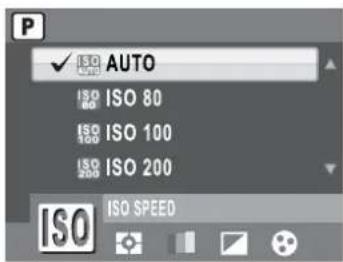
Note: ISO 3200: Only capture at 3M image resolution when you select ISO 3200. If you wish to select larger image resolution, ISO will go to default setting at Auto ISO.
The Capture Menu
26 Capture Settings
AE Metering
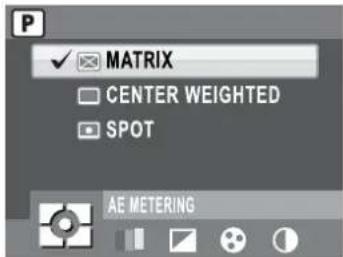
The AE Metering allows you to select the area of the subject or frame by which the camera measures light. Use the Up/Down navigation buttons to select from the options. 3 AE metering settings are available:
- MATRIX (default): Camera metering is set for evaluating 16 zones of objects with intelligent weighting in the frame.
- CENTER WEIGHTED: The metering puts more emphasis on the center of the image while still looking at the entire scene.
- SPOT: Camera metering is set for the brightness of a single object in the center of the frame.
Color
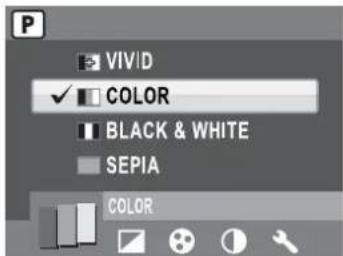
The Color setting allows you to take photos and apply different colors or color tones for an artistic effect. Use the Up/Down navigation buttons to select from the options. 4 color settings are available:
• VIVID
- COLOR (default)
- BLACK & WHITE
- SEPIA
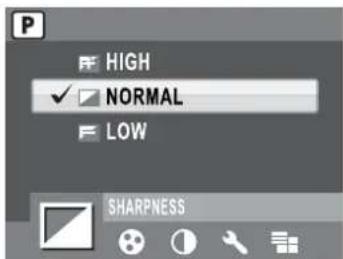
Sharpness
The Sharpness setting allows you to enhance the finer details of your photos. Use a higher setting for very sharp photos and a lower setting for a soft-toned photo. Use the Up/Down navigation buttons to select from the options. 3 sharpness settings are available:
- HIGH
• NORMAL (default) - LOW
The Capture Menu
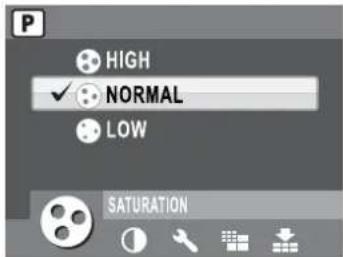
Saturation
The Saturation setting allows you to adjust the saturation of the colors in your photos. Use a high saturation setting for rich colors and a lower saturation setting for more natural tones. Use the Up/Down navigation buttons to select from the options. 3 saturation settings are available:
- HIGH
• NORMAL (default) - LOW
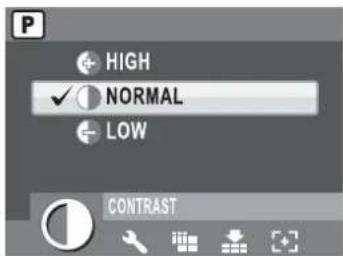
Contrast
The Contrast setting allows you to adjust the contrast of your photos. Use the Up/Down navigation buttons to select from the options.
3 contrast settings are available:
- HIGH
• NORMAL (default) - LOW
Setup
See "The Setup Menu" on page 40 for more details on the setup menu options.
28 Capture Settings
Video Capture Menu
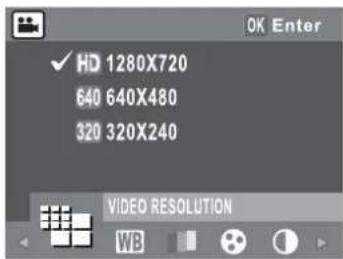
To access the video menu:
- Turn the Mode Dial to Video mode.
- Press the MENU button to display the menu options.
- Use the Left/Right navigation buttons to highlight an option and press the OK button to enter the submenu. Refer to the following sections for more detailed information about each setting.
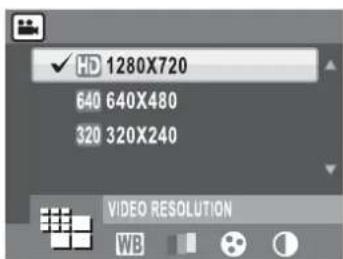
Video Resolution
The Video Resolution setting allows you to adjust the resolution at which your videos are recorded. 3 video size settings are available:
1280X720
640X480
320X240
White Balance
See "White Balance" on page 25 for more details on the setup menu options.
Color
See "Color" on page 26 for more details on the setup menu options.
Saturation
See "Saturation" on page 27 for more details on the setup menu options.
Contrast
See "Contrast" on page 27 for more details on the setup menu options.
Setup
See "The Setup Menu" on page 40 for more details on the setup menu options.
Video Capture Menu
Photo, Video & Audio Playback
Playback Mode Display
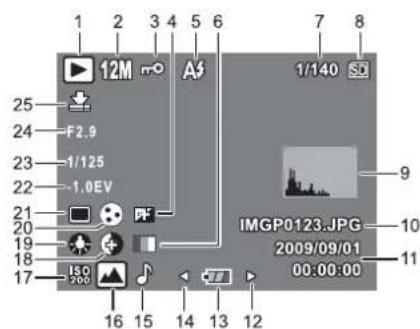
| 1. Playback mode | |
| 2. Image resolution | Photo mode: 12M 10M 3:2 8M 5M 3M 16:92M VGAVideo mode: HD (1280X720),640 (640x480),320 (320x240) |
| 3. Protect | |
| 4. Sharpness | |
| 5. Flash mode | Photo mode: A3 © 5 A3Video mode: 00:00:00(Length of the video clip.) |
| 6. Color mode | |
| 7. Quantity | 1/140, 2/30 |
| 8. SD card /Internal memory | |
| 9. Histogram | |
| 10. File Name | Photo mode: IMGP0123.JPGVideo mode: IMGP0124.AVI |
| 11. Date and Time | 2009/09/0100:00:00 |
| 12. Next | Move to next image. |
| 13. Battery status | |
| 14. Previous | Move to previous image. |
| 15. Voice memo | |
| 16. Mode icons | Please see "Capture/Video Mode Display"on page 7 for detailed information. |
Photo Playback
Video Playback
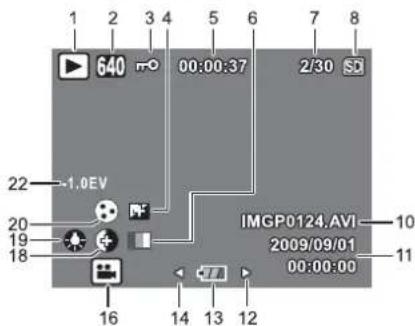
| 17. ISO Speed | ISO Auto | ISO 80 | ISO 100 | ISO 200 | ISO 400 | ISO 800 | ISO 1600 | ISO 3200 |
| 18. Contrast | ||||||||
| 19. White balance | ||||||||
| 20. Saturation | ||||||||
| 21. AE Metering | ||||||||
| 22. EV Compensation | +2.0EV ~ -2.0EV | |||||||
| 23. Shutter speed | 1/2000 sec. ~ 2 sec. | |||||||
| 24. Aperture value | ||||||||
| 25. Image quality | ||||||||
Playback Mode Display
30 Photo, Video & Audio Playback
Viewing Photos/Videos on the LCD Screen
To view your photos and video files on the LCD screen:
- Turn the Mode Dial to Playback ▶ mode. The most recent photo or video clip is displayed.
- Use the Left/Right navigation buttons to scroll through photos and video clips.
- Press the OK button to begin playback of a video clip.
- Press the Left/Right navigation buttons at any time during playback to skip to the previous/next photo or video.
- Press the OK button and press the Left/Right navigation buttons to fast-rewind/fast-forward during video playback.
- Press the OK button at any time during playback to pause the video.
- After the video clip finishes playing, the LCD screen displays the first frame of the clip.
Viewing M-Burst Photos
To view your multi-burst photos on the LCD screen:
- Turn the Mode Dial to Playback ▶ mode. The most recent photo or video clip is displayed.
- Use the Left/Right navigation buttons to scroll through photos.
- When reviewing a multi-burst image, it will be displayed from the 1^st frame to the 16^th frame at 2 frames/per second like a slideshow.
- To stop the M-Burst slideshow, press Left/Right navigation buttons and skip to the previous/next image.
Listening to Audio Files
To listen to audio files:
- Turn the Mode Dial to Playback ▶ mode. The most recent photo, audio or video clip is displayed.
- Use the Left/Right navigation buttons to scroll through the files.
- Press the OK button to begin playback of an audio file.
- Press the Left/Right navigation buttons at any time during playback to skip to the previous/next audio file.
- Press the OK button and press the Left/Right navigation buttons to fast-rewind/fast-forward during audio playback.
- Press the OK button at any time during playback to pause.
Viewing Photos/Videos on the LCD Screen
Listening to Voice Memo
A voice memo plays simultaneously when playing a saved image with voice memo.
To stop a voice memo while reviewing an image, press OK button.
To skip to previous/next image, press Left/Right navigation buttons.
Viewing Photos/Videos on your TV
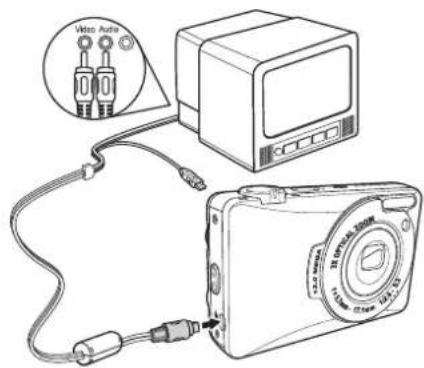
To view images stored on the camera on your TV, you must connect via the USB/AV (●) port on the side of the camera. To connect your camera to a TV:
- Turn on the camera and make sure that the camera's video out format is set to the same as that of the TV. See "Video Out" on page 43 for more information.
- Connect the USB/AV 3-in-1 cable to the USB↔/AV port on the camera.
- Connect the other end of the cable to the TV's AV input port.
- The LCD screen turns blank and all images and video clips are displayed on the TV screen. Follow the same steps described in "Viewing Photos/Videos on the LCD Screen" on page 30.
Zooming In During Playback
The camera's zoom feature can also be used during playback. This allows you to view photos in greater detail.
To zoom in on saved photos:
- Slide the Zoom In [◀] and Zoom Out 🌐 switches to zoom in and out of the photo/video.
- Use the navigation buttons to pan across the image.
- When zoomed in on a photo, press the OK button to crop the image. When zoomed out to the maximum, the LCD screen will display all photos and videos as a series of thumbnails.
Viewing Photos/Videos on your TV
32 Photo, Video & Audio Playback
Deleting Photos/Videos/Audios
The Delete function allows you to remove unwanted files stored on internal memory or a memory card.
To delete a photo/video/audio:
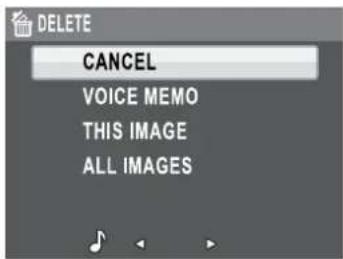
- Press the 🔊/💡 button to display the Delete menu.
-
Press the Up/Down navigation buttons and the OK button to select from the available options:
-
CANCEL: Select to cancel the action and exit to the main menu.
- VOICE MEMO (only available for images with voice memos attached): Select to delete the voice memo.
- THIS IMAGE/VIDEO/AUDIO: Select to delete the current image/video/audio.
• ALL IMAGES: Select to delete all images.
Using the Playback Menu
Access the Playback menu to view further information, configure printing settings, view a slideshow, or delete photos or movies.
To access the Playback menu:
- Turn the Mode Dial to select Playback ▶ Mode.
- Press the MENU button to display the menu options.
- Use the Left/Right navigation buttons to highlight an option and press the OK button to confirm.
Deleting Photos/Videos/Audios
DPOF
DPOF (Digital Print Order Format) allows you to specify the number of copies of a certain image that you want to print at a later date.
Use this function to tag pictures stored in your memory card with print information. You can tag all pictures to be printed or just the current picture. You can also select how many copies print.
When all images to be printed are tagged, remove the memory card and take it to a photographic shop for printing, or use it with a DPOF compatible printer.
To set DPOF:
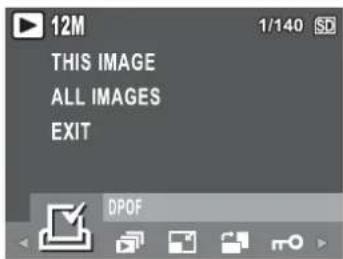
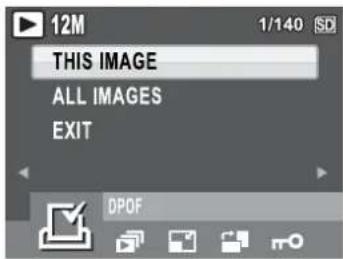
- Press the MENU button to select DPOF from the menu.
- Press the Up/Down navigation buttons and the OK button to select from the available options:
• THIS IMAGE: Select to print the current image.
• ALL IMAGES: Select to print all images. -
EXIT: Select to exit to the main menu.
-
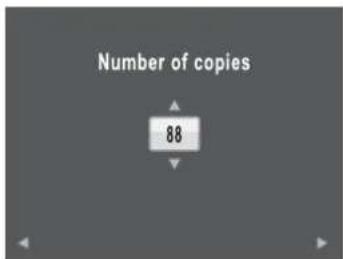
Use the Up/Down navigation buttons to set the number of copies you wish to print.
Using the Playback Menu
34 Photo, Video & Audio Playback
Slideshow
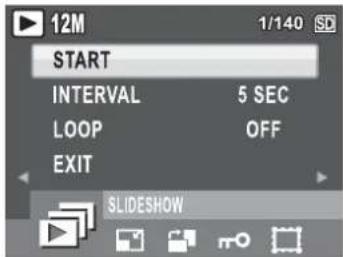
The Slideshow function allows you to view all stored photos in a continuous sequence.
To view a slideshow:
- Press the MENU button to select SLIDESHOW from the menu, then press the OK button to enter the SLIDESHOW function.
- Press the Up/Down navigation buttons and the OK button to select from the available options:
• START: Select to start the slideshow.
- INTERVAL: Select to set the interval time between each photo during the slideshow. Use the Left/Right navigation buttons to set a value in seconds.
- LOOP: Select to enable/disable a continuous loop of the slideshow. Select On or Off (default) from the submenu.
- EXIT: Select to exit to the main menu.
Resize
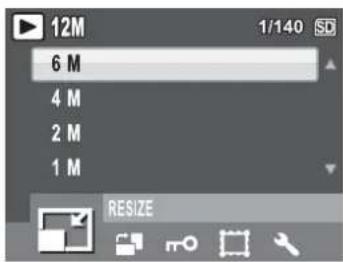
The Resize function allows you to change the image resolution.
To resize a photo:
- Press the MENU button to select RESIZE from the menu, then press the OK button to enter the Resize function.
- Press the Up/Down navigation buttons and the OK button to select the resize ratio you require: 6M, 4M, 2M, 1M, and VGA.
- Select EXIT to return to the main menu.
Note: It is only possible to scale-down image resolutions. If the current image resolution is VGA, this menu item is disabled in the Resize submenu. The ratio of the image (4:3 or 3:2) remains unchanged after resizing.
• This function only supports native pictures
- Cropped images cannot be resized
- If there is not sufficient storage space, images cannot be resized
- If the SD/SDHC card is locked, images cannot be resized
• VGA images cannot be resized
Using the Playback Menu
Rotate
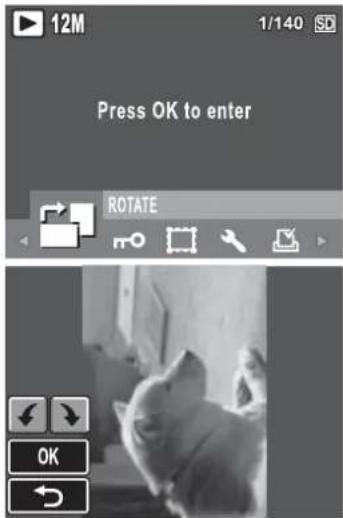
The Rotate function allows you to change the orientation of a saved photo.
To rotate an image:
- Press the MENU button to select ROTATE from the menu.
- Press the OK button to enter the edit mode.
- Press the Left/Right navigation buttons to rotate the selected image.
- Press the Up/Down navigation buttons and the OK button to confirm or cancel the rotation.
• OK: Confirm selection and save image. - ←: Select to discard the changes and return to the main menu.
Protect
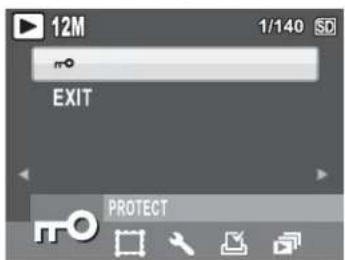
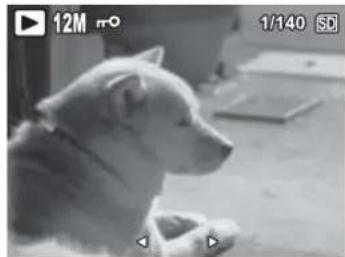
You can lock a photo or video to protect it from being accidentally erased.
To lock a photo or video:
- Press the MENU button to select PROTECT from the menu and press the OK button to enter.
- Use the Up/Down navigation buttons to select Lock ☐ or EXIT, then press the OK button to confirm the one you needed.
- A key icon displays at the top of the screen to indicate the photo/video is now locked.
- To unlock a photo or video, perform the steps 1 and 2 again.
natural_image
Black-and-white photo of a dog sitting indoors, no visible text or symbolsUsing the Playback Menu
36 Photo, Video & Audio Playback
Frame Composite
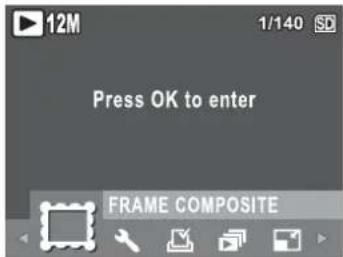
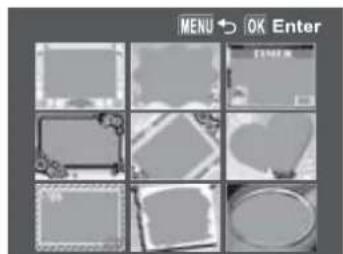
The Frame Composite function supports 9 various decoration frame types to make your captured pictures more funny. Please note the image resolution of the picture that you want apply the frame needs being higher than 3M.
To add a frame on your picture:
- Press the MENU button to select the IMAGE RESOLUTION from menu. Make sure the current resolution is higher than 3M and then press the OK button to confirm.
- After taking pictures, press the Playback ▶ button and select the image you want to apply a frame.
-
Press the MENU button again and use the Left/Right navigation buttons to select the FRAME COMPOSITE from the menu and then press the OK button to confirm.
-
Use the 4-way navigation (Left/Right/Up/Down) button to select the frame type you like and press the OK button.
-
Press the OK button to save the picture as NEW FILE or OVERWRITE the original one, and then press the OK button again.
-
You may press the MENU button to return to the previous menu during the operation.
natural_image
Grid of grayscale image thumbnails with no visible text, numbers, or symbols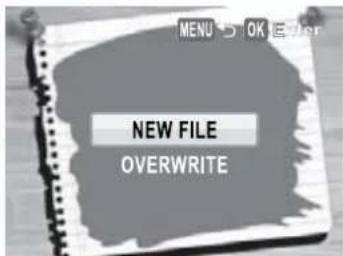
Note:
- The function is unavailable when the storage space is not enough.
- All images' size will be changed to 3M after applying the Frame Composite function; even you take the pictures' size higher than 3M.
- The function does not support cropped or rotated images.
Using the Playback Menu
Move
The Move function allows you to move images stored in internal memory to a memory card.
To move an image:
- Press the MENU button to select MOVE from the menu.
- Press the Up/Down navigation buttons and the OK button to select from the 3 available options:
- THIS IMAGE: Select to move the current image to a memory card.
- ALL IMAGES: Select to move all images to a memory card.
- EXIT: Select to exit to the main menu.
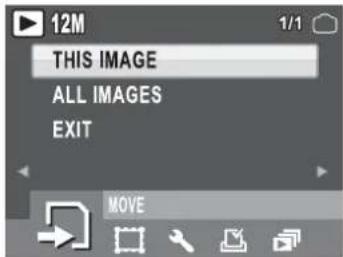
Note: The Move function is only available when you choose internal memory as the storage media and an SD/SDHC card has been inserted into the camera.
Divide
The Divide function allows you to cut unnecessary portions of a video. This feature is useful when the memory capacity is insufficient or when users want to trim video clips.
To move an image:
- Press the MENU button to select DIVIDE from the menu.
- Press the OK button to enter the edit mode.
- Use the Up/Down navigation buttons to select the portion of the video you want to delete.
• : Beginning of the new video clip
• : End of the new video clip
- Press and hold the Left/Right navigation buttons to specify the beginning and end position of the new video clip and release at the frame you want to stop.
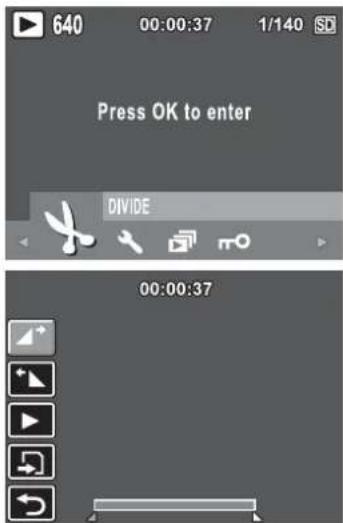
Using the Playback Menu
38 Photo, Video & Audio Playback
- Press the Up/Down navigation buttons and the OK button to select from the following options:
• ▶: Select to review the trimmed video clip.
- Select to save the trimmed video clip as a new file or overwrite the original video. Select EXIT to discard the changes.
• : Select to return to the main menu.
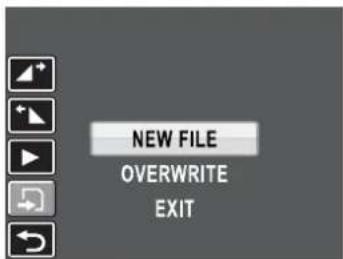
Note: The Divide function is only available when a video file is selected. Video clips shorter than one second cannot be edited.
Using the Playback Menu
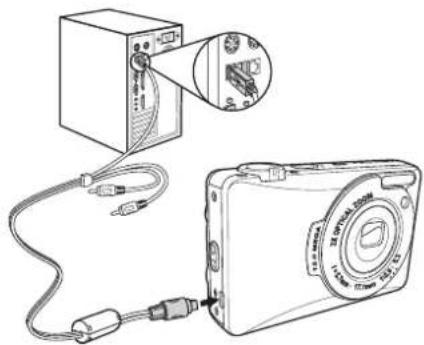
Transferring Photos/Videos to your PC
To transfer photos and videos to your PC:
Connect the camera's port to a free USB port on your PC using the USB cable.
The camera's internal memory and/or SD/SDHC card appear as removable drives in the file manager. Copy the files from the drives to the directory on your PC.
Use PhotoImpression and VideoImpression (provided on the software CD) to view or edit the photos and videos respectively.
natural_image
Diagram showing a computer setup with an attached power supply and connected to a digital camera (no text or symbols present)Note:
The USB mode is only available in MSDC.
40 Camera Settings
Camera Settings
The Setup Menu
The setup menu, available in capture and playback modes, allows you to configure the camera's general settings and according to your preferences.
To access the setup menu:
- Press the MENU button when in Playback or any of the capture modes.
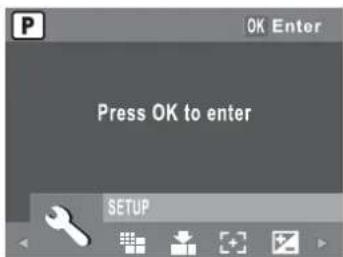
- Select SETUP from the menu. The submenu appears.
- Use the Left/Right navigation buttons to scroll through the options and press the OK button to enter further submenus and to confirm your selection. Refer to the following sections for more detailed information about each setting.
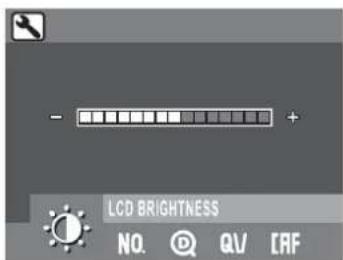
LCD Brightness
The LCD Brightness setting allows you to brighten or darken the LCD backlight. Press the OK button to enter. Use the Left/Right navigation buttons to increase or decrease the brightness.
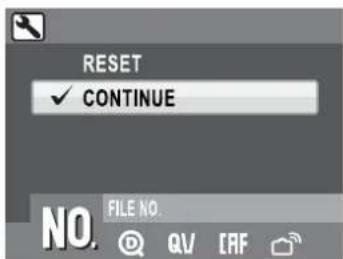
File Number
The File Number setting allows you to reset the file number to 0001 when the camera creates a new folder. Otherwise, the next file number will be used. Select RESET to reset or CONTINUE to set the file numbers in continuous order.
The Setup Menu
Digital Zoom
The Digital Zoom setting allows you to turn the digital zoom function on or off. Press the OK button to confirm. Select ON to enable the function or OFF (default) to disable it.
![ON ✓ OFF DIGITAL ZOOM QV [RF ]](/content/2026/05/1103600/images/e350a1cb11cf2c4a2f929d804d3b84603bed3093cbdccce9febf95537fd023aa.jpg)
Quick View
The Quick View setting allows you to view the photo that you have just taken. Once you have taken your photo, it displays on the LCD screen. If you are not satisfied with the result, you can press the 📋/💡 button to delete the photo immediately. Select ON (default) to enable the function or OFF to disable it.
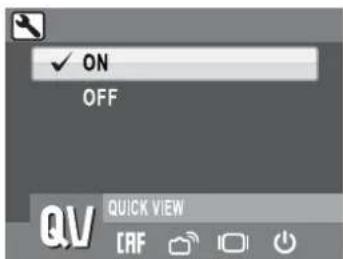
Note: The Quick View function is not available in M-Burst modes.
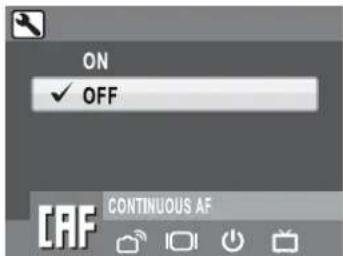
Continuous AF
The Continuous AF setting allows you to turn the continuous auto focus function ON or OFF. Press the OK button to enter. Select ON to enable the function or OFF (default) to disable it.
The Setup Menu
42 Camera Settings
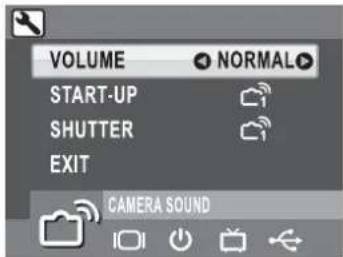
Camera Sound
The Camera Sound setting allows you to adjust the camera sound level. You can also set the start-up and shutter sound when you turn on the camera and press the Shutter button. Available options are as follows:
• VOLUME: Off, Low, Normal (default), High
• START-UP: Sound 1 (default), Sound 2, Sound 3
• SHUTTER: Sound 1 (default), Sound 2, Sound 3
- EXIT: Select to exit to the main menu.
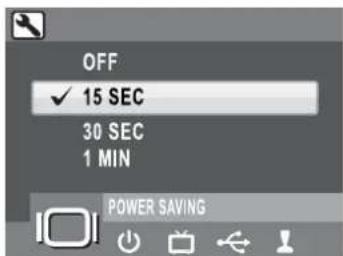
Power Saving
The Power Saving setting allows you to adjust the length of time that LCD screen turn dim to save battery power. 4 options are available:
- OFF
• 15 SEC (default)
• 30 SEC
• 1 MIN
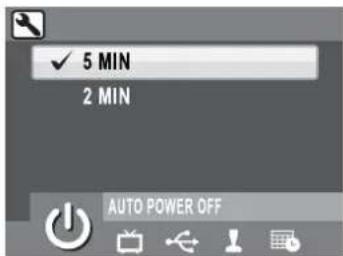
Auto Power Off
The Auto Power Off setting allows you to adjust the length of time after which the camera will power down when inactive. Use Up/Down navigation buttons to select from the menu options. 2 options are available:
- 5 MIN (default)
- 2 MIN
The Setup Menu
Video Out
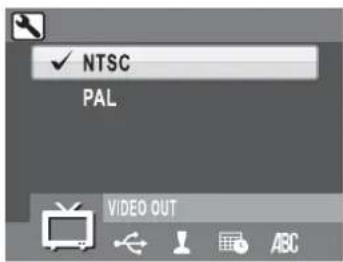
The Video Out setting allows you to adjust the video output, depending on the type of your TV. Use Up/Down navigation buttons to select from the menu options. 2 options are available:
- NTSC
• PAL
Date Stamp
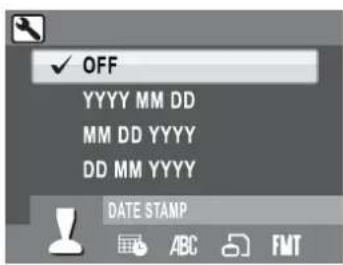
The Date Stamp setting allows you to adjust the format in which the date will appear on each photo or video. You can also deactivate this function if you wish. Setting a date stamp allows for easy sorting and the date will appear on the photo when printed. Press the OK button to confirm. Use the Up/Down navigation buttons to select from the menu options. 4 options are available:
- OFF (default)
• YYYY MM DD: year-month-date format
• MM DD YYYY: month-date-year format
• DD MM YYYY: date-month-year format
Date and Time
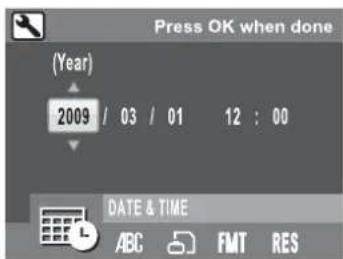
The Date and Time setting allows you to set or adjust the date and time on your camera. To set or adjust the date and time:
- Press the Left/Right navigation buttons to select the Year field.
- Press the Up/Down navigation buttons to adjust the Year value.
- In the same way, select the Month, Date, Hour and Minute fields and adjust them accordingly.
The Setup Menu
44 Camera Settings
Language
The Language setting allows you to choose which language the OSD menu uses. Scroll down the list and select your language. Press the OK button to confirm. Use the Up/Down navigation buttons to select from the menu options.
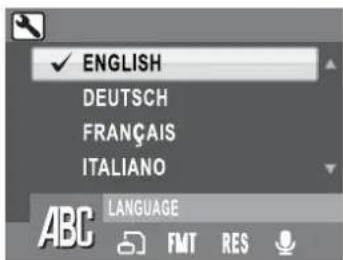
Image Storage
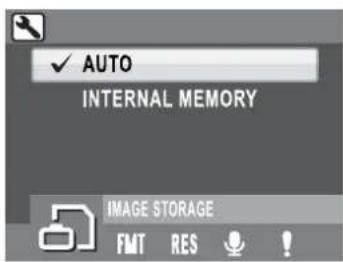
The Image Storage setting allows you to specify where photos and video clips will be stored. The camera features 32 MB internal memory but you can also insert an SD/SDHC card (see "Inserting an SD/SDHC Memory Card" on page 10 for more details). 2 options are available:
- AUTO (default): When selected, the camera chooses the storage medium automatically. If an SD/SDHC card is inserted in the camera, all photos and videos are stored on the card. If an external card is not detected, all photos and videos are stored in the internal memory.
- INTERNAL MEMORY: All photos and videos are stored in the internal memory.
Format
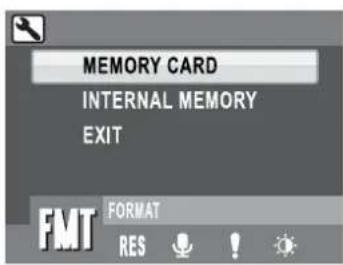
The Format setting allows you to erase all data in the internal memory or on the SD/SDHC card. Press the OK button to confirm. Use the Up/Down navigation buttons to select from the menu options. 3 options are available:
- MEMORY CARD (default): All data on the SD/SDHC will be formatted.
- INTERNAL MEMORY: All data in the internal memory will be formatted.
- EXIT: Cancel format action.
The Setup Menu
Reset
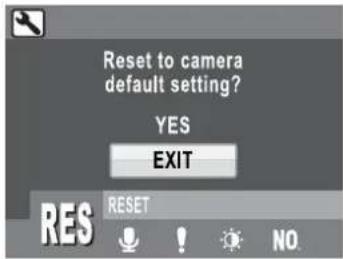
The Reset setting allows you to reset the camera to the original factory default settings except date&time, language, and video out format. This means all modifications you have made to the camera settings will be cleared.
Once selected, the Reset screen displays a confirmation message. Select YES to proceed with the reset or EXIT (default) to cancel.
Voice Memo
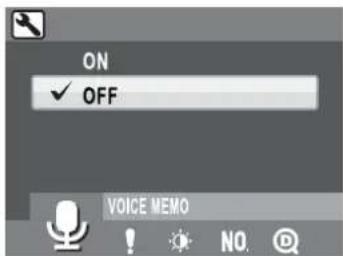
The Voice Memo setting allows you to record a voice memo when a photo is taken or in playback mode. Select ON to enable the Voice Memo function or OFF (default) to disable it.
46 Specifications
Specifications
| General | Resolution / Image Type | 12M Pixels / 1/2.33" CCD |
| LCD | 3.0" TFT, 230,000 Pixels | |
| Dimensions | 90(W)x59(H)x19(D)mm | |
| Exterior Casing | Metal Housing | |
| Weight | Approx. 128g | |
| Optics | Aperture | Wide: F2.9Tele: F5.3 |
| Optical Zoom | Up to 3x | |
| Digital Zoom | Up to 5x | |
| Focal Length | f=5.7mm (W), 17.1mm (T)(f=32mm~96mm, 35mm equivalent) | |
| Focus Mode | Normal: 0.1m~infinity (Wide), 0.35m~infinity (Tele)Marco: 10~70cm (Wide), 35~70cm (Tele) | |
| Shutter Speed | 2 ~ 1/2000 Sec. | |
| Viewfinder | None | |
| Camera Features | Auto Power Off / Time Out | Yes |
| ISO Equivalent | Auto, ISO80/100/200/400/800/1600/3200 | |
| Internal Memory | 32MB internal memorySupport SD/SDHC memory card up to 16GB | |
| Flash Modes | Auto, Off, Fill, Red-eye | |
| Shooting Mode | Auto, Auto Scene, P-Mode, Panorama, SCENE, Marco, Video, Playback | |
| Tripod Mount | 1/4" Standard | |
| Preset Scene | Sport, Landscape, Night Landscape, Portrait, Self-Portrait, Night Portrait, Museum, Snow, Sunset, Fireworks, Beach, Party, Foliage, Aquarium, Kids&Pets, Copy, Backlight, Audio | |
| Image Resolution | Image File Formats | Still Image: JPEG (Exif2.2) |
| Image Quality Mode | Still Image:4000 x 3000, 3664 x 2748,3664 x 2442, 3264 x 2448,2576 x 1932, 2048 x 1536,1920 x 1080, 1600 x 1200,640 x480Video Mode:1280x720@15fps,640x480@30fps,320x240@30fps | |
| Quality Levels | Best, Better, Good | |
| Capture Features | DPOF | Version 1.1 |
| Erase Protection | Yes | |
| Exposure Compensation | Selectable +/-2.0 EV with 0.3 EV steps | |
| Sharpness | High, Normal, Low | |
| Color | Vivid, Color, Black & White, Sepia | |
| Metering | Matrix, Center Weighted, Spot | |
| Focus | Multi-Zone, Center, Selected Area |
48 Specifications
| Face / Smile Detection | Yes | |
| Flash Range | 2.5m@wide | |
| Lens Thread | None | |
| Anti-Shake | Yes, High ISO | |
| Drive Mode | Single Mode, Burst Mode, M-Burst (VGA@16 shots), AEB Mode | |
| Quick Delete | Yes | |
| Quick View | Yes | |
| Quick Review | Yes | |
| Self Timer | 2 or 10 seconds | |
| Playback Magnify | Up to 6X (0.5 steps) | |
| White Balance | Auto, Sunny, Tungsten, Fluorescent, Cloudy | |
| Audio/Video | Audio / Video Out | PAL, NTSC |
| Stream to SD/SDHC | Yes | |
| Speaker | Yes, Mono | |
| Movie File Format | AVI | |
| Movie Length | Maximum recording size: 4G | |
| Microphone | Yes, Mono | |
| Audio Recording | Yes, Wave format | |
| Power | Battery | NP40 |
| Battery Life (Li-ion) | CIPA 200 images | |
| Capability | Camera Interface | USB 2.0 full speed |
| Host Platform | Windows 2000/XP/Vista | |
| Standards | Operating Temperature | 0°C ~ 40°C |
| Language | English/ German/ French/ Italian/ Spanish/ Portuguese(Brazil)/Japanese/ Russian/ Traditional Chinese/ Simplified Chinese/Arabic/Turkish/ Dutch/ Swedish/ Danish/ Greek/ Polish/ Hungarian |
Troubleshooting
| Problem | Action |
| Camera does not turn on | The battery may be exhausted. Charge or replace the battery.The battery are installed incorrectly. Reinsert the battery observing the correct polarity. |
| Camera turns off automatically | Press the POWER button again to turn on the camera. |
| LCD turns dim automatically | Press any button to turn on the LCD when POWER SAVING setting (30 SEC or 1 MIN) is activated. |
| Empty battery icon is displayed on the LCD then camera turns off | Battery is exhausted. Charge or replace the battery. |
| LCD screen displays 'Card Requires Formatting' | Memory card format not recognized.Reformat the memory card. |
| LCD screen displays 'Card is Full' | Memory card is full. Replace the memory card with a new one or delete unnecessary images from the existing card. |
| LCD screen displays 'Card is Locked' | The card is protected by a protect switch mechanism. Move the switch to the unlock position. |
| Insufficient memory space to complete request | Insufficient space in memory to rotate an image or divide a video. Delete unnecessary images and videos. |
| No image displays on the TV screen | Incorrect TV-out type was selected. Set correct TV-out type to match your TV system. |
| Insufficient space on the card | Delete unnecessary images. |
Information for Users on Collection and Disposal of Old Equipment and Used Batteries
1. In the European Union
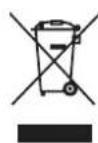
These symbols on the products, packaging and/or accompanying documents mean that used electrical and electronic equipments and batteries should not be mixed with general household waste.
Used electrical/electronic equipments and batteries must be treated separately and in accordance with legislation that requires proper treatment, recovery and recycling of these products. Following the implementation by member states, private households within the EU states may return their used electrical/electronic equipments and batteries to designated collection facilities free of charge*. In some countries your local retailer may also take back your old product free of charge if you purchase a similar new one. *Please contact your local authority for further details.
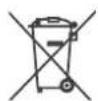
By disposing of this product correctly you will help ensure that the waste undergoes the necessary treatment, recovery and recycling and thus prevent potential negative effects on the environment and human health which could otherwise arise due to inappropriate waste handling.
2. In other countries outside the EU
These symbols are only valid in the European Union. If you wish to discard these items, please contact your local authorities or dealer and ask for the correct method of disposal.
For Switzerland: Used electrical/electronic equipment can be returned free of charge to the dealer, even when you don't purchase a new product. Further collection facilities are listed on the home page of www.swico.ch or www.sens.ch.
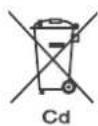
Note for the batteries symbol (bottom two symbol examples): This symbol might be used in combination with a designation for the chemical element or compound in use. In this case you have to comply with the requirement set by the Directive for the chemicals involved.