0B47173 - Näppäimistö LENOVO - Ilmainen käyttöohje ja opas
Löydä laitteen käyttöohje ilmaiseksi 0B47173 LENOVO PDF-muodossa.


Käyttäjien kysymyksiä aiheesta 0B47173 LENOVO
0 kysymys tästä laitteesta. Vastaa tuntemiisi tai esitä omasi.
Esitä uusi kysymys tästä laitteesta
Lataa ohjeet laitteellesi Näppäimistö PDF-muodossa ilmaiseksi! Löydä käyttöohjeesi 0B47173 - LENOVO ja ota elektroninen laitteesi takaisin hallintaan. Tällä sivulla julkaistaan kaikki laitteidesi käyttöön tarvittavat asiakirjat. 0B47173 merkiltä LENOVO.
KÄYTTÖOHJE 0B47173 LENOVO
UserGuide
ThinkPadCompactUSBKeyboardwithTrackPointandThinkPad CompactBluetoothKeyboardwithTrackPoint
i http://www.lenovo.com/safety
Note: Before installing the product, besuretoreadthewarrantyinformationinAppendixB"LenovoLimited Warranty"onpage29.
FourthEdition(June2015)
©CopyrightLenovo2013,2015.
LIMITEDANDRESTRICTEDRIGHTSNOTICE: If dataorsoftware is delivered pursuant to General Services Administration "GSA" contract, use, reproduction, or disclosure is subject to restrictions set forth in Contract No. GS-35F-05925.
Contents
Chapter1.Abouttheuserguide.....1
Chapter2. ThinkPadCompactUSB KeyboardwithTrackPoint.....3
Productdescription......3
Frontview......3
Rearview......4
Systemrequirements......4
InstallingtheUSBkeyboard......5
Installing the device driver on Windows operating systems.....5
UninstallingthedevicedriverfromWindows operatingsystems....5
UsingtheUSBkeyboard......6
UsingtheTrackPoint......6
Replacingthepointingstickcap.....7
Changing the pointing sticks sensitivity.7
UsingtheThinkPadpreferredscrolling function......7
Usingthefunctionkeys......7
Troubleshooting......9
Productspecifications.....12...
Chapter3.ThinkPadCompact BluetoothKeyboardwith TrackPoint......13
Productdescription......13..
Frontview......13..
Rearview.....14..
Systemrequirements.....15..
PairingtheBluetoothkeyboardwiththe computer......15..
Installing the device driver on Windows operating systems.....17..
UninstallingthedevicedriverfromWindows operatingsystems......18..
UsingtheBluetoothkeyboard...19..
UsingtheTrackPoint....19..
Replacingthepointingstickcap.19..
Changing the pointing sticks sensitivity
UsingtheThinkPadpreferredscrolling function.....20..
ChargingtheBluetoothkeyboard.
Usingthefunctionkey....20..
Troubleshooting.....22..
Productspecifications.....25..
AppendixA.ServiceandSupport27
Onlinetechnicalsupport.....27...
Telephonetechnicalsupport...27...
Accessibilityinformation.....27...
AppendixB.LenovoLimited Warranty.....29
Part1-GeneralTerms.29..
Part2-Country-specificTerms32..
Part3-WarrantyServiceInformation34..
SuplementodeGarantíaparaMéxico35..
AppendixC.Electroni@emission notices....37
FederalCommunicationsCommissionDeclaration of Conformity.....37..
AppendixD.Notices.....4.1
Recyclinginformation.....4.1..
RecyclinginformationforChina..4.1..
RecyclinginformationforBrazil..42..
ImportantWEEEinformation.42..
ExportClassificationNotice42..
Trademarks.....42..
AppendixE.RestrictionofHazardous SubstancesDirective(RoHS).45
EuropeanUnionRoHS.....45..
ChinaRoHS.....45..
TurkishRoHS.....45..
UkraineRoHS......45..
IndiaRoHS......46..
Chapter1.Abouttheuserguide
Thisuserguidecontainsproductdescriptionsandinstructionsforinstallingandusingthefollowingproducts:
- ThinkPad ^ CompactUSBKeyboardwithTrackPoint ^
- ThinkPadCompactBluetoothKeyboardwithTrackPoint
Chapter2. ThinkPadCompactUSBKeyboardwithTrackPoint
ThischapterprovidesinformationabouttheThinkPadCompactUSBKeyboardwithTrackPoint(hereafter calledtheUSBkeyboard).
TheUSBkeyboardhasthefollowingfeatures:
• Asmartsizesavesyourdeskspace
- AnintegratedTrackPointconsistingofapointingstickandthreeclickbuttonseliminatestheneeds foranexternalmouse
- Functionkeysprovideshortcutsforsomecommoncomputerfunctions
Theoptionpackageincludes:
-ThinkPadCompactUSBKeyboardwithTrackPoint
- Setupandwarrantyposter
•Cable
Productdescription
ThistopicprovidesageneraldescriptionoftheUSBkeyboard.
Frontview
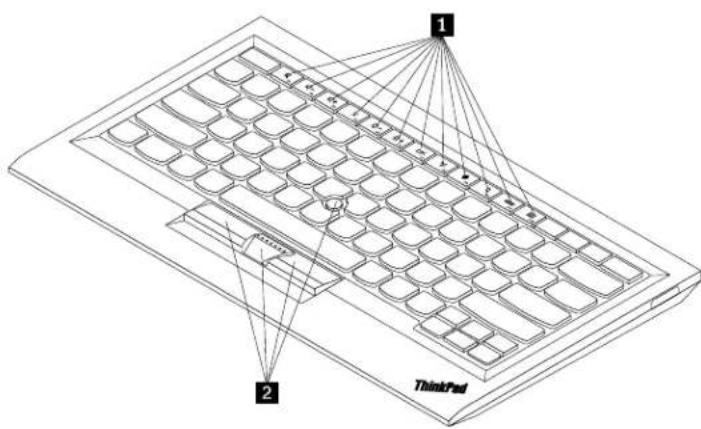
text_image
1 2 ThinkPadFigure1.FrontviewoftheUSBkeyboard
1 Hotkeys
Usedasshortcutsforsomecommoncomputerfunctions.Formoreinformation,see"UsingtheFn functions"onpage7.
2TrackPoint
TheTrackPointconsistsofapointingstickandthreeclickbuttons.Formoreinformation,see““Usingthe TrackPoint”onpage6 .
Rearview
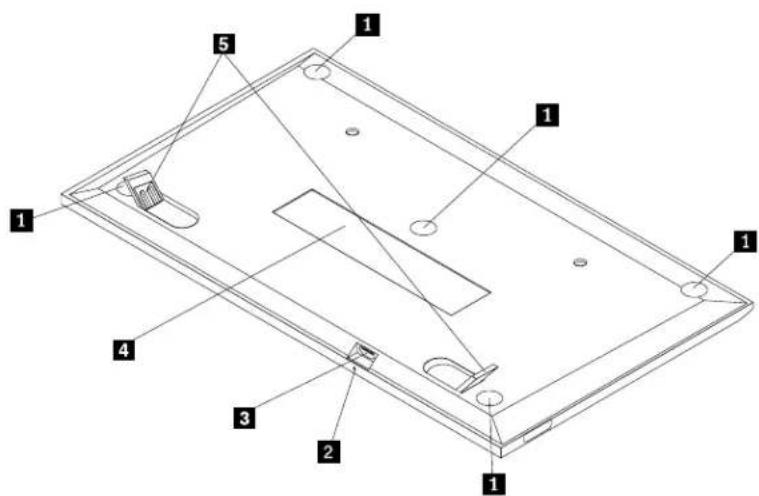
text_image
Technical diagram of a rectangular electronic device with numbered components for identificationFigure2. RearviewoftheUSBkeyboard
1 Non-skidfeet
UsedtopreventtheUSBkeyboardfromunexpectedmoving.
2 Statusindicator
WhentheUSBkeyboardissuccessfullyconnectedwiththecomputer,thestatusindicatorissolidon.
3 MicroUSBconnector
UsedtoconnecttheUSBkeyboardtoacomputer.Formoreinformation,see"InstallingtheUSBkeyboard" onpage5.
4 dentificationlabel
Containsthepartnumber,versionnumber,andsomeotherproductinformation.
5iltfeet
Usedtoadjusttheangleofthekeyboardtoprovidecomfort.
Systemrequirements
BeforeinstallingtheUSBkeyboard,ensurethatyourcomputermeetsthefollowingrequirements:
- ThereisanavailableUSBconnectoronyourcomputer.
- Yourcomputerhasoneofthefollowingoperatingsystemsinstalled:
-Microsoft ^® Windows ^® XP(32-bit)
-MicrosoftWindowsVista(32-bitor64-bit)
-MicrosoftWindows7(32-bitor64-bit)
-MicrosoftWindows8(32-bitor64-bit)
4UserGuide
-MicrosoftWindows8.1(32-bitor64-bit)
- MicrosoftWindows10(32-bitor64-bit)
BeforeinstallingtheUSBkeyboard,itisrecommendedthatyouchecktheLenovo ^® SupportWebsiteforthe latestsoftwareupdates,includingupdatedbasicinput/outputsystemcode(BIOS),utilityprograms,device drivers,andothersoftwareupdates.YoucanfindtheLenovoSupportWebsiteat: http://www.lenovo.com/support
YouareresponsiblefordownloadingandinstallingdesignatedsoftwareupdatesfromtheSupportWebsite orother electronicmedia,and following the instructions provided by your Service Provider.
InstallingtheUSBkeyboard
ToinstalltheUSBkeyboard,dothefollowing:
-
Adjust the tilt feet to set the keyboard near your computer to your preference.
-
Connect the provided cable to an available USB connector on your computer. After the operating system identifies the USB keyboard, the status indicator on the USB keyboard turn on. The USB keyboard is ready for use.
Note: It is recommended that you install the USB keyboard before the ThinkPad Compact Keyboard with TrackPointdriver (hereafter called the ThinkPad Keyboard Suite).
Installing the device driver on Windows operating systems
It is recommended that you install the ThinkPadKeyboard Suitetocustomizeadvancedsettings before you use the USB keyboard.
If you are using the Windows 7, Windows 8, Windows 8.1, or Windows 10 operating system, and your computer is connected to the Internet, when you connect the USB keyboard to your computer for the first time, am messages will be displayed, giving if you want to install the ThinkPad Keyboard Suite. Click Download Now and the ThinkPad Keyboard Suit will be automatically installed. If the message is not displayed, manually install the ThinkPad Keyboard Suite by doing the following:
- Gotohttp://support.lenovo.com/tpkeyboard.
- LocateanddownloadtheinstallationfileoftheThinkPadKeyboardSuite.
- Double-click the installation file, and then follow the instructions on the screent to complete the installation.
4.Restartthecomputer.
UninstallingthedevicedriverfromWindowsoperatingsystems
TouninstalltheThinkPadKeyboardSuitefromtheWindowsXP, WindowsVista, Windows7, Windows8, Windows8.1, or Windows10operatingsystem, dothefollowing:
FortheWindowsXPoperatingsystem:
1ClickStart→ControPanebStart→Settings→ControPanel.
2Depending yourControlPanemode click double-click AddRemove Programs
3ClickThinkPadCompacKeyboardwithTrackPointdriverandherclickRemove.
- Follow the instructions on the screen.
FortheWindowsVistaorWindows7operatingsystem:
1ClickStart-ControPanebStart-Settings-ControPanel.
- Depending on your Control Panel mode, do one of the following:
Click the Uninstallprogram option under the Program menu.
- ClickProgramsandFeatures.
3SelectThinkPadCompacKeyboardwithTrackPointdriverandhenright-clickyoumouseTheUninstall/Changeoptionisdisplayed.
- Click Uninstall/Change.
5.Followtheinstructionsonthescreen.
FortheWindows8orWindows8.1operatingsystem:
-
TogotoControlPanel, movethepointertothetop-rightorbottom-rightcornerofthescreentodisplay thecharms.ClickSearchandthensearchforControlPanel.
-
Depending on your Control Panel mode, do one of the following:
Click the Uninstallprogram option under the Program menu.
- ClickProgramsandFeatures.
3SelectThinkPadCompacKeyboardwithTrackPointdriverandhenright-clickyoumouseTheUninstallationisdisplayed.
4.ClickUninstall.
- Follow the instructions on the screentoun install the device driver.
FortheWindows10operatingsystem:
-
From the desktop, mov the point to bottom-left corner of the screen, and the search Control Panel in these search box.
-
Depending on your Control Panel mode, do one of the following:
Click the Uninstallprogram option under the Program menu.
- ClickProgramsandFeatures.
3SelectThinkPadCompacKeyboardwithTrackPointdriverandhenright-clickyoumouseTheUninstallationisdisplayed.
4.ClickUninstall.
- Follow the instructions on the screen until the device driver.
UsingtheUSBkeyboard
ThischapterprovidesinformationaboutusingtheUSBkeyboard.
UsingtheTrackPoint
TheTrackPointconsistsofapointingstickandthreeclickbuttons.Thepointingstickisusedtocontrolthe cursor.Thethreeclickbuttonsaretheleftbutton,therightbutton,andthemiddlebutton.
Tousethepointingstick,dothefollowing:
- Placeyourhandsattypingposition, and pressgently on the pointingstick in the direction that you want the cursor to move. You can press the pointing stick away from out of the cursor up, toward you to mov the cursor down, to one side or the other to mov the cursor sideways. The speed at which the cursor moves depends on the pressure you apply to the pointing stick.
Note: Thecursormightperiodicallydrift. Stopusingthepointingstickforafewsecondsandtry again. Thecursorwillworknormally.
- Toselectanitem, stop the pointing stick when the cursor locate the item and press the left right button with your thumb. The left and right buttons function the same as the left and right button on a conventional mouse.
Replacingthepointingstickcap
Thecapontopofthepointingstickisremovable.YoucanbuyappropriatecapsfromLenovotoreplaceyourcurrentcap.
Toremovethecaponthepointingstick,simplygraspthetopportionofthecapandpullitup.Toinstall anewcap,alignthesquareatthebottomofthecapwiththepointingstickandpushdownuntilthecap seatsintoposition.
Changingthepointingsticksensitivity
When you are using the pointing stick, you might prefer to use a light touch, or you might want to apply more pressure. You can change the way the pointing stick respond to your touch by doing the following:
- ClicktheThinkPadCompactKeyboardwithTrackPointicononthesystemtray.
- In the Mouse Properties window, click External Keyboard tab.
3rthePointerspeeddreamovethsledetowardSlowoFastaccordingyoupreference.
4ClickApplyThenteshowthe pointing sticks respond to you new setting and make adjustments if necessary.
5.ClickOKtoapplythesetting.
UsingtheThinkPadpreferredscrollingfunction
Youcanscrollthroughanactivewindowbymovingthepointingstickwhilepressingthemiddlebutton. YoualsocanscrollthroughaninactivewindowwiththeThinkPadPreferredScrollingfunction.Toconfigure thescrollingfunction,dothefollowing:
- ClicktheThinkPadCompactKeyboardwithTrackPointicononthesystemtray.
- In the Mouse Properties window, click the External Keyboard tab.
- Depending on your needs, do one of the following:
- Scrollthrough activewindows just as conventionamouseclearThinkPadPreferredScrolling.
- Toscrollthroughinactivewindows,selectThinkPadPreferredScrolling.
4.ClickOK.
Note: You find camotscrolbrsome applications clear ThinkPacPreferredScrollinggetmore compliance.
Usingthefunctionkeys
The following table describes the function keys and key combinations. By default, the USB keyboard acts the standard F1-F12 function. After installing the ThinkPad Keyboard Suite, you can achieve the hot key function by pressing Fn+Fx where represents 12 keys.
| FunctionkeyFunction | |
| Fn+Esc | SwitchbetweenthehotkeyandthestandardF1-F12function. |
 | Mutethespeaker. |
 | Decreasethevolume. |
 | Increasethevolume. |
 | Mutethemicrophone.Note:ThisfunctionkeymightnotworkontheWindowsXPandWindowsVista operatingsystems. |
 | Decreasethebrightness.Note:ThisfunctionkeymightnotworkontheWindowsXPandWindowsVista operatingsystems. |
 | Increasethebrightness.Note:ThisfunctionkeymightnotworkontheWindowsXPandWindowsVista operatingsystems. |
 | Switchbetweenthecomputerdisplayandanexternalmonitor(Windowswillshow thesedisplayoptions).Note:ThisfunctionkeymightnotworkontheWindowsXPandWindowsVista operatingsystems. |
 | Enableordisablethebuilt-inwirelessnetworkingfeatures.Note:ThisfunctionkeymightnotworkontheWindowsXPandWindowsVista operatingsystems. |
 | •OpenControlPanel.•OpenSettingsPanel(fortheWindows8andWindows8.1operatingsystems).•OpentheSettingswindow(fortheWindows10operatingsystem). |
 | •Navigatetosearchdependingonyouractiveapplications.•OpenSearchPanel(fortheWindows8andWindows8.1operatingsystems).•OpentheCortanasearchbox(fortheWindows10operatingsystem). |
 | •Viewopenapplications.•Switchbetweenopenapplications(fortheWindowsXPoperatingsystem). |
 | •OpenMyComputer.•Viewallapplications(fortheWindows8,Windows8.1,andWindows10operatingsystems). |
IftheFnkeycombinationsdonotworkcorrectlyonsomeThinkPadcomputerswiththeWindowsXP operatingsystem,ensurethatthecomputerhasthelatestversionoftheLenovoSystemInterfacedriveror thehotkeyutilitydriverinstalled.
Themostup-to-datesoftwareanddevicedriversforyourThinkPadcomputerarealwaysavailablefor downloadat:
http://www.lenovo.com/support
Notes:
- Ensure that the Fnkey combinations are functional on the keyboard of your ThinkPad computer. There are software dependencies to get them most complete Fnkey combinations support for your ThinkPad computer.
- MostoftheFnkeycombinationsdonotworkwiththeThinkPadSLseriesnotebookcomputers, Lenovo desktopcomputers,andcomputersfromothermanufacturers.
- SomeFnkeycombinationshavedifferentfunctionsondifferentThinkPadcomputermodels.
- OntheWindows8,Windows8.1,andWindows10operatingsystems,whenyoupressFn+Esc,hotkeyF4,ortheCapsLockkeyforthefirsttime,anOnScreenDisplaywindowmightbedisplayed.IfyouwantshowthescreendisplayclickOKIfoudonotwantshowthescreendisplayclick NothankyouTochangethescreendisplaysettingclicktheExternaKeyboardabtheMousePropertywindowselectOrScreenDisplaysWhentboxbeforeOrScreerDisplayisregreyitmeansthattheUSBkeyboardfollowsthesystemdefaultsetting,youcanchangethesystemsettingbyclickingAdvancedOSDsetting.
FormoreinformationabouttheFnkeycombinations, refertotheAccessHelpinformationsystemthat comeswiththeThinkPadcomputer.
Troubleshooting
ThischaptercontainstroubleshootinginformationfortheUSBkeyboard.
Problem: AllorsomeoftheFnfunctionkeycombinationsorfunctionkeysdonotwork.
Solution: Read the following for solutionsorexplanations:
- Ensure that you have correctly installed the ThinkPadKeyboardSuite.
- Ensure that all the function key combinations are functional on the keyboard of your ThinkPad computer. There are software dependencies to get them most complete key and hot key combination support for your ThinkPad computer. You can get more detailed information about the function key combinations from the documentation that comes with your ThinkPad computer. You might need to download the updated software components for your ThinkPad computer at: http://www.lenovo.com/support
- TheFnfunctionkeycombinationsworkwithalltheThinkPadcomputersexceptThinkPadSLseries notebookcomputers.MostoftheFnfunctionkeycombinationsdonotworkwithThinkPadSLseries notebookcomputers,Lenovodesktopcomputers,orcomputersfromothermanufacturers.
- It is normally found some of the function key combinations and differently different than that computer models, due to the differences of the applications installed on your notebook computers.
- Somefunctionkeysarenotsupporteddependingonyouroperatingsystemandcomputer.
Problem: The TrackPoint cursor drifts when the computer is turned on or after the computer resumes normal operation.
Solution: The cursorm might drift when you are not using the TrackPoint during normal operation. This is an normal feature of the TrackPoint and is not a defect. Cursor drifting might occur for several seconds under the following conditions:
•Thecomputeristurnedon.
• Thecomputerresumesnormaloperation.
- TheTrackPointpointingstickiskeptpressedforalongtime.
•Thetemperaturechanges.
Tosolvetheproblem,youcantryreconnectingtheUSBkeyboardorrestartyourcomputer.
Problem: I pressed a button once, but the computer responded as if I pressed it twice.
Solution: Depending on your operating system, adjust the keyboard repeat delay or repeat rates settings by doing one of the following:
- FortheWindowsXPorWindowsVistaoperatingsystem:
Depending you Start menuode click Start-ControPanebStart-Settings-Control Panel
- Depending your Control Panel mode, click order double-click Keyboard.
3.ClicktheSpeedtab.
4Move the Repeat delays led to Long the Repeat ats slid to Slow.
5.ClickOK.
- FortheWindows7operatingsystem:
Depending you Start menuodeclickStart-ControPanebStart-Settings-Control Panel
2ClicktheViewbymenuandselectSmallconsLargeconsTheAlControPaneltems categoryisexpanded.
3.ClickKeyboard.
- ClicktheSpeedtab.
5Move the Repeat delays led to Long the Repeat rates led to Slow.
6.ClickOK.
- FortheWindows8orWindows8.1operatingsystem:
- TogotoControlPanel, movethepointertothetop-rightorbottom-rightcornerofthescreento displaythecharms.ClickSearchandthensearchforControlPanel.
2ClicktheViewbymenuandselectheSmallconsLargeiconsviewTheAlControPanel Itemscategoryisexpanded.
3.ClickKeyboard.
4.ClicktheSpeedtab.
5Move the Repeat delays led to Long the Repeat rates led to Slow.
6.ClickOK.
FortheWindows10operatingsystem:
- From the desktop, mov the point to bottom-left corner of the screen, and the search Control Panel in these search box.
2Click the View by menu and select the Smallcons Largecons view The AI Contro Panel Itemscategoryisexpanded.
3.ClickKeyboard.
4.ClicktheSpeedtab.
5Move the Repeat delays led to Long the Repeat ats slid to Slow.
6.ClickOK.
Problem: The ThinkPad Keyboard Suite cannot be automatically installed when I connect the keyboard to my computer for the first time.
Solution: Tosolvetheproblem, dothefollowing:
-
Ensure that you are using the Windows7, Windows8, Windows8.1, or Windows10 operating system.
-
Ensure that your computer has been connected to the Internet.
-
Ensure that you have been enabled the automatic Windows update feature by doing the following:
a.OpenControlPanel.
b. Depending on your Control Panel mode, do one of the following:
Click Hardware and Sound Devices and Printers.
- ClickDevicesandPrinters.
c.Right-clickyourcomputericonundertheDevicesmenu,andthenselectDeviceinstallation Settings.
d.FollowtheinstructionsonthescreentoenabletheautomaticWindowsupdatefeature.
- Ensure that you have installed all Windows updates by doing the following:
a.OpenControlPanel.
b. Depending on your Control Panel mode, do one of the following:
ClickSystemandSecurity-WindowsUpdate.
- ClickWindowsUpdate.
c.ClickCheckforupdatestoinstallWindowsupdates.
-
Disconnect the USB keyboard from the computer and then reconnect it.
-
If the abovetips still are not workable, it might be caused by the version or language of your operating system. You can manually install the driver by doing the following:
a.Gotohttp://support.lenovo.com/tpkeyboard.
b. Locateanddownloadtheinstallationfileofthedriver.
c. Double-click the installation file, and then follow the instructions on the screent o complet the installation.
Problem: It takes along timetopair the USB keyboard with the computer on the Windows 7 operating system.
Solution: It is not a problem. When the clock on the USB keyboard and disappears, the USB keyboard is successfully paired with the computer. If it fails, try reconnecting it again.
Productspecifications
The following table describes the USB keyboards specifications.
| Keys | 84/85/89keys(variesbycountry) |
| Color | Ravenblack |
| Dimensions(heightxwidthxdepth)305.5mm | 164.0mmx13.5mm(notincludingthetiltfeet) |
| Weight | About441g(Includingthecable) |
| Connectortype4-pinUSBTypeA | |
| Cablelength1.5m(4.92feet) | |
| Operatingvoltage+5V(Typical) | |
| Powerconsumption100mA maximum | |
| SysteminterfaceUSB | |
| SupportedoperatingsystemWindows10(32-bitand64-bit)Windows8.1(32-bitand64-bit)Windows8(32-bitand64-bit)Windows7(32-bitand64-bit)WindowsVista(32-bitand64-bit)WindowsXP(32-bit) | |
Chapter3. ThinkPadCompactBluetoothKeyboardwith TrackPoint
ThischapterprovidesinformationabouttheThinkPadCompactBluetoothKeyboardwithTrackPoint (hereaftercalledtheBluetoothkeyboard).
Productdescription
ThistopicprovidesageneraldescriptionoftheBluetoothkeyboard.
Frontview
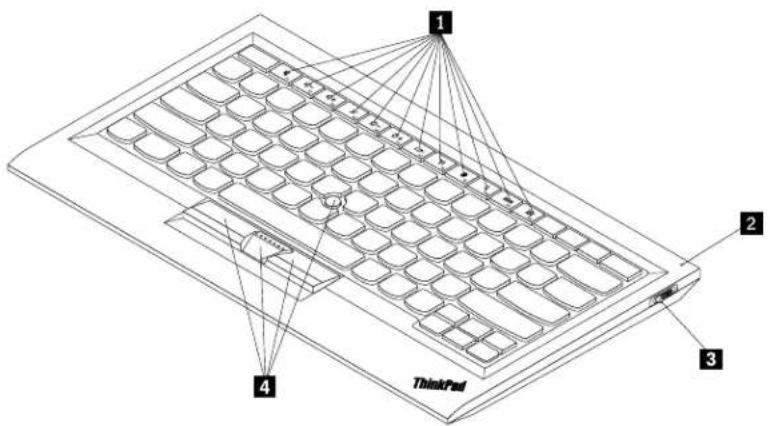
text_image
1 2 3 4 ThinkPadFigure3.FrontviewoftheBluetoothkeyboard
1Hotkeys
Usedasshortcutsforsomecommoncomputerfunctions.Formoreinformation,see"UsingtheFn functions"onpage20.
2Statusindicator
UsedtoindicatethestatusoftheBluetoothkeyboard.
| StatusCode | Description | |
| Fadingin | Green | TheBluetoothkeyboardisturnedon. |
| Blinkingtwiceatonesecondintervals | Green | TheBluetoothkeyboardisinpairingmodeoris establishingaconnectionwiththecomputer. |
| Blinkingforfivetimes | Green | TheBluetoothkeyboardhasestablishaconnection withthecomputer. |
| Fadingout | Green | TheBluetoothkeyboardisturnedoff. |
| Blinkingforthreetimes | Amber | ThebatterypoweroftheBluetoothkeyboardislow. |
3 Powerswitch: UsedtoturnonorturnofftheBluetoothkeyboard.
ToturnontheBluetoothkeyboard,slidedownthepowerswitchandpressitforonesecond.Thestatus indicatorstartstofadein.ToturnofftheBluetoothkeyboard,slidedownthepowerswitchandholdditforat leastthreeseconds.Thestatusindicatorstartstofadeout.
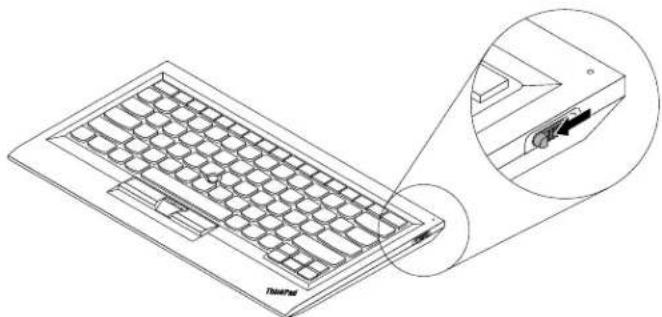
natural_image
Technical line drawing of a computer keyboard with an inset showing the internal component (no text or symbols present)Figure4. TurnonandturnofftheBluetoothkeyboard
Note: Tosavethebatterypower, turnofftheBluetoothkeyboardwhenitisnotinuse.
4 TrackPoint
TheTrackPointconsistsofapointingstickandthreeclickbuttons.Formoreinformation,see““Usingthe TrackPoint”onpage6 .
Rearview
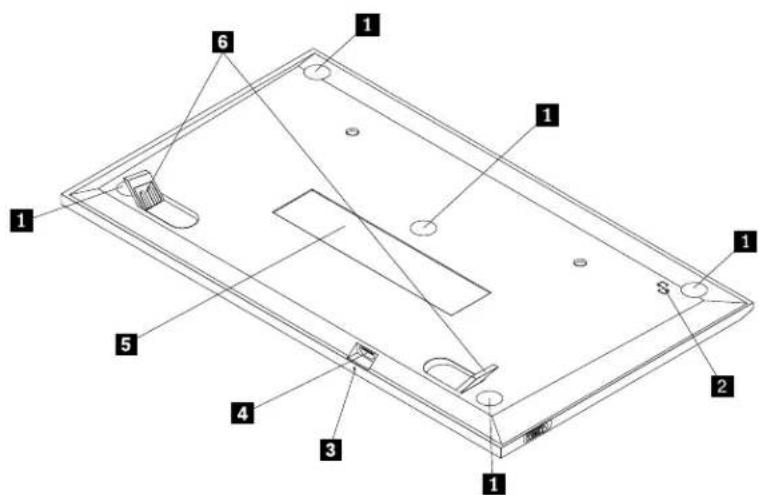
text_image
Technical diagram of a rectangular electronic device with numbered components for identificationFigure5. RearviewoftheBluetoothkeyboard
1 Non-skidfeet
UsedtopreventtheBluetoothkeyboardfromunexpectedmoving.
2NFCtag
UsedforpairingtheBluetoothkeyboardbyNearFieldCommunication(NFC)function.
2 Chargingindicator
Used to indicate the charging status of the Bluetooth keyboard. When the Bluetooth keyboard disincharging, the charging indicator is blinking. When the Bluetooth keyboard is fully charged, the charging indicator is solidon.
3 MicroUSBconnector
YoucanchargetheBluetoothkeyboardbyinsertingoneendoftheprovidedcabletotheMicroUSB connectorandanotherendtothecomputer.
4 dentificationlabel
Containsthepartnumber,versionnumber,andsomeotherproductinformation.
5Tiltfeet
Usedtoadjusttheangleofthekeyboardtoprovidecomfort.
Systemrequirements
BeforeinstallingtheBluetoothkeyboard,ensurethatyourcomputermeetsthefollowingrequirements:
- ThereisanavailableIntegratedBluetoothhostonyourcomputer.
-
Yourcomputerhasoneofthefollowingoperatingsystemsinstalled:
-
MicrosoftWindowsXP(32-bit)
—MicrosoftWindowsVista(32-bitor64-bit)
—MicrosoftWindows7(32-bitor64-bit)
—MicrosoftWindows8(32-bitor64-bit)
-MicrosoftWindows8.1(32-bitor64-bit)
—MicrosoftWindows10(32-bitor64-bit)
BeforeinstallingtheBluetoothkeyboard,itisrecommendedthatyouchecktheLenovoSupportWebsitefor thelatestsoftwareupdates,includingupdatedbasicinput/outputsystemcode(BIOS),utilityprograms, devicedrivers,andothersoftwareupdates.YoucanfindtheLenovoSupportWebsiteat: http://www.lenovo.com/support
YouareresponsiblefordownloadingandinstallingdesignatedsoftwareupdatesfromtheSupportWebsite orotherelectronicmedia,andfollowingtheinstructionsprovidedbyyourServiceProvider.
PairingtheBluetoothkeyboardwiththecomputer
ToestablishaconnectionandexchangedatabetweentheBluetoothkeyboardandthecomputer,youneed topairtheBluetoothkeyboardwiththecomputer.
Notes:
- It is recommended that you pair the Bluetooth keyboard before install the ThinkPad Compact Keyboard with TrackPoint driver (hereafter called the ThinkPad Keyboard Suite).
- OnceyouhavesuccessfullypairedtheBluetoothkeyboardwiththecomputer,youjustneedtoturnon thepowerswitchontheBluetoothkeyboardeachtimeyouuseit.Thestatusindicatorwillblinking greenforfivetimesandthenturnsoff.
Depending on your operating system, you can pair the Bluetooth keyboard with the computer by doing one of the following:
FortheWindowsXPoperatingsystem:
- TurnontheBluetoothradiointhecomputer.
2Double-click the MyBluetoothPlaces con the Windows notification are on the desktop.
3.SlidedownthepowerswitchandpressitforonesecondtoturnontheBluetoothintheBluetooth keyboard. Thestatusindicatorstartstoflash.
4Depending you men umodeclic View devices range Search for devices range.
5Double-click the ThinkPadCompacBluetoothKeyboardwithTrackPointconirtheist.
- TypethepasscodeshownonthecomputerscreenintotheBluetoothkeyboard, and thenpress Enter. Thepairingprocessbegins. Afterthestatusindicatorturnsoff, theBluetoothkeyboard has been successfullypaired with the computer and a connection is established between the Bluetooth keyboard and the computer.
ClickClosewhenwindowisdisplayed confirm that the Bluetooth keyboards connected with the operating system.
FortheWindowsVistaorWindows7operatingsystem:
- TurnontheBluetoothradiointhecomputer.
2ClickStart-ControPanelandherdependingortheoperatingsystemyouareusingdone ofthefollowing:
FortheWindows/istaoperatingsystemdouble-clickBluetoothDevicesandherclickAdd WirelessDevice.
FortheWindowsOperatingSystemclickDevicesandPrintersAdddevice
3.SlidedownthepowerswitchandpressitforonesecondtoturnontheBluetoothintheBluetooth keyboard. Thestatusindicatorstartstoflash.
4SelecttheThinkPadCompacBluetoothKeyboardwithTrackPointconfromtheistandclicNext.
- TypethepasscodeshownonthecomputerscreenintotheBluetoothkeyboard, and thenpress Enter. Thepairingprocessbegins. Afterthestatusindicatorturnsoff, theBluetoothkeyboard has been successfullypaired with the computer and a connection is established between the Bluetooth keyboard and the computer.
GlicClosewhenwindowdisplayedconfirmthattheBluetoothkeyboardsconnectedwith theoperatingsystem.
FortheWindows8orWindows8.1operatingsystem:
-
TurnontheBluetoothradiointhecomputer.
-
Movethecursortothetop-rightorbottom-rightcornerofthescreentodisplaythecharms, click Settings→ChangePCSettings→Devices.
3.SlidedownthepowerswitchandpressitforonesecondtoturnontheBluetoothintheBluetooth keyboard. Thestatusindicatorstartstoflash.
4SelecttheKeyboard(ThinkPadCompacBluetoothKeyboardwithTrackPoint)confromtheist andclickNext.
- TypethepasscodeshownonthecomputerscreenintotheBluetoothkeyboard, and then press Enter. The pairing process begins. After the status indicator turn soff, the Bluetooth keyboard has been successfully paired with the computer and a connection is established between the Bluetooth keyboard and the computer.
6liclClosewhenawindowsdisplayedconfirmthattheBluetoothkeybordsconnectedwith theoperatingsystem.
FortheWindows10operatingsystem:
- TurnontheBluetoothradiointhecomputer.
2.SlidedownthepowerswitchandpressitforonesecondtoturnontheBluetoothintheBluetooth keyboard.Thestatusindicatorstartstoflash. - From the desktop, mov the point to bottom-left corner of the screen, and the search Control Panel in these search box.
4Click the AddDevice option under the Hardware and Soundmenu when viewing the Control Panel by category.
5SelecttheKeyboard(ThinkPadCompacBluetoothKeyboardwithTrackPoint)confrontthestandclickNext.
- TypethepasscodeshownonthecomputerscreenintotheBluetoothkeyboard, and then press Enter. The pairing process begins. After the status indicator turn soff, the Bluetooth keyboard has been successfully paired with the computer and a connection is established between the Bluetooth keyboard and the computer.
ClickClosewhenWindowisdisplayed confirm that Bluetooth keyboards connected with the operating system.
Note: window displayed indicating that connection fails right-click the ThinkPad Compact BluetoothKeyboard with TrackPointcor and selec Disable to disable the Bluetooth keyboard Then pair the Bluetooth keyboard with the computer again.
AftertheoperatingsystemidentifiestheBluetoothkeyboard,theBluetoothkeyboardwillbereadyforuse. Foradditionalinformationonthisproduct,goto: http://www.lenovo.com/support/keyboards
PairingbyNFCfunction:
Dependingontheconfiguration,youalsocanpairtheBluetoothkeyboardwithanNFC-enabledcomputer byNFCfunction.TheNFCtagisinthebottom-leftcorneroftheBluetoothkeyboardbackside.
TopairtheBluetoothkeyboardbyNFCfunction,dothefollowing:
- AligntheNFCreaderwiththeNFCtagontheBluetoothkeyboard.
2.Awindowisdisplayedtoconfirmwhetheryouwanttoaddadevice. - Clickthewindow. The status indicator flashes 5 times and fadeout. The Bluetooth keyboard is connected with the computer.
Installing the device driver on Windows operating systems
It is recommended that you install the ThinkPad Keyboard Suitetocustomize advanced settings before you use the Bluetooth keyboard.
If you are using the Windows 7, Windows 8, Windows 8.1, or Windows 10 operating system, and your computer is connected to the Internet, when you connect the keyboard to your computer for the first time, a message will be displayed as asking if you want to install the ThinkPad Keyboard Suite. Click Download Now
andtheThinkPadKeyboardSuitewillbeautomaticallyinstalled.Ifthemessageisnotdisplayed,manually installtheThinkPadKeyboardSuitebydoingthefollowing:
- Gotohttp://support.lenovo.com/tpkeyboard.
- LocateanddownloadtheinstallationfileoftheThinkPadKeyboardSuite.
- Double-click the installation file, and then follow the instructions on the screent to complete the installation.
4.Restartthecomputer, and the ThinkPadKeyboardSuite is installed on your computer.
UninstallingthedevicedriverfromWindowsoperatingsystems
TouninstalltheThinkPadKeyboardSuitefromtheWindowsXP,WindowsVista,Windows7,Windows8,Windows8.1,orWindows10operatingsystem,dothefollowing:
FortheWindowsXPoperatingsystem:
1ClickStart→ControPanebStart→Settings→ControPanel.
2DependingryouControPanemodeclickdouble-clickAddRemovePrograms
3ClickThinkPadCompactKeyboardwithTrackPointdriverandherclickRemove.
- Follow the instructions on the screen.
FortheWindowsVistaorWindows7operatingsystem:
1ClickStart→ControPanebStart→Settings→ControPanel.
- Depending on your Control Panel mode, do one of the following:
Click the Uninstallprogram option under the Program menu.
- ClickProgramsandFeatures.
3SelectThinkPadCompacKeyboardwithTrackPointdriverandhenright-clickyoumouseThe Uninstall/Changeoptionisdisplayed.
- Click Uninstall/Change.
5.Followtheinstructionsonthescreen.
FortheWindows8orWindows8.1operatingsystem:
-
TogotoControlPanel, movethepointertothetop-rightorbottom-rightcornerofthescreentodisplay thecharms.ClickSearchandthensearchforControlPanel.
-
Depending on your Control Panel mode, do one of the following:
GlicktheUninstallprogramoptionundetheProgramsmenu.
- ClickProgramsandFeatures.
3SelectThinkPadCompacKeyboardwithTrackPointdriverandhenright-clickyoumouseTheUninstallationisdisplayed.
4.ClickUninstall.
- Follow the instructions on the screen until the device driver.
FortheWindows10operatingsystem:
- From the desktop, mov the point to bottom-left corner of the screen, and the search Control Panel in these search box.
- Depending your Control Panel mode, do one of the following:
Click the Uninstallprogram option under the Program menu.
- ClickProgramsandFeatures.
3SelectThinkPadCompacKeyboardwithTrackPointdriverandhenight-clickyoumouseTheUninstallationisdisplayed.
4.ClickUninstall.
5.Followtheinstructionsonthescreentouninstallthedevicedriver.
UsingtheBluetoothkeyboard
ThischapterprovidesinformationaboutusingtheBluetoothkeyboard.
UsingtheTrackPoint
TheTrackPointconsistsofapointingstickandthreeclickbuttons.Thepointingstickisusedtocontrolthe cursor.Thethreeclickbuttonsaretheleftbutton,therightbutton,andthemiddlebutton.
Tousethepointingstick,dothefollowing:
- Placeyourhandsattypingposition, and pressgently on the pointingstick in the direction that you want the cursor to move. You can press the pointing stick away from out of the cursor up, toward you to mov the cursordown, to one side or the other to mov the cursorsideways. The speed at which the cursormoves depends on the pressure you apply to the pointing stick.
Note: Thecursormightperiodicallydrift. Stopusingthepointingstickforafewsecondsandtry again. Thecursorwillworknormally.
- Toselectanitem, stop the pointing stick when the cursor locates the item and press the left right button with your thumb. The left and right buttons function the same as the left and right button on a conventional mouse.
Replacingthepointingstickcap
Thecapontopofthepointingstickisremovable.YoucanbuyappropriatecapsfromLenovotoreplaceyourcurrentcap.
Toremovethecaponthepointingstick,simplygraspthetopportionofthecapandpullitup.Toinstall anewcap,alignthesquareatthebottomofthecapwiththepointingstickandpushdownuntilthecap seatsintoposition.
Changingthepointingsticksensitivity
When you are using the pointing stick, you might prefer to use a light touch, or you might want to apply more pressure. You can change the way the pointing stick respond to your touch by doing the following:
-
ClicktheThinkPadCompactKeyboardwithTrackPointicononthesystemtray.
-
In the Mouse Properties window, click External Keyboard tab.
3rthePointspeeddreamovethsledetowardSlowoFastaccordingyoupreference.
4ClickApplyThenteshowthe pointing sticks respond to you new setting and make adjustments if necessary.
5.ClickOKtoapplythesetting.
UsingtheThinkPadpreferredscrollingfunction
Youcanscrollthroughanactivewindowbymovingthepointingstickwhilepressingthemiddlebutton. YoualsocanscrollthroughaninactivewindowwiththeThinkPadPreferredScrollingfunction.Toconfigure thescrollingfunction,dothefollowing:
- ClicktheThinkPadCompactKeyboardwithTrackPointicononthesystemtray.
- In the Mouse Properties window, click the External Keyboard tab.
- Depending on your needs, done of the following:
ToscrolthroughactivewindowsjustasconventionamouseclearThinkPadPreferredScrolling.
- Toscrollthroughinactivewindows,selectThinkPadPreferredScrolling.
4.ClickOK.
Notely find cannot scroll some applications clear ThinkPad Preferred Scrolling get more compliance.
ChargingtheBluetoothkeyboard
YoucanchargetheBluetoothkeyboardbyconnectingtheBluetoothkeyboardtothecomputerwiththe providedcable.ItisrecommendedthatyoufullychargetheBluetoothkeyboardbeforeyouuseitforthe firsttime.Anaveragefullchargingtimeis2.5to3hours.WhentheBluetoothkeyboarddisincharging,the chargingindicatorisblinking.WhentheBluetoothkeyboardisfullychargedwiththechargingindicatorsolid on,youarerecommendedtodisconnecttheBluetoothkeyboardfromthecomputer.KeepingtheBluetooth keyboardconnectedtothecomputerwillnotkeeponcharging.WhenyouwanttochargetheBluetooth keyboardforanothertime,reconnecttheBluetoothkeyboardtothecomputer.Itisrecommendedthatyou chargethebatteryatleastonetimeineverysixmonths.
Usingthefunctionkey
The following table describes the function of Fnkeys and Fnkey combinations. The Bluetooth keyboard act should default the key function. After installing the ThinkPad Keyboard Suite, you can achieve the standard F1-F12 function by pressing Fn + Fn where represents 12 keys.
| FunctionkeyFunction | |
| Fn+Esc | SwitchthedefaultFnfunctionbetweenthehotkeyandthestandardF1-F12 function. |
 | Mutethespeaker. |
 | Decreasethevolume. |
 | Increasethevolume. |
 | Mutethemicrophone.Note:ThisfunctionkeymightnotworkontheWindowsXPandWindowsVista operatingsystems. |
 | Decreasethebrightness.Note:ThisfunctionkeymightnotworkontheWindowsXPandWindowsVistaoperatingsystems. |
 | Increasethebrightness.Note:ThisfunctionkeymightnotworkontheWindowsXPandWindowsVistaoperatingsystems. |
 | Switchbetweenthecomputerdisplayandanexternalmonitor(Windowswillshowthesedisplayoptions).Note:ThisfunctionkeymightnotworkontheWindowsXPandWindowsVistaoperatingsystems. |
 | Enableordisablethebuilt-inwirelessnetworkingfeatures.Awindowwillbedisplayedwarningthatturningoffthewirelesswilldisconnectthewirelessmiceandkeyboards.Note:ThisfunctionkeymightnotworkontheWindowsXPandWindowsVistaoperatingsystems. |
 | •OpenControlPanel.•OpenSettingsPanel(fortheWindows8andWindows8.1operatingsystems).•OpentheSettingswindow(fortheWindows10operatingsystem). |
 | •Navigatetosearchdependingonyouractiveapplications.•OpenSearchPanel(fortheWindows8andWindows8.1operatingsystems).•OpentheCortanasearchbox(fortheWindows10operatingsystem). |
 | •Viewopenapplications.•Switchbetweenopenapplications(fortheWindowsXPoperatingsystem). |
 | •OpenMyComputer.•Viewallapplications(fortheWindows8,Windows8.1,andWindows10operatingsystems). |
| Fn+Delete | UnpairtheBluetoothkeyboardfromthecomputer.Note:IfyouhaveconfiguredtheBluetoothkeyboardinonecomputerandwanttoconfigureitinanothercomputer,itisrecommendedthatyouunpairtheBluetoothkeyboardfromthepreviouscomputerfirst. |
IftheFnkeycombinationsdonotworkcorrectlyonsomeThinkPadcomputerswiththeWindowsXP operatingsystem,ensurethatthecomputerhasthelatestversionoftheLenovoSystemInterfacedriver installed.
Themostup-to-datesoftwareanddevicedriversforyourThinkPadcomputerarealwaysavailablefor downloadat:
http://www.lenovo.com/support
Notes:
- Ensure that the Fnkey combinations are functional on the keyboard of your ThinkPad computer. There are software dependencies to get them most complete Fnkey combinations support for your ThinkPad computer.
- MostoftheFnkeycombinationsdonotworkwiththeThinkPadSLseriesnotebookcomputers, Lenovo desktopcomputers, and computersfromothermanufacturers.
- SomeFnkeycombinationshavedifferentfunctionsondifferentThinkPadcomputermodels.
- OntheWindows8,Windows8.1,andWindows10operatingsystems,whenyoupressFn+Esc,hotkeyF4,ortheCapsLockkeyforthefirsttime,anOnScreenDisplaywindowmightbedisplayed.IfyouwantshowtheonscreerdisplayclickOKIfoudonotwantshowtheonscreerdisplayclick NothankyouTochangetherscreerdisplaysettingclicktheExternaKeyboardabirtheMousePropertywindowsselectOrScreenDisplaysWhethboxbeforeOrScreenDisplayssgreyitmeansthattheBluetoothkeyboardfollowsthesystemdefaultsetting,youcanchangethesystemsettingbyclickingAdvancedOSDsetting.
FormoreinformationabouttheFnkeycombinations, refertotheAccessHelpinformationsystemthat comeswiththeThinkPadcomputer.
Troubleshooting
ThischaptercontainstroubleshootinginformationfortheBluetoothkeyboard.
Problem: AllorsomeoftheFnfunctionkeycombinationsorfunctionkeysdonotwork.
Solution: Read the following for solutionsorexplanations:
- Ensure that you have correctly installed the ThinkPadKeyboardSuite.
- Ensure that all the function key combinations are functional on the keyboard of your ThinkPad computer. There are software dependencies to get them most complete key and hot key combination support for your ThinkPad computer. You can get more detailed information about the function key combinations from the documentation that comes with your ThinkPad computer. You might need to download the updated software components for your ThinkPad computer at: http://www.lenovo.com/support
- TheFnfunctionkeycombinationsworkwithalltheThinkPadcomputersexceptThinkPadSLseries notebookcomputers.MostoftheFnfunctionkeycombinationsdonotworkwithThinkPadSLseries notebookcomputers,Lenovodesktopcomputers,orcomputersfromothermanufacturers.
- It is normally found some of the function key combinations and differently different than that computer models, due to the differences of the applications installed on your notebook computers.
- Somefunctionkeysarenotsupporteddependingonyouroperatingsystemandcomputer.
Problem: The TrackPoint cursor drifts when the computer is turned on or after the computer resumes normal operation.
Solution: The cursorm might drift when you are not using the TrackPoint during normal operation. This is an normal feature of the TrackPoint and is not at defect. Cursor drifting might occur for several seconds under the following conditions:
•Thecomputeristurnedon.
• The computer resumes normal operation.
•TheTrackPointpointingstickiskeptpressedforalongtime.
•Thetemperaturechanges.
Tosolvetheproblem,youcantryreconnectingtheBluetoothkeyboardorrestartyourcomputer.
Problem: lpressedabuttononce, but the computer responded as if lpressed it twice.
Solution: Depending your operating system, adjust the keyboard repeat delay or repeat rates settings by doing one of the following:
- FortheWindowsXPorWindowsVistaoperatingsystem:
Depending your StartmenodeclickStart→ControlPanebStart→Settings→ControlPanel
- Depending your Control Panel mode, click order double-click Keyboard.
3.ClicktheSpeedtab.
4Move the Repeatelayslide and Long the Repeatateslide to Slow.
5.ClickOK.
- FortheWindows7operatingsystem:
Depending you StartmenodeclickStart→ControPanebStart→Settings→Control Panel
2ClicktheViewbymenuandselectSmallconsLargeconsTheAlControPanelItems categoryisexpanded.
3.ClickKeyboard.
4.ClicktheSpeedtab.
5Move the Repeat delays led to Long the Repeat ats slidet Slow.
6.ClickOK.
- FortheWindows8orWindows8.1operatingsystem:
- TogotoControlPanel, movethepointertothetop-rightorbottom-rightcornerofthescreento displaythecharms.ClickSearchandthensearchforControlPanel.
2ClicktheViewbymenuandselecttheSmallconsLargeconsviewTheAlControPanel Itemscategoryisexpanded.
3.ClickKeyboard.
4.ClicktheSpeedtab.
5Move the Repeat delays led to Long the Repeat ats slidet Slow.
6.ClickOK.
FortheWindows10operatingsystem:
- From the desktop, mov the point to bottom-left corner of the screen, and the search Control Panel in these search box.
2ClicktheViewbymenandselecthSmallconsLargeconsviewTheAIControPanel Itemscategoryisexpanded.
3.ClickKeyboard.
4.ClicktheSpeedtab.
5Move the Repeat delays led to Long the Repeat rates led to Slow.
6.ClickOK.
Problem: The Bluetooth keyboard is not recognized by your computer.
Solution: Tosolvetheproblem, dothefollowing:
- Ensure that the Bluetooth radio on the computer is turned on and the Bluetooth works.
- Ensure that the Bluetooth connection button on the keyboard disturbed on.
- FortheWindowsXPoperatingsystem,ensurethatyouhavedownloadedandinstalledthelatestBluetoothsoftware.IfyouareusingaLenovocomputerwithBroadcomBluetoothsolution,checkandupdatetothelatestBluetoothforWindows(BTW)version(BTW5.6.0.8900orlaterversion).
- Ensure that the Bluetooth keyboard is within the maximum Bluetooth range (10m).
Problem: The Bluetooth keyboardlags.
Solution: Tosolvetheproblem, trymoving the Bluetooth keyboard closerto the computer and removing other objects with wireless signal to avoid signal interference.
Problem: The ThinkPad Keyboard Suite cannot be automatically installed when I connect the keyboard to my computer for the first time.
Solution: Tosolvetheproblem, dothefollowing:
- Ensure that you are using the Windows7, Windows8, Windows8.1, or Windows10 operating system.
- Ensure that your computer has been connected to the Internet.
- Ensure that you have been enabled the automatic Windows update feature by doing the following:
a.OpenControlPanel.
b. Depending on your Control Panel mode, do one of the following:
ClickHardwareandSoundDevicesandPrinters.
- ClickDevicesandPrinters.
c.Right-clickyourcomputericonundertheDevicesmenu,andthenselectDeviceinstallation Settings.
d.FollowtheinstructionsonthescreentoenabletheautomaticWindowsupdatefeature.
- Ensure that you have installed all Windows updates by doing the following:
a.OpenControlPanel.
b. Depending on your Control Panel mode, do one of the following:
ClickSystemandSecurity-WindowsUpdate.
- ClickWindowsUpdate.
c.ClickCheckforupdatestoinstallWindowsupdates.
- RemovetheBluetoothkeyboardfromthecomputerandthenreconnectit.
- If the abovetips still are not workable, it might be caused by the version or language of your operating system. You can manually install the ThinkPad Keyboard Suite by doing the following:
a.Gotohttp://support.lenovo.com/tpkeyboard.
b. Locateanddownloadtheinstallationfileofthedriver.
c. Double-click the installation file, and then follow the instructions on the screent o complet the installation.
Problem:TheBluetoothkeyboardmightfailtoresumefromsuspendontheWindows7,Windows8,Windows8.1,orWindows10operatingsystem.
SolutionYou can check selective suspends disabled by going to Device Manager and navigating the Bluetooth keyboard. Right-click the Bluetooth keyboard and goto the Properties page. Clear Allow the compute duration this device save power the Power Management tab.
Problem: It takes along timetopair the Bluetooth keyboard with the computer on the Windows 7 operating system.
Solution: It is not a problem. When the clock on the Bluetooth keyboard and disappears, the Bluetooth keyboard dissuccessfully paired with the computer. If it fails, try reconnecting it again.
Productspecifications
The following table describes the Bluetooth keyboards specifications.
| Keys | 84/85/89keys(Variesbycountry) |
| Color | Ravenblack |
| Dimensions(HeightxWidthxDepth)305.5mmx164.0mmx13.5mm(notincludingthetiltfeet) | |
| Weight | 458g(includingthecable) |
| PCinterface | Bluetooth3.0 |
| Operatingvoltage3.7V(Typical) | |
| BatteryCapability500mA(Typical) | |
| Powerconsumption50mA maximum | |
| Cablelength1.5m(4.92feet) | |
| SupportedoperatingsystemUSBTypeA connector | |
| Windows10(32-bitand64-bit)Windows8.1(32-bitand64-bit)Windows8(32-bitand64-bit)Windows7(32-bitand64-bit)WindowsVista(32-bitand64-bit)WindowsXP(32-bit) | |
AppendixA.ServiceandSupport
The following information describes the technical support that is available for your product, during the warranty period throughout the life of your product. Referto the Lenovo Limited Warranty for a full explanation of Lenovowarranty terms.
Onlinetechnicalsupport
Onlinetechnicalsupportisavailableduringthelifetimeofaproductat: http://www.lenovo.com/support
Productreplacementassistanceorexchangeofdefectivecomponentsalsoisavailableduringthewarranty period.Inaddition,ifyuroptionisinstalledinaLenovocomputer,youmightbeentitledtoserviceatyour location.ALenovotechnicalsupportrepresentativecanhelpyoudeterminethebestalternative.
Telephonetechnicalsupport
InstallationandconfigurationsupportthroughtheCustomerSupportCenterwillbeavailableuntil90days aftertheoptionhasbeenwithdrawnfrommarketing.Afterthattime,thesupportiscancelled,ormade availableforafee,atLenovo'sdiscretion.Additionalsupportisalsoavailableforanominalfee.
BeforecontactingaLenovotechnicalsupportrepresentative,pleasehavethefollowinginformationavailable:optionnameandnumber,proofofpurchase,computermanufacturer,model,serialnumberandmanual,theexactwordingofanyerrormessage,descriptionoftheproblem,andthehardwareandsoftwareconfigurationinformationforyoursystem.
Your technical support represents a very might walkyouth through the problem while you are at your computer during the call.
Telephonenumbersaresubjecttochangewithoutnotice. Themostup-to-datetelephonelistforLenovo Supportisalwaysavailableathttp://www.lenovo.com/support/phone.Ifthetelephonenumberforyour countryorregionisnotlisted,contactyourLenovoresellerorLenovomarketingrepresentative.
Accessibilityinformation
Documentationinaccessibleformats
Lenovoprovideselectronicdocumentationinaccessibleformats,suchasproperlytaggedPDFfilesor HyperTextMarkupLanguage(HTML)files.Lenovoelectronicdocumentationisdevelopedtoensure thatvisuallyimpaireduserscanreadthedocumentationthroughascreenreader.Eachimageinthe documentationalsoincludesadequatealternativetexttoexplaintheimagesothatvisuallyimpairedusers canunderstandtheimagewhentheyuseascreenreader.
ToopenandviewPDFfiles,yourcomputermusthavetheAdobeReaderprograminstalled.TheAdobe Readerprogramalsoisavailablefordownloadat: http://www.adobe.com
AppendixB.LenovoLimitedWarranty
L505-0010-0208/2011
ThisLenovoLimitedWarrantyconsistsofthefollowingparts:
Part1-GeneralTerms
Part2-Country-specificTerms
Part3-WarrantyServiceInformation
The terms: Part2 replace modify terms: Part1 as specified for particular country.
Part1-GeneralTerms
ThisLenovoLimitedWarrantyappliesonlytoLenovohardwareproductsyoupurchasedforyouwnuseand notforresale. ThisLenovoLimitedWarrantyisavailableinotherlanguagesatwww.lenovo.com/warranty.
WhatthisWarrantyCovers
LenovowarrantsthateachLenovohardwareproductthatyoupurchaseisfreefromdefectsinmaterialsand workmanshipundernormaluseduringthewarrantyperiod. Thewarrantyperiodfortheproductstartson theoriginaldateofpurchaseasshownonyoursalesreceptorinvoiceorasmaybeotherwisespecified by Lenovo. Thewarrantyperiodandtypeofwarrantyservicethatapplytoyourproductareasspecified in'Par&WarrantyServiceInformationbelowThiswarrantyonlyappliesproductsirthecountry orregionofpurchase.
THISWARRANTYISYOUREXCLUSIVEWARRANTYANDREPLACESALLOTHERWARRANTIES ORCONDITIONS, EXPRESSORIMPLIED, INCLUDING, BUTNOTLIMITEDTO, ANYIMPLIED WARRANTIESORCONDITIONSOFMERCHANTABILITYORFITNESSFORAPARTICULARPURPOSE. ASSOMESTATESORJURISDICTIONSDONOTALLOWTHEEXCLUSIONOFEXPRESSOR IMPLIED WARRANTIES, THEABOVEEXCLUSIONMAYNOTAPPL YTOYOU.INTHATEVENT , SUCH WARRANTIESAPPL YONL YTOTHEEXTENTANDFORSUCHDURATIONASREQUIREDBYLAWAND ARELIMITEDINDURATIONTOTHEWARRANTYPERIOD.ASSOMESTATESORJURISDICTIONSDO NOTALLOWLIMITATIONSONTHEDURATIONOFANIMPLIEDWARRANTY, THEABOVELIMITATION ONDURATIONMAYNOTAPPL YTOYOU.
HowtoObtainWarrantyService
If the product does not function as warranted during the warranty period, you may obtain warranty service by contacting Lenovoora Lenovo-approved Service Provider. A list of approved Service Providers and their telephonenumber is available at: www.lenovo.com/support/phone.
Warrantyservicemaynotbeavailableinalllocationsandmaydifferfromlocationtolocation.Chargesmay applyoutsideaServiceProvider'snormalservicearea.ContactalocalServiceProviderforinformation specifictoyourlocation.
CustomerResponsibilitiesforWarrantyService
Beforewarrantyserviceisprovided,youmusttakethefollowingsteps:
- followtheservicerequestproceduresspecifiedbytheServiceProvider;
- backuporsecureallprogramsanddatacontainedintheproduct;
- providetheServiceProviderwithallsystemkeysorpasswords;
•providetheServiceProviderwithsufficient,free,andsafeaccesstoyourfacilitiestoperformservice; - removealldata,includingconfidentialinformation,proprietaryinformationandpersonalinformation,from theproductor,ifyouareunabletoremoveanysuchinformation,modifytheinformationtopreventits accessbyanotherpartyorsothatitisnotpersonaldataunderapplicablelaw.TheServiceProvidershall notberesponsibleforthelossordisclosureofanydata,includingconfidentialinformation,proprietary information,orpersonalinformation,onaproductreturnedoraccessedforwarrantyservice;
- removeallfeatures,parts,options,alterations,andattachmentsnotcoveredbythewarranty;
- ensure that the product or part is free of any legal restriction that prevents replacement;
- ifyouarenottheownerofaproductorpart,obtainauthorizationfromtheownerfortheServiceProvider toprovidewarrantyservice.
WhatYourServiceProviderWillDotoCorrectProblems
When you contact a Service Provider, you must follow the specified problem determination and resolution procedures.
TheServiceProviderwillattempttodiagnoseandresolveyourproblembytelephone,e-mailorremote assistance.TheServiceProvidermaydirectyoutodownloadandinstalldesignatedsoftwareupdates.
Someproblemsmayberesolvedwithareplacementpartthatyouinstallyourselfcalleda"Customer ReplaceableUnit"or"CRU."Ifso,theServiceProviderwillshiptheCRUtoyouforyoutoinstall.
If your problem cannot be resolved over the telephone; through the application of software updates or the installation of a CRU, the Service Provider will arrange for service under the type of warranty service designated for the product under "Part3-Warranty Service Information" below.
If the Service Provider determines that it is unable to repair your product, the Service Provider will replace it with one that is at least functionally equivalent.
If the Service Provider determines that it is unable to either repair or replace your product, your sole remedy under this Limited Warranty is to return the product to your place of purchase to Lenovo for refund of your purchase price.
ReplacementProductsandParts
When warranty service involves thereplacement of a product part, thereplaced product part becomes Lenovo's property and thereplacement product part becomes your property. Only unaltered Lenovo products and parts are eligible for replacement. Thereplacement product part provided by Lenovo may not be new, but it will being good working order and least functionally equivalent to the original product part. Thereplacement product part shall be warranted for the balance of the period remaining on the original product.
UseofPersonalContactInformation
If you obtain service under this warranty, you authorize Lenovotostore, use and process information about your warranty service and your contact information, including name, phonenumbers, address, and e-mail address. Lenovomayusethisinformation to perform service under this warranty. Wemaycontact youto inquire about your satisfaction with our warranty service on to notify you about any product recalls safety issues. In accomplishing these purposes, you authorize Lenovototransferyourinformation to any country wherewedobusiness and to provide it to entities acting on our behalf. Wemayalsodiscloseitwhere required by law. Lenovo's privacy policy is available at www.lenovo.com/.
WhatthisWarrantyDoesnotCover
Thiswarrantydoesnotcoverthefollowing:
- uninterruptederror-freeoperationofaproduct;
- lossof, ordamageto, yourdatabyaproduct;
- anysoftwareprograms,whetherprovidedwiththeproductorinstalledsubsequently;
- failureordamageresultingfrommisuse,abuse,accident,modification,unsuitablephysicaloroperating environment,naturaldisasters,powersurges,impropermaintenance,orusenotinaccordancewith productinformationmaterials;
- damagecausedbyanon-authorizedserviceprovider;
- failureof,ordamagecausedby,anythirdpartyproducts,includingthosethatLenovomayproviderintegrateintotheLenovoproductatyourrequest;
- anytechnicalorthersupport,suchasassistancewith“how-to”questionsandthoseregardingproduct set-upandinstallation;
- productsorpartswithanalteredidentificationlabelorfromwhichtheidentificationlabelhasbeen removed.
LimitationofLiability
LenovoisresponsibleforlossordamagetoyourproductonlywhileitisintheServiceProvider'spossession orintransit,iftheServiceProviderisresponsibleforthetransportation.
Neither LenovonortheServiceProvider is responsible for loss or disclosure of any data, including confidential information, proprietary information, or personal information, contained in a product.
UNDERNOCIRCUMSTANCES,ANDNOTWITHSTANDINGTHEFAILUREOFESSENTIALPURPOSE OFANYREMEDYSETFORTHHEREIN,SHALLLENOVO,ITSAFFILIATES,SUPPLIERS,RESELLERS, ORSERVICEPROVIDERSBELIABLEFORANYOFTHEFOLLOWINGEVENIFINFORMEDOFTHEIR POSSIBILITYANDREGARDLESSOFWHETHERTHECLAIMISBASEDINCONTRACT,WARRANTY, NEGLIGENCE,STRICTLIABILITYOROTHERTHEORYOFLIABILITY:1)THIRDPARTYCLAIMS AGAINSTYOUFORDAMAGES;2)LOSS,DAMAGEORDISCLOSUREOFYOURDATA;3)SPECIAL, INCIDENTAL,PUNITIVE,INDIRECTORCONSEQUENTIALDAMAGES,INCLUDINGBUTNOTLIMITED TOLOSTPROFITS,BUSINESSREVENUE,GOODWILLORANTICIPATEDSAVINGS.INNOCASE SHALLTHETOTALLIABILITYOFLENOVO,ITSAFFILIATESS,SUPPLIERS,RESELLERSORSERVICE PROVIDERSFORDAMAGESFROMANYCAUSEEXCEEDTHEAMOUNTOFACTUALDIRECT DAMAGES,NOTTOEXCEEDTHEAMOUNTPAIDFORTHEPRODUCT.
THEFOREGOINGLIMITATIONSDONOTAPPL YTODAMAGESFORBODIL YINJURY(INCLUDING DEATH),DAMAGETOREALPROPERTYORDAMAGETOTANGIBLEPERSONALPROPERTYFOR WHICHLENOVOISLIABLEUNDERLAW.ASSOMESTATESORJURISDICTIONSDONOTALLOW THEEXCLUSIONORLIMITATIONOFINCIDENTALORCONSEQUENTIALDAMAGES,THEABOVE LIMITATIONOREXCLUSIONMAYNOTAPPL YTOYOU.
YourOtherRights
THISWARRANTYGIVESYOUSPECIFICLEGALRIGHTS.YOUMAYHAVEOTHERRIGHTS ACCORDINGTOTHEAPPLICABLELAWSOFYOURSTATEORJURISDICTION.YOUMAYALSO HAVEOTHERRIGHTSUNDERAWRITTENAGREEMENTWITHLENOVO.NOTHINGINTHIS WARRANTYAFFECTSSTATUTORYRIGHTS,INCLUDINGRIGHTSOFCONSUMERSUNDERLAWS ORREGULATIONSGOVERNINGTHESALEOFCONSUMERGOODSTHATCANNOTBEWAIVED ORLIMITEDBYCONTRACT.
Part2-Country-specificTerms
Australia
"Lenovo"meansLenovo(Australia&NewZealand)PtyLimitedABN70112394411.Address:Level 10,NorthTower,1-5RailwayStreet,Chatswood,NSW,2067.Telephone:+61280038200.Email:lensyd_au@lenovo.com
The followingreplacesthesamesectioninPart1:
WhatthisWarrantyCovers:
Lenovowarrantsthateachhardwareproductthatyoupurchaseisfreefromdefectsinmaterialsand workmanshipundernormaluseandconditionsduringthewarrantyperiod.Iftheproductfailsduetoa covereddefectduringthewarrantyperiod,LenovowillprovideyouaremedyunderthisLimitedWarranty. Thewarrantyperiodfortheproductstartsontheoriginaldateofpurchasesspecifiedonyoursalesreceptor invoiceunlessLenovoinformsyouotherwiseinwriting.Thewarrantyperiodandtypeofwarrantyservice thatapplyyouproductaseforthbelowPart&WarrantyServiceInformation.
THEBENEFITSGIVENBYTHISWARRANTYAREINADDITIONTOYOURRIGHTSANDREMEDIESAT LAW, INCLUDINGTHOSEUNDERTHEAUSTRALIANCONSUMERLAW.
The followingreplacesthesamesectioninPart1:
ReplacementProductsandParts:
Whenwarrantyserviceinvolvesthereplacementofaproductorpart,thereplacedproductpartbecomes Lenovo'spropertyandthereplacementproductorpartbecomesyourproperty.OnlyunalteredLenovo productsandpartsareeligibleforreplacement.ThereplacementproductorpartprovidedbyLenovomay notbenew,butwillbeingoodworkingorderandatleastfunctionallyequivalenttotheoriginalproduct part.Thereplacementproductorpartshallbewarrantedforthebalanceoftheperiodremainingonthe originalproduct.Productsandpartspresentedforrepairmaybereplacedbyrefurbishedproductsorparts ofthesametyperatherthanbeingrepaired.Refurbishedpartsmaybeusedtorepairtheproduct;andrepair oftheproductmayresultinlossofdata,iftheproductiscapableofretaininguser-generateddata.
The following is added to the same section in Part 1:
UseofPersonalContactInformation:
Lenovowillnotbeabletoperformourserviceunderthiswarrantyifyourefusetoprovideyourinformation ordonotwishustotransferyourinformationtoouragentorcontractor.Youhavetherighttoaccess yourpersonalcontactinformationandrequestcorrectionofanyerrorsinitpursuanttothePrivacyAct 1988bycontactingLenovo.
The followingreplacesthesamesectioninPart1:
LimitationofLiability:
LenovoisresponsibleforlossordamagetoyourproductonlywhileitisintheServiceProvider'spossession orintransit,iftheServiceProviderisresponsibleforthetransportation.
Neither LenovonortheServiceProvider is responsible for loss or disclosure of any data, including confidential information, proprietary information, or personal information, contained in a product.
TOTHEEXTENTPERMITTEDBYLAW,UNDERNOCIRCUMSTANCESANDNOTWITHSTANDING THEFAILUREOFESSENTIALPURPOSEOFANYREMEDYSETFORTHHEREIN,SHALLLENOVO, ITSAFFILIATES,SUPPLIERS,RESELLERS,ORSERVICEPROVIDERSBELIABLEFORANYOFTHE FOLLOWINGEVENIFINFORMEDOFTHEIRPOSSIBILITYANDREGARDLESSOFWHETHERTHE CLAIMISBASEDINCONTRACT,WARRANTY,NEGLIGENCE,STRICTLIABILITYOROTHERTHEORY OFLIABILITY:1)THIRDPARTYCLAIMSAGAINSTYOUFORDAMAGES;2)LOSS,DAMAGE OR DISCLOSUREOFYOURDATA;3)SPECIAL,INCIDENTAL,PUNITIVE,INDIRECTORCONSEQUENTIAL DAMAGES,INCLUDINGBUTNOTLIMITEDTOLOSTPROFITS,BUSINESSREVENUE,GOODWILLOR ANTICIPATEDSAVINGS.INNOCASESHALLTHETOTALLIABILITYOFLENOVO,ITSAFFILIATESS, SUPPLIERS,RESELLERSORSERVICEPROVIDERSFORDAMAGESFROMANYCAUSEEXCEEDTHE AMOUNTOFACTUALDIRECTDAMAGES,NOTTOEXCEEDTHEAMOUNTPAIDFORTHEPRODUCT .
THEFOREGOINGLIMITATIONSDONOTAPPL YTODAMAGESFORBODIL YINJURY(INCLUDING DEATH), DAMAGETOREALPROPERTYORDAMAGETOTANGIBLEPERSONALPROPERTYFOR WHICHLENOVOISLIABLEUNDERLAW.
The followingreplacesthesamesectioninPart1:
YourOtherRights:
THISWARRANTYGIVESYOUSPECIFICLEGALRIGHTS.YOUALSOHAVEOTHERRIGHTSATLAW, INCLUDING UNDERTHEAUSTRALIANCONSUMERLAW.NOTHINGINTHISWARRANTY AFFECTS STATUTORYRIGHTSORRIGHTSATLAW, INCLUDINGRIGHTSTHATCANNOTBEWAIVEDOR LIMITEDBYCONTRACT.
Forexample, our products comewith guarantee that cannot be excluded under the Australian Consumer Law. You are entitled to a replacement or refund for a major failure and compensation for any other reasonably foreseeable loss or damage. You are also entitled to have the products repaired or replaced if the products fail to be of acceptable quality and the failure does not amount to a major failure.
NewZealand
The following is added to the same section in Part 1:
UseofPersonalInformation:
Lenovowillnotbeabletoperformourserviceunderthiswarrantyifyourefusetoprovideyourinformationor donotwishustotransferyourinformationtoouragentorcontractor.Youhavetherighttoaccessyour personalinformationandrequestcorrectionofanyerrorsinitpursuanttothePrivacyAct1993bycontacting Lenovo(Australia&NewZealand)PtyLimitedABN70112394411.Address:Level10,NorthTower,1-5 RailwayStreet,Chatswood,NSW,2067.Telephone:61280038200.Email:lensyd_au@lenovo.com
Bangladesh, Cambodia, India, Indonesia, Nepal, Philippines, Vietnam and Sri Lanka
The following is added to Part 1:
DisputeResolution
Disputesarisingoutoforinconnectionwiththiswarrantyshallbefinallysettledbyarbitrationheldin Singapore.Thiswarrantyshallbegoverned,construedandenforcedinaccordancewiththelawsof SingaporewithoutregardconflicbfawslyouacquiredheproductIndiadisputesarisingpubfor inconnectionwiththiswarrantyshallbefinallysettledbyarbitrationheldinBangalore,India.Arbitration inSingaporeshallbeheldinaccordancewiththeArbitrationRulesofSingaporeInternationalArbitration Center("SIACRules")thenineffect.ArbitrationinIndiashallbeheldinaccordancewiththelawsofIndia thenineffect.Thearbitrationawardshallbefinalandbindingonthepartieswithoutappeal.Anyaward
shallbeinwritingandsetforththefindingsoffactandtheconclusionsoflaw.Allarbitrationproceedings, includingalldocumentspresentedinsuchproceedingsshallbeconductedintheEnglishlanguage.The Englishlanguageversionofthiswarrantyprevailsoveranyotherlanguageversioninsuchproceedings.
EuropeanEconomicArea(EEA)
The following is added to Part 1:
CustomersintheEEAmaycontactLenovoatthefollowingaddress:EMEAServiceOrganisation, Lenovo (International)B.V.,Floor2,Einsteinova21,85101,Bratislava,Slovakia.Serviceunderthiswarrantyfor LenovohardwareproductspurchasedinEEAcountriesmaybeobtainedinanyEEAcountryinwhichthe producthasbeenannouncedandmadeavailablebyLenovo.
Russia
The following is added to Part 1:
ProductServiceLife
Theproductservicelifeisfour(4)yearsfromtheoriginaldateofpurchase.
Part3-WarrantyServiceInformation
| ProductTypeCountry | orRegionofPurchaseWarranty | PeriodTypeofWarrantyService | |
| ThinkPadCompactUSB KeyboardwithTrackPoint | Worldwide3years1,4 | ||
| ThinkPadCompact BluetoothKeyboard withTrackPoint | 1,4 Worldwide1year |
If required, yourServiceProvider will provide repair exchanges services depending on the type of warranty services specified for your product and the available service. Scheduling of service will depend upon the time of your call, parts availability, and other factors.
TypesofWarrantyService
1CustomerReplaceableUnit("CRU")Service
UnderCRUService,theServiceProviderwillshipCRUstoyouatitscostforinstallationbyyou.CRU informationandreplacementinstructionsareshippedwithyourproductandareavailablefromLenovoatany timeuponrequest.CRUsthatareaseasilyinstalledbyyouarecalled"Self-serviceCRUs"."Optional-service CRUs"areCRUsthatmayrequiresometechnicalskillandtools.InstallationofSelf-serviceCRUsisyour responsibilityYoumayrequestthataServiceProviderinstallOptional-serviceCRUsunderoneoftheother typesofwarrantyservicedesignatedforyourproductAnoptionalserviceofferingmaybeavailablefor purchasefromaServiceProviderorLenovounderwhichSelf-serviceCRUswouldbeinstalledforyou. YoumayfindalistofCRUsandtheirdesignationinthepublicationthatwasshippedwithyourproduct oratwww.lenovo.com/CRUs.ThererequirementtoreturnadefectiveCRU,ifany,willbespecifiedinthe instructionsshippedwithareplacementCRU.Whenreturnisrequired:1)returninstructions,aprepaid returnshippinglabel,andacointainerwillbeincludedwiththereplacementCRU;and2)youmaybecharged forthereplacementCRUiftheServiceProviderdoesnotreceivethedefectiveCRUfromyouwithinthirty (30)daysofyourreceiptofthereplacementCRU.
20n-siteService
UnderOn-SiteService,aServiceProviderwilleitherrepairorexchangetheproductatyourlocation.You mustprovideasuitableworkingareatoallowdisassemblyandreassemblyoftheproduct.Somerepairs mayneedtobecompletedataservicecenter.Ifso,theServiceProviderwillsendtheproducttothe servicecenteratitsexpense.
3. CourierorDepotService
UnderCourierorDepotService, your product will berepairedorexchangedatadesignatedservicecenter, with shipping at the expense of the Service Provider. You are responsible for disconnecting the product and packing it in a shipping container provided to you to return your product to a designated service center. Acourier will pick up your product and deliver it to the designated service center. The service center will return the product to you at its expense.
4.CustomerCarry-InService
UnderCustomerCarry-InService,yourproductwillberepairedorexchangedafteryoudeliverittoa designatedservicecenteratyourriskandexpense.Aftertheproducthasbeenrepairedorexchanged,itwill bemadeavailabletoyouforcollection.Ifyoufailtocollecttheproduct,theServiceProvidermaydisposeof theproductasitseesfit,withnoliabilitytoyou.
5.Mail-InService
UnderMail-InService,yourproductwillberepairedorexchangedatadesignatedservicecenterafteryou deliveritayourriskandexpense.Aftertheproducthasbeenrepairedorexchanged,itwillbereturnedto youatLenovo'sriskandexpense,unlesstheServiceProviderspecifiesotherwise.
6.CustomerTwo-WayMail-InService
UnderCustomerTwo-WayMail-InService,yourproductwillberepairedorexchangedafteryoudeliveritto adesignatedservicecenteratyourriskandexpense.Aftertheproducthasbeenrepairedorexchanged, itwillbemadeavailabletoyouforreturnshippingatyourriskandexpense.Ifyoufailtoarrangereturn shipment,theServiceProvidermaydisposeoftheproductasitseesfit,withnoliabilitytoyou.
7.ProductExchangeService
UnderProductExchangeService, Lenovowillshipareplacementproducttoyourlocation. You are responsible for its installation and verification of its operation. Thereplacementproduct becomes your property in exchange for the failed product, which becomes the property of Lenovo. You must pack the failed product in the shipping carton in which you are received thereplacement product and return to Lenovo. Transportation charges, both ways, shall beat Lenovo's expense. If you fail to set the carton in which the replacement product was received, you may be responsible for any damage to the failed product occurring during shipment. You may be charged for the replacement product if Lenovo does not receive the failed product within thirty (30) days of your receipt of the replacement product.
SuplementodeGarantíaparaMéxico
EsteSuplementodeGarantíaseconsideraparteintegrantedelaGarantíaLimitadadeLenovoyserá efectivoúnicayexclusivamenteparalosproductosdistribuidosycomercializadosdentrodelTerritoriode losEstadosUnidosMexicanos.Encasodeconflicto,seaplicaránlostérminosdeesteSuplemento.
ElcomercializadorresponsabledelproductoesLenovoMéxicoSdeRLdeCVyparaefectosdeesta garantíaenlaRepúblicaMexicanasudomicilioesPaseodeTamarindosNo.400-APiso27ArcosTorre Poniente,BosquesdeLasLomas,DelegaciónMiguelHidalgo,C.P.05120México,D.F.Enelcasode quesepreciseunareparacióncubiertaporlagarantíaoprecisedepartes,componentes,consumibles oaccesoriosdiríjaseaestedomicilio.
SinoexistieseningúnCentrodeservicioautorizadoensuciudad, poblaciónenunradiode70kilómetros desuciudadopoblación, lagarantíaincluirácualquiergastodeentregarazonablerelacionadoconel transportedelproductoasuCentrodeservicioautorizadomáscercano. Porfavor, llamealCentrode servicioautorizadomáscercanoparaobtenerlasaprobacionesnecesariasolainformaciónrelacionadacon elenvíodelproductoyladireccióndeenvío.
Estagarantíaamparatodaslaspiezasdehardwaredelproductoeincluyemanodeobra.
Elprocedimiento parahacerefestivalagarantía consisteen lapresentación del producto, acompañadodela pólizacorrespondiente, debidamente selladaporelestablecimiento quelovendió, olafactura, oreciboo comprobante, enelque constenlos datos específicos del producto objetodelacompraventa.
Lenovosólopuedeneximirsedehacerefestivalagarantíaenlossiguientescasos:a)Cuandoelproducto sehubieseutilizadoencondicionesdistintasalasnormales.b)Cuandoelproductonohubiesesido operadodeacuerdoconelinstructivodeusoqueseleacompañá.c)Cuandoelproductohubiesesido alteradooreparadoporpersonasnoautorizadasporelfabricantenacional,importadorocomercializador responsablerespectivo.
Todoslosprogramasdesoftwareprecargadosenelequiposólotendránunagarantíadenoventa(90) díaspordefectosdeinstalacióndesdelafechadecompra. Lenovonoesresponsabledelainformación incluidaendichosprogramasdesoftwarey/ocualquierprogramadesoftwareadicionalinstaladoporUsted oinstaladodespuésdelacompradelproducto.
Lagarantíacubrelaatención, revisióny corrección de errores, defectosoin consistencias que impidan el des empeñon normal de une equipode cómputo en cuanto asu hardware software. Losservicios no cubiertos por lagarantíasecargaránal usuario final, previa obtención de una autorización.
Estagarantíatieneunaduracióndeunañoapartirdelmomentodelacompraeincluyelamanodeobra,por loqueencasodeaplicarselagarantía,estanocausaraningúngastoocostoparaelcliente.
CentrosdeServiciosautorizadosparahacerefectivalagarantía:
- LenovoMéxicocondomicilioenPaseodeTamarindosNo.400-APiso27Arcos, TorrePoniente, Bosques deLasLomas, DelegaciónMiguelHidalgo, C.P.05120México, D.F. Teléfono01800-083-4916, http://support.lenovo.com/es_MX/product-service/service-provider/default.page
- LenovoMonterreycondomicilioenBoulevardEscobedoNo.316, ApodacaTechnology Park, Apodaca, C.P. 66601, NuevoLeón, México. Teléfono01800-083-4916, http://support.lenovo.com/es_MX/product-service/service-provider/default.page
Importadopor: LenovoMéxicoS.deR.L.deC.V. Av.SantaFe505,Piso15 Col.CruzManca Cuajimalpa,D.F.,México C.P .05349 Tel.(55)50008500
AppendixC.Electronicemissionnotices
The following information refer to the ThinkPad Compact USB Keyboard with TrackPoint and ThinkPad Compact Bluetooth Keyboard with TrackPoint.
ThinkPadCompactBluetoothKeyboardwithTrackPoint-0B47189
ForelectronicemissionsinformationonClassBdigitaldevicesandcomplianceinformation,refertothe RegulatoryNoticespublicationthatisavailableontheLenovoSupportWebsiteat: http://www.lenovo.com/support/keyboards
Lenovo, Einsteinova21, 85101 Bratislava, Slovakia

LenovoproductserviceinformationforTaiwan
台灣 Lenovo 產品服務資訊如下: 荷蘭商聯想股份有限公司台灣分公司
台北市內湖區堤頂大道二段89號5樓
服務電話:0800-000-702
FederalCommunicationsCommissionDeclarationofConformity
ThinkPadCompactUSBKeyboardwithTrackPoint-0B47190
This equipment has been tested and found to comply with the limits for a Class B digital device, pursuant to Part 15 of the FCC Rules. These limits are designed to provide reasonable protection against harmful interference in a residential installation. This equipment generates, uses, and can radiate radio frequency energy and, if not installed and used in accordance with the instructions, may cause harmful interference or radiocommunication. However, there is no guarantee that interference will not occur in particular installation. If this equipment does cause harmful interference or radio television reception, which can be determined by turning the equipment off and on, the user is encouraged to try to correct the interference by one or more of the following measures:
•Reorientorrelocatethereceivingantenna.
- Increase these separation between the equipment and receiver.
- Connecttheequipmentintoanoutletonacircuitdifferentfromthattowhichthereceiverisconnected.
- Consultanaauthorizeddealerorservicerepresentativeforhelp.
Lenovoisnotresponsibleforanyradioortelevisioninterferencecausedbyusingotherthanspecifiedor recommendedcablesandconnectorsorbyunauthorizedchangesormodificationstothisequipment. Unauthorizedchangesormodificationscouldvoidtheuser'sauthoritytooperatetheequipment.
This device complies with Part 15 of the FCC Rules. Operation is subject to the following two conditions: (1) this device may not cause harmful interference, and (2) this device must accept any interference received, including interference that may cause undesired operation.
ResponsibleParty:
Lenovo(UnitedStates)Incorporated
1009ThinkPlace-BuildingOne
Morrisville, NC27560
PhoneNumber:919-294-5900
EuropeanUnion-CompliancetotheElectromagneticCompatibilityDirective
ThisproductisinconformitywiththeprotectionrequirementsofEUCouncilDirective2004/108/EConthe approximationofthelawsoftheMemberStatesrelatingtoelectromagneticcompatibility.Lenovocannot acceptresponsibilityforanyfailuretosatisfytheprotectionrequirementsresultingfromanon-recommended modificationoftheproduct,includingtheinstallationofoptioncardsfromothermanufacturers.
ThisproducthasbeentestedandfoundtocomplywiththelimitsforClassBInformationTechnology EquipmentaccordingtoEuropeanStandardEN55022. ThelimitsforClassBequipmentwerederived fortypicalresidentialenvironmentstoprovidereasonableprotectionagainstinterferencewithlicensed communicationdevices.
Lenovo, Einsteinova21, 85101 Bratislava, Slovakia
CE
GermanClassBcompliancestatement
DeutschsprachigerEUHinweis:
HinweisfürGerätederKlasseBEU-RichtliniezurElektromagnetischenVerträglichkeit
DiesesProduktentsprichtdenSchutzanforderungenderEU-Richtlinie2004/108/EG(früher89/336/EWG)zur AngleichungderRechtsvorschriftenüberdieelektromagnetischeVerträglichkeitindenEU-Mitgliedsstaaten undhältdieGrenzwertederEN55022KlasseBein.
Umdiesessicherzustellen, sind die Gerätewieinden Handbüchern beschrieben zu installieren und zu betreiben. Des Weiterendürfenauchnurvonder Lenovo empfohlene Kabelangeschlossen werden. Lenovo übernimmt keine Verantwortung für die Einhaltung der Schutzanforderungen, wenn das Produkt ohne Zustimmung der Lenovover ä ndert bzw. wenn Erweiterungskomponentenvon Fremdherstellernohne Empfehlung der Lenovogesteckt/eingebaut werden.
Deutschland:
EinhaltungdesGesetzesüberdieelektromagnetischeVerträglichkeitvonBetriebsmitteln
DiesesProduktentsprichtdem „Gesetz überdieelektromagnetische Verträglichkeit von Betriebsmitteln“ EMVG (früher „Gesetz überdieelektromagnetische Verträglichkeit von Geräten“). Diesist die Umsetzung der EU-Richtlinie 2004/108/EG (früher 89/336/EWG) in der Bundesrepublik Deutschland.
ZulassungsbescheinigunglautdemDeutschenGesetzüberdieelektromagnetischeVerträglichkeit vonBetriebsmitteln,EMVGvom20.Juli2007(früherGesetzüberdieelektromagnetische VerträglichkeitvonGeräten),bzw.derEMVEGRichtlinie2004/108/EC(früher89/336/EWG),für GerätederKlasseB.
DiesesGerätistberechtigt, in Übereinstimmungmit dem Deutschen EMVGdas EG-Konformitätszeichen -CE-zuführen. Verantwortlich für die Konformitätserklärung nach Paragraf 5 des EMVGistdie Lenovo (Deutschland) GmbH, Gropiusplatz 10, D-70563 Stuttgart.
InformationeninHinsichtEMVGParagraf4Abs.(1)4:
DasGeräterfülltdieSchutzanforderungennachEN55024undEN55022KlasseB.
KoreaClassBcompliancestatement
B급 기기(가정용 방송통신기자재)
이 기기는 가정용(B급) 전자파적합기로서 주로 가정에서 사용하는 것을 목적으로 하며, 모든 지역에서 사용할 수 있습니다.
JapanVCCIClassBcompliancestatement
この装置は、クラスB情報技術装置です。この装置は、家庭環境で使用することを目的としていますが、この装置がラジオやテレビジョン受信機に近接して使用されると、受信障害を引き起こすことがあります。 取扱説明書に従って正しい取り扱いをして下さい。 VCCI-B
LenovoproductserviceinformationforTaiwan
台灣 Lenovo 產品服務資訊如下: 荷蘭商聯想股份有限公司台灣分公司 台北市內湖區堤頂大道二段89號5樓 服務電話:0800-000-702
Eurasiancompliancemark
EAC
AppendixD.Notices
Lenovomaynotoffertheproducts,services,orfeaturesdiscussedinthisdocumentinallcountries.Consult yourlocalLenovorepresentativeforinformationontheproductsandservicescurrentlyavailableinyour area.AnyreferencetoaLenovoproduct,program,orserviceisnotintendedtostateorimplythatonlythat Lenovoproduct,program,orservicemaybeused.Anyfunctionallyequivalentproduct,program,orservice thatdoesnotinfringeanyLenovointellectualpropertyrightmaybeusedinstead.However,itistheuser's responsibilitytoevaluateandverifytheoperationofanyotherproduct,program,orservice.
Lenovomayhavepatentsorpendingpatentapplicationscoveringsubjectmatterdescribedinthis document. Thefurnishingofthisdocumentdoesnotgiveyouanylicensetothesepatents.Youcansend licenseinquiries,inwriting,to:
Lenovo(UnitedStates), Inc.
1009ThinkPlace-BuildingOne
Morrisville, NC27560
U.S.A.
Attention: LenovoDirectorofLicensing
LENOVOPROVIDESTHISPUBLICATION“ASIS”WITHOUTWARRANTYOFANYKIND,EITHEREXPRESS ORIMPLIED,INCLUDING,BUTNOTLIMITEDTO,THEIMPLIEDWARRANTIESOFNON-INFRINGEMENT, MERCHANTABILITYORFITNESSFORAPARTICULARPURPOSE.Somejurisdictionsdonotallow disclaimerofexpressorimpliedwarrantiesincertaintransactions,therefore,thisstatementmaynotapply toyou.
This information could include technical inaccuracies in typographical errors. Changes are periodically made to the information herein; these changes will be incorporated in new editions of the publication. Lenovomay make improvements and/or changes in the product(s) and/or the program(s) described in this publication at any time without notice.
Recyclinginformation
Lenovoencouragesownersofinformationtechnology(IT)equipmenttoresponsiblyrecycletheirequipment whenitisnolongerneeded.Lenovooffersaviartyofprogramsandservicestoassistequipmentownersin recyclingtheirITproducts.ForinformationonrecyclingLenovoproducts,goto: http://www.lenovo.com/recycling
RecyclinganddisposalinformationforJapanisavailableat: http://www.lenovo.com/recycling/japan
RecyclinginformationforChina
《废弃电器电子产品回收处理管理条例》提示性说明
联想鼓励拥有联想品牌产品的用户当不再需要此类产品时,遵守国家废弃电器电子产品回收处理相关法律法规,将其交给当地具有国家认可的回收处理资质的厂商进行回收处理。更多回收服务信息,请点击进入http://support.lenovo.com.cn/activity/551.htm
RecyclinginformationforBrazil
DeclaraçõesdeReciclagemnoBrasil
DescartedeumProdutoLenovoForadeUso
Equipamentoselétricoseeletrônicosnãodevemserdescartadosemlixocomum, masenviadosàpontosde coleta, autorizadospelofabricantedoprodutoparaquesejamencaminhadoseprocessadosporempresas especializadasnomanuseioderesíduosindustriais, devidamentecertificadaspelosorgãosambientais, de acordocomalegislaçãolocal.
ALenovopossuiumcanalespecíficoparaauxiliá-lonodescartedessesprodutos.Casovocêpossua umprodutoLenovoemsituaçãodedescarte,ligueparaonossoSACouencaminheume-mailpara: reciclar@lenovo.com,informandoomodelo,númerodesériecidade,afimdeenviarmosasinstruções paraocorretodescartedoseuprodutoLenovo.
ImportantWEEEinformation

natural_image
Symbol of a trash bin crossed with a diagonal line, no text or labels presentTheWEEEmarkingonLenovoproductsappliestocountrieswithWEEEande-wasteregulations(for example,theEuropeanWEEEDirective,IndiaE-WasteManagement&HandlingRules,2011).Appliancesare labeledinaccordancewithlocalregulationsconcerningwasteelectricalandelectronicequipment(WEEE). Theseregulationsdeterminetheframeworkforthereturnandrecyclingofusedappliancesasapplicable withineachgeography.Thislabelisappliedtovariousproductstoindicatethattheproductisnottobe thrownaway,butratherputintheestablishedcollectionsystemsforreclaimingtheseendoflifeproducts.
Usersofelectricalandelectronicequipment(EEE)withtheWEEEmarkingmustnotdisposeofendoflifeEEEasunsortedmunicipalwaste,butusethecollectionframeworkavailabletothemforthereturn, recycle,andrecoveryofWEEEandtominimizeanypotentialeffectsofEEEontheenvironmentand humanhealthduetothepresenceofhazardoussubstances.ForadditionalWEEEinformationgoto: http://www.lenovo.com/recycling
ExportClassificationNotice
ThisproductissubjecttotheUnitedStatesExportAdministrationregulations(EAR)andhasanExport ClassificationControlNumber(ECCN)ofEAR99.Itcanbere-exportedexcepttoanyoftheembargoed countriesintheEARE1countrylist.
Trademarks
The following terms are trademarks or servicemark sof Lenovoin the United States, other countries, or both:
Lenovo
ThinkPad
TrackPoint
Microsoft, Windows, and Windows Vista are trademark of the Microsoft group of companies.
Othercompany, product, or servicenames may be trademarks or servicemark so to others.
AppendixE.RestrictionofHazardousSubstancesDirective (RoHS)
EuropeanUnionRoHS
LenovoproductssoldintheEuropeanUnion,onorafter3January2013meettherequirementsofDirective 2011/65/EUontherestrictionoftheuseofcertainhazardoussubstancesinelectricalandelectronic equipment("RoHSrecast"or"RoHS2").
FormoreinformationaboutLenovoprogressonRoHS, goto: http://www.lenovo.com/social_responsibility/us/en/RoHS_Communication.pdf
ChinaRoHS
为满足中国电子电气产品有害物质限制相关的法律法规和其他要求,联想公司对本产品中有害物质,按部件分类,声明如下。
| 部件名称 | 有害物质 | |||||
| 铅(Pb) | 汞(Hg) | 镉(Cd) | 六价铬(Cr(VI)) | 多溴联苯(PBB) | 多溴二苯醚(PBDE) | |
| 印刷电路板组件* | X | O | O | O | O | O |
| 外壳及附件 | X | O | O | O | O | O |
TurkishRoHS
The Lenovoproductmeetstherequirements of the Republic of Turkey Directive on the Restriction of the Use of Certain Hazardous Substances in Waste Electrical and Electronic Equipment (WEEE).
Türkiye AEEE Yönetmeliğine Uygunluk Beyanı
Bu Lenovo ürünü, T.C. Çevre ve Orman Bakanlığı'nın "Atık Elektrik ve Elektronik Eşyalarda Bazı Zararlı Maddelerin Kullanımının Sınırlandırılmasına Dair Yönetmelik (AEEE)" direktiflerine uygundur.
AEEE Yönetmeliğine Uygundur.
UkraineRoHS
Цим підтверджуємо, що продукція Леново відповідає вимогам нормативних актів України, які обмежують вміст небезпечних речовин
IndiaRoHS
RoHScompliantasperE-Waste(Management&Handling)Rules,2011.
lenovo®
PartNumber:0B58442
PrintedinChina
(1P)P/N:0B58442