
Voice Tracer VTR5600 - Dictaphone PHILIPS - Free user manual and instructions
Find the device manual for free Voice Tracer VTR5600 PHILIPS in PDF.


| Product Type | Digital Voice Recorder (Dictaphone) |
| Model | Philips Voice Tracer VTR5600 |
| Dimensions (W x D x H) | 36.8 x 106 x 12 mm |
| Weight (with battery) | 37 g |
| Internal Storage | 4 GB NAND Flash |
| Recording Formats | MP3 (Stereo 128 kbps, Standard 32 kbps, Long 8 kbps); WAV (384 kbps with noise reduction) |
| Maximum Recording Time (4 GB) | Approx. 1080 hours (Long mode), 280 hours (Standard), 68 hours (Stereo) |
| Battery Type | Built-in lithium-ion rechargeable |
| Charging Time | Approx. 3 hours |
| Recording Time (fully charged) | Approx. 11 hours |
| Power On/Off | Slide switch for main power; PLAY button for standby on/off |
| Audio Input | Built-in microphone; external stereo microphone via Line-in (3.5 mm) |
| Audio Output | Built-in speaker; earphone jack (3.5 mm) |
| Connectivity | USB 2.0 (mass storage class) |
| Key Features | One-touch recording, digital noise reduction, voice-activated recording, A-B repeat, equalizer (Normal, Rock, Pop, Classic, Soft, Jazz, DBB), FM radio with recording, timer recording, auto-divide, lyrics display |
| File Organization | 4 folders (A, B, C, D) for voice; up to 99 files per folder; 396 files total; separate MUSIC folder |
| Operating Conditions | Temperature: 5°C to 45°C; Humidity: 10%–90% (non-condensing) |
| System Requirements | Windows 7/Vista/XP/2000, Mac OS X, Linux; USB port |
| Safety and Maintenance | Avoid water, heat, and pinching cables; clean with dry cloth; not user-serviceable |
| Spare Parts and Repairability | No user-replaceable parts; contact dealer or Philips support for service |
Frequently Asked Questions - Voice Tracer VTR5600 PHILIPS
User questions about Voice Tracer VTR5600 PHILIPS
0 question about this device. Answer the ones you know or ask your own.
Ask a new question about this device
Download the instructions for your Dictaphone in PDF format for free! Find your manual Voice Tracer VTR5600 - PHILIPS and take your electronic device back in hand. On this page are published all the documents necessary for the use of your device. Voice Tracer VTR5600 by PHILIPS.
USER MANUAL Voice Tracer VTR5600 PHILIPS
(VTR5500/5600录音笔)
使用手册
目录


按键锁定(HOLD 功能)
10FrequentlyAskedQuestions
11 Technical Parameters
WelcometotheworldofPhilips!Wearehonoredbyyour choiceandpurchaseofPhilips'products.YoucanhavePhilips' comprehensivetechnicalsupportfromourwebsite,e.g.user's manuals,softwaredownloadingandwarrantyinformationetc. www.philips.com
ProductFeatures
- One-touch Recording: Justturnontherecordingswitchto startrecording, turnofftosavefile.
- DigitalNoiseReduction: Effectivelyfiltertheambientnoisein therecordingenvironmentandrecordclearsound,whichis recommendedtouseinnoisyenvironment.Itrecordsin WAVformatwithabitrateof384kbps.
- RecordincommonMP3format.
•Voice-activatedrecording. - USBmassstorage, ensuring maximum compatibility.
- QuickaccesstorecordingsanddatausingUSB2.0.
Safety
- To avoidashortcircuit, donotexposetheproducttorainor water.
- Donotexposethedevicetoexcessiveheatcausedby heatingequipmentordirectsunlight.
- Protectthecablesfrombeingpinched,particularlyatplugs.
Attention! Before using the device pleaseread this User's Manual carefully. The company shall not be liable for any data loss due to erroneous operation or causes of a force me a nature. Special attention should begin to correct operations and backing up files.
Hearingsafety
- Observethefollowingguidelineswhenusingyourheadphones:
- Adjusttosuitablevolume, donotusetheearphoneforalong time.
- Pleaserememberthatdonotturnthevolumeupbeyond yourtolerance.
- Donotturnupthevolumesohighthatyoucan'thearwhat's aroundyou.
- Whenindangerousenvironment,pleasecarefullyusethe earphonesorstopusing.
- Donotusetheearphoneswhendriving,cycling,and skateboardingtoavoidtrafficaccidentandviolatinglawsand regulations.
What'sinthebox?
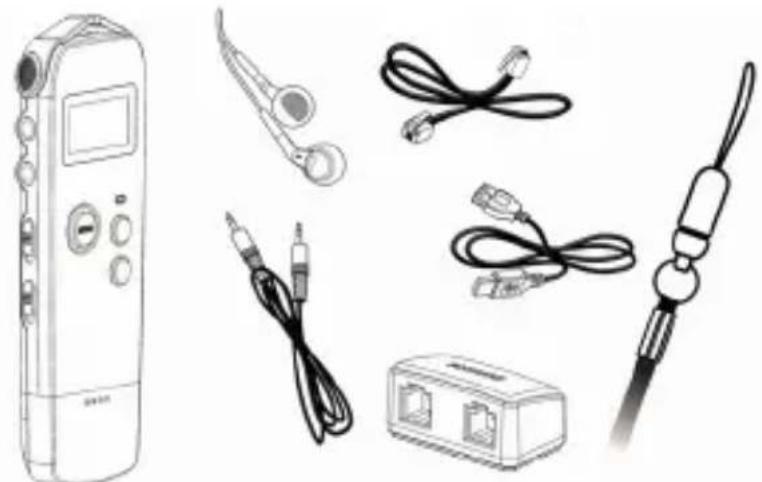


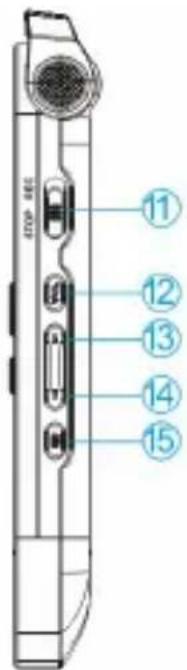
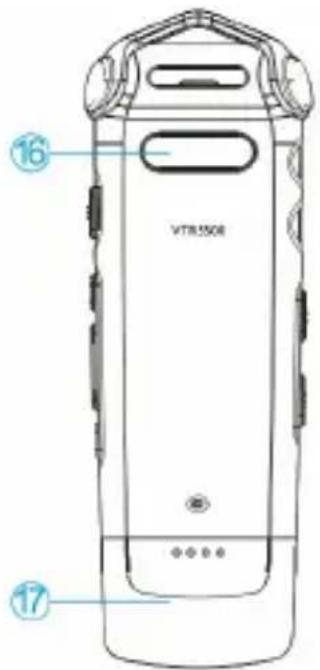
- Built-in Microphone
- MicrophoneJack(Linein)
- EarphoneJack
4.PowerOn/Off
5.HOLD
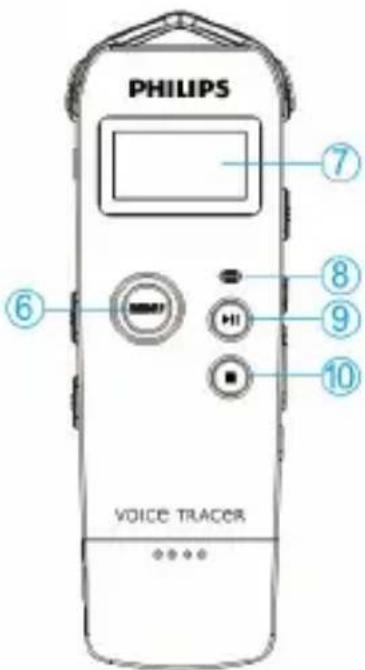
6.MenuButton - Display
8.Record/PlayIndicator
9.Play/PauseButton - StopButton, FileFolderSwitchButton
- RecordButton
12.VolumeButton - Volume Up, Previous Track, Fast Backward, Menu Selection
- Volume Down, Next Track, Fast Forward, Menu Selection
15.Delete
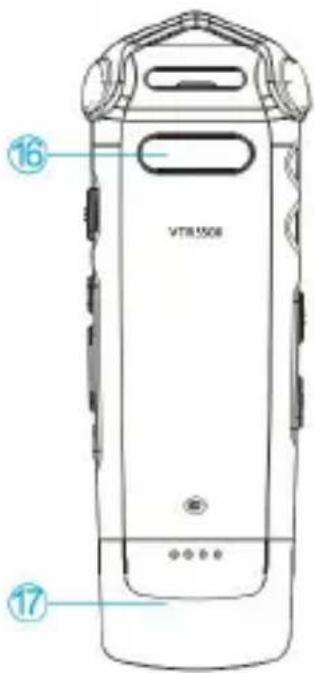
16.Speaker
17.USBPort
PowerOn/Off
Notice: pleaserechargethedeviceforthreehoursbeforeusing itforthefirsttime!
(1) WhenthepowerswitchisinOFF position, the device is cutoff from power and can't switch on.
(2) WhenthepowerswitchisslidtoON,th automaticallyandthendisplays"PHILIPS",seepicture below.

Thenthedevisedisplaysthe stoppedplayinginterface,and thenpressMENUbuttonfor2or3secondstoreturntothe maininterface.
The main interface includes four modes. The following four picturesshowthemodesrespectively:Voice,Music,Radioand SettingMode.
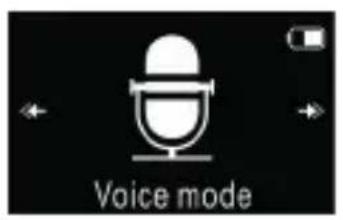
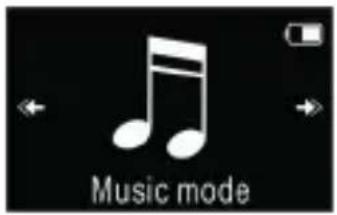
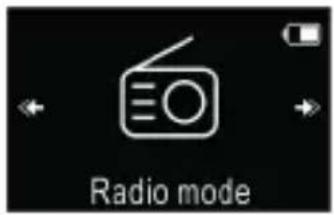

Note: Whennottakingvoicerecording, onanyotherinterface, userscanpressMENUbuttonfor2or3secondstoreturnto maininterface.
Fromnowon, the device's On/Off is controlled by the PLAY button as follows:
Switchhoff:Wheninpower-onstate,pressdownthePLAY buttonuntilthe“ByeBye”isdisplayed,andthenthedeviceis switchedoff.
Switchon:Wheninpower-offstate,pressdownthePLAY buttonuntilthestartuplogo“PHILIPS”isdisplayed.
Note:
- The device has been built-in lithium battery. If the devices shall be idle for a long time, please slid the powers switch to the "OFF" position.
- If the device cannot work normally, please make sure the device is not out of power.
- Whenthe device is recording, pleased on not cut the power, otherwise damaged file or malfunction may be resulted.
- Whenthebatteryindicator“”isdisplayed,please chargethedevicepromptly.
Recharge
(1)ConnectthedevicetoPCthroughUSBcable.
(2)Usespecialchargertorecharge.
Whenusingtheabovemethodstorecharge, thedeviceenter therechargingstate. Thebatteryindicatorshowsabatteryicon turningfromemptytofullrepeatedly, indicatingthatthedevice isrecharging.Undernormalcircumstance, thedevicecanbe fullyrechargedinaround3hours.Whenrecharging, keepthe powerswitchintheONposition.

KeyLock(HOLDFunction)
(1)SlidetheHOLDswitchtolockpositiontolockallthe
buttonsonthedevice,excepttheslideswitchofrecording.
Then "Hold" is displayed for awhile and disappears as
showninthefollowingpicture.
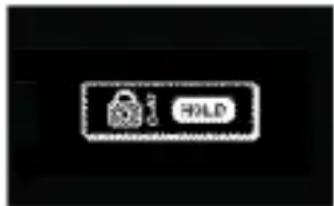
(2) Tounlockbuttons, pleaseslidetheHOLDswitchtoOFF.
PCConnection
ThedevicecanbeusedasaUSBmassstorageto convenientlystore, backupandmovefiles.Pulloffthecapon thebottomofthedevice. Connectthedevicetoafreeuse socketofacomputer,thevoicerecordercanautomaticallybe recognizedasaportabledevicewithouttheneedtoinstallany software.
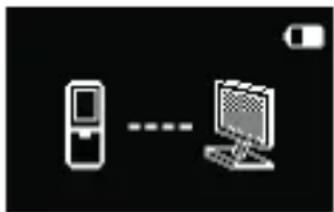
Note:
Whenmovingfilesintooroutofthedevice, pleasedonot disconnectthedevicefromthecomputer.
Beforeusingthedevice, pleasereadcarefullythefollowing instructions.
(1)Inthestopstateofvoicemode,pressSTOPbuttonto selectthefolderyouprefer.Note:WhenintheStopstate, pressSTOPbuttontoswitchbetweenfoldersA,B,C,Dand MUSIC.TherecordedfilecanbestoredinanyoftheA,B,C, Dfolder;eachfoldercanstoreupto99audiofiles.Ifone folderisfullwith99files,thesystemautomaticallystoresthe subsequentfilesinthenextfolder.Inthecasethatallfour foldersarefull,pleasedeletesomeunwantedfilestoenable recording.
(2)SlidetherecordingswitchtoRECtostartrecording;the "Record/Play"indicatorflickersred;pleaseplacethebuilt-in microphonetowardsthesourceofsound.
(3)PressPLAYbuttontopauserecording,the"Record/Play" indicatorflickersred,thedisplayshows"Pause".
(4)PressPLAYbuttonagaintoresumerecording.
(5)SlidetherecordingswitchtoSTOPtoendrecording,the devicereturnstothestoppedplayinginterfaceofcurrent recordedfile.
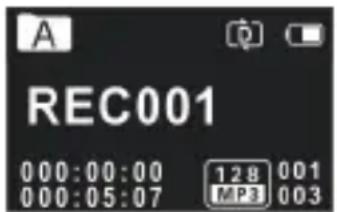
RecordingInterfaceReference:

IllustrationofRecordingInterface:
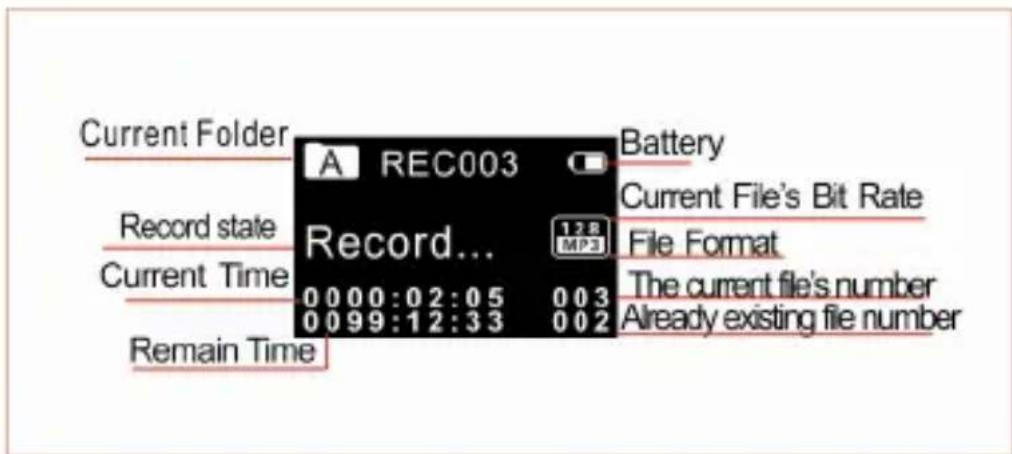
Note: Whenthelowbatteryiconoccurs, itmeansthebatteryis nearlyemptyandthesystemwillautomaticallyshutdown. If the deviceisrecording, thesystemwillautomaticallysavethe recordedfilethenshutdown. If the devicehaslowbattery, pleaserechargepromptly. Whenthedeviceistoshutdowndue tolowbattery, thefollowingiconwilldisplay.

Note:
- Prior to recording, please preset therecord type you need and the voice activation function.
- MakeatestrecordingtomakesurethattheVoiceTracer settingsarecorrect.
- Eachfoldercanstore99filesatmost,totally396files.(99 filesx4folders)
- Iftherecordingtimeexceedstheusablestorageofthe deviceorthenumberoffilesreachesthelimitof396,the recordingstops.Pleasedeletepartofrecordingormoveitto a computer.
- Whenrecording, pleasedonotcutoffpower, otherwise malfunction, lossordamageofrecordedfilemayoccur.
- Ifneedtorecordforalongtime,pleasechargethedevice beforerecording.
- Afullychargedbatterywillallowyoutorecordforapprox8 hours.
UseanExternalMicrophonetoRecord
When using an external microphone record, please first plug it into the Line in jack, and then record according to the
proceduresofbuilt-inmicrophone. Afteryouconnectthe externalmicrophone, the built-in microphone is disabled.
Pleasenotethattheplugoftheexternalmicrophonemustbe stereoplug,asshowninthepicturebelow.

Onthemaininterfaceyoucanselectthevoicemodewith“” or“”buttons, andthenshortlypressthemenubuttontoenter.

PleaserefertotheAudioStopinterfacebelow:
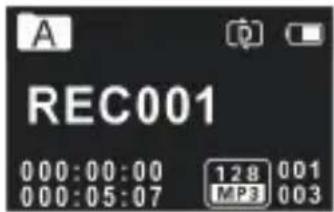
VoicePlaybackInterfaceSpecification:
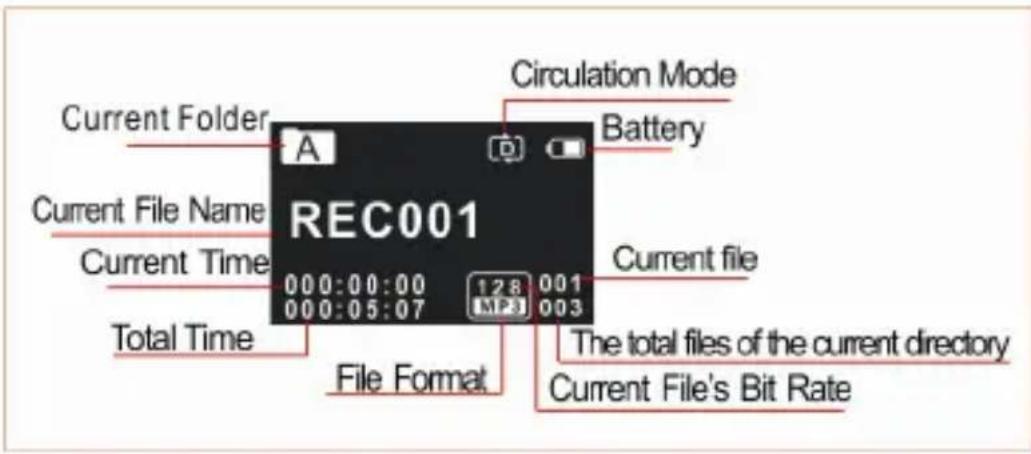
VoicePlayback
(1)IntheStopModeofrecordedfile,pressSTOPbuttonto selectthefolderyouprefer.
(2)Press“” or ▲”toselectafiletoplay.
(3)PressPLAYtostartplaying,and"Record/Play"indicator flickersgreen.
(4)Use“VOL”buttonand“” or “▲toadjustvolume.
(5)PressSTOPtostopplaying.Whentheplayingisstopped, pressdowntheMENUbuttonforabout2secondstoreturn tothemaininterface.
(6)Whenplaying, pressesPLAYtopause, "Record/Play" indicatorflickersgreen; pressPLAYagaintocontinue playing.
(7)Whenplaying,press“” or “▲”forafewsecondstofast forwardorbackward.
Note:
If the earphone is plugged in, the speaker is disabled.
PlayingModes
Afterthevoicefileisselected, press thePLAYbuttonshortlyto play. When playing, press theMENUbuttonshortlytopopup the following playing modes: RepeatModes, A-BReplay. See the belowinterfacereference:
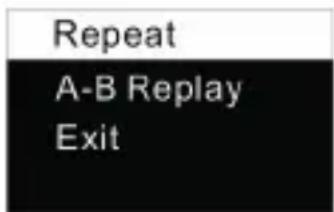
(1)RepeatModes
SelectRepeatModesshowninabovepicture,thenpress
MENUbuttontoenterrepeatmodesselectionmenu.Youcan choosetherepeatmodefromthemenuasshowninthe followingpicture:
Repeat one
Sequence
Repeat Folder
Random
Repeatone:repeatcontinuouslythecurrenttrack.
Sequence:Playtrackssequentiallyinselectedfolder. After playingallthetracksinthecurrentfolder, theplayingstops automatically.
Repeatfolder: Repeattracksonaplaylist.
Random:Playrandomlytracksinselectedfolder.
(2)A-BReplay
Choose“A-BReplay”fromthePlayingModes,thenpress MENUbuttontoenterA-BReplay.ForoperationsofA-B ReplaypleaserefertoA-BReplaysectionin“Musicplayback”.
DeleteFiles
Ontheinterfacewithstoppedplaying,presstheDELETE buttonforabout2seconds,theinterfaceofthefollowingpicture willappear.Belowarethepicturesofthedeletionoperations:
![graph LR A["Delete File\nDelete All\nExit"] --> B["MENU"] B --> C["Are you…" delet\nYes\nNo"] D["Delete File\nDelete All\nExit"] --> E["MENU"] E --> F["delete all\nYes\nNo"]](/content/2026/05/999699/images/7c75dd9cdd38c789462674f5d3191e064c85c43bff1090803ea3dd1f04db5da8.jpg)
Press“YES”todelete, “NO”tocancel; thenpressMENUbutton toexecute.
RecordSettings
Youcanchangesettingsaccordingtoyourpreference.
Ontheinterfacewithstoppedplaying,shortlypresstheMENU buttontopopupFunctionsMenu,thefunctionsinclude:Record type,DigitalNoiseReduction,VAControl,ListenIn,System time,Recordtimer,Autodivide.Seethebelowrelated referencepictures:
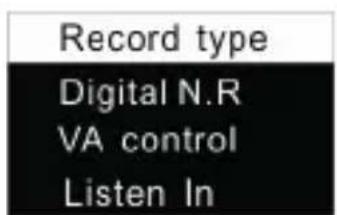

(1)Recordtype
FromtheFunctionsMenuselect"Recordtype", thenpress
MENUbuttontoenterRecordtypeMenu, in which there are four Record type to pestoselect: StereoREC, Standard REC, Long REC, and Line in REC". Seethe below related reference pictures:
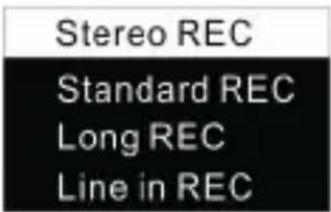
StereoRecord:MP3format,highsoundquality,bitrate:
128kbps.
StandardRecord:MP3format,goodsoundquality,bitrate: 32kbps.
LongRecord:MP3format,ordinarysoundquality,bitrate:8kbps.
Linein:MP3format,bitrateoftherecordingfiledependsonthe aboverecordtypes.
TelephoneRecord
Connect the telephone cable comewith the device and external telephone cable to telephone recording adapter. The operation is similar to recording with microphone.
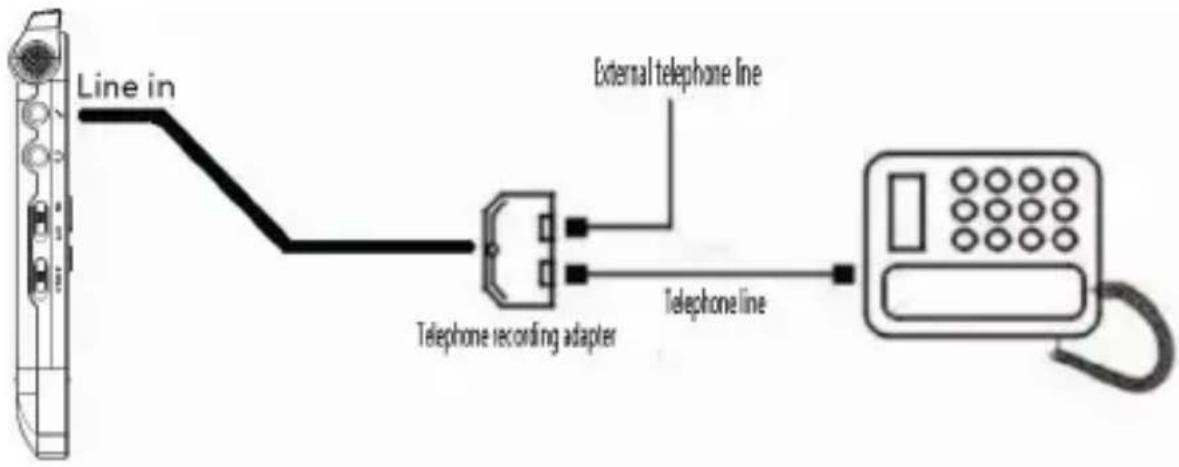
LineinRecord:
LineinRecordingisawayofrecordingsoundbyconnecting thedevicetoanaudioequipment'saudiooutputcorrectlyvia stereoaudiocable(audioequipmentssuchasradio,CD,VCD, DVDetc.).Usethestereoaudiocablecomewiththedeviceto connecttheaudioequipment'saudiooutputwith“Linein”jack ofthedevice.Therecordingoperationisthesameasrecording withmicrophone.BeforerecordingwithLineinjack,please adjustthevolumeofthesoundsourcetoasuitablelevel, otherwisetherecordedsoundmaylackfidelity.
(2)DigitalNoiseReduction
When the Digital Noise Reduction function is enabled, the system can effectively filter thenoise from soundsourced during recording, and then you can have clear recorded sound. See
thefollowingpicture:
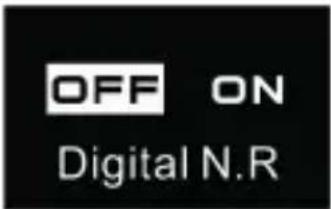
Note: This functions should only be used in noisy environment. It records in WAV format with bitrate of 384 kbps.
(3)Voice-activatedSetting
Apracticalfunctionofrecording,nobuttonoperationisneeded. Whenthefunctionisenabled,inthecourseofrecording,ifno voiceisdetected,thedevicewillautomaticallyypauserecording after3seconds;ifvoiceisdetectedagain,thedeviceresumes recording.Seethebelowrelatedreferencepicture:
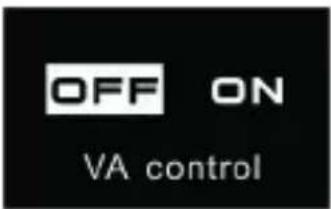
(4)Thelisteninfunction
AfteractivatingtheListeninfunction,youcanpluginan earphonetolistentothesoundwhichistoberecorded.Seethe Listeninfunctionsettinginterfacepictureasfollows:

(5)SystemTimeSetting
SeetheSystemTimesettinginterfaceasfollows:
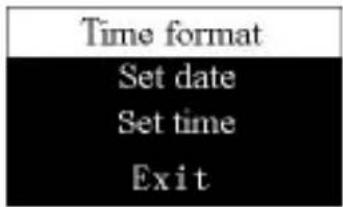
Onthisinterface,youcansetthecurrentsystemtimeand displayformat.
Forexample:select"TimeFormat"toshowthefollowingmenu:

Thereare2timeformatstochoose,namely12-hourformatand 24-hourformat.Thesystemdefaultis12-hourformat.
Choose“RealTime”, the following interface will popup:
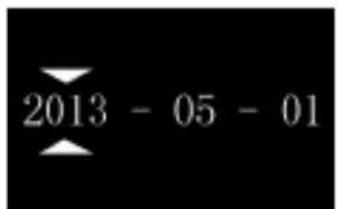

Onthisinterface, press "VOL" button and "or ▲" to set the
time.Press“VOL”buttontoselectyear,month,day,hour,
minuteandsecond;press"
▲” or “▼”tochangetherelevant
numbers.
(6)Recordtimersetting
Recordtimersetting:assystemtimeturnstothepre-settime, the device automatically starts recording. On the functions menu,choosethe"Recordtimer",thenpresstheMENUbutton toenter“Recordtimer”setting.Seethebelowreference picture:
Record timer
Auto REC source
Time length Exit
The first functionistosetthetimetostartrecording. For setting pleaserefertothebelowpicture:
Set date
Set time
Onthisinterface,youcansetastarttimeforautomatic recording.Forsettingtimepleasereferto"SystemTime Setting".
ThesecondfunctionisRECsourceselection. You can choose microphoneorradiochannelassoundsource.Press"
▲” or
“▼”toselect. Thesystemdefaultsoundsourceismicphone. Forchoosingsoundsourcepleaserefertothebelowpicture:
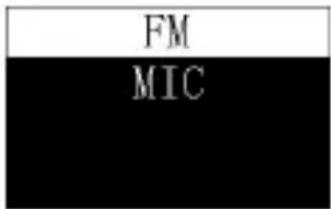
IfchoosetheradiochannelasaRECsourceandthereare savedchannelsinthesystem,thebelowinterfacewillshow;if there'snosavedradiochannelinthesystem,thesystemwill notifythatnosavedchannelavailable,andsetthechannelat 94.2MHZasdefault.

Channel1, channel2, channel3 aresavedchannels. Select theoneyouwanttorecord, thenpressMENUbuttonontoconfirm. Atthetimeofrecording, makesuretohavetheearphones connectedtothedevicetoenableradioreception.
Thethirdfunctionistherecordingduration.Youcansetthe recordingdurationonto30,60,120minutesorinfinite.The recordingdurationsettingasfollows:
《30MIN》
Duration
Note:whenusingrecordtimesetting,mustmakesurethe powerswitchisinONpositionwhenthesystemisoff. Otherwisetherecordtimecan'tbestartedatthesettime.
(7)Autodivide
During the course of recording, the autodivide feature automatically records into anewfile every 30 or 60 minutes.
Theautodivideinterfaceisasfollows:
OFF
30 minute
60 minute
Fromthemaininterface,youcanchoosemusicmodewith“” or“”buttons,andthenshortlypresstheMENUbuttonto enter, Music playback interface is as follows:

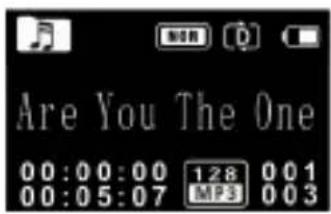
Notice: musicfilescanonlybeplayedwhentheyarein "MUSIC"folder.
Music playback Interface illustration:

PlayingMode
Youcanselectthetrackyouwantbypassing“” and ▲”, then press PLAY to play. When playing, shortly press the MENUbutton, the below menupopsup with modes of: Repeat, Equalizer,A-BReplay,Replaytimes,andReplaygap.Seethe

interfaceasfollows:
Repeat
Equalizer
A-B Replay
Replay Times
(1) Repeat
Afterselectingamenu, theselectedareaturnswhite. As
illustrated, the "Repeat" is selected, then press MENU button to
entertheRepeatModesSelectionMenu.Youcanchoosethe
preferredrepeatmodeasfollows:
Repeat one
Sequence
Repeat Folder
Random
Repeatone:repeatcontinuouslytheselectedtrack.
Sequence:Playsequentiallytracksinselectedfolder. After
playingallthetracksinthecurrentfolder, theplayingstops
automatically.
Repeatfolder: Repeattracksontheselectedplaylist.
Random:Playrandomlytracksinselectedfolder.
(2) Equalizer
From the Playing Menuselect the "Equalizer", press MENU
buttontoenter. The Equalizer includes: Normal, Rock, Pop,
Classic,Soft,Jazz,andDBB".Seethebelowpictures:
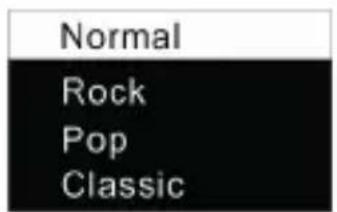
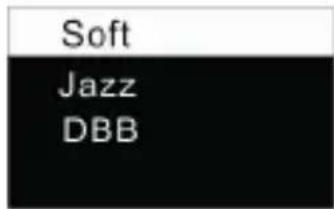
IntheEqualizerMode,youcanchoosemodewith“” and “” buttons,pressMENUbuttonontoconfirm.

(3) A-B Replay
From the Playing Menuselect the "A-BRepeat", press MENU button to enter.
SetA-BReplay
- Setthestartmark:Whenplaying,shortlypressMENUbutton todisplayPlayingMenu,thenshortlypress“” or “▲” to select“A-BReplay”mode,thenpressMENUbuttontoreturn toPlayingMenu.The“A”in“A-B”onLCDdisplayflickers,if youneedtoconfirmthestartpointA, shortlypress“” to makeconfirmation.
- Setthefinishmark: AftersettingmarkA, the "B" in "A-B" on LCDdisplayflickers, shortlypress "▼" tosetthefinishmark. The "A-B" is displayed on the LCD.Asthereplaymarks are fixedon "A-B", thesection between markA and B will be
replayedforspecifiedtimes.Afterplayingspecifiedtimes, the“A”in“A-B”flickerstowaitforsettingmarkA,andthe devicesresumesnormalplaying.IfA-BRepeatisnot needed,usethefollowingmethodtocanceltheA-BReplay mode.
- Cancellation: Shortlypress "PLAY" button to cancel the AB marks and pause playing.
- Shortlypress"STOP"buttontocanceltheABmarksand stopplaying.
- Shortlypress"MENU"buttontocanceltheABmarksand continueplaying.
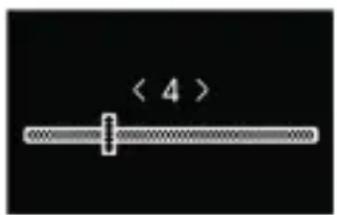
(4) Replay times
From the Playing Menuselect the "Replay times", then press
MENUbuttontoenterReplaytimessetting.Use“” a n▲“ ” to ▼ adjusttimes.Seethebelowinterfacepicture:
(5) Replay gap
Replaygapmeansthetimegapbetweenworepeats.Youcan
choosethe"Replaygap"fromthePlayingMenuthenpress
MENUbuttontoenterReplaygapsetting.Use"
▲” and▼” to
adjustReplaygapsetting.
DeleteFiles
Regarding the operation approach, pleaserefertotheDelete
FilesinAudioplaybacksection.
Thelyricsdisplayed
Productssupport"*.lrc"lyricsfiles,realizingthesynchronous
broadcastingofsongsandlyrics.
Note:
(1)Lyricsfile'snameandthenameofthesongfilesneedto beconsistent.
(2) If the current song file matches with lyrics file, them music mode icon in the top of the screen will appear, as follows

,ifnolyricsmatch,thennosignwillbedisplayedas
shownbelow.

(3) Ifthelyricsmatch, longpressthe"menu"buttontoenter thelyricsinterface, lyricsdisplaywillappear. To exit, short press"menu"buttontoreturntotheMusicMode.
Note:
Please plugin the earphones. They allow radioreception.
Soundcanonlybeheardintheearphones.
FromthemainmenuselectRadioMode, pressMENUbutton to enter. SeethebelowpictureofRadioMode:
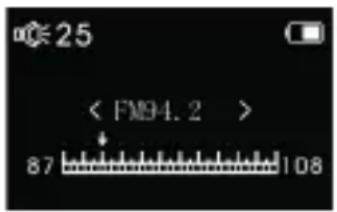
Note: please plugin the earphones. They allow radioreception.
Soundcanonlybeheardintheearphones.
IntheRadioMode, press“”or“”buttontochooseradio
frequency; pressMENUbuttontodisplaythefollowingmenu,
including: Autosearch, SaveChannel, FMrecord, Delete,
DeleteAll.


After Auto search is selected, the system automatically searches radio channels. When a radio channel is found, the channelwillbesavedautomaticallyandtheradiochannel
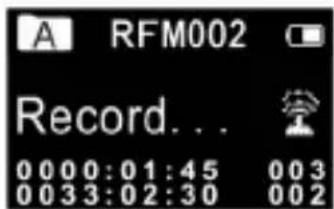
numberisshownonthedisplay.YoucanchooseSaveChannel tosaveit.Thedevicecanstore40radiochannelsatmost.After morethanoneradiochannelisstored,shortpress"PLAY"or "STOP"toswitchamongsavedradiochannelsinsequence. ChooseDeletetodeleteacurrentsavedchannelorDeleteall savedchannels.IfyouchooseFMrecord,thesystemstarts recordingtheradio,seetheinterfacepicturebelow:
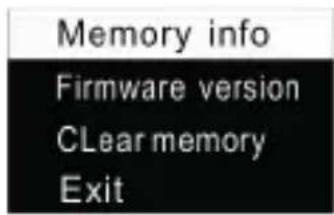
FromthemainmenuselectSettingmode,pressMENUbutton toenter.TheSettingmodeinterfaceisasfollows,including Backlight,Language,Autooff,ContrastSetting,memoryinfo, FirmwareVersionandClearmemory.

(1)BacklightTime
Thebacklighttimefunctioncanbesetat: 15,30,45,60 secondsandConstant.Ifthere'snooperationonthedevice afterthesettime,thebacklightisoffautomatically.Ifyouselect Constant,thebacklightisalwayson.Seethebelowpictureof BacklightTimesetting:

(2)Language
FromtheLanguagemenuyoucanchoosealanguageas systemlanguage.Seethefollowinginterfacepicture:

(3)Autooff
Ifthere'snooperationonthedeviceforasettime,thesystem automaticallyshutsdown.Ifthetimeissetat0,thesystemwill notautomaticallyshutdown.Seethebelowautooffpicture:

(4)Contrast
The higher the contrast, the whiter is the LCD display. Seethe below interface picture of adjusting contrast:

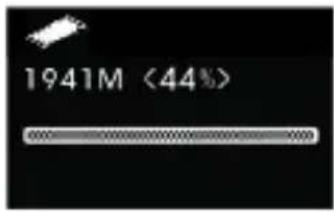
(5)Memoryinfo
Usethisfunctiontochecktheremainingcapac thefollowingpicture:
(6)FirmwareVersion
Youcancheckthedevice'sfirmwareversionbyusingthis
function.Seethebelowpicture:

(7)Clearmemory
Youcanformatthedevice'sinternalmemorybyusingthis
function.Seethebelowpicture:

Answerstothefrequentlyaskedquestionsarelistedhereto solvesimpleproblemsthatmayoccurwiththerecordingpen.If theproblemcannotbesolved,pleasecontactthedealerorvisit ourofficialwebsite:www.philips.com/support
Cannotswitchonthedevice:
The battery is empty, pleaserecharge promptly.
Cannotrecordwiththedevice:
Exceedthemaximumfilenumberorthedevice'sstorageisfull.
Pleasedeletesomerecordingsormovethemtootherstorage devices.
The device cannot play recorded audio:
(1) Thedevicemaybeinlockmode(HOLD). Slide the HOLDswitchtoOFF position.
(2)Thebatteryisempty,pleaserecharge.
Thedevicecannotstop,pause,playorrecord:
Thedevicemaybeinlockmode(HOLD).SlidertheHOLD switchtoOFFposition.
11TechnicalParameters
Storage
Internalstorage
Estimatedrecordingtime(4GB):approximately1080hourswith
LongRecordingmode,280hourswithStandardRecording
mode,68hourswithHighQualityRecordingmode.
Typeofinternalstorage:NANDFlash
Portablestorage(PC):Yes
Afullychargedbatterywillallowyoutorecordforapprox11
hours.
DimensionsandWeight
Wide×Long×High:36.8×106×12(mm)
Weight(withbattery):37g
Systemrequirement
OperatingSystem:Windows7/Vista/XP/2000,MacOSX,Linux
Port:USB
Recording
AudioFormat:MP3
StereoREC:bitrate:128kbps, format:MP3
StandardREC:bitrate:32kbps, format:MP3
LongREC:bitrate:8kbps, format:MP3
Operatingconditions
Temperature: 5° - 45° C
Humidity: 10%–90%, nocondensation
Warranty card
质保书
1
year warranty
一年质保
Type: VTR5500/5600
Serial nr:
Date of purchase
购买日期
Dealer's name, address and signature
销售商名称、地址及签字
www.philips.com/welcome
This document is printed on chlorine free produced paper Data subject to change without notice
This product was brought to the market by Speech Processing Solutions GmbH or one of its affiliates, further referred to in this document as SPS, which is the manufacturer of the product. SPS is the warrantor in relation to the product with which this booklet was packaged.
For China only
只限中国地区
Printed in China


Specifications subject to change without notice.
Trade marks are the property of Royal Philips or their respective owners.
© 2014 Speech Processing Solutions GmbH. All rights reserved. Philips and the Philips' shield emblem are registered trademarks of Koninklijke Philips N.V. and are used by Speech Processing Solutions GmbH under license from Koninklijke Philips N.V. All trademarks are the property of their respective owners.
Document version 1.0,2014-01-01

- 使用手册
- 目录
- 按键锁定(HOLD 功能)
- PRODUCTFEATURES
- SAFETY
- HEARINGSAFETY
- WHAT'SINTHEBOX
- POWERON/OFF
- NOTE
- RECHARGE
- KEYLOCK(HOLDFUNCTION)
- PCCONNECTION
- RECORDINGINTERFACEREFERENCE
- ILLUSTRATIONOFRECORDINGINTERFACE
- USEANEXTERNALMICROPHONETORECORD
- VOICEPLAYBACKINTERFACESPECIFICATION
- VOICEPLAYBACK
- PLAYINGMODES
- DELETEFILES
- RECORDSETTINGS
- (1)RECORDTYPE
- TELEPHONERECORD
- LINEINRECORD
- (2)DIGITALNOISEREDUCTION
- (3)VOICE-ACTIVATEDSETTING
- (4)THELISTENINFUNCTION
- (6)RECORDTIMERSETTING
- (7)AUTODIVIDE
- PLAYINGMODE
- REPEAT
- REPEAT ONE
- EQUALIZER
- A-B REPLAY
- SETA-BREPLAY
- REPLAY TIMES
- REPLAY GAP
- THELYRICSDISPLAYED
- (3)AUTOOFF
- (4)CONTRAST
- (5)MEMORYINFO
- CANNOTSWITCHONTHEDEVICE
- CANNOTRECORDWITHTHEDEVICE
- THE DEVICE CANNOT PLAY RECORDED AUDIO
- THEDEVICECANNOTSTOP,PAUSE,PLAYORRECORD
- 11TECHNICALPARAMETERS
- STORAGE
- DIMENSIONSANDWEIGHT
- SYSTEMREQUIREMENT
- RECORDING
- OPERATINGCONDITIONS
- WARRANTY CARD
- 质保书
- 1
Brand : PHILIPS
Model : Voice Tracer VTR5600
Category : Dictaphone