
SV421DD - Switch StarTech.com - Free user manual and instructions
Find the device manual for free SV421DD StarTech.com in PDF.


| Product Type | KVM Switch (Keyboard, Video, Mouse) |
| Model Number | SV421DD |
| Number of Ports | 4 |
| Video Input | DVI-D Dual Link (x4) |
| Video Output | DVI-D Dual Link (x1) |
| Console Ports | DVI-D, USB (2x for keyboard/mouse), Audio (3.5mm) |
| Max Resolution | 2560 x 1600 @ 60Hz (Dual Link DVI) |
| Supported USB Devices | USB 2.0 keyboard and mouse |
| Audio Support | Yes, separate microphone and speaker ports |
| Switching Method | Front panel buttons, hotkeys, or RS-232 serial |
| Dimensions (W x D x H) | 20.0 cm x 7.5 cm x 4.5 cm |
| Weight | 0.5 kg |
| Power Supply | External AC adapter, 5V DC, 2A |
| Power Consumption | < 10W |
| Operating Temperature | 0°C to 40°C (32°F to 104°F) |
| Storage Temperature | -20°C to 60°C (-4°F to 140°F) |
| Humidity (Non-condensing) | 0% to 80% RH |
| Housing Material | Metal (steel) |
| Key Features | Multi-platform support (PC, Mac, Sun), auto-scan mode, EDID pass-through |
| Included Accessories | DVI-D cables (4x), USB cable, audio cable, power adapter, mounting brackets |
| Maintenance | Wipe with dry cloth; no liquid cleaners. Ensure proper ventilation. |
| Safety Compliance | FCC, CE, RoHS |
| Spare Parts / Repairability | Only power adapter replaceable; no user-serviceable parts inside. Contact StarTech.com support. |
| Warranty | 2 years (standard) |
Frequently Asked Questions - SV421DD StarTech.com
User questions about SV421DD StarTech.com
0 question about this device. Answer the ones you know or ask your own.
Ask a new question about this device
Download the instructions for your Switch in PDF format for free! Find your manual SV421DD - StarTech.com and take your electronic device back in hand. On this page are published all the documents necessary for the use of your device. SV421DD by StarTech.com.
USER MANUAL SV421DD StarTech.com
DUAL-DISPLAY KVM SWITCH
StarView Dual-Display KVM Switch

SV221DD
SV421DD
Instruction Guide
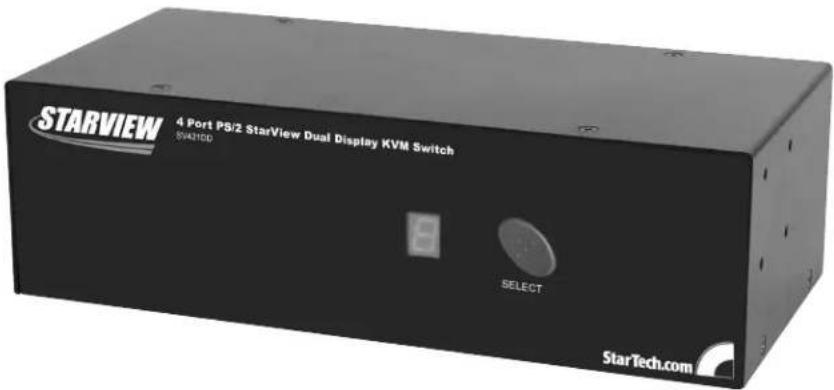
*SV421DD shown
* Actual product may vary from photo
StarTech.com

The Professionals' Source For Hard-to-Find Computer Parts
FCC COMPLIANCE STATEMENT
This equipment has been tested and found to comply with the limits for a Class B digital device, pursuant to part 15 of the FCC Rules. These limits are designed to provide reasonable protection against harmful interference in a residential installation. This equipment generates, uses and can radiate radio frequency energy and, if not installed and used in accordance with the instructions, may cause harmful interference to radio communications. However, there is no guarantee that interference will not occur in a particular installation. If this equipment does cause harmful interference to radio or television reception, which can be determined by turning the equipment off and on, the user is encouraged to try to correct the interference by one or more of the following measures:
- Reorient or relocate the receiving antenna.
- Increase the separation between the equipment and receiver.
- Connect the equipment into an outlet on a circuit different from that to which the receiver is connected.
- Consult the dealer or an experienced radio/TV technician for help.
Table of Contents
Introduction 2
Installation 2
Using Your KVM Switch .... 3
Troubleshooting 3
Technical Specifications .... 4
Technical Support 5
Warranty Information .... 5
Introduction
Thank you for purchasing a StarTech.com StarView dual-display KVM switch. Now you can share your dual-display monitors, keyboard, and mouse between two (SV221DD) or four (SV421DD) dual-head computers. You'll be able to access and control your dual-head PCs using just one console.
Features
- Allows you to share two monitors, one PS/2 mouse, and one PS/2 keyboard between multiple computers
• Supports Plug and Play specifications - Supports PS/2 keyboards and mice, including M/S Intellimouse ^ , Intellimouse Explorer ^ , and Logitech Netmouse ^
• Supports VGA resolution up to 1920x1440 - Support for multiple operating systems: Windows XP, 2000, Me, 98, 95, DOS, Linux, etc.
Package Contents
This package should contain:
• 1 x StarView dual-display KVM switch
Installation
- Make sure that all your computers and peripherals are turned off.
- Connect your keyboard, monitors, and mouse to the console ports (with the white background) on the back of the KVM switch.
- Connect each of your PCs to one of the numbered PC ports on the back of the switch. You can use individual standard PS/2 keyboard, PS/2 mouse, and video cables to connect the KVM switch to your PCs.
Note: Your KVM switch is powered by the PS/2 ports. Once your KVM switch is connected to your PC's PS/2 ports, the KVM is powered. - Turn on your connected computers. Do not perform any activities on the KVM switch until the PCs have properly booted.
Using Your KVM Switch
There are two ways to access your connected computers: the front panel pushbutton or a hotkey sequence.
Using the Pushbutton
Pressing the pushbutton on the front of the KVM switch allows you to scroll through your computers sequentially.
Using the Hotkey Commands
A keyboard hotkey sequence consists of three keystrokes. Each hotkey sequence starts with two Scroll Lock keystrokes. You must strike the Scroll Lock key twice in two seconds or less in order for the hotkey sequence to be acknowledged.
| Command Hotkey Sequence Description | ||
| Select PC ScrLk + ScrLk + 1 (2, 3, 4) Selects the PC plugged into Port 1 (2, 3, 4) | ||
| Next lower PC ScrLk + ScrLk + Up Selects the next (lower) PC. | ||
| Next higher PC ScrLk + ScrLk + Down Selects the next (higher) PC. | ||
| Start Autoscan ScrLk + ScrLk + S Starts autoscan mode. You can quit autoscan mode by pressing any key. | ||
| Autoscan Beep ScrLk + ScrLk + B Toggles on/off the confirmation beep while in autoscan mode. | ||
| Reset KVM | ScrLk + ScrLk + End | Resets the KVM switch. |
Troubleshooting
Keyboard/mouse problems
- You should have connected your keyboard, mouse, and monitor to the KVM switch before connecting the switch to your computer. If you reversed this process, try rebooting your PCs.
- Make sure the mouse/keyboard are properly connected to the KVM switch and that you have installed the proper drivers for your mouse/keyboard.
- Try rebooting your KVM switch by pressing ScrLk + ScrLk + End.
- If your keyboard/mouse came unplugged while in operation, you may need to reboot your PCs in order to get the switch to recognize your keyboard/mouse again.
Video problems
- If your screen won't show properly on your monitor, first make sure that all your cables are firmly seated in their proper ports.
- If your screen is coming up blank or striped, the resolution on your PC may be higher than the maximum resolution supported by the KVM (VGA 1920 x 1440). Adjust the screen resolution and frequency until they are in the supported range.
- If there is ghosting, speckles or stripes on your screen, there may be excessive electromagnetic interference from an external source. Check the path of your video cable for strong electromagnetic sources like motors or power cables. Try and keep your video cables as far as possible from these external sources.
Technical Specifications
| SV221DD SV421DD | ||
| User Ports 1 1 | ||
| Computer Ports 2 4 | ||
| VGA Resolution 1920 x 1440 (Maximum Pixels) | 1440 1920 x 1440 | |
| PC Connectors: Keyboard 2 x PS/2 6-pin mini Din female 4 x PS/2 6-pin mini Din female Mouse 2 x PS/2 6-pin mini Din female 4 x PS/2 6-pin mini Din female Monitor 4 x HDB-15 female 8 x HDB-15 female | ||
| Console Connectors: Keyboard 1 x PS/2 6-pin mini Din female 1 x PS/2 6-pin mini Din female Mouse 1 x PS/2 6-pin mini Din female 1 x PS/2 6-pin mini Din female Monitor 2 x HDB-15 female 2 x HDB-15 female | ||
| Power | PS/2, DC 9V 500mA (optional) | PS/2, DC 9V 500mA (optional) |
| Dimensions L x W x H | 3.4 x 5.5 x 2.4" (86 x 140 x 60mm) | 4.3 x 8.7 x 2.6" (110 x 220 x 66.5mm) |
| Weight | 1.14 lbs (520g) | 2.2lbs (1kg) |
| Operating Temp. | 32~104°F (0~40°C) | 32~104°F (0~40°C) |
| Storage Temp. | -4~140°F (-20~60°C) | -4~140°F (-20~60°C) |
| Operating Humidity | 0~90% RH, non-condensing | 0~90-% RH, non-condensing |
| Safety Standards | FCC, CE | FCC, CE |
Technical Support
The following technical resources are available for this StarTech.com product:
On-line help:
We are constantly adding new information to the Tech Support section of our web site. To access this page, click the Tech Support link on our homepage, www.startech.com. In the tech support section there are a number of options that can provide assistance with this card.
Knowledge Base - This tool allows you to search for answers to common issues using key words that describe the product and your issue.
FAQ - This tool provides quick answers to the top questions asked by our customers.
Downloads - This selection takes you to our driver download page where you can find the latest drivers for this product.
Call StarTech.com tech support for help:
USA/Canada: 1-519-455-4931
UK/Ireland/Europe: 00-800-7827-8324
Support hours: Monday to Friday 9:00AM to 5:00PM EST (except holidays)
Warranty Information
This product is backed by a one-year warranty. In addition, StarTech.com warrants its products against defects in materials and workmanship for the periods noted below, following the initial date of purchase. During this period, the products may be returned for repair, or replacement with equivalent products at our discretion. The warranty covers parts and labor costs only. StarTech.com does not warrant its products from defects or damages arising from misuse, abuse, alteration, or normal wear and tear.
Limitation of Liability
In no event shall the liability to StarTech.com Ltd. (or its officers, directors, employees or agents) for any damages (whether direct or indirect, special, punitive incidental, consequential, or otherwise), loss of profits, loss of business, or any pecuniary loss, arising out of related to the use of the product exceed the actual price paid for the product.
Some states do not allow the exclusion or limitation of incidental or consequential damages. If such laws apply, the limitations or exclusions contained in this statement may not apply to you.
- DUAL-DISPLAY KVM SWITCH
- Instruction Guide
- FCC COMPLIANCE STATEMENT
- Table of Contents
- Introduction
- Features
- Package Contents
- Installation
- Using Your KVM Switch
- Using the Pushbutton
- Using the Hotkey Commands
- Troubleshooting
- Keyboard/mouse problems
- Video problems
- Technical Support
- On-line help:
- Warranty Information
- Limitation of Liability
Brand : StarTech.com
Model : SV421DD
Category : Switch