
A140 - Smartphone DEXP - Free user manual and instructions
Find the device manual for free A140 DEXP in PDF.


Pick your language and provide your email: we'll send you a specifically translated version.
| Product Type | Smartphone |
| Brand | DEXP |
| Model | A140 |
| Display Size | 5.5 inches |
| Processor | Quad-core 1.3 GHz |
| RAM | 2 GB |
| Internal Storage | 16 GB |
| Battery Capacity | 2500 mAh |
| Rear Camera | 8 MP |
| Front Camera | 5 MP |
| Operating System | Android 8.1 (Go Edition) |
| Connectivity | 4G LTE, Wi-Fi 802.11 b/g/n, Bluetooth 4.2 |
| SIM Card | Dual SIM (Micro-SIM) |
| Dimensions | 145 x 72 x 9 mm |
| Weight | 150 g |
| Charging Port | Micro USB |
| Audio Jack | 3.5 mm |
| Safety | Use only approved chargers and batteries. Do not expose to extreme temperatures. |
| Maintenance | Clean with a soft, dry cloth. Avoid moisture and dust. |
| Repairability | Spare parts such as battery and display are available through authorized service centers. |
Frequently Asked Questions - A140 DEXP
How do I insert the SIM card?
Turn off the device. Locate the SIM tray on the side of the phone. Use the provided ejector tool to push into the small hole to pop out the tray. Place the SIM card in the tray with the gold contacts facing down, then reinsert the tray.
How can I extend battery life?
Reduce screen brightness, turn off Bluetooth and Wi-Fi when not in use, close background apps, and disable location services for apps that don't need them.
How do I perform a factory reset?
Go to Settings > Backup & reset > Factory data reset. Confirm the action. Note: This will erase all data on the phone. Back up important data first.
Can I expand the storage?
Yes, the DEXP A140 supports a microSD card up to 32 GB. Insert the card into the dedicated slot in the SIM tray.
How do I take a screenshot?
Press and hold the Power button and the Volume Down button simultaneously for a few seconds until the screen flashes.
What should I do if the phone freezes?
Press and hold the Power button for about 10 seconds until the device restarts. If the issue persists, try a battery pull (if removable) or contact support.
How do I connect to Wi-Fi?
Swipe down from the top of the screen to open the notification panel. Tap the Wi-Fi icon to turn it on, then select your network from the list and enter the password.
Is the DEXP A140 waterproof?
No, the device is not waterproof. Avoid exposure to water and moisture. Use a protective case if needed.
How do I update the software?
Go to Settings > About phone > System updates. Tap Check for updates and follow on-screen instructions. Ensure you have a stable Wi-Fi connection.
Where can I find the user manual?
The user manual can be downloaded in PDF format from notice-facile.com for free. Visit the product page for the DEXP A140 and click the download button.
User questions about A140 DEXP
0 question about this device. Answer the ones you know or ask your own.
Ask a new question about this device
No questions yet. Be the first to ask one.
Download the instructions for your Smartphone in PDF format for free! Find your manual A140 - DEXP and take your electronic device back in hand. On this page are published all the documents necessary for the use of your device. A140 by DEXP.
USER MANUAL A140 DEXP
natural_image
Abstract geometric logo design with stylized arrow-like shapes (no text or symbols)A140
natural_image
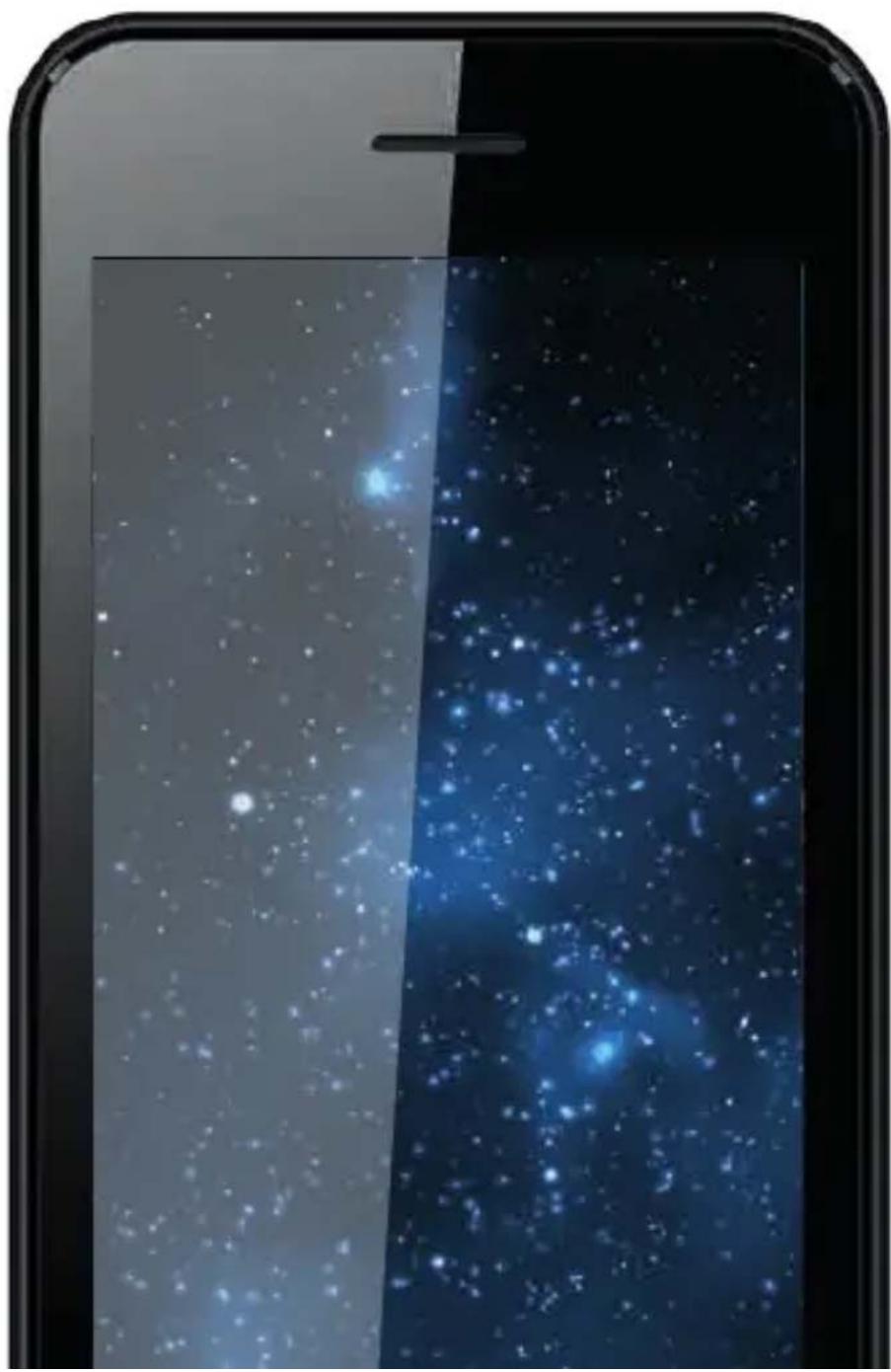
Smartphone displaying a starry night sky with blue and white stars against a dark background (no text or symbols visible)natural_image
Illustration of a smartphone displaying a hand icon with Wi-Fi signal waves and a download arrow (no text or symbols)natural_image
Line drawing of a smartphone with a hand cursor clicking a circular button (no text or symbols)natural_image
Illustration of a smartphone with finger icons and a right-pointing arrow, no text or symbols presentnatural_image
Diagram of a smartphone with a hand gesture and directional arrows indicating finger movement (no text or symbols)natural_image
Abstract geometric logo design with interlocking shapes (no text or symbols)

Manual assistant
Powered by Anthropic
Waiting for your message
Product information
Brand : DEXP
Model : A140
Category : Smartphone