
ET1S-G - Media Server NovaStar - Free user manual and instructions
Find the device manual for free ET1S-G NovaStar in PDF.


| Product Type | Media Player / Controller |
| Brand | NovaStar |
| Model | ET1S-G |
| Software | Kompass FX1 |
| App Control | Visual Intelligent Control Platform (MCP) |
| Media Import | Direct drag, batch import, folder import |
| Program Editing | Layer-based, drag-and-drop, resizing, properties adjustment |
| Playback Control | Pause, play, stop per program; layer-level control |
| Program Jump | Set action after program ends; manual sort |
| Main Media | Select primary layer for timing and switching |
| External Control Port | TCP/IP, port range 1024-65535 |
| Dimensions (approx) | 200 x 150 x 35 mm |
| Weight (approx) | 0.5 kg |
| Power Supply | DC 12V, 2A |
| Connectivity | Ethernet, USB, HDMI |
| Cooling | Passive (no fan) |
| Operating Temperature | 0°C to 40°C |
| Storage Temperature | -10°C to 60°C |
| Humidity | 10% to 90% (non-condensing) |
| Maintenance | Clean with dry cloth; avoid liquids |
| Safety | Use only provided power adapter; keep away from water |
| Spare Parts | Power adapter, mounting kit available |
| Repairability | No user-serviceable parts; contact support |
Frequently Asked Questions - ET1S-G NovaStar
User questions about ET1S-G NovaStar
0 question about this device. Answer the ones you know or ask your own.
Ask a new question about this device
Download the instructions for your Media Server in PDF format for free! Find your manual ET1S-G - NovaStar and take your electronic device back in hand. On this page are published all the documents necessary for the use of your device. ET1S-G by NovaStar.
USER MANUAL ET1S-G NovaStar
natural_image
Abstract geometric composition of colorful 3D shapes (no text or symbols)Quick Start Guide


Appearance
Front Panel

Rear Panel

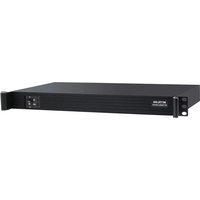
* The product pictures shown in this guide are for illustration purpose only. Actual product may vary.

Applications

flowchart
graph TD
    A["Image of landscape"] --> B["Media Files"]
    B --> C["1x 4K Output / 4x 2K Outputs"]
    C --> D["Laser Pointer"]
    C --> E["Keyboard"]
    C --> F["Mouse"]
    C --> G["Router"]
    C --> H["VICP"]
    C --> I["Monitor"]
    B --> J["Device"]
    J --> K["Output Unit"]
    K --> L["Output Units"]
3
Software Operations
The ET1S-G integrates Kompass FX1 multimedia playback software, with various operations such as adding media, editing and playing programs.
3.1 Add Media Files
Kompass FX1 supports batch file import and folder import. You can import the media files via the following methods:
• Directly drag single media file, multiple media files or folders in Media Library to automatically add the media.
- Click 📋 in the lower-left corner of Media Library, then select to add a local file or folder to proceed with the import.

Add media files or folders
Note
The user interface and functionality may vary depending on the actual version of Kompass FX1 you have obtained.
3.2 Edit Programs
- Select the target media file in Med Library and drag it to the desired layer in a program or the stage editing area.
- Drag and drop the layers in the stage editing area to quickly adjust their position. Drag the eight dots the edges of the layers to quickly resize them.

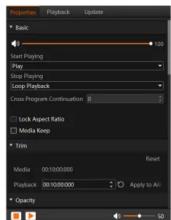
- Click the layer and set its playback properties in the Properties area on the right.
- Edit the remaining layers of the program one by one to complete the editing of the current program.
3.3 Play Programs
After completing the layer editing, click the button to the left of the program name to play the program as you like.

Play the program.

Pause the program playback.

Stop playing all the programs.
Playback Control
You can pause and play of individual layers in the Playback area on the right.
Click 📄 to the right of the layer to pause the playback.


Program Jump
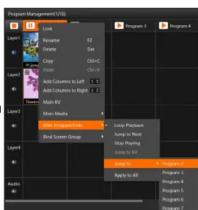
Right click a program to open the context menu and select After Program Ends where you can set the action after the current program ends to manually sort the playback order.
Main Media: Set which layer is used as the main media. The playback timing and program switching are all based on the main media.
3.4 App Control
The ET1S-G supports control via an App named Visual Intelligent Control Platform (VICP), you need to enable the listening port for the external control.
- In Kompass FX1, navigate to Settings > External
Control to open the external control window. - Select the Network tab and check the box in front of TCP/IP
- Enter the listening port number in the text box next to Port.
The value ranges from 1024 to 65535. - Click Listen to enable the listening.

Note
For operation methods when using the App, please refer to the user manual of the App in advance.
*The software pictures given in this guide are used for illustration purposes only. The actual user interface may vary slightly due to product enhancement. The content of the pictures can be slightly different from reality, such as the media files, form and position of software windows and more.

Brand : NovaStar
Model : ET1S-G
Category : Media Server