
AF291P - Cassette player LG - Free user manual and instructions
Find the device manual for free AF291P LG in PDF.
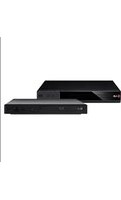


| Product Type | Video Cassette Recorder (VCR) |
| Model | LG AF291P |
| Dimensions (W x H x D) | 360 x 94 x 270 mm |
| Weight | 3.4 kg |
| Power Supply | 200-240V~, 50Hz |
| Power Consumption | Approx. 18 W (Energy Saving mode: 3 W) |
| Video Head System | Rotary 2 heads, helical scanning |
| Tape Speed | 23.39 mm/sec (SP), 11.69 mm/sec (LP) |
| Tape Format | 12.7 mm (0.5 inch) tape width |
| Max Recording Time | 4 hours (SP with E-240 tape), 8 hours (LP with E-240 tape) |
| Rewind Time | Approx. 180 sec (E-180 tape) |
| Operating Temperature | 5°C - 35°C |
| Operating Humidity | Less than 80% |
| Timer | 7 event / 1 month programmable timer |
| Television System | CCIR standard (625 lines, 50 fields), PAL/SECAM colour |
| Recording Format | PAL/MESECAM |
| RF Output | UHF channels 22-68 (adjustable) |
| Key Features | HQ picture enhancement, ACMS, LP recording/playback, 16:9 Wide-screen, Child Lock, Auto Head Cleaner, Quick Set Recording, Logic & Picture Search, Auto Tracking, Energy Saving function, ICON OSD |
| Maintenance | Auto Head Cleaner cleans heads automatically when cassette is inserted or ejected; manual cleaning may be needed over time |
| Safety Precautions | Avoid direct sunlight, moisture, dust, vibration; unplug during storms; do not operate if damaged; only qualified service personnel should repair; do not remove back cover |
| Reparability | Only qualified service personnel should attempt repairs; no user-serviceable parts inside |
Frequently Asked Questions - AF291P LG
User questions about AF291P LG
0 question about this device. Answer the ones you know or ask your own.
Ask a new question about this device
Download the instructions for your Cassette player in PDF format for free! Find your manual AF291P - LG and take your electronic device back in hand. On this page are published all the documents necessary for the use of your device. AF291P by LG.
USER MANUAL AF291P LG
Before connecting, operating or adjusting this product, please read this instruction booklet carefully and completely.

Position your VCR so that no bright light or sunlight falls directly onto it.
Care should be taken not to expose your VCR to any unnecessary vibration, moisture, dust or heat.
During electrical storms it is advisable to unplug both the aerial cable and mains plug to prevent accidental damage to your VCR and TV.
Do not operate your VCR if it is damaged. Your VCR should not be repaired by anyone except qualified service personnel.
Never remove the back cover of your VCR as this can expose you to very high voltage and other hazards. If your VCR does not operate properly, please check the Troubleshooting Check List (see p. 28). If your VCR still does not operate properly, unplug it and call your dealer.

This product is manufactured to comply with the radio interference requirements of EEC DIRECTIVE 89/336/EEC, 93/68/EEC and 73/23/EEC.

Just to name a few examples of the extraordinary features:
• HQ (High Quality) picture enhancement system
• Programmable 80 channel memory with frequency synthesised tuner
• ACMS (Automatic Channel Memory System)
• 7 event/1 month programmable timer
• Recording and playback for 16:9 wide-screen format
• Shuttle Controls (AF491P)
• LP - Long Play - recording & playback
• Energy Saving function
• ICON OSD (On Screen Display)
• NTSC playback on PAL TV
- Logic & Picture Search
• Child Lock
• Auto Head Cleaner
• Auto Power on and Play
• Frame advance & Slow motion functions (AF491P)
- Still function
• Real Time Counter
- Quick Start function
• Auto Tracking System

Welcome to LG
Thank you for buying this LG video cassette recorder Model AF491P/AF291P.
| Description | 2 - 5 | Advanced Operations | 19 - 26 |
| Precautions & features | 2 | Quick Set Recording (QSR) | 19 - 20 |
| Remote Control Location & function | 4 | Timer Recording using On Screen | |
| Your VCR's Controls | 5 | Display | 21- 22 |
| Setting Up | 6 - 14 | Energy Saving | 23 |
| Connecting to a TV & Decoder | 6 | On Screen Display | 23 |
| Tuning in a video channel on your TV | 7 - 8 | Tape Counter Memory Stop | 24 |
| How to use the main menu | 9 | Child Lock | 24 |
| Tuning in TV Stations Automatically | 10 | Wide Screen Compatibility (16:9) | 25 |
| Tuning in TV Stations Manually | 11 - 12 | Automatic Memory Power Shut-Off | 26 |
| Changing the order of TV Stations | 13 | Automatic Switch Off | 26 |
| Deleting & Selecting TV Stations | 14 | Video Doctor (Self-Diagnosis) | 26 |
| Basic Operations | 15 - 18 | Helpful Hints | 27 - 28 |
| Playing a tape | 15 - 16 | Tape Copying | 27 |
| Setting the Colour System | 17 | Specifications | 27 |
| Setting the Decoder | 17 | Troubleshooting Check List | 28 |
| Setting the Clock Manually | 18 |
Remote Control Location & Function
To install batteries: Your REMOTE CONTROL HANDSET is powered by two AA type batteries.
- To insert them, push the tab backwards and lift off the cover of the handset.
- Put the two batteries into the compartment making sure the + and - are correctly positioned.
- Replace the cover.


Each button on your VCR has the same function as its corresponding button on the remote control handset.


Controls
Your VCR's
Connecting
To a TV & Decoder
Using your VCR very first time
Following picture will display on the TV screen when you have just connected your video recorder for the very first time.
The following picture will be displayed on the TV screen when you have just connected your video recorder for the very first time.
To tune TV stations, follow steps 3 to 4 as shown in "ACMS" (see p.10).


The guidance given on this page is the most common form of connection. However, please check with your manufacturer's instruction books for specific information. Make sure all connections are made with both your VCR and additional appliance unplugged from the mains to avoid damaging your equipment. Connecting a VCR using a SCART lead is one of the best ways to achieve optimum sound and picture quality from video-tape playback.


Your TV receives signals from the video recorder (VCR) like another TV station. You have to select a channel number on your TV and tune it in so that you may watch video tapes.
If you connect a monitor or a TV set equipped with a SCART socket, this adjustment will not be necessary; simply select the AV mode on your TV.
1
Make sure that you have correctly installed your VCR as described earlier in this book.
Press POWER to turn on your VCR.

Turn on your TV.
2
Insert a pre-recorded video tape into your VCR and press PLAY on the remote control.

Select a TV channel number on which you wish to watch videos.
Don't worry if you don't have a video tape to play at this stage! If you switch your VCR on and continue stages 3~4, instead of seeing video playback, tune your TV until you see a bright blue screen.
3
Tune this channel until the video picture is sharp and the sound is clear.
If you have used a SCART cable, you will not have to tune your TV; simply select the AV channel. The AV channel is already pre-tuned for optimum video playback on your TV.
4
Store this channel on your TV.
You will need to look at the TV instruction book if you do not know how to do this.
On your TV
Video channel
Tuning in a
The output frequency of this video recorder (VCR) is set at UHF channel 36. If channel 36 is already used by another TV station, or if the picture is distorted, you can change the transmitter channel of your VCR. Stages 5~8 will show you how to change the output frequency of your VCR.
Tuning in a Video channel On your TV
Make sure that you have correctly installed your VCR and successfully tuned in a dedicated video channel on your TV. If you do not tune in a dedicated video channel on your TV you will be unable to view and record video tapes!
5
Only carry out stages 5 ~ 8 if you cannot obtain clear video play-back as described in stages 1 ~ 4.
Select a TV channel number on which you wish to watch video's.
Make sure that your VCR is in power off mode (only the clock will be displayed).
6
Hold down both PROG. ▲ and ▼ on the front of your VCR for more than 4 seconds.
RF C36 will appear in the VCR display.

7
Press PROG. ▲ or ▼ to select another video channel.

You may select any channel number between 22 and 68, until the test pattern shown below appears.

8
Select a TV channel number on which you
wish to watch videos.
Tune this channel so that a bright blue screen appears.
Store this channel on your TV.
Press POWER when you have finished.

This VCR can easily be programmed by using the menus displayed on screen. The menus are controlled from the REMOTE CONTROL HANDSET.

Turn on your TV set.
Press POWER to turn on your VCR.


Press i.
The main menu will appear on the TV screen.


Press ◀ or ▶ to select the desired menu.
Press OK and press ▲ or ▼ to select the sub menu.


Press "1" to remove the menu.


● REC - Timer recording setting (see p. 21 to 22). ● PR SET - Manual tuning setting (see p. 11 to 12). ● ACMS - ACMS (Automatic Channel Memory System) (see p. 10). ● TIME DATE - Date & clock setting (see p. 18). ● SYSTEM - To set the Colour System (see p. 17) ● ABC OSD - To change the language setting for OSD (see right) ● Dr. - To check a problem with your VCR (see p. 26).
● F.OSD ON/OFF - To switch the display of operational mode of your VCR ON or OFF (see p. 23). ● 16:9/4:3 - To select the aspect ratio of your TV (see p. 25). - DECODER - To use a pay-TV decoder with your VCR (see p. 17). ● OPR - To improve the playback picture (see p. 16).
1
Make sure that you have correctly installed your VCR and tuned a video channel on your TV as described earlier in this book.
Switch on your TV and select the channel you wish to watch videos.
Press POWER to turn on your VCR.

2
Press i.
The main menu will appear on the TV screen.
Press ◀ or ▶ to select the ACMS.
Press OK.


3
Press ◀ or ▶ to select COUNTRY.
(A: Austria, B: Belgium, CH: Switzerland, D:
Germany, DK: Denmark, E: Spain, F: France, I: Italy, N: Norway, NL: Netherlands, P:
Portugal, S: Sweden, SF: Finland, OTHERS)
Press OK to start the automatic tuning process.


4
The TV station table will appear when tuning is complete.
If "PLEASE CHECK"
appears on the TV screen after automatic tuning starts, please make sure that you have connected the aerial cables correctly.
Press i to save your settings.


In certain areas of the country broadcast signals may be too weak for your VCR's automatic tuning process to find or assign TV stations correctly.
You must tune in these weaker broadcast stations manually in order for your VCR to store them.

Press i.
The main menu will appear on the TV screen.

Press ◀ or ▶ to select the PR SET.
Press OK.


Press AV to select C (Standard stations) or S (Cable stations): C02 - C71, S01 - S41.

Repeatedly press ▲ or ▼ to tune in the TV station.
If you know the broadcast station number of your particular TV station, you may enter its number directly by using the number buttons on the remote control.


Press ▶ to select MFT. Press ▲ or ▼ to adjust.


Press ▶ to select STATION so that you may name your TV station.

Press OK.

The TV station name list will appear.

Manually
TV stations
Tuning in
Tuning in TV stations Manually
5
Press ▲ or ▼ to select a station name from the list.
Press OK to select it.
If your station name isn't on the list, do not press OK, but go to stage 6.


6
You can change a TV station name manually rather than using the "standard" names.
Press ▶.
Press ▲ or ▼ to select letters and numbers for the new station name.
Press ◀ or ▶ to move back and forth between characters.


7
Press i, confirm the station placement.
Press i again.


8
Your new TV station has now been tuned into your VCR.
If you wish to manually tune other stations repeat stages 1-7.

After tuning TV stations into your VCR you may wish to change the order in which they are stored without having to retune them again! The instructions given on this page will show you how you can simply move them into your desired order.

Press i.
The main menu will appear on the TV screen.
Press ◀ or ▶ to select the PR SET.
Press OK.


Press i.
Press ▲ or ▼ to select the programme number you want to move (for example, PR 03).
Press ▶.


Press ▲ or ▼ to place the cursor line at the position where to insert the selected programme. (for example, PR 05)


Press OK. The selected programme will be moved to the new programme number.
Press I.
If you wish to move other TV stations repeat stages 1 - 4.


TV stations
the order of
Changing


You may also directly select stations using the numbered buttons on the remote control.


After tuning TV stations into your VCR you may wish to delete a station.
The instructions given on this page will show you how easily delete any unwanted TV stations.
1
Press i.
The main menu will appear on the TV screen.
Press ◀ or ▶ to select the PR SET.
Press OK.


2
Press i.
Press ▲ or ▼ to select the programme number you want to delete. (for example, PR 01)


3
Press
After a short while, the selected station will be deleted.
The following stations are resorted automatically.


4
Press i.
If you wish to delete other TV stations repeat stages 1 - 4.


You will only be able to load and eject video cassettes when your VCR is plugged into the mains.
Your VCR may also play back recordings from NTSC tapes (on PAL TV).
1
Make sure that you have correctly connected your VCR as described earlier in this book.
Turn on your TV and select the video channel for video playback.
Press POWER to turn on your VCR.

Insert the video cassette into your VCR.
The video cassette should have the window side facing up and the arrow facing away from you.

2
Press PLAY to start playing your tape.

If you load a video cassette which has had its record protection tab removed, playback of the cassette will start automatically.
AUTO TRACKING
Your VCR will automatically adjust the tracking to give the best picture quality. A.TRK will appear in your video recorder's display while it is doing this.
3
Still picture: Press P/STILL to pause a picture.
Press P/STILL repeatedly to advance the still picture frame by frame.
Press ▲ or ▼ to reduce the vertical tremble during still picture.

Still pictures will have a lot of white streaks across them; this is quite normal and doesn't mean that there is anything wrong with your VCR! Tapes can be paused for up to 5 minutes. After 5 minutes, your VCR will stop playing the tape to prevent damaging the tape or your VCR.
Press PLAY to continue playing your tape.
Picture search: During playback, press either FF or REW to rapidly wind the tape (7 times normal playback speed) and see where you are on the tape.
Logic search: During fast forwarding or rewinding, press and hold FF or REW. The picture will be played back at 7 times normal playback speed.


Picture search will only continue for about 3 minutes, after which your VCR will return to normal playback. During picture search, logic search, and CM Skip, the sound is muted and there will be some noise streaks on the picture.


Your VCR is equipped with dual colour standard. You can play and record in PAL B/G and SECAM B/G. During playback or recording, your VCR detects the colour system automatically. If there are colour problems with very weak signals, you can select the colour system manually.

Press i.
The main menu will appear on the TV screen.
Press ◀ or ▶ to select the SYSTEM.
Press OK.


Press ▲ or ▼ to select the COLOUR system used.
AUTO: automatic colour selection.
PAL: PAL recordings. MESECAM: SECAM B/G recordings.
Press i to remove the menus.


Press i.
The main menu will appear on the TV screen.
Press ◀ or ▶ to select DECODER.
Press OK.


We have already described how to connect a decoder for pay-TV stations like CANAL+ or PREMIERE on page 6.

Press ▲ or ▼ to select.
ON: When the decoder is connected to the AV2 socket.
OFF: When another VCR is connected to the AV2 socket.
Press i to remove the menus.

The clock in your VCR controls time, day and date settings for your VCR.

1
Press i.
Press ◀ or ▶ to select TIME DATE.
Press OK.


2
Use the numbered buttons on the remote control to alter or enter the HOURS, MINUTES, DAY, MONTH and YEAR.
Please note your VCR uses a 24 hour clock. e.g. 1 pm will be displayed as 13:00.
When entering single numbers a 0 must be added first, for example 1 must be entered as 01, 2 as 02 etc.
The day of the week will appear automatically when you enter the date.

3
If you make a mistake press ◀ or ▶ and enter the correct details.


4
Press i.
Your new clock settings are stored and will appear on your video recorder's display.


Your VCR allows you to make recordings using a variety of simple methods: Quick Set Recording (QSR) start recording immediately for a set period of time or until the video cassette runs out.
Timer Recording you may record at a later time (up to 1 month from the present). Up to 7 of these automatic recordings may be set.
1
Make sure that you have correctly installed your VCR as described earlier in this book.
Turn on your TV and select the channel that you set up for video playback.
Press POWER to turn on your VCR.

2
Insert a video cassette with protection tab into your VCR.
The video cassette should have the window side facing up and the arrow facing away from you.

3
Press ▲ or ▼ to select the programme number you wish to record.

You may also directly select programme number using the numbered buttons on the remote control.

4
If you wish to record directly from one of the SCART sockets press AV to the correct position, as shown by the display (AV1 or AV2) on the TV screen.
If you do not wish to record on a tape (this can happen
quite easily by accident!) remove the protection tab on the back edge of the video cassette.

It is possible to record on a
video cassette with the record protection tab removed by covering the hole with self adhesive tape.

Quick Set Recording (QSR)
Remember you can record one programme while watching another by starting your QSR recording, press TV/VCR to select TV mode and then select a different channel on your TV.


Your VCR incorporates Long Play (LP) which enables you to record up to twice the amount of time on a video cassette. For example an E-180 will record up to 180 minutes using Standard Play (SP); using LP you will be able to record up to 360 minutes. Please note there will be a slight loss in picture and sound quality when using LP.
5
Press LP if you wish to record in Long Play or Standard Play.
SP will produce improved picture and sound quality, however LP will provide twice as much recording time as SP. SP or LP will be displayed in your VCR display to let you know which you have selected.

6
Press REC/QSR to start recording.
RECORD will appear on the TV screen.
Press REC/QSR several times. Each successive press will increase the record time by 30 minutes until you reach a maximum of 9 hours.

7
Press P/STILL to avoid recording unwanted scenes.
Press P/STILL again to continue recording.
Tapes can be paused for up to 5 minutes; RECP will be displayed when a tape is paused. After 5 minutes your VCR will stop recording to prevent damaging the tape or your VCR.

8
Press STOP to end recording.
Press EJECT
EJECT will appear on the TV screen for a few seconds.
If the end of the tape is reached, your VCR will stop recording automatically, rewind, stop, eject the tape and place itself into power off.


You may set up to seven timer record events within one month of the current date. PLEASE NOTE! Before setting the timer, make sure that you have set the VCR clock correctly and you know which channels you have tuned TV stations on your VCR.

Make sure that TV channels have been tuned and stored.
Insert a video cassette with protection tab into your VCR.
The video cassette should have the window side facing up and the arrow facing away from you.


Press i.
Press ◀ or ▶ to select REC.
Press OK.


Press OK again to start setting the timer record event.

If all timer record events are full, press ▲ or ▼ to select the event that you wish to remove and replace.
Press ◀ to remove the event.


Press the numbered buttons to enter the programme number that you wish to record.

When selecting programme numbers 1 - 9, press 0 first, then the programme number; for example PR NO. 1 as 01. You may also select programme
numbers by pressing ▲ or ▼. Once selected, press
▶. If you want to record from either of the SCART sockets, repeatedly press AV for the correct display (AV1 or AV2).


If timer record events overlap...
Make sure that the preset times of the timer recording events do not overlap. If they do, the earlier programme will always be given priority.
Example:
Programme 1 is programmed to start at 10:30 and end at 11:30.
Programme 2 is programmed to start at 11:00 and end at 12:00.
(In this case, Programme 1 will be recorded in its entirety, but only the last 30 minutes of Programme 2 will be recorded.)


If at a later date you wish to delete or change any of the settings in timer event memory you may do so without having to enter all the timer event information again. Simply display the timer event screen. Press ▲ or ▼ to select the event that you wish to delete or
Press ◀ to delete the event.
Press OK to change; then press ◀ or ▶ to select Station, Date, Start and End times, and P. Press ▲ or ▼ to enter the correct information.
5
Press the numbered buttons to enter the date of the programme.

If you press OK before entering the date you may select one of the following automated recording features. Press
◀ or ▶ to select, then press OK to confirm. DLY(Daily) To record every day (except Saturday and Sunday) at the same time.
Weekly To record at the same time every week.

6
Press the numbered buttons to enter the recording start and end times of the programme that you wish to record.

Please note your VCR uses a 24 hour clock. e.g. 1 pm will be displayed as 13:00. You may also select the start and end times by pressing ▲ or ▼.

7
Press ▶ to select the recording speed. Press ▲ or ▼ if you wish to record in Long Play or Standard Play.


8
Check that the timer event details are correct. Press i to save your settings.
If PLEASE CHECK is displayed, you have entered incorrect information and will need to re-enter the data. If you want to make other Timer recordings repeat stages 3 - 8. Press i again to remove the menus. Press POWER to switch your VCR off.

TIMER will appear in the video recorder's display while your VCR waits to make the recording.

Your VCR has an Energy Save feature which if set will place your VCR into an economic power save where the clock display will disappear. If you have programmed a recording, this feature will not work.

Press POWER on the VCR.
The SP, VCR and clock will appear on the video recorder's display.

Press POWER on the VCR again and your VCR will go into Energy Save.
The SP, VCR and clock display will disappear.
Press POWER to switch off Energy Save.


You may easily display the current time or tape counter and amount of tape left, day, month, year, day of week, programme channel, and operational mode of your VCR on the TV screen. If a recording is taking place these On Screen Displays will not be recorded onto the tape.

Press OK/CLK/CNT to display.

VCR Function Channel Programme

Day/Month/Year/Day of Week Clock/Tape Counter & Amount of Tape Left
Press OK/CLK/CNT repeatedly to display the tape counter and amount of tape left.
Tape counter and amount of tape left appear only while a tape is loaded.

After 3 seconds the display will clear, leaving only the clock or tape counter and amount of tape left on the TV screen.
Press OK/CLK/CNT again to remove all displays from the TV screen.


The Digital Tape Counter can be displayed on your TV screen instead of the time by pressing OK/CLK/CNT on the remote control. The Digital Tape Counter indicates the relative positions of recordings on the tape.
1
Press OK/CLK/CNT repeatedly until the counter is displayed on screen.
Press CLEAR to set the counter to 0:00:00.
Press PLAY or start recording.
The tape counter will display the actual play time in hours, minutes and seconds.

2
Press STOP when playback or recording is complete.
Press REW.
The tape will rewind and automatically stop when the counter returns to 0:00:00.


The control buttons on the front of the VCR can be switched off so that your VCR can only be operated using the remote control.
1
Press C.LOCK.
will appear from your video recorder's display.
None of the buttons on the front of your VCR will work (except STOP/EJECT)
If any buttons on the front of your VCR are pressed 🔒 will flicker in your video recorder's display.
2
Press C.LOCK again to switch off the child lock.
will disappear from your video recorder's display.

Your VCR can record and play back wide screen aspect ratio programmes (16:9). To record a wide screen format programme successfully the correct type of wide screen signal must be broadcast by the TV station.

Switch on your VCR.
Press i.
Press ◀ or ▶ to select 16:9/4:3.
Press OK.


Press ▲ or ▼ repeatedly to select: AUTO, 4:3 or 16:9.

AUTO: Automatically plays back Wide-Screen programmes as Wide-Screen and Normal programmes as normal.
4:3 Only for playing back and recording Normal format recordings (4:3).
16:9: Only for playing back and recording Wide-Screen format recordings (16:9).

Press i to remove the menus.


16:9
Compatibility
Wide Screen
Automatic Memory Power Shut-Off Automatic Switch Off Video Doctor (Self-Diagnosis)

Automatic Memory Power Shut-Off This feature of your VCR enables you to switch off your VCR automatically after tape rewind has been completed.
Automatic Switch Off
1
Press POWER during tape rewind.
The tape will rewind to the beginning and your VCR will automatically switch itself off.
1
Your VCR will turn itself off after 8 minutes if it doesn't receive a TV signal.
This usually occurs at the end of the evening when TV stations stop broadcasting.

Video Doctor (Self-Diagnosis)
This feature informs you that there is a problem with your VCR. These error messages will appear on the TV screen.
1
Switch on your VCR.
Press i.
Press ◀ or ▶ to select Dr.
Press OK.


2
Press ▲ or ▼ to check a
problem
AERIAL CONNECTION
●PLEASE CHECK
Connect your VCR to a TV aerial and TV
●AV MODE/PLAY
MODE: Shows the current mode of VCR
●EMPTY PR:
Appears when a station has not been memorized.
HEAD STATUS
- PLEASE CLEAN: Clean your video heads.
TAPE STATUS
●NOT RECORDABLE: Insert a tape with its protection tab in place.
NO. OF TIMER
PROGRAMME
●2 Shows the number of timer recordings.
NEXT TIMER
PROGRAMME
●ARD 26 10:00~11:00 Shows the current status of timer recording.
Press i.

General
Power Power consumption
Video Head System
Tape speed
Tape format Maximum recording time
Rewind time
Dimensions
Operating temperature
Operating humidity
Timer
Video
Television system
Recording format
RF reception
RF OUT
Input level
Output level
Signal to noise ratio
RF Modulator
Audio
Input level
Output level
Track
Frequency response
Signal to noise ratio
200-240V~, 50Hz. Approx. 18 Watts (Energy saving mode: 3 Watts)
Double azimuth 4 heads, helical scanning. (AF491P)
Rotary 2 heads, helical scanning (AF291P)
23.39 mm/sec (SP mode)
11.69 mm/sec (LP mode). Top width 18.7 mm (0.5 inch)
tape width 12.7 mm (0.5 inch). 4 hours (SR mode, F 240 tape)
4 hours (SP mode, E-240 tape), 8 hours (LP mode, E-240 tape).
Approx. 180 sec (E-180 tape).
360 × 94 × 270 mm (W × H × D)
3.4 Kg.
5°C - 35°C
Less than 80%.
24 hours display type.
CCIR standard (625 lines, 50 fields)
PAL/SECAM colour signal
PAL/MESECAM
PAL B/G, SECAM B/G
PAL G
VIDEO IN (SCART type)
1.0 Vp-p, 75 Ohm, unbalanced VIDEO OUT (SCART type)
VIDEO OUT (SCART type)
1.0 Vp-p, 75 Ohm, unbalanced. More than 42 dBm.
UHF channels 22-68 (adjustable)
AUDIO IN (SCART type)
-5.0 dBm, more than 10 kohms
AUDIO OUT (SCART type)
-5.0 dBm, less than 1 kohm
Mono track
100 Hz-10 kHz (-5/+3 dBm)
More than 43 dB
Specifications
Tape Copying

The design and specifications are subject to change without notice.
P/N: 3834RP0036Z

Video Head Cleaning
Whenever a video cassette is inserted into or ejected from your VCR, the video head is automatically cleaned. This should mean that additional head cleaning should not be necessary. However, dirt accumulating on the head after a long period of time can cause the playback picture to become blurred or broken up. High-quality video cassette tapes will not normally deposit dirt onto the video head, but old or damaged tapes might.
| Symptom | Check points | Symptom | Check points |
| No picture & no sound | Is the mains plug plugged in and switched on?Is the TV switched on?Try another channel, maybe a weak signal.Check aerial is it plugged in? Check aerial, is the lead broken or damaged?Have you tuned in a video channel on your TV to watch video on?If you have used a SCART lead to connect your VCR and TV have you selected the AV channel on your TV?Check tuning, carry out Automatic Tuning again | Videocassettecannot beinsertedRemotecontrol doesnot workThe top ofthe playbackpicture isunstable | Is the cassette compartment empty?Are you trying to insert the cassette the right way round?Is the mains plug plugged in and switched on?Is the VCR switched onCheck the batteries in remote control.Is the video cassette damaged, have you tried using another one?Adjust the horizontal control on your TV.Check aerial is it plugged into VCR?Check aerial, is the lead broken or damaged?Check for local interferenceMake sure that you are using a video TV channel on your TV |
| No playback or poor picture | Are the TV channels tuned in properly?Have you tried using another cassette?Can you minimise the noise bars to an acceptable level with ▲ or▼? | ||
| TV programmes cannot be recorded | Can you get a picture on the TV?Are the aerial leads and social RF connector lead between your VCR and TV connected?Are the TV channels tuned in properly?Has the safety tab on the video cassette been removed to prevent recording?Try another station, maybe a weak signalCheck aerial is it plugged into TV? | Auto Playdoes notwork | Has the safety tab been removed from the video cassette? |




- WELCOME TO LG
- REMOTE CONTROL LOCATION & FUNCTION
- CONNECTING
- ON YOUR TV
- VIDEO CHANNEL
- TUNING IN A
- TUNING IN A VIDEO CHANNEL ON YOUR TV
- TUNING IN TV STATIONS MANUALLY
- AUTO TRACKING
- QUICK SET RECORDING (QSR)
- IF TIMER RECORD EVENTS OVERLAP
- EXAMPLE
- AUTOMATIC MEMORY POWER SHUT-OFF AUTOMATIC SWITCH OFF VIDEO DOCTOR (SELF-DIAGNOSIS)
- GENERAL
- TAPE SPEED
- VIDEO
- OUTPUT LEVEL
- AUDIO
- SPECIFICATIONS
- TAPE COPYING
- VIDEO HEAD CLEANING
Brand : LG
Model : AF291P
Category : Cassette player