Connect WAN - Router Digi - Free user manual and instructions
Find the device manual for free Connect WAN Digi in PDF.


| Product Type | Cellular Router |
| Brand | Digi |
| Model | Connect WAN |
| Connectivity | 4G LTE Cat 4 (up to 150 Mbps down, 50 Mbps up) |
| Wi-Fi | 802.11a/b/g/n/ac, dual-band 2.4/5 GHz |
| Ethernet Ports | 1 x Gigabit Ethernet (WAN/LAN) |
| Serial Ports | 1 x RS-232/422/485 (DB9 or terminal block) |
| SIM Slot | 1 x Mini-SIM (2FF) |
| Power Input | 9–30 V DC (terminal block or barrel jack) |
| Power Consumption | 6 W typical, 12 W max |
| Operating Temperature | -30°C to +70°C |
| Dimensions | 100 x 75 x 25 mm (3.94 x 2.95 x 0.98 in) |
| Weight | 200 g (0.44 lb) |
| Mounting | DIN rail or wall mount (bracket included) |
| Antenna Connectors | 2 x SMA (main and diversity) |
| VPN Support | IPsec, OpenVPN, GRE, DMVPN |
| Management | Web UI, CLI (SSH/Telnet), SNMP, Digi Remote Manager |
| Certifications | CE, FCC, IC, UL, AT&T, Verizon, T-Mobile (varies by carrier) |
| LED Indicators | Power, Status, Signal strength (3 LEDs), Ethernet |
| Ingress Protection | IP30 (indoor use only) |
| Memory | 512 MB DDR3 RAM, 4 GB eMMC flash |
| Processor | ARM Cortex-A8 800 MHz |
| Maintenance | Clean with a soft, dry cloth; do not use liquids or solvents |
| Safety | Use only certified power supply; avoid moisture and extreme temperatures |
Frequently Asked Questions - Connect WAN Digi
User questions about Connect WAN Digi
0 question about this device. Answer the ones you know or ask your own.
Ask a new question about this device
Download the instructions for your Router in PDF format for free! Find your manual Connect WAN - Digi and take your electronic device back in hand. On this page are published all the documents necessary for the use of your device. Connect WAN by Digi.
USER MANUAL Connect WAN Digi
Not included: A SIM card must be supplied and activated by a Cellular Service Provider for device operation.

Quick Start Guide Digi Connect™ WAN
90000670_H

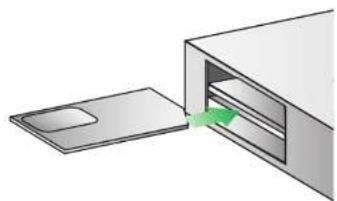
2 Insert SIM card

Orient SIM card with metal side up and short corner to the inside. Use caution to insure card is properly seated in SIM slot.
natural_image
Diagram of a device with an open drawer and a green arrow indicating a process (no text or symbols present)
3 Connect hardware

Connect Antenna
NOTE: Do not over-tighten antenna. Over-tightening may damage internal connections. Loosen antenna before adjusting antenna angles.

Connect Ethernet cross-over cable to a PC

Connect Power Supply
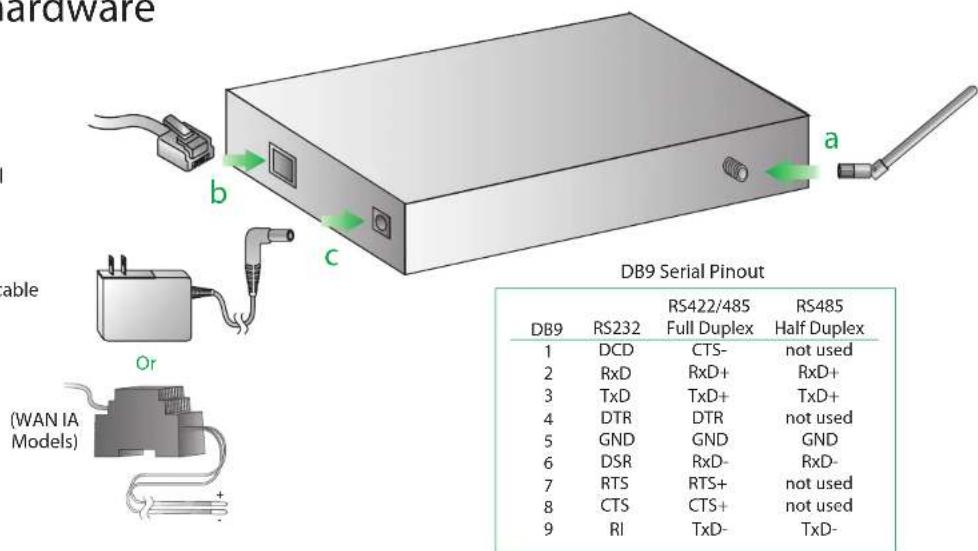
NOTE: Set serial mode in software then on the web interface go to Configuration/Serial Ports

4 Configure your cellular settings

Open your web browser and enter the IP address 192.168.1.1 in the URL address bar.

From the web interface, under Configuration, click "Mobile." Enter your service provider name and connection parameters and click "Apply."
NOTE: The Digi Connect WAN has DHCP server enabled by default. In order to discover your Digi device, make sure your host computer is set up to obtain IP addresses automatically. Also ensure all firewall software is temporarily disabled.

5 Verify

Your device has been properly provisioned and is active if the PPP section shows (connected).

Remove the Ethernet cable and plug it back into the PC to update the DNS.

Open a web browser and enter a web site of your choice in the URL address bar of your browser and hit "enter" (e.g. www.digi.com).

For additional information about your cellular connection, go to Administration > System Information > Mobile.

For more information on the Digi Connect ^TM WAN reference the User's Guide provided on the Digi support site (www.digi.com/support).
Brand : Digi
Model : Connect WAN
Category : Router