
Inspiron 13 5378 - Tablet DELL - Free user manual and instructions
Find the device manual for free Inspiron 13 5378 DELL in PDF.


| Product Type | 2-in-1 Tablet / Laptop |
| Model | Dell Inspiron 13 5378 |
| Display Size | 13.3 inches |
| Display Resolution | 1920 x 1080 (Full HD) |
| Dimensions (Approx.) | 324 x 221 x 19.5 mm (12.8 x 8.7 x 0.77 in) |
| Weight | 1.5 kg (3.3 lbs) |
| Processor | Intel Core i5-7xxx series (7th Gen) |
| Memory | 8 GB DDR4 |
| Storage | 256 GB SSD |
| Battery | 3-cell Lithium-Ion, 42 Wh |
| Battery Life | Up to 8 hours |
| Power Adapter | 45W AC Adapter |
| Operating System | Windows 10 |
| Ports | 1 x USB 3.0, 1 x USB 2.0, 1 x HDMI, 1 x headphone/mic combo |
| Connectivity | Wi-Fi 802.11ac, Bluetooth 4.2 |
| Camera | Front: 1MP, Rear: 8MP |
| Main Features | 360° hinge, touchscreen, backlit keyboard, finger print reader (optional) |
| Care & Cleaning | Clean with soft dry cloth; avoid liquids; do not use abrasive cleaners |
| Safety | Do not block vents; use only supplied charger; avoid extreme temperatures |
| Spare Parts & Repairability | Contact Dell support; parts like keyboard, battery, SSD are replaceable |
| General Information | Manufactured by Dell Inc.; user manual available for free download at notice-facile.com |
Frequently Asked Questions - Inspiron 13 5378 DELL
User questions about Inspiron 13 5378 DELL
0 question about this device. Answer the ones you know or ask your own.
Ask a new question about this device
Download the instructions for your Tablet in PDF format for free! Find your manual Inspiron 13 5378 - DELL and take your electronic device back in hand. On this page are published all the documents necessary for the use of your device. Inspiron 13 5378 by DELL.
USER MANUAL Inspiron 13 5378 DELL
Setup and Specifications
Notes, cautions, and warnings

NOTE: A NOTE indicates important information that helps you make better use of your product.

CAUTION: A CAUTION indicates either potential damage to hardware or loss of data and tells you how to avoid the problem.

WARNING: A WARNING indicates a potential for property damage, personal injury, or death.
Copyright © 2017 Dell Inc. or its subsidiaries. All rights reserved. Dell, EMC, and other trademarks are trademarks of Dell Inc. or its subsidiaries. Other trademarks may be trademarks of their respective owners.
2017-02
Rev. A01
Contents
Set up your computer.... 5
Views......8
Front....8
Left....8
Right....9
Base....10
Display....11
Modes....12
Notebook....12
Tablet....12
Stand....13
Tent....13
Specifications....14
Dimensions and weight....14
System information....14
Memory....14
Ports and connectors....15
Communications....15
Video....15
Audio....16
Storage....16
Media-card reader.... 16
Keyboard....16
Camera....17
Touch pad....17
Power adapter....17
Battery....18
Display.... 18
Computer environment....19
Keyboard shortcuts....20
Getting help and contacting Dell.... 22
Self-help resources....22
Contacting Dell....22
Set up your computer
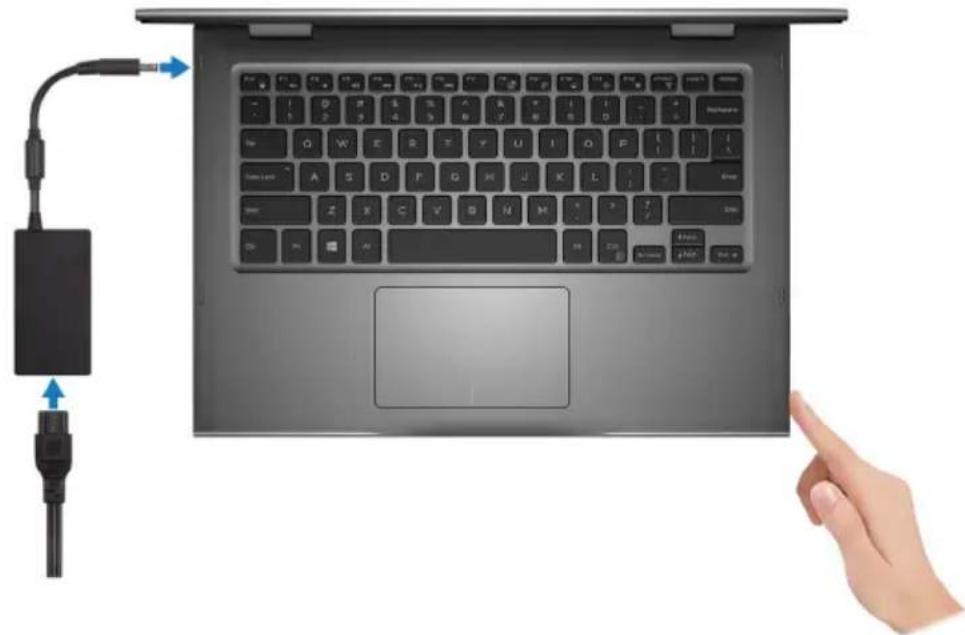
1 Connect the power adapter and press the power button.
natural_image
Laptop keyboard with attached cable and connector, showing a hand pointing at the screen (no text or symbols visible)2 Finish operating system setup.
For Windows:
a) Connect to a network.
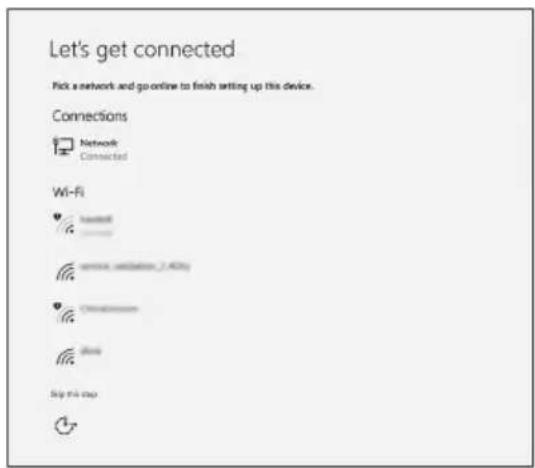
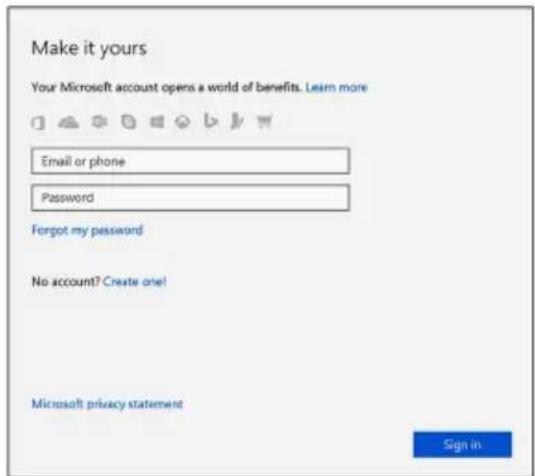
b) Sign-in to your Microsoft account or create a new account.
For Ubuntu:
Follow the instructions on the screen to finish setup.
3 Locate Dell apps in Windows.

Register your computer

Dell Help & Support
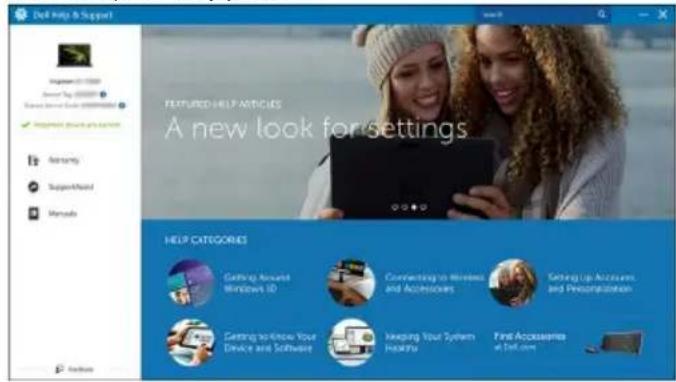

SupportAssist—Check and update your computer
Front

natural_image
3D rendering of a flat object with a vertical dimension labeled '1' (no text or symbols beyond the label)1 Power and battery-status light/hard-drive activity light
Indicates the battery-charge status or the hard-drive activity.

NOTE: Press Fn+H to toggle this light between power and battery-status light and hard-drive activity light.
Hard-drive activity light
Turns on when the computer reads from or writes to the hard drive.
Power and battery-status light
Indicates the power and battery-charge status.
Solid white — Power adapter is connected and the battery has more than 5% charge.
Amber — Computer is running on battery and the battery has less than 5% charge.
Off
- Power adapter is connected and the battery is fully charged.
- Computer is running on battery and the battery has more than 5% charge.
- Computer is in sleep state, hibernation, or turned off
Left
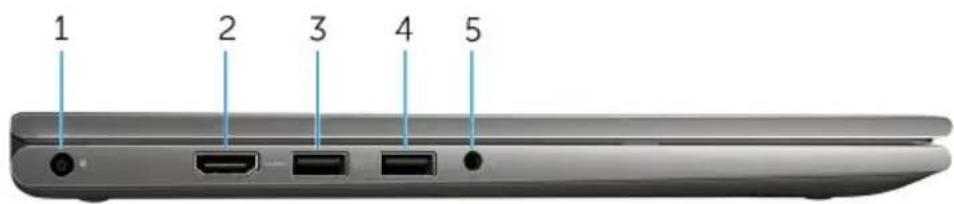
1 Power-adapter port
Connect a power adapter to provide power to your computer and charge the battery.
2 HDMI port
Connect a TV or another HDMI-in enabled device. Provides video and audio output.
3 USB 3.0 port with PowerShare
Connect peripherals such as storage devices, printers, and so on. Provides data transfer speeds up to 5 Gbps.
PowerShare allows you to charge your USB devices even when your computer is turned off.

NOTE: If your computer is powered off or in hibernate state, you must connect the power adapter to charge your devices using the PowerShare port. You must enable this feature in the BIOS setup program.

NOTE: Certain USB devices may not charge when the computer is powered off or in sleep state. In such cases, turn on the computer to charge the device.
4 USB 3.0 port
Connect peripherals such as storage devices, printers, and so on. Provides data transfer speeds up to 5 Gbps.
5 Headset port
Connect a headphone, a microphone, or a headset (headphone and microphone combo).
Right
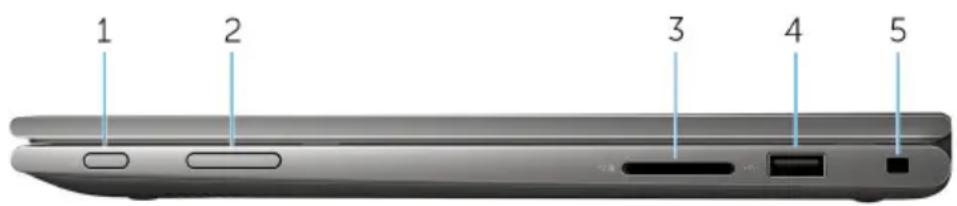
1 Power button
Press to turn on the computer if it is turned off or in sleep state.
Press to put the computer in sleep state if it is turned on.
Press and hold for 4 seconds to force shut-down the computer.

NOTE: You can customize the power-button behavior in Power Options. For more information, see Me and My Dell at www.dell.com/support/manuals.
2 Volume-control buttons (2)
Press to increase or decrease the volume.
3 Media-card reader
Reads from and writes to media cards.
4 USB 2.0 port
Connect peripherals such as storage devices, printers, and so on. Provides data transfer speeds up to 480 Mbps.
5 Security-cable slot
Connect a security cable to prevent unauthorized movement of your computer.
Base
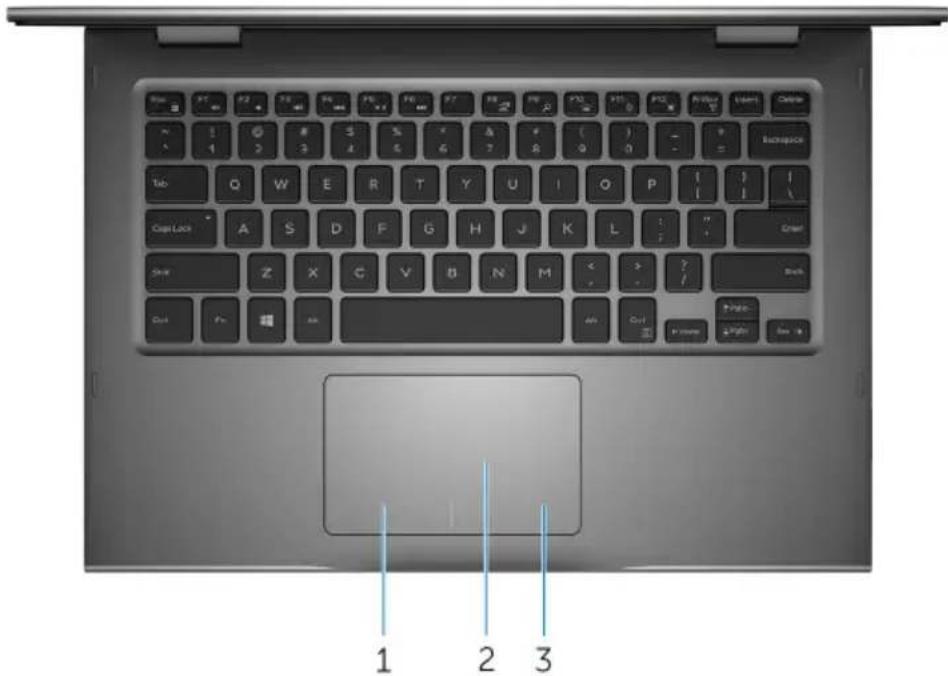
1 Left-click area
Press to left-click.
2 Touch pad
Move your finger on the touch pad to move the mouse pointer. Tap to left-click and two finger tap to right-click.
3 Right-click area
Press to right-click.
Display
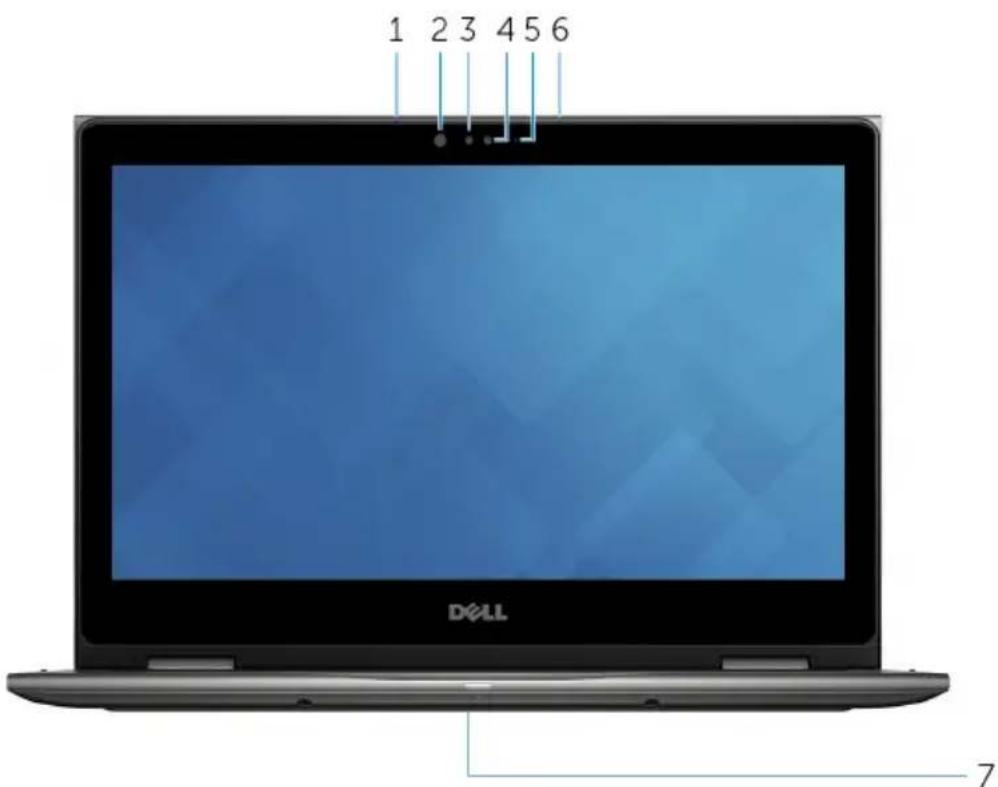
1 Left microphone
Provides digital sound input for audio recording, voice calls, and so on.
2 Infrared emitter (optional)
Emits infrared light, which allows the infrared camera to sense depth and track motion.
3 Infrared camera (optional)
Allows you to video chat, capture photos, and record videos. Depth-sensing feature of the camera enhances security when paired with Windows Hello.
4 Camera
Allows you to video chat, capture photos, and record videos.
5 Camera-status light
Turns on when the camera is in use.
6 Right microphone
Provides digital sound input for audio recording, voice calls, and so on.
7 Service tag location
The service tag is a unique alphanumeric identifier that allows Dell service technicians to identify the hardware components in your computer and access warranty information.
Modes
Notebook
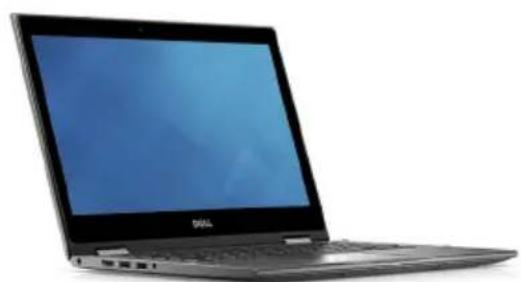
natural_image
Black laptop with a blue screen and 'SIN' logo on the front (no visible text or symbols on screen)Tablet
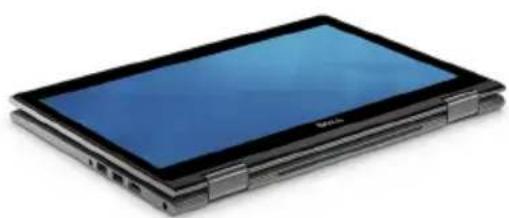
natural_image
Laptop with a blue screen and black bezel, shown from front and side (no visible text or symbols)Stand
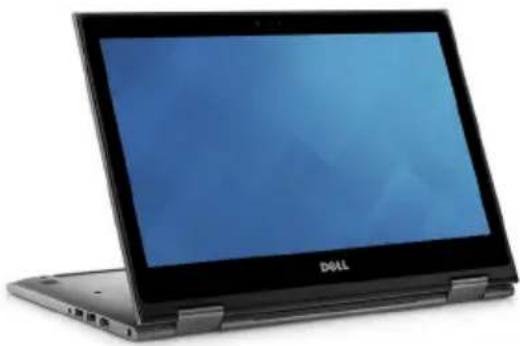
natural_image
Exterior view of a Dell laptop computer (no visible text or symbols on screen)Tent
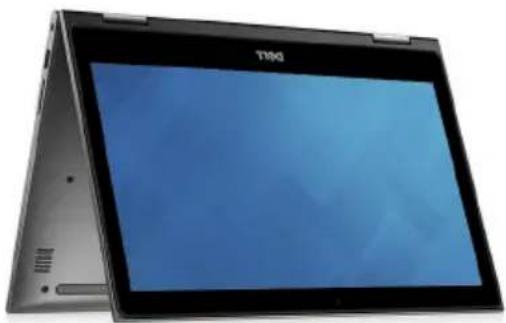
natural_image
Exterior view of a modern office building (no signage)Dimensions and weight
Height 19.50 mm (0.77 in)
Width 324 mm (12.76 in)
Depth 224.70 mm (8.85 in)
Weight (maximum) 1.68 kg (3.70 lb)

NOTE: The weight of your computer varies depending on the configuration ordered and the manufacturing variability.
System information
Computer model Inspiron 13-5378
Processor
- 7th Generation Intel Core i3/i5/i7
- Intel Celeron Dual Core
- Intel Pentium Dual Core
Chipset Integrated in the processor
Memory
Slots
Two SODIMM slots
Type Dual-channel DDR4
Speed 2133 MHz
Configurations supported 4 GB, 8 GB, 12 GB, and 16 GB
Ports and connectors
External:
| USB | One USB 3.0 portOne USB 2.0 portOne USB 3.0 port with PowerShare |
| Audio/Video | One HDMI portOne headset (headphone and microphone combo) port |
Internal:
M.2 Card One M.2 slot for Wi-Fi and Bluetooth
combo card
Communications
Wireless
• Wi-Fi 802.11 ac
- Bluetooth 4.0
- Bluetooth 4.1 (optional)
- Miracast
• Wi-Fi Display Support (Wi-Fi Alliance)
Video
Controller
- Intel HD Graphics 610 - Intel Celeron and Pentium
- Intel HD Graphics 620 - Intel Core i3/i5/i7
• Intel Iris Graphics 640 - Intel Core i7
Memory Shared system memory
Audio
Controller Realtek ALC3253 with Waves
MaxxAudio Pro
Speakers Two
Speaker Output
- Average - 2 W
- Peak - 2.5 W
Microphone Digital-array microphones in camera
assembly
Volume controls Media-control shortcut keys and volumecontrol buttons
Storage
Interface SATA 6 Gbps
Hard drive One 2.5-inch drive
Solid-state drive One 2.5-inch drive
Media-card reader
Type
One SD card slot
Cards supported SD card
Keyboard
Type
- Backlit keyboard
- Non-Backlit keyboard
Shortcut keys Some keys on your keyboard have two
symbols on them. These keys can be
used to type alternate characters or to
perform secondary functions. To type the alternate character, press Shift and the desired key. To perform secondary functions, press Fn and the desired key.

NOTE: You can define the primary behavior of the function keys (F1-F12) by changing Function Key Behavior in BIOS setup program.
Keyboard shortcuts
Camera
Resolution
- Still image: 0.92 megapixel
• Video: 1280 x 720 (HD) at 30 fps (maximum)
Diagonal viewing angle 74 degrees
Touch pad
Resolution
• Horizontal: 1260
- Vertical: 960
Dimensions
- Height: 65 mm (2.56 in)
- Width: 105 mm (4.13 in)
Power adapter
Type
45 W
Input voltage 100 VAC–240 VAC
Input frequency 50 Hz–60 Hz
Input current (maximum) 1.30 A
Output current (continuous) 2.31 A
Rated output voltage 19.50 VDC
Temperature range: Operating 0°C to 40°C (32°F to 104°F)
Temperature range: Storage -40^ to 70^ ( -40^ to 158^ )
Battery
Type 3-cell "smart" lithium-ion (42 WHr)
Weight (maximum) 0.2 kg (0.44 lb)
Voltage 11.40 VDC
Charging time 4 hours (when the computer is off)
(approximate)
Operating time Varies depending on operating conditions and can
significantly reduce under certain power-intensive conditions.
Life span (approximate) 300 discharge/charge cycles
Temperature range: 0°C to 35°C (32°F to 95°F)
Operating
Temperature range: -40^ to 65^ ( -40^ to 149^ )
Storage
Coin-cell battery CR-2032
Height 5.90 mm (0.23 in)
Width 97.15 mm (3.82 in)
Depth 184. 15 mm (7.25 in)
Display
Type 13.3-inch HD WLED touch 13.3-inch Full HD WLED screen touch screen
Resolution (maximum) 1366 x 768 1920 x 1080
Viewing angle 120 degrees 160 degrees
Pixel pitch 0.2148 mm 0.1529 mm
Height 164.97 mm (6.49 in) 165.10 mm (6.50 in)
Width 293.42 mm (11.55 in) 293.60 mm (11.56 in)
Diagonal 337.82 mm (13.30 in) 337.82 mm (13.30 in)
Refresh rate 60 Hz
Operating angle 0 degree (closed) to 360 degrees
Controls Brightness can be controlled using shortcut keys
Computer environment
Airborne contaminant level: G1 as defined by ISA-S71.04-1985
| Operating Storage | ||
| Temperature range 0°C to 35°C (32°F to 95°F) | -40°C to 65°C (-40°F to 149°F) | |
| Relative humidity (maximum) | 10% to 90% (non-condensing) | 0% to 95% (non-condensing) |
| Vibration (maximum)* | 0.66 GRMS 1.30 GRMS | |
| Shock (maximum) 110 G | † | 160 G‡ |
| Altitude (maximum) | -15.2 m to 3048 m (-50 ft to 10,000 ft) | -15.2 m to 10,668 m (-50 ft to 35,000 ft) |
* Measured using a random vibration spectrum that simulates user environment.
† Measured using a 2 ms half-sine pulse when the hard drive is in use.
± Measured using a 2 ms half-sine pulse when the hard-drive head is in parked position.
Keyboard shortcuts
Keys Description
| F1 | Mute audio | |
| F2 | Decrease volume | |
| F3 | Increase volume | |
| F4 | Play previous track/chapter | |
| F5 | Play/Pause | |
| F6 | Play next track/chapter | |
| F8 | Switch to external display | |
| F9 | Search | |
| F10 | Toggle keyboard backlight | |
| F11 | Decrease brightness | |
| F12 | Increase brightness | |
| Fn + PrtScr | Turn off/on wireless | |
| Fn + B | Pause/Break | |
| Fn + Insert | Sleep | |
| Fn + S | Toggle scroll lock | |
Keys Description
| Fn + H | Toggle between power and battery-status light/hard-drive activity light |
| Fn + R | System request |
| Fn + Ctrl | Open application menu |
| Fn + Esc | Toggle Fn-key lock |
| Fn + End → | End |
| Fn + ←Home | Home |
| Fn + ↓PgDn | Page down |
| Fn + ↑PgUp | Page up |
Getting help and contacting Dell
Self-help resources
You can get information and help on Dell products and services using these self-help resources:
Table 1. Self-help resources
Information about Dell products and services www.dell.com
Dell Help & Support app

Get started app

Accessing help In Windows search, type Help and
Support, and press Enter.
Online help for operating system www.dell.com/support/windows www.dell.com/support/linux
Troubleshooting information, user manuals, setup instructions, product specifications, technical help blogs, drivers, software updates, and so on.
www.dell.com/support
Learn about your operating system, setting up and using your computer, data backup, diagnostics, and so on.
See Me and My Dell at www.dell.com/support/manuals.
Contacting Dell
To contact Dell for sales, technical support, or customer service issues, see www.dell.com/contactdell.

NOTE: Availability varies by country and product, and some services may not be available in your country.

NOTE: If you do not have an active internet connection, you can find contact information on your purchase invoice, packing slip, bill, or Dell product catalog.
- Setup and Specifications
- Notes, cautions, and warnings
- Contents
- Set up your computer.... 5
- Views......8
- Specifications....14
- Keyboard shortcuts....20
- Getting help and contacting Dell.... 22
- Set up your computer
- For Windows:
- For Ubuntu:
- Front
- Power and battery-status light/hard-drive activity light
- Hard-drive activity light
- Power and battery-status light
- Off
- Left
- Power-adapter port
- HDMI port
- USB 3.0 port with PowerShare
- USB 3.0 port
- Headset port
- Right
- Power button
- Volume-control buttons (2)
- Media-card reader
- USB 2.0 port
- Security-cable slot
- Base
- Left-click area
- Touch pad
- Right-click area
- Display
- Left microphone
- Infrared emitter (optional)
- Infrared camera (optional)
- Camera
- Camera-status light
- Right microphone
- Service tag location
- Modes
- Notebook
- Tablet
- Stand
- Tent
- Dimensions and weight
- System information
- Memory
- Ports and connectors
- Internal:
- Communications
- Video
- Audio
- Storage
- Media-card reader
- Keyboard
- Camera
- Touch pad
- Power adapter
- Battery
- Computer environment
- Keyboard shortcuts
- Getting help and contacting Dell
- Self-help resources
- Contacting Dell
Brand : DELL
Model : Inspiron 13 5378
Category : Tablet