MBOX600 - Industrial controller NovaStar - Free user manual and instructions
Find the device manual for free MBOX600 NovaStar in PDF.


| Product Type | Video Processing Controller |
| Brand | NovaStar |
| Model | MBOX600 |
| Dimensions (W x D x H) | 482 x 300 x 44 mm (19" rackmount, 1U) |
| Weight | Approx. 3.5 kg |
| Power Supply | AC 100-240V, 50/60Hz, Max 150W |
| Input Interfaces | HDMI 2.0, DVI, VGA, DisplayPort, SDI, USB |
| Output Interfaces | Ethernet (RJ45) for LED panels, HDMI loop-through |
| Maximum Supported Resolution | 3840 x 2160@60Hz (4K) |
| Video Processing Features | Scaling, cropping, color calibration, multi-layer overlay |
| Control | Front panel buttons, NovaStar software (NovaLCT, NovaPro) |
| Operating Temperature | 0°C to 40°C |
| Cooling | Built-in fan, forced air |
| Maintenance | Keep vents clean, avoid moisture, periodic firmware updates |
| Safety Features | Overvoltage protection, short-circuit protection, grounding |
| Spare Parts & Repairability | Fan, power supply module, replaceable rack ears |
| General Information | Professional LED display controller for rental & fixed installations |
Frequently Asked Questions - MBOX600 NovaStar
User questions about MBOX600 NovaStar
0 question about this device. Answer the ones you know or ask your own.
Ask a new question about this device
Download the instructions for your Industrial controller in PDF format for free! Find your manual MBOX600 - NovaStar and take your electronic device back in hand. On this page are published all the documents necessary for the use of your device. MBOX600 by NovaStar.
USER MANUAL MBOX600 NovaStar
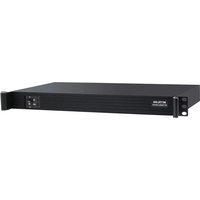
Industrial Controller

Change History
| Document Version | Release Date | Description |
| V1.3.5 | 2021-11-05 | Updated the "About this Document" chapter.Changed the back cover page. |
Contents
Change History .... i
Contents ...... ii
1 About this Document....1
2 Hardware Connection....2
3 Software Installation .... 3
3.1 Preinstalled with Linux....3
3.1.1 Installing Windows....3
3.1.2 Installing Applications .... 3
3.1.3 Checking Configuration Options .... 3
3.1.4 Changing Display Language....5
3.2 Preinstalled with Windows....6
3.2.1 Activating Windows....6
3.2.2 Installing Applications ....6
3.2.3 Checking Configuration Options 6
3.2.4 Changing Display Language....7
4 Screen Configuration 8
5 Content Playback....9
5.1 Remote Publishing (VPlayer+VNNOX)....9
5.2 Local Playback (NovaStudio) 9
5.3 Preview Playback (VPlayer+ViPlex Express) 9
6 FCC Caution....10
1 About this Document
The MBOX600 is an LED display controller created by NovaStar. It integrates an industrial PC and sending capability. This controller is installed outdoors and applies to the scenarios where no PC is required for controlling LED displays, for example, fixed outdoor displays.
The MBOX600 can be connected to a mouse, keyboard and monitor, allowing for software installation, screen configuration, content playback, etc. Working with software applications, the MBOX600 can enable remote publishing, local playback, playback preview, and many other content playback methods.
This document introduces the main operations of the MBOX600, including hardware connection, software installation, screen configuration and content playback, to help users get started with the MBOX600.
2 Hardware Connection
Front Panel

Rear Panel
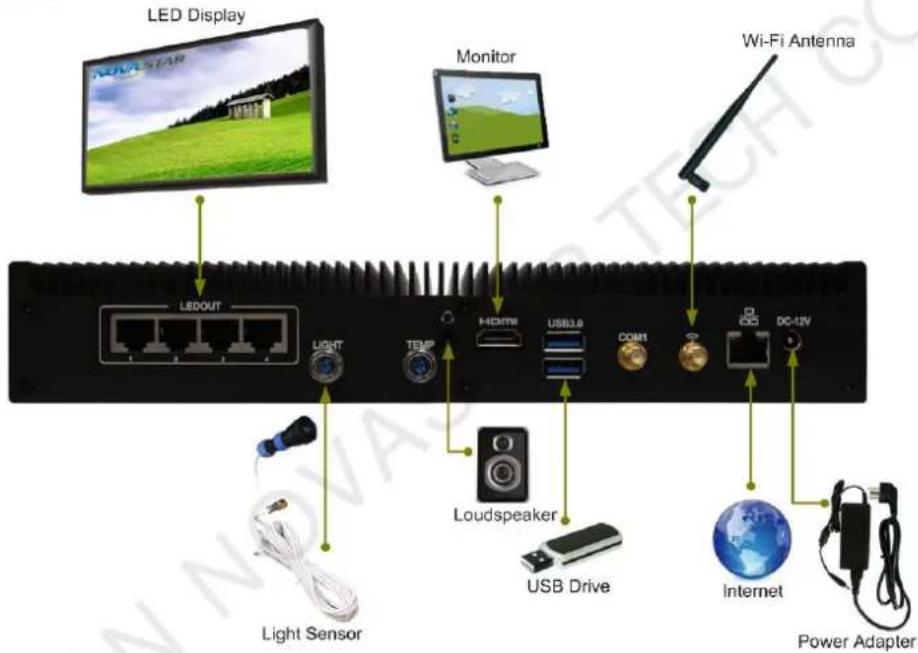
Note:
COM1 is a reserved connector.
3 Software Installation
3.1 Preinstalled with Linux
For the MBOX600 preinstalled with Linux, if necessary, install Windows and required applications according to the description in this section.
3.1.1 Installing Windows
Please buy Windows from official channels and install it.
3.1.2 Installing Applications
Required Software Applications
Table 3-1 Applications
| Name | Description | Where to Get |
| .NET Framework 4.6.x | Software operating environment | www.novastar.tech |
| VPlayer | Playback software, used to play content from VNNOX and preview and play content from ViPlex Express | https://www.vnnox.com/syn download |
| ViPlex Express | LAN-based screen management software, mainly used for screen management, content editing and publishing | https://www.vnnox.com/download |
| NovaLCT | Screen configuration software, used to adjust the screen to the optimal display condition | www.novastar.tech |
| NovaStudio | Playback software, mainly used for multi-screen, multi-program and multi-window playback | www.novastar.tech |
| GosuncnWelink/SIMCom Drivers | GosuncnWelink or SIMCom 4G module drivers Please choose the corresponding model according to your region. | Please contact the technical engineers. |
Installation
Please note that ".NET Framework 4.6.x" must be installed first.
3.1.3 Checking Configuration Options
To ensure stable playback of MBOX600, please check the Windows configuration options according to the description in this section.
Configuration Options
The configuration options to be checked are shown in Table 3-2. If a configuration option does not conform to the target status, please change it.
Table 3-2 Configuration options
| Configuration Options | Target Status |
| Windows automatic update | Off |
| Firewall | Off |
| Turn off screen | Never |
| Sleep | Never |
| Scaling size | 100% |
| Multiple displays | Duplicate these displays |
Operation Access

Click in Windows Start menu to enter the menu page as shown in Figure 3-1.
Figure 3-1 Windows settings








Checking Windows Automatic Update
Step 1 Choose Update & Security.
Step 2 On the Windows Update page, click Advanced options.
Step 3 Check whether Windows automatic update is turned off.
Advanced options
Update Options
Give me updates for other Microsoft products when I update Windows.

Automatically download updates, even over metered data connections (charges may apply)

We'll show a reminder when we're going to restart. If you want to see more notifications about restarting, turn this on.

Check the Firewall
Step 1 Choose Update & Security.
Step 2 Choose Windows Security.
Step 3 Click Open Windows Defender Security Center.
Step 4 Check whether the firewall is turned off.

Virus & threat
protection
Actions needed in McAfee
VirusScan
Open McAfee
VirusScan

Account protection Sign in to Microsoft for enhanced security.
Sign in

Firewall & network protection Actions needed in McAfee
Open McAfee Firewall

App & browser control No action needed.

Device security No action needed.
Dismiss

Device performance & health No action needed.

Family options Manage how your family uses their devices.
Checking Screen Off and Sleep
Step 1 Choose System.
Step 2 Choose Power & sleep.
Step 3 Check whether all the four configuration options are set to Never.
Power & sleep
Screen
On battery power, turn off after
Never
When plugged in, turn off after
Never
Sleep
On battery power, PC goes to sleep after
Never
When plugged in, PC goes to sleep after
Never
Checking Scaling Size and Multiple Displays
Step 1 Choose System.
Step 2 Check whether the scaling size is 100% and the option of multiple displays is set to Duplicate these displays.
Note: When multiple monitors are connected, the configuration option for multiple displays will appear.
Scale and layout
Change the size of text, apps, and other items
100% (Recommended)
Advanced scaling settings
Resolution
1920 × 1080 (Recommended)
Orientation
Landscape
Multiple displays
Multiple displays
Duplicate these displays
3.1.4 Changing Display Language
If necessary, users can change the system language.
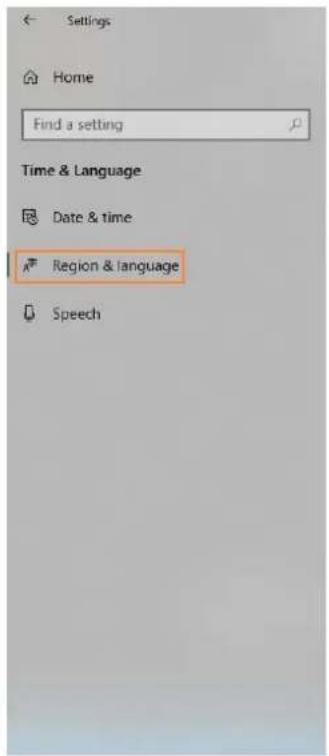
Step 1 Click in Windows Start menu.
Step 2 Choose Time & Language.
Step 3 Choose Region & language and choose a language to set it as the system language.
Region & language
Country or region
Windows and apps might use your country or region to give you local content

Languages
Windows display language
Windows features like Settings and File Explorer will appear in this language.

Will be display language after next sign-in
Preferred languages
Apps and websites will appear in the first language in the list that they support.


3.2 Preinstalled with Windows
For MBOX600 preinstalled with Windows 10 IOT Enterprise, please activate Windows and install required applications according to the description in this section.
3.2.1 Activating Windows
View the registration code on the enclosure and activate Windows.
3.2.2 Installing Applications
MBOX600 is preinstalled with Windows and the applications shown in Table 3-3. NovaStudio is not preinstalled. If necessary, users can visit www.novastar.tech to get and install NovaStudio.
Table 3-3 Applications
| Name | Description | Where to Get |
| .NET Framework 4.6.x | Software operating environment | www.novastar.tech |
| VPlayer | Playback software, used to play content from VNNOX and preview and play content from ViPlex Express | https://www.vnnox.com/syndownload |
| ViPlex Express | LAN-based screen management software, mainly used for screen management, content editing and publishing | https://www.vnnox.com/download |
| NovaLCT | Screen configuration software, used to adjust the screen to the optimal display condition | www.novastar.tech |
| GosuncnWelink/SIMCom Drivers | GosuncnWelink or SIMCom 4G module drivers Please choose the corresponding model according to your region. | Please contact the technical engineers. |
3.2.3 Checking Configuration Options
For more information, see 3.1.3 Checking Configuration Options.
3.2.4 Changing Display Language
For more information, see 3.1.4 Changing Display Language.
4 Screen Configuration
NovaLCT is used to configure receiving card parameters. You can configure parameters manually or by loading configuration files. For more information, see NovaLCT LED Configuration Tool for Synchronous Control System User Manual attached to the software.
5 Content Playback
When the MBOX600 is installed with VPlayer and NovaStudio, the following three playback methods are supported.
- Remote publishing
Publish content to VPlayer using VNNOX Standard or VNNOX AD remotely. VPlayer downloads and plays the content. - Local playback
Create and play content with NovaStudio. - Preview playback
View content created in ViPlex Express on the preview window
5.1 Remote Publishing (VPlayer+VNNOX)
For details, click the link below to see the online documentation of VNNOX.
http://docs.vnnox.com:8090/display/VNNOXEN/5+Cloud+Platform+Service+Introduction
5.2 Local Playback (NovaStudio)
For more information, see NovaStudio User Manual attached in the software.
5.3 Preview Playback (VPlayer+ViPlex Express)
For more information, see the Getting Started chapter in ViPlex Express Display Content Publishing Management System for PC Studio Mode User Manual attached to ViPlex Express.
6 FCC Caution
Any changes or modifications not expressly approved by the party responsible for compliance could void the user's authority to operate the equipment.
Note: This equipment has been tested and found to comply with the limits for a Class A digital device, pursuant to part 15 of the FCC Rules. These limits are designed to provide reasonable protection against harmful interference when the equipment is operated in a commercial environment. This equipment generates, uses, and can radiate radio frequency energy and, if not installed and used in accordance with the instruction manual, may cause harmful interference to radio communications. Operation of this equipment in a residential area is likely to cause harmful interference in which case the user will be required to correct the interference at his own expense.
This equipment complies with FCC radiation exposure limits set forth for an uncontrolled environment. This equipment should be installed and operated with minimum distance 20cm between the radiator & your body.
Copyright © 2021 Xi'an NovaStar Tech Co., Ltd. All Rights Reserved.
No part of this document may be copied, reproduced, extracted or transmitted in any form or by any means without the prior written consent of Xi'an NovaStar Tech Co., Ltd.
Trademark
NOVA STAR is a trademark of Xi'an NovaStar Tech Co., Ltd.
Statement
Thank you for choosing NovaStar's product. This document is intended to help you understand and use the product. For accuracy and reliability, NovaStar may make improvements and/or changes to this document at any time and without notice. If you experience any problems in use or have any suggestions, please contact us via the contact information given in this document. We will do our best to solve any issues, as well as evaluate and implement any suggestions.
Please read the specifications thoroughly and use the product in accordance with the requirements. If you have any questions about the specifications, please contact us immediately. If you use the product improperly, not following the requirements, or for illegal purposes, you shall be solely responsible for any consequences arising therefrom.

- Industrial Controller
- Contents
- About this Document
- Hardware Connection
- Note:
- Software Installation
- Preinstalled with Linux
- Installing Windows
- Installing Applications
- Required Software Applications
- Installation
- Checking Configuration Options
- Configuration Options
- Operation Access
- Checking Windows Automatic Update
- Check the Firewall
- Checking Screen Off and Sleep
- Power & sleep
- Checking Scaling Size and Multiple Displays
- Changing Display Language
- Region & language
- Languages
- Preinstalled with Windows
- Activating Windows
- Installing Applications
- Checking Configuration Options
- Changing Display Language
- Screen Configuration
- Content Playback
- Remote Publishing (VPlayer+VNNOX)
- Local Playback (NovaStudio)
- Preview Playback (VPlayer+ViPlex Express)
- FCC Caution
- Trademark
- Statement
Brand : NovaStar
Model : MBOX600
Category : Industrial controller