WS-L - Loudspeaker Wet Sounds - Free user manual and instructions
Find the device manual for free WS-L Wet Sounds in PDF.


| Product Type | Marine Speaker |
| Brand | Wet Sounds |
| Model | WS-L |
| Dimensions (Overall) | 7.1 x 7.1 x 4.3 inches |
| Weight | 3.5 lbs |
| Power Handling (RMS) | 100 Watts |
| Power Handling (Peak) | 200 Watts |
| Impedance | 4 Ohms |
| Frequency Response | 40 Hz - 20 kHz |
| Sensitivity | 92 dB |
| Waterproof Rating | IPX6 |
| Cone Material | Polypropylene |
| Surround Material | Rubber |
| Mounting Depth | 2.8 inches |
| Mounting Diameter | 5.9 inches |
| Included Accessories | Grille, Mounting Hardware |
| Recommended Use | Marine, Outdoor |
| Cleaning Instructions | Wipe with mild soap and water; avoid abrasive cleaners |
| Safety Warning | Do not expose to temperatures above 140°F or below -40°F |
| Spare Parts Availability | Contact Wet Sounds customer service |
Frequently Asked Questions - WS-L Wet Sounds
User questions about WS-L Wet Sounds
0 question about this device. Answer the ones you know or ask your own.
Ask a new question about this device
Download the instructions for your Loudspeaker in PDF format for free! Find your manual WS-L - Wet Sounds and take your electronic device back in hand. On this page are published all the documents necessary for the use of your device. WS-L by Wet Sounds.
USER MANUAL WS-L Wet Sounds
natural_image
Black electronic device with ventilation grille and control buttons (no visible text or symbols)WS-L QUICK START GUIDE
- Press the ⬤ to power ON, the panel will light up when on.
- You will see the ✝ icon blinking bright blue, signaling the device is ready to pair. Go to the Bluetooth® settings in your device and select the WS-L. Once connected, the ✝icon will light up solid blue indicating that you are paired and ready to jam.
- Ensure volume on your device is turned up, press + to adjust the volume up, or press - to adjust the volume down. The ◄icon will illuminate with each volume press.
Tip: The WS-L retains memory for your volume level, so you can set the WS-L to max volume and make volume adjustments to the WS-L volume from your Bluetooth® device.
- Press & hold ⬆ to power the WS-L OFF. The panel lights will turn off when unit is powered down.
For full user manual and features, please scan QR code on your package.
Scan QR Code to download the app!

shop.wetsounds.com

wet sounds
HIGH PERFORMANCE AUDIO
PORTABLE
WS-L
USER GUIDE
natural_image
Black hexagonal device with grid pattern and control panel (no visible text or symbols)
Thank you for choosing Wet Sounds™ products!
Wet Sounds' products are designed and crafted to achieve or exceed the highest performance standards in the industry.
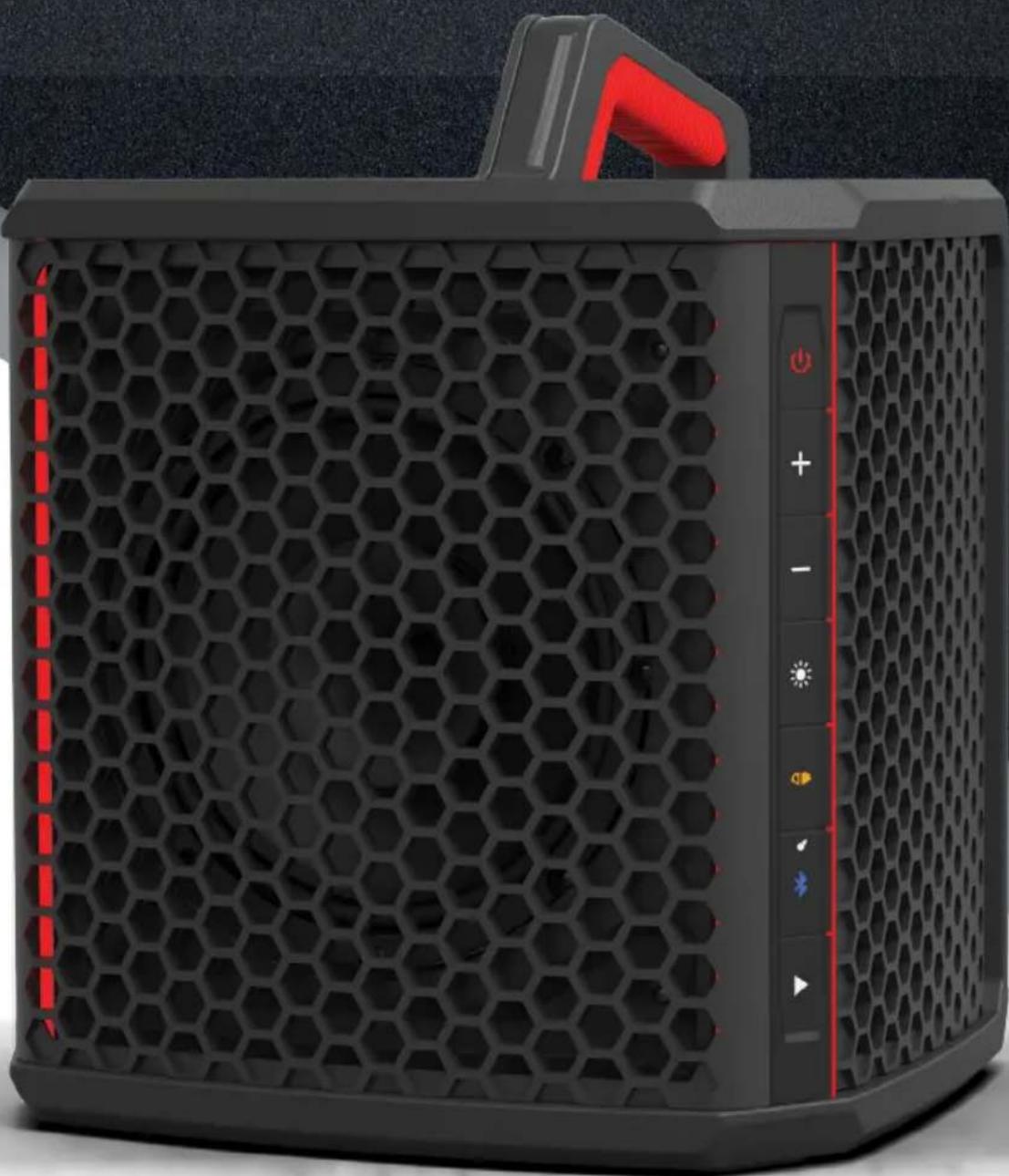
At Wet Sounds, we're all about elevating your experience. The Wet Sounds Portable is designed to immerse you in premium sound, energize any gathering, and help you create unforgettable moments. Get ready to bring the party to life, wherever you go, with the power and clarity of Wet Sounds.
Experience the ultimate in portable audio with the Wet Sounds Portable. Built with legendary durability, this speaker is designed to withstand harsh weather and tough environments, so you can enjoy your favorite tunes without worry.
Whether you're by the pool, at the beach, or on the go, the Wet Sounds Portable lets you focus on the fun while delivering uncompromised sound performance.
Please take a moment to read the instruction manual before using your product. This guide will explain the benefits of the technologies developed by Wet Sounds and will help you understand the correct use of this product. If you have any questions or concerns, please contact a certified Wet Sounds dealer. You may also contact Wet Sounds technical support by dialing 1-877-WET-SPKR (1-877-938-7757).
WARNING!
We build all Wet Sounds products to play at high volumes for extended periods of time. Your ears however are not designed for high volume listening. This product can easily generate high volumes that can permanently damage your hearing. We urge you to limit your exposure to very high volume sound.
TABLE OF CONTENTS
Please take a moment to look over this instruction manual before enjoying the product.
What's Included 4
Product Dimensions 5
User Interface 6-7
Operations 8
Battery 9
Versatility 10-11
Wet Sounds SKAA cmd App....12-17
Adding Satellite Speakers 18-19
SKAA Bond.... 20-21
Statement Overview 22
Limited Warranty 23
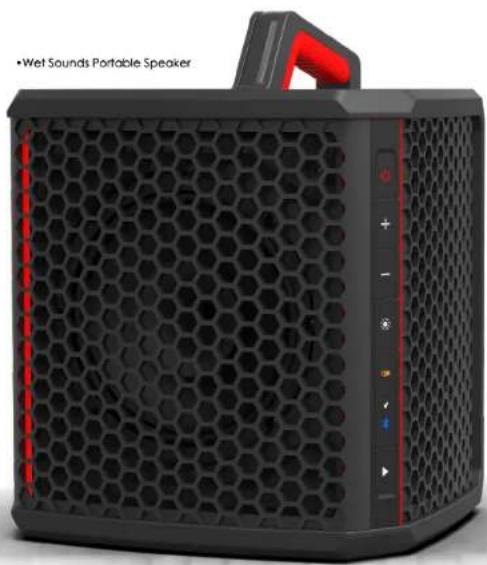
WHAT'S INCLUDED
natural_image
Black portable speaker with hexagonal grille and red handle, no visible text or symbols on device body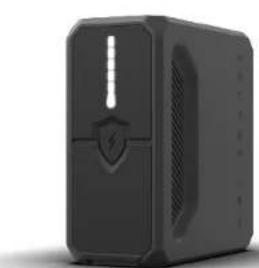
natural_image
Exterior view of a black hard drive with a shield and ventilation grille (no text or symbols visible)• Wet Sounds Portable Battery
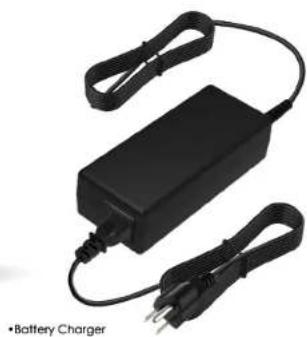
natural_image
Black rectangular battery charger with two leads and a power outlet, no visible text or symbols on the device body.PRODUCT DIMENSIONS
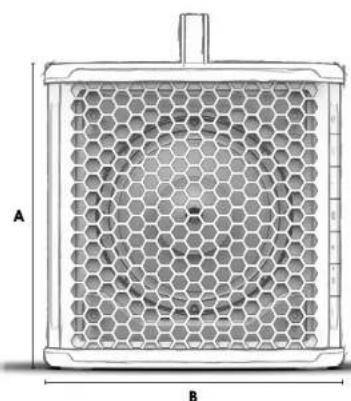
natural_image
Technical diagram of a hexagonal grid structure with labeled dimensions A and B (no text or symbols beyond labels)A: 16.12" (409.45 mm)
B: 16" (406.4 mm)
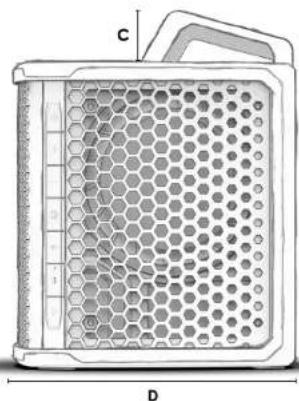
natural_image
Cross-sectional diagram of a honeycomb-based scientific instrument with labeled dimensions (D and C), no readable text or symbols beyond labels.C: 2.88" (73.15 mm)
D: 15" (381 mm)
USER INTERFACE
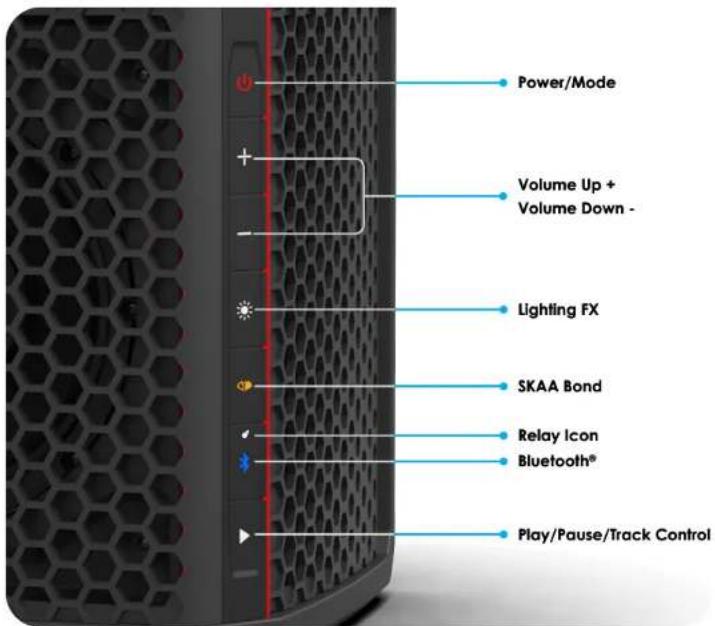
Power/Mode
Press ⏻ to power ON, press & hold to turn OFF.
Short pressing the Power/Gear button will rotate through 3 operational modes:
Bluetooth Mode, K Mode, and SKAA Mode.
Volume Up (+) Volume Down (-)
Press + to adjust the volume up, or press - to adjust the volume down.
Lighting FX
Press ⚙ to cycle through the lighting FX options.
SKAA Bond
Activates when the speaker is in SKAA mode (acting as a SKAA receiver).
This button let's you connect to whichever SKAA source you choose.
See pg.20 for details.
Relay Icon
Lights up ⬇ (white) when the Bluetooth input to the speaker is also being relayed out to (up to) 4 satellites.
USER INTERFACE
Bluetooth®
Double click the icon to put the speaker into discover. This will light up bright blue and flash, once connection has been made. The icon will light up solid blue signaling that you are paired and ready to party!
Note: Press and hold the ✗ icon for 5 seconds to clear all Bluetooth devices. After clearing, the speaker will search for a new discoverable device to pair.
The ✦ icon on the UI panel will light up to let you know the status of the Bluetooth connection. The following will help guide you through the different states:
Dim Flashing
If the icon is dim and flashing, this means the speaker is attempting to connect to a previously paired device.
Solid Blue
If the ✗ icon is lit up solid blue, this means the speaker is connected to paired device.
Bright Flashing
If the ✕ icon is bright blue and flashing, this means the speaker is in discoverable mode, ready to pair.

Bluetooth® Mode (Speaker will be a HUB)
When the speaker is powered up for the first time, it's in Bluetooth (BT) mode by default. In BT mode, the HUB speaker accepts BT audio and relays that audio to up to 4 additional WS-L speakers.

K Mode
K is short for Karaoke. Both the SKAA and BT receivers are enabled and the two incoming audio streams are mixed together prior to being output to the speaker. A SKAA mic, SKAA guitar or other instrument can play along with a BT backing track, for example.

SKAA Mode (Speaker will be a Satellite)
In SKAA mode, the HUB speaker behaves exactly like a stock SKAA Receiver (Satellite Speaker). The lit Bond icon means the SKAA Receiver is active.
Play/Pause/Track Control
Press 1x to Pause/Play your source (works for BT and SKAA sources)
Press 2x to go to the Next Track
Press 3x to Restart Track/Previous Track
OPERATIONS
natural_image
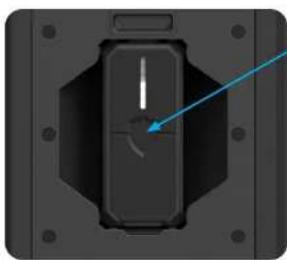
Close-up of a black mechanical component with a blue arrow pointing to a white line (no text or symbols visible)Click the Battery Charge Indicator button. If you don't have at least 2 bars of battery life, please charge your battery first.
WARNING: Ensure the battery is inserted to achieve the device's IP67 rating. Failure to insert battery and improper insertion may compromise the device's water and dust resistance, leading to potential damage.
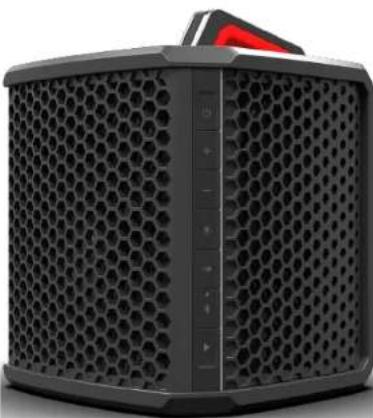
Power ON by holding down the ⏻ button for a few seconds. A bright red icon means the speaker is ON. A dim red icon means the unit is sleeping.
Make sure speaker is in Bluetooth mode — if the ⏻ icon is not illuminated on the Bluetooth button, then press the ⏻ button until you see it light up.
Your Wet Sounds Portable is now ready to pair Bluetooth with your phone.
- Set the volume on your paired device to about 1/4 volume & play audio from your device.
- Press the "+" button on your speaker to increase the volume and the "-" button to decrease the volume. The Bond Indicator will flash as you click, 30 clicks will take you from zero volume to max volume.
- Remember, the actual volume level of the speaker depends on BOTH its Local Volume (controlled by speaker's volume buttons) and the Global Volume (controlled by the volume buttons on your paired device).
NOTE: The Wet Sounds Portable will "remember" most settings and will power ON next time in the same state it was in when you powered it OFF. This applies to Mode, Local Volume level, Light FX setting, etc.
natural_image
Black hexagonal electronic device with a red triangular top and control panel (no visible text or symbols)BATTERY
The battery is capable of 25 hours at normal listening level, 40 hours at a normal background level, and 9 hours if playing at higher volume.
The Battery Level Indicator activates when the battery button is pressed. This functionality is independent of whether the speaker is powered on or off, or whether it is inserted. When the battery life reaches approximately 3%, the bottom LED in the Fuel Gauge stack will automatically flash red to indicate a low battery. Pressing the battery button is not required to trigger this low-battery alert.
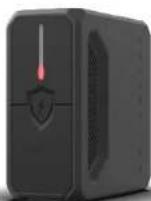
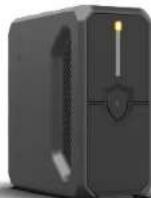
The speaker automatically powers OFF when the battery is fully depleted, which will flash red. When the battery is charging, the top LED in the battery level indicator will glow orange, even if the speaker is OFF.
BATTERY CHARGING, TYPE-C OUT
Access the Power Jack and the USB-C Out by lifting the rubber flap on the user interface panel of the Battery.
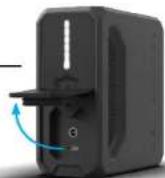
WARNING: Ensure the rubber flap is closed completely to achieve the device's IP67 rating. Failure to close rubber flap may compromise the device's water and dust resistance, leading to potential damage.
- Use only the included Power Supply for charging.
- The battery requires approximately 3 hours to reach a full charge from a fully depleted state.
- Once charging has finished, the orange top LED will turn off, letting you know that the speaker's battery is fully charged.
• The battery allows you to charge a device by using a USB-C cable. - Once you connect a cable to the USB-C charge out port, press the battery button to activate charging feature.
- If the speaker remains inactive for a period of time, it will enter a power saving sleep mode (the speaker's power LED will be dim during sleep). If the included charger is plugged in, the speaker will stay in sleep mode until you start using it again. However if the included charger is NOT supplying external power, the speaker will eventually power itself off and you'll have to power it back on manually to use it again.
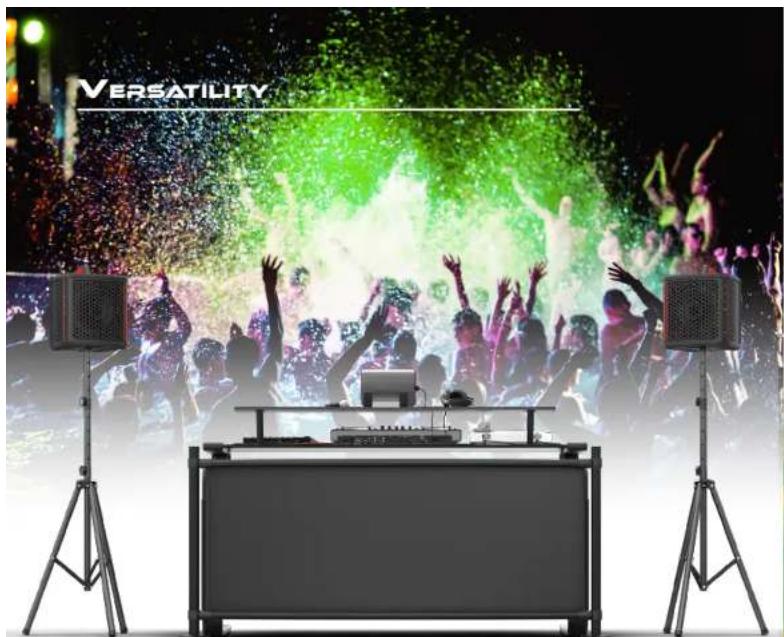
The multifunctional design of the Wet Sounds Portable allows it to be used in many ways. From DJ gigs, summer pool parties, even sporting events, you can take the party with you.
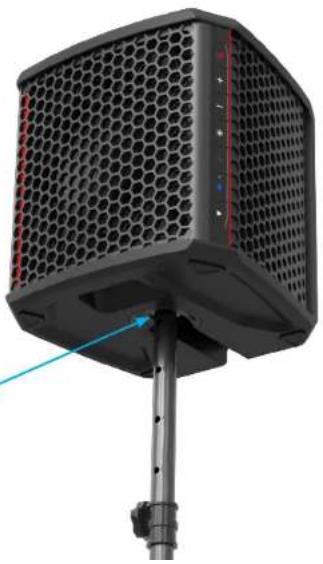
Pole mount opening allows the Wet Sounds Portable to be mounted on a 1 3/8" speaker stand.
natural_image
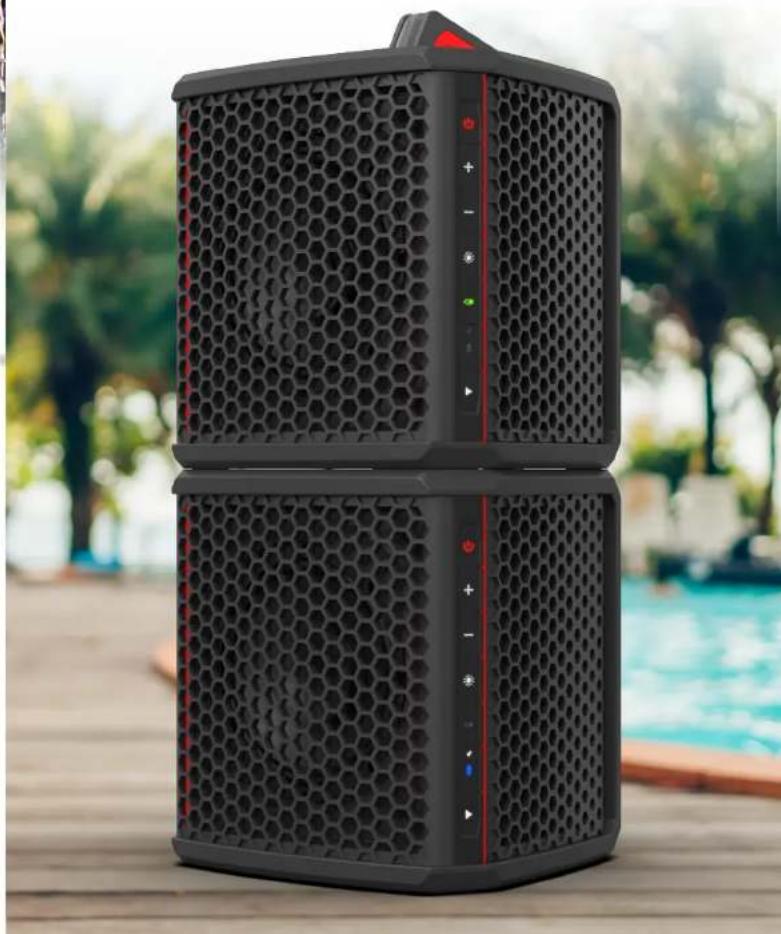
Close-up of a black hexagonal audio workstation with a blue arrow pointing to the base (no text or symbols visible)The Wet Sounds Portable features a unique handle design that allows it to be easily stackable with additional units, making it ideal for enhancing your sound setup.
natural_image
Exterior view of a black hexagonal smart speaker with control panel, placed on wooden deck with pool background (no visible text or symbols)WET SOUNDS SKAA CMD APP

Download and install the Wet Sounds SKAA cmd App to access more features from your Wet Sounds Portable speaker.
With this App, you can adjust EQ, access 6 additional lighting presets, assign Stereo and Mono to multiple bonded Wet Sounds Portable speakers, as well as access to SKAA features.
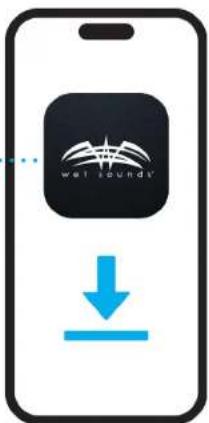


WET SOUNDS SKAA CMD APP
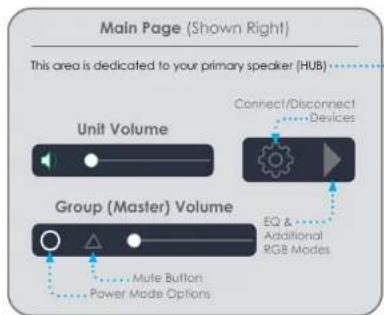
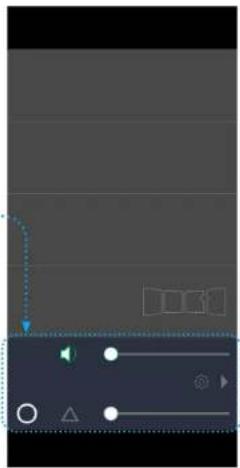
Connecting Primary Speaker (HUB)
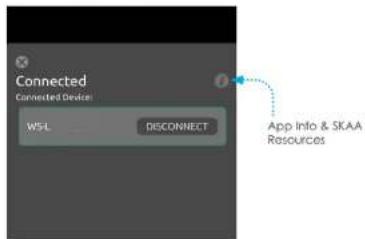
Step 1: Make sure speaker is successfully paired via Bluetooth on your mobile device.
Step 2: Open the Wet Sounds SKAA cmd App on your mobile device.
natural_image
Game interface screenshot showing a play button, navigation icons, and UI elements (no readable text or symbols)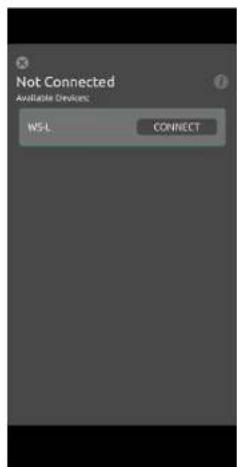
Step 3: Tap the 📄 icon to connect your paired speaker to the app.
Step 4: Tap CONNECT. Tap ✗ to return to Main Page.
To disconnect speaker, simply tap DISCONNECT.
WET SOUNDS SKAA CMD APP
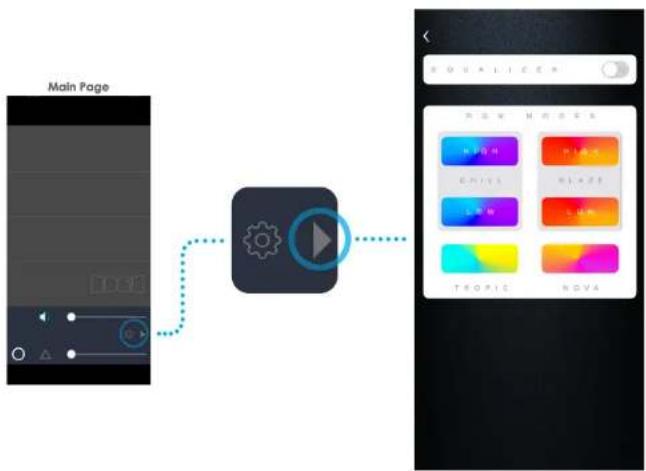
EQ & Additional RGB Modes
flowchart
graph TD
    A["Main Page"] --> B["Play Button"]
    B --> C["Color Code: RGB, CMYK, CMYK, CMYK, CMYK, CMYK, CMYK, CMYK, CMYK, CMYK, CMYK, CMYK, CMYK, CMYK, CMYK, CMYK, CMYK, CMYK, CMYK, CMYK, CMYK, CMYK, CMYK, CMYK, CMYK, CMYK, CMYk"]
    style A fill:#f9f,stroke:#333
    style B fill:#ccf,stroke:#333
    style C fill:#cfc,stroke:#333
    style D fill:#fcc,stroke:#333
    style E fill:#cff,stroke:#333
    style F fill:#ffc,stroke:#333
    style G fill:#cfc,stroke:#333
    style H fill:#fcc,stroke:#333
    style I fill:#ffc,stroke:#333
    style J fill:#cfc,stroke:#333
    style K fill:#fcc,stroke:#333
    style L fill:#cfc,stroke:#333
    style M fill:#fcc,stroke:#333
    style N fill:#cfc,stroke:#333
    style O fill:#fcc,stroke:#333
    style P fill:#cfc,stroke:#333
    style Q fill:#fcc,stroke:#333
    style R fill:#cfc,stroke:#333
    style S fill:#fcc,stroke:#333
    style T fill:#cfc,stroke:#333
    style U fill:#fcc,stroke:#333
    style V fill:#cfc,stroke:#333
    style W fill:#fcc,stroke:#333
    style X fill:#cfc,stroke:#333
    style Y fill:#fcc,stroke:#333
    style Z fill:#cfc,stroke:#333
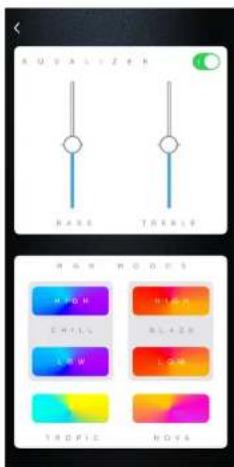
EQ: Tap toggle switch to toggle EQ on/off; adjust Bass and Treble sliders to desired level.
Note: When EQ is toggled off, speaker resumes play with default tune.
Additional RGB Modes: Tap one of the 6 party RGB mode presets, Chill and Blaze High & Low (lights react to higher or lower frequencies depending on the selection), Tropic, and Nova.
Tap < to return to Main Page.
WET SOUNDS SKAA CMD APP
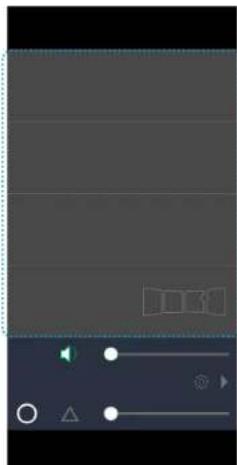
Connecting Additional Speakers (Satellites)
Step 1: Make sure speaker you want to use as a satellite is successfully paired (see page 18).
Step 2: Open the Wet Sounds SKAA cmd App on your mobile device.
Note: These four slots are designated for additional speakers (Satellites) when connected. Up to four Satellite speakers can be linked.
natural_image
Game interface screenshot showing play controls and UI elements (no readable text or symbols)Step 3: Tap the 📄 icon to connect your paired speaker to the app.
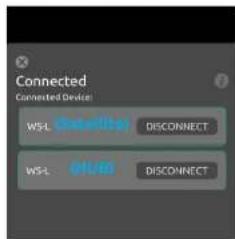
Step 4: Tap CONNECT. Tap ✗ to return to Main Page.
To disconnect device, simply tap DISCONNECT.
WET SOUNDS SKAA CMD APP
Connecting Additional Speakers (Satellites) Cont.
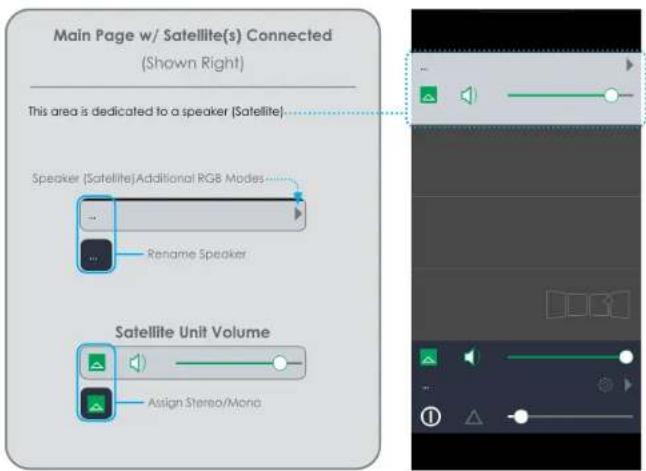
Assigning Stereo/Mono
Step 1: Tap the icon on the Main Page to configure your channel assignment (Stereo/Mono) on your HUB or Satellite speaker.
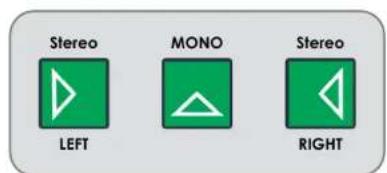
Step 2: Tap one of the three icons to assign Stereo Left, Stereo Right, or Mono.
Not available for this product.
WET SOUNDS SKAA CMD APP
Miscellaneous
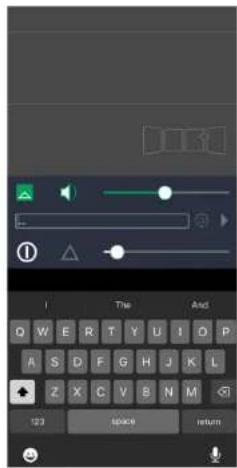
Tap the ... icon to rename your speaker.
Power Mode Options
Step 1: Tap the lower left icon on the Main Page to configure Power Mode on your HUB speaker.
Step 2: Tap one of the three icons to assign Power Saving, Power Always On, or Standby Mode.
Power Saving

Speaker will enter 'virtual OFF' state after a couple of minutes of inactivity. Will exit 'virtual off' after audio resumes.
Power Always

Speaker will always be powered on regardless of inactivity.
Standby Mode

Speaker will enter 'virtual OFF' state until mode is changed to Power Saving Mode or Power Always On Mode.
ADDING SATELLITE SPEAKERS
This section is about adding Satellite speakers to your HUB speaker by using the SKAA wireless networking technology built in to all Wet Sounds Portable speakers.
natural_image
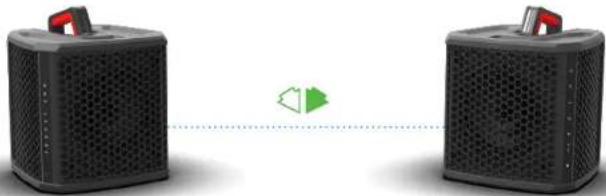
Two black speaker units connected by a dotted line with a green triangular icon (no text or symbols)- Power ON your speaker by pressing down the ⏻ button for a few seconds. Start by playing music on your Hub speaker using Bluetooth mode. You should see these icons lit up: ✦
Next we're going to add a Satellite speaker to make a 2-speaker network.
- Power ON your 2nd speaker and put into SKAA mode by repeatedly clicking the Power/Gear button until the SKAA button illuminates
The Satellite speaker should immediately Bond to the HUB speaker and start playing music. You may need to turn up the volume on your Satellite speaker to hear audio. You can tell your Satellite speaker is Bonded to a SKAA source by looking at the Bond Button; it should be bright when Bonded and dim when not.
- Once Bonded successfully to the HUB speaker, you'll want your Satellite speaker to remember the SKAA transmitter (in this case, the HUB speaker) by saving it to the Green List. Do this by holding down the SKAA Bond Button on your Satellite until it turns green ◄. If your Satellite doesn't Bond to the Hub immediately, double click the Bond button to enter Amber "Explore" mode (if you happen to Bond to the wrong device, repeat this step until you hear the same music that's coming from the HUB).
You're done & now you can balance the volume between the HUB and Satellite by using the volume buttons on each of the two speakers.
Adding Satellite Speakers
natural_image
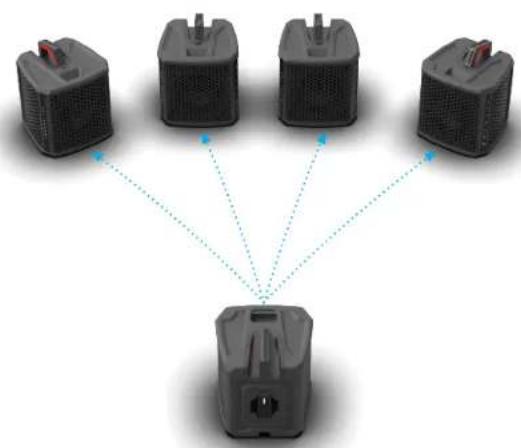
Diagram showing four battery units connected to a central device, with dotted lines indicating connections (no text or symbols present)The Wet Sounds Portable, when operating in BT mode, utilizes latency correction to synchronize audio playback precisely. This ensures that music is delivered simultaneously from both the HUB and Satellite speaker(s). You can connect up to four additional Satellite speakers, creating the perfect setup for an ultimate party experience.

The Wet Sounds Portable is equipped with SKAA, a wireless streaming technology that focuses on ease of use and multiple speaker functionality.
SKAA offers unparalleled flexibility, which is a top priority for audio gear users. It's super easy to use and has a long range, low power consumption, and low latency.
SKAA cells can effortlessly form vast, flexible audio networks that can be combined in countless ways. SKAA WiFi-free design makes it accessible to more users, and its Bonding process is ridiculously easy.
Below is the SKAA Receiver guide that describes how to operate and troubleshoot the SKAA Bond when pairing with the Wet Sounds Portable.
SKAA® RECEIVER USER'S GUIDE
Each SKAA receiver uses a Green List to remember your favourite audio sources (SKAA transmitters). A Green glowing Indicator on your receiver means you are listening to a favourite, or hunting for one. You can also explore to find new transmitters—an Amber Indicator means you are exploring for transmitters which are not on your Green List. The ▶ Bond Button on your receiver lets you select which audio source (SKAA transmitter) you're listening to.
Essentials
| Button | Command | Indicator | |
| Hold a few seconds | Add / Delete | Manually add / delete the current transmitter to / from your Green List | ● to ● = Added ● (flash) = Deleted |
| - | Auto Add | SKAA will automatically add the current Amber transmitter to your Green List if you listen to it for 30 minutes | ● to ● = Added |
| 1 Click | Green Mode | Rotate through your list of favourite transmitters (Green List) — when a favourite transmitter is found, the search stops and audio plays from that transmitter | ● (dim) = Hunting ● (flash) = Next one ● (bright) = Bonded |
| 2 Clicks | Amber Mode | Explore for new, unknown transmitters (ones which are not already on your Green List) | ● (dim) = Hunting ● (bright) = Bonded |
More Commands
| Command | Indicator | |
| 3 Clicks | Mute do again to Unmute; any Click command will first Unmute and then do its function | ○, ○ or ● = Muted (slow flash) |
| 4 Clicks | Red Mode If you have 2 or more transmitters on your Green List, power on just the one you want to hear and it plays automatically. | ● (dim) = Hunting ● (bright) = Bonded |
| 6 Clicks | Factory Reset Clear Green List. Start Over! | ● (flash) = Reset Done |
| Hold during power on | Make a Cluster of Recivers:1. Power off all transmitters and receivers2. Power on the Master receiver while holding down its Bond Button—hold the button down until the Indicator begins to flash Red3. With the remaining receivers within 3 meters of the Master receiver, power on the first one, wait for its Indicator to flash Red and then power on the second one; continue until all of them are powered on4. Once all of the Indicators stop flashing (turn solid Red), power off all of the receivers | ● (flash) = Receiver has entered 'Cluster Up' mode ● (bright) = The Cluster has been successfully made |
SKAA BOND
QUESTIONS AND ANSWERS
| Question | Answer |
| How does the Green List work? | You can store up to 10 SKAA transmitters on your Green List. These are your "favourite" audio sources. Every time you add a transmitter, it is assigned the first open spot on the Green List. When you single click the □ Bond Button, the receiver hunts through the Green List much like a car radio hunts for radio stations when you press seek. If the Indicator is dim Green and flashes every few seconds, this tells you the receiver is hunting through the Green List. Say you have 5 transmitters on your Green List; your receiver will hunt through the list one by one: 1, 2, 3, 4, 5 and then back to 1 and so on. The dim Green Indicator flashes every time the receiver moves to the next spot on the list. This hunting goes on for up to 1 minute. If your receiver doesn't find any of your favourite transmitters, it stops hunting and just waits for the last bonded favourite. If your receiver does find one of your favourite transmitters, the hunting stops, the Indicator turns bright green, and your receiver starts playing audio from that favourite. A dim Green Indicator that is NOT flashing means the receiver is just sitting on one spot, waiting for a specific favourite transmitter to show up. |
| How do I bond with a specific Green transmitter? | Play audio from your source device and ensure it has a SKAA transmitter connected. Click the □ Bond Button on your receiver. The receiver hunts through the Green List, flashing the Indicator as it goes. Once your receiver finds one of your favourite transmitters, it bonds to it and plays audio from that transmitter. If that isn't the transmitter you wanted, click the Bond Button once more. Repeat until your receiver bonds with the transmitter you want and you're hearing the correct audio playing. |
| How do I select transmitters if I can't reach my Bond Button? | Say you want to put your receiver on a high shelf where you can't reach the Bond Button easily. First, set up your Green List: add all of the transmitters you'll want to use. Then 4-click the □ Bond Button to enter Red Mode. Now put the receiver up on the high shelf. Power on just one of your transmitters and power off all others. The receiver automatically bonds to the transmitter that's on. |
| How do I delete a transmitter from my Green List? | Factory Reset (6 Clicks of the Bond Button) clears the Green List and lets you start over from scratch. If however, you'd like to delete just one transmitter from your Green List, first bond your receiver to the transmitter you wish to delete. See the section above: How do I bond with a specific Green transmitter?. Once you are bonded to it, hold down the □ Bond Button for a few seconds until you see the Indicator flash Red -this Red flash means the transmitter has been deleted. |
| What is a Cluster? | Clusters are an optional convenience for "power users". A Cluster is several SKAA receivers behaving as one product. A left & right speaker pair, for example, or a sound bar and subwoofer. |
| What is the Master receiver? | In any Cluster, there is a single Master receiver, and all of the other receivers in the Cluster follow its behaviour. You can control the entire Cluster by operating the □ Bond Button of the Master. A receiver must have a physical Bond Button in order to become the Master. |
| How do I "uncluster" several receivers? | Do the Make a Cluster of Receivers procedure once for each receiver, but omit Step 3. Do them one at a time. This gives each of the receivers a functioning □ Bond Button, and each of them will thereafter operate independently. |
| What are some tips for making Clusters? | Each step in the Make a Cluster of Receivers procedure has a 10-second time limit. When you see the Master's Indicator start to flash Red, you have 10 seconds to power on the next receiver. When that receiver's Indicator starts to flash Red, you have 10 more seconds to power on the next one, and so on. |
| Why does only one of my Bond Buttons work? | When you make a Cluster from several receivers, the first one powered on in the Make a Cluster of Receivers procedure becomes the Master of the Cluster. Only the Master's □ Bond Button works because a Cluster uses just one Green List -the Master's Green List. The Bond Button of each of the other receivers will work only for the Mute / Unmute function (3-Click of the Bond Button). |
| Can any group of receivers be made into a Cluster? | No. The receivers must be members of the same product family. If they are not, the Make a Cluster of Receivers procedure won't work. This is because only receivers which were designed to work together (as a single product) can be made into a Cluster. |

The SKAA Compatible Badge as well as the graphics-only version of it, the SKAA Icon, both found on the Product itself, certify that this Product has been tested and is fully compliant with all of the requirements of the SKAA Standard and has been granted SKAA Certification. This Product will work seamlessly with other products in the SKAA ecosystem of audio transmitting and receiving devices. For more information on the SKAA Standard, please visit www.SKAA.com. The SKAA® name as well as its associated marks, logos and icons are trademarks or registered trademarks of Eleven Engineering Incorporated.
STATEMENT OVERVIEW
FCC Statement
This equipment has been tested and found to comply with the limits for a Class B digital device, pursuant to Part 15 of the FCC Rules. These limits are designed to provide reasonable protection against harmful interference in a residential installation. This equipment generates uses and can radiate radio frequency energy and, if not installed and used in accordance with the instructions, may cause harmful interference to radio communications. However, there is no guarantee that interference will not occur in a particular installation. If this equipment does cause harmful interference to radio or television reception, which can be determined by turning the equipment off and on, the user is encouraged to try to correct the interference by one or more of the following measures:
-- Reorient or relocate the receiving antenna.
-- Increase the separation between the equipment and receiver.
-- Connect the equipment into an outlet on a circuit different from that to which the receiver is connected.
- Consult the dealer or an experienced radio/TV technician for help.
This device complies with part 15 of the FCC Rules. Operation is subject to the following two conditions:(1) This device may not cause harmful interference, and (2) this device must accept any interference received, including interference that may cause undesired operation.
Any changes or modifications not expressly approved by the party responsible for compliance could void the user's authority to operate the equipment. This equipment complies with FCC radiation exposure limits set forth for an uncontrolled environment. This equipment should be installed and operated with minimum distance 20cm between the radiator and your body.
IC Statement
- English:
This device complies with Industry Canada licence-exempt RSS standard(s). Operation is subject to the following two conditions: (1) This device may not cause interference, and (2) This device must accept any interference, including interference that may cause undesired operation of the device.
- French:
What This Warranty Covers
This is a "Limited" warranty. This warranty covers any defects in materials and workmanship and the warranty only applies to the original purchaser and is not transferable. This warranty is only valid if the original purchase was made from an authorized Wet Sounds dealer.
How Long Coverage Lasts
This warranty runs for 2 years from the date of the purchase.
What Is Not Covered
This warranty does not cover fading or discoloration caused by exposure to sunlight or chemicals such as ammonia, household bleach, or any cleaning material that contains abrasive substances. For information on how to prevent fading or discoloration, consult recommendations on cleaning products. Wet Sounds, Inc. does not cover the cost for removal and reinstallation of any kind. Additionally, shipping to Wet Sounds, Inc. is covered by the purchaser. This warranty is void and inapplicable if Wet Sounds deems that the product was abused or misused; including but not limited to Speaker product that has been improperly-powered (under or over powered), causing thermal (burnt voice coil) and/or mechanical failure (tom surrounds or spiders), damage caused by accident, mishandling, improper installation, negligence, normal wear and tear, excessive water or heat damage, freight damage or products that have been altered in any way. (The warranty is not transferable and will neither apply to products purchased from unauthorized dealers nor product owned by anyone other than the original purchaser from an authorized Wet Sounds dealer.) Wet Sounds is not responsible for any damages to a consumer's boat or person from a product failure. The warranty is void if Wet Sounds deems the product was installed or used improperly. Wet Sounds shall not be responsible for any incidental or consequential damages, except to the extent provided (or prohibited) by applicable law.
What Wet Sounds, Inc. Will Do
Wet Sounds, Inc. will repair any part of your product that proves to be defective in materials or workmanship. In the event repair is not possible, Wet Sounds, Inc. will replace the product in question. If it is deemed necessary, Wet Sounds, Inc. will either replace the entire product with a refurbished unit or it will be replaced with a model that is similar in price if that model is no longer available. Labor cost and materials needed to complete this service will be at no charge to the purchaser. Additionally, the cost of shipping to the consumer is also covered under this warranty.
How to Obtain Warranty Service
Contact Wet Sounds, Inc. either by phone at 877-938-7757 or by email at warranty@wetsounds.com. A service representative will assist you in the necessary actions to verify that the problem that you are experiencing is covered under warranty. If it is in fact a warranty issue, Wet Sounds will issue an RMA number for tracking purposes and give instructions on sending the product in for evaluation.
How State Law Applies
This warranty gives you specific legal rights, and you may also have other rights which vary from state to state.
Internet Warning
Wet Sounds, Inc. products sold on any unauthorized website or internet auction site are void of any and all manufacturer's warranty. Please contact Wet Sounds at 877-938-7757 or visit an authorized retailer near you.
Caution & Respect
Wet Sounds speakers can achieve very high sound pressure levels. Please use this product responsibly. Wet Sounds, Inc. is not responsible for any violations of the law that may be a direct result of excessive volume. Please abide by the rules but have fun doing it.


natural_image
Shield-shaped emblem featuring the American flag with a stylized animal head below (no text or symbols)PROUDLY DESIGNED
IN THE USA
Wet Sounds, Inc.
www.wetsounds.com
877-938-7757
2975 Louise Street
Rosenberg, Texas 77471 USA
- WS-L QUICK START GUIDE
- wet sounds
- HIGH PERFORMANCE AUDIO
- PORTABLE
- USER GUIDE
- Thank you for choosing Wet Sounds™ products!
- WARNING!
- TABLE OF CONTENTS
- WHAT'S INCLUDED
- PRODUCT DIMENSIONS
- Power/Mode
- Volume Up (+) Volume Down (-)
- Lighting FX
- SKAA Bond
- Relay Icon
- USER INTERFACE
- Bluetooth®
- Dim Flashing
- Solid Blue
- Bright Flashing
- Bluetooth® Mode (Speaker will be a HUB)
- K Mode
- SKAA Mode (Speaker will be a Satellite)
- Play/Pause/Track Control
- OPERATIONS
- Your Wet Sounds Portable is now ready to pair Bluetooth with your phone.
- BATTERY
- BATTERY CHARGING, TYPE-C OUT
- WET SOUNDS SKAA CMD APP
- Connecting Primary Speaker (HUB)
- Assigning Stereo/Mono
- Power Mode Options
- ADDING SATELLITE SPEAKERS
- Next we're going to add a Satellite speaker to make a 2-speaker network.
- SKAA® RECEIVER USER'S GUIDE
- STATEMENT OVERVIEW
- FCC Statement
- IC Statement
- What This Warranty Covers
- How Long Coverage Lasts
- What Is Not Covered
- What Wet Sounds, Inc. Will Do
- How to Obtain Warranty Service
- How State Law Applies
- Internet Warning
- Caution & Respect
Brand : Wet Sounds
Model : WS-L
Category : Loudspeaker