
NAP-57 - Mobile Device Charger Naxa - Free user manual and instructions
Find the device manual for free NAP-57 Naxa in PDF.


| Product Type | Wireless Charging Pad & Portable Battery Pack |
| Brand | Naxa |
| Model | NAP-57 |
| Battery Capacity | 5000 mAh |
| Input (Micro USB) | 5V/2A |
| USB Output | 5V/2A |
| Wireless Output | 5V/1A |
| Charging Efficiency | ≥75% |
| Transmission Distance (Wireless) | ≤6 mm |
| Dimensions | 126 × 66 × 12.7 mm |
| Weight | Approx. 130 g |
| Wireless Charging | Yes, with status indicator |
| Suction Grips | Yes, on device face to secure phone |
| Battery Level Indicator | 4-stage blue LED |
| Standby Auto Shutdown | After approx. 20 seconds |
| Included Accessories | Micro-USB charging cable, instruction manual, warranty card |
| Care and Cleaning | Clean suction grips with damp cloth; keep free from dust and moisture |
| Safety Warnings | Keep away from heat, water, children; do not disassemble or incinerate |
| Repairability | No user-serviceable parts; do not attempt to disassemble |
| Manufacturer Contact | Naxa Technical Support, 2320 East 49th St. Vernon, CA 90058, www.naxa.com/naxa_support/ |
Frequently Asked Questions - NAP-57 Naxa
User questions about NAP-57 Naxa
0 question about this device. Answer the ones you know or ask your own.
Ask a new question about this device
Download the instructions for your Mobile Device Charger in PDF format for free! Find your manual NAP-57 - Naxa and take your electronic device back in hand. On this page are published all the documents necessary for the use of your device. NAP-57 by Naxa.
USER MANUAL NAP-57 Naxa
natural_image
Two black handheld devices with buttons and a circular display, shown against a white background (no text or symbols visible)Instruction Manual
Please read carefully before use and keep for future reference.
Thank You
We know you have many choices when it comes to technology; thank you for choosing us here at Naxa Electronics. Established in 2001 in Los Angeles, California, we are dedicated to delivering products that entertain and delight.
We trust that you will be happy with your purchase. Please read this manual carefully and save it for reference. You may also find the latest FAQ, documentation, and other product material at our website. Come visit us on the web at www.naxa.com and see all that we have to offer!
In the Box
Please take a moment to make sure that you have everything in the list below. Although we make every effort to ensure that each Naxa device is securely packed and sealed, we know a lot can happen in between us and you. If anything is missing, check back with your local retailer to get immediate assistance.
If they cannot help you, please contact our Naxa Support team at www.naxa.com/naxa_support.
• NAP-57
- micro-USB charging cable
• Instruction manual
- Warranty card
Key Features
- Wireless charging pad allows you to charge your devices wirelessly
- Portable battery pack provides 5000 mAh of power when you need it most
- Suction grips hold your devices firmly in place during use
- USB port allows you to manually connect devices and charge while on the move
- Ultra-slim design makes it easy to keep power with you always
• Four-stage battery status indicator - Recharge the battery pack with the included micro USB cable
Warning

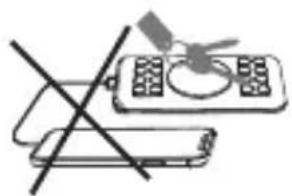
- Keep the unit from heat sources, direct sunlight, humidity, water or any other form of liquid.
- Do not operate the unit if it has been wet or exposed to moisture to prevent electric shock, explosion, and/or injury to yourself or damage to the unit.
- Do not use the unit with wet hands.
- Keep the unit free from dust, lint and other small particles.
- Do not use the unit for anything other than its intended use.
- Keep the unit out of reach of children. This unit is not a toy
- Do not expose the battery to liquid, moisture or humidity. This may adversely affect the internal circuit of the device.
- Do not use abrasive cleaning solvents to clean the device.
- Do not expose the device to extremely high or low temperatures. Extreme temperatures may destroy the battery or distort some of the plastic parts.
- Do not incinerate or otherwise dispose of the device in fire as it may result in an explosion.
- Do not expose the device to contact with sharp to prevent scratches and other damage.
- Do not drop the device. Drops and other hard shocks may damage the internal circuit.
- Do not attempt to disassemble the device. There are no user-serviceable parts inside.
natural_image
Simple line drawing of a device with a crossed-out black line (no text or symbols)

natural_image
Simple line drawing of a mechanical device with a diagonal line crossing over it (no text or symbols)At A Glance
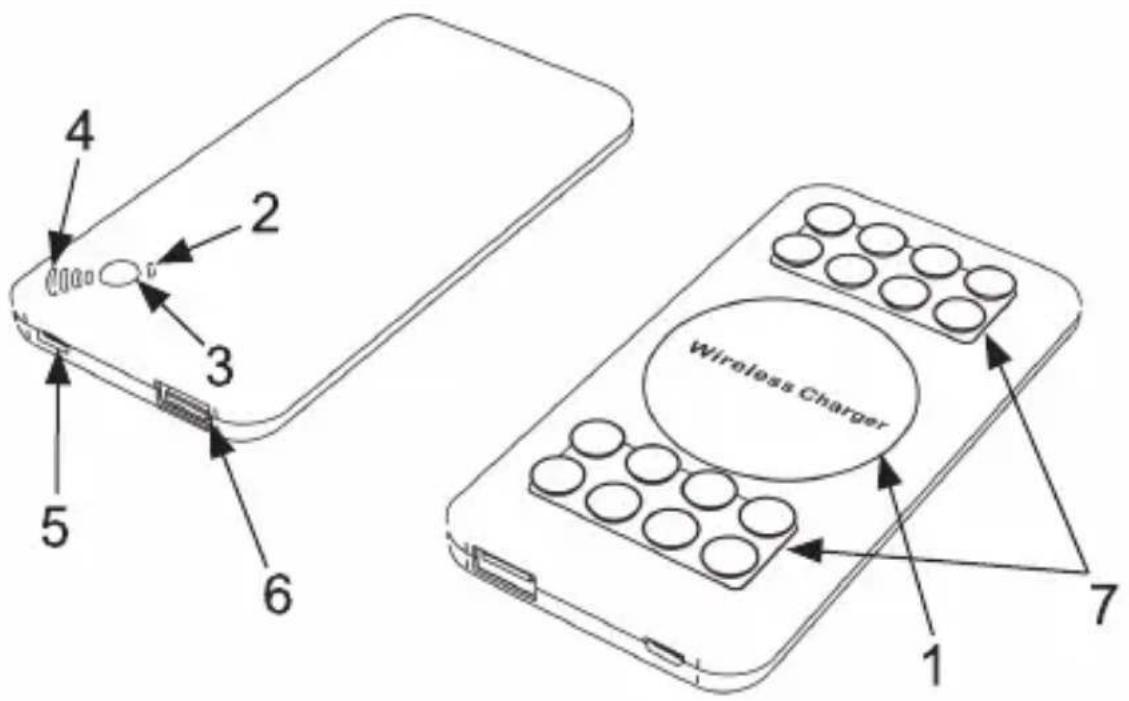
- Wireless charging pad
- Wireless charging status indicator
- Power button
- Power level indicator
- Input port
- Output port
- Suction cups
Wireless Charging
natural_image
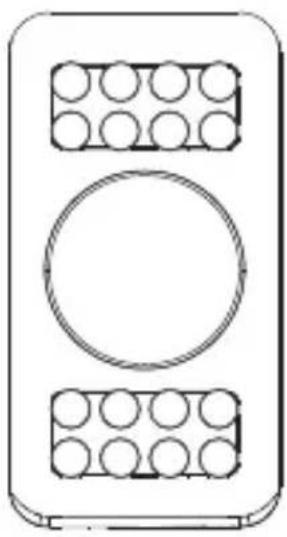
Simple line drawing of a rectangular device with two circular components and a central circle (no text or symbols)To charge your mobile device wirelessly, be sure to lay the power bank so the suction grips are facing up and place your mobile device onto the power bank with the screen facing down, as shown below.

natural_image
Technical line drawing of a smartphone showing front and side views (no text or symbols)For optimal efficiency during wireless charging, align the wireless charging area of the device with the wireless charging receiving area of your mobile device. For most models, this device ensures the camera is not blocked during use.
Suction Grips

natural_image
Simple line drawing of a rectangular device with two circular components and a central circle (no text or symbols)The suction grips on the face of the device help to secure your mobile device in place during use. Ensure the suction grips are working properly by helping to maintain their condition. To do so, clean the grips when dirty using a damp cloth to lightly clean the device, as shown below.

natural_image
Illustration of a hand cleaning a tray with circular objects (no text or symbols)USB Ports
When the device is out of power, or low on battery, then you need to charge the device. You can use the standard USB charging cable with micro-USB connector to connect the device and plug the USB-A into a 5V2A external power source, such as a car charger, household appliance, etc.
To charge external devices with the power bank via USB:
- Insert the USB-A end of the power cable into the Output port.
- Plug the other end of the cable into the input port of the external device you wish you charge.
- Press the power button to power on the power bank and begin charging your external device.

flowchart
graph TD
    A["In"] --> B["Charging"]
    B --> C["Out"]
    C --> D["SmartPhones"]
    C --> E["Tabletles"]
    C --> F["GameBay"]
    C --> G["GoPro"]
    C --> H["E-Cigarette"]
How to Use
To operate the device, press the power button once to turn the device on. It is now in standby mode and other devices can be charged.
When powered on, press the power button twice quickly, or press and hold the button for five seconds to turn the device off.
NOTE: In standby mode, if you do not perform any operations, it will automatically shut down after about 20 seconds. If you need to use it again, please repeat to powering on process.

Indicator Lights
This device comes with a four-stage battery indicator, allowing you to efficiently track the power level of the device at all times. This light is a steady blue.
It also comes with a charging indicator light that keeps you aware of its status in charging external devices.
- If the charging light is flashing blue, it is currently charging with cable
- If the light is steady blue, device is discharging.
- If the light is red, it is in standby mode.
- If light is green, device is wirelessly charging
- If the light flashes red and blue alternatively, there is an issue with the charging connection.

Specification
Capacity: 5000mAh
Micro B Input: 5V/2A
USB Output: 5V/2A
Transmission Distance: ≤6mm
Wireless Output: 5V/1A
Charging Efficiency: ≥75%
Product size: 126×66×12.7mm
Support
If you have problems with your device, please consult the instructions in this manual. Please also visit us on the web at www.naxa.com to get up to the minute news, alerts, and documentation for your device. For additional assistance, please contact Naxa Technical Support.
NAXA Technical Support
2320 East 49th St. Vernon, CA 90058
http://www.naxa.com/naxa_support/
MADE IN CHINA



Brand : Naxa
Model : NAP-57
Category : Mobile Device Charger