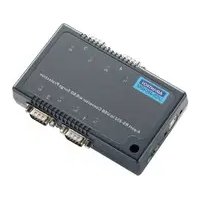
USB-4604BM-BE - USB converter Advantech - Free user manual and instructions
Find the device manual for free USB-4604BM-BE Advantech in PDF.


| Product Type | USB-to-Serial Converter (4-Port) |
| Model | USB-4604BM-BE |
| Brand | Advantech |
| Interface | USB 2.0 to 4x RS-232/422/485 |
| Dimensions (W x D x H) | 100 x 70 x 25 mm |
| Weight | 120 g |
| Power Supply | USB bus powered (5V, 500mA max) |
| Operating Temperature | 0°C to 60°C |
| Storage Temperature | -20°C to 70°C |
| Humidity | 5% to 95% non-condensing |
| Maximum Baud Rate | 115200 bps per port |
| ESD Protection | ±15kV air, ±8kV contact |
| Supported Protocols | RS-232, RS-422, RS-485 (software selectable) |
| Surge Protection | Built-in per port |
| Driver Support | Windows 10/8/7, Linux |
| Mounting | Desktop or optional DIN-rail mount |
| Maintenance | Clean with dry cloth; avoid liquids |
| Safety | FCC Class A, CE, RoHS compliant |
| Spare Parts | Not user-serviceable; contact Advantech |
| Repairability | No user-replaceable parts; professional repair only |
Frequently Asked Questions - USB-4604BM-BE Advantech
User questions about USB-4604BM-BE Advantech
0 question about this device. Answer the ones you know or ask your own.
Ask a new question about this device
Download the instructions for your USB converter in PDF format for free! Find your manual USB-4604BM-BE - Advantech and take your electronic device back in hand. On this page are published all the documents necessary for the use of your device. USB-4604BM-BE by Advantech.
USER MANUAL USB-4604BM-BE Advantech
4-port RS-232/422/485 Serial to USB Converter

Content
Chapter 1 Introduction
1.1. Overview 1
1.2. Features 1
1.3. Specifications 1
1.3.1 General....1
1.3.2 Power Requirement....2
1.3.3 Special Communications 2
1.3.4 Mechanism 2
1.3.5 Software....3
1.3.6 Environment....3
1.3.7 Regulatory Approvals....3
1.4. Dimensions 4
Chapter 2 Installation
2.1. Driver Installation....6
2.1.1 Steps for Driver Setup....6
2.2. Hardware Installation....7
2.3. Verifying Driver Setup 8
2.4. Limitations 8
2.5. Unplugging the Converters 9
2.6. Updating the Drivers 9
2.7. Uninstalling the Drivers 10
Chapter 3 Settings
3.1. Serial Configuration.... 14
3.2. Changing the Port Number 17
Chapter 4 Signal Connection
4.1. Pin Assignment 20
4.2. LED Status 20
Federal Communication Commission Interference Statement
For further certification information, please go to www.advantech.com
Declaration of Conformity
CE
The device has been tested and found to comply with the stated standard(s), which is(are) required by the Council Directive of 2004/108/EC* and 2014/30/EU.
FCC
The device has been tested and found to comply with the stated standard(s), which is(are) required by the Federal Communications Commission.
Product Warranty (5 years)
Advantech warrants to you, the original purchaser, that each of its products will be free from defects in materials and workmanship for five years from the date of purchase.
This warranty does not apply to any products which have been repaired or altered by persons other than repair personnel authorized by Advantech, or which have been subject to misuse, abuse, accident or improper installation. Advantech assumes no liability under the terms of this warranty as a consequence of such events.
Because of Advantech's high quality-control standards and rigorous testing, most of our customers never need to use our repair service. If an Advantech product is defective, it will be repaired or replaced at no charge during the warranty period. For out-of-warranty repairs, you will be billed according to the cost of replacement materials, service time and freight. Please consult your dealer for more details.
If you think you have a defective product, follow these steps:
- Collect all the information about the problem encountered. (For example, CPU speed, Advantech products used, other hardware and software used, etc.) Note anything abnormal and list any on screen messages you get when the problem occurs.
- Call your dealer and describe the problem. Please have your manual, product, and any helpful information readily available.
- If your product is diagnosed as defective, obtain an RMA (return merchandise authorization) number from your dealer. This allows us to process your return more quickly.
- Carefully pack the defective product, a fully-completed Repair and Replacement Order Card and a photocopy proof of purchase date (such as your sales receipt) in a shippable container. A product returned without proof of the purchase date is not eligible for warranty service.
- Write the RMA number visibly on the outside of the package and ship it prepaid to your dealer.
Conventions

Warning signs are used to identify immediate hazards for property damage, injury or death.

CAUTION SIGNS ARE USED WARN AGAINST POTENTIAL HAZARDS OR TO CAUTION AGAINST UNSAFE PRACTICES.

Note signs are used to provide additional information for the device or settings.
Copyright
Copyright © 2015 Advantech Inc. All rights reserved. No part of this publication may be reproduced, adapted, stored in a retrieval system, translated into any language, or transmitted in any form or by any means without the written permission of the manufacturer.
Customer Support
Regional Service & Customization Centers
| China | Taiwan | Netherlands | Poland | USA/ Canada |
| Kunshan | Taipei | Eindhoven | Warsaw | Milpitas, CA |
| 86-512-5777-5666 | 886-2-2792-7818 | 31-40-267-7000 | 48-22-33-23-740 / 41 | 1-408-519-3898 |
Worldwide Offices
| Greater China | Asia Pacific | Europe | Americas | ||||
| China | Japan | Toll Free | 00800-2426-8080 | North America | |||
| Toll Free | 800-810-0345 | Toll Free | 0800-500-1055 | Germany | Toll Free | 1-888-576-9668 | |
| Beijing | 86-10-6298-4346 | Tokyo | 81-3-6802-1021 | Munich | 49-89-12599-0 | Cincinnati | 1-513-742-8895 |
| Shanghai | 86-21-3632-1616 | Osaka | 81-6-6267-1887 | Hilden / D'dorf | 49-2103-97-885-0 | Milpitas | 1-408-519-3898 |
| Shenzhen | 86-755-8212-4222 | Irvine | 1-949-420-2500 | ||||
| Chengdu | 86-28-8545-0198 | France | |||||
| Hong Kong | 852-2720-5118 | Korea | Paris | 33-1-4119-4666 | Brazil | ||
| Toll Free | 080-363-9494 | Toll Free | 0800-770-5355 | ||||
| Seoul | 82-2-3663-9494 | Saude-São Paulo | 55-11-5592-5355 | ||||
| Taiwan | Singapore | Italy | |||||
| Toll Free | 0800-777-111 | Singapore | 65-6442-1000 | Milano | 39-02-9544-961 | Mexico | |
| Neihu | 886-2-2792-7818 | Toll Free | 1-800-467-2415 | ||||
| Xindian | 886-2-2218-4567 | Mexico City | 52-55-6275-2777 | ||||
| Taichung | 886-4-2378-6250 | Malaysia | Benelux & Nordics | ||||
| Kaohsiung | 886-7-229-3600 | Toll Free | 1800-88-1809 | Breda | 31-76-5233-100 | ||
| Kuala Lumpur | 60-3-7725-4188 | ||||||
| Penang | 60-4-537-9188 | UK | |||||
| Reading | 44-0118-929-4540 | ||||||
| Indonesia | Poland | ||||||
| Jakarta | 62-21-769-0525 | Warsaw | 48-22-33-23-740 / 41 | ||||
| Thailand | Russia | ||||||
| Bangkok | 66-2-248-3140 | Toll Free | 8-800-550-01-50 | ||||
| Moscow | 7-495-232-1692 | ||||||
| India | |||||||
| Toll Free | 1-800-425-5070 | ||||||
| Pune | 91-20-39482075 | ||||||
| Bangalore | 91-80-2545-0206 | ||||||
| Australia | 1300-308-531 | ||||||
| Toll Free | 61-3-9797-0100 | ||||||
| Melbourne | 61-2-9476-9300 | ||||||
| Sydney | |||||||
Technical Support and Assistance
- Visit the Advantech web site at www.advantech.com/support where you can find the latest information about the product.
- Contact your distributor, sales representative, or Advantech's customer service center for technical support if you need additional assistance. Please have the following information ready before you call:
• Product name and serial number
• Description of your peripheral attachments
• Description of your software (operating system, version, application software, etc.)
• A complete description of the problem
• The exact wording of any error messages
Safety Instructions
- Read these safety instructions carefully.
- Keep this User Manual for later reference.
- Disconnect this equipment from any AC outlet before cleaning. Use a damp cloth. Do not use liquid or spray detergents for cleaning.
- For plug-in equipment, the power outlet socket must be located near the equipment and must be easily accessible.
- Keep this equipment away from humidity.
- Put this equipment on a reliable surface during installation. Dropping it or letting it fall may cause damage.
- The openings on the enclosure are for air convection. Protect the equipment from overheating. DO NOT COVER THE OPENINGS.
- Make sure the voltage of the power source is correct before connecting the equipment to the power outlet.
- Position the power cord so that people cannot step on it. Do not place anything over the power cord.
- All cautions and warnings on the equipment should be noted.
- If the equipment is not used for a long time, disconnect it from the power source to avoid damage by transient overvoltage.
- Never pour any liquid into an opening. This may cause fire or electrical shock.
- Never open the equipment. For safety reasons, the equipment should be opened only by qualified service personnel.
- If one of the following situations arises, get the equipment checked by service personnel:
- The power cord or plug is damaged.
- Liquid has penetrated into the equipment.
- The equipment has been exposed to moisture.
- The equipment does not work well, or you cannot get it to work according to the user's manual.
- The equipment has been dropped and damaged.
- The equipment has obvious signs of breakage.
- DO NOT LEAVE THIS EQUIPMENT IN AN ENVIRONMENT WHERE THE STORAGE TEMPERATURE MAY GO BELOW -20°C (-4°F) OR ABOVE 60°C (140°F). THIS COULD DAMAGE THE EQUIPMENT. THE EQUIPMENT SHOULD BE IN A CONTROLLED ENVIRONMENT.
-
CAUTION: DANGER OF EXPLOSION IF BATTERY IS INCORRECTLY REPLACED. REPLACE ONLY WITH THE SAME OR EQUIVALENT TYPE RECOMMENDED BY THE MANUFACTURER, DISCARD USED BATTERIES ACCORDING TO THE MANUFACTURER'S INSTRUCTIONS.
-
The sound pressure level at the operator's position according to IEC 704-1:1982 is no more than 70 dB (A).
DISCLAIMER: This set of instructions is given according to IEC 704-1. Advantech disclaims all responsibility for the accuracy of any statements contained herein.
Introduction
Chapter 1
1.1. Overview
Advantech's USB-4600 series of serial to USB converters are the easies, the most reliable way to add serial ports to a PC. To attach the USB-4604B/4604BM to a PC, you don't need to open the chassis or power down your PC. After installing the driver, connect the USB converters to your computer, will instantly get extra high-speed RS-232/422/485 ports. By simply plugging in a USB-hub, USB-4600 series eliminate the configuration issues associated with high-priced, elder card solutions. You only have to install the driver, no need to set cards slot, IRQ addresses, or device addresses. This reduces programming effort.
USB-4600 series products are compliant with USB 2.0 specifications, and up to 480M bps high-speed requirement. USB-4600 series supports for transmission speeds up to 921.6k bps, which meets the demand for high speed data exchange.
1.2. Features
USB-4600 series products have the following features:
• Full compliance with USB V2.0 specifications.
• RS-232/422/485 port supported
- Serial Transmission speed up to 921.6 kbps
• Automatic RS-485 data flow control
- No external power supply necessary; the hub derives its power from USB port
- Plug & Play installation
- No additional IRQs or I/O ports required
• Hot swap function supported
1.3. Specifications
1.3.1 General
Table 1-1. General
| Specificaiton Description | |
| Certifications CE, FCC (Class A) | |
| Connectors | 1 x USB Type B (Type A to Type B cable provided)4 x DB9 |
| Enclosure ABS + PC | |
| USB Cable Max. 15ft (4.6 m) | |
1.3.2 Power Requirement
Table 1-2. Power Requirement
| Specificaiton Description | |
| Power Input 12 to 48 V | DC (external) or 5 VDC (Bus powered) |
| Power Consumption • 130 mA @ 5 V (Typical)• 200 mA @ 5 V (Max.) | |
1.3.3 Special Communications
Table 1-3. Special Communications
| Specificaiton Description | |
| Port Type RS-232/422/485, software selectable | |
| No. of Ports 4 | |
| Port Connector DB9 male | |
| Data Bits 5, 6, 7, 8 | |
| Stop Bits 1, 1.5, 2 | |
| Parity None, Odd, Even, Space, Mark | |
| Transmission Speed Up to 921.6 kbps | |
| Flow Control XON/XOFF, RTS/CTS | |
| Baud Rate | 50 bps ~ 921.6 kbps, any baud rate setting |
| Serial Signals | RS-232: TxD, RxD, CTS, RTS, DTR, DSR, DC, RI, GNDRS-422: TxD+, TxD-, RxD+, RxD-, GNDRS-485: Data+, Data-, GND |
| Protection | 15 KV ESD for all signals |
1.3.4 Mechanism
Table 1-4. Mechanism
| Specificaiton Description | |
| Dimensions (W x D x H) | 132 x 80 x 32 mm5.2 x 3.15 x 1.26 inch |
| Enclosure | ABS + PC |
| Mounting | DIN-rail, panel |
1.3.5 Software
Table 1-5. Software
| Specificaiton Description | |
| Driver Support Windows | XP/7/8/8.1, Windows Server 2008/2012/2012 R2 |
1.3.6 Environment
Table 1-6. Software
| Specificaiton Description |
| Operating Temperature -40°C ~ 75°C (-40°F ~ 167°F) |
| Storage Temperature -40°C ~ 80°C (-40°F ~ 176°F) |
| Operating Humidity 10 ~ 95% (non-condensing) |
1.3.7 Regulatory Approvals
Table 1-7. Regulatory Approvals
| Specificaiton Description |
| Regulatory Approvals EMC CE, FCC Part 15 Subpart B (Class A) |
1.4. Dimensions

![132 [5.20] 80 [3.15]32 [1.26] 91 [3.58] 4 - port R8 - 232 to USB Converter w/EBD Surge Protection 34 [1.34]](/content/2026/05/986195/images/8591a474dba1b826903bcbb1e57690c192e65d3437c13618eca0bf1d8bd76d55.jpg)
Figure 1-1. USB-4604B
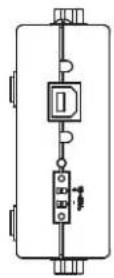
![132 [5.20] 80 [3.15]32 [1.26] 4 - port RS - 283 to USB Converter m/SSD Surge Protection 91 [3.58] 34 [1.34]](/content/2026/05/986195/images/604ced48e08b6a5c7e1414ad414813b1ec232ffd6f08282e6f408abd71a5b065.jpg)
Figure 1-2. USB-4604BM
Installation
Chapter 2
2.1. Driver Installation
We strongly recommend you install the driver before you insert the USB-4600 series into USB port of your PC, since this will guarantee a smooth installation process.
2.1.1 Steps for Driver Setup
- Insert the Advantech CD-ROM into your CD-RAM drive (whereas E:\ is the drive name of your CD-ROM) on the host PC.
- Use Windows explorer or the Windows Run command to execute the setup program, the path for the setup program on the CD-ROM is as follows:
E:\Serial Converter\USB-4604BE\Advantech_USB4064BE_Drive_v1.0.4_20150701.exe
- If there is an existing COM port mapping utility on the host PC, remove it at this time. A system reboot may be necessary before continuing the installation.
- Once the Advantech USB-4604BE Drive Setup screen displays, click Install to proceed with the installation.

Figure 2-1. Setup 1 of 3
The Advantech USB-4604BE Drive Setup continues and a status screen displays. The default installation path is C:\Program Files (x86)\Advantech\USB2Serial.
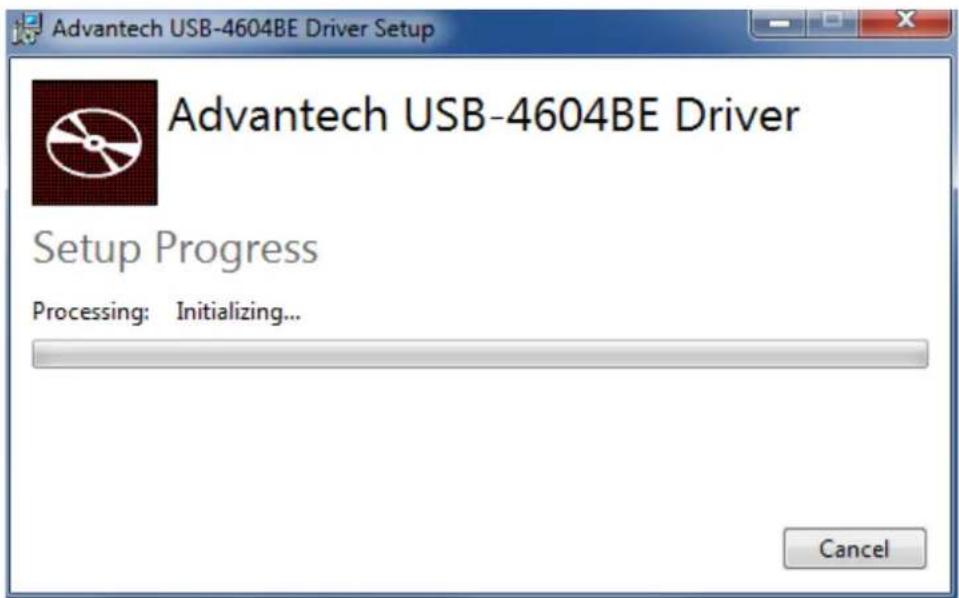
Figure 2-2. Setup 2 of 3
- Once the installation of the package is finished a Advantech USB-4604BE Drive Setup screen displays. Click Close to conclude the process and exit the Advantech USB-4604BE Drive Setup.

Figure 2-3. Setup 3 of 3
2.2. Hardware Installation
When the USB-4600 series plug into the USB port, the Found New Hardware Wizard will show up. Through the Wizard, the module could be installed automatically.
It will take four times to install the COM ports if you are using USB-4604B/4604BM due to 4 COM ports.
2.3. Verifying Driver Setup
After you have installed your card, go to Control Panel > Device Manager to look for the Device Name that will appear after you have installed the driver.

Figure 2-4. Verifying Driver Setup

If your device has not been properly installed, there will be an exclamation mark (!) on the device name to indicate a conflicting device. If this is the case, just remove that device and start the driver installation process all over again.
2.4. Limitations
USB-4600 series might need the external power input (10\~48VDC) when the USB port can not provide enough current. Typically, USB-4604B/4604BM requires at least 130mA@5V DC and 200mA@5V DC from USB bus power.
If the current is not enough, you will observe the system keeps showing connection / disconnection to the USB devices. In this situation, it is necessary to input the external voltage to the 2-pin green connector for power input.
Generally, if you attach several USB-4600 series Converters on your PC and the serial ports are running at high speed such as 921.6 kbps, the CPU loading will become too high to run smoothly. It is recommended to apply the proper amount of USB-4600 series modules to your PC depending on the CPU performance of your system.
2.5. Unplugging the Converters
Though the Advantech USB to Serial Converter are hot-swappable, we still recommend you to follow the hardware un-installation procedure to avoid any unpredictable damages to your device or your system.
- Close the applications with any opened port of USB to Serial Converter.
- Click the Safely Remove Hardware in windows task bar.
- Click Stop Advantech USB-xxxx USB2Serial Converter.
- Click OK on the Safe to Remove Hardware dialog box.
- Unplug the USB to Serial Converter from the USB port.
2.6. Updating the Drivers
- Close the applications with any opened port of the USB to Serial Converter.
- Go to Control Panel > Programs and Features. Double click on the Advantech USB-xxxx Driver.
- Click Update Driver button.
Figure 2-5.
- The Upgrade Device Driver Wizard will help you to upgrade device driver.

If you have 2 or more Advantech USB to Serial Converter installed, the above upgrade method won't take effect. You can do follow below steps:
- Unplug all Advantech USB to Serial Converters.
- Install new driver.
- Plug in the Advantech USB to Serial Converter.
2.7. Uninstalling the Drivers
- Close the applications with any opened port of the USB to Serial Converter.
- Go to Control Panel > Programs and Features. Click on the Advantech USB-xxxx Driver.
- Click Uninstall or Change button.
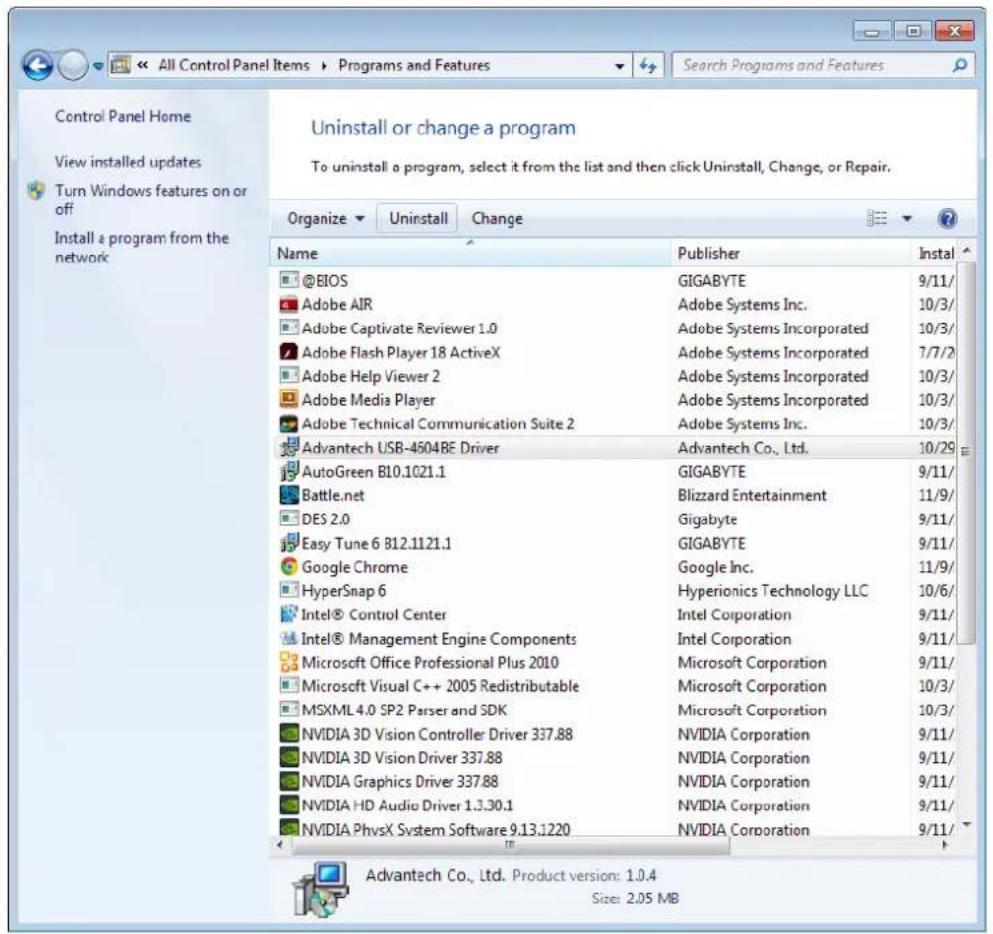
Figure 2-6.
- Advantech USB-4604BE Drive Setup show up.
5. Choose Uninstall button.

Figure 2-7.
- Once the uninstallation is finished a Advantech USB-4604BE Drive Setup screen displays. Click Close to conclude the process.

Figure 2-8.
Settings
Chapter 3
3.1. Serial Configuration
- Choose Advantech USB2 Serial Converter in Control Panel > Device Manager.
- Press right button and choose Properties.

Figure 3-1.
- You can change the serial configuration setting: Mode, Bits per second, Data bits, Stop bits, Parity or Flow control in here.

Figure 3-2.
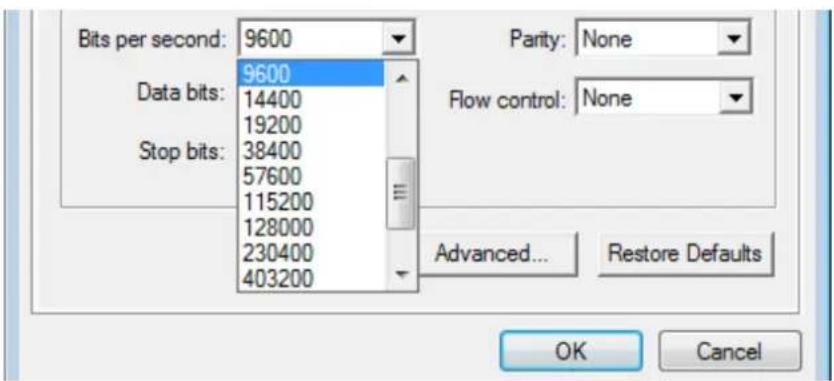
Figure 3-3.
If your product model is USB-4604BM, you can choose Serial port Type on the setting tab.
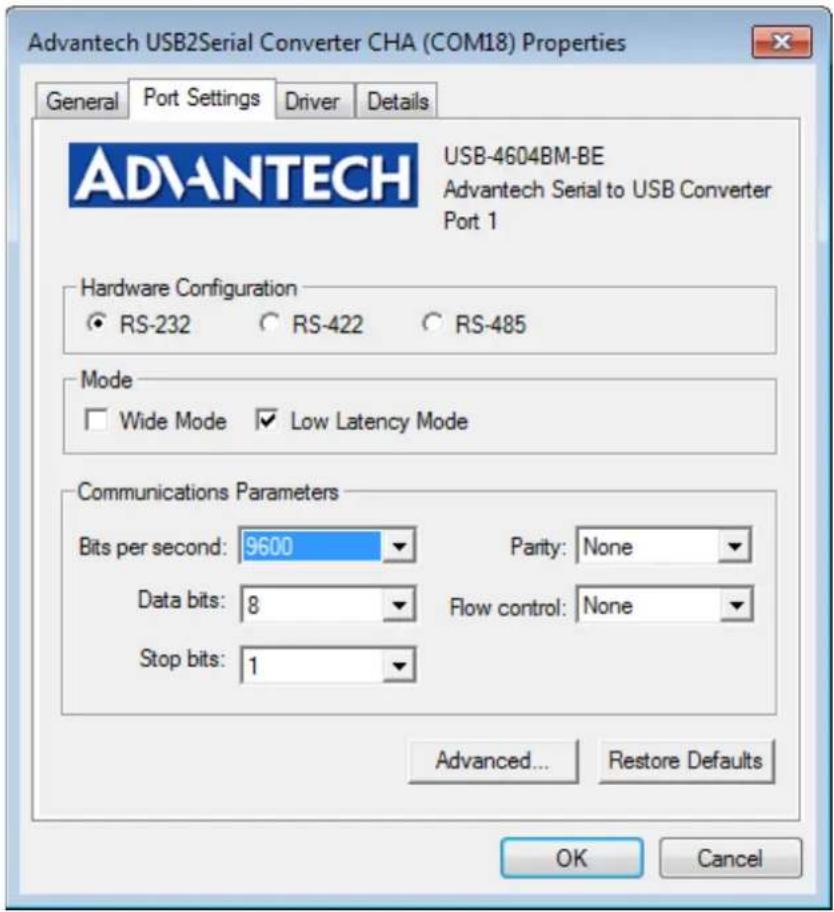
Figure 3-4.
3.2. Changing the Port Number
- If you want to change the port number, please close the applications with any opened port of USB to Serial Converter.
- On the setting tab, click Advanced button, select from the drop down list the new port number you want to change to.
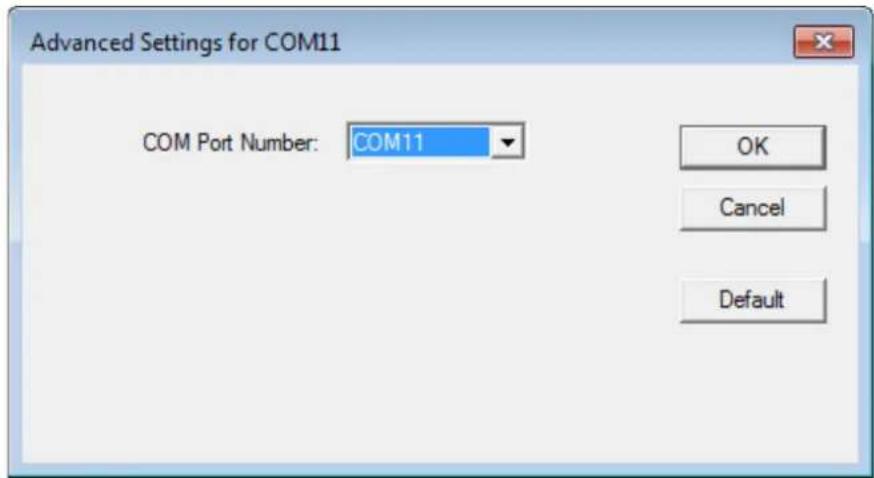
Figure 3-5.
- Click OK button to save your settings.

If you select a port number that has been occupied by other ports (marked as "in use"), the port previously using this port number won't work until you remove and reinstall it.
Signal Connection
Chapter 4
4.1. Pin Assignment
The RS-232/422/485 mode pin assignment is as following:

Figure 4-1. Pin Assignment
Table 4-1. Pin Assignment
| Pin 1 2 3 4 5 6 7 8 9 | |||||||||
| RS-232 DCD RX TX DTR GND DSR RTS CTS RI | |||||||||
| RS-422 | TX- | - | - | TX+ | GND | - | RX+ | - | RX- |
| RS-485 DATA-- DATA+ GND--- | |||||||||
4.2. LED Status
The USB Module is equipped with a LED indicator to show the current status of the device. When you plug the USB device into the USB port, the LED indicator will blink five times and then stay lit to indicate that it is on. Please refer to the following table for detailed LED indicator status information.
Table 4-2. LED Indicator Status
| Item | LED Status | Description |
| USB Indicator | On | Device ready for work |
| Off | Device not ready for work | |
| TX | On | Device ready for work |
| Off | Device not ready for work | |
| Slow Blinking | Device initialization | |
| Fast Blinking Device working | ||
| RX | On | Device ready for work |
| Off | Device not ready for work | |
| Slow Blinking | Device initialization | |
| Fast Blinking Device working | ||
- Content
- Chapter 1 Introduction
- Chapter 2 Installation
- Chapter 3 Settings
- Chapter 4 Signal Connection
- Federal Communication Commission Interference Statement
- Declaration of Conformity
- CE
- FCC
- Product Warranty (5 years)
- Conventions
- Copyright
- Customer Support
- Technical Support and Assistance
- Safety Instructions
- Introduction
- Chapter 1
- Overview
- Features
- Specifications
- General
- Power Requirement
- Special Communications
- Mechanism
- Software
- Environment
- Regulatory Approvals
- Dimensions
- Installation
- Chapter 2
- Driver Installation
- Steps for Driver Setup
- Hardware Installation
- Verifying Driver Setup
- Limitations
- Unplugging the Converters
- Updating the Drivers
- Uninstalling the Drivers
- Choose Uninstall button.
- Settings
- Chapter 3
- Serial Configuration
- Changing the Port Number
- Signal Connection
- Chapter 4
- Pin Assignment
- LED Status
Brand : Advantech
Model : USB-4604BM-BE
Category : USB converter