USER MANUAL SYNCMASTER 192MP SAMSUNG
Index
![graph TD A["Main Page"] --> B["Safety Instructions"] B --> C["Notational"] B --> D["Power"] B --> E["Installation"] B --> F["Cleaning"] B --> G["Other"] B --> H["Introduction"] H --> I["Unpacking"] H --> J["Front"] H --> K["Rear"] H --> L["Remote Control"] B --> M["Setup"] M --> N["Connecting Your M…](/content/2025/01/98362/images/625c5528fcdb1d143411ae2f244456c536a7335c268e8a2f3b717264e6b23474.jpg)
![graph TD A["Adjusting Your LCD Monitor"] --> B["User Controls"] B --> C["User control buttons"] B --> D["Direct-Access Features"] A --> E["On-Screen Display"] E --> F["OSD Functions"] E --> G["Screen Adjustment Animation Clips"] H["Troubleshooting"] --> I["Check before Calling for Service"] I --> J[…](/content/2025/01/98362/images/65ba6a220a60d3ce33aef100e117ec643723d38d339deb65ca9a6c32e2c89e53.jpg)
Safety Instructions - Notational
Please read the following safety instructions as they are designed to prevent damage to property and harm to the user.

Warning / Caution

Failure to follow directions noted by this symbol could result in bodily harm or damage to equipment.
Notational Conventions

Prohibited

Important to read and understand at all times

Do not disassemble

Disconnect the plug from the outlet

Do not touch

Grounding to prevent an electric shock
Safety Instructions - Power

When not used for extended periods of time, set your computer to DPMS. If using a screen saver, set it to the active screen mode.
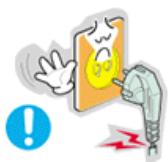
Do not use a damaged or loose plug.
• This may cause an electric shock or fire.
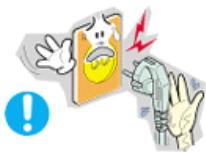
Do not pull the plug out by the wire nor touch the plug with wet hands.
• This may cause an electric shock or fire.
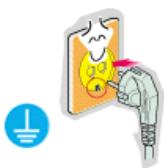
Use only a properly grounded plug and receptacle.
- An improper ground may cause electric shock or equipment damage.
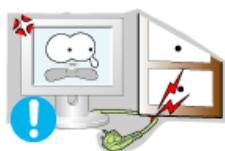
Do not excessively bend the plug and wire nor place heavy objects upon them, which could cause damage.
• This may cause an electric shock or fire.
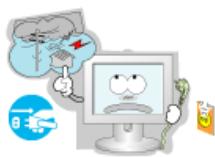
Disconnect the plug from the outlet during storms or lightening or if it is not used for a long period of time.
- Failure to do so may cause an electric shock or fire.
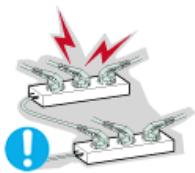
Do not connect too many extension cords or plugs to an outlet.
• This may cause a fire.
Safety Instructions - Installation
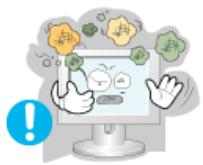
Put your monitor in a location with low humidity and a minimum of dust.
- An electric shock or fire could result inside the monitor.

Do not drop the monitor when moving it.
- This may cause damage to the product or human body.
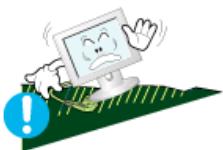
Place the monitor on a flat and stable surface.
- The monitor can cause injury by falling.
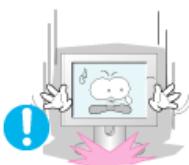
Set down the monitor carefully.
- It could be damaged or broken.

Do not place the monitor face down.
- The TFT-LCD surface may be damaged.
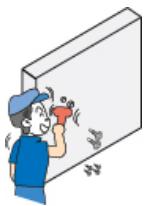
Installing a wall bracket must be done by a qualified professional.
• Installation by unqualified personnel may result in injury.
• Always use the mounting device specified in the owner's manual.
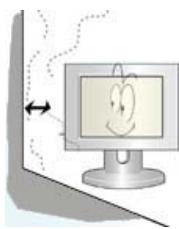
Leave a space for ventilation between the product and the wall.
- Poor ventilation may cause the interior temperature to rise and lead to a fire.
Safety Instructions - Installation
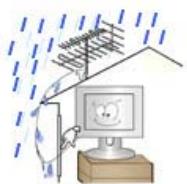
To prevent rainwater from running along the outdoor antenna cable and entering the house, be sure the outdoor portion of the cable hangs down below the point of entry.
- If rainwater enters the product, it may cause an electric shock or fire.
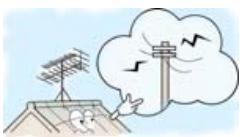
If you are using an outdoor antenna, be sure to put sufficient distance between your antenna and the electrical wires nearby so that they would not come in contact with each other in case the antenna is knocked over by strong wind.
- A knocked-over antenna may cause injury or an electric shock.
Safety Instructions - Cleaning

When cleaning the monitor case or the surface of the TFT-LCD screen, wipe with a slightly moistened, soft fabric.
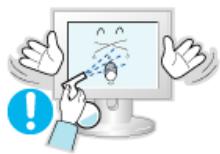
Do not spray water or detergent directly on the monitor.
- This may cause damage, electric shock or a fire.
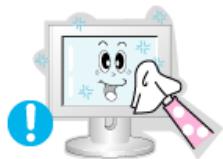
Use the recommended detergent with a smooth cloth.

If the connector between the plug and the pin is dusty or dirty, clean it properly with a dry cloth.
- A dirty connector can cause an electric shock or fire.

When you remove batteries from the remote, be careful that they are not swallowed by children. Keep batteries out of the reach of children.
• If swallowed, see a doctor immediately.
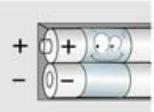
When replacing batteries, place the batteries in the correct +/- polarity position as indicated on battery holder.
- Incorrect polarity may cause a battery to break or leak and could lead to a fire, injury, or contamination (damage).
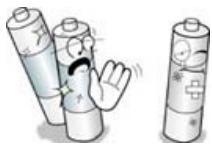
Use only specified standard batteries. Do not use new and used batteries together.
- may cause a battery to break or leak and could lead to a fire, injury, or contamination (damage).
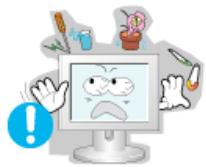
Do not set a glass of water, chemicals or any small metal objects on the monitor.
- This may cause damage, electric shock or a fire.
- If a foreign substance gets into the monitor, disconnect the plug and then contact a service center.
Contact a Service Center or Customer Center for interior cleaning once a year.
- Keep the product's interior clean. Dust which has accumulated in the interior over an extended period of time may cause malfunction or a fire.
Safety Instructions - Other
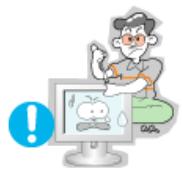
Do not remove cover (or back). No user serviceable parts inside.
• This may cause an electric shock or a fire. • Refer servicing to qualified service personnel.
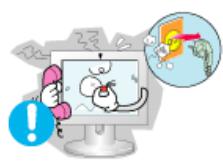
If your monitor does not operate normally - in particular, if there are any unusual sounds or smells coming from it - unplug it immediately and contact an authorized dealer or service.
• This may cause an electric shock or fire.
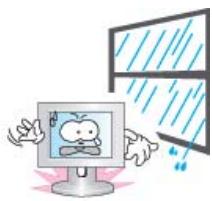
Be careful not to let water drip into the monitor or expose the monitor to moisture.
- This may cause malfunction, an electric shock or a fire.
- Especially avoid operating the monitor near water or outdoors where it could be exposed to snow or rain.
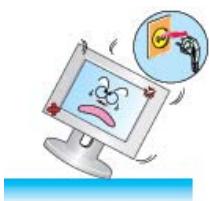
If the monitor is dropped or the casing is damaged, turn the monitor off and unplug the power cord.
- The monitor may malfunction, causing an electric shock or a fire.
- Then contact the Service Center.
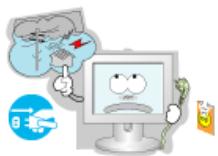
- Keep the power off when there is thunder and lightning outside, or if the monitor will remain unused for an extended period of time.
- The monitor may malfunction, causing an electric shock or a fire.
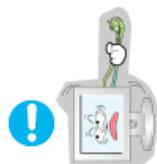
Do not try to move the monitor by pulling on the wire or the signal cable.
- This may cause a breakdown, electric shock, or a fire due to damage to the cable.
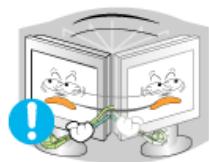
Do not move the monitor right or left by pulling only the wire or the signal cable.
- This may cause a breakdown, electric shock, or a fire due to damage to the cable.
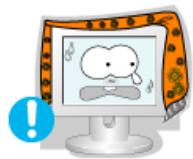
Do not cover the vents on the monitor cabinet.
- Bad ventilation may cause a breakdown or fire.
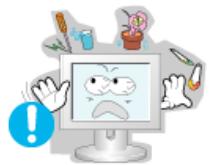
Do not place any heavy objects on the monitor.
- This may cause malfunction, an electric shock, or a fire.
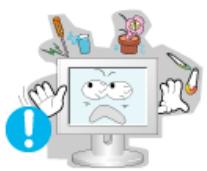
- This may cause malfunction, an electric shock, or a fire.
- If a foreign substance enters the monitor, unplug the power cord and contact the Service Center.
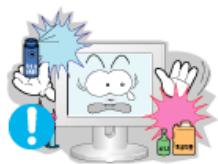
Do not use or store inflammable substances near the monitor.
• This may cause an explosion or fire.
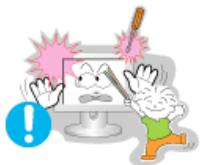
- This may cause an electric shock, fire or injury.
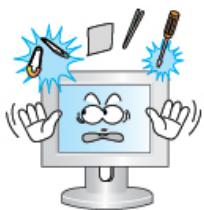
- This may cause malfunction, an electric shock or a fire.
- Always contact the Service Center if foreign substances/objects enter into the monitor.
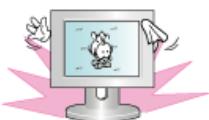
If you view a fixed screen for an extended period of time, residual image or blurriness may appear.
- Change the mode to energy save or set a screensaver to moving picture when you need to be away from the monitor for an extended period of time.

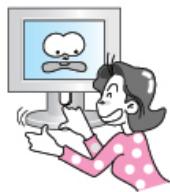
Be careful when adjusting the stand angle.
- Applying too much force may cause the monitor topple over or fall, resulting in injury.
- Your hand or finger(s) may get caught between the monitor and the stand, causing injury.
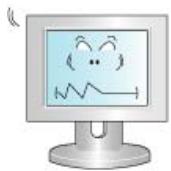
Adjust the resolution and frequency to the levels appropriate for the model.
- Inappropriate resolution may cause undesirable picture quality.
19 inch - 1280 X 1024
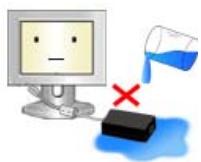
- This may cause malfunction, an electric shock or a fire.
- Do not use the adaptor near water or outdoors, especially when it rains or snows.
- Be careful that the adaptor does not get wet while cleaning the floor with water.
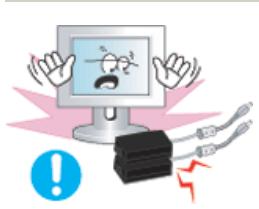
Keep all power adaptors apart.
- Possible fire hazard.
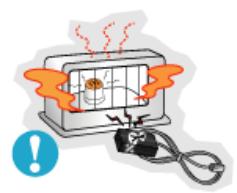
Keep the power adaptor away from any other heat source.
- Possible fire hazard.
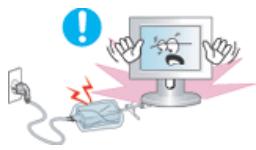
Remove and discard the vinyl bag from the power adaptor before use.
- Possible fire hazard.
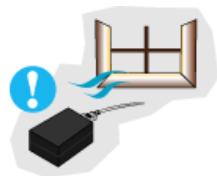
Always keep the power adaptor in a well-ventilated area.
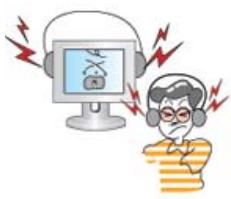
Keep the volume at a proper level when you use the headphones.
- Excessively loud volume levels may damage hearing.
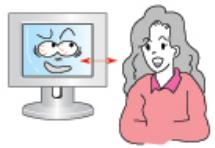
Keep a proper distance between your eyes and the monitor screen.
- Sitting too close to the monitor on a continuous basis may damage eyesight.
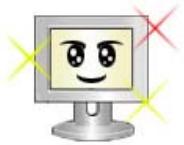
To ease eye strain, take at least a five-minute break after every hour of using the monitor.
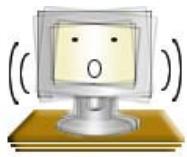
Do not use the monitor where it can be exposed to strong vibrations.
- Exposure to strong vibrations can be a fire hazard and shorten the life of the monitor.
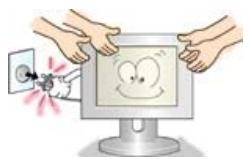
When moving the monitor, turn the power switch off and unplug the power cord. Make sure that all cables, including the antenna cable and cables connecting to other devices, are disconnected before moving the monitor.
- Failure to disconnect a cable may damage it and lead to a fire or an electric shock.
Introduction - Unpacking

Please make sure the following items are included with your monitor. If any items are missing, contact your dealer.
User's Guide and Natural Color/Driver Installation CD
Quick Setup Guide
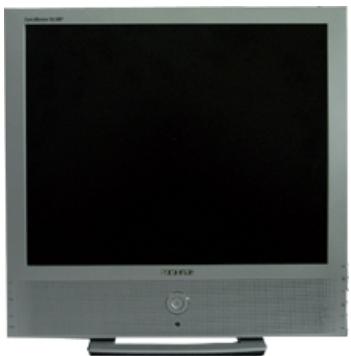
Monitor
Power Cord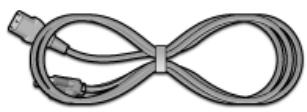
Signal Cable (15 pin D-Sub)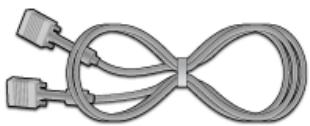
Warranty Card
(Not available in all locations)
DC Adapter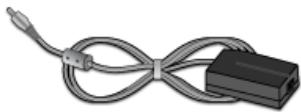
Audio Cable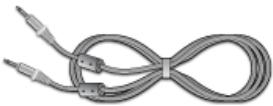
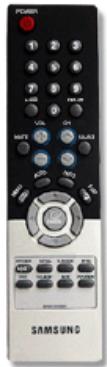
Remote Control
Batteries (AAA x 2)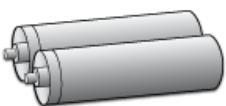
Option
DVI cable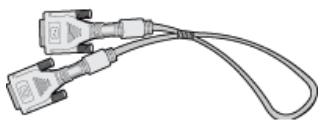

Contact a local dealer or Samsung call center to buy optional items.
Introduction - Front

For detailed information concerning the monitor functions, refer to User Controls under Adjusting Your Monitor. The monitor's front configuration may vary slightly depending on the monitor model.
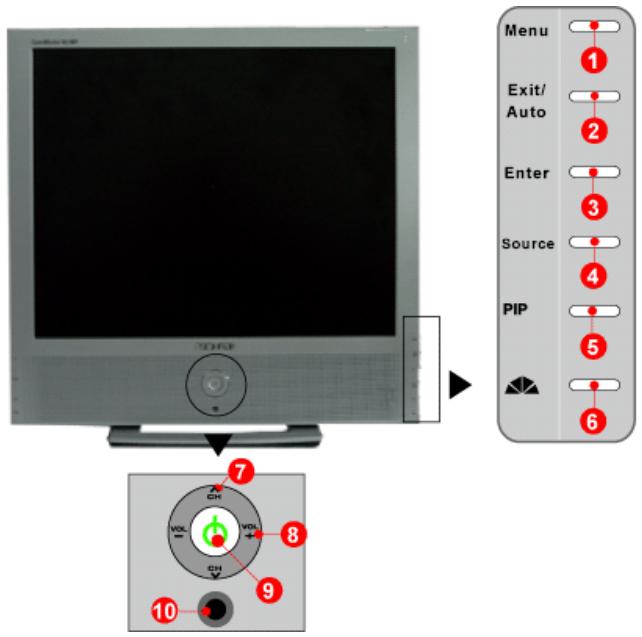
- Menu 6. MagicBright™
- Exit / Auto
- Up-Down / Channel
- Enter 8. Left-Right / Volume
- Source 9. Power / Power indicator
- PIP 10. Remote Control Sensor

PIP (Picture in Picture)?
Feature allowing one program to be viewed on the entire screen while one or more programs play in small windows superimposed over the base program.
Introduction - Rear

For detailed information concerning cable connections, refer to Connecting Cables under Setup. The monitor's rear configuration may vary slightly depending on the monitor model.
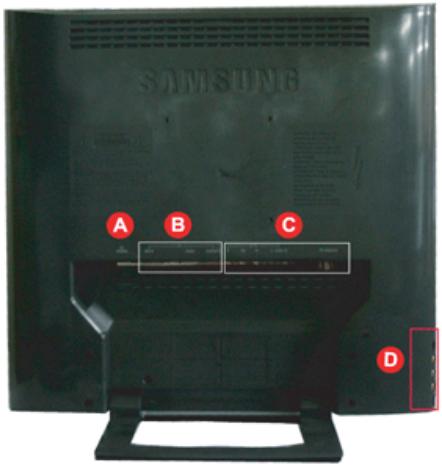
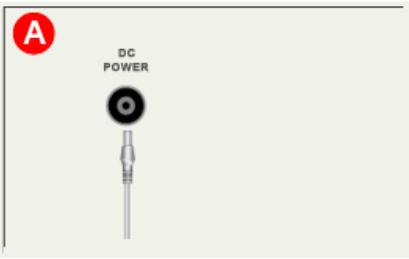
A. Power Connection Terminal (14V DC)
This product may be used with 90 ~ 264. (Voltage is automatically adjusted by the power adaptor.)
Connect the power source plug when all Connecting Your Monitor.
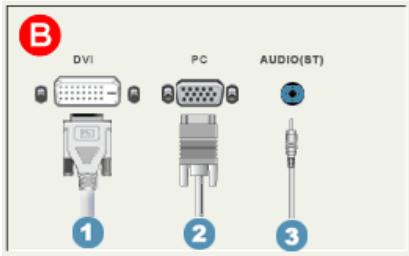
B. PC Connection Terminal
- Computer Connection Terminal (DVI)
- Computer Connection Terminal (15 Pin D-SUB)
- Audio Connection Terminal (Audio (ST))
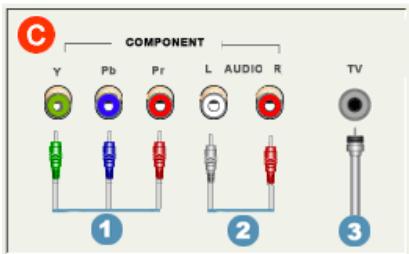
B. DVD/DTV Connection Terminal
- DVD/DTV component(Y, Pb, Pr) terminal
- DVD/DTV left / right audio connection terminal (L/R)
- TV Connection Terminal
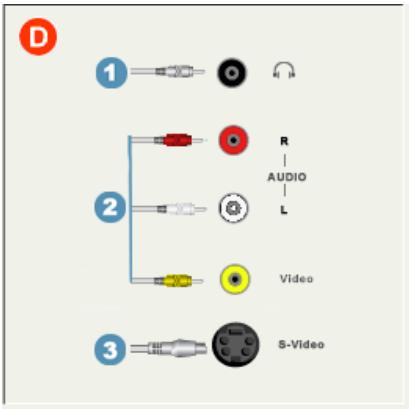
D. AV Connection Terminal
- Headphone connection terminal
- Audio L / R, Video connection terminal
- S-Video connection terminal
Introduction - Remote Control

For detailed information on the functions of the Remote Control Unit, refer to Adjusting Your Monitor > User Controls > User Control Buttons > Remote Control buttons. The remote control's configuration may vary slightly depending on the monitor model.

The remote control may function within a range of 0.23 to 33 feet (7 cm to 10 m) and 30 degrees to the left and right of the monitor's Remote Control Reception sensor.
Button Names | Replacing Batteries | Usage
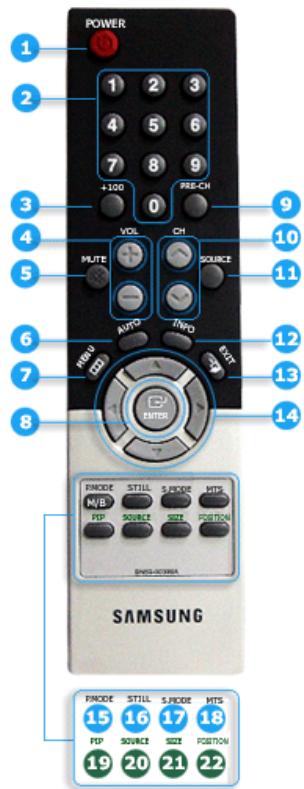
- POWER
- Channel
- +100
- VOL
- MUTE
- AUTO
- MENU
- ENTER
- PRE-CH
- CH
- SOURCE
- INFO
- Up-Down Left-Right Buttons
- P.MODE, M/B (MagicBright™)
- STILL
- S.MODE
- MTS
- PIP
- SOURCE
- SIZE
- POSITION
2. Replacing Batteries
1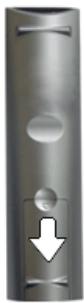
2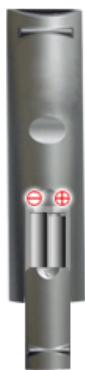
3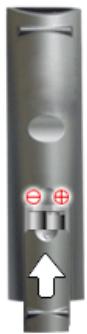
- Slide out the cover pressing part marked ▼.
- Insert the batteries matching their polarities (+, -).
- Slide in the cover.
Setup - Connecting Your Monitor
Connecting to a Computer
Connecting to other devices
Turn on your computer and monitor. If your monitor displays an image, installation is complete.
The configuration at the back of the monitor may vary from product to product.
1. Connecting to a Computer
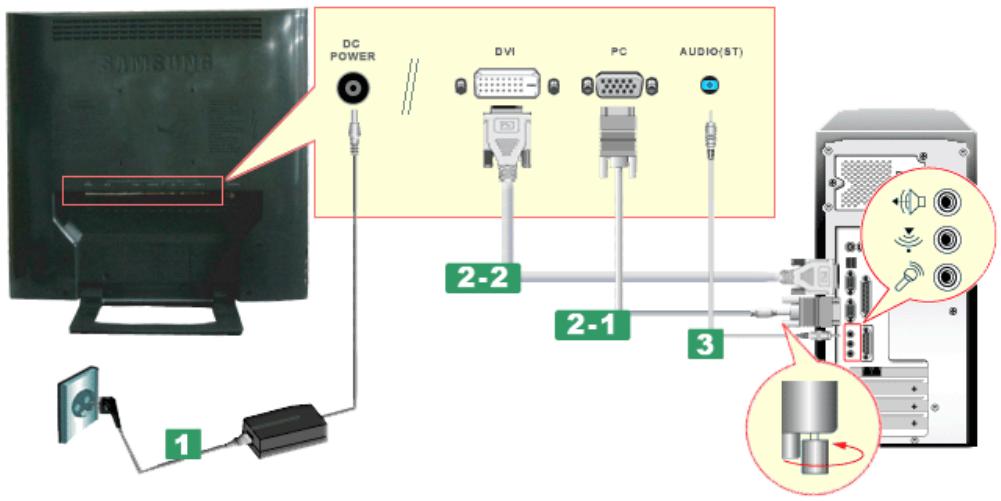
- Connect the power cord to the DC adapter and connect the adapter jack to the DC POWER port on the back of your monitor.
- Connect the signal cable to the PC Connecting Terminal on your computer. There are 2 ways to connect the signal cable to your monitor. Choose one of the following:
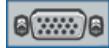
2-1. Using the D-sub (Analog) connector on the Video card.
Connect the signal cable to the 15 pin D-sub Port on the back of your monitor.
2-2. Using the DVI (Digital) connector on the Video card.
Connect the DVI Cable (DVI-D + DVI-D) to the DVI Port on the back of your Monitor.
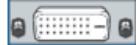
- Connect the audio cable for your monitor to the audio port on the back of your computer.
- Connect the power cord and insert the plug into a wall outlet.
- Turn on both your computer and the monitor.
- You may enjoy clear and quality sound from the computer sound card using the monitor speakers. (You don't need to install any separate speakers for your computer.)
You may get a blank screen depending on the type of Video card you are using, if you connect simultaneously both the D-sub and DVI cables to one computer.
If you properly connect your monitor using the DVI connector but get a blank or fuzzy screen, check to see if the monitor status is set to analog. Press the Source button to have the monitor double-check the input signal source.
Setup - Connecting to other devices
Connecting to a Computer
Connecting to other devices
This monitor allows the user to connect it to such input devices as a DVD player, a VCR or camcorder, or a DTV or TV without disconnecting the PC. For detailed information on connecting AV input devices, refer to User Controls under Adjusting Your Monitor.
The configuration at the back of the monitor may vary from product to product.
Connecting AV Devices | Connecting TV | Connecting DVD / DTV Set Top Box
Connecting to a Macintosh | Connecting Headphone
1. Connecting AV Devices
The monitor has AV connection terminals to connect AV input devices like DVDs, VCRs or Camcorders. You may enjoy AV signals as long as the monitor is turned on.
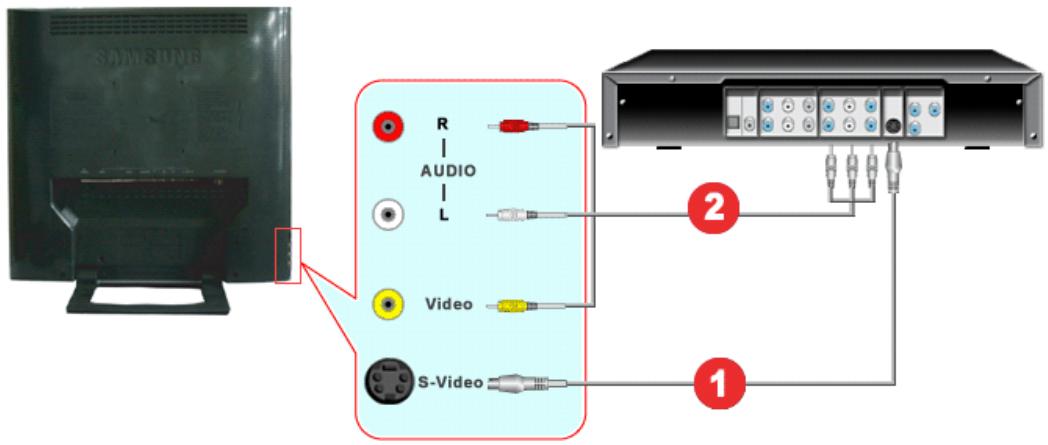
- Input devices such as DVDs, VCRs or Camcorders are connected to the AV or S-Video terminal of the monitor using the RCA or S-Video cable. S-Video or RCA cable is optional.
- Connect the Audio (R) and Audio (L) terminals of a DVD, VCR or Camcorders to the monitor's R and L audio input terminals using audio cables.
- Select AV or S-Video using the SOURCE button on the monitor's front.
- Then, start the DVD, VCR or Camcorders with a DVD disc or tape inserted.
2. Connecting TV
You may view television programs on the monitor if it is connected to an antenna or CATV cable without installing any separate TV reception hardware or software on your computer.
Setup - Connecting to other devices
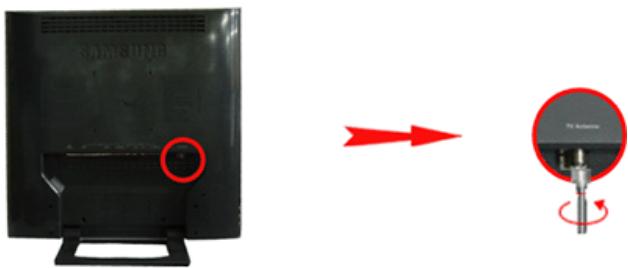
- Connect the CATV or antenna coaxial cable to the Antenna terminal on the rear of the monitor. You need to use a coaxial antenna cable.
- When using an interior antenna terminal:
Check the antenna terminal on the wall first and connect the antenna cable.
- When using an outdoor antenna:
If you are using an outdoor antenna, use a professional for installation if possible. To connect the RF cable to the antenna input terminal: Keep the copper wire portion of the RF cable straight.
- Turn on the monitor.
- Select TV using the SOURCE button on the monitor's front.
- Select a desired TV channel.

As this product is designed for NTSC signals only, you cannot view TV programs in countries where PAL or SECAM signals are used.

Purchase the antenna cable, antenna converter and amplifier at your neighborhood electronics store.

Is weak signal causing poor reception?
Purchase and install a signal amplifier for better reception.
3. Connecting DVD / DTV Set Top Box

Connect to the DVD / DTV Set Top Box input if the device has a DVD / DTV connector. You can watch DVD / DTV simply by hooking up the DVD / DTV with the monitor as long as the power is on.
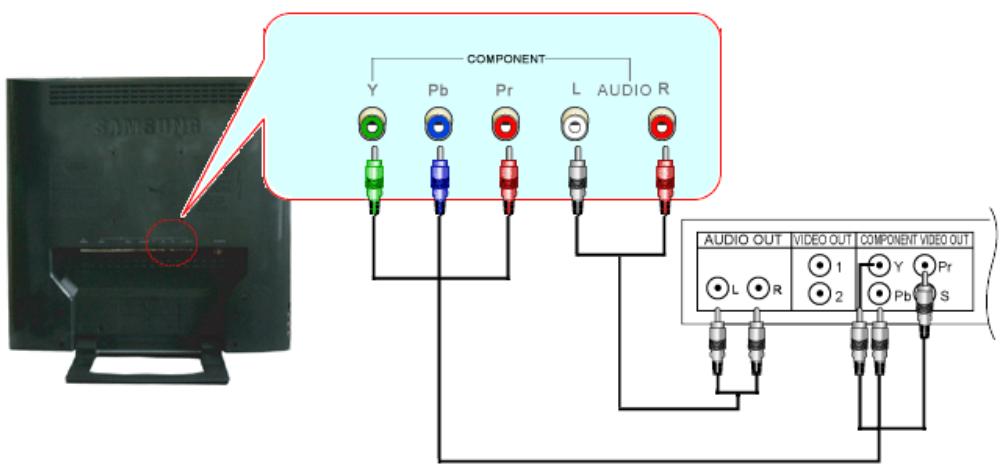
- Connect an AV cable between the component (Y, Pb, Pr) jacks on the Monitor and the Y, Pb, Pr jacks on the DVD / DTV set top box.
- Connect the Audio (R) and Audio (L) outputs on the DVD / DTV set top box to the Audio (R) and Audio (L) inputs on the monitor using audio cables.
- Select Component using the SOURCE button on the monitor's front.
Setup - Connecting to other devices
4. Connecting to a Macintosh
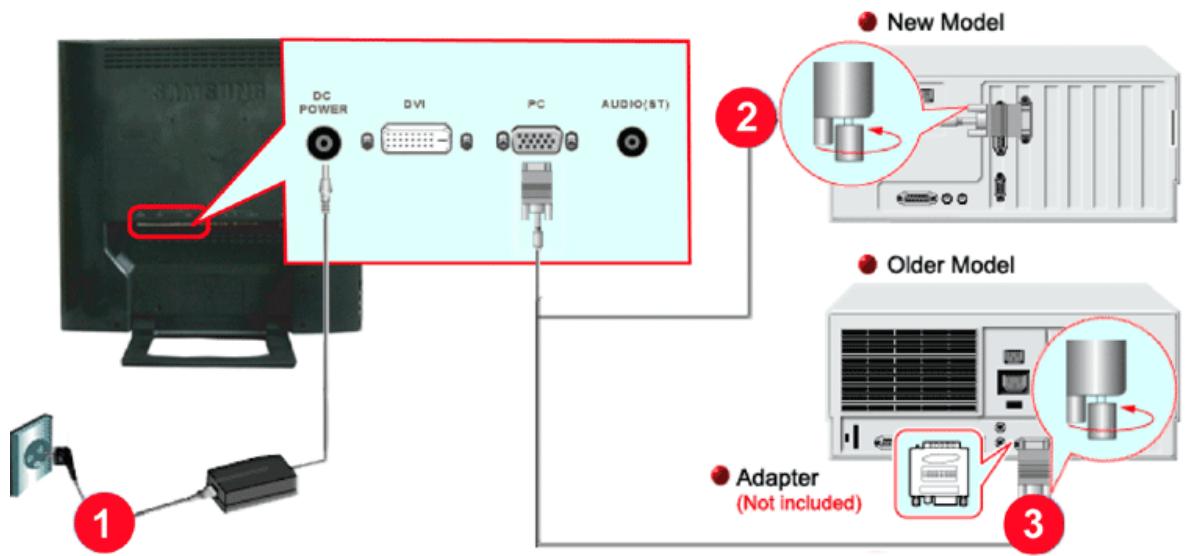
- Connect the power cord to the DC adapter and then connect the adapter jack to the DC POWER port on the monitor. (Voltage is automatically adjusted by the power adaptor.)
- Connect the signal cable to the D-SUB port on the Macintosh computer.
- For older model Macintoshes, you need to adjust the resolution control DIP switch on the Macintosh adapter (optional) referring to the switch configuration table shown on its rear.
- Turn on the monitor and Macintosh.
5. Connecting Headphone

You may connect your headphones to the monitor.
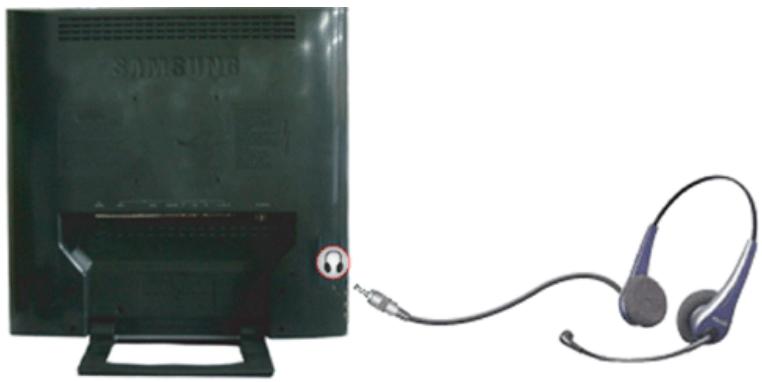
- Connect your headphones to the Headphone connection terminal.
Setup - Installing the Monitor Driver
▶ Automatic
Manual

When prompted by the operating system for the monitor driver, insert the CD-ROM included with this monitor. Driver installation is slightly different from one operating system to another. Follow the directions as appropriate for the operating system you have.
Prepare a blank disk and download the driver program file at the Internet web site shown here.
- Internet web site : http://www.samsung-monitor.com/ (Worldwide) http://www.samsungusa.com/monitor/ (USA) http://www.sec.co.kr/monitor/ (Korea) http://www.samsungmonitor.com.cn/ (China)
Windows ME | Windows XP/2000
1. Windows ME

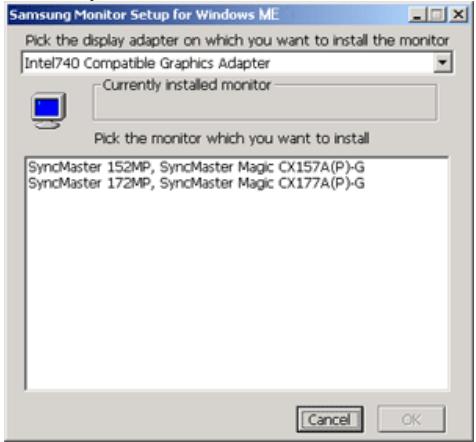
Refer to "Installing the Monitor Driver and User Manual" CD-ROM supplied with the monitor. When inserted into the computer CD drive, the CD-ROM boots up automatically. If it fails to boot up automatically, click monsetup.exe twice in the CD-ROM drive folder of Windows Explorer.
- Insert CD into the CD-ROM driver.
- Click "Windows ME Driver"
- Choose your monitor model in the model list, then click the "OK" button.
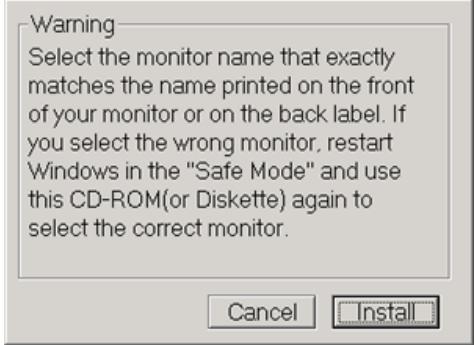
- Click the "Install" button in the "Warning" window.
- Monitor driver installation is completed.
Setup - Installing the Monitor Driver
2. Windows XP/2000

Refer to "Installing the Monitor Driver and User Manual" CD-ROM supplied with the monitor. When inserted into the computer CD drive, the CD-ROM boots up automatically. If it fails to boot up automatically, click monsetup.exe twice in the CD-ROM drive folder of Windows Explorer.
- Insert CD into the CD-ROM driver.
- Click "Windows XP/2000 Driver".
- Choose your monitor model in the model list, then click the "OK" button.
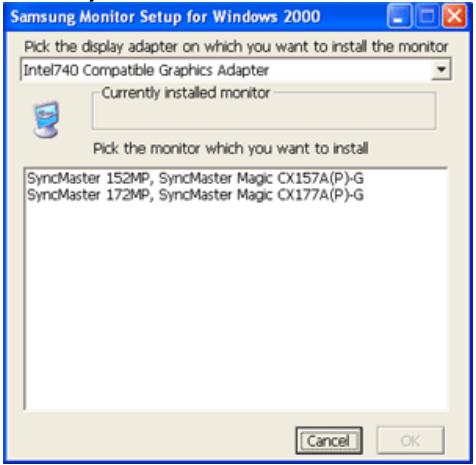
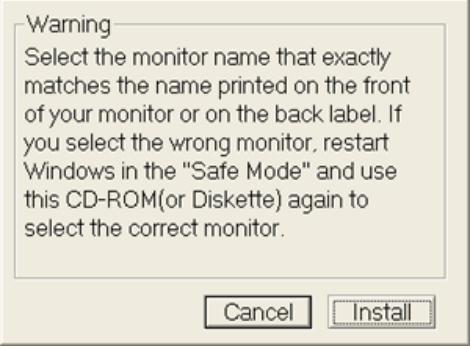
- Click the "Install" button in the "Warning" window.
- If you can see following Message window, then click the "Continue Anyway" button. Then click "OK" button.
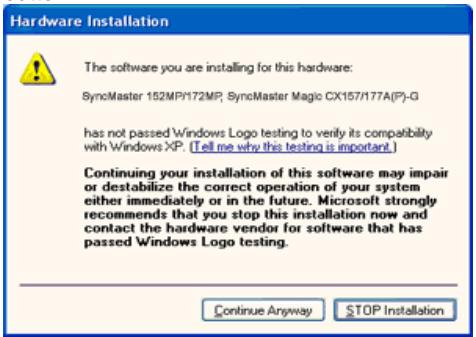

This monitor driver is under a certified MS logo. This installation will not damage your system. The certified driver will be posted on Samsung Monitor Homepage http://www.samsung-monitor.com/
- Monitor driver installation is completed.
Setup - Installing the Monitor Driver
▶ Automatic Manual

When prompted by the operating system for the monitor driver, insert the CD-ROM included with this monitor. Driver installation is slightly different from one operating system to another. Follow the directions as appropriate for the operating system you have.
Prepare a blank disk and download the driver program file at the Internet web site shown here.
- Internet web site : http://www.samsung-monitor.com/ (Worldwide) http://www.samsungusa.com/monitor/ (USA) http://www.sec.co.kr/monitor/ (Korea) http://www.samsungmonitor.com.cn/ (China)

To install the monitor driver manually, follow the procedures explained below after checking your operating system.
Windows XP | Windows 2000 | Windows Me | Windows NT | Linux
1. Microsoft ® Windows ® XP Operating System
- Insert the CD into the CD-ROM drive.
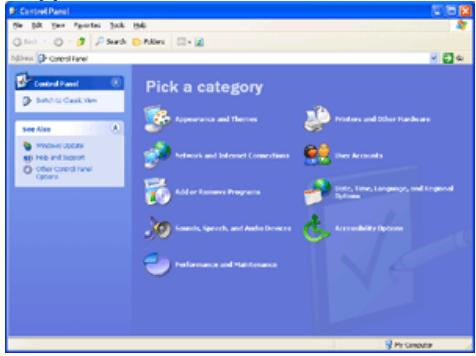
- Click "Start" → "Control Panel", then click the "Appearance and Themes" icon.
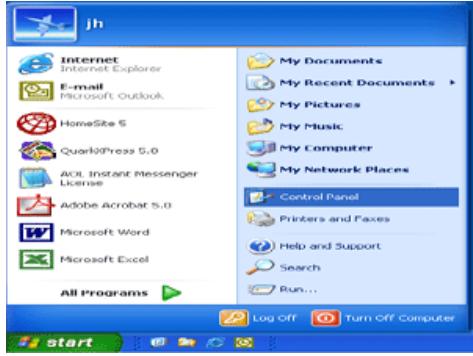
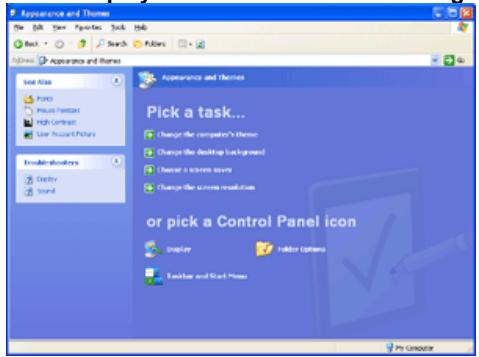
- Click the "Display" icon, choose the "Settings" tab, then click "Advanced...".
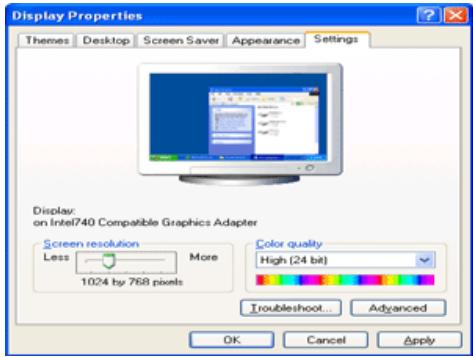
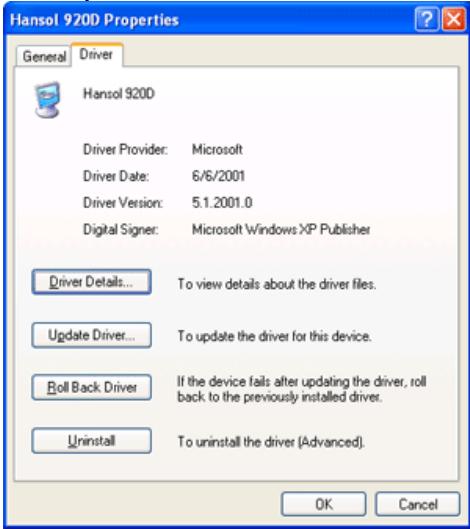
- Click the "Properties" button on the "Monitor" tab, and select the "Driver" tab.
Setup - Installing the Monitor Driver
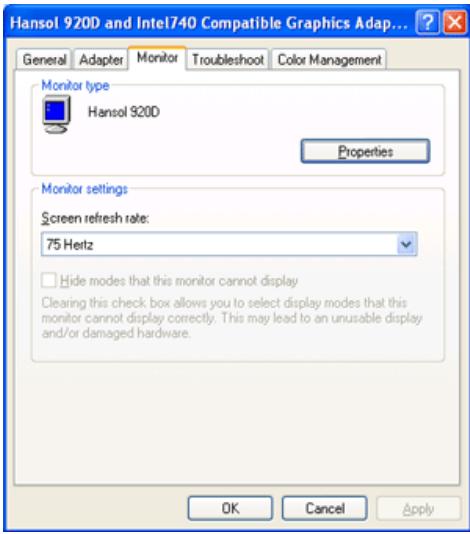
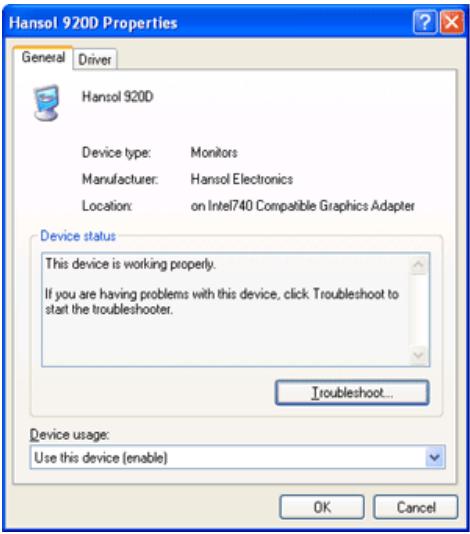
- Click "Update Driver..." and select "Install from a list or..." then click the "Next" button.
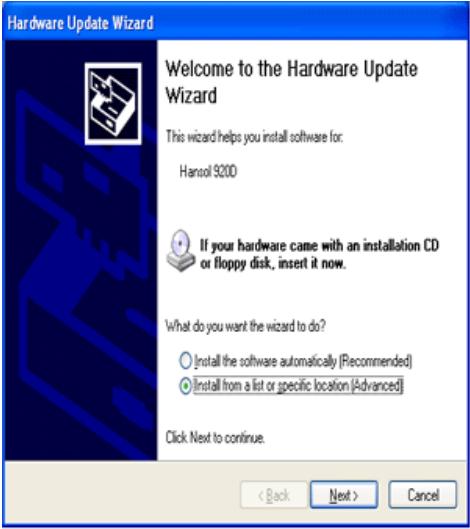
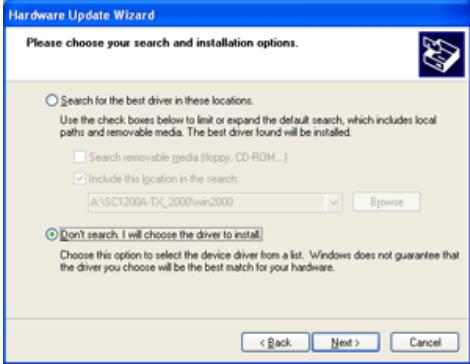
- Select "Don't search, I will..." then click "Next", and then click "Have Disk".
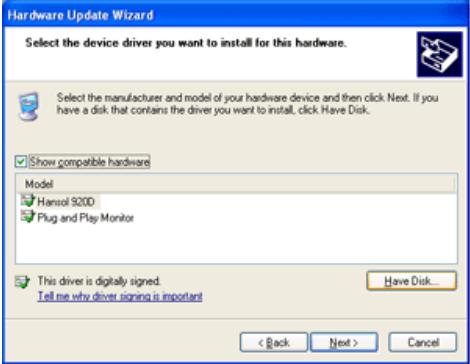
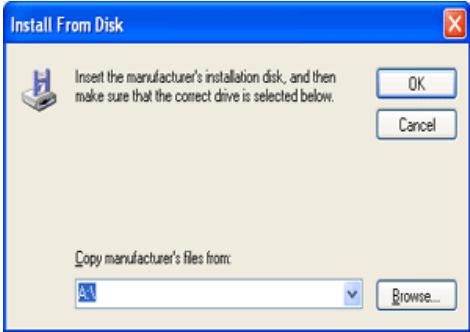
- Click the "Browse" button, then choose A:(D:\Driver) and select your monitor model in the model list, then click the "Next" button.
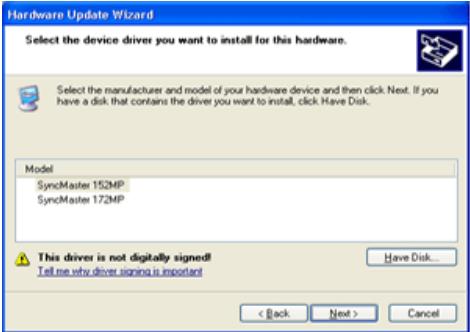
- If you see the following "Message" window, click the "Continue Anyway" button. Then click "OK".
Setup - Installing the Monitor Driver
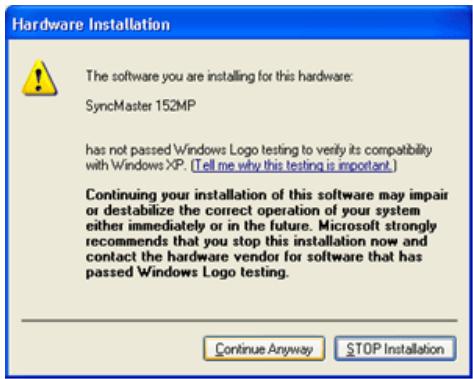

This monitor driver is under a certified MS logo. This installation will not damage your system. The certified driver will be posted on the Samsung Monitor Homepage http://www.samsung-monitor.com/
- Click the "Close" button, then click "OK" button continually.
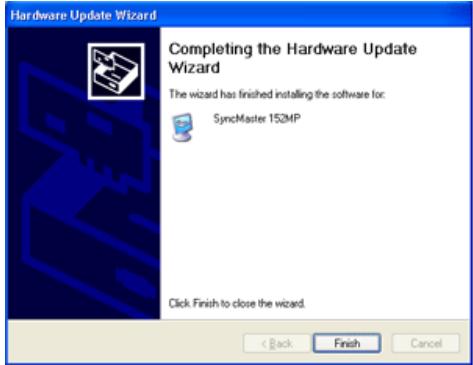
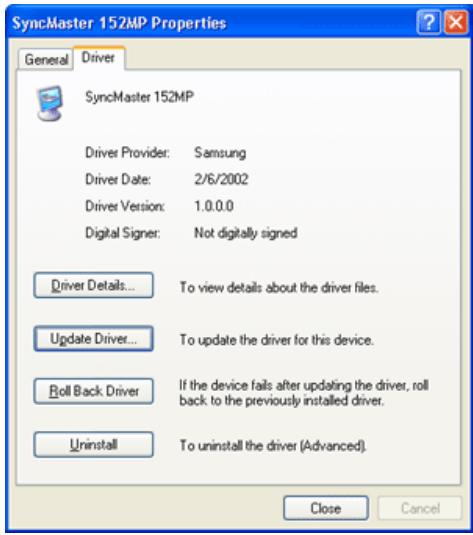
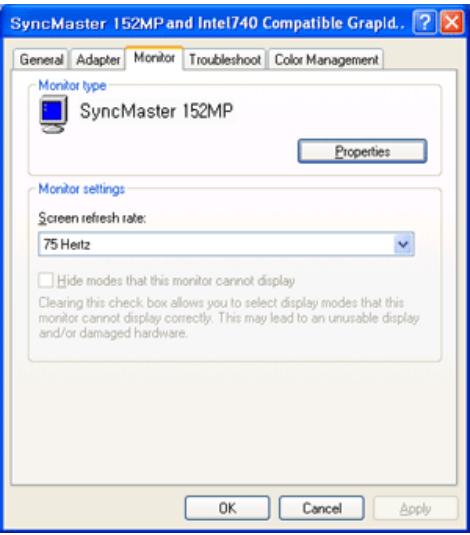
- Monitor driver installation is completed.
2. Microsoft® Windows® 2000 Operating System
* When you see "Digital Signature Not Found" on your monitor, follow these steps.
- Choose "OK" button on the "Insert disk" window.
- Click the "Browse" button on the "File Needed" window.
- Choose A:(D:\Driver) then click the "Open" button and then click "OK" button.
* How to install
- Click "Start", "Setting", "Control Panel".
- Double click the "Display" Icon.
- Choose the "Settings" tab and then click "Advanced..".
- Choose "Monitor" Case 1: If the "Properties" button is inactive, it means your monitor is properly configured. Please stop installation. Case 2: If the "Properties" button is active, click the "Properties" button then follow next steps continually.
Setup - Installing the Monitor Driver
3. Microsoft ® Windows ® Millennium Operating System
- Click "Start", "Setting", "Control Panel".
- Double click "Display" icon.
- Select the "Settings" tab and click "Advanced Properties" button.
- Select the "Monitor" tab.
- Click the "Change" button in the "Monitor Type" area.
- Choose "Specify the location of the driver".
- Choose "Display a list of all the drivers in a specific location" then click the "Next" button.
- Click the "Have Disk" button.
- Specify A:\ (D:\Driver) then click "OK".
- Select "Show all devices" and choose the monitor that corresponds to the one you connected to your computer, then click "Next". Click "Next" again and "Finish" to complete the installation.
- Continue clicking "Close" and "OK" until you close the Display Properties dialog box. (You may see a warning or other message; just click the appropriate option for your monitor.)
4. Microsoft® Windows® NT 4.0 Operating System
- Click Start, Settings, Control Panel, and then double-click the Display icon.
- In the Display Registration Information window, click the Settings tab and then click All Display Modes.
- Select a mode you wish to use (resolution, number of colors, and vertical frequency) and then click OK.
- Click Apply if the screen works normally after clicking Test. If the screen is not normal, change to a different mode (lower resolution, colors, or frequency).

If there is no mode in All Display Modes, select the resolution and vertical frequency by referring to the Preset Display Modes in the user guide.
5. Linux Operating System

To execute X-Window, you need to create the X86Config file, which is a system setting file.
- Press Enter on the first and second screens after executing the X86Config file.
- The third screen is for setting your mouse.
- Set a mouse for your computer.
- The next screen is for selecting a keyboard.
- Set a keyboard for your computer.
- The next screen is for setting your monitor.
- First of all, set a horizontal frequency for your monitor. (You can enter the frequency directly.)
- Set a vertical frequency for your monitor. (You can enter the frequency directly.)
- Enter the model name of your monitor. This information will not affect the actual execution of X-Window.
- You have finished setting up your monitor.
Execute X-Window after setting other requested hardware.
Setup - Installing a VESA base
▶▶ Folding or removing the base Installing a VESA base
This monitor supports various types of VESA-standard bases. You need to either fold or remove the base in use in order to install a VESA base.
Folding the base | Removing the base
1. Folding the base
The monitor may be reclined from 0 to 90 degrees. When fully folded (reclined), the base becomes a handy holder for moving the monitor around.
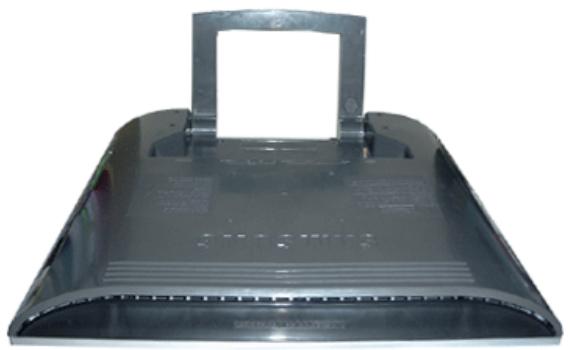
- Lay the LCD monitor face-down on a flat surface with a cushion beneath it to protect the screen.
- Disconnect the monitor cables.
- Fully recline the monitor backward pressing the FOLD button.
- Reconnect the monitor cables.
You may install a VESA base when the monitor base is fully folded.
2. Removing the base
You can separate the base from the monitor.
Setup - Installing a VESA base
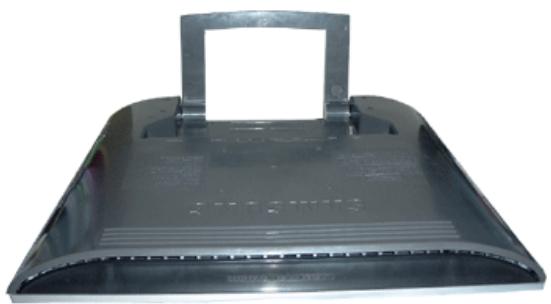
- Lay the LCD monitor face-down on a flat surface with a cushion beneath it to protect the screen.
- Disconnect the monitor cables.
- Remove the four bolts that fasten the base to the monitor.
- Reconnect the monitor cables.

You may install a VESA base when the monitor base is separated.
Setup - Installing a VESA base
▶ Folding or removing the base
Installing a VESA base
The monitor supports the VESA mounting standard for use with various VESA mounting devices. This monitor accepts a 100mm x 100mm VESA-compliant mounting interface pad. You need to fold the monitor base before installing a VESA base.
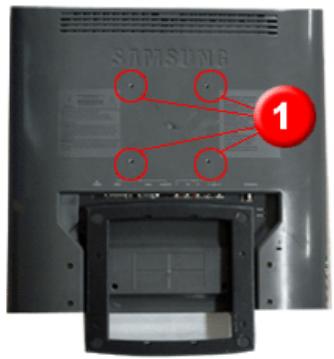
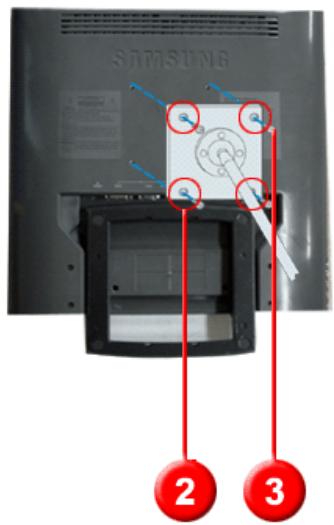
Align the four bolt holes ① on the monitor base with the holes ② on the VESA base and then fasten the base with the four bolts ③.
Samsung Electronics will not be responsible for damages caused by using a base other than those specified.
Adjusting Your LCD Monitor - User Controls
▶ User control buttons
Direct-Access Features
The control button configuration may vary slightly depending on the monitor model.
Control Buttons | Remote Control Buttons
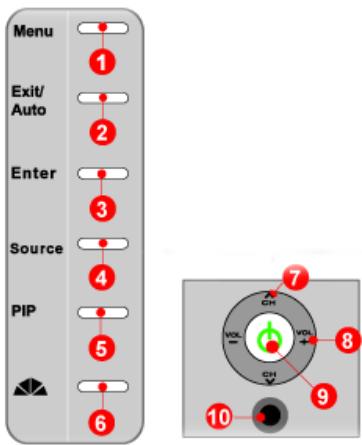

For more information on the screen adjustment functions, refer to On-Screen Display.
Use this button to open the on-screen menu and exit from the menu screen or close the screen adjustment menu.
2. Exit / Auto
When the screen adjustment menu is on
: Exit button exits from the menu screen or closes screen adjustment menu.
When screen adjustment menu is off
: Auto button adjusts the screen automatically
For more information, refer to Direct-Access Features > Auto Adjustment.
3. ENTER
Activate a highlighted menu item.
4. SOURCE
Push the button, Selects the Video source changes.
For more information, refer to Direct-Access Features > Source.
5. PIP
In PC Mode, turns on AV or TV screens in PIP mode. Using this function, you may view a AV or TV program while performing PC work. (PIP mode button works in PC mode only.)
6. MagicBright™
MagicBright™ is a new feature providing optimum viewing environment depending on the contents of the image you are watching.
(Press here to view MagicBright™ Animation Clips)
7. ACHV
Moves from one menu item to another vertically or adjusts selected menu values. In TV mode, selects TV channels. For more information, refer to Direct-Access Features > Channel.
Adjusting Your LCD Monitor User Controls
8. - VOL +
Moves from one menu item to another horizontally or adjusts selected menu values. Also adjusts the audio volume. For more information, refer to Direct-Access Features > Volume.
9. Power / Power indicator
Use this button to turn the monitor on and off.
Power Indicator shows PowerSaver mode by green blinking. Refer to Specifications > PowerSaver.
10. Remote Control Sensor
Aim the remote control towards this spot on the Monitor.

For more information on the screen adjustment functions, refer to On-Screen Display.
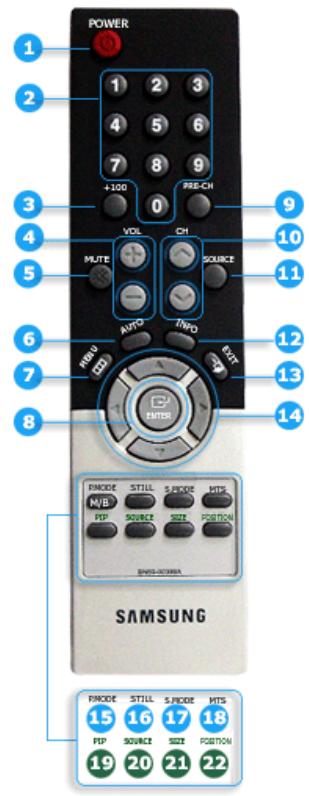
- POWER
- Channel
- +100
- VOL
- MUTE
- AUTO
- MENU
- ENTER
- PRE-CH
- CH
- SOURCE
- INFO
- EXIT
- Up-Down Left-Right Buttons
- P.MODE, M/B (MagicBright™)
- STILL
- S.MODE
- MTS
- PIP
- SOURCE
- SIZE
- POSITION
1. POWER ▲ Up
Use this button to turn the monitor on and off.
2. Channel ▲ Up
Selects TV channels in TV mode. You may also use this button in PIP mode.
3. +100 ▲ Up
Press to select channels over 100.
For example, to select channel 121, press "+100", then press "2" and "1".
4. VOL ▲ Up
Also adjusts the audio volume. For more information, refer to Direct-Access Features > Volume.
5. MUTE ▲ Up
Pauses (mutes) the audio output temporarily. Displayed on the lower left corner of the screen. The audio resumes if Mute or VOL - / VOL + is pressed in Mute mode.
6. AUTO ▲ Up
Adjusting Your LCD Monitor User Controls
Adjusts the screen display automatically.
Use this button to open the on-screen menu and exit from the menu screen or close the screen adjustment menu.
8. ENTER ▲ Up
Activates a highlighted menu item.
9. PRE-CH ▲ Up
This button is used to return to the immediately previous channel.
10. CH ▲ Up
In TV mode, selects TV channels.
For more information, refer to Direct-Access Features > Channel
11. SOURCE ▲ Up
Press the button to select the AV source changes.
12. INFO ▲ Up
Shows an AV source, current channel number, picture mode, sound mode, Caption On/Off and V-chip On/Off on the upper right corner of the screen.
13. EXIT ▲ Up
Exits from the menu screen. Exits from the PIP screen.
Moves from one menu item to another horizontally, vertically or adjusts selected menu values.
15. P.MODE, M/B ▲ Up
When you press this button, current sound mode is displayed on the lower center of the screen.
TV / AV / S-Video / Component Mode : P.MODE( Picture Mode )
Then push button again to circle through available preconfigured modes.
( Dynamic → Standard → Movie → Custom )
PC / DVI Mode : M/B (MagicBright™)
Then push button again to circle through available preconfigured modes.
(Text → Internet → Entertain → Custom)
16. STILL ▲ Up
When you press this button, current sound mode is displayed on the lower center of the screen.
Press the button once to freeze the screen. Press it again to unfreeze.
When you press this button, the current sound mode is displayed in the lower left corner of the screen. The monitor has five automatic sound settings ("Standard", "Music", "Movie", "Speech", and "Custom") that are preset at the factory.
18. MTS ▲ Up
You can select the MTS (Multichannel Television Stereo) mode.
| Audio Type | MTS/S_Mode | Default |
| FM Stereo | Mono | Mono | Manual Change |
| Stereo | Mono ↔ Stereo |
| SAP | Mono ↔ SAP | Mono |
Adjusting Your LCD Monitor User Controls
- PIP ▲ Up
Press the PIP button to turn the PIP screen on.
- SOURCE ▲ Up
Press the button to change the signal source of the PIP window.
- SIZE ▲ Up
Adjusts the PIP image size in PIP mode.
- POSITION ▲ Up
Changes the position of the PIP window.
Then press the button again to cycle through the available preconfigured modes.
(Lower-Right → Upper-Right → Upper-Left → Lower-Left)
Adjusting Your LCD Monitor User Controls
User control buttons ▶▶ Direct-Access Features
Direct-Access Features let you display the Monitor Adjustment Menu by simply pressing the Auto button once. Or they are used to adjust monitor functions. You need to activate functions other than Auto Adjustment only when Auto-Access Features are off.
Source | Exit / Auto | MagicBright™ | Volume | Channel | PIP
1. Source
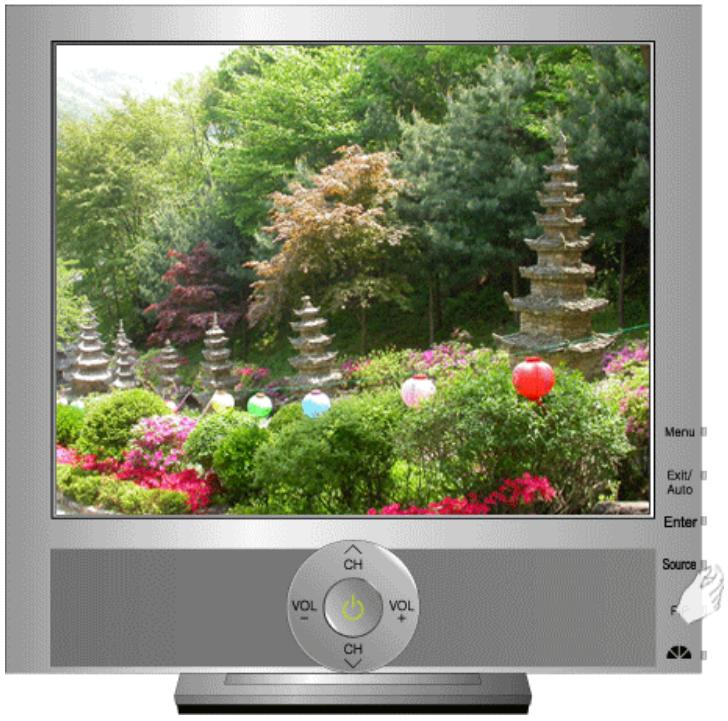
Ex) To switch Screen modes: [PC] → [DVI] → [TV] → [AV] → [S-Video] → [Component]
Changing the source is allowed only for external devices that are connected to the monitor at the time.
2. Exit / Auto (Only PC mode)
Adjusting Your LCD Monitor User Controls
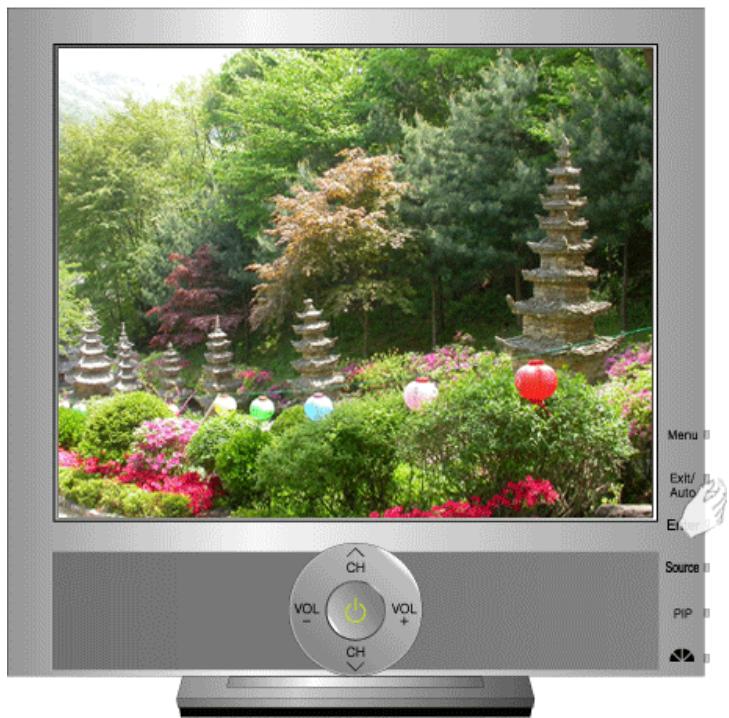
The monitor display becomes more stabilized if adjusted by Auto Adjustment functions when the monitor is installed for the first time. Try Auto Adjustment before attempting Manual Adjustment. Ensure the clock frequency of the monitor matches that of the computer Video card before carrying out Auto Adjustment.
When the Auto button is pressed, the Auto Adjustment screen appears as shown in the animated screen on the center.

To make the automatic adjustment function sharper, execute the 'AUTO' function while the AutoPattern.exe is on.
3. MagicBright™
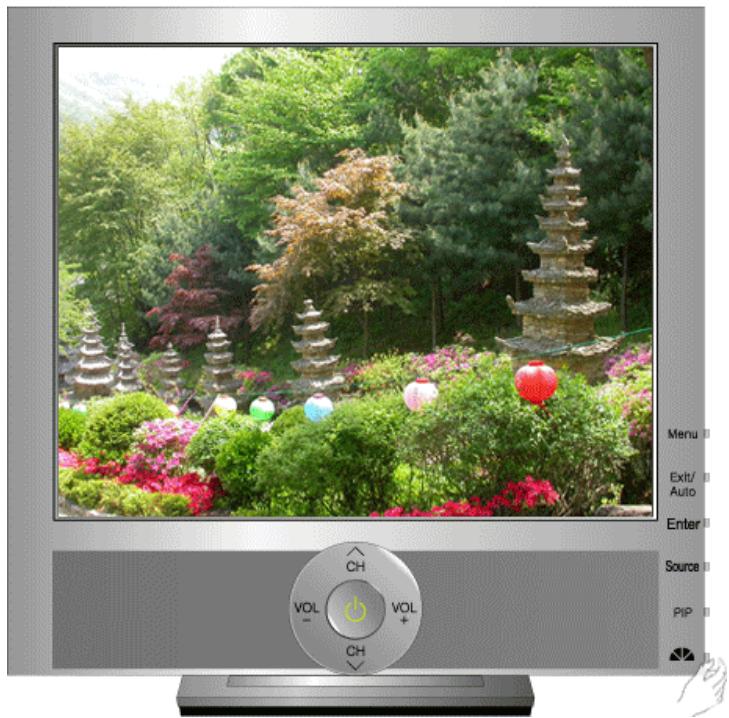
MagicBright™ is a new feature providing the optimum viewing environment depending on the contents of the image you are watching.
Currently four different modes are available: Text, Internet, Entertain and Custom. Each mode has its own pre-configured brightness value. You can easily select one of four settings by simply pressing the MagicBright™ control button.
Adjusting Your LCD Monitor User Controls
comfortable to your eyes depending on your taste. If this is the case, adjust the Brightness and Contrast by using the OSD menu.
- Volume
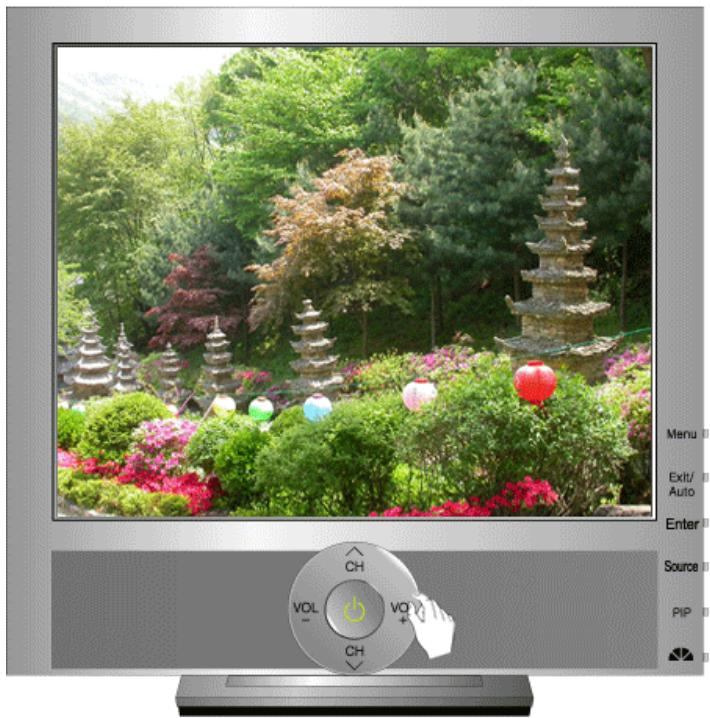
When OSD is not on the screen, push the VOL - / VOL + button to adjust volume.
- Push the "-" button to decrease the volume.
- Push the "+" button to increase the volume.
- Channel
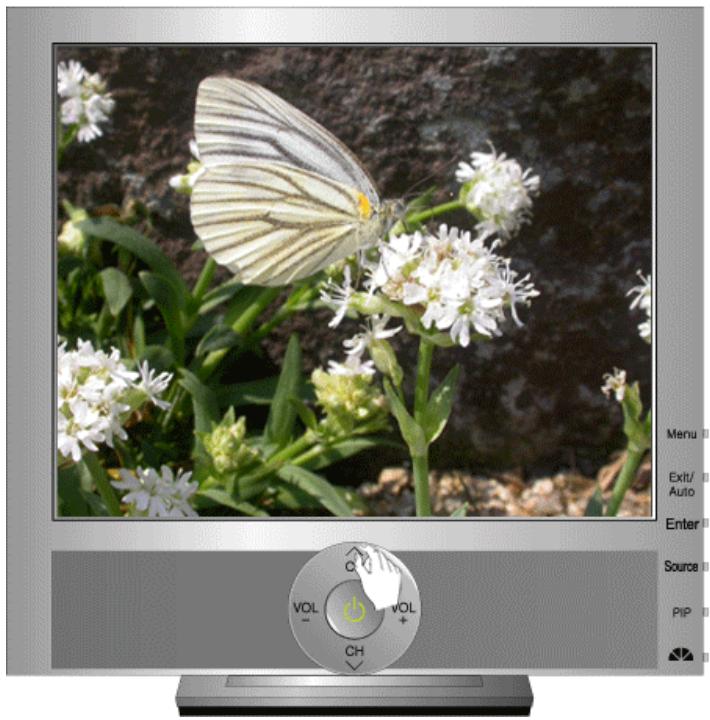
When OSD is not on the screen, push the CH button to select channel number.
Adjusting Your LCD Monitor User Controls
- Push the v button to decrease the channel number.
- Push the ▲ button to increase the channel number.

This function is available in TV or PC + TV (PIP) mode only.
6. PIP
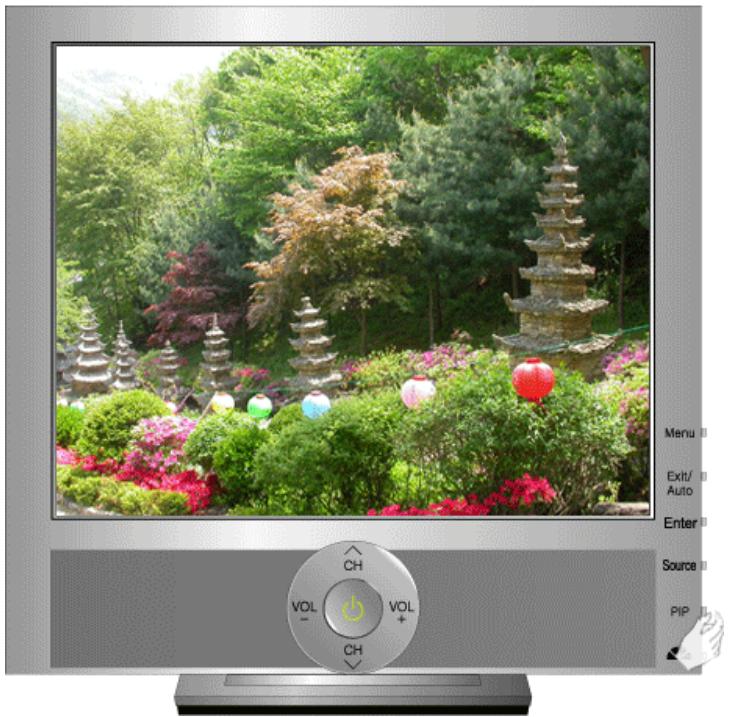
Every time you push the button, activate a PIP screen.

This function is available in PC mode only.
Adjusting Your LCD Monitor - On-Screen Display
OSD Functions
Screen Adjustment Animation Clips
Input Control | Picture Control | Sound Control | Channel Control | Setup Control

For detailed information on Screen Adjustment in the Input Control, refer to the Input Control Adjustment Animation Clips.
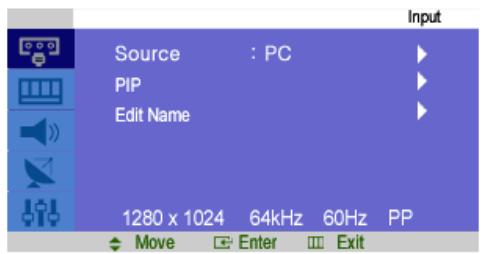
| OSD | Description |
| Source | Use to select PC, TV or other external input source connected to the Monitor.Use to select the screen of your choice.PCDVITVAVS-VideoComponent |
| PIP | When external A/V devices such as VCRs or DVDs are connected to the monitor, PIP allows you to watch Video from those devices in a small window super-imposed on the PC Video signal. (On/Off)While V-chip is in operation, the PIP function cannot be used.- Available in PC Mode Only1) PIPON/ Off: Turn the PIP Screen on or off.2) SourcePC / DVI : TV / AV / S-Video / Component Mode: Select the input source for the PIP.3) Size: Changing the Size of the PIP window.4) Position: Changing the Position of the PIP window. |
| Edit Name | Name the input device connected to the input jacks to make your input source selection easier.PCDVIAVS-VideoComponent |
Adjusting Your LCD Monitor - On-Screen Display
2. Picture Control
PC / DVI Mode

For detailed information on Screen Adjustment in the Picture Control, refer to the Picture Control Adjustment Animation Clips.
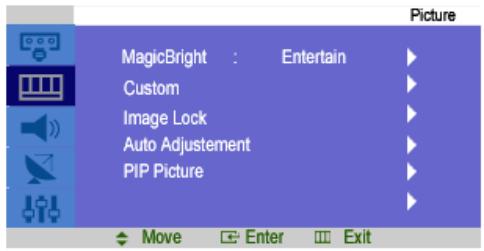
| OSD | Description |
| MagicBrightTM | MagicBrightTM is a new feature providing the optimum viewing environment depending on the contents of the image you are watching.Currently four different modes are available: Text, Internet, Game and Custom.Each mode has its own pre-configured brightness value. You can easily select one of four settings by simply pressing the MagicBrightTM control button.1) Text: Normal BrightnessFor documentations or works involving heavy text.2) Internet: Medium BrightnessFor working with a mixture of images such as text and graphics.3) Entertain: High BrightnessFor watching motion pictures such as a DVD or VCD.4) CustomAlthough the values are carefully chosen by our engineers, the pre-configured values may not be comfortable to your eyes depending on your taste.If this is the case, adjust the Brightness and Contrast by using the OSD menu. Or push the (+) button when OSD screen is not on to access the Brightness control directly. |
| Custom Picture | You can use the on-screen menus to change the contrast, and brightness according to personal preference.1) Contrast: Adjust the Contrast.2) Brightness: Adjust the Brightness. |
| Color Control | Adjust the individual R, G, B color controls.1) Red2) Green3) Blue |
| Image Lock | Image Lock is used to fine tune and get the best image by removing noise that creates unstable images with jitter and shimmer. If satisfactory results are not obtained using the Fine adjustment, use the Coarse adjustment and then use Fine again.- Available in PC Mode Only1) Coarse: Removes noise such as vertical stripes. Coarse adjustment may move the screen image area. You may relocate it to the center using the Horizontal Control menu.2) Fine: Removes noise such as horizontal stripes. If the noise persists even after Fine tuning, repeat it after adjusting the frequency (clock speed).3) Position: Adjusts the screen location horizontally and vertically. |
| Auto Adjustment | The values of Fine, Coarse, position are adjusted automatically. |
| PIP Picture | You can adjust the PIP Screen Settings.1) Contrast: Adjusts the Contrast of the PIP window on the screen.2) Brightness |
Adjusting Your LCD Monitor - On-Screen Display
: Adjusts the Brightness of the PIP window on the screen.
3) Sharpness
: Use to adjust the difference between the lightest and darkest areas of the PIP window.
4) Color
: Use to adjust the lightness/darkness on the PIP window.
5) Tint
: Use to add a natural tone to the PIP window.
TV / AV / S-Video / Component Mode

For detailed information on Screen Adjustment in the Picture Control, refer to the Picture Control Adjustment Animation Clips.
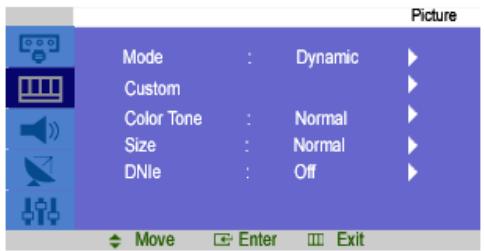
| OSD | Description |
| Mode | The Monitor has four automatic picture settings ("Custom", "Dynamic", "Standard", and "Movie") that are preset at the factory.You can activate either Custom, Dynamic, Standard, or Movie. You can select "Custom" which automatically recalls your personalized picture settings.• Dynamic• Standard• Movie• Custom |
| Custom | You can use the on-screen menus to change the contrast, and brightness according to personal preference.1) Contrast: Adjusts the Contrast.2) Brightness: Adjusts the Brightness.3) Sharpness: Use to adjust the difference between the lightest and darkest areas of the display.4) Color: Use to adjust the lightness/darkness of the display.5) Tint: Use to add a natural tone to the display. |
| Color Tone | The tone of the color can be changed. The individual color Components are also user customizable.• Cool2 / Cool1 / Normal / Warm1 / Warm2 |
| Size | You can switch the Size.• Normal• Wide• Zoom (Not available in Component Mode) |
| DNle | - Digital Natural Image engineSamsung's new technology brings you more detailed images with contrast and white enhancement and 3D noise reduction. A New image compensation algorithm gives brighter, clearer, images to our customers. DNle technology will match every signal to your eyes.1) Demo: The screen before applying DNle appears on the right and the screen after applying DNle appears on the left.2) Medium: Switches on the DNle mode.3) High: The screen is clearer than in Medium.4) Off: Switches off the DNle mode. |
Adjusting Your LCD Monitor - On-Screen Display
3. Sound Control

For detailed information on Screen Adjustment in the Sound Control, refer to the Sound Control Adjustment Animation Clips.
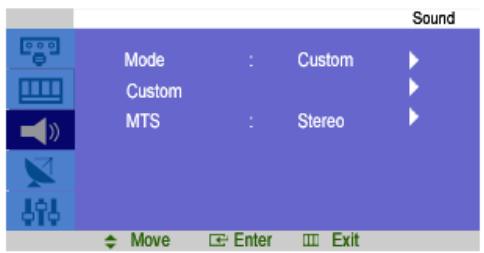
| OSD | Description |
| Mode | The Monitor has a built-in high fidelity stereo amplifier.1) Standard: Choose Standard for the standard factory settings.2) Music: Choose Music when watching music videos or concerts.3) Movie: Choose Movie when viewing movies.4) Speech: Choose Speech when watching a show that is mostly dialogue (i.e., news).5) Custom: Choose Custom if you want to adjust the settings according to personal preference. |
| Custom | The sound settings can be adjusted to suit your personal preference.1) Bass: Emphasize low frequency audio.2) Treble: Emphasize high frequency audio. |
| MTS | You can select the MTS (Multichannel Television Stereo) mode.- Available in TV Mode Only• Mono, Stereo, SAP (Separate Audio Program)Set 'MTS Setting' to ON to choose Mono, Stereo or SAP. |
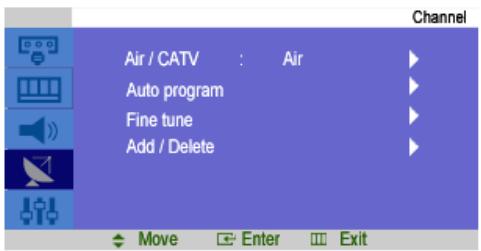
4. Channel Control

The channel change function is available only in TV mode or when the PIP feature is ON in PC mode and the PIP source is set to TV. (You can change the channel in PC mode when the PIP feature is ON.)
For detailed information on Screen Adjustment in the Channel Control, refer to the Channel Control Adjustment Animation Clips.
Adjusting Your LCD Monitor - On-Screen Display
| OSD | Description |
| Air/CATV | The channel system can be set in several different ways.• Air• STD• HRC• IRCSTD, HRC, IRC and Air identify various types of cable TV systems.Contact your local cable company to identify the type of cable system that exists in your particular area. |
| Auto Program | The TV automatically cycles through all of the available channels and stores them in memory. This takes about one to two minutes.In rare cases, "Auto program" may miss a few channels due to weak signals and the channels may not be added to the channel memory. |
| Fine Tune | Due to weak signals or an incorrect antenna configuration, some of the channels may not be tuned correctly. |
| Add/Delete | Addsd or Deleted channels from the memory. |
5. Setup Control

For detailed information on Screen Adjustment in the Setup Control, refer to the Setup Control Adjustment Animation Clips.
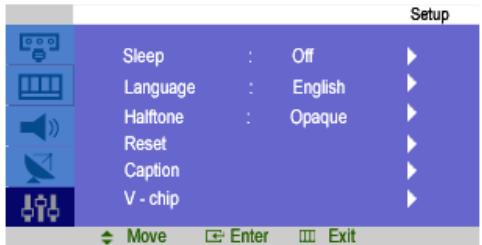
| OSD | Description |
| Sleep | Use to set the Monitor to turn off automatically a set number of minutes. (Off, 30, 60, 90, 120, 150, 180) - Not available in PC Mode |
| Language | You can choose one of 4 language.• English, Spanish, French, PortugueseNote : The language chosen affects only the language of the OSD.It has no effect on any software running on the computer. |
| Half tone | Change the opaqueness of the background of the OSD.• Opaque• High• Normal• Low |
| Reset | Picture parameters are replaced with the factory default values.- Available in PC Mode Only1) Image Reset2) Color Reset |
| Caption | Enable or disable the Caption feature and set the appearance of closed caption text.1) Caption : Off / On2) Mode : Caption / Text3) Channel : 1 / 24) Field : 1 / 2 |
| V-Chip | Protects children from viewing inappropriate programs by blocking certain broadcast or AV programs.(More Information)While V-chip is in operation, the PIP function cannot be used. |
Troubleshooting
Check before Calling for Service

Check the following items yourself before calling for service. Contact the service center for problems that you cannot solve by yourself.
Self-Test Feature Check | Not Supported Mode | Not Optimum Mode | Display Adapter Driver
Maintenance and Cleaning | Symptoms & Recommended Actions
1. Self-Test Feature Check
Your monitor provides a self test feature that allows you to check whether your monitor is functioning properly.
- Turn off both your computer and the monitor.
- Unplug the video cable from the back of the computer.
- Turn on the monitor.
The figure shown below ("Check Signal Cable") appears on a black background when the monitor is in its normal working condition though it does not sense any video signal: While in the Self-Test mode, the LED power indicator remains green and the figure moves around on the screen.
Check Signal Cable
PC
Failure of any of the boxes to appear indicates a problem with your monitor. This box also appears during normal operation if the video cable becomes disconnected or damaged.
- Turn off your monitor and reconnect the video cable; then turn on both your computer and the monitor.
If your monitor screen remains blank after using the previous procedure, check your video controller and computer system; your monitor is functioning properly.
2. Not Supported Mode
This indicates the display resolution or refresh rate is not properly set on your computer video card. Reboot the computer in Safe Mode and select "Default" in the "Refresh Rate Unknown" box while setting Adapter for Display Properties.
Not Supported Mode
PC
56.2kHz 90Hz

Contact the computer dealer or manufacturer for information on Safe Mode Booting.

Refer to Specifications > Preset Timing Modes for the resolutions or frequencies that are supported by the monitor.
Sometimes the screen turns black without the "Not supported mode" message appearing on the screen. This indicates the monitor is set for a frequency out of range or the PowerSaver mode is on.
Troubleshooting
Check before Calling for Service
3. Not Optimum Mode
If the vertical resolution is set to 85Hz, you can still see the display but the warning message below appears and disappears after one minute. Since the monitor does not support a vertical resolution that is 85Hz or higher, the monitor goes into "Not Supported Mode" and the screen becomes blank after one minute.
The user must adjust the frequency within that one minute.
Not Optimum Mode
Recommended Mode
1280x1024 60Hz
If the resolution is set to UXGA (1600x1200 60Hz), the same warning message as above appears and disappears after one minute, but the display still works properly. (Down-Scaling)
4. Display Adapter Driver

Display adapter refers to the computer video card driver.
If the adapter is not properly set, you cannot adjust resolution, frequency or color and you cannot install the monitor driver.
- Checking Adapter Driver
Click Start → Settings → Control Panel → Display → Settings → Advanced → Adapter.
If "Default" or a wrong product model is indicated, it means that the adapter driver is not properly installed. Install the adapter driver again according to the information provided by the computer or video card manufacturers.
- Installing Adapter Driver

The instructions given below are for general circumstances.
For specific issues, contact the relevant computer or video card manufacturers.
1) Click Start → Settings → Control Panel → Display → Settings → Advanced → Adapter → Update Driver → Next → Display a list of the known drivers for this device so that I can choose a specific driver → Next → Have Disk (Insert Video Card Driver diskette) → OK → Next → Next → Finish.
2) In case you have Adapter Driver Setup file on your computer:
Run Setup.exe or Install.exe, which is found in the Adapter Driver Setup file.
5. Maintenance and Cleaning
- Maintaining the Monitor Case.
Clean with a soft cloth after disconnecting the power cord.
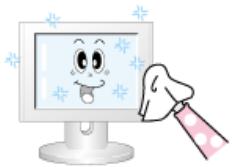
- Do not use benzene, thinner or other flammable substances, or a wet cloth.
- We recommend using a Samsung cleansing agent to prevent damage to the screen.
- Maintaining the Flat Panel Display Screen.
Clean with a soft cloth (cotton flannel) smoothly.
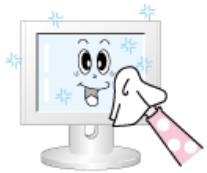
- Never use acetone, benzene, or thinner. (They may cause flaws or deformation of the screen surface.)
- The user will be required to pay costs and related expenses for repair of damages caused by him/her.
6. Symptoms and Recommended Actions
Troubleshooting
Check before Calling for Service

A monitor recreates visual signals received from the computer. Therefore, if there is trouble with the computer or the video card, this can cause the monitor to become blank, have poor coloring, noise, Video mode not supported, etc. In this case, first check the source of the problem, and then contact a service center or your dealer.
- Check if the power cord and the video cables are properly connected to the computer.
- Check if the computer beeps more than 3 times when booting. (If it does, request after-service for the main board of the computer.)
- If you installed a new video card or if you assembled the PC, check if you installed the adapter (video) driver and the monitor driver.
- Check if the scanning ratio of the video screen is set at 75Hz or 85Hz. (Do not exceed 60Hz when using the maximum resolution.)
- If you have problems installing the adapter (video) driver, boot the computer in Safe Mode, remove the Display Adapter at the "Control Panel, System, Device Administrator" and then reboot the computer to reinstall the adapter (video) driver.
Troubleshooting Problems and Solutions

The following table lists possible problems and their solutions. Before calling for service, check the information in this section to see if you can remedy any problems yourself. If you do need assistance, please call, the phone number on the Information section or contact your dealer.
Installation | Screen | Audio | Remote Control

Problems related to the monitor installation and their solutions are listed.
| Problems | Solutions |
| It appears the PC does not function normally. | Check if the Display Adapter Driver (VGA Driver) is properly installed. (Refer to Installing Driver) |
| The monitor screen flickers. | Check if the signal cable between the computer and the monitor is securely connected and tightened. (Refer to Connecting to a Computer) |
| TV screen is blurred or shows noise signals. | Check if the TV antenna connector is securely connected to the external antenna. (Refer to Connecting to TV) |
| TV signal is not received | Check "Channel system" and make sure you choose the correct channel system. (Refer to the Channel System)Select "Channel auto program" to configure the channel system automatically. (Refer to the Auto Program) |
| Strange characters appear on the screen. | Switch "Caption On" to "Caption Off" if strange characters appear on the TV screen. (Refer to Caption) |

Problems related to the monitor screen and their solutions are listed.
| Problems | Solutions |
| Screen is blank and power indicator is off | ·Ensure that the power cord is firmly connected and the LCD monitor is on. (Refer to the Connecting Your Monitor) |
| "Check Signal Cable" message | ·Ensure that the signal cable is firmly connected to the PC or Video sources. (Refer to the Connecting Your Monitor)·Ensure that the PC or Video sources are turned on. |
| "Not Supported Mode" message | ·Check the maximum resolution and the frequency of the Video adaptor.·Compare these values with the data in the Preset Timing Modes Chart. |
| Picture rolls vertically. | ·Check if the signal cable is securely connected. Connect it again securely.(Refer to Connecting to a Computer) |
| Image is not clear. Picture is blurred. | ·Run Frequency Coarse and Fine tuning.·Turn on again after removing all accessories (Video extension cable, etc.)·Set resolution and frequency to the recommended ranges. |
| Picture image is unstable and vibrates. | ·Check if the resolution and frequency set for the computer Video card falls in the range supported by the monitor. If not, reset them referring to the current Information under the |
|
Troubleshooting Problems and Solutions
| Ghost images are shown in the picture. | monitor menu and Preset Timing Modes. |
| The image is too light or too dark | Adjust the Brightness and Contrast.(Refer to the Brightness, Contrast) |
| Screen color is inconsistent. | Adjust color using Custom under OSD Color Adjustment menu. |
| Color image is distorted with dark shadows. |
| White color is poor. |
| Power Indicator blinks green. | The monitor is currently saving the changes made in settings to the OSD memory. |
| Screen is blank and power indicator light is steady green or blinks every 0.5 or 1 seconds | The monitor is using its power management system.press a key on the keyboard |

Problems related to audio signals and their solutions are listed below.
| Problems | Solutions |
| No sound | Ensure that the audio cable is firmly connected to both the audio-in port on your monitor and the audio-out port on your sound card. (Refer to the Connecting Your Monitor)Check the volume level. (Refer to the Volume) |
| Sound level is too low. | Check the volume level. (Refer to the Volume)If the volume is still too low after turning the control to its maximum, check the volume control on the computer sound card or software program. |
| Sound is too high pitched or too low pitched | Adjust the Treble and Bass to appropriate level. |

Problems related to the remote control and their solutions are listed.
| Problems | Items to check |
| The remote control buttons do not respond. | Check the battery polarities (+/-).Check if the batteries have been exhausted.Check if the power is on.Check if the power cord is securely connected.Check if a special fluorescent or neon lamp is on in the vicinity. |
Troubleshooting - Q & A

Frequently asked questions are summarized here for your reference.
| Question | Answer |
| How can I change the frequency? | Frequency can be changed by reconfiguring the AV card.Note that AV card support can vary, depending on the version of the driver used. (Refer to the computer or the AV card manual for details.) |
| How can I adjust the resolution? | Windows XP:Reset resolution by clicking Control Panel → Appearance & Theme → Display → Settings.Windows ME/2000:Set the resolution at the Control Panel → Display → Settings.* Contact the AV card manufacturer for details. |
| How can I set the Power Saving function? | Windows XP:Reset Power Saving parameters by clicking Control Panel → Appearance & Theme → Display → Screen Saver or in the computer BIOS SETUP. (Refer to Windows/Computer Manual)Windows ME/2000:Set the function at BIOS-SETUP of the computer or the screen saver. (Refer to Windows/Computer Manual). |
| How can I clean the outer case/LCD Panel? | Disconnect the power cord and then clean the monitor with a soft cloth, using either a cleaning solution or plain water.Do not leave any remains of the detergent nor scratch the case. Do not allow any water to go inside the monitor. |
Specifications - General

Design and specifications are subject to change without prior notice.
General
| Model Name | SyncMaster 192MP |
LCD Panel
| Size | 19.0 inch (Diagonal) |
| Display area | 376.32 (H) x 301.056 (V) |
| Pixel Pitch | 0.294 (H) x 0.294 (V) |
| Type | a-si TFT active matrix |
Synchronization
| Horizontal | 31 ~ 81 kHz |
| Vertical | 56 ~ 75 Hz |
Display Color
Resolution
| Optimum resolution | 1280 x 1024@60Hz |
| Maximum resolution | 1280 x 1024@75Hz |
Input Signal, Terminated
RGB Analog, DVI Compliant Digital RGB. Composite H/V Sync, 0.7Vp-p Positive at 75 ohms, Separate H/V sync, TTL level positive or negative
TV / Video
| Color system | NTSC-M, PAL-M |
| Sound system | M |
| Video format | CVBS, S-Video |
DTV(Component)
| DVD | Composite Sync 480i, 480p |
| YPbPr | Composite Sync 1080i, 720p, 480p, 480i |
| Video signal | 0.7 Vp-p @ 75 ohm |
Maximum Pixel Clock
Power Supply
| 90 to 264 VAC, 60/50Hz ± 3Hz |
Signal Cable
15pin to 15pin D-sub cable, Detachable DVI-D to DVI-D cable, Detachable (option)
Power Consumption
Power Saving
Dimensions / Weight (WxDxH)
| 433 x 58 x 419.5 mm (Without stand) |
| 433 x 198 x 436 mm / 5.9 kg (With Stand) |
VESA Mounting Interface
Specifications - General
100mm x 100mm
Environmental considerations
| Operating | Temperature : 50°F ~ 104°F(10°C ~ 40°C) Humidity : 10% ~ 80%, non-condensing |
| Storage | Temperature : -4°F ~113°F (-20°C ~ 45°C) Humidity : 5% ~ 95%, non-condensing |
Plug and Play Capability
This monitor can be installed on any Plug & Play compatible system. Interaction of the monitor and computer systems will provide the best operating conditions and monitor settings. In most cases, monitor installation will proceed automatically, unless the user wishes to select alternate settings.
Dot Acceptable
TFT LCD panel manufactured by using advanced semiconductor technology with precision of 99.999% above is used for this product. But the pixels of RED, GREEN, BLUE and WHITE color seem to be bright sometimes or some of black pixels could be seen. This is not from bad quality and you can use it without uneasiness.
The number of TFT LCD pixels : • 19 inch: 3,932,160
Specifications - PowerSaver

This monitor has a built-in power management system called PowerSaver. This system saves energy by switching your monitor into a low-power mode when it has not been used for a certain amount of time. The monitor automatically returns to normal operation when you press a key on the keyboard. For energy conservation, turn your monitor OFF when it is not needed, or when leaving it unattended for long periods. The PowerSaver system operates with a VESA DPMS compliant AV card installed in your computer. Use a software utility installed on your computer to set up this feature.
| State | Normal Operation | Power saving mode EPA/ENERGY 2000 | Power off (110 Vac) |
| Power Indicator | Green | Green, Blinking | Black |
| Power Consumption | Less than 62W | Less than 2W | 2W |

This monitor is EPA ENERGY STAR ® compliant and ENERGY2000 compliant when used with a computer equipped with VESA DPMS functionality. As an ENERGY STAR ® Partner, SAMSUNG has determined that this product meets the ENERGY STAR ® guidelines for energy efficiency.
Specifications - Preset Timing Modes

If the signal transferred from the computer is the same as the following Preset Timing Modes, the screen will be adjusted automatically. However, if the signal differs, the screen may go blank while the power LED is on. Refer to the Video card manual and adjust the screen as follows.
Table 1. Preset Timing Modes
| Display Mode | Horizontal Frequency (kHz) | Vertical Frequency (Hz) | Pixel Clock (MHz) | Sync Polarity (H/V) |
| MAC, 640 x 480 | 35.000 | 66.667 | 30.240 | -/- |
| MAC, 832 x 624 | 49.726 | 74.551 | 57.284 | -/- |
| MAC, 1152 x 870 | 68.681 | 75.062 | 100.000 | -/- |
| IBM, 640 x 350 | 31.469 | 70.086 | 25.175 | +/- |
| IBM, 640 x 480 | 31.469 | 59.940 | 25.175 | -/- |
| IBM, 720 x 400 | 31.469 | 70.087 | 28.322 | -/+ |
| VESA, 640 x 480 | 37.500 | 75.000 | 31.500 | -/- |
| VESA, 640 x 480 | 37.861 | 72.809 | 31.500 | -/- |
| VESA, 800 x 600 | 35.156 | 56.250 | 36.000 | +,-/+, - |
| VESA, 800 x 600 | 37.879 | 60.317 | 40.000 | +/+ |
| VESA, 800 x 600 | 46.875 | 75.000 | 49.500 | +/+ |
| VESA, 800 x 600 | 48.077 | 72.188 | 50.000 | +/+ |
| VESA, 1024 x 768 | 48.363 | 60.004 | 65.000 | -/- |
| VESA, 1024 x 768 | 56.476 | 70.069 | 75.000 | -/- |
| VESA, 1024 x 768 | 60.023 | 75.029 | 78.750 | +/+ |
| VESA, 1152 x 864 | 67.500 | 75.000 | 108.000 | +/+ |
| VESA, 1280 x 1024 | 79.976 | 75.025 | 135.00 | +/+ |
Table 2. NTSC Broadcasting Systems
| Color System | Sound System | Stereo System | Channel System | Countries |
| | A2 | US | Korea |
| NTSC | M | BTSC (SAP) | US | USA, Canada, Chile, Venezuela, Cuba, Colombia, Jamaica, Mexico, Panama, Peru, Philippines, Puerto-Rico, Taiwan |
| | EIAJ | Japan | Japan |

Horizontal Frequency
The time to scan one line connecting the right edge to the left edge of the screen horizontally is called Horizontal Cycle and the inverse number of the Horizontal Cycle is called Horizontal Frequency. Unit: kHz
Vertical Frequency
Like a fluorescent lamp, the screen has to repeat the same image many times per second to display an image to the user. The frequency of this repetition is called Vertical Frequency or Refresh Rate. Unit: Hz
AUSTRALIA :
Samsung Electronics Australia Pty Ltd.
Customer Response Centre
7 Parkview Drive, Homebush Bay NSW 2127
Tel : 1300 362 603
http://www.samsung.com.au/
BRAZIL :
Samsung Eletronica da Amazonia Ltda.
R. Prof. Manoelito de Ornellas, 303, Terro B
Chacara Sto. Antonio, CEP : 04719-040
Sao Paulo, SP
SAC : 0800 124 421
http://www.samsung.com.br/
CANADA :
Samsung Electronics Canada Inc.
Samsung Customer Care
7037 Financial Drive
Mississauga, Ontario
L5N 6R3
1-800-SAMSUNG (1-800-726-7864)
http://www.samsung.ca/
CHILE:
SONDA S.A.
Teatinos 550, Santiago Centro, Santiago, Chile
Phone: 56-2-5605000 Fax: 56-2-5605353
56-2-800200211
http://www.sonda.com/
http://www.samsung.cl/
COLOMBIA:
Samsung Electronics Colombia
Cra 9 No 99A-02 Of. 106
Bogota, Colombia
Tel.: 9-800-112-112
Fax: (571) 618 - 2068
http://www.samsung-latin.com/
e-mail: soporte@samsung-latin.com
SPAIN:
Samsung Electronics Comercial Iberica, S.A.
Ciencies, 55-65 (Poligono Pedrosa) 08908
Hospitalet de Llobregat (Barcelona)
Tel.: (93) 261 67 00
Fax.: (93) 261 67 50
http://samsung.es/
FRANCE:
SAMSUNG ELECTRONICS FRANCE Service
Paris Nord 2
66 rue des Vanesses
BP 50116 Villepinte
95950 Roissy CDG Cedex
Tel: 08 25 08 65 65
Fax: 01 48 63 06 38
http://www.samsungservices.com/
GERMANY:
TELEPLAN Rhein-Main GmbH
Feldstr. 16
64331 Weiterstadt
T. 06151/957-1306
F. 06151/957-1732
* EURO 0.12/Min
http://www.samsung.de/
HUNGARY:
Samsung Electronics Magyar Rt.
1039, Budapest, Lehel u. 15-17.
Tel: 36 1 453 1100
Fax: 36 1 453 1101
http://www.samsung.hu/
ITALY:
Samsung Electronics Italia S.p.a.
Via C. Donat Cattin, 5
20063 Cernusco s/Naviglio (MI)
Gustavo A. Madero C.P. 07700, Mexico D.F. Mexico
TEL. 52-55-5747-5100
Fax. 52-55-47 52 02
RFC: SEM950215S98
Gustavo A. Madero C.P. 07700, Mexico D.F. Mexico
TEL. 52-55-5747-5100
EXPORTED BY: Samsung Electronics CO., LTD.
416, Mae tan-3dong, Yeongtong-gu,
Suwon City, Kyoungki-Do Korea
NETHERLANDS/BELGIUM/LUXEMBOURG:
Samsung Electronics Benelux B.V.
Fleminglaan 12 2289 CP Rijswijk, NETHERLANDS
Samsung Electronics, 5 Libertas Road, Somerset Office Park,
Bryanston Ext 16. Po Box 70006, Bryanston, 2021, South Africa
Tel: 0027-11-549-1621
Fax: 0027-11-549-1629
http://www.samsung.co.za/
SWEDEN/DENMARK/NORWAY/FINLAND:
Samsung Electronics AB
Box 713
S-194 27 UPPLANDS VÄSBY
SVERIGE
Sync (Synchronized) Signals refer to the standard signals that are required to display desired colors on the monitor. They are divided into Vertical and Horizontal Sync Signals. These signals display normal color images by the set resolution and frequency.
Types of Sync Signals
| Separate | This is a scheme of transmitting individual vertical sync signals to the monitor. |
| Composite | This is a scheme of combining vertical sync signals into one composite signal and transmitting it to the monitor. The monitor displays the color signals by separating the composite signal into original color signals. |
| Sync On Green | This scheme does not use sync signals. Instead, it combines horizontal and vertical sync signals into a Green signal and transmits to the monitor. It is mainly used for workstations. |
Dot Pitch
The image on a monitor is composed of red, green and blue dots. The closer the dots, the higher the resolution. The distance between two dots of the same color is called the 'Dot Pitch'. Unit: mm
• Vertical Frequency
The screen must be redrawn several times per second in order to create and display an image for the user. The frequency of this repetition per second is called Vertical Frequency or Refresh Rate. Unit: Hz
Example: If the same light repeats itself 60 times per second, this is regarded as 60 Hz.
Horizontal Frequency
The time to scan one line connecting the right edge to the left edge of the screen horizontally is called Horizontal Cycle. The inverse number of the Horizontal Cycle is called Horizontal Frequency. Unit: kHz
• Interlace and Non-Interlace Methods
Showing the horizontal lines of the screen from the top to the bottom in order is called the Non-Interlace method while showing odd lines and then even lines in turn is called the Interlace method. The Non-Interlace method is used for the majority of monitors to ensure a clear image. The Interlace method is the same as that used in TVs.
Plug & Play
This is a function that provides the best quality screen for the user by allowing the computer and the monitor to exchange information automatically. This monitor follows the international standard VESA DDC for the Plug & Play function.
Resolution
The number of horizontal and vertical dots used to compose the screen image is called 'resolution'. This number shows the accuracy of the display. High resolution is good for performing multiple tasks as more image information can be shown on the screen.
Example: If the resolution is 1280 X 1024, this means the screen is composed of 1280 horizontal dots (horizontal resolution) and 1024 vertical lines (vertical resolution).
A2
This system uses two carriers to transmit voice data. Countries such as South Korea and Germany use this system.
BTSC
Broadcast Television System Committee
The stereo broadcasting system that is used in most of the countries that have adopted the NTSC system, including the United States, Canada, Chile, Venezuela and Taiwan. It also refers to the organization that has been organized to promote its development and management.
EIAJ
Electronic Industries Association of Japan
RF Cable
A round signal cable generally used for TV antennas.
Satellite Broadcasting
Broadcasting service provided via satellite. Enables high picture quality and clear sound throughout the country regardless of the location of the viewer.
Sound Balance
Balances the levels of the sound coming from each speaker in televisions with two speakers.
Cable TV
Whereas the terrestrial broadcasting is delivered via frequency signals through the air, cable broadcasting is transmitted via a cable network. In order to view cable TV, one must purchase a cable receiver and hook it up to the cable network.
CATV
"CATV" refers to the broadcasting service offered at hotels, schools and other buildings through their own broadcasting system, apart from VHF or UHF broadcasting by terrestrial broadcasters. The CATV programs may include movies, entertainment and educational programs. (Different from cable TV.)
CATV can be viewed only within the area in which the CATV service is offered.
S-Video
Short for "Super Video." S-Video allows up to 800 lines of horizontal resolution, enabling high-quality video.
VHF/UHF
VHF indicates TV channels 2 to 13, and UHF indicates channels 14 through 69.
Channel Fine Tuning
This feature allows the viewer to fine-tune the TV channel to obtain the best viewing conditions. The Samsung Monet TV has both automatic and manual channel fine-tuning features to enable the viewer to adjust their desired settings.
External device input refers to video input from such external video devices as VCRs, camcorders and DVD players, separate from a TV broadcast.
FCC Information | IC Compliance Notice | MPR II Compliance |
European Notice (Europe only) | PCT Notice | VCCI |
TCO'99-Ecological requirements for personal computers (TCO'99 applied model only)
TCO'03-Ecological requirements for personal computers (TCO'03 applied model only)
TCO'03 Recycling Information (TCO'03 applied model only)
User Instructions
The Federal Communications Commission Radio Frequency Interference Statement includes the following warning:
Note: This equipment has been tested and found to comply with the limits for a Class B digital device, pursuant to Part 15 of the FCC Rules. These limits are designed to provide reasonable protection against harmful interference in a residential installation. This equipment generates, uses, and can radiate radio frequency energy and, if not installed and used in accordance with the instructions, may cause harmful interference to radio communications. However, there is no guarantee that interference will not occur in a particular installation. If this equipment does cause harmful interference to radio or television receptions, which can be determined by turning the equipment off and on, the user is encouraged to try to correct the interference by one or more of the following measures:
- Reorient or relocate the receiving antenna.
- Increase the separation between the equipment and receiver.
- Connect the equipment into an outlet on a circuit different from that to which the receiver is connected.
- Consult the dealer or an experienced radio/TV technician for help.
Changes or modifications not expressly approved by the party responsible for compliance could void the user's authority to operate the equipment. If necessary, consult your dealer or an experienced radio/television technician for additional suggestions. You may find the booklet called How to Identify and Resolve Radio/TV Interference Problems helpful. This booklet was prepared by the Federal Communications Commission. It is available from the U.S. Government Printing Office, Washington, DC 20402, Stock Number 004-000-00345-4.
The party responsible for product compliance: SAMSUNG ELECTRONICS CO., LTD
America QA Lab of Samsung
3351 Michelson Drive,
Suite #290, Irvine, CA92612 USA
User must use shielded signal interface cables to maintain FCC compliance for the product.
Provided with this monitor is a detachable power supply cord with IEC320 style terminations. It may be suitable for connection to any UL Listed personal computer with similar configuration. Before making the connection, make sure the voltage rating of the computer convenience outlet is the same as the monitor and that the ampere rating of the computer convenience outlet is equal to or exceeds the monitor voltage rating.
For 120 Volt applications, use only UL Listed detachable power cord with NEMA configuration 5-15P type (parallel blades) plug cap. For 240 Volt applications use only UL Listed Detachable power supply cord with NEMA configuration 6-15P type (tandem blades) plug cap.
IC Compliance Notice
This Class B digital apparatus meets all requirements of the Canadian Interference-Causing Equipment Regulations of ICES-003.
MPR II Compliance
This monitor complies with SWEDAC(MPR II) recommendations for reduced electric and magnetic fields.
• European Notice (Europe only)
Products with the CE marking comply with the EMC Directive (89/336/EEC), (92/31/EEC), (93/68/EEC) and the Low Voltage Directive (73/23/EEC) issued by the Commission of the European Community. Compliance with these directives implies conformity to the following European Norms:
• EN55022:1998+A1:2000 - Radio Frequency Interference • EN55024:1998 - Electromagnetic Immunity • EN55013:1990+A12:1994+A13:1996+A14:1999 - Radio Frequency Interference • EN55020:1994+A11:1996+A12/A13/A14:1999 - Electromagnetic Immunity • EN61000-3-2:1995+A1/A2:1998 - Power Line Harmonics • EN61000-3-3:1995 - Voltage Fluctuations • EN60065:1997 or EN60950:1998 - Product Safety
PCT Notice
VCCI
This is a Class B product based on the standard of the Voluntary Control Council for Interference by Information Technology Equipment (VCCI). If this is used near a radio or television receiver in a domestic environment, it may cause radio interference. Install and use the equipment according to the instruction manual.
TCO'99 - Ecological requirements for personal computers (TCO'99 applied model only)

Congratulations!
You have just purchased a TCO'99 approved and labelled product! Your choice has provided you with a product developed for professional use. Your purchase has also contributed to reducing the burden on the environment and also to the further development of environmentally adapted electronics products.
This product meets the requirements for the TCO'99 scheme which provides for an international environmental and quality labelling of personal computers. The labelling scheme was developed as a joint effort by the TCO (The Swedish Confederation of Professional Employees), Svenska Naturskyddsforeningen (The Swedish Society for Nature Conservation), Statens Energimyndighet (The Swedish National Energy Administration) and SEMKO AB.
The requirements cover a wide range of issues: environment, ergonomics, usability, reduction of electric and magnetic fields, energy consumption and electrical safety.
Why do we have environmentally labelled computers?
In many countries, environmental labelling has become an established method for encouraging the adaptation of goods and services to the environment. The main problem, as far as computers and other electronics equipment are concerned, is that environmentally harmful substances are used both in the products and during their manufacture. Since it is not so far possible to satisfactorily recycle the majority of electronics equipment, most of these potentially damaging substances sooner or later enter nature.
There are also other characteristics of a computer, such as energy consumption levels, that are important from the viewpoints of both the work (internal) and natural (external) environments. Since all methods of electricity generation have a negative effect on the environment (e.g. acidic and climate-influencing emissions, radioactive waste), it is vital to save energy. Electronics equipment in offices is often left running continuously and thereby consumes a lot of energy.
What does labelling involve?
The environmental demands have been developed by Svenska Naturskyddsforeningen (The Swedish Society for Nature Conservation). These demands impose restrictions on the presence and use of heavy metals, brominated and chlorinated flame retardants, CFCs (freons) and chlorinated solvents, among other things. The product must be prepared for recycling and the manufacturer is obliged to have an environmental policy which must be adhered to in each country where the company implements its operational policy.
The energy requirements include a demand that the computer and/or display, after a certain period of inactivity, shall reduce its power consumption to a lower level in one or more stages. The length of time to reactivate the computer shall be reasonable for the user.
Below you will find a brief summary of the environmental requirements met by this product. The complete environmental criteria document may be ordered from:
TCO Development
SE-114 94 Stockholm, Sweden
Fax: +46 8 782 92 07
Email (Internet): development@tco.se
Current information regarding TCO'99 approved and labelled products may also be obtained via the Internet, using the address: http://www.tco-info.com/
Environmental requirements
Flame retardants
Flame retardants are present in printed circuit boards, cables, wires, casings and housings. Their purpose is to prevent, or at least to delay the spread of fire. Up to 30% of the plastic in a computer casing can consist of flame retardant substances. Most flame retardants contain bromine or chloride, and those flame retardants are chemically related to another group of environmental toxins, PCBs. Both the flame retardants containing bromine or chloride and the PCBs are suspected of giving rise to severe health effects, including reproductive damage in fish-eating birds and mammals, due to the bio-accumulative* processes. Flame retardants have been found in human blood and researchers fear that disturbances in foetus development may occur.
The relevant TCO'99 demand requires that plastic components weighing more than 25 grams must not contain flame retardants with organically bound bromine or chlorine. Flame retardants are allowed in the printed circuit boards since no substitutes are available.
Cadmium**
Cadmium is present in rechargeable batteries and in the colour-generating layers of certain computer displays. Cadmium damages the nervous system and is toxic in high doses. The relevant TCO'99 requirement states that batteries, the colour-generating layers of display screens and the electrical or electronics components must not contain any cadmium.
Mercury**
Mercury is sometimes found in batteries, relays and switches. It damages the nervous system and is toxic in high doses. The relevant TCO'99 requirement states that batteries may not contain any mercury. It also demands that mercury is not present in any of the electrical or electronics components associated with the labelled unit. There is however one exception. Mercury is, for the time being, permitted in the back light system of flat panel monitors as today there is no commercially available alternative. TCO aims on removing this exception when a Mercury free alternative is available.
CFCs (freons)
The relevant TCO'99 requirement states that neither CFCs nor HCFCs may be used during the manufacture and assembly of the product. CFCs (freons) are sometimes used for washing printed circuit boards. CFCs break down ozone and thereby damage the ozone layer in the stratosphere, causing increased reception on earth of ultraviolet light with e.g. increased risks of skin cancer (malignant melanoma) as a consequence.
Lead**
Lead can be found in picture tubes, display screens, solders and capacitors. Lead damages the nervous system and in higher doses, causes lead poisoning. The relevant TCO'99 requirement permits the inclusion of lead since no replacement has yet been developed.
TCO'03-Ecological requirements for personal computers (TCO'03 applied model only)
Congratulations!
The display you have just purchased carries the TCO03 Displays label. This means that your display is designed, manufactured and tested according to some of the strictest quality and environmental requirements in the world. This makes for a high performance product, designed with the user in focus that also minimizes the impact on our natural environment.
Some of the features of the TCO03 Display requirements:
Ergonomics
Good visual ergonomics and image quality in order to improve the working environment for the user and to reduce sight and strain problems. Important parameters are luminance, contrast, resolution, reflectance, colour rendition and image stability.
Energy
• Energy-saving mode after a certain time - beneficial both for the user and the environment - Electrical safety
Emissions
• Electromagnetic fields - Noise emissions
Ecology
- The product must be prepared for recycling and the manufacturer must have a certified environmental management system such as EMAS or ISO 14 000
- Restrictions on o chlorinated and brominated flame retardants and polymers o heavy metals such as cadmium, mercury and lead.
The requirements included in this label have been developed by TCO Development in cooperation with scientists, experts, users as well as manufacturers all over the world. Since the end of the 1980s TCO has been involved in influencing the development of IT equipment in a more user-friendly direction. Our labelling system started with displays in 1992 and is now requested by users and IT-manufacturers all over the world.
For more information, please visit
www.tcodevelopment.com
For recycling information for TCO'03 certified monitors, for the residents in the following countries, please contact the company corresponding to your region of residence. For those who reside in other countries, please contact a nearest local Samsung dealer for recycling information for the products to be treated in environmentally acceptable way.
| [U.S.A. Residents Only] | [European Residents Only] |
| U.S.A. | SWEDEN | NORWAY | GERMANY |
| COMPANY | Solid Waste Transfer & Recycling Inc | ELKRETSEN | Elektronikkretur AS | vfw AG |
| ADDRESS | 442 Frelinghuysen Ave Newark, NJ 07114 | ELKRETSEN Box 1357, 111 83 Stockholm Barnhusgatan 3, 4 tr. | 6454 Etterstad 0602 Oslo Fyrstikkalln 3B | Max Plank Strasse 42 50858 Collogne Germany |
| TELEPHONE | 973-565-0181 | 08-545 212 90 | 23 06 07 40 | 49 0 2234 9587 - 0 |
| FAX | Fax: 973-565-9485 | 08-545 212 99 | 23 06 07 41 | |
| E-MAIL | none | info@el-kretsen.se | adm@elektronikkretur.no | vfw.info@vfw-ag.de |
| HOME | http://www.bcua.org/Solid | http://www.el-kretsen.se/ | http://www.elretur.no/ | |
| PAGE | Waste_Disposal.htm | | |
Natural Color Software Program
One of the recent problems in using a computer is that the color of the images printed out by a printer or other images scanned by a scanner or a digital camera are not the same as those shown on the monitor.
The Natural Color S/W is the very solution for this problem. It is a color administration system developed by Samsung Electronics in association with Korea Electronics & Telecommunications Research Institute (ETRI). This system is available only for Samsung monitors and makes the color of the images on the monitor the same as the printed or scanned images.
For more information, refer to Help (F1) in the software program.
How to install the Natural Color software
Insert the CD included with the Samsung monitor into the CD-ROM Drive. Then, the initial screen of the program installation will be executed. Click Natural Color on the initial screen to install the Natural Color software. To install the program manually, insert the CD included with the Samsung monitor into the CD-ROM Drive, click the [Start] button of Windows and then select [Execute].
Enter D:\color\eng\setup.exe and then press the key.
(If the drive where the CD is inserted is not D:\, enter the applicable drive.)
How to delete the Natural Color software program
Select [Setting]/[Control Panel] on the [Start] menu and then double-click [Add/Delete a program].
Select Natural Color from the list and then click the [Add/Delete] button.
For Better Display
- Adjust computer resolution and screen injection rate (refresh rate) on computer as described below to enjoy the best quality of picture. You can have an uneven quality of picture in the screen if the best quality of picture is not provided in TFT-LCD.
○ Resolution: 1280 x 1024 o Vertical frequency (refresh rate): 60 Hz
- TFT LCD panel manufactured by using advanced semiconductor technology with precision of 99.999% above is used for this product. But the pixels of RED, GREEN, BLUE and WHITE color seem to be bright sometimes or some of black pixels could be seen. This is not from bad quality and you can use it without uneasiness.
- For example, the number of TFT LCD pixels that is contained in this product are 3,932,160.
- When you clean the monitor and the panel outside, please apply the recommended small amount of cleaner by using a soft and dry cloth and polish it. Let the LCD area not be forced but scrubbed out softly. If excessive force is applied, you can have a stain on it.
- If you are not satisfied with the quality of picture, you can get better quality of picture by executing "auto adjustment function" in display screen that is appeared as window termination button is pressed. If there's still noise after automatic adjustment, use FINE/COARSE adjustment function.
- If you view a fixed screen for an extended period of time, residual image or blurriness may appear. Change the mode to energy save or set a screensaver to moving picture when you need to be away from the monitor for an extended period of time.
Information in this document is subject to change without notice.
© 2003 Samsung Electronics Co., Ltd. All rights reserved.
Reproduction in any manner whatsoever without the written permission of Samsung Electronics Co., Ltd. is strictly forbidden.
Samsung Electronics Co., Ltd. shall not be liable for errors contained herein or for incidental or consequential damages in connection with the furnishing, performance, or use of this material.
Samsung is the registered trademark of Samsung Electronics Co., Ltd.; Microsoft, Windows and Windows NT are registered trademarks of Microsoft Corporation; VESA, DPMS and DDC are registered trademarks of AV Electronics Standard Association; the ENERGY STAR name and logo are registered trademarks of the U.S. Environmental Protection Agency (EPA). As an ENERGY STAR Partner, Samsung Electronics Co., Ltd. has determined that this product meets the ENERGY STAR guidelines for energy efficiency. All other product names mentioned herein may be the trademarks or registered trademarks of their respective owners.