CICT - Cable tester Black Box - Free user manual and instructions
Find the device manual for free CICT Black Box in PDF.


| Product Type | Network Switch |
| Model | CICT |
| Brand | Black Box |
| Dimensions (W x D x H) | 200 x 150 x 40 mm |
| Weight | 0.5 kg |
| Power Supply | 12V DC, 1A |
| Power Consumption | 10W |
| Number of Ports | 8 |
| Port Type | RJ45 |
| Data Rate | 10/100/1000 Mbps |
| Cooling | Fanless |
| Operating Temperature | 0°C to 40°C |
| Certifications | CE, FCC |
| Main Functions | Network connectivity, data switching |
| Maintenance | Keep clean, avoid moisture |
| Safety | Use only supplied power adapter |
| Spare Parts | Power adapter available |
| Repairability | No user-serviceable parts |
| General Information | Designed for IT environments |
Frequently Asked Questions - CICT Black Box
User questions about CICT Black Box
0 question about this device. Answer the ones you know or ask your own.
Ask a new question about this device
Download the instructions for your Cable tester in PDF format for free! Find your manual CICT - Black Box and take your electronic device back in hand. On this page are published all the documents necessary for the use of your device. CICT by Black Box.
USER MANUAL CICT Black Box
Cable Inspector Cable Tester Quick Start Guide
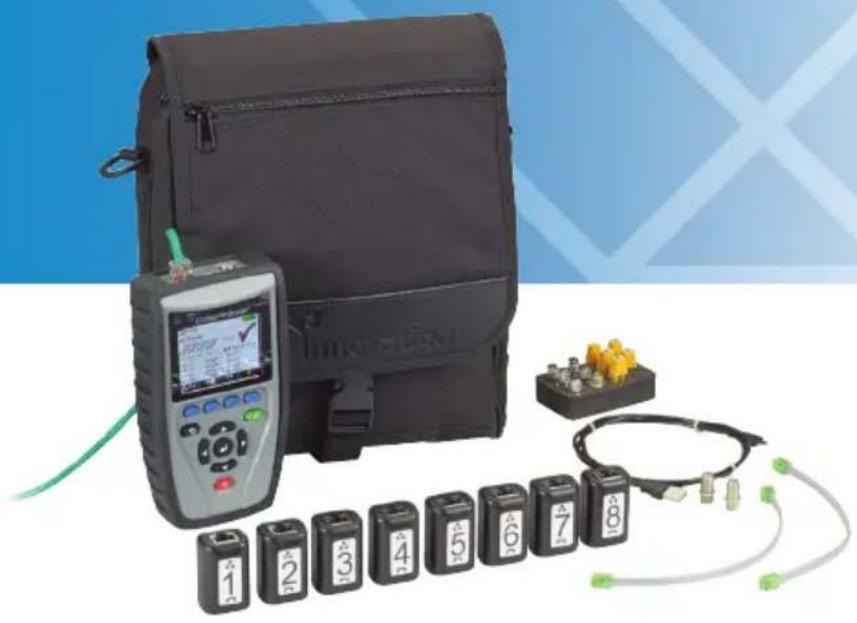
Combines the functions of a high-end cable tester and length measurement tester, with the capability to identify link status, link capability, and PoE detection.
Trademarks Used in this Manual
Black Box and the Double Diamond logo are registered trademarks of BB Technologies, Inc.
Any other trademarks mentioned in this manual are acknowledged to be the property of the trademark owners.
Disclaimer
Black Box Network Services shall not be liable for damages of any kind, including, but not limited to, punitive, consequential or cost of cover damages, resulting from any errors in the product information or specifications set forth in this document and Black Box Network Services may revise this document at any time without notice.
What's Included
• (1) Cable Inspector (test unit)
• (1) coax and network remote set (numbers 1 through 5 coax, RJ-45, (1) F-Type coupler)
• (1) network/tel testing and ID Remote (number 1)
• (2) RJ-12 cables
• (1) micro USB cable
• (1) carrying pouch
• This Quick Start Guide
Components on the CICT
C

How to Perform a Cable Test
- Power on the Cable Inspector Cable Tester (CICT).
- Connect a network, coax, or telephone cable to the appropriate connector on the top of the CICT.
WARNING: Do not plug an RJ-11 cable directly into the CICT! A standard RJ-11 cable will damage the CICT's RJ-45 jack. Use the included RJ adapter patch cable that is included with the CICT.
- Press the enter button to display the cable test menu. The CICT will automatically perform a test upon entering the cable test menu.
- To test coax or telephone cable, press the coax or telephone soft key


- If a remote is NOT being used (one-ended test), the CICT will test the length of each pair, opens, shorts, or split pairs. Performing a one-ended test will not verify connectivity on the opposite end of the cable.
- If a remote is being used, connect the remote to the opposite end of the cable.
- To calibrate the Velocity of Propagation (VOP), connect a known length of cable to the CICT and press the up/down/left/right buttons to increase or decrease the VOP. Press the left and right buttons to select and change the VOP one digit at a time.
- While adjusting the VOP, press the test button every so often until the length of the cable is displayed.
- Press the green test button √ or the loop mode soft key to perform additional tests.
- To save a cable test, press the save icon
- Use the arrow buttons and the enter button to name the cable test file.
- Press the Save icon to save the cable test file.
Network/PoE Detection
| Link Capability Link Flow Control | |
| 10Base-T Full / Half Duplex 100Base-TX Full / Half Duplex | |
| Connected at | PoE A 12.95W Max |
| 100 Base-TX | 57.9 V Min Load |
| MDI FDX | 56.5 V Max Load |
• Power on the CICT.
- Connect the CICT to a switch or active network jack.
- Use the left or right arrow buttons to select the Network/PoE icon and press the enter button or press the Network/PoE soft key.
- The CICT will automatically detect and display link capability, connection speed, PoE class, and PoE min./max. voltages.
• To perform a Network Test only, press the PoE soft key PoE
• To save the PoE data, press the Save soft key
- Use the arrow buttons and the enter button to name the PoE file.
- Press the Save soft key to save the PoE file.
Link Light


Frequency: 1.0 Hz

- Power on the CICT.
- Connect the CICT to an active Network cable or port.
- Press the Network/PoE soft key then press the Link Light soft key

- The Link Light will automatically blink upon entering the Link Blink menu.
- The Link LED above the LCD screen will flash at the same cadence as the port light.
- Use the up and down arrows to adjust the transmit frequency to suit the switch characteristics.
Tone Generator


• Power on the CICT.
- Use the left or right arrow buttons to select the tone generator icon press the enter button.
and
- The CICT will automatically activate the tone generator upon entering the tone generator menu.
- Connect your cable to either the RJ-45 jack or coax connector located on the top of the CICT.
- To switch between network and coax cables, press the coax cable/RJ-45 soft key
- Press the up or down arrow buttons to select tone cadences 1 thru 4.
- Press the left or right arrow buttons to select which pin or pair to place the tone.
- Use a tone probe (TS155-R3) alongside the cable or at the end of the cable to hear an audible tone.
Setup

- Press the Setup soft key to enter the setup menu.
- Use the up and down buttons to select a setting.
- Use the left and right arrow buttons to change the selected setting.
- Press the Save soft key to save changes.
- Press the Defaults soft key to reset the settings to factory settings.
- Press the Files soft key to view stored test results.
CICT Software Application
For instructions on downloading the CICT software application, contact Black Box Technical Support at 724-746-5500 or info@blackbox.com.
To download the user manual, visit the Black Box Web site and enter CICT in the search bar or go to ftp://ftp.blackbox.com/manuals/CICT_user.pdf.
Black Box Tech Support: FREE! Live. 24/7.
Tech support the way it should be.

Great tech support is just 60 seconds away at 724-746-5500 or blackbox.com.

BLACK BOX®
About Black Box
Black Box provides an extensive range of networking and infrastructure products. You'll find everything from cabinets and racks and power and surge protection products to media converters and Ethernet switches all supported by free, live 24/7 Tech support available in 60 seconds or less.
© Copyright 2014. Black Box Corporation. All rights reserved. Black Box ® and the Double Diamond logo are registered trademarks of BB Technologies, Inc. Any third-party trademarks appearing in this manual are acknowledged to be the property of their respective owners.
CICT Quick Start Guide version 1
Brand : Black Box
Model : CICT
Category : Cable tester