
RoadRunner 525GPS - Dash cam PRESTIGIO - Free user manual and instructions
Find the device manual for free RoadRunner 525GPS PRESTIGIO in PDF.


| Product Type | Dash Cam |
| Brand | Prestigio |
| Model | RoadRunner 525GPS |
| Dimensions (approx) | 10 x 6 x 3 cm |
| Weight (approx) | 150 g |
| Power Supply | 12V car adapter (cigarette lighter) |
| Battery | Built-in rechargeable lithium battery |
| Recording Resolution | Full HD 1080p |
| Wide Angle Lens | 170-degree |
| GPS Built-in | Yes, records speed and location |
| G-Sensor | Yes, auto-locks footage on impact |
| Loop Recording | Yes, continuous overwriting |
| Night Vision | Yes, with infrared LEDs |
| Display | 2.0-inch LCD screen |
| Memory Card Support | MicroSD up to 32GB (Class 10) |
| Mount Type | Suction cup window mount |
| Maintenance | Clean lens with soft, dry cloth |
| Safety | Do not install where it obstructs driver's view |
| Spare Parts / Repair | Replacement suction cup and charger available |
| Operating Temperature | -10°C to 60°C |
Frequently Asked Questions - RoadRunner 525GPS PRESTIGIO
User questions about RoadRunner 525GPS PRESTIGIO
0 question about this device. Answer the ones you know or ask your own.
Ask a new question about this device
Download the instructions for your Dash cam in PDF format for free! Find your manual RoadRunner 525GPS - PRESTIGIO and take your electronic device back in hand. On this page are published all the documents necessary for the use of your device. RoadRunner 525GPS by PRESTIGIO.
USER MANUAL RoadRunner 525GPS PRESTIGIO
ROADDETECTOR 525GPS
PRS525GPS
Quick Start Guide
Version 1.2.0
EN 9
RU 12
ET 16
KZ 19
LT 23
LV 26
RO 29
UA 32


| Specifications | Display: 2.31" / 5.87 cm, TN, 320×240. Sensor: 1/3", CMOS GC2053, 2 MP. Viewing angle: 140°. Video resolution: FHD 1920×1080 at 30 fps, HD 1280×720 at 30 fps. Maximum frame rate: 30 fps. Recording mode cyclic (1/3/5 min). Video codec: H.264. Digital video format: MOV. Internal memory: 16 MB. Memory card support: microSD (SDHC/SDXC) card up to 128 GB (class 10 or higher). Processor: Mstar 8336. GPS module: built-in. Antenna type: phased antenna. Frequency ranges of the radar detector: Strelka (24,15 ± 1,023 MHz), K-band (24,125 ± 0,175 MHz), X-band (10,525 ± 0,150 GHz), laser (800-1000 nm). Signature radar: yes. CPL filter: removable. Traffic camera database: yes. Motion sensor: yes. Night mode: y Electronic image stabilisation: no. G-sensor: yes. Infrared illumination: no. Digital zoom: no. Built-in speaker: yes. Built-in microphone: yes. Powe supply: a power adapter for the cigarette lighter socket (input: DC 12-24 V; output: DC 5 V / 1.5 A). Supercapacitor (fixed): 2×2.7 V, 3.3 F. Life of the supercapacitor: 1 million cycles, or 30,000 hours. Operating conditions: 0 °C to +45 °C at 15-65 % relative humidity. Storage conditions: -20 °C to +60 °C at 15-65 % relative humidity. Colour: black. Body material: ABS plastic. Attachment type: suction-cup holder. Dimensions: 92×58.6×35 mm (L×W×H). Weight: 96 g |
| Functions | The compact RoadDetector 525GPS video recorder is a combination of a video recorder, radar detector and GPS tracker with a set of databases that store the locations of major speed control points. The GPS receiver locates the nearest control point and displays the information about the speed limit type of the radar, and additional types of control based on an up-to-date database. The radar part of the device receives signals carried by the radiation from traffic radars of different types and ranges |
| In the box | PRS525GPS video recorder with a built-in GPS module, suction-cup holder with a mini-USB port, extra holder with 3M adhesive tape, card reader, car charger with a mini-USB cable (cable length: 3.6 m), accessories for cable installation, card reader, screen wipe, fabric case, quick start guide, warranty |
| Warranty | 2 years (service life: 2 years) |
Operating instructions
Installing a memory card
Insert the microSD card (not supplied) into the device in the direction shown on the body of the video recorder until you hear a click.
Installing the DVR
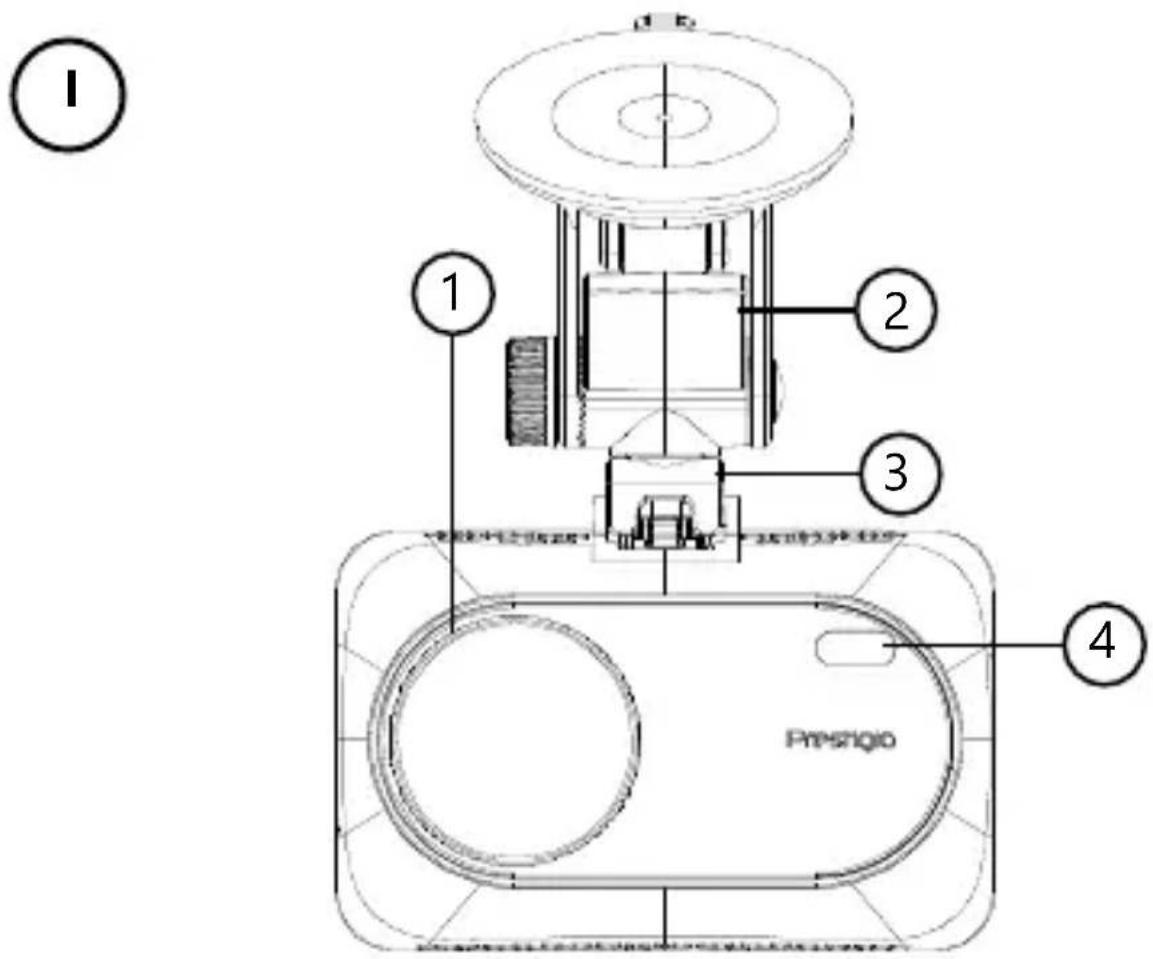
- Insert the holder on the suction cup into the connector for the holder so that the contacts of the recorder and the contacts of the holder coincide.
- Choose a place to mount the DVR.
- Remove the protective film from the sticky surface of the suction cup holder.
- Loosen the mechanism holding the suction cup. Install the suction cup and clamp the mechanism.
- Connect the car charger cable (included) to the mini-USB power connector on the suction cup holder.
- Connect the charger to a vehicle power source (cigarette lighter socket in the car).
You can also use the optional 3M tape mount, which will provide a more secure fixation of the DVR.
Connecting the DVR
When the engine starts, the DVR will automatically start cyclic recording of the video file in fragments of 1/3/5 min (fragment length is set by the user in the device settings). At the same time, the status LED indicator of the device will turn blue When the engine turns off, the DVR will save the last video file and stop working. Also, if you press the power button for a long time, it is possible to turn on/off the DVR manually (with external power on).
Note. The DVR's microSD card stores a list of video clips of the selected length, arranged in ascending order of recording date. When the memory on the microSD card runs out, the device automatically deletes the oldest video file and records a new one.
Setting the DVR modes
Follow the steps below to switch to the DVR mode settings:
-
Press the MENU button to go to the main menu.
-
Press ▲/▼ to select the required setting mode:
• Video settings: setting the image, time and date stamp, speed, etc.
• DVR settings: setting the recording cycle, software version, motion sensor, G-sensor, etc.
- Radar detector settings: setting the range of signals, alerts, radar and database versions, etc.
- Alerts settings: switching between short and full modes of audio alerts and customization of the settings.
-
Make the changes and activate them by clicking OK.
-
Press the MENU button to return to video recording. The recording will continue automatically.
Locking a video file from being overwritten or deleted
To block the current video file from being overwritten or deleted, press the OK button in Record mode. A lock indicator appears on the screen in the form of a padlock. To cancel the lock, press the OK button again. You can also block an existing video from being deleted or overwritten. Select the desired file and hold down the MENU button, then select "Protection".
Screenshot
Press the ▲ button once while recording a video to take a screenshot.
Viewing video files on a PC
Video playback is possible on a PC with H.264 and MOV format codecs installed. To view videos on a PC, you must use the memory card reader (included).
It is also possible to view video files on the device (with external power on).
GPS module
GPS connection is established automatically once the device is powered on. It may take some time to establish a stable connection to the satellites. In cars with a metallised windshield, there may be problems with GPS module operation, or GPS misdirection. The device records the current GPS coordinates and speed of the vehicle simultaneously with the video file recording. That information is displayed at the bottom of the screen when the video is viewed.
Note. The DVR PRS525GPS notifies you of traffic signs and speed limits for information purposes only. The device does not guarantee road safety and is not a device that provides protection from fines. We strongly recommend that you obey the rules of the road, regardless of the traffic situation. The driver of a vehicle is fully responsible for their decisions on the road.
Radar module
The radar part of RoadDetector 525GPS receives radar signals of different types and ranges. When a speed control point or speed limit is detected, the information is displayed on the screen and an audio warning is played.
WARNING! The RoadDetector 525GPS video recorder notifies you of road signs and speed limits for information purposes only. The device does not guarantee road safety and is not designed as a means of fine avoidance. We strongly recommend that you obey traffic regulations regardless of the traffic situation. Responsibility for the decisions made on the road rests entirely with the driver of the vehicle.
Updating the database
Follow the steps below to update the DVR database:
- Download the current database file on the device page of prestigio.com.
- Save the update to a microSD card using a memory card reader (included).
- Insert the microSD card in the direction shown on the body of the DVR until you hear a click.
- The update will start automatically.
WARNING! The update process may take some time. Do not unplug the device from the power source or turn off the vehicle's ignition until the update process is complete.
Safe use guidelines
Locate the device in the passenger compartment so as not to obstruct the driver's view or prevent airbags from deploying. Do not be distracted by the display of the radar detector while driving to avoid an accident. To prevent fire or electric shock, do not expose the device to rain or moisture. Do not expose the device to fire. Do not allow the device to come into contact with sources of strong electromagnetic radiation. To charge the device from the cigarette lighter of a car, use only the original car charger included in the package. The manufacturer is not liable for any consequences, direct or indirect, arising from improper use of the vehicle charger, including for powering or recharging a device that is not included in the package. Your device may only be repaired by a Prestigio Authorized Service Center.
Troubleshooting
WARNING! Immediately disconnect the device from the power source if there is a problem with its operation. Do not try to repair the device yourself, it may cause damage.
- The device does not turn on. Check that the device is connected to a power source.
- The video file is not being recorded. The memory card capacity is filled with video files that are protected from being overwritten or deleted. Delete unnecessary files via the recordings menu or format the memory card (read open sources on how to do this).
- Video recordings are not viewable. The card is faulty. The speed or capacity of the memory card does not meet the minimum requirements of the recorder. Use a microSD (SDHC/SDXC) card with a reading/recording speed of at least 10 MB/s, up to 128 GB (class 10 or higher).
- During video playback the following message appears: "File Error". The microSD card is faulty. Delete the playback video file because it was damaged during recording. If none of the recorded files play, format the microSD card and check it for damaged sectors (read open sources).
- The resulting image is fuzzy. Check the cleanliness of the camera lens. If the lens is dirty, clean it. Make sure that the maximum video recording resolution is set in the settings.
- GPS does not work correctly. There may be an interference with the device. GPS may not work correctly in enclosed spaces such as tunnels and rooms. In cars with metallized windshield coating, there may be problems with GPS module operation and its disorientation.
- The device does not respond to the controls. The recorder's operating system malfunctioned. Restart the device. If the operation of the device is not restored, contact a specialized service center.
NOTE. All information contained herein is subject to amendments without prior notification of the User. The current information and a detailed description of the device, as well as the connection process, certificates, and details of the companies that deal with warranty and quality issues, are available for download at prestigio.com/use. All trademarks and brand names are the property of their respective owners. See the manufacturer and suppliers' details on the individual packaging. Manufacturer: Prestigio Plaza Ltd., Spirou Kyprianou 26, Prestigio Plaza, 4040, Limassol, Cyprus, prestigio.com. Country of manufacture: China.

Общая информация
Autovideoregister paigaldamine
These symbols indicate that you must follow the Waste Electrical and Electronic Equipment (WEEE) and Waste Battery and Battery Regulations when disposing of the device, its batteries and accumulators, and its electrical and electronic accessories. According to the rules, this equipment must be disposed of separately at the end of its service life.
Do not dispose of the device, its batteries and accumulators, or its electrical and electronic accessories together with unsorted municipal waste, as this will harm the environment.
To dispose of this equipment, it must be returned to the point of sale or turned in to a local recycling facility.
You should contact your local household waste disposal service for details.

- ROADDETECTOR 525GPS
- OPERATING INSTRUCTIONS
- INSTALLING A MEMORY CARD
- INSTALLING THE DVR
- CONNECTING THE DVR
- SETTING THE DVR MODES
- LOCKING A VIDEO FILE FROM BEING OVERWRITTEN OR DELETED
- SCREENSHOT
- VIEWING VIDEO FILES ON A PC
- GPS MODULE
- RADAR MODULE
- UPDATING THE DATABASE
- SAFE USE GUIDELINES
- TROUBLESHOOTING
- AUTOVIDEOREGISTER PAIGALDAMINE
Brand : PRESTIGIO
Model : RoadRunner 525GPS
Category : Dash cam